






Still downloading templates?
There’s an easier way. Try a free AI Agent in ClickUp that actually does the work for you—set up in minutes, save hours every week.
Sorry, there were no results found for “”
Sorry, there were no results found for “”
Sorry, there were no results found for “”

Every time you think you have it under control, a new requirement arises.
What if you could collect all this data in one place, and it would get readily organized for you?
Enter ClickUp Forms—built to eliminate data collection (data entry) inconsistencies.
With AI-custom fields, automated workflows, and real-time updates, you move from collecting form submissions and organizing data to optimizing it.
In this guide, we will walk through how ClickUp uses Forms to standardize internal intake requests.
If you map out how requests move through your org today, you will usually see the same trouble spots come up repeatedly. Here are some common issues we’ve heard about: 👇
The ClickUp Request Form Template gives you a streamlined intake system so every ask arrives with the right details, at the right time, and in the right place.
This template comes with:
ClickUp Forms is ClickUp’s built-in form builder that lets you collect information (from teammates or external people) and automatically turns each submission into ClickUp Tasks.
In a nutshell, someone fills out a form ➜ ClickUp creates a task with all their answers.
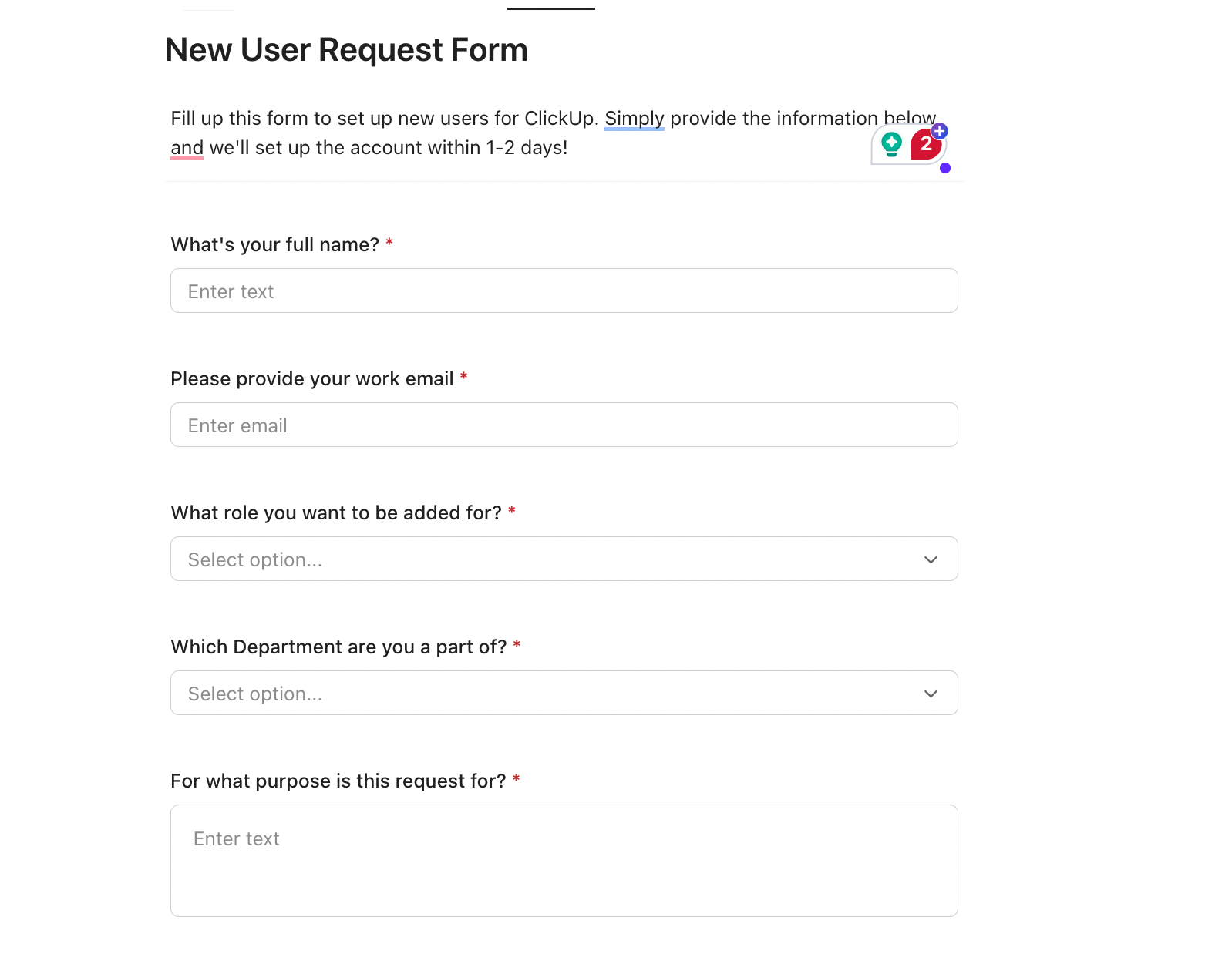
So when you build forms with ClickUp, you’re basically designing how a new task should look:
If you want a quick snapshot on how to create your own intake process with Forms in ClickUp, we have a video for you:
At ClickUp, the world’s first Converged AI Workspace, we use Forms every day.
The way our own teams depend on them shows just how powerful a structured request system can be. Here’s a better look at how different departments inside ClickUp put Forms to work:
Marketing deals with ideas, deadlines, and opinions all day long (talk about project management at scale). That’s why they create customizable forms for the types of work they see every week, like launches, campaigns, content, and design support.
Team members are then able to create detailed, thorough form fields. In other words, marketing hand-picks questions that give them enough form data to understand the ask, estimate effort, and slot it alongside everything else on their plate.
For instance, a typical Marketing Request Form sends tasks into a ‘Marketing Intake’ List and asks for:
When form responses come in:
📮 ClickUp Insight: What’s the ideal solution for dealing with too many tabs? 33% of our survey respondents want an AI that remembers everything and resurfaces it on demand.
Our craving for cognitive offloading at work is evident here: imagine being able to trust a system to hold knowledge so our brains don’t have to. ✨
ClickUp Brain delivers exactly that, letting you capture, store, and recall ideas from anywhere in your workspace or connected apps whenever you need them. It’s your second brain and sounding board!
IT teams are always buried under vague tickets like ‘laptop broken’ or ‘dashboard not working.’
ClickUp Forms help them collect the right diagnostic details upfront so they can triage quickly (minus the endless back-and-forth). Every incident, access ask, or hardware request starts with a structured intake that can be filtered and reported on.
For example, an ‘IT Support or Access Request Form’ might capture:
When that form turns into a task:
⚡ Template Archive: Are your internal or customer-facing service requests taking longer than they should because expectations aren’t clear up front? A well-structured template helps set the right expectations from the start. Check out these curated service request templates to improve clarity and speed up resolution times!
Your human resources teams tackle all sorts of sensitive, cross-functional work that can be lost if it lives in email.
But with Forms, you can intake everything from onboarding to internal moves to time-off questions, all while triggering tasks for IT, Finance, and managers behind the scenes.
For example, a ‘People Ops Request Form’ might include sections for:
When a request is submitted:
🧠 Fun Fact: Netflix once produced a 127-page culture deck so legendary that Facebook’s COO called it ‘the most important document in Silicon Valley.’ It influenced HR policies across the entire tech industry.
Operations teams support everyone else, which means their intake is prone to becoming unstructured down the line.
Forms help convert a broad mix of ad hoc asks into well-defined requests that can be prioritized, scoped, and handed to the right owner.
An Ops or Cross Team Request Form commonly covers:
When these requests arrive through a form:
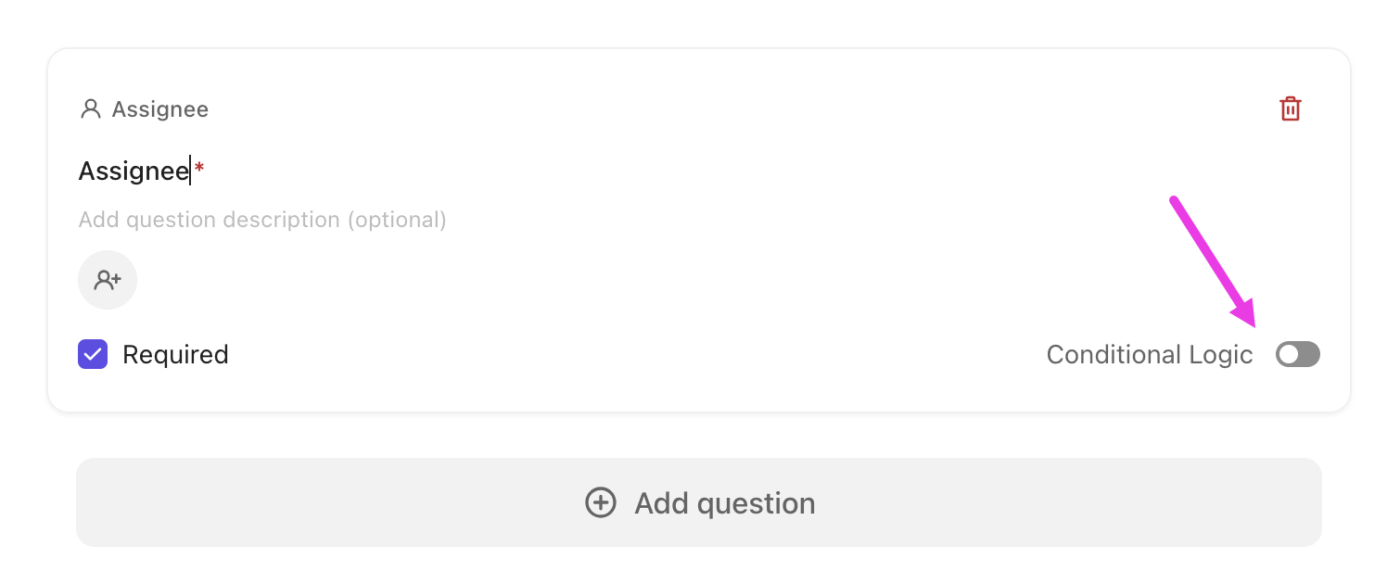
💡 Pro Tip: ClickUp Forms support conditional logic, which means questions appear or disappear based on earlier answers. This prevents people from seeing irrelevant fields and reduces incomplete or low-quality submissions.

For example:
To set it up:
👉 Conditional logic is especially powerful for shared intake forms that serve multiple request types across teams.
Here’s how to set up an internal request form in ClickUp 👇
Before you even open ClickUp, have a clear idea of what your internal request form should accomplish.
Define the purpose of your form. Ask yourself:
ClickUp Whiteboards and ClickUp Mind Maps can be handy for mapping out each aspect of these processes and steps.

Next, what is the exact information you need every requester to provide?
Skip this step, and you’ll end up editing the form multiple times later
Time to start building the form!
Head to the Space, Folder, or List where you want incoming requests to appear. This is important because every form is tied to a specific location. Each submission becomes a task in that exact spot.

Once you’re inside that location, you can add the form:
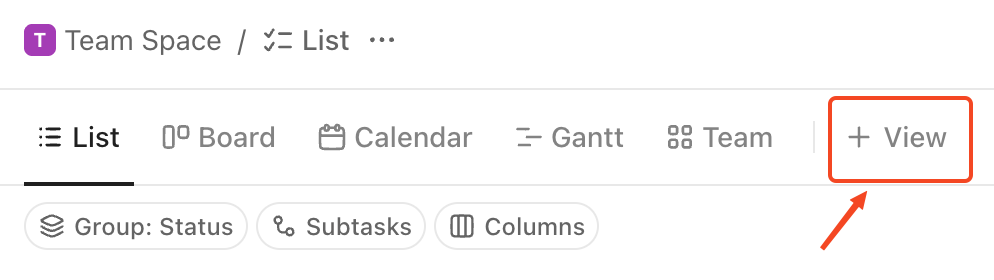
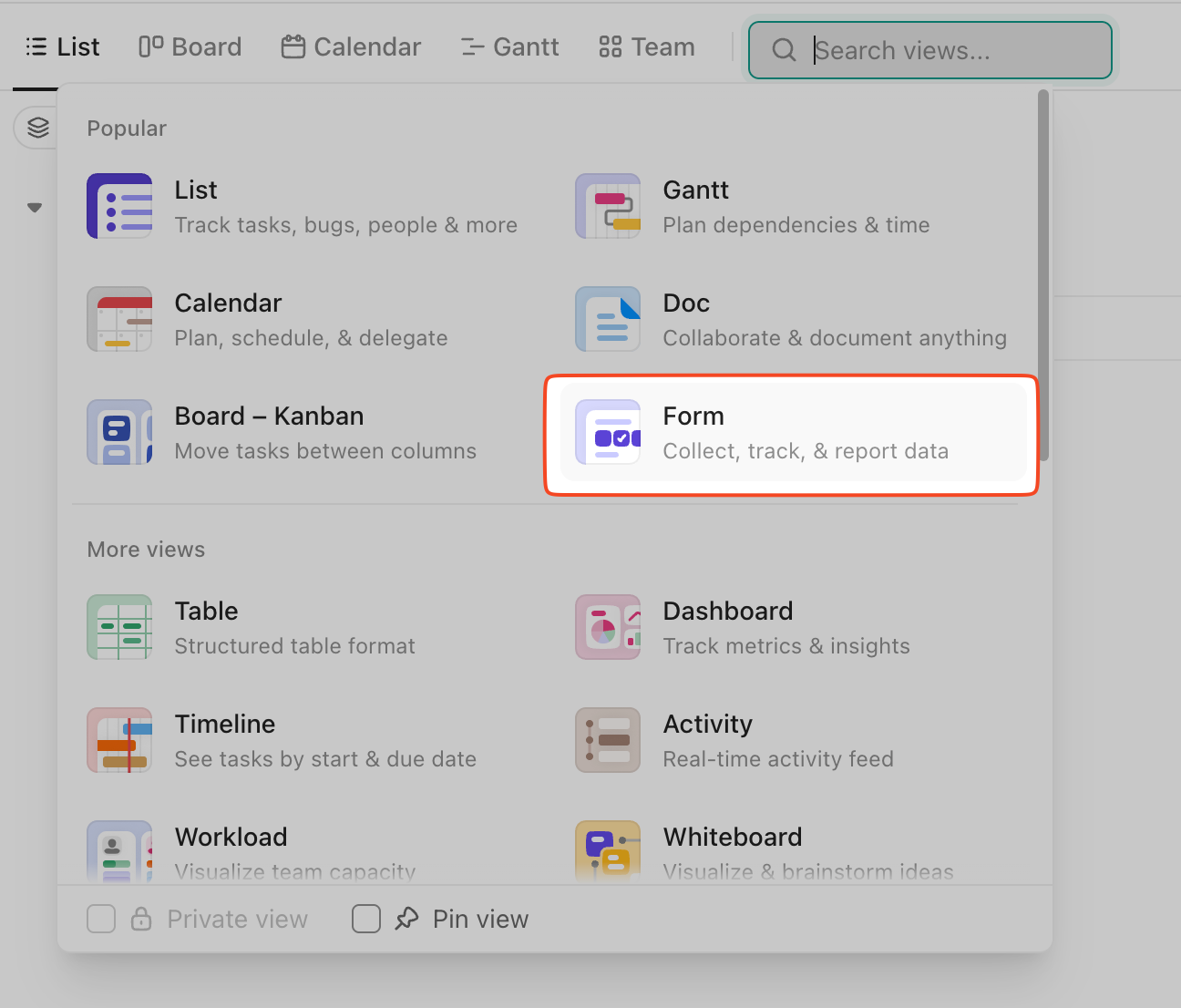
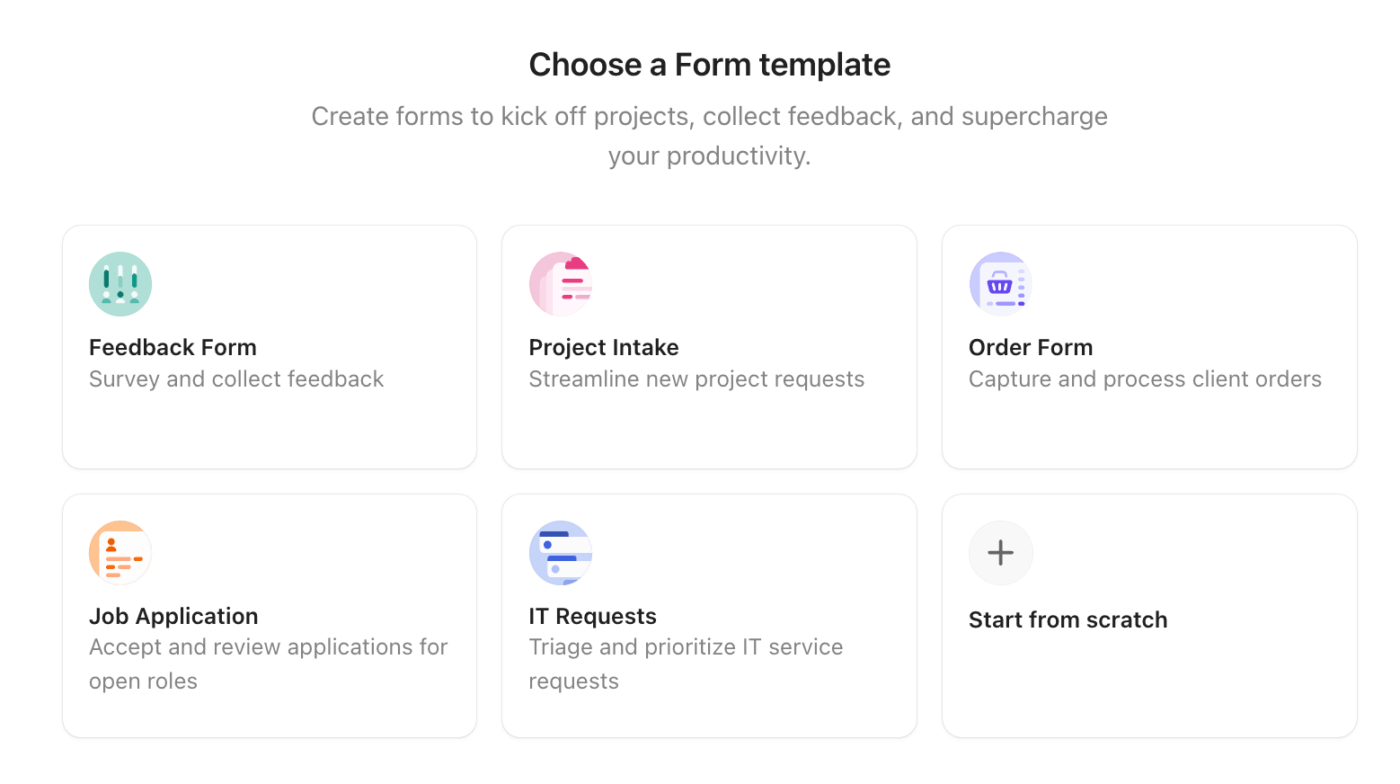
⚡ Template Archive: Looking to save hours on your intake setup? Take a look at these intake form templates curated just for you, each one built to handle everything from IT incidents to marketing briefs and operations requests.
In the Form, decide what information people will fill out and how the form will flow.
Begin by giving it a title and a short description. From there, just drag in the fields you need. ClickUp gives you a variety of options (text inputs, dropdown lists, dates, attachments, checkboxes, and more) so you can mirror exactly what your workflow requires.
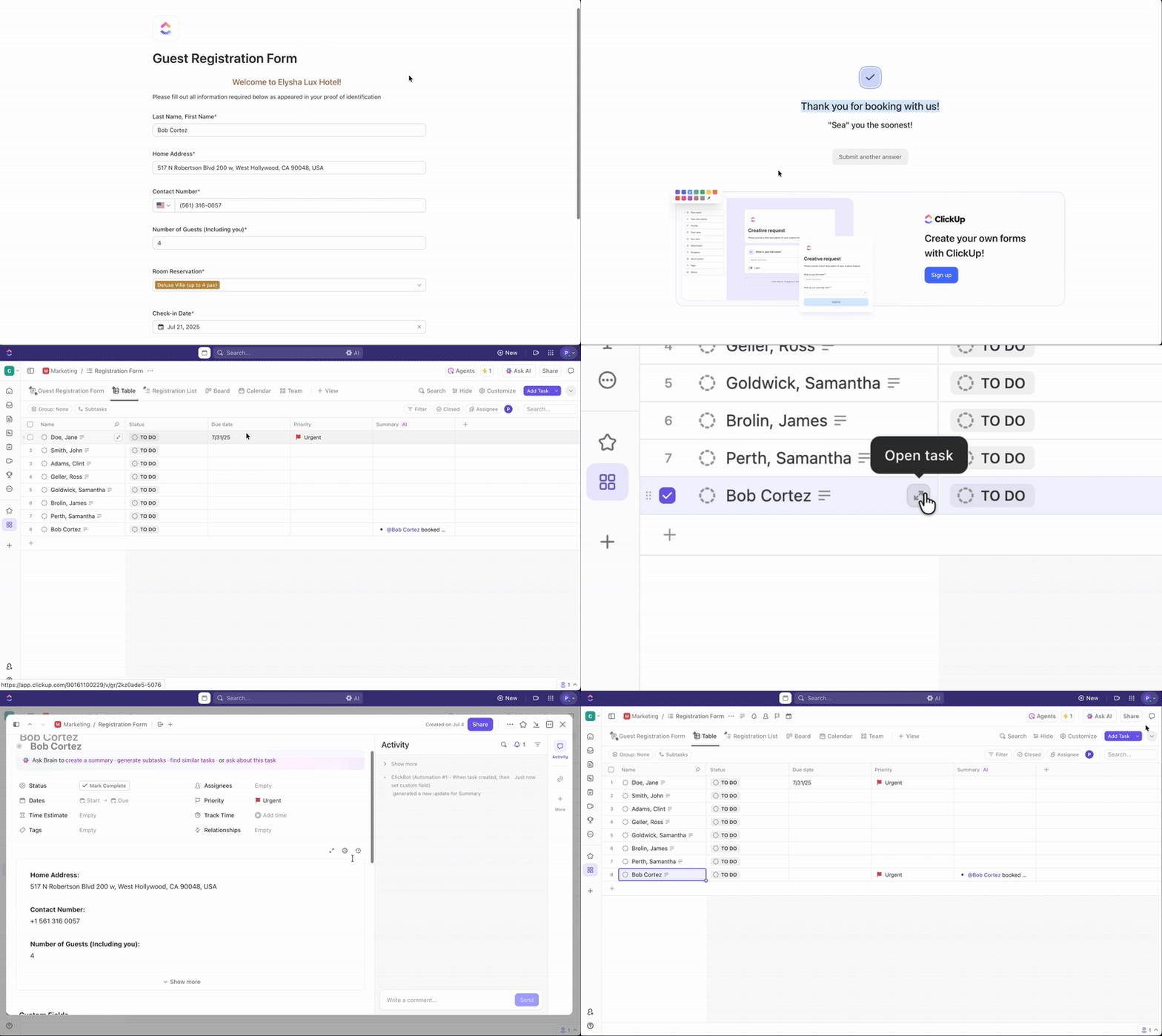
Here are a couple of areas you should focus on 👇

Beyond this, you can also add more questions to customize the form as you like.
🧠 Fun Fact: In the 1800s, people folded letters in such intricate ways to avoid tampering that historians today call it letter-locking. Some methods are so complex that museums treat them like paper puzzles.
The next step is making sure every submission lands exactly where it should (and, of course, behaves the way your team needs it to).
Start by opening the Settings panel on the right side of your Form view and: ⬇️
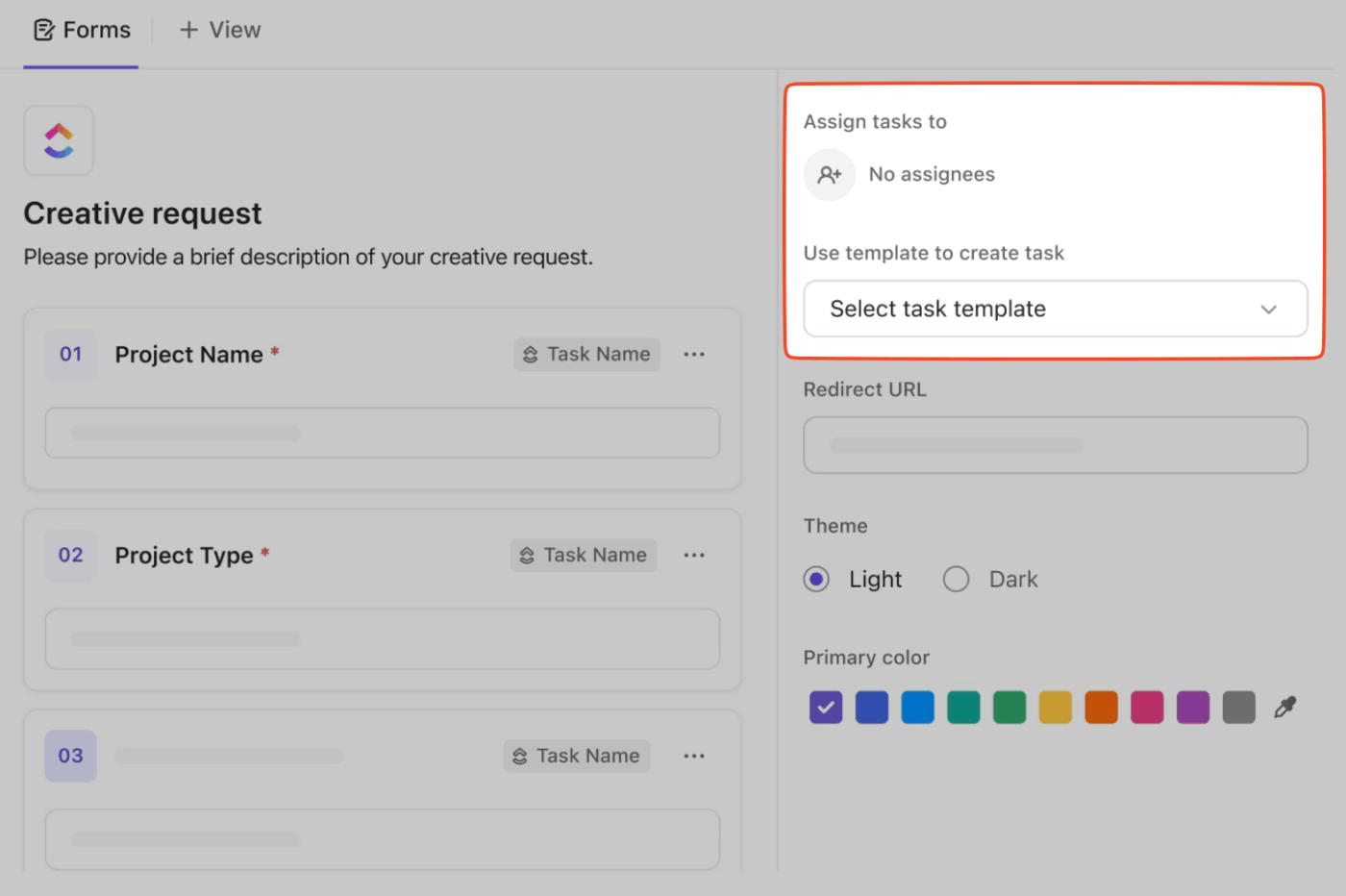
Want inspiration for building more automated processes? Check out these AI workflow automation use cases.
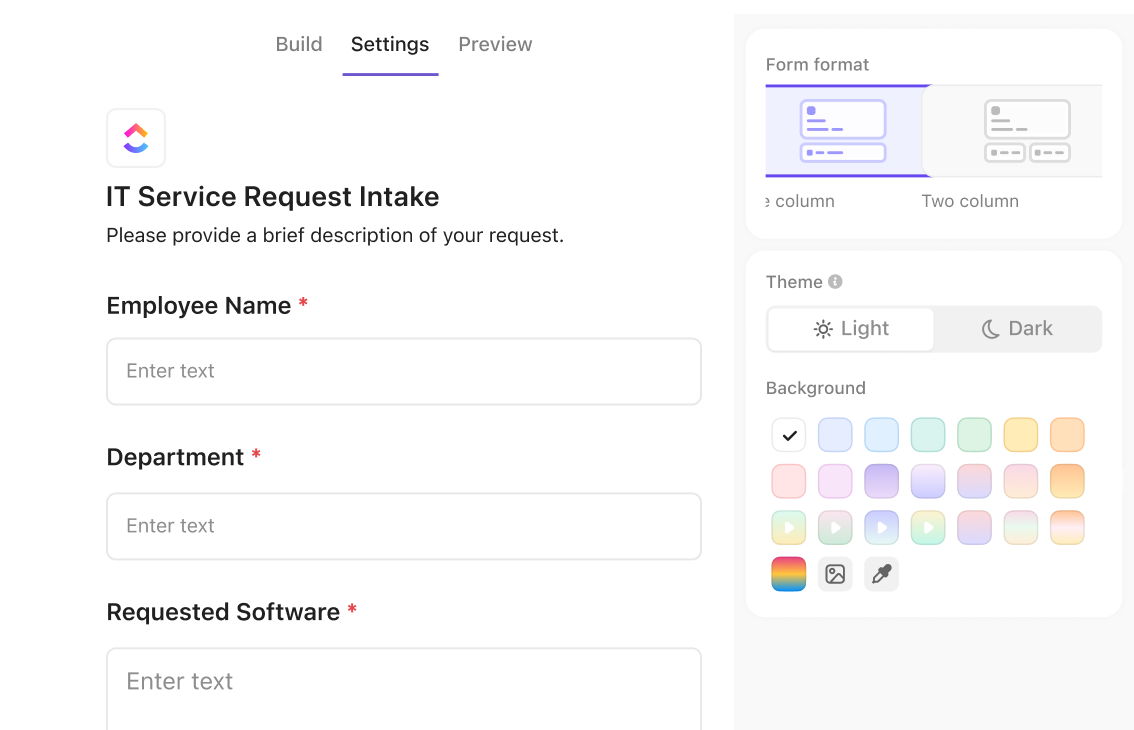
Your form deserves a little glow-up before it goes out to people from your team or department. Inside the Design tab, tweak the look and feel so the form feels like your team’s own space.
You can:
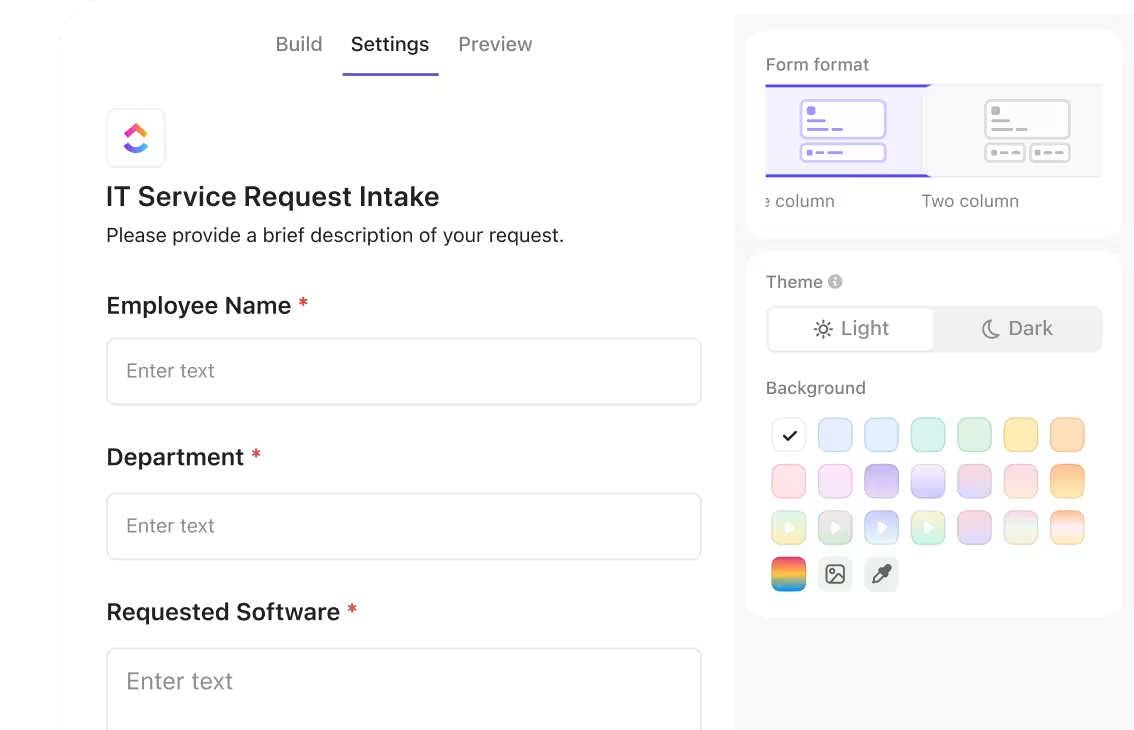
…and more.
🤯 Did You Know? ClickUp now supports over 4 million teams, and while new Workspaces continue to grow, AI use is skyrocketing too. More than 2 million Workspaces are currently using AI, up from just 665,000 last year!
And this is the best (and simplest) part! Just share your ClickUp Form with your team in:
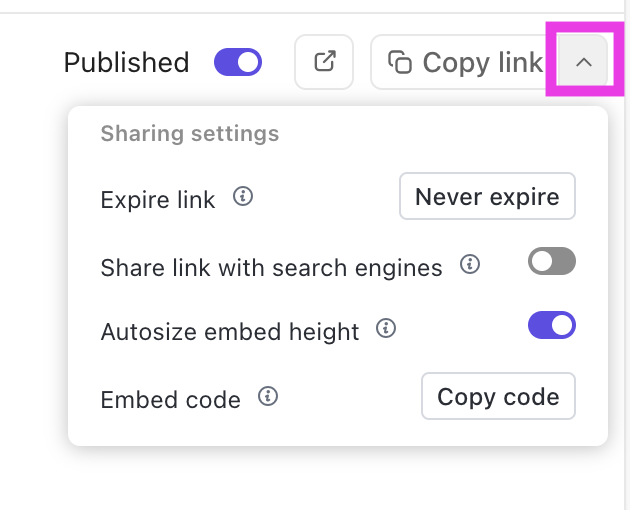
That’s it! You just standardized all your internal requests.
But capturing requests is only half the story. What happens next is usually where things fall apart. Once the tasks start rolling in, most teams slip right back into the mess that slows everyone down. You know the drill:
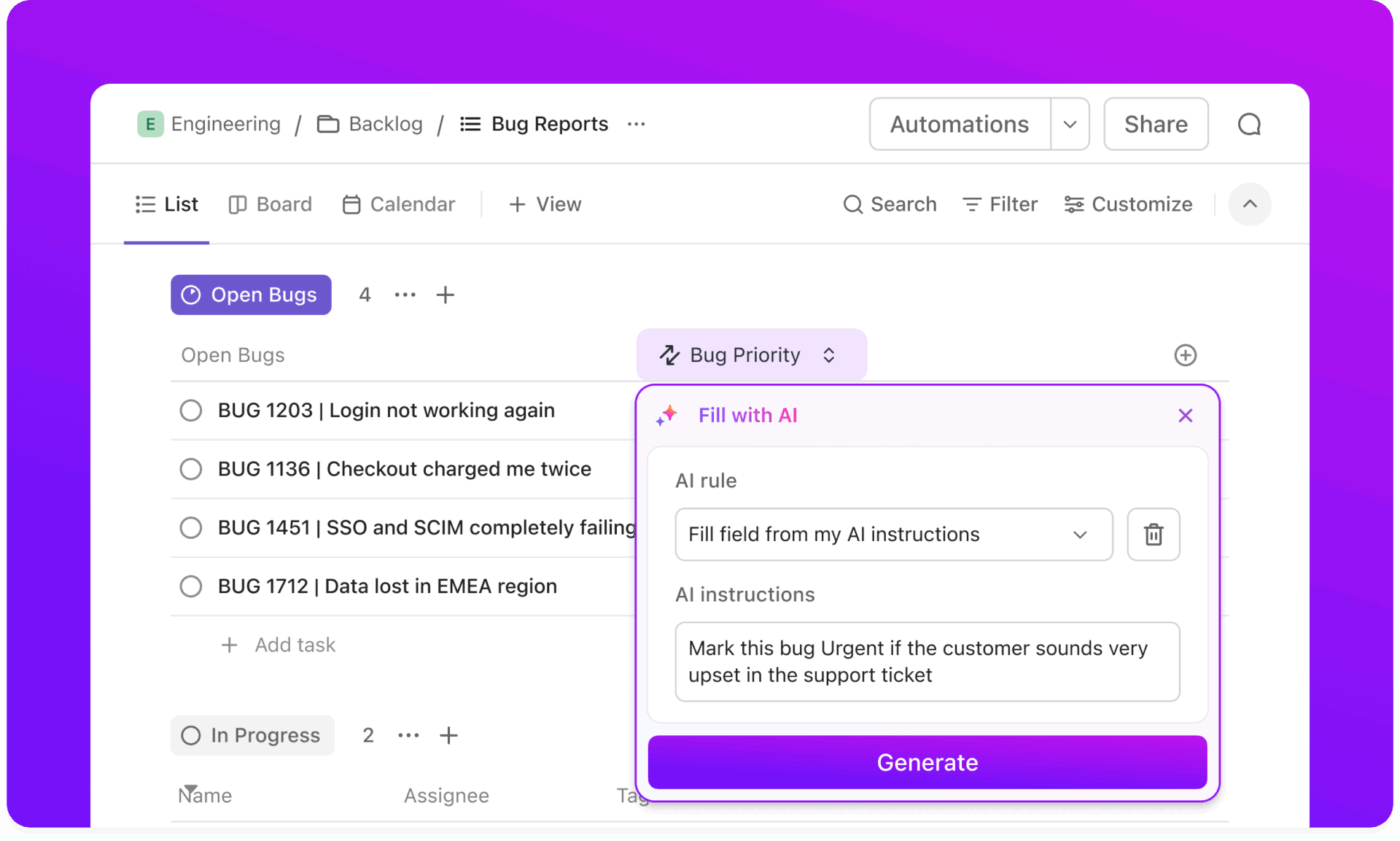
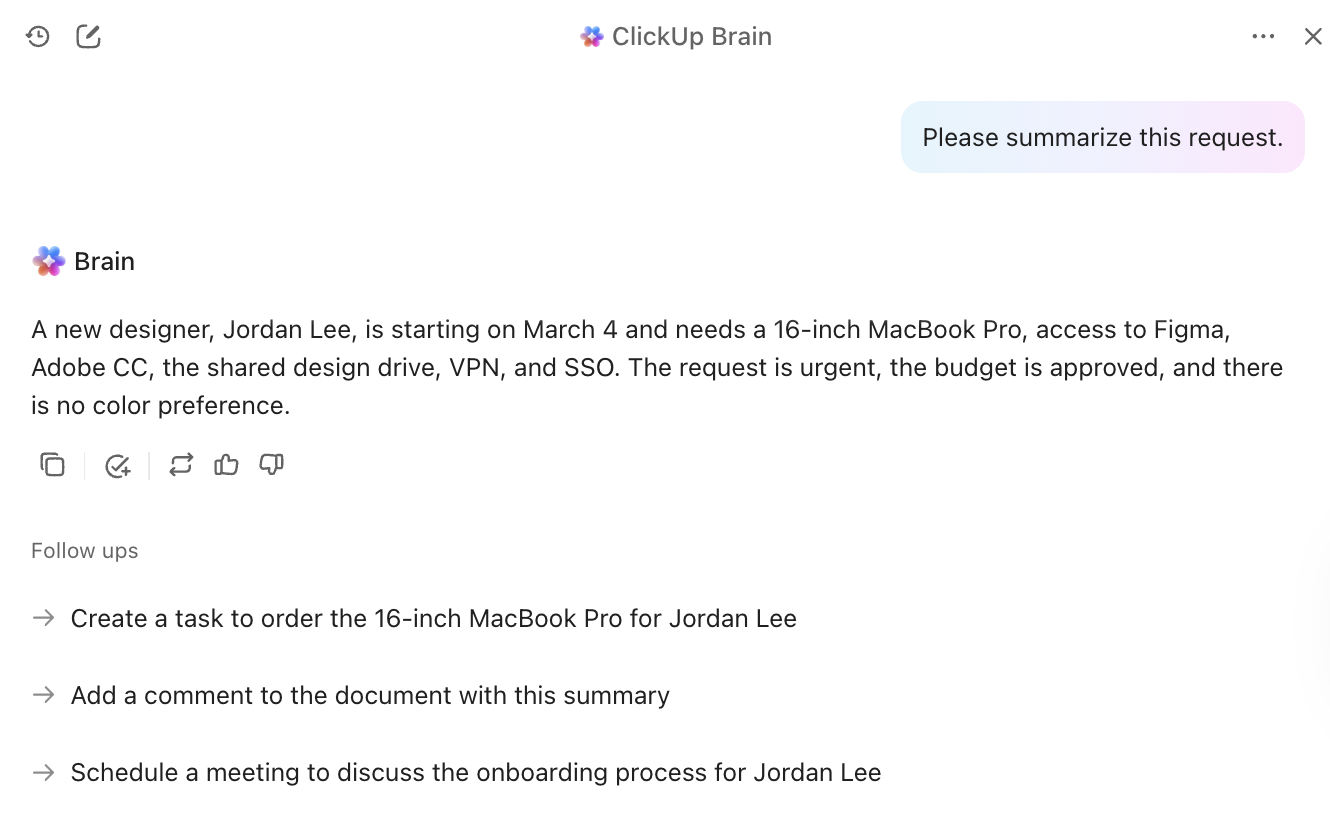
This is classic work and context sprawl. But all hail ClickUp Brain, the work AI meant to eliminate the chaos you go through every day.
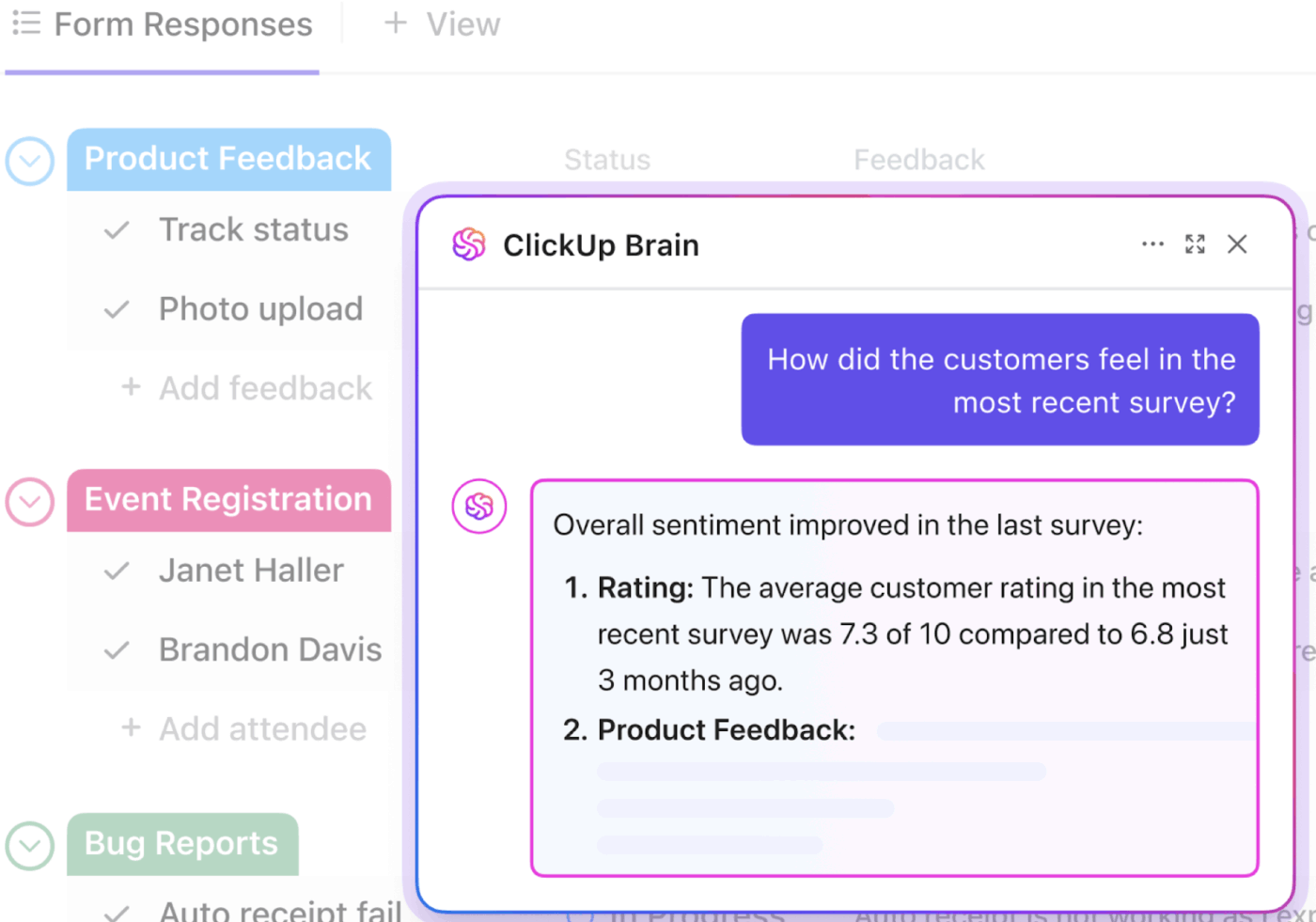
Here’s how it makes your request system magically seamless:
📚 Read More: Top AI Form Builders
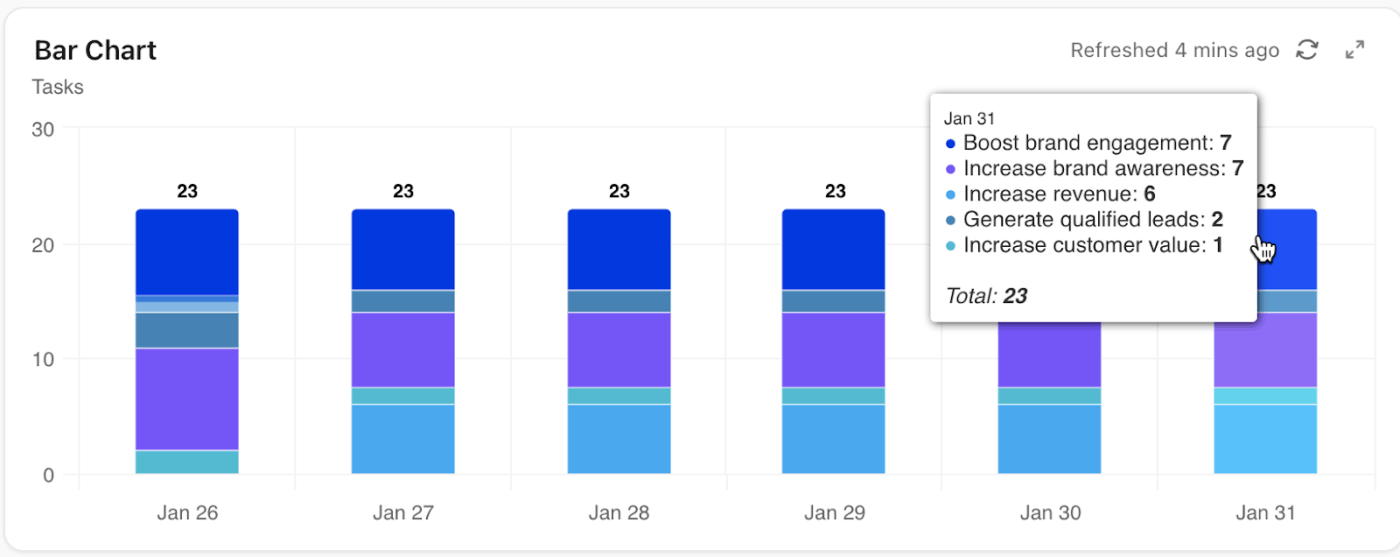
Dashboards let you visualize intake data, enabling you to make faster decisions and spot patterns without manual reporting.
With this feature addon, ClickUp Dashboards surface the most important metrics and trends in real time.
Here’s how this helps you level up internal requests:
Here’s why standardizing requests through ClickUp Forms makes such a noticeable impact:
If people are still dropping requests into random chats, partial emails, and hallway conversations, the problem is not your team. The problem is that there is no single, reliable way to ask for help.
ClickUp Forms fixes that by giving everyone the same simple front door to submit requests.
Every request follows the same structure, asks the right questions, and lands in the right List as a task your team can actually act on. Custom Fields, conditional questions, and automations ensure IT, HR, design, and ops get the details they need.
Sign up for ClickUp today and turn your internal requests into a system your whole team can trust. ✅
Yes. You can easily send automatic notifications to Slack or email whenever a new form submission comes in. This is especially helpful for specific team members who need to jump on internal requests quickly. Many teams will share ClickUp Forms in Slack, then use ClickUp Automations to push new submissions directly into the right channels.
ClickUp protects all form submissions with enterprise-grade security, encryption, and permission controls. You decide who can collect data, who can view submissions, and where tasks are created. Access is role-based, and sensitive information can be locked down to cross-functional teams or individuals as needed. Even better, the Workspaces, Lists, and Views that store form data inherit the same security standards used across the entire platform.
Additionally, when you activate Account Authenticated Forms settings, only people who have joined your Workspace can view and submit Forms.
Absolutely. Many companies build customizable forms that serve multiple teams by using ClickUp Custom Fields and conditional logic. For example, marketing, IT, and HR can all receive requests from one unified form, and ClickUp rules will route each submission to the correct List or actionable tasks for that team. This is ideal for shared service desks or new hire onboarding.
ClickUp’s drag-and-drop interface makes it easy to add Custom Fields like priority, request type, or department. Once these fields exist, you can use Automations to instantly categorize or prioritize new tasks the moment they come in. For example, ‘Urgent’ requests can be auto-assigned to a lead, while IT issues can land in a dedicated queue.
Yes. ClickUp Brain, a.k.a. ClickUp AI, can summarize long or unclear form submissions, highlight missing details, and help route work to the right owner. Because it understands context, it can turn raw submissions into actionable tasks immediately.

© 2026 ClickUp

There’s an easier way. Try a free AI Agent in ClickUp that actually does the work for you—set up in minutes, save hours every week.