






Still downloading templates?
There’s an easier way. Try a free AI Agent in ClickUp that actually does the work for you—set up in minutes, save hours every week.
Sorry, there were no results found for “”
Sorry, there were no results found for “”
Sorry, there were no results found for “”
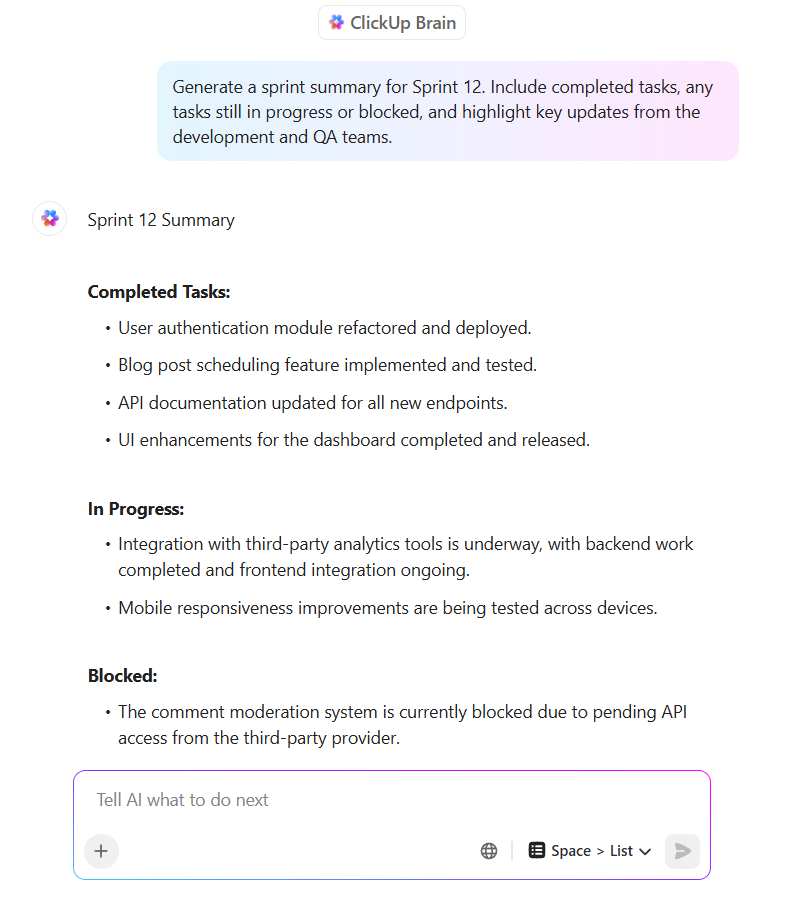
Most AI tools give you text outputs that you then have to manually copy, paste, and reformat into other apps. This workflow tax kills momentum and creates context sprawl.
Teams waste hours searching, switching, and repeating updates across multiple platforms due to fragmented information across disconnected apps. In fact, 70% of employees face this problem at least monthly.
In this blog post, we’ll explore how to use Claude Artifacts to generate interactive, rendered outputs like dashboards, code, and diagrams right inside your AI conversation.
As a bonus for you, we’ll also look at how you can bridge the gap between AI-generated prototypes and work execution using ClickUp, the world’s first Converged AI Workspace! 🤩
Claude Artifacts are interactive, editable content windows in Anthropic’s Claude AI interface, displaying self-contained outputs like code, documents, or diagrams separately from the main chat.
When you prompt an AI for code or a structured document, it often gives you a wall of plain text. Now you’re stuck with copying, pasting, and reformatting it in another application, completely breaking your creative momentum. This context switching is a major workflow killer, with 48% of employees saying their work feels chaotic and fragmented because of it.
Claude Artifacts is designed to solve this by displaying artifacts in a dedicated window to the right of the main chat, creating a split-screen or side-panel view. This setup allows real-time iteration: prompt refinements update the artifact directly in its window, maintaining workflow momentum without copying or external tools.
You can use this generative AI workspace to create several types of AI-generated content:
🤝 Friendly Reminder: These AI artifacts are session-based, which means that they’ll live within your current conversation. If you want to save your work permanently, you’ll have to export or publish it.
📮 ClickUp Insight: Context-switching is silently eating away at your team’s productivity. Our research shows that 42% of disruptions at work come from juggling platforms, managing emails, and jumping between meetings. What if you could eliminate these costly interruptions?
ClickUp unites your workflows (and chat) under a single, streamlined platform. Launch and manage your tasks from across chat, docs, whiteboards, and more, while AI-powered features keep the context connected, searchable, and manageable!
Claude Artifacts automatically generates standalone, editable previews for self-contained content like code snippets, diagrams, HTML pages, or documents during chats. It’s off by default but easy to enable on free, Pro, or Team plans.
Let’s understand how you can create an Artifact to maximize productivity with Claude:
Step #1: Log into your Claude account on the web or desktop app and open a new chat window
Step #2: Click on your profile icon (your avatar or initials) in the bottom-left corner of the screen to open the side menu
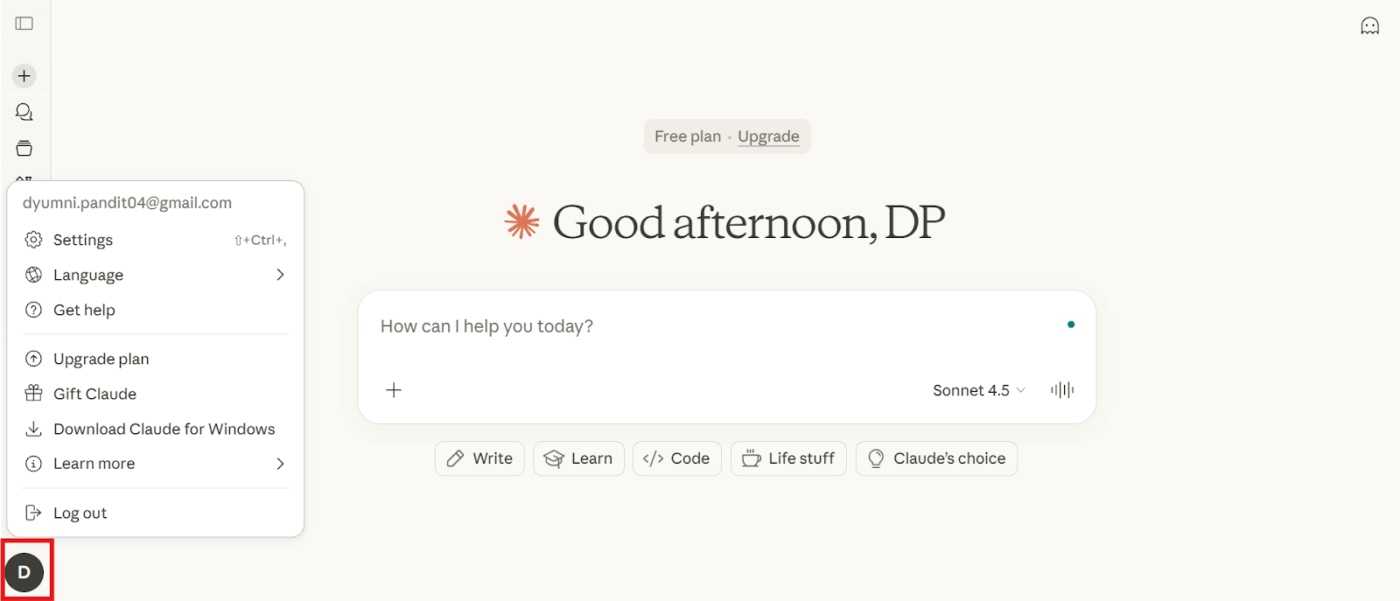
Step #3: Select Settings from the menu options and scroll down to the Capabilities section
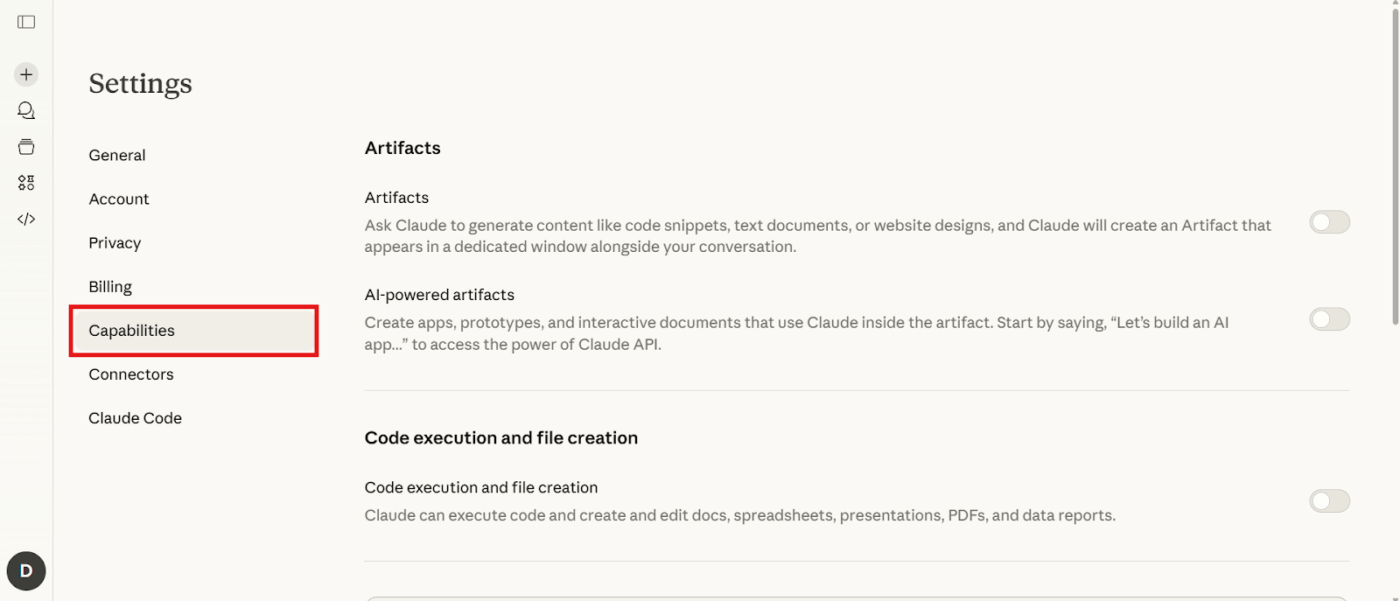
Step #4: Switch on the toggle for Artifacts, which is often represented by a water drop icon or simply labeled by the tag
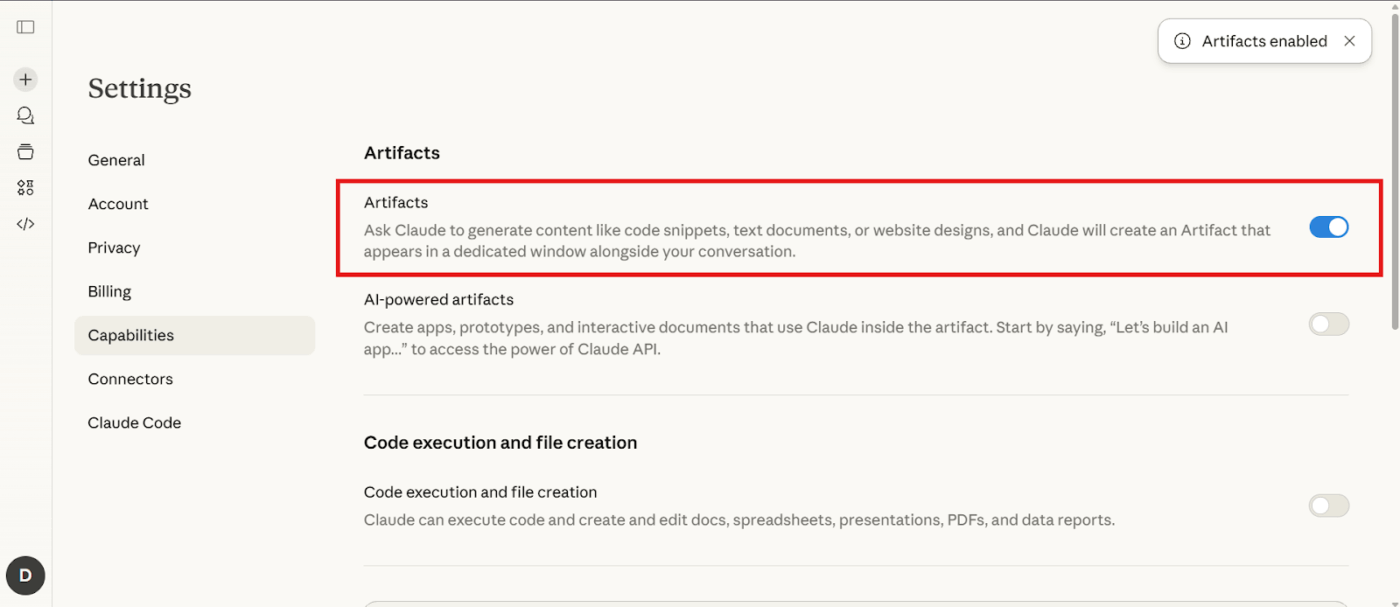
Step #5: Refresh the page or start a new conversation to activate the feature
This feature is available on both free and paid Claude plans. While your plan might affect message limits, the ability to create Artifacts isn’t restricted to a specific tier.
🧠 Fun Fact: When ‘What You See Is What You Get’ editors emerged in the 1970s-80s, they fundamentally shifted how people wrote and designed. Users no longer had to imagine the output. Claude Artifacts follow the same philosophy: you don’t just describe work – you see and shape it live.
📖 Also Read: How to Use Claude Projects (Features, Use Cases, Limitations)
Let’s walk through how to create an Artifact from scratch, how Claude decides when to use one, and how to edit it without losing context or control. 👇
You don’t need to learn any special commands to get started. Artifacts are generated automatically whenever Claude determines that your request would be better as a visual or interactive output. Just ask for what you want in natural language.
Create an artifact using a clear, specific prompt to define what you want to build
For example, you could try Claude AI prompts like these:
If Claude responds with text instead of a rendered output, you can simply add ‘Create this as an artifact’ or ‘Show me a live preview of this’ to your prompt to trigger the feature.
🧠 Fun Fact: The word ‘artifact’ comes from the Latin arte factum, meaning ‘something made by skill.’ When it entered English in the mid-1600s, it referred to any object made by human hands, not specifically tools for preserving knowledge.
Once your artifact appears in the split view, you don’t have to start from scratch to make changes. You can refine it conversationally, and it’ll update in place. This is helpful because the AI retains the context of your entire conversation so you won’t waste your time re-explaining your goals with every iteration.
Edit and iterate directly within the artifact, refining content, structure, or logic as your work evolves
You have a few ways to edit your work:
🚀 ClickUp Advantage: Make your documentation an active part of your workflow with ClickUp Docs. Your team can collaborate in real time, link documents directly to ClickUp Tasks, and convert text into action items without switching tools.
For instance, you’ve created a project requirements artifact using Claude with detailed specs for sections for deliverables, timelines, and roles.
Instead of leaving that artifact isolated, you can embed it into a ClickUp Doc and immediately assign tasks to team members based on the sections (e.g., ‘Frontend UI’, ‘QA Testing’, ‘Launch Readiness’) straight from the document. Comments and @mentions keep feedback in line, while embedded views or tables from ClickUp show live progress without leaving the doc.
When you’re ready to move your work out of Claude, access the underlying code using the code viewer that lets you toggle between the rendered preview and the raw code. This is perfect for developers who need to integrate the output into their projects.
Review the final output, make any last adjustments, and export your files when the artifact is ready to share or use
You have several options for exporting:
The exported code is yours to use without any special licensing restrictions, making it easy to incorporate into any project.
🧠 Fun Fact: Ai-Da, a humanoid robot artist, can actually draw, paint, and generate poetry using AI and cameras in her eyes, producing artwork that humans have exhibited globally. She’s named after Ada Lovelace, honoring the early pioneer of computing, yet her creations mix machine logic with strangely human-like artistic flair.
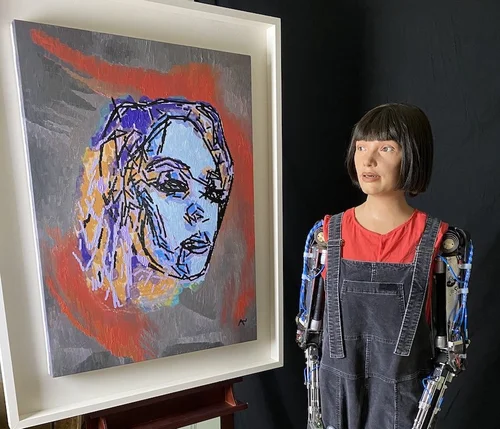
Showing a prototype to your team for feedback can be clunky when screenshots feel static, and copy-pasting code into an email is messy. This handoff process prevents your team from interacting with your creation, losing the ‘wow’ factor of the live preview.
The publish button solves this by creating a shareable link to a live version of your artifact. Here’s how to get to it:
Step #1: Click the Publish button located on your artifact and Claude will generate a unique, shareable link
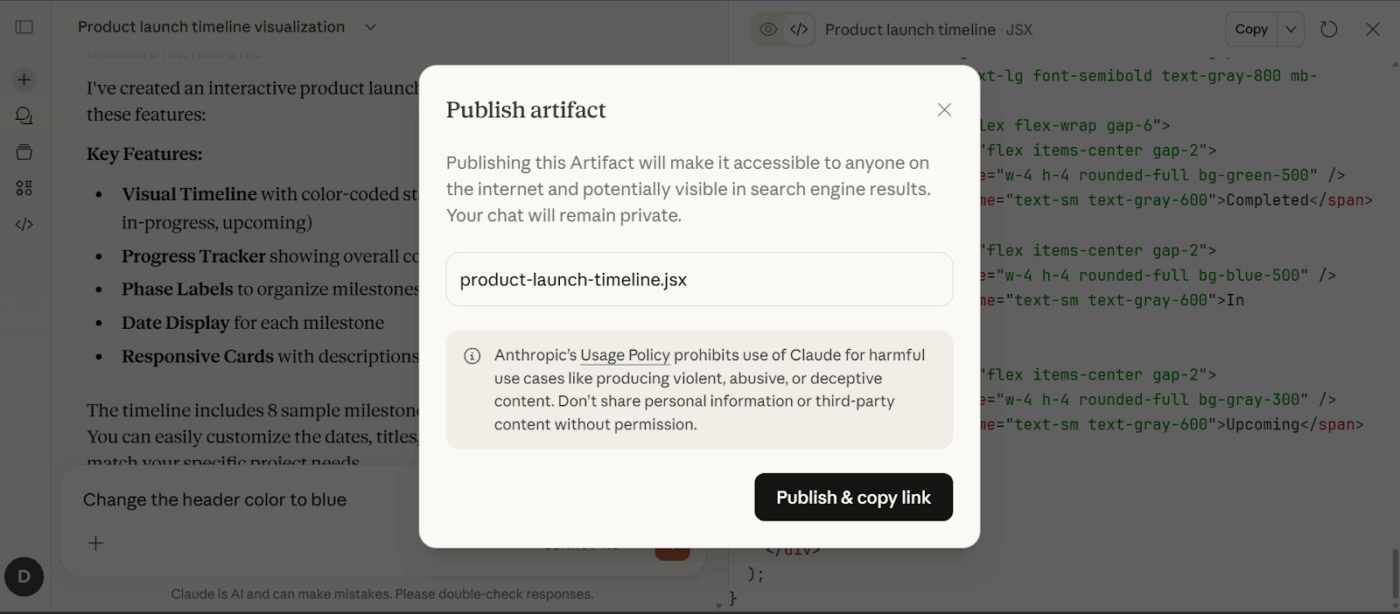
Step #2: Send this link to your team. The best part is that they won’t need a Claude account to view it
It’s also helpful to understand the difference between sharing and publishing. Sharing happens within your Claude workspace, while publishing creates a public link for anyone to see. Viewers of a published artifact can also ‘remix’ it, which creates a personal copy they can modify without affecting your original. If you ever need to revoke access, you can simply unpublish the artifact.
💡 Pro Tip: Before publishing, take a moment to review the artifact for sensitive information such as internal strategy, client details, financial data, or proprietary processes. Treat published artifacts the same way you would a public document or blog post.
Teams are finding creative ways to use Claude AI Artifacts to speed up their work and collaborate better. Here are some of the most popular use cases we’re seeing.
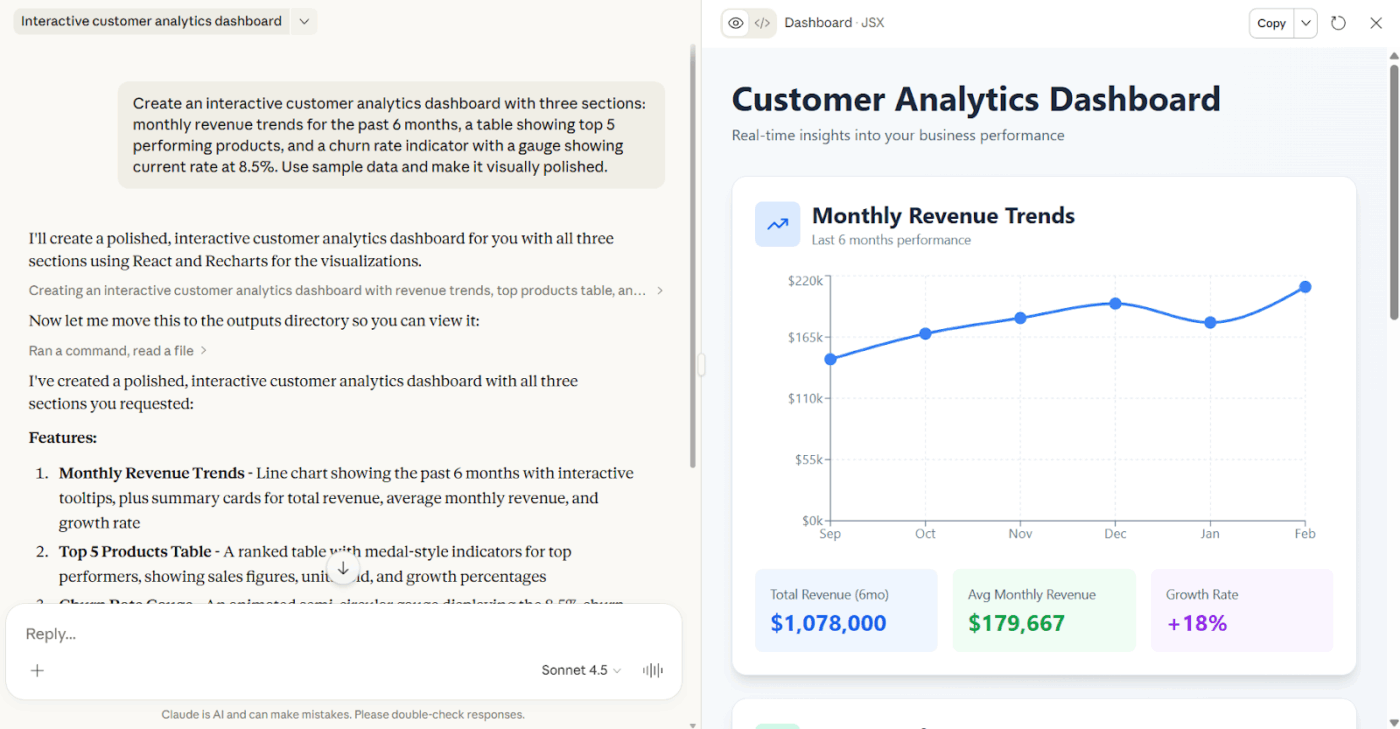
Product and design teams use Artifacts to create interactive prototypes without writing production code. Instead of static wireframes, you get working interfaces you can click through and test with stakeholders before committing engineering resources.
📌 Example: Say you need to test a new dashboard concept before your next product review. You describe what you want to see, and within minutes you have a working prototype with interactive charts and filters that stakeholders can actually click through.
🚀 ClickUp Advantage: Build your prototypes directly in ClickUp Whiteboards with drag-and-drop components, embed them in Docs alongside specs and requirements, and collect stakeholder feedback with inline comments and proofing tools—all in one workspace.
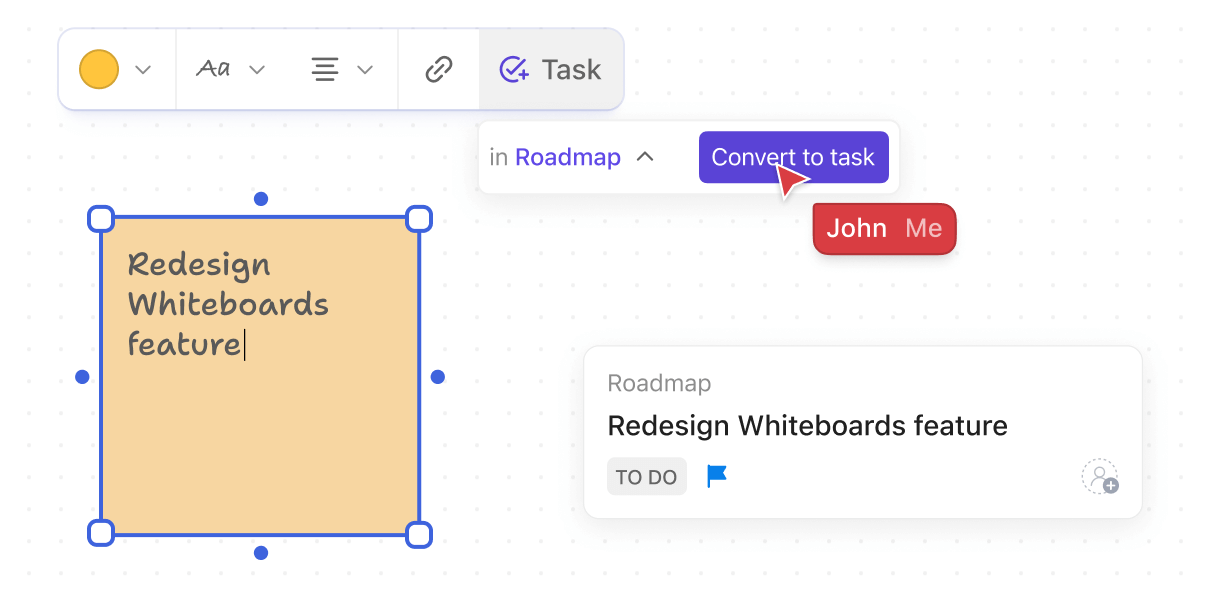
For example, say you’re designing a new analytics dashboard. Instead of building it in Claude and sharing a link that gets buried, you create the mockup in a ClickUp Whiteboard using pre-built chart and table components. Embed it directly into your Dashboard Redesign Doc next to your user research and technical specs.
When your PM wants to move the filters to the sidebar, they drop a comment directly on that section. When your engineer needs clarification on the data source, they reply in the same thread. Come sprint planning, everything lives in one place: the approved prototype, all feedback resolved, specs finalized, ready to build.
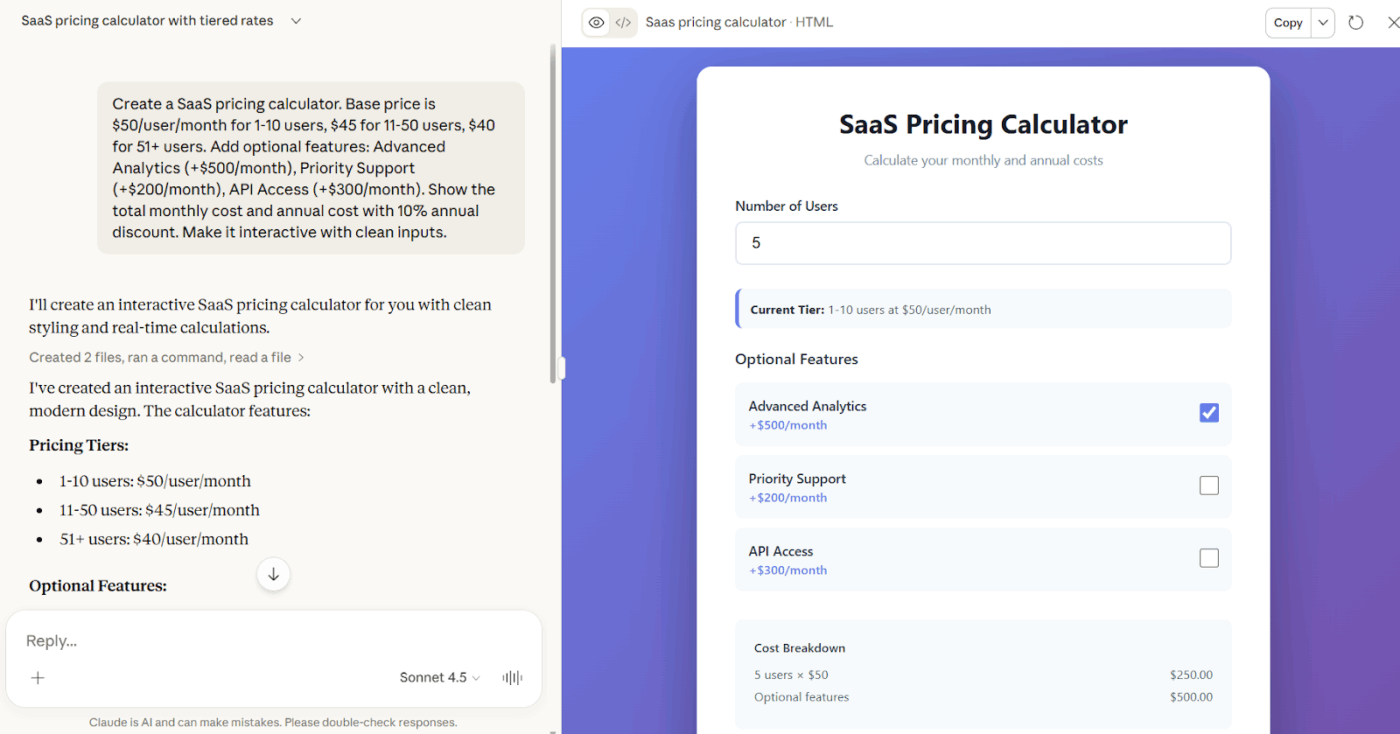
Teams build custom calculators and tools for repetitive tasks that don’t justify a full development project. These tools handle specific business logic and can be updated instantly when requirements change.
📌 Example: You’re tired of maintaining a messy spreadsheet for pricing quotes. You need a calculator where you input customer requirements and instantly see the breakdown with your tiered pricing, volume discounts, and add-ons all factored in.
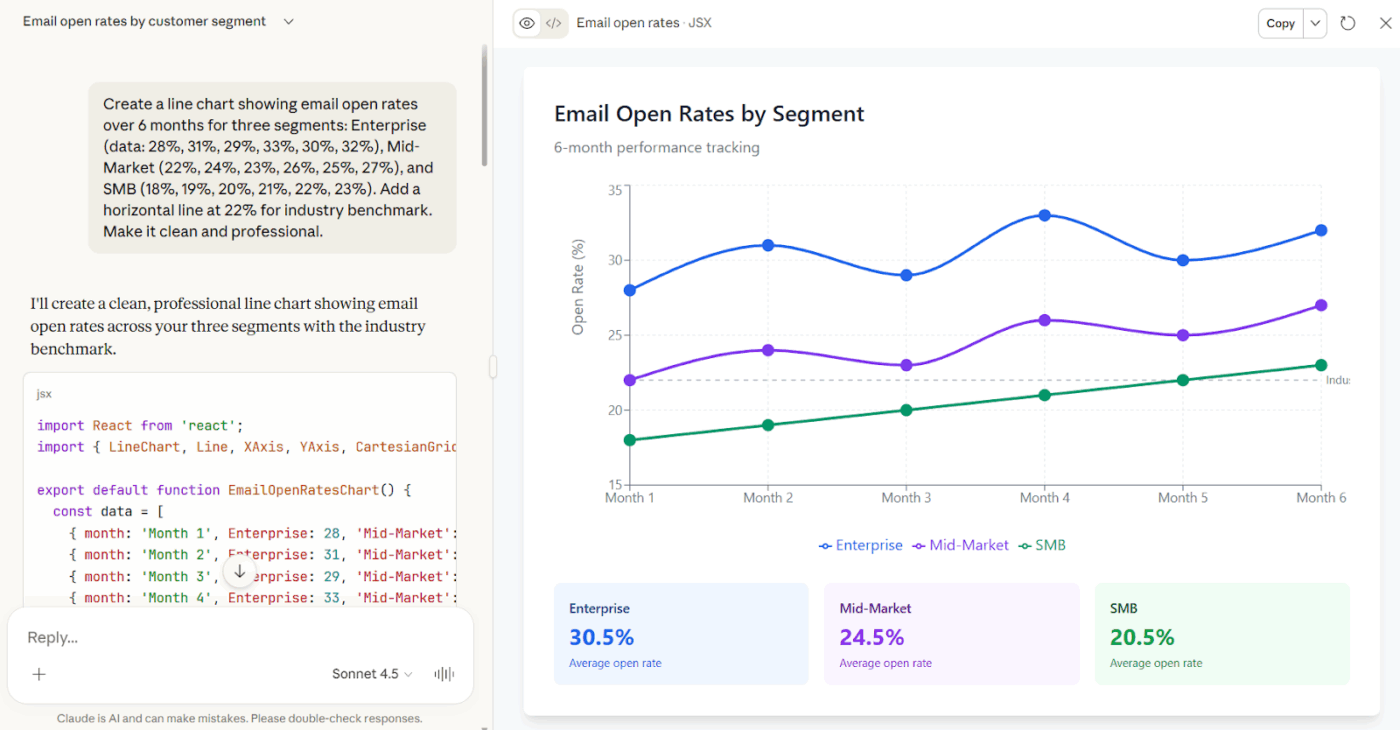
Teams upload their data and get custom visualizations without waiting for analysts or learning visualization tools. You can create charts tailored to your exact needs, complete with benchmarks, trend lines, or specific comparisons.
📌 Example: You need to show how your email campaigns performed across different customer segments. Upload your CSV, ask for the specific view you want with your benchmark included, and get a chart you can drop straight into your presentation.
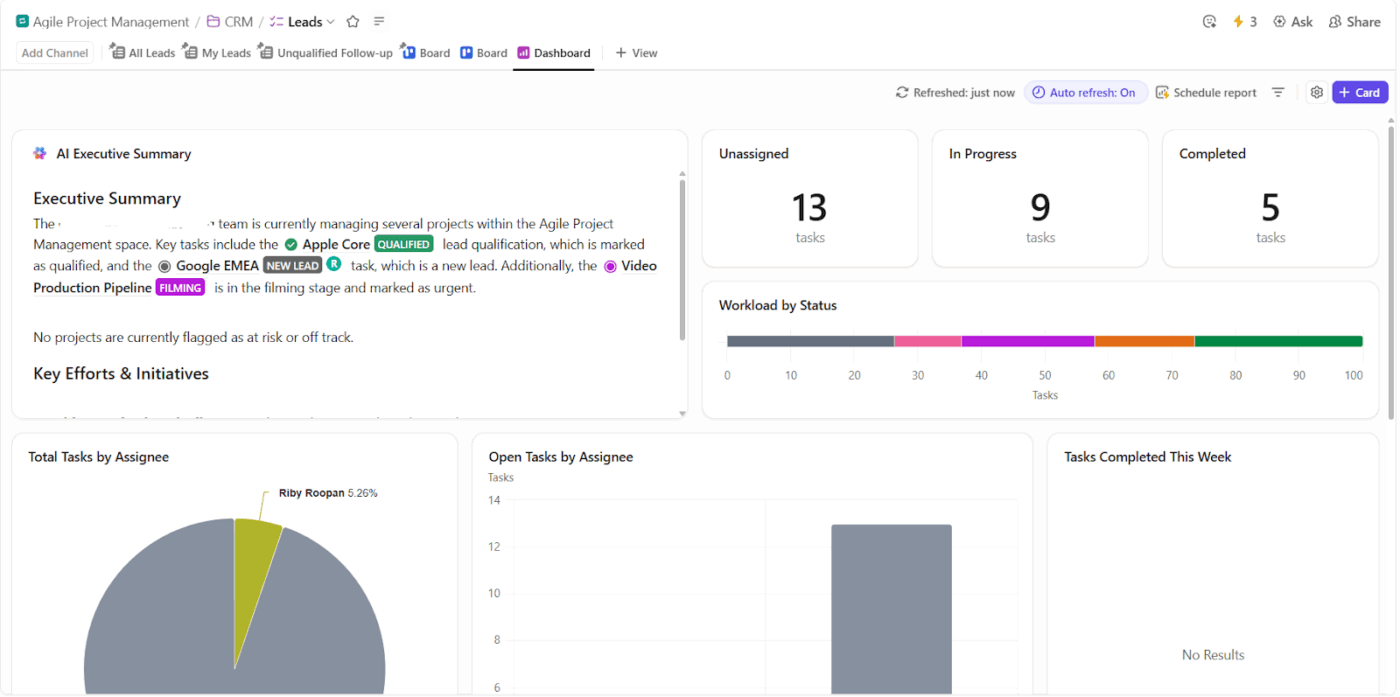
💡 Pro Tip: Ditch the static mockups entirely. Use ClickUp Dashboards for live data visualization that updates in real time. While Claude Artifacts force you to regenerate charts every time your data changes, ClickUp pulls directly from your tasks, sprints, and custom fields to show actual progress.
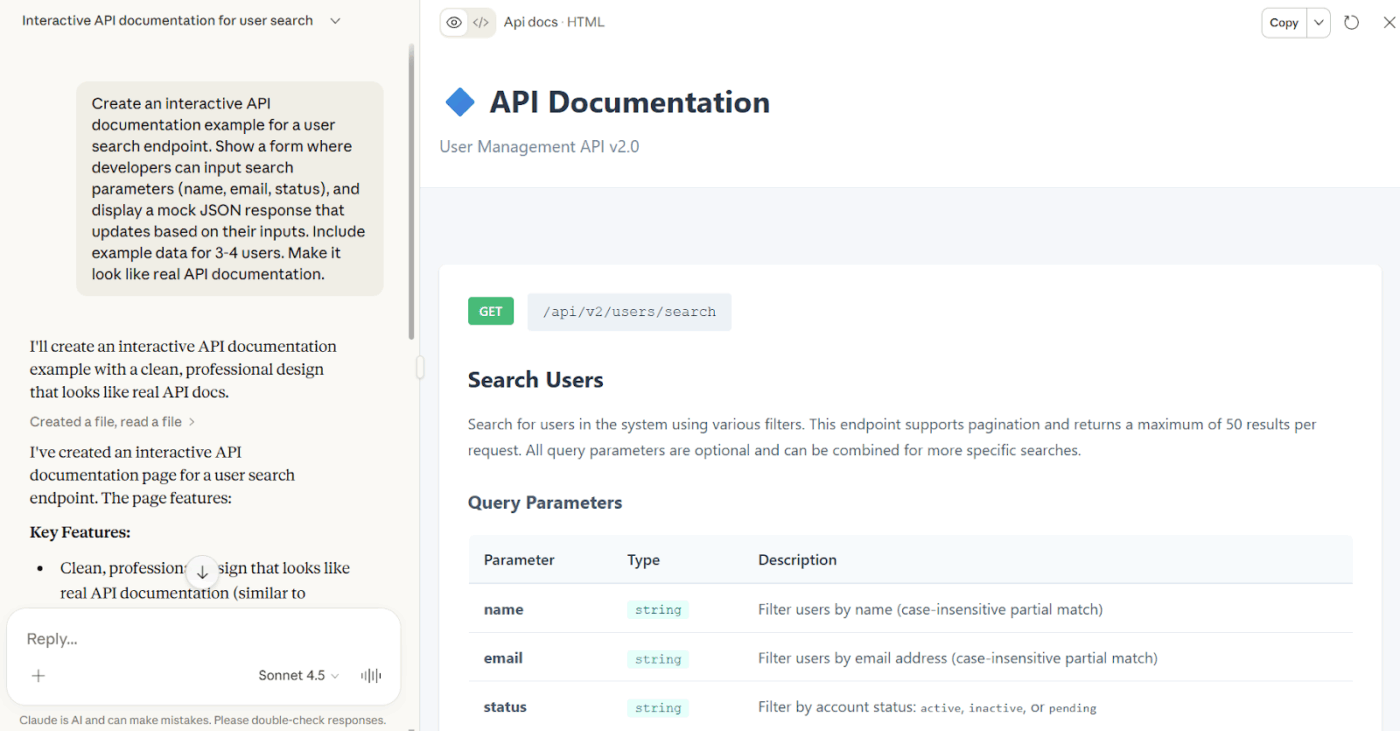
Technical teams create live code examples that people can actually run and modify. Instead of static documentation that goes stale, you get interactive examples where users learn by experimenting with real parameters.
📌 Example: You’re onboarding new developers and want them to understand your API without reading walls of text. You need live examples where they can change parameters and see the response update instantly.
🔍 Did You Know? A survey found that around 9 in 10 Americans use AI on their smartphones, even though only about 38% realize it’s AI powering features like autocorrect, call screening, and camera modes.
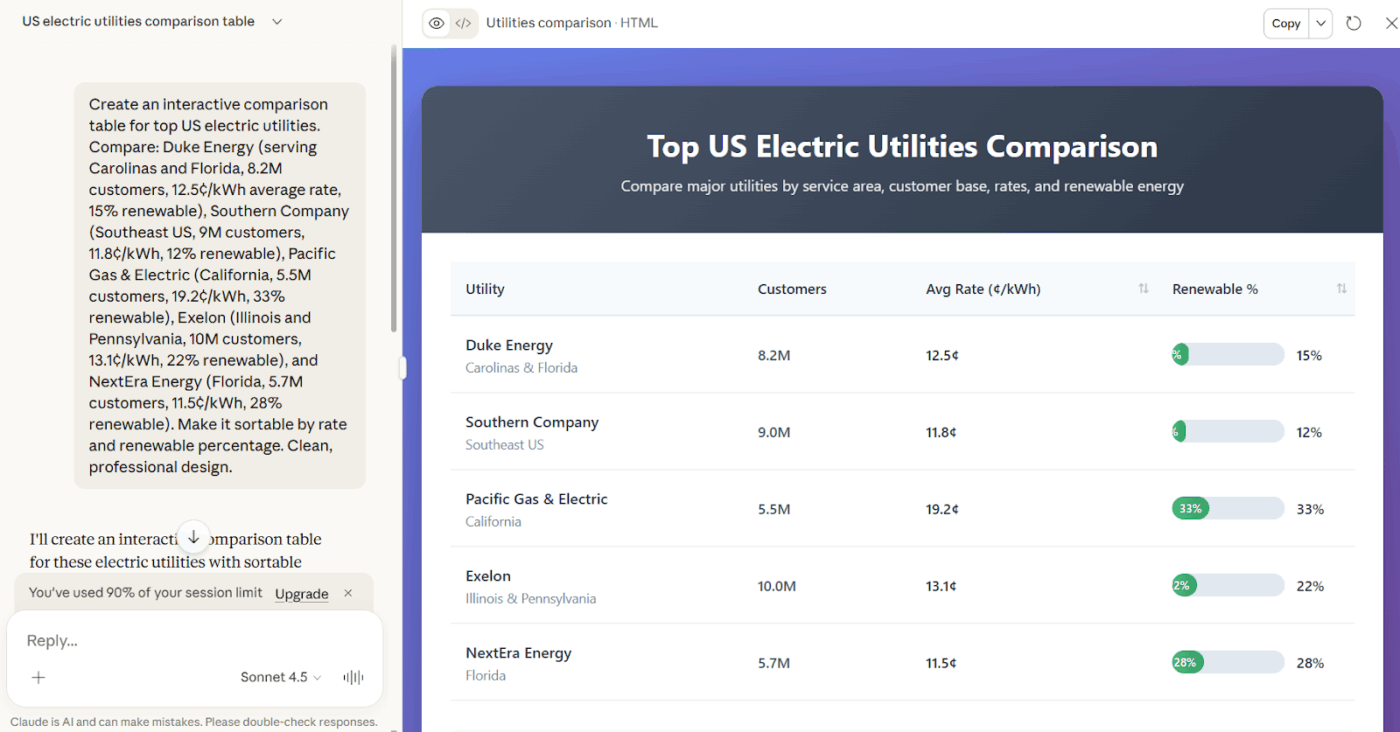
Sales and strategy teams create interactive content for presentations, from comparison tables to live demos. Everything is built to your exact specifications and can be filtered or sorted during the actual meeting.
📌 Example: You’re presenting a competitive analysis and need a feature comparison across five vendors. A Claude Artifact can help you sort and filter during the meeting when specific questions come up.
See how AI-powered visualization tools in ClickUp turn your data into dashboards you can act on.
While Artifacts are powerful for quick builds and prototypes, there are some boundaries to keep in mind:
📮 ClickUp Insight: 62% of our respondents rely on conversational AI tools like ChatGPT and Claude. Their familiar chatbot interface and versatile abilities—to generate content, analyze data, and more—could be why they’re so popular across diverse roles and industries.
However, if a user has to switch to another tab to ask the AI a question every time, the associated toggle tax and context-switching costs add up over time.
Not with ClickUp Brain, though. It lives right in your Workspace, knows what you’re working on, can understand plain text prompts, and gives you answers that are highly relevant to your tasks. Experience 2x improvement in productivity with ClickUp!
Like any AI tool, the way you use it matters. A few smart habits and simple guidelines can help you stay organized, collaborate smoothly, and get consistently better results. Let’s walk through some best practices to make the most of Claude Artifacts.
💡 Pro Tip: Eliminate this context sprawl with ClickUp Brain. Its Contextual AI pulls information directly from your connected workspace. Ask it to draft your Q2 product roadmap and it automatically references the feature requests in your backlog, the timeline from your Gantt chart, and the priorities your PM set in last week’s strategy doc.
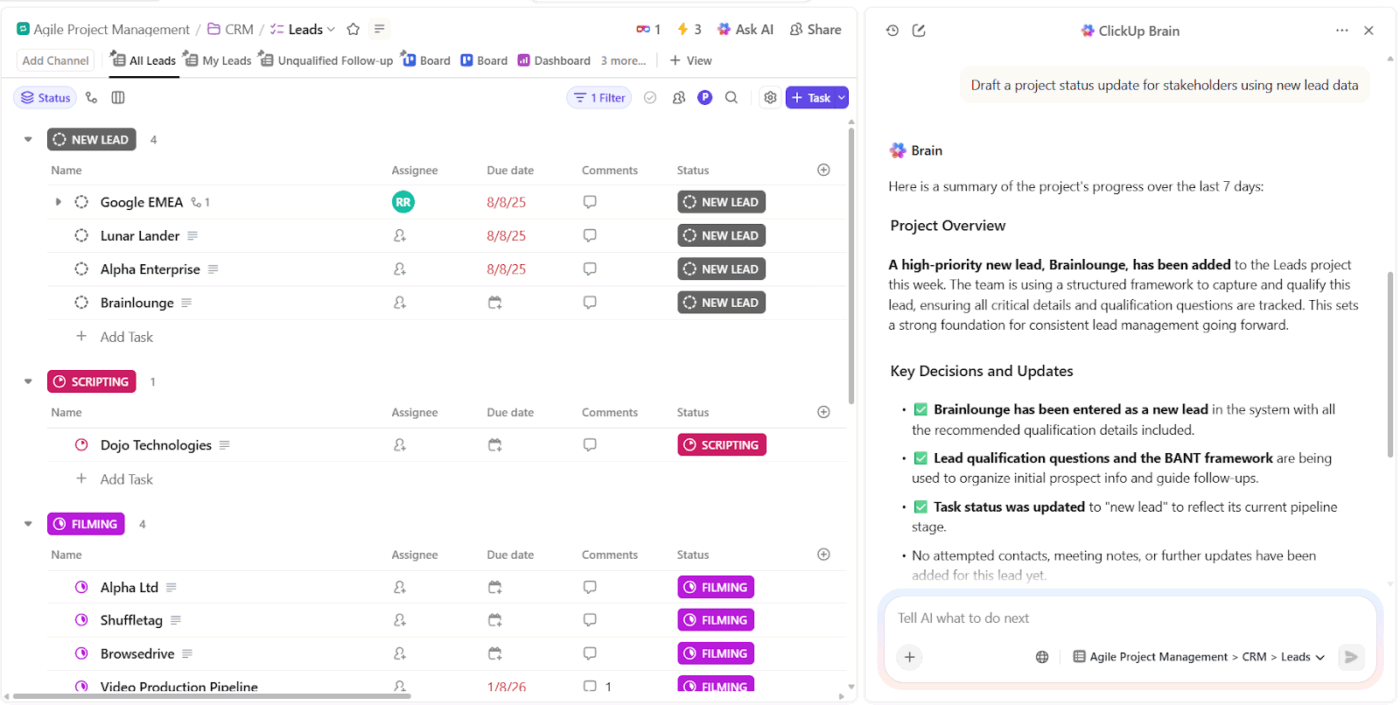
The AI already knows your work history, project dependencies, and team decisions because it lives where your work lives.
📌 Try this prompt: Draft a project status update for stakeholders using new lead data.
ClickUp is the world’s first Converged AI Workspace, where your AI-generated insights live alongside the tasks, projects, and workflows they inform, not in separate tools that require constant context switching.
This eliminates Work Sprawl by keeping AI outputs connected to actual work, so when Claude generates a content strategy, it transforms directly into actionable tasks.
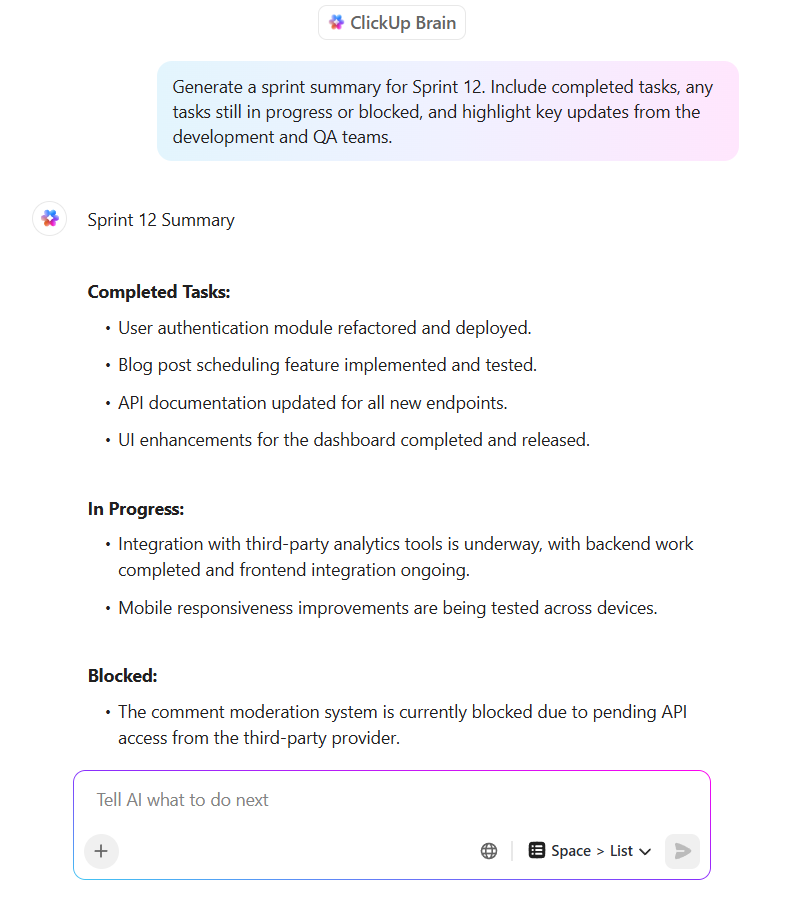
ClickUp Brain functions as a neural network layer across your workspace, indexing tasks, documents, comments, and data from connected tools like Google Drive, Slack, and GitHub.
The system answers questions in natural language and returns cited responses pointing directly to the source.
📌 Try this prompt: Summarize all decisions made in the Q4 planning meeting about enterprise tier features.
Suppose your product team needs documentation for a new feature. A team member can simply ask: ‘What documentation format did we use for the mobile checkout feature last quarter?’ ClickUp Brain returns the exact structure, complete with citations pointing to original docs and approval conversations.
The AI integrates multiple premium models (ChatGPT, Claude, Gemini), letting you toggle between them. A content strategist might use Claude for data analysis, then switch to ChatGPT for creative ideation, maintaining full workspace context throughout.
Here’s what Tulio Gómez Vargas, Automation Assistant, iVisa, had to say about using ClickUp:
Whenever I need to review a code on a weekly basis, I have the possibility to recreate the same task from another, even the comments; I can customize the creation from a template as a duplicate or even an automated task to create the same template in a specific space.
ClickUp Brain MAX includes a Chrome extension that brings AI assistance directly into your browser, letting you capture insights, summarize pages, and create tasks from any webpage without switching contexts.
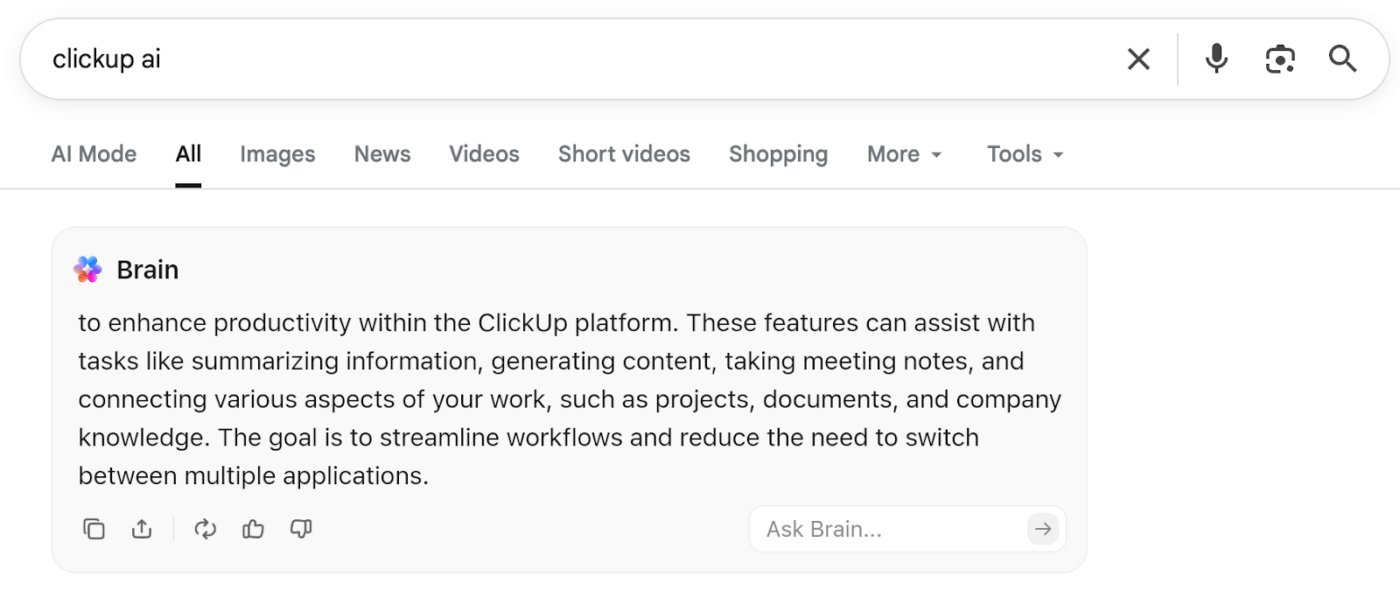
The Bookmark feature turns any page into a ClickUp Task instantly. Researching competitor features? Hover over the floating Brain icon, click Bookmark, and Brain MAX creates a task with the URL attached.
And when you hit a 3000-word industry report, click Summarize and receive a concise overview highlighting main arguments and key data. Then, ask follow-up questions or have Brain MAX create tasks based on the summary.
Watch how ClickUp’s AI tools automate tasks, summarize work, and save you hours every week:
Claude Artifacts turn AI conversations into tangible outputs like dashboards, documents, and prototypes without the clunky copy-paste workflow. For any team exploring AI, they make it easy to experiment with AI-generated content.
However, creation is just the first step. Work doesn’t end when the artifact is built.
Those outputs need to live somewhere—connected to projects, accessible to teammates, and updated as work evolves. ClickUp brings everything together in one place, so your ideas become actionable tasks, collaborative docs, and trackable projects your whole team can move forward with.
Sign up for ClickUp today! ✅

© 2026 ClickUp

There’s an easier way. Try a free AI Agent in ClickUp that actually does the work for you—set up in minutes, save hours every week.