Sorry, there were no results found for “”
Sorry, there were no results found for “”
Sorry, there were no results found for “”
You’ve just finished recording an amazing tutorial or an important work presentation, but when you hit play, there’s that pesky watermark right in the middle of your screen.
It’s a moment of disappointment for anyone creating content.
The truth is, finding a free screen recorder with no watermark shouldn’t feel like a treasure hunt.
In this blog post, we’ve rounded up 15 top free screen recorders with no watermark so you can focus on creating, not on hiding unwanted logos. Let’s get into it! 😉
Here’s a list of the top 15 free screen recording software:
Finding the right free no-watermark screen recorder can make a big difference in the quality of your recordings. To get the most out of your tool, here are the key features you should look for:
🔍 Did You Know? Screen recording is widely used for game streaming and tutorials, with platforms like Twitch and YouTube seeing millions of viewers watch gamers share their gameplay.
In this list, we’ve compiled the best free screen recorders that allow you to create sharp, watermark-free videos. ✅
ClickUp is the everything app for work, designed to bring all your projects, tasks, and team collaboration into one centralized, AI-powered platform. It helps streamline your workflow, manage tasks, track deadlines, and communicate effectively—all without switching between different tools.
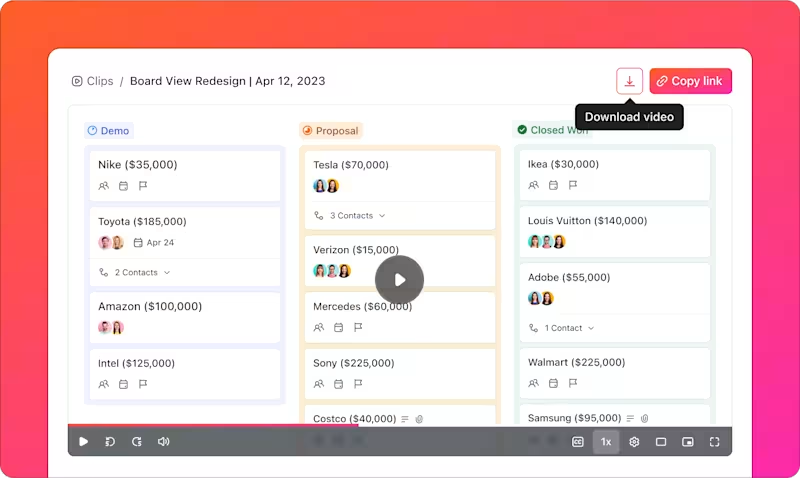
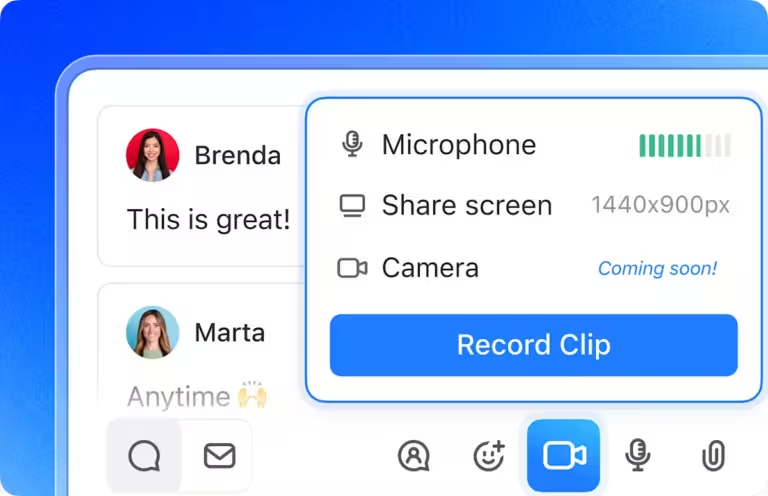
This powerful platform offers a range of productivity-boosting features, including ClickUp Clips, a built-in screen recording tool that makes capturing feedback, creating tutorials, or explaining tasks easier than ever.

With a recording limit of 45 minutes, you can create detailed walkthroughs, product videos, or feedback sessions without interruption. Clips are automatically saved in your workspace, making them accessible and shareable across your team.
Let’s say you’re working with a remote team and need to clarify a task.
Instead of crafting a lengthy email, you can record your screen while navigating through the task in ClickUp, explaining its requirements. Attach the clip directly to the task so everyone can review it on their own time.

Similarly, during onboarding, you can record a demo of your company’s workflow, walk new hires through key processes step-by-step, and access it via the ClickUp Clips Hub, where it’s automatically saved for future use.
It also integrates seamlessly into your existing workflow:

You can also enhance collaboration with timestamped comments on Clips, enabling precise feedback at the exact moment in the recording. For example, during a design review, you can point out specific sections in the video and assign action items to team members.
It has a vast array of features that are suitable and can be used by virtually anyone – for me, I have only used what’s useful for me. The in-built screen recorder is brilliant – especially for creating short tutorials if needed. From task management and time tracking to goal setting, document sharing, and automation, it has everything you need. Plus, the platform regularly updates and adds new features based on user feedback so it’s good to keep track of their roadmap or subscribe for updates.
💡 Pro Tip: Keep your desktop clutter-free before recording. Close unnecessary tabs and programs to ensure your screen recording is clean, professional, and focused on the task at hand.

OBS Studio is a robust solution for professionals seeking advanced live-streaming video and screen recording capabilities. It provides a studio-like environment with powerful tools such as scene composition, multiple source integration, and real-time audio/video mixing.
What makes OBS unique is its extensive plugin ecosystem that allows for highly customizable setups and enhanced functionalities. It caters to creators and broadcasters who need granular control over their recordings and live streams, ensuring a professional-grade output.
Free (open source)
It’s the best overall, but one of the hardest to use, nothing is automatic or easy in it. It requires a lot of setup and testing to find what you want with it. That’s part of the reason it’s the best though, because it lets you change things that some other programs won’t even let you look at.
📖 Also Read: Best Vimeo Alternatives for Easy Screen Recording

ScreenRec simplifies business communication by focusing on instant screen capture and secure sharing. It automatically generates private sharing links post-recording and includes encrypted cloud storage.
With its lightweight design and emphasis on providing quick functionality, ScreenRec is ideal for fast, secure visual communication. Its built-in analytics and minimal system impact set it apart from more resource-heavy tools, ensuring efficiency in both usability and performance.
I have been using it for more than 9 months and I feel it is very easy to implement, as it has a very simple user interface and the recording quality is also high and provides no watermark, the best thing is that files made by it stay very lightweight and also provides an option to share and copy paste in terms of the screenshot.
🧠 Fun Fact: The ability to record a screen in real time has transformed customer support, allowing agents to walk users through troubleshooting steps via video, improving problem resolution efficiency.

ShareX goes beyond basic screen recording with its workflow automation and customization features. It supports everything from simple screen captures to complex automated processes, making it an excellent choice for professionals who value precision and efficiency.
With integrations for over 80 hosting services, ShareX simplifies sharing and enhances productivity for advanced users.
Free
ShareX is not a simple screenshot utility. It’s a suite of power toys. It has an image viewer, editor, combiner, splitter, and uploader. It also has a QR generator, color picker, ruler, and thumbnail album maker. Also, ShareX can capture windows with transparency (glass effect) without letting what’s behind leak in.
📖 Also Read: 10 Screen Studio Alternatives and Competitors

Loom enables teams to communicate effectively without needing live meetings. It focuses on asynchronous video recording and instant sharing. Its standout features include real-time viewer analytics, integrated feedback tools, and team libraries.
Using Loom is a reliable option for remote teams and organizations that want to enhance their communication processes. The tool simplifies sharing updates, explaining complex ideas, and fostering collaboration across time zones.
I started doing exactly that this year and clients LOVE it. Seriously, I’ve never gotten such good feedback on something. There have also been a handful of times that I’ve caught an error during the video that made it through review, so I was able to fix it before sending it to the client. The biggest issue for me is that my internet is sometimes unstable. Loom needs to be connected to the internet during the video so when my internet glitches, the video doesn’t work.
🔍 Did You Know? Some screen recording software can detect mouse movements, automatically focusing on the cursor or adding effects to highlight actions, helping viewers follow along with the content more easily.

Free Cam focuses on enhancing sound clarity through built-in noise reduction and editing features. Its distraction-free interface allows users to record without unnecessary complexities, while its audio-focused approach makes it ideal for tutorials and presentations.
The platform is a good choice for those who prioritize straightforward functionality and clear sound. It offers an intuitive experience for both beginners and experienced users.
Free Cam is almost completely intuitive. I was able to install it and produce a simple instructional video in 15 minutes. It has a very basic editor to trim unwanted content. As easy to use as anything can be.
💡 Pro Tip: Adjust the frame rate of your screen recording for smoother video playback, especially for fast-moving content like gaming or tutorials with lots of action.

Screen Pal simplifies screen recording for educators and casual users seeking easy-to-use tools. Its scripting feature enables users to plan recordings efficiently, while real-time captions ensure accessibility.
The integration of cloud storage and mobile synchronization allows users to access their recordings from anywhere. Screen Pal is good for users looking for straightforward recording solutions with added convenience and accessibility.
Business
Education
I have been using ScreenPal for a very long time now. I primarily use it to create videos for training for my clients. Downloading the files as well as having cloud-posted links makes it very easy to share and store for the long term. The tool itself is very easy to use and has all the key functions you need for editing […].”
🤝 Friendly Reminder: Organize your recordings in folders for easy access and quick sharing with team members or clients.

ActivePresenter transforms e-learning content creation with a blend of screen recording and interactive course-building tools. It is uniquely designed to create software simulations and training videos.
The platform generates step-by-step tutorials and assessments from recorded actions, setting it apart from general-purpose recorders. It caters specifically to instructional designers and corporate trainers, offering features for professional content development.
In my short time using ActivePresenter so far, I have been extremely impressed with the functionality that can be developed using this tool. Where some might prefer a more streamlined experience that caters to the novice – I prefer a blank slate and I appreciate that this authoring tool does a nice job of balancing the experience for both new and veteran users alike.
💡 Pro Tip: Plan your screen recordings in advance by scripting or outlining your key points, ensuring your video is concise and stays on topic.

Icecream Screen Recorder specializes in scheduled recordings and optimized game capture. It offers precise control over recording schedules and game performance.
The tool supports content creators who need efficient, hassle-free options for capturing gameplay or automating recordings. Customizable hotkeys, drawing tools, and webcam overlay features further enhance the recording experience.
I like the user interface of icecream, which is light and easy to use, human-readable text which is easy to understand. The feature I like the most is recorder is on, and you can record your presentation with your cam recorder on which gives you the personalized touch to share all the features of the product to the prospecting clients.
💡 Pro Tip: If you’re recording a software tutorial, try recording in sections and stitching them together later to maintain focus and reduce the chance of errors during a long session.

Bandicam records screens and external devices like webcams or gaming consoles without unnecessary complexity. Its compression technology reduces file sizes while maintaining video clarity.
Gamers and content creators can rely on its features to capture high-quality footage, annotate in real time, or schedule recordings for convenience.
The most amazing thing I guess about this feature is that it has allowed me to record my screen for more than 8 hours, and it is very easy to use as after recording it automatically stores the file in the desired folder which is easily accessible. I referred it to my friends and got to know that it doesn’t support other OS, and it doesn’t have a widget feature that is easy to use whenever you feel to record like another recorder.
💡 Pro Tip: When you need to take notes from a video, look for a screen recorder that allows you to capture specific parts of the video while offering text-based note-taking features. This way, you can easily jot down important details as you record.

MangoApps focuses on making corporate communication smooth and efficient, combining screen recording with tools for secure file sharing and team collaboration. It works well for organizations looking to streamline workflows, enhance communication, and share recordings securely across teams.
The platform also integrates with enterprise communication systems, offering flexibility for large-scale operations.
Custom pricing
The onboarding materials are well planned & the support on any issues or guidance is personable and excellent. Their Brown Bag and features support video series are a great resource. As an admin and editor, we use the interface a few times a week, while the employees use it daily, company-wide. The platform has proven to be very stable.
🔍 Did You Know? The screen recorder market was worth $1.2 billion in 2023 and is on track to reach $2.1 billion by 2031, growing at a rate of 6.5% each year from 2024 to 2031.

CamStudio is a simple tool designed for users with older hardware or minimal system resources. It delivers core screen recording features, letting users capture screens without needing advanced technology.
The tool focuses on simplicity, offering straightforward functionality for basic recording needs and small projects.
Free
I’ve tried CamStudio, the opensource + free alternative, which I believe is so named + designed after Camtasia, and the performance is not as good – getting a mere 5fps for the same intensive animation – but I do think that it is serviceable if you are recording simple apps with not much screen refresh.
🤝 Friendly Reminder: Keep an eye on the time while recording. If you’re creating a tutorial, keep it concise to maintain your audience’s attention.

Monosnap makes visual communication easier with tools for screenshot editing, screen recording, and quick sharing. It’s a good fit for teams that use visuals to explain ideas or processes, offering features like annotation tools and cloud storage to help with collaboration.
You can capture and edit screenshots or recordings and share them with your team to stay on the same page. This helps teams work more efficiently, making it simple to update visuals and share information in real time.
There’s also one called Monosnap that I’ve used. It makes nice, small, mp4 files, and allows you to record the whole screen, or dragged area (your choice), as well as mic.
💡 Pro Tip: If you’re looking for a hassle-free recording experience, opt for a screen recorder with a Chrome extension. This feature lets you start recording directly from your browser without installing or launching a separate application, making it perfect for recording online tutorials, meetings, or webinars on the go.

Peek is tailored for Linux users who need a straightforward way to record small, high-quality GIFs. It keeps things simple, focusing on quick, efficient captures without the complexity of traditional screen recording tools.
The tool offers a minimalistic interface, which makes it easy to use with little configuration. You can adjust the frame rate and quality to suit your needs and share the GIFs quickly.
📖 Also Read: Best Screencast Software (Free & Paid)

Recast Studio helps streamline the content creation process by using AI video repurposing.
Instead of manually editing, you can use it to automatically create clips suited for different platforms. It also adds subtitles and generates transcriptions on its own. The tool focuses on simplifying the process of adapting content for various social media platforms, saving time for content creators.
With built-in templates and analytics for audience engagement, it supports content optimization across different channels.
So glad to have found this site! Recast has made life dealing with the admin for my podcast SO much easier. I shopped around and couldn’t find anything that had the same features as recast studio. Very happy with the experience. Would love if it could be developed as an IOS app or Mac downloadable software for easier user experience though.
💡 Pro Tip: For longer screen recordings, use pauses and breaks to prevent technical glitches and to make editing easier by giving yourself natural stopping points.
And there you have it! A roundup of tools that let you record your screen without those annoying watermarks getting in the way. From simple, no-fuss options to feature-packed platforms, there’s something here for everyone.
If you’re looking for a tool that does more than screen recording, ClickUp might just be your new best friend.
ClickUp Clips lets you record feedback, tutorials, or task explanations directly within your workspace. It keeps your recordings organized, accessible, and easy to share so you can focus on getting things done.
If that sounds like your kind of thing, why not give it a shot? Sign up for ClickUp today! ✅

Arya P Dinesh
Max 27min read

Manasi Nair
Max 27min read
Manasi Nair
Max 32min read

© 2026 ClickUp