






Still downloading templates?
There’s an easier way. Try a free AI Agent in ClickUp that actually does the work for you—set up in minutes, save hours every week.
Sorry, there were no results found for “”
Sorry, there were no results found for “”
Sorry, there were no results found for “”

Lesson planning rarely ends when the school day does.
It spills into evenings, weekends, and the quiet hours when you’re supposed to be resting. Beyond outlining activities, it also involves adapting for different learning levels, aligning with standards, finding materials, and ensuring the lesson actually works for your students.
It’s no surprise that teachers spend an average of 12 hours a week on lesson planning, according to the National Education Association. That’s nearly a whole extra workday spent preparing to teach, not teaching.
Tools like Claude promise relief. Used well, these AI tools can dramatically cut planning time and help you generate solid lesson drafts in minutes instead of hours.
This guide shows you how to use Claude the right way for lesson planning. From preparing the right context, to writing prompts that actually reflect your classroom, to refining AI-generated plans into lessons you can confidently teach, you’ll learn how to turn Claude into a practical planning partner, not just another tab you open and close.
First things first, the quality of what you get out of Claude is directly tied to the quality of what you put in.
Spending just 10 minutes gathering your thoughts and materials beforehand can save you hours of frustrating rewrites and edits. Let’s look at how you can do that:
Before you explore various AI prompting techniques, you need to know what you want your students to learn. Clear learning objectives are the foundation of any good lesson, and they give Claude a specific target to aim for. Without them, you’re just asking for a collection of activities with no clear purpose.
Think about what you want students to know, understand, or be able to do by the end of the class period. Be specific. Instead of a broad goal like “students will learn about the Civil War,” aim for something measurable: “Students will be able to identify three major causes of the Civil War and explain how they contributed to the conflict.”
Aligning your objectives with curriculum standards and considering different VARK learning styles gives Claude another layer of context. Mentioning these standards in your prompt helps the AI generate content that meets the required level of rigor and relevance for your grade level. This is a key step in effective lesson planning and assessment.
Every classroom is different. What works for a class of 15 high school seniors won’t work for a class of 30 third-graders. This is the kind of context Claude can’t guess, and it’s why generic lesson plans often fail.
Before you start prompting, make a quick list of your classroom realities:
Being clear about these constraints on the frontend prevents Claude from suggesting a brilliant group activity that requires one-to-one iPads when you only have a single classroom computer. This simple step ensures the lesson plan you get is grounded in the reality of your teaching environment.
📖 Read More: How to Create and Optimize AI Process Mapping
Every teacher has a preferred flow for their lessons.
Whether you’re a fan of the 5E model (Engage, Explore, Explain, Elaborate, Evaluate), Madeline Hunter’s direct instruction, or a gradual release framework, telling Claude your preferred structure is crucial. It ensures the output feels familiar and fits your teaching style.
If you don’t have a formal model you follow, that’s fine too. Just outline a simple, logical flow for Claude. A classic structure you can use is:
Specifying a structure helps create consistency, especially when you’re generating multiple lesson plans for a single unit. It makes the AI’s output more predictable and easier to integrate into your existing curriculum.
If preparation is the foundation, then writing effective prompts is the architecture of your lesson plan. A well-crafted prompt is a detailed set of instructions that guides Claude toward more useful output. Better prompts lead to more complete, usable lesson plans.
Don’t worry about getting it perfect on the first try.
Prompt engineering is a skill that improves with practice. The key is to be as specific and structured as possible, sometimes even using techniques like prompt chaining. Once you find a prompt formula that works, save it. You’ll be able to reuse and adapt it for future lessons, saving you even more time.
These three details are non-negotiable and should be in every lesson planning prompt you write.
Together, they form the most basic and critical pieces of context Claude needs to generate a relevant and usable plan.
Here’s how you can weave these details into a natural-sounding prompt:
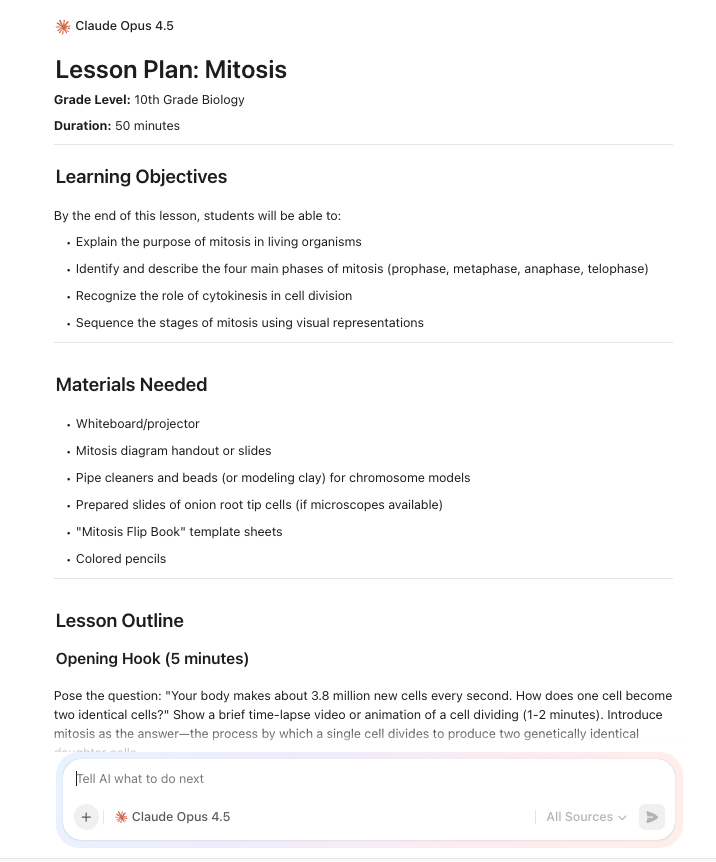
“Generate a 50-minute lesson plan for a 10th-grade biology class on the process of mitosis.”
This simple sentence provides the essential context Claude needs to generate a relevant plan.
Now add the details that tailor the lesson plan to your classroom. Start by naming the instructional model you chose during your preparation. For example, you could say, “Use the ‘I Do, We Do, You Do’ gradual release model for this lesson.”
Next, get specific about your students’ needs. This is where you can ensure the lesson is accessible and engaging for everyone in your classroom. Be specific about what you need from Claude.
For an English class, you might use agent prompting to ask for a tone and mood worksheet with a variety of text examples to support different reading levels. Claude can generate these differentiated materials, but only if you explicitly ask for them.
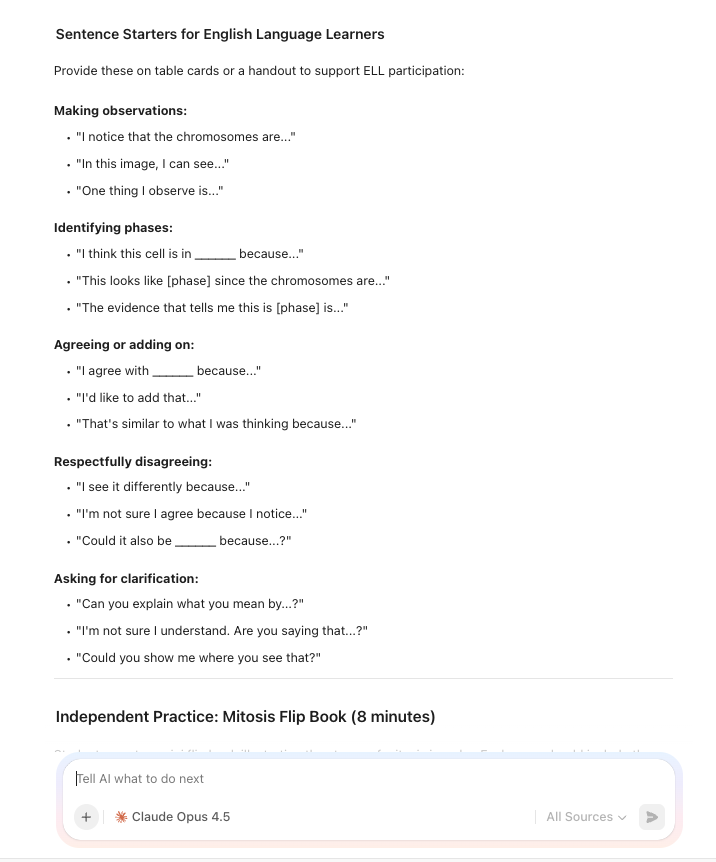
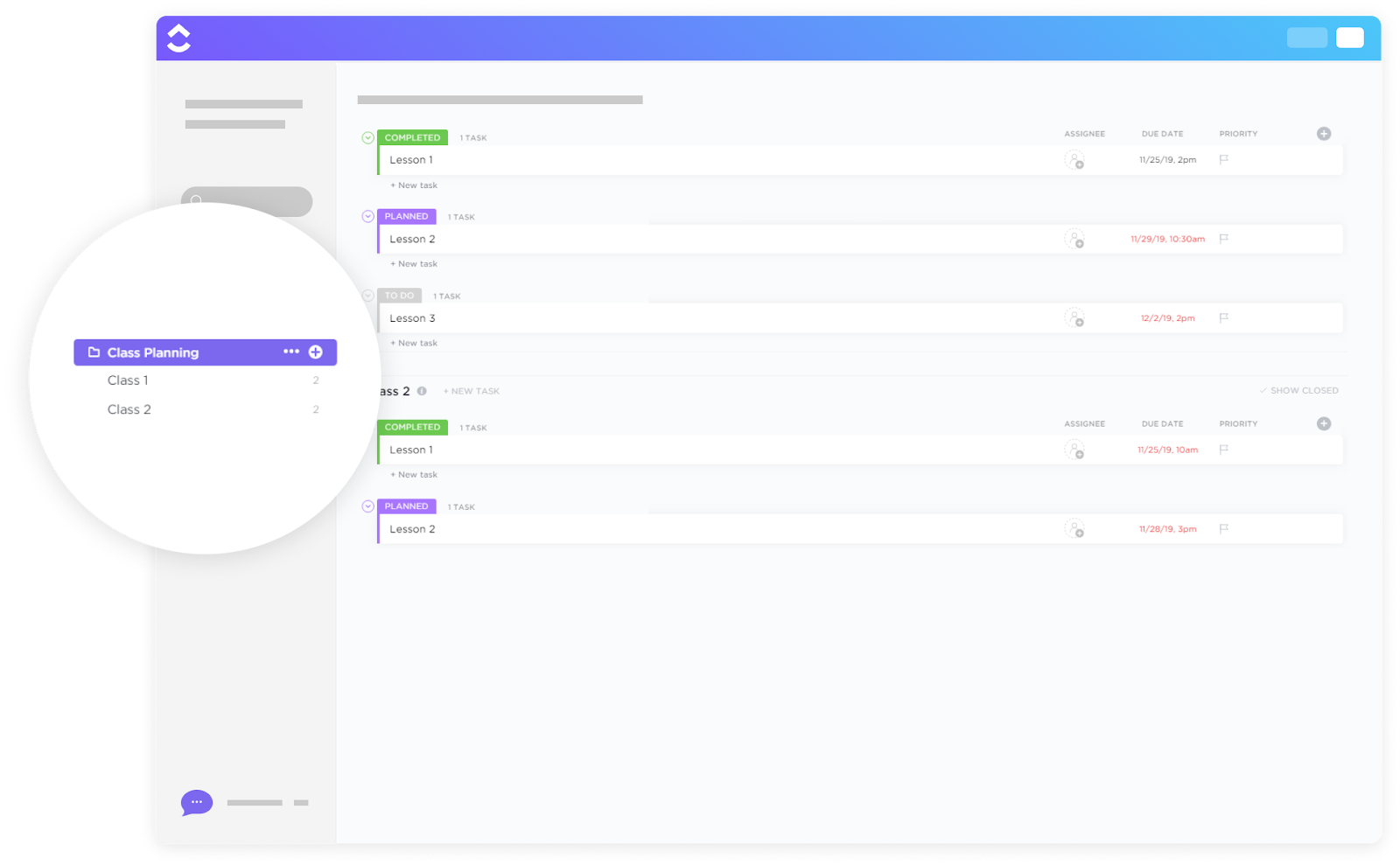
⚡️Template Archive: The ClickUp Class Planning Template helps you organize individual classes and populate them with carefully planned tasks and activities—think of it as a class-wise outliner tool or a daily planner. The template offers daily and weekly views to define learning goals.
Configure Custom Fields to attach teaching materials, track progress, or add notes. As you hold your class, you can keep the template open on your laptop and cross off tasks for easier organization.
At the end of the class, you may want to assign prep work—in that case, use the Assignment Submissions List to send a ClickUp Form for submitting tasks to your students. Track and grade homework with statuses like To Do, Fail, and Pass. 🏁
A complete lesson plan, much like the projects managed with engineering project management software, includes more than just activities. It includes all the small but essential pieces that make a lesson run smoothly. If you don’t ask for these components, Claude will likely leave them out.
Think through the entire lesson from start to finish and request everything you’ll need. A good checklist includes:
Asking for estimated timings for each section is also a smart move. It helps you visualize the flow of the lesson and identify potential pacing issues before you’re in front of the class. This is a crucial part of integrating lesson planning and assessment.
📮 ClickUp Insight: 62% of our respondents rely on conversational AI tools like ChatGPT and Claude. Their familiar chatbot interface and versatile abilities—to generate content, analyze, or even help create databases, and more—could be why they’re so popular across diverse roles and industries.
However, if a user has to switch to another tab to ask the AI a question every time, the associated toggle tax and context-switching costs add up over time.
Not with ClickUp Brain, though. It lives right in your Workspace, understands what you’re working on, can handle plain-text prompts, and gives you highly relevant answers for your tasks! Experience 2x improvement in productivity with ClickUp!
Treating an AI-generated lesson plan as a finished product is a common mistake. It’s a solid first draft, but it needs a human touch to actually be effective in your classroom.
Claude doesn’t know that half your class was out on a field trip yesterday, or that the fire drill schedule just messed up your timing. Your review and customization turn a generic document into something you can actually use. This is where your professional judgment matters most.
AI time estimates are just that—estimates. They are based on averages and don’t account for the unique rhythm of your classroom. You know how long it really takes your students to transition between activities, and how many questions they’ll have about a new concept.
Read through the generated plan and mentally walk through each step with your specific students in mind.
💡Pro Tip: Pacing is often the weakest part of an AI-generated lesson. A quick, realistic time check can prevent you from running out of time or finishing 20 minutes early.
A lesson plan from Claude can sometimes feel a bit…robotic. It lacks the personality and warmth that make your teaching unique. Students can tell when a lesson doesn’t sound like you, and that disconnect can hinder engagement.
This is your chance to infuse the plan with your own style.
Making the lesson feel like your own helps students engage with the content.
🛠️ Toolkit: Some of the best lesson ideas don’t show up when you’re sitting at your desk. They come while you’re grading, commuting, or thinking through tomorrow’s class out loud. As the standalone desktop from ClickUp, Brain MAX comes with Talk-to-Text so that teachers can capture lesson ideas, activity outlines, or quick reflections by simply speaking.
This AI super app transcribes your thoughts instantly and turns them into usable content inside your workspace, whether that’s a task note, a Doc draft, or a planning checklist. This removes friction at the idea stage, letting you think naturally and refine later, instead of losing momentum to typing or forgetting ideas altogether.
While Claude can provide suggestions for differentiation, you are the expert on your students’ individual needs. The AI’s suggestions are a great starting point, but they need to be tailored to the real people in your classroom.
As you review the plan, think about specific students.
This is where your professional expertise matters. AI can give you ideas for differentiation, but you’re the one who can apply them effectively for your students.
You often spend hours creating and refining a great lesson plan, only for it to get lost in a random folder on your computer, never to be seen again.
When your lesson plans are scattered across different documents and folders, you waste precious time searching for that one great activity you did last year. This disorganization makes it harder to build a coherent curriculum or share resources with colleagues.
A well-organized system for your lesson plans saves time later. It lets you easily find, reuse, and improve your best work, saving you hours over time.
Claude, of course, is good at drafting lesson plans. It helps you get from a blank page to a solid first version quickly.
But once the lesson exists, teachers still face the harder problem:
That’s where ClickUp comes in. Instead of treating AI output as a disposable document, ClickUp turns lesson planning into a repeatable, organized workflow that scales across classes, terms, and teaching teams. See how the workflow comes together in practice.
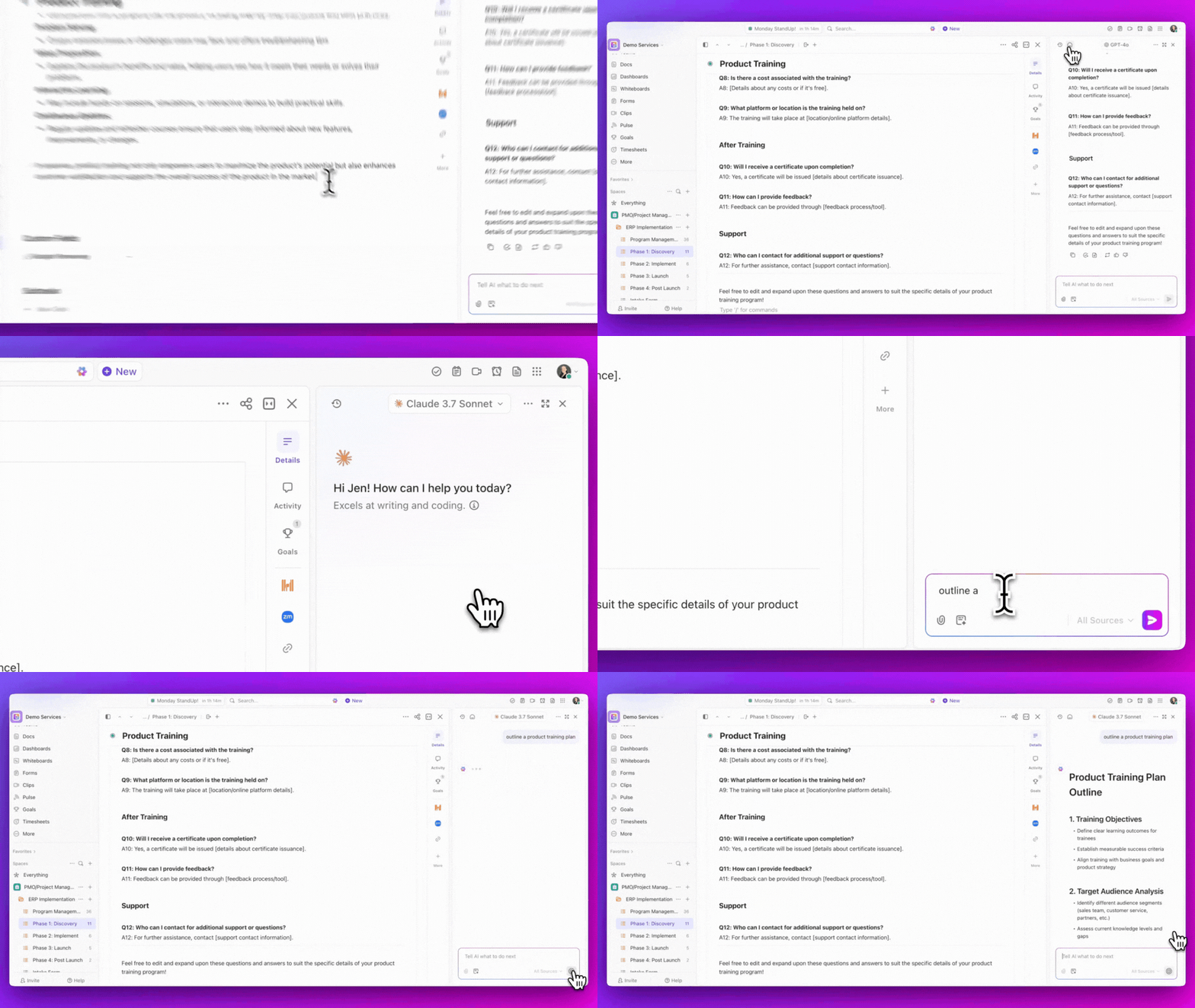
Every lesson begins the same way: drafting, revising, and refining ideas.
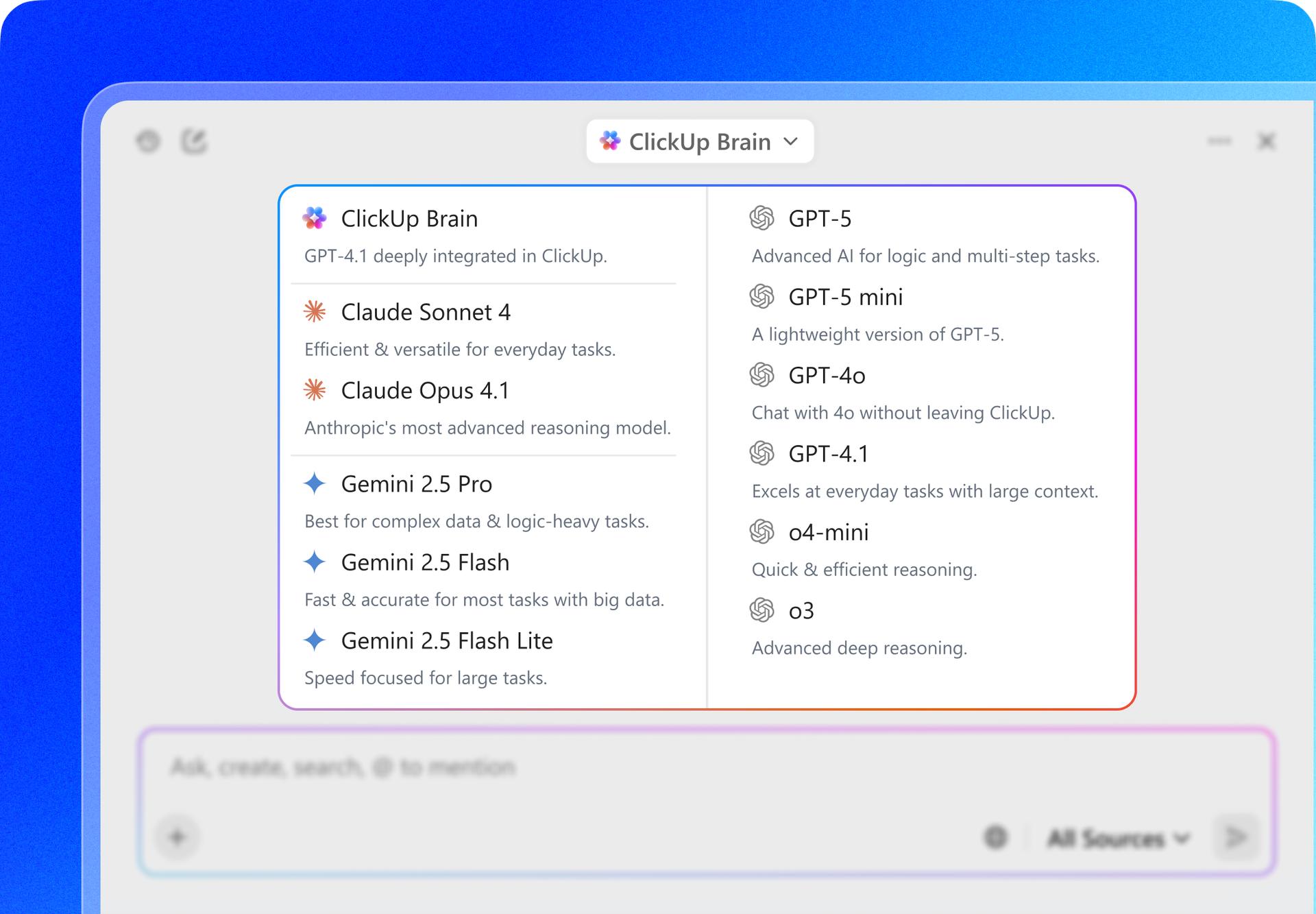
ClickUp Brain gives you access to multiple AI models in one place, so you’re never locked into a single assistant. You might start with Claude to outline a lesson, switch to ChatGPT to simplify instructions, or use another model to generate assessment questions, all without copying content between tools.
Instead of jumping between tabs and tools, Brain lives directly inside your workspace. That means your prompts are grounded in what you’re already working on, whether that’s a unit plan, a standards document, or last week’s lesson.
For teachers, this removes friction at the exact moment ideas are forming. Instead of choosing “the best AI tool,” You’re choosing the best output for the task in front of you.
Once a lesson plan exists, the real work begins: preparing materials, adjusting pacing, aligning assessments, and making sure nothing is forgotten.
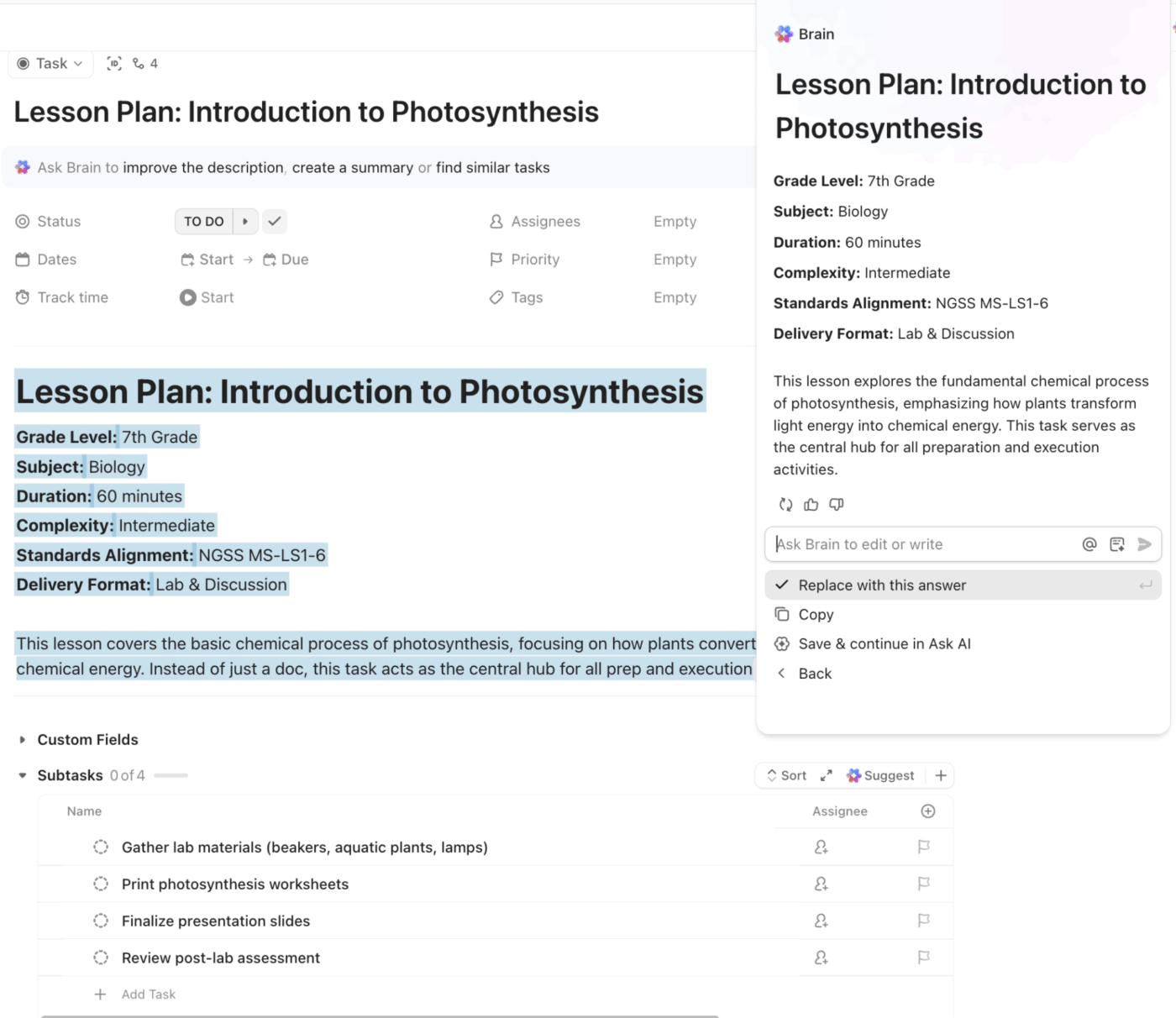
This is where ClickUp Tasks become the backbone of lesson execution. A single lesson becomes a task that captures the full picture, not just a document. You can use Custom Fields to define:
From there, subtasks mirror how teachers actually prep: materials to gather, slides to finalize, worksheets to print, assessments to review. Instead of juggling mental checklists or scattered notes, everything needed to teach that lesson lives in one structured place.
Some lesson details don’t belong in checklists. They need space to breathe.
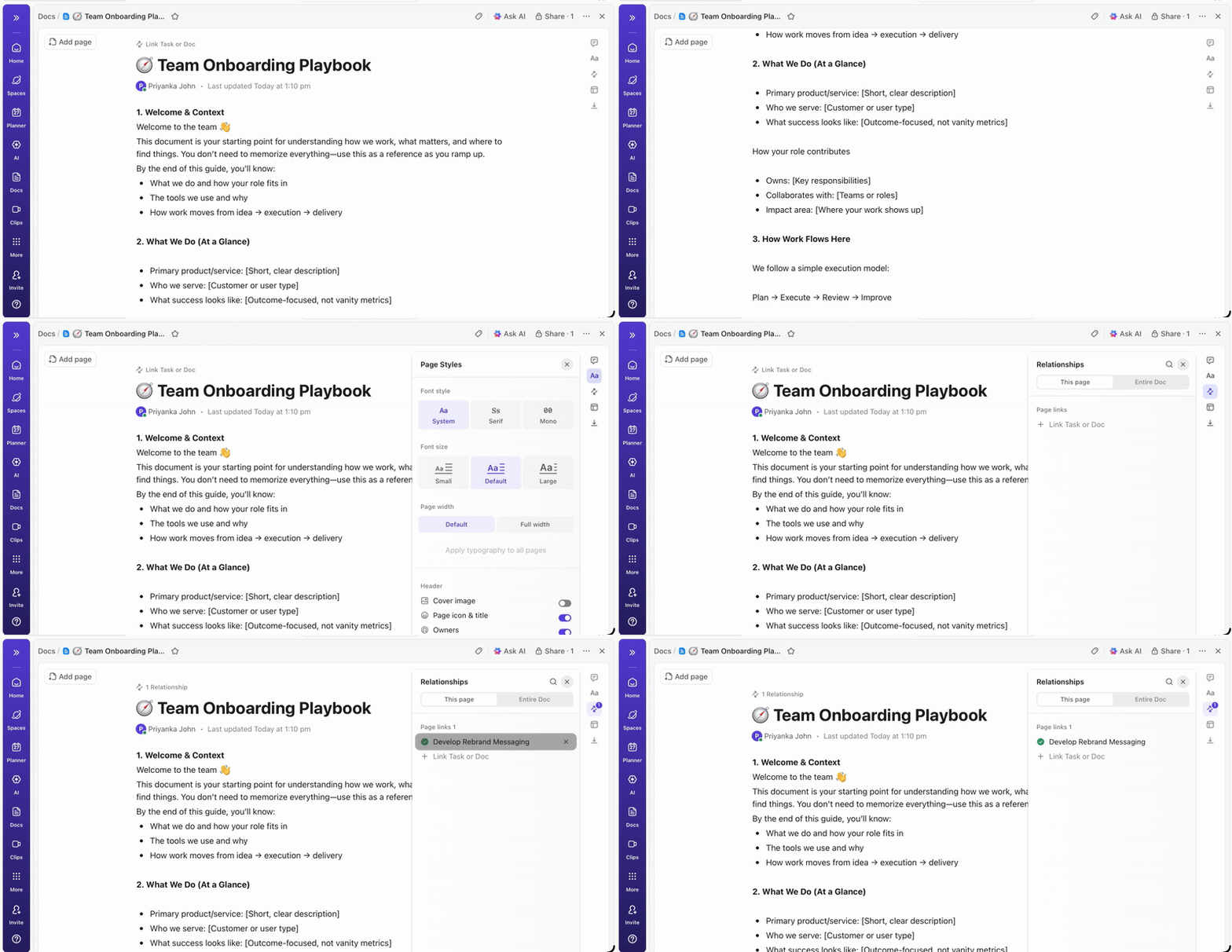
ClickUp Docs is where the lesson content itself lives. Which means complete instructions, discussion prompts, example explanations, accommodation notes, and reflection questions are all contained in a collaborative document linked directly to the task.
This makes iteration natural. You can revise wording after teaching the lesson, leave comments about what worked or didn’t, and collaborate with co-teachers without emailing versions back and forth.
Basically, Tasks give you structure. Docs give you depth. Together, they reflect how teachers actually think: organized, but flexible.
Your lesson plan might live in a ClickUp Doc. The worksheet could be in Google Drive. Last year’s assessment rubric might be buried in a PDF attachment or an old comment thread.
ClickUp’s Enterprise Search solves this by searching across your entire connected workspace and third-party apps, not just what lives inside ClickUp.
That means you can search in one place and instantly surface:
For teachers, this is critical during real classroom moments. When you’re planning tomorrow’s lesson, prepping a substitute, or adjusting a unit mid-week, Enterprise Search lets you retrieve materials in seconds, even if they were created months ago in a different tool.
It turns your entire teaching history into a searchable library, without forcing you to migrate everything on day one.
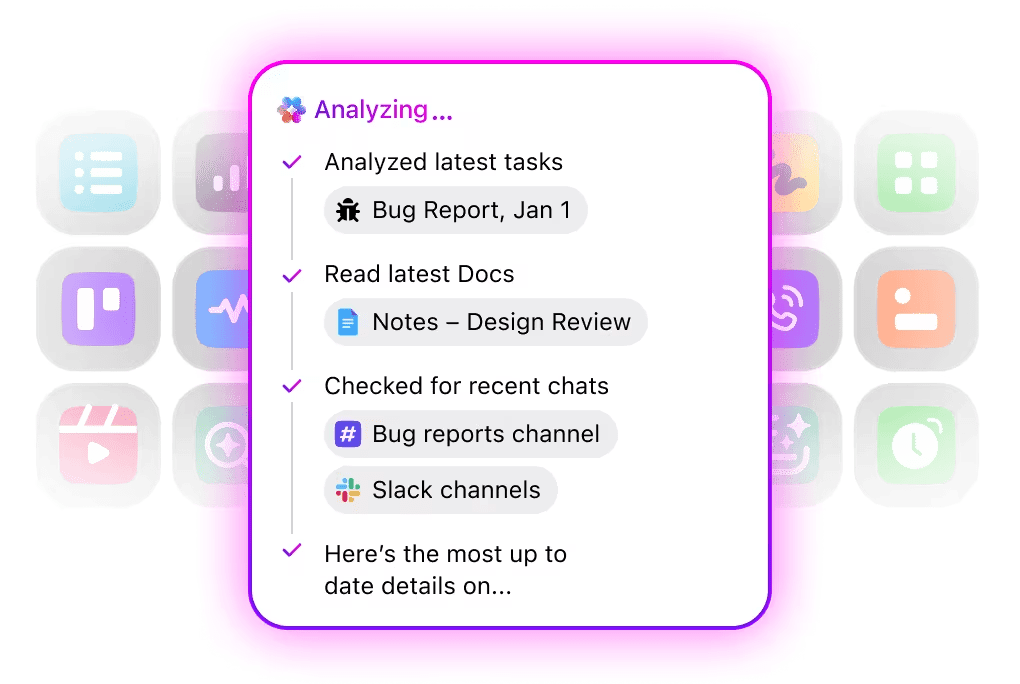
🚀 The ClickUp Advantage: Use a custom Super Agent to handle the repetitive parts of lesson prep!
Lesson planning includes a lot of repeatable work. Structuring lessons the same way, checking for missing components, creating prep checklists, tagging grade levels, or reminding yourself to add assessments.
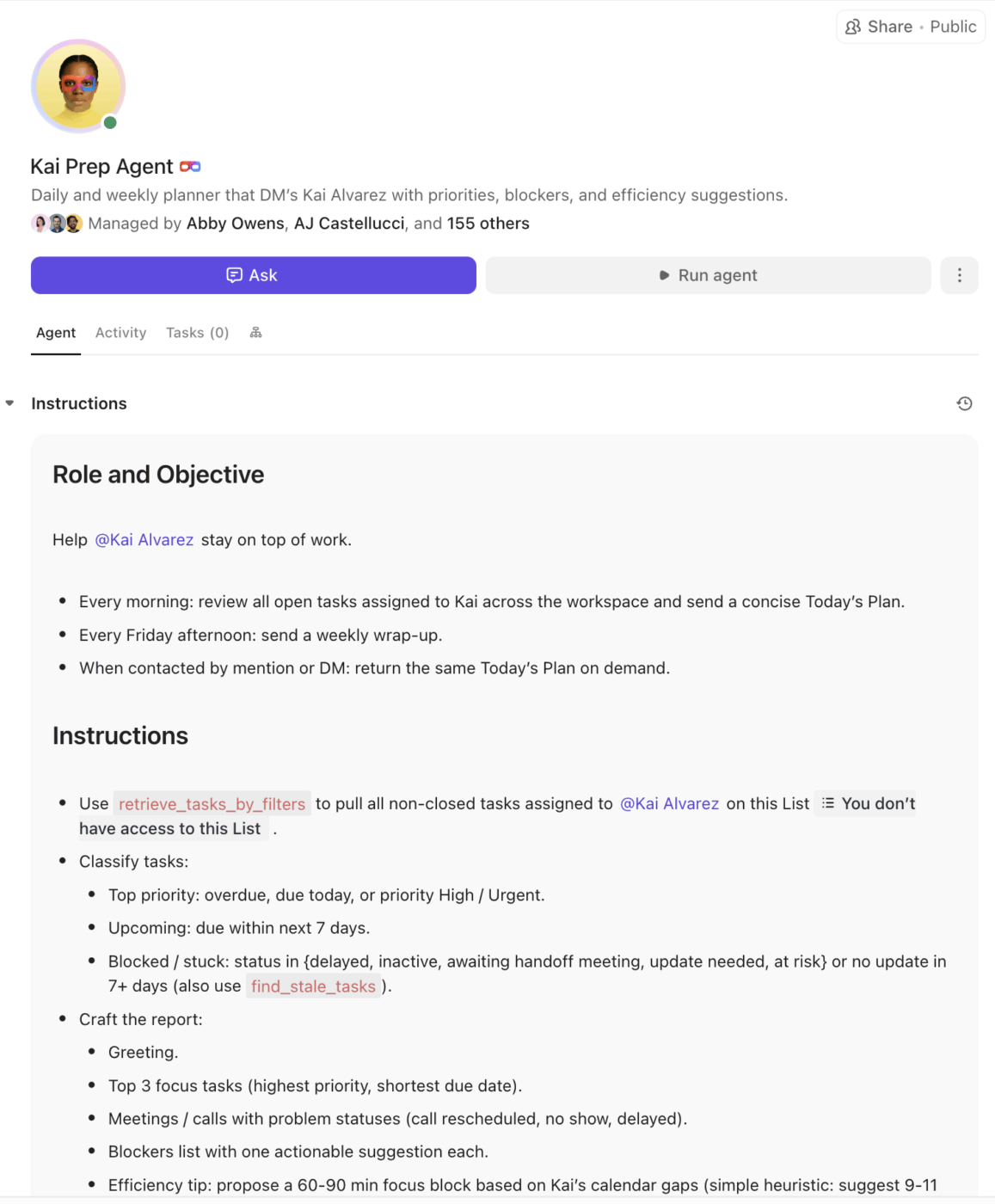
With ClickUp’s no-code Agent Studio, teachers can easily build a custom Super Agent without writing a single line of code.
You define what the agent should look for and what actions it should take—for example, reviewing new lesson tasks to flag missing objectives, automatically generating subtasks for lesson components, suggesting differentiation ideas, or reminding you when a lesson hasn’t been reviewed yet.
Over time, your Super Agent adapts to your planning. It quietly handles the repetitive setup work in the background, so your energy stays focused on instruction, creativity, and your students.
Think of it as a virtual teaching assistant you design once and reuse every week.
Claude helps you draft faster. ClickUp helps you teach better over time.
By combining multi-model AI, structured tasks, collaborative documents, and powerful search in one system, lesson planning stops being disposable work and starts becoming an evolving teaching library.
With ClickUp, you essentially build a system that makes the next lesson easier. That’s the difference between using AI occasionally and embedding it into how teaching actually happens.
💡Pro Tip: Lesson planning improves fastest when feedback lives with the work itself. Instead of discussing changes in email or disconnected chat tools, ClickUp Chat keeps conversations attached directly to lesson tasks and Docs.
That means co-teachers can suggest edits, ask questions, or flag issues right where the lesson lives, without context getting lost or duplicated. This kind of centralized communication makes collaboration clearer, reduces back-and-forth, and ensures improvements actually carry forward into future lessons rather than disappearing into message threads.
Using AI for lesson planning saves 5.9 hours weekly, but there are a few common pitfalls to watch out for. Avoiding these mistakes helps you improve your engineering efficiency in lesson planning and create lessons that work for your students.
🎥 Effective organization extends beyond individual lesson plans to your entire weekly workflow. Watch this practical guide on structuring your week to maintain consistency in your planning routine and ensure your AI-generated lesson plans integrate seamlessly into your teaching schedule.👇🏼
AI won’t replace your judgment as a teacher. But it can give you back time, clarity, and mental space when it’s used with intention.
Claude is powerful for drafting lesson plans, but the real efficiency comes from what happens next. Reviewing, refining, and reusing those lessons over time is what turns AI from a one-off shortcut into a sustainable planning system. Without a place to store context, prompts, and finished plans, you end up recreating the same work again and again.
That’s where ClickUp fits in. By organizing lesson plans, prompts, materials, and notes in one shared workspace, you can build a living lesson library that grows with you.
With Docs, Search, and ClickUp Brain working together, past lessons stay easy to find, adapt, and improve, whether you’re planning next week or next semester. And when planning is lighter and more organized, teaching gets the focus it deserves instead of consuming another 10–12 hours every week.
Bring all your instructional planning into one collaborative space. Get started for free with ClickUp.
Yes, the same principles apply. You can use Claude to generate training and onboarding materials, not just classroom lessons, by providing clear objectives, context about the audience, and a list of specific components you need.
Claude is a standalone tool, which means you’ll be copying and pasting content between it and wherever you store your lesson plans. Access your existing documents and tasks for more context with ClickUp AI, integrated directly into your ClickUp Workspace.
The best way is to use a shared, centralized platform. Give everyone on your team access to search and contribute to a collective library by storing your lesson plans in a shared ClickUp Workspace, organized by subject, unit, or standard. You can also leverage Vertex42’s Weekly Lesson Plan Template for a traditional, printable format to supplement your AI-generated plans.
Claude is a useful drafting tool, but it’s not a replacement for a professional educator. It doesn’t know your students, can’t observe classroom dynamics, and can sometimes make factual errors. Always use your professional judgment to review and adapt its output.

© 2026 ClickUp

There’s an easier way. Try a free AI Agent in ClickUp that actually does the work for you—set up in minutes, save hours every week.