


You’ve written your final draft, but now it’s time to add those small, precise details—the formulas, citations, and technical notes.
Superscript and subscript formatting in Microsoft Word help make your documents look polished and professional.
A superscript in Word positions text slightly above the baseline, perfect for exponents or ordinal markers like ‘1st.’ On the other hand, subscripts drop below the text line, often used in chemical equations or mathematical notations. For example, The chemical formula of water is H2O, where ‘2’ is in subscript.
These formatting options make your content functional, accurate, and easier to read. In this step-by-step guide, we’ll explore how to add superscripts and subscripts in Word. 📃
How to Do Superscript in Word
- Methods to Format Text as Superscript or Subscript in Word
- Limitations of Using Word for Creating and Formatting Docs
- Creating Custom Pages and Documents With ClickUp
- Advanced Superscript and Subscript Usage

 Summarize this article for me please
⏰ 60-Second Summary
Steps to add superscript or subscript in Word
- The ‘x²’ and ‘x₂’ icons in the Ribbon allow quick formatting for superscript and subscript
- Use Ctrl + Shift + + for superscript and Ctrl + = for subscript to apply formatting quickly
- For detailed control, open the Font dialog box with Ctrl + D and check the appropriate box for superscript or subscript
- Revert formatting by pressing Ctrl + Spacebar or toggling the superscript/subscript buttons again
- Use tools like ClickUp, which has advanced formatting features, to create collaborative work documents
Summarize this article for me pleaseMethods to Format Text as Superscript or Subscript in Word
Formatting text with the superscript or subscript symbol in Word is straightforward. However, there are many methods to achieve it.
Whether you prefer quick shortcuts, using the ribbon menu, or working with advanced settings, Word has many tools to suit different styles and needs.
Here are the most effective ways to apply superscript and subscript formatting. 🎯
Use the Superscript or Subscript buttons in the toolbar
The easiest way to format text as superscript or subscript in Word is by using the dedicated buttons in the toolbar.
Let’s break down the steps. ⚒️
Step #1: Go to the Home tab
Open your Word document and navigate to the Home tab on the Ribbon at the top of the window.

Step #2: Locate the Font section
Go to the Font section on the Home tab. You’ll notice the two icons.
- Superscript: Represented by an “x²” icon, used for formatting text above the line (e.g., exponents like 10³)
- Subscript: Represented by an “x₂” icon, used for formatting text below the line (e.g., chemical formulas like H₂O)
Don’t forget to check that you’re working in a text-editable area of the document. Protected or read-only sections may restrict formatting changes.

🧠 Fun Fact: Medieval scribes often used superscript letters to abbreviate long words, particularly in religious texts. For example, the letter ‘x’ was sometimes written in superscript to represent the word ‘Christ’ (as in ‘Xmas’ for Christmas).
Step #3: Click the appropriate button
To apply superscript, click the x² icon. For instance, if you want ‘10^3’, highlight the ‘3’ and click the superscript button.
Ensure the correct text is selected before clicking the superscript or subscript button. The formatting won’t apply if no text is highlighted.
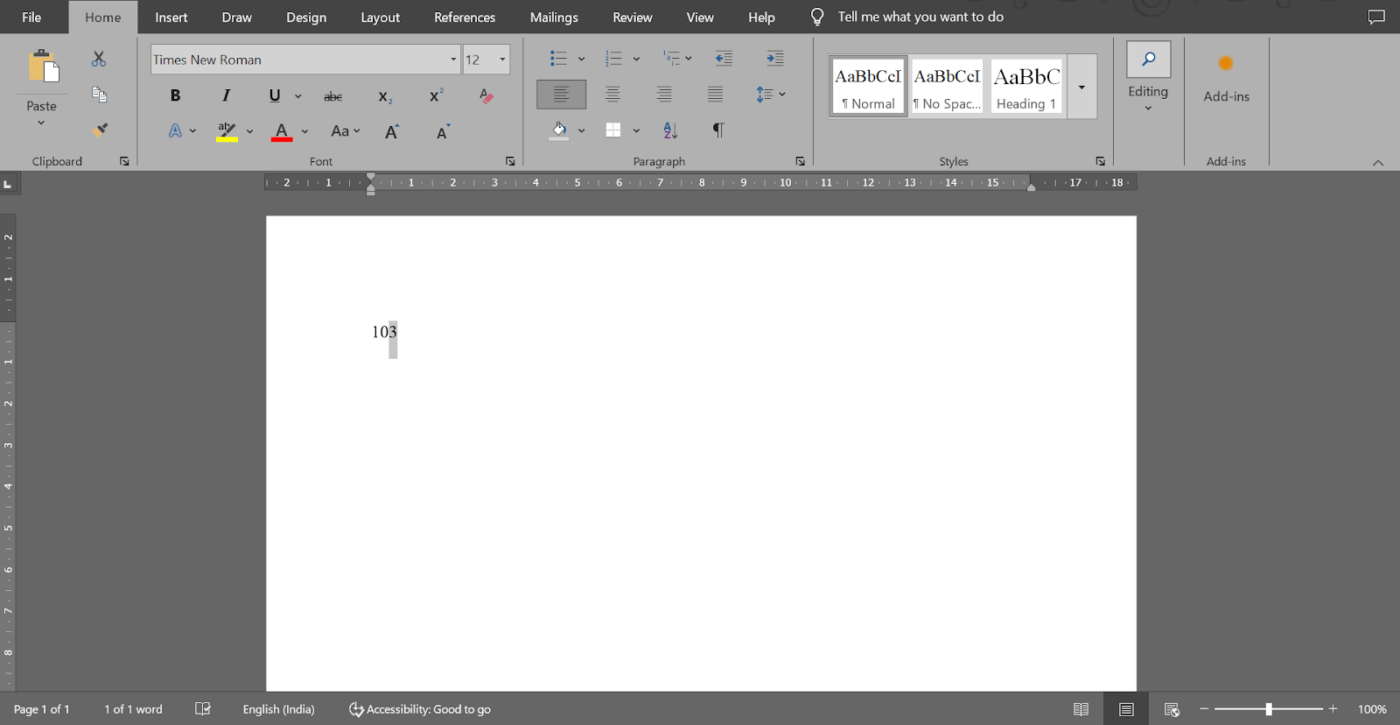
Once you click the appropriate button, you’ll get 10³ as your answer.
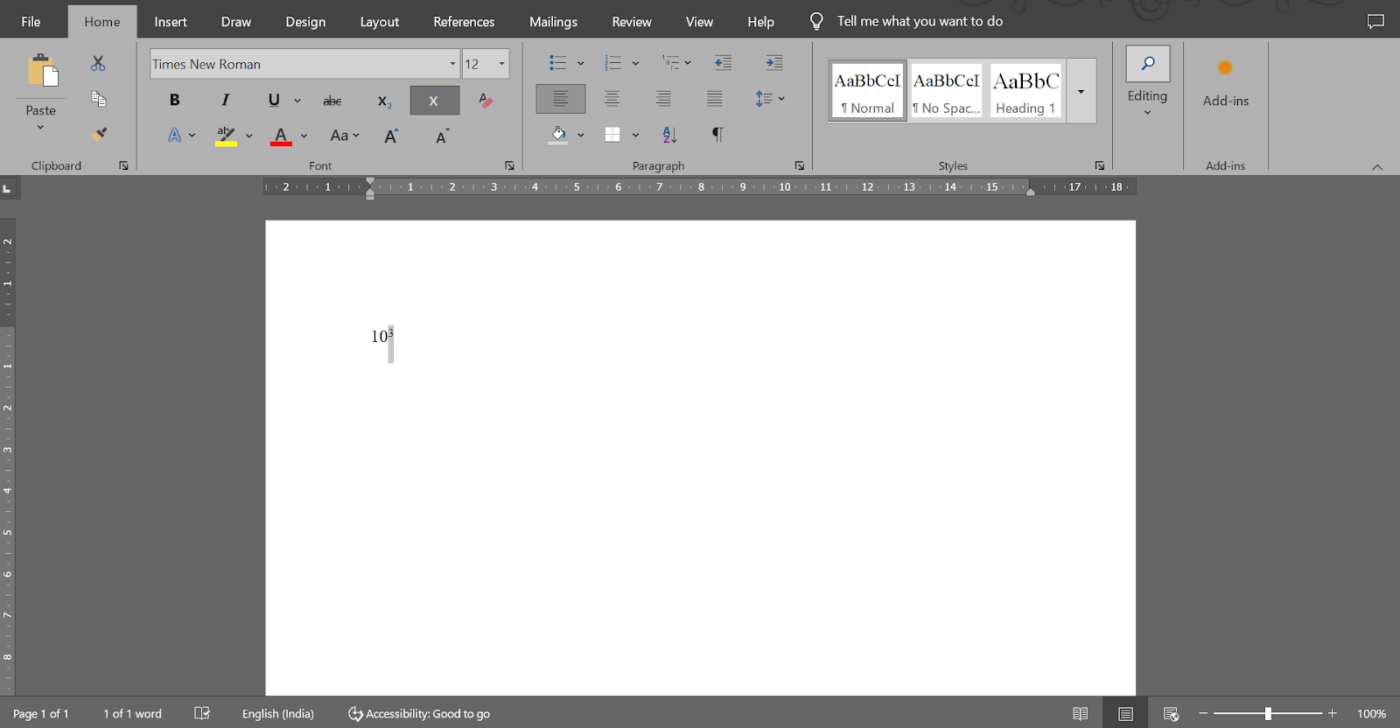
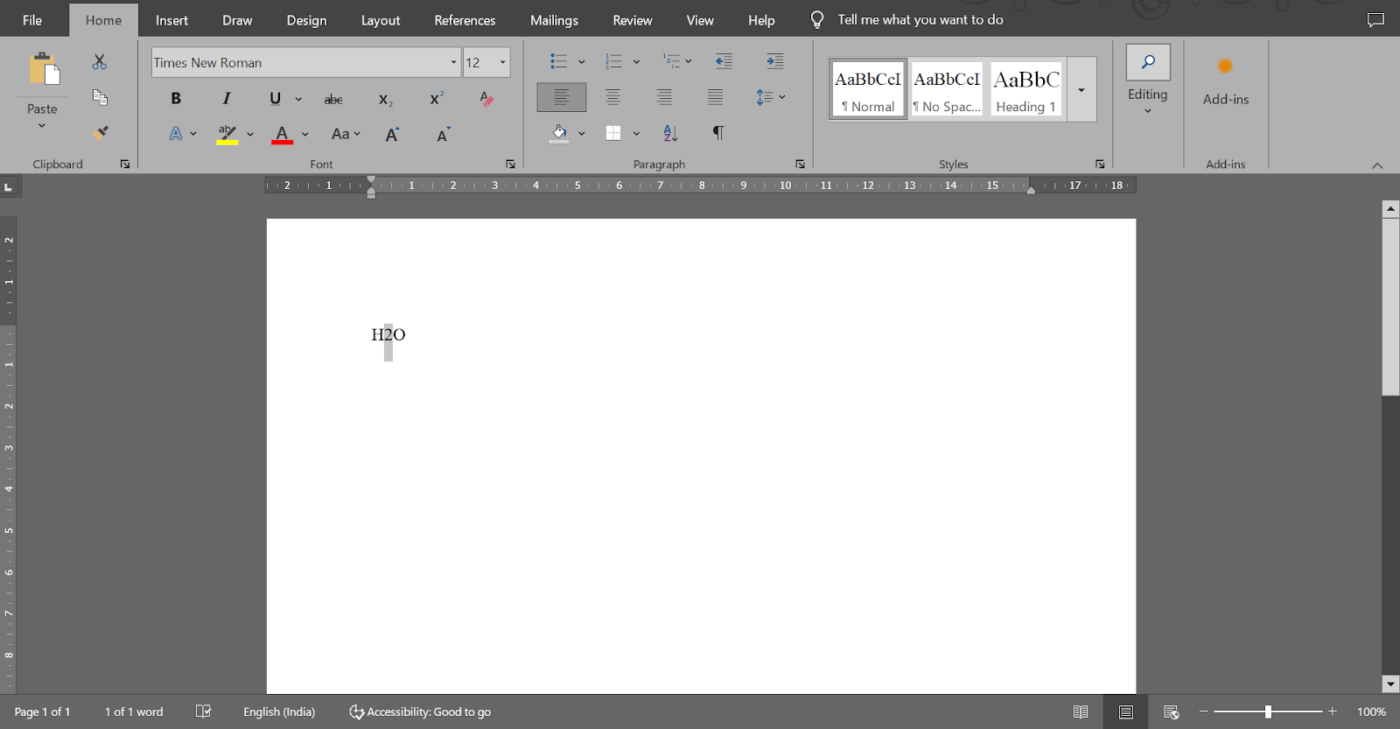
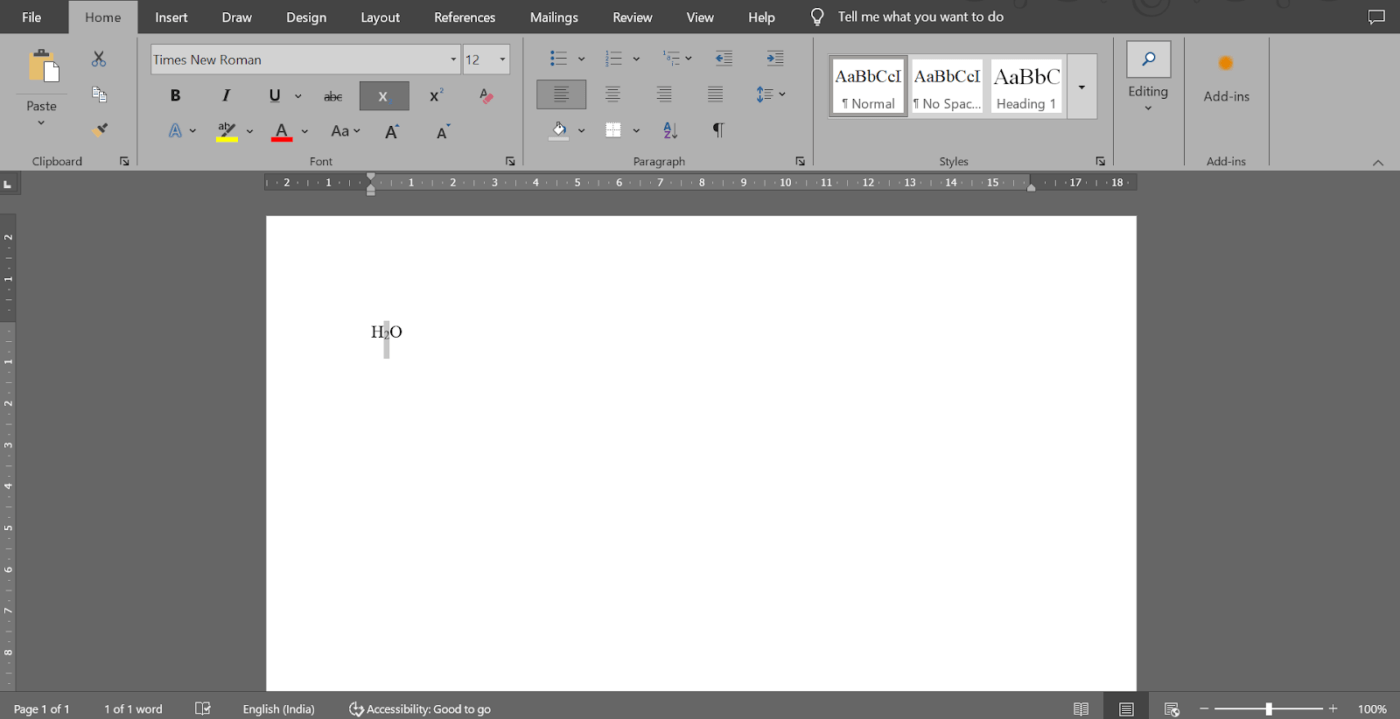
To apply subscript, click the x₂ icon. For example, select the ‘2’ in ‘H2O’ and click the Subscript button. The answer you’ll get is H₂O.
💡 Pro Tip: If clicking the superscript or subscript button alters unrelated formatting, it may be due to additional styles applied. Clear formatting with the Microsoft Word shortcut ‘Ctrl + Space’ before retrying.
Try keyboard shortcuts to apply superscript or subscript
If speed is a priority, Word offers handy keyboard shortcuts for formatting text as superscript or subscript. These shortcuts allow you to format on the fly without interrupting your workflow.
Select the text you want to format. Then, apply these shortcuts:
- For superscript, press Ctrl + Shift + + (Control, Shift, and the Plus sign key simultaneously)
- For subscript, press Ctrl + = (Control and the Equal sign key simultaneously)
This method is perfect if you work extensively with superscripts or subscripts and prefer not to rely on the toolbar.
💡 Pro Tip: Some Word installations or customizations may reassign these shortcuts. A Microsoft Word hack is to check or reset your shortcut settings under Word Options > Customize Ribbon > Keyboard Shortcuts.
Apply superscript or subscript from the font dialog box
The Font dialog box offers additional control over subscript and superscript settings. This method is especially useful if you’re formatting multiple pieces of text or working on a detailed document.
Let’s look at how to apply this method. 📋
Step #1: Open the Font dialog box
Highlight the text you wish to format and go to the Home tab on the Ribbon. Click the small arrow in the button-right corner of the Font section, also known as the Font launcher, to open the dialog box.

The keyboard shortcut to open the Font dialog box is ‘Ctrl + D.’
🔍 Did You Know? The famous red squiggly line that appears under misspelled words was first introduced in Word 97. This quick visual cue allowed users to spot errors and quickly fix them.
Step #2: Locate the Effects section
Once the dialog box opens, locate the Effects section. Check Superscript to format the text above the line and Subscript to format the text below the line.
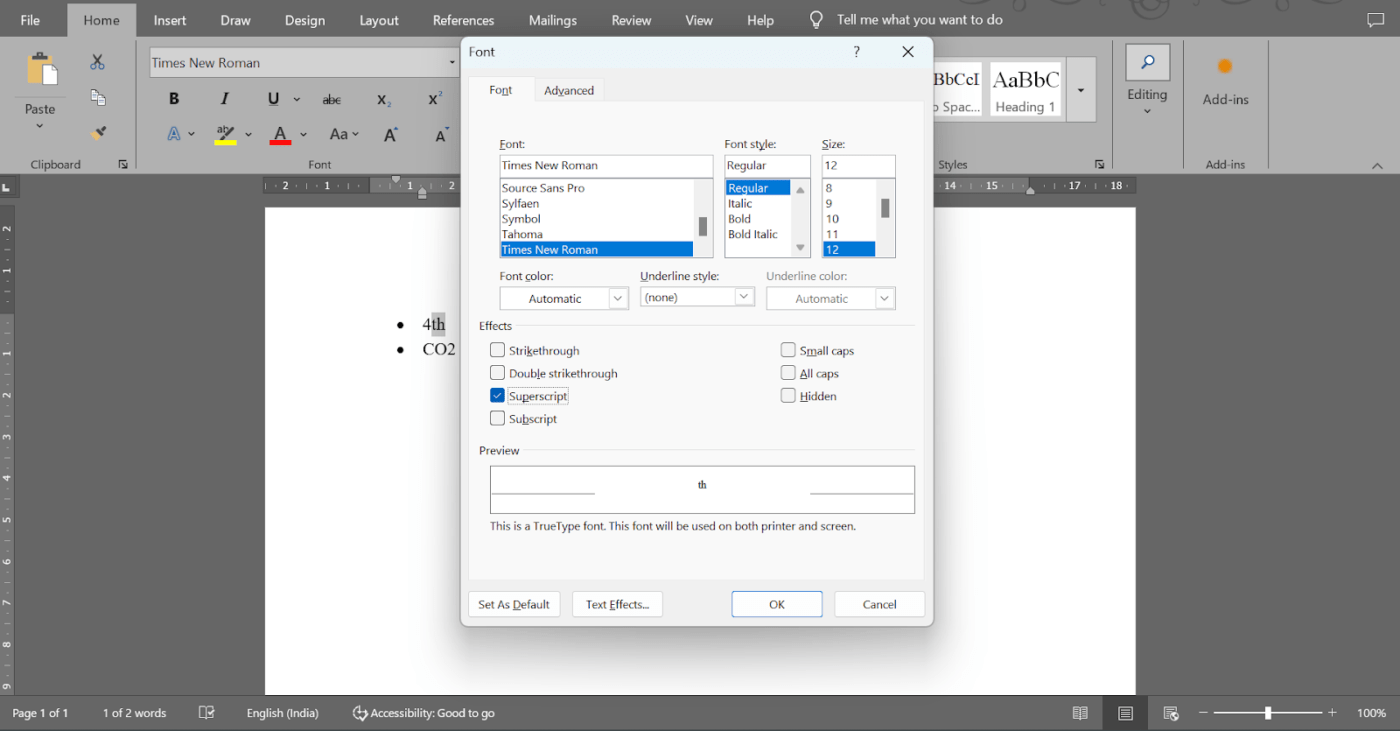
To highlight ‘th’ in ‘4th,’ open the Font dialog box and check Superscript. You’ll get 4ᵗʰ as the formatted text.
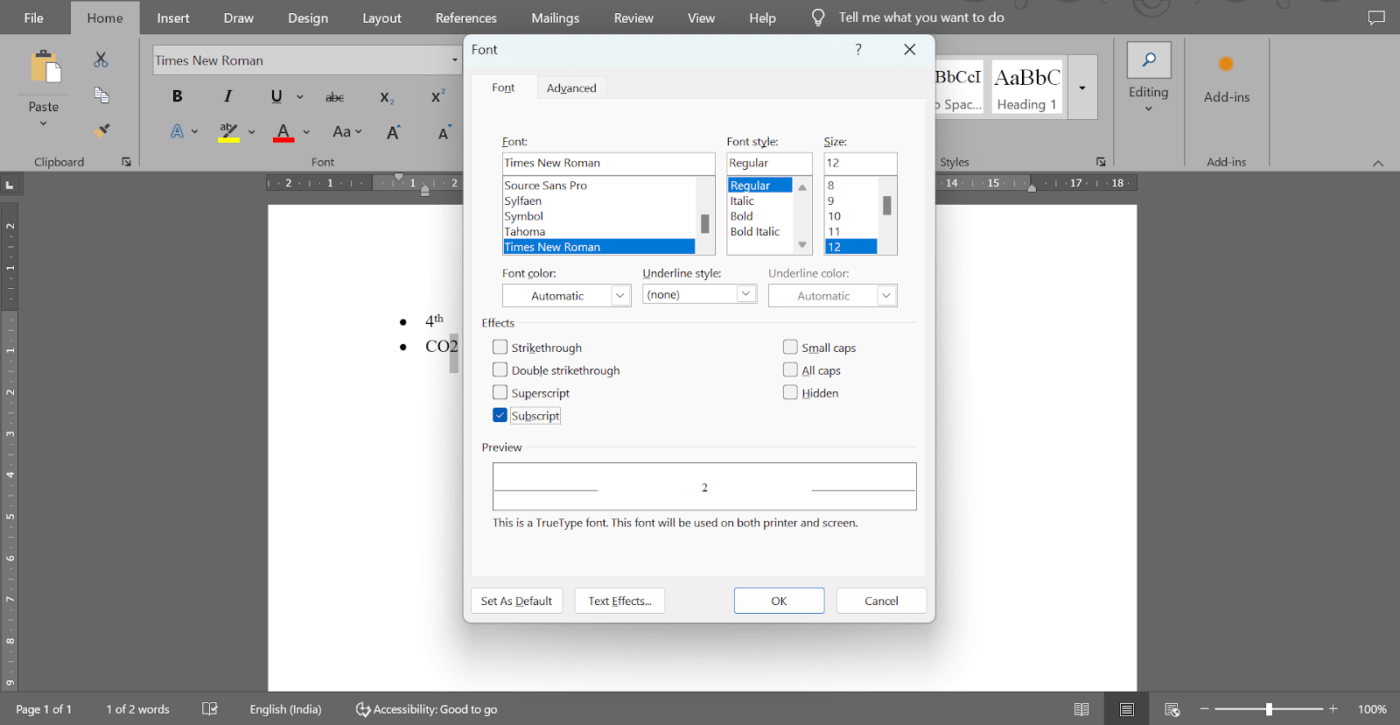
To highlight ‘2’ in ‘CO2,’ open the Font dialog box and check Subscript. It’ll become CO₂.
🧠 Fun Fact: Superscript is often used in legal writing to denote footnotes or references. Many legal documents, such as contracts and academic articles, use superscript numbering for citations or essential notes that appear at the bottom of the page.
Step #3: Click OK
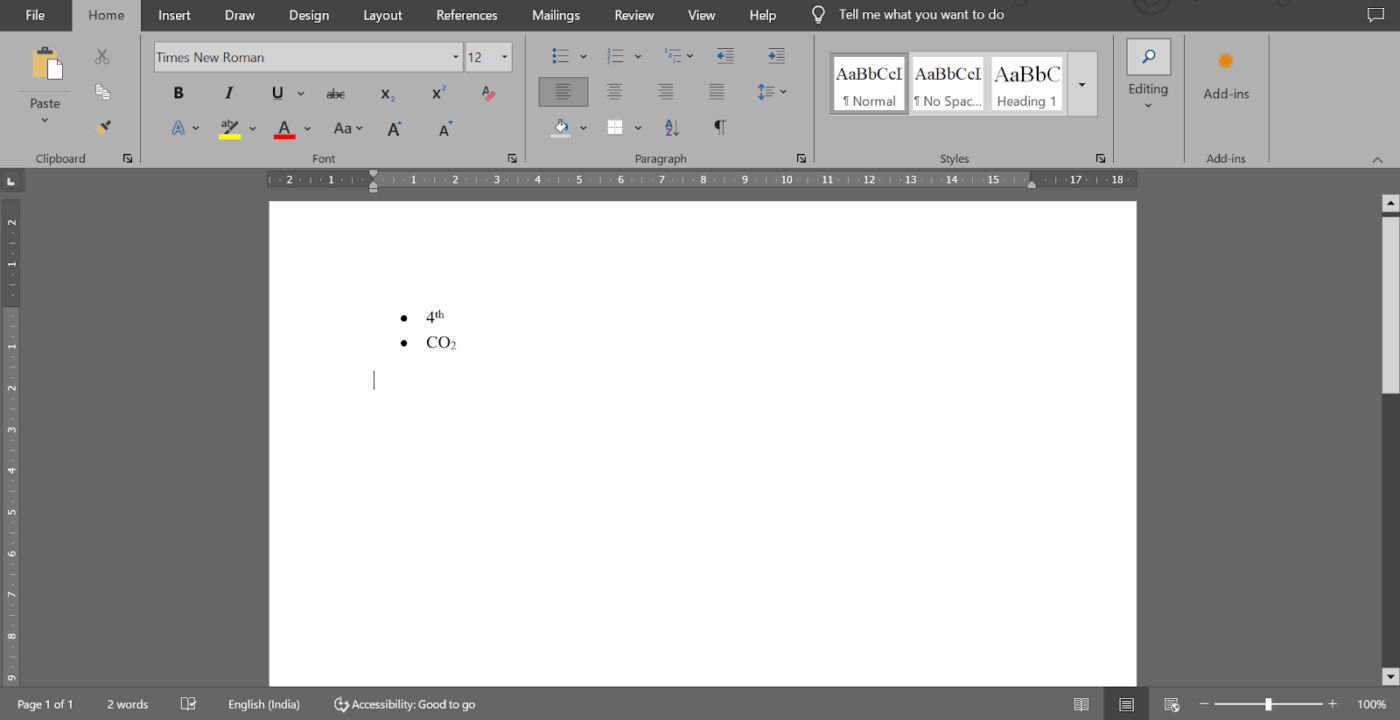
Click ‘OK’ to apply the changes and get the formatted text.
📖 Also Read: How to Compare Two Word Documents
Undoing superscript or subscript formatting
When working with formatting in Word, you might need to revert text to its standard formatting. Fortunately, there are many methods to undo superscripts quickly and efficiently.
Let’s look at a few. 👇
- Keyboard shortcut: Highlight the text with superscript and subscript formatting and press ‘Ctrl + Spacebar’ to revert it to its default style
- Ribbon buttons: If you applied superscript and subscript using buttons on the Ribbon, select the formatted text and click the respective button again to toggle the formatting off
- Font dialog box: Highlight the formatted text, open the Font dialog box, and uncheck the superscript or subscript box under Effects
Summarize this article for me pleaseLimitations of Using Word for Creating and Formatting Docs
While Microsoft Word is a helpful tool for creating and formatting basic documents, it lacks advanced features for elaborate needs.
Here are some common challenges in intricate document creation with Word. 👇
- Compatibility issues: Not all recipients of the document might have access to Microsoft Word, limiting the document’s reach and usability for those using alternative formats
- Co-authoring limitations: Word’s co-authoring features are less effective in comparison to cloud-based tools, making real-time collaboration difficult
- Performance degradation: Large documents have a slow response time during editing or searching
- Complex formatting issues: Word has a rigid structure and doesn’t allow nested pages. Users have also encountered problems with alignment, bullets, and page numbers
- Hidden formatting codes: Word uses hidden codes for formatting, leading to a complicated editing process and unexpected formatting changes that are tedious to undo
🧠 Fun Fact: In the early days of printing, printers manually adjusted typefaces to make characters appear in superscript form. This process was a delicate art, as early printing presses didn’t have the precision of modern ones.
Summarize this article for me pleaseCreating Custom Pages and Documents With ClickUp
ClickUp is the ideal Microsoft Word alternative for teams and individuals looking to create collaborative documents with advanced formatting features.
Unlike Word’s rigid structure and isolated workflow, it integrates document management into your projects without a hitch.
ClickUp Docs

With ClickUp Docs, you can create and organize content seamlessly while keeping everything linked to your tasks and projects.
Formatting is straightforward—you can use banners, tables, and rich-text options to make your documents look polished without dealing with hidden formatting codes. This makes adding superscripts and subscripts much easier than it is in Word.

Plus, if you’re working with large amounts of information, nested pages help keep everything organized, no matter how detailed your document gets.
In Word, co-authoring can be frustrating. However, ClickUp Docs makes real-time editing intuitive. Multiple users can work on a document simultaneously, leave comments, tag teammates, and even turn those comments into tasks.
ClickUp Docs makes document version control effortless, allowing you to track changes and revert to previous versions.
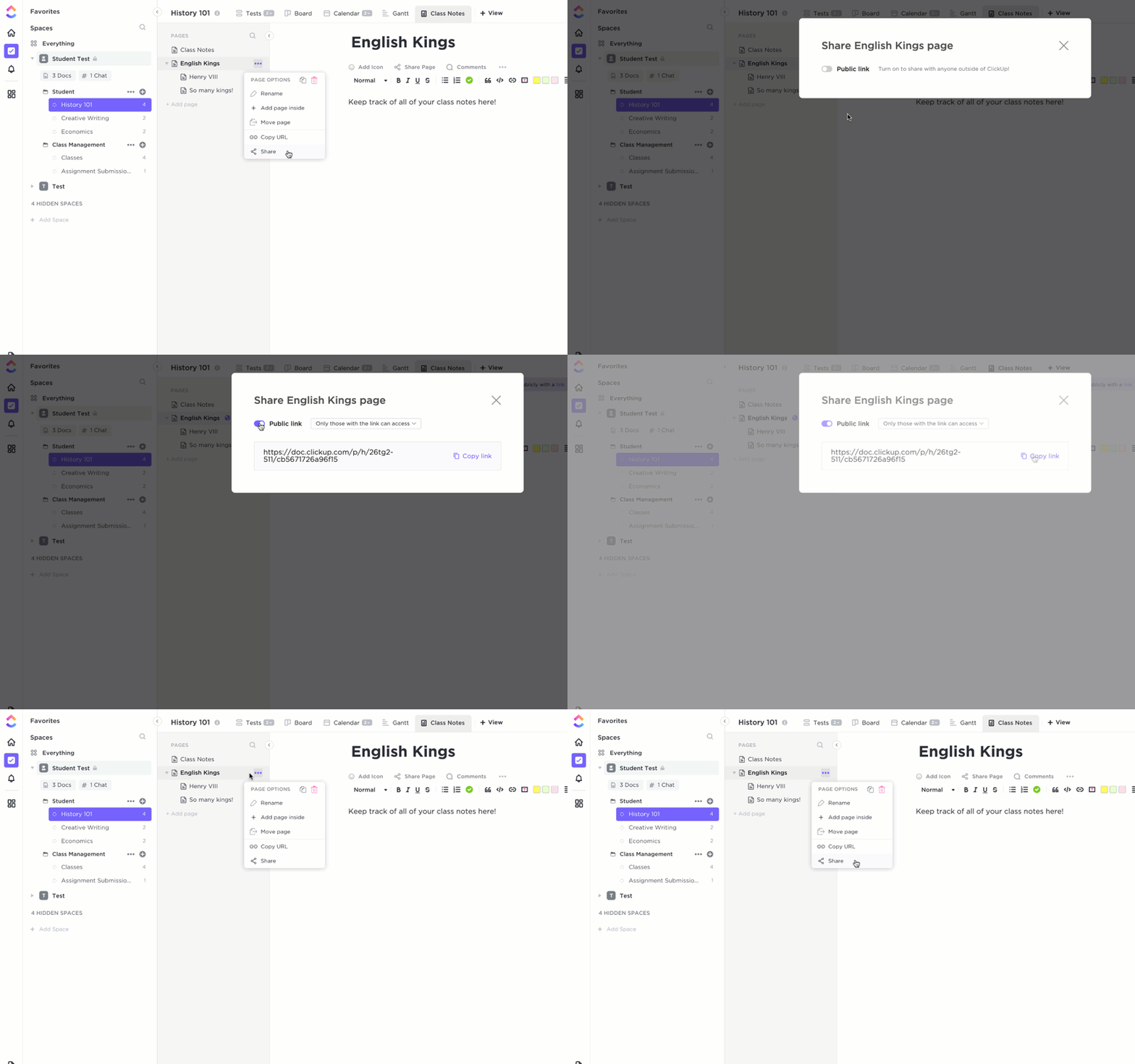
Another area where ClickUp Docs shines is accessibility. Sharing Word documents can be a hassle, especially if recipients don’t have the software or rely on different formats.
The document collaboration software solves this problem by being completely cloud-based. It works on any browser or device and lets you share documents with links, making it easy to collaborate across teams or with external stakeholders.
ClickUp Brain

ClickUp Brain is an AI-powered writing assistant software designed to make managing projects and workflows more intuitive. Integrated within the ClickUp workspace, it seamlessly connects tasks, documents, and knowledge repositories.
One of its distinct features is the AI Knowledge Manager, which acts as a smart assistant for information retrieval. You can ask questions about your projects and tasks to get immediate, relevant answers with context, eliminating manual searches.

Use AI for documentation with Docs’ AI Writing Assistant, from generating task descriptions to crafting full-scale content.
It offers grammar suggestions, pre-built templates, and even transcription for voice notes to craft high-quality, polished content quickly, perfect for juggling multiple deadlines.
📖 Also Read: How to Streamline Your Document Management Workflow
Summarize this article for me pleaseAdvanced Superscript and Subscript Usage
Superscript and subscript formatting are powerful tools in specialized documents. From chemical equations to mathematical notations, they help present complex information clearly and professionally.
Let’s look at some advanced uses of superscript and subscript. 💁
1. Trademark and copyright symbols
Superscript formatting is commonly used to display intellectual property symbols, such as ® or ©, next to a product, brand, or service name.
Using superscripts ensures these symbols are clearly visible without cluttering the text. It also helps maintain readability while ensuring the symbol doesn’t overpower the content.
2. Endnotes or footnotes
When incorporating endnotes or footnotes, superscript is key for keeping the text clean and concise. When you place a superscript number next to a sentence, the reader can identify a reference or citation at the bottom of the page or in the document’s endnote section.
This is particularly helpful for academic or research-based content where footnotes provide additional context.
3. Mathematical expressions
For mathematical expressions, superscript formatting is frequently used for exponents—denoting operations like squaring or cubing numbers.
On the other hand, subscripts help distinguish between different versions of subatomic particles, such as protons and neutrons. It’s also used in equations where variables like A₀ and A₁ represent different versions of the same quantity.
Subscripts also play a key role in showing vectors’ components, where each vector element is written with a subscript to differentiate it. This technique is frequently used in mathematical sequences, where subscripts identify specific members in the series.
In specific mathematical notations, a subscript helps display stacked fractions, where the subscript denotes the denominator of each fraction, keeping everything neatly aligned. For fractions presented diagonally, it helps align the baseline of the main text to make the fraction more readable.
Additionally, abbreviations such as ‘a/s’ (addressed to the subject) often use subscript formatting to ensure the text aligns correctly within a sentence.
4. Scientific writing and ordinal numbers
Superscript denotes mass numbers or atomic numbers in elements and compounds, making these symbols easier to distinguish and read in complex chemical equations.
Ordinal numerals, like 1st or 2nd, are often formatted in superscript to indicate their position in a list or sequence. This keeps the numerals visually distinct from the body of the text, though some style guides may advise against using superscripts for this purpose.
Advanced calculations with ClickUp
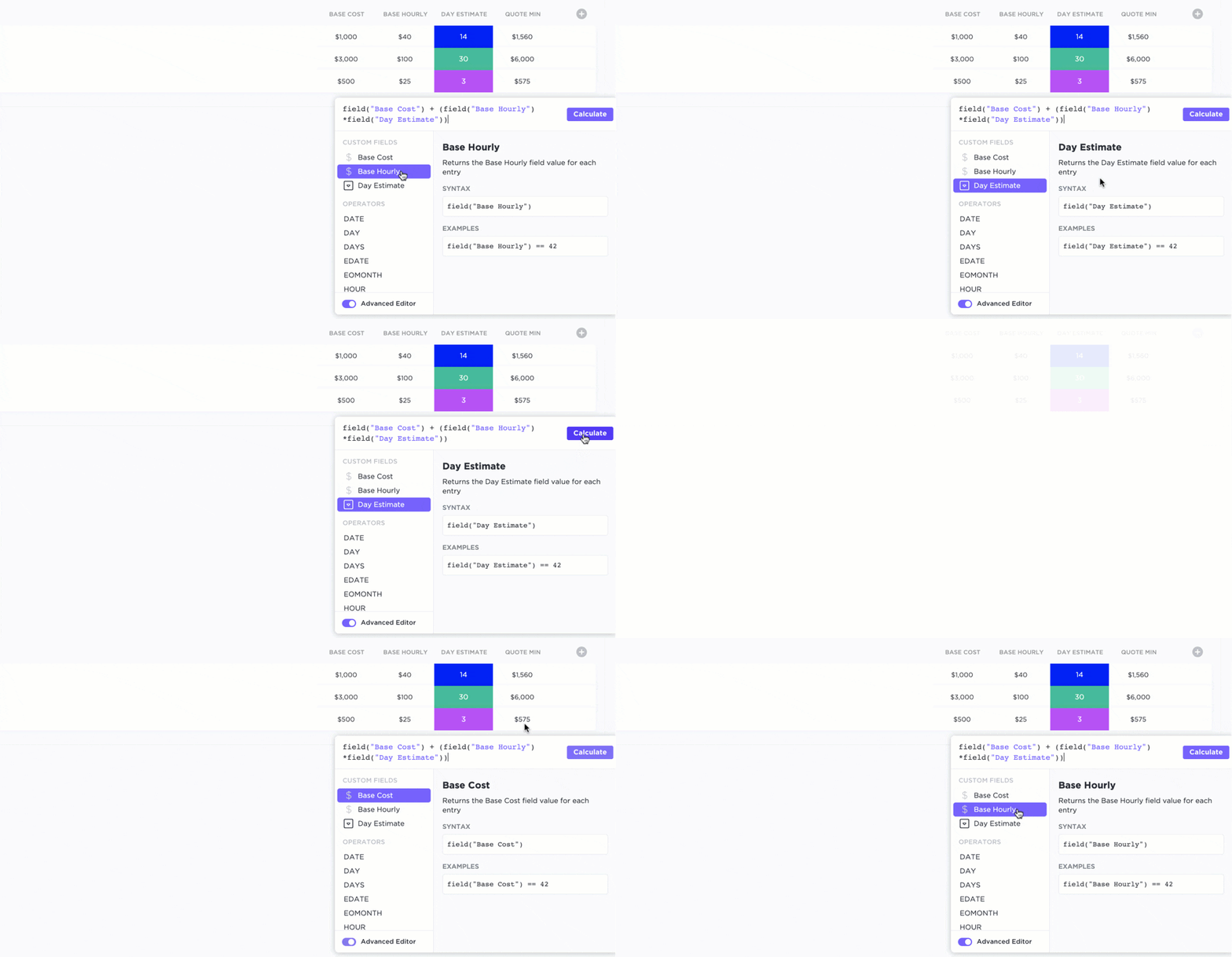
ClickUp Formula Fields offers a great way to perform advanced calculations and manipulate data within tasks. Rather than relying on external spreadsheet software, these fields let you create custom formulas directly within ClickUp.
Formula Fields support over 70 different functions, allowing you to perform various calculations.
You can also use aggregation functions to sum values across multiple tasks, making it easier to track and analyze project metrics like progress and expenditures.
🧠 Fun Fact: Superscript dates back to the earliest forms of typography. It was originally used in handwritten manuscripts to indicate abbreviations, especially in religious texts. For example, the Latin ‘et al.’ (and others) often appeared in superscript.
Summarize this article for me pleaseTake Your Document Formatting Further With ClickUp
Now that you know how to master superscript and subscript in Word using different techniques, you can elevate your documents with more polished formatting.
While Word does the job, if you’re looking for something beyond its basic functionality, ClickUp has your back.
ClickUp Docs lets you create, format, and collaborate on documents with your team in real time.
Need quick insights? ClickUp Brain, the AI-powered assistant, helps you find the information you need. For those more complex tasks, ClickUp Formula Fields easily handle advanced calculations.
So, what are you waiting for? Sign up to ClickUp for free today! ✅


Everything you need to stay organized and get work done.

Recent Articles
Google Keep Vs. Google Tasks: What’s the Difference? 
Google Keep Vs. Google Tasks: What’s the Difference?
