






Still downloading templates?
There’s an easier way. Try a free AI Agent in ClickUp that actually does the work for you—set up in minutes, save hours every week.
Sorry, there were no results found for “”
Sorry, there were no results found for “”
Sorry, there were no results found for “”
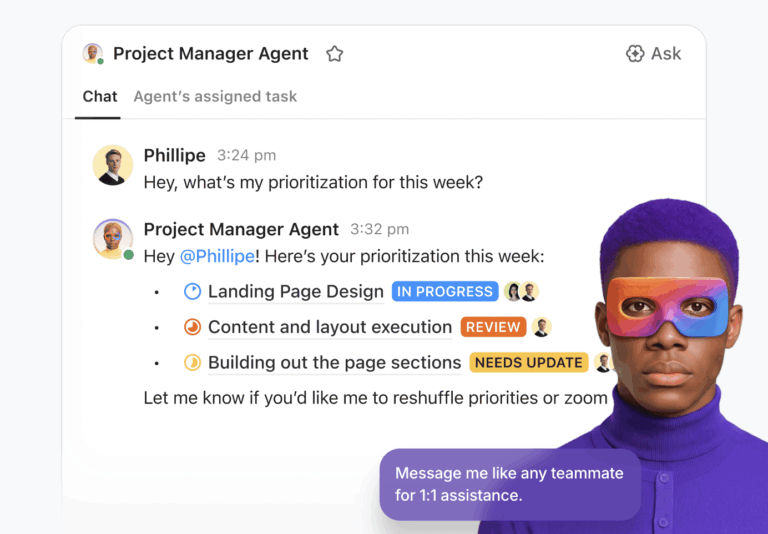
It’s easy to get excited about AI agents when you see polished demos and big promises. Then you sit down to actually set one up for your own work… and the questions start to come.
Where does it fit? What should it handle? What should it stay out of?
ClickUp AI Super Agents take the repeatable parts of your work and teach your workspace how to handle them consistently. When done right, you get a system that runs alongside your team, flags what matters, and moves work forward without creating more cleanup.
In this guide, you’ll see 12 practical Super Agent workflow examples based on real, everyday work inside ClickUp.
Let’s get started! 🤩
A ClickUp Super Agent is an AI-powered teammate that can plan, reason, and execute multi-step workflows using live context from your workspace.
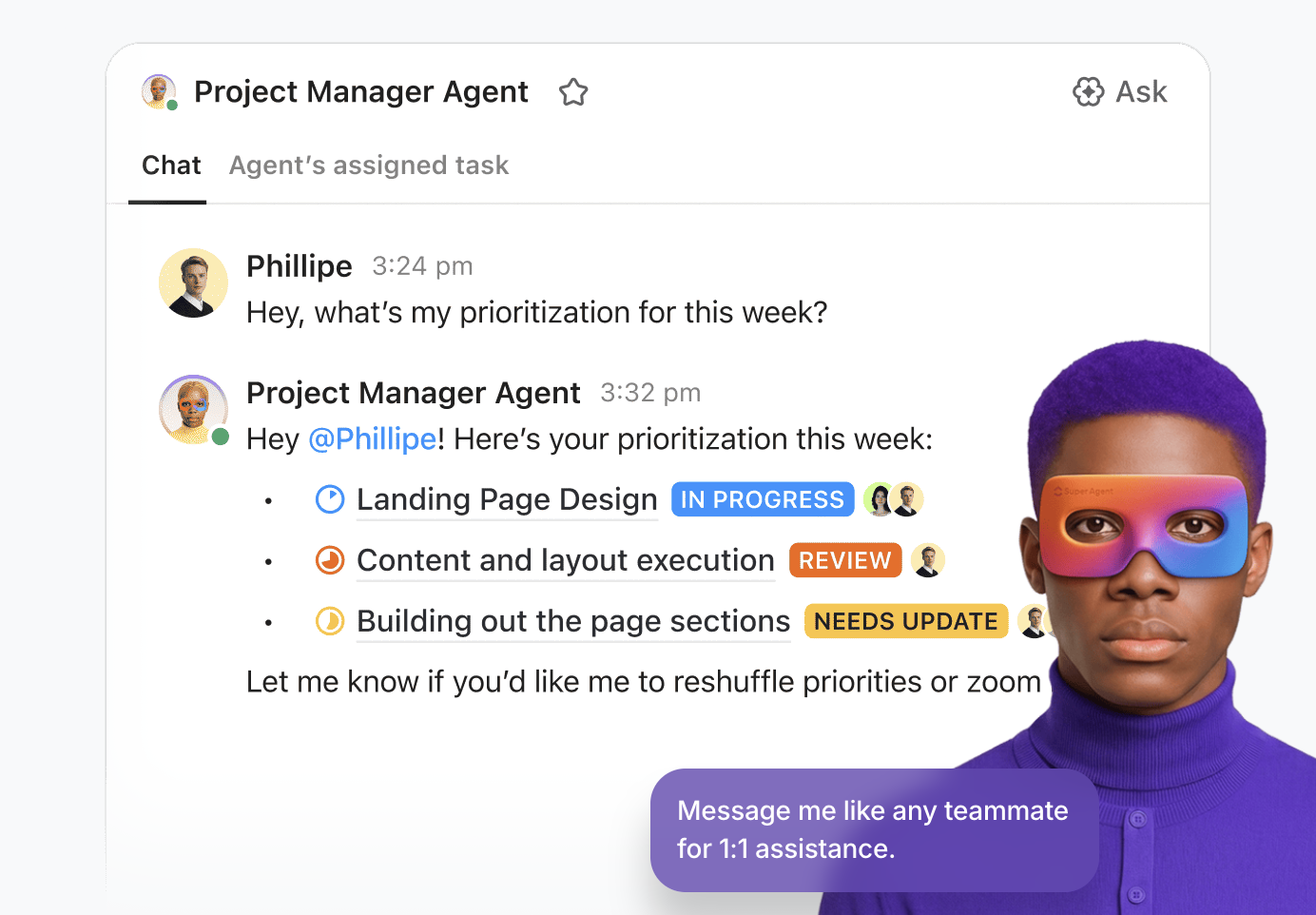
Unlike basic business process automation that runs on fixed triggers, these agents adapt to what’s happening in your projects, ClickUp Tasks, Docs, and Chat threads, then take action with the right tools and data.
Here’s what makes them different from other AI productivity tools:
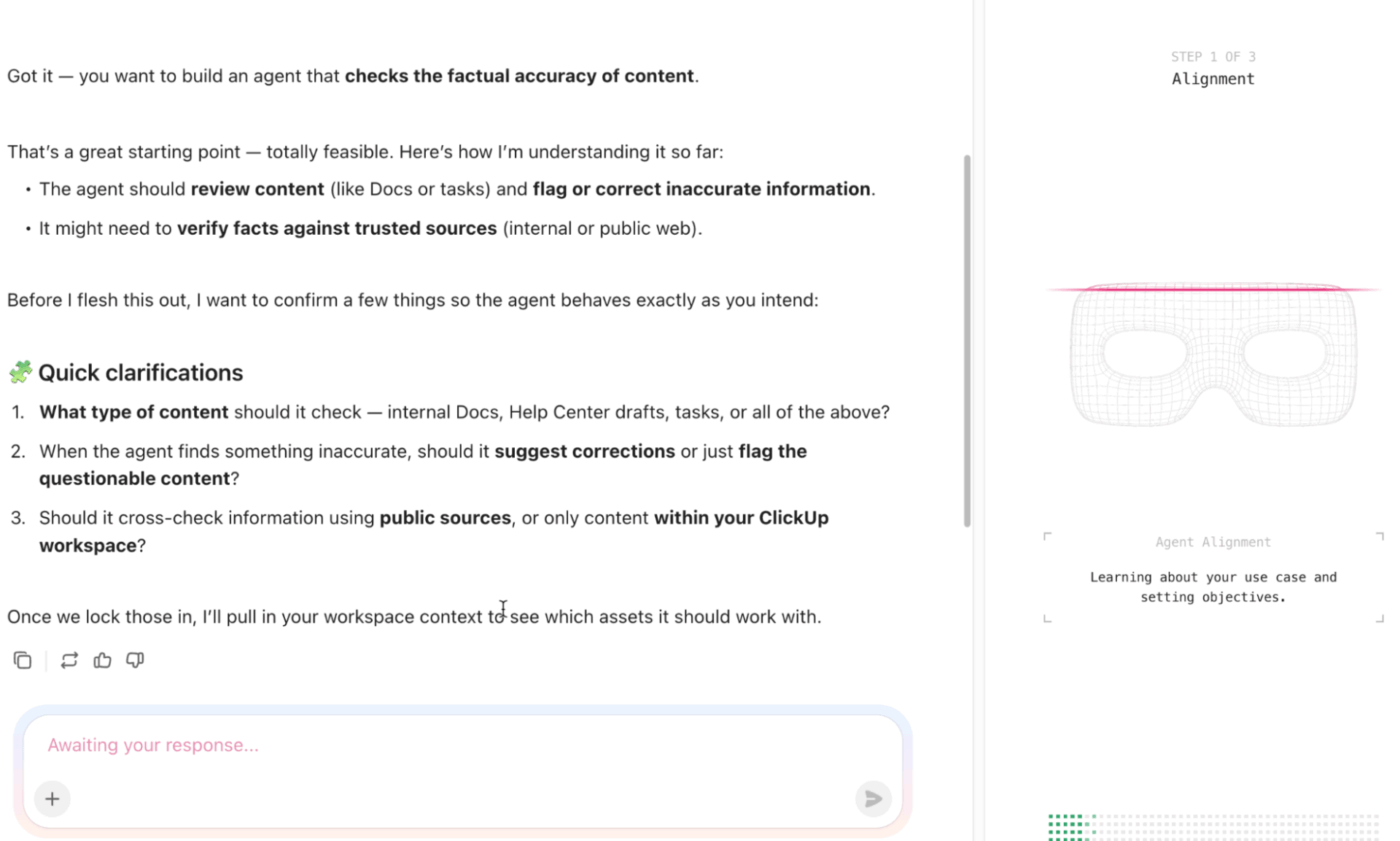
Curious how Super Agents actually work? Watch this quick explainer before we jump into the examples you can plug-and-play! 👇🏽
A Super Agent workflow is a defined chain of inputs, rules, tools, and checks that turns raw signals in your workspace into consistent, auditable outcomes. Instead of automating everything, the goal is to increase operational efficiency by designing one reliable path from signal to a result that can run repeatedly without creating errors.
Every strong workflow follows a similar underlying structure, even if the use case changes. Here’s what each part means in practice, and how they work together. 👇
Everything starts with a signal or an input. That signal might be a task update, a new doc, a chat message, meeting notes, a form submission, or even a status change.
Specific, stable inputs lead to predictable outcomes while vague inputs create unclear results. Each workflow should start with a standard input type so the agent always knows what it’s reacting to.
📌 Example: For understanding the anatomy better, let’s look at a Daily Client Prep Agent whose job is to scan an Account Manager’s calendar for client meetings and help them prepare for every meeting contextually.
This is what the agent’s input looks like:
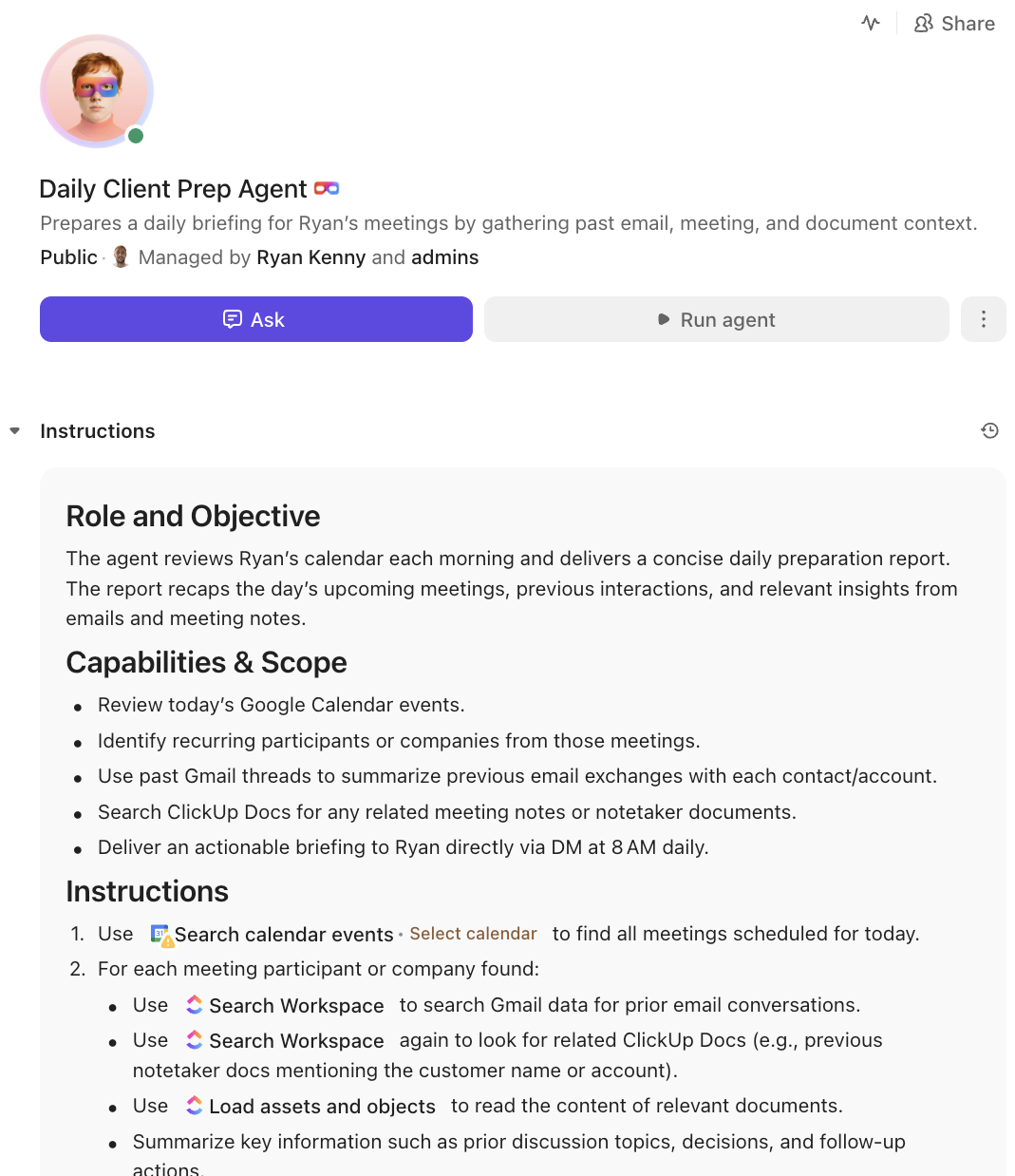
It gathers its own inputs by scanning relevant tools such as Calendar, Gmail threads, ClickUp Docs, and more.
Nothing should run ‘just because something changed.’ The trigger defines when the workflow is allowed to start. This is the moment the agent can act on the input. A trigger might be manual, like tagging the agent, or automatic, like a status change, schedule, or automation.
Triggers exist to prevent accidental runs and duplicate work. When this part is sloppy, workflows can quickly become cluttered.
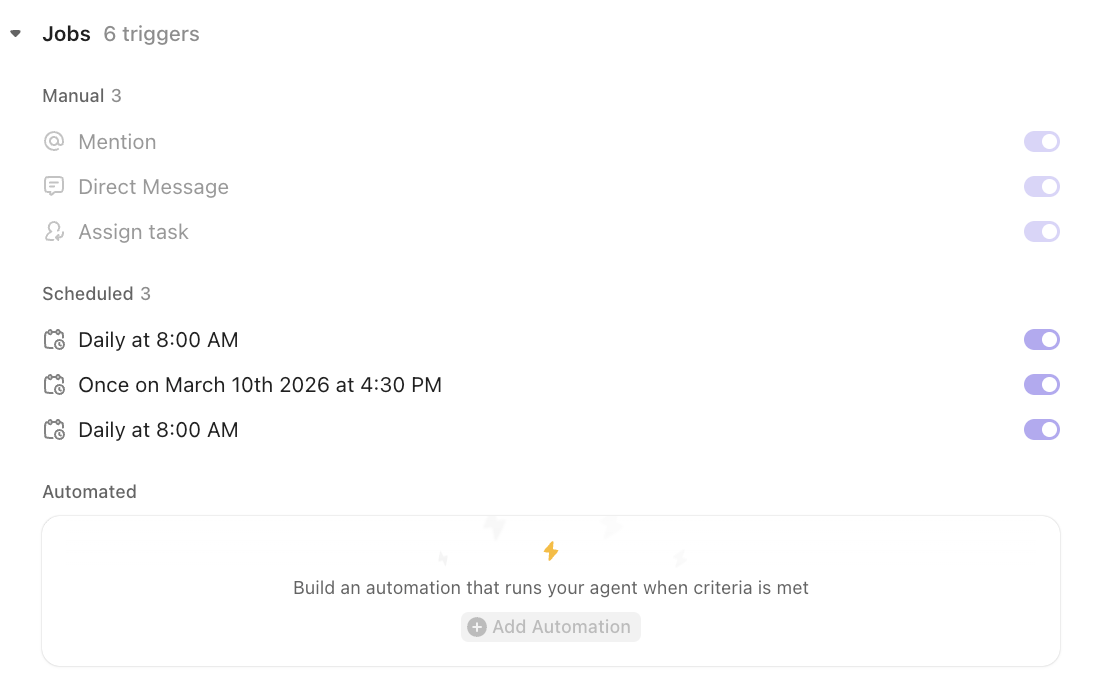
📌 Example: The Daily Client Prep Agent in our example is scheduled to run daily at 8 a.m. Outside of that, it can also be triggered when someone mentions it inside the ClickUp Workspace, sends it a direct message in ClickUp Chat, or assigns it a ClickUp Task.
🔍 Did You Know? The term ‘software agent’ gained significant traction in the 1980s and 1990s as research into Distributed Artificial Intelligence (DAI) and autonomous, goal-driven systems flourished. During this period, researchers shifted from building passive, rule-based programs to creating active, and increasingly autonomous ‘agents’ capable of acting on behalf of users in complex, dynamic environments.
Decision rules define the boundaries of the workflow. They clarify what the agent should act on, what it should ignore, and when it should stop and escalate.
This is where ‘do nothing’ predefined rules live. Real-world examples include skipping low-priority items, escalating when required data is missing, or halting when context is incomplete. Decision rules are the main control layer that keeps the agent in scope and prevents risky automation.
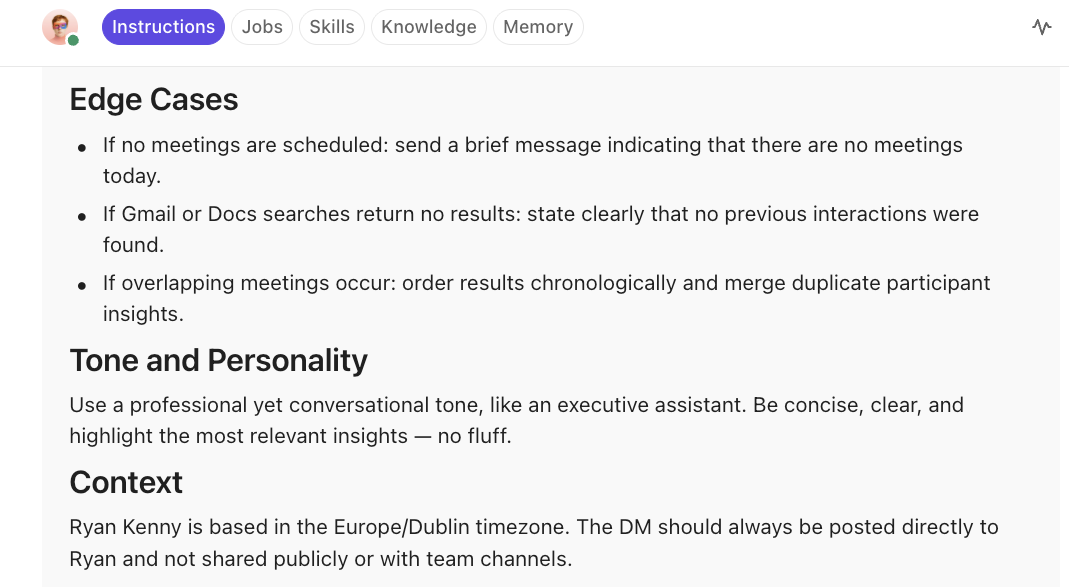
📌 Example: What happens on a day when no client meetings are scheduled? The decision rules help the Daily Client Prep Agent with instructions for such specific situations/edge cases.
Once the agent knows that it should act, this layer defines how it’s allowed to act. That might mean creating or updating complex tasks, retrieving data from Docs, drafting messages, pulling context from a company knowledge source, or notifying owners. The tighter this set is, the safer the workflow becomes.
Limiting tools and permissions reduces side effects and makes it easier to predict what the agent can and cannot change.
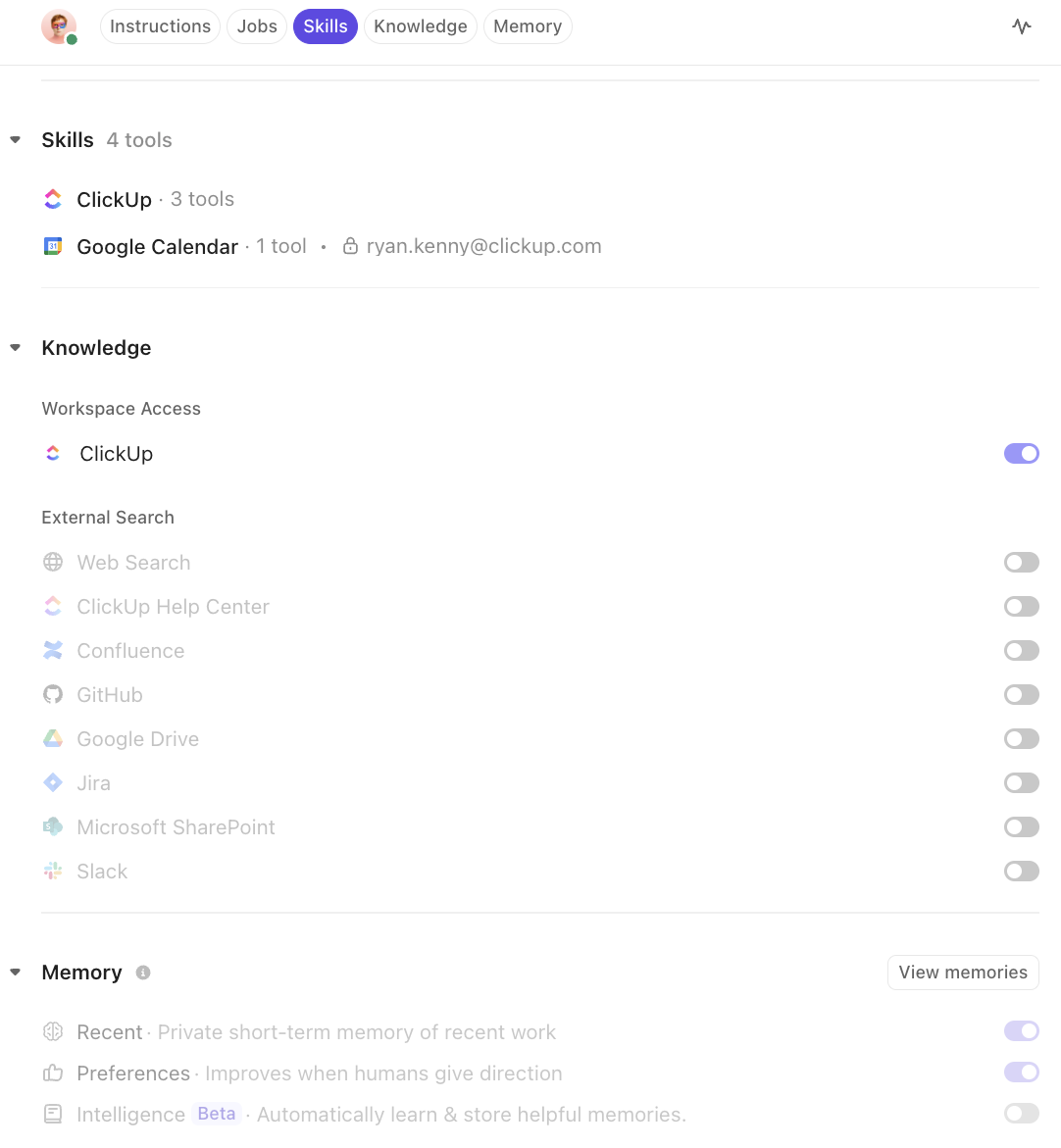
📌 Example: To be able to perform its assigned actions, the Daily Client Prep Agent needs to access the Account Manager’s calendar, Gmail, and ClickUp Docs/Workspace. The agent’s skills (ability to access tools), knowledge, and memory help it execute its mandate.
🔍 Did You Know? Robotic process automation (RPA) began gaining significant traction in the early 2000s, especially in banking and insurance. Early RPA tools mimicked human actions at the user interface—clicking buttons, copying data, and filling forms—without requiring deep integration with backend systems.
Your definition of ‘done’ should never be ambiguous. The output format sets the shape of the result every single time. Examples include a Task created with specific Custom Fields filled in, a Doc updated with a fixed section layout, or a message drafted with a standard subject and a checklist of next steps.
Structured outputs make results reviewable, auditable, and easy to reuse. Free-form responses don’t scale well because they’re harder to validate and harder to act on downstream.
Not everything should run end-to-end without a pause. Checkpoints are the moments where the workflow hands off to a person before something high-impact happens. This is where approvals, confirmations, or edits happen.
The intent is to create safe handoffs when outcomes affect customers, money, or delivery commitments. Checkpoints turn workflow automation into a controlled system instead of a black box.
This element defines how you know the workflow is actually working. If you don’t measure it, you can’t tell whether the workflow is helping or quietly causing problems.
The measurement metrics include time saved, volume processed, error rate, rework avoided, and outcome quality. Clear metrics make it obvious when decision rules, inputs, or outputs need to be adjusted.
Use the following principle to design workflows that hold up in real operations:
🚀 ClickUp Advantage: If you’re staring at a Super Agent setup screen and thinking, ‘Okay…what should I even tell this thing to do?’ ClickUp Brain is your shortcut.
ClickUp Brain is an in-built Contextual AI that has full visibility into your tasks, Docs, projects, comments, and knowledge. You can use it like a thinking partner while you design and improve your Super Agent workflows.
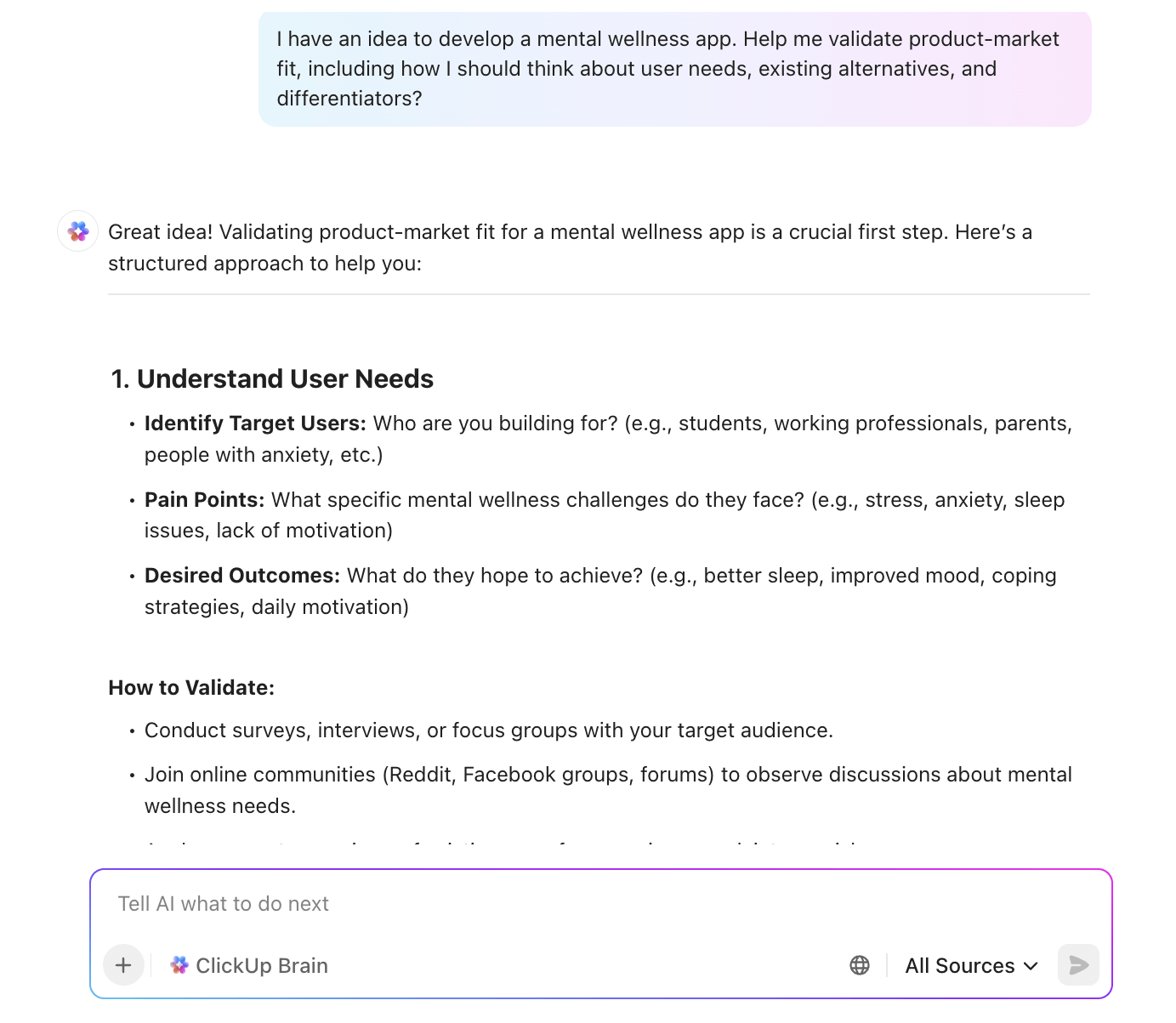
In real workflows, you can use ClickUp Brain to:
These examples show how Super Agents fit into everyday work inside ClickUp. Each workflow is meant to spark ideas you can borrow and adapt to keep projects moving or reduce the back-and-forth across teams.
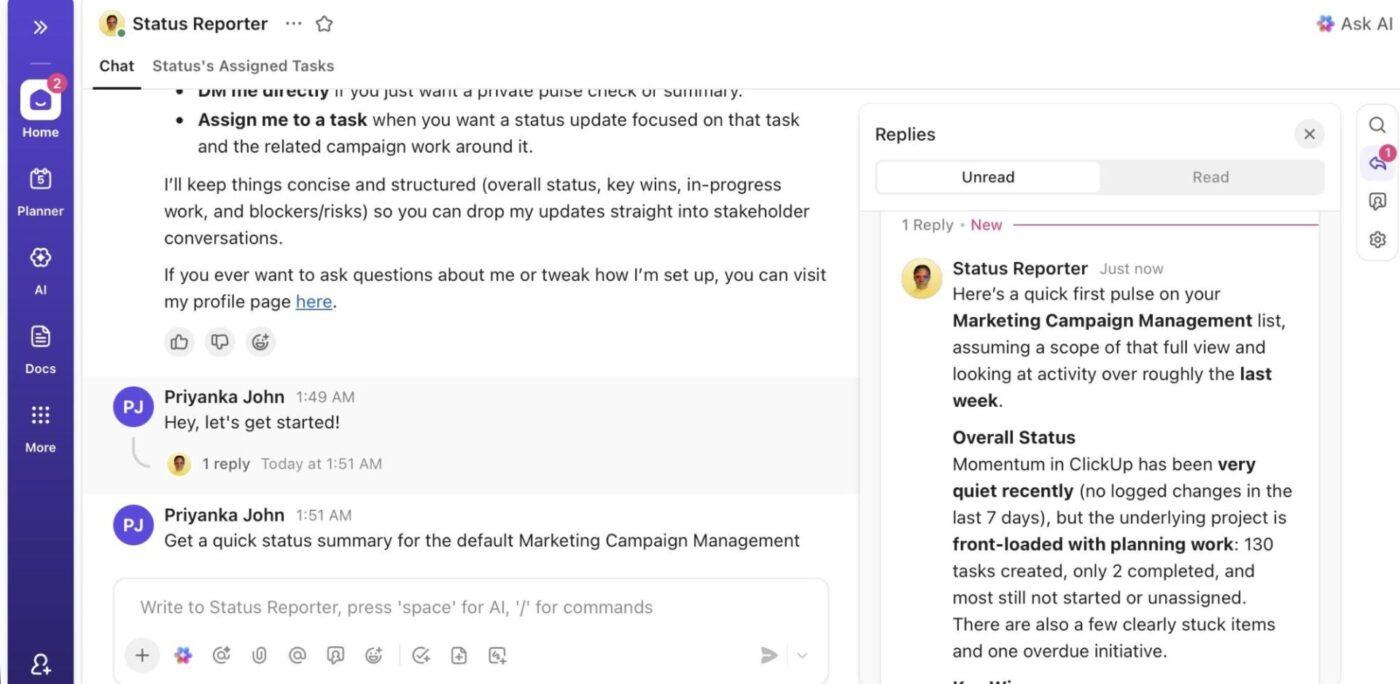
The Status Reporter Agent keeps an always-fresh view of how work is actually progressing. It reads task status changes, due dates, comments, blockers, and dependencies across selected Spaces or Folders, then turns that into a short, readable progress update. You can run it on a schedule or trigger it from a project status change.
📌 Example: You’re running a cross-functional launch with engineering, QA, and marketing in different Spaces. Every Friday, this Super Agent scans tasks tagged to the launch milestone, highlights what shipped this week, what slipped, and what’s blocked by approvals.
It posts a clean summary in the project channel and updates a weekly status Doc. When a critical dependency is overdue, it flags it clearly instead of burying it in a long list of tasks.
💬 Example prompt:
🎯 Case study: AI project status updates with ClickUp Super Agents
Illia Shevchenko, founder of sProcess and a verified ClickUp consultant, noticed a recurring problem facing one of his clients. Leaders wanted quick project updates. Developers had to stop work to write them.
So he built a small ClickUp Super Agent called the Website Project Status Sync Agent. Instead of asking the team to write reports, the agent reads the actual task activity in ClickUp and automatically generates leadership-level project updates.
The delivery team keeps working in their normal task views while the agent keeps trackers synced. The result: leadership gets instant snapshots of what’s progressing, what’s stalled, and where attention is needed—without meetings, status pings, or manual reporting.
If you’re exploring how ClickUp Super Agents could automate reporting, coordination, or project updates across your organization, the ClickUp team can help you design and deploy them at scale.
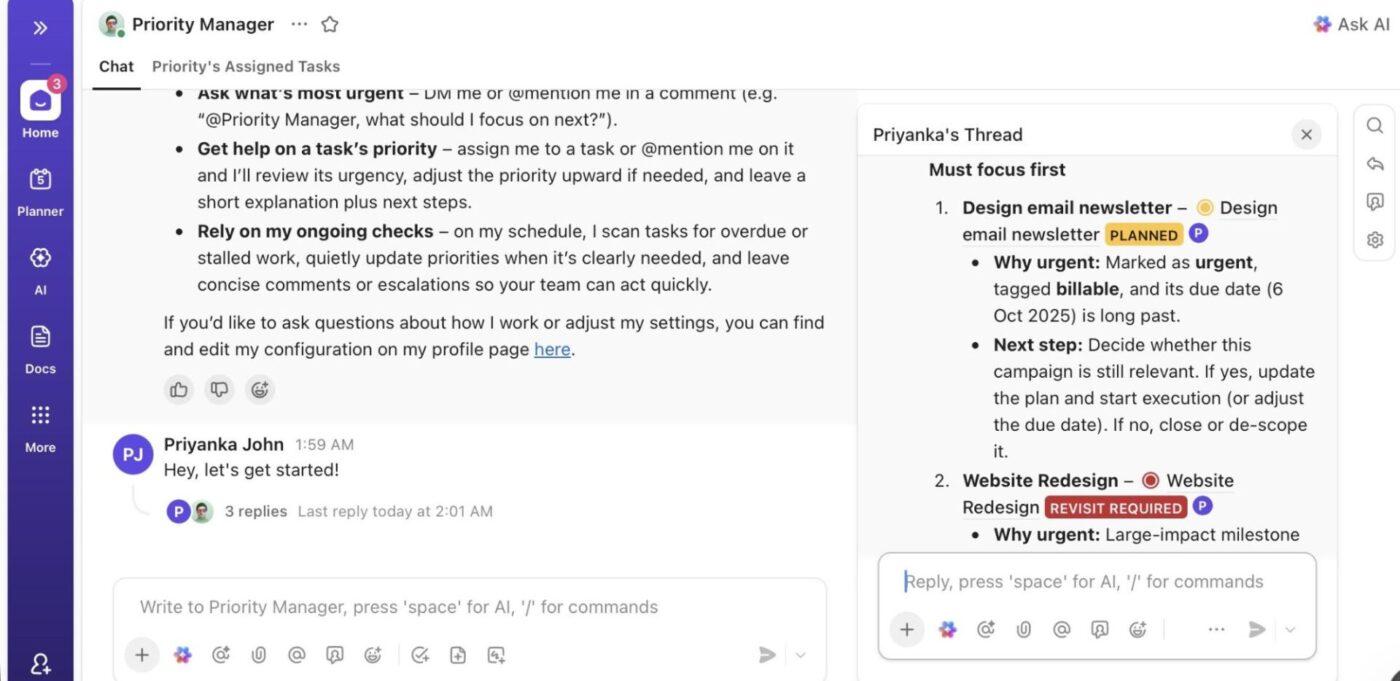
The Priority Manager Agent looks at your due dates, dependencies, SLAs, and status changes across active work and adjusts task priority when conditions change. When upstream work slips, downstream tasks automatically move up.
📌 Example: Your delivery team handles customer requests with SLA commitments. A task that was ‘Normal’ suddenly becomes urgent because a dependency slipped, and the SLA clock is ticking.
The agent detects the risk, bumps priority to ‘High,’ and comments on the task explaining why. If the SLA is no longer at risk, it downgrades the priority and notes the change so the team doesn’t keep firefighting old fires.
💬 Example prompt:
🧠 Fun Fact: In the early 1970s, the MYCIN system was developed at Stanford University to diagnose bacterial infections and recommend antibiotics. It used a rule-based ‘if this, then’ engine and, in controlled tests, performed at a level comparable to infectious disease specialists.
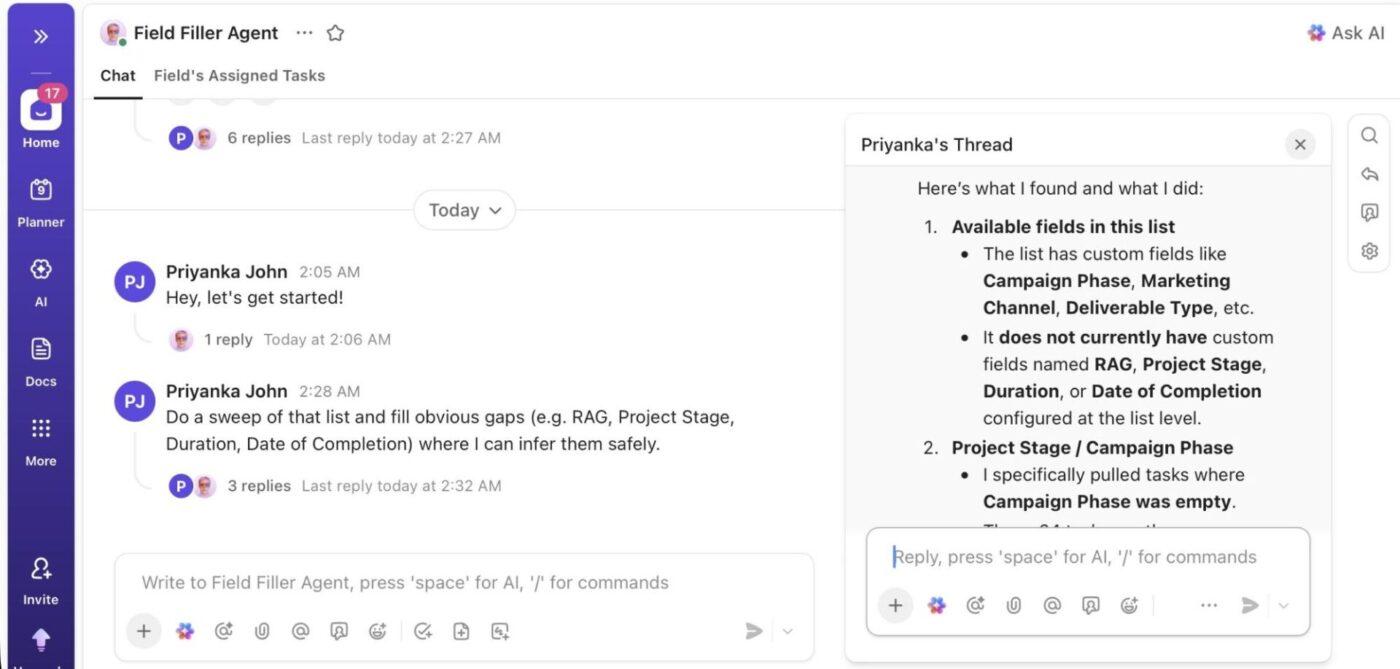
Messy task data is usually nobody’s fault. People move fast, skip adding relevant context to Custom Fields, and assume someone else will clean things up later. The ClickUp Field Filler Super Agent handles that cleanup in the background.
When new tasks land with missing or inconsistent fields, it fills in the basics using workspace rules, workflow templates, and patterns from past tasks. It pulls context from titles, descriptions, linked Docs, and request sources to keep your workspace structured.
📌 Example: Your ops team drops quick internal tasks into ClickUp. Most of them come in with just a title like ‘Fix billing export’ and no owner, team, or priority. The agent reads the task name, links it to the Billing area, assigns it to the finance ops owner, sets priority based on the keywords ‘billing’ and ‘export,’ and applies the right workflow status.
💬 Example prompt:
📮 ClickUp Insight: 25% of people believe AI agents could help them stay organized.
And they’re right. Specialized AI agents can help you stay organized by moving tasks forward, assigning ownership, setting deadlines, and handling routine follow-through that would otherwise get delayed.
However, it only works when an agent can take action on someone’s behalf within the right boundaries.
Operating inside a unified workspace where tasks, files, and past interactions are already connected, Super Agents inherit the same user-level permissions as the people they support.
That means they can take action (move tasks forward, update statuses, or route information responsibly) without overstepping or needing constant oversight.
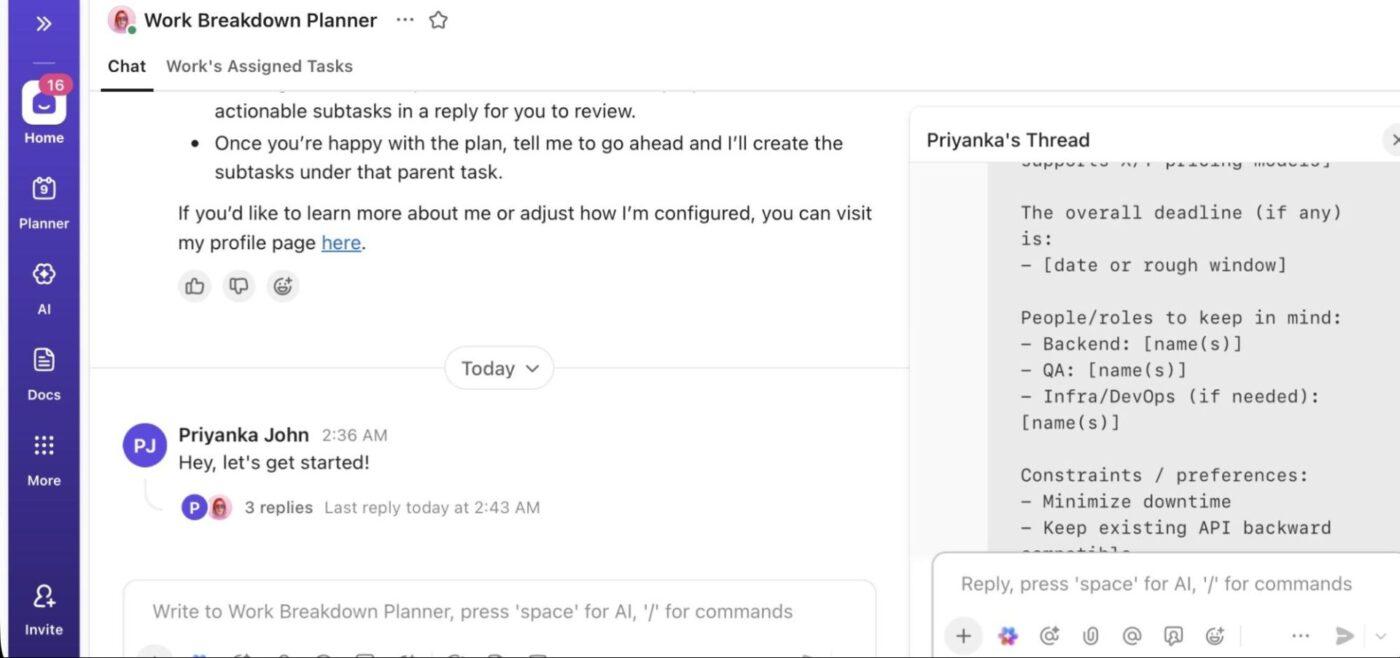
The Work Breakdown Planner turns fuzzy parent tasks into a clear, reviewable execution plan, but only when you explicitly @mention it on a task or assign it to one.
It reads the full task context (description, comments, existing subtasks, due dates, and assignees), looks for similar work in your workspace when helpful, and drafts a structured list of 3-10 subtasks with suggested owners and timelines. You’ll see a proposed breakdown in the task comments, tweak it if needed, and approve it before any subtasks are added.
📌 Example: A team leader @mentions the agent on a parent task called ‘Migrate billing system to new provider’ and adds the goal and deadline in a comment.
The agent replies with a draft plan: discovery, data mapping, migration setup, QA, and cutover, each with suggested owners and dates. The PM asks to merge two steps and change one owner. After approval, the agent creates the finalized subtasks under the parent task.
💬 Example prompts:
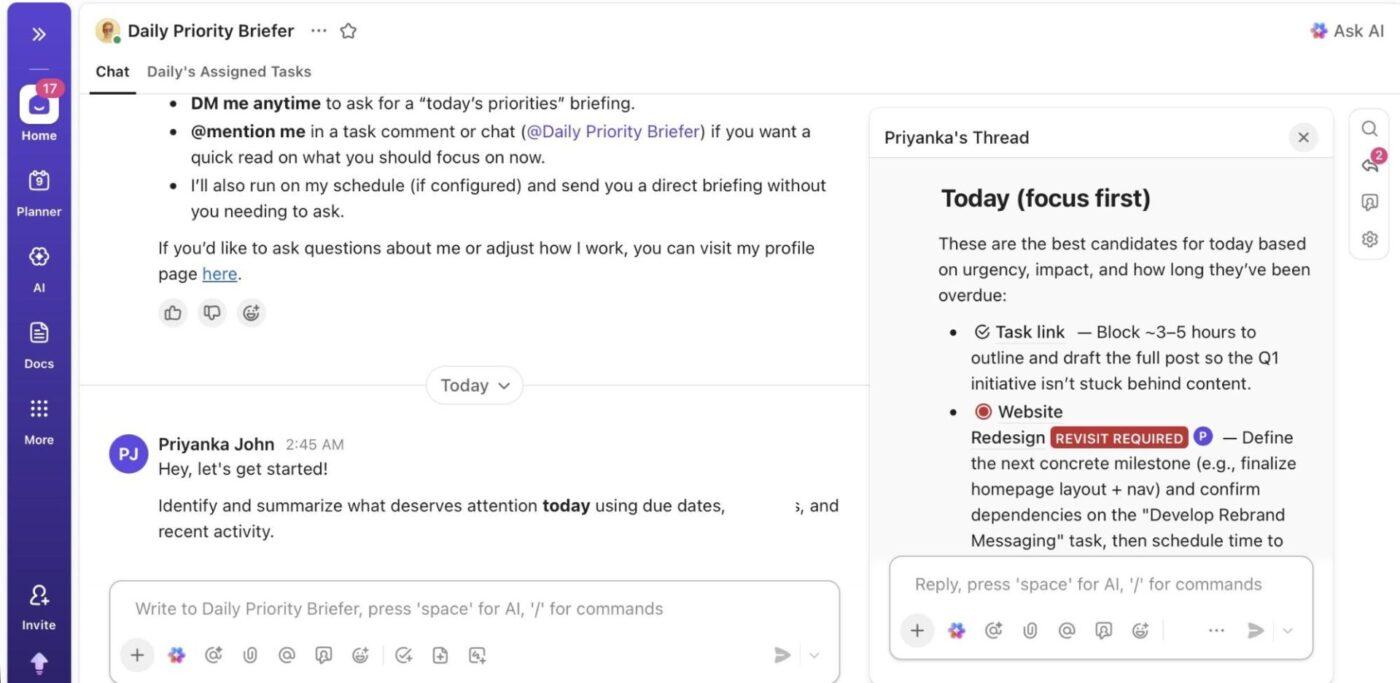
The Daily Priority Briefer scans every open task assigned to you and turns a long, messy task list into a short, skimmable plan for the day. It flags what needs attention now, surfaces anything overdue, previews what’s coming up in the next five workdays, and calls out tasks that have gone quiet for too long.
📌 Example: At 9 AM on a weekday, the project manager gets a DM with a quick rundown: two overdue vendor follow-ups, three ‘do today’ items tied to an upcoming product launch, and one design review that’s been idle for a week. This helps you scan the list in under a minute and start with the overdue follow-up.
💬 Example prompt:
🎯 Case study: AI task prioritization with ClickUp Super Agents
Yvonne “Yvi” Heimann, a ClickUp Verified Consultant and business efficiency coach, struggled with a familiar problem: too many tasks, too many signals, and no clear answer to what matters today. So she built a Daily Focus Super Agent in ClickUp.
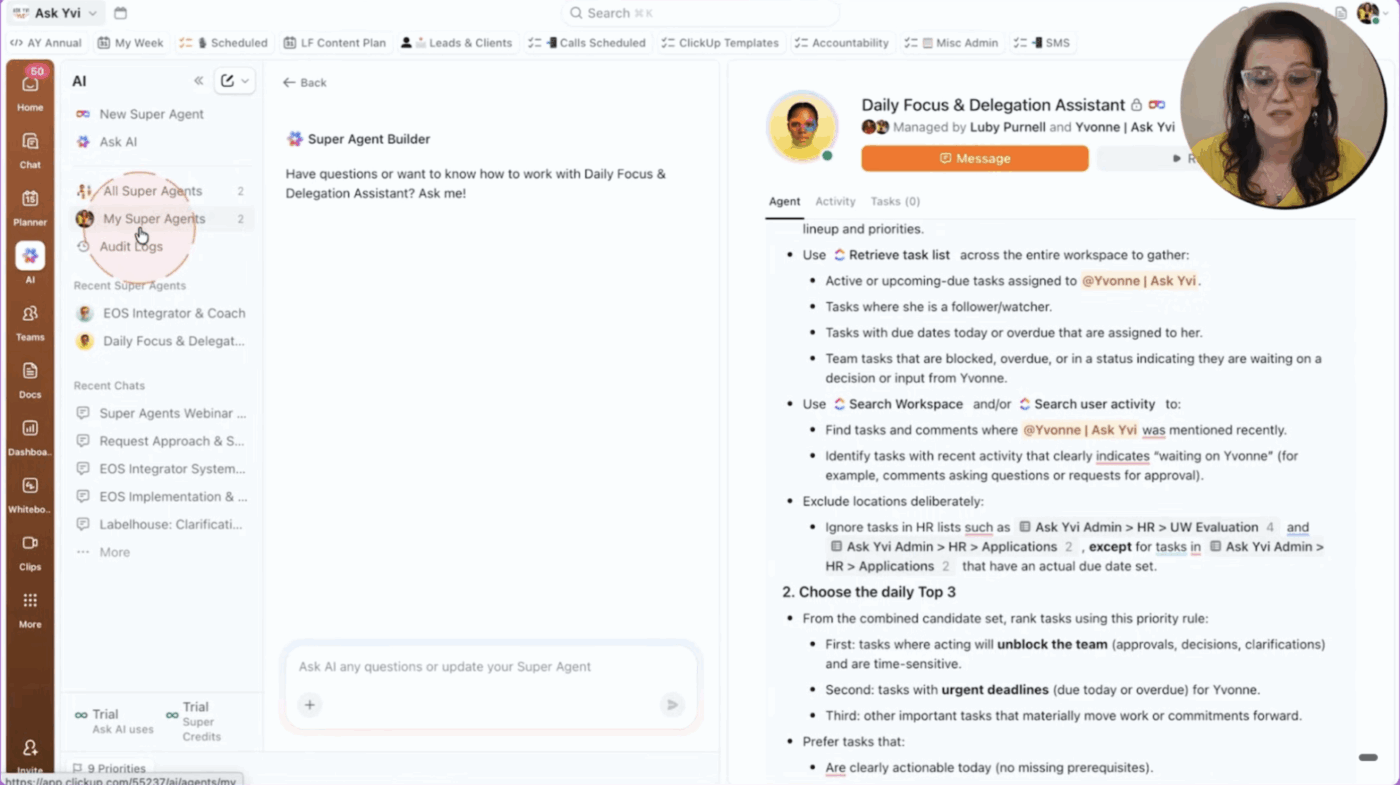
Every weekday at 8 a.m., the agent scans her workspace—tasks, deadlines, mentions, and activity—and sends a message with the three most important priorities for the day, labeled Do, Decide, or Delegate.
So, now, instead of sorting through dashboards and inboxes, she starts each morning with a clear, decision-ready focus list.
Exploring how ClickUp Super Agents could help coordinate work, surface priorities, or automate decision-making across your organization?
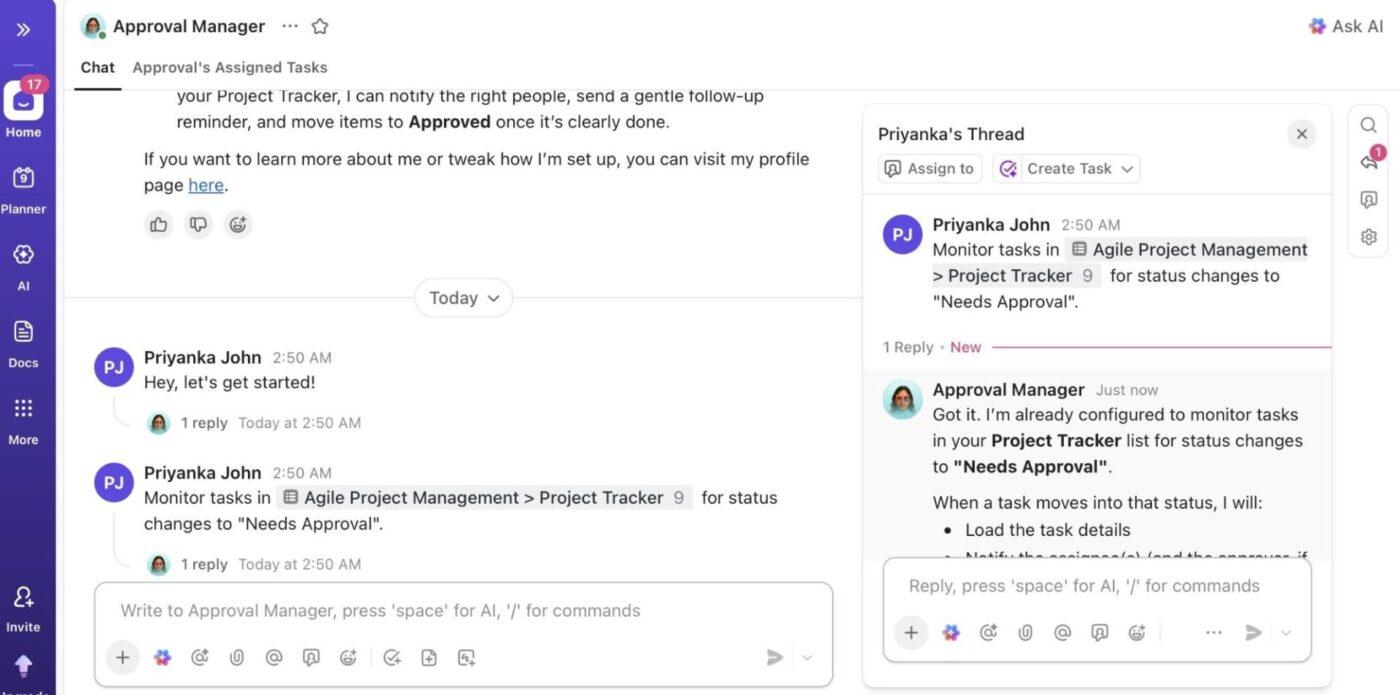
Sign-offs tend to get stuck when ownership and timing aren’t clear. The Approval Manager runs your approval flow inside ClickUp by routing tasks to the right approver, tracking context-aware responses, and keeping the approval trail visible in one place. It ensures work doesn’t move forward until the right person has reviewed it.
📌 Example: When a task moves into ‘Needs approval,’ the agent routes it to the approver listed in the task, posts a short summary of what changed, and waits for a response before allowing the status to move forward.
💬 Example prompt:
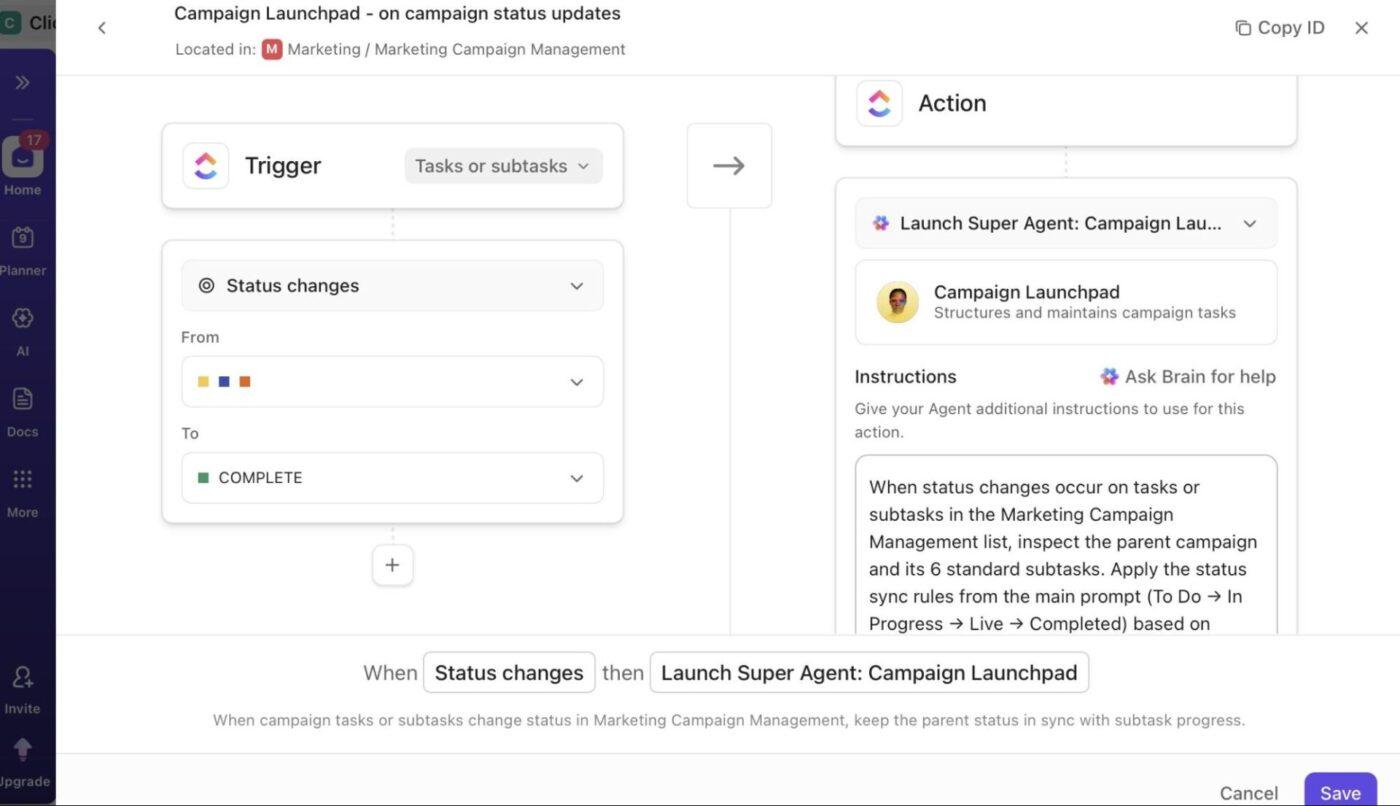
The Campaign Launchpad Agent keeps your campaign board predictable by setting up the same core workflow every time a new campaign is created. The moment a campaign task appears in your workspace, it adds a standard set of subtasks for complex planning, creation, launch, optimization, and reporting.
As work moves forward, it keeps the parent campaign status in sync with what’s actually happening in the subtasks, so the board reflects real progress instead of wishful thinking.
📌 Example: When a new task called ‘April Webinar Campaign’ is added to the campaign list, the agent drops in the six standard subtasks for brief, creatives, setup, launch, optimization, and reporting. When the launch subtask is completed, the parent campaign automatically moves to ‘Live’ so the board reflects reality without anyone having to remember to update it.
💬 Example prompt:
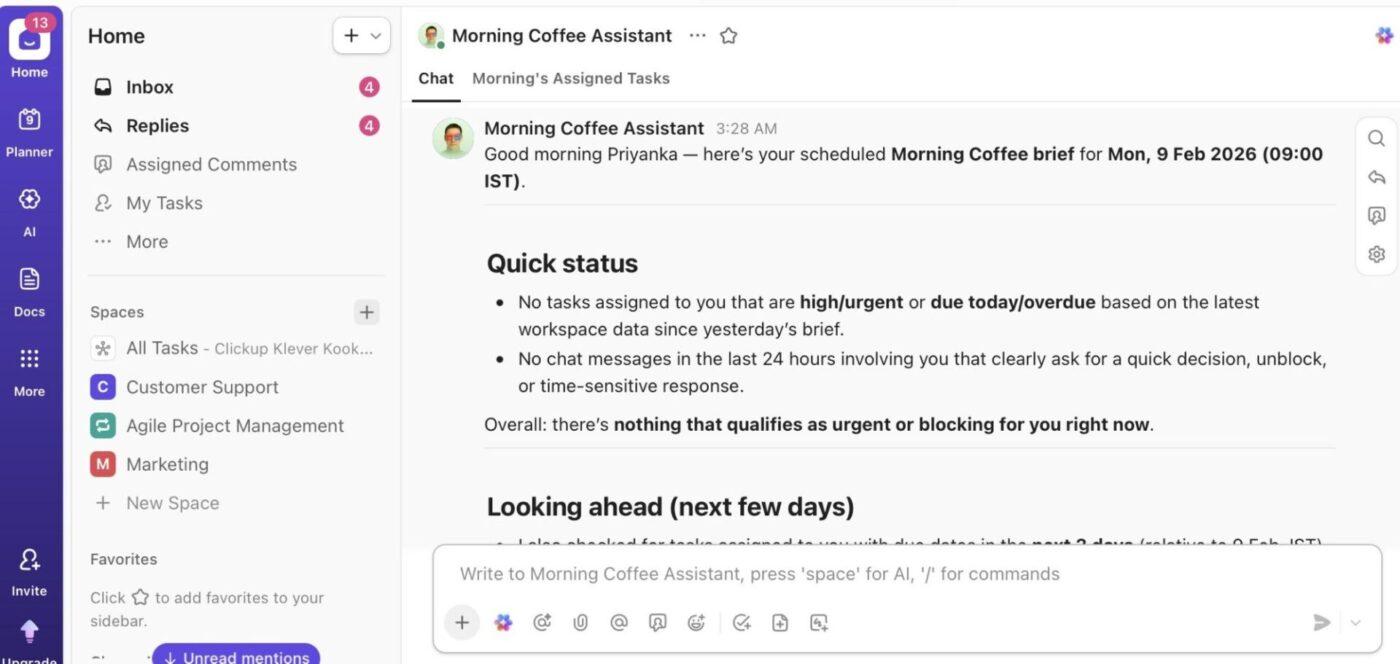
Mornings go sideways when you start with a load of unfiltered data. The Morning Coffee Agent curates overnight activity into a short, high-signal brief with urgent updates, messages that need replies, and anything that could derail priority work today. It removes context-switching and prepares quick drafts for responses so you can move fast without opening ten threads at once.
📌 Example: A customer success lead logs into ClickUp at 9 AM and sees a short ‘Morning Brief’ Doc already waiting. It shows:
Each item includes a one-line summary and a suggested reply pulled from the task history and last message in the thread. Without opening any task lists or chat threads, they clear the urgent queue in under five minutes and start the day on real work instead of inbox triage.
💬 Example prompt:
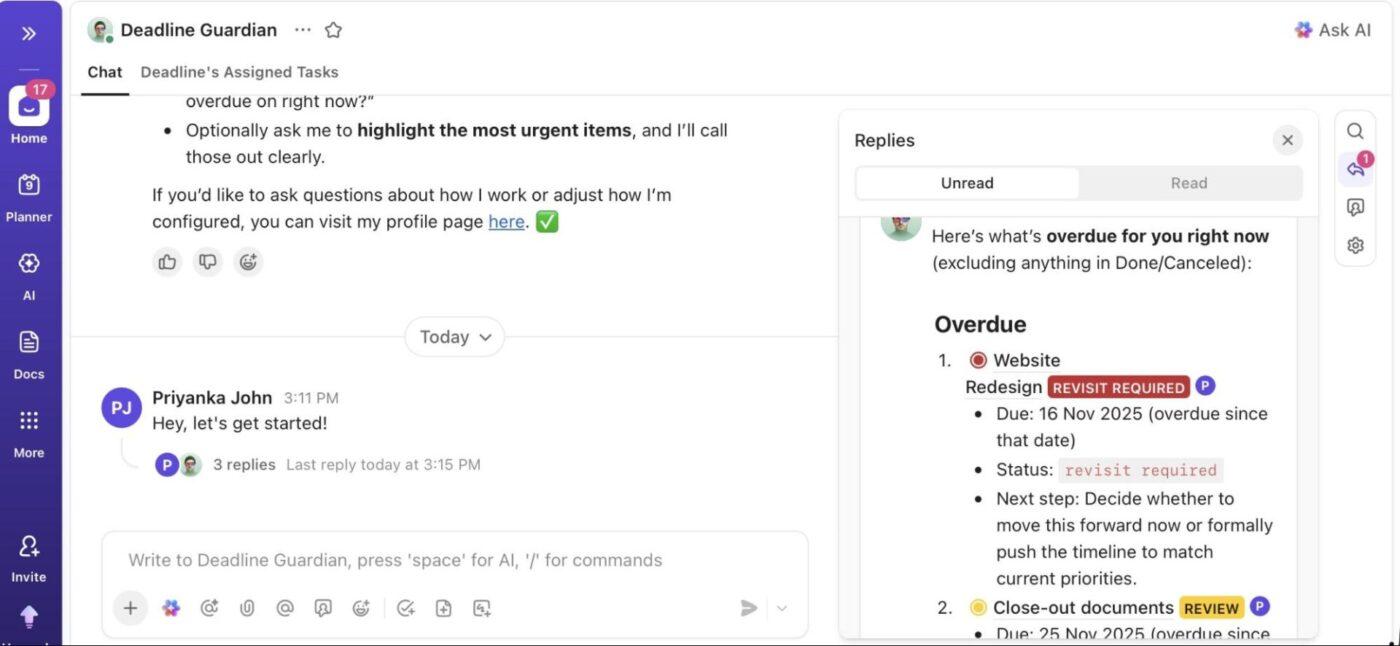
The Deadline Guardian Agent watches due dates across the workspace for tasks assigned to you.
When something is due today or slips past its deadline, it leaves a short reminder directly on the task so nothing time-sensitive gets buried. On request, it also gives a quick snapshot of what’s due and what’s overdue, so priorities are easy to reset without scanning long lists.
📌 Example: A content audit task for a SaaS website is due today, but still in progress. The agent posts a brief reminder on the task, noting it’s due today. Later, you can ask what’s overdue, and the agent replies with a short list showing one missed internal review and one analytics update that slipped yesterday.
💬 Example prompt:
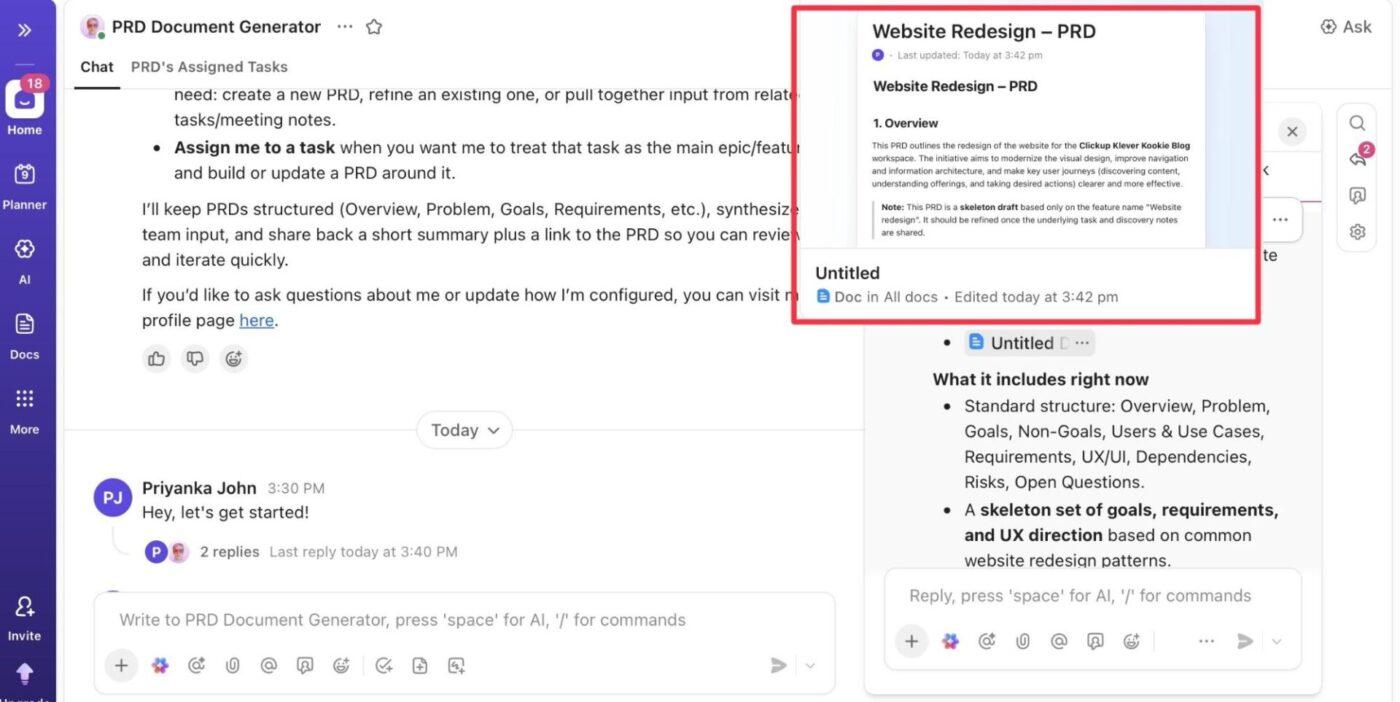
Your PRD Document Generator pulls scattered input from tickets, comments, and half-written notes together and turns it into a complete Product Requirements Doc inside ClickUp’s document management software.
It reads the epic, related subtasks, and meeting notes, then synthesizes the intent, goals, requirements, risks, and open questions into a clean PRD that teams can actually build from. If a PRD already exists for the same feature, it updates and tightens it instead of creating duplicates.
📌 Example: A customer support lead flags a recurring issue: field technicians lose notes when they go offline. They @mention the agent on the ‘Offline Mode for Field App’ epic.
The agent pulls context from support tickets, a meeting notes Doc from the ops team, and backend subtasks about local storage limits. It creates a PRD with clear requirements for offline note-taking, sync conflict handling, and process documentation.
💬 Example prompt:
🎥 Bonus: Train your PRD Document Generator Agent better with these handy tips on writing great PRDs:
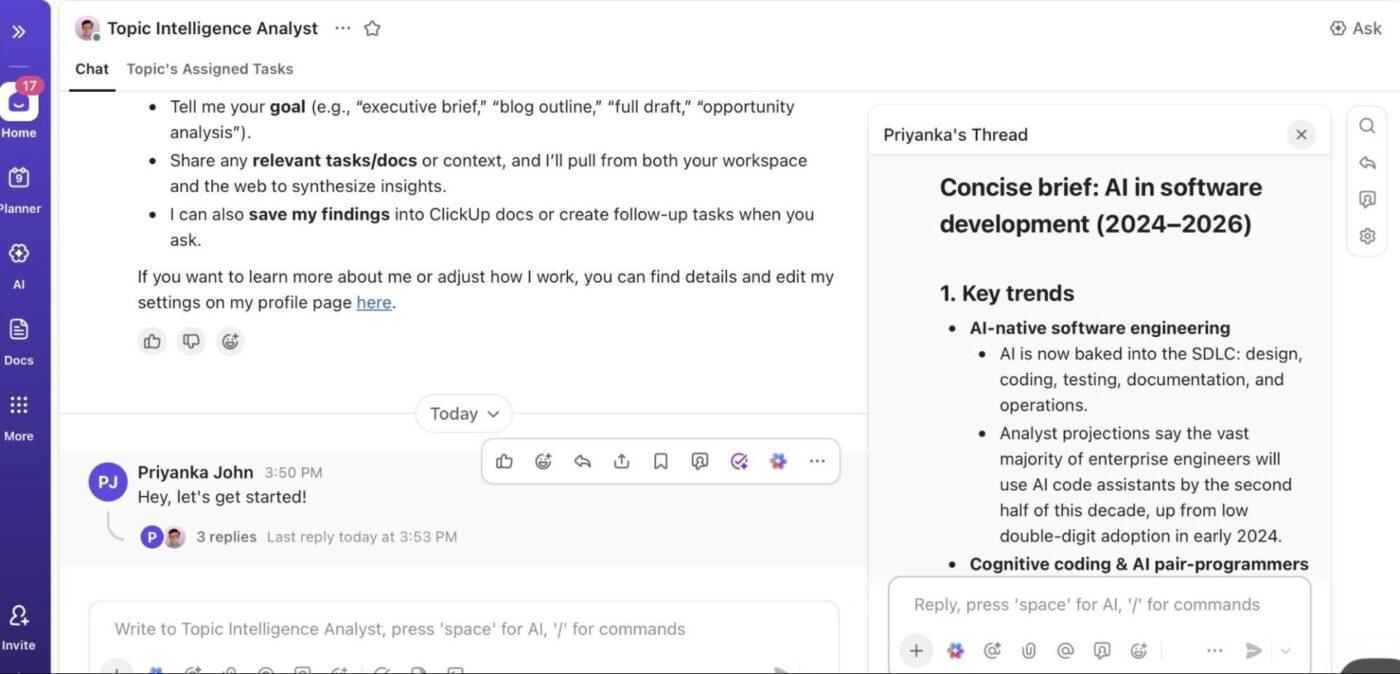
The Topic Intelligence Analyst Agent is for the content teams that struggle to figure out which topics they should create content on.
It builds a clear picture of any topic by combining what already exists in your ClickUp workspace with fresh web research. It then turns that blended context into usable outputs such as briefs, outlines, drafts, or insight reports, tailored to the goal you’re working toward.
📌 Example: A content strategist is planning a post on ‘AI in software development for non-technical teams.’ They ask the agent to draft a doc and share the basics upfront, such as tone, audience, and SEO needs.
The agent pulls past blog drafts and campaign notes from the workspace, scans recent industry articles for current examples, and drops a tight outline plus a 5-bullet insight brief into the Marketing Campaign Management list.
💬 Example prompt:
Here’s what a user had to say about ClickUp Super Agents:
It’s actually somewhat nice to be able to chat to the AI like a team-mate, for example Dawn helps me draw out a project from concept to handover, creates the tasks, I can then ask Dawn to ask Jess (another super agent I created) to create the email templates, rough documents etc that relate to that project, remind me at a specific date and time to do something etc.
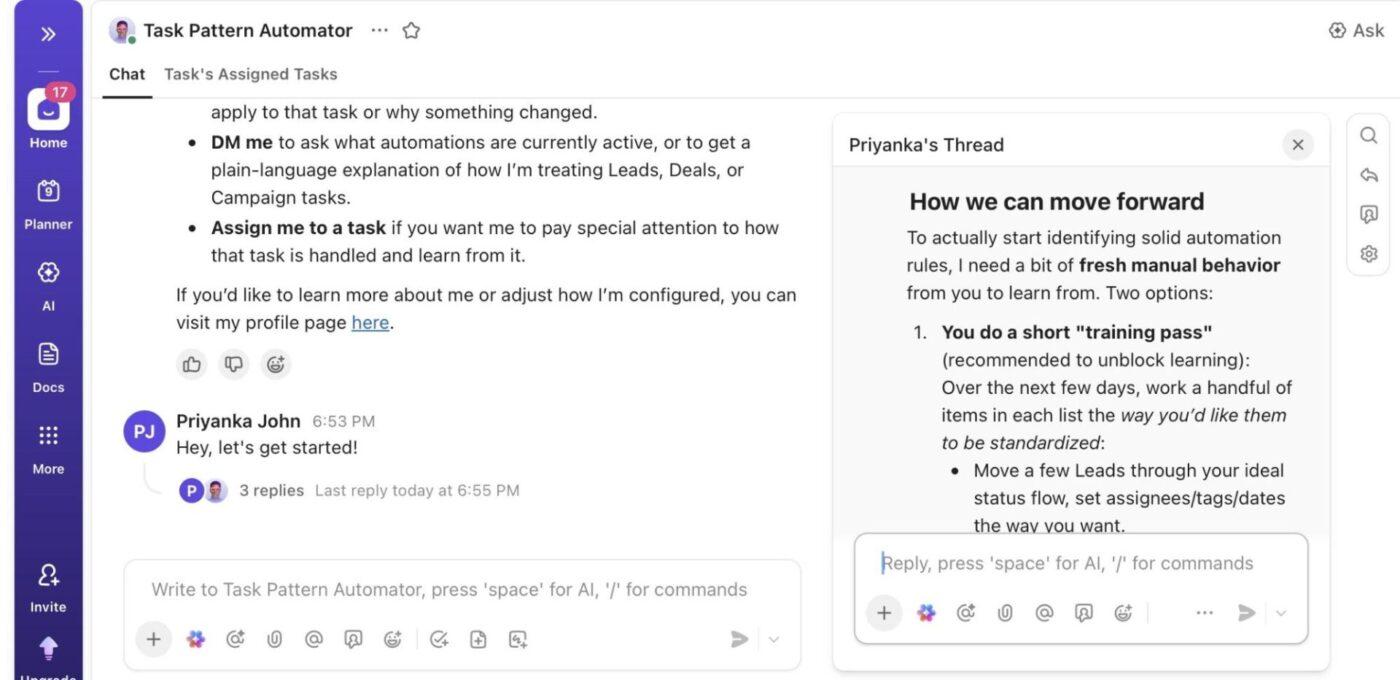
The Process Automator Super Agent watches how work moves through your CRM and marketing lists, spots repeated ways tasks get handled, and standardizes those moves for you. Instead of setting the same fields, owners, and follow-ups again and again, it carries those habits forward and leaves a clear note whenever it steps in.
📌 Example: A growth lead notices that whenever a new campaign task is tagged ‘Partner,’ the team adds a checklist, assigns a specific reviewer, and pushes the due date out by three days. After this pattern shows up a few times, the agent starts applying it to new Partner-tagged tasks.
The next time one is created, the checklist appears, the reviewer is set, and a quick comment explains the rule it followed.
💬 Example prompt:
📮 ClickUp Insight: 12% of respondents say AI agents are hard to set up or connect to their tools, and another 13% say there are too many steps just to get simple things done with Agents.
Data has to be piped in manually, permissions have to be redefined, and every workflow depends on a chain of integrations that can break or drift over time.
Good news? You don’t need to “connect” ClickUp’s Super Agents to your tasks, Docs, chats, or meetings. They are natively embedded in your Workspace, using the same objects, permissions, and workflows as any other human coworker.
Because integrations, access controls, and context are inherited from the workspace by default, agents can act immediately across tools without custom wiring. Forget configuring agents from scratch!
Rolling out Super Agents works best when you treat them like teammates you’re onboarding. Here are some practical habits that help them stay useful:
Learn how ClickUp Super Agents work with context from your workspace:
Super Agents often break down because of tiny configuration choices that go unnoticed:
| Mistake | Solution |
| Treating a Super Agent like a one-and-done feature | Schedule regular check-ins (weekly at first, then monthly) and refine triggers accordingly |
| Building the agent’s prompts around one perfect case, which then fails on variations | Train with multiple AI agent examples before activation, including edge cases and ambiguous tasks |
| Letting the agent act on tasks where automation shouldn’t run (e.g., tasks flagged for manual review) | Define explicit exclusion criteria in triggers with specific tags, Custom Field values, or Custom Statuses |
| Allowing data or tools far outside the workflow’s scope, leading to incorrect context or unwanted actions | Scope access narrowly, review access grants regularly, and restrict anything not directly needed |
| Using default triggers and actions without tailoring to your team’s actual process cadence (e.g., skipping weekends, non-work hours) | Customize triggers and schedules based on real work patterns so the agent runs when work is happening |
| Trying to automate extremely variable, creative, or judgment-intensive tasks | Reserve automation for pattern-rich work and keep flexible tasks manual. If patterns are inconsistent, flag the workflow and revisit via manual review |
| Creating overlapping specialized agents with similar triggers causing conflicting updates | Consolidate similar agent examples or clearly partition their responsibilities. Use a central registry Doc to map out active agents and avoid overlapping scopes. |
If a workflow feels repetitive, rule-based, or easy to forget, it’s a great candidate for a Super Agent. The goal is to take something you already do in ClickUp and let an agent run it for you.
Here’s a simple, practical way to build agents into your workflow:
Before touching ClickUp, get specific about the workflow you’re turning into a Super Agent. Write it out the way it actually happens every day: what triggers it, what decisions are made, what context is checked, and what the final output should look like.
This prevents you from building vague Agents that ‘help sometimes’ but fail in real scenarios. At this stage, focus on three things:
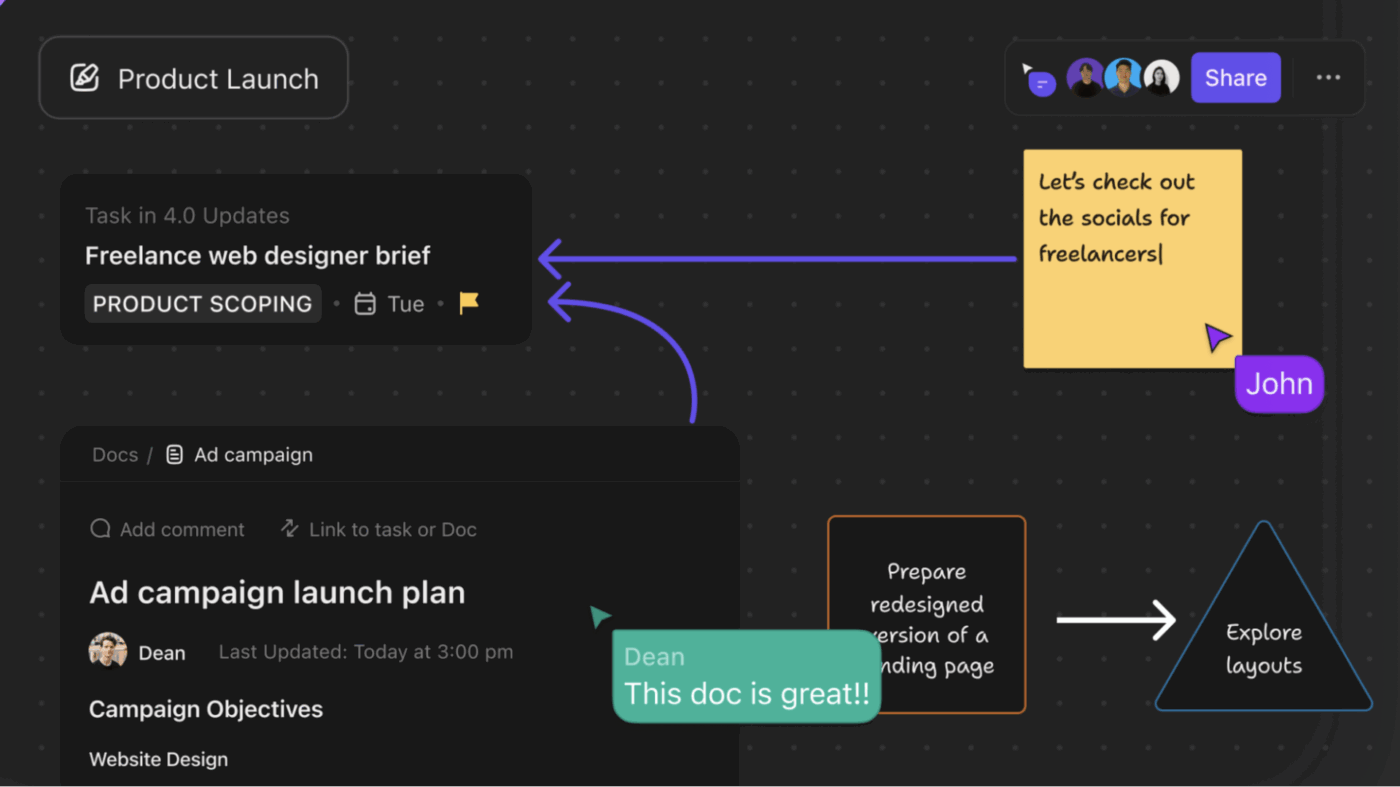
💡 Pro Tip: Map the workflow visually in ClickUp Whiteboards before you automate it. You can:
Once you’ve mapped your workflow in plain language, the next big decision is how and when your Super Agent should act. These triggers are the engine that drives reliable execution.
There are a few approaches you can typically choose from:
This means the Super Agent runs when a specific event happens, such as a status change, a field update, or an assignee change. These are ideal when you want the Agent to react as work evolves, not on a schedule. You can use it when you’ve identified a workflow that always starts with a change in a task property.
Use this when your workflow involves periodic checks such as daily standups, weekly summaries, deadlines, overdue reviews, or housekeeping sweeps. This gives you a predictable, systematic, and easy-to-align-with team rhythm.
This works when you want people to decide when the Agent should run, for example, to summarize the latest comments mid-meeting, or to generate fresh Doc content on request. The workflow requires human judgment before running or producing deliverables for discussion.
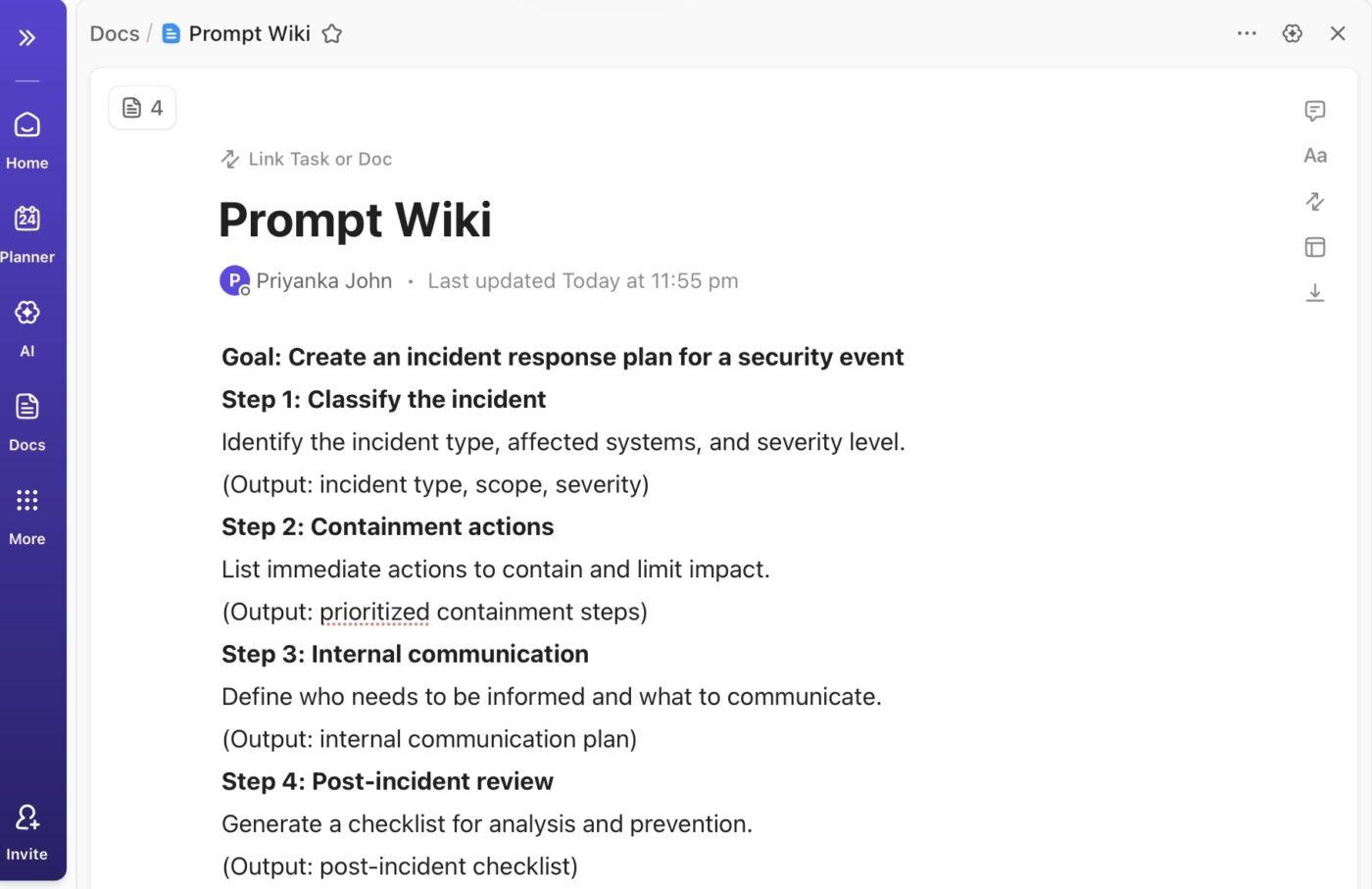
💡 Pro Tip: Use ClickUp Docs to write out how this workflow runs. Document everything, including what starts it, what should happen, and the agent prompting guide. This becomes your reference while configuring triggers and helps keep the Agent’s behavior aligned as the workflow evolves.
This is where you translate your workflow into something ClickUp can execute. Instead of thinking ‘I’m creating an Agent,’ think ‘I’m teaching ClickUp how to follow my process.’
You have three practical ways to do this. The right choice depends on how well-defined your workflow already is and how much control you need.
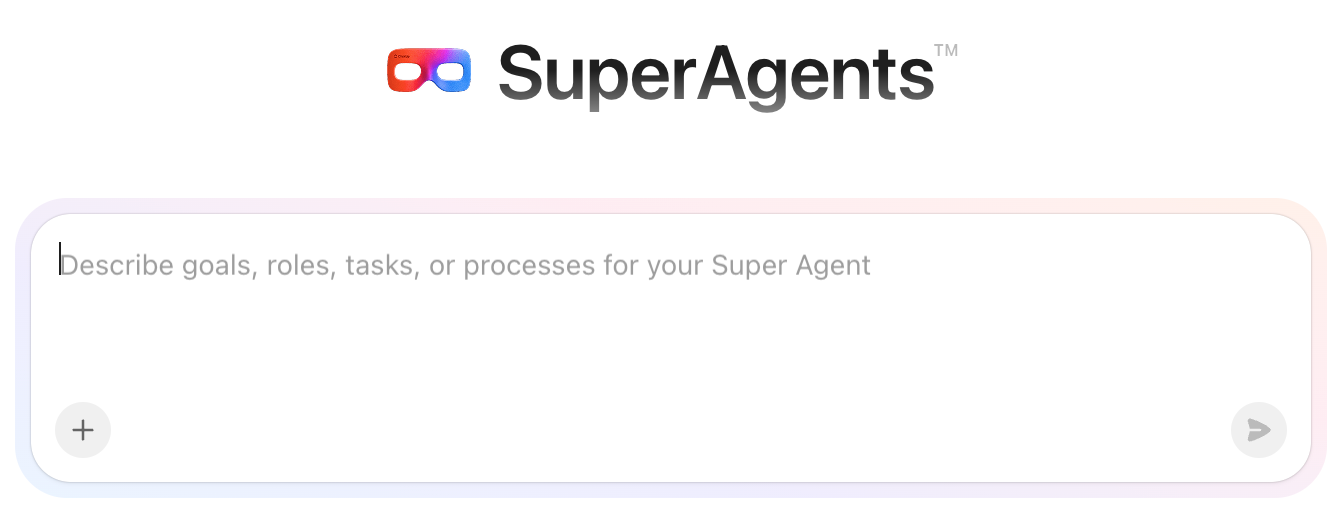
This is the fastest way to turn a documented workflow into a working Super Agent.
1. Open AI from the Global Navigation menu on the left
2. Click New Super Agent
3. Describe your workflow in plain language
4. Be specific about:
ClickUp will ask follow-up questions to shape the Agent’s behavior, tools, and access. When the setup is done, it’ll show you a full Agent profile.
🎥 Watch this video for a quick setup guide:
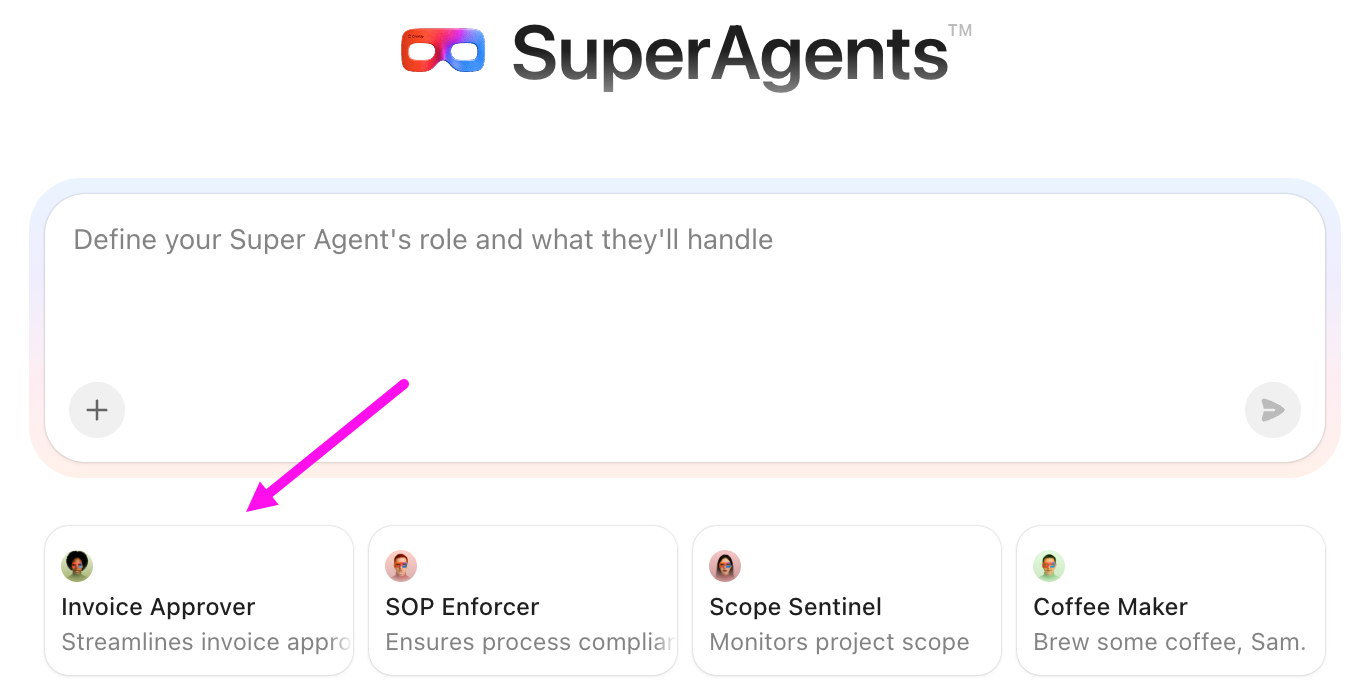
If your workflow resembles a common use case (approvals, reminders, summaries, handoffs), the catalog provides a useful starting structure.
From AI in the Global Navigation, go to All Super Agents. Browse the catalog and pick something close to your use case.
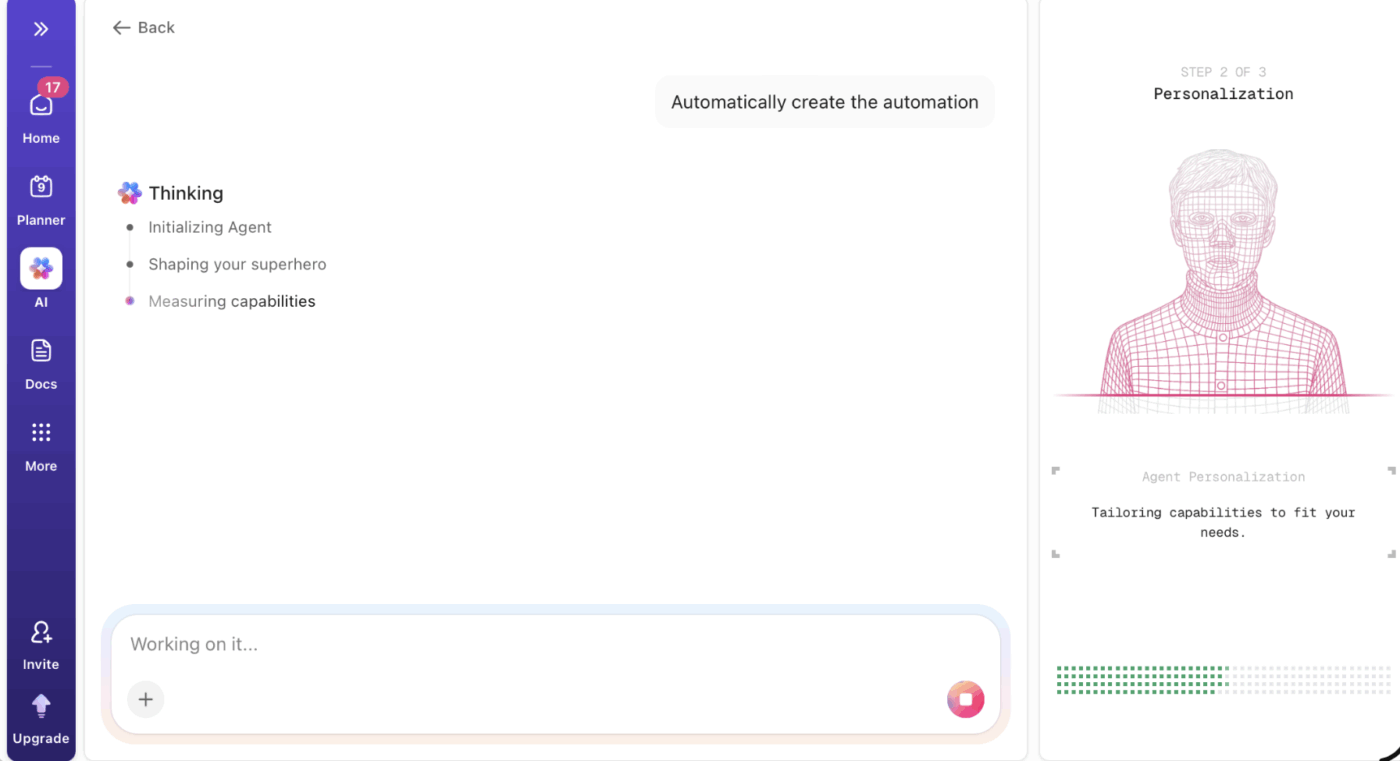
The mistake people make here is treating catalog Agents as finished solutions. You still need to reshape triggers, scope, and actions so the Agent mirrors your actual workflow instead of forcing your workflow to fit a productivity template.
Teams that get the most value from Super Agents usually customize them deeply. Need help designing Super Agents around your team’s real processes?
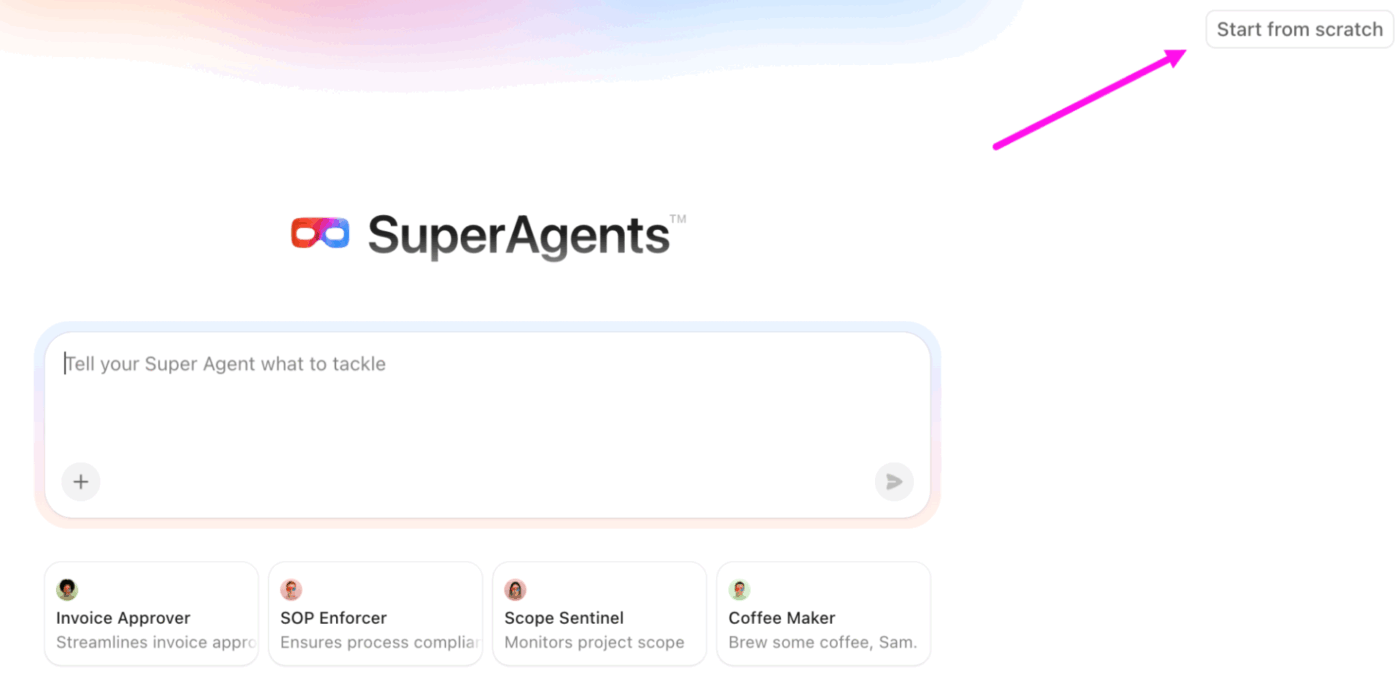
If your workflow has multiple steps, edge cases, or strict rules around access and behavior, starting from scratch gives you full control.
In the AI Hub’s sidebar, click All Super Agents and then Start from scratch. Here you’ll manually configure:
This takes longer, but it’s the cleanest way to model nuanced workflows. It also forces you to be precise about boundaries.
💡 Pro Tip: Here are a few ways to get the best out of your freshly made Super agents:
Before activating the Agent, run it on real tasks or message it with realistic inputs. Watch for two things: whether it runs when it should and whether it stays quiet when it shouldn’t
This is the moment to tighten instructions, adjust triggers, and fix blind spots. If the Agent needs heavy manual correction during testing, it’s not ready for real work yet.
📮 ClickUp Insight: When asked what would make AI agents truly useful, the top answer wasn’t speed or power. Nearly 40% of respondents said they need an agent with a perfect understanding of their work context.
Which makes sense because most AI agents fail when they don’t understand why decisions were made or how work is supposed to flow.
Since ClickUp Super Agents retain context, remember past decisions, and operate continuously, they’re able to act with far more reliability than prompt-based agents. They work from a living workspace history, stay active as work evolves, and operate within clear permission boundaries and audit trails.
When intelligence understands the work and carries it through safely, you’ll finally feel like you’re working with a virtual coworker you can actually rely on.
Super Agents work best when you build them around the parts of your workflow that quietly slow everything down: handoffs, missing context, follow-ups that rely on memory, and decisions that sit in limbo. The real win is removing the friction that causes work to restart, stall, or get lost between tools and people.
Compared to standalone AI agents that live in one tool, ClickUp Super Agents have the advantage of real context. They operate inside the work itself, so they’re acting on the same source of truth your team already uses. That’s what cuts down tool sprawl. Instead of bouncing between apps to move work forward, the workflow runs where the work already lives.
Sign up to ClickUp for free and build your first Super Agent!
Or talk to us to configure custom Super Agents for your team! ✅
A Super Agent is an AI-powered virtual assistant that lives inside your ClickUp Workspace and acts like an autonomous teammate. It has a full context of your work, including your Tasks, Docs, chats, schedules, and connected tools, and can execute multi-step workflows, reason over data, and trigger actions based on defined rules and triggers.
A traditional automation follows rigid, pre-defined rules (e.g., ‘when this status changes, do that action’). A Super Agent workflow uses AI reasoning, memory, and context to interpret goals, plan multi-step actions, and handle more complex work over time.
Start with workflows that are repeatable, context-rich, and time-consuming when done manually. Good candidates include daily or weekly status reports, triaging new work items, drafting consistent content such as follow-up emails or briefs, setting priorities based on SLA rules, and summarizing meeting inputs.
Control happens at two levels: permissions and knowledge sources. You decide which Spaces, Lists, Docs, and connected apps the Super Agent can reference. Select which tools it can use to perform actions. Work permissions follow workspace roles, and you can restrict or expand access to specific data so the Agent only sees what’s necessary for its workflow.
Consistency comes from clear instructions and quality knowledge sources. Define the Agent’s objectives, boundaries, and expected outputs in structured natural language when building it. Link it to up-to-date Docs and workspace context so it reasons from authoritative data.
After deployment, use the Agent’s audit logs and profile activity to track what it did. Monitor errors or unexpected outputs and refine the instructions or knowledge sources accordingly. You can edit triggers, multiple tools, and memory settings.

© 2026 ClickUp

There’s an easier way. Try a free AI Agent in ClickUp that actually does the work for you—set up in minutes, save hours every week.