U.S. businesses lose an estimated $2.7 billion every year to wage violations—much of it due to overtime miscalculations.
It’s not just a legal risk—it’s a trust issue. When teams aren’t paid correctly for the hours they put in, morale dips, compliance slips, and budgets take unexpected hits.
This guide walks you through how to track overtime the right way: accurately, automatically, and with full visibility across your workflows—so you can protect your people and your payroll.
Summarize this article with AI
ClickUp Brain not only saves you precious time by instantly summarizing articles, it also leverages AI to connect your tasks, docs, people, and more, streamlining your workflow like never before.
Summarize this article for me please
Is Your Overtime Tracking System Failing You?
Before diving into solutions, assess your current state honestly:
Manual errors: Team members forget to log hours or miscalculate overtime
Payroll surprises: You discover unexpected overtime costs only when processing payroll
Compliance anxiety: You’re not 100% confident you’re meeting FLSA requirements
Disconnected data: Time entries live separately from the work being done
No early warnings: You find out someone worked 50 hours after the fact, not before
Tool overload: Team members log hours in one place, but the data lives across multiple systems
If three or more sound familiar, you need a better system. This guide shows you how to build it.
Summarize this article with AI
ClickUp Brain not only saves you precious time by instantly summarizing articles, it also leverages AI to connect your tasks, docs, people, and more, streamlining your workflow like never before.
Summarize this article for me please
What Is Overtime Tracking?
Overtime tracking is the process of recording, monitoring, and managing any work hours your employees put in beyond their standard workweek. In the United States, this typically means anything over 40 hours per week, though some states have additional daily overtime requirements.
This includes both the actual documenting of these extra hours and the systems you use to capture that data accurately for payroll and compliance purposes.
Why this matters for legal compliance:
The Fair Labor Standards Act (FLSA) serves as the federal rulebook for minimum wage and overtime pay. It requires that you pay certain employees—called non-exempt employees—a higher rate for any overtime hours they work.
Non-exempt employees are typically paid hourly and must receive overtime pay. Exempt employees are usually salaried and aren’t eligible for overtime compensation. When we talk about overtime tracking, we’re primarily focused on ensuring your hourly team members get compensated correctly for their extra time and effort.
The evolution of overtime tracking:
Years ago, this was all done with manual timesheets and punch cards, which left plenty of room for error. Someone could write “8 hours” when they actually worked 6, or forget to log hours entirely. Today, modern digital solutions can automate the entire process—from calculating pay to flagging potential compliance issues before they become problems.
The shift from manual to automated tracking isn’t just about convenience. It’s about creating an auditable trail that protects both employees and employers when questions arise.
📮 ClickUp Insight: Our work-life balance survey found that 46% of workers put in 40-60 hours per week, while a staggering 17% exceed 80 hours! Yet, the grind doesn’t stop there—31% struggle to carve out personal time consistently. It’s a perfect recipe for burnout. 😰
But you know what? Balance at work starts with visibility! ClickUp’s built-in features like Workload View & Time Tracking make it easy to visualize workload, distribute tasks fairly, and track actual hours spent—so you always know how to optimize work and when.
💫 Real Results: Lulu Press saves 1 hour per day, per employee using ClickUp Automations—leading to a 12% increase in work efficiency.
Summarize this article with AI
ClickUp Brain not only saves you precious time by instantly summarizing articles, it also leverages AI to connect your tasks, docs, people, and more, streamlining your workflow like never before.
Summarize this article for me please
Why Overtime Tracking Matters for Your Team
Accurate overtime tracking isn’t just about following rules. It’s about building a transparent relationship with your team that shows you value their time and effort.
When you track overtime correctly, you protect both your employees and your business. Here’s why it matters so deeply.
1. Stay compliant with labor laws
The most critical reason is legal compliance. Mistakes in tracking overtime can lead to wage and hour violations, resulting in hefty fines, lawsuits, and Department of Labor investigations.
The real cost of non-compliance:
Back pay: You owe every cent of miscalculated wages
Penalties: The DOL can impose penalties equal to the amount of back pay
Legal fees: Defending against claims
Reputation damage: News of wage violations spreads fast among employees and candidates
According to recent Department of Labor data, the average back wages recovered per worker in fiscal year 2024 was $1,333—representing multiple weekly paychecks for typical workers in many industries. These recoveries highlight the magnitude of wage theft that occurs when overtime tracking fails.
Proper tracking is your best defense. It creates an auditable record showing you made good-faith efforts to compensate employees correctly.
2. Ensure payroll accuracy every time
Nothing damages team morale faster than payroll errors. When you track overtime correctly, you guarantee that every employee is paid the right amount for every hour they work.
Real-world impact:
Imagine working 50 hours one week and only getting paid for 40. You’d be upset, and rightfully so. That’s exactly how your team feels when overtime tracking fails.
Even well-intentioned mistakes can erode trust over time. When employees have to chase down missing pay or correct errors repeatedly, they start questioning whether the organization values their contributions.
Accurate tracking builds trust. It shows your team that you respect their time enough to measure it carefully and compensate it fairly.
🎥 If overtime is eating into budgets and team morale, this tutorial breaks down how to track it properly and prevent unnecessary overages.
3. Control labor costs and project budgets
Unexpected overtime can quickly destroy your labor budgets. With real-time visibility, you can see where overtime is happening and manage it proactively instead of being surprised at month-end with costs 30% higher than planned.
Example scenario:
Your project budget allocated $10,000 for labor. If three team members each work 10 hours of overtime at time-and-a-half, that’s an extra $900 you didn’t plan for. Multiply that across five projects, and you’ve got a $4,500 budget problem.
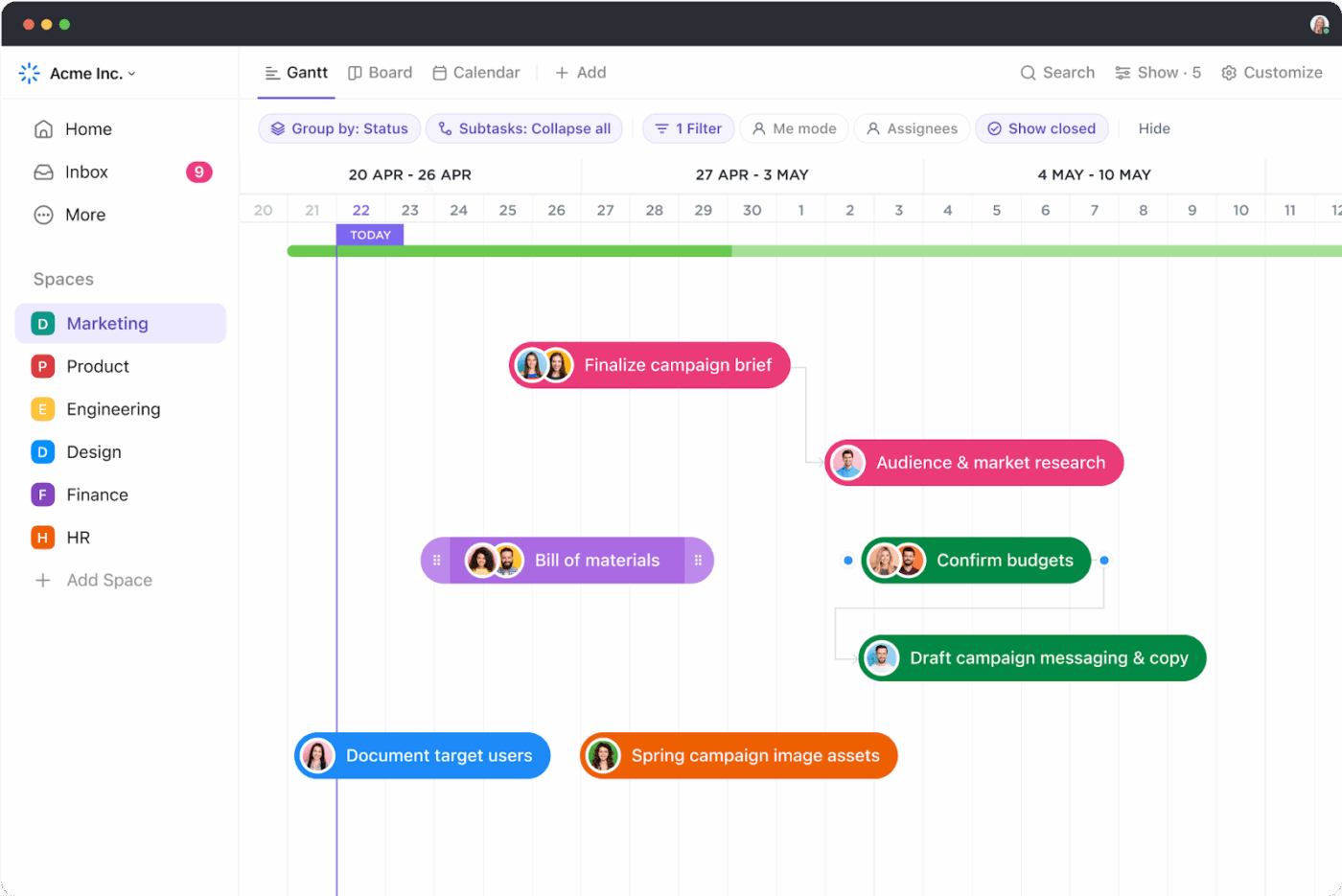
Without tracking, you discover this when it’s too late to adjust. With project management tools like ClickUp Gantt Charts, you see it happening in real-time and can make informed decisions: extend the deadline, add temporary help, or redistribute work to avoid overtime entirely.
Monitor overtime trends and labor costs in real time with ClickUp Gantt Charts
Overtime tracking turns labor costs from unpredictable expenses into controllable, forecastable metrics.
4. Identify workload imbalances and burnout risks
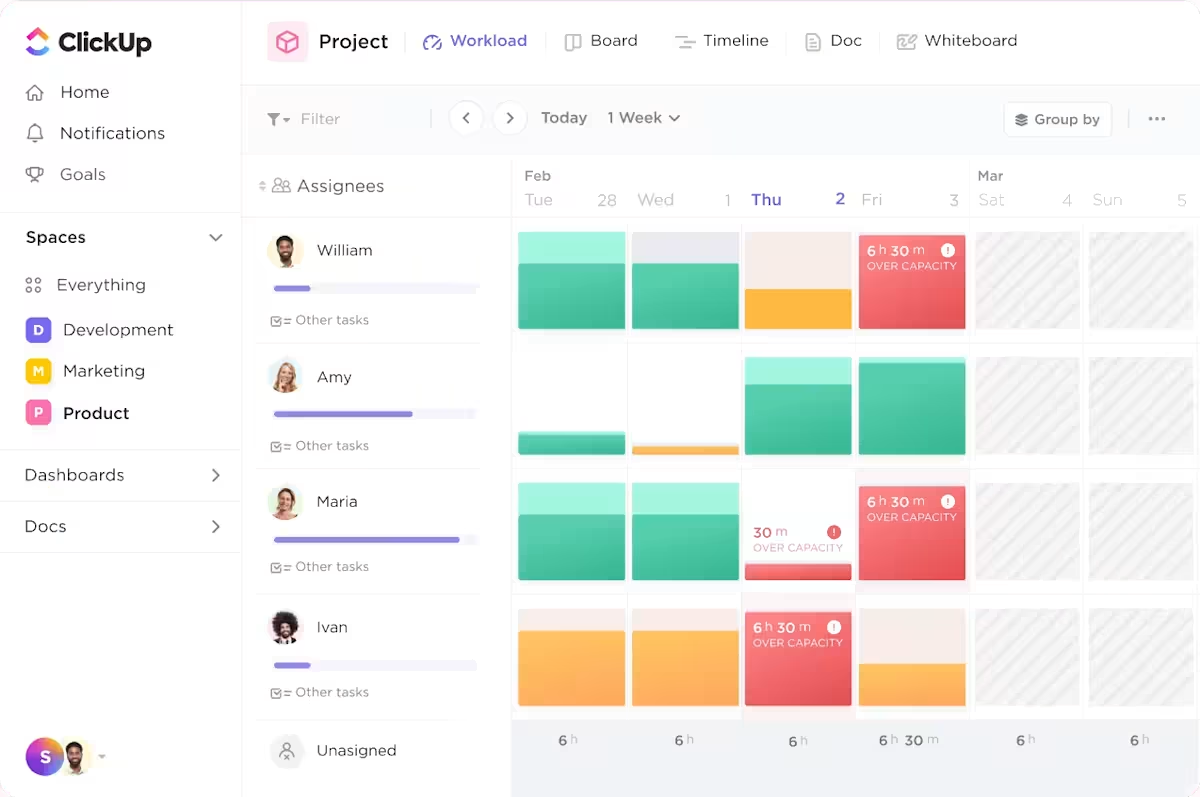
If you notice a team member consistently working late, it might signal they’re headed for burnout or that their team is understaffed. Over time, data paired with ClickUp Workload View gives you the insights needed to balance workloads and support your team’s well-being.
Visualize team workloads and spot burnout risks early using ClickUp Workload View
The warning signs overtime data reveals:
One person consistently at 50+ hours while teammates are at 35-40 hours
Entire teams working overtime during “normal” periods (not just crunch time)
Overtime spiking every quarter-end (suggests poor planning or unrealistic deadlines)
Specific projects always requiring overtime (indicates systematic underestimation)
These patterns are invisible without data. With tracking, they become obvious—and actionable.
👀 Did You Know? A 2024 Grant Thornton survey found that 51% of employees suffered burnout in the past year (a 15 percentage-point increase from the previous year), with long hours cited as the second-leading cause at 54%.
Additionally, research shows that 47% of employees in SMEs work 4 or more hours overtime every week, and for over half of these employees, this is unpaid work. Without visibility into actual hours worked, managers can’t address workload issues before they become burnout crises.
5. Demonstrate fair and transparent compensation
Tracking overtime shows your team that you recognize and appreciate their extra work. This simple act of fairness can boost morale and help you retain your best people.
People don’t just want to be paid—they want to feel valued. When you track their hours carefully and compensate them accurately, you’re sending a clear message: your time matters, your effort matters, and we’re paying attention.
This is especially important in competitive job markets. Employees talk. If your organization has a reputation for “forgetting” overtime or making people fight for correct pay, word spreads. If you’re known for being scrupulously fair, that becomes a recruiting advantage.
👀 Did You Know? A Microsoft Work Trends Index report revealed that the average Teams user saw a 28% increase in after-hours work compared to pre-pandemic levels.
6. Eliminate Work Sprawl and information loss
When your team jumps between different apps and spreadsheets to log hours, information gets lost. Hours go unrecorded. Context disappears. You end up with compliance gaps you don’t even know exist.
This fragmentation means you know someone worked 45 hours, but you don’t know what they accomplished. You can’t tell if overtime was productive work on critical deliverables or wasted time in unproductive meetings.
The solution is bringing everything into a unified workspace where projects, time tracking, and team collaboration live together. When time entries connect directly to specific tasks, you always know not just how long people worked, but exactly what they accomplished.
👀 Did You Know? Your day is being stolen by “time confetti”.
The Journal of Consumer Research shows people lose 51+ minutes/day to tiny interruptions called time confetti—Slack pings, emails, context switching.
Summarize this article with AI
ClickUp Brain not only saves you precious time by instantly summarizing articles, it also leverages AI to connect your tasks, docs, people, and more, streamlining your workflow like never before.
Summarize this article for me please
How to Calculate Overtime Pay
Calculating overtime pay is straightforward once you understand the formula. Under the FLSA, the standard is to pay “time and a half” for any hours worked over 40 in a single workweek.
The three-step calculation process
Step 1: Determine the regular hourly rate
This is the standard amount an employee earns for each hour of their normal schedule.
Step 2: Calculate the overtime rate
Multiply that regular hourly rate by 1.5. This new number is their “time and a half” rate for any extra hours.
Step 3: Multiply by overtime hours worked
Take the overtime rate and multiply it by the number of hours the employee worked beyond their standard 40-hour work week.
Sarah earns $20 per hour and works 45 hours in one week.
Breakdown:
Regular hours: 40 hours × $20 = $800
Overtime hours: 5 hours (45 total – 40 standard)
Overtime rate: $20 × 1.5 = $30 per hour
Overtime pay: $30 × 5 hours = $150
Total weekly pay: $800 + $150 = $950
Essentially, you’re paying a 50% bonus for working extra hours. That’s what “time and a half” means—the normal rate plus half of it again.
State and local variations to watch
While the FLSA sets the federal baseline, some states and cities have additional requirements that provide greater protections for employees. When federal and local laws conflict, you must follow whichever is more generous to the employee.
Daily overtime (California, Alaska, Nevada):
Some states require daily overtime, meaning you pay overtime for any hours worked beyond eight in a single day. If someone works 10 hours on Monday but only 38 hours for the whole week, they’d still get 2 hours of overtime pay for that Monday.
Double time:
In certain situations, you might need to pay double time—twice the regular hourly rate. This often kicks in after 12 hours in a day or on the seventh consecutive day of work.
Different thresholds:
Some jurisdictions set different weekly thresholds. While 40 hours is standard federally, always verify your specific state and local requirements.
💡 Pro Tip: Store hourly rates and overtime rules in ClickUp Custom Fields within your time tracking system. This eliminates manual calculations and ensures consistency across all payroll cycles.
Summarize this article with AI
ClickUp Brain not only saves you precious time by instantly summarizing articles, it also leverages AI to connect your tasks, docs, people, and more, streamlining your workflow like never before.
Summarize this article for me please
How to Set Up Overtime Tracking: A Step-by-Step Guide
Building a reliable overtime tracking system ensures everything runs smoothly, reduces compliance risk, and gives you complete visibility into labor costs. Whether you’re using spreadsheets or integrated software, these steps will help you create a system that works.
Step 1: Define what “normal” looks like
You can’t track overtime until you define what counts as regular time. Seems obvious, but many teams skip this step—and end up with inconsistent baselines, fuzzy expectations, and pay disputes that could’ve been avoided.
Start here:
Standard workweek: For most orgs, it’s 40 hours. But if your team uses 9/80s (nine-hour days over an 80-hour, two-week period), 4/10s, or rotating shifts, document that
Team-level variations: Sales might run on flex hours. Engineering could be on sprints. One-size-fits-all scheduling? Not realistic
Location-based policies: If you’re in California, daily overtime kicks in after 8 hours—not 40. Local labor laws always win
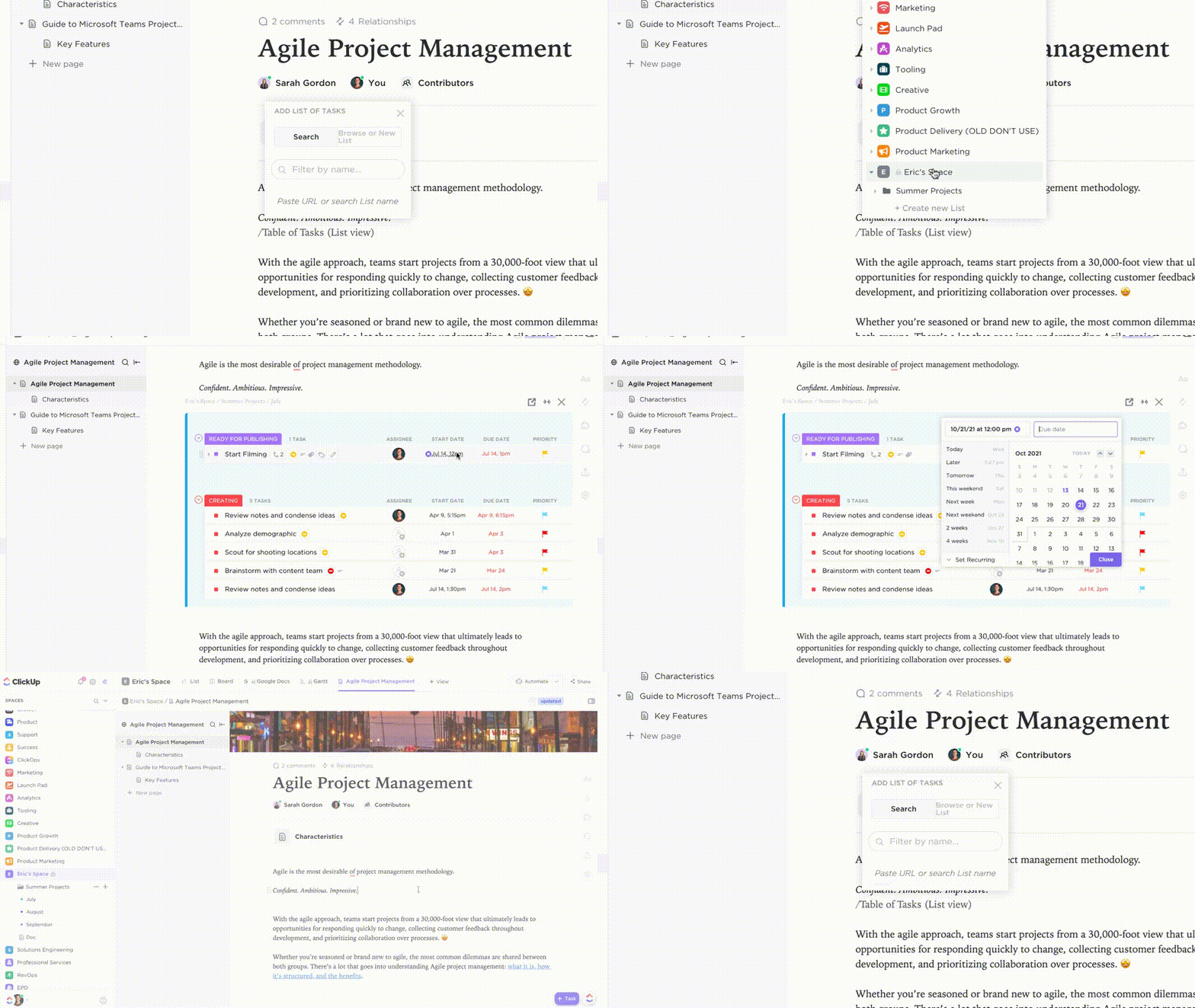
🎯 Make it transparent: Store this info in a living doc (like ClickUp Docs linked to each role or team Space) so no one’s guessing what “full-time” actually means.
Access everything in one place by linking Docs and tasks together
Why it matters: If your baseline is unclear, your tracking will be inconsistent, and your reports won’t hold up to scrutiny—from auditors or employees.
Step 2: Choose the right tracking method (spoiler: context matters)
Let’s talk tools.
There are hundreds of time tracking apps. Most of them treat hours like isolated data points: Employee A worked 45 hours. That’s it. But that number’s almost meaningless if you can’t see what the hours were for—or if they even made sense.
Here’s a quick rundown:
Method
Best for
Pros
Cons
Spreadsheets
Tiny teams (under 5 people)
Free, simple to start
Manual, error-prone, zero context
Time clocks
On-site, hourly workforces
Verifiable check-in/out
Doesn’t support remote or task-level
Dedicated time apps
Freelancers, consultants
Good features for billing
Adds another silo to your stack
Integrated platforms (like ClickUp)
Teams managing projects & time together
Full task context, connected to work
Slightly more setup—but pays off fast
When time entries live inside your task management platform (not just alongside it), you get a complete picture: what was done, how long it took, who approved it, and what it cost.
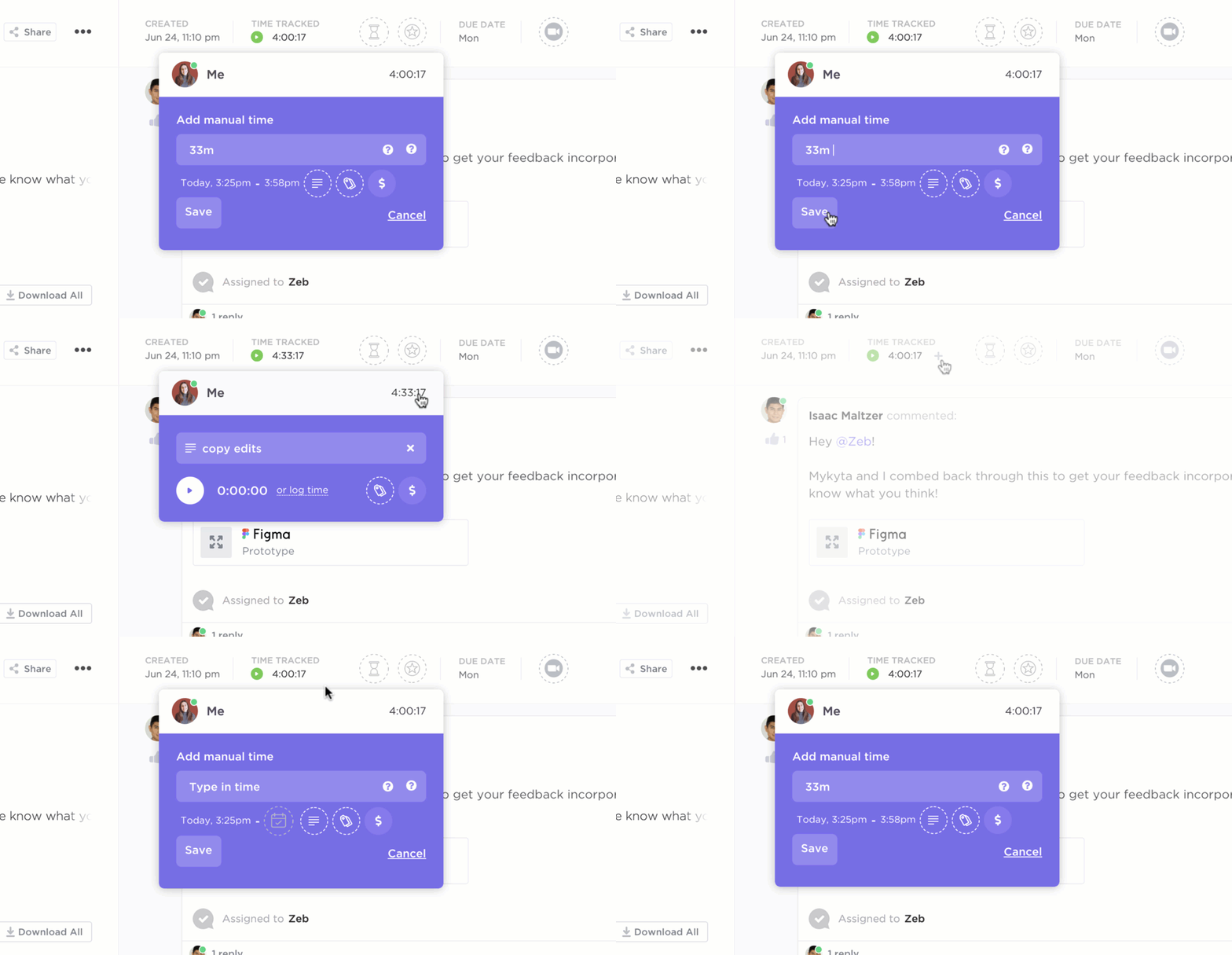
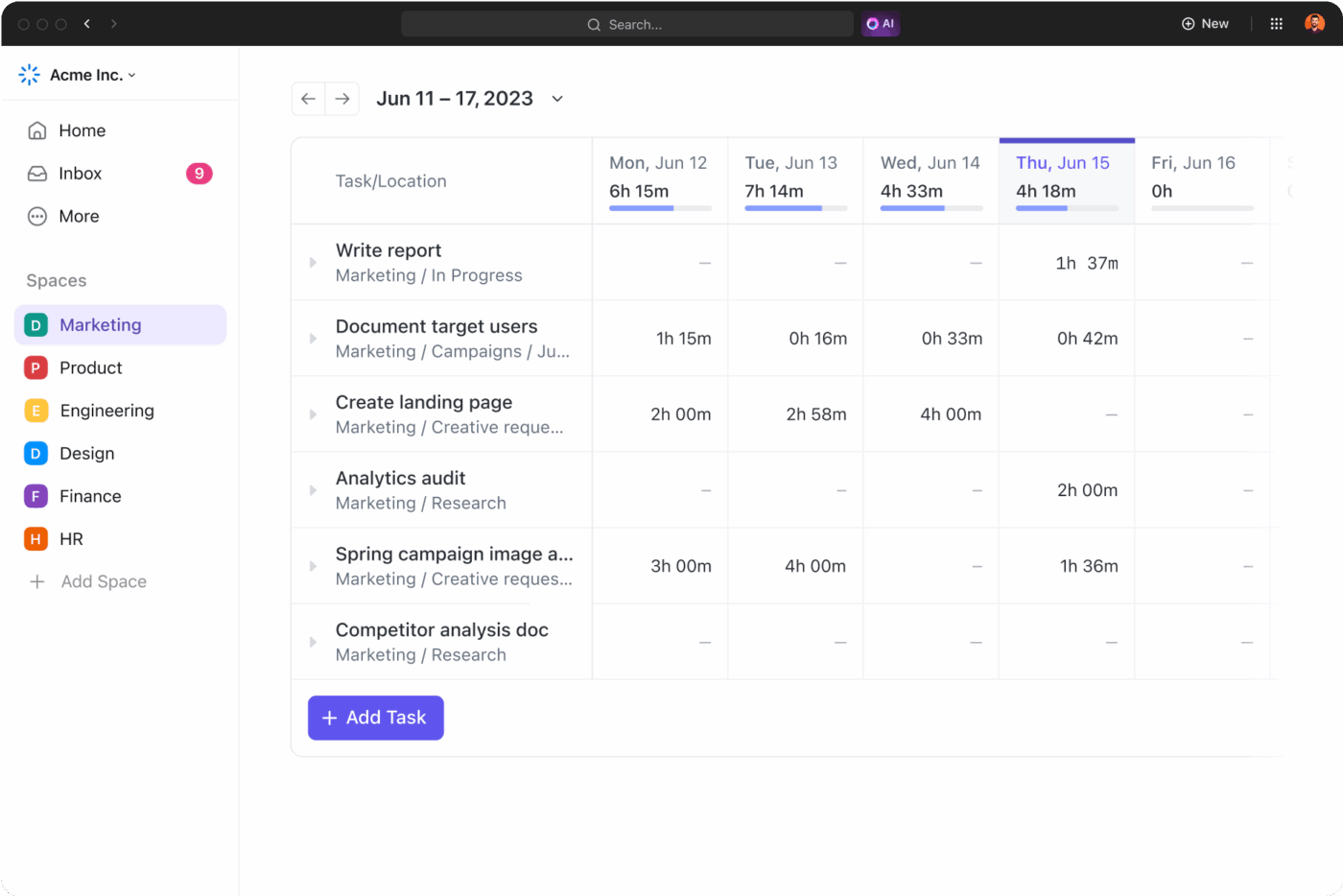
With ClickUp, you can track time directly on tasks, view totals across projects, and connect hours to outcomes—not just clocks.
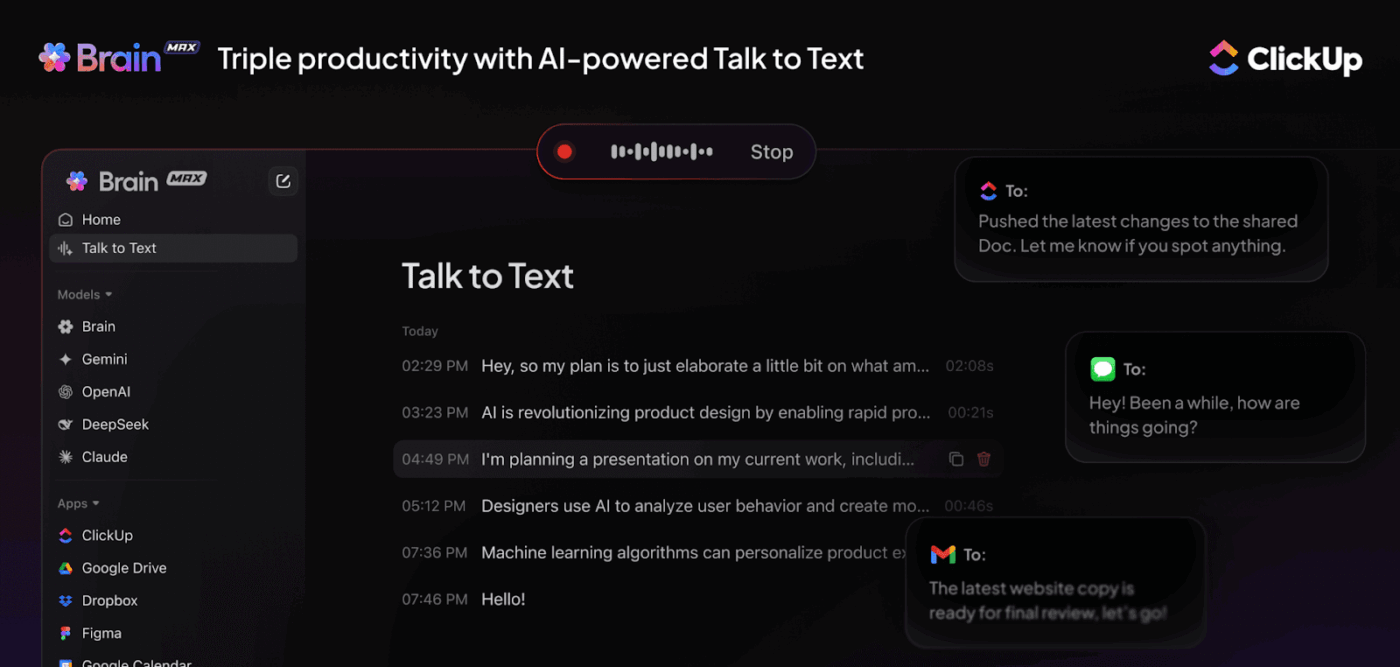
ClickUp Brain MAX makes time logging easier for onsite teams, field workers, and anyone juggling multiple tasks. With Talk to Text, employees can record hours or add context hands-free, reducing forgotten entries and improving accuracy. Because entries are tied directly to tasks, managers see not just the hours worked but the story behind them.
Boost productivity with ClickUp Brain’s AI-powered Talk to Text—instantly transcribe your thoughts, automate updates, and streamline communication across your favorite apps
💡 Pro Tip: If your team logs hours in one tool, manages tasks in another, and tracks payroll in a third, overtime errors are inevitable. Consolidate time + task context in one workspace to eliminate guesswork.
Step 3: Set the rules before you enforce them
Once you’ve defined what “normal” hours look like and chosen how to track them, the next step is configuring the rules of engagement.
What counts as overtime? When do multipliers kick in? Who’s exempt? Your system needs to know.
🔧 Key configs to dial in:
Overtime thresholds: Federal standard is 40+ hours/week, but California, Alaska, and others require daily thresholds.
Multipliers: Set the appropriate rates (1.5× or 2×) for eligible hours.
Exempt vs. non-exempt: Not every employee qualifies for overtime pay—but you do need to track it for visibility.
💡 In ClickUp, use Custom Fields to tag employees by role, rate, and classification. That way, your calculations run automatically based on who’s logging hours—no spreadsheets required.
Use Custom Fields to capture overtime rules, hourly rates, and approval status—making payroll and compliance effortless
📈 Bonus: You can even write conditional formulas like IF (Hours > 40, (Hours - 40) * Rate * 1.5, 0) to calculate overtime pay on the fly. No math degree required.
This isn’t about micromanagement. It’s about accuracy, equity, and protection—for both your business and your team.
🐣 Fun Fact: The Zeigarnik Effect: Your brain hates loose ends
Humans remember incomplete tasks way more than the ones we finish. So if a tiny unfinished task is living rent-free in your mind… it’s not overthinking. It’s just your brain refusing to let anything go without closure.
Step 4: Prevent overtime before it happens (with smart alerts)
By the time you notice overtime, it’s often too late. The hours are logged, the payroll costs are locked in, and the “how did this happen?” meetings begin.
But here’s the thing: overtime doesn’t sneak up on teams—it creeps in. Slowly, quietly, and often with warning signs that managers miss because they’re buried in too many systems.
That’s why smart teams build alert systems that notice patterns before people do.
If someone logs over 38 hours by Thursday, alert their manager
If tasks regularly extend past working hours, flag the project lead
If a department sees a 20% week-over-week increase in overtime, notify HR
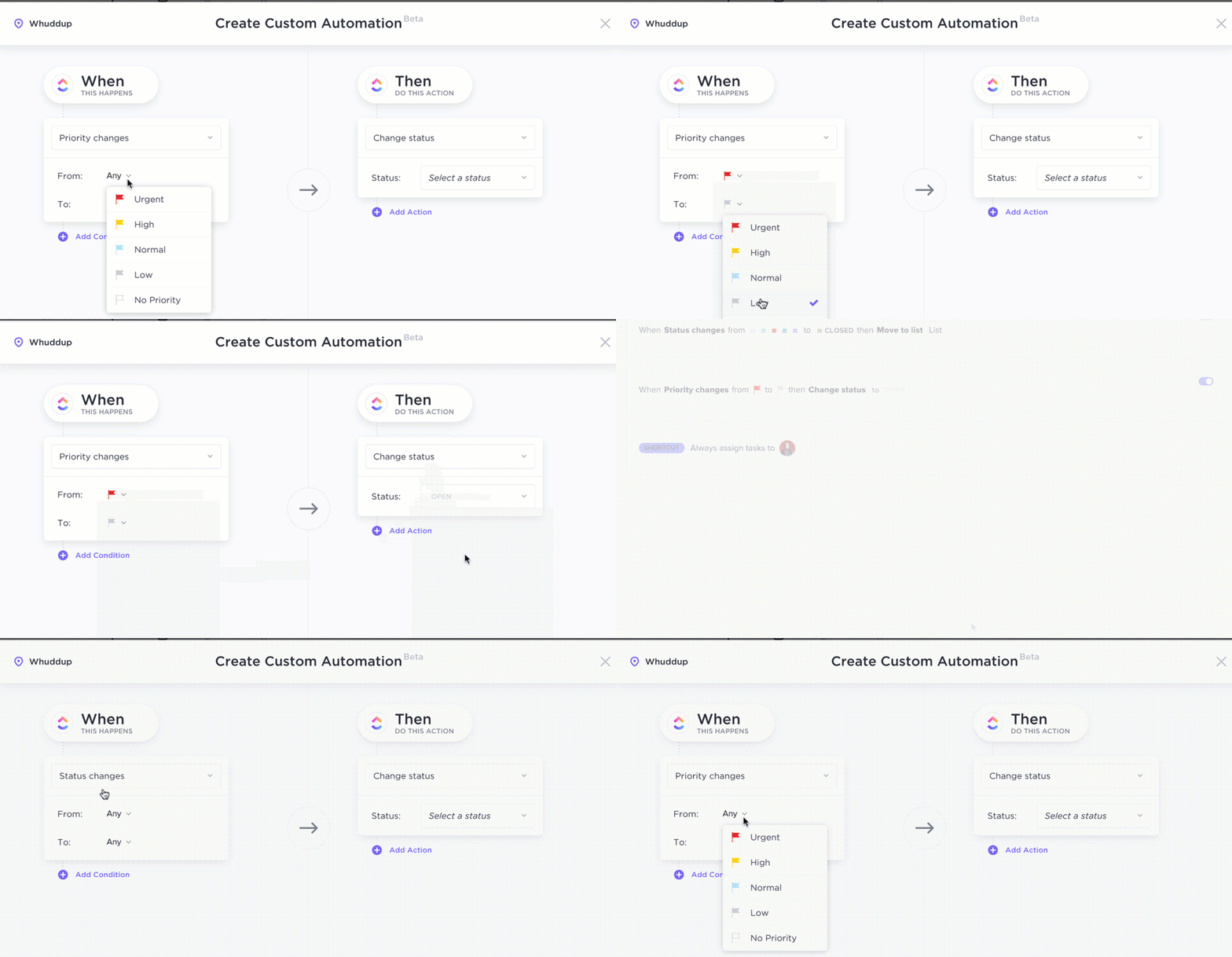
Automate overtime alerts and approvals to prevent budget surprises and burnout before they happen
These aren’t just reminders—they’re early interventions that protect budgets and people before burnout hits or compliance risks escalate.
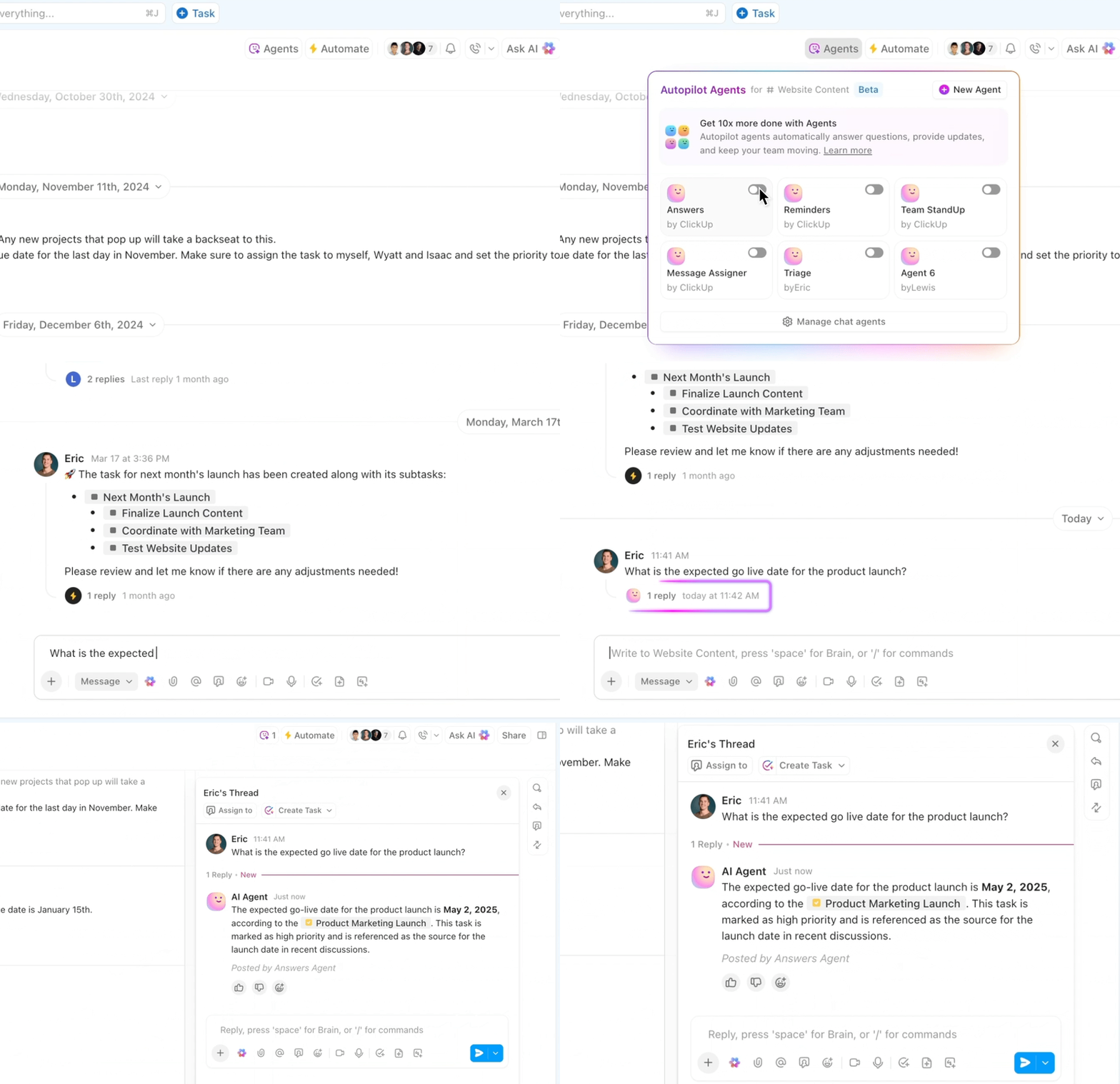
Additionally, ClickUp Agents act like an always-on safety net. They can watch weekly hour totals, detect early overtime patterns, alert managers automatically, and even recommend workload redistribution. Instead of discovering overtime after payroll, Agents surface the signal before it becomes a problem, helping leaders protect budgets and prevent burnout.
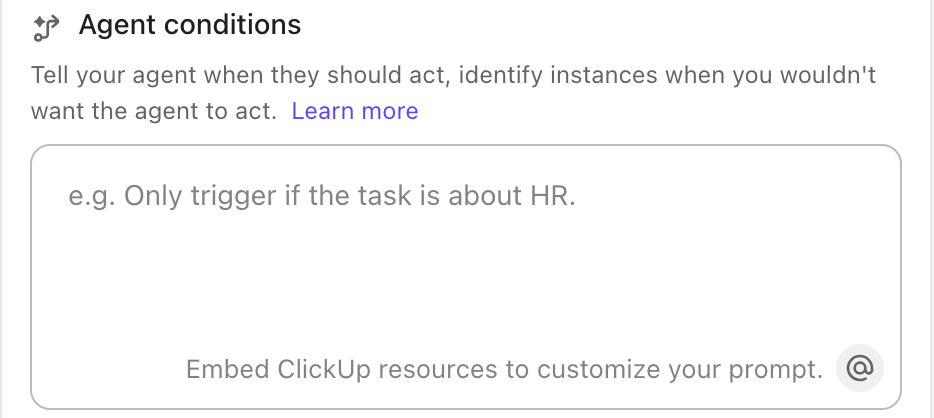
You can define the condtion that you want for an Agent trigger.
Configuring the Prebuilt Agent’s Conditions
And then the ClickUp Agent will come alive based on the defined trigger.
ClickUp Agent acts as instructed and can help your team find data easily
🔧 And because ClickUp Automations live in the same place as your tasks and timelines, there’s no disconnect between what’s happening and what should be happening.
👀 Did You Know? Gallup research shows that 44% of employees experience significant daily stress, much of it tied to workload and long hours. Overtime mismanagement doesn’t just affect payroll — it impacts wellbeing.
Step 5: Make overtime transparent—not just trackable
A spreadsheet can show you who logged 48 hours. But it won’t tell you why they did it, what it accomplished, or whether it’s a one-off or a systemic issue.
That’s where dashboards come in—but not the kind that show a wall of numbers and call it a day.
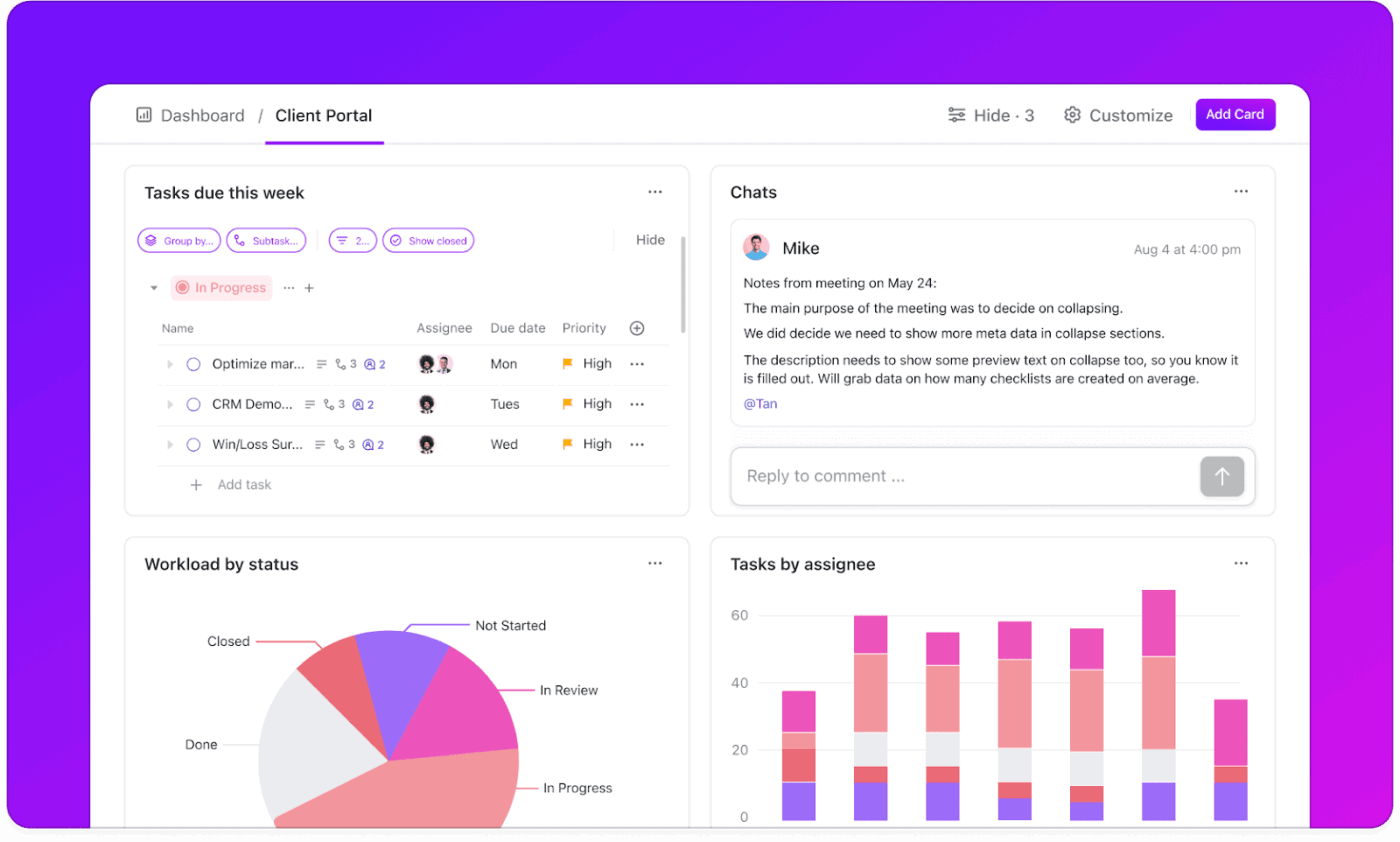
With ClickUp Dashboards, you get real-time, visual clarity—and more importantly, you get the why behind the hours:
See weekly hours by team or person and instantly spot who’s approaching limits
Drill into specific projects to see which ones are consistently pushing people past 40 hours
Track overtime costs against budgets with custom widgets and Goals
Use ClickUp Brain to ask, “Where is unplanned overtime increasing?” and get instant insights without touching a report builder
Gain instant insights into overtime hours and project health with ClickUp Dashboards
The goal isn’t to micromanage—it’s to give managers the visibility to act early, redistribute workloads, and avoid surprises at the end of the month.
And because everything ties back to actual tasks, you can trace time entries to real work, not just log hours into the void.
Step 6: Connect time entries to context (so reviews aren’t guesswork)
Let’s be honest: reviewing timesheets is usually a guessing game. You see a 10-hour entry and think, “Was that accurate—or just a timer left running?”
When time is disconnected from work, every review turns into detective work.
ClickUp solves this by making time entries contextual—they’re not just logged, they’re tied to tasks, projects, comments, and completion status.
Here’s how this changes your review process:
Each time entry shows what was worked on, who approved it, and whether the task was completed
Use Calendar or List views to review weekly hours in the context of project timelines
Comments, attachments, and updates live alongside the logged time—so you’re not chasing down Slack threads or separate notes
Bonus: If something looks off—like a 12-hour log on a simple task—you can resolve it then and there, with all the context in front of you.
This turns time review from a manual chore into a quick, informed check-in that’s easy to scale.
Step 7: Get payroll right the first time—no backtracking, no guessing
At the end of the week, everything you’ve tracked—hours, tasks, approvals—has one job: to roll into payroll cleanly and correctly.
But for a lot of teams, this is where issues often surface.
You’re exporting data from a time tracker, chasing down corrections, manually formatting spreadsheets, and double-checking numbers. It’s error-prone, high-stress, and often way too late in the process to fix what went wrong upstream.
Here’s what it should look like:
You pull a report of all approved time entries, already categorized by employee, project, and billing code
Each entry includes overtime hours, calculated with your specific pay rates and thresholds
The export is ready to go—whether you’re feeding it into Gusto, ADP, or QuickBooks
ClickUp makes that possible by embedding ClickUp Time Tracking into the actual work. You’re not pulling data from a separate system—you’re exporting a living record of who did what, for how long, and why.
Export accurate, approval-ready time tracking data for seamless payroll processing
And because you can build Custom Fields for things like “Hourly Rate” and “Approval Status,” you get precision without the pivot table gymnastics.
The result? Fewer surprises on payday, fewer payroll corrections, and a system you can trust when compliance questions come calling.
👀 Did You Know? A predictable approval workflow (request → review → documented approval) reduces overtime disputes more effectively than any software feature, because transparency eliminates ambiguity.
Step 8: Use AI to ask better questions—and actually get the answers
Let’s be real: most reports only show you what’s already happened. They’re reactive. Static. And a lot of the time, totally useless unless you already know what to look for.
What you really want is a system that helps you see what’s coming—and makes sense of what just happened. That’s where AI steps in.
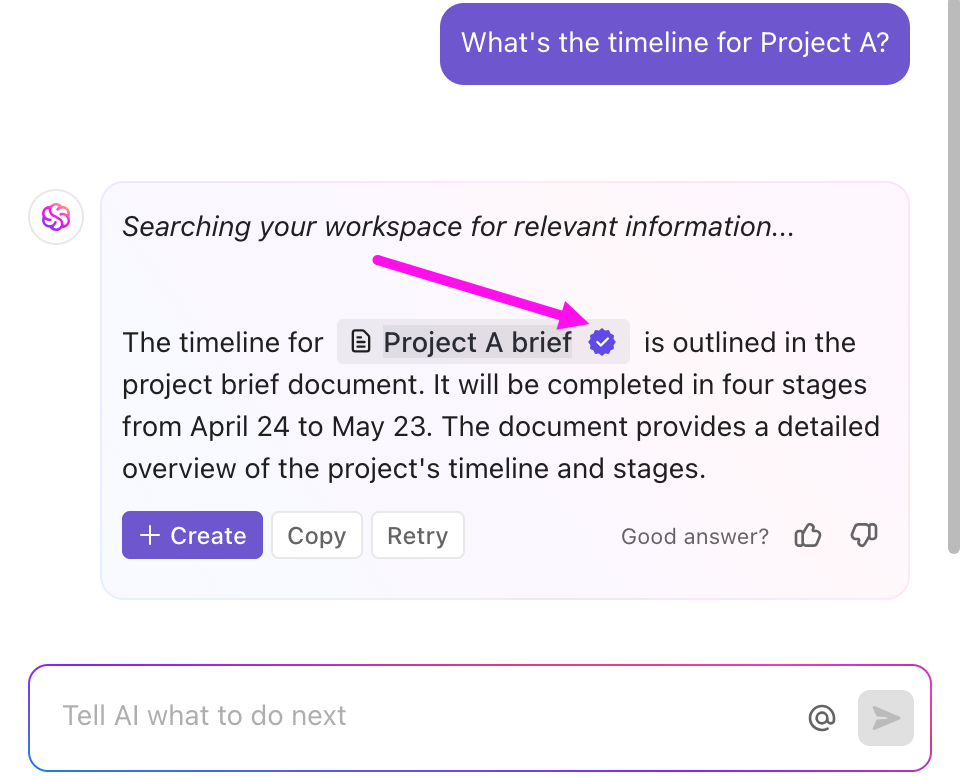
With ClickUp Brain, you don’t need to build a report or email the data team to understand your own operations.
Just ask:
“Which teams saw a spike in overtime this month?”
“Who’s worked 45+ hours for 3 weeks in a row?”
“What’s the average overtime cost for our product team?”
“Which projects are burning the most unplanned hours?”
Ask ClickUp Brain for real-time answers about overtime, workload, and project trends
Instant answers. With numbers, trends, and clear next steps.
And because Brain has access to everything—your tasks, time logs, workload data, docs, and even comments—it gives you context that standalone AI tools can’t match.
AI isn’t here to replace your reports. It’s here to eliminate the 20-minute rabbit hole of finding what you’re looking for.
Whether you’re preparing for a leadership meeting or trying to spot early signs of burnout, you’ve got real-time operational intelligence at your fingertips.
Bringing It All Together: The Strategic Case for Smarter Overtime Tracking
Overtime tracking isn’t about “compliance hygiene.” It’s about control.
When you build a system that shows you where time goes, who’s approaching burnout, and which projects are quietly draining your budget—you’re not just running payroll. You’re running a smarter operation.
ClickUp isn’t just another time tracking app. It’s a connected, contextual, Converged AI Workspace where work, hours, communication, and insights live together.
That’s the real advantage.
Because when overtime is no longer a surprise, everything else—morale, performance, retention, trust—gets a little easier to manage.
Summarize this article with AI
ClickUp Brain not only saves you precious time by instantly summarizing articles, it also leverages AI to connect your tasks, docs, people, and more, streamlining your workflow like never before.
Summarize this article for me please
Frequently Asked Questions
What’s the difference between overtime tracking and regular time tracking?
Regular time tracking records all hours worked, while overtime tracking specifically focuses on monitoring and calculating hours beyond the standard workweek, which have different pay rates and compliance requirements. It’s like counting all the miles you drive versus specifically watching for when you exceed the speed limit, because that’s when different rules apply.
How do you track overtime for remote and hybrid teams?
Use cloud-based time tracking on ClickUp’s mobile and desktop apps, allowing team members to log hours from anywhere. The key is making it as easy to track time from home as from the office. If your system connects time to specific tasks, you get full accountability along with accurate hour counts.
Can I track overtime in a spreadsheet or do I need dedicated software?
You can start with a spreadsheet if your team is very small (3-5 people) and has simple schedules, but it’s risky. Spreadsheets are prone to manual errors and lack automation. The breaking point is usually around 10 employees or when you have multiple projects running simultaneously. At that point, dedicated software becomes essential for accuracy and efficiency.
Does overtime tracking software work for salaried employees?
While overtime pay laws typically apply to hourly (non-exempt) employees, tracking time for salaried (exempt) employees is still valuable. It provides insights for project costing, helps manage workloads, and lets you spot potential burnout. Just because salaried employees don’t get overtime pay doesn’t mean you shouldn’t care about their hours. A salaried employee consistently working 60-hour weeks is a problem waiting to happen.
How do I handle employees who work across multiple projects with different billing rates?
Track time at the task or project level rather than just the employee level. Your system should allow employees to log hours against specific projects, each with its own billing rate or cost center. When exporting for payroll, you get both total hours and the breakdown by project—essential for accurate client billing and departmental cost allocation.
Everything you need to stay organized and get work done.