






Still downloading templates?
There’s an easier way. Try a free AI Agent in ClickUp that actually does the work for you—set up in minutes, save hours every week.
Sorry, there were no results found for “”
Sorry, there were no results found for “”
Sorry, there were no results found for “”
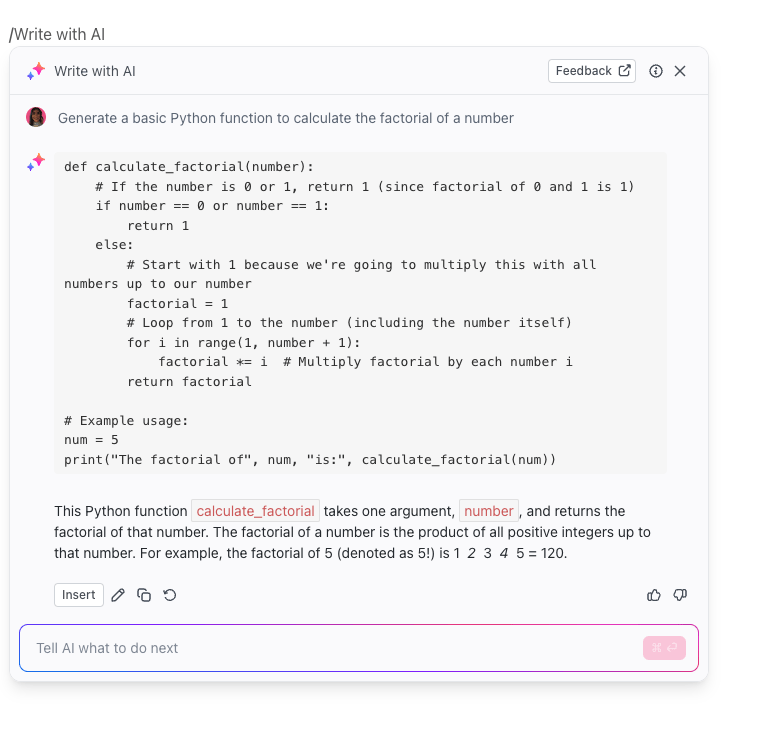
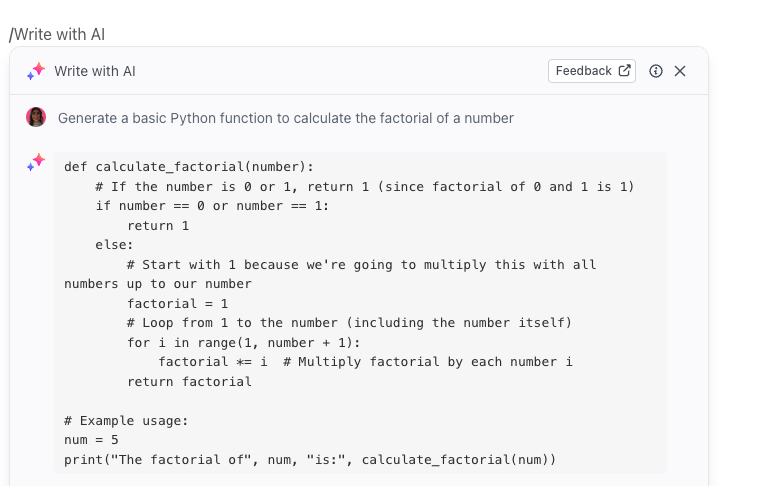
Most programmers learn to code by bouncing between Stack Overflow, documentation sites, and tutorial videos—a workflow that fragments your attention and slows you down. Workers face interruptions every 2 minutes during core work hours, making focused learning nearly impossible.
GitHub Copilot changes that by embedding an AI coding assistant directly in your editor. It gives you instant explanations, debugging help, and code suggestions without ever leaving your workspace. This guide shows you how to configure and use it as a learning tool instead of just a code generator.
GitHub Copilot is an AI-powered coding assistant, or AI pair programmer, that lives directly inside your code editor. Developed by GitHub and OpenAI, it’s designed to stop tab-juggling by bringing answers and code suggestions right to you. It’s built for everyone, from absolute beginners to seasoned pros picking up a new language.
The tool has two core parts. First are the inline suggestions, which act like an incredibly smart autocomplete for your code. Second is Copilot Chat, a conversational AI you can ask questions in natural language. Copilot analyzes the code in your current file and open tabs to give you context-aware help.
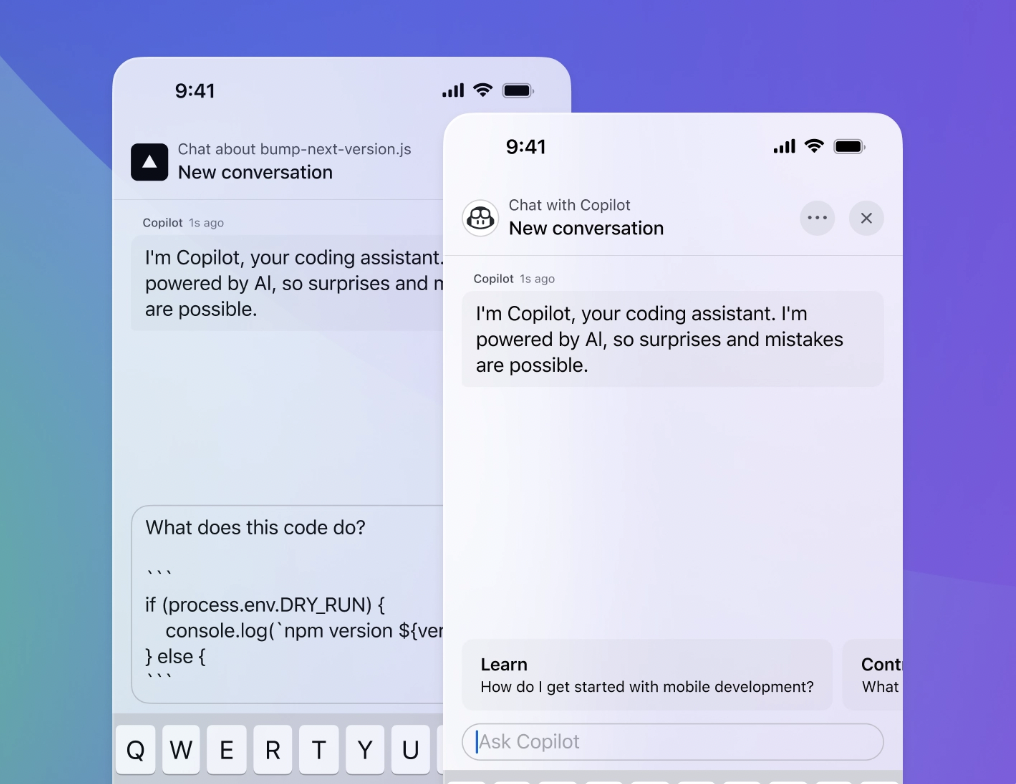
It works in the most popular coding environments and languages, including:
By keeping you in your editor, this AI code assistant helps you stay in a state of flow, turning frustrating searches into a seamless learning experience.
📮ClickUp Insight: Context-switching is silently eating away at your team’s productivity. Our research shows that 42% of disruptions at work come from juggling platforms, managing emails, and jumping between meetings. What if you could eliminate these costly interruptions?
ClickUp unites your workflows (and chat) under a single, streamlined platform. Launch and manage your tasks from across chat, docs, whiteboards, and more—while AI-powered features keep the context connected, searchable, and manageable!
Every new programmer hits a wall. It might be a cryptic error message or a concept that just won’t click. With no one around to ask, you’re stuck. This leads to hours of searching, lost motivation, and sometimes giving up on a coding session entirely. The feedback loop is just too long.
A GitHub Copilot coding assistant shortens that feedback loop from hours to seconds, acting as your personal, on-demand tutor. Instead of getting stuck, you get instant clarity and can keep moving forward. This transforms learning from a frustrating battle into an engaging conversation.
Here’s how it helps you learn faster:
📮ClickUp Insight: 33% of our respondents point to skill development as one of the AI use cases they’re most interested in. For example, non-technical workers may want to learn to build code snippets for a web page using an AI tool.
In such cases, the more context the AI has about your work, the better its responses will be. As the everything app for work, ClickUp’s AI excels at this. It knows what project you are working on and can recommend specific steps or even perform tasks like creating code snippets easily.
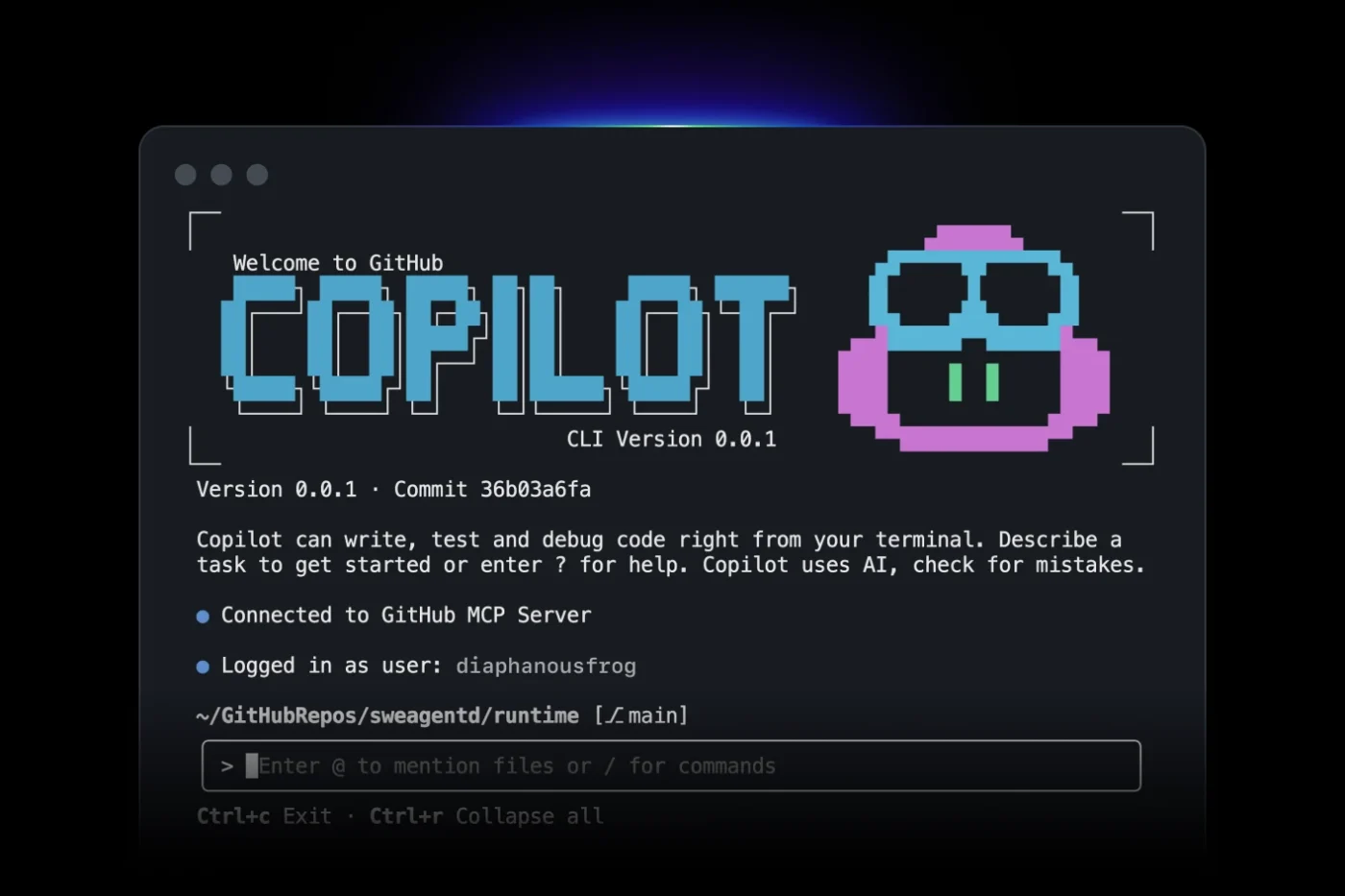
Just installing an AI tool isn’t enough. The default settings are often designed for experienced developers who prioritize speed, which can become a crutch for learners. If you passively accept every suggestion, you risk learning very little, which runs counter to the principles of active learning.
Using the default setup can lead to you having working code without understanding it, creating knowledge gaps that will cause problems down the road.
But with a quick 10-minute configuration, you can transform GitHub Copilot from a simple code generator into a personalized learning tool. These adjustments help you control the pace and ensure you’re building real comprehension, not just a library of code you can’t explain.
First, you need to get the tool into your code editor. For most learners using VS Code, the process is straightforward.
If you use another editor like Visual Studio or a JetBrains IDE, the process is very similar. Just search for the Copilot extension in your editor’s marketplace and follow the authentication steps.
Now let’s tweak the settings to encourage active learning instead of passive code generation. You can find these options by opening the Command Palette (Ctrl+Shift+P or Cmd+Shift+P), typing “Preferences: Open User Settings,” and then searching for “Copilot.”
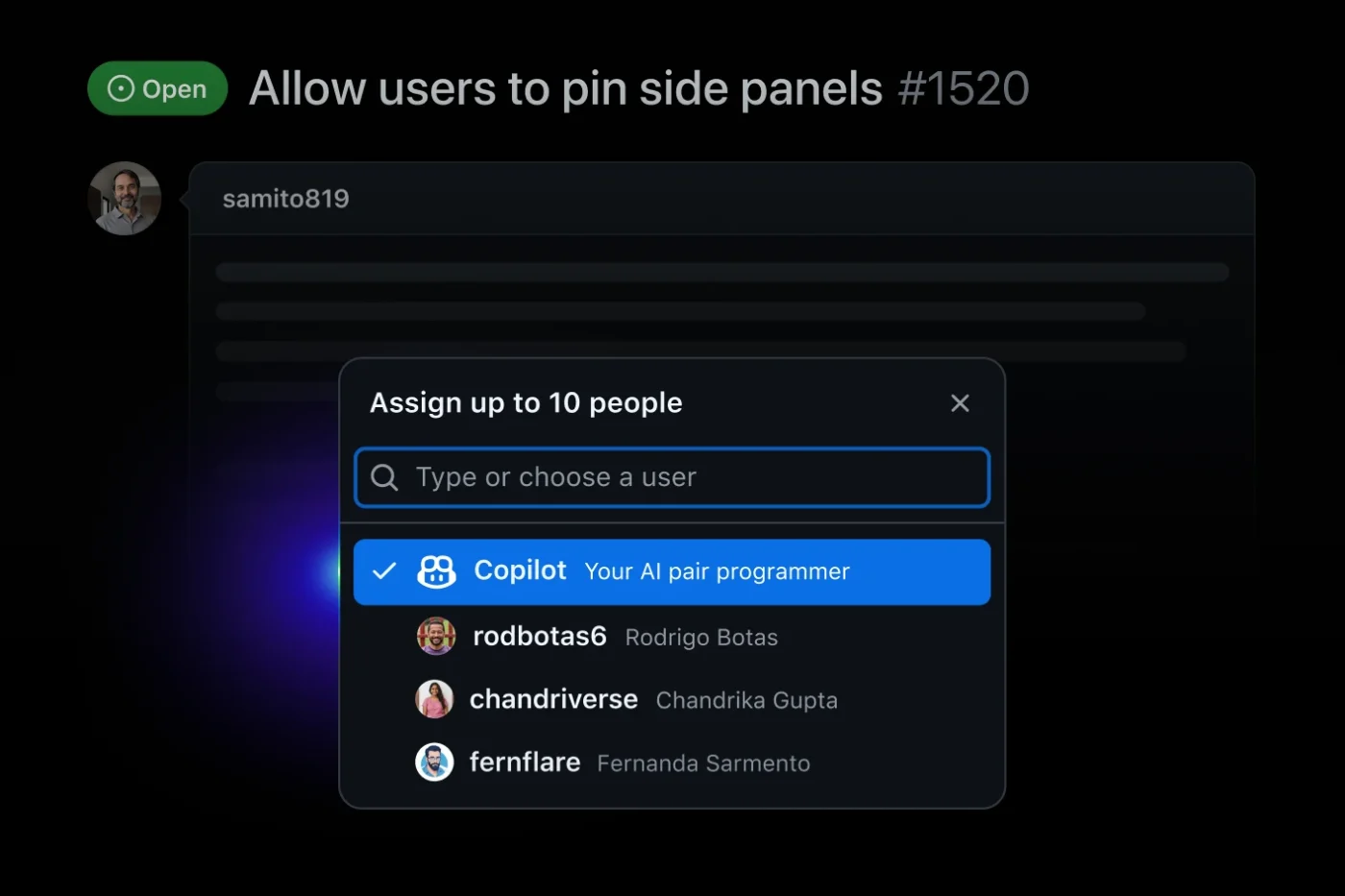
This is where you turn Copilot into your personal tutor. You can give it custom instructions about your skill level and how you want it to teach you. Add these instructions in the Copilot Chat settings or by creating a special file named .github/copilot-instructions.md in your project folder.
📌 Here are a few examples of great instructions for learners:
These instructions stick around, so you don’t have to repeat yourself. You can even have different instructions for different projects, tailoring the AI’s teaching style to whatever language or framework you’re focused on.
You’ve installed and configured Copilot, but now what? If you just use it for basic code completion, you’re missing out on its true power as a learning tool. Passively accepting every suggestion can lead to “Copilot dependency,” where you feel like you can’t code without it.
To avoid this, you need to use it actively. These five practical strategies will help you turn Copilot from a crutch into a powerful tutor, building deep understanding and confidence. 🛠️
Found a confusing snippet of code online or in a tutorial? Don’t just copy and paste it. Instead, highlight the code, open Copilot Chat, and ask it to “Explain this code.”
Copilot will break down the logic line by line in plain English. This is perfect for understanding complex one-liners or unfamiliar syntax.
To get even more out of it, ask follow-up questions.
map() function do in this example?”After you read the explanation, try to rewrite the code from memory. This simple act of recall is one of the best ways to lock in a new concept.
📚 Also Read: Best AI Coding Tools and Assistants
Think of Copilot Chat as an always-on, patient tutor who will never get tired of your questions. Because it remembers the context of your conversation, you can ask follow-up questions to dig deeper.
Start with broad questions and then get more specific.
The key is to treat it like a real conversation. If you don’t understand an answer, just say, “Can you explain that differently?”
💡 You can also just ask ClickUp Brain, the AI integrated within ClickUp, to help you understand code. It will bring the added advantage of already knowing your role and your work.
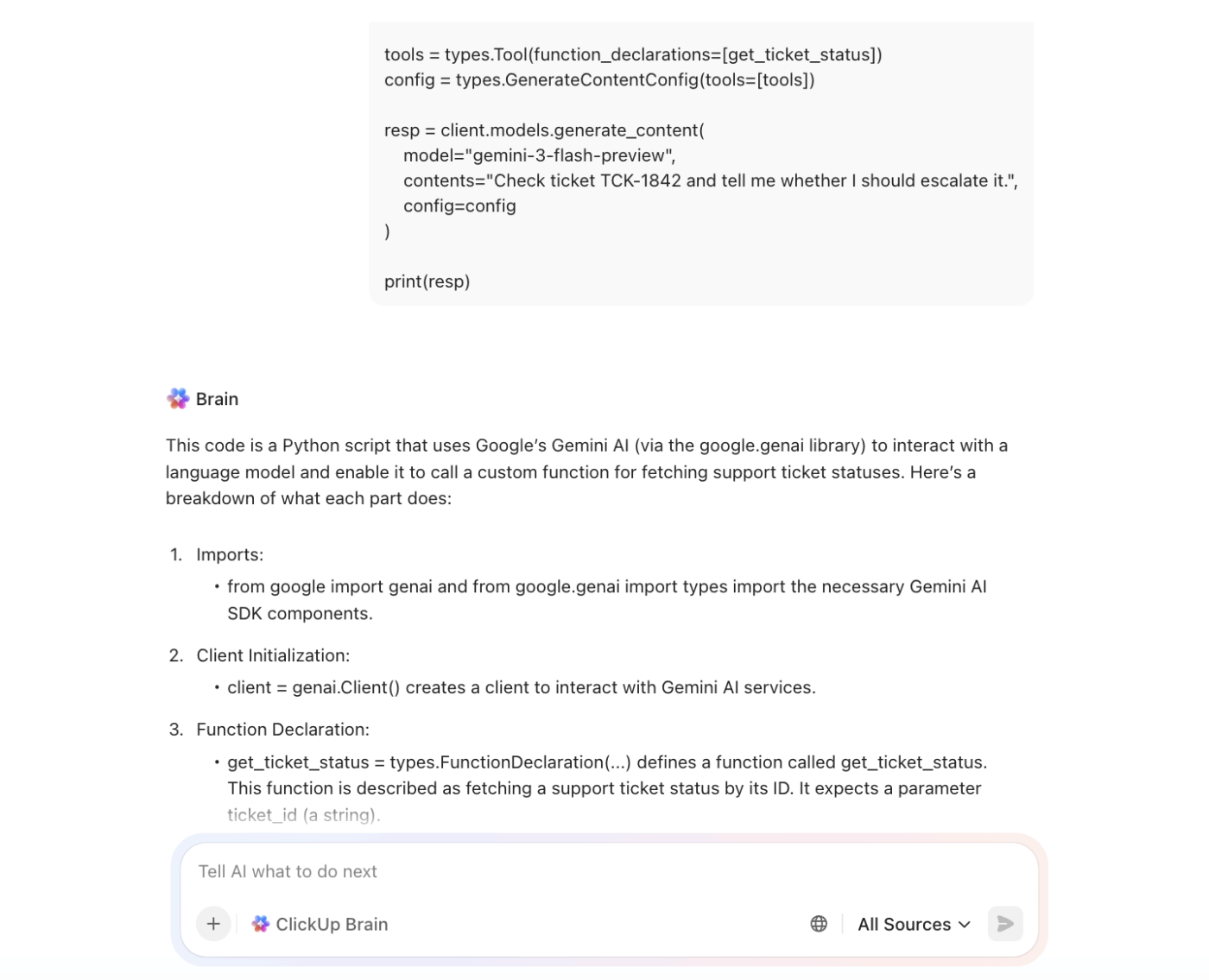
This technique flips the script. Instead of letting Copilot write code for you, you tell it what you want to do and then study its solution as a worked example.
// Create a function that takes a list of numbers and returns only the even onesThis workflow turns GitHub Copilot code generation into an active learning exercise. Students using this approach finish tasks 35% faster while achieving better progress on solutions.
💡ClickUp Brain works as your coding partner within ClickUp.
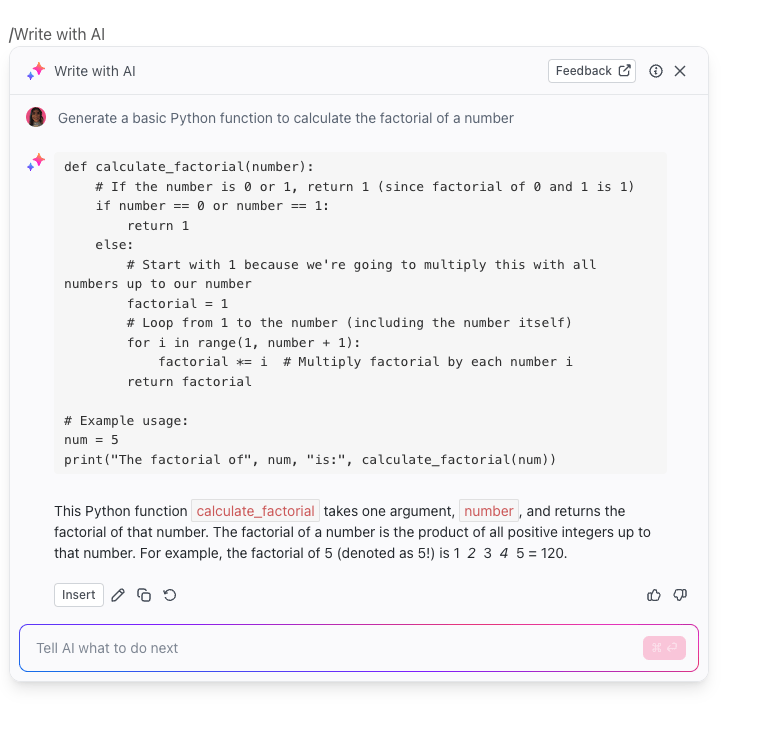
Getting stuck on a bug is incredibly frustrating. Instead of staring at the screen for an hour, use Copilot to get a fresh perspective.
Keep a running list of your common mistakes in a doc. You’ll start to see patterns and fix them before they happen.
💡 Try Codegen, ClickUp’s autonomous coding agent that can help you with debugging, writing code, opening PRs, and more.
If you already know one programming language, you can use that knowledge to learn another one faster. For example, if you’re a Python developer learning JavaScript, you can use Copilot as a translator.
Paste a Python function into Copilot Chat and ask, “Convert this to JavaScript and explain the key differences.”
Copilot will not only provide the translated code but also point out important syntax changes and language-specific patterns.
For instance, it might show you how a Python list comprehension is similar to using map() and filter() in JavaScript. This helps you build a mental map between the concepts you already know and the new syntax you’re learning.
To see how AI agents are transforming the coding workflow, watch this demonstration that shows AI coding assistants in action and how they can accelerate your development process.
It’s easy to fall into bad habits with AI, like blindly trusting every suggestion or letting it do all the thinking for you. This leads to shallow knowledge and the inability to solve problems on your own.
To avoid this, you need some rules of the road. Think of these best practices as guardrails that ensure you’re using Copilot to get smarter, not to outsource your brain.
Believing that an AI tool is a perfect, all-knowing tutor is a mistake. This misplaced trust can lead you to embed buggy code in your projects or fail a technical interview because you can’t explain the code the AI wrote for you.
To use it effectively, you have to be honest about its limitations. Here’s what to watch out for. 👀
Here are some cool tools you can try if you want to explore vibe coding 👇
Learning to code often means drowning in a sea of browser tabs. You have a tutorial open in one, official documentation in another, and a dozen Stack Overflow threads trying to explain a single error message. This constant context-switching kills your focus and slows down your progress.
This is a classic case of context sprawl—when teams waste hours searching for information across disconnected apps, hunting down files, and repeating updates across multiple platforms—and it kills momentum. When your learning plan is scattered, it’s hard to see your progress or stick with it.
This is where you need a single, user-friendly platform to bring it all together. Stop the tool-juggling and build a single source of truth for your entire learning journey with ClickUp.
Here’s how ClickUp’s Converged AI Workspace helps you plan your learning, store your knowledge, and track your progress all in one place:
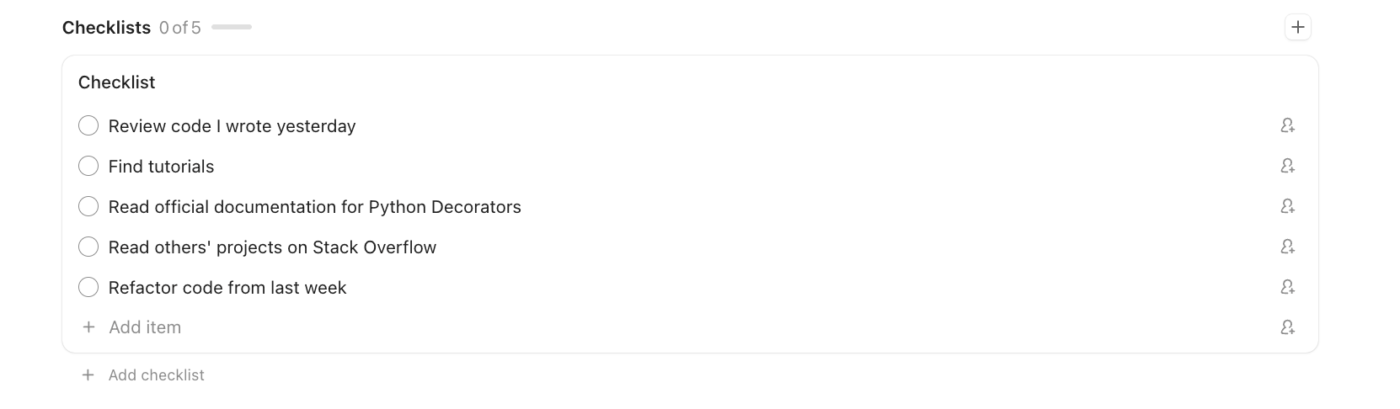
Here’s what step-by-step tutorial tracking looks like with ClickUp Task Checklists.
GitHub Copilot can transform your code editor into an interactive learning playground. It provides instant explanations, helps you debug faster, and lets you explore new languages with confidence. But the real key is active engagement—using it as a tutor to understand concepts, not just as a code-generation machine.
Learning to code no longer has to mean getting lost for hours in documentation rabbit holes. AI-assisted learning dramatically shortens the feedback loop, so you can focus on building real, durable skills. The developers who thrive in the future will be the ones who master learning with these powerful tools.
Ready to organize your programming learning journey? Get started for free with ClickUp to track your progress, store your notes, and keep your learning roadmap all in one place.
Yes, GitHub Copilot is free for verified students, teachers, and maintainers of popular open-source projects. You’ll need to apply through the GitHub Student Developer Pack and verify your status.
Beginners can absolutely use it, especially the Copilot Chat feature for asking questions. However, having some basic familiarity with your chosen language will help you better judge whether the AI’s suggestions are good or not.
Copilot’s biggest strengths for learning are its deep integration into popular editors like VS Code and its powerful Copilot Chat. While alternatives exist, Copilot’s training on the vast amount of code on GitHub often gives it an edge in understanding the context of common learning projects. Of course, if you are a ClickUp user, you can just use the integrated AI (ClickUp Brain) and Codegen autonomous coding assistant to learn as you work.

© 2026 ClickUp

There’s an easier way. Try a free AI Agent in ClickUp that actually does the work for you—set up in minutes, save hours every week.