

Sorry, there were no results found for “”
Sorry, there were no results found for “”
Sorry, there were no results found for “”
Imagine this: You’re on a tight deadline, staring at your Google Docs draft, and the words just aren’t flowing. Maybe your report sounds too casual for the execs who’ll read it, or your essay feels a little meh.
That’s everything Gemini in Google Docs can fix. Think of it as your AI-powered writing sidekick, ready to suggest optimal text, refine your tone, summarize key points from lengthy material, and even help you rewrite existing text with a fresh perspective.
Whether you’re crafting a letter, a blog post, or just trying to make your words sound more polished, Gemini’s AI features sprinkle that much-needed magic dust onto your Google Workspace.
Let’s see how to make the Google Docs Gemini feature work for you!
👀 Did You Know? The United States contributes the most traffic to Google Gemini at 9.8%, followed by Indonesia at 8.5%, and India at 8.2%.
Gemini AI is like having a built-in writing assistant right in Google Docs. It can improve your existing content, generate new ideas, and summarize long reports—so you don’t have to stress over getting these tasks right. Plus, it works seamlessly inside Google Workspace apps like Google Sheets and Google Slides. And for those of us who can’t live without sourcing information from Google Search, it can do that while drafting your content, too.
Beyond generating content, Google Docs Gemini can double up as an all-purpose AI-powered assistant, offering professional advice and improving the quality of your communication in an office setting.
Let’s explore how to use Google Gemini in Google Docs:
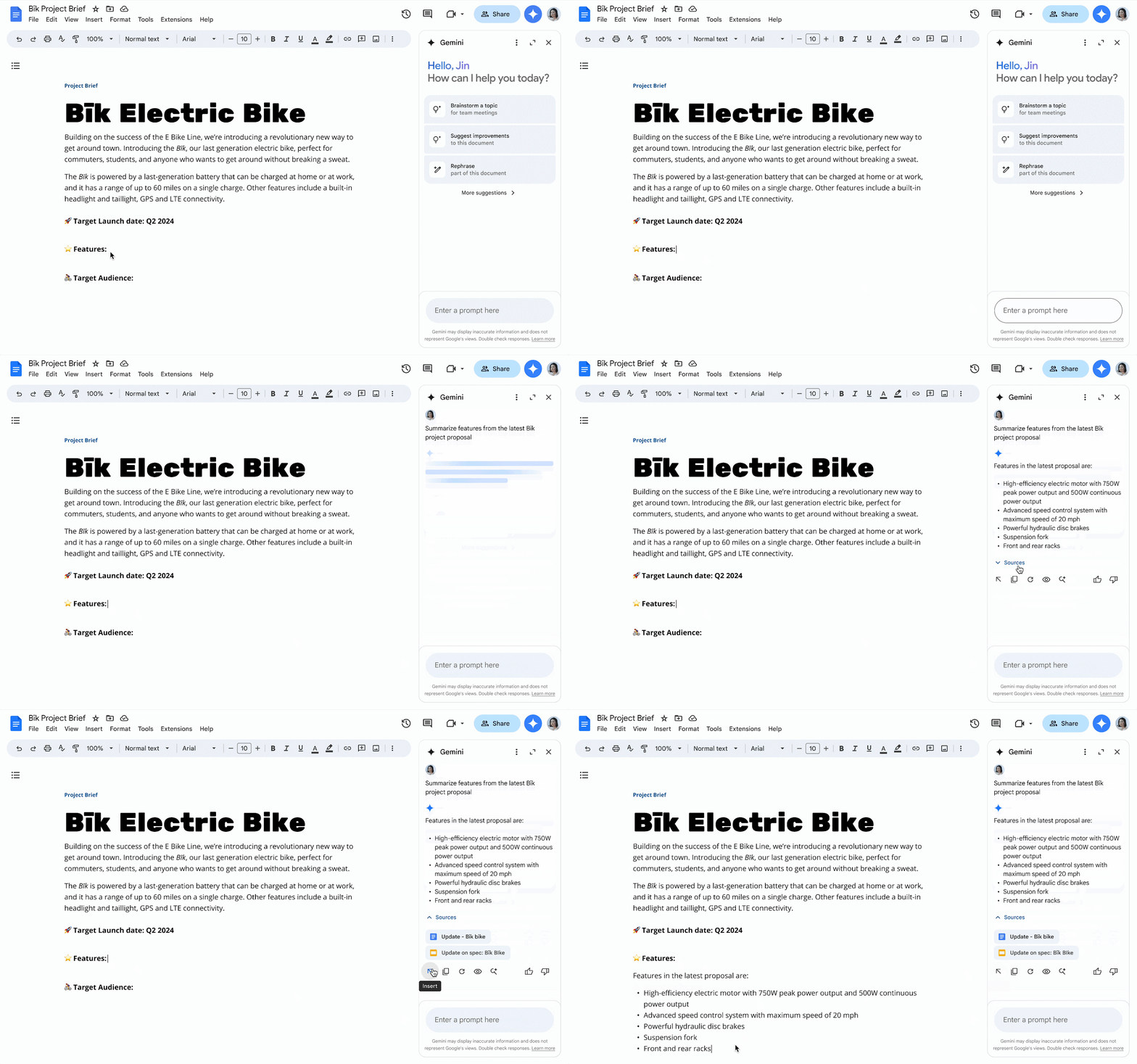
Getting started with Gemini on Google Docs is easy:
💡 Pro Tip: Be specific with your Gemini prompts!
Instead of ‘Create a social media strategy for a new product launch,’ try “Create a social media strategy for amplifying the launch of our new line of organic pet food products, primarily focusing on organic and user-generated content on Facebook, TikTok, and Instagram.”
The more precise your request, the better Gemini’s response!
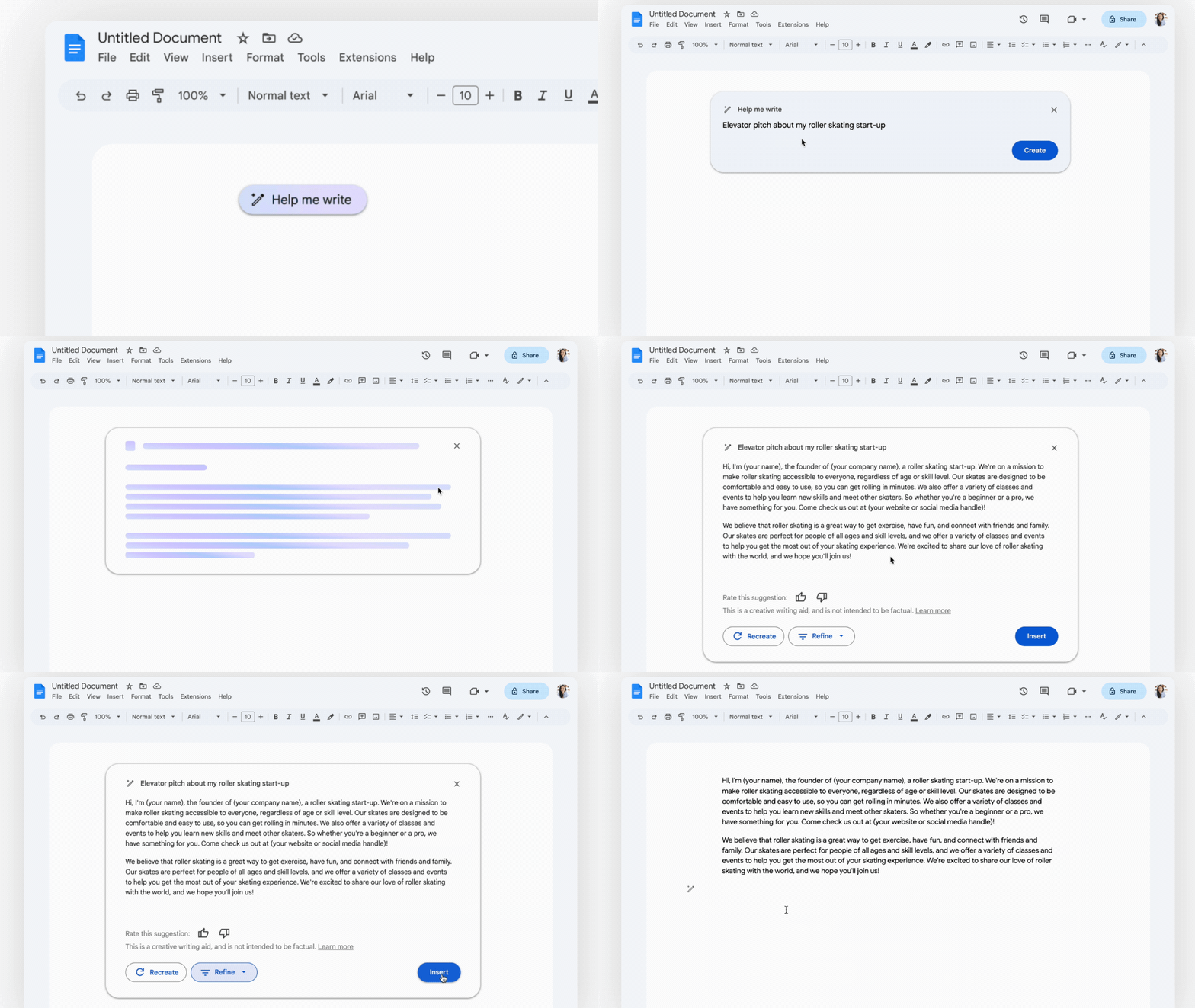
If you’ve just opened a Google Doc and are simply staring at the blank screen, the Help me write option next to the pen icon is your friend. Click on it and give Gemini a detailed prompt outlining your requirements, including the kind of content, the tone of voice, the style, and other relevant information. Now, hit Create and watch it generate the right content for the moment—from elevator pitch ideas to multi-page essays.
Rate the response, refine, or recreate the output until you’re satisfied. Once you’re happy, click Insert to get it onto your AI document.
🎥 Watch this video explainer for our best tips on creating documentation using AI👇🏽
🧠 Fun Fact: Google’s AI Bard was renamed Gemini as part of a broader rebranding.
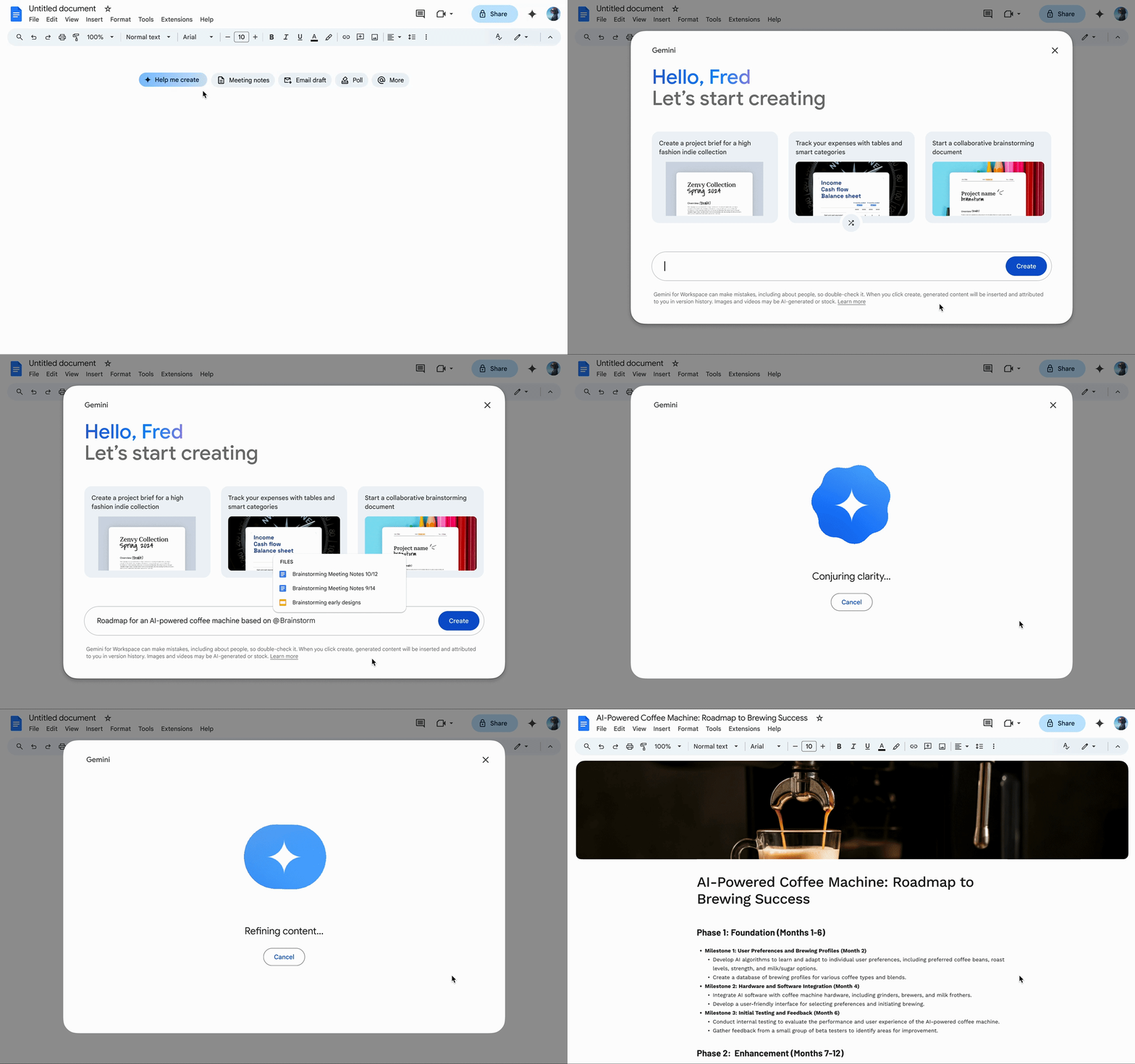
Want to create an entire document from scratch without prompting, re-prompting, or prompt chaining? Here’s how to go about it:
💡 Pro Tip: You can include related documents from your Google Docs or Google Drive into the prompt to give Gemini additional context without copy-pasting everything. Simply select the @ symbol in the prompt and select the relevant document.
Already have a chunk of your project report drafted but want to improve the quality of articulation? Here’s how to do it:
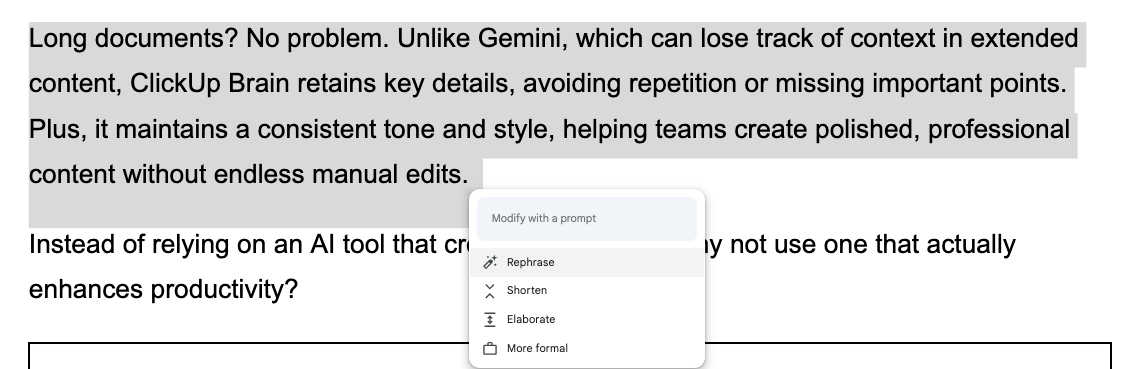
👀 Did You Know? The Gemini Ultra model achieved a 90.0% score on the Massive Multitask Language Understanding [MMLU] benchmark, surpassing human expert performance.
📖 Also Read: How to Add a New Page on Google Docs
Yes, you can create images directly inside Google Docs with Gemini. Here’s how:
You can also preview how the image looks inside the doc before inserting it.

Our most recent appreciation of the collaborative impact of ClickUp was when working on a Content plan for a product launch. We were able to build and maintain a content repository using the docs tool, that included hierarchical structure, collaborative editing, and powerful embedding features.
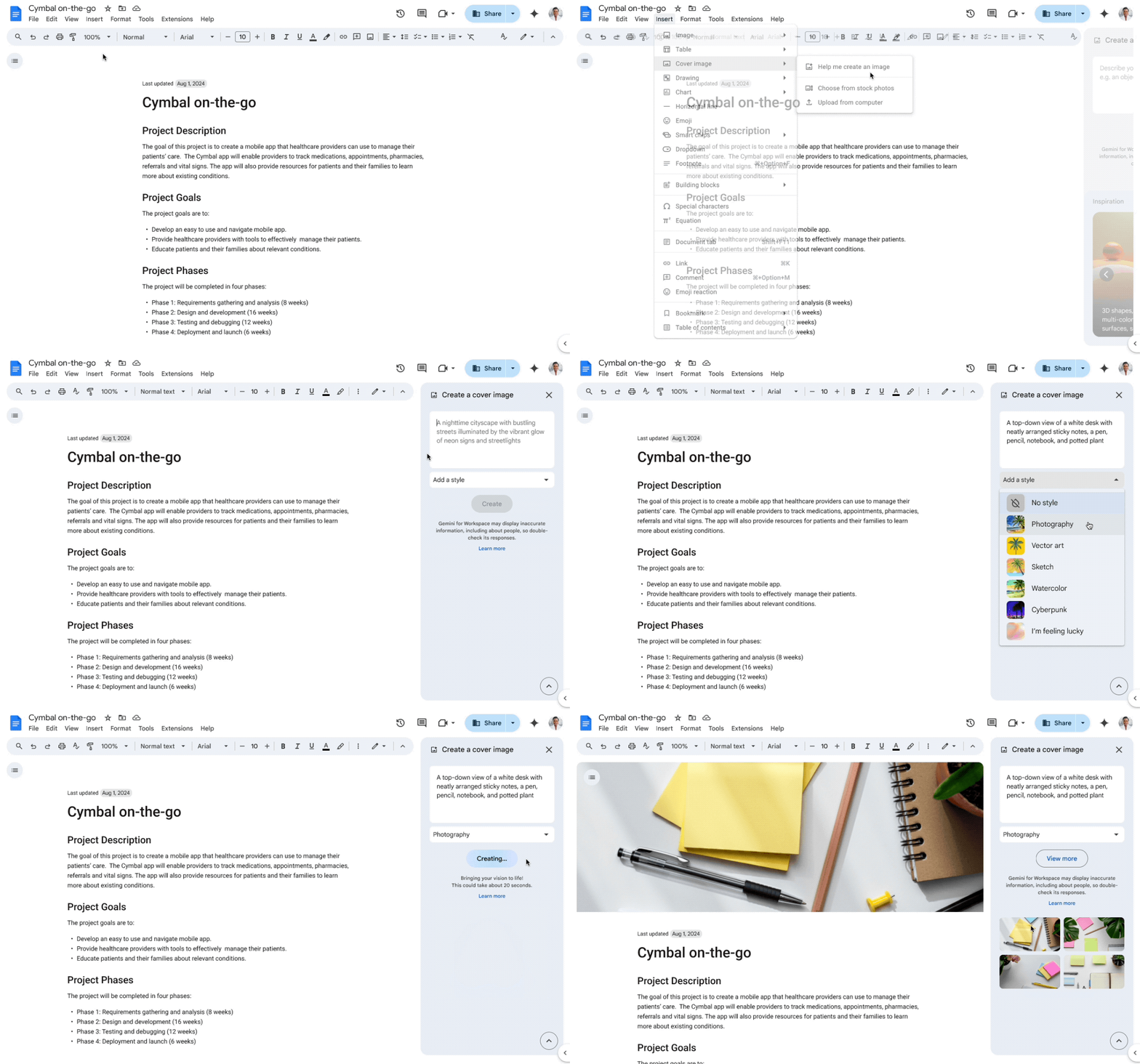
Is your blog post outline nearly ready to go and just missing the perfect cover image? Use Gemini to generate one for you. Follow these instructions:
While Gemini AI is a helpful writing and creative assistant, it’s not without its quirks. Here are a few limitations to keep in mind when using it in Google Docs:
⭐️ However, ClickUp Brain users can access Gemini (along with other external AI models like ChatGPT and Claude) right from their ClickUp workspace.
📖 Also Read: Best AI Blog Writers to Try
AI writing tools can be a big deal for productivity but also have frustrating limitations. You’re not alone if you’ve ever struggled with AI responses that lack any personality whatsoever, fail to maintain the right tone and voice, or frequently waste time with hallucinations.
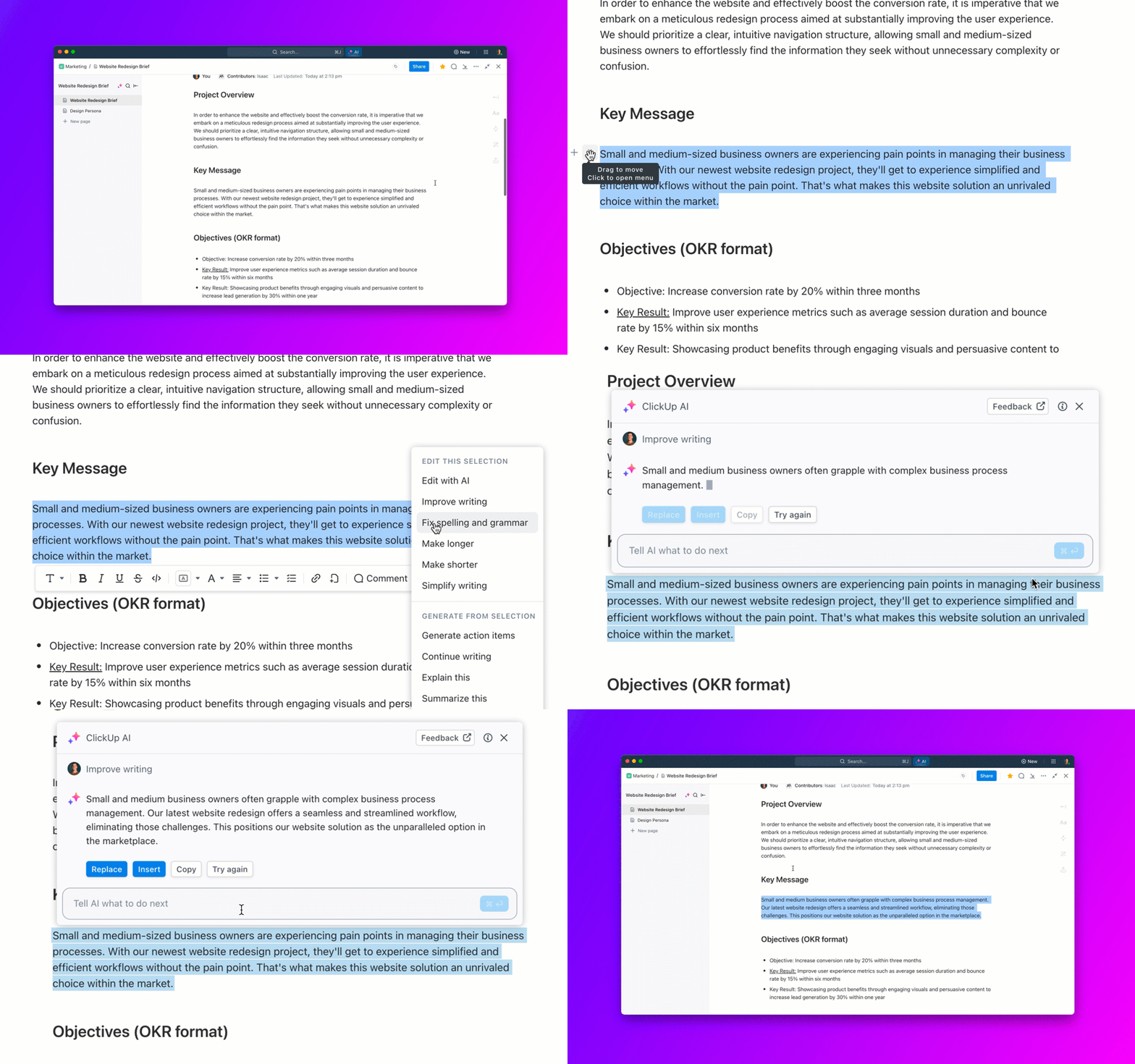
While Google Gemini in Docs offers AI-powered assistance, it often falls short when it comes to deeply contextualizing content, processing long documents accurately, and offering project integration. But ClickUp, the everything app for work, has a smarter alternative.
Say hello to ClickUp Brain. As an AI-powered assistant baked into ClickUp, it acts as your AI Writer for Work, your AI Project Manager, and your AI Knowledge Manager.
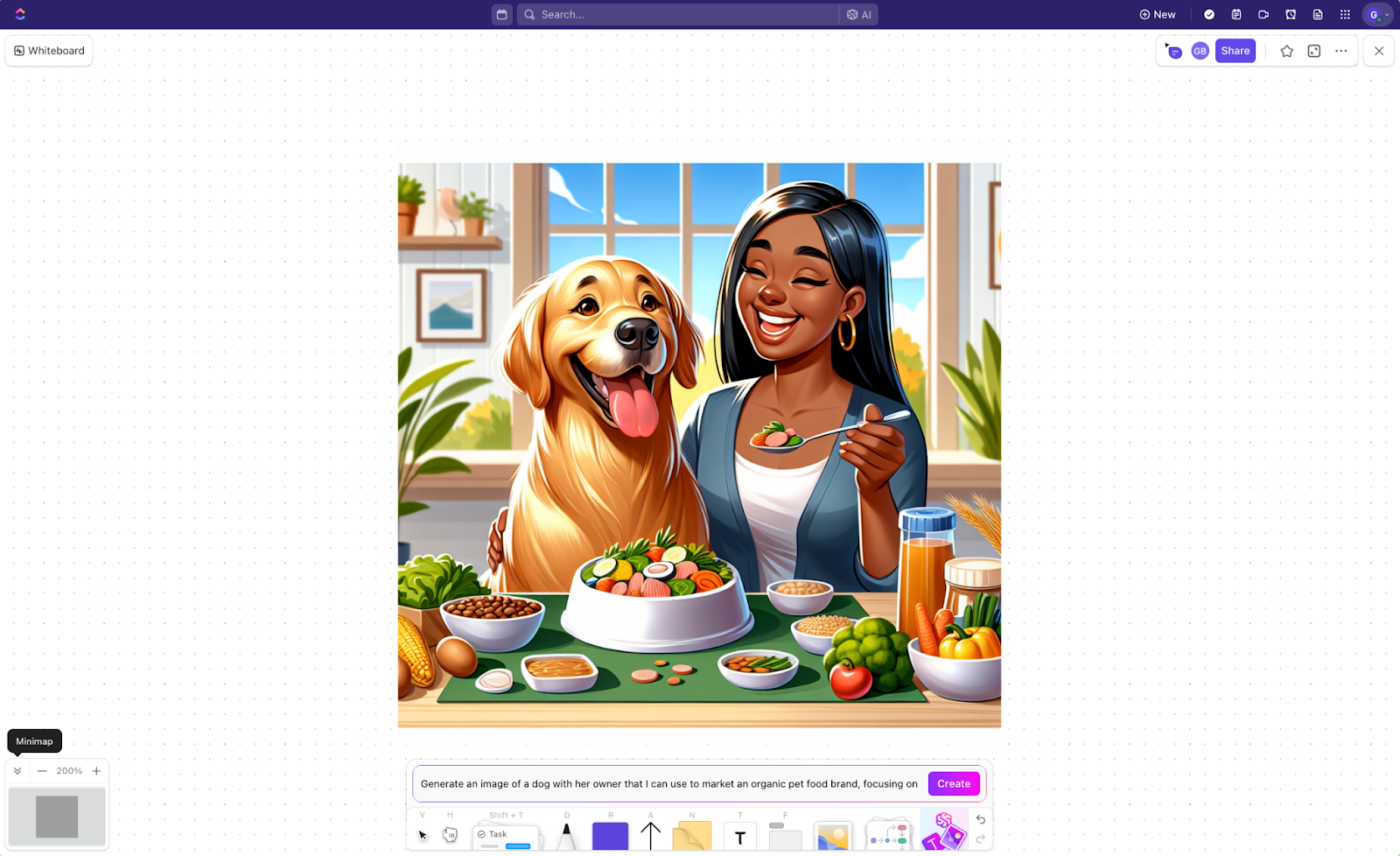
It’s most helpful in generating content and keeping it structured, relevant, and tied directly to your work. Brain also integrates seamlessly with ClickUp Whiteboards to generate AI images to your liking.
📮ClickUp Insight: Only 12% of our survey respondents use AI features embedded within productivity suites. This low adoption suggests current implementations may lack the seamless, contextual integration that would compel users to transition from their preferred standalone conversational platforms.
For example, can the AI execute an automation workflow based on a plain text prompt from the user? ClickUp Brain can! The AI is deeply integrated into every aspect of ClickUp, including but not limited to summarizing chat threads, drafting or polishing text, pulling up information from the workspace, generating images, and more!
Join the 40% of ClickUp customers who have replaced 3+ apps with our everything app for work!
Whether you’re drafting project retrospective reports, brainstorming ideas for your next launch campaign, or collaborating on key documents, ClickUp Brain offers a smarter, more integrated solution than standalone AI tools. Instead of being held back by writer’s block, just type a quick prompt in plain English describing the outcomes you want, and ClickUp Brain will suggest the right content, summarize ideas, or refine the wording for your message.
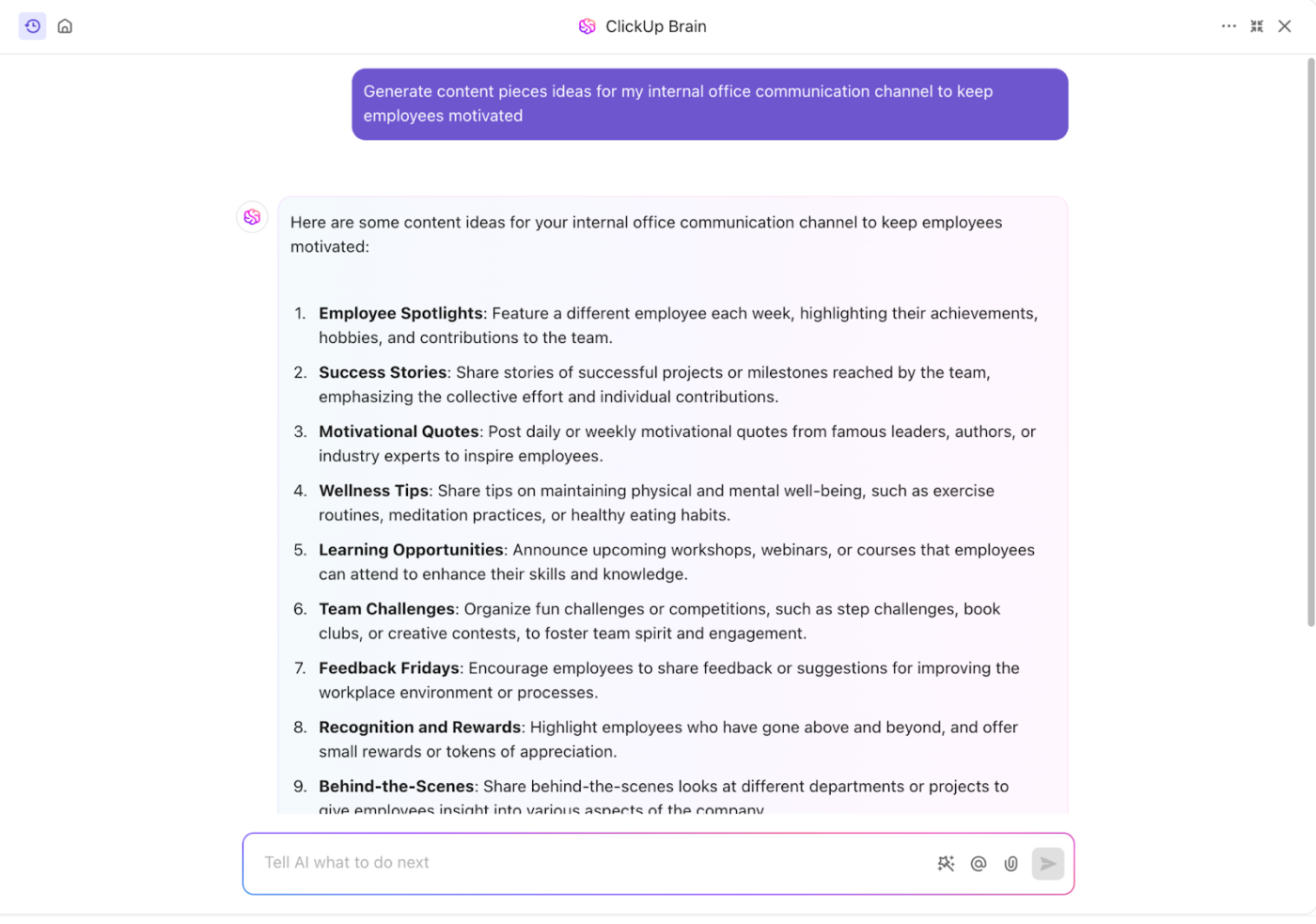
I use it all the time to get work started. Need to write a blog? Start with Brain. Need to create a skills matrix for leveling up your knowledge? Start with Brain. Need to create an email template for outreach to clients? Start with Brain!
It is really good at helping you get the ball rolling on projects or just getting started with a rough draft of content.
Happy with the drafts generated by Brain?
Insert them into ClickUp Docs in one click and modify them as needed. As a Google Docs alternative, ClickUp’s native Docs feature provides your team with a built-in, collaborative space to draft, edit, and refine content.
Unlike Google Docs, which exists separately from project management tools, ClickUp keeps everything in one place, reducing context-switching and workflow disruptions.
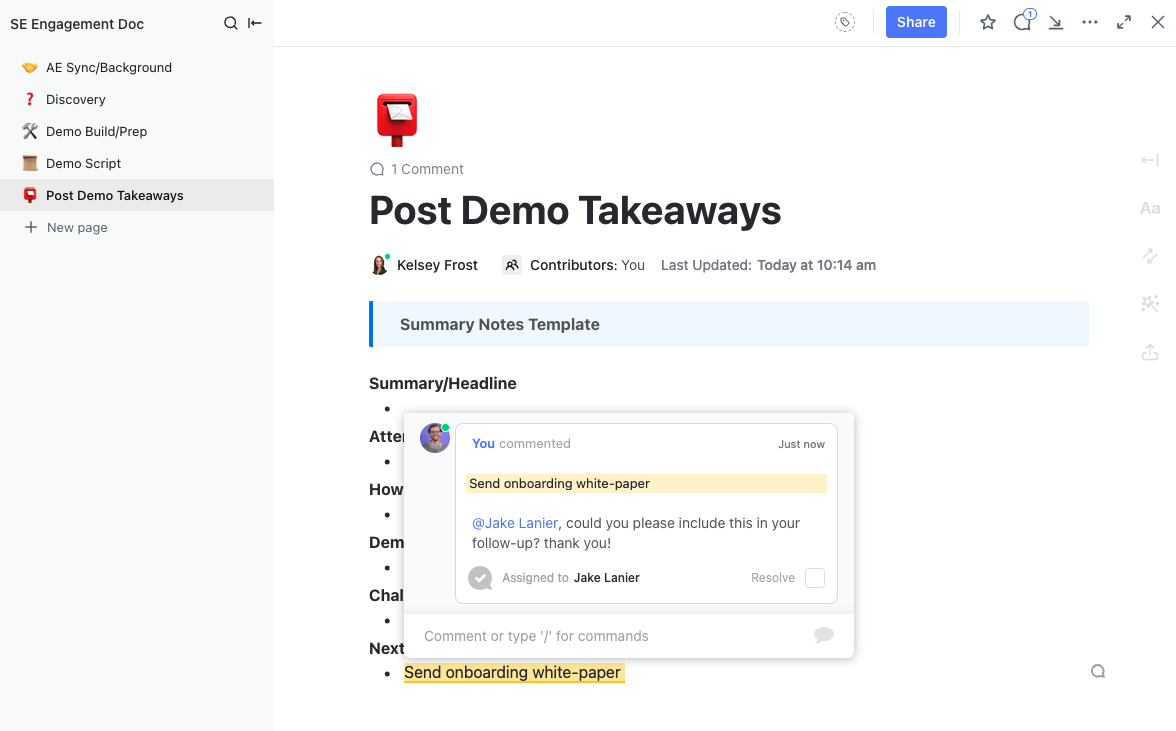
Need feedback? @Mentions and inline comments help teams communicate efficiently, keeping discussions focused and revisions clear. Tracking changes is also a breeze on ClickUp, thanks to its collaboration-first approach.
Plus, your ClickUp Docs can be directly linked to your tasks in ClickUp, ensuring that content always stays relevant to the work at hand.
You can even embed Docs within task descriptions or dashboards, making critical information easily accessible for everyone without them digging through folders.
Our most recent appreciation of the collaborative impact of ClickUp was when working on a Content plan for a product launch. We were able to build and maintain a content repository using the docs tool, that included hierarchical structure, collaborative editing, and powerful embedding features.
While Gemini can sometimes misinterpret prompts or generate vague, generic content, ClickUp Brain provides context-aware suggestions that align with your specific needs. As a result, ClickUp Brain ensures that your content remains insightful, accurate, and actionable.
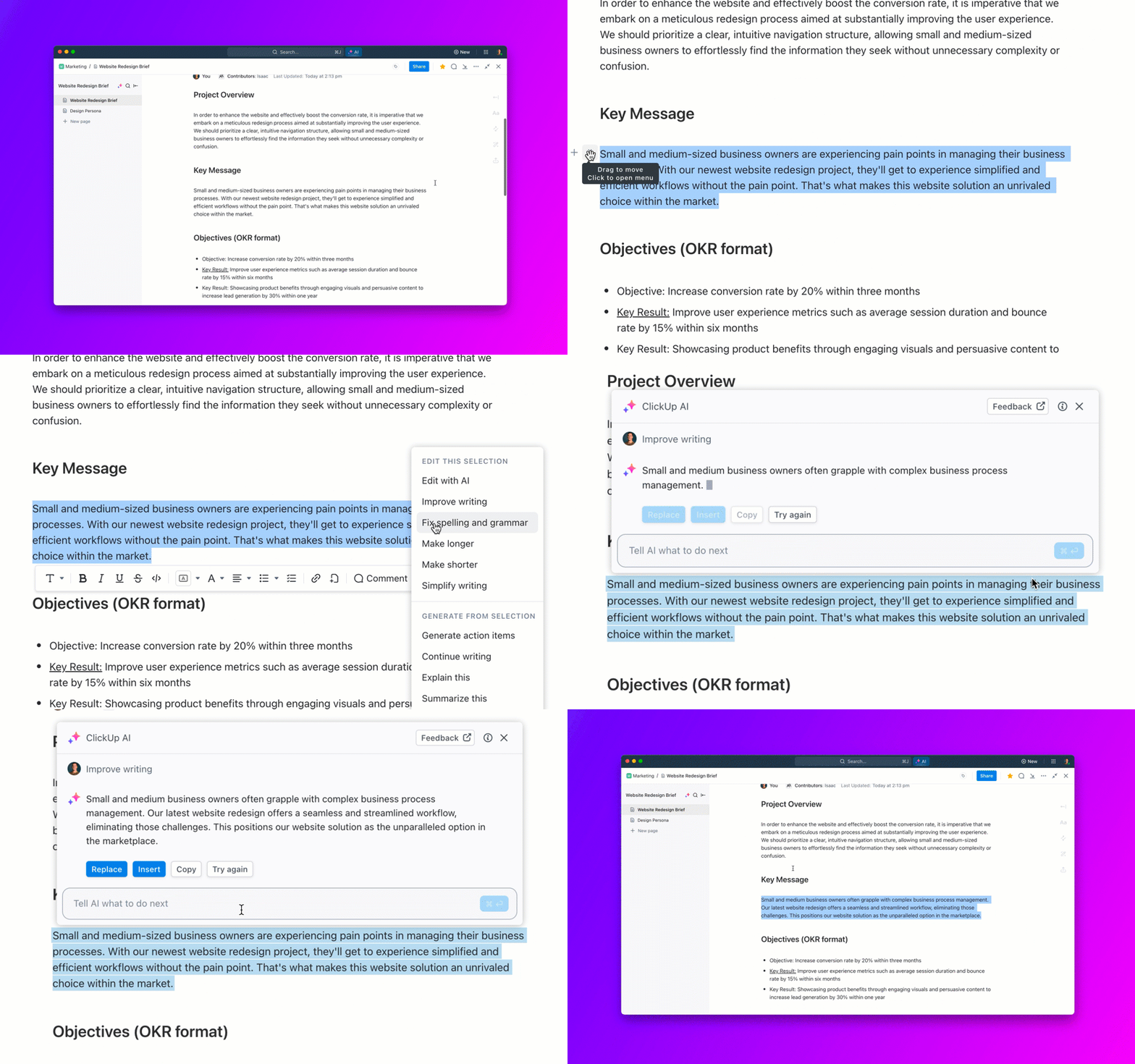
Long documents? No problem. Unlike Gemini, which can lose track of context in extended content, ClickUp Brain retains key details, avoiding repetition or missing important points. Plus, it maintains a consistent tone and style, helping teams create polished, professional content without endless manual edits.
Instead of relying on an AI tool that creates more work, why not use one that actually enhances productivity?
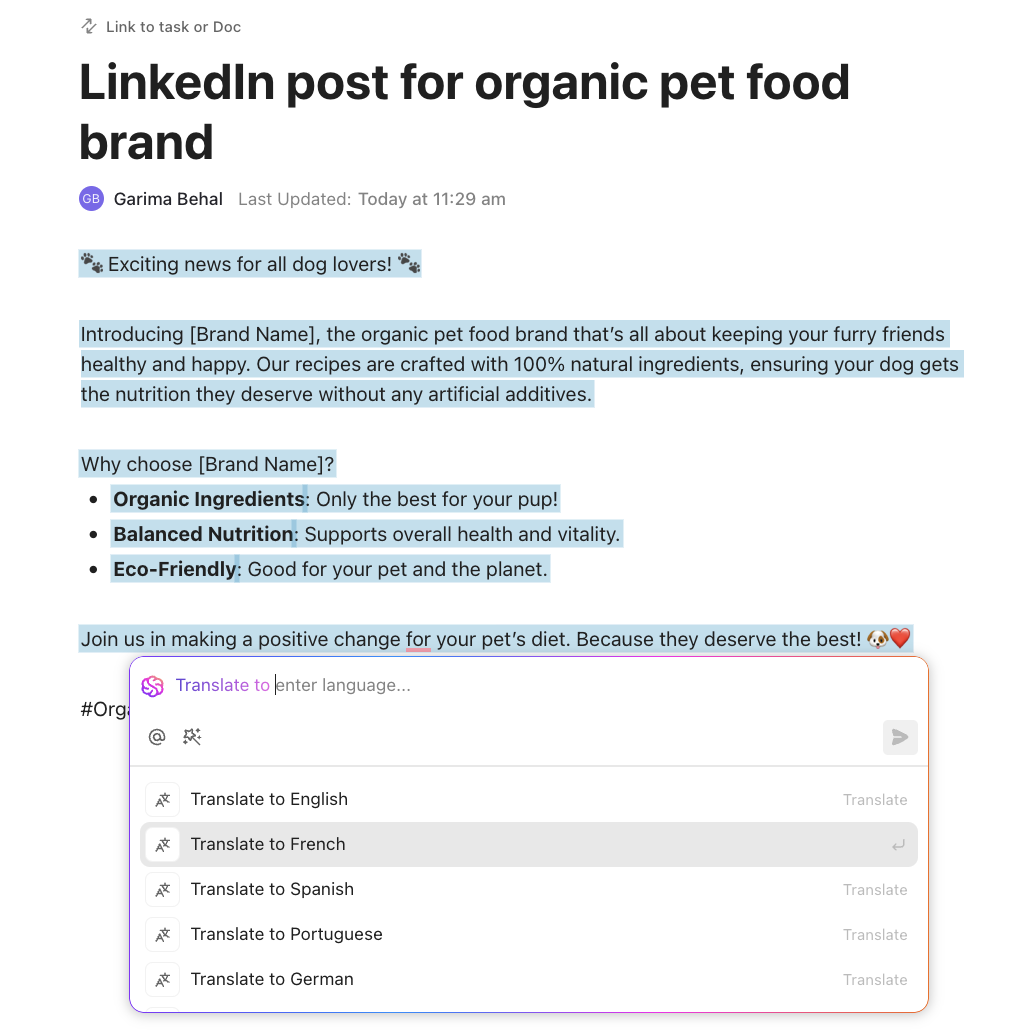
💡Pro Tip: Use the translate feature in ClickUp Brain to help global teams collaborate more effectively by breaking down language barriers.
The difference is pretty straightforward if you’re choosing between Gemini in Google Docs and ClickUp Brain.
Gemini in Docs is a standalone AI tool that can assist with writing and editing. However, it lacks built-in awareness of your projects, deadlines, and task dependencies. It’s constrained within a single document, meaning you must manually gather and verify information from multiple sources.
ClickUp Brain connects information across your workspace. So, AI in ClickUp doesn’t just help you write—it’s deeply integrated into your entire workflow. If you need to draft a project update, it can pull insights from related tasks, documents, and comments, ensuring consistency. Plus, it automates workflows and suggests actions based on your content. If you draft a meeting summary, it can create follow-up tasks instantly.
Why settle for Google Docs’ dependency on external integrations when ClickUp offers you a unified platform for AI writing, project management, and collaboration? Sign up for ClickUp today and experience the difference.

Manasi Nair
Max 24min read

Praburam Srinivasan
Max 22min read
Praburam Srinivasan
Max 13min read

© 2026 ClickUp




