






Still downloading templates?
There’s an easier way. Try a free AI Agent in ClickUp that actually does the work for you—set up in minutes, save hours every week.
Sorry, there were no results found for “”
Sorry, there were no results found for “”
Sorry, there were no results found for “”

You’re staring at a PDF file that’s longer than your grocery list for the month, and somewhere between page 12 and ‘why does this section even exist,’ you realize you’ve retained nothing.
Summarizing PDFs with Claude means you can have a conversation with your documents. Upload a 60-page research paper, ask it to extract the methodology and skip the fluff, or have it compare arguments across sections you’d typically never connect.
In this blog post, you’ll understand how to use Claude to summarize PDFs. We’ll also look at how ClickUp serves as a better alternative to summarize, organize, and act on your research. 🎯
Summarizing a PDF requires understanding context, identifying key arguments, and preserving the relationships between ideas. A good summary captures the document’s purpose, main findings, and supporting evidence while filtering out redundant examples and tangential details.
Different documents demand different summary approaches:
The challenge lies in compression without distortion. Mechanical extraction of sentences often misses the author’s intent or breaks logical flow. Effective summarization reconstructs the narrative arc at a smaller scale, maintaining accuracy while making the content accessible.
Length also matters. A 50-page technical specification might need a two-page executive summary for leadership and a five-page detailed breakdown for implementation teams. The same source material serves multiple purposes depending on the needs of the audience.
🧠 Fun Fact: The first computer-based summarization work was published way back in 1957 by Hans Peter Luhn, who used early statistical techniques to shorten text.
Claude’s web interface processes uploaded PDFs directly in the conversation window. You can attach long documents and request specific summary outputs based on your needs.
Here’s what the AI tool handles well:
🔍 Did You Know? The SQ3R reading method: Survey, Question, Read, Recite, Review, was introduced in 1941 by Francis P. Robinson as a way to make students active readers rather than passive ones.
Using Claude AI to summarize a complex PDF requires you to follow these three steps:
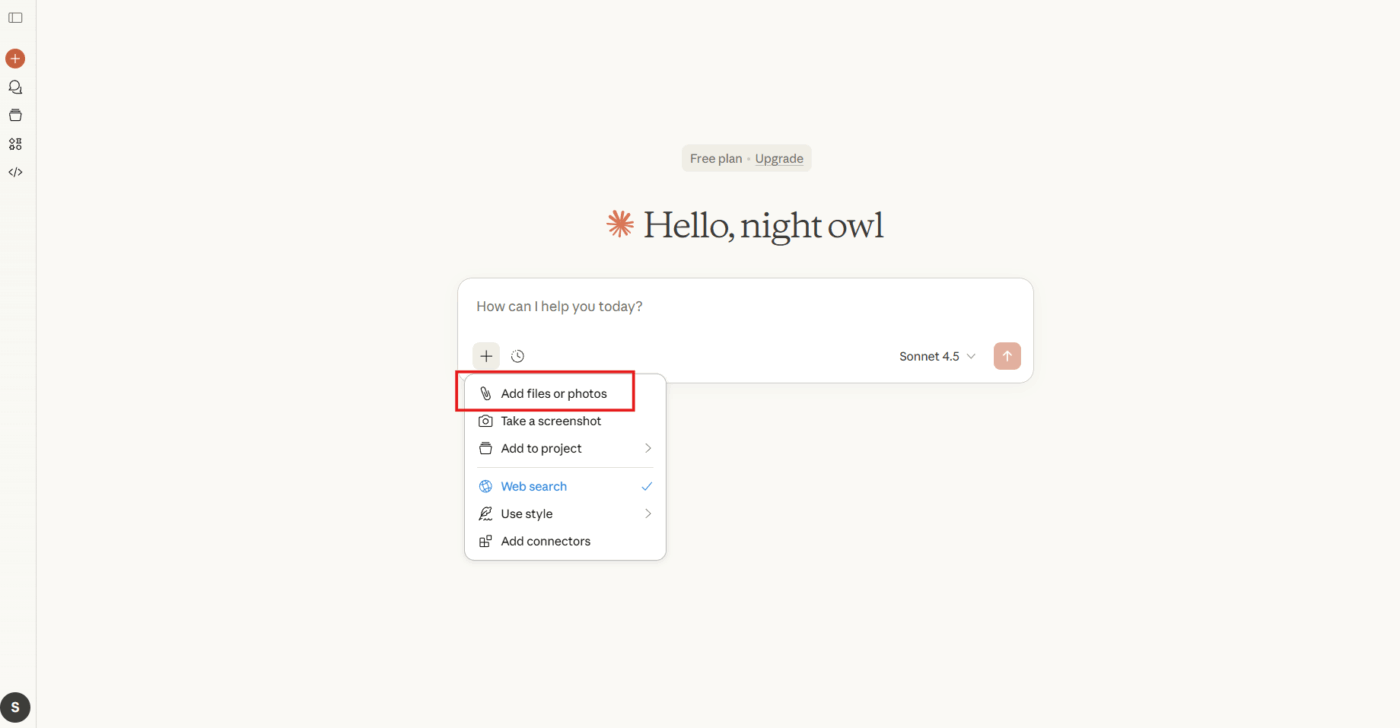
Navigate to the message input box at the bottom of the Claude interface and look for the attachment icon (paperclip symbol) next to where you type.
Click it and select your PDF from your device. Claude AI supports files up to 30MB and processes them within seconds. You’ll see a preview thumbnail once the upload completes.
🧠 Fun Fact: In a famous 1987 Baseball Study, researchers found that students who already knew about baseball comprehended related texts much better, even if their reading skills were similar. This shows why tools like Claude summarizing a field-specific PDF can level the playing field for non-experts.
Generic prompts produce inadequate summaries. Skip requests like ‘summarize this PDF’ and specify what you need. Tell Claude the output format, the level of detail, and which elements matter most, so it gets the context about your goal.
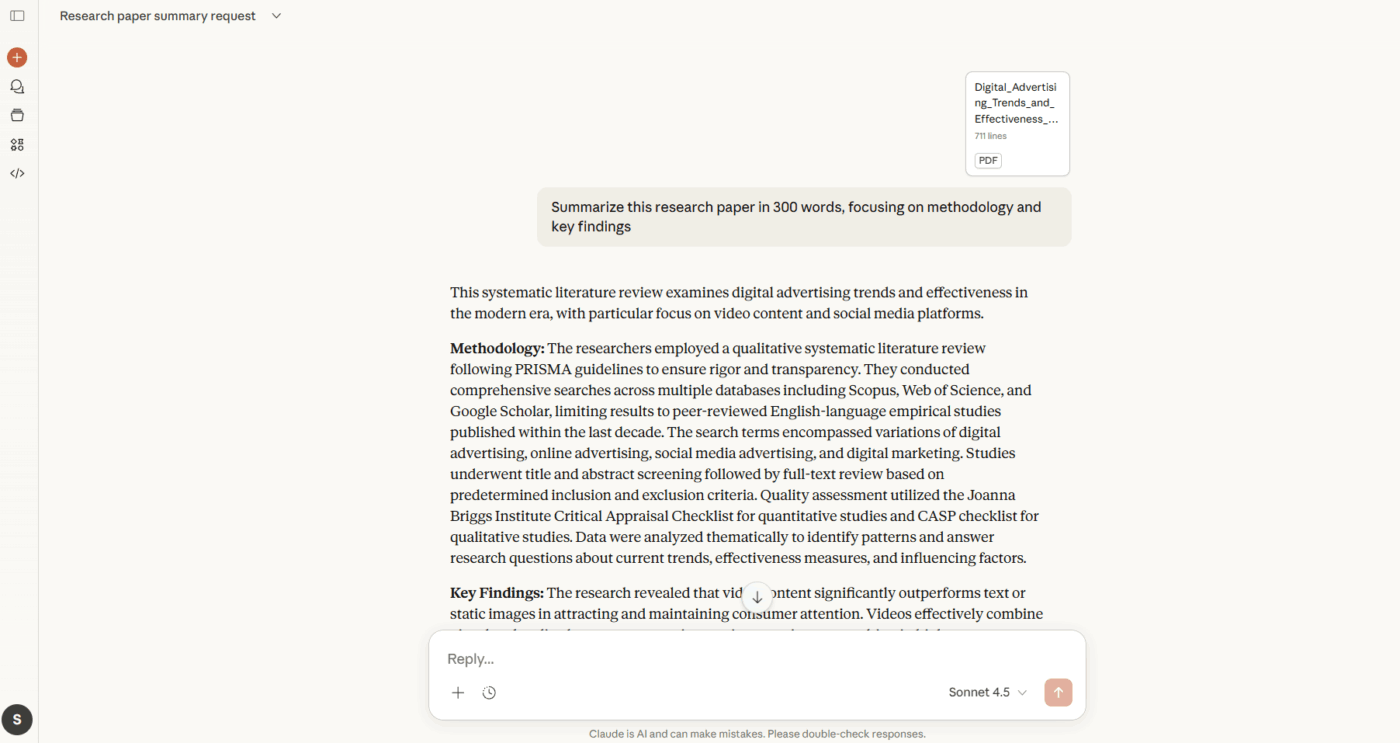
Examples of effective Claude AI prompts:
The more specific you are, the more useful Claude’s output becomes. If you’re working with technical documentation, mention your familiarity level so it calibrates the explanation accordingly.
📮 ClickUp Insight: Only 39% of our survey respondents say their files, notes, and documents are fully organized.
For everyone else, information is often stored in a mix of places: a chat app, email, a drive, and data management tools. The mental effort of remembering where something lives can be just as draining as the task itself.
Enterprise Search in ClickUp gives you a single search bar that allows you to access tasks, documents, and conversations from a single entry point.
Need specific insights? Ask ClickUp Brain, and it will quickly pull together the most relevant details. Instead of reconstructing context from memory, people can re-enter the work with clarity and momentum intact.
Once Claude generates a quick summary based on your prompt, read through the output and check if it captured what you needed.
If sections feel too vague or if the platform missed critical details, send a follow-up message in the same conversation. You can ask for clarification, request a deeper analysis of specific sections, or change the format entirely.
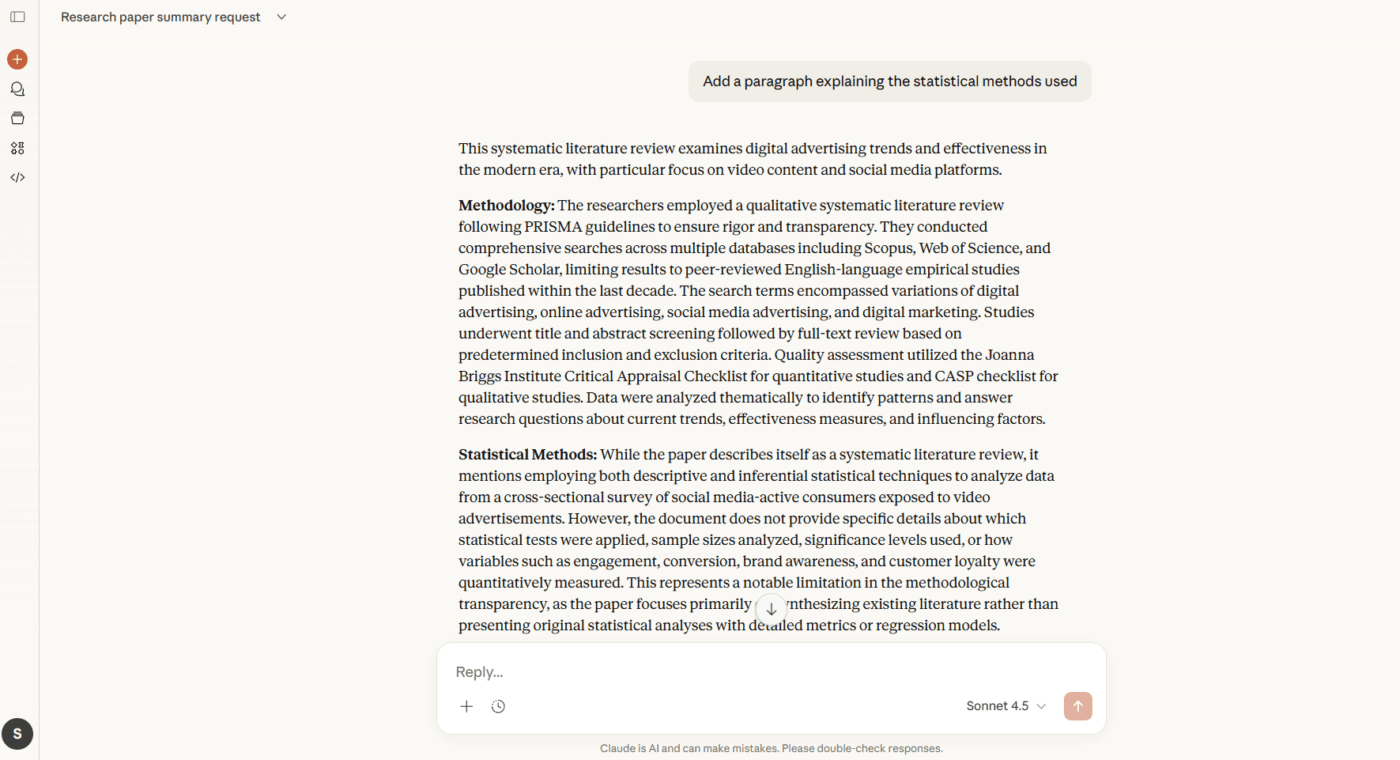
Follow-up prompts work well because Claude retains context:
This iterative approach lets you shape the summary without re-uploading the document or starting over.
💡 Pro Tip: If you need to summarize multiple PDFs together, upload all files in a single message. Claude can compare findings, identify contradictions, or synthesize insights across these documents.
The prompt structure determines summary quality, and you must alter your approach for different documents. Let’s look at some ways to extract exactly what you need from any PDF:
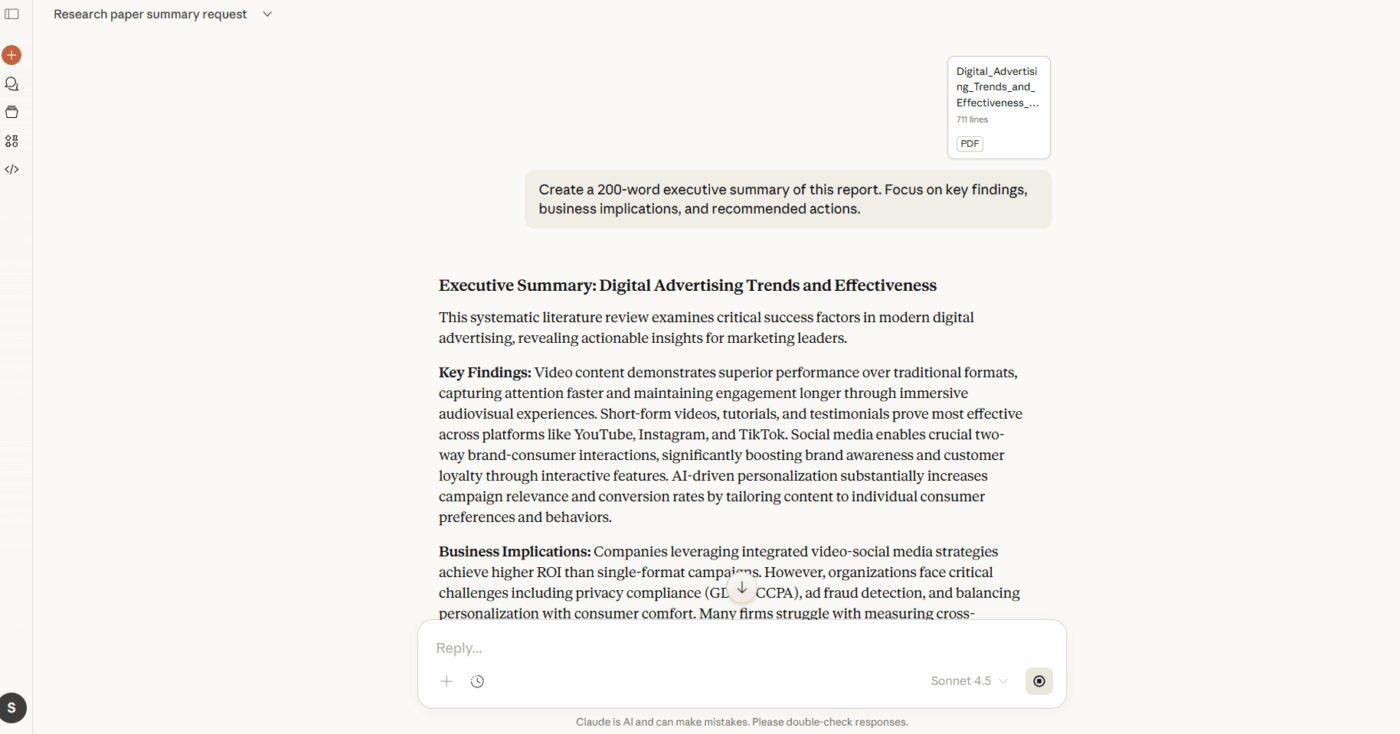
Executive summaries distill the entire document into decision-relevant points. Turn to this pattern when you want to save time and need conclusions without supporting details.
📌 Prompt pattern: Create a 200-word executive summary of this report. Focus on key findings, business implications, and recommended actions.
📖 Also Read: How to Leverage AI with Real-Time Data Insights
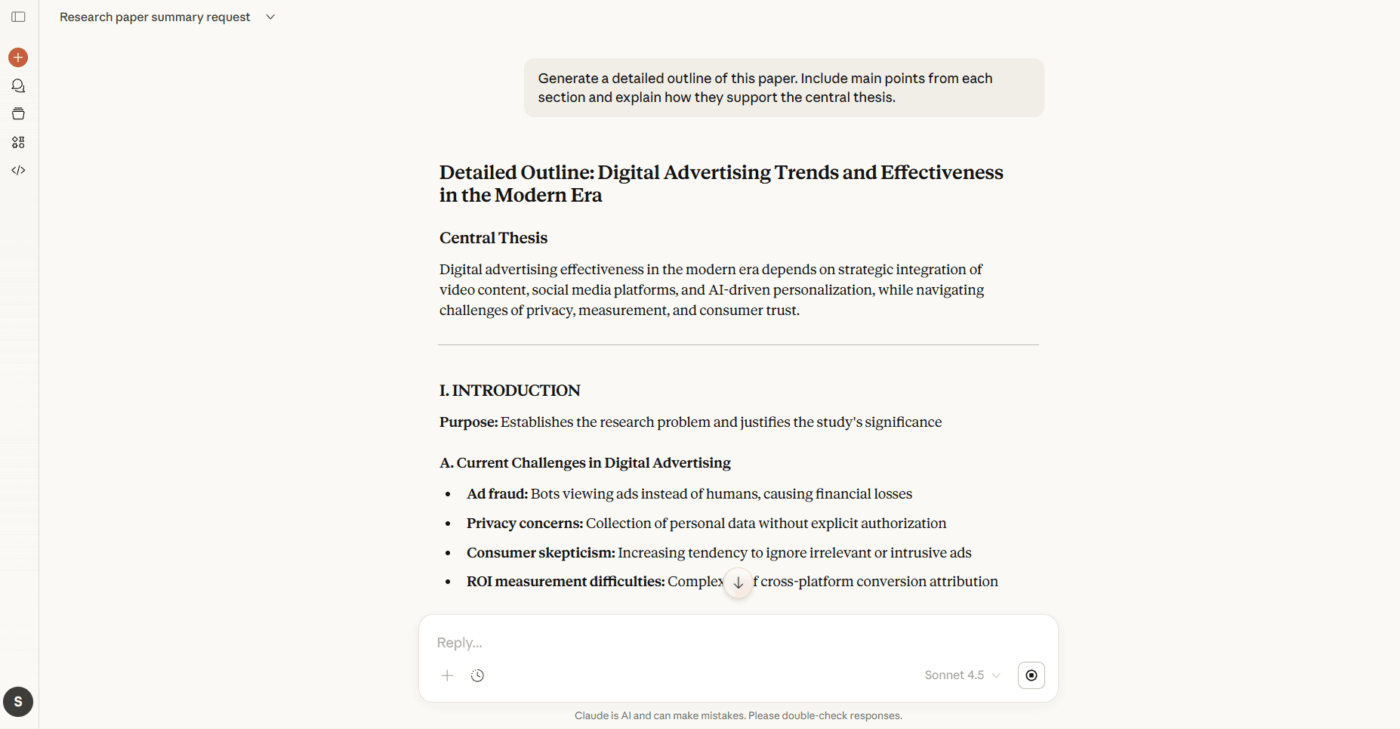
Detailed outlines preserve the document’s hierarchy and show how ideas connect. This helps you navigate complex papers where arguments build across multiple sections.
📌 Prompt pattern: Generate a detailed outline of this paper. Include main points from each section and explain how they support the central thesis.
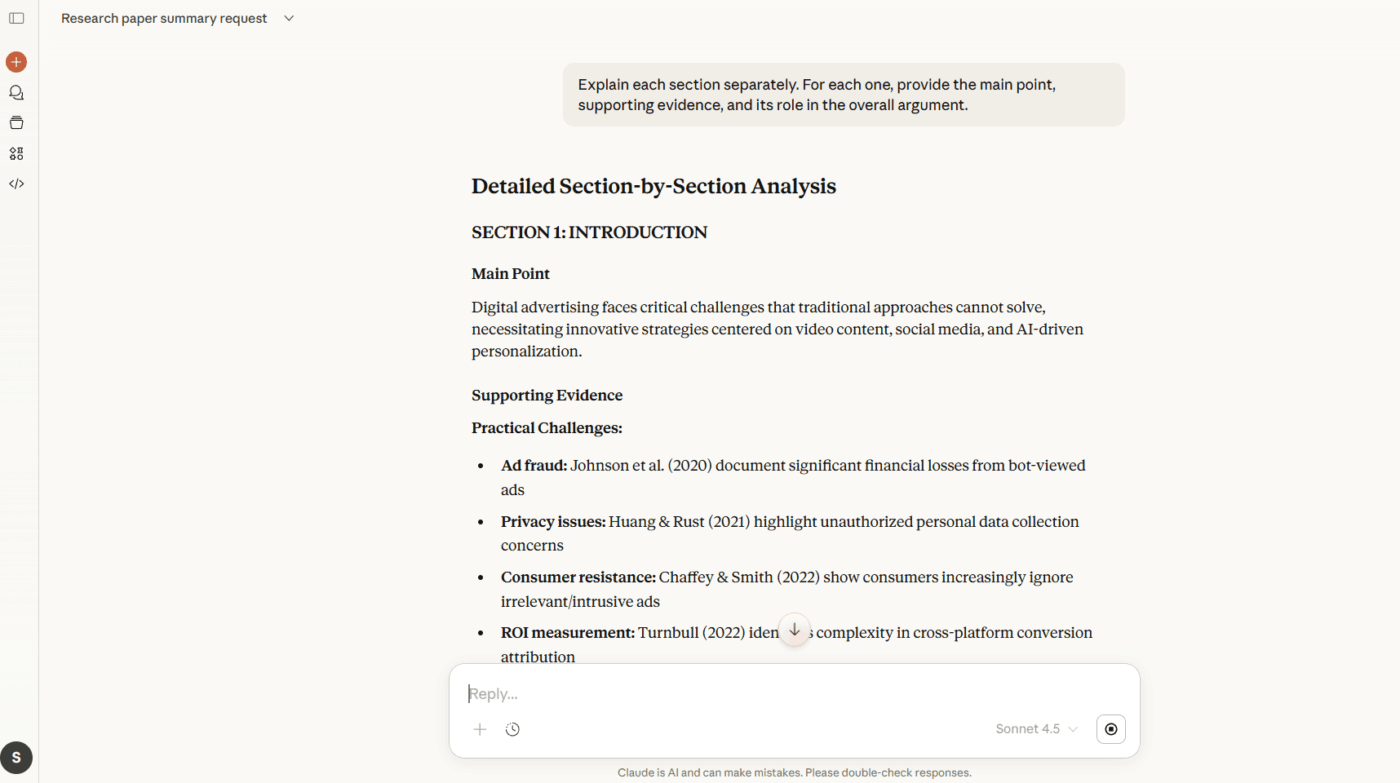
Section-by-section explanations break dense material into manageable chunks. Use this for project documentation or academic papers where each part serves a specific function.
📌 Prompt pattern: Explain each section of this whitepaper separately. For each one, provide the main point, supporting evidence, and its role in the overall argument.
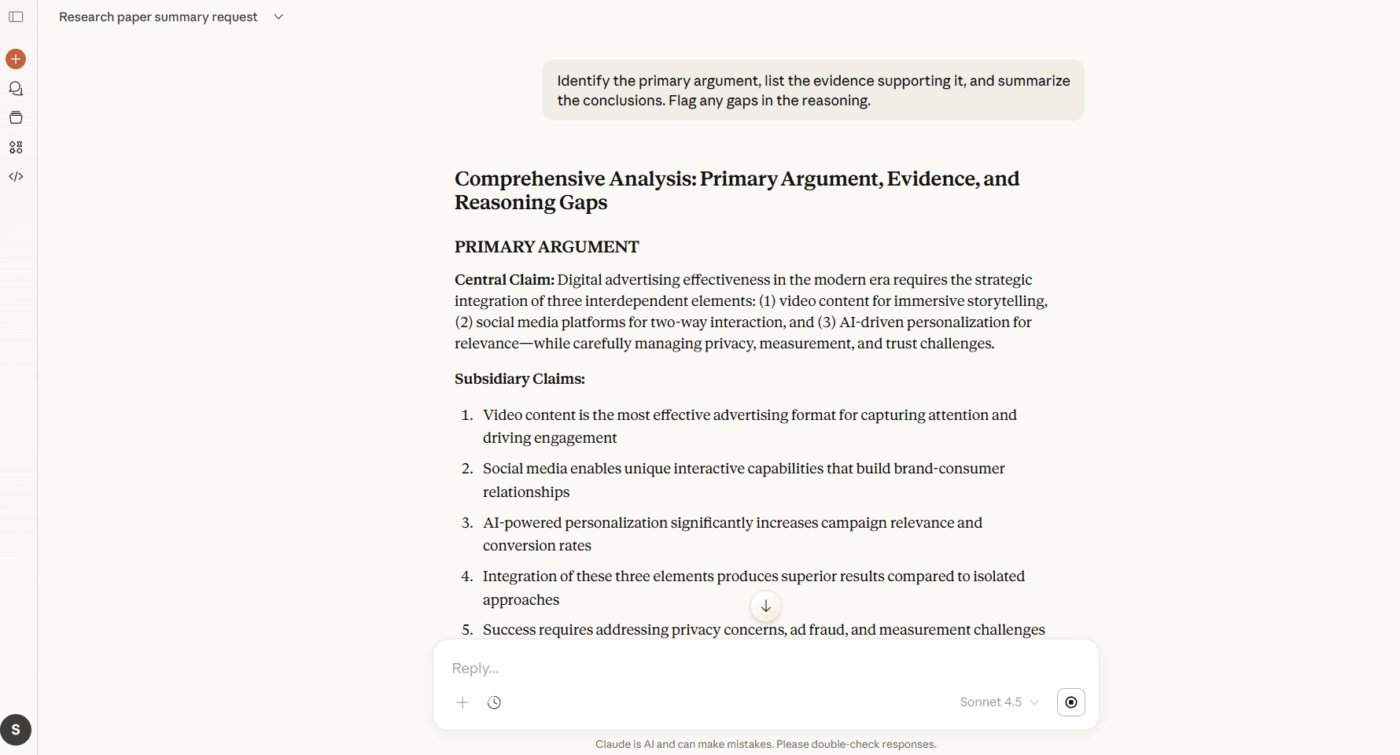
Extracting arguments, evidence, and conclusions isolates the reasoning beneath the prose. This proves valuable for legal documents, policy papers, and analytical reports where you need to evaluate the case being made.
📌 Prompt pattern: Identify the primary argument, list the evidence supporting it, and summarize the conclusions. Flag any gaps in the reasoning.
Learn how to organize your notes, ensuring they’re easy to access when using Claude:
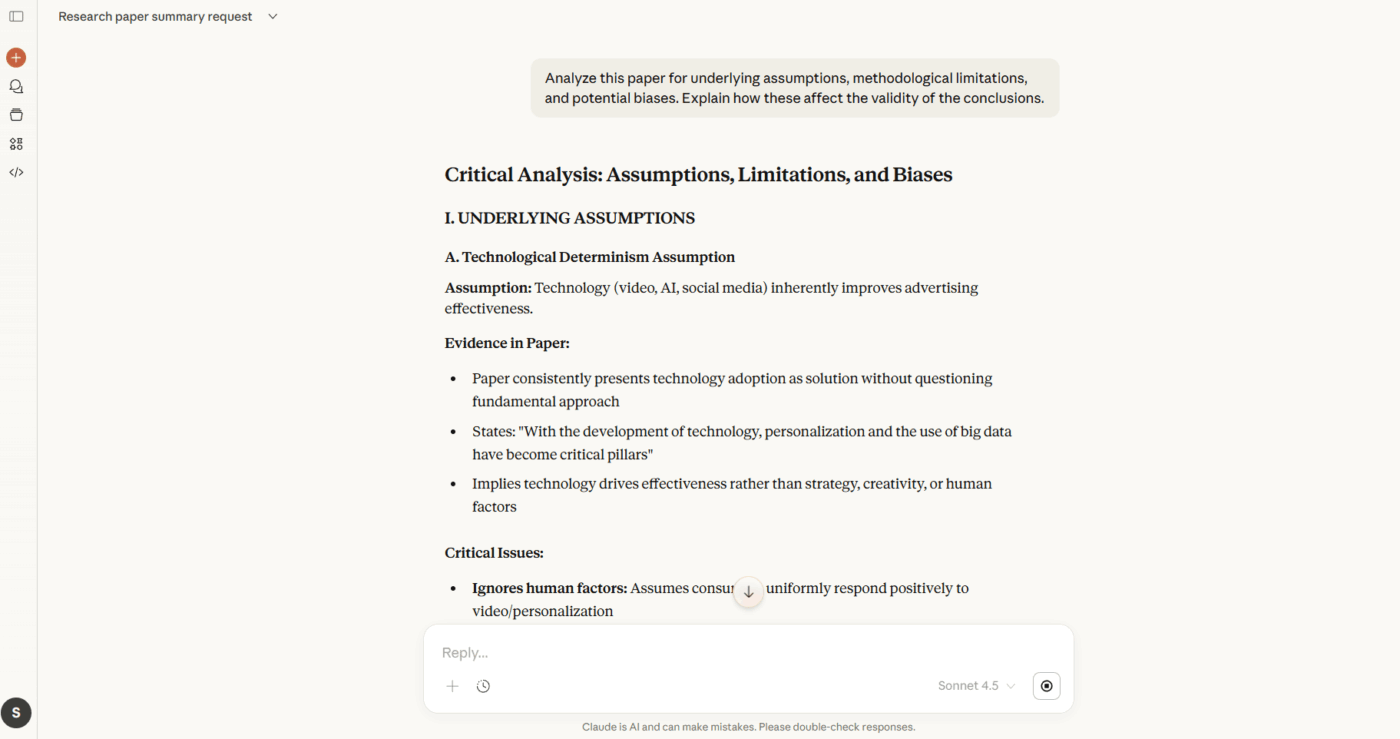
Identifying assumptions and weaknesses surfaces what the author takes for granted or fails to address. Use this pattern to evaluate research quality and spot potential biases.
📌 Prompt pattern: Analyze this paper for underlying assumptions, methodological limitations, and potential biases. Explain how these affect the validity of the conclusions.
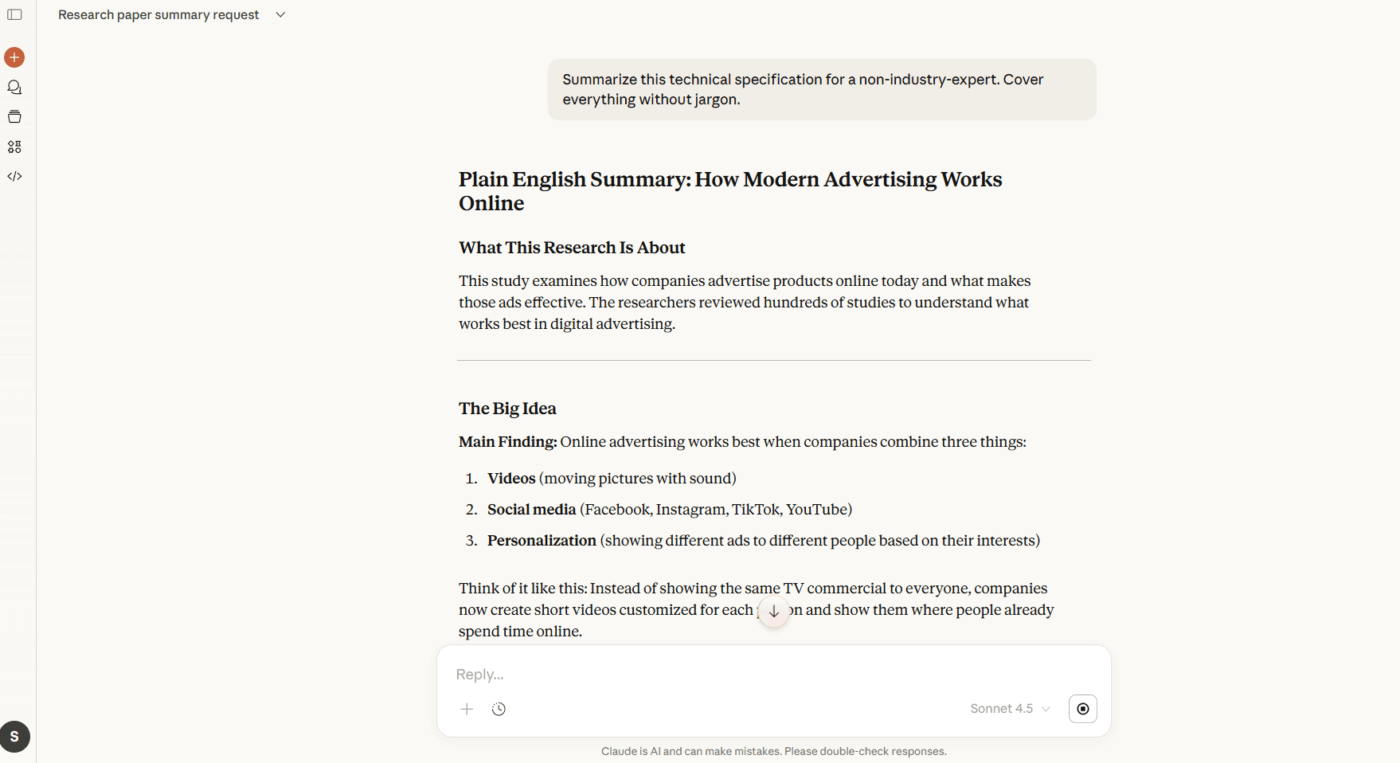
The same document might require different summaries depending on who reads it. Audience-specific prompts adjust technical depth, emphasis, and terminology to match the reader’s background.
📌 Prompt pattern: Summarize this technical specification for a non-technical project manager. Cover what the system does, timeline implications, and resource requirements without jargon.
Find more AI and research article summarizer tools here:
While AI summarizes documents effectively, responsible use requires awareness of the model’s limitations and ethical boundaries.
These practices help you get accurate results while respecting constraints. 📝
Claude can misinterpret complex tables, misread scanned text, or miss nuances in highly technical material.
Cross-check any summary that informs major decisions. If the PDF contains financial data, legal obligations, or medical information, treat Claude’s output as a first pass that requires human verification.
Uploaded PDFs become part of your conversation history. So avoid uploading documents containing sensitive personal information, proprietary business data, or confidential client materials unless you’ve confirmed your usage complies with relevant policies and agreements.
It’s best to check your organization’s guidelines before processing regulated content.
🔍 Did You Know? Legend says that above the library of ancient Egypt, under King Ramses II, there was a motto meaning ‘a healing place for the soul.’
Claude will not summarize content that promotes harm, contains explicit material involving minors, or includes instructions for dangerous activities.
If your PDF falls into these categories, it will decline to process it. This applies even to academic or research contexts where the content might seem justified.
Low-quality scans, image-heavy documents, and files with unusual encoding may produce incomplete summaries. That means that for PDFs that rely heavily on charts, diagrams, or photographs, Claude will miss the context that these visual elements provide.
For documents where visuals convey critical information, supplement the summary with a description of what the images show.
🔍 Did You Know? Educational psychologists call it the ‘seductive details effect’, adding fascinating but irrelevant information can actually decrease learning. The brain spends mental effort processing distractions instead of the key ideas.
When teams use Claude to summarize long PDFs, issues usually arise from how input and expectations are set.
Here’s a table that breaks down the most common mistakes, why they cause problems, and what to do differently for more objective summaries. 👇
| Common mistake | Why it causes issues | What to do differently |
| Uploading the entire PDF without context | Claude has no signal on what actually matters, so the summary stays broad or surface-level | Add a short prompt that clarifies the purpose, audience, and depth you want |
| Ignoring document structure | Long PDFs often mix data, analysis, and appendices, which dilutes the summary | Call out sections to prioritize or skip, such as executive summaries or annexures |
| Mixing many documents in one request | Claude struggles to distinguish context, leading to blended or confused summaries | Summarize one document at a time, then synthesize across five summaries if needed |
| Using summaries for downstream tasks without re-framing | A general summary rarely works for emails, decks, or decisions as-is | Re-prompt Claude with the summary and the exact output you need next |
| Expecting one summary to serve every use case | Different stakeholders need different levels of detail | Create separate summaries tailored to leadership, ops, or technical teams |
🔍 Did You Know? Psychologists see summarization as a complex mental integration: it requires connecting small details (words/sentences) to big ideas (themes). This mirrors how the brain builds mental models of content rather than just storing facts.
Claude handles most PDFs well, but certain limitations affect accuracy and completeness:
📖 Also Read: Claude AI Review (Features, Pricing, & User Reviews)
Research teams often spend more time managing information than generating it.
ClickUp is the world’s first Converged AI Workspace, where your research documents live alongside the tasks, projects, and workflows they support. This eliminates work sprawl (the silent productivity killer caused by disconnected apps and fragmented context) and keeps documentation connected to actual work.
Here’s how to use ClickUp’s AI features for PDF summarization and beyond. 📝
Go to the Workspace where the ClickUp Doc lives. Here, navigate through Space > Folder > List until you reach the Doc, or open it directly from search.
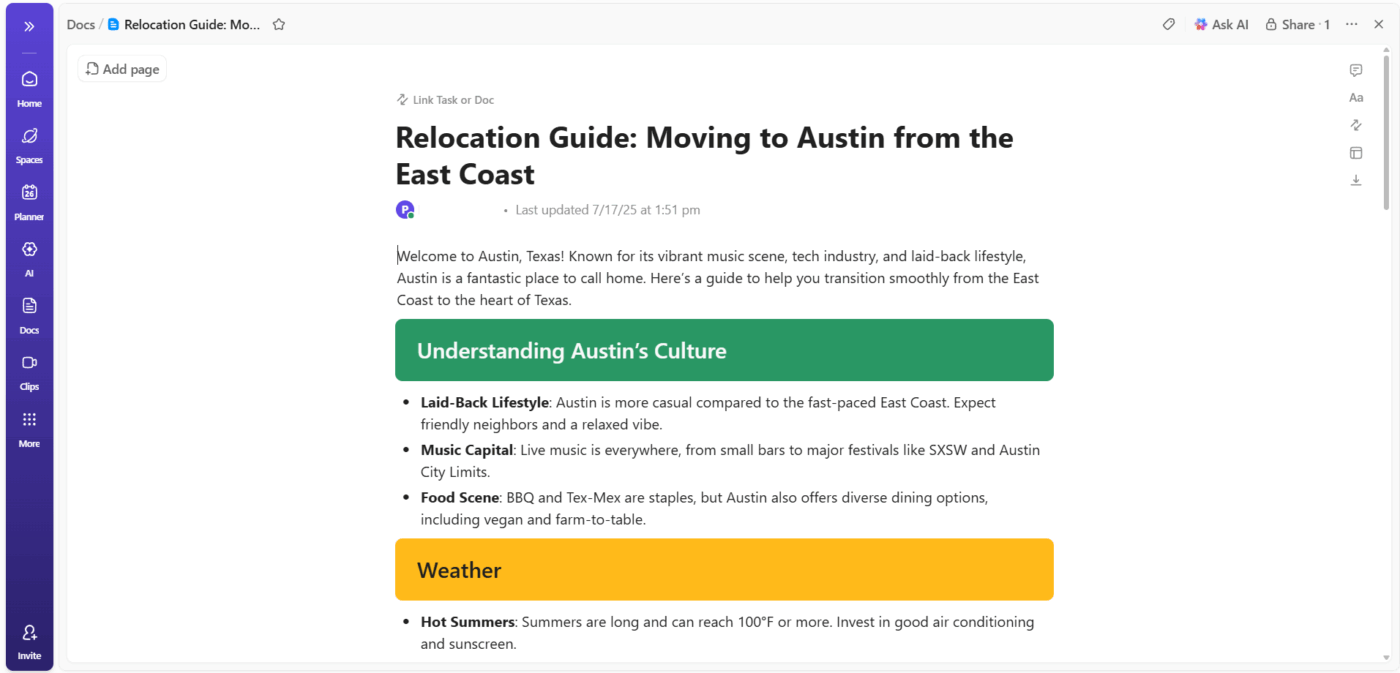
Make sure the Doc:
If the Doc pulls content from a pasted PDF, confirm that the PDF text is editable inside the Doc.
📖 Also Read: Best Note-Taking Apps (Free & Paid)
Move your attention to the top-right corner of the Doc header, where you’ll see the Ask AI button, which applies actions to the entire document. If you want section-level summaries, highlight the specific text.
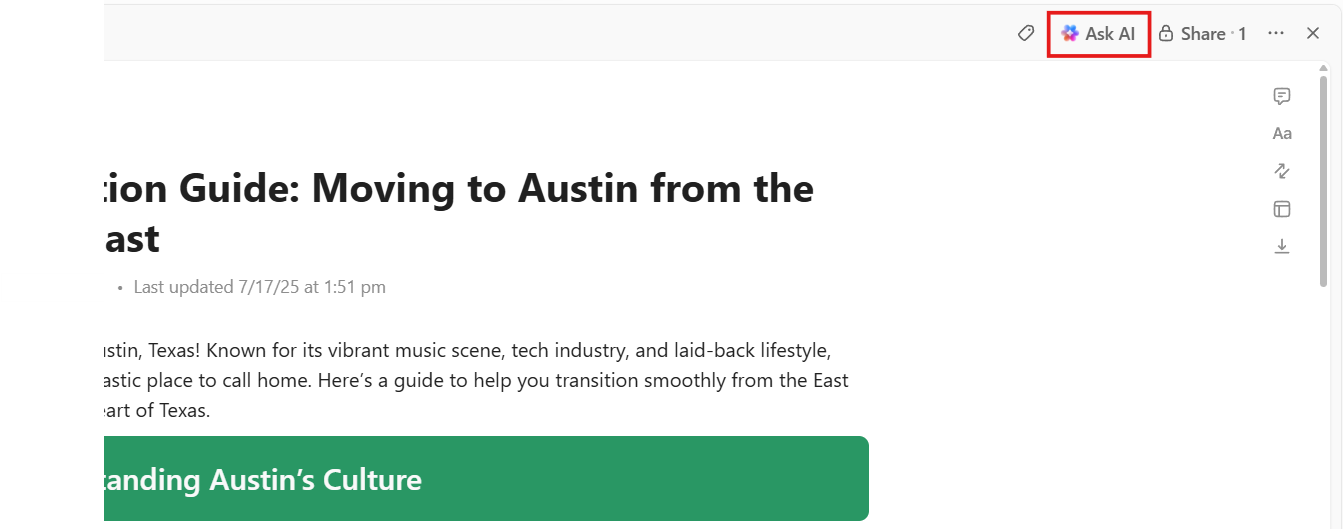
Click Ask AI once, and a dropdown menu will open showing available AI actions for the Doc. Look specifically for the Summary option in this menu.
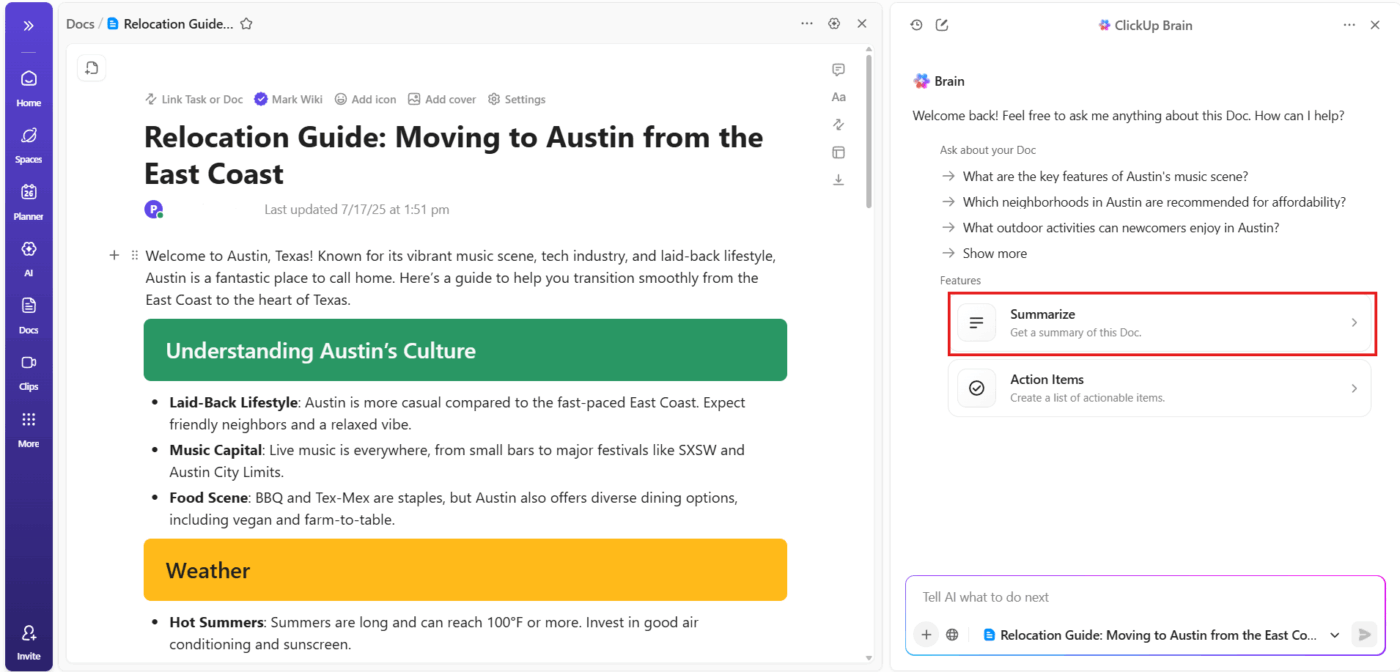
Now all you have to do is click Summarize. ClickUp Brain, the platform’s built-in AI assistant, will:
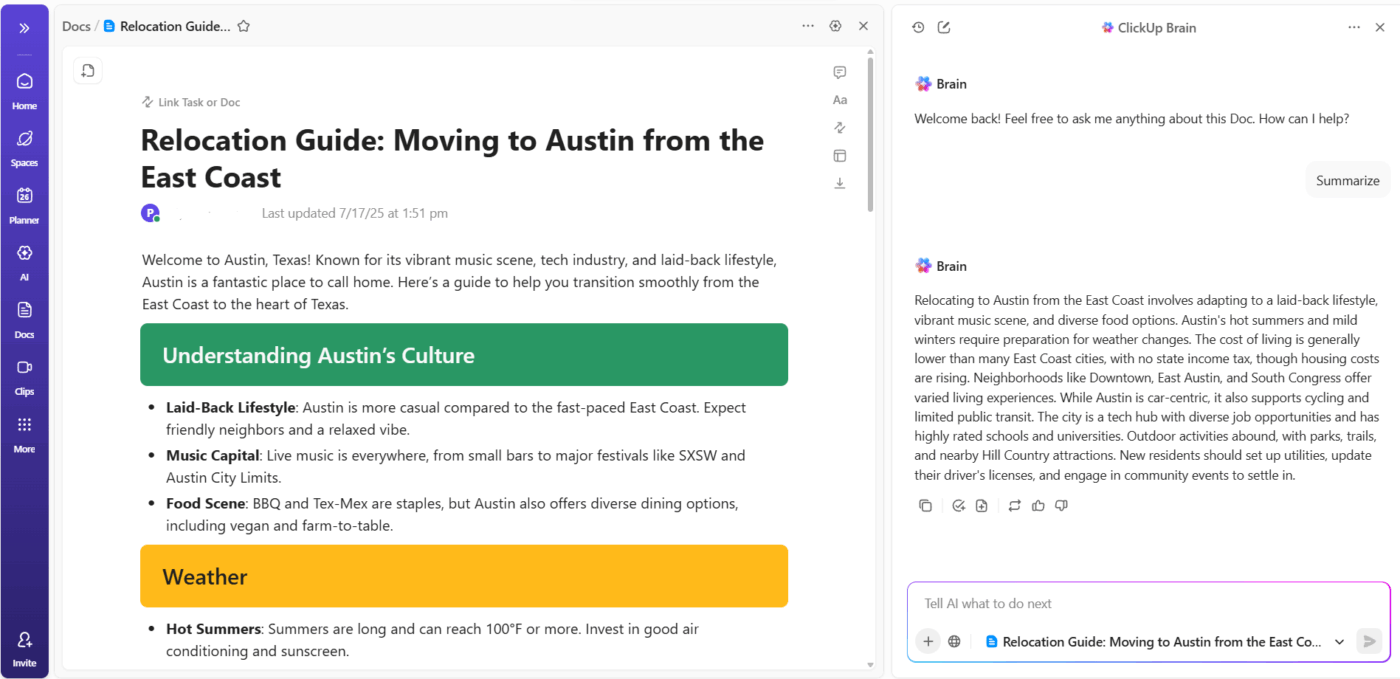
The summary appears directly inside the Doc interface once processing finishes. You’ll see the output as a standalone block of text, separate from the original content. ClickUp does not automatically overwrite anything at this stage.
You can also ask ClickUp Brain to summarize PDFs and documents not present in your workspace.
Just upload your file type or link your document in the chat, and it’ll quickly generate a detailed summary for you. This makes it easy to share key points with your team or reference important information without reading the entire document.
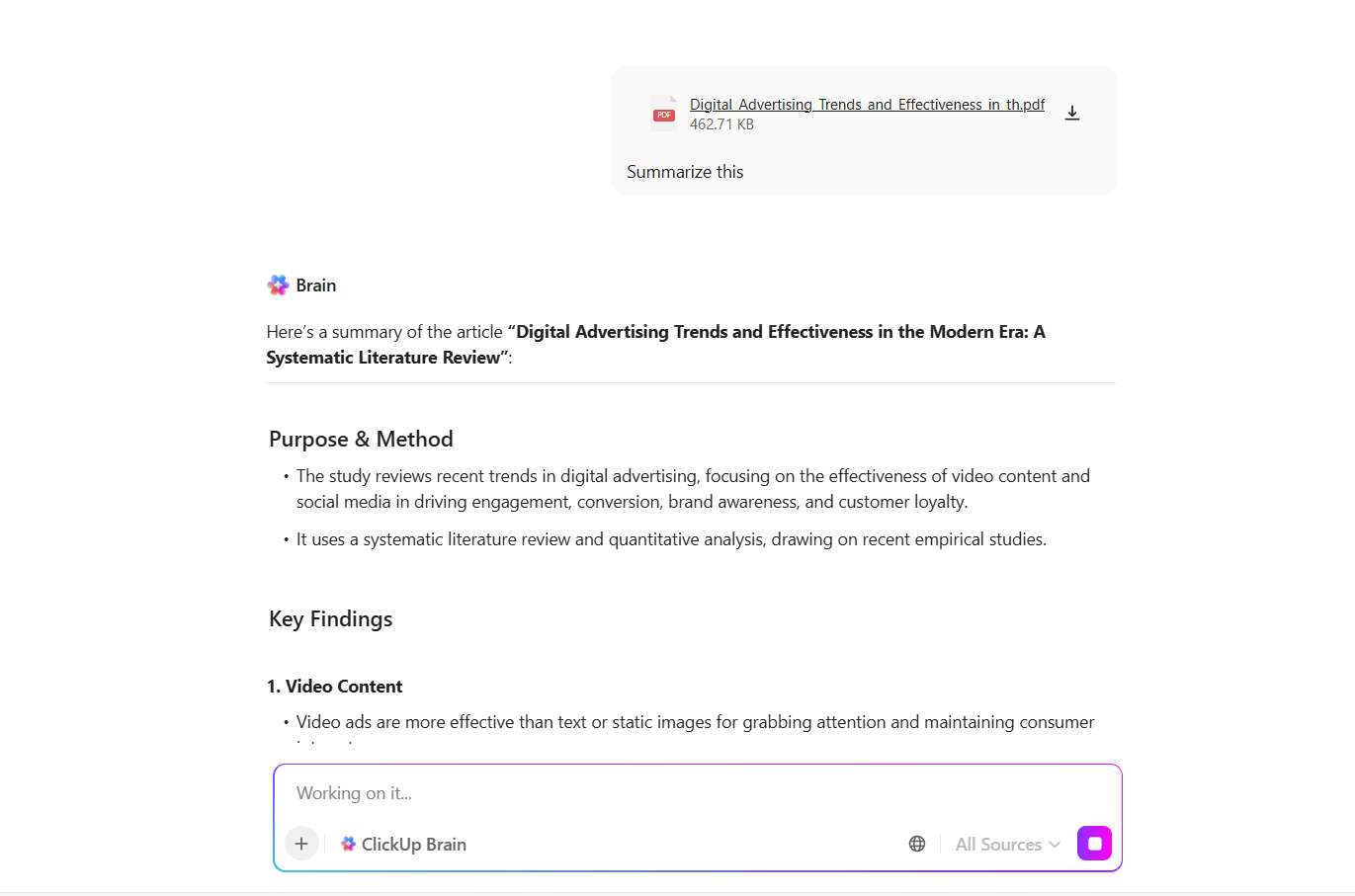
🤩 Bonus: ClickUp Brain can also analyze spreadsheets for you! Simply upload your spreadsheet in a chat, and prompt it to review the data, provide summaries, highlight key trends, and answer specific questions about the information.
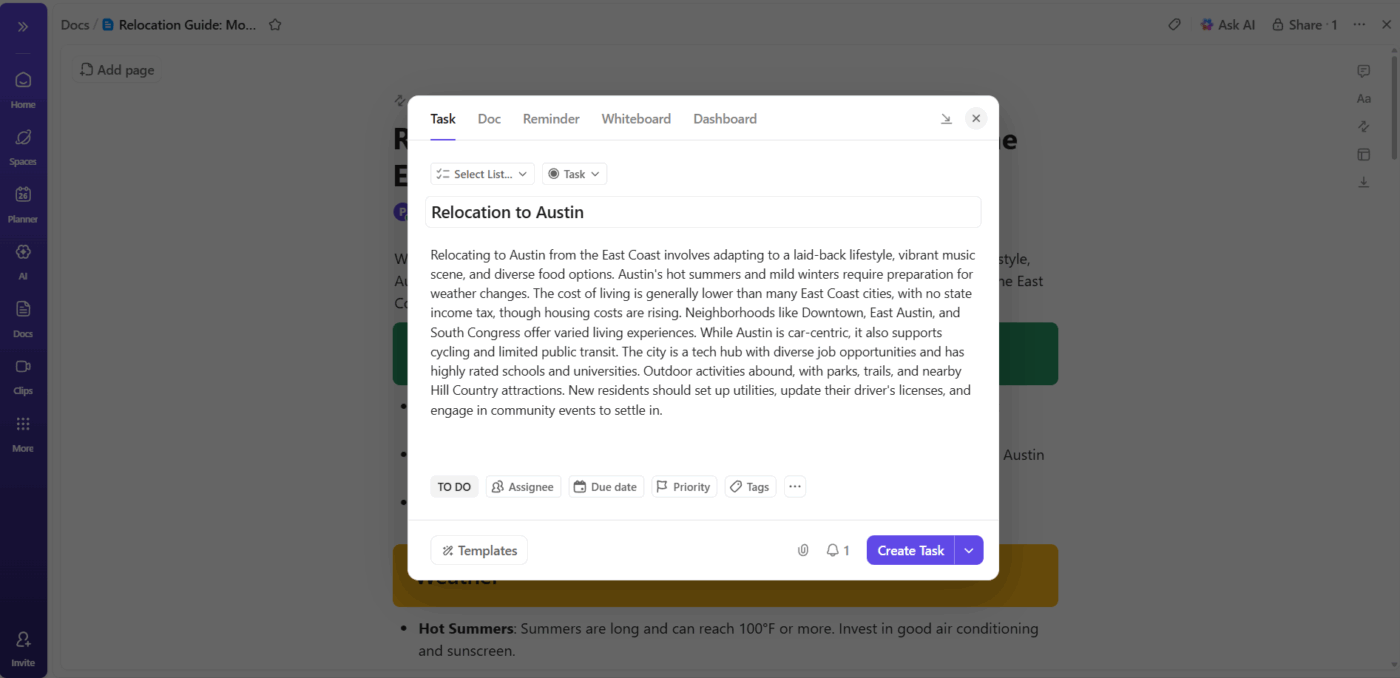
Once the summary appears, ClickUp provides clear action options. Choose one based on how you plan to use the summary:
You can also continue prompting AI to refine tone, length, or structure after this step.
🚀 ClickUp Advantage: Unlock the full power of your productivity with ClickUp BrainGPT, your AI-powered work companion. It provides a unified interface for searching, creating, and managing information, with a focus on accuracy and privacy.
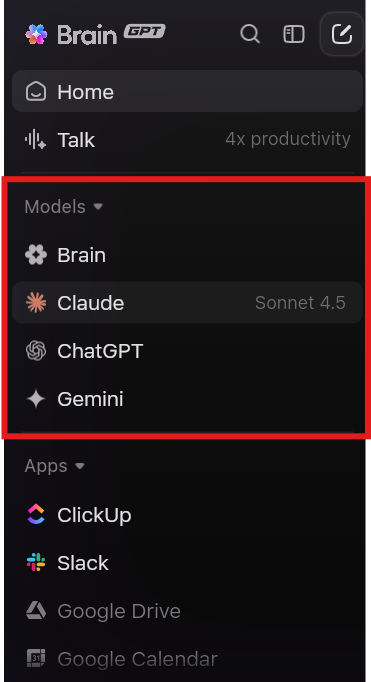
With BrainGPT, you can:
You can also access BrainGPT through a Chrome extension or desktop app, with features like bookmarking, calendar integration, and conversation history.
📖 Also Read: Free Project Update Templates in ClickUp and Word
After placing the summary, connect it to the actual work.
For example, say the Doc summarizes a policy update. Add ClickUp Tasks directly under the summary for rollout steps, approvals, or training. You can assign owners and due dates right there without leaving the Doc.
This keeps the summary tied to execution rather than sitting as static reference text.
🚀 ClickUp Advantage: Automate, streamline, and supercharge your workflow with ClickUp Super Agents. These advanced AI teammates learn from every interaction and can be customized to fit your team’s unique needs.
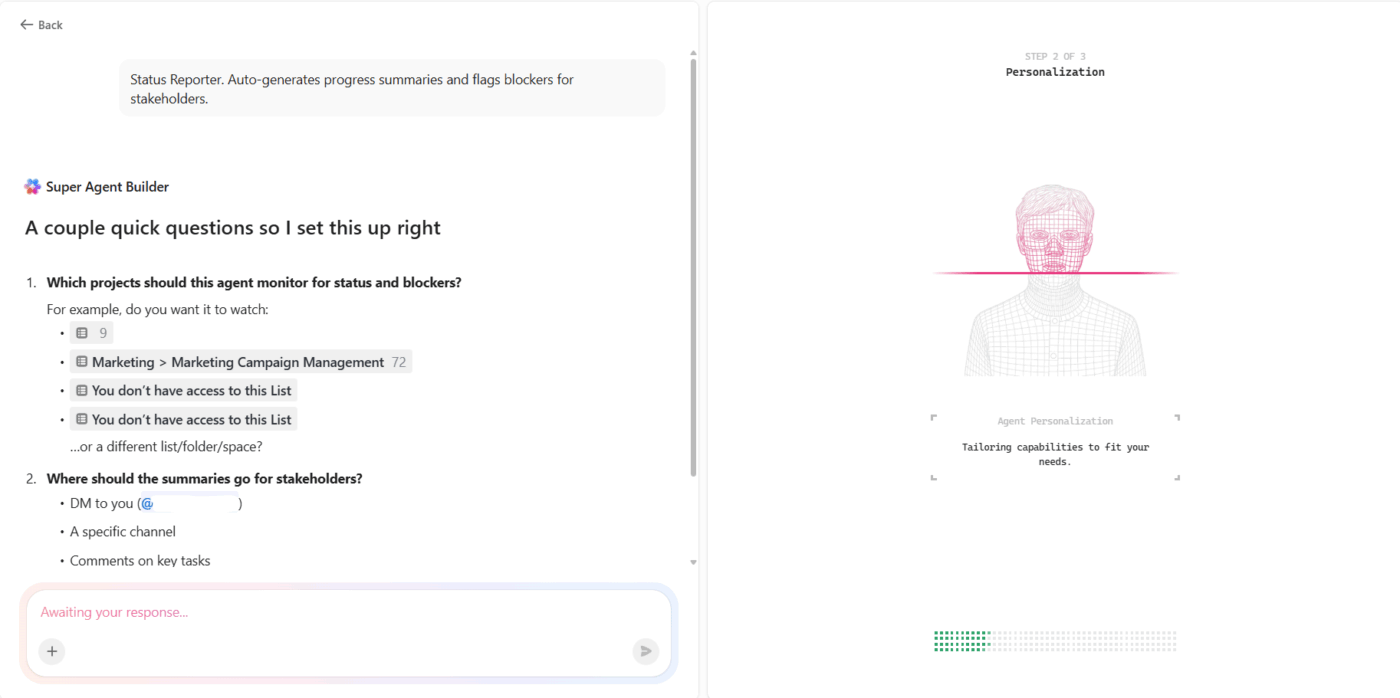
Suppose you’re managing a busy marketing team with multiple campaigns running at once. Every week, you need to update stakeholders on campaign progress and highlight any blockers. Instead of spending hours gathering updates and writing reports, you set up a ClickUp Super Agent called the Campaign Status Reporter:
Here’s how it works:
Learn more here:
Claude works well when the goal is understanding a document. You can just upload a PDF format file, ask targeted questions, and get a summary that clarifies structure, arguments, and key details.
ClickUp takes the workflow further. PDFs, summaries, and follow-up actions live in the same place. ClickUp Docs holds the summarized content, and Tasks connect directly to decisions pulled from the document. The integrated ClickUp Brain summarizes and analyzes your Docs, answering questions later to turn insights into next steps.
Sign up for ClickUp today! ✅
Yes, Claude can summarize large PDFs, including reports, research papers, and internal documents. It handles multi-page files by identifying structure, key sections, and recurring themes before generating a condensed overview.
Accuracy is generally strong when the PDF has clear formatting and coherent content. Claude captures main arguments, conclusions, and supporting points well, though dense tables or highly technical appendices may receive lighter coverage.
Claude’s summaries work best as a first pass. They help you understand scope, priorities, and key takeaways quickly. For high-stakes decisions, the summary should guide where to focus rather than replace a detailed review.
Structured documents perform best. Strategy decks, whitepapers, policy documents, research papers, and business reports with headings and logical flow are summarized more reliably than scanned files or image-heavy PDFs.
Yes. The original PDF provides nuance, context, and supporting detail that summaries compress. Using the summary alongside selective reading of critical sections gives the most reliable outcome.

© 2026 ClickUp

There’s an easier way. Try a free AI Agent in ClickUp that actually does the work for you—set up in minutes, save hours every week.