Sorry, there were no results found for “”
Sorry, there were no results found for “”
Sorry, there were no results found for “”
Screen capture came out of Xerox PARC in the 1970s, when engineers needed a quick way to show what was happening on a computer screen without walking someone over to their desk.
That simple ‘Let me show you,’ now has different, more advanced versions in the form of screen capture tools. From solo creators explaining workflows to small businesses documenting processes across time zones, the expectations are higher.
So, in this blog post, we’ll compare two of the top screen capture tools: Snagit vs. ClickUp Clips to see which one fits better with your work.
Here’s a quick comparison of the two screen capture tools:
| Aspect | Snagit | ClickUp Clips |
| Core purpose | Standalone screen capture, annotation, and video recording for tutorials and documentation | Embedded, quick screen recording for team communication, bug reporting, and task demos within project workflows |
| Capture options | Screenshots, scrolling capture, full/partial screen video, app windows | Screen, current tab, app window, or audio-only; up to 45 minutes |
| Advanced editing tools | Advanced annotations (text, arrows, highlights), basic video trim, templates, stamps | Basic trimming; AI transcription with timestamps, voice annotations |
| AI capabilities | None native | Automatic transcription, search transcripts via ClickUp Brain, convert to tasks |
| Integrations | Limited; exports to files/links, works with any platform | Native to ClickUp (Docs, Chat, tasks); 1,000+ apps via ClickUp ecosystem |
| Sharing/Collaboration | File sharing, links; no native team visibility | Auto-embed in tasks/comments/Chat; team access, timestamped comments |
| Pricing | $39/year subscription (2025+); one-time legacy options ~$63 | Included in all ClickUp plans (Free to Enterprise) |
| Platforms | Windows, Mac; standalone app | Web-based in ClickUp; cross-platform access |
| Strengths | Superior annotation precision, unlimited recording, intuitive UI for pros | Workflow integration, AI productivity boost, cost-free for PM teams |
| Limitations | No AI, lacks team context, extra cost for upgrades | Video-only (no advanced screenshots), 45-min limit, requires ClickUp account |
ClickUp is a comprehensive project management and productivity platform that brings a wide range of work tools into a single unified workspace. Swerving you away from work sprawl, it gives you tasks, docs, chat, whiteboards, automation, and more.
As the world’s first converged AI workspace, it builds AI capabilities directly into everyday work surfaces like tasks, documents, chats, and workflows rather than an add-on to avoid context switching.
Exclusive insights into how it works!
Let’s explore some excellent features that make ClickUp a standout Snagit alternative:
For teams that rely on clear communication and smooth handoffs, ClickUp Clips change how you capture, explain, and act on information.
You can record your screen, camera, and audio and instantly embed those recordings right into ClickUp Tasks, docs, chats, or comments without leaving your workspace.
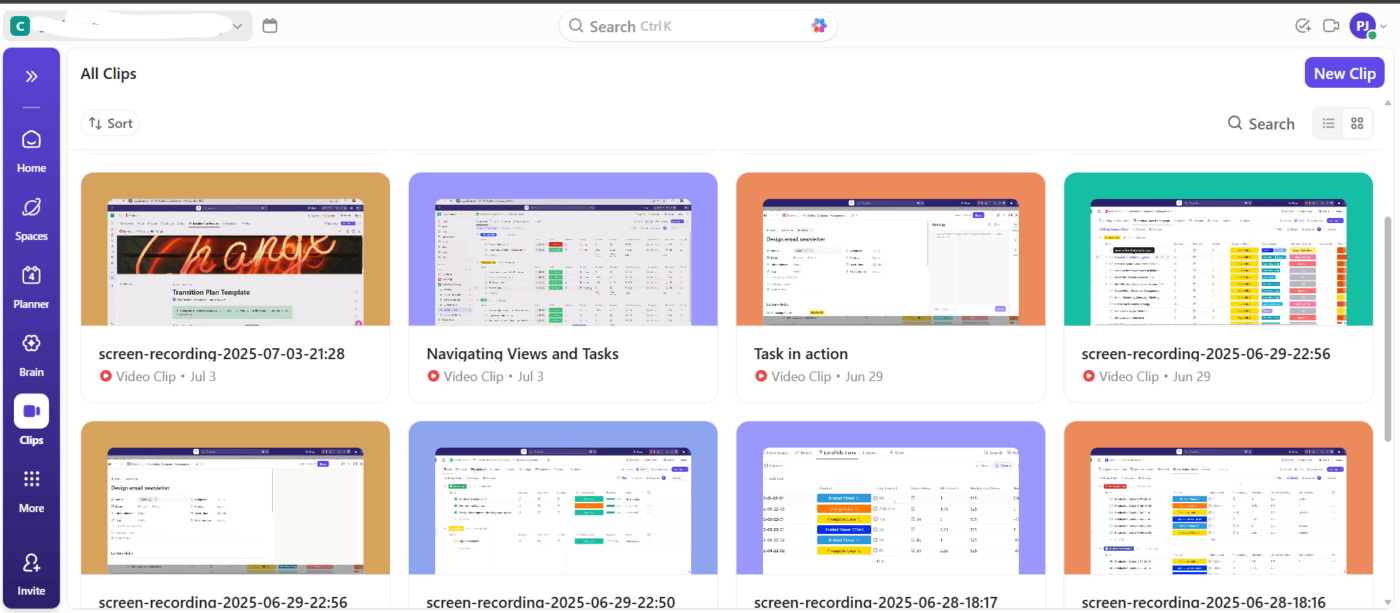
Here’s how it helps:
💡 Pro Tip: Tag or label Clips in the Hub for recurring processes like onboarding, software tutorials, or product updates.
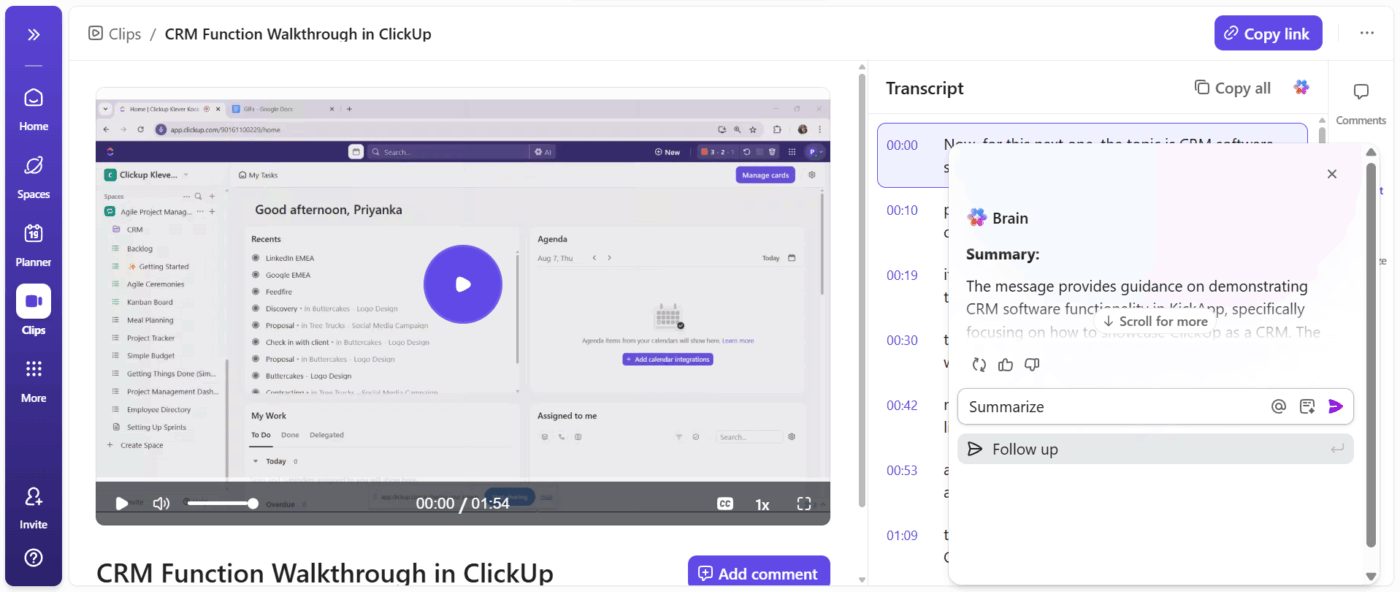
With ClickUp Brain enabled, every Clip you record is automatically transcribed. This means your team can read along as the Clip plays or quickly scan the transcript for key points without rewatching the entire video.
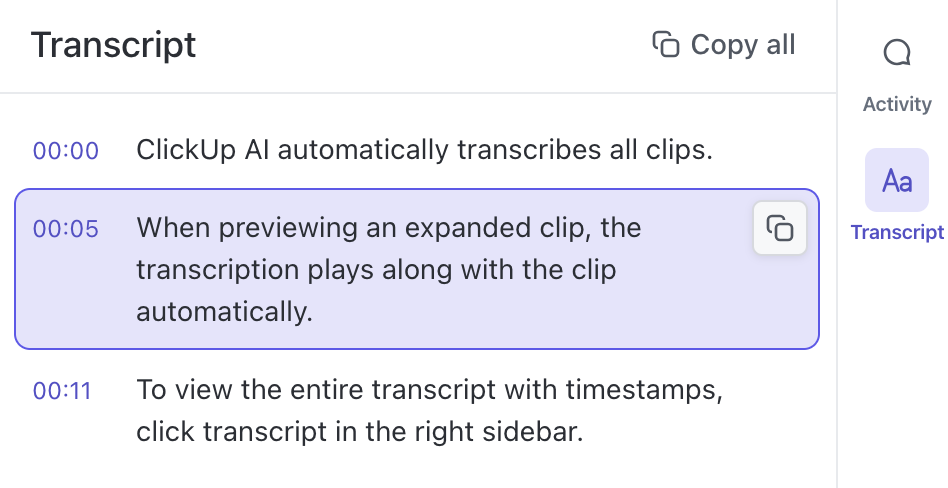
You can access the full transcript with timestamps in the right sidebar, and clicking a snippet instantly jumps to that moment in the Clip, making navigation seamless.
Additionally, when you ask ClickUp Brain a question, it searches through all your Clip transcripts to find answers. This turns your recordings into a searchable knowledge base, perfect for async teams or when onboarding new members.
You can also simply prompt the AI transcript summarizer to give you an outline of the conversation.
For instance, say a small business owner records a walkthrough of a new client reporting dashboard. Instead of sending the full video to the team, they copy key transcript snippets showing which metrics to check daily.
A content creator reviewing a tutorial can also highlight exact instructions from the transcript to include in a blog draft or SOP.
📮 ClickUp Insight: 50% of our survey respondents report Friday as their most productive day. This could be a phenomenon unique to modern work. Fridays tend to have fewer meetings, and this, combined with the context accumulated from the workweek, could mean fewer disruptions and more time for deep, focused work.
Want to retain Friday-level productivity all week long? Embrace async communication practices with ClickUp, the everything app for work! Record your screen with ClickUp Clips, get instant transcriptions through ClickUp Brain, or ask ClickUp’s AI Notetaker to step in and summarize meeting highlights for you!
For times when you need real-time alignment or hybrid workplace communication, turn to ClickUp Chat. Send messages, create Channels, and have organized threads right inside your workspace.
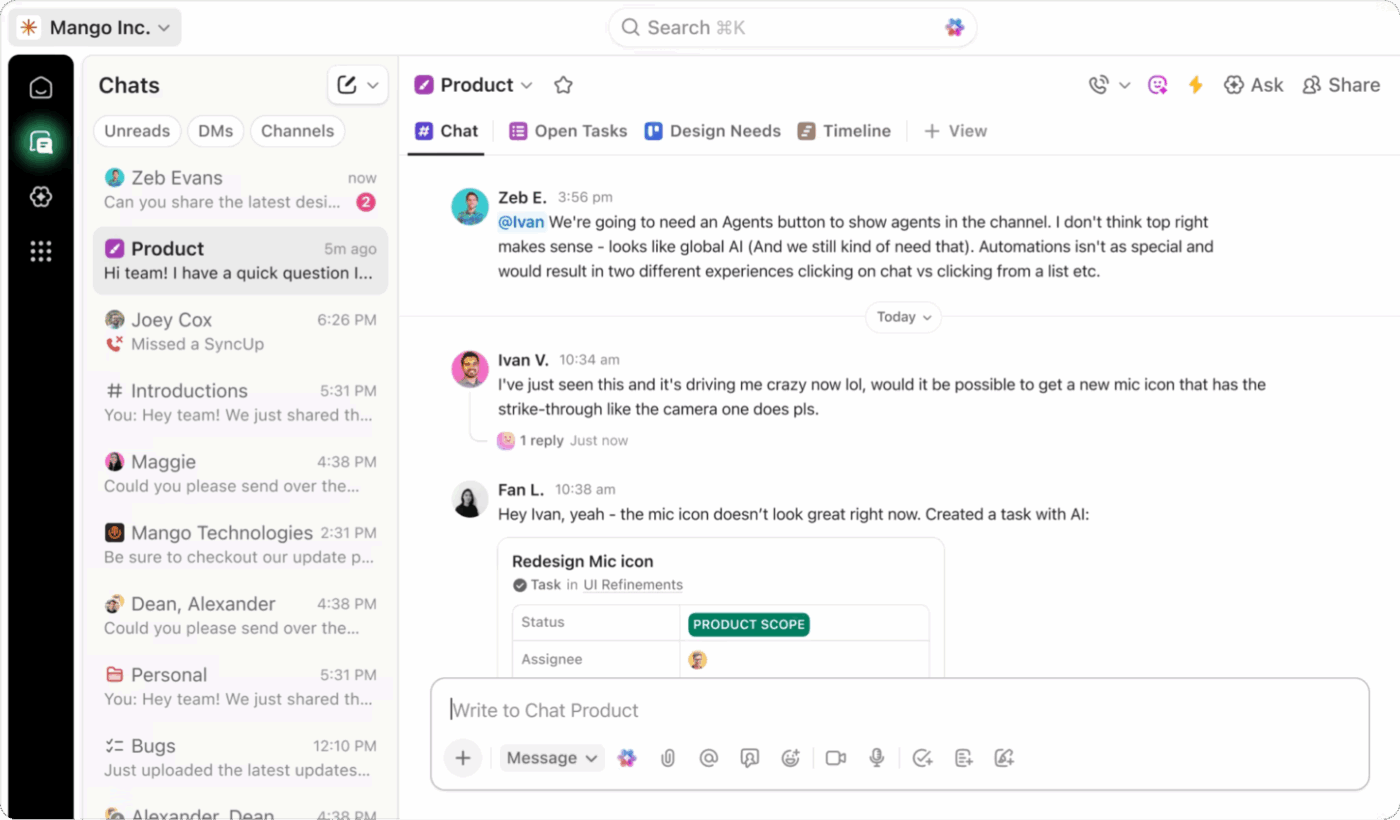
It lives alongside tasks, docs, and Clips, so:
For example, if a team member watches a Clip on design changes but has a follow-up question, they can ask it directly in Chat.
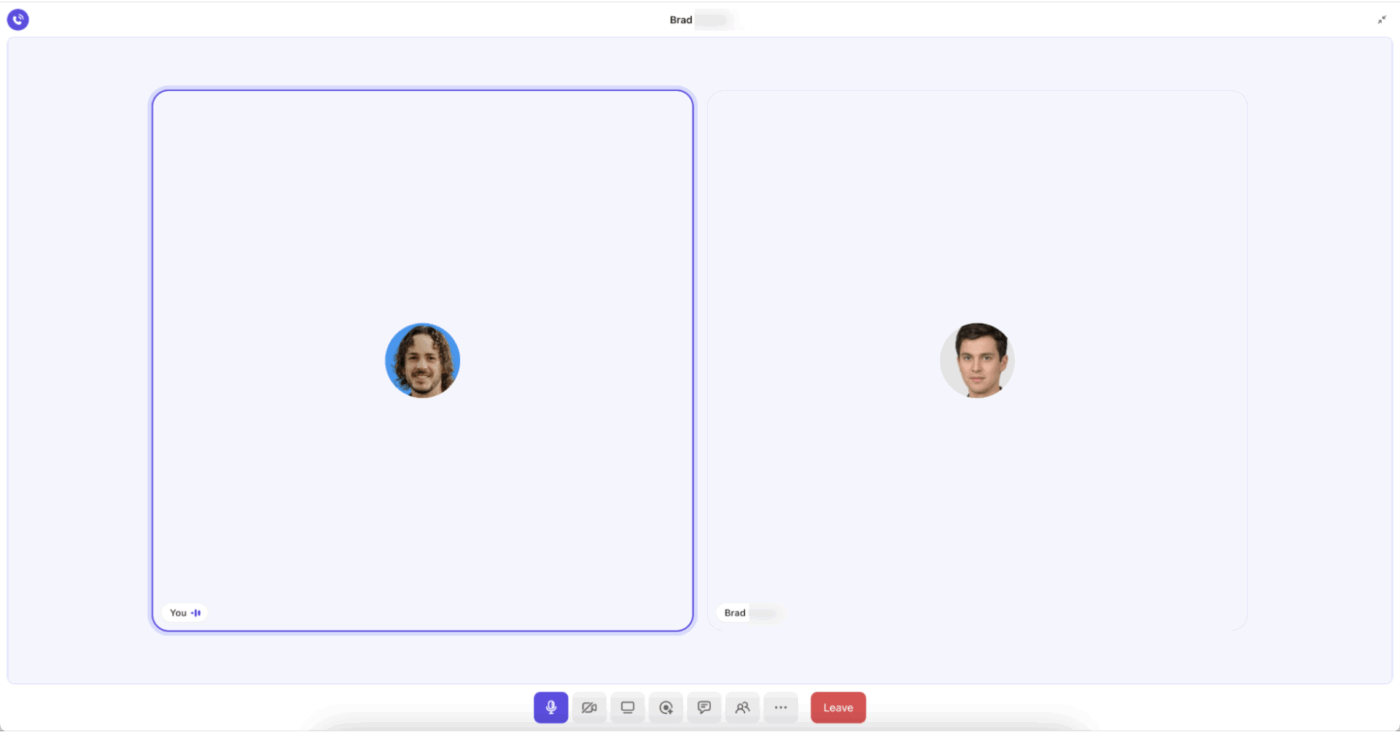
And when you want face-to-face clarity, ClickUp SyncUps are lightweight voice + video calls you can start directly from Chat or a channel without dragging your team into Zoom or Teams. With it, you can:
For instance, suppose you’re onboarding a new team member. You could record a Clip with guided steps, use Chat to answer questions asynchronously, and host a short SyncUp for live walkthroughs.
🚀 ClickUp Advantage: Speak your ideas, notes, scripts, or instructions and let Talk to Text in ClickUp turn them into clear, polished text in real time.
Powered by ClickUp BrainGPT, Talk to Text becomes a productivity shortcut. The AI understands context, applies intelligent formatting, and can auto-connect @mentions, tasks, Docs, or links based on what you say.
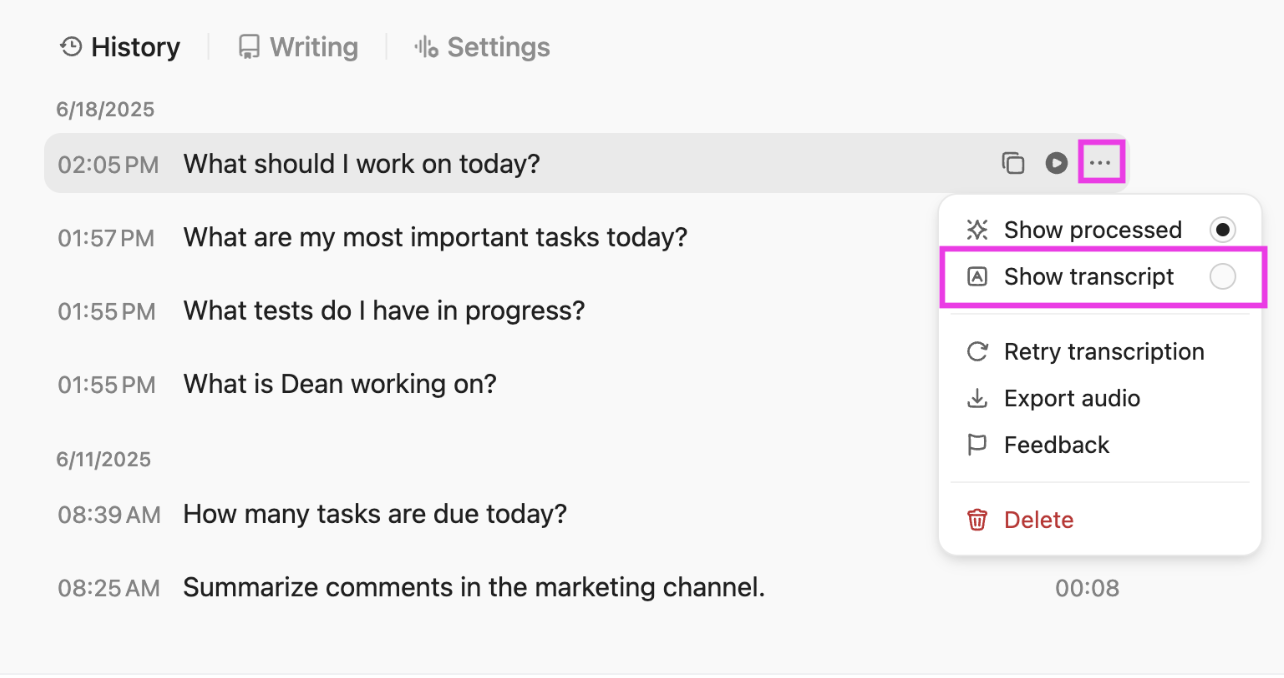
For instance, if you’re brainstorming a video script while reviewing your Clips recordings, you can switch to Talk to Text to speak your thoughts naturally. ClickUp instantly turns your spoken words into an organized draft in the editor. You can even include @mentions of teammates, tag tasks for follow-ups, or build an outline for your next tutorial.
Here’s what Alexis Valentin, Head of Global Business Development at Pigment, had to say:
ClickUp’s functionality, like the ability to take a screenshot with the ClickUp plug-in then automatically attach it to a task, makes our lives easier every day.
Explore some other screen-recording tools:
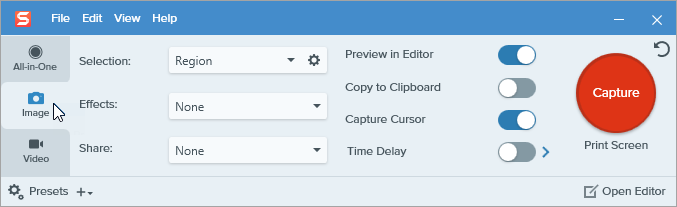
Snagit (now a part of Camtasia) is a screen capture and recording software for Windows and macOS. It extends basic screenshot functions with advanced editing, annotation, and video tools for creating visual content like tutorials and documentation.
The platform captures screenshots of entire screens, specific regions, windows, or scrolling content such as long web pages. Users can record screen videos with audio and webcam overlays, then edit them into multiple formats, like GIFs or MP4 files.
🧠 Fun Fact: The term ‘screencast’ was coined in 2004 when journalist Jon Udell asked readers for a name for ‘this new thing where you record your screen like a movie.’ Users Joseph McDonald and Deeje Cooley suggested ‘screencast,’ and Udell publicly adopted it on his blog. The word has been official ever since.
Let’s explore some of its features that promote async collaboration in the workplace:
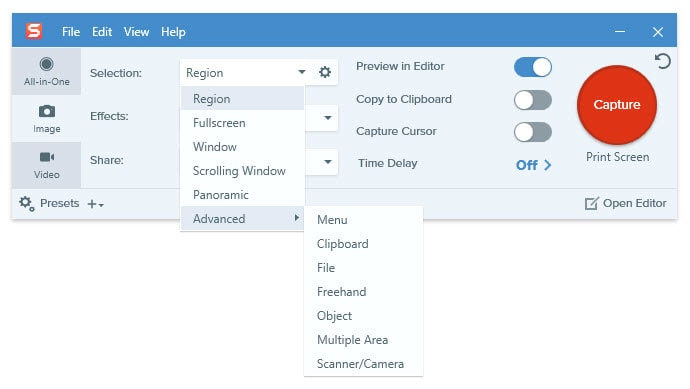
Snagit gives you a lot of control over what you capture. You can grab the full screen, a specific region, an app window, or even long, scrolling pages like web articles or documents. Scrolling capture is handy when you don’t want to stitch screenshots together manually.
It also supports timed captures, multiple monitors, cursor visibility, and customizable presets. This way, once you set it up, repeating the same type of capture is fast and consistent.
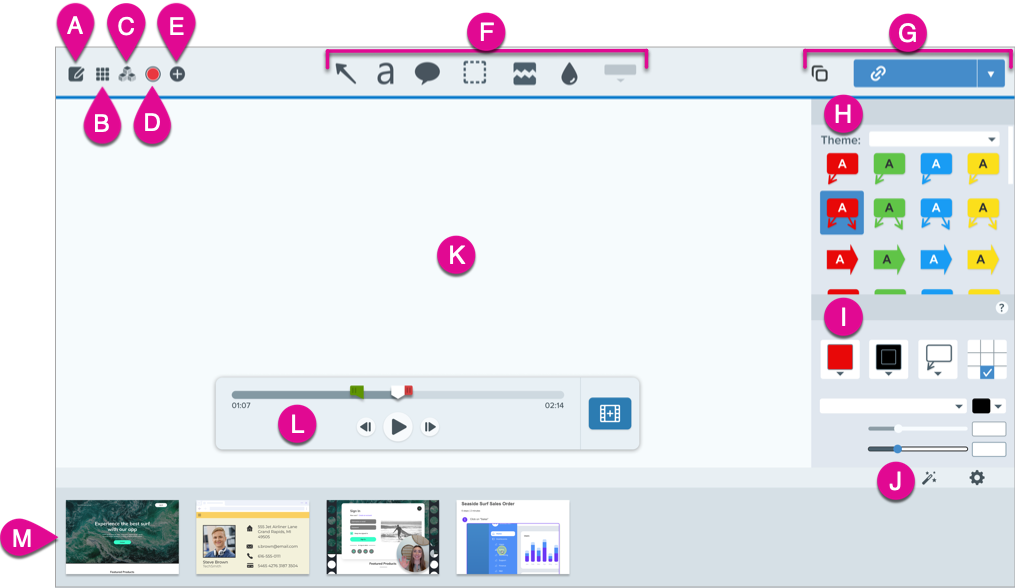
Snagit’s editor is where a lot of its value shows up. You get straightforward tools like arrows, highlights, text, steps, and blur. This makes it useful for turning raw screenshots into something presentation-ready.
Features like Smart Move help reposition elements cleanly, while Smart Redact can automatically hide sensitive information like email addresses or numbers.
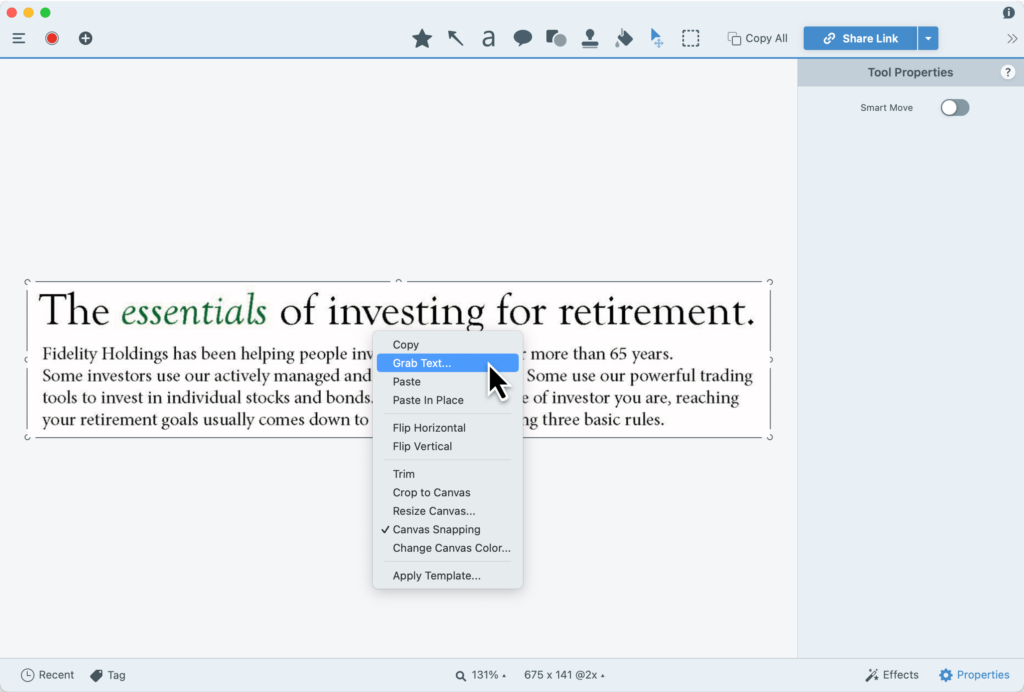
Snagit can pull editable text out of images using OCR. You can grab text directly from screenshots, which is helpful when copying data from visuals, scanned documents, or UI screens.
Combined with templates and batch processing, this makes it easier to reuse captured information in reports or internal docs.
🔍 Did You Know? One of the first iconic screencasts ever created was for the web app Backpack in 2005. The video was so influential that it helped spark the modern product-demo style you still see in SaaS marketing today. It showed that recording your screen could literally define a product’s identity.
When you’re weighing Snagit vs. ClickUp Clips, look beyond basic recording and screenshots. Both tools have different angles of approach. ClickUp wraps screen recording into a full work management platform, while Snagit stands alone as a dedicated capture and editing suite.
So, to make things easier, let’s compare the features that both of them offer.
ClickUp Clips focus on speed and context. You can record your screen (with audio), and the Clip automatically attaches to a task, Doc, or chat. There’s no need to export or upload; everything lands in the Clips Hub and is ready to comment on or turn into action items.
Snagit offers full-screen, region, window, scrolling capture, step-by-step image capture, unlimited video length, and webcam overlays. This gives you more control over what you want to capture, making it suitable for tutorials and documentation.
🏆 Winner: It’s a tie! ClickUp is faster for async team updates, and Snagit is better for detailed, standalone capture work. It depends on whether context or capture depth matters more to you.
ClickUp Brain works across Clips, tasks, Docs, and chat. Recordings are transcribed automatically, searchable, and easy to reference later.
Additionally, you can ask the AI transcription tool questions, pull insights from past Clips, and keep conversations in context with comments and chat.
Snagit keeps things simple: it doesn’t offer transcription, summaries, or AI-driven collaboration. Sharing usually happens through file exports or links, with feedback managed elsewhere.
🏆 Winner: It’s ClickUp! This is because its AI tools are baked into how teams already work.
ClickUp is built to sit at the center of your work. It connects natively with 1,000+ tools like Google Workspace, Slack, Zoom, HubSpot, Jira, and more. These integrations let you sync tasks, trigger automations, and keep conversations and updates tied directly to ongoing work.
What’s more, the platform works across web, desktop (Mac and Windows), and mobile (iOS and Android).
On the other hand, Snagit lets you export captures to Google Drive, OneDrive, email, or TechSmith’s own Screencast. That works well if your goal is to share finished visuals, but it doesn’t connect your work to a broader system.
It’s a desktop-first tool available on Windows and Mac. It performs well on modern machines and feels tightly integrated with the operating system. Mobile capture is possible through TechSmith’s iOS app, but it’s more of a companion.
🏆 Winner: It’s ClickUp, for its wide range of integrations and flexibility across devices and locations.
We turned to Reddit to get a definitive understanding of what real-life users think about the ClickUp vs. Snagit debate. While there weren’t any specific threads on the two platforms, we’ve compiled some individual reviews.
Snagit users had only good things to say about the platform:
I’ve used Snag-it for eons (well, more than two decades), and it’s great at what it does without trying to do too much.
Of course, there are other tools that do different stuff – it’s all about keeping it simple(ish).
A user thinks its pricing is unjustified after it was initially a free tool:
While I am a fan of snagit (and camtasia) I’m not willing to be forced into a subscription for a product where even a short Google search packs a large range of alternatives that are classical purchases or even free / open source. Honestly, in the end this is a screenshotter with annotation and video recording. It was worth the prior price but it is neither worth the effective tripling and the continuous usage tax that comes with a subscription.
A ClickUp user had to say:
Hi there, 10+ years experience in various task/project/KB management. Tried basically anything serious commercial tool out there. What I like about ClickUp is basically what they market: one app for everything. Really like the level of customisation of task mgmt and the kb is pretty solid too. They recently released a huge improvement of the chat so we are replacing also Slack.
Another user thought it centralized information:
Properly structured, It eliminates information silos between departments. So when information is updated and or changes in one department, because all other departments are siphoning information from the same place, their data is simultaneously updated, even though they may be looking at the data in a totally different way.
ClickUp is an absolutely killer system. Bang for buck and power to ease-of-use, I’ve never seen anything else come close.
The verdict is in! 🏁
Snagit is great at what it’s built for. If your main goal is creating polished screenshots, detailed annotations, or standalone tutorials, with basic editing features, it delivers consistency. But once the conversation moves to decisions, follow-ups, and collaborations, it stops short.
With ClickUp Clips, recordings live directly inside tasks, docs, and comments, complete with AI transcripts, timestamped feedback, and the ability to turn moments into follow-up work. So, what are you waiting for? Sign up to ClickUp for free today! ✅
© 2026 ClickUp