

Sorry, there were no results found for “”
Sorry, there were no results found for “”
Sorry, there were no results found for “”
Google Docs is one of the most popular tools used globally. This is not surprising, considering the platform offers a clean interface, solid document management, and just enough advanced features without making things complicated.
Do you know what else is popular? PDFs, but they can be a nightmare to edit.
That’s where Google Docs steps in as a super-easy tool that you can use to copy, paste, and edit text. But how can you convert your PDF to Google Docs?
Here’s a quick and painless guide on how to convert a PDF to Google Docs without losing formatting.
Need a quick rundown? Here’s everything you need to know about converting and managing PDFs in Google Docs:
I really like this tool because it allows collaboration between team members… It’s really productive and saves us a lot of time. I can edit the shared document at the same time as my colleagues. Super easy tool to share and work simultaneously on projects.
That’s a direct quote from a real Google Docs user on G2—because sometimes, the best way to prove a point is to let the users do the talking. And honestly, this sums up why Google Workspace users keep coming back.
So, when you convert a PDF to Google Docs format, here’s what you unlock:
💡 Pro Tip: Looking for a way to stop chasing scattered files and endless email threads? Knowledge management software helps capture, organize, and share information effortlessly.
There’s more than one way to convert a PDF to Google Docs, depending on what you need. Whether you’re dealing with a simple text-based PDF file, a scanned document, or one packed with complex formatting, here are the best methods to get the job done.
If you’re already using Google Workspace, this is the easiest way to convert PDFs without downloading extra software.


That’s it! Your PDF document is now an editable Google Doc.
To save your changes, click File > Download > PDF Document, and you’ll have a new PDF with your edits.
✍🏻 Note: While Google Docs does a great job with basic text, formatting can be a hit or miss. Headings and paragraphs usually transfer well, but tables, images, and bullet points may not look as polished as they did in the original PDF file.
Also Read: How to Customize and Format Google Docs
If your PDF document contains many images, tables, or complex layouts, Google Docs may struggle to maintain its original formatting. That’s where third-party tools like CloudConvert, Adobe Acrobat, and Smallpdf can help.


This method ensures that images, tables, and special formatting stay intact. Some tools even let you batch-convert PDF files for faster processing.
💡 Pro Tip: Managing PDF documents can be overwhelming, especially when searching for specific details in lengthy files. Instead of scrolling endlessly, learning how to conduct a PDF search effectively saves time.

If your PDF file is a scanned document (meaning it’s an image rather than selectable text), Google Docs alone won’t cut it. You’ll need Optical Character Recognition (OCR) to extract the text.
Use tools like Adobe Acrobat’s OCR, Smallpdf, or CloudConvert before uploading to Google Docs for better results. These tools recognize text from scanned pages and maintain the original formatting as much as possible.
So, you’ve successfully converted a PDF to Google Docs—great! But now comes the real challenge: editing it without wrecking the original formatting.
Google Docs lets you edit or annotate your PDF document like any other file. Using built-in tools, you can fix typos, add new content, and format text. It even applies styles like Title, Subtitle, and Headings automatically.
Google Docs formatting isn’t perfect. If your PDF file had complex elements like tables, checkboxes, or icons, things might look… a little messy. For example:
💡 Pro Tip: Here are Google Docs hacks to make things simpler—if your document relies heavily on formatting, consider using a PDF editor before uploading it to Google Docs.
📮ClickUp Insight: Low-performing teams are 4 times more likely to juggle 15+ tools, while high-performing teams maintain efficiency by limiting their toolkit to 9 or fewer platforms. But how about using one platform?
As the everything app for work, ClickUp brings your tasks, projects, docs, wikis, chat, and calls under a single platform, complete with AI-powered workflows. Ready to work smarter? ClickUp works for every team, makes work visible, and allows you to focus on what matters while AI handles the rest.
Once again, let’s hear it from real Google Docs users to understand the challenges the platform imposes:
🗣️ “When I have used Workspace and opened docs, Excel, Gmail, instant messaging, and browsing other sites, I experienced a significant reduction in processing speed,” said this G2 user.
🗣️ Another user on Reddit noted, “Perfect until you reach a certain word count, then you might want to split it into multiple documents or use another software.”
💡 Pro Tip: Documentation can be time-consuming and tedious, but once you learn how to use AI for documentation, you can automate repetitive tasks, organize information efficiently, and free up time for more important work.
Clearly, Google Docs isn’t perfect. Here are five challenges that might trouble you when using it for PDF document editing and beyond:
💡 Pro Tip: Outdated operating systems and unsupported file formats slow down collaboration, but file-sharing software simplifies document access and eliminates time-consuming email exchanges.
Even if you’re handling multiple PDF files and Google Docs, you deserve an organized space where everything stays neat and your workflow remains smooth.
ClickUp, being the everything app for work, combines document management workflow, task tracking, and AI-powered automation in a centralized platform that is built for collaboration.
ClickUp’s Hierarchy lets you structure documents, tasks, and projects in a way that actually makes sense. Instead of searching across multiple platforms, you can:
🍪 Bonus: With ClickUp Integrations, you can connect over 1,000 apps, including Dropbox, Slack, and Google Drive. This means files stay synchronized across platforms, ensuring that your team can access, edit, and share documents effortlessly.
With ClickUp Docs, collaboration becomes more than just sharing files. For instance, team members can edit Google Docs files in real time without leaving the platform, tag colleagues directly in ClickUp Docs, and leave comments on PDF documents without the usual back-and-forth over email.

Every document update, revision, or approval is linked to a task, so there’s no second-guessing who’s responsible for what.
ClickUp loves to make things as easy as possible for you. This is why ClickUp’s Automations take repetitive work off your plate. Here’s how PDF to Google Docs users can benefit:
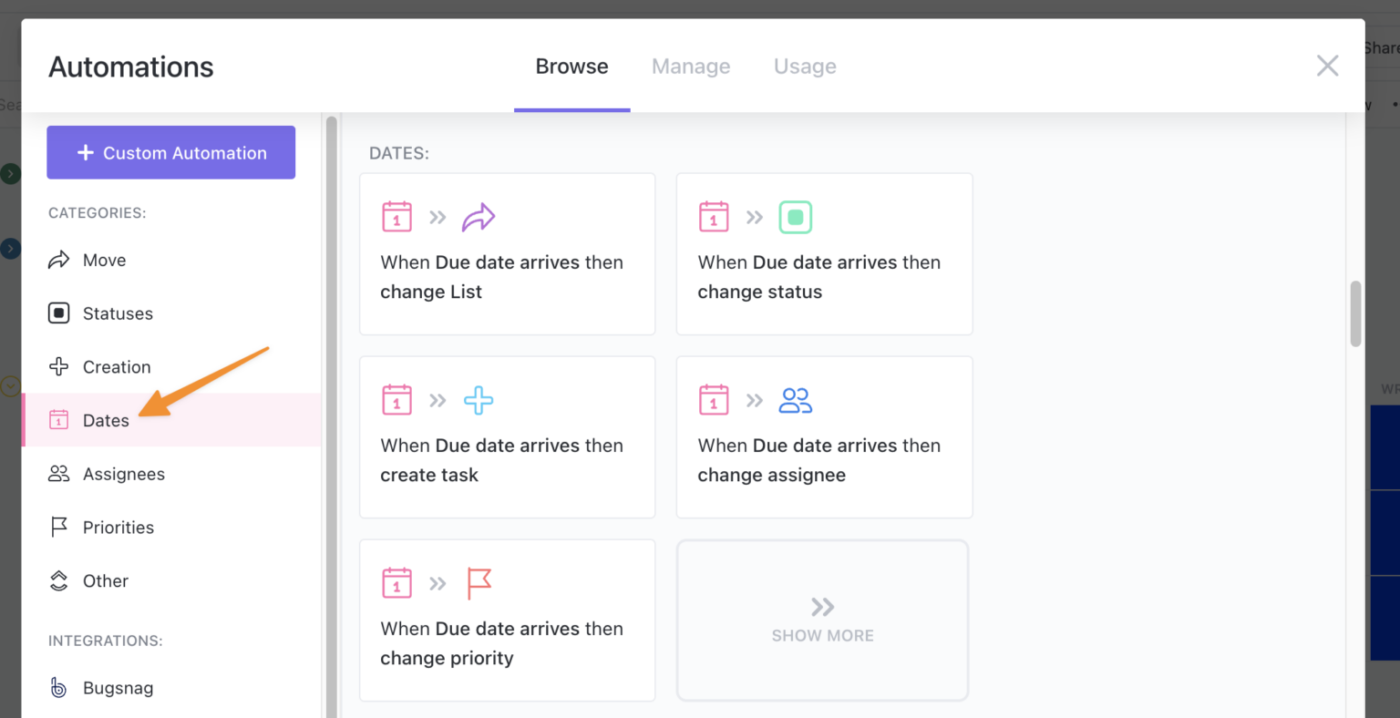
📌 Example: Say you convert a PDF into Google Docs format and upload it to ClickUp. You can set an automation that immediately notifies your editor, assigns them the review, and updates the task status—all without manual input.
We’ve heard from Google Docs users. Now it’s time to see what ClickUp users are talking about (Turns out they’re onto something big.)
For instance, Mitch Stephens, PMP, Technical Program Manager at Shipt, had this to say:
Since adopting ClickUp, our teams have slowly migrated away from Google Docs for documentation, and in fact, documentation has improved significantly.
That’s because ClickUp isn’t just a document management tool—it’s a full-fledged workflow powerhouse. With features like real-time collaboration, task automation, and seamless integrations with Google Drive and Dropbox, it keeps PDF files, Google Docs, and project documents organized in one place.
Sign up on ClickUp for free and see your productivity literally skyrocket.

Manasi Nair
Max 24min read

Praburam Srinivasan
Max 22min read
Praburam Srinivasan
Max 13min read

© 2026 ClickUp




