Most developers can get the Gemini API running in under 10 minutes.
The real challenge comes after setup.
This guide shows you how to get your API key, install the SDK, and make your first request.
You’ll also learn how to keep your API workflows organized, so your team doesn’t waste time reinventing solutions or searching for documentation.
Summarize this article with AI
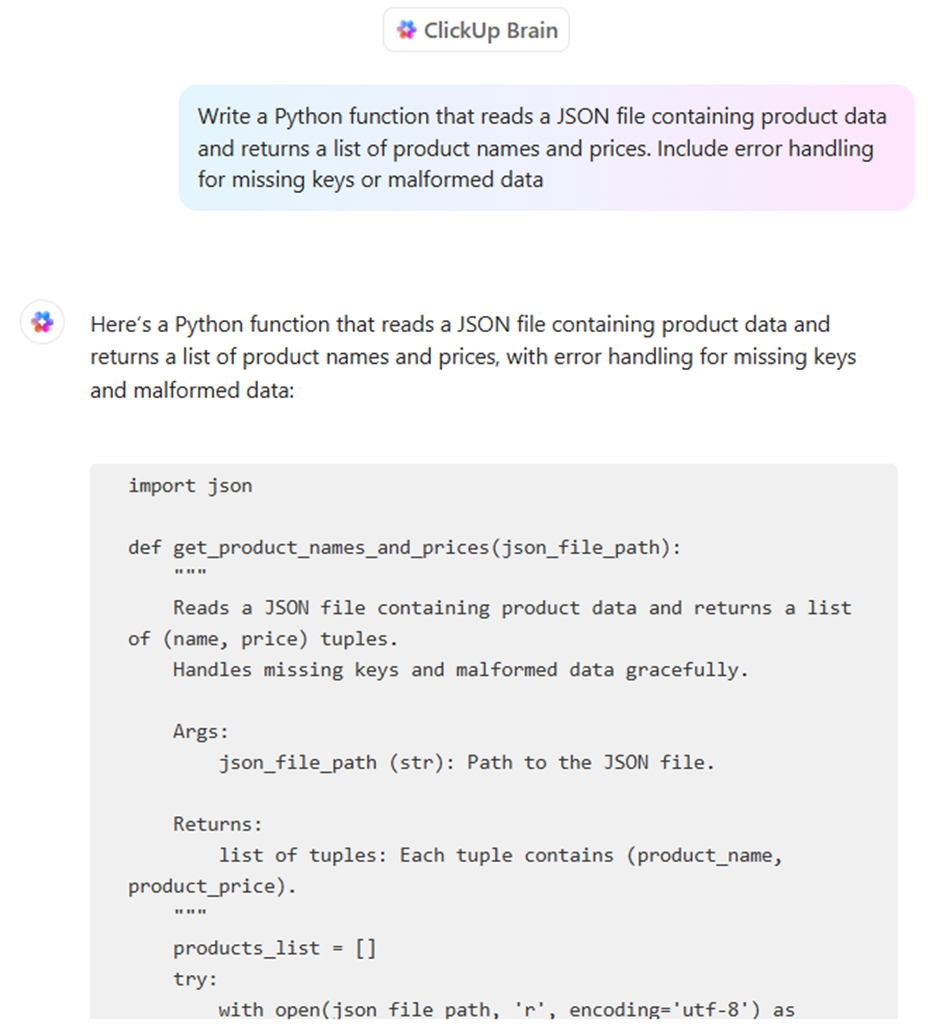
ClickUp Brain not only saves you precious time by instantly summarizing articles, it also leverages AI to connect your tasks, docs, people, and more, streamlining your workflow like never before.
Summarize this article for me please
What Is the Gemini API?
The Gemini API is Google’s interface for accessing its family of multimodal AI models, allowing developers to integrate text generation, image understanding, code assistance, and conversational AI into applications.
It’s designed for product teams, engineers, and businesses looking to add powerful AI capabilities to their products without building large language models from scratch.
Gemini’s large language models, like Gemini 3 Flash and Gemini 3 Pro, are multimodal, meaning they can handle multiple types of input, including text, images, audio, and video. The API itself uses REST API architecture, which is a standard way for computer systems to communicate over the internet.
To make it even easier, Google provides Software Development Kits (SDKs) for popular languages like Python, JavaScript, and Go. It’s helpful to understand the difference between the API and Google AI Studio.
Aspect
Gemini API
Google AI Studio
Primary use
Production applications
Prototyping and testing
Access method
Code-based SDK calls
Web-based visual interface
Best for
Developers building apps
Experimenting with prompts
💡Pro Tip: Keep all your project context in one place and avoid hunting for information across different tools by creating an internal knowledge base for your AI projects. With ClickUp Docs, you can link code snippets and API documentation directly to your team’s tasks, eliminating tool sprawl and speeding up AI adoption.
Summarize this article with AI
ClickUp Brain not only saves you precious time by instantly summarizing articles, it also leverages AI to connect your tasks, docs, people, and more, streamlining your workflow like never before.
Summarize this article for me please
How to Get Your Gemini API Key
Your team may be ready to start building, but first, you need an API key.
To use the Gemini API, you need a key to authenticate your requests, and managing these keys is the first step to smoother workflow management. You’ll need a Google account to get started.
Here’s how to get your key:
Navigate to Google AI Studio
Sign in with your Google account
Click Get API key in the left sidebar
Select Create API key in a new project or choose an existing Google Cloud project
Copy your generated key immediately and store it in a secure location
Your API key grants access to your Gemini quota and billing—treat it like a password. 🔑
For larger teams, you can also manage keys through the Google Cloud Console, which offers more advanced controls.
Summarize this article with AI
ClickUp Brain not only saves you precious time by instantly summarizing articles, it also leverages AI to connect your tasks, docs, people, and more, streamlining your workflow like never before.
Summarize this article for me please
How to Install the Gemini SDK
A new developer joins your AI project, but they spend their first day wrestling with environment setup instead of writing code.
Their Python version is wrong, or they’re missing a dependency, leading to the classic “it works on my machine” headache.
This is often the reason why developers lose 3 hours per week. Such inconsistencies slow down onboarding and introduce unpredictable bugs that waste valuable engineering time.
An SDK, or Software Development Kit, simplifies these API interactions by handling authentication, request formatting, and response parsing for you. To avoid setup issues, your team needs a standardized, documented process for installing the Gemini SDK.
Here’s how to install it for the most common environments.
For Python:
pip install google-genai
Note: You’ll need Python 3.9 or newer. Using a virtual environment is a best practice to avoid conflicts with other projects.
For JavaScript/Node.js:
npm install @google/genai
Note: This is for use in a Node.js environment.
After installation, you need to set up your API key as an environment variable. This keeps your key secure and out of your source code.
On Mac/Linux:export GEMINI_API_KEY="your-api-key-here"
On Windows:setx GEMINI_API_KEY "your-api-key-here"
You have a few options for which SDK to use:
Python SDK: The most popular choice, with extensive documentation. It’s ideal for data science and backend applications
JavaScript SDK: The best option for building web applications and Node.js backends
Go SDK: A great choice for developers building high-performance microservices in Go
REST API: If you’re using a language without an official SDK, you can always make direct HTTP requests to the REST API
💡Pro Tip: Standardize your development environment and speed up onboarding by creating a checklist every new team member can follow. Save this as a template in ClickUp Tasks, and if anyone runs into trouble, they can use ClickUp Brain to get answers from your team’s documentation. Here’s a quick guide:
Summarize this article with AI
ClickUp Brain not only saves you precious time by instantly summarizing articles, it also leverages AI to connect your tasks, docs, people, and more, streamlining your workflow like never before.
Summarize this article for me please
How to Make Your First Gemini API Request
Your team is finally making API calls, but every developer is figuring it out on their own.
A successful API call is simple: you send a prompt to a Gemini model and receive a response.
The real challenge is making that process repeatable and scalable for your whole team. Here are a few examples of how to make your first request.
Python example
This code sends a simple text prompt to the Gemini API and prints the response.
from google import genai
import os

# The Client automatically handles the modern 2026 security headers
client = genai.Client(api_key=os.environ["GEMINI_API_KEY"])

# We use Gemini 3 Flash for the best balance of speed and cost
response = client.models.generate_content(
    model="gemini-3-flash",
    contents="Explain how APIs work in simple terms"
)

print(response.text)
Let’s break that down:
Import and configure: This loads the Google library and sets up authentication using the API key you configured earlier
Initialize model: Here, you’re telling the code which specific Gemini model to use. Gemini 3 Flash is optimized for high-speed, high-volume tasks, while Gemini 3 Pro is designed for deep reasoning and complex, multi-step workflows
Generate content: This is the action. You’re sending your question to the model
Access output: The model’s reply is stored in the response object, and you can access the text with response.text.
If you’re working in a Node.js environment, the process is similar but uses JavaScript’s async/await syntax.
const { GoogleGenAI } = require("@google/genai");

// Initialize the 2026-standard client
const genAI = new GoogleGenAI(process.env.GEMINI_API_KEY);
const model = genAI.getGenerativeModel({ model: "gemini-3-flash" });

async function generateText() {
  const result = await model.generateContent("Write a brief project status update template");
  const response = await result.response;
  console.log(response.text());
}

generateText();
REST API example
If you’re not using Python or JavaScript, you can always communicate with the API directly using a curl command. This is great for quick tests or for use in languages without a dedicated SDK.
curl "https://generativelanguage.googleapis.com/v1beta/models/gemini-3-flash:generateContent?key=$GEMINI_API_KEY" \
  -H "Content-Type: application/json" \
  -d '{
    "contents": [{
      "parts": [{"text": "Summarize the benefits of API documentation"}]
    }]
  }'
This command sends an HTTP request to the API endpoint and returns the response as a JSON object.
Make it easy for your team to find and reuse successful code snippets and prompts by building a shared library.
Summarize this article with AI
ClickUp Brain not only saves you precious time by instantly summarizing articles, it also leverages AI to connect your tasks, docs, people, and more, streamlining your workflow like never before.
Summarize this article for me please
What Can You Build With the Gemini API?
The Gemini API is incredibly versatile. Here are some things you can build:
Content generation tools: Automate blog drafts, social media posts, and marketing copy
Chatbots and virtual assistants: Create conversational interfaces for customer support or internal help desks
Code assistance: Generate code snippets, explain complex functions, and help debug errors
Data analysis helpers: Summarize dense reports and extract key insights from unstructured text
Multimodal applications: Analyze images or process video content to make it searchable
Document processing: Extract information from PDFs and translate documents into different languages
Building agentic workflows with Gemini
Unlike a standard chatbot that answers questions linearly, an agentic workflow in Gemini allows the model to perceive a goal, reason through a plan, and execute a series of autonomous actions across external tools.
This “agentic” shift is powered by three core features in the Gemini 3 ecosystem:
Native “Thinking” Mode: Using the thinking_level parameter, you can now toggle between “low” for speed and “high” for complex tasks. In high-reasoning mode, Gemini 3 Pro generates hidden “thought tokens” to validate its own logic before providing an answer, drastically reducing hallucinations
Thought Signatures: To prevent “reasoning drift” in multi-turn tasks, the API now issues encrypted Thought Signatures. Developers must pass these signatures back in the conversation history to ensure the agent maintains its exact train of thought across different API calls and tool executions
Model Context Protocol (MCP): Gemini now uses the industry-standard MCP to connect to tools. This allows your agent to instantly “plug in” to your existing databases, Slack, or GitHub without you writing custom integration code for every single function
📮 ClickUp Insight: Low-performing teams are 4 times more likely to juggle 15+ tools, while high-performing teams maintain efficiency by limiting their toolkit to 9 or fewer platforms.
But how about using just one platform for it all?
ClickUp brings your tasks, projects, docs, wikis, chat, and calls under a single platform, complete with AI-powered workflows. Ready to work smarter? ClickUp works for every team, makes work visible, and allows you to focus on what matters while AI handles the rest.
This snippet demonstrates how to initialize a high-reasoning agent that maintains a persistent “train of thought” via the latest Gemini SDK.
from google import genai
import os

client = genai.Client(api_key=os.environ["GEMINI_API_KEY"])

# Initialize an agentic workflow with high reasoning
response = client.models.generate_content(
    model="gemini-3-pro",
    contents="Research the latest 2026 trends in renewable energy and draft a summary.",
    config={
        "thinking_level": "high",  # Triggers deep planning phase
        "include_thoughts": True   # Allows you to see the agent's internal plan
    }
)

# Thought signatures are automatically handled by the 2026 SDK Client
print(f"Final Agent Output: {response.text}")
Summarize this article with AI
ClickUp Brain not only saves you precious time by instantly summarizing articles, it also leverages AI to connect your tasks, docs, people, and more, streamlining your workflow like never before.
Summarize this article for me please
How to Keep Your Gemini API Key Secure
Your team is shipping features, but your security practices are an afterthought.
API keys are sometimes left in code—contributing to the 23.7 million secrets leaked to public GitHub in 2024—and there’s no formal process for rotating them. This leaves your organization vulnerable to unauthorized usage, which can lead to unexpected bills and serious security breaches.
A reactive approach to security is a recipe for disaster. You need a proactive, knowledge management system for managing credentials to protect your applications and your company’s data.
Here are the essential best practices for keeping your Gemini API key secure:
Use environment variables: Never, ever hardcode keys directly in your source code. Store them in .env files or system environment variables
Add.envto your.gitignore: This simple step prevents you from accidentally committing your secret keys to a public code repository
Rotate keys regularly: Periodically generate new keys in the Google Cloud Console and disable the old ones
Implement access controls: Use Google Cloud’s Identity and Access Management (IAM) to restrict who on your team can view or manage API keys
Monitor usage: Keep an eye on the API usage dashboard in the Google Cloud Console to spot any unusual activity that might signal a compromise
Use separate keys for environments: Maintain different keys for your development, staging, and production environments to limit the blast radius of a potential leak
Gemini pricing
Gemini 3 Flash: ~$0.50 per 1M input / $3.00 per 1M output
Gemini 3 Pro: ~$2.00 per 1M input / $12.00 per 1M output (for context under 200k)
Search Grounding: Note that Google now charges $14 per 1,000 search queries for grounding once you exceed the free monthly allowance (5,000 queries)
Summarize this article with AI
ClickUp Brain not only saves you precious time by instantly summarizing articles, it also leverages AI to connect your tasks, docs, people, and more, streamlining your workflow like never before.
Summarize this article for me please
Limitations of Using the Gemini API
Your application is live, but you’re running into unexpected issues.
The API is slower than you expected during peak hours, or it’s returning inconsistent answers that confuse users.
Understanding the API’s limitations is the first step; documenting your workarounds is what helps you scale effectively.
Be aware of these common constraints:
Rate limits: The free tier has caps on requests-per-minute and tokens-per-day, which can bottleneck high-volume applications
Latency variability: Response times can fluctuate based on the complexity of your prompt and overall server load
Context window constraints: Each model has a maximum number of tokens (words and parts of words) it can process in a single request, which can be a challenge for summarizing very long documents
Regional availability: Some models or features may not be available in all geographic regions
Output consistency: Generative AI can produce slightly different results even for the same prompt, which may require you to build validation steps into your workflow
No real-time data: The models’ knowledge is not updated in real time, so they can’t provide information on very recent events
Summarize this article with AI
ClickUp Brain not only saves you precious time by instantly summarizing articles, it also leverages AI to connect your tasks, docs, people, and more, streamlining your workflow like never before.
Summarize this article for me please
Alternative AI Tools to Use
While the Gemini API is a multimodal powerhouse, building a production-ready application often requires a multi-model strategy. Depending on your project’s specific needs for reasoning depth or coding accuracy, you can look at these Gemini alternatives.
1. ClickUp (Best for teams needing a context-aware AI integrated into their workflow)
Generate and manage code with ClickUp Brain
Most AI tools promise to make development easier, but they often end up as just another disconnected tab in an already crowded stack. You might use the Gemini API to power your app’s backend, a separate tool to summarize meeting notes, and a third platform to manage your sprint tasks. This web of scattered context and siloed tools is “AI Sprawl,”
ClickUp is the first Converged AI Workspace that connects your tasks, docs, and people with a central intelligence layer. Unlike standalone APIs that require you to build your own context-retrieval systems (RAG), ClickUp Brain already “knows” everything in your workspace.
Because the AI is natively integrated, it doesn’t just “generate text”—it understands the relationship between your Gemini API documentation, your project deadlines, and your team’s real-time progress.
Enable “Ask AI” from anywhere and deploy autonomous agents
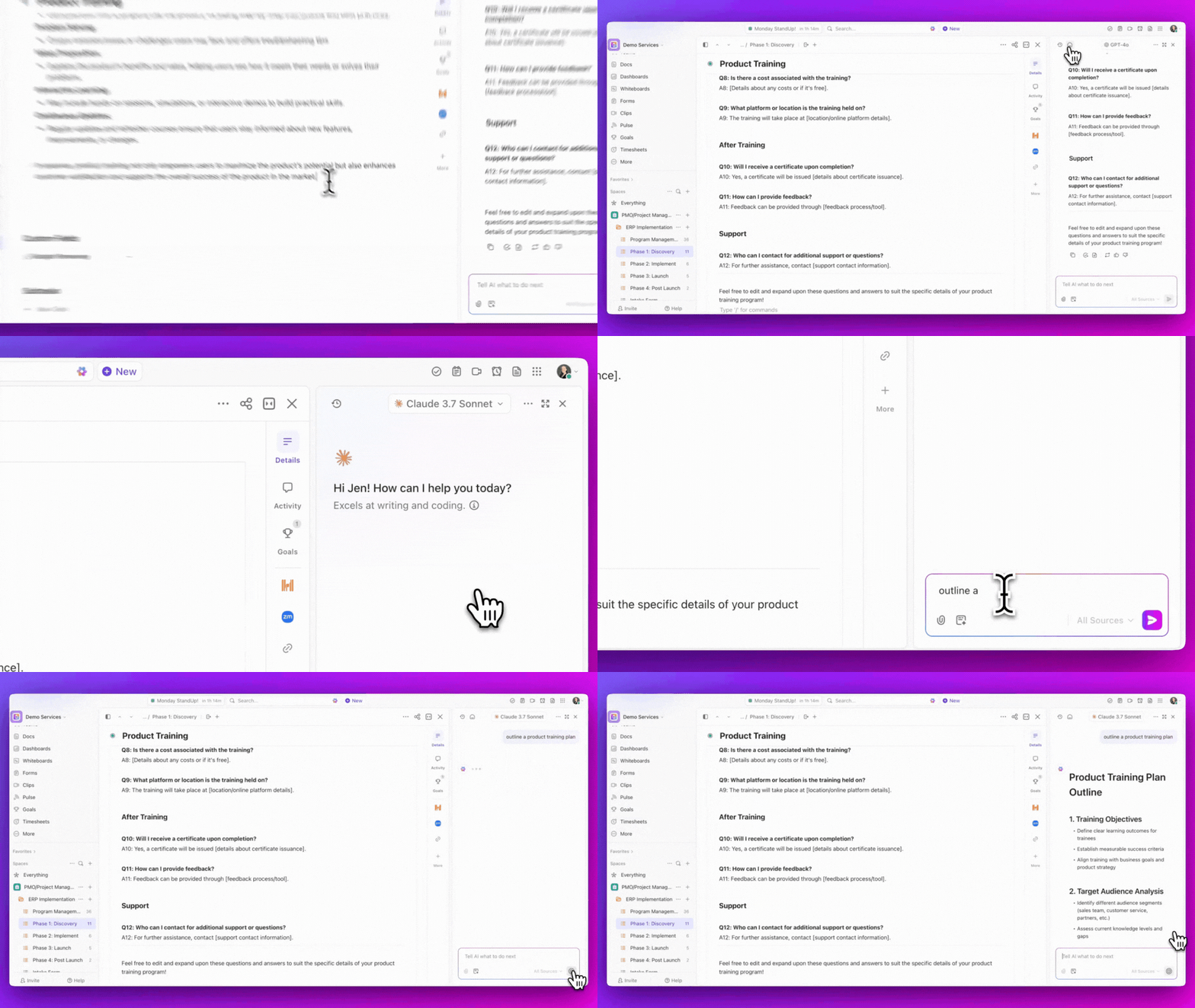
The true power of ClickUp lies in its ability to turn knowledge into action. With the Brain Assistant, you can “Ask AI” from anywhere in your workspace—or even through a desktop companion while you’re writing code in your IDE. You can instantly surface project risks by asking, “What was the feedback on the last Gemini 3 Pro implementation?” ClickUp Brain will deep-search your entire history, providing a cited answer with links to the exact task or comment thread where the discussion happened.
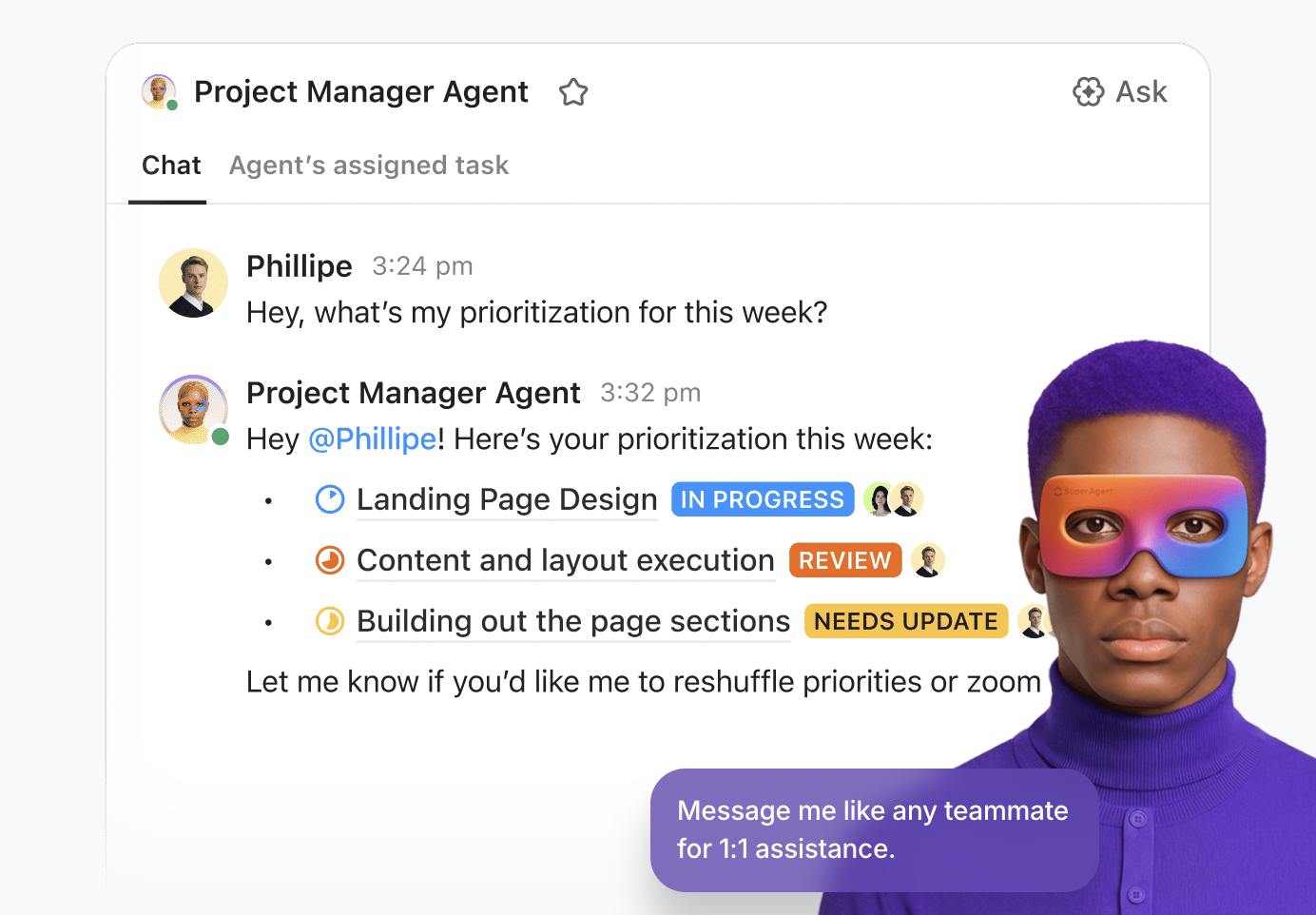
For teams building complex AI products, ClickUp goes beyond simple assistance by allowing you to deploy Super Agents. These are no-code, autonomous digital teammates that handle the “busywork” of your development lifecycle. You can set up a Triage Agent to monitor incoming bugs from your Gemini integration, or a Project Manager Agent that proactively identifies sprint blockers and generates daily standup summaries based on your team’s activity. It’s an intelligent system that keeps your development pipeline moving 24/7.
Speed up workflows with Super Agents in ClickUp
A unified work management platform for the modern developer
ClickUp Docs serves as your team’s shared technical notebook. Whether you are drafting a PRD for a new multimodal feature or storing your Gemini API security protocols, everything stays connected.
A line of code in a Doc can instantly become a task, and ClickUp Brain allows you to leverage Enterprise Search to retrieve files and conversations from connected apps like Google Workspace, GitHub, and Figma using semantic search.
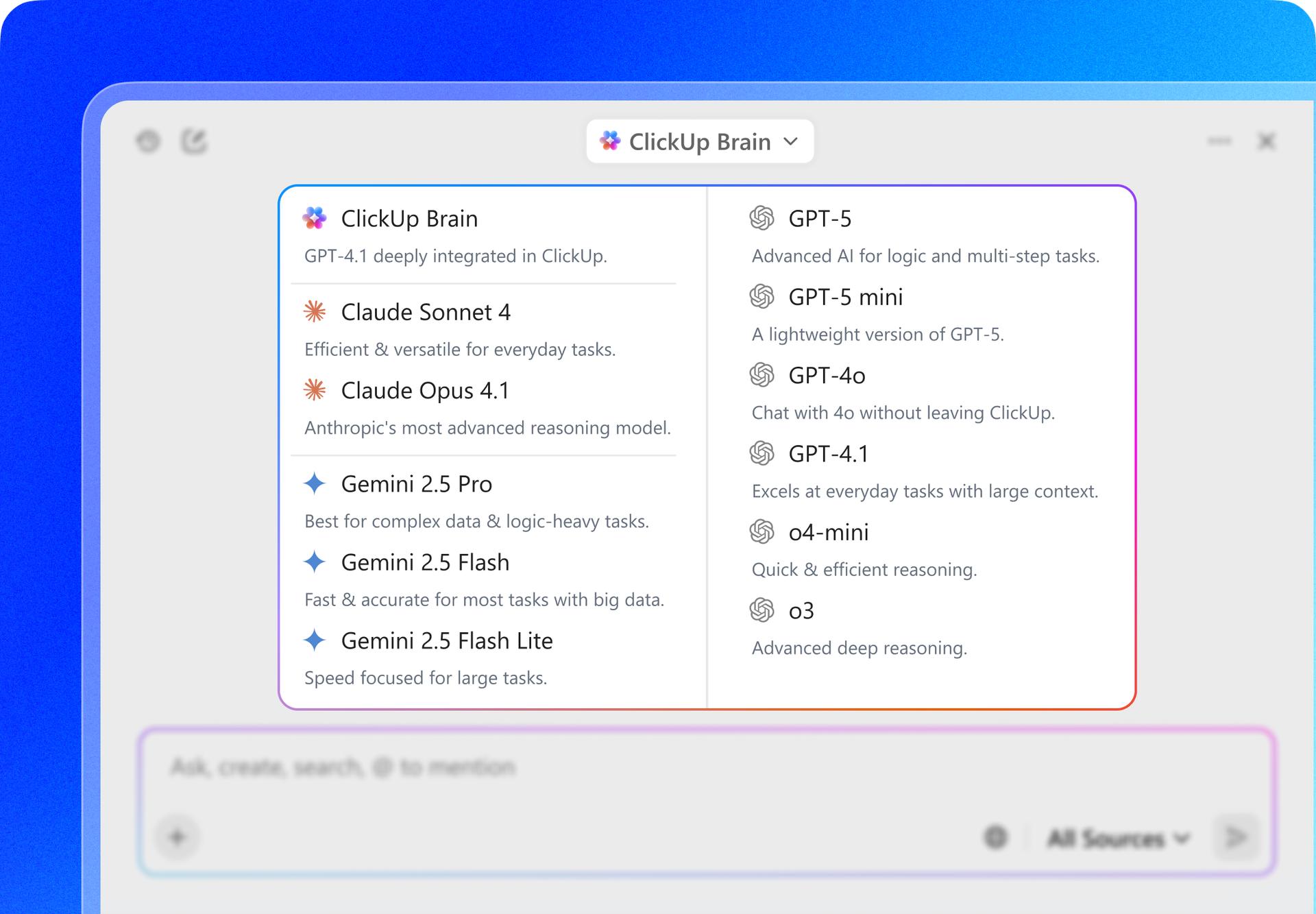
Furthermore, ClickUp provides Multi-model flexibility. While you are building with the Gemini API, you can use ClickUp’s interface to toggle between Gemini 3, GPT-5.2, and Claude 4.5 to compare outputs or draft technical specs. This ensures you always have the best “brain” for the task at hand without ever leaving your project management environment.
Access multiple AI modesls from a single interface with ClickUp Brain
ClickUp best features
Universal Search & Ask AI: Instantly retrieve data across ClickUp, Slack, GitHub, and Drive, or ask the AI to summarize any document or task thread from anywhere in the workspace
No-code Agents: Deploy no-code agents to automate task creation, status updates, and reporting, turning manual project management into an autonomous workflow
Integrated AI Chat: Mention @Brain in any ClickUp Chat thread to instantly turn a conversation into a formatted task or to get a summary of a long discussion
AI-powered dashboards: Visualize team health with real-time dashboards that use AI to identify sprint risks, predict delays, and explain data trends in plain English
AI Writer for Docs: Draft technical requirements, SOPs, and meeting agendas that are pre-populated with your project’s specific data and context
ClickUp limitations
The AI’s effectiveness is tied to your workspace hygiene; if your team doesn’t keep tasks and docs updated, the AI has less “context” to pull from for its answers
ClickUp pricing
free forever
Best for individual users
Free
Free
Key Features:
60MB Storage
Unlimited Tasks
Unlimited Free Plan Members
unlimited
Best for small teams
$7
$10
per user per month
Everything in Free Forever, plus:
Unlimited Spaces, Folders, and Forms
Unlimited Gantt Charts
Unlimited Integrations
Most Popular
business
Best for mid-sized teams
$12
$19
per user per month
Everything in Unlimited, plus:
Unlimited Dashboards with Advanced Cards
Unlimited Message History
Unlimited Activity Views
enterprise
Best for many large teams
Get a custom demo and see how ClickUp aligns with your goals.
ClickUp’s templates, custom fields, priorities, scrum points, plans, and various view options, despite a slight learning curve, have enabled our team to tailor the tool to our evolving needs and maximize efficiency. Its powerful integrations with tools like Google Drive, meetings, calendars, and the robust API support enhance our workflow seamlessly. Additionally, the ClickUp forms add substantial value to our operations. Overall, everything in ClickUp is so powerful and useful that I don’t want to change anything. I strongly feel that ClickUp has been developed with user preferences in mind, making it perfect for our needs.
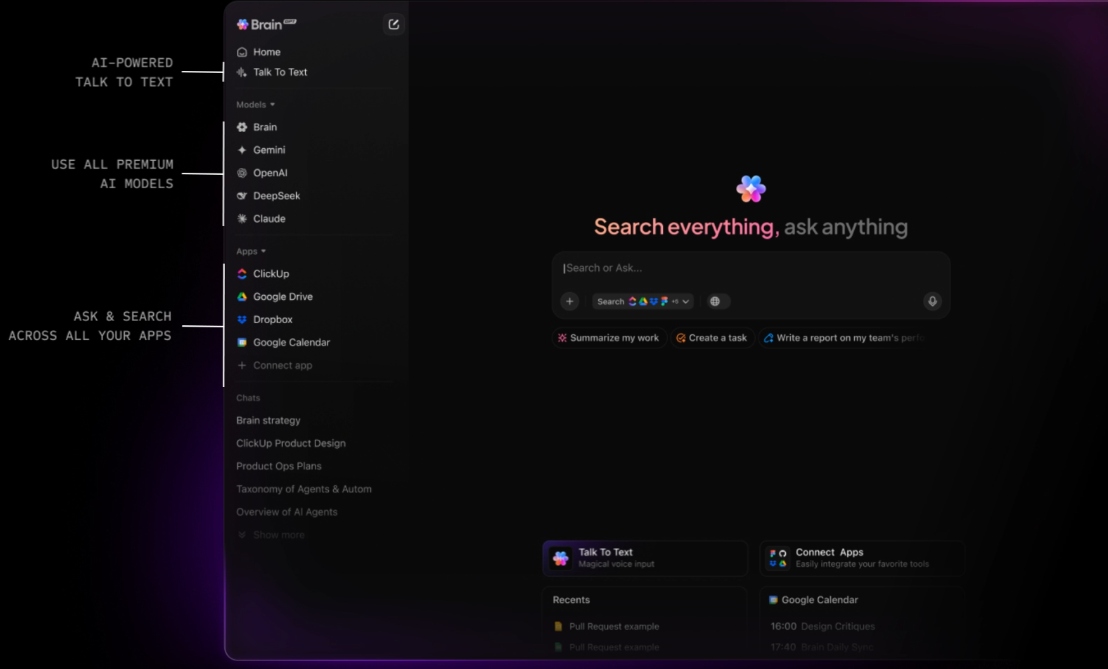
The ClickUp Advantage: Instead of writing code to connect your database to an LLM, BrainGPT, standalone AI super app from ClickUp, acts as a model-agnostic interface already connected to your tasks, docs, and code repos.
Integrate all your work for faster results with ClickUp BrainGPT
It allows you to:
Toggle between models: Use Gemini 3 for massive 2M-token context tasks, then switch to Claude 4.5 for pinpoint coding precision—all in the same window
Unified search: Ask, “What were the final API security specs discussed in last month’s meeting?” and get a grounded answer pulling from Slack, GitHub, and ClickUp Docs simultaneously
Talk-to-Text:Use the BrainGPT Desktop App to dictate commands like “Draft a Jira ticket for the Gemini integration and assign it to the lead dev”—no keyboard required
2. OpenAI API (Best for general-purpose intelligence and agentic reasoning)
OpenAI’s API platform remains the primary competitor for developers building complex, “thinking” applications. With the release of the GPT-5.2 series, OpenAI has moved toward “Agentic Reasoning,” where the model automatically pauses to validate its logic before responding.
Unlike Gemini’s tight integration with Google Workspace, OpenAI offers a more modular “Foundry” approach, making it a preferred choice for developers who want a vendor-neutral platform that scales across different cloud providers like Azure and AWS.
Gemini 3 Flash, in contrast, offers significantly faster video processing and a much larger 2-million-token context window, whereas GPT-5.2 currently caps its native context at 400,000 tokens.
OpenAI API best features
Use Thinking Mode to handle complex, multi-step problems that require internal verification before generating a final answer
Access Realtime API for building low-latency, multimodal experiences including native speech-to-speech interactions
Leverage File Search API (Vector Store) to build RAG (Retrieval-Augmented Generation) systems with built-in document management
OpenAI API limitations
Usage can become expensive very quickly if not carefully monitored, especially when using high-reasoning models like GPT-5.2 Pro
We’ve been extremely impressed with the AI models and, especially, the API access. By integrating OpenAI into our CRM solutions (BROSH CRM), we’re able to deliver real, tangible value to our customers through AI-powered automation.
OpenAI enables BROSH CRM to provide advanced AI-based capabilities across multiple areas. Our customers benefit from high-quality, context-aware AI responses in their communication channels, generated directly from CRM data. This dramatically improves customer interactions while saving time and resources.
Claude, developed by Anthropic, is the go-to alternative for developers who prioritize technical accuracy and “human-like” reasoning. Claude 4.5 Sonnet is widely regarded as the most reliable model for software engineering, consistently outperforming others on coding benchmarks like SWE-bench.
One of its standout features is Claude Code, an agentic CLI tool that allows the model to interact directly with your local terminal and file system to debug and ship code.
Gemini 3 Pro excels at processing massive amounts of data at once (like a 1-hour video), but Claude is often preferred for tasks where the “vibe” and precision of the output are more critical than the sheer volume of data processed.
Claude API best features
Maintain complex project logic using Claude Projects, which allows you to group related documents and code for better context
Use Prompt Caching to significantly reduce costs and latency for repetitive, high-volume requests
Execute and test code in real-time within the model’s environment using the Analysis Tool (Code Execution)
Claude API limitations
Claude currently lacks native image or video generation tools, requiring developers to integrate with third-party APIs for visual creative work
Claude API pricing
Claude 4.5 Opus: $15.00/1M input | $75.00/1M output
Claude 4.5 Sonnet: $3.00/1M input | $15.00/1M output
Claude 4.5 Haiku: $1.00/1M input | $5.00/1M output
The API usage fee is more expensive than ChatGPT or Gemini, but if you just want to ask questions, you can just use the desktop version, so it’s not a big deal. However, it’s not the best option if you want to incorporate it into an app.
Mistral AI provides high-performance models that offer an alternative to the “closed” systems of Google and OpenAI. It is considered as a leader for enterprises that require data sovereignty or want to deploy models on their own private infrastructure.
Mistral’s flagship models, like Mistral Large 3, are designed to be efficient and “unfiltered,” giving developers more control over the model’s behavior compared to the stricter safety guardrails often found in Gemini or Claude.
Mistral AI best features
Deploy models on your own hardware or VPC (Virtual Private Cloud) for maximum data privacy and security
Use Mistral Memories to save and recall key context across different sessions without manually re-sending data
Access the Connectors Directory to easily link your models to external data sources like Notion, GitHub, and Slack
Mistral AI limitations
The documentation and community support for Mistral are not as extensive as those for Google or OpenAI, which may lead to a steeper learning curve for new developers
I asked about a figure from our country’s history. GEMINI correctly distinguished between two very different people with the same first and last name: one a historian and university professor, the other a resistance fighter deported during World War II. Mistral AI only gave me the description of the first one.
Summarize this article with AI
ClickUp Brain not only saves you precious time by instantly summarizing articles, it also leverages AI to connect your tasks, docs, people, and more, streamlining your workflow like never before.
Summarize this article for me please
APIs Made Easy With ClickUp
Getting started with the Google Gemini API is straightforward: you get a key, install an SDK, and make your first API call. But as you move from a simple script to a production application, the real challenges emerge—managing keys, documenting prompts, and keeping your team’s work organized.
The Gemini API provides powerful AI capabilities, but integrating it into your workflow can create scattered documentation, fragmented project tracking, and endless context switching.
Teams that centralize their AI development alongside their task management and documentation move faster and maintain better context. The choice of where you organize this work will determine how effectively you can innovate and collaborate.
Summarize this article with AI
ClickUp Brain not only saves you precious time by instantly summarizing articles, it also leverages AI to connect your tasks, docs, people, and more, streamlining your workflow like never before.
Summarize this article for me please
Frequently Asked Questions About the Gemini API
Is the Gemini API free to use?
Yes, Google provides a generous free tier for Gemini 3 Flash and Pro via Google AI Studio. However, specialized tools like Google Search Grounding carry a fee ($14/1k queries) after your first 5,000 prompts each month
What’s the difference between the Gemini API and Google AI Studio?
Google AI Studio is a web-based tool for experimenting with prompts and quickly generating API keys. The Gemini API is the programmatic interface you use in your code to build those AI capabilities into your own applications.
Can I use the Gemini API to build a chatbot for my team?
Yes, the Gemini API supports multi-turn conversations, which makes it a great choice for building internal chatbots, customer support bots, or team assistants. You would use the API as the “brain” of the chatbot and build the user interface separately.
What are the rate limits for the Gemini API?
Rate limits vary depending on the model you’re using and whether you’re on the free or a paid tier. The free tier has lower limits on requests per minute, while paid plans offer higher throughput for production applications.
Everything you need to stay organized and get work done.