






Still downloading templates?
There’s an easier way. Try a free AI Agent in ClickUp that actually does the work for you—set up in minutes, save hours every week.
Sorry, there were no results found for “”
Sorry, there were no results found for “”
Sorry, there were no results found for “”

At a time when everyone is expected to do more within less time, efficiency is of utmost importance.
You don’t have time to read through multiple vendor contracts or remember the nitty-gritty details.
Enter: AI to summarize documents for you.
Claude, the AI assistant by Anthropic, is built to ingest and analyze multiple files simultaneously.
In this blog, we show you how to use Claude for multi-doc summarization with prompting patterns and best practices. Also, the limitations you’re likely to run into and what to do in those cases.
Multi-document summarization refers to Claude’s capability to process and analyze information from multiple documents into a single coherent summary. It can analyze up to 20 files at a time (up to 30 MB size each) with a context size of 200K tokens.
Additionally, Claude is strong in extractive and abstractive summarization. It can connect ideas across documents, identify patterns and contradictions, extract key insights, and combine disparate information to produce a nuanced decision-driving summary.
🧠 Fun Fact: Claude AI is named after Claude Shannon, the mathematician and engineer known as the father of information theory.
His work laid the foundation for how information is measured, transmitted, and preserved—fitting for an AI designed to reason across large volumes of context. Claude was first released in March 2023.
Claude is an AI assistant built for deep document analysis. Use it to summarize a large number of documents or when you’re dealing with a single document that’s way too long to process manually.
The good part is that Claude can also analyze multiple files simultaneously, drawing conclusions from each and helping you make data-driven, error-free decisions.
Here are different scenarios where you can use Claude AI to summarize multiple docs:
📮 ClickUp Insight: 62% of our respondents rely on conversational AI tools like ChatGPT and Claude. Their familiar chatbot interface and versatile abilities—to generate content, analyze data, and more—could be why they’re so popular across diverse roles and industries.
However, if a user has to switch to another tab to ask the AI a question every time, the associated toggle tax and context-switching costs add up over time.
Not with ClickUp Brain, though. It lives right in your Workspace, knows what you’re working on, can understand plain text prompts, and gives you answers that are highly relevant to your tasks! Experience 2x improvement in productivity with ClickUp!
✏️ Note: Claude only works with the information you provide. It cannot fact-check your documents or verify the accuracy of your data.
What it can do is: connect dots, build consensus, and extract patterns from the data you provide in the files.
Here’s how to use Claude for multi-doc summarization 👇
What would you define as a good summary?
Here are some criteria to evaluate summary quality based on your use case:
| Aspect | What it means | Use case |
| Factual correctness | The summary should accurately represent the facts, concepts, and key points in the documents | Research synthesis and compliance reviews |
| Precision | Terminology and references to statutes, case law, or regulations must be correct and aligned with legal standards | Summarizing legal contracts, policy documents, or regulatory filings |
| Conciseness | The concise summary should condense lengthy documents to essential points without losing important details | Executive briefings, stakeholder updates, or quick decision-making scenarios |
| Consistency | If summarizing multiple documents, Claude should maintain a consistent structure and approach to each summary | Consolidating reports from different teams or comparing multiple proposals |
| Readability | The text should be clear and easy to understand, avoiding technical or legal jargon for non-specialist readers | Client-facing summaries, cross-departmental communication, or public reports |
| Bias and fairness | The summary should present an unbiased and fair depiction of competing arguments and positions | Aligning stakeholder perspectives or summarizing conflicting research findings |
📚 Read More: AI PDF Summarizers to Save Your Time
Claude works only as well as the data you provide.
Remember to clean and structure your data when summarizing multiple files. Without structure and clarity, Claude would hallucinate and fabricate details.
Here are a few things you should do to prepare your data before you upload documents:
| Data preparation | What to do? |
| File format | CSV for structured data like surveys, financial reports with metrics, or tabular information PDF for contracts, research papers, and formatted documents DOCX for editable reports, proposals, and collaborative Word documents |
| Document length and size | Each file can be up to 30 MB with a 200K token context window. If documents exceed this, split them logically by section or chapter. Random splits mid-paragraph or mid-thought will fragment context and hurt summary quality |
| File preparation | Ensure PDFs have clear, machine-readable text with standard fonts and upright orientation Run OCR to embed real text for scanned documents Remove extraneous pages or non-essential images to reduce token usage Remove extra whitespace and page numbers For CSV data, use descriptive column headers, i.e., Date, Sales through website, Revenue |
| Data extraction(for multimedia PDF files) | Extract text from images, tables, charts, and handwritten notes using OCR tools like Adobe Acrobat, Tesseract, or built-in features in Google Drive before uploading |
| File organization | Name files clearly and group related documents. Use descriptive names like “Q3_Sales_Report_APAC.pdf” |
| Encoding issues | Check CSVs and text files for special characters or encoding problems |
Before uploading, run a lint command or quality check to ensure your files are properly formatted and free of encoding errors that could affect Claude’s processing.
💡 Pro Tip: Have Claude remove irrelevant sections, standardize formatting, or extract specific data from messy documents before uploading them to your project for summarization.
You can start summarization in a normal Claude Chat. But for summarization tasks that span multiple sessions and are repetitive, set up a Claude project. This way, you won’t have to rebuild context repeatedly.
When setting up a project, configure these elements:
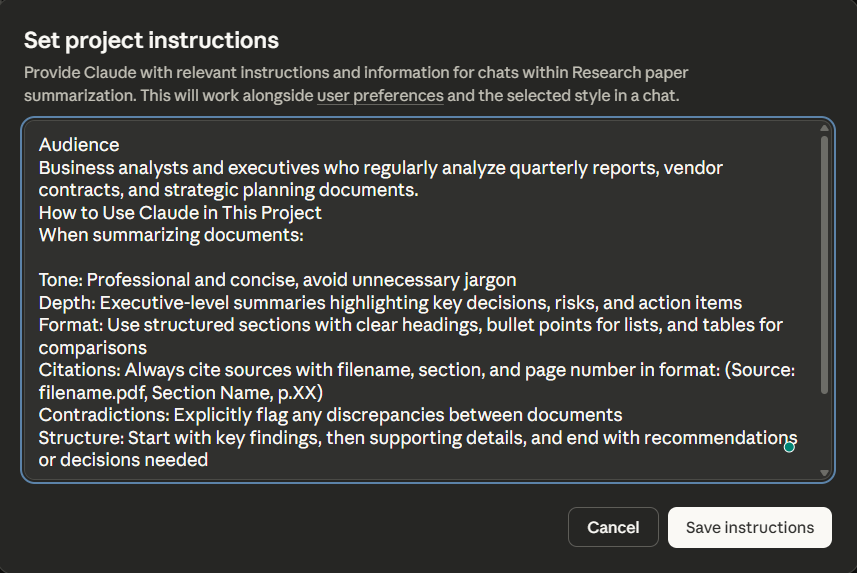
Set project instructions
Use a system prompt to define tone, depth, format, and structure for repetitive tasks so Claude maintains consistency across all summaries
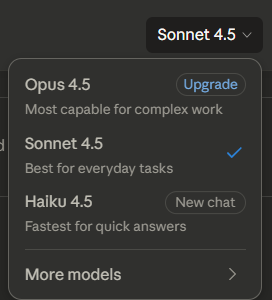
Choose the right Claude model
Sonnet for generating summaries across standard documents, Opus when you need deeper analysis across contradictory sources, and Claude Haiku when you need fast turnaround
Upload reference files
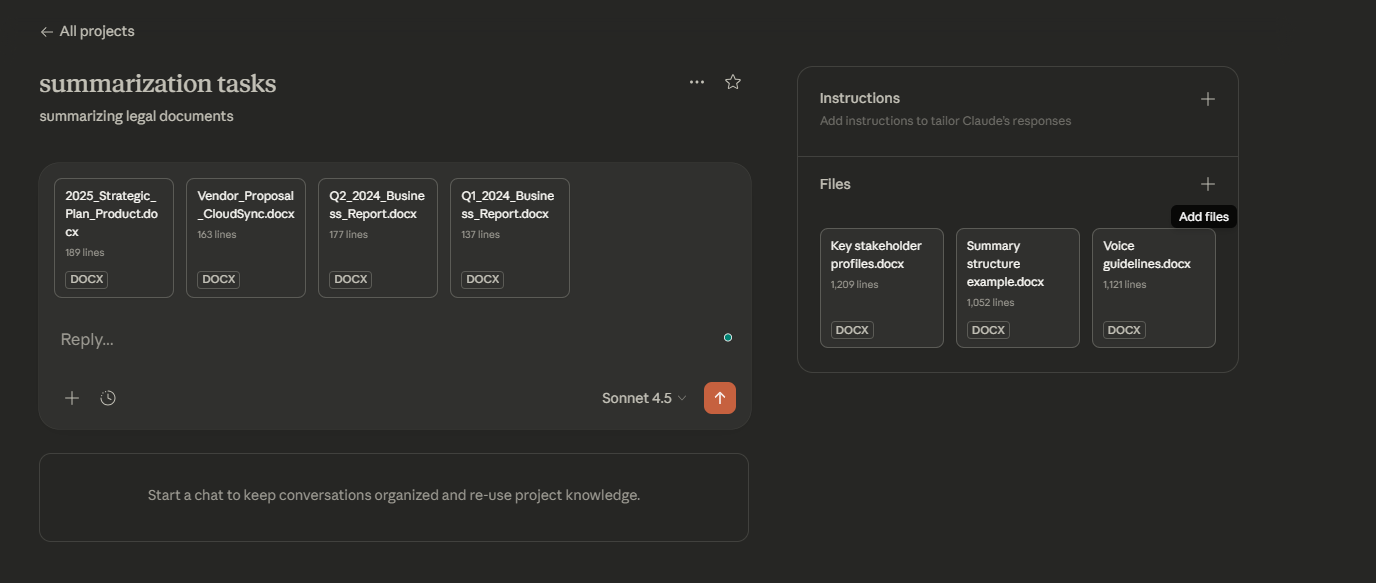
Upload reference documents and context materials that Claude will need across multiple summarization sessions. Some examples of context documents include:
Now you’re ready to summarize. With your project configured, simply upload the documents you want to analyze in a new chat and ask Claude to summarize them.
Claude will apply your project instructions automatically to all the summaries.
📚 Read More: Best Note-Taking Apps (Free & Paid)
To produce meaningful summaries that make sense for your specific use case, you need to guide how Claude approaches the task. Here are three techniques that work well for multi-document summarization:
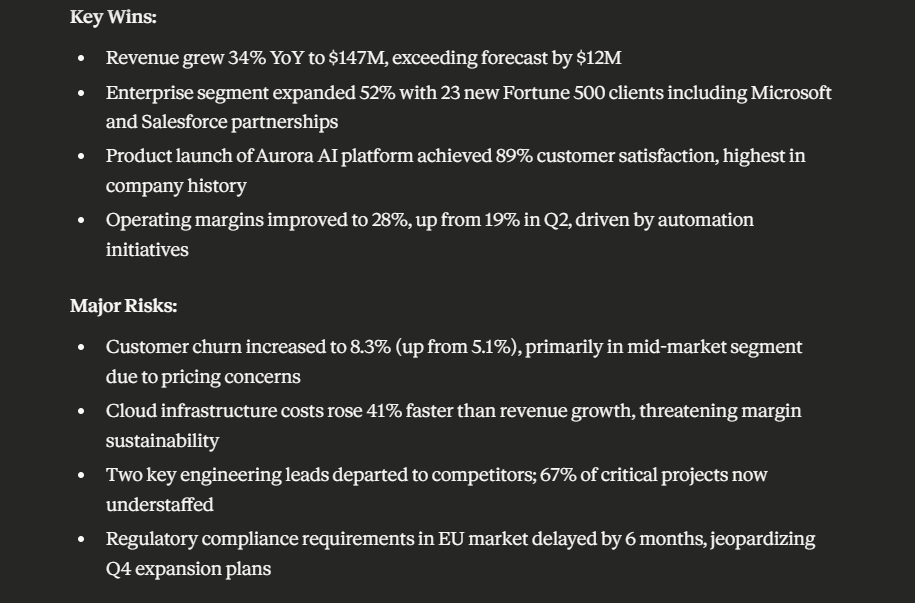
When documents are large and cover different angles of the same topic, you can offer specific instructions about what to focus on across your documents—financial data, methodology gaps, stakeholder concerns, whatever matters for your use case.
Some examples of guided prompts include:
💡 Pro Tip: Use XML tags to structure your prompts when dealing with multiple documents. For example:
<documents><doc1>Quarterly_Report.pdf</doc1>
<doc2>Annual_Strategy.pdf</doc2>
</documents><task>Compare revenue projections between these two files</task>
This helps Claude parse complex instructions more reliably.
This is useful when you’re dealing with long documents that would exceed token limits if processed together, or when each document needs its own summary before you can see the bigger picture.
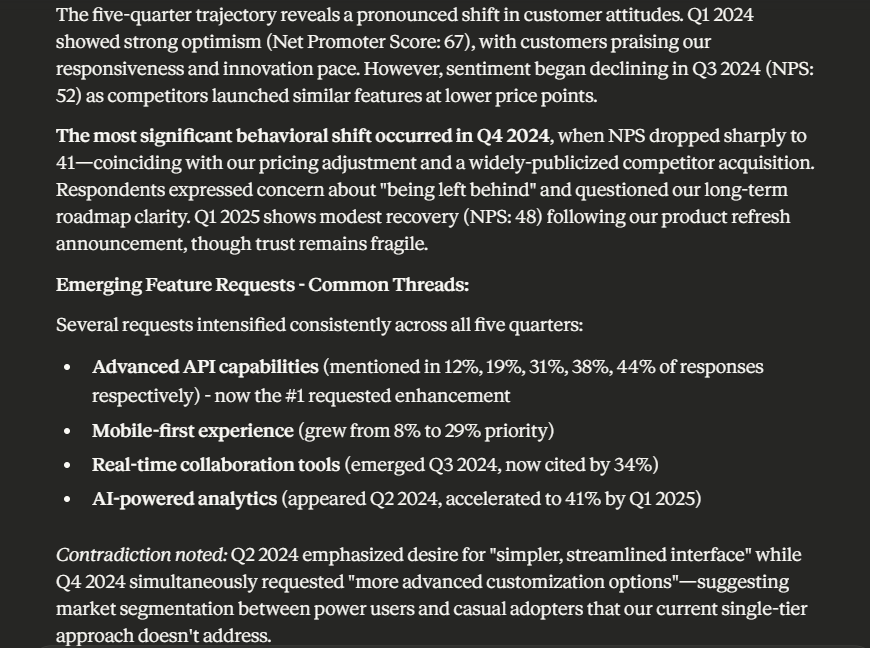
In such cases, summarize by breaking documents into smaller, manageable chunks and processing each chunk separately. Then combine the summaries of each chunk to create a meta-summary of the entire collection. Here’s how it works in practice:
Stage 1: Upload your files and prompt Claude to summarize each one separately. For example: “Summarize Legal_Contract_A.pdf, focusing on liability clauses and termination conditions,” then repeat for Contract B, C, and D
Stage 2: Take those individual summaries and ask Claude to create a meta-summary
Example prompt:
You are reviewing summaries from five different market research reports (Q1_2024 through Q1_2025). Combine these individual summaries into a cohesive analysis that tracks:
1. Customer sentiment trends over time
2. Emerging product feature requests across all quarters
3. Shifts in competitive positioning mentioned by respondents
4. Changes in pricing sensitivity or budget constraints
5. Geographic differences in preferences (if noted)
Present findings in a narrative format that shows evolution over the five quarters. Flag any contradictions between reports and note which quarter showed the most significant shift in customer behavior.
💡 Pro Tip: Use Claude Code to generate detailed pull request descriptions automatically by analyzing your git commits. It summarizes changes, explains the reasoning behind updates, and flags potential breaking changes for reviewers.
Summary-indexed documents are an advanced approach to Retrieval-Augmented Generation (RAG) that operates at the document level.
This method is particularly helpful when precise information retrieval matters—like when you need to trace which document supports a specific claim or when compliance requires attribution. Here’s how it works:
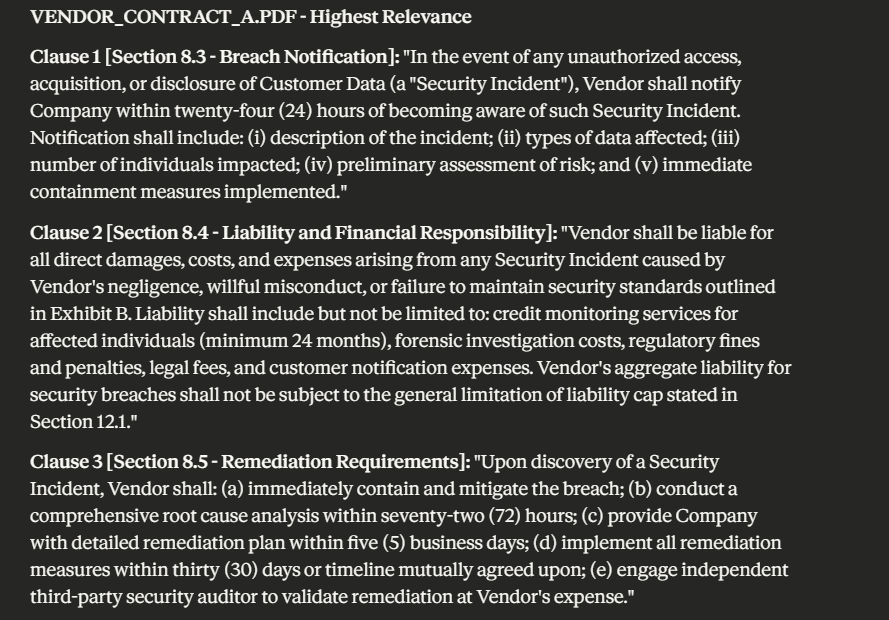
Example prompt:
Given the following query and document summaries, identify which documents are most relevant, then extract the specific clauses that answer the query.
Query: What are our contractual obligations if a vendor experiences a data breach affecting customer information?
Documents: Vendor_Contract_A.pdf, Vendor_Contract_B.pdf, Vendor_Contract_C.pdf, Vendor_Contract_D.pdf
Steps:
For teams that need to automate repetitive summarization workflows, you can write code to interact with Claude’s API and process summaries programmatically.
💡 Pro Tip: Use custom slash commands in Claude to trigger pre-defined workflows like “/summarize-contracts” or “/extract-findings” without retyping instructions every time you need the same analysis format.
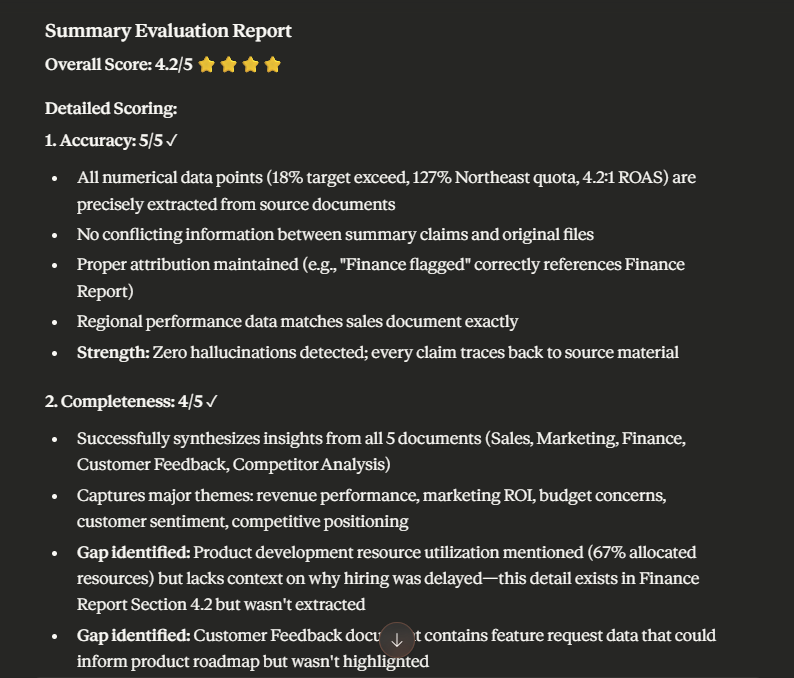
Now evaluate the summaries against set criteria. Here are a few ways you can do that:
Prompt: Please evaluate the Q1 2024 Cross-Functional Performance Summary you just generated against the pre-decided scoring rubric. Rate each criterion on a scale of 1-5 and provide justification for each score, and recommendations for improvement.
📚 Read More: How to Organize Your Notes Effectively
Export the summaries generated to a place where your team can act on them. After all, summaries are meant to keep work moving forward and support strategic decision-making.
Depending on your use case, Claude lets you export detailed summaries in multiple formats:
| Export format | Best for |
| Formal reports, stakeholder presentations, and compliance documentation | |
| Markdown and JSON output | Documentation wikis, GitHub repositories, or tools like Notion and Confluence, where formatting needs to be preserved |
| Spreadsheet (CXV/ Excel) | When summaries include structured data like comparisons, metrics, or tabular findings that need further analysis |
⭐ Bonus: We’ve curated this mini video guide to prompt engineering to help you ask AI better questions.
📮 ClickUp Insight: More than half of employees struggle to find the information they need at work. While only 27% say it’s easy, the rest face some level of difficulty, with 23% finding it very difficult.
When knowledge is scattered across emails, chats, and tools, wasted time adds up fast. With ClickUp, you can turn emails into trackable tasks, link chats to tasks, get answers from AI, and more within a single workspace.
💫 Real Results: Teams can reclaim 5+ hours every week using ClickUp—that’s over 250 hours annually per person—by eliminating outdated knowledge management processes. Imagine what your team could create with an extra week of productivity every quarter!
📚 Read More: How to Write an Objective Summary Like a Pro
Multi-document summarization gets complicated when you expect Claude to synthesize information across sources without explicit instructions.
Here are some prompting strategies you can follow for different use cases:
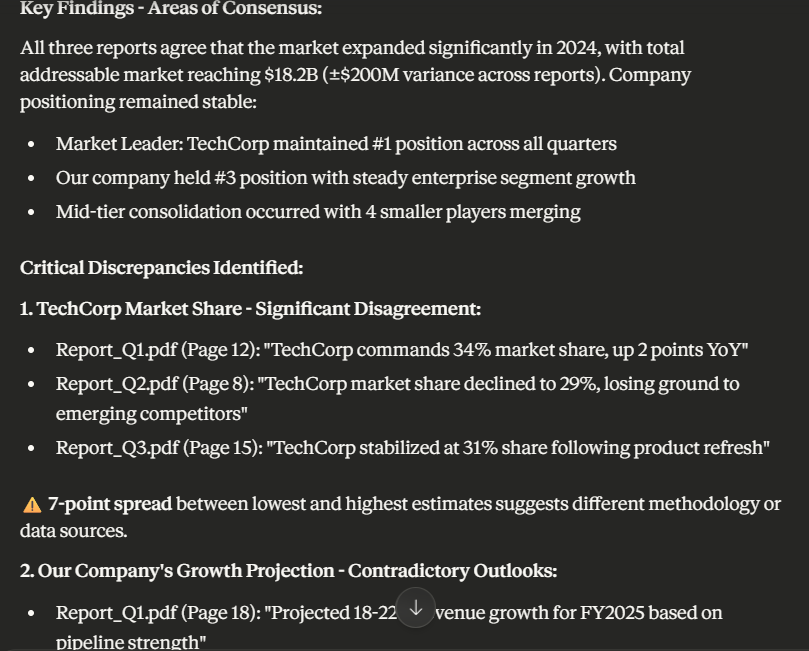
When the provided documents conflict on facts, timelines, or any critical detail, don’t leave it to Claude to figure out the best version.
💡 Here’s the prompting pattern to follow:
🤖 Example prompt: I’ve uploaded three competitor analysis reports (Report_Q1.pdf, Report_Q2.pdf, Report_Q3.pdf) on market share estimates for our industry. Summarize the key findings, but flag where the reports disagree on market share percentages or growth projections with citations
When you want Claude to compare multiple documents side by side, structure matters. Without clear comparison criteria, you’ll get surface-level differences that don’t help you decide anything.
💡 Here’s the prompting pattern to follow:
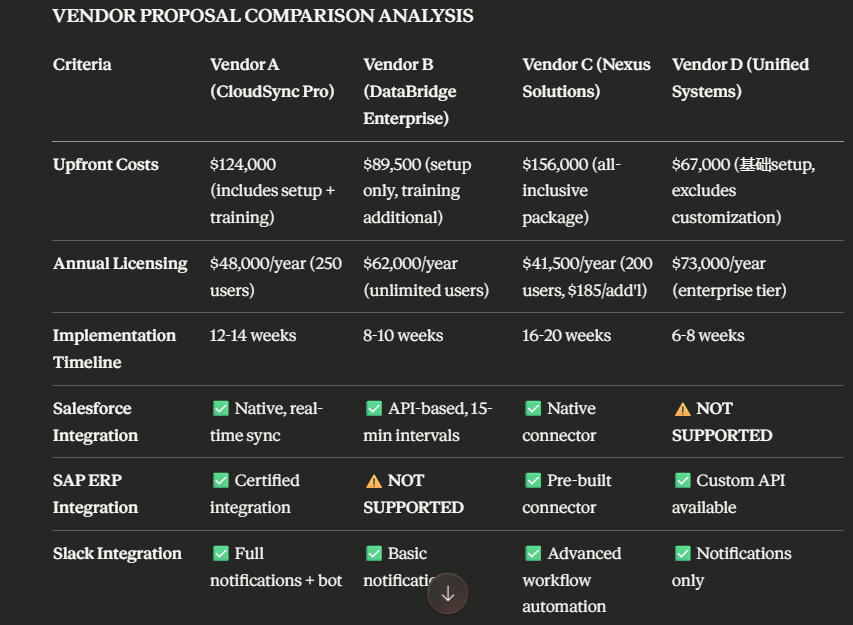
🤖 Example prompt: Compare these four vendor proposals and create a summary table comparing upfront costs, annual licensing fees, implementation timeline, required integrations, and data migration support. Flag any vendor that’s missing critical integrations we need.
In multi-document work, you need to trace claims back to specific files for verification, compliance, or follow-up.
💡 Here’s the prompting pattern to follow:
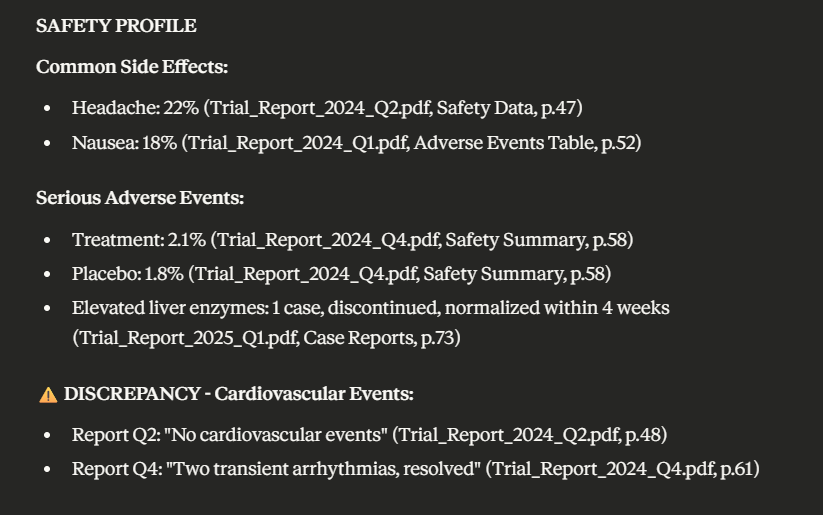
🤖 Example prompt: Summarize findings from these eight clinical trial reports on the effectiveness of Treatment X. For every claim about efficacy, side effects, or patient outcomes, cite the specific trial report and the section where that data appears. Use this format: [Finding] (Source: Trial_Report_2024_Q2.pdf, Results Section, Page 14). If any conclusion requires combining data from multiple reports, note that explicitly.
⚡ Template Archive: Project Update Templates in ClickUp and Word
When you’re working with multiple documents that should collectively cover a topic, missing information is as critical as understanding common themes. Claude can help you spot those gaps.
💡 Here’s the prompting pattern to follow:
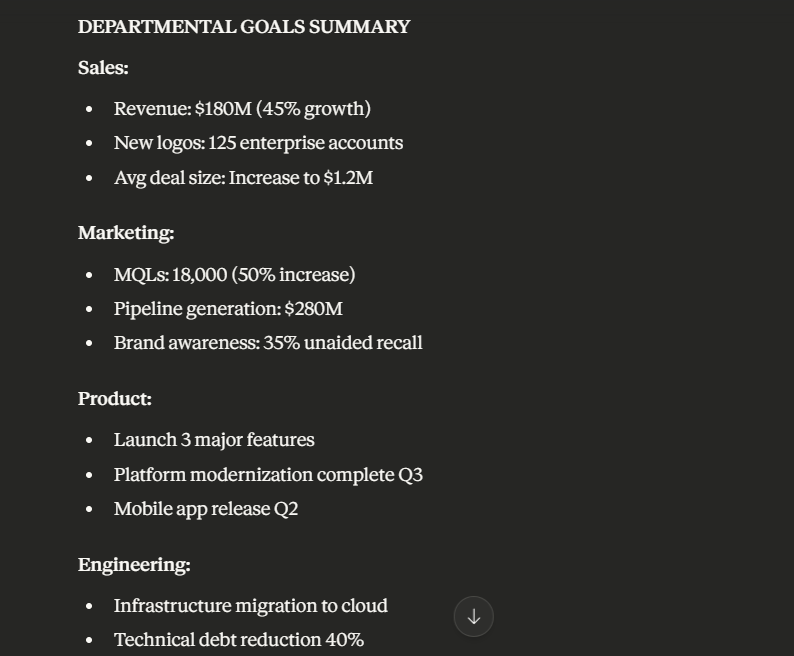
🤖 Example prompt: Analyze these five strategic planning documents from different departments (Sales, Marketing, Product, Engineering, Customer Success). Each should outline 2025 goals, budget requirements, headcount needs, and key initiatives. Identify which departments are missing any of these elements and flag where goals from different departments might conflict
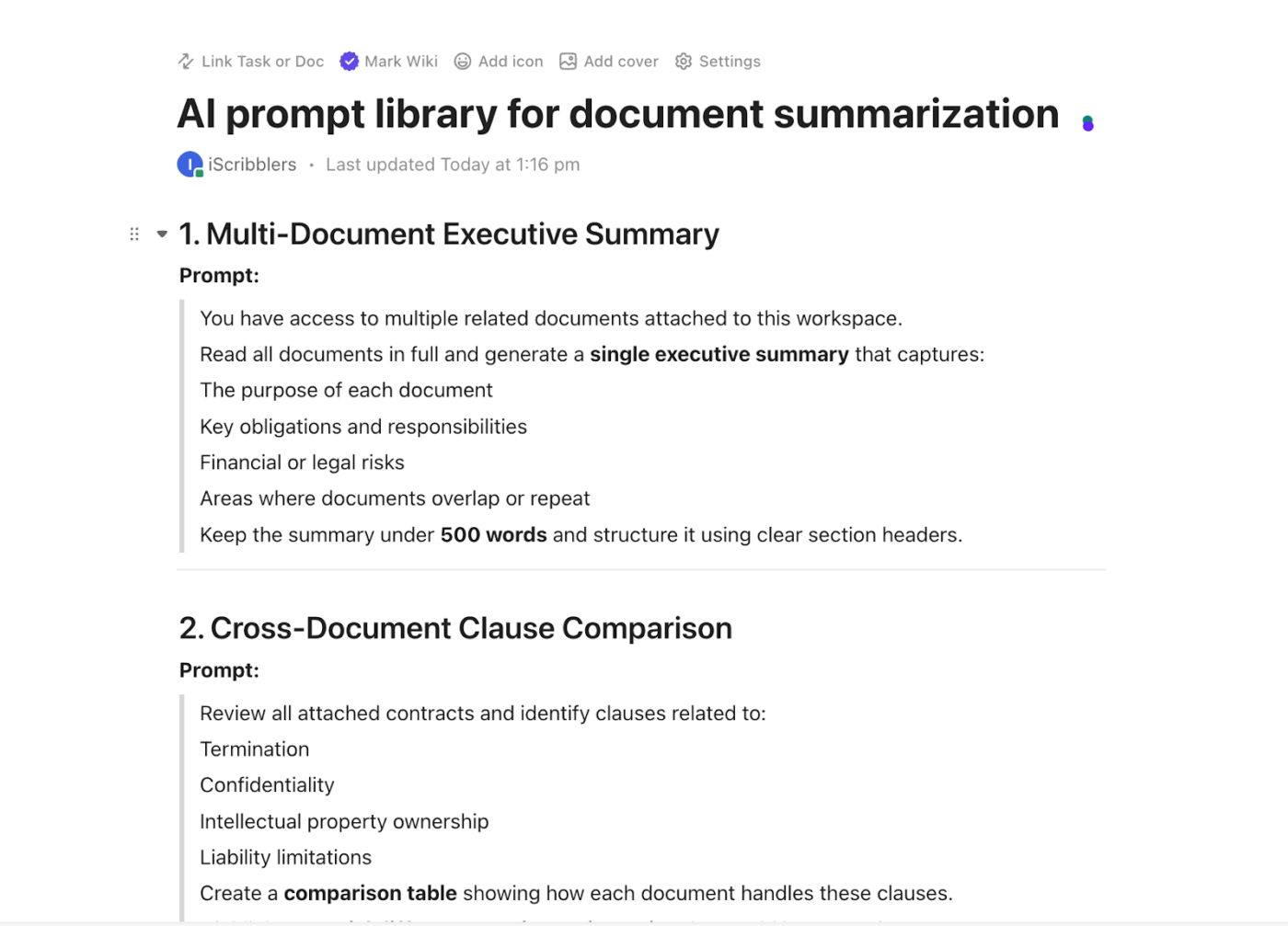
💡 Pro Tip: Build a library of Claude prompts for different summarization scenarios—vendor contract analysis, research synthesis, quarterly report consolidation, customer feedback analysis, etc. This way, your team can have institutionalized knowledge of prompts they can use as templates and experiment with.
Using Claude for multi-doc summarization for the first time? Here are some beginner-friendly practices to get better outputs:
👀 Did You Know? Claude follows a Constitutional AI framework where its responses are guided by ethical principles, meaning your document summaries are processed through a lens of accuracy and harmlessness, not just efficiency.
Here are a few mistakes to avoid when using Claude for summarizing multiple docs simultaneously and what to do instead:
| ❌ Mistake | ✅ What to do instead? |
| Uploading files without organizing | Name files descriptively, i.e., Q3_Sales_APAC.pdf, and group related documents before upload |
| Uploading unstructured, low-quality files | Run OCR on scanned complex documents and extract tables and images separately. Ensure text is machine-readable before uploading |
| Not maintaining semantic relationships when splitting files | Split documents logically (by chapters, sections, or topics) to preserve context rather than breaking at arbitrary page counts |
| Treating abstractive summaries as factual without verification | Ask Claude to include direct quotes for critical claims alongside its abstractive summary, giving you both the synthesized insight and the original language to compare |
| Misinterpreted data | Ask Claude to first reflect on its understanding of the data—what are the fields, what relationships exist between them—then correct any misinterpretations before requesting the summary |
👀 Did you know? Nearly 180 zettabytes of data are being created each year globally. Businesses have a goldmine of information hidden within this raw data. Those who can leverage it can tap into opportunities invisible to everyone else.
Claude AI is built for multi-doc summarization. But that’s where it ends. When your projects move to action, you’ll start noticing the following limitations 👇
👀 Did You Know? While data is considered a goldmine of value, that value often goes uncaptured. According to a report, more than 43% of collected data is never actually leveraged.
Even when Claude does the heavy lifting of summarizing multiple documents, you still need a separate system to keep those summaries accessible. A place to execute on them. Somewhere that keeps projects moving instead of letting insights sit idle.
That’s exactly what ClickUp, the everything app for work, offers.
This converged AI workspace connects projects, documents, chats, tasks, and knowledge.
No need to copy and paste summaries between tools for your team to act on them.
Here’s how it works.
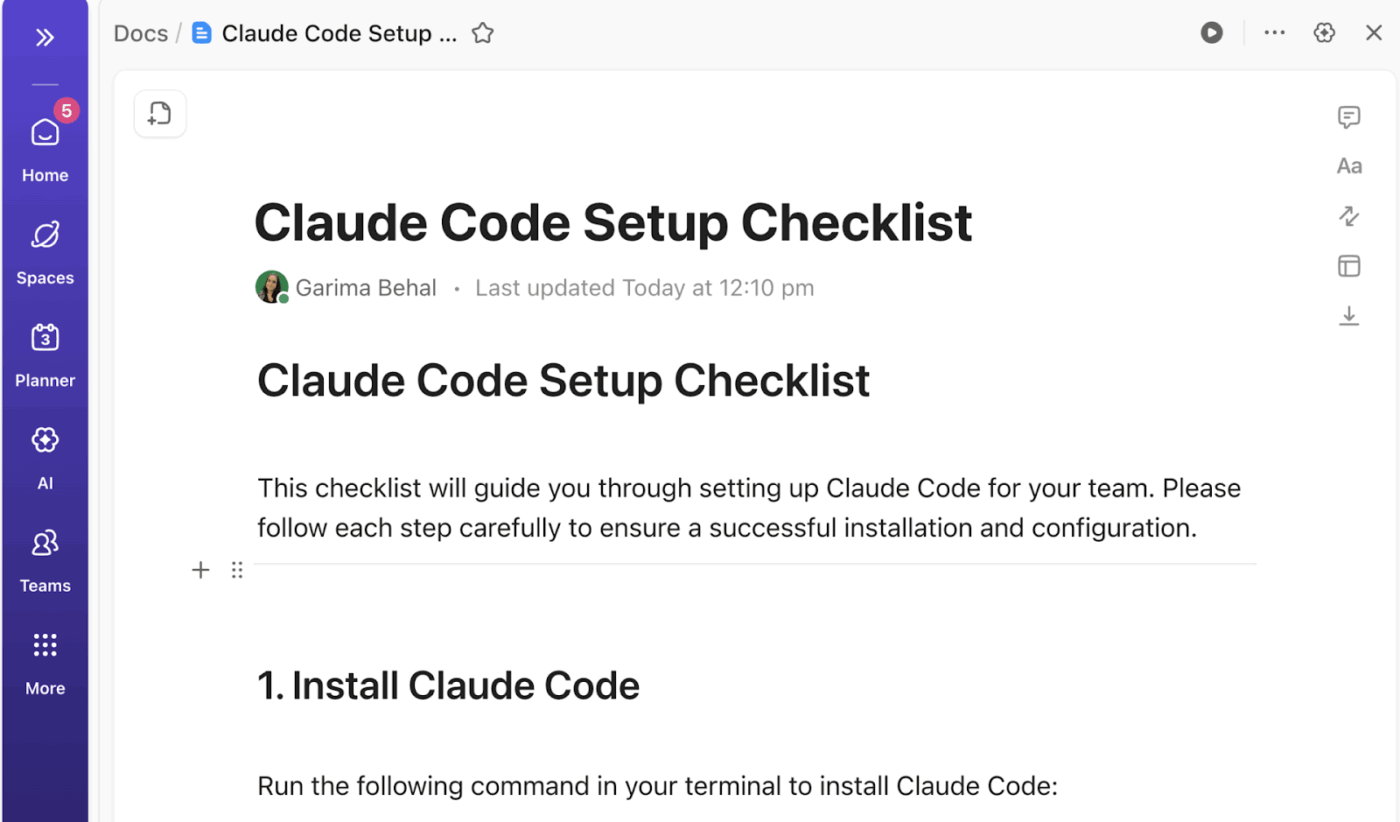
Use ClickUp Docs as a centralized knowledge space.
Write and store the project documentation in Docs. You can structure information with nested pages, embed YouTube videos, add tables and PDFs, etc.
Being a collaborative workspace, you can tag team members with comments and assign action items. They can then be converted into trackable tasks.
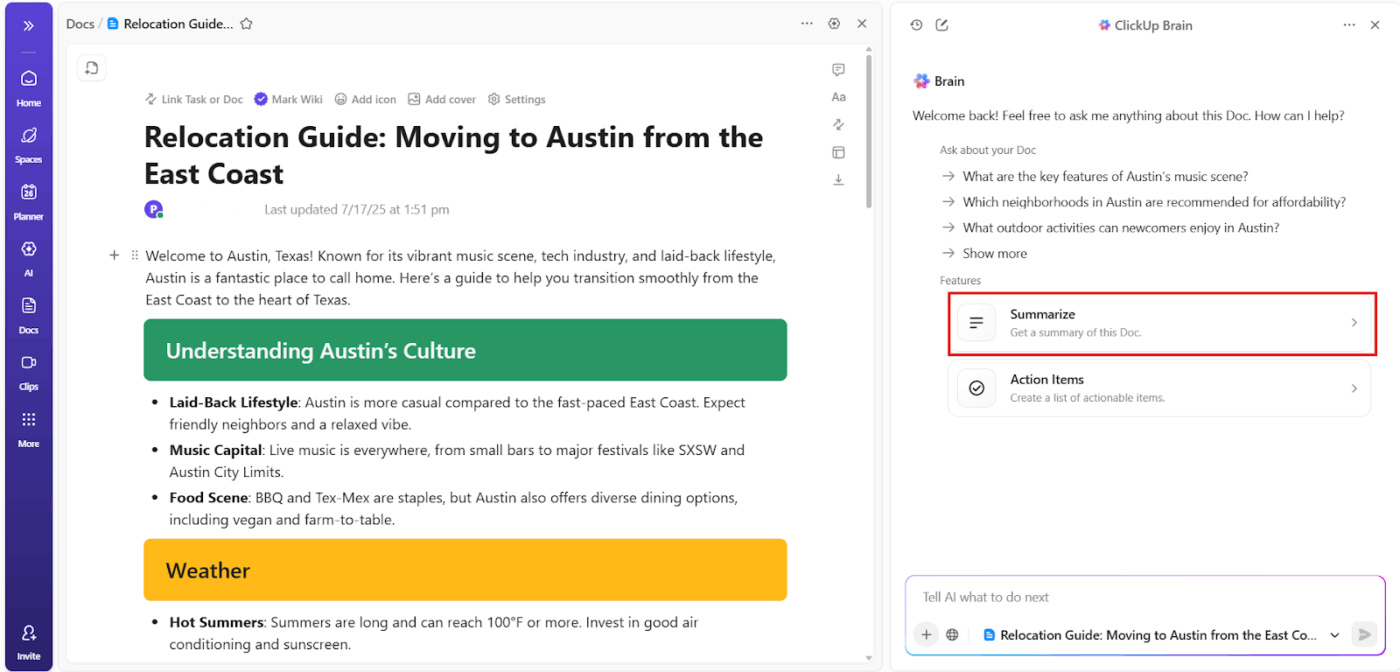
Going ahead, you can ask AI to summarize text for you. Give prompts on the summary’s tone, readability level, and audience to make it more contextually relevant.
💟 Bonus: Best AI Document Summarizers to Try
If you need native AI within your workspace, ClickUp Brain analyzes real-time information from your tasks, documents, and chats.
This contextual AI can do it all—generate task or document summaries, suggest refinements to your writing, create content (text and images), draft project updates, and more— enhancing your overall productivity.
For any given task, Brain can reference:
Because Brain operates within ClickUp’s permission model, it only surfaces information the user is allowed to see.
Instead of generating output in isolation, the AI reasons over live workspace data and comes back with answers that reflect the real execution state.
⭐ A bonus on how to use ClickUp AI: ClickUp Brain can also analyze spreadsheets for you! Simply upload your spreadsheet in a chat, and prompt it to review the data, provide summaries, highlight key trends, and answer specific questions about the information.
The biggest friction with Claude isn’t the summarization itself. It’s getting the data to Claude in the first place.
Your documents are scattered across Google Drive, Slack, project folders, and old email threads. Before you even start summarizing, you’re manually hunting and exporting. That’s where the real time goes.
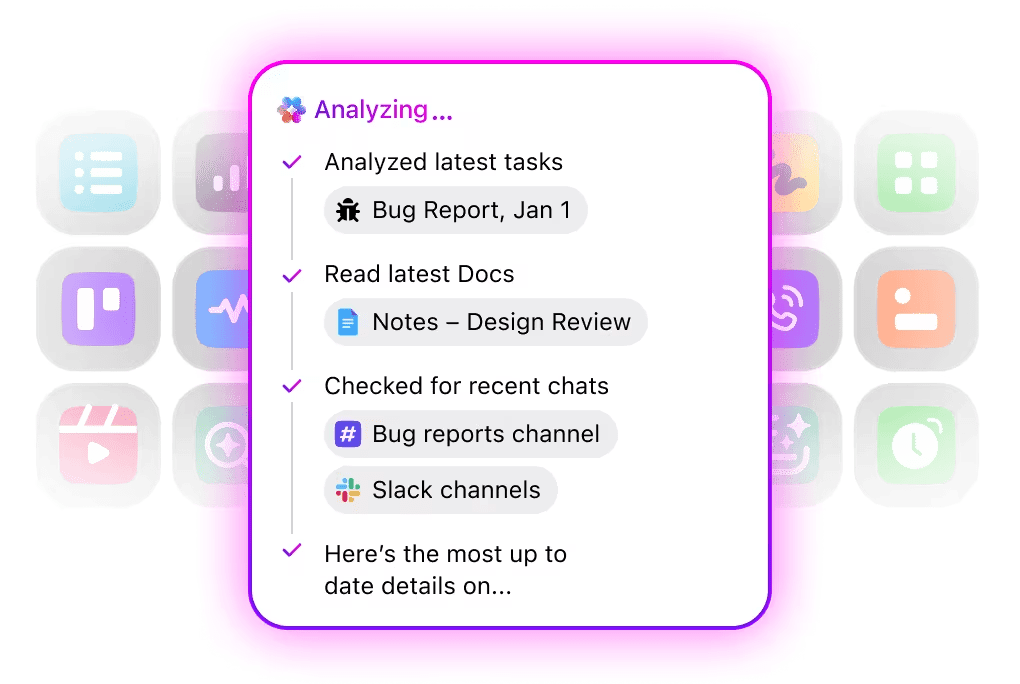
ClickUp’s Enterprise Search cuts that out. It scans across Docs, tasks, comments, and connected apps like Google Drive and SharePoint. All you need to do is ask in natural language, and it searches across:
Unlike traditional keyword search, Brain returns answers and related files based on how work is organized. This is especially valuable in large workspaces where information is fragmented across projects, teams, and tools.
Instead of hunting through folders or dashboards, teams can ask questions like:
That said, getting a summary is only half the job. The real value comes when that synthesis becomes something your entire team can build on.
ClickUp Brain summarizes tasks and project updates on the go. Add AI Summary and AI Project Updates as two columns in your task list, and you’ll even get automatic summaries without opening each task individually.
📌 For instance:
Summarization projects with Claude end when the session ends.
Next time you want to update those summaries, you’re starting from scratch—feeding context, re-uploading files, re-explaining importance, prompting, and testing narratives. The synthesis doesn’t build on itself. It just sits there, static, until you manually recreate it.
Let’s say Claude summarizes five vendor proposals and concludes “Vendor A offers the best price-to-feature ratio.”
But it’s your team that knows Vendor A has terrible support and was the reason your last implementation ran three months over schedule.
Now, if all your summaries stayed in Claude, there would have been no way for your team to factor in or layer their judgment. Claude’s lack of collaborative capabilities means the synthesis stays locked in that chat window.
With ClickUp, your summarization isn’t limited to what AI extracts. It becomes a decision artifact that allows your team to collaborate in real time and layer their judgment.
When your synthesis is stored in ClickUp Docs, it’s much easier to:
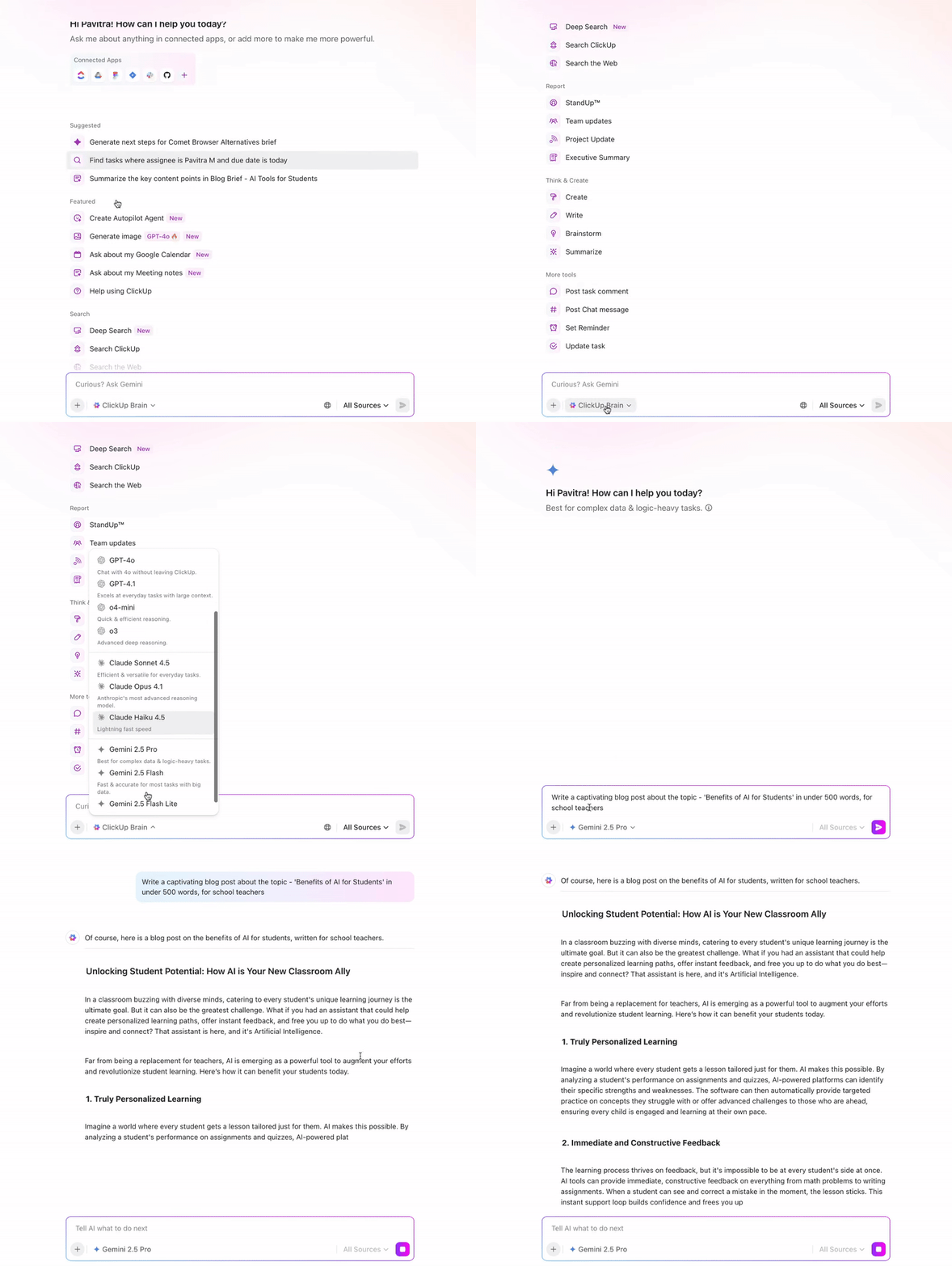
ClickUp Brain gives you access to multiple AI models, including Claude Sonnet 4, directly inside your workspace. You don’t need separate subscriptions or logins to other tools to experiment with different AI models.
No more summarizing vendor contracts in Claude, then manually copying insights back into your project management tool to create follow-up tasks. Your team can collaborate on those summaries in real time and turn findings into action without switching tabs.
📌 Example use cases:
✏️ Note: All model access is abstracted through ClickUp Brain. It means AI usage remains centralized, permissioned, and auditable within the workspace. This avoids the fragmentation that happens when teams rely on multiple standalone AI tools.
ClickUp’s Super Agents are built to act on those insights without waiting for you to prompt them.
They’re ambient AI assistants that continuously observe what’s happening across your workspace. They respond to changes in tasks, new document uploads, timeline shifts, and project milestones—without you having to manually trigger summarization each time.
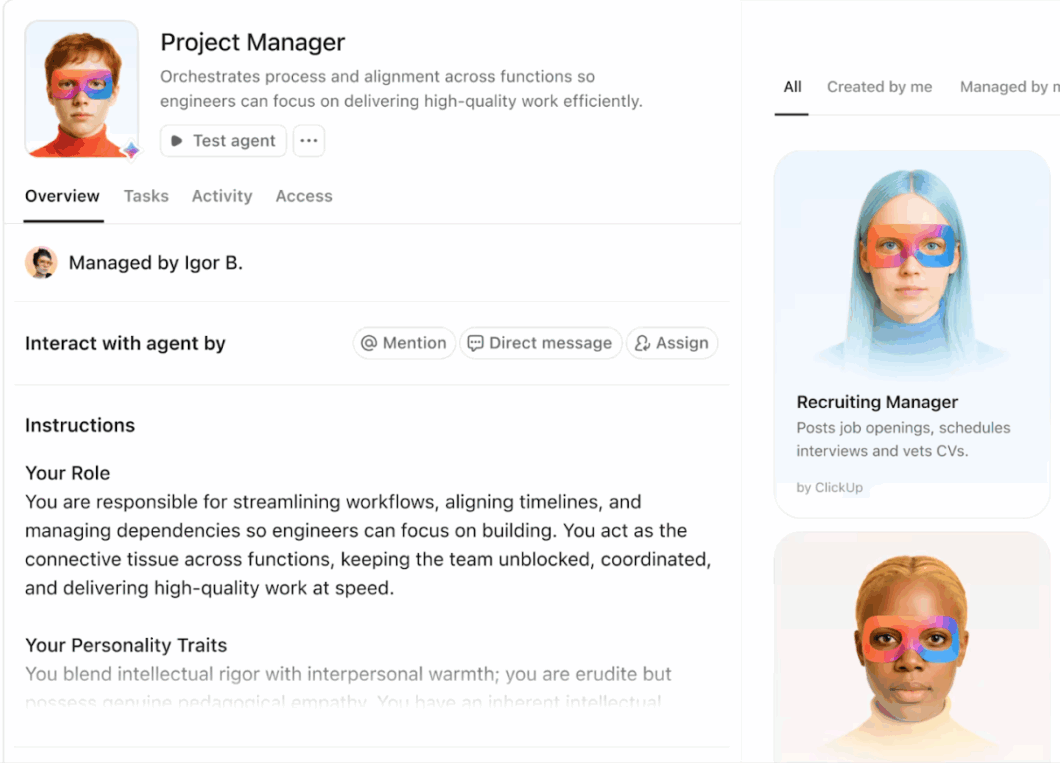
📌 Examples of what a Super Agent can do for you
This means your multi-document synthesis doesn’t stop when Claude’s session ends. It becomes a recurring workflow that runs in the background, keeping your team aligned without manual intervention.
To see it in action, watch this video on how ClickUp uses Super Agents 👇
When you’re staring at seven legal contracts, trying to prompt logical summarization, typing out instructions breaks your thinking. You lose the thread halfway through describing how to structure the output and what liability terms to compare.
ClickUp’s Talk to Text lets you verbalize your summarization needs without that friction. Speak naturally about what the documents contain, how they relate to one another, and what you need extracted. Define your analysis criteria, specify output structure, and clarify edge cases—all hands-free.
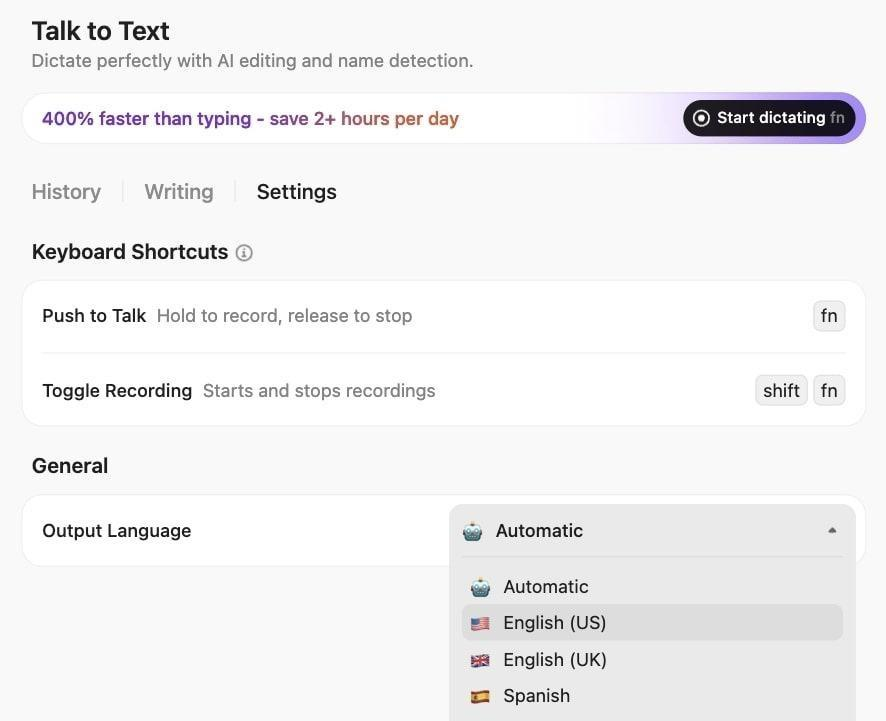
For multi-document summarization, this means you can:
Most AI tools sit next to your work. ClickUp’s Converged AI Workspace sits inside it.
ClickUp combines AI with live projects, tasks, documents, conversations, and timelines in one system. That means AI understands not just what you’re asking—but what’s already happening, what’s blocked, and what needs to move next.
The benefit of convergence means:
Ready to get started? Sign up on ClickUp for free ✅
Yes, Claude can analyze and summarize up to 20 files simultaneously with a 200K token context window, making it suitable for multi-document synthesis.
Claude can process up to 20 files at once, each up to 30 MB. For best results, batch documents by theme or time period rather than uploading everything at maximum capacity.
Claude’s accuracy when summarizing multiple docs depends on file quality, prompt specificity, the nature of the content, and your ability to provide guidance. Claude won’t fact-check or verify conflicting info on its own—it will just synthesize what you give it.
Claude can surface contradictions between sources and compare different perspectives, but it won’t determine which source is correct unless you provide evaluation criteria in your prompt.
No, it’s manually impossible to verify every claim in abstractive summaries—teams would have to parse through documents in detail, which defeats the purpose of summarization. Instead, use guided prompts to request direct quotes for critical claims, ask Claude to cite sources for key findings, and have it flag areas of uncertainty so you know exactly where to focus verification efforts.

© 2026 ClickUp

There’s an easier way. Try a free AI Agent in ClickUp that actually does the work for you—set up in minutes, save hours every week.