


Sorry, there were no results found for “”
Sorry, there were no results found for “”
Sorry, there were no results found for “”
Teams often struggle with scattered enterprise knowledge.
Important information gets lost across dozens of disconnected tools, making it nearly impossible to find accurate answers quickly.
This happens mainly because most companies treat knowledge management like a filing cabinet. Their processes may be digital, but the approach remains rooted in traditional, analog ways of thinking.
Information is organized in theory, but never actually connects to the work that needs to get done.
This guide walks you through setting up Amazon Q Business for enterprise knowledge management, from connecting your data sources to configuring security, plus how to bridge the gap between finding answers and taking action.
Amazon Q Business is AWS’s generative AI-powered assistant. It acts as a central, conversational chat assistant for your company’s internal information. Think of it as a single search bar that connects to your existing data sources, from documents to chat messages.
It’s important to distinguish this from Amazon Q Developer, which is a separate tool built specifically for coding and software development tasks.
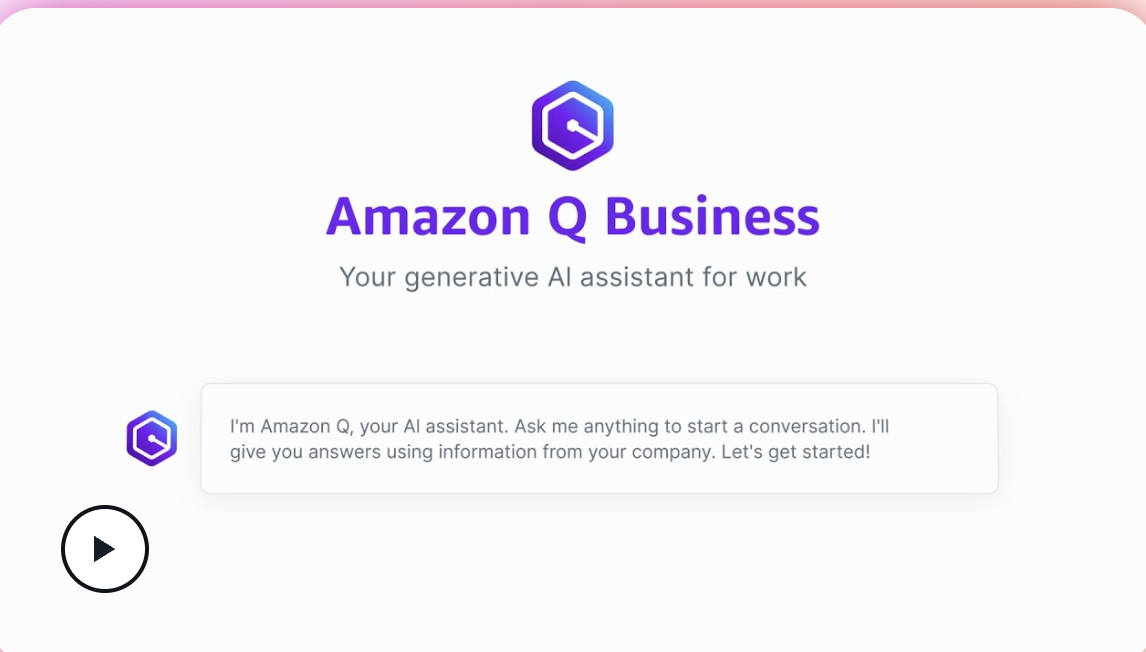
Amazon Q Business is custom-built for general enterprise knowledge. It utilizes a technology called retrieval-augmented generation (RAG), which means it grounds its answers in your actual company documents, while actively preventing the AI from hallucinating information.
Additionally, its permission-aware system respects the access controls you already have in place. If an employee can’t see a file in its original location, they will also not see it in Amazon Q’s search results.
Amazon Q Business focuses on three core capabilities:
Understanding the technical side helps you determine if a tool can truly address knowledge fragmentation or if it’s just another app contributing to tool sprawl.
With companies now running 101 different SaaS apps on average, adding another tool requires careful consideration. Amazon Q follows a clear workflow to turn your scattered data into searchable knowledge. It begins with data ingestion, proceeds to indexing, then retrieval, and ultimately, response generation.
The system doesn’t just read your documents; it breaks them down into smaller, manageable pieces called “chunks.” Each chunk is then converted into a vector embedding—a numerical representation of its meaning. This allows for neural search, where the AI can find conceptually related information, not just exact keyword matches.
When you ask a question, here’s the simplified flow:
This grounding mechanism is key. It ensures the AI “shows its work,” which helps build trust and avoids the black box thinking that happens when you have an answer but no idea where it came from or if it’s reliable.
A knowledge management system is only as good as the data it can access.
Most companies have information scattered everywhere, and the idea of a massive data migration project is often a non-starter. This is where Amazon Q’s connector-based approach comes in handy.
Instead of forcing you to move all your data into a new system, Amazon Q Business uses over 40 native connectors to index content right where it lives. This means you can connect to your existing tools without a painful migration process.
The key here is to be strategic. Start with your most valuable data sources rather than trying to connect everything at once.
Each connector is designed to respect the source system’s access control lists (ACLs), maintaining your existing security and permissions. It also uses a “delta sync” capability, which means after the initial full scan, it only processes documents that have been changed or updated, saving time and resources.
Amazon Q Business connects to many of the platforms your teams already use daily. For any proprietary or unsupported systems, you can use the custom connector SDK to build your own.
| Category | Example connectors |
|---|---|
| Cloud storage | Amazon S3, Google Drive, OneDrive |
| Collaboration | Confluence, SharePoint, Notion |
| Communication | Slack, Microsoft Teams |
| CRM/Support | Salesforce, Zendesk, ServiceNow |
| Databases | Amazon RDS, Aurora |
Connecting a new data source is a guided process. You’ll select the connector and provide the necessary authentication, which might be an API key or an OAuth login. The system then performs an initial “full sync” to process all existing documents.
After that, it switches to “incremental syncs” to keep the index up to date by only processing new or changed content.
The document processing pipeline handles extracting the text, chunking it, creating embeddings, and adding it to the index. You’ll receive notifications if any part of the ingestion process fails, allowing you to quickly address any issues.
You need to find the right balance between data freshness and cost. More frequent syncs provide more up-to-date information but also consume more resources, which can increase your AWS bill.
📮ClickUp Insight: The average professional spends 30+ minutes a day searching for work-related information—that’s over 120 hours a year lost to digging through emails, Slack threads, and scattered files.
An intelligent AI assistant embedded in your workspace can change that. Enter ClickUp Brain. It delivers instant insights and answers by surfacing the right documents, conversations, and task details in seconds—so you can stop searching and start working.
💫 Real Results: Teams like QubicaAMF reclaimed 5+ hours weekly using ClickUp—that’s over 250 hours annually per person—by eliminating outdated knowledge management processes. Imagine what your team could create with an extra week of productivity every quarter!
Getting started with a new enterprise AI tool can feel overwhelming, but breaking it down into clear, manageable steps makes the process more manageable.
You’ll need an AWS account with the right IAM permissions to begin. A basic setup can be done in a few hours, but a full production deployment with multiple data sources might take a few days.
First, head to the AWS Management Console and search for the Amazon Q Business service. Here, you’ll create a new “application.” This application will be the container for your data sources, index, and web interface.
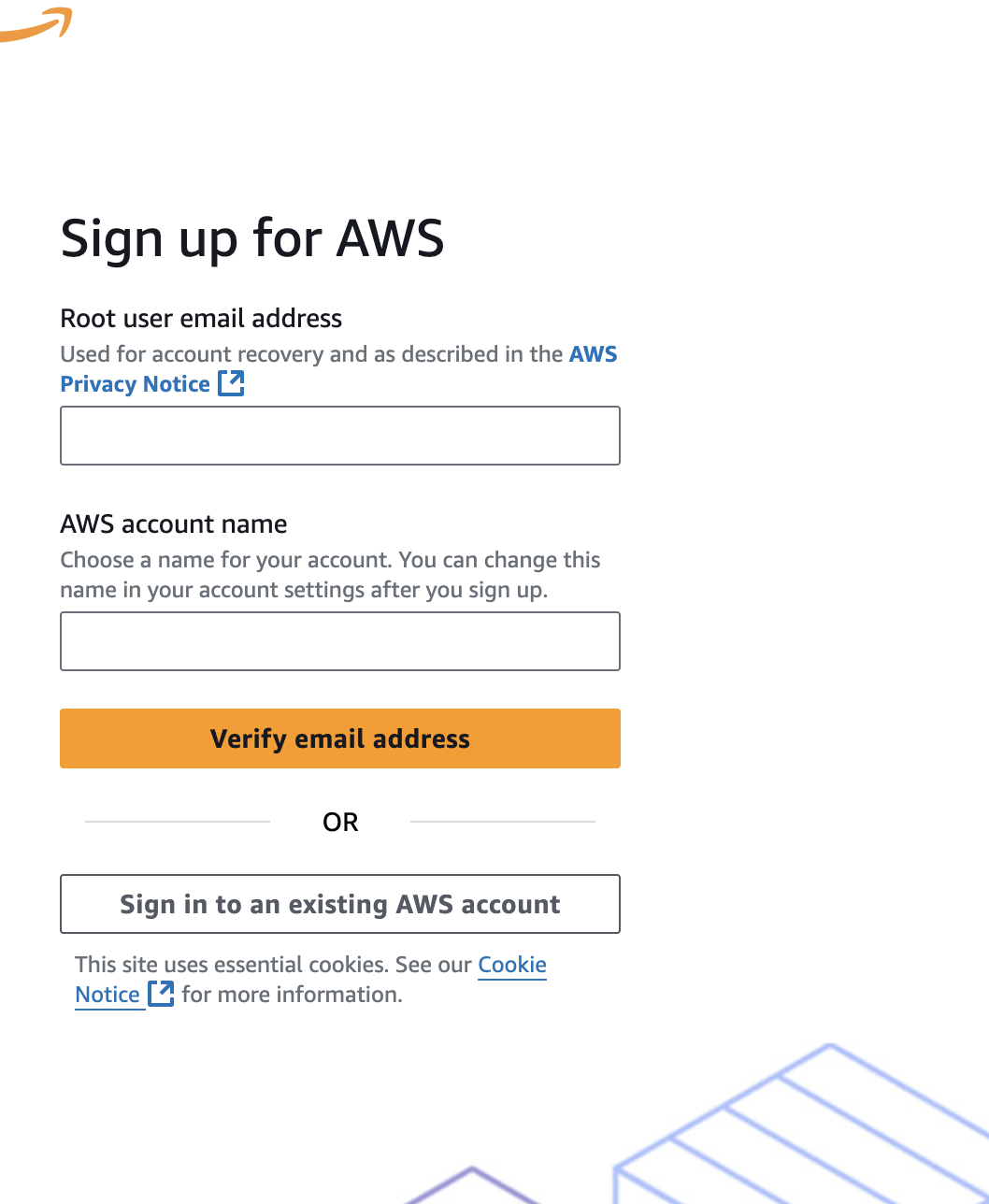
When creating it, you’ll need to give it a clear name and choose the AWS region where it will be deployed. This choice is important for data residency and compliance requirements.
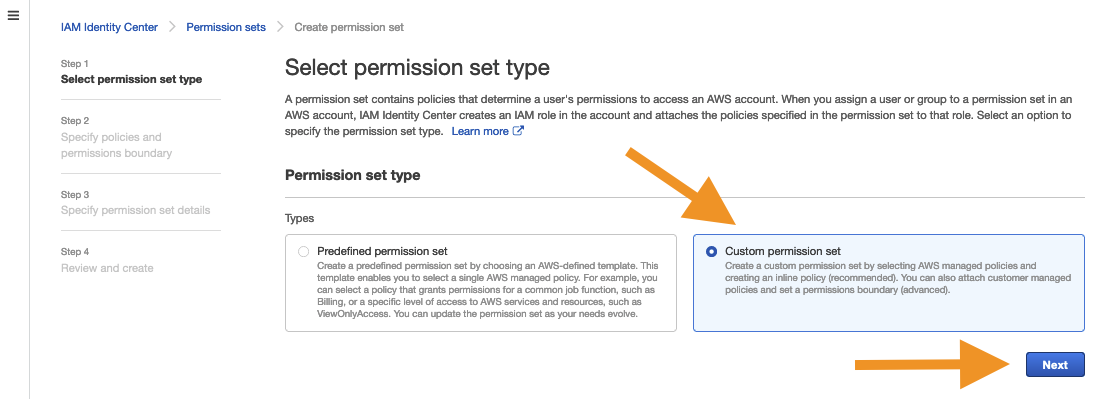
Amazon Q Business requires AWS IAM Identity Center (the new name for AWS SSO) to manage user authentication. This is how you control who can access your AI assistant.
You have two main options: create a new identity source within AWS or connect to an existing identity provider that your company already uses, such as Okta or Azure AD.
Properly provisioning users is crucial for security. Everyone who needs to use Amazon Q must have an account in the Identity Center so their permissions can be managed correctly.
Now for the fun part: connecting your data. In your Amazon Q application, you’ll navigate to the data sources section and start adding connectors. The interface will guide you through the authentication process for each one.
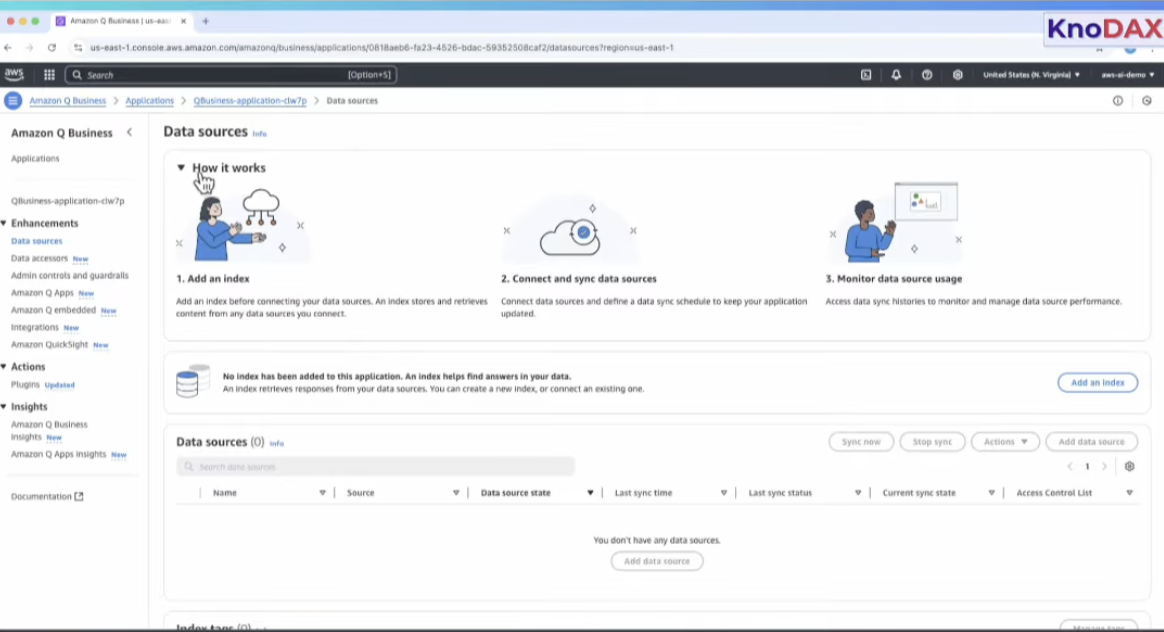
It’s a good practice to start with a smaller subset of data for testing—for example, a single SharePoint site or one Slack channel. This lets you verify that the content is being indexed correctly before you roll it out to the entire company. You can monitor the sync progress directly from the console.
Amazon Q Business comes with a ready-to-use web interface that you can customize to match your company’s branding. You can add your logo, change the colors, and write a welcome message to guide users on what kind of questions they can ask.
Once you’re happy with the look and feel, you can deploy the web experience and share the URL with your team. For a more integrated experience, you can also use the APIs to embed the Amazon Q chat interface directly into other applications your team uses every day.
🎥 See how integrated knowledge transfer streamlines workflows and eliminates context switching in action!
Adopting any AI tool in an enterprise setting is impossible without clearing security and compliance hurdles. Handing over company data to an AI can be a major concern, but Amazon Q is designed with security built into its core architecture.
The most important security feature is its permission-aware retrieval. It automatically respects the access control lists (ACLs) from your source systems. This means the AI’s responses will only ever include content that a user is already authorized to see.
You can also configure guardrails to control the AI’s behavior. For example, you can block it from discussing sensitive topics or require it to cite sources for every answer.
Here are the key security features at a glance:
These controls give you the confidence to roll out a powerful AI tool without creating new security risks.
ClickUp Advantage: ClickUp BrainGPT brings search, context, and action into a single AI layer that sits across your entire workspace.
Instead of acting as a separate assistant, BrainGPT works directly on top of your tasks, Docs, Chat, calendar, and priorities. You can search for information, ask questions, understand what’s happening, and immediately turn answers into tasks, updates, or workflow changes without leaving your flow.
Because BrainGPT is powered by ClickUp’s Enterprise Search and full workspace context, it understands how work connects, what’s in progress, and what needs attention next.
The result is a unified AI experience where search leads directly to execution, and intelligence lives inside the work itself, not alongside it.
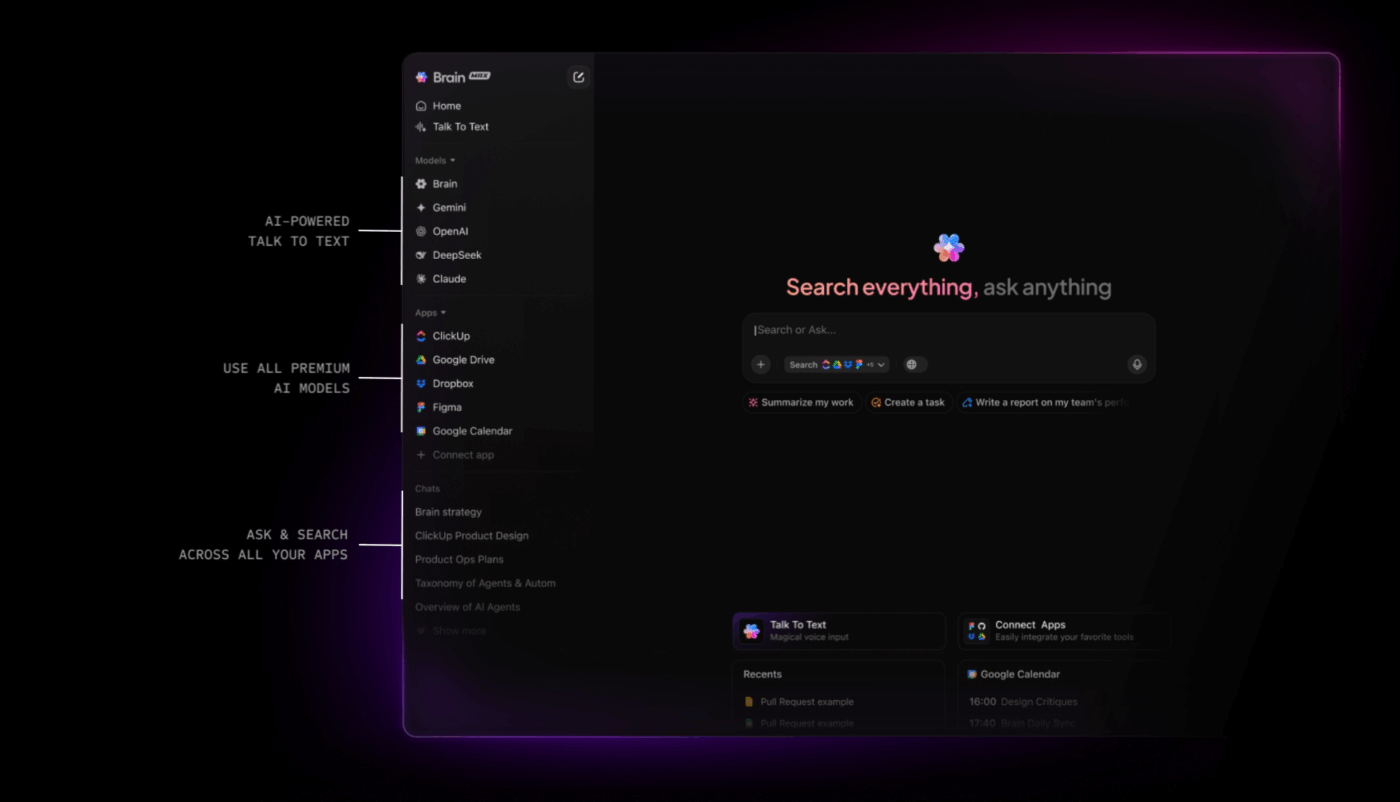
No tool is perfect, and it’s important to understand the limitations of Amazon Q Business before committing to it. Being aware of the trade-offs helps you set realistic expectations and avoid surprises down the road.
The biggest factor is its deep integration with the AWS ecosystem. If your company is already heavily invested in AWS, it’s a natural fit.
For teams not familiar with AWS services, there’s a steep learning curve for configuring things like IAM roles and VPCs—especially concerning when only 7% have scaled AI across the enterprise despite widespread adoption.
Here are some key limitations to consider:
The last point is the most critical. Knowledge retrieval alone doesn’t solve the underlying problem of disconnected workflow. Finding an answer is only the first step; you still need to turn that answer into action.
You already know the feeling. You find the answer you need, then manually carry it across tools.
From a search result to a doc. From a doc to a task. From a task to a chat message explaining what just happened. Somewhere in that relay race, context slips. What started as clarity turns into coordination work.
This is a workflow failure caused by fragmentation. Every handoff introduces friction, duplication, and the risk that knowledge becomes detached from action.
A converged AI workspace is not “one more tool.” It’s a single, secure environment where projects, documents, conversations, and analytics coexist by design. When everything lives together, knowledge no longer has to be transferred. It can move natively through the workflow.
That’s where ClickUp stands apart. Instead of bolting AI onto search or layering another assistant on top of existing tools, ClickUp lets you build a scalable knowledge transfer process inside the same system where work already happens. Your answers, decisions, and context stay attached to the execution they inform.
In a traditional setup, finding information is only the first step. You search in one tool, copy the answer, paste it into your project management system, create a task, then notify your team in chat. Each step adds delay and increases the chance that something gets lost or misunderstood.
Inside ClickUp, the loop collapses. You ask a question using ClickUp Brain, receive an answer with full workspace context, and immediately turn that response into a task, comment, or document update without leaving the screen. The answer doesn’t travel. It transforms.
ClickUp Docs live alongside the work they support, directly linked to tasks and projects. When plans change, updates happen in place, not in parallel systems.
Because Docs are action-aware, you can convert text into ClickUp Tasks or even link it to the relevant task the moment a decision is made. Knowledge and execution stay synchronized, which is exactly where most teams break down.
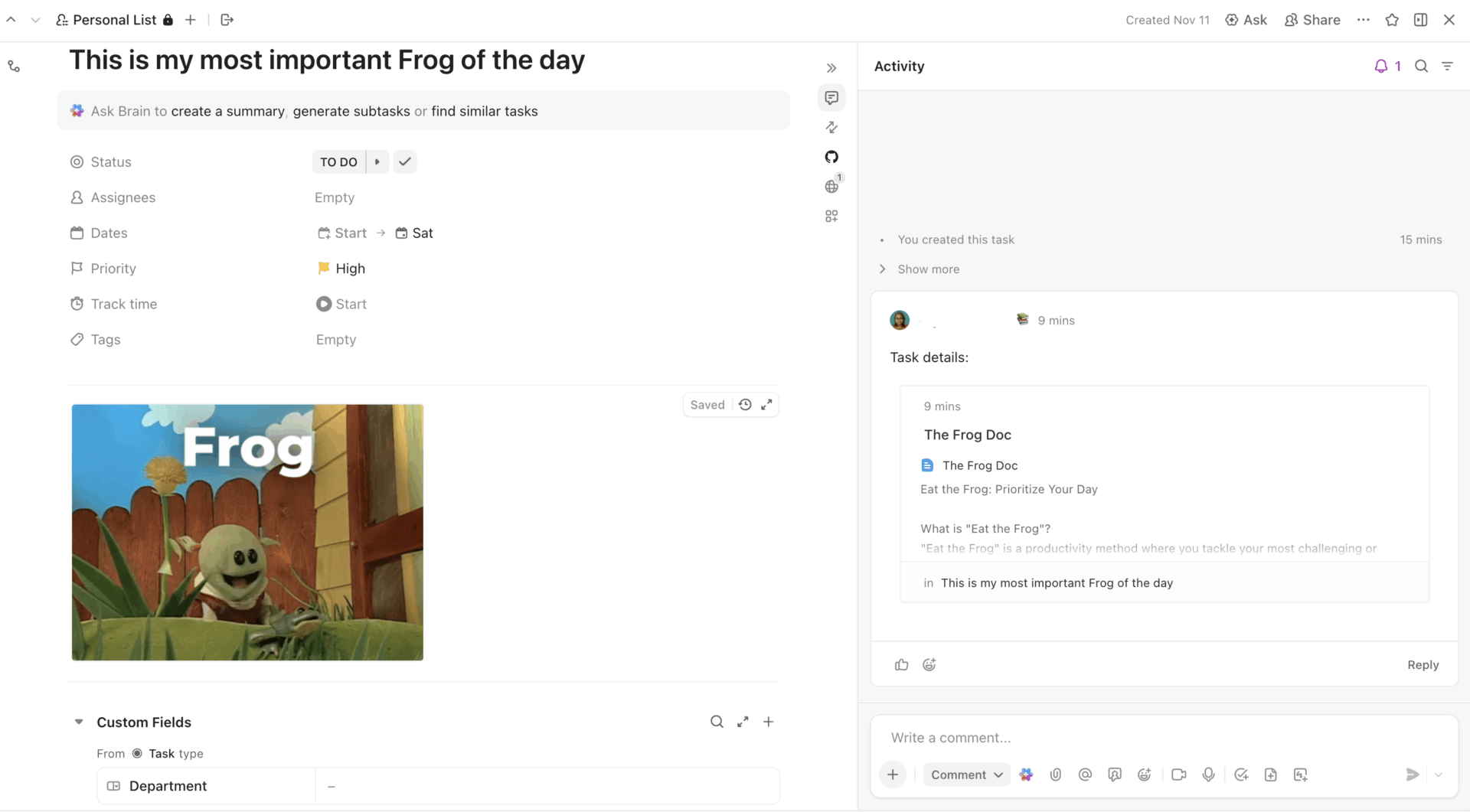
ClickUp Brain doesn’t just understand what you’re asking. It understands where that question sits inside your work.
Because it’s embedded directly into the workspace, Brain has visibility into your tasks, priorities, deadlines, owners, and calendar. It can see what’s due today, what’s overdue, what’s blocked, and how work is distributed across people and time. That means the answers you get are grounded in what’s actually happening right now.
When you ask for a summary, you’re getting an overview shaped by task status, recent activity, and upcoming commitments.
In most tools, search is passive. You look something up, then decide what to do next. But ClickUp Enterprise Search is an active component. The AI command bar you use to find information also lets you take action.
From a single command surface, you can search across tasks, Docs, comments, Chat threads, and connected third-party apps, then immediately turn what you find into work. Create tasks, update statuses, open Docs, jump into conversations, or trigger workflows without switching context.
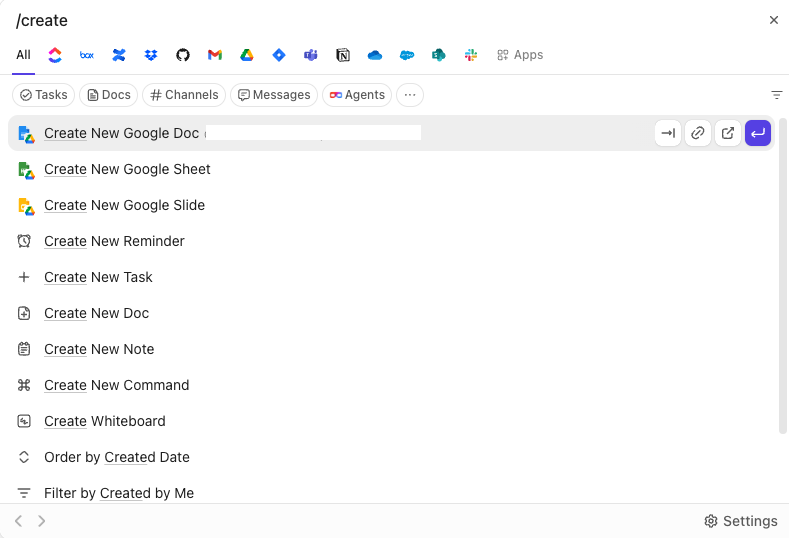
Instead of pausing work to hunt for context, teams use search to answer a question and move forward in one motion. The result is fewer dead ends, faster decisions, and far less time spent validating whether you’re looking at the right source.
Knowledge rarely goes stale because people forget to document. It goes stale because conversations happen elsewhere.
ClickUp solves this by tightly connecting ClickUp Chat into the workflows. Chat is embedded directly alongside the work it refers to. Messages can be linked to tasks, referenced in Docs, and revisited through search with full context intact.
As work evolves, teams update Docs collaboratively, discuss changes in Chat, and track decisions through comments and version history, all in the same system. There’s no separate “documentation phase” and no cleanup sprint required to restore accuracy.
Because conversations, decisions, and execution live together, your source of truth stays current by default. Not because someone maintained it perfectly, but because it evolved naturally as work progressed.
The ClickUp Advantage: ClickUp’s Super Agents turn your workspace into an environment that answers questions before they become blockers.
Instead of waiting for a prompt, Super Agents operate continuously across tasks, Docs, Chat, and timelines. They monitor changes, detect stalled work, surface risks, and provide ambient answers based on real workspace signals like missed deadlines, conflicting priorities, or unanswered questions.
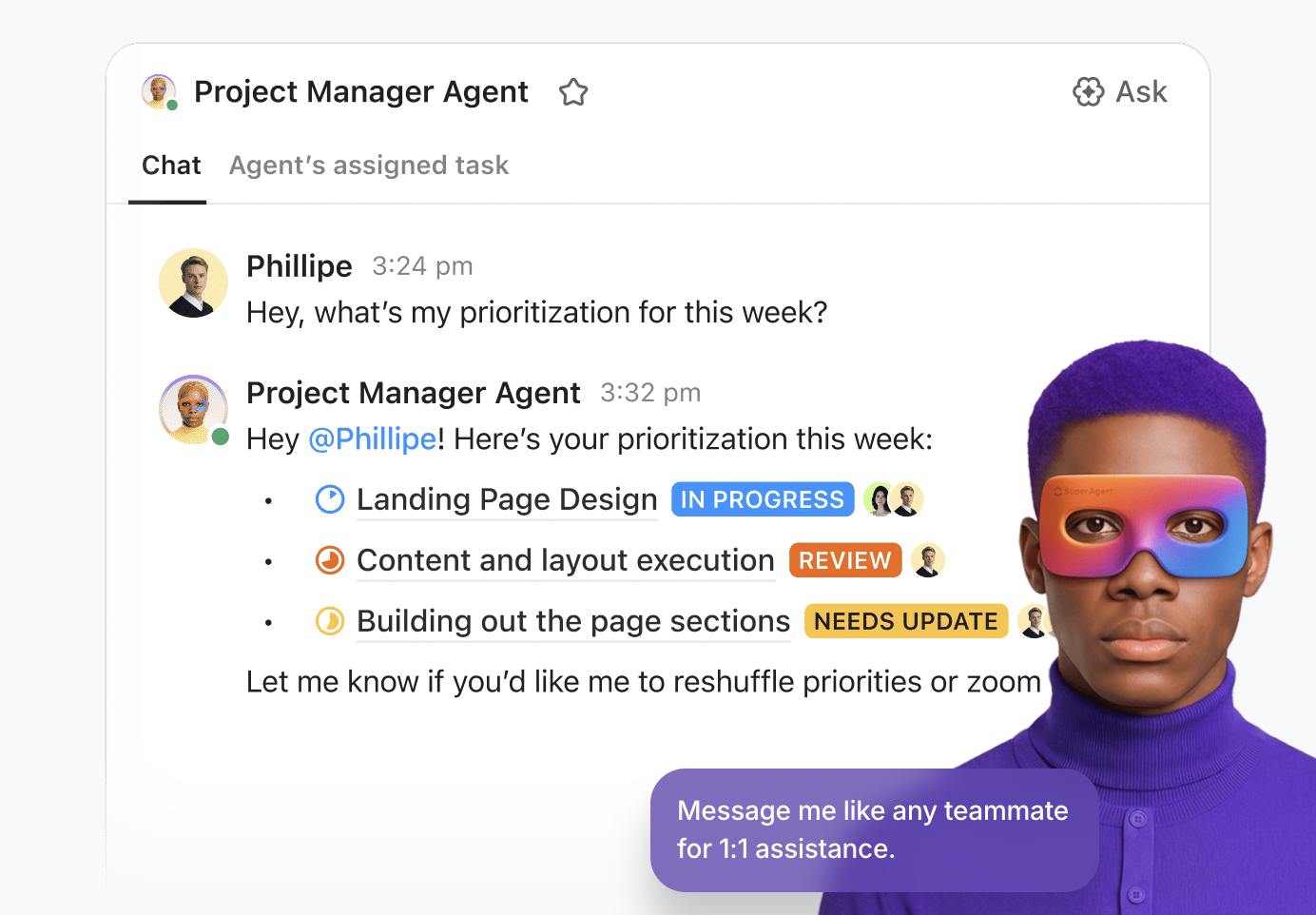
Because Super Agents run inside the same converged workspace, their insights are always grounded in live context. They don’t just flag issues. They explain why something matters and can take action automatically, from updating tasks to nudging the right owner.
This is what makes AI feel invisible and useful at the same time. Answers appear in the flow of work, exactly when they’re needed, without another tool to manage or another question to ask.
Successful enterprise knowledge management requires more than just a powerful search engine. It demands a system that connects knowledge directly to your team’s workflows.
When evaluating a solution, start with your highest-value data sources, and expand gradually. Remember that the future of work requires a solution that will turn answers into action items without losing momentum.
Amazon Q Business is a strong choice for organizations that are already deeply invested in the AWS ecosystem, and are primarily focused on solving the enterprise search problem.
However, for teams who want to go beyond search and build a truly connected knowledge and work management system, a different approach is needed.
See how a converged AI workspace can transform your team’s productivity. Get started for free with ClickUp. ✨
Amazon Q Business is designed for general enterprise knowledge management to help all employees, while Amazon Q Developer is a specialized tool for software developers that assists with coding, debugging, and AWS architecture.
Amazon Q Business connects to many data sources but does not have a native connector for ClickUp. ClickUp provides its own built-in AI feature, ClickUp Brain, which is fully integrated with its project management and knowledge base features.
Amazon Q Business has two main subscription tiers, Amazon Q Business Lite and Pro, with pricing based on a per-user, per-month model. Costs also include charges for ‘index units’ based on the volume of data you store, so you should check the official AWS pricing page for current rates.
The main constraints include a strong dependency on the AWS ecosystem, the need for AWS expertise for setup, a primary focus on search rather than integrated workflows, and potential gaps in its native connectors for some enterprise tools.
© 2026 ClickUp



