Sorry, there were no results found for “”
Sorry, there were no results found for “”
Sorry, there were no results found for “”
Tracking edits in presentations may feel like playing detective with slides instead of clues. Without clarity on what’s changed, your carefully planned delivery or standout opening could unravel fast.
Rather than digging through emails or playing spot-the-difference with slides, learning to track changes is way more efficient.
📌 Over a million companies use Microsoft 365, so PowerPoint is likely your presentation tool of choice. However, mastering this process may seem tricky since it’s built for visuals, not version control.
This article explains how to track changes in PowerPoint. We’ll also introduce ClickUp, the everything app for work, which helps you create and manage presentations like a pro.
Collaborating on slides is often the most impactful way to create well-rounded presentations. When working with multiple teams, document version control keeps everyone organized without restricting creative ideas.
Here are the steps to track and manage edits on your PowerPoint slides.
Before starting any collaborative editing or review, save a draft of your PowerPoint presentation. Keeping the unedited, original file as your review copy simplifies comparing edits and easily reverts changes.
Here’s how:
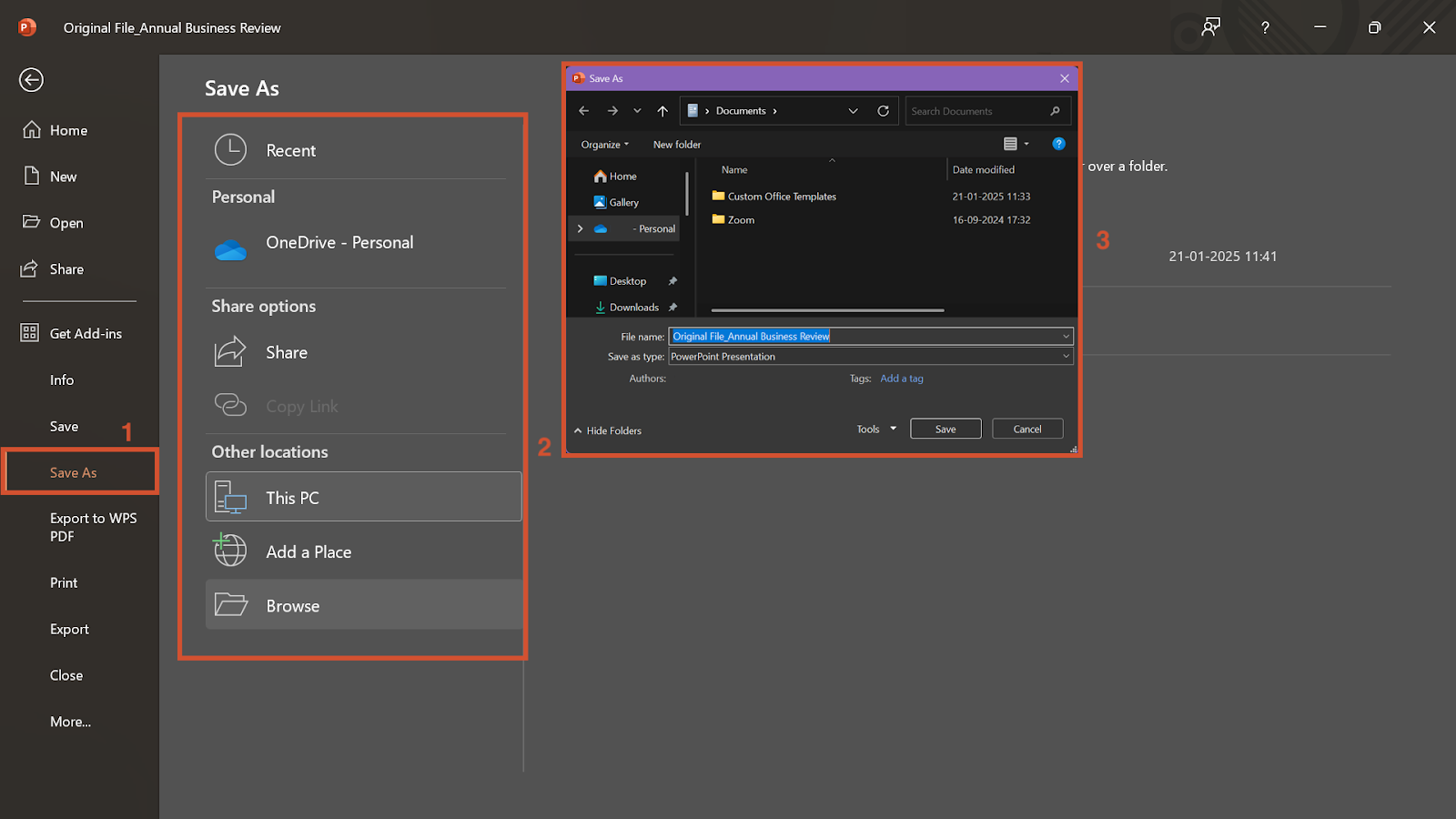
💡 Pro Tip: Name your original draft ‘Original_File Name’ to eliminate any possible confusion when dealing with version tracking.
With the original version safe, share the current file for review. Creating this second version sets up a sandbox for your team to suggest updates and also avoids the risk of duplication.
This is what you need to do:
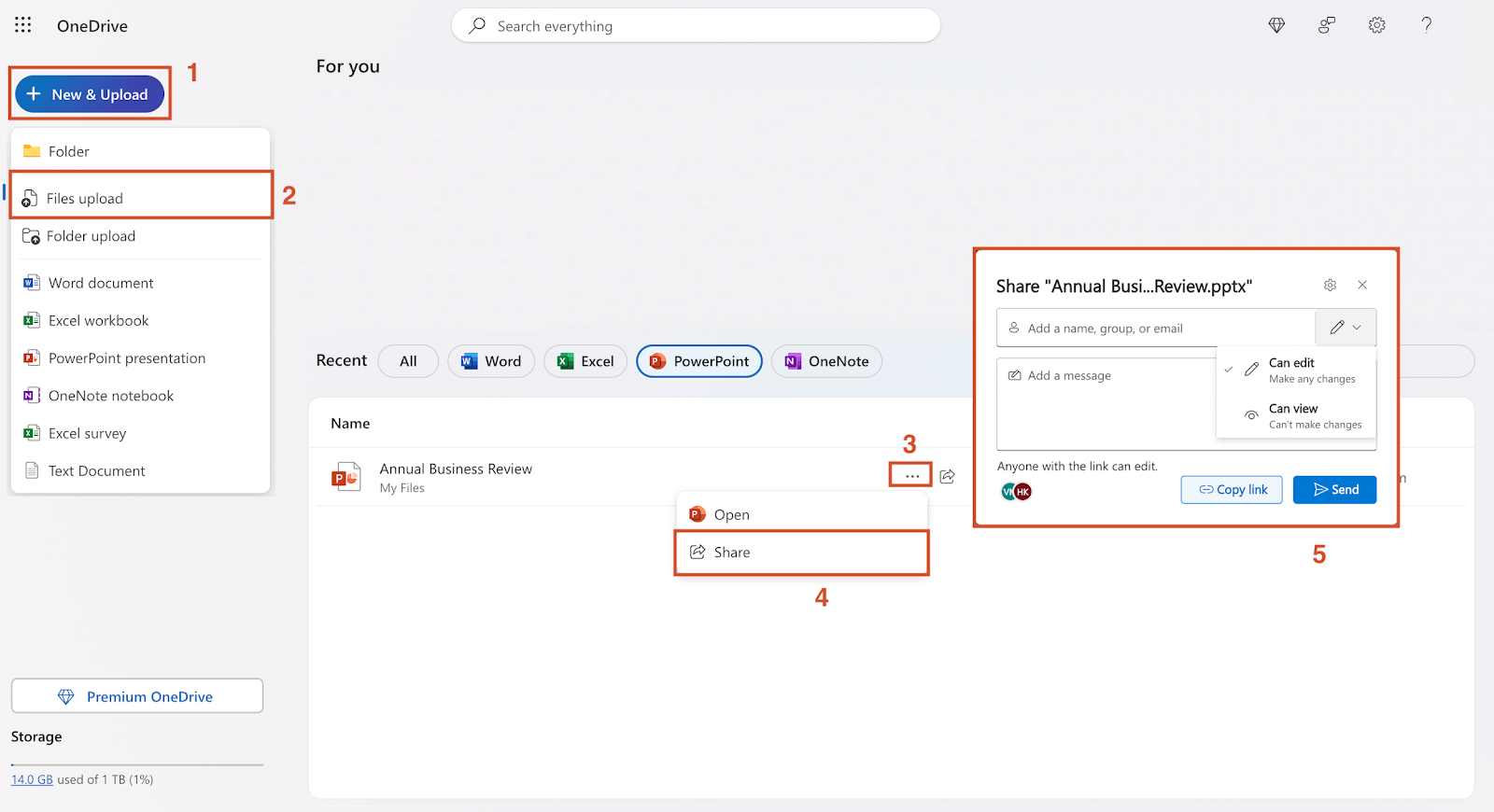
OneDrive also lets you copy the link if you prefer to ping your team for feedback directly through edits and comments.
✨ Trivia Byte: PowerPoint was originally called ‘Presenter’. Also, it was developed for Apple Macintosh in 1987, not Microsoft!
Now, everything is set up for comparison. After your team confirms that all edits and suggestions are made, download the latest version of the edited file.
To upload and track these changes, follow these steps:
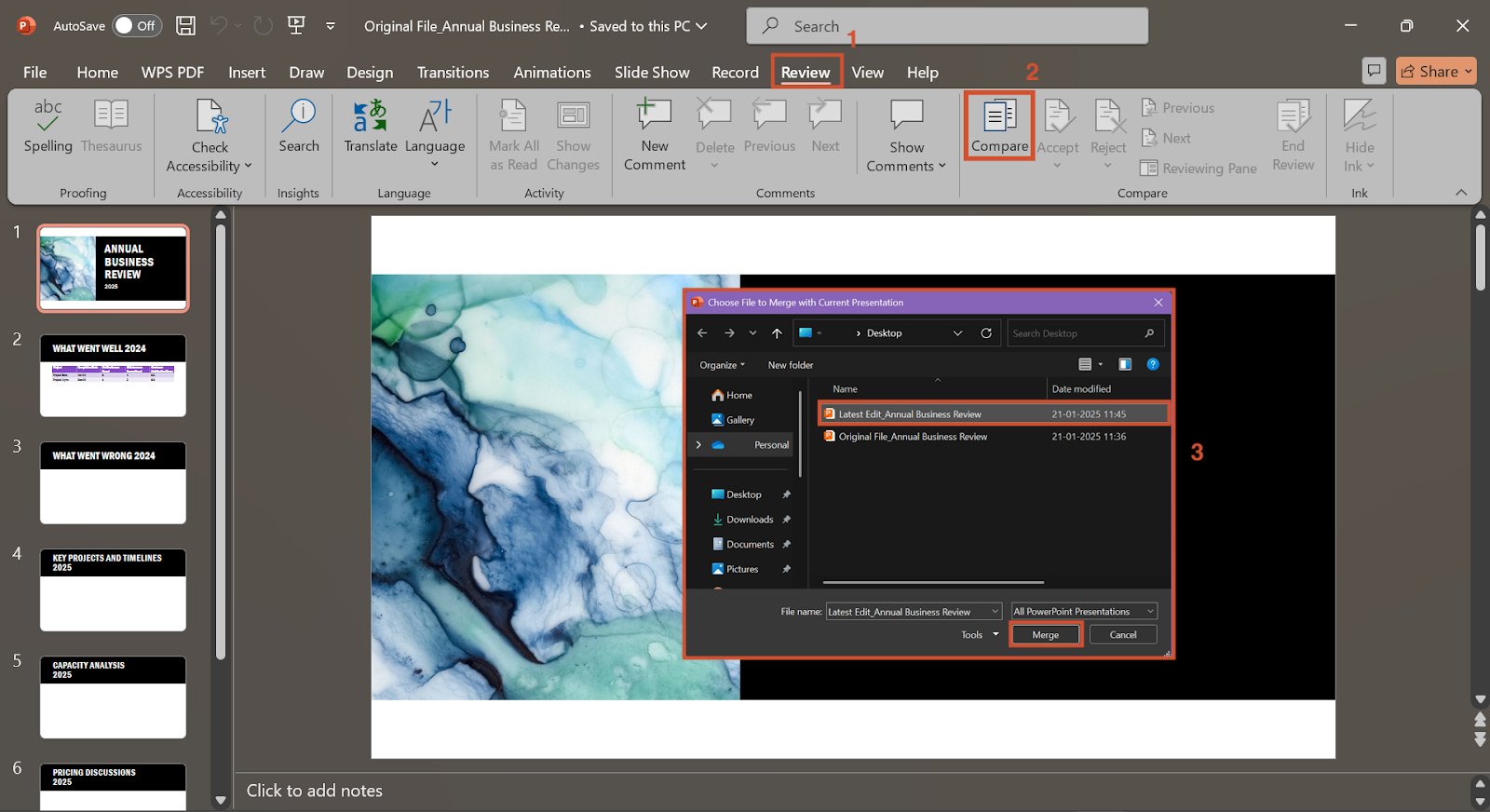
🔍 Did You Know? 67% of listeners are persuaded by verbal presentations when they come with visuals.
After merging different presentation versions, every change and comment is uploaded into the same file.

All changes are stored in the ‘Reviewing Pane’ in the ‘Compare’ section. The Review tab also has a separate comments task pane.
Once you’ve selected the reviewing pane, a separate revisions task pane will appear at the left of the PowerPoint window.
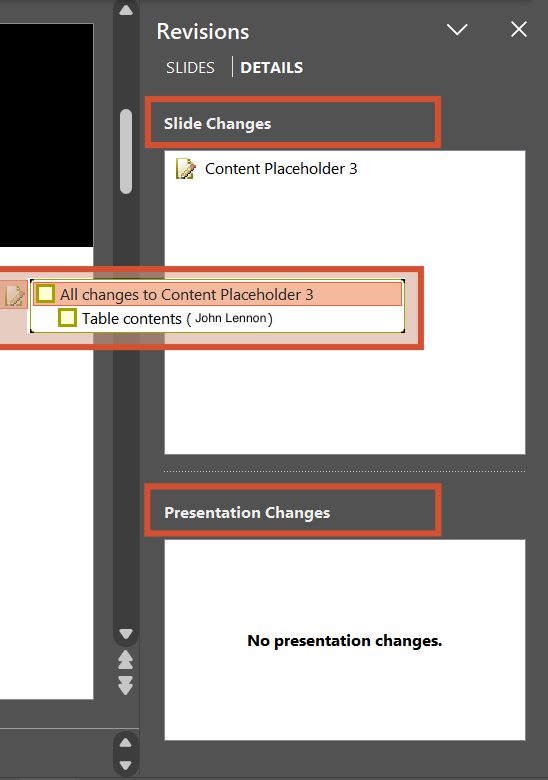
Changes made to each slide, be it content, formatting, or even placement of visuals, and who has offered the update (included in brackets) will be shown.
👀 Quick Tip: If you need clarification on an update, it is always a good idea to call the person who suggested it for a quick discussion. Gaining more perspective over the phone may even lead to better ideas.
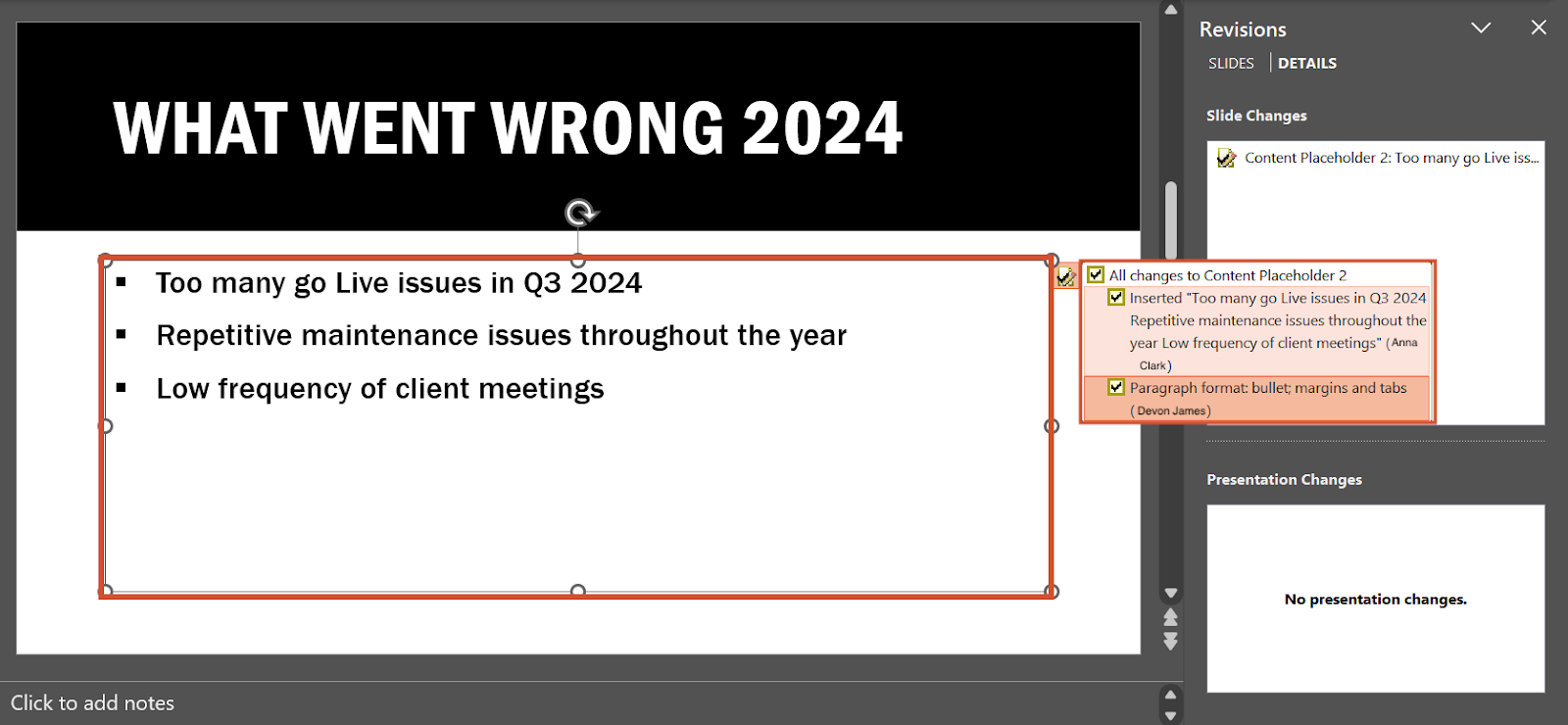
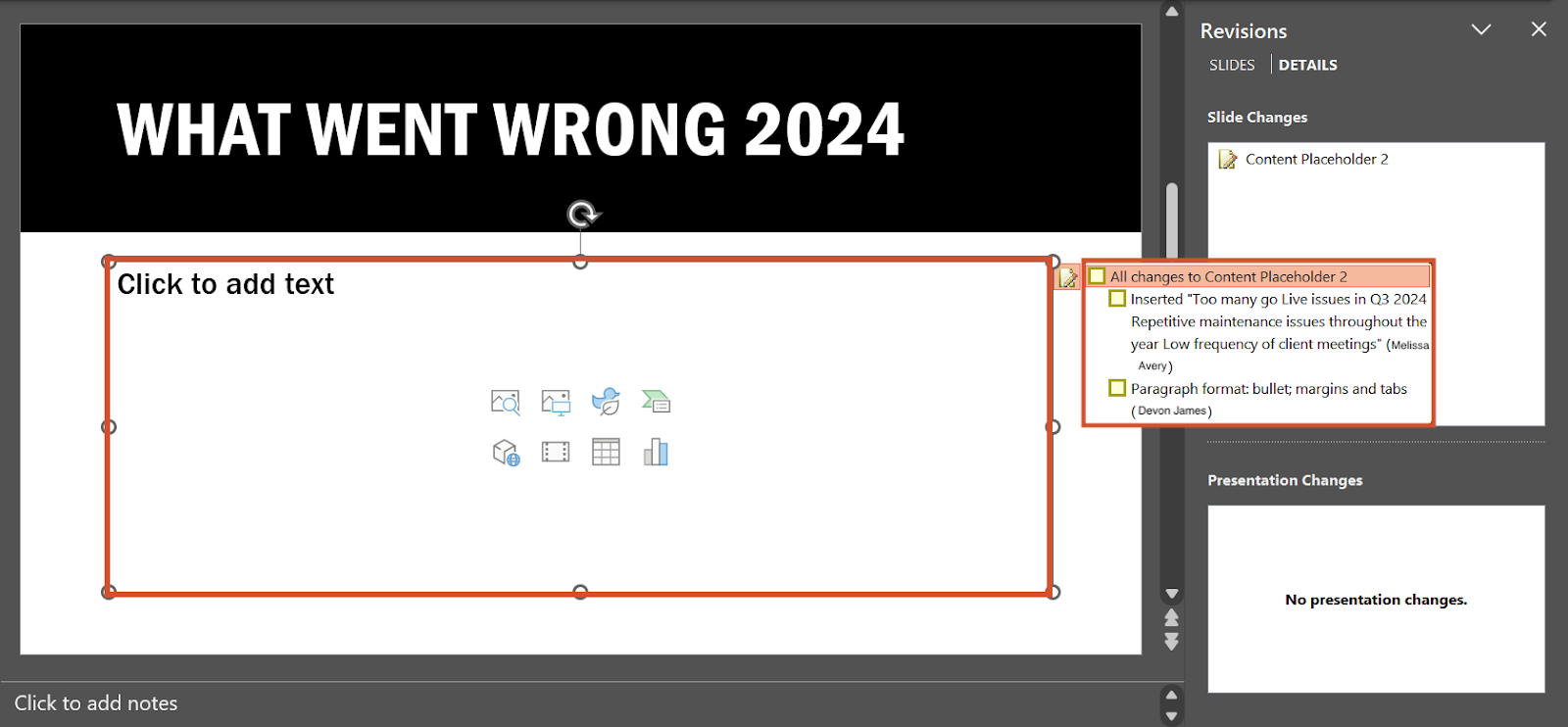
Now, you need to finalize your presentation by accepting or rejecting changes. Each update is on a sticky note marked with a checkbox for quick decisions.
To complete the update, you need to keep this in mind:
💡Pro Tip: PowerPoint has a feature that lets you record yourself presenting. This is perfect if you or your team prefer to rehearse for the best delivery.
PowerPoint is definitely a popular presentation tool, but it’s not without issues. Before setting PPT files as your default, consider these limitations PowerPoint comes with:
PowerPoint struggles with large media files and lacks versatility in change management. Creative teams may feel its visuals are basic. The disconnect between functionality and appeal makes looking for an exit natural.
If you prefer something more advanced in visuals and analytics, ClickUp is an excellent choice. Its 30+ powerful tools are all geared towards improving project insights and nailing executive-level presentations.
To blend change management, collaboration, and dynamic visualization, ClickUp’s comprehensive canvas-style tool is a game-changer.
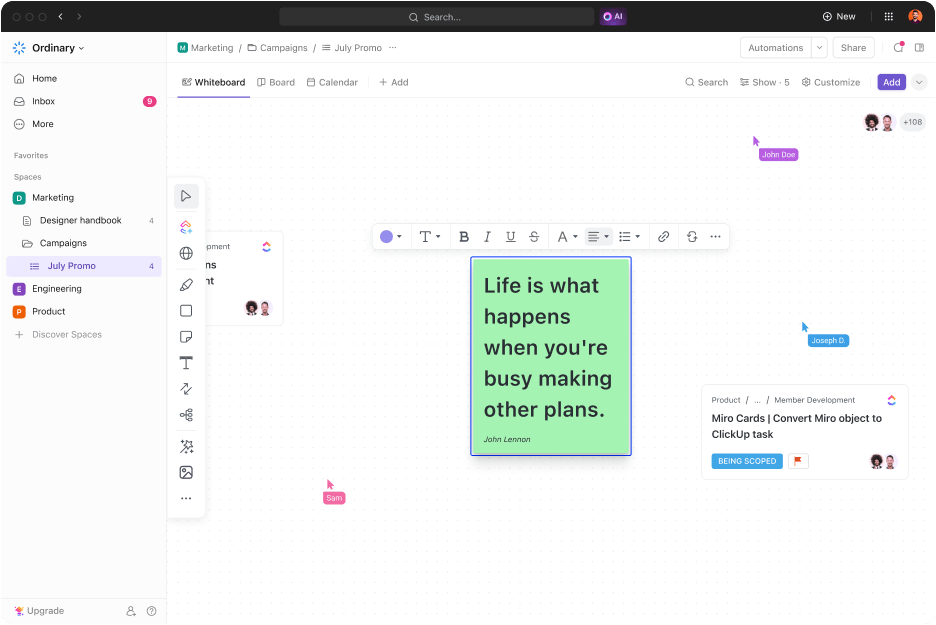
ClickUp Whiteboards is the tool you need for everything from presentation brainstorming to planning delivery. It offers a blank canvas that supercharges visuals with quick text boxes, sticky notes, arrows, and even brushes and pens.
The solution also features mind maps if your team needs to link relationships and flowcharts in your presentations. Its live editing makes collaboration with Whiteboards a breeze, especially over calls or online discussions. To make it even more seamless, making direct suggestions is just a click-and-tag away.
You can also weave in transitions, create dedicated slides, and integrate video animation tools on Whiteboards. If you need to follow up on something, you can turn anything on the board into a detailed task.
Plus, every edit is recorded in the detailed change history with timestamps and user information.
💡 Pro Tip: Teams learn better with visuals, as all steps are laid out neatly. So, prioritize more PowerPoint flowcharts, graphs, and infographics over text!
Don’t want to switch between platforms for slides and documents? ClickUp offers a dedicated documentation tool, too.
📮 ClickUp Insight: Over 60% of a team’s time is spent searching for context, information, and action items.
According to research by ClickUp, teams lose precious hours jumping between different tools. To prevent broken communication, integrate messaging into your workflows with a centralized platform that unites project management, collaboration, and communication.
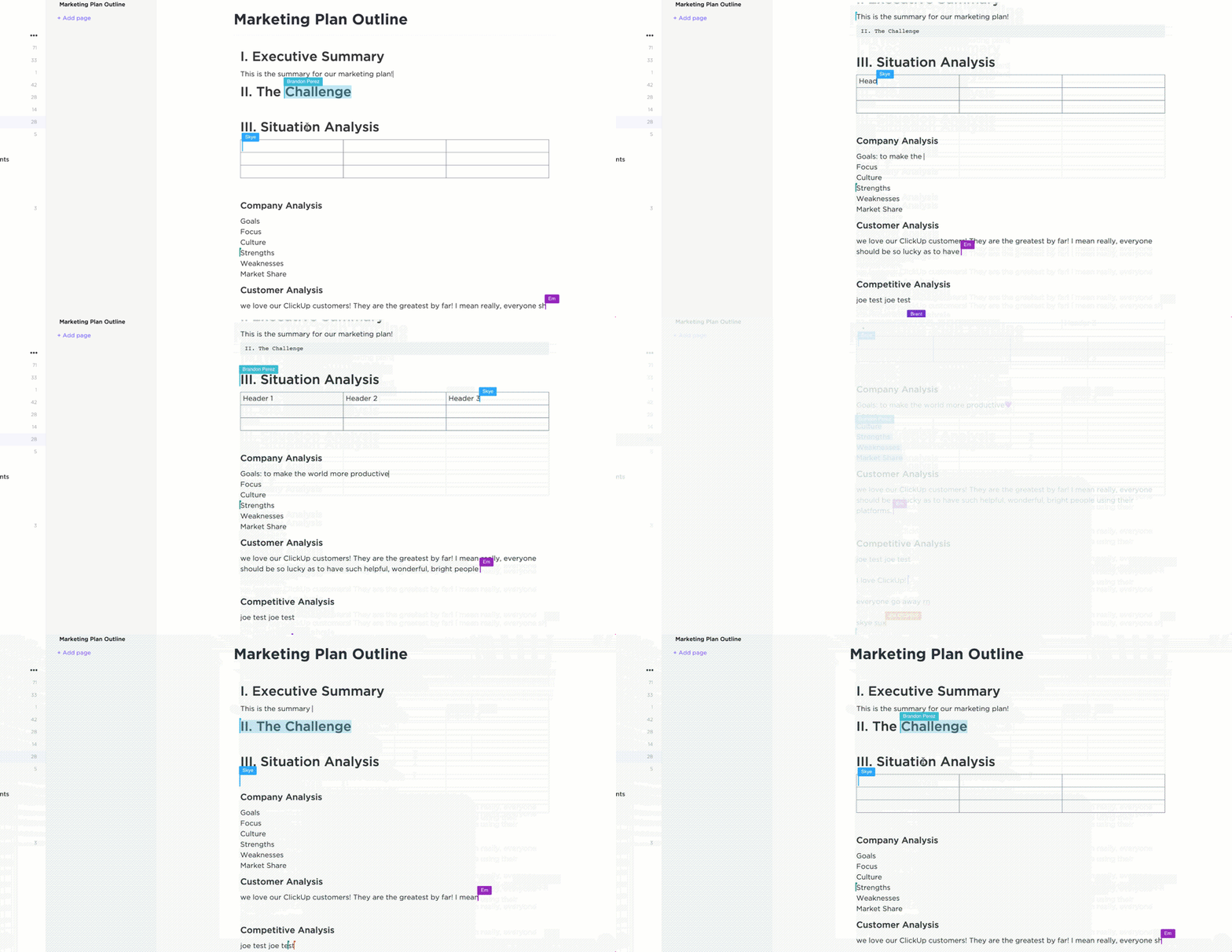
ClickUp Docs is every team’s ideal content hub for anything from change management policies to stellar project briefs. The solution’s line-wise version tracking, assigned comments, and instant mentions work flawlessly, even with large files, high-resolution images, and heavy videos.
Docs is also integrated with ClickUp Brain, an AI feature that polishes content language, creates project summaries, and generates insights with just one click. It even lets you embed tables, whiteboards, tasks, and videos within the same document.
Its highly customizable markdown formatting, nested pages, and advanced workflow automations take flexibility to the next level. In short, ClickUp Docs elevates the quality of your deck and packs features that make handling team edits a breeze.
Here’s what Tyler Guthrie from Home Care Pulse has to say about this feature:
Docs is so good it makes me never want to use Word again for outlining process or taking notes.
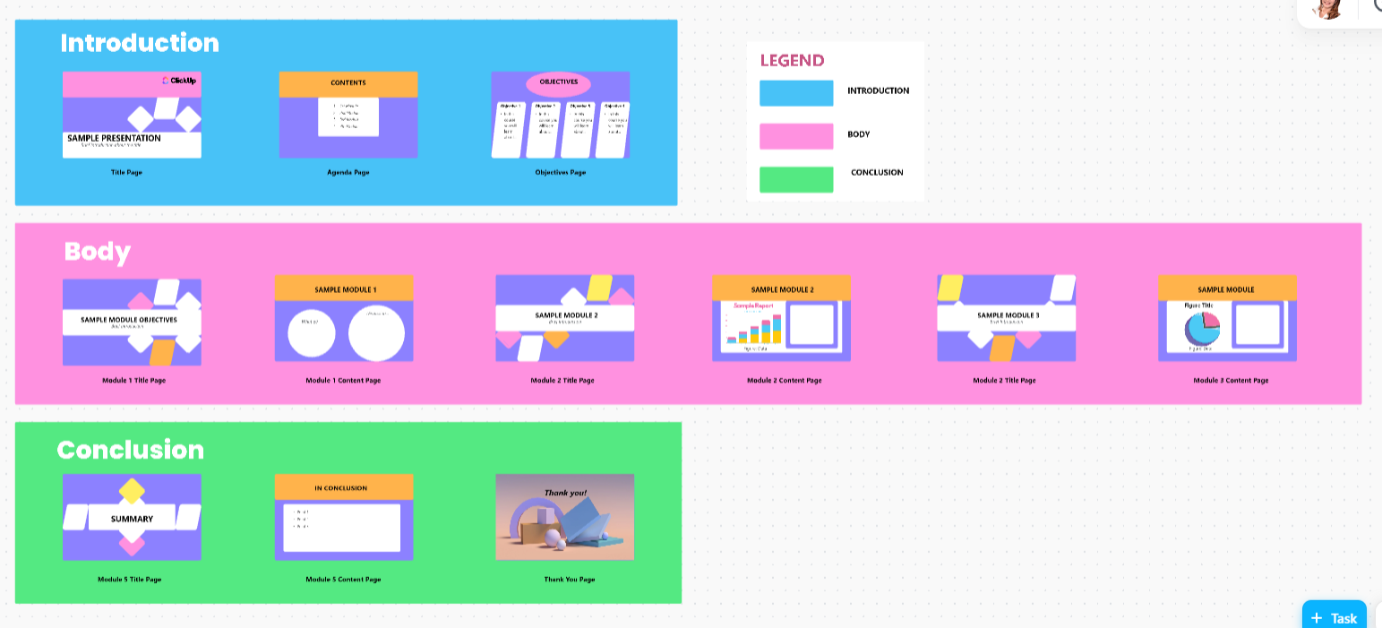
Setting up slides and documents from scratch can feel overwhelming, especially for those last-minute meetings. ClickUp simplifies the process with numerous ready-to-use project update templates.
The ClickUp Presentation Template is a solution designed to create ready-to-impress slides instantly. This whiteboard template includes over 12 high-detail slides, making it easy to hit the ground running.
🔮 Bonus: Creating lists, delivering timely projects, and tracking timelines can be difficult. Explore the best free project plan PowerPoint templates to make your project planning easy!
PowerPoint is great for quick slides and clear explanations, especially with animations and within the Microsoft ecosystem. It gets the job done.
However, unlike Microsoft Word, creating content and tracking edits on PowerPoint can be a headache when the whole team is involved. That’s where ClickUp steps in.
Beyond showing who changed what and when, it offers diverse visualizations, task management, AI-powered analytics, and advanced automation. It even has advanced permission to keep change management tidy and needs just a few clicks to revert even minor insights.
Want to supercharge your practice version control? Sign up on ClickUp for free today!

Manasi Nair
Max 14min read

Arya P Dinesh
Max 21min read
Arya P Dinesh
Max 15min read

© 2026 ClickUp