

Sorry, there were no results found for “”
Sorry, there were no results found for “”
Sorry, there were no results found for “”
Corporate workers in the USA speak English, while professionals in France usually stick to French, and in Germany, it’s mostly German.
But there’s one language that every single corporate worker globally speaks fluently: Excel.
Spreadsheets and PDFs are such a staple in the workplace that it sometimes feels like half the job is just managing them. In fact, studies show that professionals spend an average of 20 hours per month working in Excel.
Yet, despite spending hours on Excel, most people are unaware of simple tricks that can make their work much easier.
Take embedding a PDF in Excel, for example. Hardly anyone knows how to do it, but once you do—and you will by the end of this blog—you’ll have an instant productivity hack up your sleeve.
Embedding a PDF in Excel makes life easier by keeping all related documents in one place. We’re talking invoices, reports, or visual references; everything stays neatly organized without leaving your spreadsheet. This means:
Let’s break down the best ways to insert PDFs into Excel spreadsheets—without the frustration.
If you need a straightforward way to insert a PDF into Excel, this is it. Follow these steps
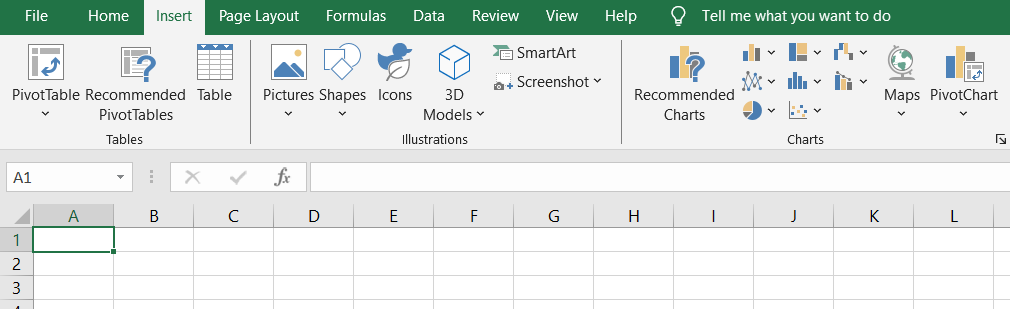
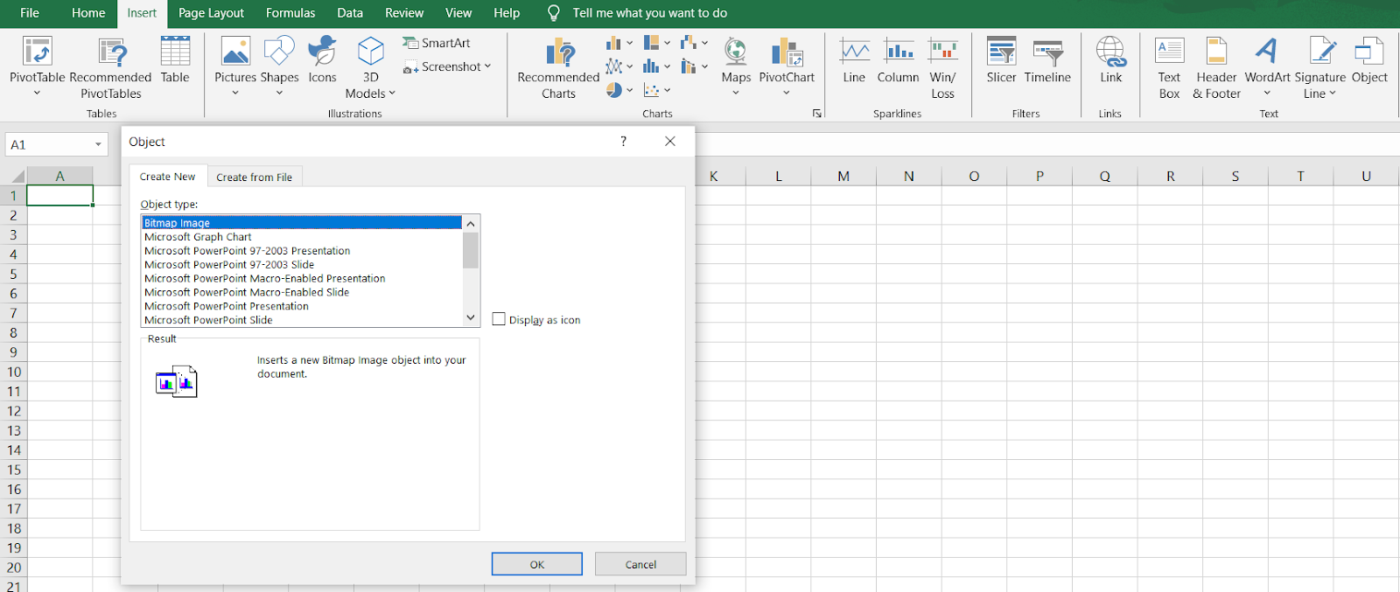
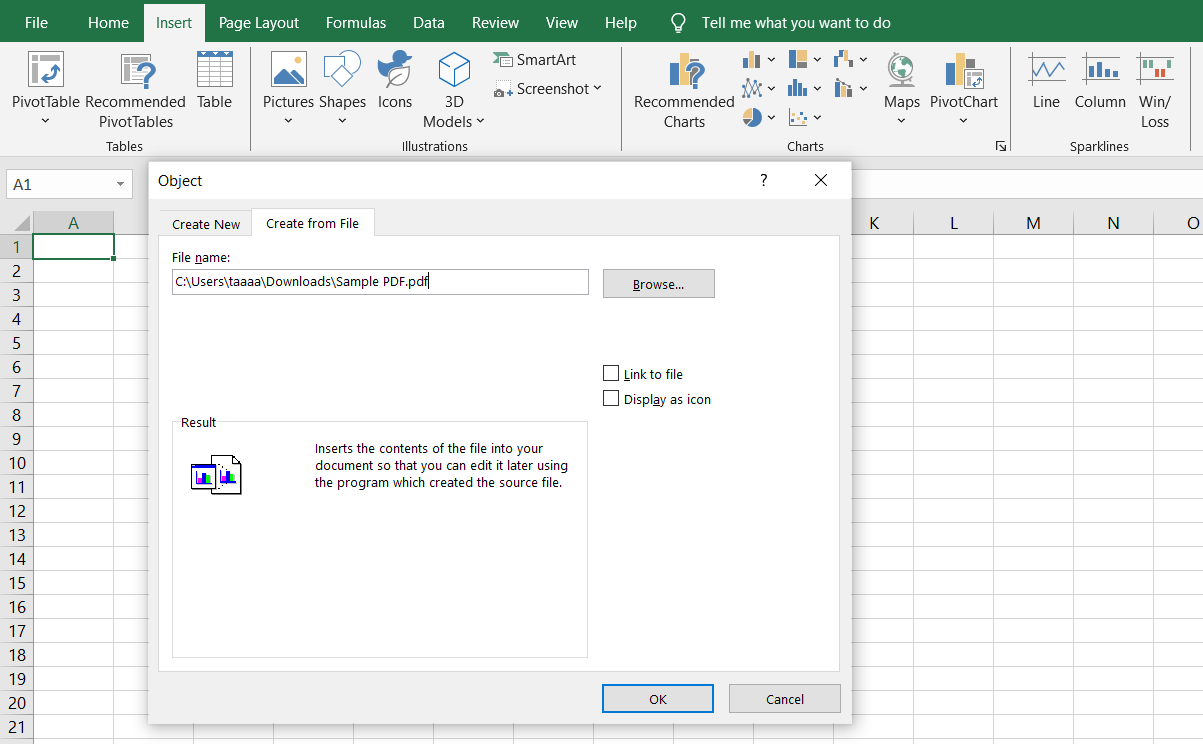
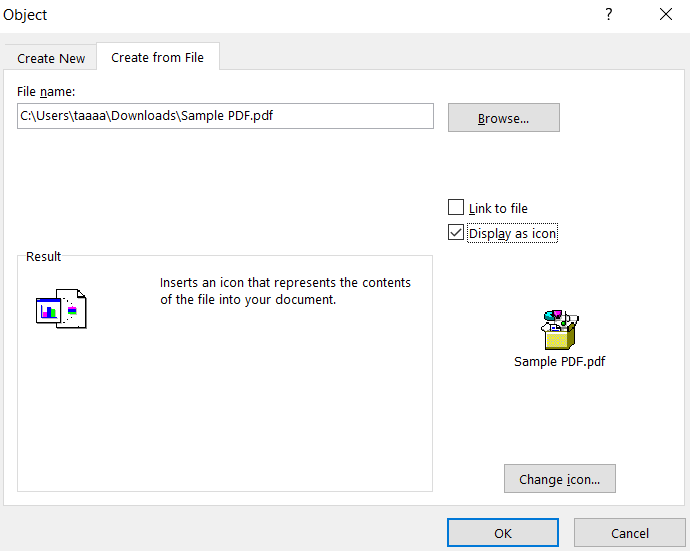
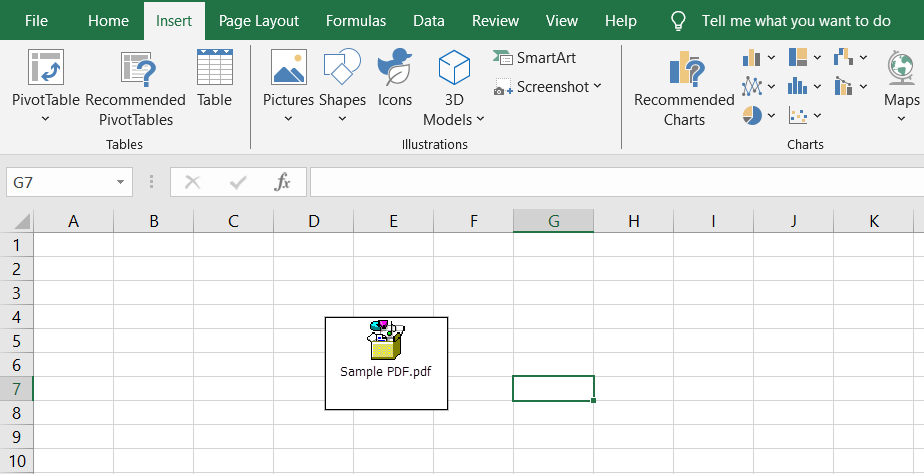
This method keeps everything in one place, but the PDF won’t update if changes are made to the original file.
For those who need the PDF to reflect the latest updates, linking it to the original file is a better option. This way, any edits made in the PDF file will automatically be visible in the Excel workbook.
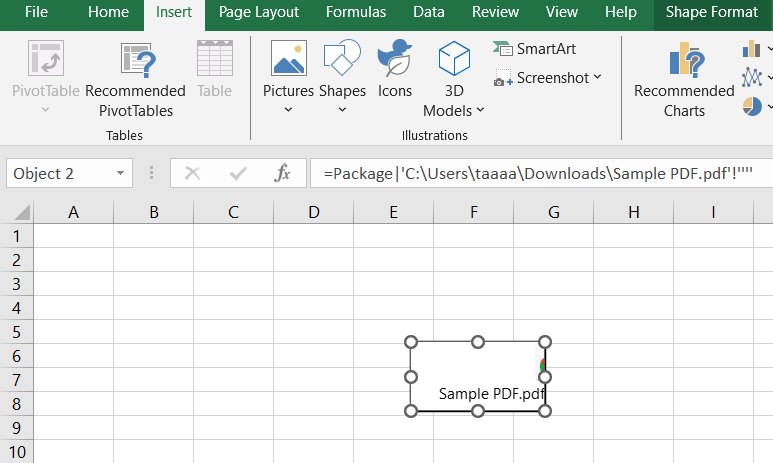
This is useful for regularly updated reports, but keep in mind that moving the PDF file to a different location will break the link.
Sometimes, you need to show the first page of a PDF document within an Excel worksheet, like an invoice or contract for quick reference. Here’s how:
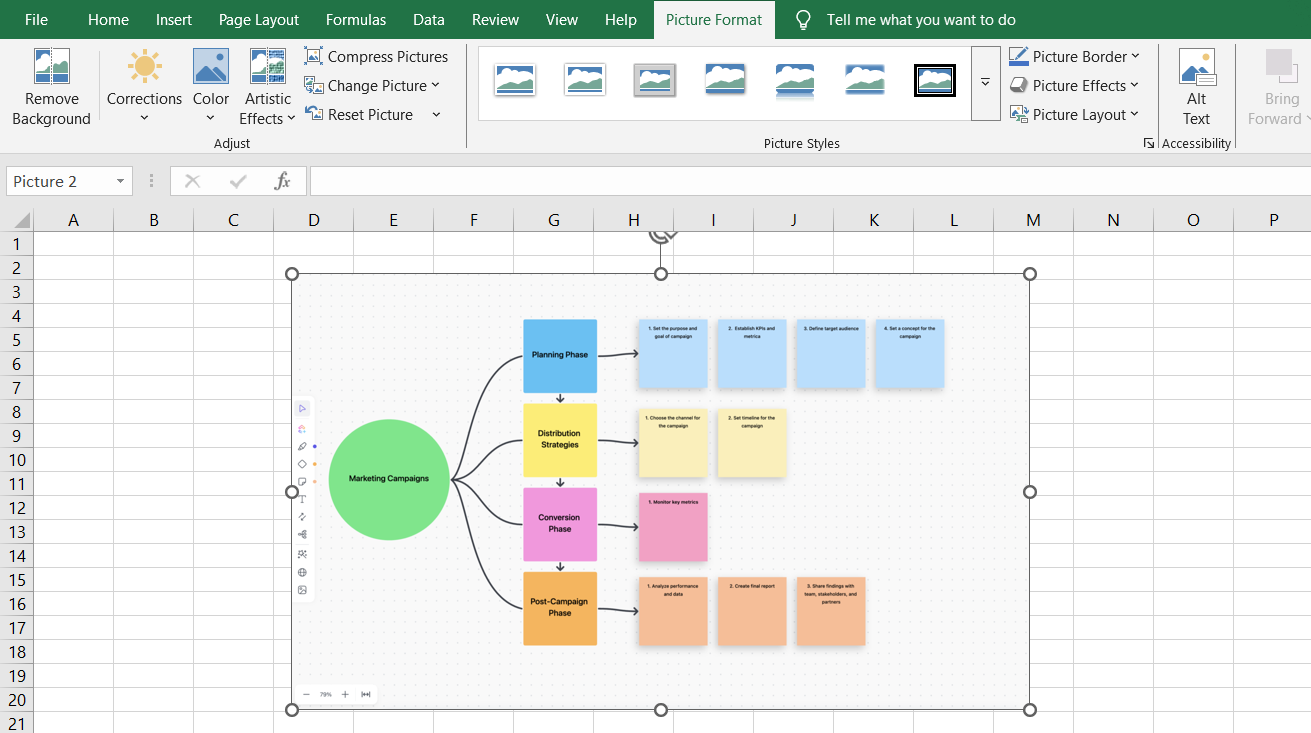
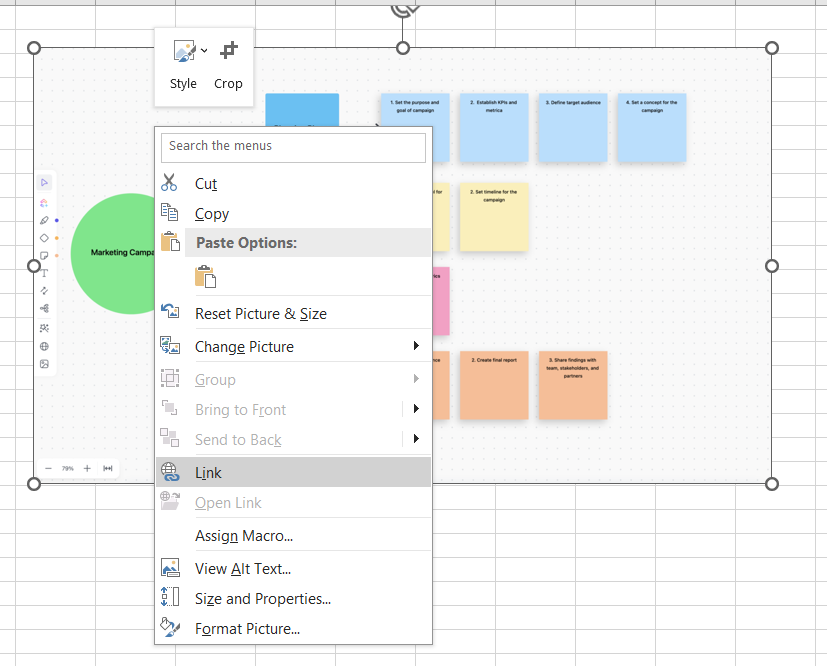
✅ Need a simple way to insert a PDF? Use the Object dialog box method
✅ Want real-time updates? Go with the Link to file option
✅ Prefer a preview of the PDF? Insert an image of the first page
💡 Pro Tip: Struggling to navigate the endless icons in Adobe Acrobat’s review file tab? Simplify your workflow by using a tool that lets you comment on PDFs without confusion.
So, you’ve successfully embedded a PDF into Excel—nice. But now what? How do you actually open, edit, or update the PDF file without messing up your Excel spreadsheet? Here’s what you need to know.
Once you’ve inserted a PDF into Excel, opening it is as easy as double-clicking the PDF icon inside the Excel worksheet. If that doesn’t work, check these steps:
💡 Pro Tip: Struggling to create professional, fillable forms in Word? Unlock the Developer Tab to ease data collection and automate workflows effortlessly
If you need to edit the embedded PDF, here’s what you can do:
💡 Pro Tip: Struggling with endless buttons and confusing tools in your PDF viewer? Learn the easiest way to annotate PDFs without being overwhelm!
Embedding objects is now within your grasp, but let’s not lose sight of the real goal. We’re embedding PDF files to add context to existing data, not just to clutter up the Excel sheet with random attachments.
That means aligning PDF documents with relevant spreadsheet content and ensuring a neat, organized format. So, here are a few best practices to keep things functional, professional, and aesthetically pleasing:
✅ Before inserting PDF files into Excel, click the exact cell where you want it to appear. This prevents objects from floating aimlessly and keeps your Excel file structured
✅ Always choose Create from File when embedding a PDF document. This lets you pick a specific PDF file from your system instead of creating a blank object
✅ A full PDF preview can take up a lot of space. To keep things neat, select Display as Icon—this way, the PDF document is still accessible without overwhelming the Excel worksheet
✅ Nothing’s worse than opening an Excel workbook full of nameless icons. Add descriptions or hyperlinks next to embedded PDFs so users know what each file is for
📮ClickUp Insight: While 60% of workers reply to instant messages in under 10 minutes, 15% take more than 2 hours to respond. This mix of lightning-fast replies and delayed responses can create communication gaps and slow down collaboration.
With ClickUp, all your messages, tasks, and updates are in one place, ensuring no conversation is left hanging and everyone stays in sync, no matter how quickly—or slowly—they reply.
Even when you do everything right, Excel has a way of throwing unexpected roadblocks in your path.
Before you start blaming Microsoft for your troubles, let’s go through some of the most common issues—and their fixes.
You’ve followed all the steps and clicked Insert > Object, but instead of embedding your PDF document, Excel throws an error. Rude.
This usually happens when the PDF file has security restrictions that prevent embedding or if Microsoft Excel is having compatibility issues.
✨ Solution:
💡 Pro Tip: Confused between Google Sheets vs Excel? One’s a cloud-based collaboration pro; the other’s a data powerhouse. Read our guide to make an informed choice.
You double-click the embedded PDF file, expecting it to open, but nothing happens. Or worse, Excel gives you an error message that makes no sense. This typically happens when the default PDF viewer isn’t set correctly.
✨ Solution:
Also Read: How to Add a New Page on Google Docs
You embedded a PDF document, but instead of an interactive file, Excel just shows a static preview of the first page. Not helpful when you need to navigate multiple pages.
✨ Solution:
You embedded a PDF into Excel, but now you realize you need to update its content. The problem is clicking on it doesn’t allow direct editing within the Excel sheet.
✨ Solution:
💡 Pro Tip: Tired of endlessly scrolling through PDFs to find what you need? Here’s a guide on how to use built-in PDF search functions to locate keywords instantly and save time.
You insert a PDF file in Excel, and suddenly, your neatly organized spreadsheet looks like it just survived an earthquake. The PDF document doesn’t align properly, and the layout is all over the place.
✨ Solution:
The PDF document is embedded perfectly on your computer, but when a colleague opens the same Excel file on a different device, things look completely different—or worse, the embedded PDF disappears entirely.
✨ Solution:
While Microsoft Excel is almost everyone’s go-to for data management and number crunching, it is not the finest data visualization or project management tool. Here are some key limitations to keep in mind when using the platform:
📌 Example: Picture you’re managing a project budget in Excel, and you need to include a signed contract for reference. You embed the PDF into Excel, thinking it’s all set, but a week later, the legal team updates the contract—and now your embedded PDF document is outdated, forcing you to manually replace it. Can you imagine the embarrassment?
Work is hard enough—why make it more complicated with rigid spreadsheets when better options exist?
The better option is ClickUp, the everything app for work that brings together project management, data visualization, and document collaboration.
Let’s say you’re managing client invoices. In Excel, you’d insert a PDF file, resize the PDF icon, and pray that your colleague using a Mac can still see it.
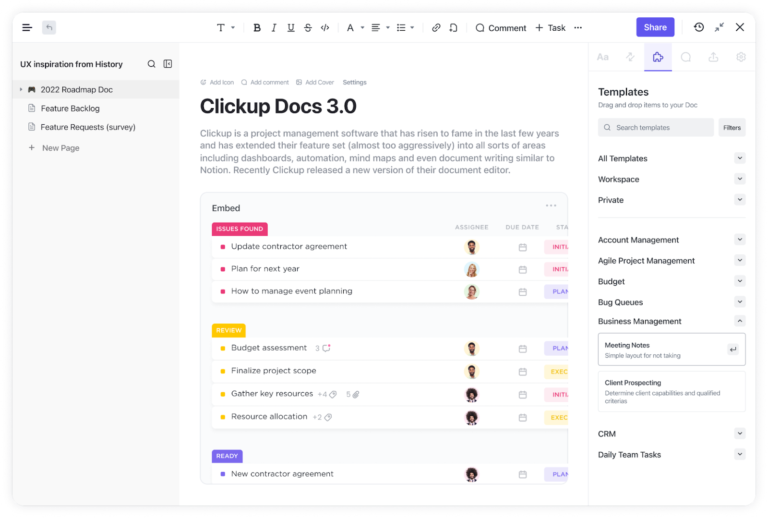
However, with ClickUp Docs, you can embed PDF files and links from platforms like YouTube, Google Drive, Figma, and more. The embedded content updates in real time, ensuring that changes made on the original platform are reflected in the embedded content within ClickUp.
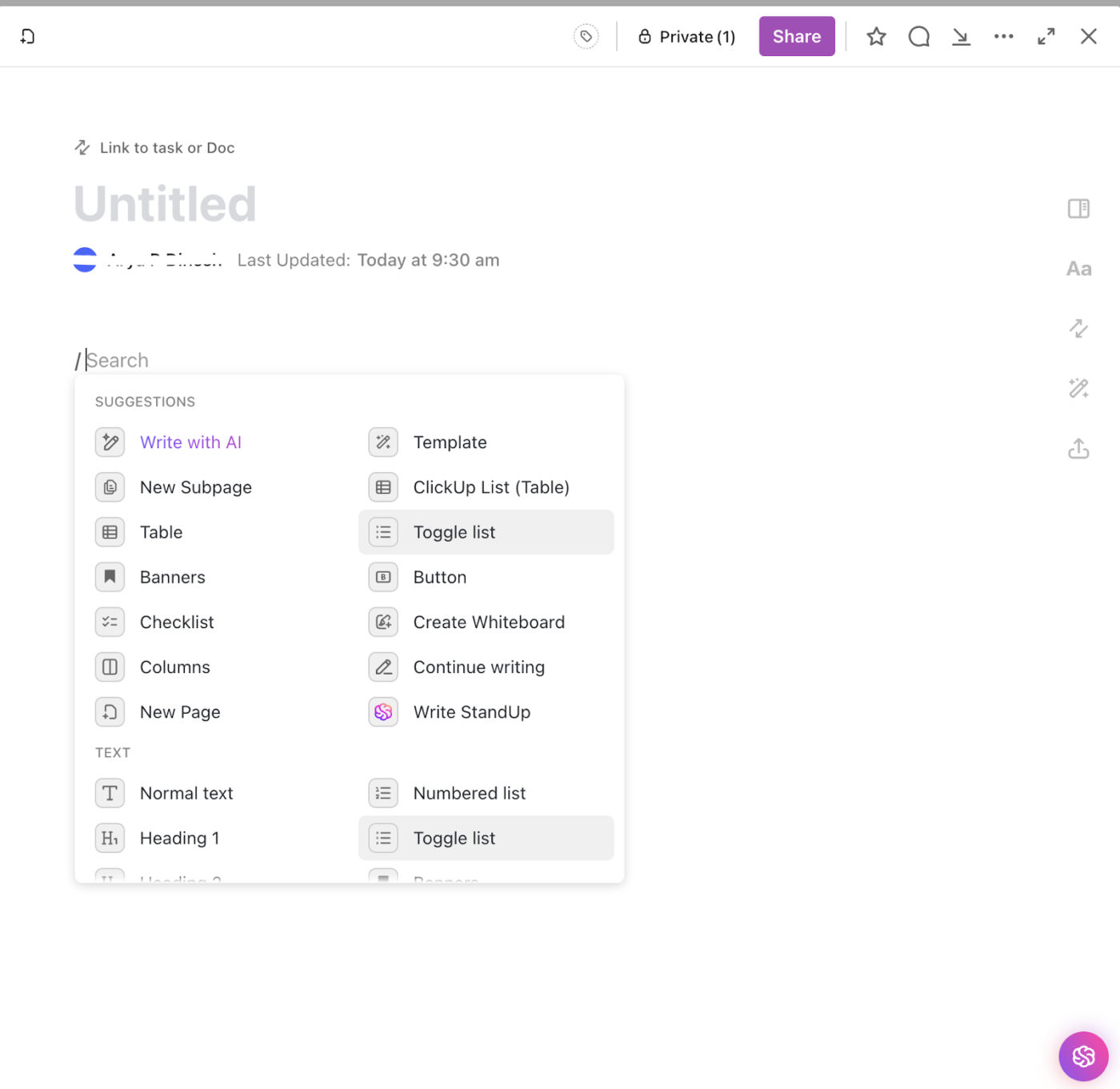
To create an embedded document in ClickUp Docs, follow these steps:
Plus, you get multiple rich text formatting options, like banners, checklists, and blocks, too! It doesn’t stop there. Multiple people can work on ClickUp Docs in real time and make changes together via Assigned Comments and quoted text to make collaboration easier.

That’s because ClickUp doesn’t just store files; it lets teams work on them directly within the platform. This makes the process more interactive than simply embedding PDF documents into an Excel sheet.
Then, there’s ClickUp Table View, a modern approach to structured data. It’s like a spreadsheet but better. Simply import your data into ClickUp from Excel, add Custom Fields and Custom Statuses, and suddenly, all your data becomes actionable!
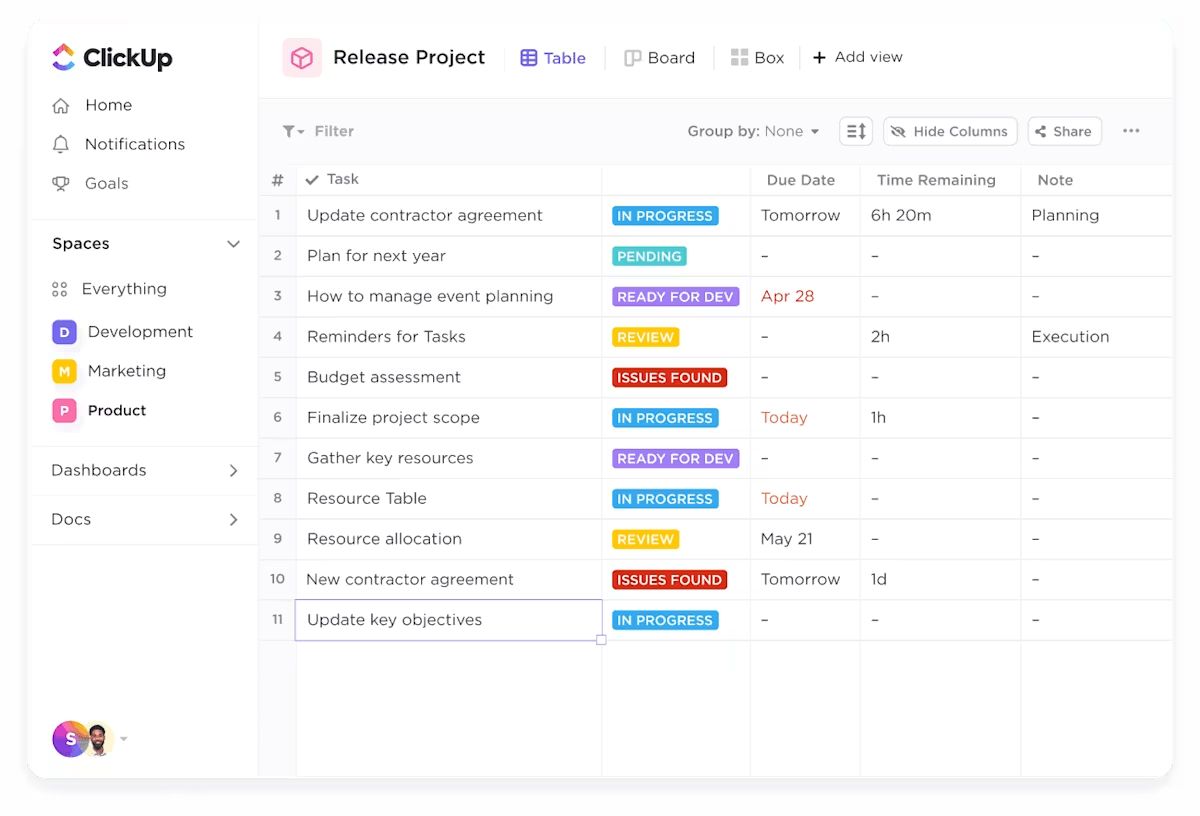
To add a Table view in ClickUp, follow these steps:
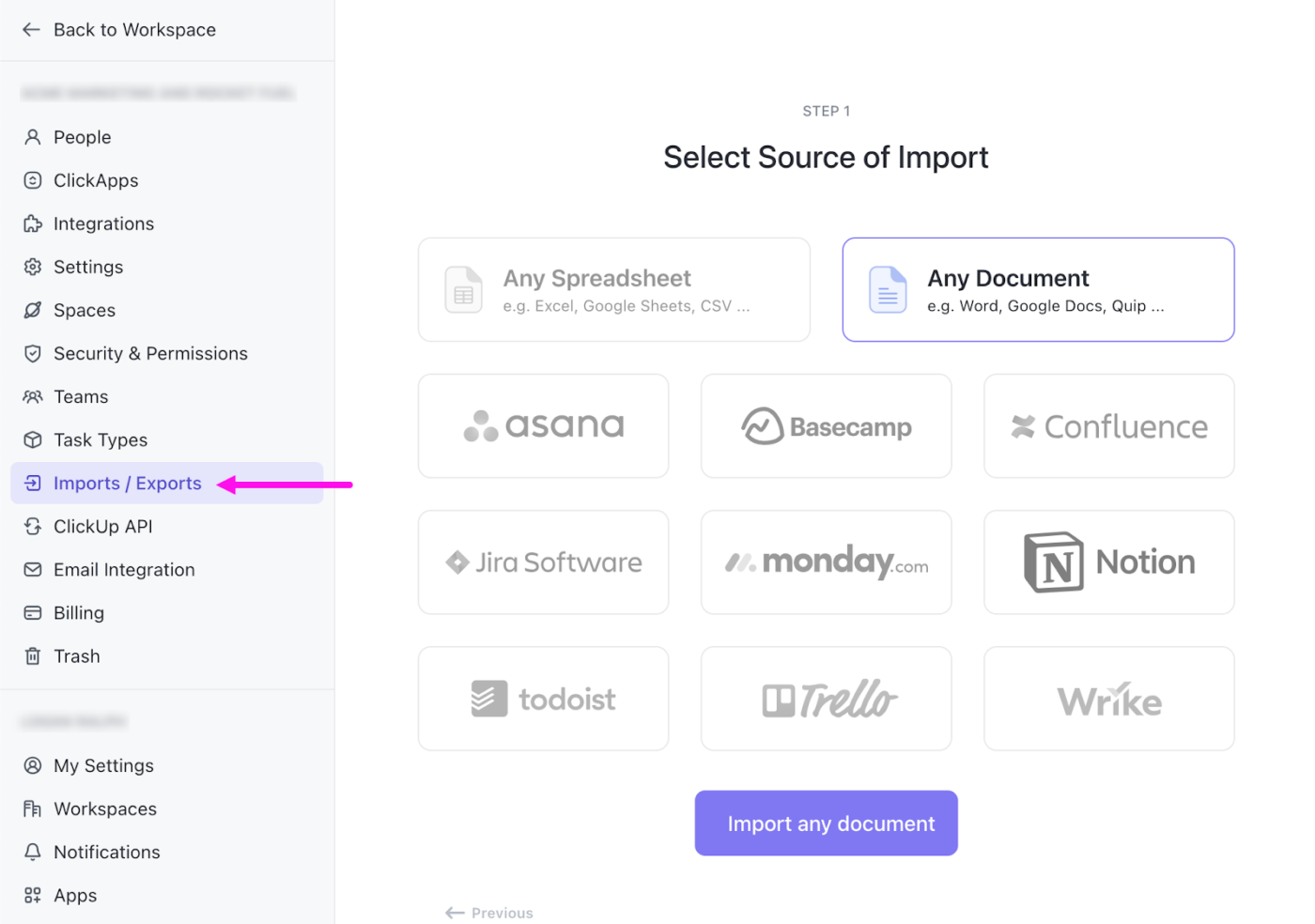

Yep, it’s that easy. You can even embed this table into a Clickup Doc, like this:
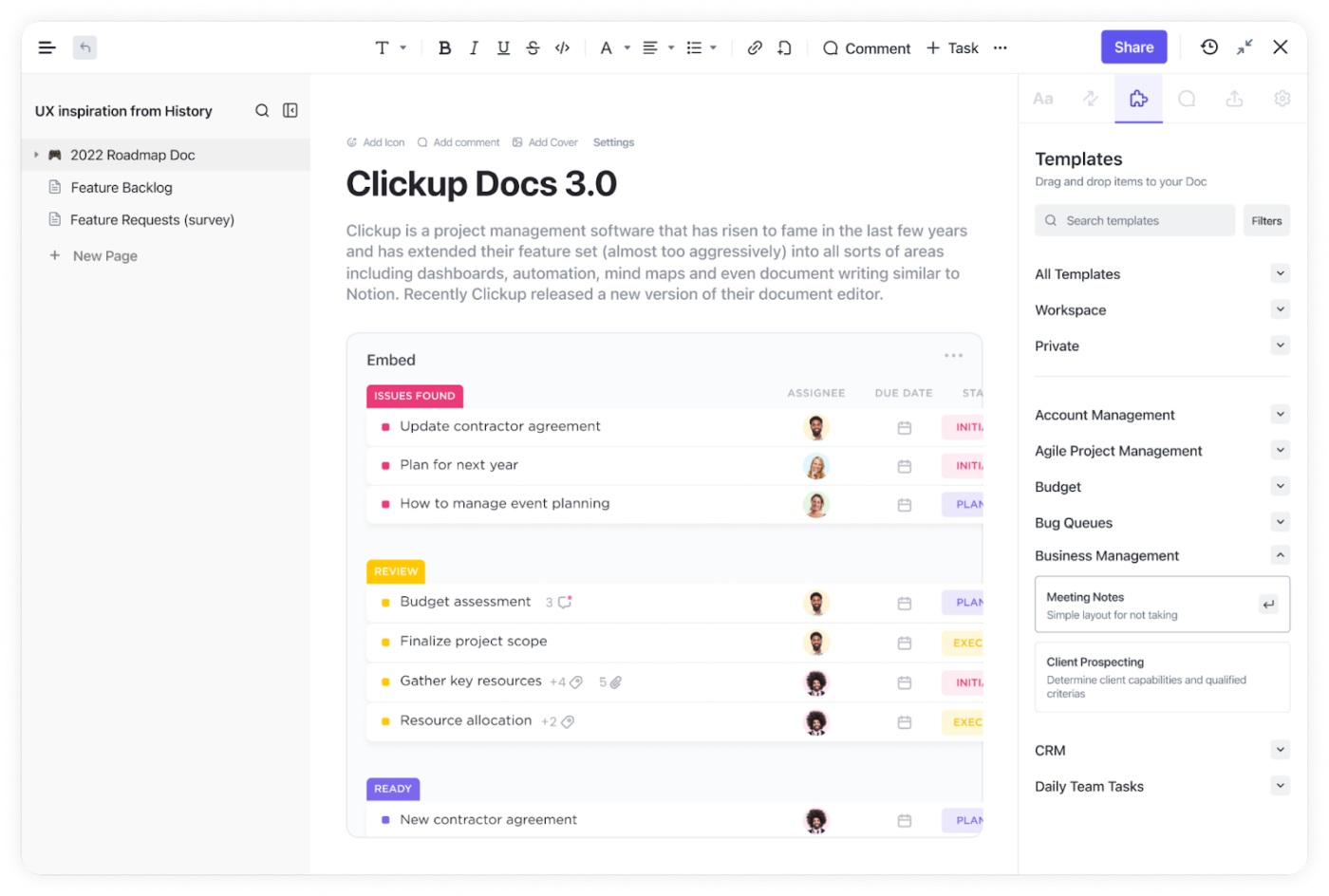
To embed a Table View in a ClickUp Doc:

Instead of manually inserting a PDF into Excel and watching your spreadsheet become a sluggish mess, ClickUp allows you to embed files or links to specific project views, track project progress, and assign tasks—all within an intuitive interface that updates in real time.
Unlike Excel, where embedding a PDF means dealing with object dialog boxes, formatting issues, and broken file links, ClickUp makes everything accessible, interactive, and easy to update.
💡 Pro Tip: Want to make your data more impactful? Learn how to make a chart in Google Docs to transform numbers into clear, visually compelling insights in just a few clicks!
ClickUp does an exceptional job of replacing multiple platforms with a single, all-in-one tool that covers everything you need—task management, data visualization, document collaboration, and more.
And we’re not the only ones saying it—ClickUp users agree. Kayla, Manager of Digital Marketing at Agora, shared:
“ClickUp is an amazing all-in-one solution that replaces Docs, Excel, and other project management tools. It has allowed my team to get more organized, improve operational efficiencies, and provides more visibility into our work impact.”
ClickUp offers Documents, Tables, Dashboards, and seamless integrations to collaborate, track data, and manage projects without ever needing to embed another PDF in Excel again.
Want to experience the same effect? Sign up on ClickUp now and simplify your workflow!

Manasi Nair
Max 26min read
Manasi Nair
Max 20min read

Arya P Dinesh
Max 23min read

© 2026 ClickUp




