






Still downloading templates?
There’s an easier way. Try a free AI Agent in ClickUp that actually does the work for you—set up in minutes, save hours every week.
Sorry, there were no results found for “”
Sorry, there were no results found for “”
Sorry, there were no results found for “”
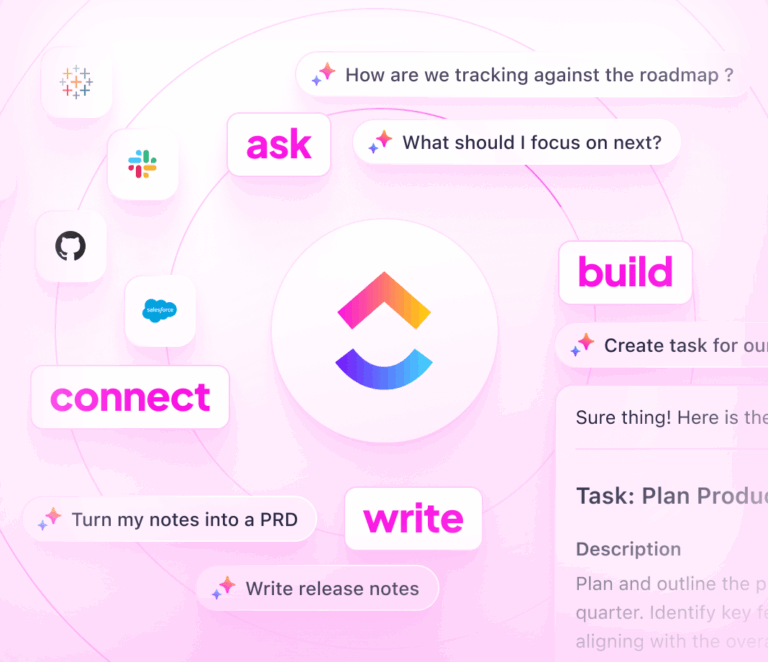
If you have ever built a workflow that starts as “just a script” and quickly turns into a mini product, you already know why building AI agents is getting popular.
A solid AI agent can take user input, call available tools, pull from the right data sources, and keep the process moving until the task is done.
That technology shift is already accelerating, and Gartner expects that 40% of enterprise applications will include task-specific AI agents this year.
That is where Google Gemini fits nicely. With access to Gemini models through the Gemini API, you can build everything from a simple AI agent that drafts responses to a tools-enabled agent that runs checks and handles complex tasks across multiple steps.
In this guide on how to build AI agents using Google Gemini, you’ll learn why Google’s Gemini models are a practical choice for agent workflows, and how to go from first prompt to a working loop you can test and ship.
An AI agent is a system that can perform tasks on behalf of a user by choosing actions to reach a goal, often with less step-by-step guidance than a standard chatbot. In other words, it is not only generating a response, it is also deciding what to do next based on the agent’s purpose, the current context, and the tools it is allowed to use.
A practical way to think about it is: a chatbot answers, an agent acts.
Most modern agent setups include a few building blocks:
This is also where multiple agents come in. In multi-agent systems, you might have one agent that plans, another that retrieves data, and another that writes or validates output. That kind of multi-agent interaction can work well when tasks have clear roles, like “researcher + writer + QA,” but it also adds coordination overhead and more failure points.
You’ll see later how to start with a single agent loop first, then expand only if your workload really benefits from it.
📖 Also Read: How To Use Google Gemini
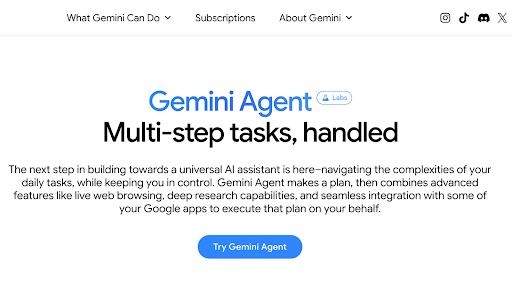
There are several advantages to using Google Gemini for agents, especially if you want to move from a prototype to something you can run reliably in a real product.
✅ Here’s why you should use Gemini to build AI agents:
Gemini supports function calling, so your agent can decide when it needs an external function and pass structured parameters to it. That is the difference between “I think the answer is…” and “I called the pricing endpoint and confirmed the latest value.”
This capability is foundational for any tools agent that has to fetch data or trigger actions.
Many agent workflows fail because they lose the thread. Gemini includes models that support very large context windows, which helps when your agent needs to keep a long conversation, a spec, logs, or snippets of code in working memory while it iterates.
For example, Gemini in Pro has a context window of one million tokens.
📖 Also Read: Best AI Agent Builders To Automate Workflows
Agents are rarely dealing with plain text forever. Gemini models support multimodal prompts, which can include content like images, PDFs, audio, or video, depending on the integration path you choose.
That matters for teams building agents that review files, extract details, or validate outputs against source material.
If your agent needs to answer based on specific sources, you can use grounding patterns that connect Gemini to external systems (for example, enterprise search or indexed content) instead of relying only on the model’s general knowledge. It also overcomes the problem of the AI’s training data and its knowledge cutoff date.
This is especially relevant for product teams that care about auditability and reducing unsupported claims.
📖 Also Read: How To Write A Listicle With Examples
If you don’t want to build everything from scratch, Gemini is commonly used with open source frameworks like LangChain and LlamaIndex, along with orchestration layers like LangGraph.
That gives you a faster path to build agents that can handle tool routing and multi-step flows without reinventing or rewriting the basics.
📖 Also Read: Best LLMs For Coding
For many teams, the first step is experimentation. Google’s docs note that Google AI Studio usage is free of charge in available regions, and the Gemini API itself offers free and paid tiers with different rate limits.
That makes it easier to prototype quickly, then scale once your agent design is stable.
📖 Also Read: How To Use Google Gemini
If you want enterprise controls, Google also offers an agents platform under Gemini Enterprise, focused on deploying and governing agents in one place. If you want an environment for building with Gemini models at the platform level, you can use Agent Builder as part of its stack.
This combination can feel surprisingly simple once you standardize how your agent calls tools, validates responses, and exits cleanly when it cannot confirm an answer.
📮 ClickUp Insight: 21% of people say more than 80% of their workday is spent on repetitive tasks. And another 20% say repetitive tasks consume at least 40% of their day.
That’s nearly half of the workweek (41%) devoted to tasks that don’t require much strategic thinking or creativity (like follow-up emails 👀).
ClickUp AI Agents help eliminate this grind. Think task creation, reminders, updates, meeting notes, drafting emails, and even creating end-to-end workflows! All of that (and more) can be automated in a jiffy with ClickUp, your everything app for work.
💫 Real Results: Lulu Press saves 1 hour per day, per employee using ClickUp Automations—leading to a 12% increase in work efficiency.
📖 Also Read: What Are LLM Agents in AI and How Do They Work?
Wondering how to get started with Google Gemini? Let’s simplify it for you.
It is mostly about setting up access safely and choosing a development path that matches your system. If you are prototyping a simple AI agent, the Gemini API and an API key get you moving quickly.
If you are building agents for production workflows, you should plan for secure key handling and a clear test process from the first step.
✅ Let’s check out the steps of getting started with Google Gemini below:
The first step is to use a Google account and open Google AI Studio, since Google uses it to manage Gemini API keys and projects. This gives you a clean starting point for access and early testing.
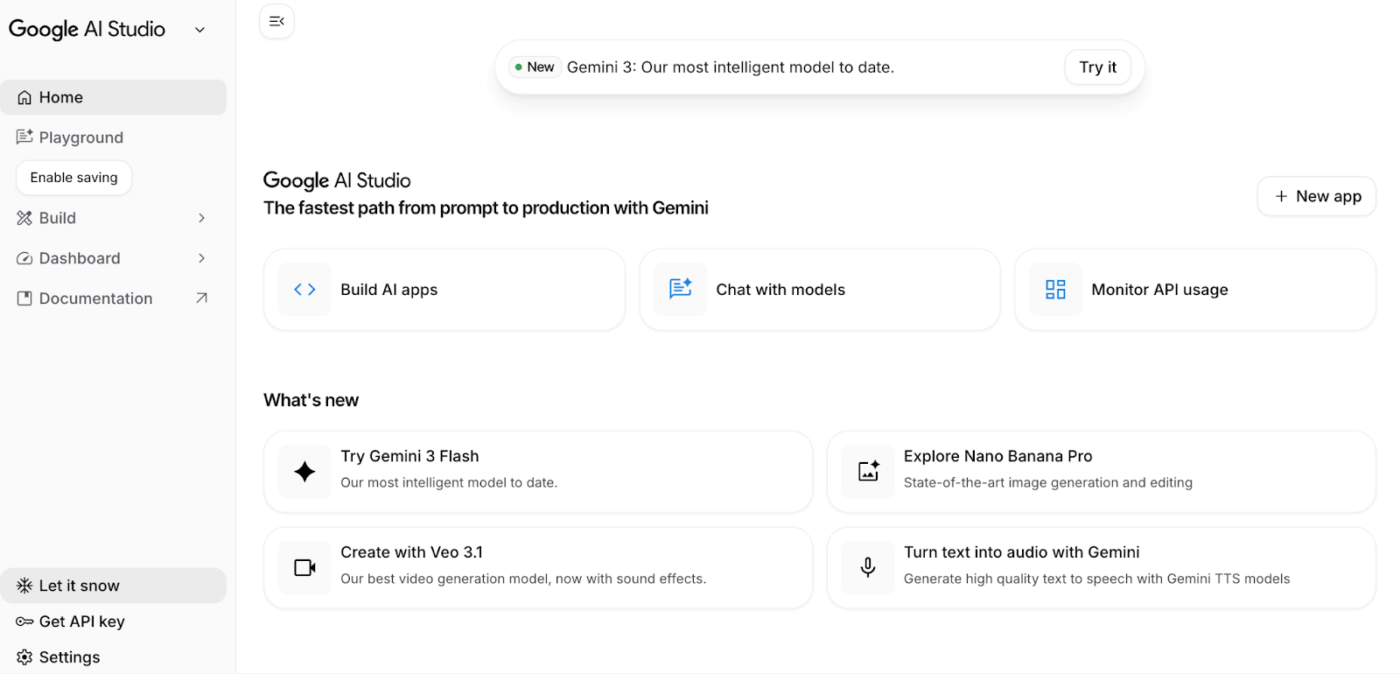
Then, decide where the AI agent will run. Google’s key security guidance warns against embedding API keys in browser or mobile code and against committing keys to source control.
If you plan to build agents for business workflows, you should route Gemini API calls through a backend. With this, you can control access, logging, and monitoring.
🧠Did You Know? Google’s Gen AI SDK is designed so that the same basic code can work with both the Gemini Developer API and the Gemini API on Vertex AI, which makes it easier to move from prototype access to a more governed setup without rewriting your entire system.
To use Gemini for creating AI agents, you need to generate your Gemini API key inside Google AI Studio. Google’s official documentation walks you through creating and managing keys there. You should treat this key like a production secret because it controls access and cost for your account.
After you create the key, store it as an environment variable in the system where your agent runs. Google’s migration guidance notes that the current SDK can read the key from the GEMINI_API_KEY environment variable, which keeps secrets out of your code and out of shared files.
This step helps your team by separating development from secret management. You can rotate the API key without changing code, and you can keep different keys for dev and production when you need clean access controls.
Google recommends the Google GenAI SDK as the official, production-ready option for working with Gemini models, and it supports multiple languages, including Python and JavaScript.
If you work in Python, install is google-genai package. It supports both the Gemini Developer API and Vertex AI APIs. This is useful when you build agents that may start as experiments and later need a more enterprise-ready environment.
If you work in JavaScript or TypeScript, Google documents the @google/genai SDK for prototyping. You should keep the API key on the server side when you move beyond prototypes. This is where you can protect access and prevent leakage through client code.
📖 Also Read: Best Gemini Prompts To Increase Productivity
Building an AI agent with Google’s Gemini models is surprisingly simple when you follow a modular approach. You start with a basic model call, and then add tool use through function calling. After this, you wrap everything in a loop that can decide, act, and stop safely.
This process allows developers to move from a simple agent that just chats to a sophisticated system capable of executing complex tasks through tool use.
✅ Follow these steps to create a functional agent that can interact with the world by calling a function or searching data sources:
Start with a simple AI agent that takes user input and returns a response that matches the agent’s purpose. Your first step is to define:
A helpful pattern is to keep prompts short and explicit, then iterate with prompt engineering after you see real outputs. Google’s guidance for agent development is basically: start simple, test often, refine prompts and logic as you go
✅ Here is a simple Python example you can run as a baseline:
import google.generativeai as genai
import os

# Configure your environment
genai.configure(api_key="YOUR_API_KEY")

# Initialize the model
model = genai.GenerativeModel('gemini-2.0-flash')

# Test a simple interaction
response = model.generate_content("Explain your purpose as an AI agent.")
print(response.text)
It essentially sets up a bridge between your local environment and Google’s large language models.
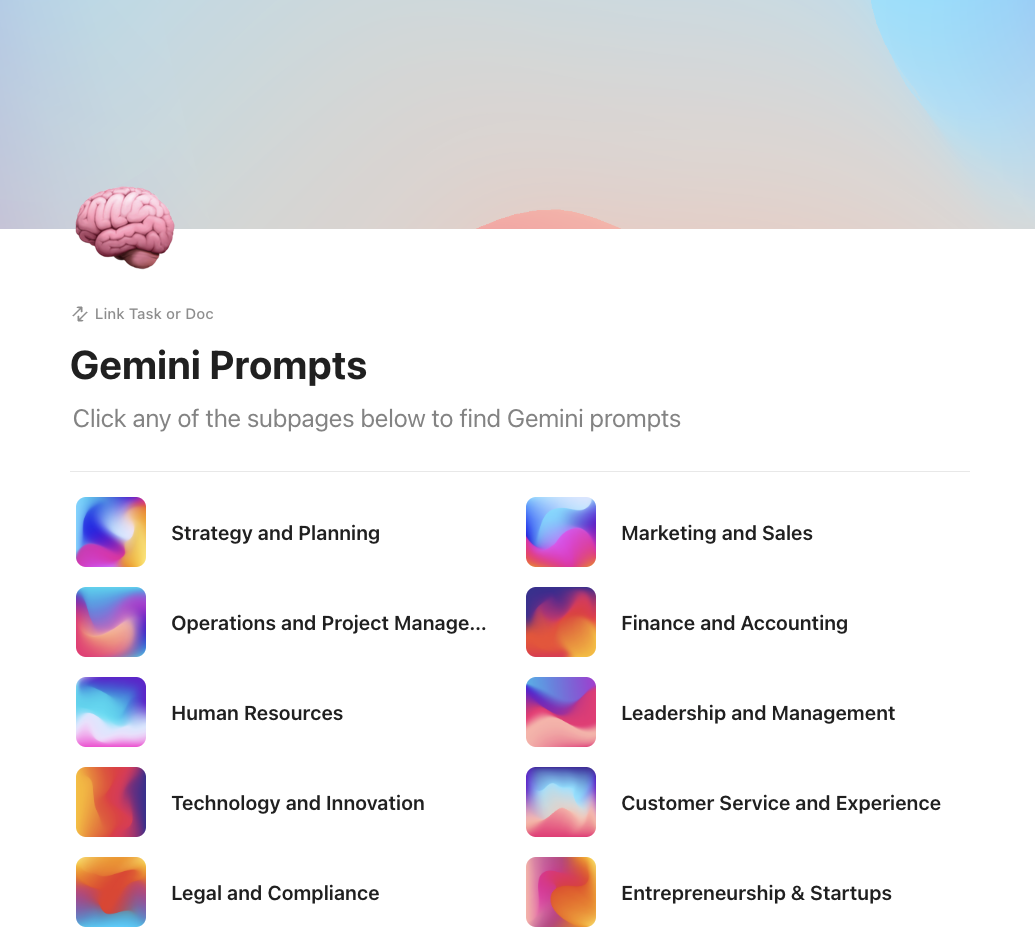
💡 Pro Tip: Keep your prompt engineering consistent with ClickUp’s Gemini Prompts Template.
ClickUp’s Gemini Prompts Template is a ready-to-use ClickUp Doc that gives you a large library of Gemini prompts in one place, designed to help you get ideas quickly and standardize how your team writes prompts.
Because it lives as a single Doc, you can treat it like a shared prompt “source of truth.” That is useful when multiple people are building prompts for the same agent, and you want consistent inputs, less drift, and faster iteration across experiments.
🌻 Here’s why you’ll like this template:
Once your text-only agent works, add tool use so the model can call code you control. Gemini’s function calling is designed for this: instead of only generating text, the model can request a function name plus parameters, so your system can execute the action and send results back.
A typical flow looks like this:
If you want fewer parsing headaches, use structured outputs (JSON Schema) so the model returns predictable, type-safe data. This is especially useful when your agent is generating tool inputs.
✅ Here’s a Python code to help you set the shape:
from google import genai
from google.genai import types

client = genai.Client()

get_ticket_status = types.FunctionDeclaration(
    name="get_ticket_status",
    description="Fetch a support ticket status by ID from the internal system",
    parameters={
        "type": "object",
        "properties": {
            "ticket_id": {"type": "string", "description": "Ticket identifier"}
        },
        "required": ["ticket_id"]
    },
)

tools = types.Tool(function_declarations=[get_ticket_status])
config = types.GenerateContentConfig(tools=[tools])

resp = client.models.generate_content(
    model="gemini-3-flash-preview",
    contents="Check ticket TCK-1842 and tell me whether I should escalate it.",
    config=config
)

print(resp)
This script gives the AI the “ability” to interact with your own external systems—in this case, an internal support ticket database.
Now you move from “single response” to an agent that can iterate until it reaches an exit condition. This is the loop most people mean when they say “agent mode”:
To maintain context without bloating the prompt:
Want multiple agents or multi-agent systems? Start with one agent loop first, then split responsibilities (for example: planner agent, tools agent, reviewer agent).
Google also highlights open source frameworks that make this easier, including LangGraph and CrewAI, depending on how much control you want over multi-agent interaction.
✅ Here’s a practical loop pattern you can adopt:
MAX_TURNS = 8
conversation = [
    {"role": "user", "parts": [{"text": "Triage this ticket. If needed, pull current status and recent updates. Ticket ID is TCK-1842."}]}
]

for _ in range(MAX_TURNS):
    resp = client.models.generate_content(
        model="gemini-3-flash-preview",
        contents=conversation,
        config=config
    )

    candidate = resp.candidates[0].content
    conversation.append(candidate)

    tool_calls = []
    for part in candidate.parts:
        if getattr(part, "function_call", None):
            tool_calls.append(part.function_call)

    if not tool_calls:
        break

    for call in tool_calls:
        if call.name == "get_ticket_status":
            result = {"status": "open", "priority": "p1", "last_updated": "2h"}
        else:
            result = {"error": "unknown tool"}

        conversation.append({
            "role": "tool",
            "parts": [{"function_response": {"name": call.name, "response": result}}]
        })
The AI is the Brain (deciding what to do), and this Python loop is the Body (doing the actual work of fetching data).
MAX_TURNS = 8 is a safety guardrail. If the AI gets confused and keeps calling tools in an infinite loop, this ensures the script stops after 8 attempts, saving you money and API quota.
Test your AI agent to ensure it behaves the right way under specific scenarios.
Add tests at three levels:
A practical rule: Treat every tool call like a production API. Validate inputs, log outputs, and fail safely.
If you don’t want to wire everything by hand, Google supports several “builder” style routes:
When building AI agents for business workflows, optimize for reliability before you optimize for cleverness. Gemini 3 gives you more control over how the model reasons and how it interacts with tools. This helps you build agents that behave consistently across complex tasks and real systems.
✅ Here are some best practices for building AI agents with Gemini:
Define the agent’s purpose and exit conditions before you write code. This is where many agent projects fail, especially when the agent can trigger actions across client or production systems. Many agentic AI initiatives get cancelled when teams cannot prove value or keep risk under control.
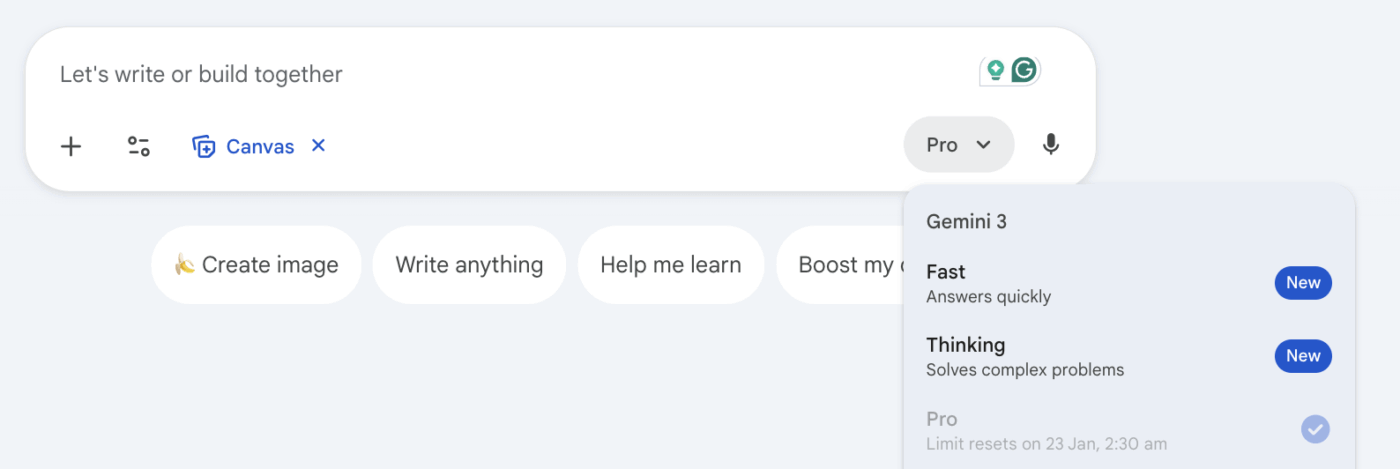
Gemini 3 has introduced a thinking level control that lets you vary reasoning depth per request. You should run high-level reasoning on planning and debugging, along with instruction-heavy steps. Run low reasoning on routine steps where latency and cost matter more than deep analysis. This control balances the LLM’s performance.
📖 Also Read: How To Create Software Listicles
Keep each function narrow by giving it a clear name and keeping the parameters strict. Function calling becomes more dependable when the model chooses between a small set of well-defined tools. Google’s Gemini 3 content also emphasizes reliable tool calling as a key ingredient for building helpful agents.
You should control which tools the agent can access and what each tool can touch. Put permission checks in your system. Log every tool call with inputs and outputs, so you can debug failures and prove what the agent did during an incident.
📖 Also Read: Best Agentic AI Tools To Automate Complex Workflows
You need to test whether the agent actually completed the task, not whether it phrased the answer the same way each time. On every run, check whether the agent picked the right tool and sent valid inputs. Make sure that it leads to the right end state in your system.
You can also run a small set of scenario tests based on real user requests and real data formats. Agent workflows like form filling and web actions often fail on edge cases unless you test them on purpose.
📖 Also Read: AI Super Agents And The Rise of Agentic AI
If your workflow involves PDFs, screenshots, audio, or video, you should plan how the agent will interpret each format. Gemini 3 Flash Preview supports multimodal inputs, and this helps simplify how your system handles mixed work artifacts.
Agent loops can grow quickly when a request gets complex. Set turn limits and timeouts so the agent can’t run indefinitely, and handle retries in your system so failures don’t cascade.
Add confirmations before irreversible actions, especially when the agent updates records or triggers downstream workflows.
Make sure to also separate routine steps from deep reasoning steps. This will help you keep everyday requests fast while reserving heavier reasoning for the few tasks that actually need it.
📽️Watch a video: Want AI to work for you and not just add to the noise? Learn how to get the most out of AI with this video.
Gemini gives you strong building blocks for agents, but a production agent fails for the same reasons every time. It loses context, or it produces a tool that your system cannot safely execute. If you plan for these limits early, you avoid most surprises after your first pilot.
✅ Here are some of the limitations of using Google Gemini for building AI agents:
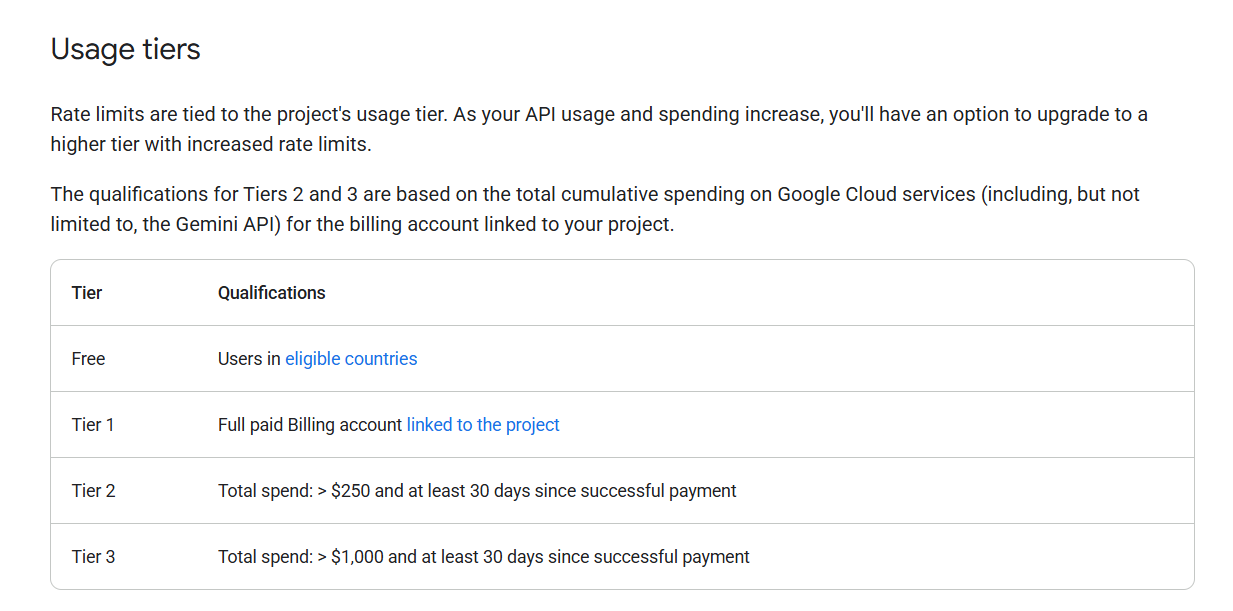
The Gemini API enforces rate limits to protect system performance and fair usage, so an agent that works in testing can slow down under real traffic. You should expect to design for batching and queueing when multiple users trigger the agent at the same time.
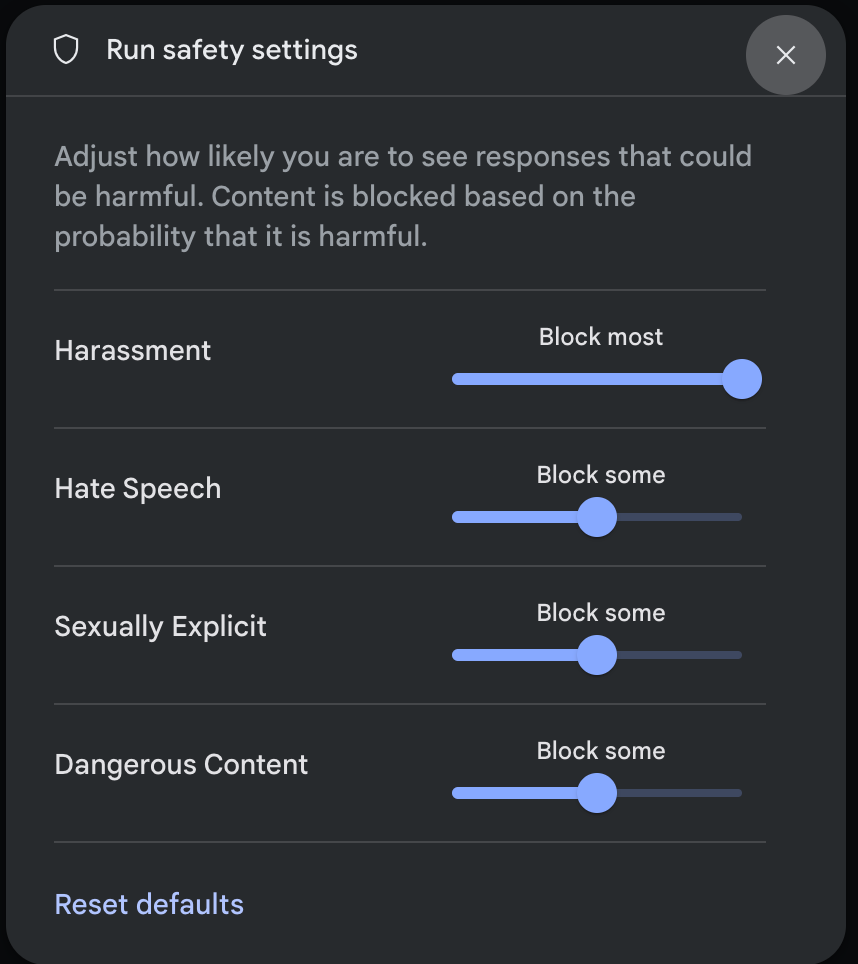
The Gemini API includes built-in content filtering and adjustable safety settings. These filters can occasionally block content that is harmless in a business context, especially when the agent handles sensitive topics or user-generated text.
You should test safety settings against your real prompts and workflows, not only demo prompts.
Every Gemini model has a context window measured in tokens. That limit constrains how much input and conversation history you can send in one request. When you exceed it, you need a strategy, such as summarization or retrieval from data sources.
Agents often need to run continuously, which means the API key becomes operational infrastructure. If a key leaks, usage and cost can spike, and the agent may expose access you did not intend.
You should treat the key like any production secret and keep it out of client-side code and repositories.
📖 Also Read: How To Build An AI Agent For Better Automation
If you need strict network and encryption controls, the set of options depends on whether you run Gemini through Vertex AI and Google Cloud controls.
Google Cloud documents features such as VPC Service Controls and customer-managed encryption keys for Vertex AI. This is important for regulated workflows and client data handling.
Even when your code is correct, model responses can vary across runs. That can break strict workflows when the agent must produce structured tool inputs or consistent decisions. You should reduce randomness for tool routing tests and validate every function argument.
Additionally, you should focus your tests on end states your system can verify rather than exact wording.
📖 Also Read: Types Of AI Agents To Boost Business Efficiency
Building AI agents in Gemini has its benefits, but it can quickly become code-heavy. You start with prompts and function calling. Then you wire tool use, handle an API key setup, and maintain context across an agent loop so the agent can finish complex tasks without drifting.
This is how work sprawl shows up when the team uses different tools to manage their workflows and follow-ups.
Now add AI sprawl to the picture. Different teams try different AI tools, and no one is sure about which outputs are reliable or what data is safe to share. Even if you know how to build AI agents with Google Gemini, you end up managing more infrastructure than outcomes.
This is where a converged AI workspace like ClickUp plays an integral role. It lets teams create and run agents inside the same workspace where work already lives, so agents can act on real tasks, Docs, and conversations instead of staying stuck in a separate prototype.
✅ Let’s check out how ClickUp acts as a fitting alternative for building AI agents:
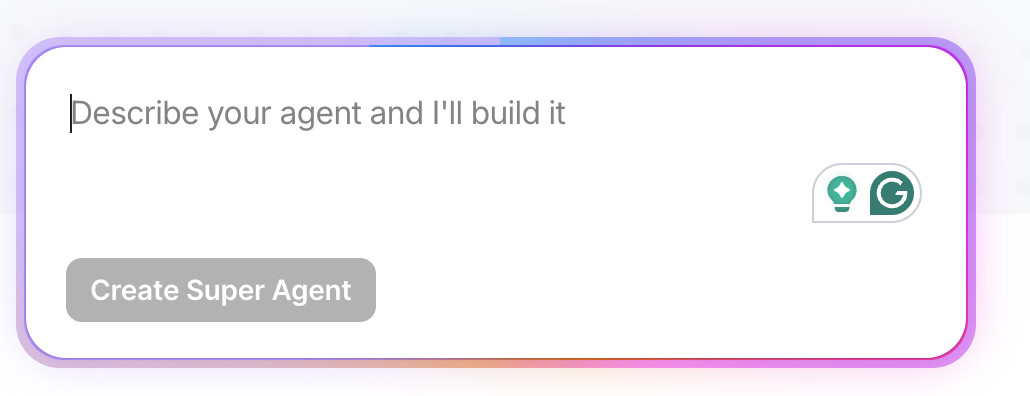
When you build agents with Gemini, a lot of the effort goes into orchestration. You define the agent’s purpose, decide the tools, design the loop, and keep context clean.
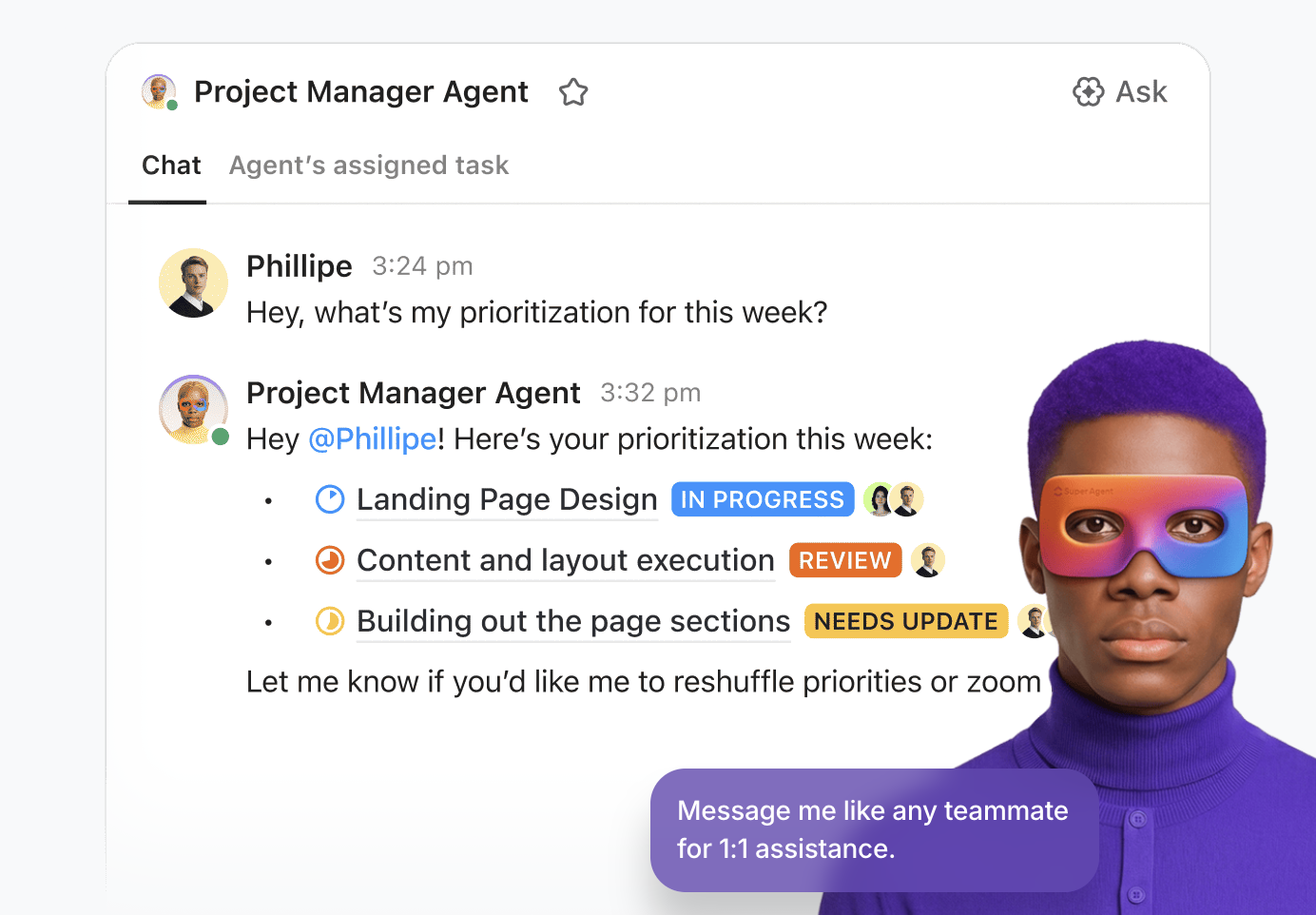
ClickUp Super Agents work as human-like AI teammates inside your Workspace, so they can collaborate where work already happens. You can control which tools and data sources the AI agents can access, and they can also request human approval for critical decisions.
ClickUp Super Agents are secure, contextual, and ambient. They can run on schedules, respond to triggers, and perform real work skills such as drafting docs, updating tasks, sending emails, and summarizing meetings.
Learn more about them in this video
✅ This is how ClickUp’s Super Agent Builder helps you build AI agents:
💡 Pro Tip: Use ClickUp Whiteboards to design your Super Agent workflow before you build it.
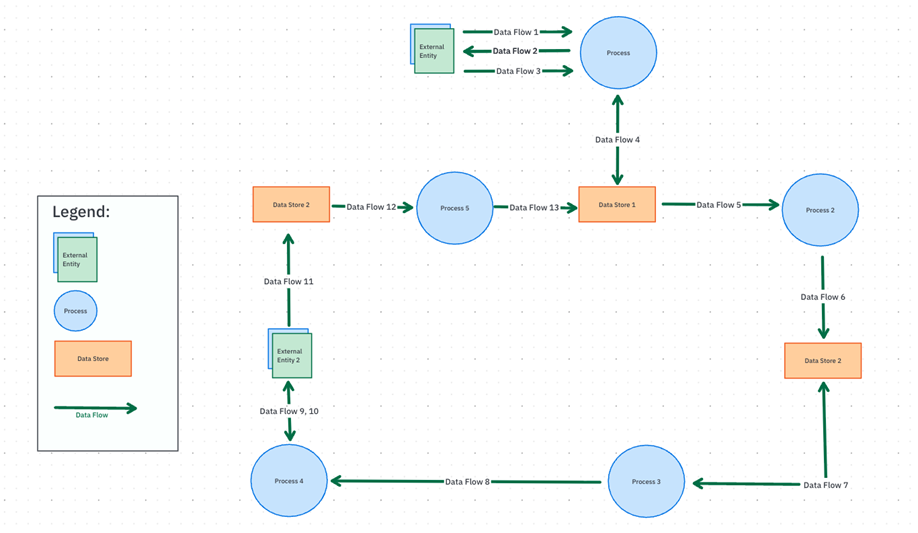
Super Agents work best when you give them a clear job and clear stop conditions. ClickUp Whiteboards help you map the full workflow visually, so you and your team agree on what the Super Agent should do before it starts acting on tasks and updates.
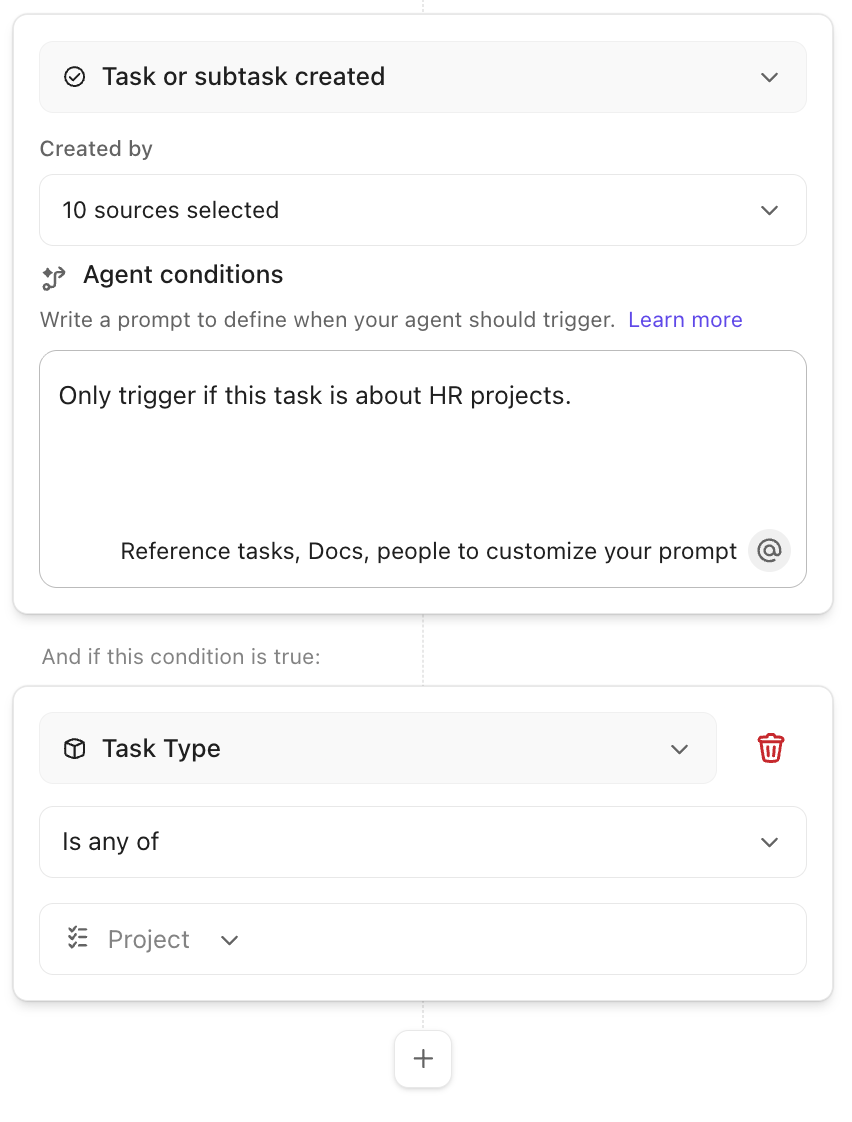
Not every “agent” needs advanced reasoning. Many teams just want repeatable execution: triage a request, route it, ask for missing info, update status, or post an update when something changes. If you build each of these from scratch in Gemini, you spend time maintaining code for workflows that should be predictable.
ClickUp Autopilot Agents are designed for exactly that. They perform actions based on defined triggers and conditions, in specific locations (including Lists, Folders, Spaces, and Chat Channels). They follow your instructions using configured knowledge and tools.
💡 Pro Tip: Use ClickUp Automations to trigger ClickUp’s Autopilot Agents at the right moment.
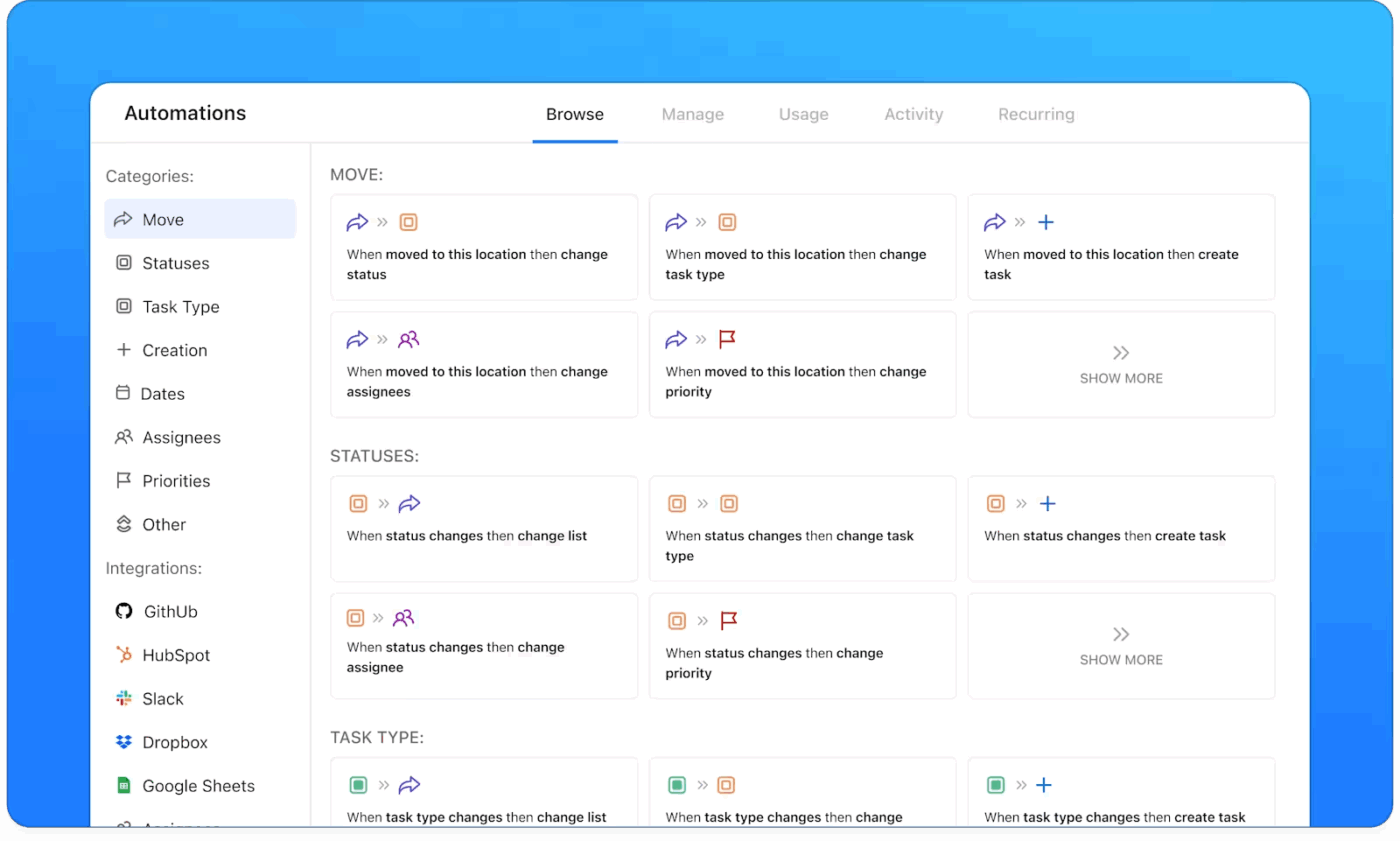
If you’re building agents with Gemini, the hardest part to scale is not the model. It’s reliability: making sure the right action runs at the right time, every time. ClickUp Automations give you that event-driven backbone inside your workspace, so agent workflows trigger off real work signals (status changes, updates, messages).
The most useful pattern for tech and product teams is treating ClickUp Automations like a dispatcher:
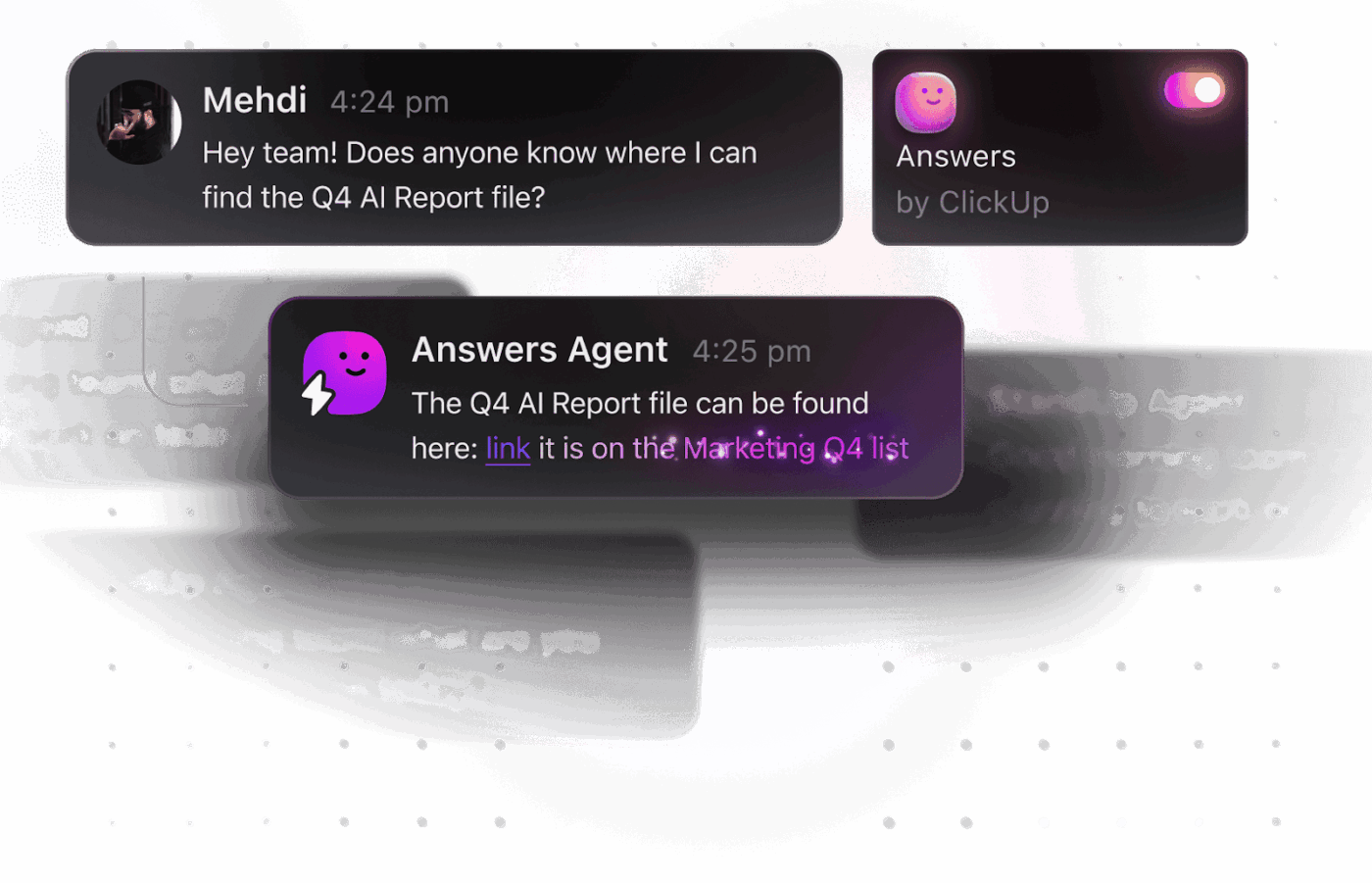
In busy product and engineering teams, the same questions come up every week. What changed in scope, what is blocked, what is the latest decision, and where is the current version of the process? People ask in chat because it is faster than searching, and the answer often depends on what is true right now in tasks and docs.
ClickUp Ambient Answers works inside Chat Channels and replies with context-aware answers. It is meant for Q&A-style requests in chat, so your team can get an answer without someone manually pulling links and summaries.
✅ Here’s how ClickUp Ambient Answers helps:
💡 Pro Tip: Use ClickUp Chat to make ClickUp Ambient Answers more reliable.
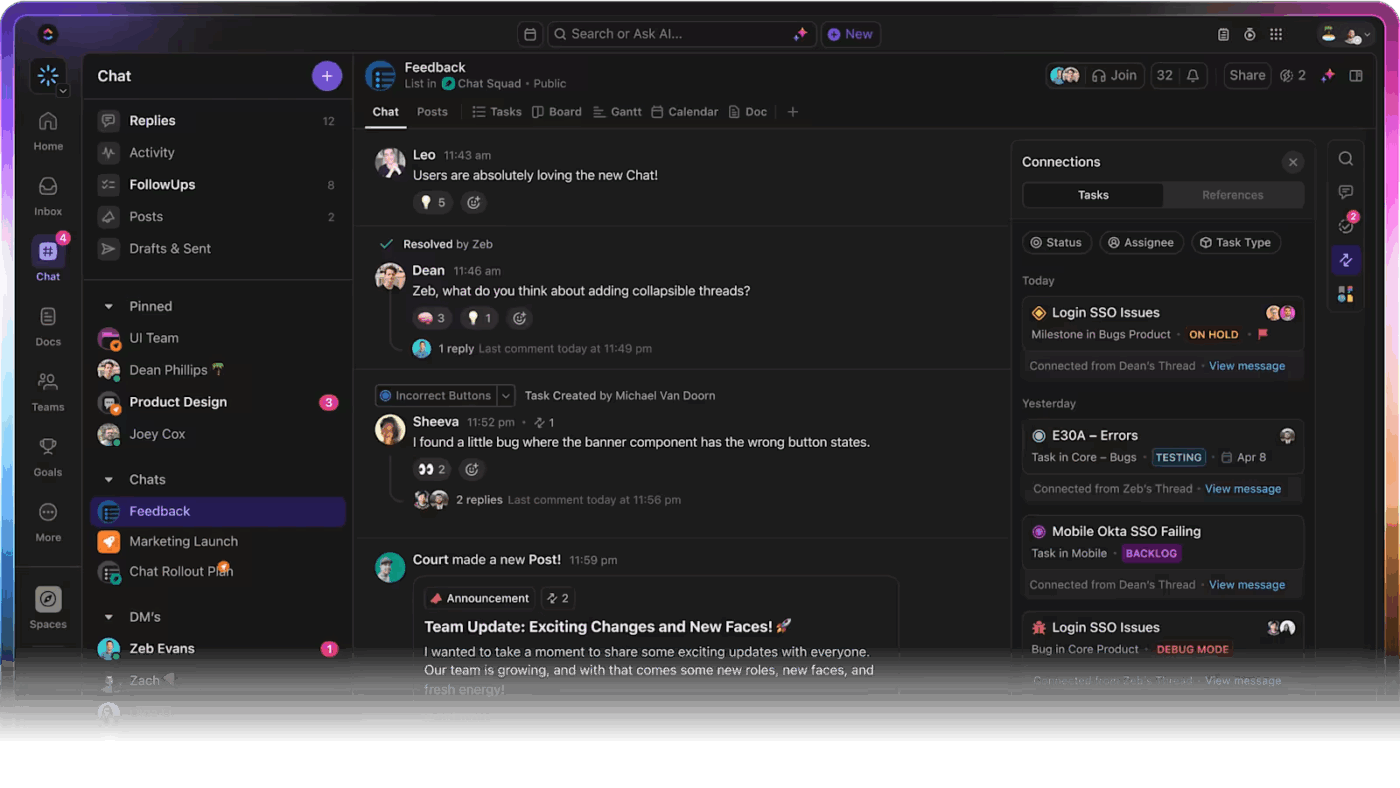
Ambient Answers gets better when your Chat Channel stays connected to the real work context. ClickUp Chat supports turning messages into tasks, using AI to summarize threads, and keeping conversations anchored to related work.
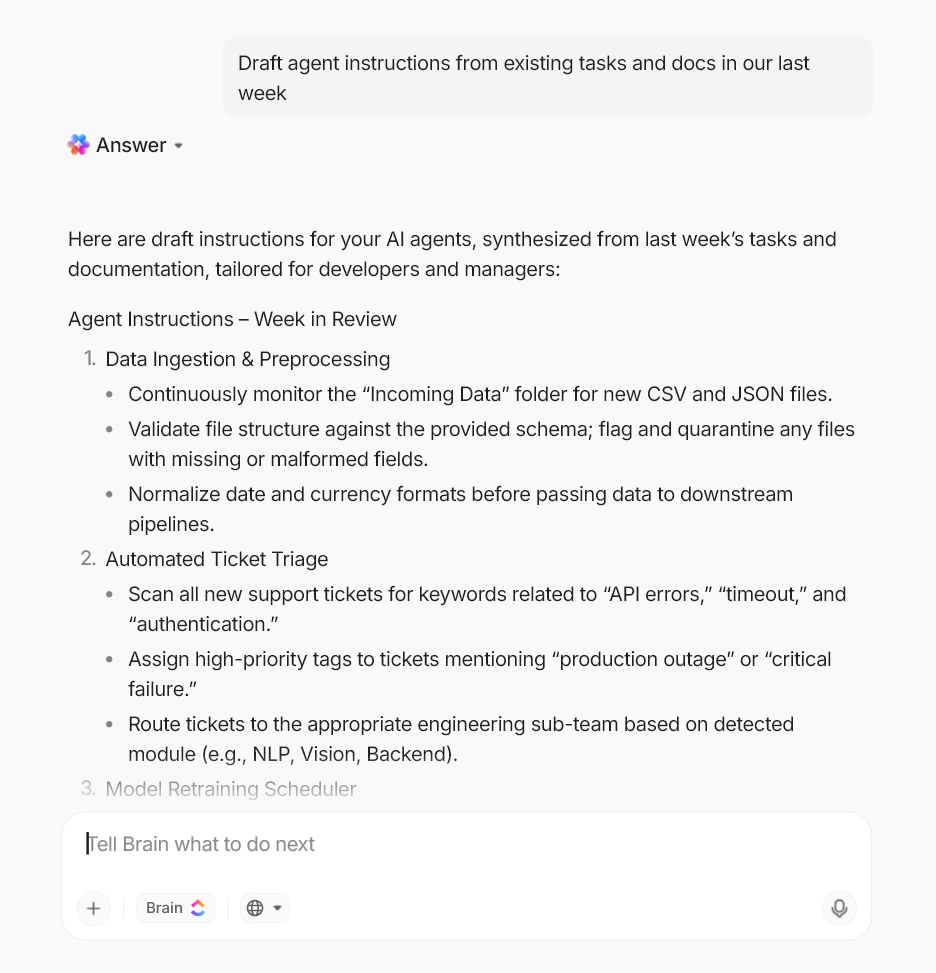
When you start building an AI agent, you need to set up work, and you need a clear job definition. You also need a reliable source material and a clean way to convert outputs into real work items. If you do this in code first, you spend cycles on scaffolding before you can prove value.
ClickUp Brain shortens the setup phase by giving you multiple building blocks inside one workspace. You can pull answers, convert answers into tasks, and turn meetings into summaries and action items.
These features help you define the agent’s job and generate structured outputs your team can execute.
✅ Here’s how ClickUp Brain helps you with AI agent work:
💡 Pro Tip: Use ClickUp Brain MAX to design and validate your AI agent workflow
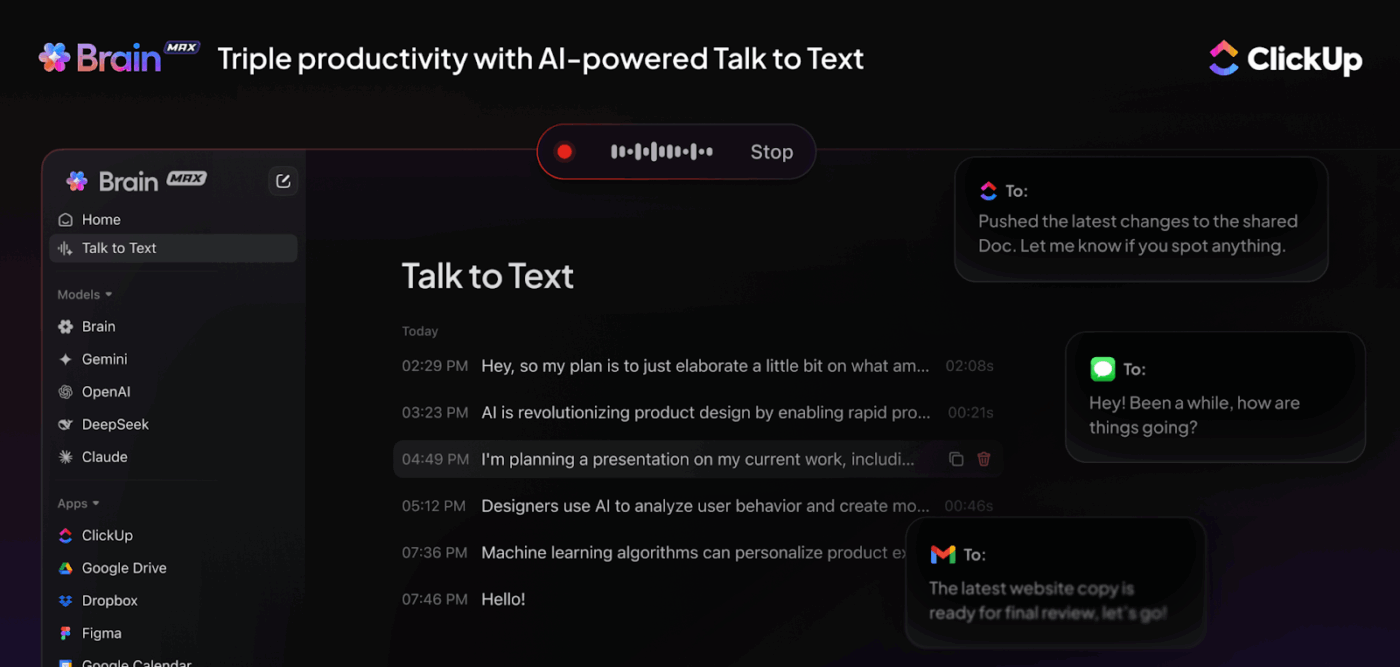
ClickUp Brain MAX helps you move from a rough AI agent idea to a workflow you can actually ship. Instead of writing a full agent loop first, you can use Brain MAX to define the agent’s purpose and map tool steps. Following this, pressure test edge cases using the same language your users will use.
Google Gemini gives you a solid path to build an AI agent when you want custom logic and tool control in your own codebase. You define the goal, connect tools through function calling, and iterate until the agent behaves reliably in real workflows.
As you scale, the real pressure shifts to execution. You need your agent work to stay connected to tasks, docs, decisions, and team accountability. That is where ClickUp becomes the practical option, especially when you want a no-code way to build agents and keep them close to delivery.
If you want your AI agent workflows to stay consistent across teams, centralize the work in one place. Sign up on ClickUp for free today ✅.

© 2026 ClickUp

There’s an easier way. Try a free AI Agent in ClickUp that actually does the work for you—set up in minutes, save hours every week.