






Still downloading templates?
There’s an easier way. Try a free AI Agent in ClickUp that actually does the work for you—set up in minutes, save hours every week.
Sorry, there were no results found for “”
Sorry, there were no results found for “”
Sorry, there were no results found for “”
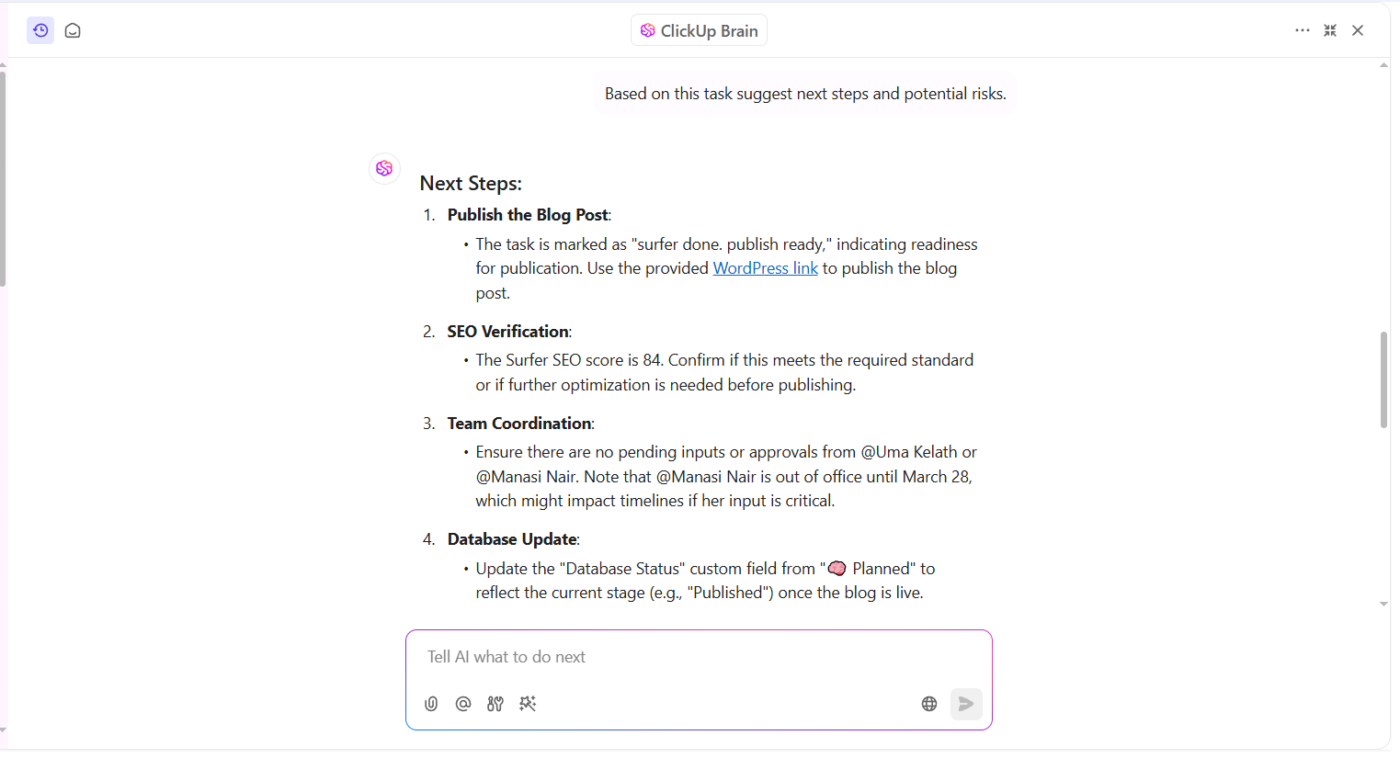
Grok didn’t gain momentum by acting like every other AI assistant. With a live connection to X, it responds to what’s happening right now, from breaking news to fast-shifting public sentiment, rather than relying on frozen training data. In the OneLittleWeb ‘AI Big Bang’ study covering Aug 2024–Jul 2025, Grok averaged 57.2M monthly visits, rising to 129.8M/month in the final quarter (May–Jul 2025).
Grok is useful when the story is moving faster than your dashboards. If your team relies on real-time signals from X, news, and public sentiment, prompt structure decides whether you get fresh evidence or generic output. This guide shows how to write Grok prompts that reliably pull live sources, then turn what you learn into action in ClickUp.
Grok real-time data prompts are structured queries that tell Grok to retrieve fresh sources (X + web) within a defined time window, then return findings with links you can verify. Without explicit source and time constraints, Grok can still answer, but the output is more likely to lean on pre-trained knowledge instead of current evidence.
Unlike many Large Language Models (LLMs), Grok has built-in web browsing capabilities and a live connection to X. That access alone isn’t enough, though. Grok only searches live sources when the prompt clearly asks it to. If the prompt is vague, Grok may default to its static training data instead of querying real-time information.
The term ‘real-time’ here doesn’t mean instant. Depending on the source, you’re looking at data from the past few hours to a couple of days. Your prompt structure is what tells Grok to either search for live data or default to its static training knowledge.
💡 Pro Tip: Here are two key components that make a prompt ‘real-time enabled’:
Source directives: Explicitly asking Grok to check X, news, or web results tells it where to look
Temporal markers: Words like ‘today,’ ‘this week,’ or ‘right now’ signal that you need fresh information
Decisions are shaped by breaking news, shifting sentiment, and competitive moves that unfold in hours, not quarters. Grok’s real-time data access gives teams visibility into what’s happening as it happens.
Here’s where that real-time access makes a tangible difference:
📮 ClickUp Insight: 62% of our respondents rely on conversational AI tools like ChatGPT and Claude. Their familiar chatbot interface and versatile abilities—to generate content, analyze data, and more—could be why they’re so popular across diverse roles and industries.
However, if a user has to switch to another tab to ask the AI a question every time, the associated toggle tax and context-switching costs add up over time.
Not with ClickUp Brain, though. It lives right in your Workspace, knows what you’re working on, can understand plain text prompts, and gives you answers that are highly relevant to your tasks! Experience 2x improvement in productivity with ClickUp!
Even the best AI built for live information can give you outdated or generic responses if the prompt doesn’t clearly request real-time data. Grok is no exception. Without the right signals, it may default to its static training data rather than querying live sources.
Prompt structure decides the outcome. Small choices—like how you reference time, sources, and scope—determine how Grok performs.
Follow this neutral, step-by-step guide to correctly configure Grok for real-time data queries.
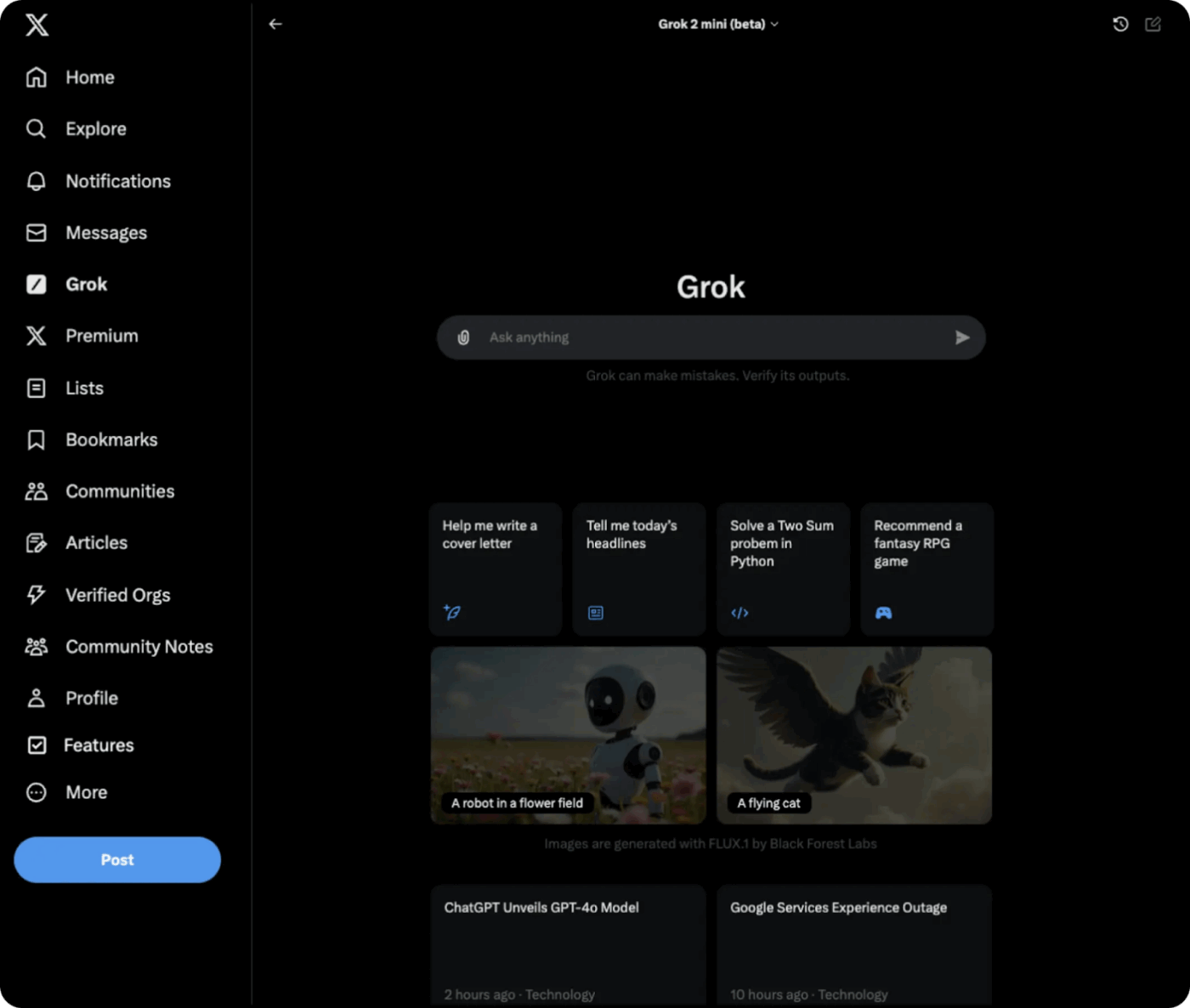
1. Log in to X: Open x.com or the X mobile app and sign in
2. Access Grok: Select the Grok icon from the navigation bar or side menu
3. Use Regular mode: Switch to Regular mode for factual, real-time responses. Fun mode prioritizes tone over accuracy
4. Write a real-time query: Ask explicitly for current information, such as “What’s happening with [topic] on X right now?
5. Use DeepSearch when needed: Enable DeepSearch to scan multiple live sources for broader context
1. Create an xAI account: Sign up at console.x.ai
2. Generate an API key: Create a new key from the API Keys section
3. Secure the API key: Store it in an environment variable or .env file
4. Configure the API request: Use the xAI SDK or direct HTTP requests with a Grok model
5. Enable real-time X context: Set enable_x_context to true to allow live X data access
6. Enable streaming if required: Use streaming responses to receive updates as Grok generates them
Once configured, the quality of results depends less on access and more on how precisely prompts signal time, sources, and intent, which is where real-time prompt design becomes critical.
💡 Pro Tip: If Grok returns clearly outdated information, try the following:
Inconsistent prompt writing across your team leads to wasted effort and variable data quality. It’s the definition of reinventing the wheel every single day. 🛠️
These templates give your team copy-paste starting points. Customize the bracketed sections for your industry, competitors, or use case.
When reactions shift by the hour, you need more than a general sense of ‘positive or negative.’ These prompts surface how people are responding right now to a brand, launch, or industry topic and why those reactions are forming.
Prompt 1: As of today, analyze sentiment on X and recent news articles about [BRAND/TOPIC]. Categorize reactions as positive, negative, or neutral. Highlight the most-shared praise and criticism from the last 48 hours and include links to representative posts.
Prompt 2: In the past 72 hours, identify the main concerns and positive reactions on X related to [BRAND/PRODUCT]. Group feedback by theme and note which topics are gaining the most engagement. Link to original posts.
Prompt 3: Sentiment shift detection
Compare sentiment on X about [BRAND/TOPIC] from the last 24 hours with sentiment earlier this week. Identify any noticeable shifts in tone and explain what events or conversations triggered the change. Cite sources.
Before a claim makes it into a report, deck, or article, it needs to hold up against current sources. The prompts in this section help teams verify facts, challenge assumptions, and catch inaccuracies that static training data would miss.
Prompt 1: Fact-check the following claim using current web sources and news from the past week: [CLAIM]. Provide supporting or contradicting evidence with source links. Note whether the information is disputed or unverified.
Prompt 2: Verify [CLAIM] by comparing coverage from at least three current sources published in the last 7 days. Identify any discrepancies in reporting and explain why they differ. Include links.
Prompt 3: Confirm whether [QUOTE] attributed to [PERSON/ORGANIZATION] is accurate based on recent reporting or official statements from the past 5 days. Flag outdated, misattributed, or missing context.
Not every spike in conversation is worth attention. The prompts below are designed to separate early signals from ongoing noise, helping teams identify new narratives and competitive shifts.
Prompt 1: Search X and recent news for emerging trends related to [INDUSTRY/COMPETITOR] from the last 7 days. Identify topics gaining traction that were not prominent last month. Link to original sources.
Prompt 2: Analyze X conversations from the past week about [COMPETITOR]. Identify new narratives, feature discussions, or concerns that are increasing in frequency or engagement. Provide examples.
Prompt 3: Identify which topics related to [INDUSTRY] are accelerating fastest on X in the last 72 hours. Rank them by growth in mentions and explain what’s driving the increase.
Pulling insights from multiple live sources can get messy fast. These prompts bring together X, news, and industry coverage into clear, structured briefings that work well for leadership updates and team syncs.
Prompt 1: Compile a briefing on [TOPIC] using data from X, Google News, and relevant industry publications from the past 72 hours. Organize by: (1) Key developments, (2) Notable opinions, (3) Open questions. Cite all sources.
Prompt 2: Summarize the most important updates on [TOPIC] from X and recent news over the last 5 days. Highlight what changed since the previous week and what teams should watch next. Include links.
Prompt 3: Compare how [TOPIC] is being discussed on X versus traditional news outlets in the last 48 hours. Identify differences in framing, tone, and focus. Support findings with examples.
🚀 ClickUp Advantage: You’ve got all your Grok prompts, but where do you keep them so you’re not rewriting the same thing over and over?
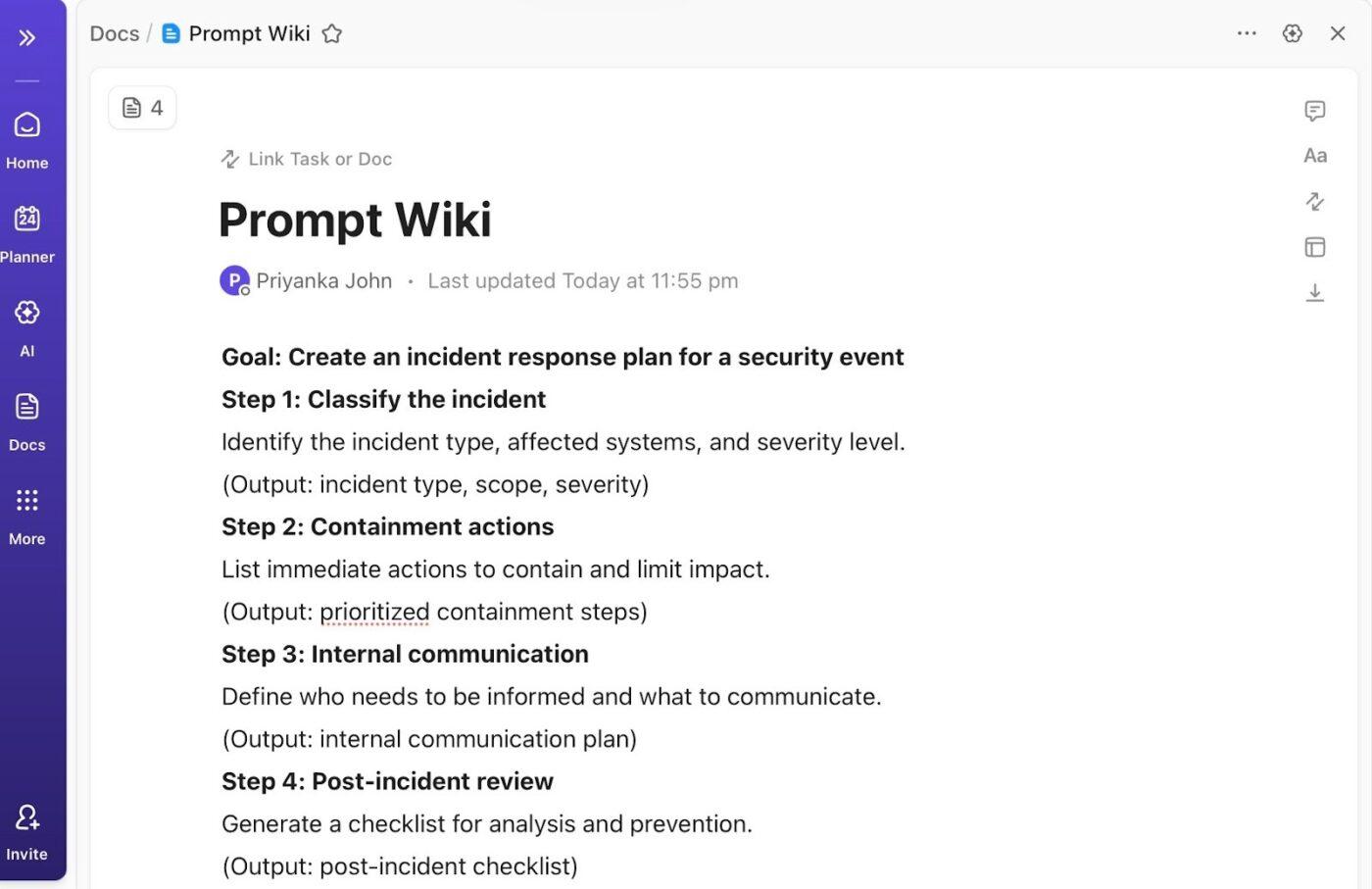
ClickUp Docs lets you centralize all your prompts, templates, and reference materials in one living workspace. Instead of scattering them across chat threads, emails, or random files, you can organize everything by project, team, or use case, so finding the right prompt is instant.
With live editing, you and your teammates can collaborate in real-time, refine prompts together, update templates, or leave comments for feedback. Every update is saved automatically, so your team always has access to the most current version.
Your team is using the templates, but the results are still hit-or-miss. This happens when you don’t understand the underlying principles of AI prompting techniques that make a prompt succeed or fail.
Here are the patterns that make real-time prompts effective. ✨
Here are the key limitations to be aware of:
📮 ClickUp Insight: Context-switching is silently eating away at your team’s productivity. Our research shows that 42% of disruptions at work come from juggling platforms, managing emails, and jumping between meetings. What if you could eliminate these costly interruptions?
ClickUp unites your workflows (and chat) under a single, streamlined platform. Launch and manage your tasks from across chat, docs, whiteboards, and more—while AI-powered features keep the context connected, searchable, and manageable!
Grok’s real-time capabilities can surface fast, unfiltered insights, but that same speed increases risk if prompts and outputs aren’t governed carefully. For teams using Grok in research, decision-making, or customer-facing workflows, governance ensures accuracy, accountability, and safe use at scale.
Below are practical governance best practices teams can apply when working with Grok prompts.
You’ve successfully pulled a critical piece of real-time data from Grok.
Now what?
It’s just text in a chat window, completely disconnected from your project plans, your team’s tasks, and the decisions that need to follow.
This disconnect creates significant friction and constant context switching that drains productivity and creates AI Sprawl—the unplanned proliferation of AI tools with no oversight or strategy.
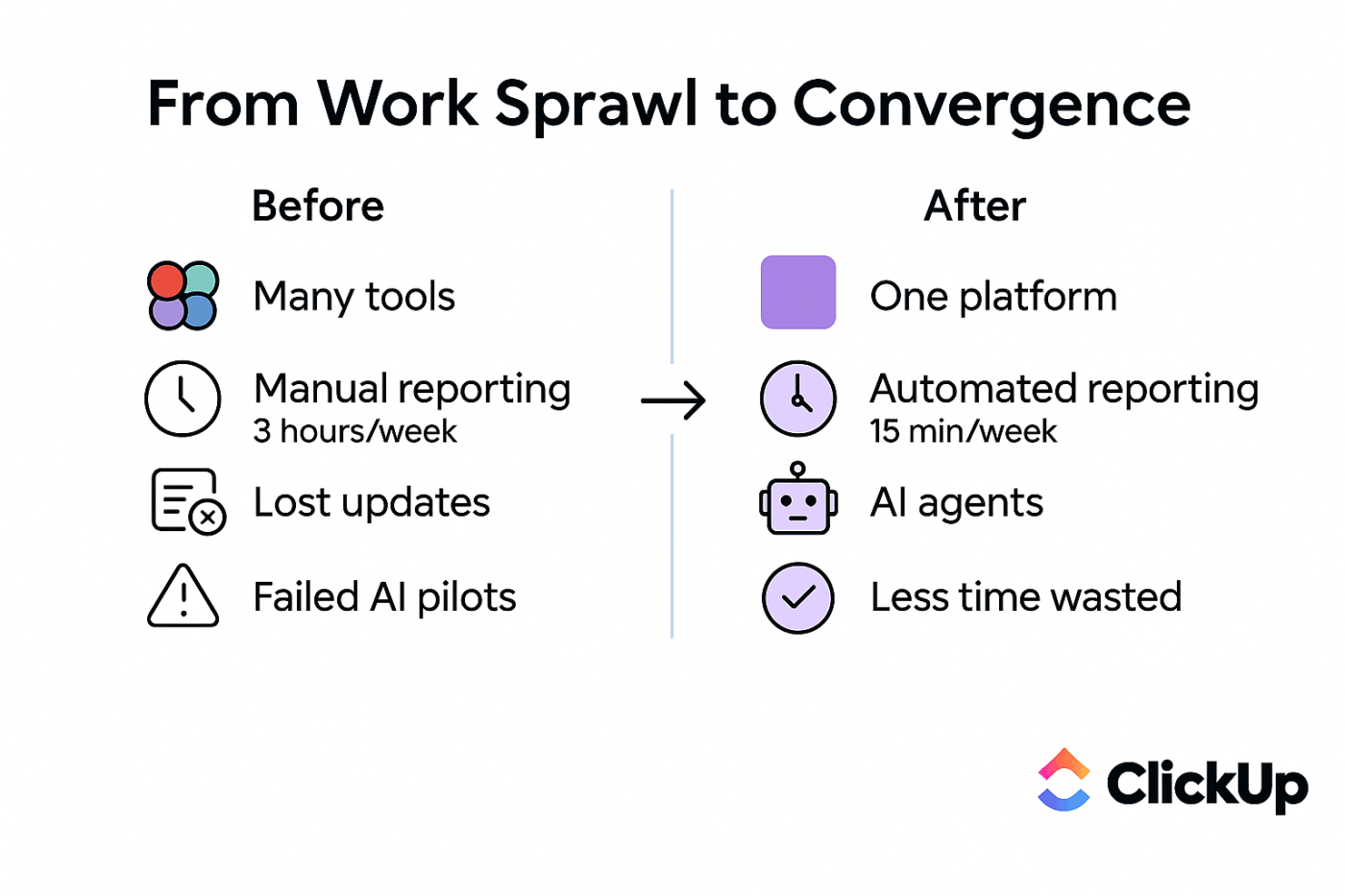
ClickUp is designed to close that gap.
It’s the best Converged AI Workspace designed to bring tasks, docs, goals, conversations, and timelines into a single system. Instead of moving insights across tools, you can work from one shared environment where context is already connected. When external insights arrive, they can be attached to tasks, referenced in docs, discussed in comments, and tracked through workflows.
Do you know what makes this even better?
ClickUp Brain builds on this by acting as a context-aware AI assistant inside your workspace. Unlike external AI tools, it understands what you’re working on, who owns what, and how work is progressing. It can turn Grok’s real-time outputs into summaries, action items, task updates, or documentation, without losing context or momentum.
Let’s see how ClickUp Brain helps you move from real-time insight to real work.
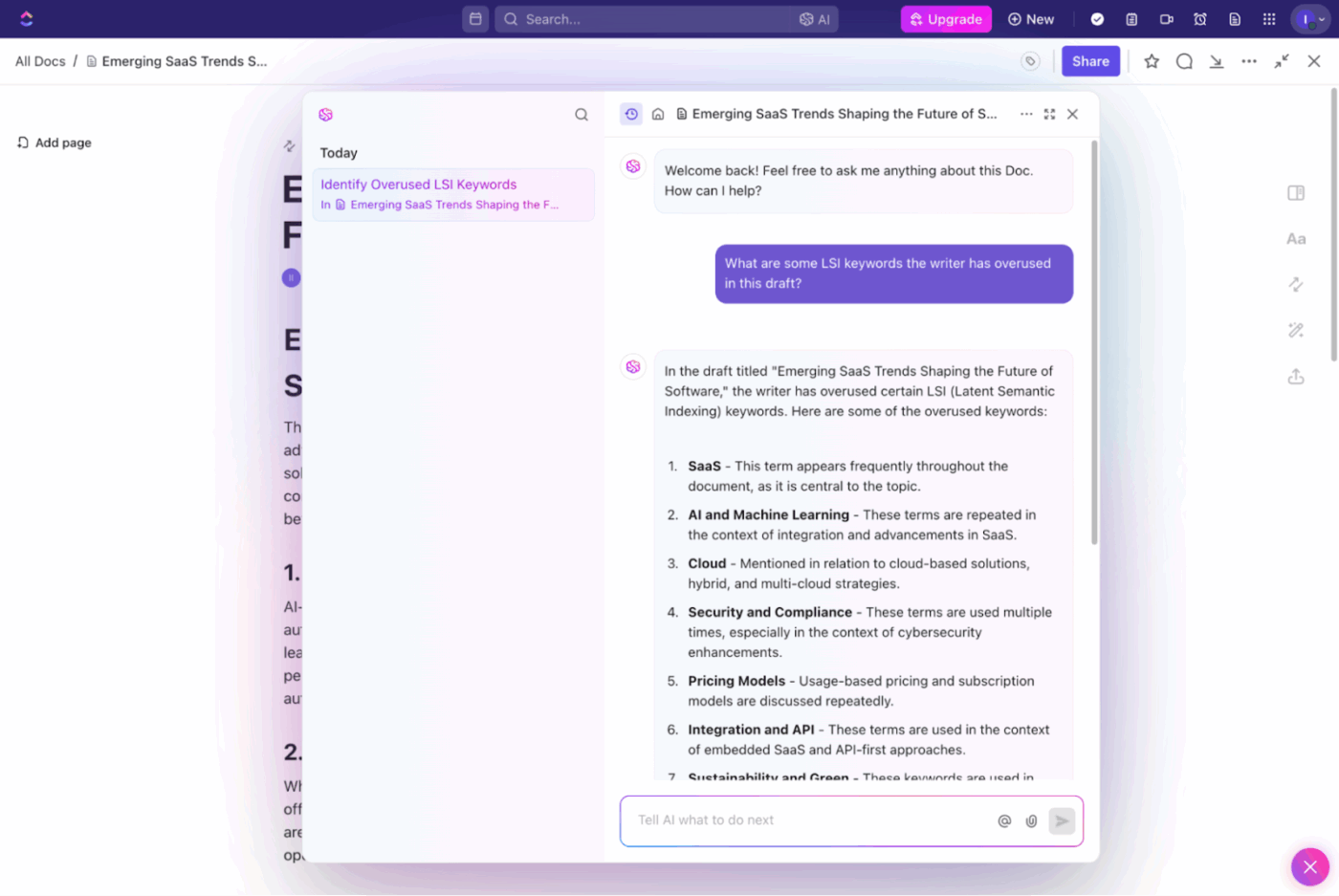
ClickUp Brain understands your work because it lives inside it. It connects directly to your tasks, Docs, comments, chats, goals, and integrated tools, so its responses are grounded in your actual priorities—not just the prompt you typed.
Instead of asking for one-off answers, you can rely on Brain to interpret and act on live workspace context across teams and projects. Here are some of the practical ways ClickUp Brain helps:
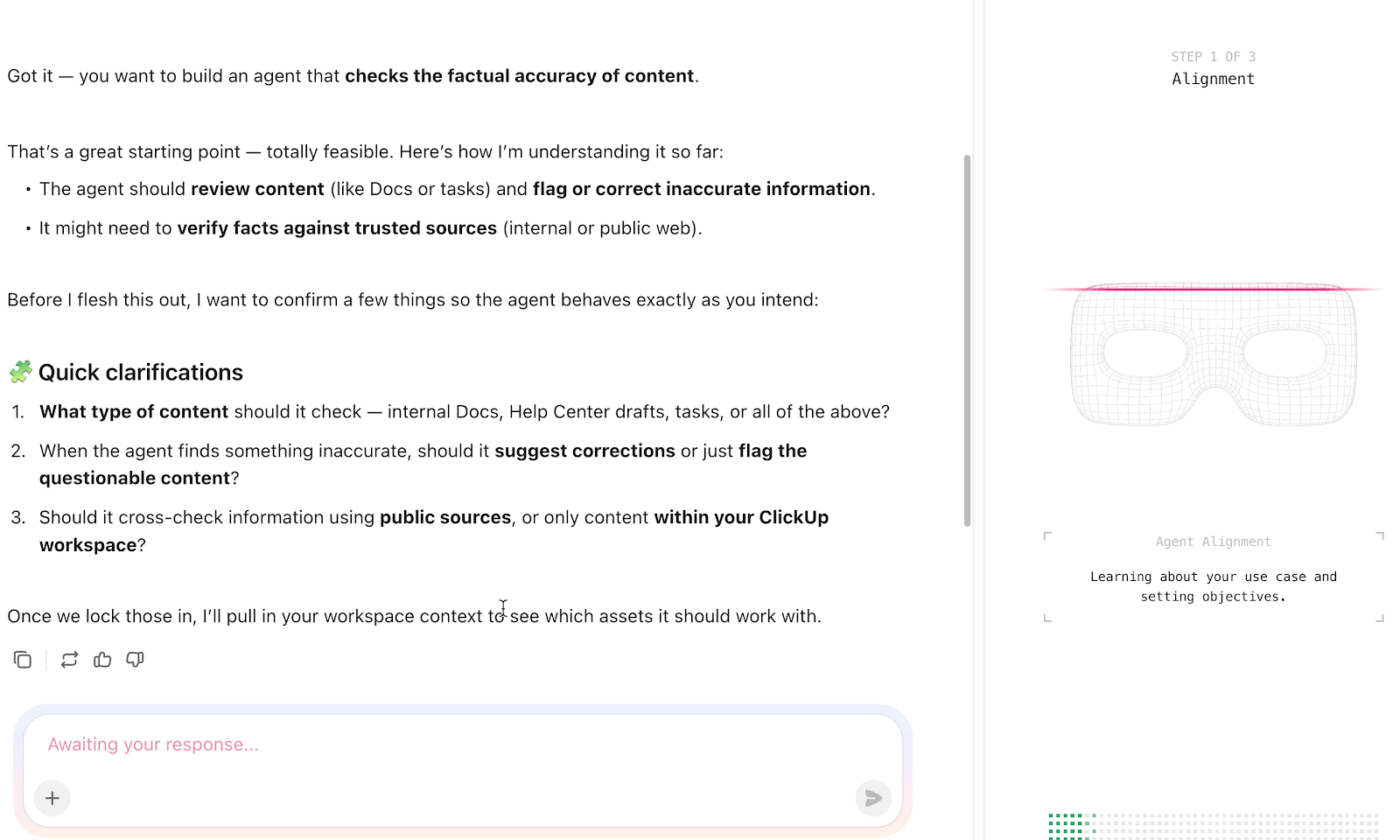
ClickUp Super Agents are AI-powered teammates that are designed to handle multi-step workflows, adapt over time, and operate continuously without needing to be manually prompted each time. You define what they can access, which tools they can use, and where they’re allowed to act, keeping everything secure and intentional.
In practice, Super Agents can:
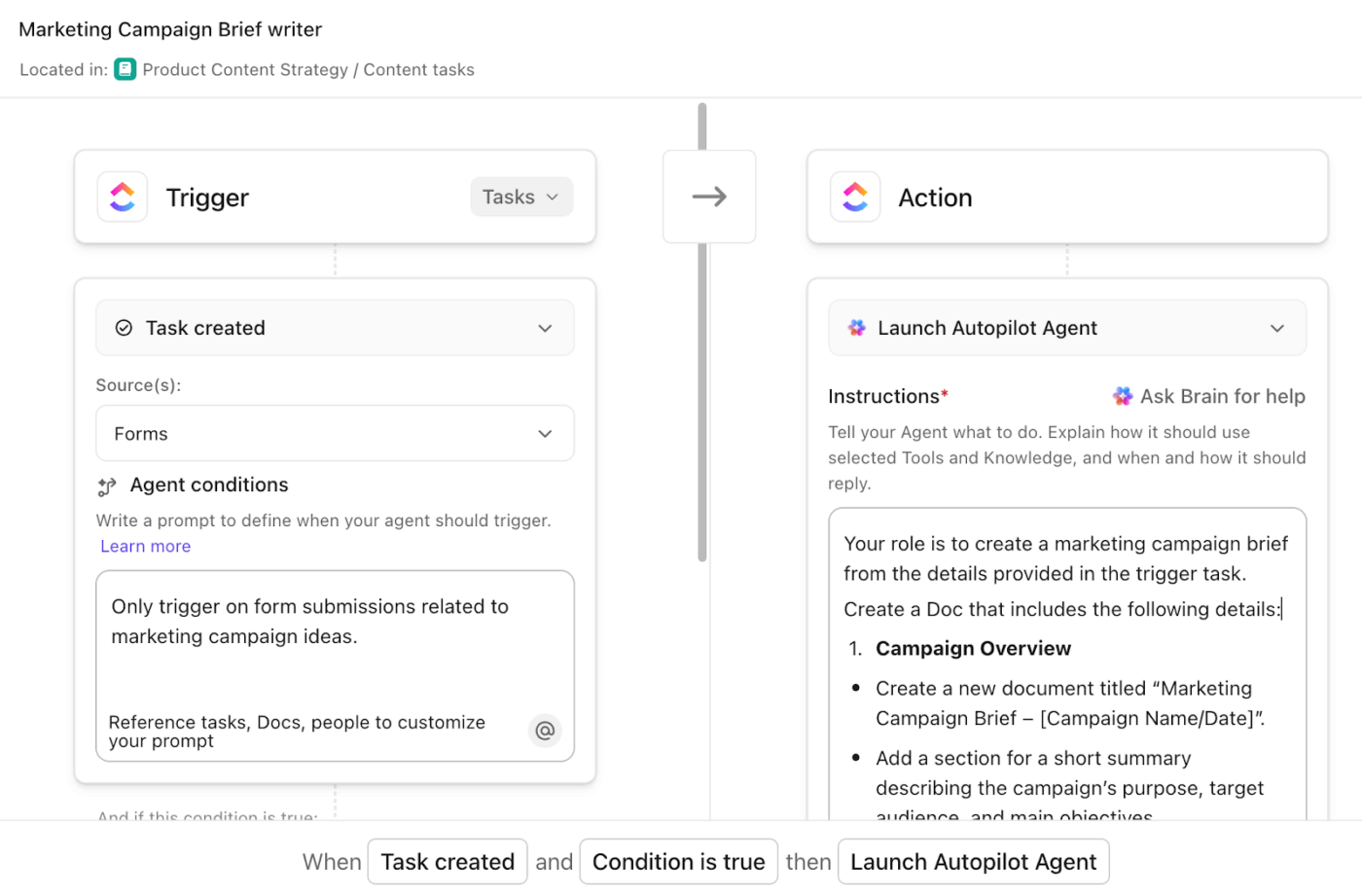
ClickUp Autopilot Agents, on the other hand, are best when you want predictable, rule-driven AI behavior. They operate in specific locations, such as a List, Folder, Space, or Chat Channel, and take action only when a defined trigger and set of conditions are met.
They don’t reason across your entire Workspace as Super Agents do, but they’re extremely effective at handling repeatable, scoped actions with clarity and control.
If you’re an engineering lead, you can use a Super Agent to continuously monitor sprint health across projects, spotting patterns like rising bug counts or missed deadlines. When a task crosses a risk threshold, assign an Autopilot Agent to post an update in the team channel and to automatically create follow-up tasks.
Ever wish your dashboard could just tell you what’s going on, without you having to ask?
AI Cards bring live, AI-generated insights straight into ClickUp Dashboards. They update automatically as work changes, so you always see the current state of progress, risks, and gaps.
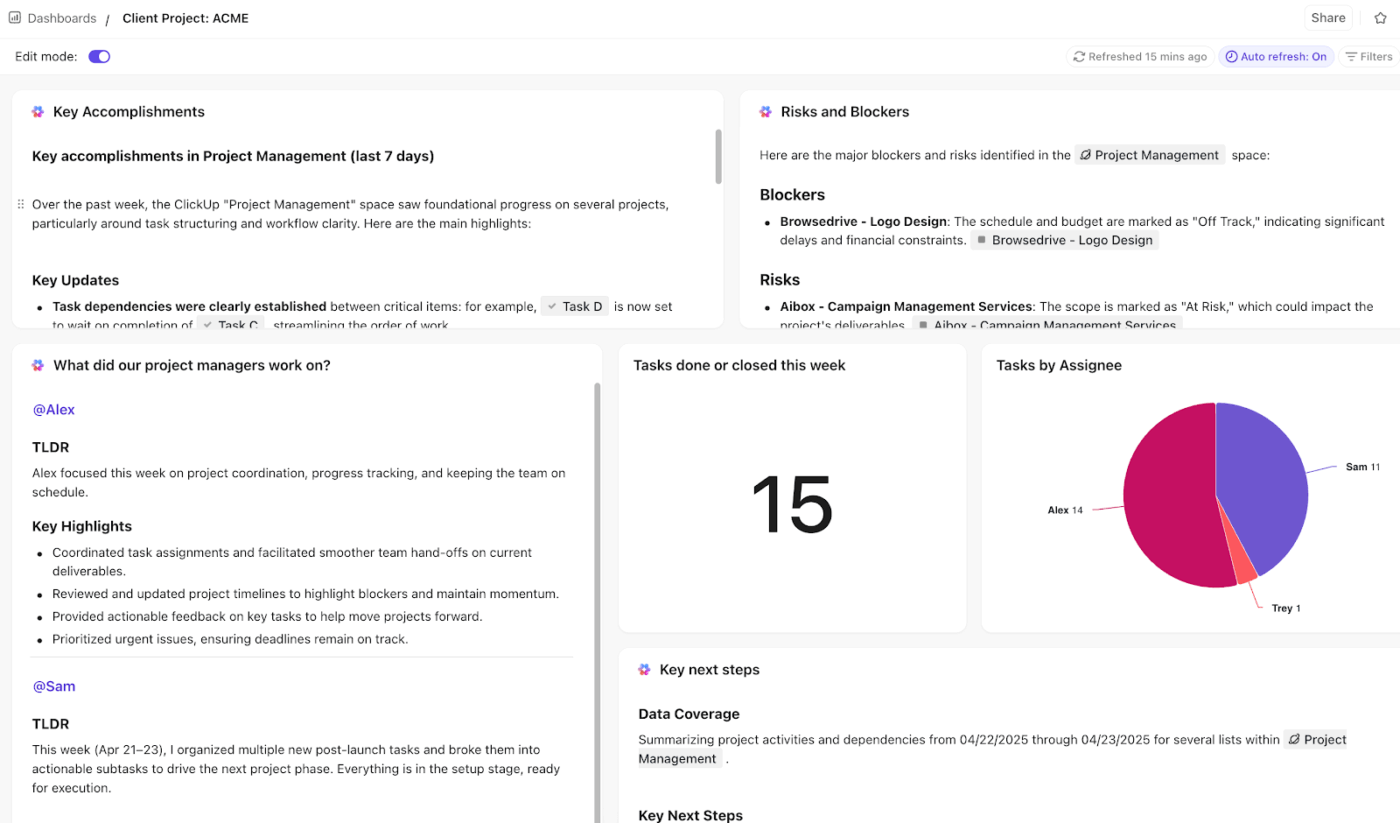
Here are a few AI Cards you’ll see in action:
ClickUp Brain MAX is your AI desktop companion, designed to help you think, search, and act faster across your entire workday. Instead of opening multiple tabs or tools, Brain MAX lives alongside your work and helps you interact with information using natural language.
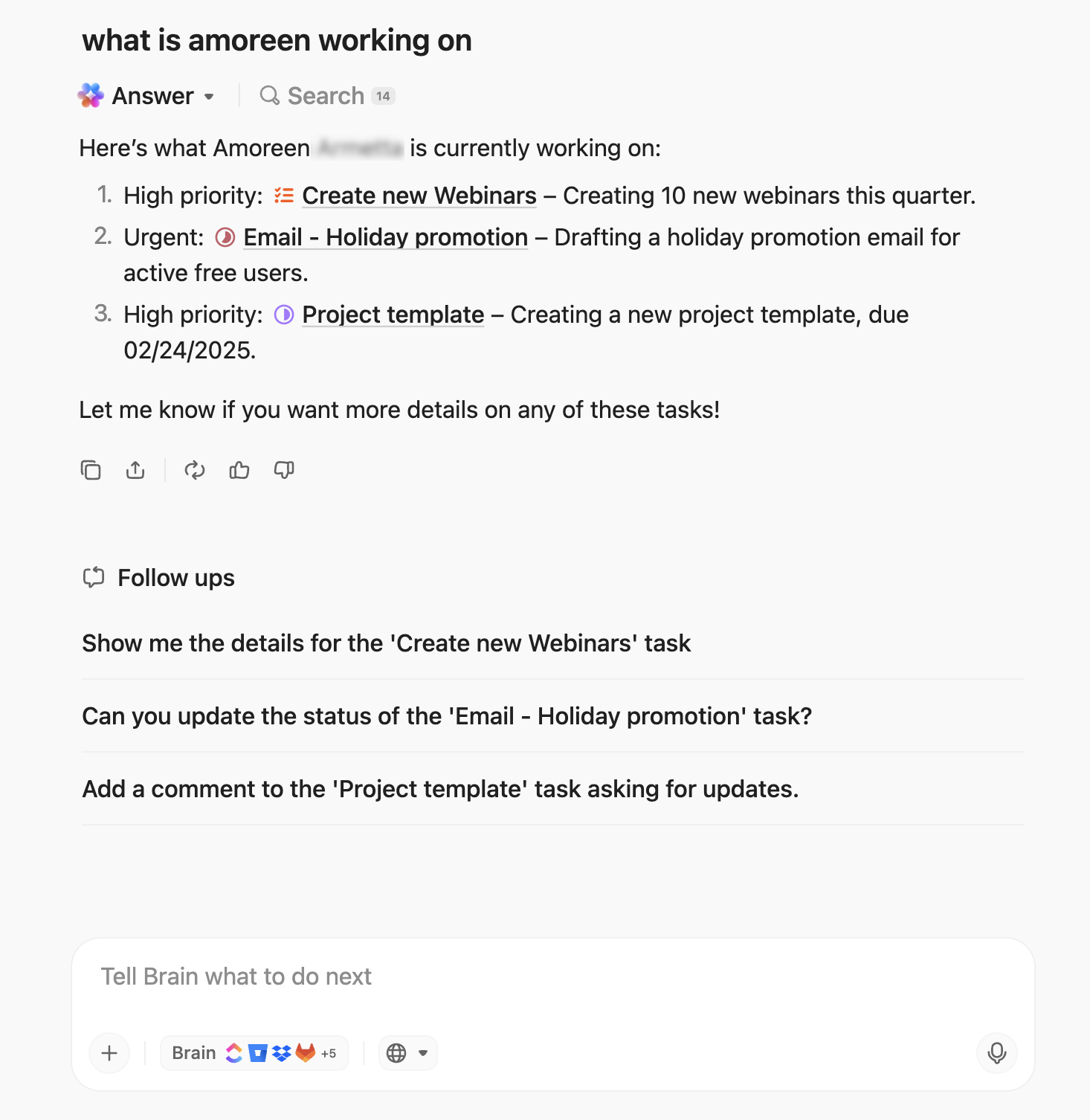
Want to find specific design docs in Google Drive? Just ask Brain MAX once, and it pulls answers from across all sources without leaving ClickUp. It searches across everything from ClickUp Tasks and Docs to files in connected apps like Google Drive, GitHub, SharePoint, and Slack.
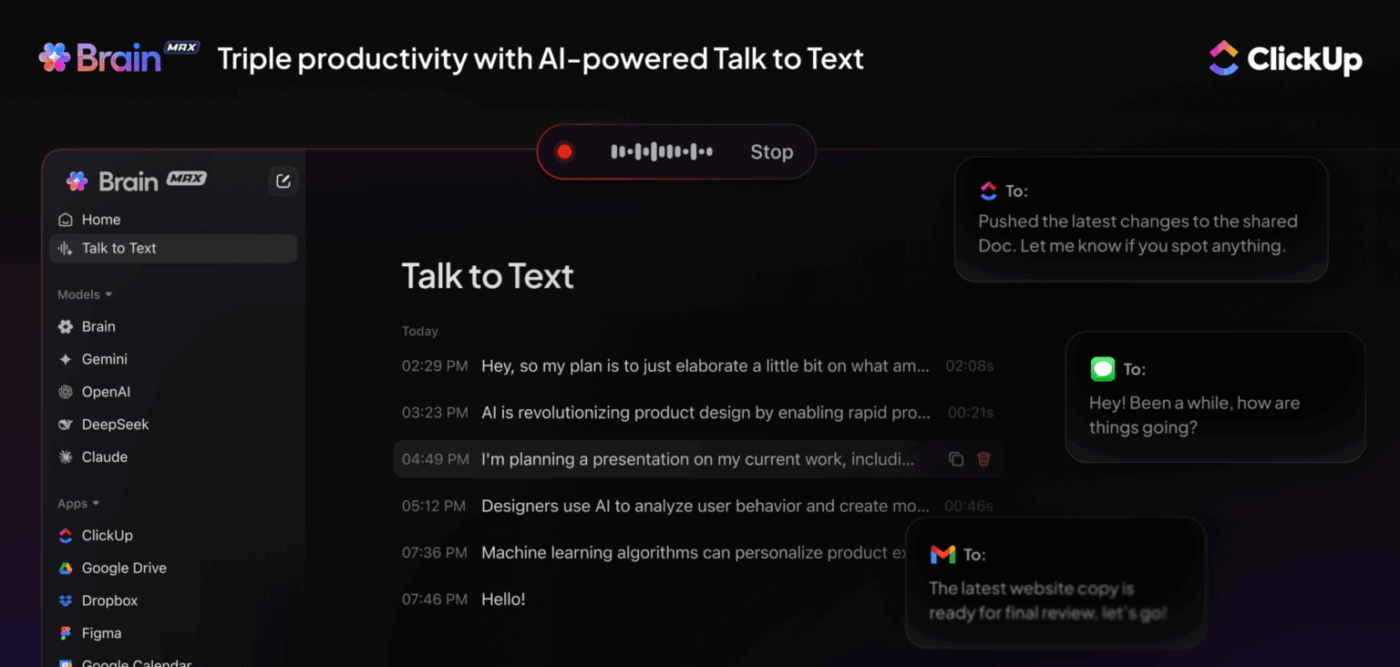
To increase your productivity even further, Brain MAX includes AI-powered ClickUp Talk-to-Text, letting you dictate ideas, search queries, or notes instead of typing. You can capture thoughts mid-flow without breaking focus. Just speak, and Brain MAX instantly turns your voice into text that can be searched, saved, or later converted into tasks.
ClickUp doesn’t lock you into a single model. With ClickUp Brain you can choose from multiple leading LLMs such as ChatGPT, Claude, or Gemini, depending on the task.
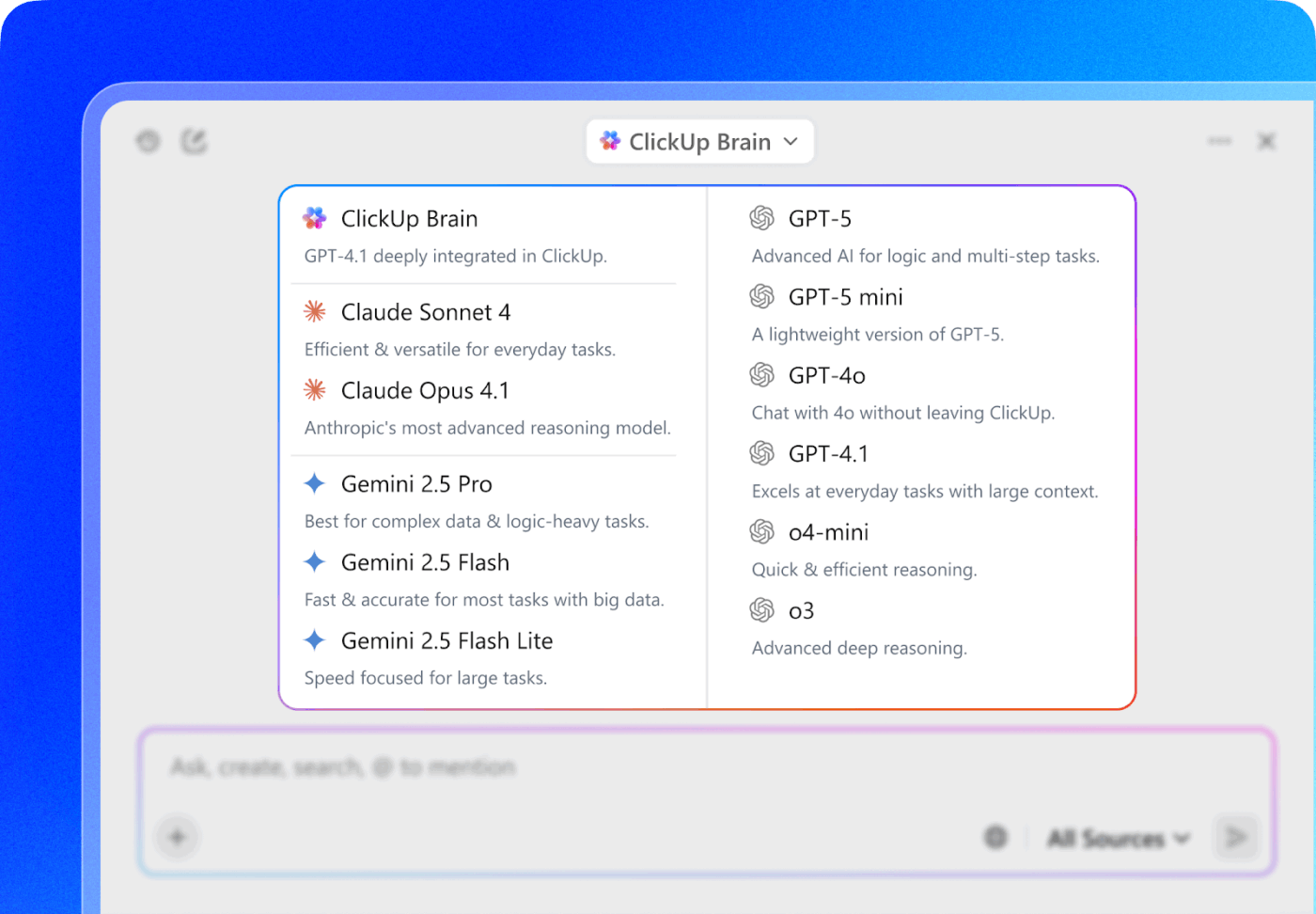
You can match the AI to the context without leaving your workspace, while maintaining unified permissions and security across models. This flexibility ensures you get the right AI for the right job, taking advantage of each model’s strengths while keeping all output connected to your work.
Stop worrying about who is asking what. With ClickUp, usage is tracked with audit trails, and you can manage ClickUp Permissions and visibility to control who sees what, ensuring secure and compliant AI adoption
Grok helps teams understand what’s happening right now by pulling in live data. When prompts are written with intent, it’s a reliable way to track fast-moving conversations and stay aware of changes as they happen.
But turning those insights into research notes, project updates, or concrete next steps often hits a wall when that data lives outside your core work tools. Copy-pasting between apps breaks context and hinders your productivity.
That’s where ClickUp comes in.
ClickUp Brain gives teams a context-aware AI inside their workspace to summarize insights, create tasks, and keep work moving. ClickUp Agents handle monitoring and automation without manual effort, while ClickUp BrainGPT brings unified search, voice input, and multi-model AI into one place.
Sign up to ClickUp for free to actually drive work forward.

© 2026 ClickUp

There’s an easier way. Try a free AI Agent in ClickUp that actually does the work for you—set up in minutes, save hours every week.