






Still downloading templates?
There’s an easier way. Try a free AI Agent in ClickUp that actually does the work for you—set up in minutes, save hours every week.
Sorry, there were no results found for “”
Sorry, there were no results found for “”
Sorry, there were no results found for “”
You’ve invested months teaching ChatGPT your work style, and now you’re eyeing Claude but dreading the reset—a common challenge as 45% of U.S. employees now use AI at work. This guide shows you how to extract, refine, and port your AI context between platforms in under 30 minutes, so your new assistant understands you from conversation one.
After spending months, or even years, training ChatGPT to understand your unique communication style, work preferences, and project context, the thought of switching to a new AI assistant can feel daunting. It’s like losing a coworker who finally “gets” you, and the idea of starting from scratch is a major roadblock for many teams. This process is about moving that accumulated knowledge—your role, writing style, and formatting preferences—so you don’t have to begin again.
This guide will walk you through a step-by-step process to extract, clean, and transfer your valuable ChatGPT memory to Claude in under 30 minutes. 🛠️
Before you begin, you’ll need an active ChatGPT account, a Claude account at Claude.ai, and about 20 minutes of uninterrupted time. The process works for all versions of each platform, though heavy users will likely have more stored memory to transfer.
It’s important to understand the key difference in how these two AI assistants handle memory.
Because of this difference, Claude’s memory import tool works best with structured, summarized information, not raw chat history. You won’t be transferring every single conversation you’ve ever had. Instead, you’ll port over the essential context that makes an AI assistant truly useful, ensuring your new tool understands you from day one.
When teams adopt new tools, the process itself often becomes a source of chaos. How-to guides get lost in email threads or buried in shared drives, forcing everyone to ask the same questions over and over. This creates unnecessary friction and slows down adoption.
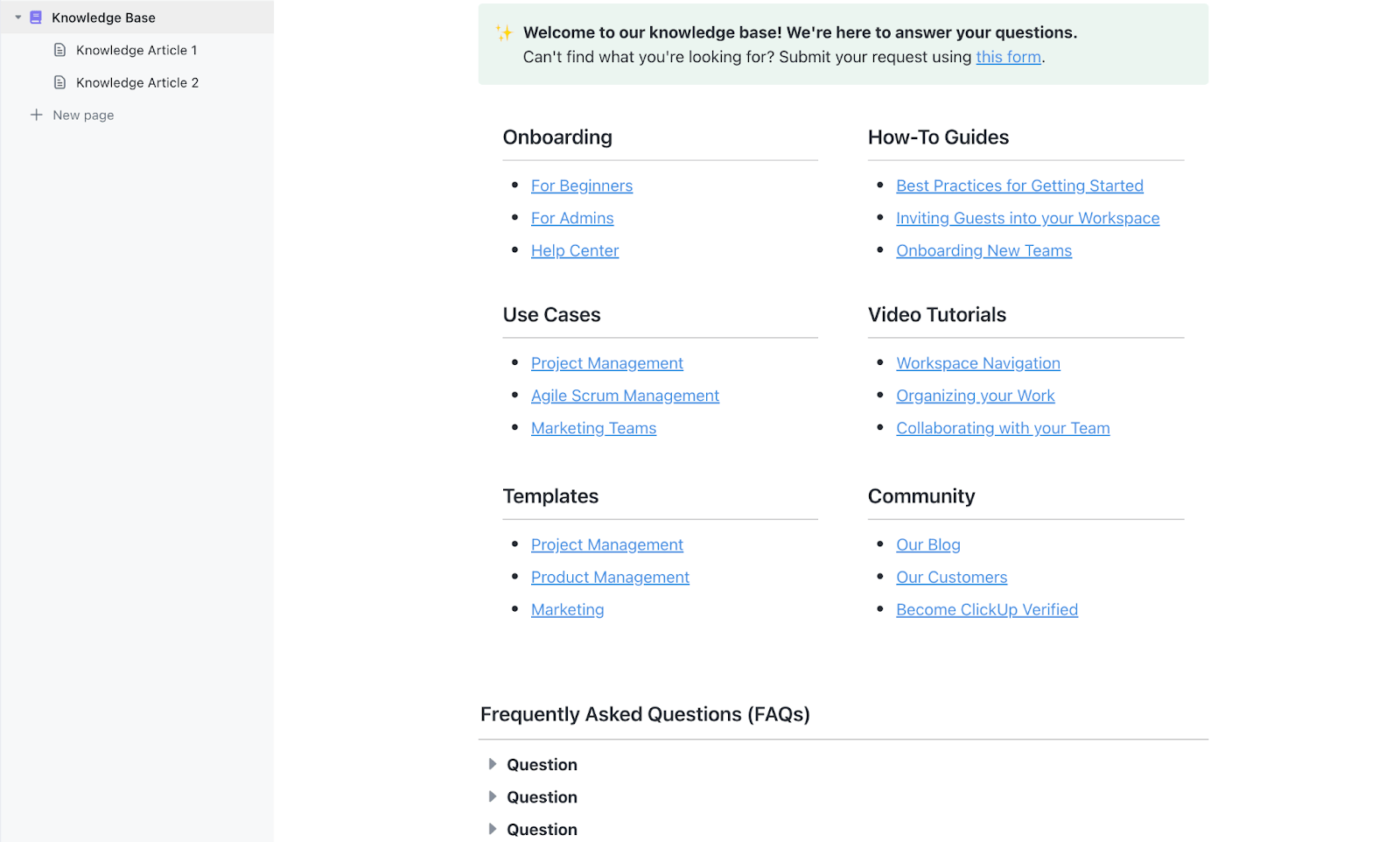
To prevent this, you can centralize all your process documentation in a single, accessible place. Create a searchable knowledge base for your entire team with ClickUp Docs in a unified platform. This means guides for tool migrations, prompt libraries, and best practices are always just a search away within your ClickUp Workspace, eliminating repetitive questions and ensuring everyone follows the same proven steps.
📮 ClickUp Insight: 62% of our respondents rely on conversational AI tools like ChatGPT and Claude. Their familiar chatbot interface and versatile abilities—to generate content, analyze data, and more—could be why they’re so popular across diverse roles and industries.
However, if a user has to switch to another tab to ask the AI a question every time, the associated toggle tax and context-switching costs add up over time.Not with ClickUp Brain, though. It lives right in your Workspace, knows what you’re working on, can understand plain text prompts, and gives you answers that are highly relevant to your tasks! Experience 2x improvement in productivity with ClickUp!
The first step is gathering your data, but it’s often confusing to know exactly what to grab. Exporting the wrong information can lead to a messy, unusable file, wasting time and causing frustration. This is a common pain point for teams trying to standardize their tools—without a clear process, everyone ends up with different, incomplete data sets, defeating the purpose of the migration.
To avoid this, you need to export two specific types of data from ChatGPT.
You can find your saved memories by navigating to Settings → Personalization → Memory → Manage. This page lists all the individual pieces of information ChatGPT has stored about you. Your custom instructions are located in a similar spot: Settings → Personalization → Custom Instructions. Here you’ll find the specific guidance you’ve provided about your role, goals, and desired response format.
ChatGPT does offer a full data export through Settings → Data Controls → Export, but that export is usually overkill for a memory transfer. It is better for backup than for clean migration, because it includes far more data than Claude’s memory import flow needs.
Before proceeding with the extraction process, you may find it helpful to explore additional ChatGPT features and capabilities that can enhance your understanding of the platform’s memory and customization options.
The most efficient way to get your personalized context out of ChatGPT is to simply ask for it. Open a new, clean conversation in ChatGPT and use the following prompt.
“Please summarize everything you know about me from our conversations and your memory. Include my role, communication preferences, projects I work on, writing style, and any specific instructions I’ve given you. Format this as a structured document I can share with another AI assistant.”
This prompt is engineered to pull from both the explicit memories you’ve seen in the settings and the implicit patterns ChatGPT has learned about your style over time. Starting in a fresh chat window prevents the AI from getting confused by the context of a previous conversation, giving you a more comprehensive and accurate summary.
Once you get the output, review it carefully. It’s common for AI to hold onto outdated information, like old job titles, completed projects, or preferences you no longer have. You’ll address these inaccuracies in the next step.
This is the most critical part of the entire process. The quality of the data you import into Claude will directly determine how well it understands you. If you import messy, outdated, or vague information, you’ll get frustratingly generic responses.
Think of it like onboarding a new team member. You wouldn’t hand them a stack of random, unorganized notes and expect them to succeed. The same principle applies here. Take the time to refine your exported data into a clean, concise persona document.
Here’s what to focus on.
Organize this cleaned-up information into logical categories like “About Me,” “How I Work,” “Communication Preferences,” and “Common Tasks.” For the best results with Claude’s import tool, aim to keep the final document under 2,000 words. A concise, specific guide is far more effective than a long, rambling one.
The final step of a data migration can be the most nerve-wracking. Only 6% of organizations complete challenging migrations on time. You’ve done all the prep work, but now you’re faced with the “import” button, wondering if you’re about to mess everything up. This uncertainty often leads to hesitation, and for teams, it can mean a botched rollout where half the members complete the process correctly and the other half are left with a broken tool.
This chaos stems from a lack of a clear, unified workflow. When every step of a process is connected and visible, teams can move forward with confidence. Organize all your work into a logical, connected structure with the ClickUp Hierarchy: Workspace contains everything, Spaces group work by department or function, and Folders, Lists, and ClickUp Tasks break down projects into actionable items. Ensure everything is organized and connected from day one by bringing all your team’s work into ClickUp’s structured environment—just as you’re about to import clean data into Claude for a perfect result.
To import your memory into Claude, go to Claude.ai and navigate to Settings → Memory → Import. The interface is straightforward, giving you the option to either paste your cleaned-up text directly or upload your persona document.
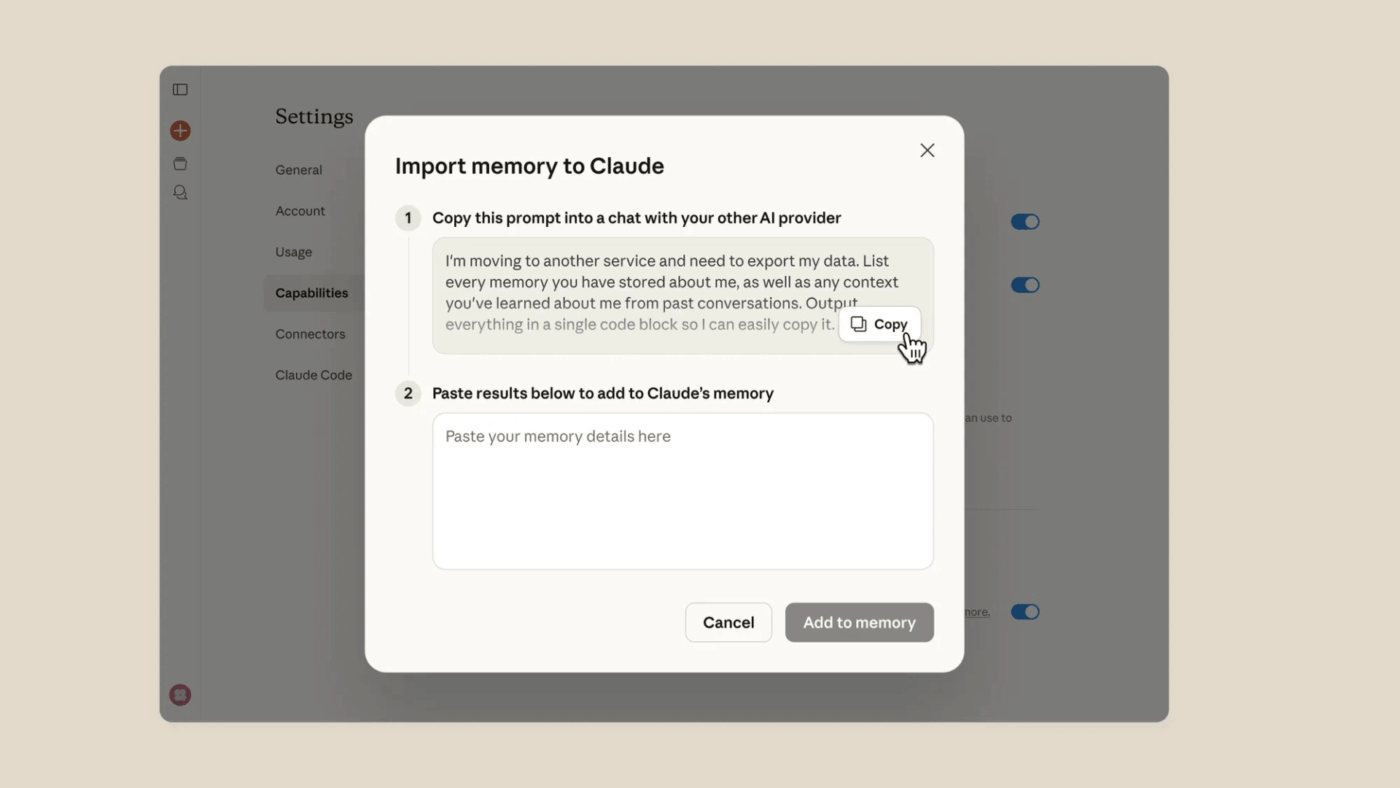
Once you import the data, Claude stores it as persistent context. This means the information will be applied to all future conversations to inform its responses. The platform will show you a confirmation of what it has learned, and unlike ChatGPT, you can easily edit or remove specific memories at any time through the same settings menu.
After the import is complete, it’s a good idea to test it. Start a new chat and ask Claude to summarize what it knows about you. This allows you to verify that the context transfer was successful and that it understands your preferences correctly. If anything is missing or incorrect, you can go back to the memory settings to make adjustments.
🎥 Want better results from Claude without the endless prompt tweaking? This video breaks down simple prompt frameworks that help you get clearer, more relevant outputs for coding, marketing, content, and more, plus how ClickUp Brain MAX brings multiple AI models and execution into one connected workspace.
Even with a successful transfer, it’s easy to fall into old habits or make new mistakes that undermine your efforts. Here are a few tips to make your transition to Claude smoother and more effective. ✨
Managing AI workflows and resources can quickly become a major challenge for teams. When every team member saves their best prompts in a personal note-taking app or a random document, that valuable knowledge becomes siloed and lost. This forces everyone to constantly reinvent the wheel, wasting time and leading to inconsistent AI outputs. Eliminate this knowledge drain by creating a centralized prompt library in ClickUp Docs. By storing and organizing your team’s best prompts and AI guides within your shared ClickUp Workspace, you create a single source of truth that’s searchable and accessible to everyone. New hires can get up to speed faster, and the entire team can benefit from shared expertise, ensuring high-quality, consistent results from your AI tools.
Summarize this article with AI ClickUp Brain not only saves you precious time by instantly summarizing articles, it also leverages AI to connect your tasks, docs, people, and more, streamlining your workflow like never before.Keep your AI context portable and organized
Switching AI assistants does not mean starting over. If you extract the right context, clean it up, and import only what is still useful, you can move your working style, preferences, and key instructions without losing the habits that make AI helpful.
For teams doing this at scale, the bigger challenge is keeping prompts, migration steps, and AI documentation organized so everyone follows the same process. ClickUp helps you centralize that work in one place, so your guides, prompt libraries, and rollout workflows stay easy to find and update.
Get started for free with ClickUp and keep your AI workflows, prompts, and documentation in one place.
Get started for free with ClickUp today.
Yes, but it works differently. Claude’s memory is explicit and user-controlled, meaning you can directly import, view, and edit it, whereas ChatGPT’s memory learns automatically and implicitly in the background.
Yes, the entire memory transfer process works the same way for both ChatGPT and Claude. The steps are identical regardless of your subscription tier.
Exporting your memory doesn’t automatically delete it from ChatGPT. Your information will remain in their system unless you manually clear it by going to Settings → Personalization → Memory → Clear.

© 2026 ClickUp

There’s an easier way. Try a free AI Agent in ClickUp that actually does the work for you—set up in minutes, save hours every week.