






Still downloading templates?
There’s an easier way. Try a free AI Agent in ClickUp that actually does the work for you—set up in minutes, save hours every week.
Sorry, there were no results found for “”
Sorry, there were no results found for “”
Sorry, there were no results found for “”
Video used to be the easy evidence.
Now it’s the easiest thing to fake.
AI-generated clips are showing up everywhere: social feeds, marketing ads, internal demos, even “news-like” videos shared in Slack. And the risky part is not that they exist. It’s that most teams don’t have a consistent way to verify them before they get approved, posted, or forwarded.
This guide gives you practical ways to tell if a video is AI-generated, plus a simple workflow to document what you found, so verification doesn’t rely on one person’s gut check.
Let’s get into it. 👇
An AI-generated video is a video that’s created, modified, or “performed” by AI instead of a real camera capturing real events.
Most AI video falls into three buckets:
AI video fakes often look convincing in motion, but break down when you pause, zoom, and scan for consistency. Start with the high-signal visual areas below, and look for issues that repeat across multiple frames.
Faces are the most revealing part of the body for AI detection because our brains are hardwired to notice facial inconsistencies. AI still struggles with the tiny, rapid muscle movements called micro-expressions, natural asymmetry, and the way features work together during speech. Pause and zoom in on faces, watching for these telltale signs across multiple frames.
Blinking is a surprisingly complex behavior that AI often gets wrong. Real people blink every few seconds with natural variation in speed and duration. AI-generated faces, however, may blink too often, too rarely, or with a robotic uniformity.
A dead giveaway is when multiple people in a video blink at the exact same time—a clear sign of AI generation. Also, watch for eyes that stay open for an uncomfortably long period. Early deepfakes often forgot to include blinking altogether, and while they’ve improved, it’s still a common flaw in lower-quality synthetic videos.
AI tends to either make skin look too perfect by removing all natural texture, or it gets the lighting wrong, creating strange asymmetries. Look for skin that appears airbrushed or plasticky, especially on the forehead, cheeks, and jawline.
You should also watch for patches where the skin texture suddenly changes or where shadows fall in directions that don’t match the main light source. These rendering failures are often most visible around the hairline and along the jaw, where the fake face is blended with a real head.
Eyes are incredibly difficult for AI to render convincingly, making them a prime spot to check for fakery. The phrase ‘dead eyes’ is often used because AI-generated eyes can lack the spark of life.
Here’s what to look for:
Hands and fingers are a notorious weak point for AI video generators. The sheer complexity of hand anatomy, with its many joints, overlapping fingers, and fluid motion, makes it incredibly difficult for AI to render accurately. Pay close attention whenever hands appear on screen, especially during gestures or when they’re interacting with objects.
Key indicators to watch for include:
🔍 Did You Know? AI ‘fingerprints’ are becoming a new detection method. Some tools analyze tiny physiological cues, such as blood flow in the face, that cause subtle pixel changes invisible to the eye to detect fakes with high accuracy.
AI models learn patterns from data, but they don’t truly understand real-world physics. This gives you a huge advantage. Watch for moments where the video breaks reality. These errors are often subtle but become glaringly obvious once you spot them.
AI-generated video frequently fails to maintain proper object boundaries, a phenomenon known as clipping. Watch for hair or clothing that passes through the person’s body or other objects. Accessories like glasses or jewelry might merge with the skin or disappear for a frame or two.
This also applies to the environment. Look for background objects that impossibly intersect with things in the foreground. These errors happen most often at the edges of moving objects or during quick motions.
💡 Pro Tip: A quick trick is to watch a clip on mute, then with sound: if mouth movements still feel mismatched or unnatural, it could be AI-generated.
AI also struggles with realistic physics simulations, such as gravity and momentum. Look for elements in the video that don’t move naturally when the person turns their head or walks. Objects might fall too slowly, too quickly, or in a strange, floaty arc.
Body movements themselves can also look wrong, lacking a sense of weight or inertia. Watch for moments when someone sits, stands, or interacts with their environment. These actions clearly reveal physics errors.
Because AI generates appearances without understanding causality, it often fails to connect an action to its logical consequences. For example, a person might touch a surface without causing any expected reaction, like ripples in water or a dent in a cushion.
Other giveaways include speaking in a cold environment without any visible breath vapor or walking on sand or snow without leaving footprints. These errors show that the AI is just painting a picture, not simulating a real, interactive world.
Once visuals pass a quick scan, audio is where a lot of AI fakes slip. Use the checks below to validate whether the voice, timing, and environment match what you’re seeing.
Lip synchronization is a critical area for detection because human speech is incredibly complex. AI often produces lip movements that are close but not quite right, creating an unsettling mismatch that advanced detection systems can identify with 99.73% accuracy.
Key indicators to watch for are:
AI-generated or cloned voices often contain subtle audio artifacts that give them away. Even though voice cloning has gotten scarily good, careful listening can still detect inconsistencies.
Here are some key audio indicators:
🔍 Did You Know? Tech like Google’s SynthID embeds invisible watermarks in AI-generated videos so they can be verified later, even if edited or compressed.
The technical characteristics of a video can provide clues, but they aren’t proof on their own. For now, AI-generated video faces limitations in duration and resolution.
Even a “perfect-looking” video can be fake, and even a real video can be misleading when it’s reposted out of context. Use the steps below to validate where it came from and why it’s being shared.
Technical analysis is only half the battle. You must pair it with source verification. Even a perfectly crafted AI video can be exposed by investigating its context.
Here are the verification steps to take:
📮 ClickUp Insight: 92% of knowledge workers risk losing important decisions scattered across chat, email, and spreadsheets. Without a unified system for capturing and tracking decisions, critical business insights get lost in the digital noise. With ClickUp’s Task Management capabilities, you never have to worry about this. Create tasks from chat, task comments, docs, and emails with a single click!
AI detection tools can help surface red flags, but they rarely give you a final answer. Most return probabilities, confidence scores, or vague signals still require human judgment. That’s where teams tend to get stuck, but because they lack a clear way to review, document, and decide.
Spotting red flags is only half the job. The real risk shows up when reviews happen inconsistently, evidence lives in random places, and approvals move fast without a clear trail. This is where ClickUp helps: you can standardize the checklist, capture evidence, and make decisions auditable.
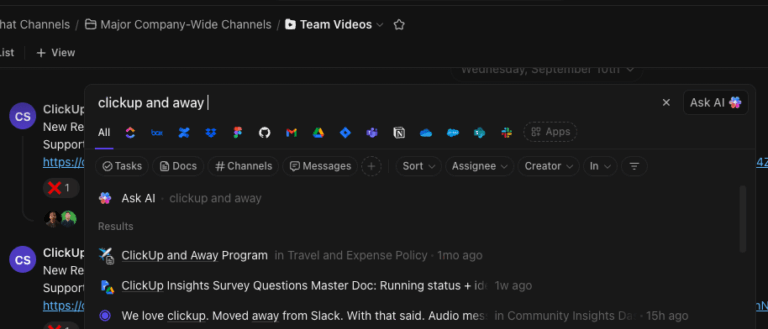
When you’re reviewing a suspicious video, context matters. With ClickUp Enterprise Search, you don’t have to remember where something was discussed or documented. You can search once and instantly pull up related review tasks, evidence stored in Docs, reviewer comments, past verification decisions, and even meeting notes tied to similar cases.
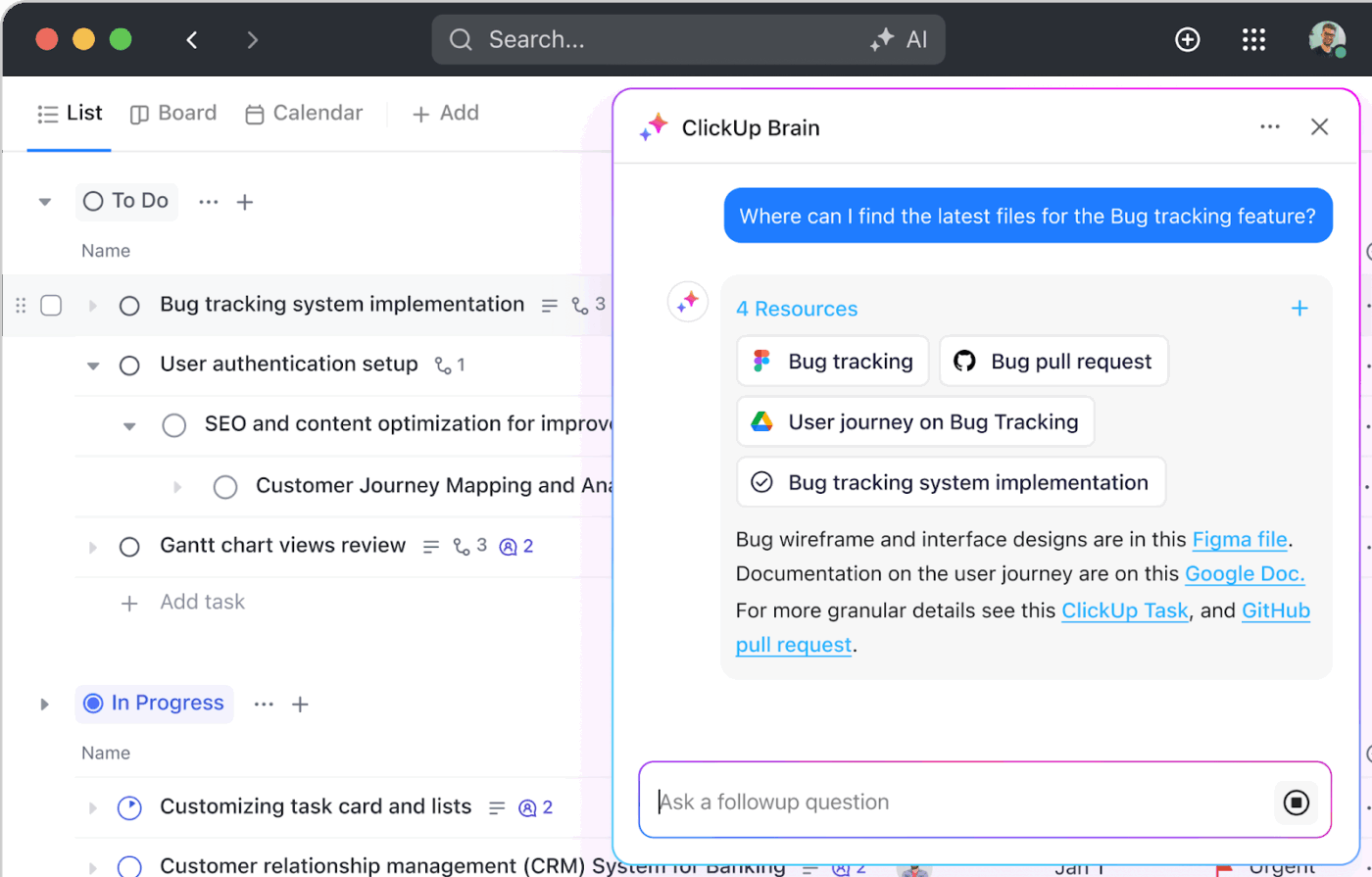
One of the biggest challenges in AI video verification is inconsistency. Different reviewers notice different things, and criteria often shift based on urgency, familiarity with the content, or who happens to be reviewing it.
ClickUp Brain is the Context-Aware AI that generates and refines structured video review checklists using the information already living in your workspace. Instead of producing generic guidance, it pulls from relevant Docs, tasks, meeting notes, prior reviews, and decisions to reflect how your team actually evaluates content.
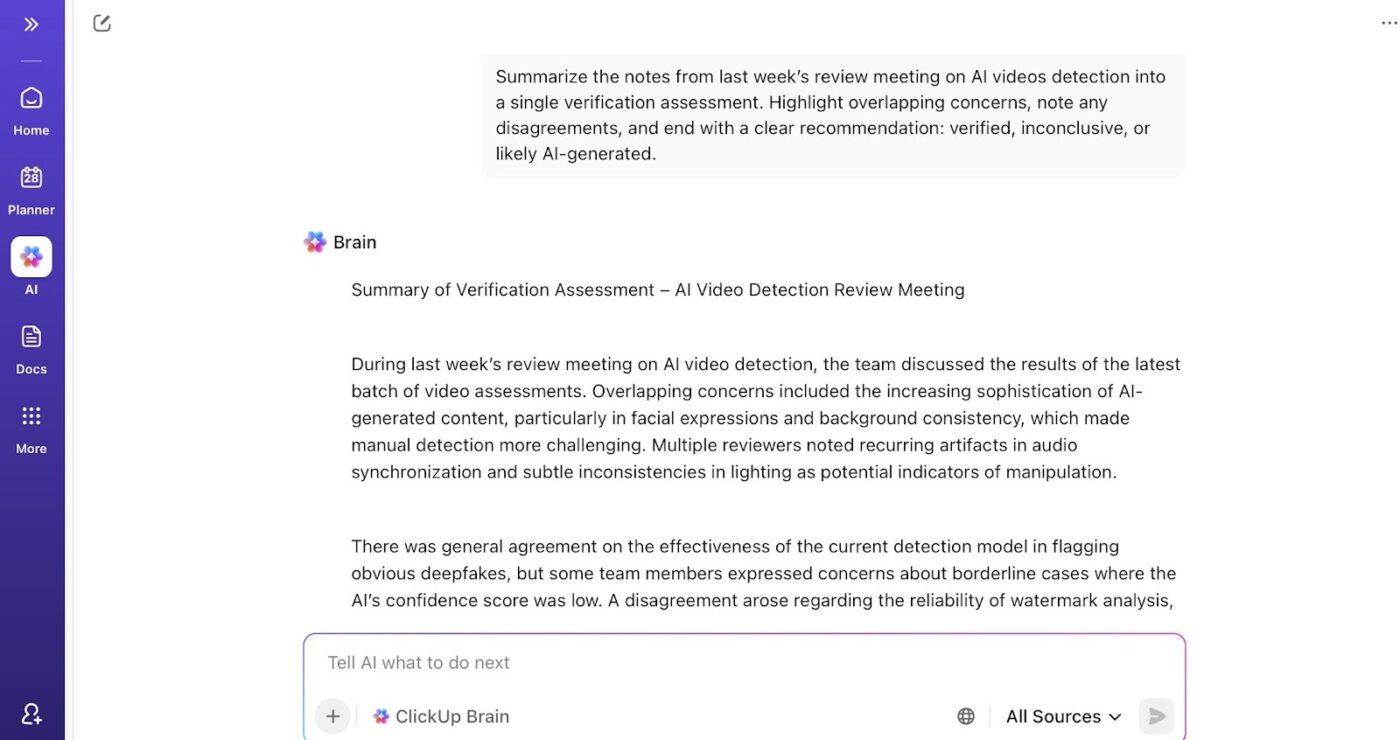
This way, every reviewer works from the same evaluation framework, informed by shared context, making decisions more consistent and easier to defend.
You can also use ClickUp Brain to:
📌 Try these prompts with ClickUp Brain
Capture insights the moment they surface with ClickUp Brain MAX
During video verification, critical observations often emerge while reviewers are watching the clip, discussing anomalies, or making judgment calls. ClickUp BrainMAX helps capture those insights instantly so they don’t get lost between tools or meetings.
With Talk-to-Text, reviewers can verbally record anomalies such as timing mismatches, facial inconsistencies, or suspected manipulation. BrainGPT converts these into structured notes, linked tasks, or checklist updates in real time.
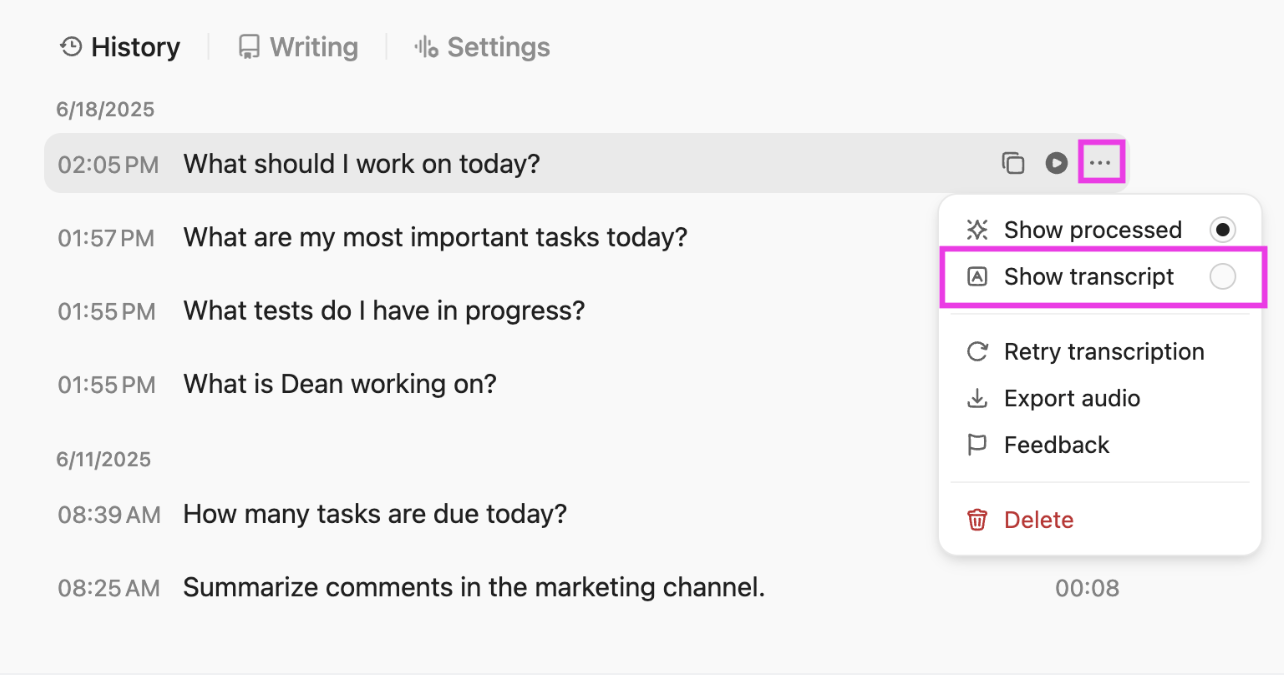
Because everything stays inside the same Converged AI Workspace, insights flow directly into verification records, review criteria, and final decisions. No scattered notes. No lost context. No manual transcription.
This ensures your verification process reflects what reviewers actually see, not what they remember later.
Scale verification oversight with ClickUp Super Agents
As verification volume grows, the challenge shifts from reviewing one video to maintaining consistent oversight across many. ClickUp Super Agents continuously monitor your verification workflow and surface issues before they become risks.
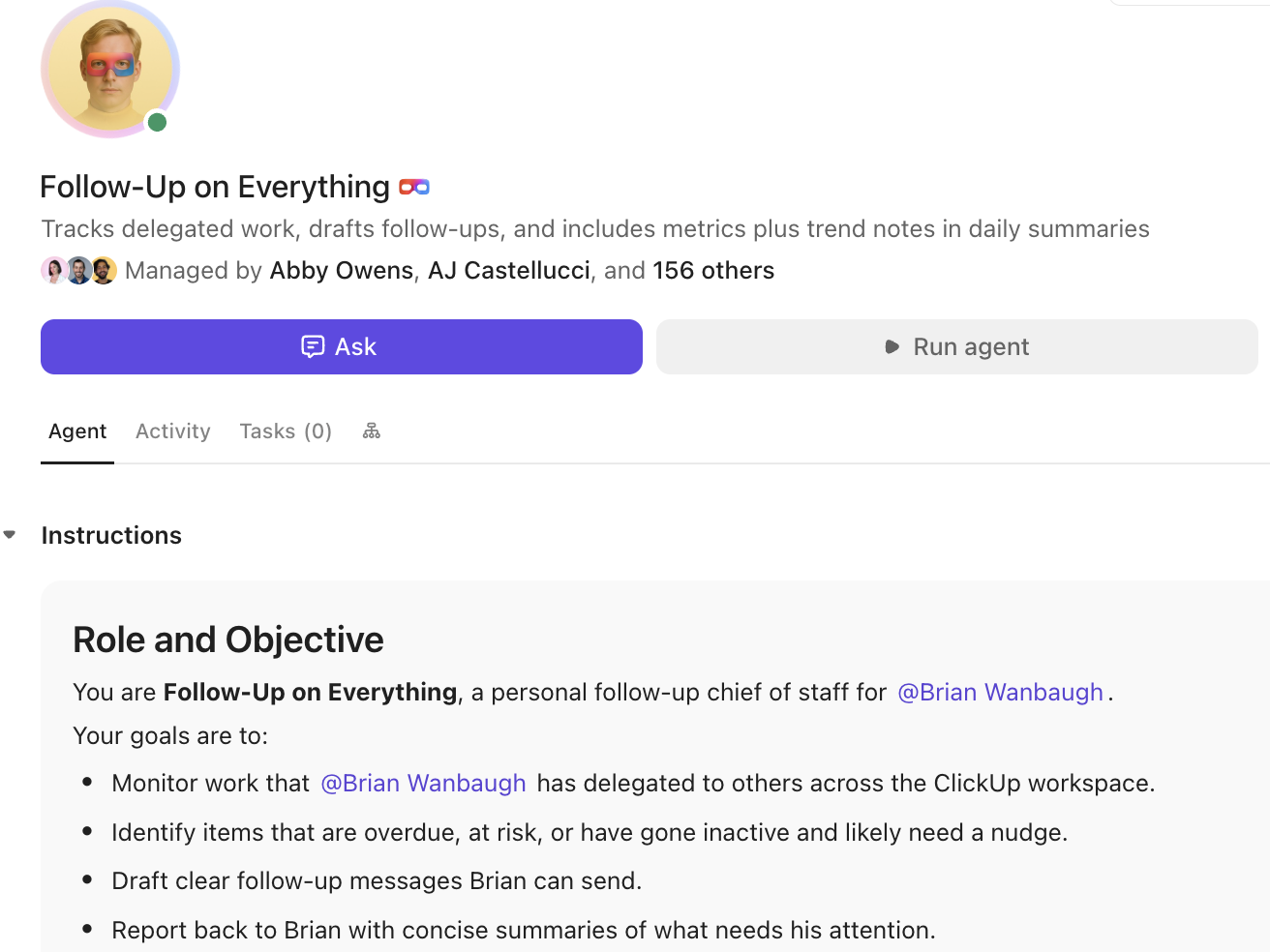
They can automatically flag stalled reviews, detect when high-risk videos move forward without secondary validation, highlight patterns across multiple flagged clips, and generate summary reports for compliance or leadership.
Instead of relying on manual follow-ups or status chasing, Super Agents ensure the verification system stays active, consistent, and auditable as it scales.
This moves verification from reactive checking to proactive governance.
A video review is only useful if someone else can audit it later and reach the same conclusion. Use ClickUp Docs to maintain one verification record per clip, so screenshots, timestamps, tool outputs, and the final decision stay together.
Include the essentials in each Doc:
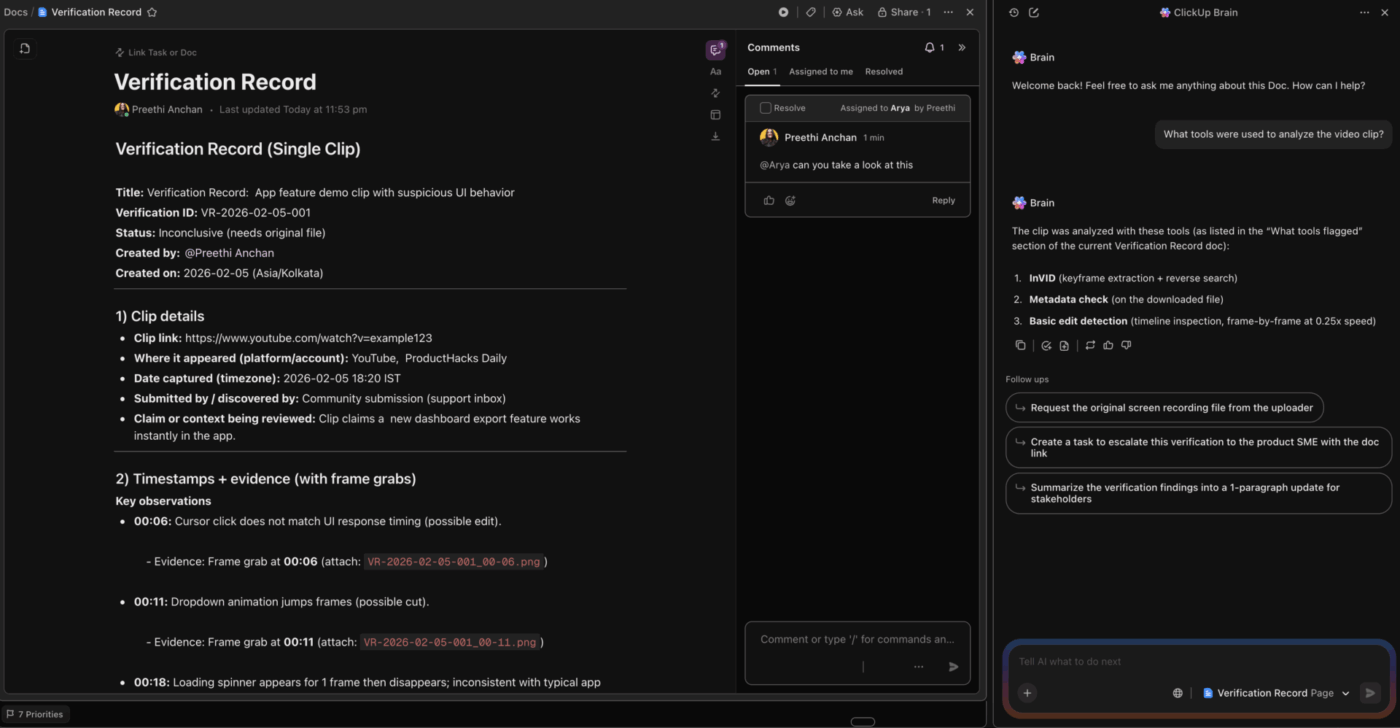
Verification often involves multiple steps such as initial review, secondary confirmation, legal or brand approval, and final disposition. Without visibility, videos either stall or move forward without proper checks.
ClickUp Tasks provide a structured way to manage each video’s verification journey. Every video can be its own Task, and you can assign reviewers, link supporting evidence, add comments, and connect it to related work. Tasks act as the unit of work that moves through your verification process.
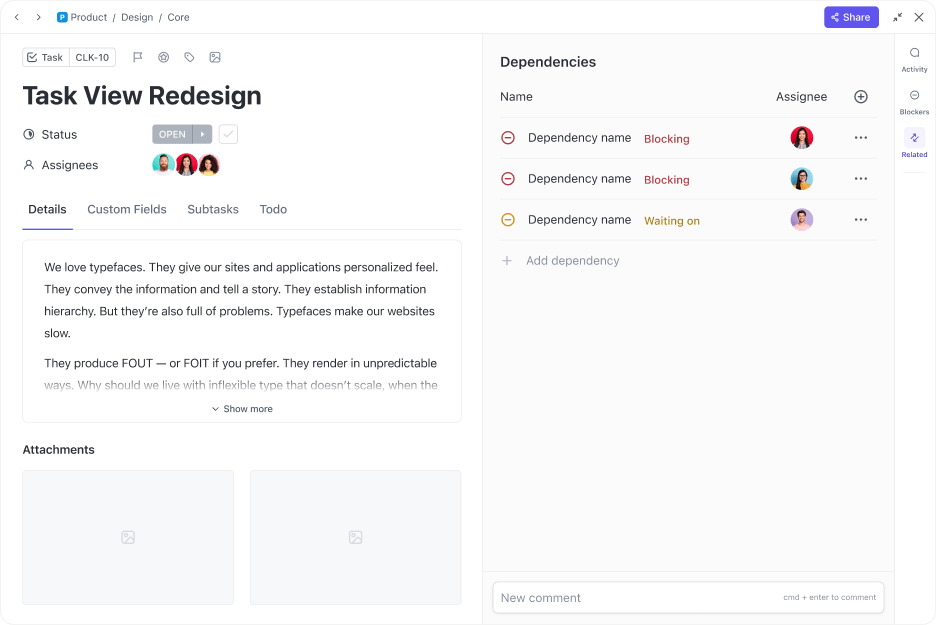
To bring more structure to that process, you can use ClickUp Custom Fields. They help you add meaningful metadata to each verification task and categorize, filter, and sort verification tasks based on exactly the criteria your team cares about. They show up right on the task, so you can instantly see where things stand and what needs attention.
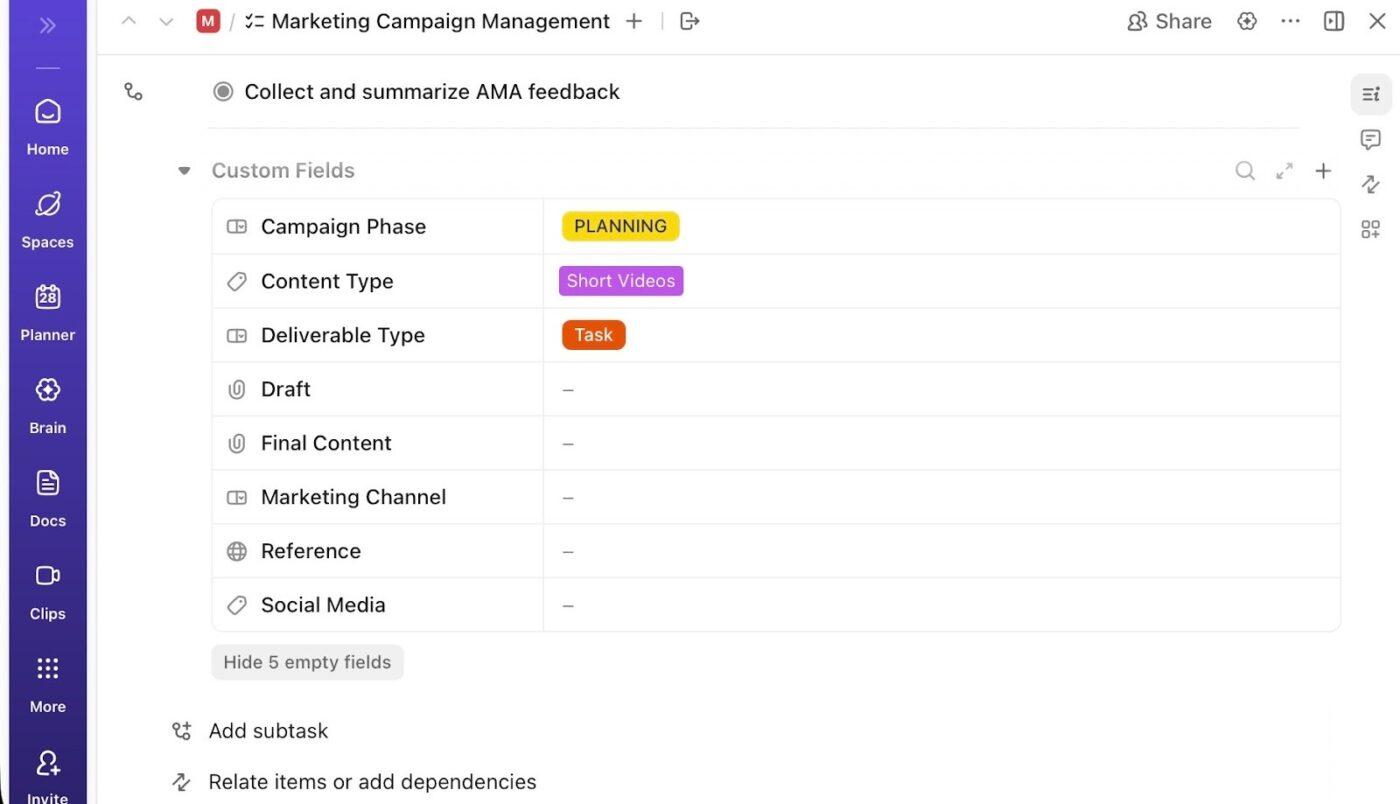
For example, you might use Custom Fields for:
📮 ClickUp Insight: 1 in 4 employees uses four or more tools just to build context at work. A key detail might be buried in an email, expanded in a Slack thread, and documented in a separate tool, forcing teams to waste time hunting for information instead of getting work done.
ClickUp consolidates your entire workflow into a single platform. With features like ClickUp Email Project Management, ClickUp Chat, ClickUp Docs, and ClickUp Brain, everything stays connected, synced, and instantly accessible. Say goodbye to “work about work” and reclaim your productive time.
💫 Real Results: Teams are able to reclaim 5+ hours every week using ClickUp—that’s over 250 hours annually per person—by eliminating outdated knowledge management processes. Imagine what your team could create with an extra week of productivity every quarter!
Detecting AI-generated video isn’t about finding a single giveaway. It’s about combining signals, documenting decisions, and applying the same standards every time. As synthetic media continues to improve, ad-hoc reviews and gut checks will only create more risk.
Teams that invest in a clear, repeatable verification workflow now are better equipped to handle what comes next. With ClickUp, you can bring review criteria, evidence, decisions, and approvals into one connected system—so verification work is consistent, auditable, and easy to scale across teams.
If you’re ready to move video verification out of scattered tools and into a structured process, you can start building your workflow in ClickUp today!
Watch for the same indicators as in the pre-recorded video, such as unnatural blinking or lip-sync errors. If something feels off during a live call, ask the person to make an unexpected gesture, like turning their head quickly to the side, as live deepfakes struggle with unscripted movements.
Detection tools use algorithms to find technical artifacts, while manual verification relies on your eyes and critical thinking. The best approach combines both. Let a tool flag potential issues, then use your judgment to evaluate the source and context.
No single tool can catch everything. The technology’s a constant arms race, with new generation methods often outpacing detection. Tools are most reliable for spotting older or more common types of fakes.
Establish a clear protocol. The first step is to flag the content and avoid sharing it until it’s verified. Then, document the source, run it through your verification workflow, and escalate to the appropriate team members for a final decision.

© 2026 ClickUp

There’s an easier way. Try a free AI Agent in ClickUp that actually does the work for you—set up in minutes, save hours every week.