






Still downloading templates?
There’s an easier way. Try a free AI Agent in ClickUp that actually does the work for you—set up in minutes, save hours every week.
Sorry, there were no results found for “”
Sorry, there were no results found for “”
Sorry, there were no results found for “”
According to a Stanford study, AI detection tools classified over 61% of essays written by non-native English speakers as AI-generated, highlighting significant reliability concerns.
Relying on a single method puts you at serious risk of false accusations. This guide walks you through five practical detection methods for Google Docs, from browser extensions to manual version history analysis, so you can verify content authenticity with confidence instead of guesswork.
You’ve just read a document, and something feels off. The tone is a little too perfect, the structure a bit too formulaic. You suspect it was written by AI, but you have no way to be sure, and Google Docs itself offers no clues.
This uncertainty creates real problems. An editor might spend 30 minutes manually reviewing a suspicious article, only to realize they still can’t be sure. A professor might hesitate to confront a student without proof, letting potential misconduct slide
Google Docs cannot natively detect AI-generated content. It has an AI writing assistant called “Help me write” for creating content. But it has no built-in features for detection. This is likely because its focus is on being a creation tool, not a policing one.
However, several reliable methods exist to fill this gap, from third-party tools to manual inspection techniques.
But first, what is the difference between AI and human content? Watch.
You need to check a document quickly, but copying and pasting text into a separate AI-checker website is clunky. It breaks your focus and forces you to juggle multiple tabs. This is a huge drag on productivity when you have several documents to review.
AI detection Chrome extensions solve this by letting you scan content directly in your browser. They work alongside Google Docs, giving you a fast, on-the-fly way to check for AI without a complicated setup. Popular options include GPTZero, Copyleaks, and Originality.ai, which offer browser-based scanning for quick checks.
📖 Also Read: Google Docs Hacks to Improve Document Collaboration
It only takes a minute to set up an extension. 🛠️
Once you’ve installed the extension, running a scan is simple.
Scan times will vary depending on the length of the document, but most can process a few thousand words in under a minute.
After the scan, the extension will show you its findings. While the interface varies, most provide similar information to help you make a judgment call.
Remember to treat these results as a guide, not a final verdict.
📮ClickUp Insight: 60% of workers respond to instant messages within 10 minutes, but each interruption costs up to 23 minutes of focus time, creating a productivity paradox.
By centralizing all your conversations, tasks, and chat threads within your workspace, ClickUp allows you to ditch the platform hopping and get those quick answers you need. Without losing any context!
While Chrome extensions are useful, they still live in your browser toolbar, feeling separate from your document. You might want a tool that feels more like a part of Google Docs itself, one that doesn’t require you to look away from your work.
Google Workspace add-ons offer a more integrated experience. They install directly into the Google Docs interface, making them feel like a native feature. You can access them from the “Extensions” menu without ever leaving your document.
Add-ons persist across sessions, and your organization’s IT team can manage them. This makes them a better fit for enterprise environments.
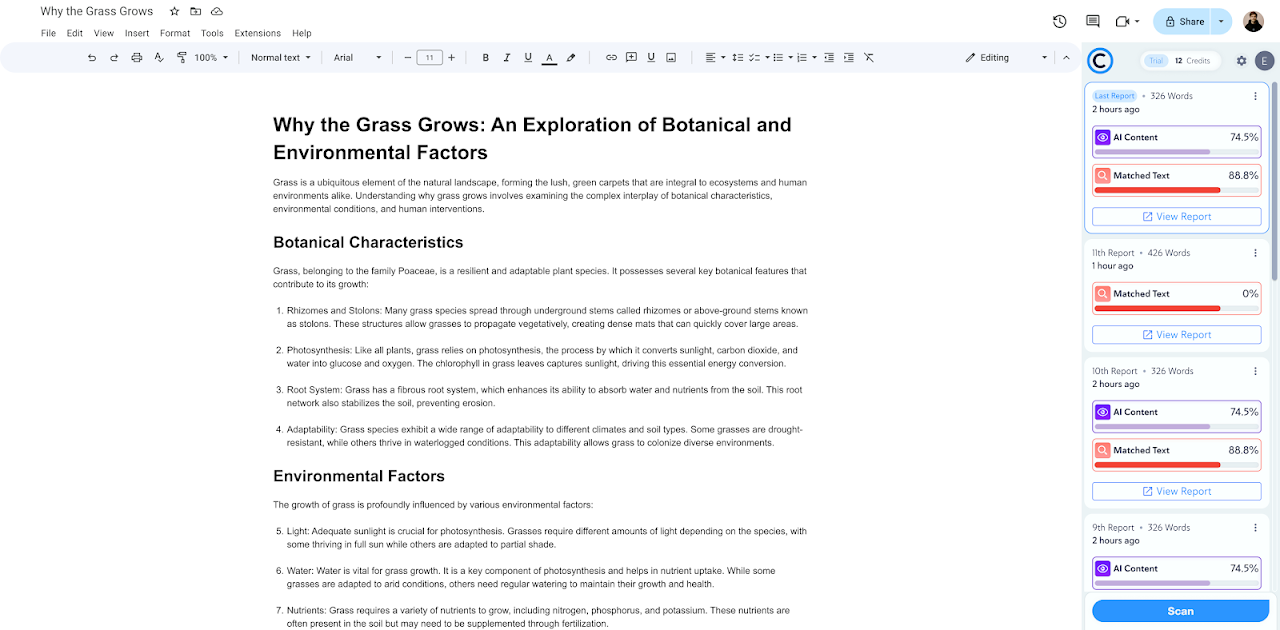
To install an add-on:
Many add-ons open in a sidebar panel that stays visible as you write or review, allowing you to scan content without breaking your flow.
You might not want to install third-party software due to privacy policies or IT restrictions at your company.
This can leave you feeling like you have no way to verify a document’s originality. You’re forced to either trust it blindly or waste time with unstructured rereading, hoping to spot something unusual.
There’s a tool-free method you can use: Version History. Think of it as a “detective mode” that’s already built into every Google Doc. It works by showing you how the document developed over time, revealing writing patterns that can help distinguish human work from AI-generated text.
Finding the version history is easy.
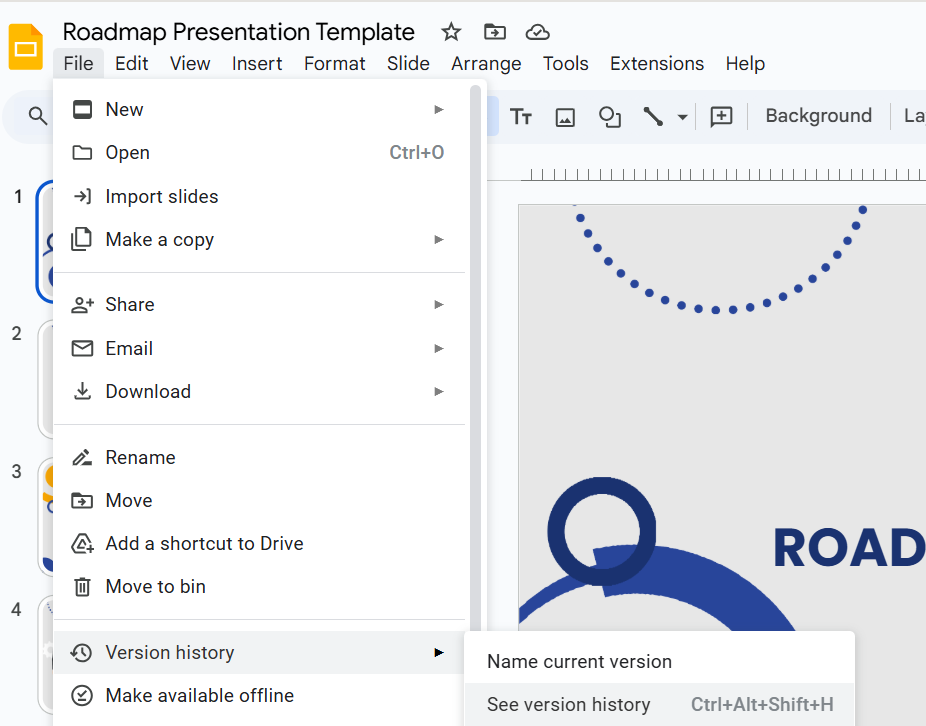
You can click on any version in the list to see what the document looked like at that exact moment. This feature is on by default, so you don’t need to do anything to enable it.
When you’re reviewing the version history, you’re looking for writing patterns that don’t feel human. AI-generated content is often pasted in large, polished chunks.
Keep an eye out for these red flags: 👀
Human writing, in contrast, usually looks more iterative. You’ll see smaller additions, frequent corrections, and sentences rephrased over time.
Looking at how a document evolved is key. Not every large paste is a sign of AI—some people prefer to write in a different app and then move their text into Google Docs. The table below can help you tell the difference.
| Pattern Type | What You’ll See | Likely Explanation |
|---|---|---|
| Suspicious | A huge block of text appears with zero subsequent edits or typo corrections | This often points to content generated elsewhere and pasted in as a final product, a common AI pattern |
| Normal | Text is added gradually over multiple sessions with frequent, small edits | This reflects a typical human writing process of drafting, refining, and correcting |
| Edge case | A large block of text is pasted, but it’s followed by significant rewrites, reorganization, and edits | This could be a human writer moving their own rough draft from another program to continue working on it in Docs |
For the most reliable assessment, combine version history analysis with another detection method.
📖 Also Read: Free Editable Google Docs Templates (+Download)
You’ve just scanned a document, and the tool returns a 98% AI score. Your first instinct might be to make an accusation, but you hesitate, worried you could be wrong. Acting on an inaccurate result can damage trust with your students or team members and create a hostile environment.
This is a valid concern because AI detection tools aren’t infallible. Understanding their limitations is crucial to using them responsibly.
The best approach is to use detection scores as a signal to investigate further, not as conclusive proof.
To streamline your document review process and leverage AI effectively, watch this practical guide on implementing AI-powered document review workflows that can save you time and improve accuracy.
Checking documents one by one is fine for a single assignment, but when you’re a manager or editor juggling dozens of submissions, the process becomes chaotic.
This work sprawl—the fragmentation of work across multiple disconnected tools that don’t talk to each other—means you might run a detection check in one app, leave feedback in another, and lose track of which documents have been verified.
Stop the chaos by building a centralized content verification workflow in ClickUp. Instead of scattering your work across multiple apps, you can manage the entire process in one place.
Centralize all submissions by having your team submit their work in ClickUp Docs. Because ClickUp Docs are integrated directly with your tasks and projects, you can immediately connect each piece of content to your review workflow. This eliminates the need to track files in separate folders or email chains.
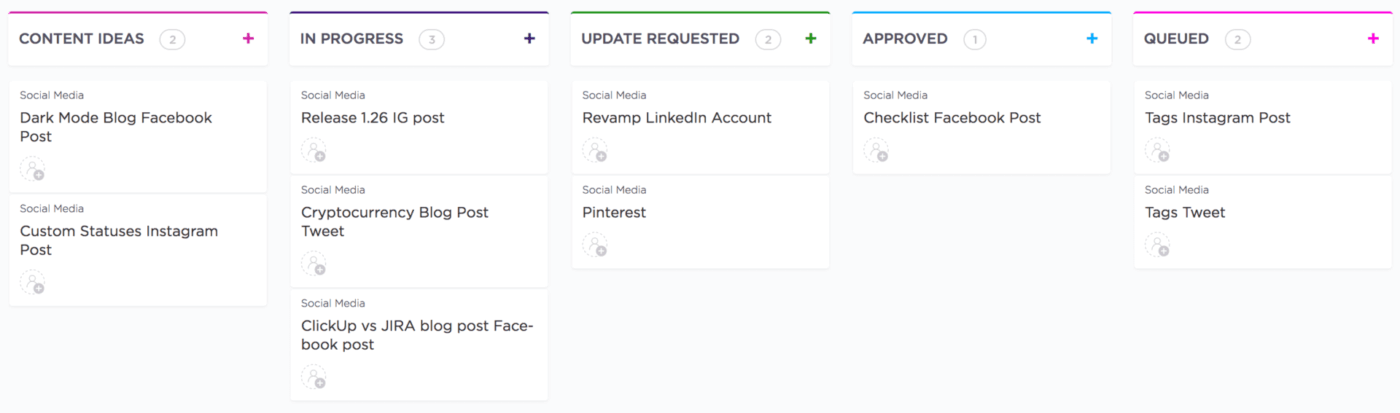
Create a structured review pipeline using ClickUp Tasks to track every document through your workflow. For each document submitted, create a task that becomes the single source of truth for that piece of content, housing all related comments, files, and status updates. You can even create a template for this process, with steps like “Run AI Detection Check,” “Editorial Review,” and “Final Approval.”
To get a high-level view of your entire content pipeline, use ClickUp Custom Fields. Create a “Verification Status” dropdown field with options like “Pending Review,” “Verified Original,” and “Flagged for AI.” Now, you can see the status of every document at a glance and filter your view to see only what needs your attention.
💡 Pro Tip: Build your own team of Super Agents in ClickUp to take over the repetitive yet necessary work that keeps your editorial processes running. Create agents to build briefs, review drafts, search the web to check facts, and a lot more, so your writers can focus on the creative work!
These AI-powered teammates have the complete context of your converged Workspace, learning and improving from every interaction, job, and piece of feedback.
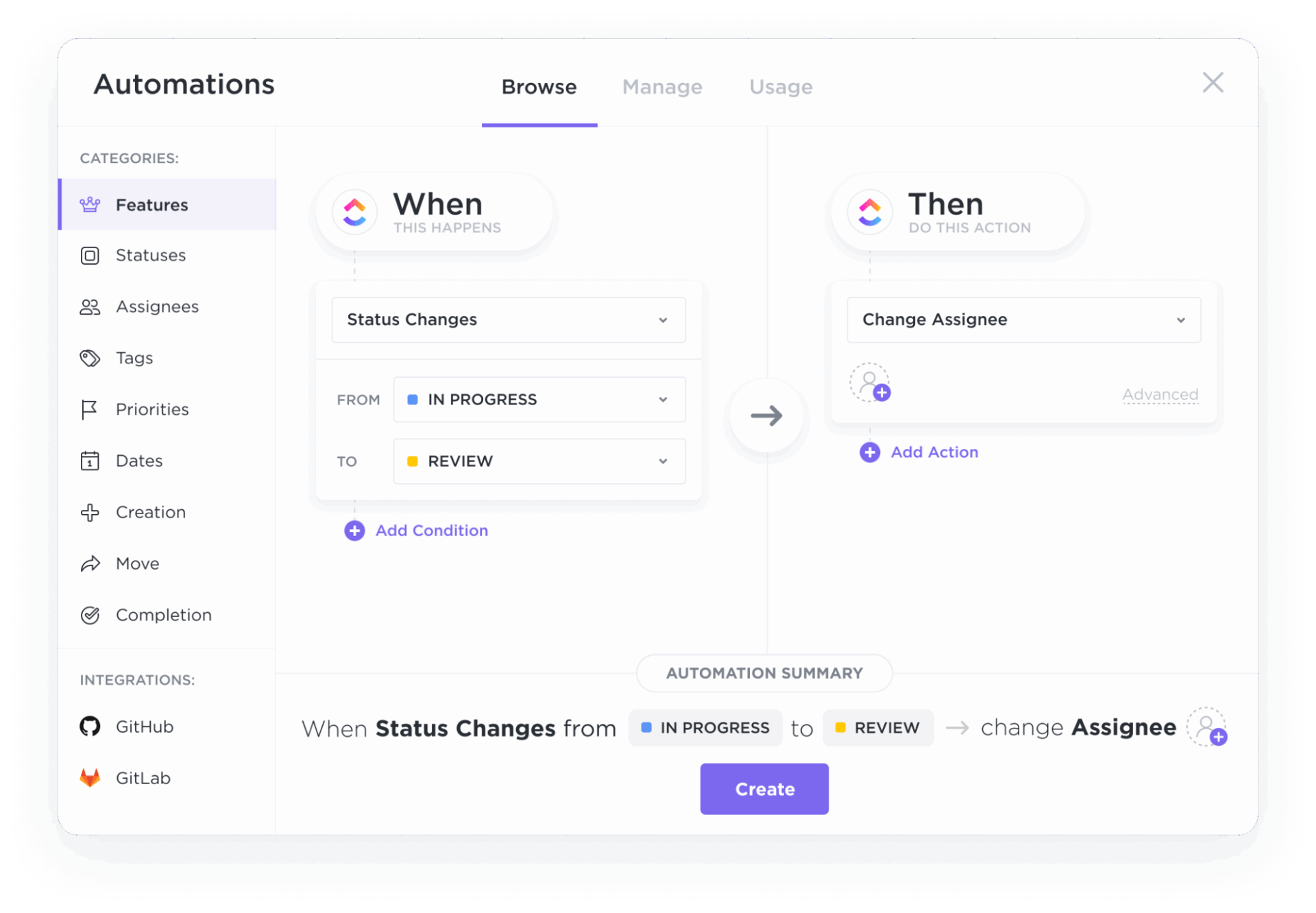
Eliminate manual handoffs and reminders with ClickUp Automations. You can set up simple rules to streamline the process. For example, create a ClickUp Automation so that when a task status changes to “Ready for Review,” it automatically assigns the task to an editor and notifies them. This ensures a smooth flow of work without anyone having to chase down updates.
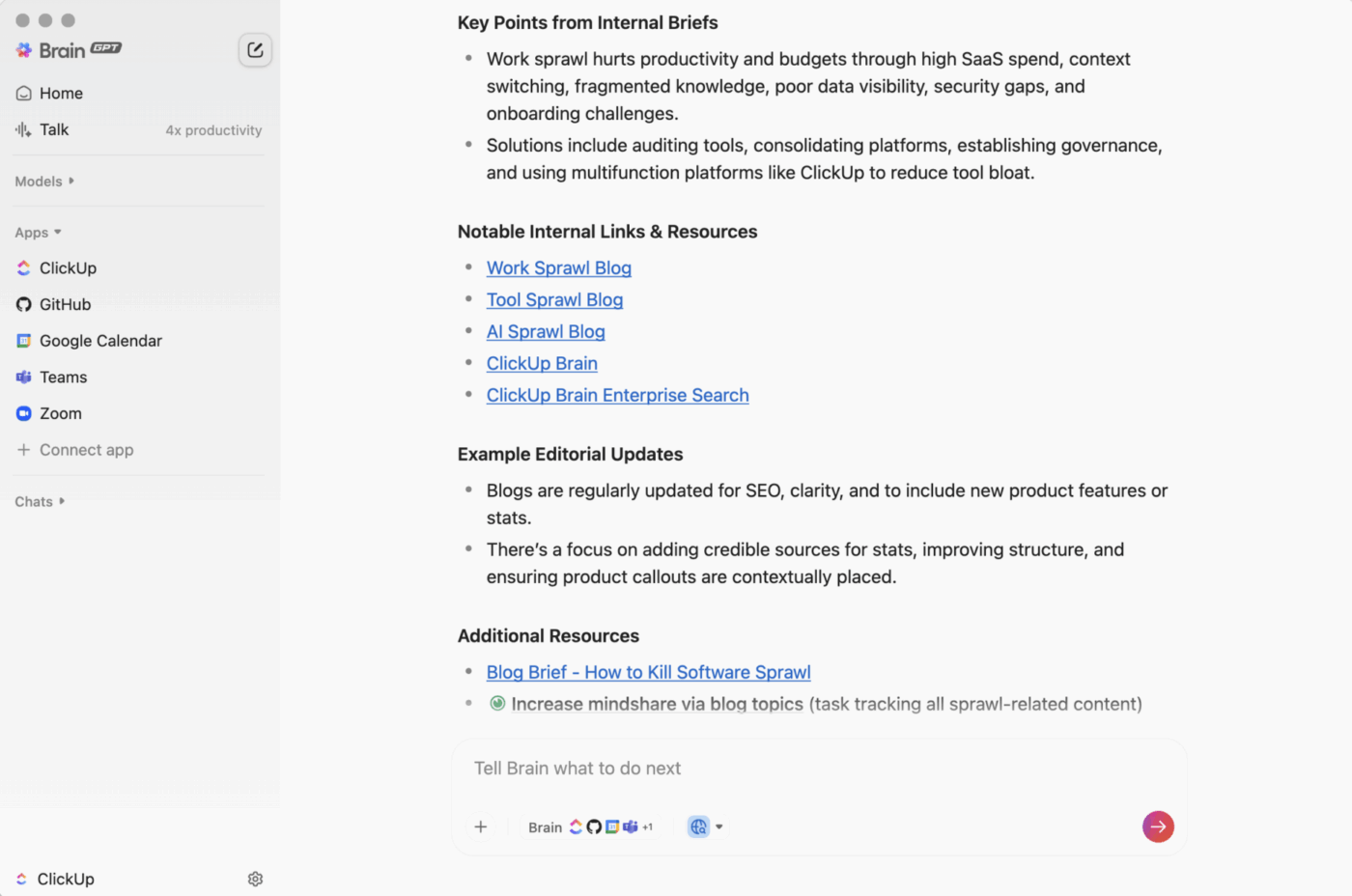
Find any document or review conversation instantly with ClickUp Brain, the AI assistant integrated within ClickUp. Instead of digging through folders, you can just ask a question like, “Show me all documents that were flagged for review last month.”
ClickUp Brain, and the desktop assistant ClickUp Brain MAX, can search across your entire workspace—including tasks, docs, and comments—to find exactly what you need in seconds.
📮ClickUp Insight: Context-switching is silently eating away at your team’s productivity. Our research shows that 42% of disruptions at work come from juggling platforms, managing emails, and jumping between meetings. What if you could eliminate these costly interruptions?
ClickUp unites your workflows (and chat) under a single, streamlined platform. Launch and manage your tasks from across chat, docs, whiteboards, and more—while AI-powered features keep the context connected, searchable, and manageable!
Google Docs is a powerful writing and collaboration tool—but it can’t evaluate authorship. There’s no built-in mechanism to tell you whether text was written by a human, assisted by AI, or fully generated by a model. So if originality matters in your workflow, you’re left piecing together a solution yourself.
This fragments your editorial process and creates more room for oversight. The smarter move is to build your content verification workflow in ClickUp and stop second-guessing document authenticity.
Instead of separating writing, detection, status tracking, and collaboration into disconnected tools, bring everything into one coordinated content workflow in ClickUp’s Converged AI Workspace. AI supports your team, your team verifies content within defined review pipelines, and verification status lives alongside the work itself.
Get started for free with ClickUp today.
No, Google Docs doesn’t have a built-in feature to detect AI-generated content. You must use third-party tools or manual methods, like checking the version history.
The accuracy of AI detectors varies, and none are 100% reliable. They provide a probability score, not a definitive verdict, and can sometimes produce false positives, especially with formal writing.
According to Google’s privacy policy, your content in personal Google accounts isn’t used to train its public AI models. For Google Workspace accounts, the policy may differ based on your organization’s settings.
Teams manage this by creating a standardized content review workflow in a project management platform. This involves using tasks and status tracking to ensure every document is verified consistently without anything getting lost./

© 2026 ClickUp

There’s an easier way. Try a free AI Agent in ClickUp that actually does the work for you—set up in minutes, save hours every week.