When your distributed team is spread across time zones, the last thing you need is a tech stack held together by fragile integrations that break during handoffs.
PM software for distributed teams without integrations consolidates tasks, docs, chat, time tracking, and reporting into one workspace—so your team can collaborate without context-switching or troubleshooting sync failures across five different vendors.
Summarize this article with AI
ClickUp Brain not only saves you precious time by instantly summarizing articles, it also leverages AI to connect your tasks, docs, people, and more, streamlining your workflow like never before.
Summarize this article for me please
What Is PM Software for Distributed Teams Without Integrations?
PM software for distributed teams without integrations refers to all-in-one work management platforms that consolidate tasks, documents, communication, and reporting into a single environment. This eliminates the need to connect multiple third-party tools. For remote and hybrid teams spread across time zones, this matters because every external integration introduces friction, data silos, and context-switching that drains productivity.
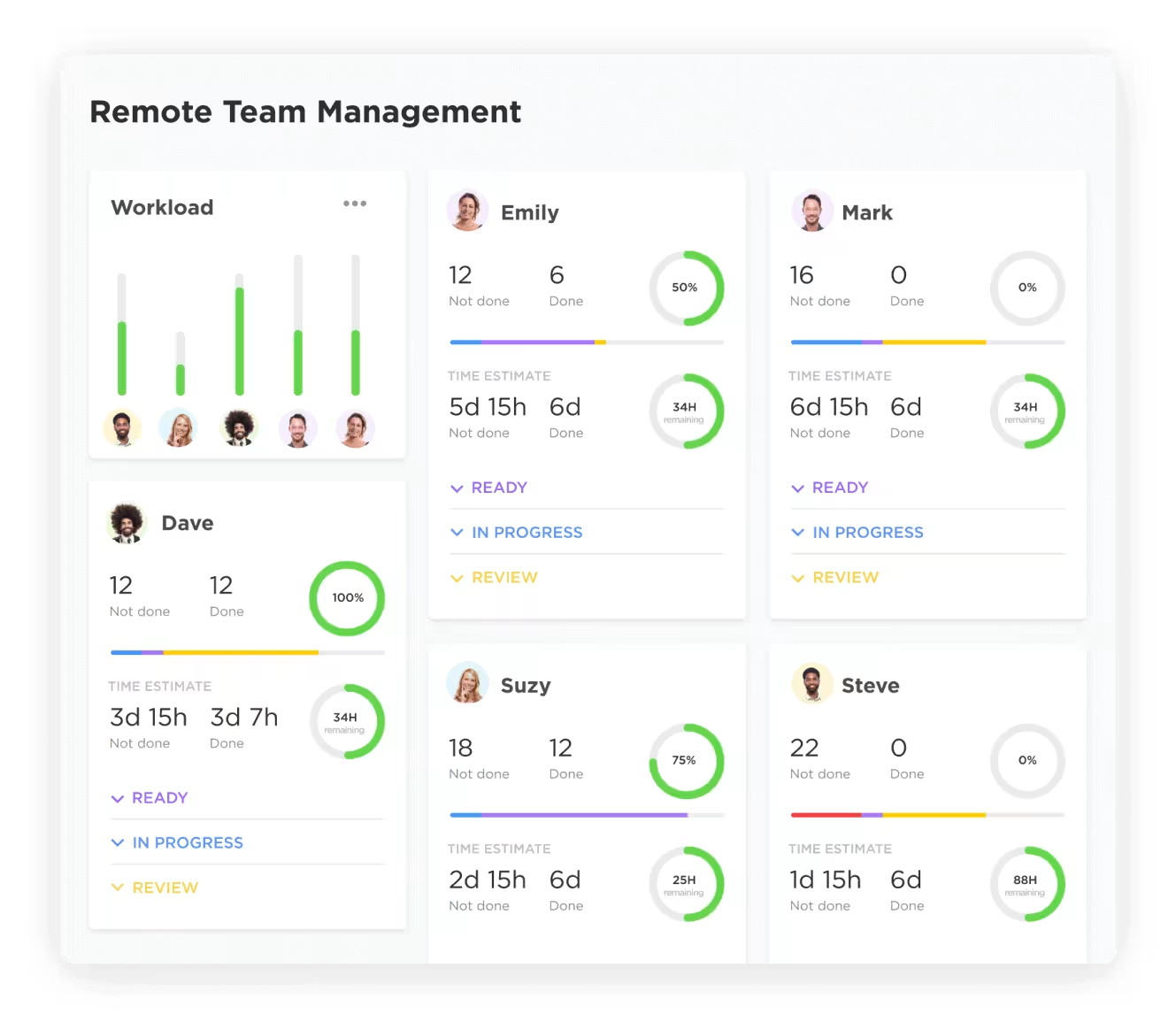
Remote team workload management in ClickUp
The core pain point is context sprawl—when teams waste hours hunting for information across disconnected tools, with 70% spending at least one hour searching for a single piece of information, and repeating the same updates across multiple platforms.
Your team might be juggling a chat app, a docs platform, a task tracker, and a reporting dashboard—each with its own login and permissions. When something breaks, you’re stuck troubleshooting across different vendors instead of getting work done.
A converged workspace solves this by building docs, chat, time tracking, and AI-powered automation directly into the platform. Your team gets a single source of truth where every conversation, file, and task lives together with full context. That’s the difference between “integrated” and “built-in”—and for distributed teams, it determines whether work moves forward or stalls.
📮 ClickUp Insight: 1 in 4 employees uses four or more tools just to build context at work. A key detail might be buried in an email, expanded in a Slack thread, and documented in a separate tool, forcing teams to waste time hunting for information instead of getting work done. ClickUp converges your entire workflow into one unified platform. With features like ClickUp Email Project Management, ClickUp Chat, ClickUp Docs, and ClickUp Brain, everything stays connected, synced, and instantly accessible. Say goodbye to “work about work” and reclaim your productive time.
💫 Real Results: Teams are able to reclaim 5+ hours every week using ClickUp—that’s over 250 hours annually per person—by eliminating outdated knowledge management processes. Imagine what your team could create with an extra week of productivity every quarter!
Summarize this article with AI
ClickUp Brain not only saves you precious time by instantly summarizing articles, it also leverages AI to connect your tasks, docs, people, and more, streamlining your workflow like never before.
Summarize this article for me please
PM Software for Distributed Teams Without Integrations at a Glance
Free plan available; Paid plans from $5/user/month
Teamwork.com
Agencies and client-service teams needing billing + client access
Time tracking, Invoicing, Client permissions, Workload planning
Free plan available; Paid plans from $11.99/user/month
*Please check the tool’s website for the latest pricing.
How we review software at ClickUp
Our editorial team follows a transparent, research-backed, and vendor-neutral process, so you can trust that our recommendations are based on real product value.
Summarize this article with AI
ClickUp Brain not only saves you precious time by instantly summarizing articles, it also leverages AI to connect your tasks, docs, people, and more, streamlining your workflow like never before.
Summarize this article for me please
What to Look for in PM Software for Distributed Teams Without Integrations
The right PM software should feel like one cohesive workspace—not a Frankenstein of plugins. The right PM software should feel like one cohesive workspace—not a Frankenstein of plugins.
Start by asking: Does this platform handle docs, chat, tasks, and reporting natively, or will I need to bolt on extras?
Look for these built-in capabilities:
Native documentation: Create, share, and link docs directly to tasks without exporting to external tools
Real-time and async communication: Chat threads tied to specific tasks or projects so context never gets lost in a separate channel
Built-in time tracking: Log hours, set estimates, and generate reports without a third-party timer
Custom dashboards and reporting: Pull live data from tasks, sprints, and workloads into visual dashboards—no CSV exports required
AI-powered assistance: Summarize threads, draft updates, and surface relevant information without leaving the platform
Granular permissions: Control who sees what at the workspace, folder, or task level—critical for client-facing distributed teams
Security also matters more when you’re not routing data through external connectors. Fewer access points mean fewer attack surfaces, critical when 30% of breaches now trace to third-party ecosystems.
📮 ClickUp Insight: Context-switching is silently eating away at your team’s productivity. Our research shows that 42% of disruptions at work come from juggling platforms, managing emails, and jumping between meetings. What if you could eliminate these costly interruptions?
ClickUp unites your workflows (and chat) under a single, streamlined platform. Launch and manage your tasks from across chat, docs, whiteboards, and more—while AI-powered features keep the context connected, searchable, and manageable!
Summarize this article with AI
ClickUp Brain not only saves you precious time by instantly summarizing articles, it also leverages AI to connect your tasks, docs, people, and more, streamlining your workflow like never before.
Summarize this article for me please
Top 10 PM Software for Distributed Teams Without Integrations
1. ClickUp
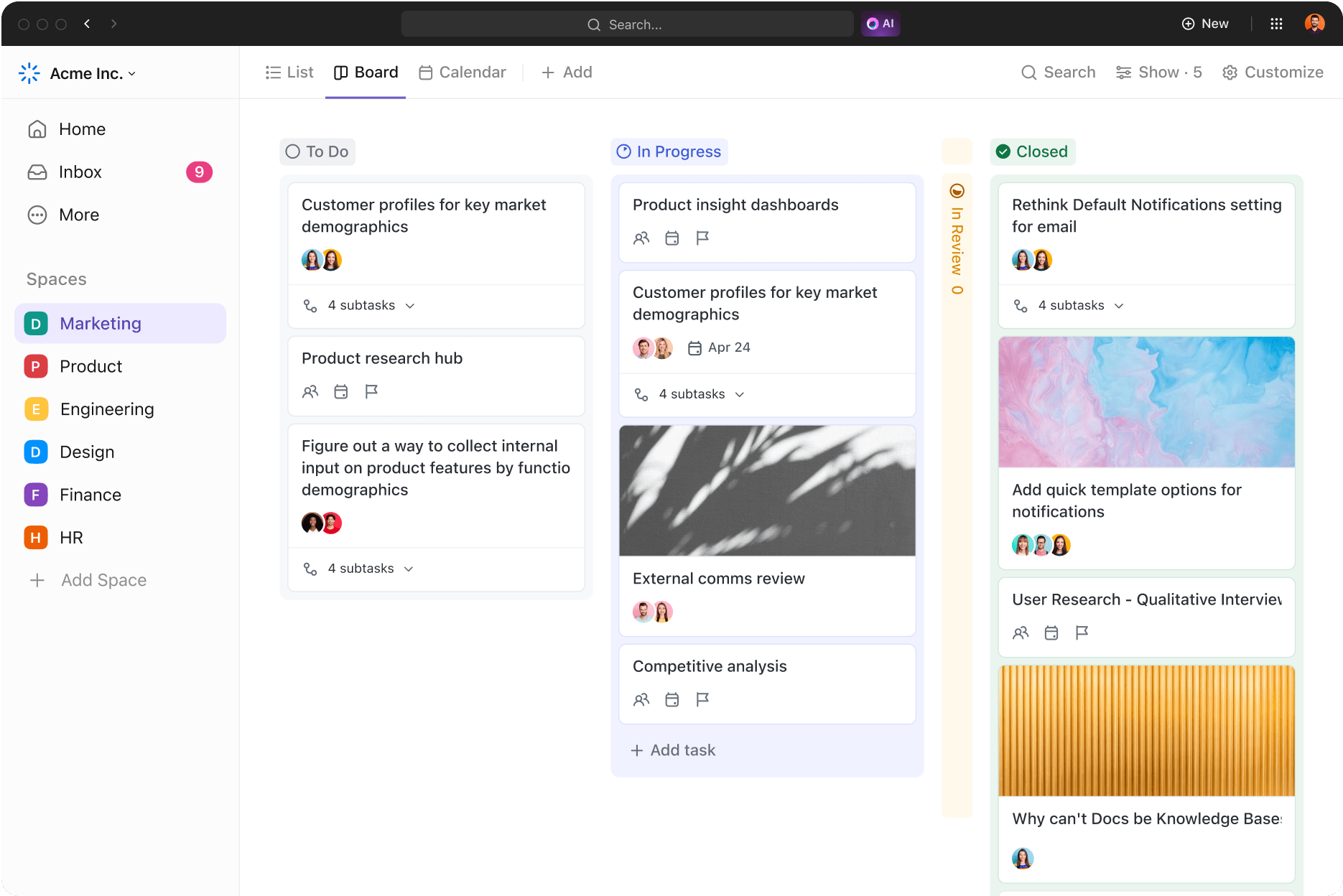
ClickUp Kanban Board View with customizable status columns and drag-and-drop task workflow
Your distributed team is drowning in “context sprawl”—jumping between a chat app for quick questions, a docs tool for specs, and a task tracker for assignments. This fragmentation means every conversation, document, and task lives in a different place, creating confusion and inefficient async handoffs.
Eliminate this chaos by converging your projects, knowledge, and communication into one AI-powered workspace with ClickUp. Keep discussions tied directly to their relevant work with ClickUp Chat, so your teammate in another time zone never has to hunt through disconnected threads for an update.
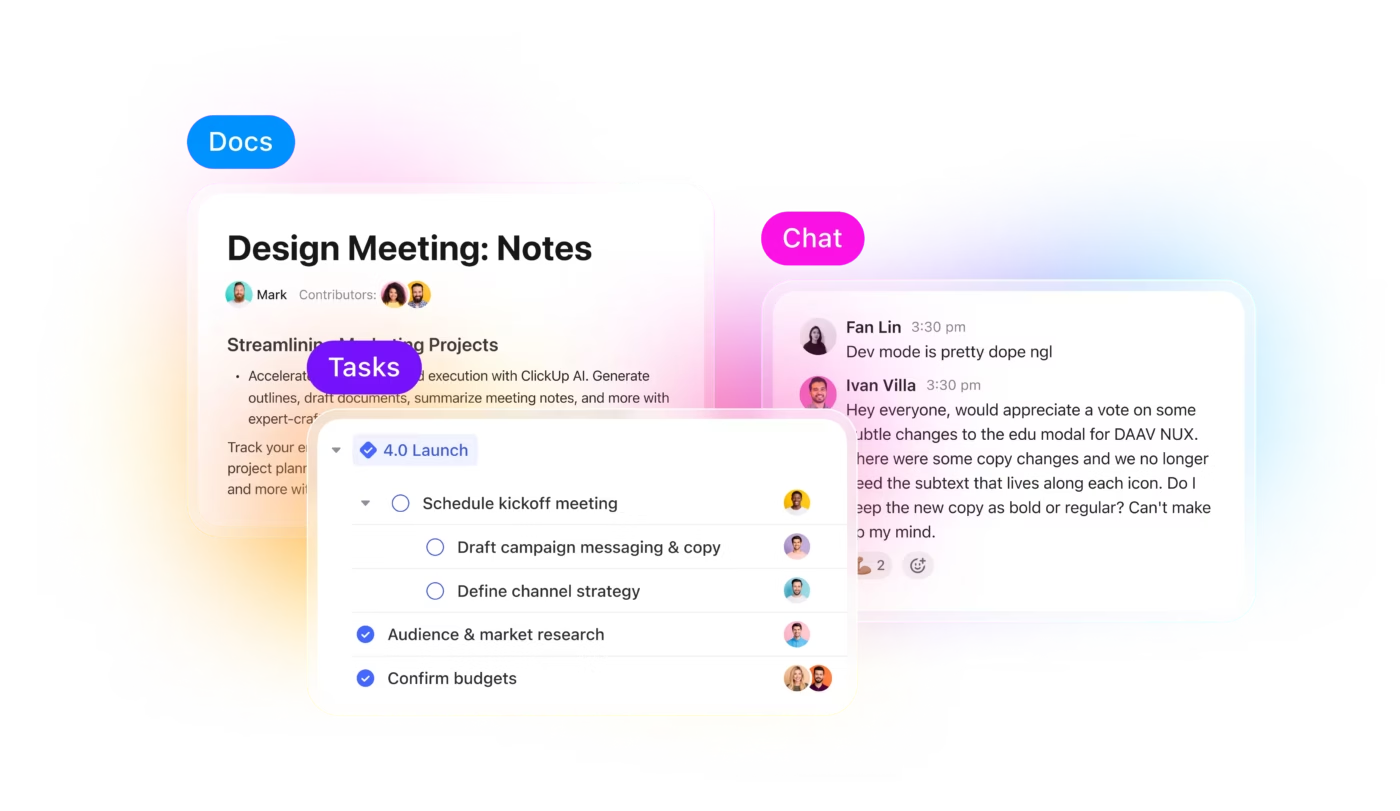
Fixing disconnected work sprawl
You can also create wikis, SOPs, and project briefs without leaving the platform using ClickUp Docs, which can be linked, embedded, or converted into tasks with a single click.
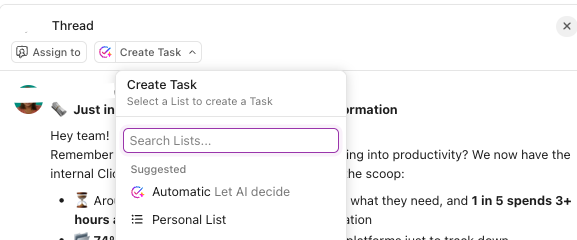
ClickUp Chat thread showing the option to create a task from chat with or without AI
Transform your distributed team’s workflow with ClickUp Brain, the AI feature that keeps context alive across time zones. This AI feature can summarize long comment threads for quick catch-ups, draft status updates for stakeholders, and answer questions about your workspace data. When half your team is asleep, ClickUp Brain keeps context alive, making handoffs across time zones feel seamless rather than chaotic.
ClickUp Meetings and ClickUp Calendar
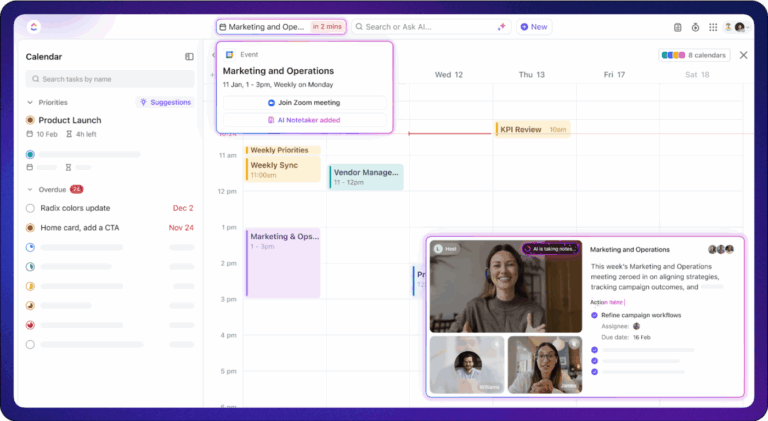
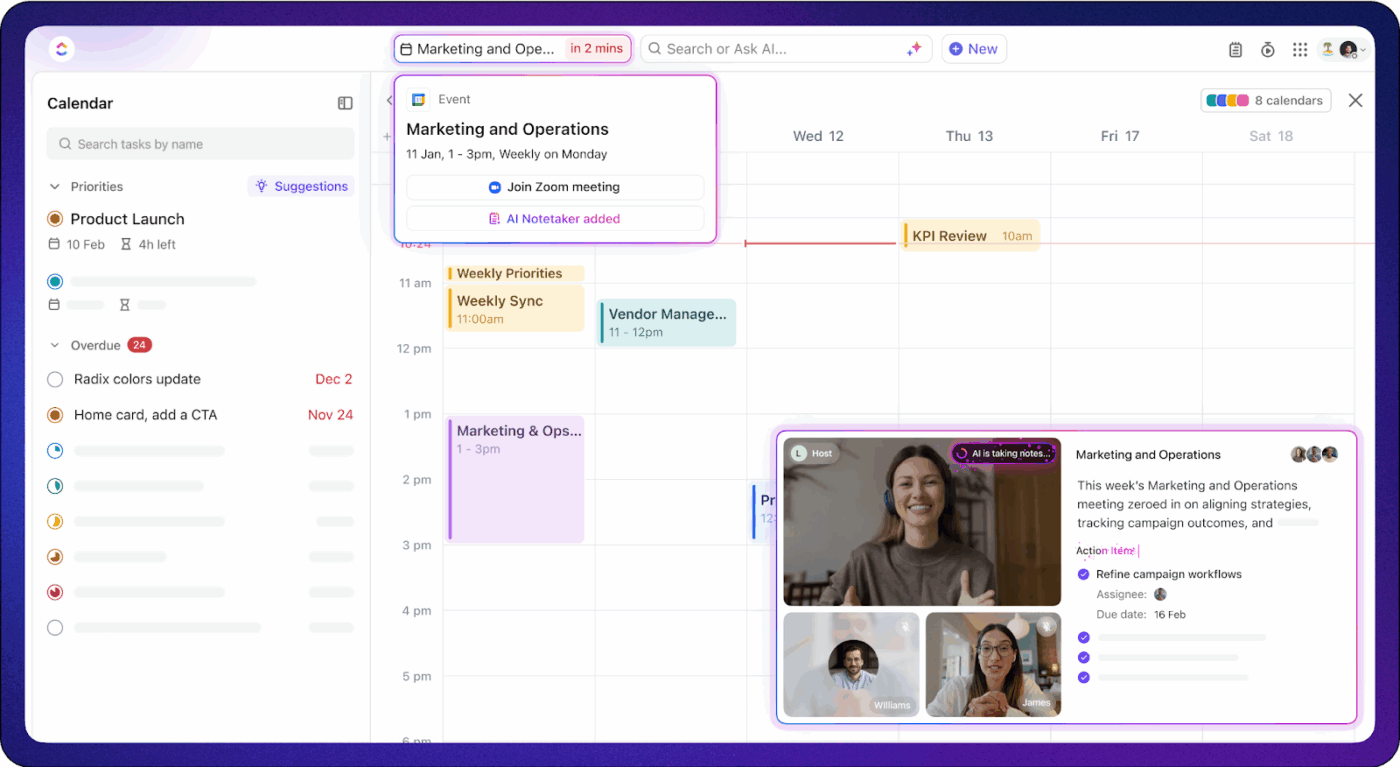
It starts with time visibility. With ClickUp Calendar, teams can plan work against real schedules, not just due dates, so handoffs are easier to coordinate across time zones and priorities stay visible day-to-day.
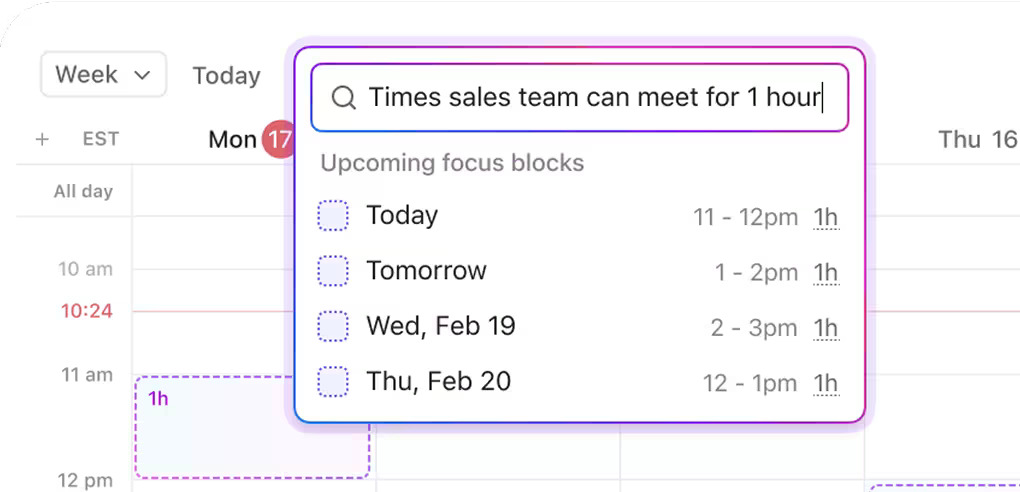
ClickUp Calendar and ClickUp AI can help you find ideal time for your distributed teams
And if your team still lives in Google Calendar, ClickUp’s integration lets you sync tasks to your calendar view so your schedule reflects the work you actually need to ship.
ClickUp best features:
Keep async conversations tied to specific tasks and projects so teammates can catch up without searching scattered threads using ClickUp Chat
Create wikis, SOPs, and project briefs inside the same workspace so documentation stays connected to execution using ClickUp Docs
Get instant summaries, updates, and answers pulled from real workspace context so handoffs stay clean across time zones using ClickUp Brain
Track time, estimates, and capacity without relying on external timers so distributed teams can plan and report in one place using ClickUp Time Tracking
Build real-time reporting views for workload, delivery, and progress so stakeholders always see current status using ClickUp Dashboards
ClickUp pros and cons
Pros:
Everything in one place: With tasks, docs, chat, and time tracking living together, your team avoids context switching and troubleshooting broken integrations
AI that knows your work: ClickUp Brain makes summaries and suggestions relevant by pulling from your actual workspace data, which is a huge help for async handoffs
I really like using ClickUp because it’s very intuitive, and I’m just starting to explore its full potential. I appreciate the fact that you can create, move, and assign tasks with ease, which is exactly the basic functionality we were looking for. It does this really intuitively and professionally, elevating our workflow beyond the simple card system we used before. It’s also great for our small, remote team to create tasks and subtasks that build up a planning pipeline, which is crucial for our organization.
The product allows us to streamline processes, combining everything into one place with lots of capabilities, which reduces the need for multiple licenses. Moving to ClickUp from other tools made sense for us as it offered a more professional product with everything centralized. I found the initial setup very easy too, as we could import Trello tickets and quickly get to grips with it and set up workflows with ease.
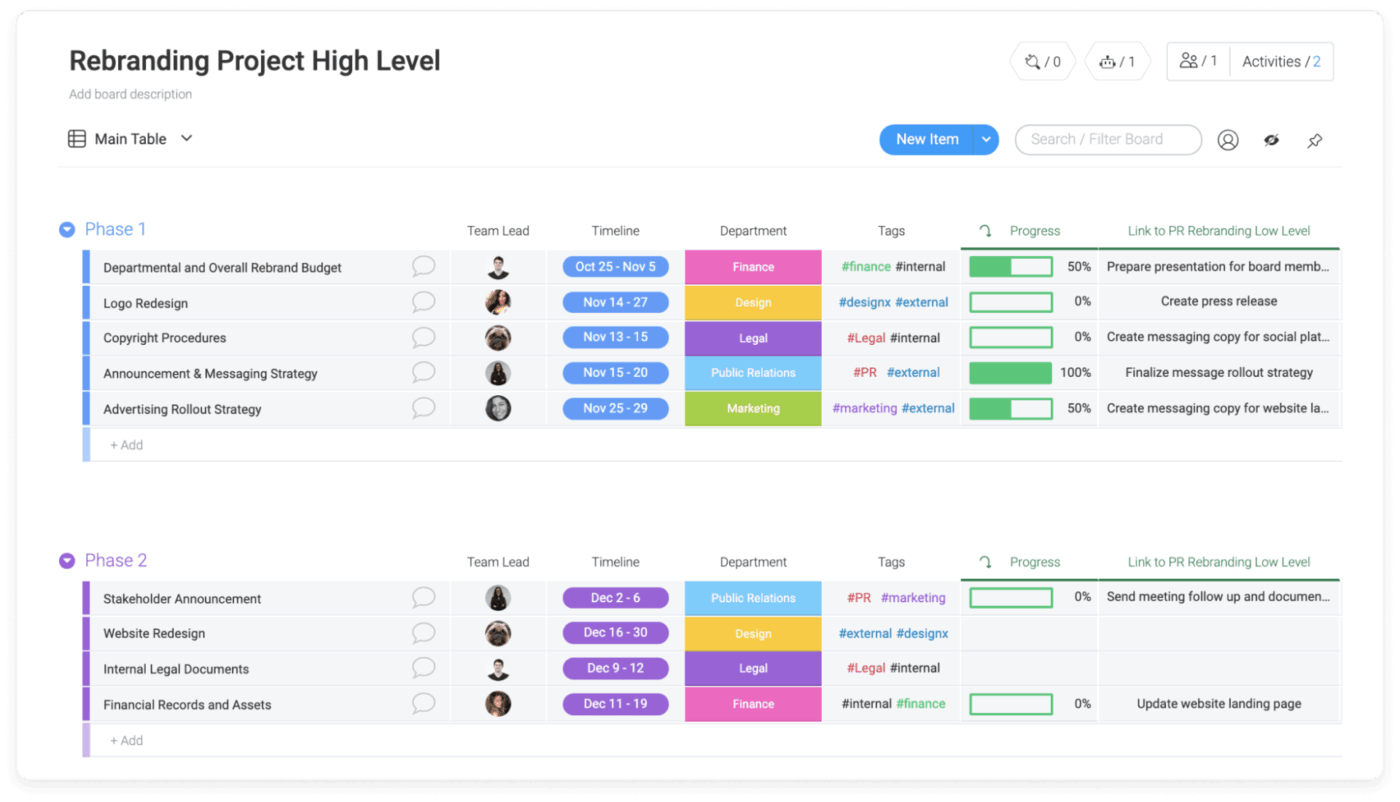
Monday.com positions itself as a “Work OS”—a flexible platform where non-technical users can build custom workflows using colorful, visual boards. For distributed teams, the appeal is the low barrier to entry. You can spin up a new workflow in minutes without waiting on IT.
The platform’s native features include automations, dashboards for cross-board reporting, and workload views for capacity planning. Where Monday.com shines for distributed teams is its visual task management. Color-coded statuses make it easy to scan a board and understand project health at a glance.
Monday.com best features
Visual Work OS boards: Boards use color-coded columns and status labels that make project status immediately visible, reducing the need for status meetings
No-code automations: Build “if this, then that” rules to automate repetitive actions, like notifying a teammate when a status changes
Workload view: See team capacity across projects in a single view, helping managers balance assignments across time zones
Monday.com pros and cons
Pros:
Highly visual interface makes onboarding fast and project status easy to scan
Extensive template library helps teams get started quickly
Strong automation capabilities for non-technical users
Cons:
Seat-based structure may require planning as teams grow
Automation limits may require plan adjustments as usage grows
Complex project hierarchies can feel awkward in the board-centric structure
I love monday Work Management’s clean interface and easy-to-use features. The depth of the program really impresses me. I also enjoy the ability to interface with my coworkers within the program, as it offers much-needed flexibility for our office and makes remote work much more possible, especially with the chat and task assign features.
🎥 Watch this video to see how modern workplace communication tools help distributed teams stay aligned without constant meetings.
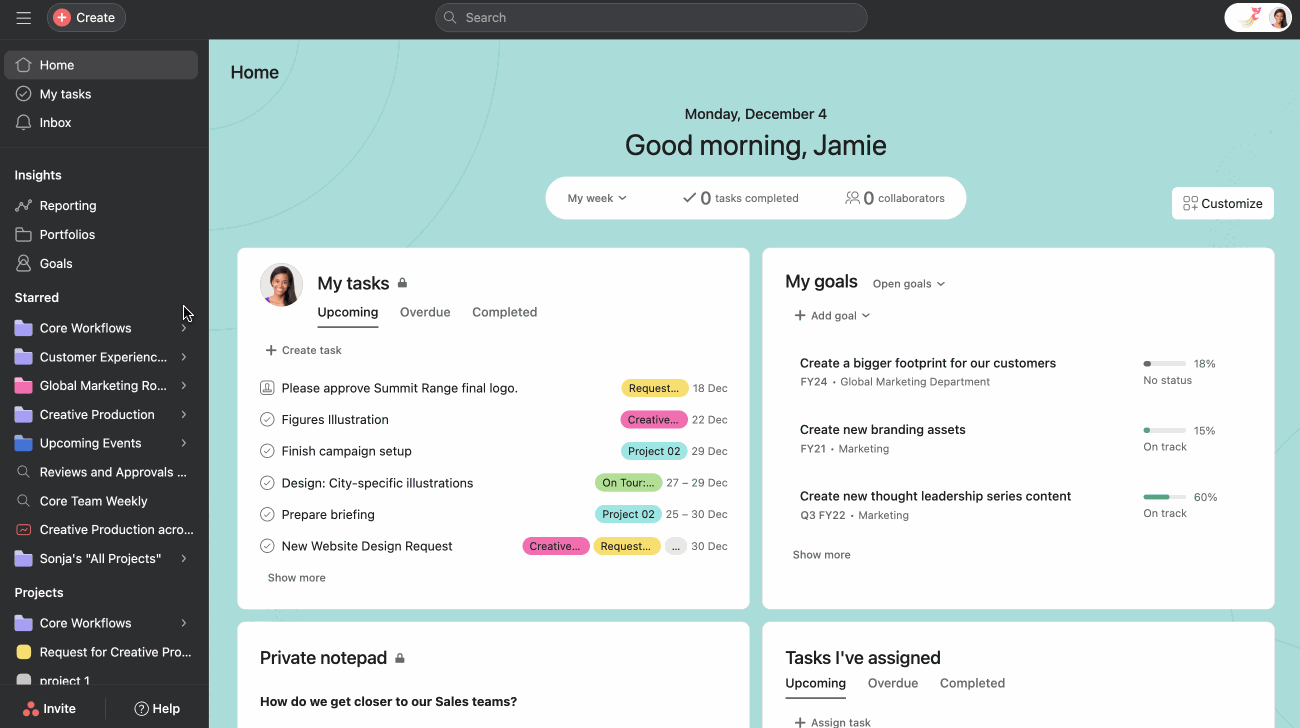
Asana is built for cross-functional teams that need to coordinate complex workflows. Its “Work Graph” data model connects tasks to projects and portfolios, giving leaders visibility into how work rolls up to strategic objectives. For distributed teams, this means less time chasing updates.
The platform’s AI Studio lets teams build custom AI workflows without code. Timeline and Workload views help managers with capacity planning, which is critical when your team spans multiple time zones. Asana’s strength is governance and structure, but smaller teams may find it more rigid than they need.
Asana best features
Work Graph data model: Connects tasks to projects, projects to portfolios, and portfolios to company goals
AI Studio: Build custom AI workflows that automate task triage, generate summaries, or prioritize work
Timeline and Workload views: Visualize dependencies and team capacity in dedicated views to help balance assignments
Asana pros and cons
Pros:
Strong governance and admin controls make it suitable for enterprise teams
Work Graph provides clear visibility from individual tasks to company-level goals
AI Studio enables custom automation without requiring technical expertise
Cons:
Seat minimums may not suit very small teams
The structured approach may feel rigid for teams wanting more flexibility
Some users report a learning curve when setting up complex workflows
I really appreciate how Asana has a clean user interface that is very easy to understand, which significantly enhances user adoption in our team. The effort to reduce friction in the user experience is evident and contributes to its seamless implementation within our workflow. Using Asana has helped streamline our business processes, including managing our prospect pipeline and keeping track of internal tasks. It effectively keeps everybody connected and informed about different tasks and projects, allowing us to work asynchronously with confidence.
The initial setup of Asana was super easy and relatively seamless, with only minor adjustments needed for integrations, such as with Zapier. Overall, Asana’s design and functionality have greatly supported our team’s operations and productivity as a fully remote company.
📮 ClickUp Insight: Context-switching is silently eating away at your team’s productivity. Our research shows that 42% of disruptions at work come from juggling platforms, managing emails, and jumping between meetings. What if you could eliminate these costly interruptions?
ClickUp unites your workflows (and chat) under a single, streamlined platform. Launch and manage your tasks from across chat, docs, whiteboards, and more—while AI-powered features keep the context connected, searchable, and manageable!
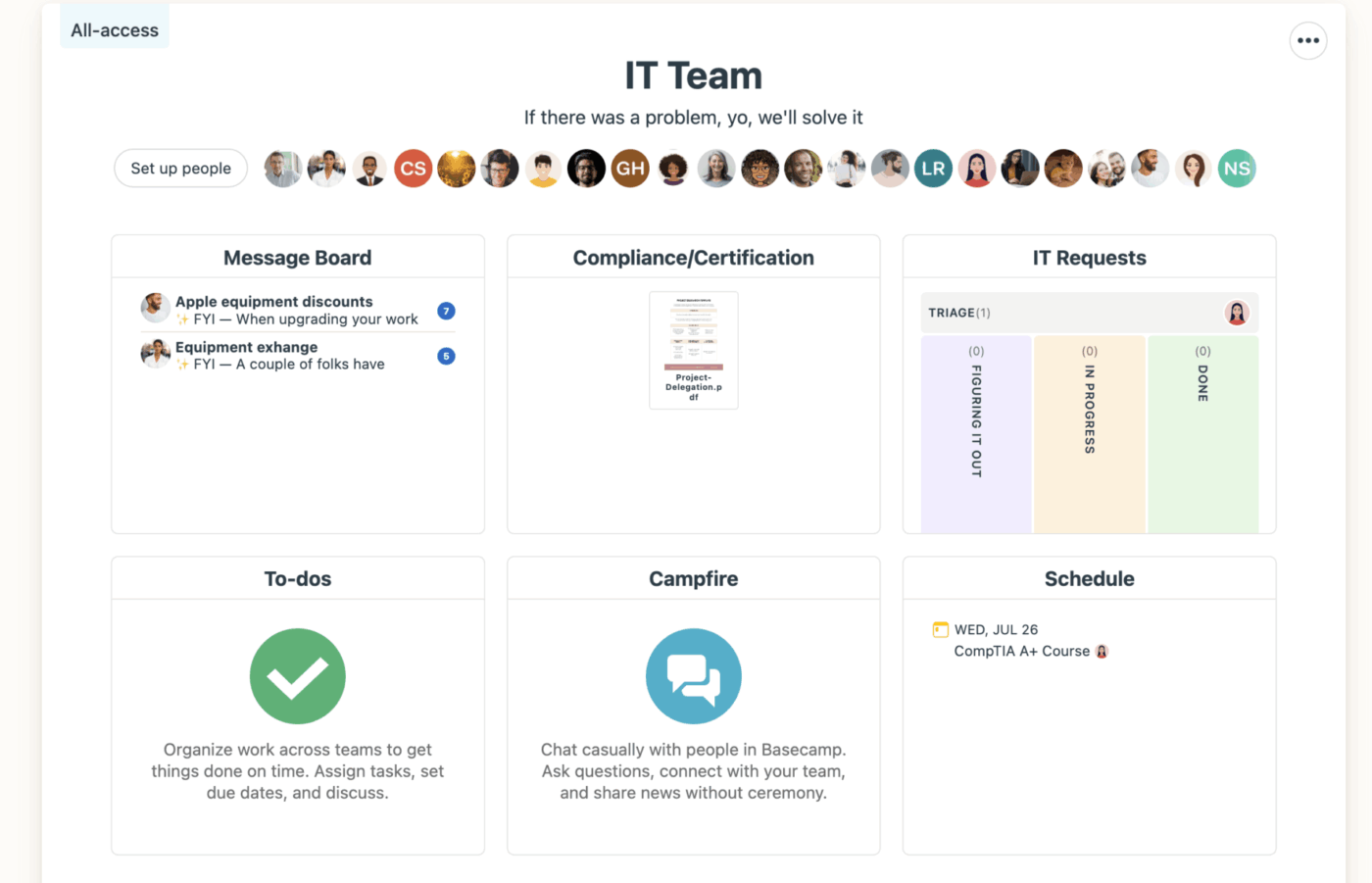
Basecamp takes a deliberately opinionated approach with fewer features, less customization, and a flat pricing model. For distributed teams that want simplicity, this can be refreshing. It offers Message Boards for async discussions, Campfire for real-time chat, and To-dos for task lists.
The platform’s “Hill Charts” offer a unique way to visualize progress, showing whether work is in the “figuring it out” or “making it happen” phase. Basecamp’s limitation is also its strength. Teams needing Gantt charts or granular permissions will find it lacking, but it removes overhead for teams that value clarity.
What I like best about Basecamp is how seamlessly it helps us manage our remote work process. As a company, it allows us to flawlessly track all of our conversations, planning, tasks, and project progress. It’s incredibly functional for task assignment, team communication, and monitoring project developments. Plus, its simple and user-friendly interface allows team members to quickly adapt. All of this facilitates collaboration and boosts our overall efficiency.
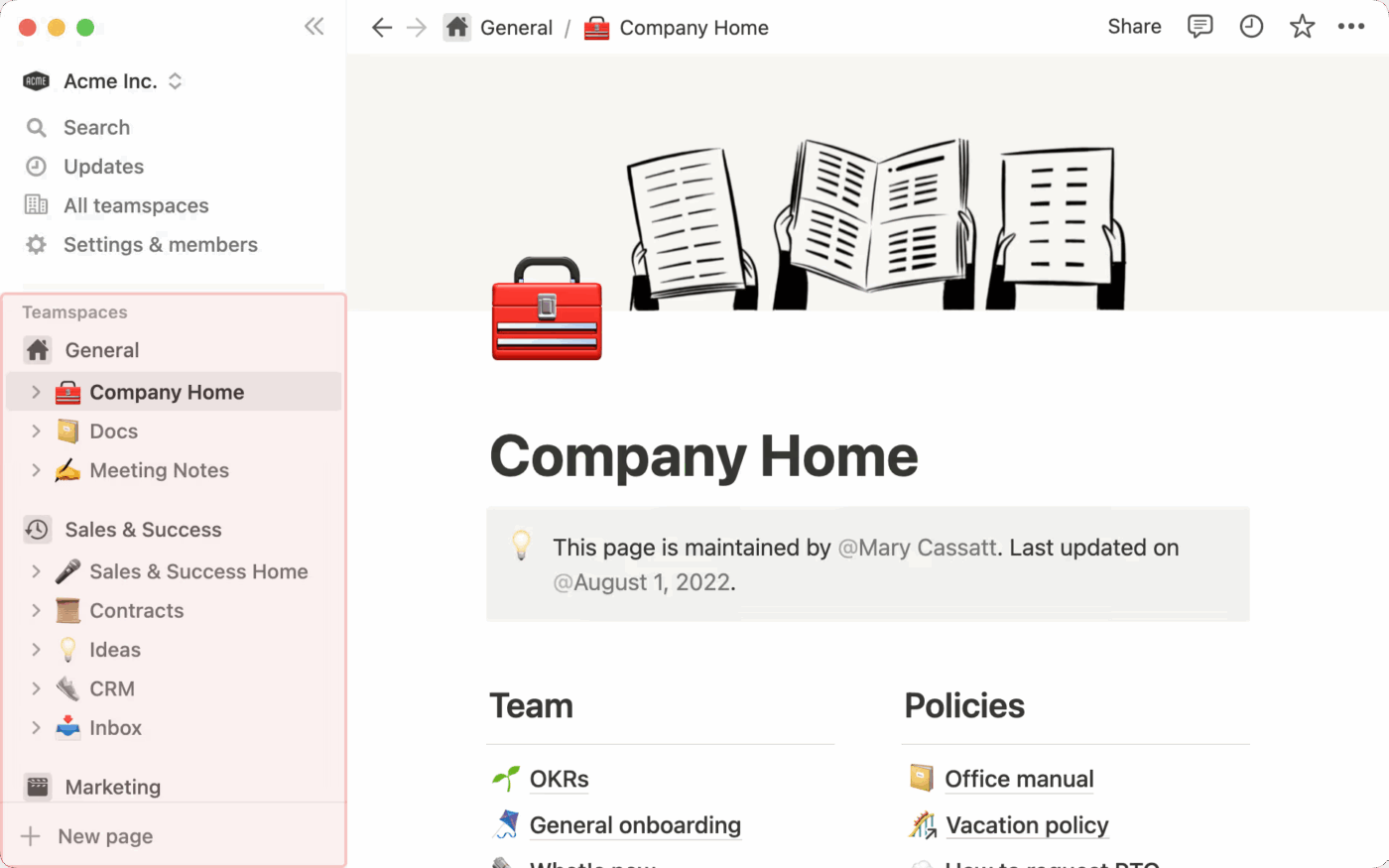
Notion is a modular workspace that blends docs, wikis, and databases into a flexible system. For distributed teams heavy on documentation, Notion excels at knowledge management. Its relational databases let you link tasks to docs, docs to projects, and projects to team directories.
Notion AI adds summarization and Q&A capabilities directly into the editor. The trade-off is that Notion’s flexibility requires setup. For teams that love customization, this is a feature, but for those that want to start working immediately, it can feel like a project before the project.
Notion best features
Relational databases: Link pages, tasks, and databases together so information stays connected
Notion AI: Summarize long documents, generate drafts, or ask questions about your workspace content
Flexible templates: Start from community or team templates for wikis, project trackers, and more
Notion pros and cons
Pros:
Highly flexible “blank canvas” approach lets teams build the exact workspace they need
Strong documentation and wiki capabilities are ideal for knowledge-heavy teams
Relational databases reduce data duplication
Cons:
Requires significant setup time to build a functional workspace
Performance can slow on very large workspaces
Native project management features are less robust than dedicated PM tools
I love that Notion is simple yet robust, allowing me to do almost anything. Every page I create is completely customizable, and it also has great templates that come in handy. It helps me stay organized and connected to my remote teammates. We all use it at work, and it saves us so much time and headaches. The initial setup was super easy; we migrated our docs and started creating everything in there with ease, yet it offers so many different functionalities. I use it daily to share docs, organize tasks, create notes, and even record or transcribe my calls. Notion is refreshing and keeps us all connected and organized across our larger company of about 300 people.
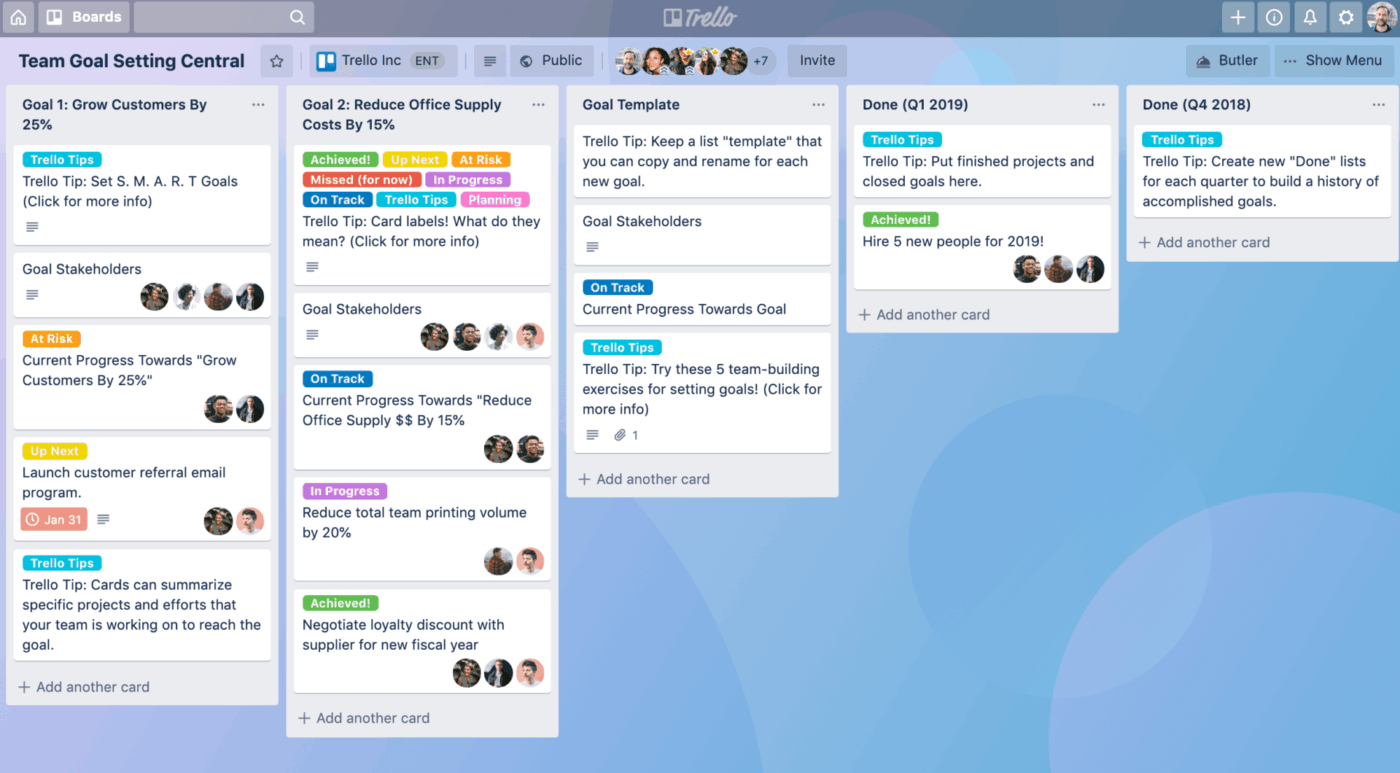
Trello is the original Kanban-style task board, now owned by Atlassian. Its drag-and-drop simplicity makes it one of the easiest PM tools to adopt. For distributed teams with straightforward workflow automation, Trello’s visual approach keeps everyone aligned without training.
Butler, Trello’s built-in automation engine, lets you create rules to automate repetitive actions. Trello’s limitation is depth. Complex projects with dependencies or detailed reporting will strain the board metaphor, but it remains a solid lightweight option.
Trello best features
Kanban boards: The classic drag-and-drop card interface that makes task status visible at a glance
Butler automation: Create rules like “when a card is moved to Done, check all items” without writing code
Timeline and Calendar views (Premium): Visualize cards on a timeline or calendar for deadline-focused planning
Trello pros and cons
Pros:
Extremely low learning curve, so most teams can start using it immediately
Butler automation handles complex rules for a lightweight tool
Deep integration with the Atlassian ecosystem (Jira, Confluence)
Cons:
Limited native reporting and analytics
Dependency tracking and resource management are minimal
Board and automation limits apply on starter plans
Trello pricing
Free Standard: $6/user/month (billed annually) Premium: $10/user/month (billed annually) Enterprise: Starts at $17.50/user/month (pricing varies by user count)
What many people like best about Trello is its visual simplicity and flexibility. The Kanban-style boards make it easy to organize tasks, track project progress, and collaborate with team members in a highly visual way. Its drag-and-drop interface, along with customizable boards, cards, and lists, allows users to tailor Trello to their specific workflows. The platform also integrates with many third-party apps (like Slack, Google Drive, and Jira), which enhances productivity and streamlines project management.
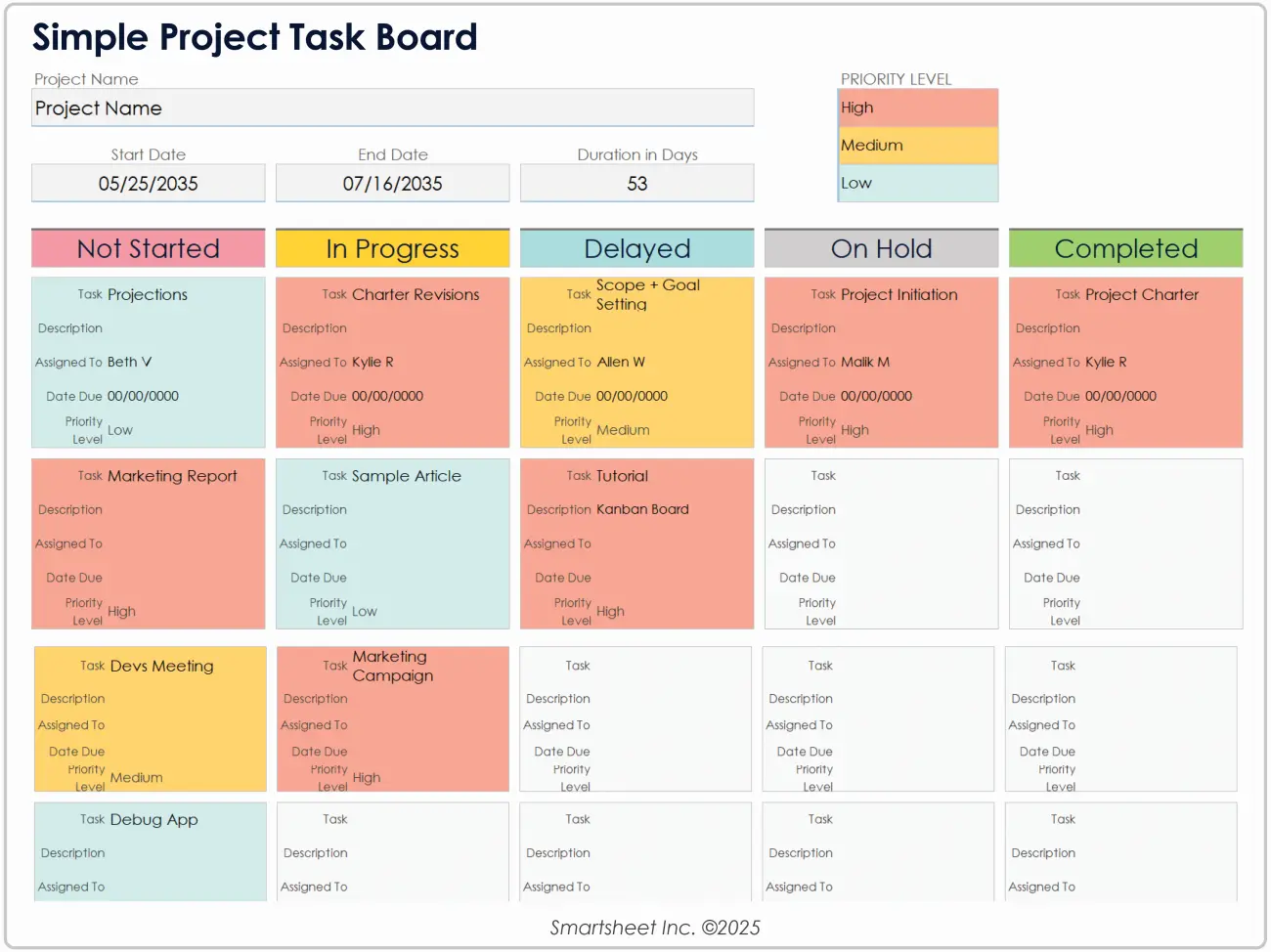
Smartsheet brings a spreadsheet-style interface to project management, making it familiar for teams transitioning from Excel. It includes PM features like Gantt charts, automations, and dashboards layered on top. For distributed teams in compliant industries, Smartsheet’s FedRAMP and DoD authorizations make it a viable choice.
The trade-off is complexity. Smartsheet’s formulas differ from Excel’s, and advanced features require additional purchases. Teams expecting a simple spreadsheet may find a steeper learning curve than anticipated.
Smartsheet best features
Spreadsheet-style grid: Familiar rows and columns with formulas and conditional formatting
Gantt and Calendar views: Visualize timelines and dependencies without leaving the sheet
Control Center (add-on): Standardize and govern large portfolios of projects with templates and reporting
Smartsheet pros and cons
Pros:
Familiar spreadsheet interface lowers adoption barriers for teams coming from Excel
FedRAMP and DoD authorizations make it suitable for government contractors
Strong portfolio management capabilities for PMOs
Cons:
Formulas and functions differ from Excel, requiring relearning
I use Smartsheet daily for my job to log and keep information about hundreds of customers and orders they have placed. Smartsheet has provided a way for my team to integrate remote employees by being acting as a share point of information. I enjoy how easy and functional the worksheets are. Inputting information and attaching documents on Smartsheet has been the most efficient way I have ever tracked and logged information.
Wrike targets mid-market and enterprise teams that need robust governance and proofing workflows. Its cross-tagging system lets a single task live in multiple projects simultaneously, so different teams can view the same deliverable without duplicating work. Wrike AI offers risk prediction and AI summaries.
For distributed teams managing creative work, Wrike’s proofing feature supports markup and approvals on over 30 file formats directly in the platform. The trade-off is complexity and cost, as full capabilities require higher-tier plans and add-ons.
Wrike best features
Cross-tagging: Assign tasks to multiple projects so different teams see the same work in their own context
Proofing and approvals: Mark up images, videos, and PDFs directly in Wrike with built-in approval workflows
Wrike AI (Work Intelligence): AI-powered risk prediction, summaries, and a Q&A assistant
Wrike pros and cons
Pros:
Cross-tagging eliminates duplicate tasks and keeps cross-functional teams aligned
Built-in proofing reduces the need for external creative review tools
Strong enterprise controls with SOC 2 and ISO 27001 certifications
Cons:
Full functionality requires multiple add-ons
The interface can feel busy and complex for new users
Wrike is a great platform for project management, especially for large and remote teams. Easy to understand and dive into, much more so than some competitors like SmartSheet.
Wrike’s ability to version control documents in the review process is fantastic and allows us to iterate creative copy seamlessly. I use it daily now and don’t miss other platforms I use to use like Asana or Monday.com.
Zoho Projects is part of the broader Zoho ecosystem, making it a natural fit for teams already using other Zoho apps. The platform offers Gantt charts, issue tracking, timesheets, and task dependencies at a budget-friendly price. For distributed teams, it includes built-in chat and forums for async discussions.
The platform also supports time tracking and resource utilization reports, helping managers with workload management. The trade-off is that Zoho Projects works best within its ecosystem. Teams not using other Zoho products may find the standalone experience less polished than competitors.
Zoho Projects best features
Gantt charts with dependencies: Visualize project timelines and task relationships with drag-and-drop rescheduling
Built-in timesheets: Log time against tasks and generate utilization reports without a third-party tool
Zoho ecosystem integration: Seamlessly connect with Zoho CRM, Zoho Docs, and other Zoho apps
Zoho Projects pros and cons
Pros:
Quick setup gets small teams and startups working in minutes
Native integration with the Zoho ecosystem reduces the need for external connectors
Built-in issue tracking and timesheets cover common PM needs
Cons:
The standalone experience is less polished for teams not using other Zoho products
Customization and advanced workflow options are limited
The UI can feel dated compared to more modern tools
I use Zoho Projects to plan, track, and manage work. I like how it organizes work through tasks, milestones, and Gantt charts, making it easy to track progress and deadlines at a glance. I appreciate the collaboration features, like comments, file sharing, and activity feeds, which keep everything in one place. The automation and reminders help reduce manual follow-ups. It also solves problems like poor task visibility, missed deadlines, and scattered communication by keeping all project plans, tasks, timelines, and discussions in one place. I find it practical and easy to use, which helps my teams stay aligned and productive. Creating projects, adding users, and setting up tasks and milestones was fairly easy and straightforward.
Teamwork.com is built for client-services teams like agencies and consultancies that need to track billable hours and manage client permissions. For distributed teams serving external clients, this focus on billability and client visibility sets it apart. The platform includes time tracking, workload planning, and invoicing features natively.
Client users can be granted limited access to specific projects, which is useful for collaborating with external stakeholders across time zones. The trade-off is that its client-services focus may feel overly specialized for internal teams.
Teamwork.com best features
Built-in time tracking and invoicing: Log billable hours, set rates, and generate invoices directly from the platform
Client permissions: Grant external clients limited access to specific projects, controlling what they can see
Workload planning: Visualize team capacity and balance assignments across distributed team members
Teamwork.com pros and cons
Pros:
Purpose-built for client-services teams with billing and client access controls
Time tracking is deeply integrated, making billable hour management seamless
Workload views help managers balance assignments
Cons:
The client-services focus may feel overbuilt for internal teams
The interface can feel cluttered with features that non-agency teams don’t need
Some users report a learning curve when setting up project templates
For pretty much anything I want to organize or schedule in my workflow, Teamwork has a functionality for that. Plus it has a very active development team that is always researching, absorbing feedback, and adding new and improved features and fixes. And the support (which I never needed but I once used to ask a question about a particular functionality) is SUPER responsive, friendly, and easy to communicate with. There is a “Feedback” icon on the toolbar that you can always use to make comments and suggestions to the dev team, which I also appreciate. Love them…
Summarize this article with AI
ClickUp Brain not only saves you precious time by instantly summarizing articles, it also leverages AI to connect your tasks, docs, people, and more, streamlining your workflow like never before.
Summarize this article for me please
Stop Juggling Tools and Start Working Together
Choosing PM software for a distributed team isn’t just about features—it’s about reducing friction. Every integration you add is another potential point of failure and another place where context gets lost. The best tools for remote teams consolidate tasks, docs, chat, and reporting into one workspace so your team can focus on the work itself.
Prioritize native capabilities over long integration lists. Ask whether the platform can handle your documentation, communication, and reporting needs without bolting on extras. The goal is a single source of truth where every conversation, document, and task lives together with full context. That’s how distributed teams move faster—not by adding more tools, but by needing fewer.
Summarize this article with AI
ClickUp Brain not only saves you precious time by instantly summarizing articles, it also leverages AI to connect your tasks, docs, people, and more, streamlining your workflow like never before.
Summarize this article for me please
Frequently Asked Questions
What features should PM software have to reduce the need for integrations?
Look for built-in docs, native chat tied to tasks, time tracking, reporting dashboards, and AI assistance—all within one platform. When these features are native, you avoid sync issues and keep your team’s context in one place.
How does an all-in-one PM platform differ from tools that rely on third-party integrations?
All-in-one platforms consolidate tasks, docs, chat, and reporting with unified data and permissions. Tools relying on integrations route data through external connectors, introducing sync failures and fragmented context.
Can distributed teams effectively collaborate using only one PM tool instead of multiple apps?
Yes. When your PM software includes native docs, async chat, time tracking, and dashboards, your team can use online collaboration tools to communicate, share files, and track work without switching contexts.
What are the security benefits of using built-in features versus third-party integrations for remote teams?
Fewer access points mean fewer attack surfaces. Built-in features keep data within one platform’s security perimeter, simplifying compliance audits and reducing data leak risks.
Everything you need to stay organized and get work done.