






Still downloading templates?
There’s an easier way. Try a free AI Agent in ClickUp that actually does the work for you—set up in minutes, save hours every week.
Sorry, there were no results found for “”
Sorry, there were no results found for “”
Sorry, there were no results found for “”
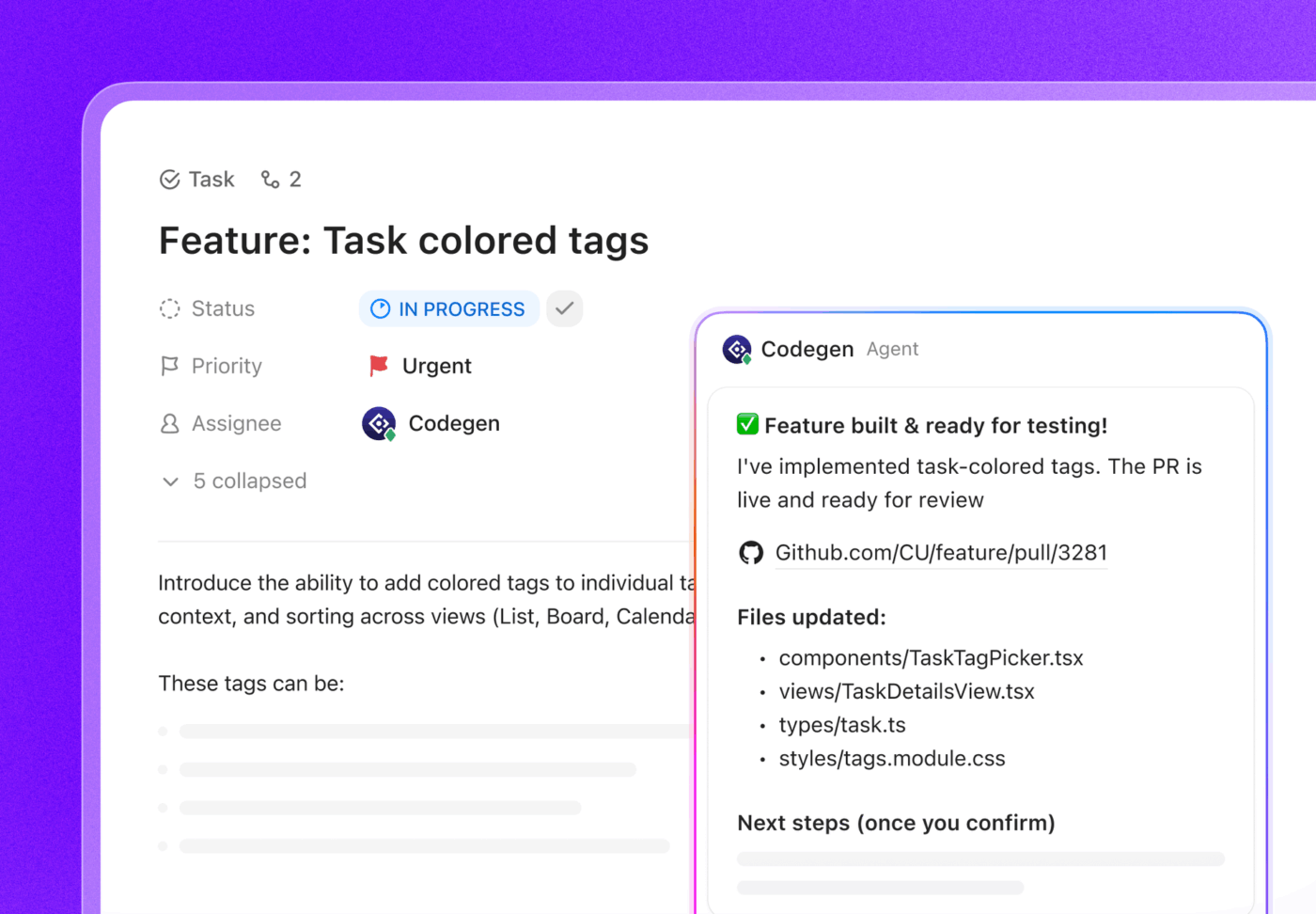
According to GitHub’s productivity research, developers using GitHub Copilot completed coding tasks ~56% faster in controlled experiments.
But most of that speed gain evaporates when you factor in the time spent debugging AI-generated errors or hunting through scattered tools to understand what you’re even supposed to build.
This guide walks you through how to use GitHub Copilot with VS Code, from installation and inline suggestions to chat features and customization options. We hope that it helps you code faster without sacrificing quality. 🧑🏻💻
GitHub Copilot is an AI-powered coding assistant, often called an AI pair programmer, that runs directly inside your Visual Studio Code editor. It was developed by GitHub and OpenAI to address the constant friction and context-switching that developers face in their everyday work.
Picture this: You’re three hours into debugging a tricky async function when you realize you need to look up the exact syntax for Promise.allSettled(). By the time you’ve found the MDN docs, scanned three Stack Overflow threads, and returned to your editor, you’ve completely lost your train of thought.
Instead of you manually looking up and typing every line, Copilot analyzes the context of your code—including your comments and function names—and suggests entire lines or blocks of code in real time.
This is a more advanced use case for AI in software development than simple autocomplete, which just predicts the next few characters. Copilot uses a machine learning model to understand your intent, helping you write code faster and maintain consistency across your team. It keeps you in your editor, focused on building, not on tedious repetition.
📮ClickUp Insight: 33% of our respondents point to skill development as one of the AI use cases they’re most interested in. For example, non-technical workers may want to learn to build code snippets for a web page using an AI tool.
In such cases, the more context the AI has about your work, the better its responses will be. As the everything app for work, ClickUp’s AI excels at this. It knows what project you are working on and can recommend specific steps or even perform tasks like creating code snippets easily.
Want your Copilot setup to be smooth and take only a few minutes? You’ll need:
🤝 Friendly Reminder: Copilot isn’t yet available in all regions. Additionally, some corporate or enterprise networks may have firewalls that block connections to Copilot’s APIs. So, you may need your IT department to make configuration changes to use Copilot.
Good news: setting up GitHub Copilot in Visual Studio Code is one of those rare “AI things” that actually is as easy as people claim.
If you already use VS Code and have a GitHub account, you’re about five minutes away from having an AI pair programmer quietly working beside you.
First, you need to add the Copilot extension to your VS Code installation. This is done through the built-in Extensions Marketplace.
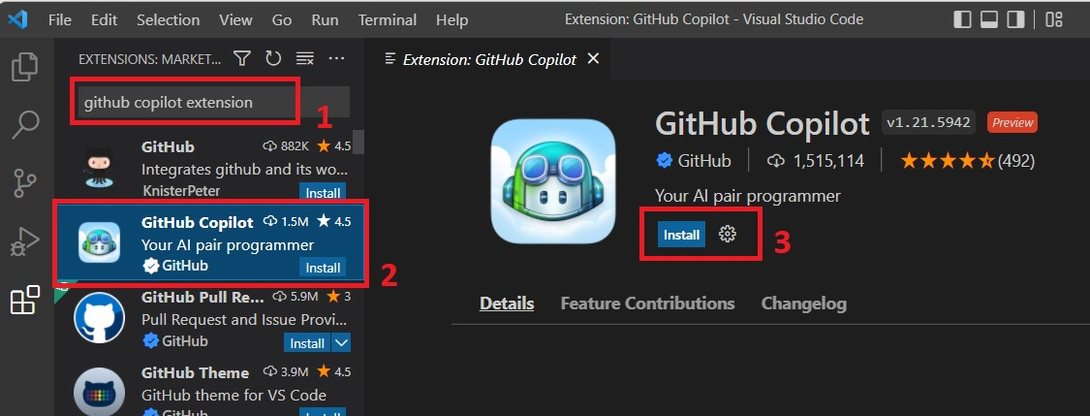
👀 Did You Know? The GitHub Copilot extension now includes both code suggestions and chat functionality in a single package. When you install it, you’ll automatically get access to all Copilot features, including the conversational chat interface (provided you’ve got an active subscription!)
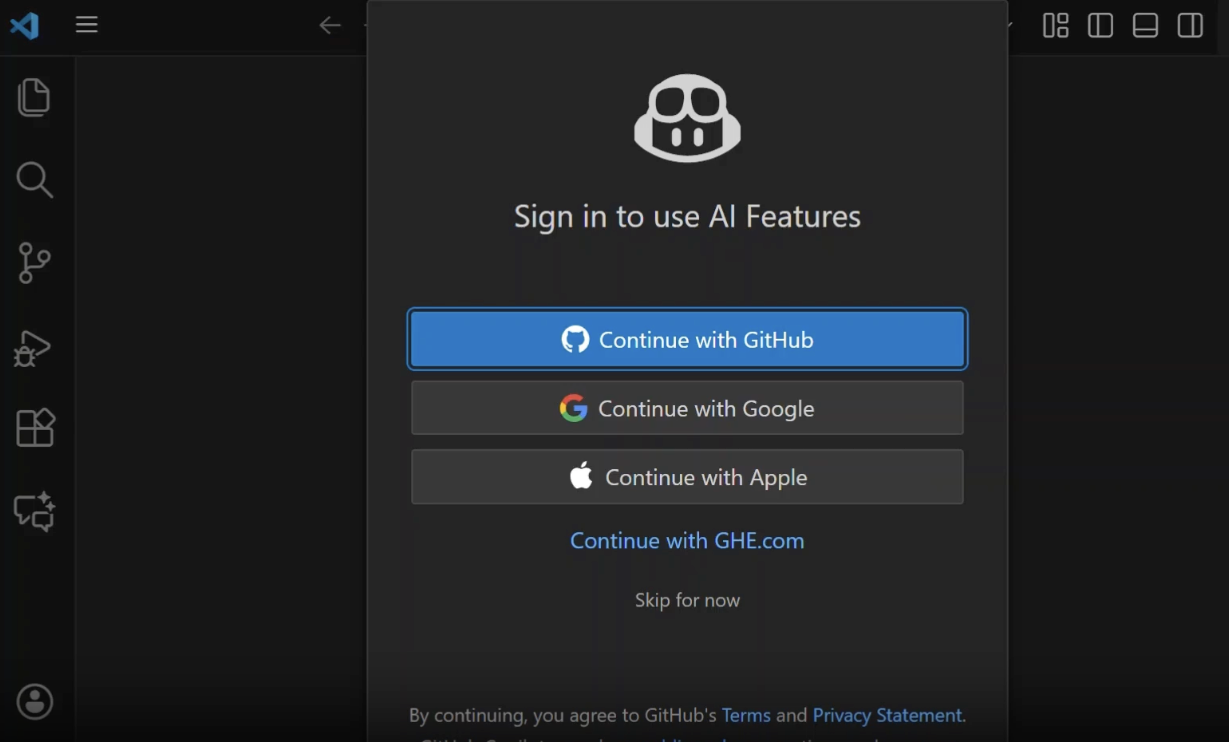
After the installation finishes, Copilot needs to connect to your GitHub account to verify your subscription. This process uses a standard OAuth flow to securely authorize the extension.
💡 Pro Tip: If you miss the pop-up or it doesn’t appear, trigger the sign-in process manually. Open the Command Palette (Ctrl+Shift+P or Cmd+Shift+P), type “GitHub Copilot: Sign In,” and press Enter.
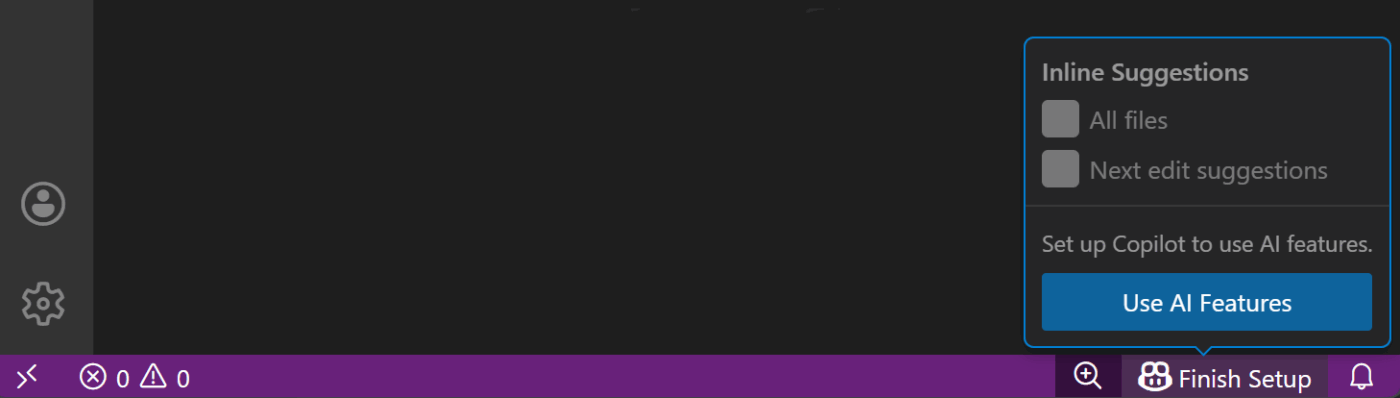
Once you’ve signed in, you should confirm that Copilot is running correctly. You can check its status by:
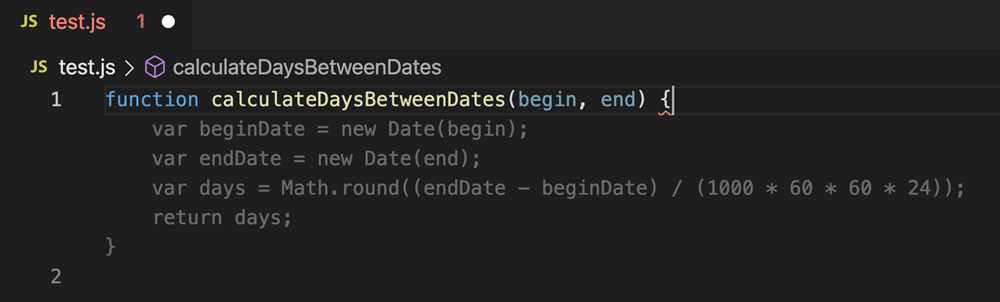
The final test is to open a code file and start typing. If you see light gray “ghost text” appearing ahead of your cursor, Copilot is active and generating suggestions. If you see a warning on the icon, double-check your subscription status and internet connection.
A lot of coding comes down to repetitive typing. Think boilerplate, common patterns, and small syntax you already know but still have to write out. This repetitive work isn’t only slow and boring but also error-prone, distracting you from the core logic of the feature you’re building.
Copilot’s inline suggestions address this problem directly. As you type, Copilot analyzes the context of your current file, your other open tabs, and even your comments to predict what you intend to write. These predictions appear as light gray “ghost text” right ahead of your cursor.
Suggestions can be as simple as completing the rest of a variable name or as complex as generating an entire multi-line function. Whatever they are, they’re designed to keep you in flow and reduce grunt work.
When Copilot shows a suggestion you like:
🤝 Friendly Reminder: Even after accepting, always give the suggestion a quick review for correctness and style before you commit or push. AI code is handy, but it still needs human oversight.
If the first suggestion isn’t quite what you’re looking for, Copilot usually has other ideas ready.
Cycling through the options helps you find the best fit for your specific needs, whether you’re looking for a different implementation or just a different coding style. Just note that not every completion will have alternatives. Simpler completions may only yield one option.
Copilot is a collaborator, not a dictator. If a suggestion is incorrect or not what you had in mind, you can discard it and continue on your own.
🧠 Fun Fact: 85% of developers feel more confident in their code quality when using GitHub Copilot.
When you’re deep in a coding session and hit a roadblock—like a cryptic error, a complex piece of legacy code, or the need to write unit tests—your first instinct is to leave your editor, open a tab, and start searching online. That context switch is small, but it adds up fast.
GitHub Copilot Chat keeps you out of the rabbit hole by bringing a conversational AI directly into your IDE. It allows you to have a natural, back-and-forth dialogue about your code without ever leaving VS Code. You can ask it to explain code, help you debug, suggest refactors, and more, keeping your focus right where it needs to be.
There are a few ways to open Copilot Chat, depending on how you like to work:
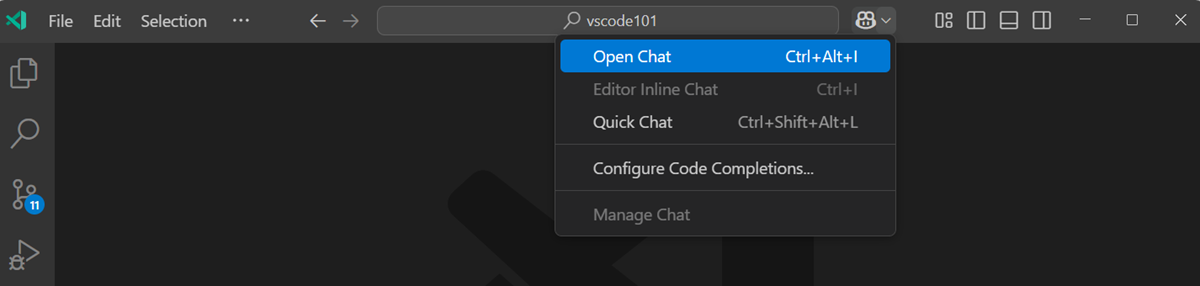
This opens the Chat panel in the sidebar, where Copilot keeps track of your current conversation so you can refer back to earlier answers as you go.
Copilot Chat works best when you treat it like a teammate who can see what you’re working on.
You can ask things like:
💡 Pro Tip: You can highlight a block of code before asking your question to provide the AI with direct context.
For making targeted changes to a specific block of code, the inline chat feature is often faster than using the full sidebar panel. Here’s how it works:
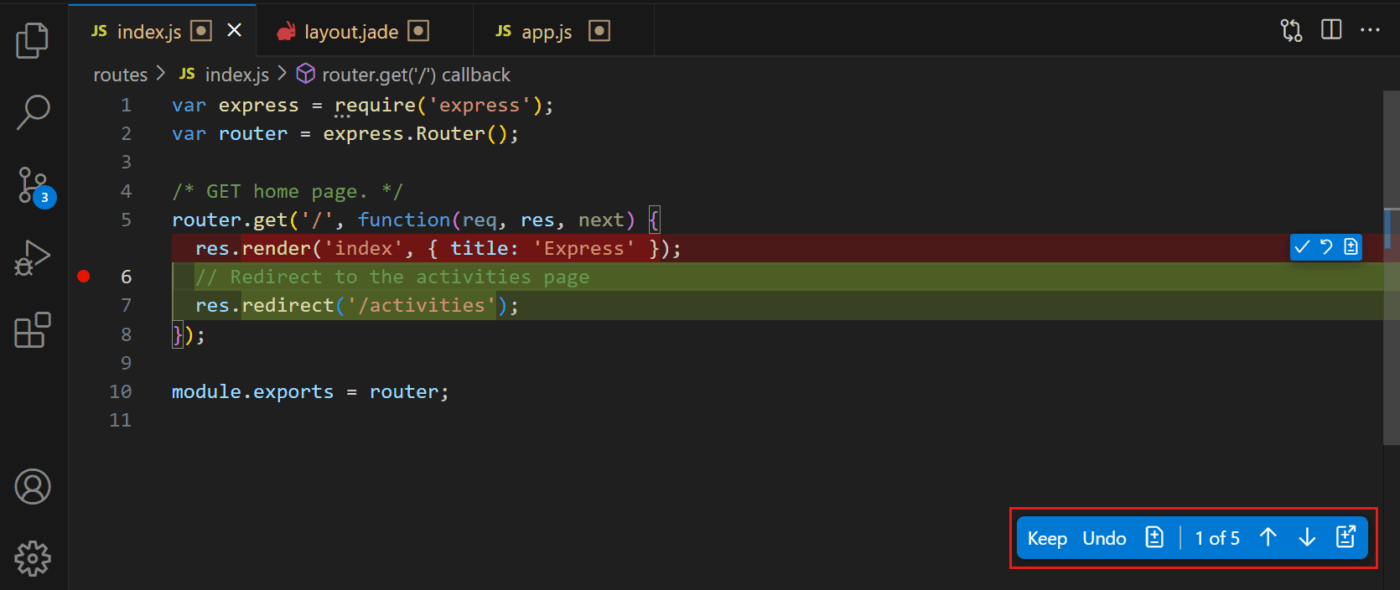
This method is perfect for quick refactoring and code transformations without breaking your visual flow.
🧠 Fun Fact: Nearly 80% of new GitHub developers start using Copilot within their first week.
Inline suggestions and chat are great for working inside a single file. But bigger tasks—like implementing a feature or cleaning up a cross-cutting bug—usually involve multiple files and coordinated changes.
That’s where Copilot’s newer agent-style features come in.
Instead of just answering questions, these tools help Copilot understand a higher-level goal and propose changes across a wider scope. They don’t replace your judgment, but they can dramatically cut down the setup and search work.
🎥 Curious how AI agents are transforming coding workflow and enabling more autonomous development? Watch this overview of the top AI agents for coding and their practical applications.
Here’s how you can access these emerging agentic features:
@workspace followed by a question like “Where is the authentication logic defined?” to get answers based on your entire codebase, not just your open files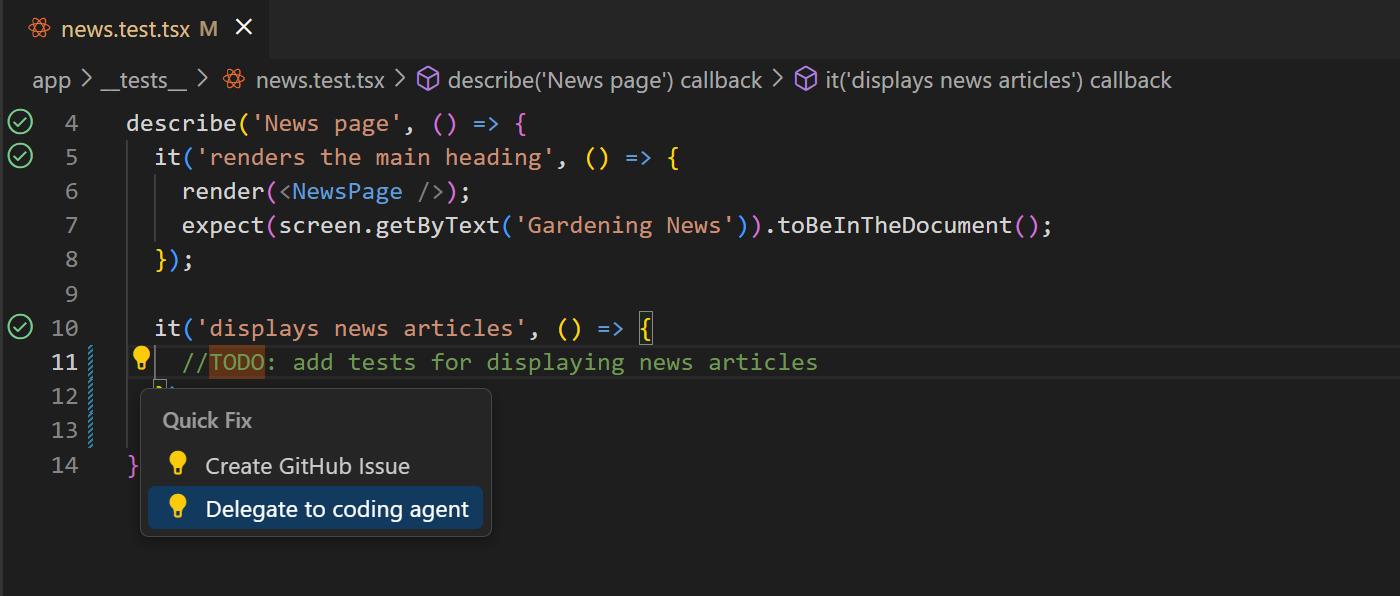
Copilot’s agentic features are powerful—but they’re still assistive, not autonomous in the “set it and forget it” sense.
They work best when you:
These features are evolving quickly, and some may require a Copilot Pro or Enterprise subscription to access.
If Copilot feels too noisy, too eager, or just out of sync with your project’s style, that’s usually a settings issue—not a reason to give up on it. Visual Studio Code gives you several built-in ways to tune how GitHub Copilot behaves, so it supports your workflow instead of fighting it.
With a few small adjustments, Copilot can fade into the background when you don’t need it—and show up exactly when you do.
You can adjust the following options in your VS Code settings:
.github/copilot-instructions.md file to your repository to give Copilot specific guidance on your project’s coding standards or preferred librariesRelying too heavily on any AI tool without understanding its weaknesses can be risky. You don’t want to be shipping code that’s buggy, insecure, or doesn’t comply with licensing requirements. And let’s not even talk about creating technical debt and potential legal issues for your org.
Always sanity-check Copilot’s output for:
Be aware of Copilot’s limitations and treat it as a talented but fallible collaborator:
| Limitation | Impact on your workflow |
|---|---|
| Accuracy isn’t guaranteed | Copilot can generate code that looks plausible but is functionally incorrect or contains subtle bugs. Always test its output |
| No real-time access to the interent | Copilot doesn’t have real-time access to the internet or live documentation. Its underlying models have a knowledge cutoff, so it may not be aware of the latest APIs or security updates unless that context exists in your codebase |
| Context window limits | In very large or complex projects, it may not be able to “see” all the relevant code, leading to less accurate suggestions |
| Licensing considerations | Generated code can sometimes resemble patterns or snippets from public repositories, which may have licensing obligations you need to respect |
| Privacy and data handling | Copilot sends relevant code context to GitHub’s servers for processing, which may be a concern for sensitive or regulated projects depending on your plan and settings |
| Varying language coverage | It performs best with popular languages like Python and JavaScript. Support for niche languages may be less robust |
Writing better code faster with GitHub Copilot is a win. But as any developer knows, coding is only one piece of the puzzle. Once you’ve written or fixed that function, you still need to:
Switching between all these tools—Jira for tickets, Slack for chat, Confluence for docs—is more than annoying. It pulls you out of flow, consumes mental energy, and slows down delivery.
ClickUp addresses this exact problem by giving teams a single, Converged AI Workspace where development work and context live together, so your workflow stays smooth from task creation to delivery.
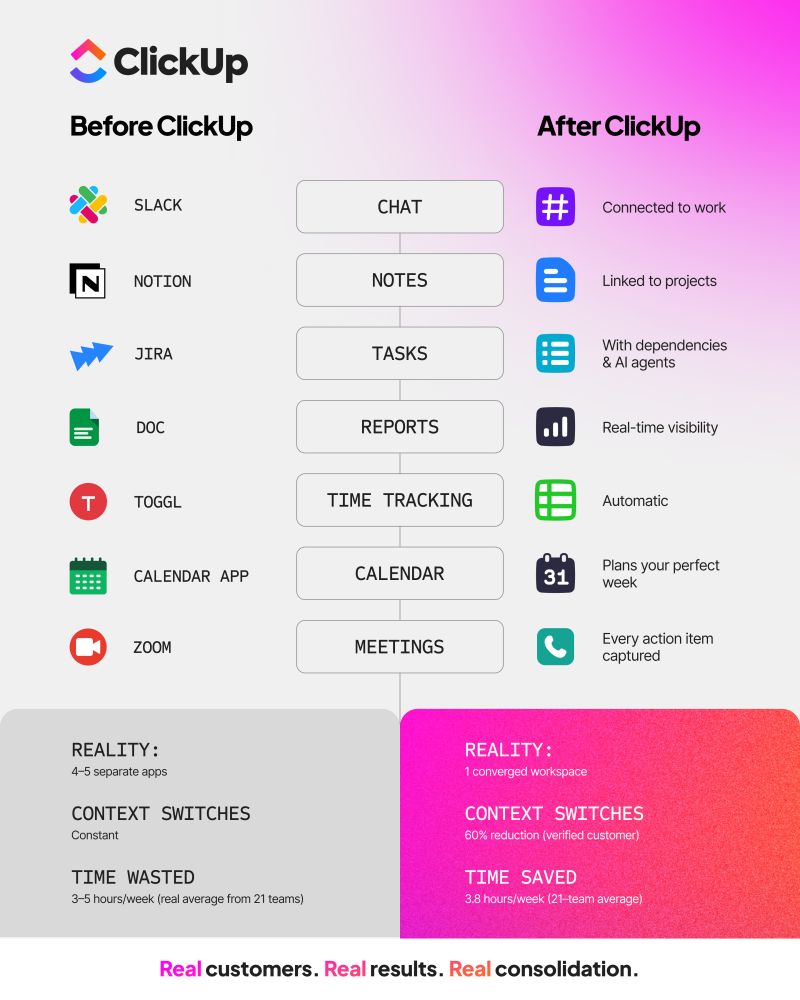
Let’s see how:
In real development, a task often spans multiple systems: a GitHub PR here, a Jira ticket there, docs somewhere else.
In ClickUp, organize every piece of work as an actionable item with its own status, assignee, and priority.
With ClickUp Tasks and the ClickUp-GitHub integration, you can link pull requests, commits, and branches directly to the relevant task in ClickUp.
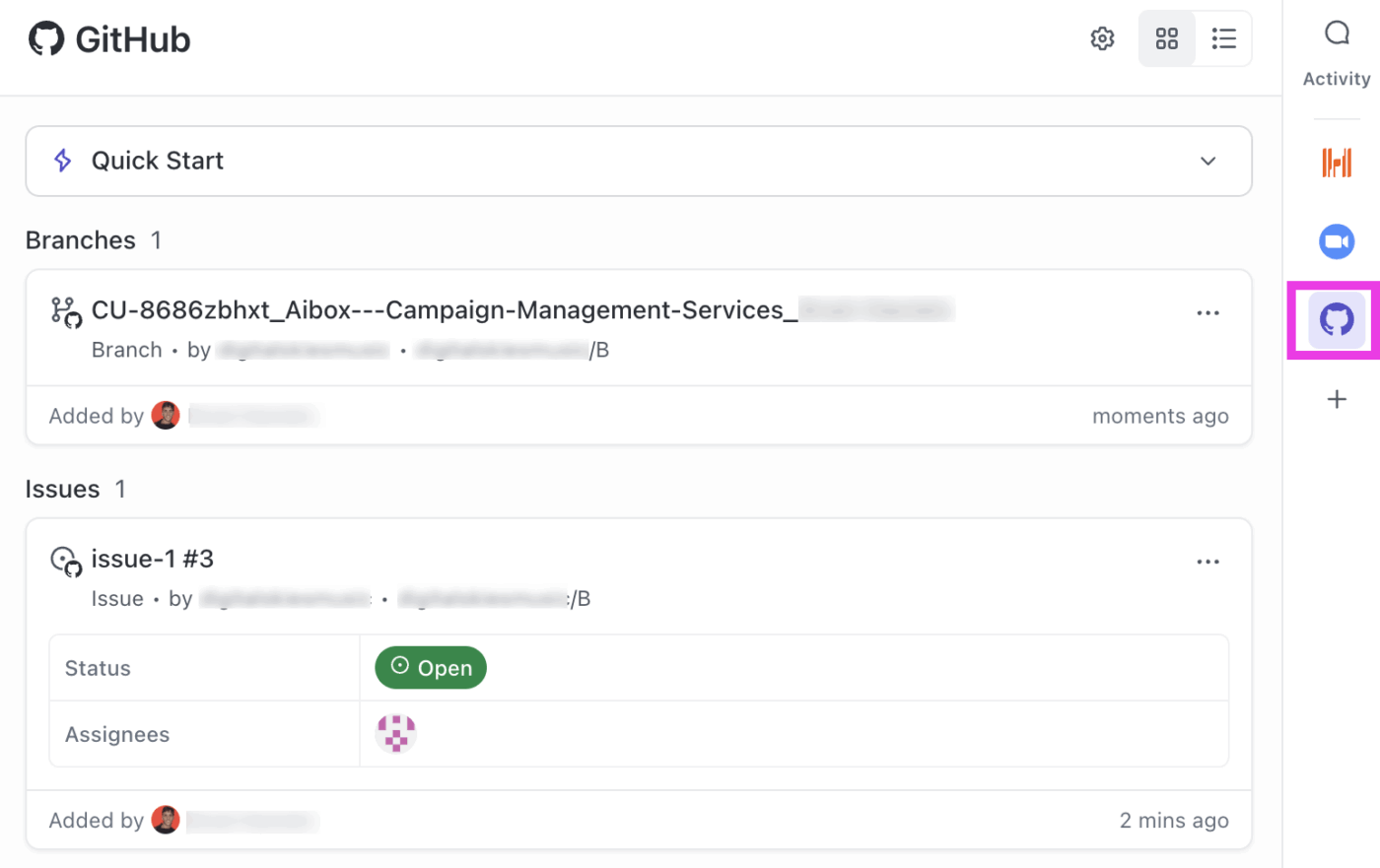
This connection helps you:
Your task becomes a single source of truth for the feature or bug you’re working on.
Manage your entire agile workflow in one place with ClickUp Sprints. Add tasks from your backlog, monitor your team’s velocity with ClickUp Dashboards showing burndown and burnup charts, and easily move unfinished work to the next sprint.
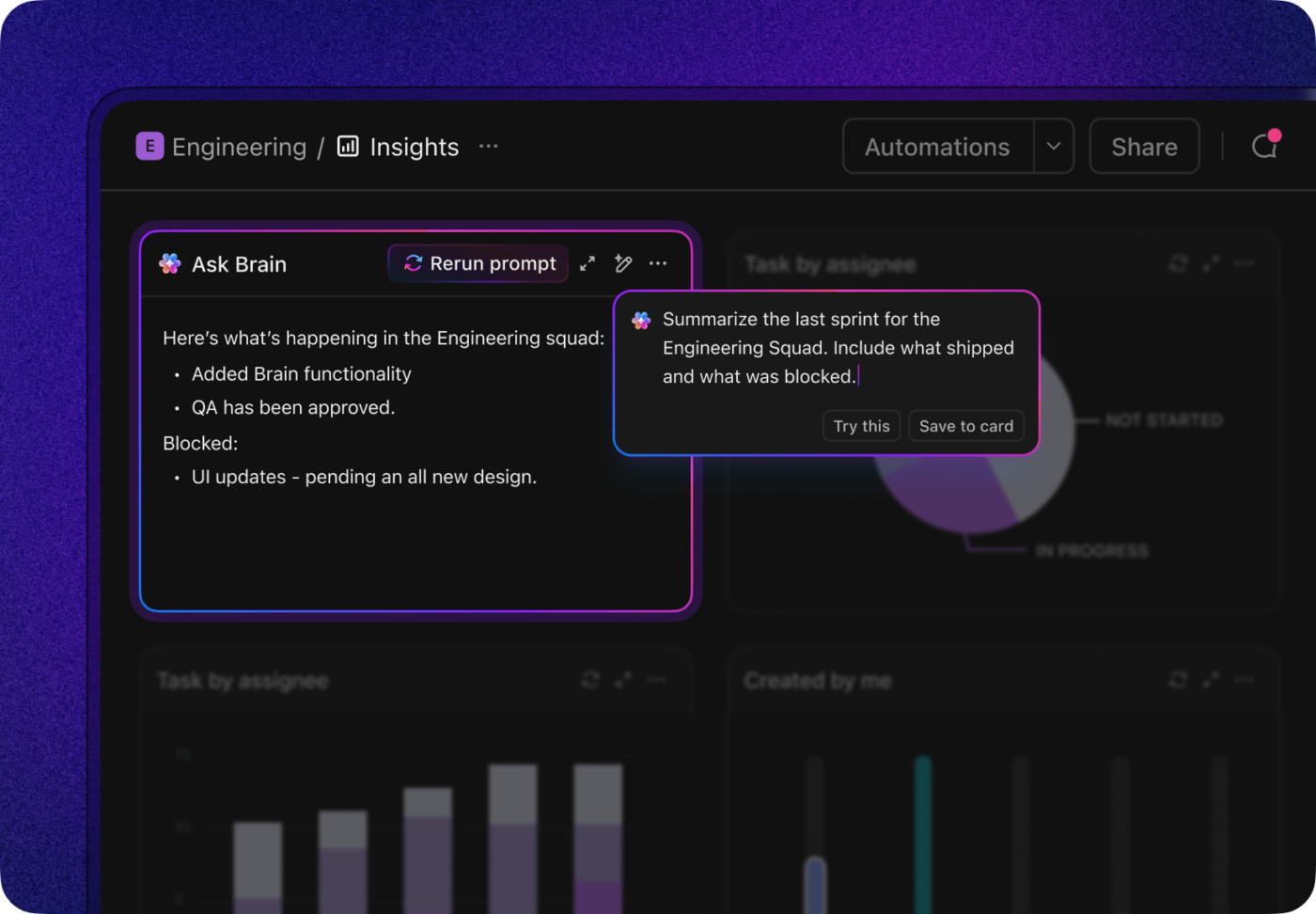
This means no more manually updating tickets in another system after every commit. Your view in ClickUp reflects real progress automatically.
Create and store all your project and code documentation—from architectural decisions to API guides—right alongside the tasks they relate to with ClickUp Docs.
ClickUp Docs also support code block formatting and nested pages, which are perfect for keeping technical documentation structured and readable. With Docs’ version history and live collaboration, your team always has the information they need to build the right thing.

Most AI tools for developers focus on writing code. That’s useful, but it’s only part of the job.
Where work really slows down is everywhere around the code: understanding requirements, translating context into implementation, keeping docs updated, and answering the same questions across issues, PRs, and tickets.
ClickUp’s AI is designed to work inside that messy middle, where context usually gets lost.
ClickUp’s AI code generation isn’t a generic “paste a prompt, get code” experience. It’s designed to work inside tasks, docs, and comments, so the code you generate reflects what the work is actually about.
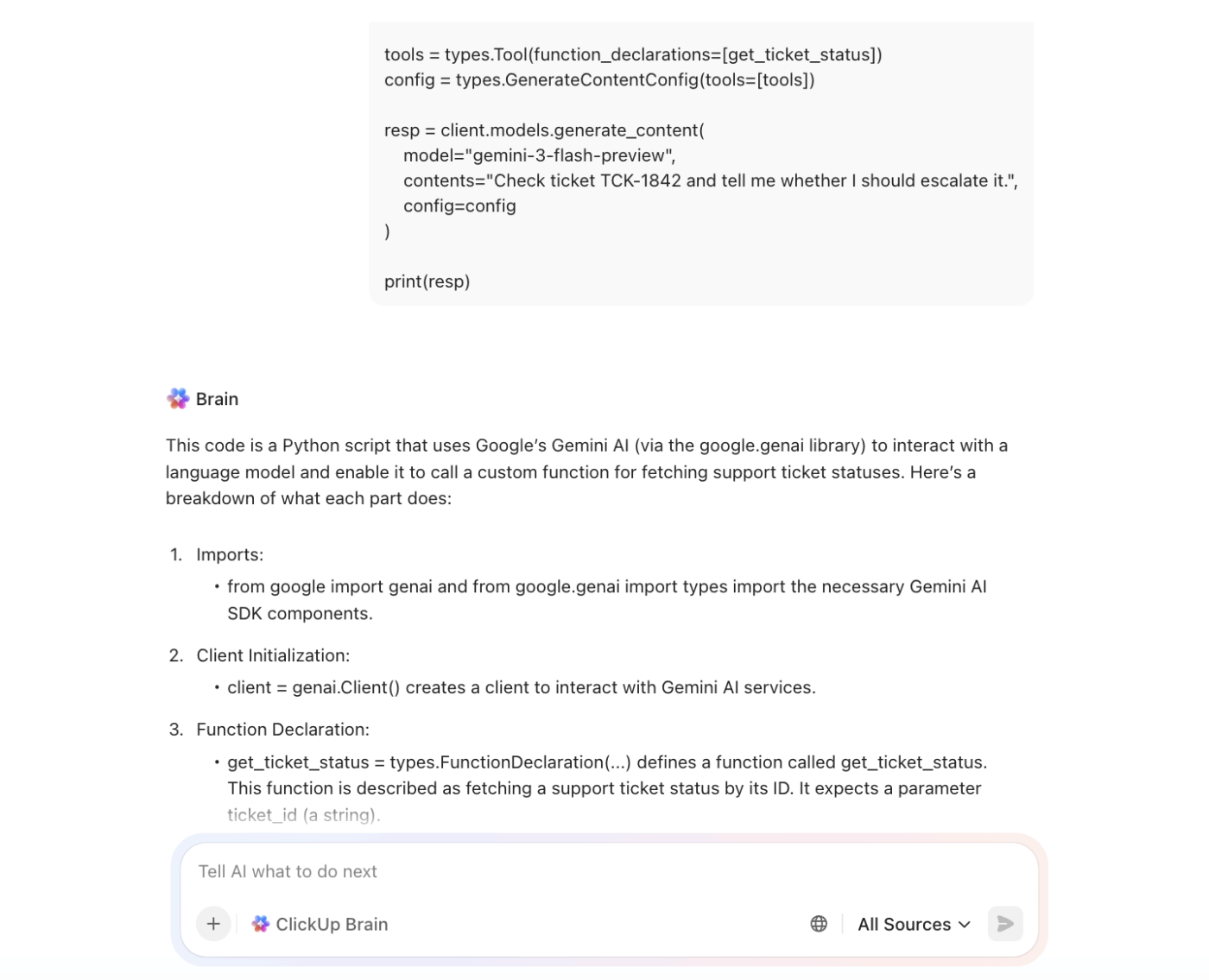
📌 Example use cases:
Because the prompt lives next to the task context, you’re not re-explaining requirements every time you need a snippet.
With ClickUp Brain, you can use AI to translate product or stakeholder language into something actionable before you ever open your editor.
📌 Example use cases:
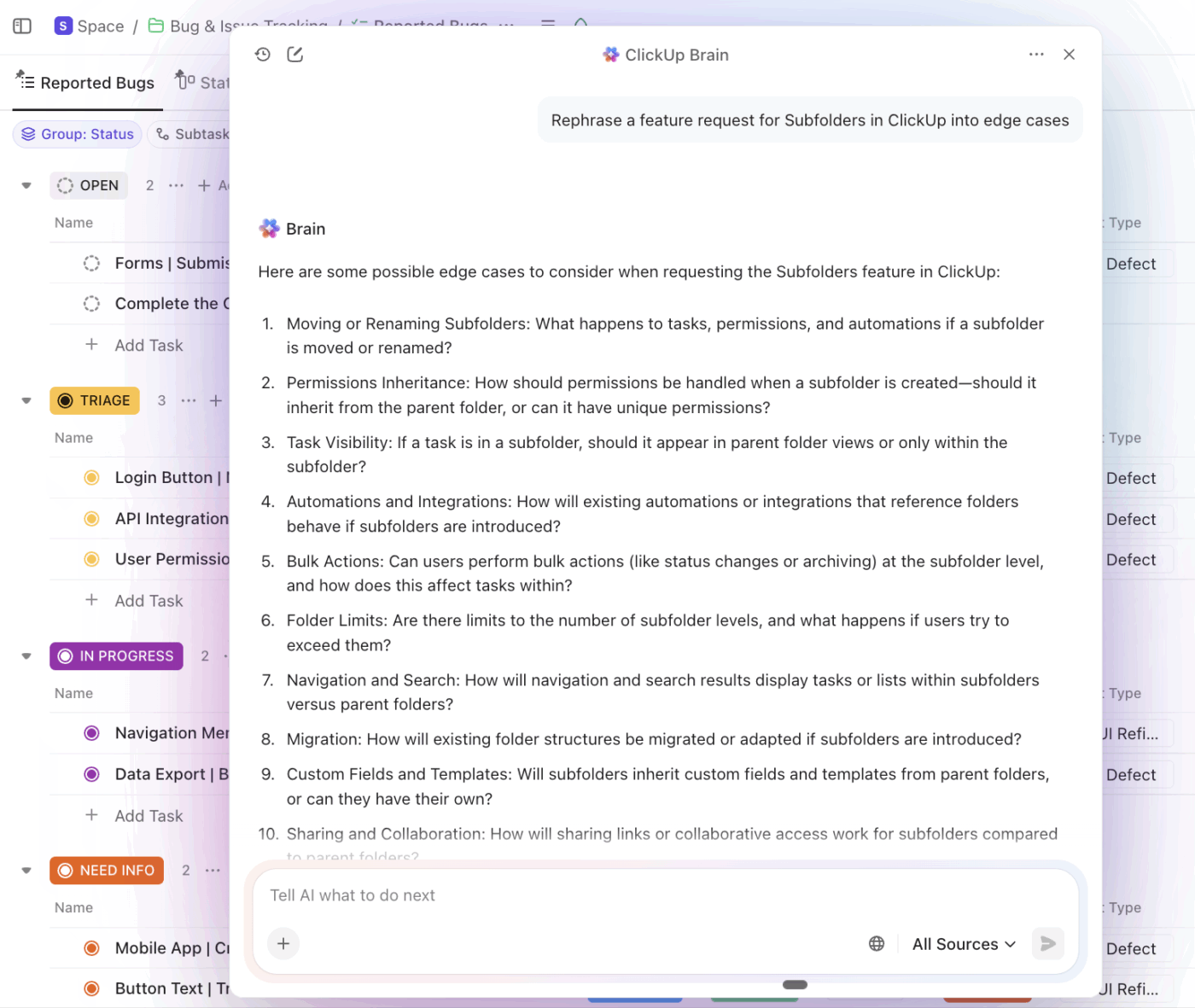
Instead of guessing what the task really means, you start with a clearer plan, which makes Copilot more effective once you do start coding.
With ClickUp Brain, you can also ask natural-language questions across your workspace, like:
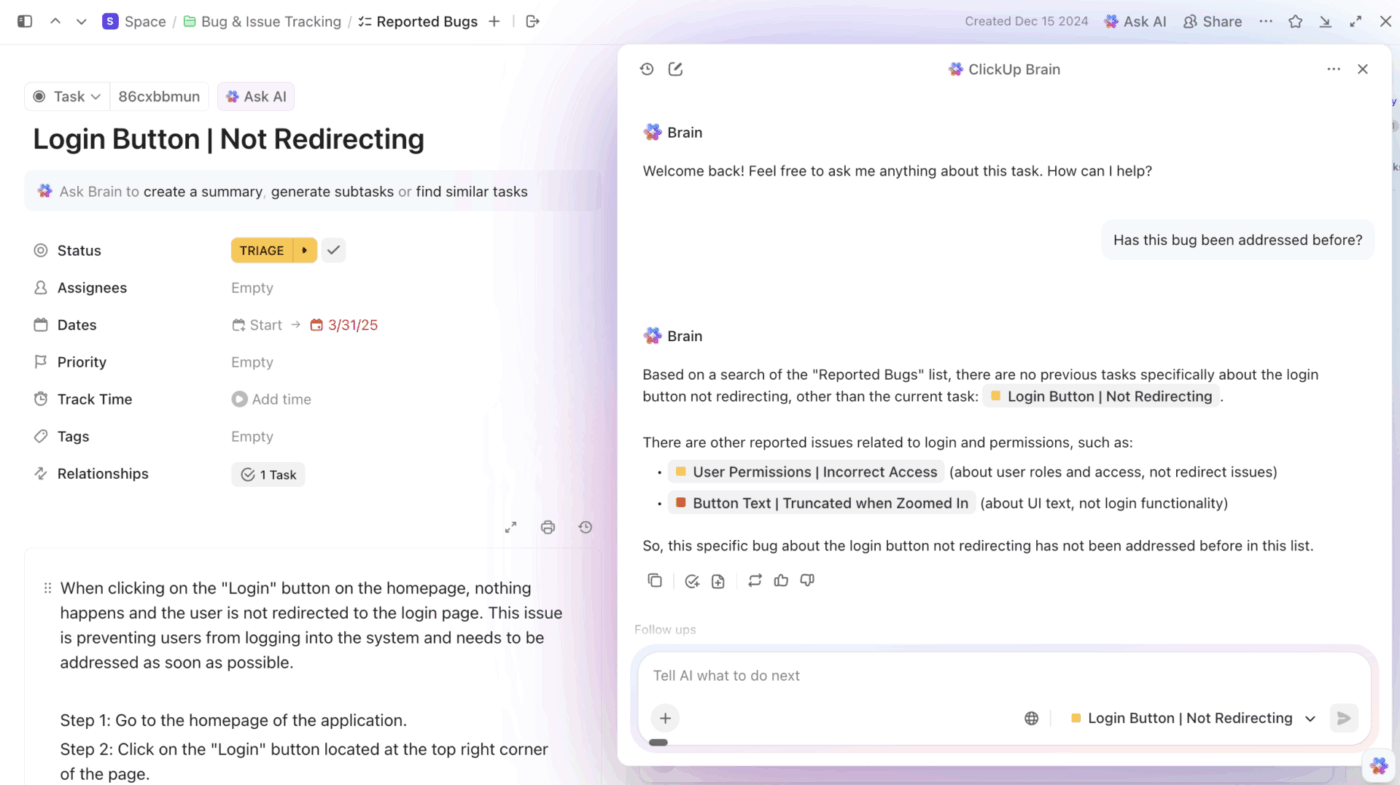
Instead of hunting through tickets, Slack threads, and old docs, you get contextual answers pulled from tasks, comments, and documentation.
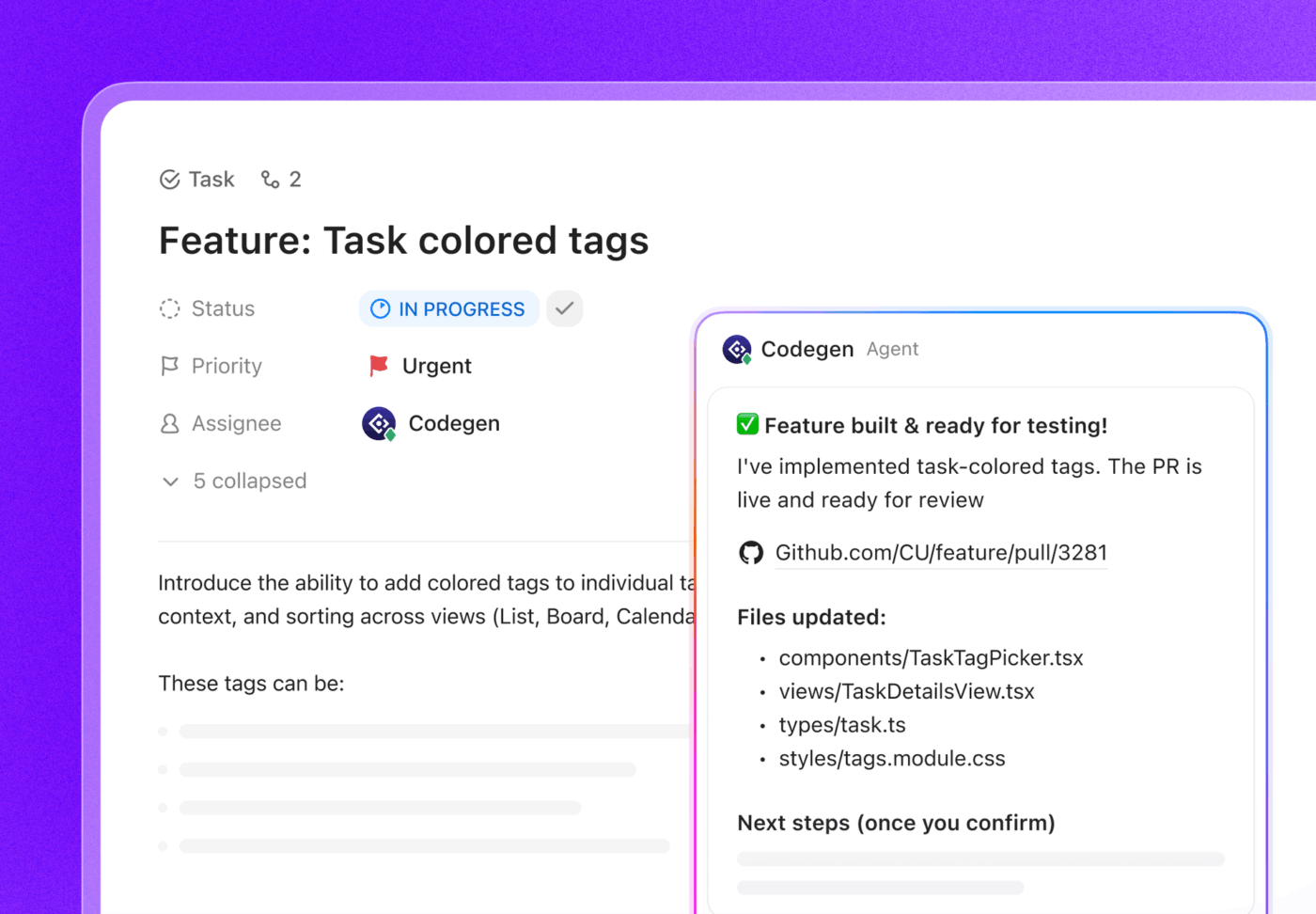
ClickUp’s Codegen Agent is built for situations where you want help with execution, not just suggestions—but still want to stay in control.
You can assign the Codegen Agent to a task or invoke it from comments to:
The key difference from IDE-only AI? The agent understands the task, comments, linked docs, and acceptance criteria, not just a single file.
That makes it better suited for:
⚠️ Nothing is auto-merged. The output is reviewable, editable, and treated like any other contribution.
Updating task states, looping in QA, or notifying stakeholders after a PR merges are all necessary, but they don’t require human judgment every single time.
Build if-then rules that automatically take care of these updates with ClickUp Automations. You can:
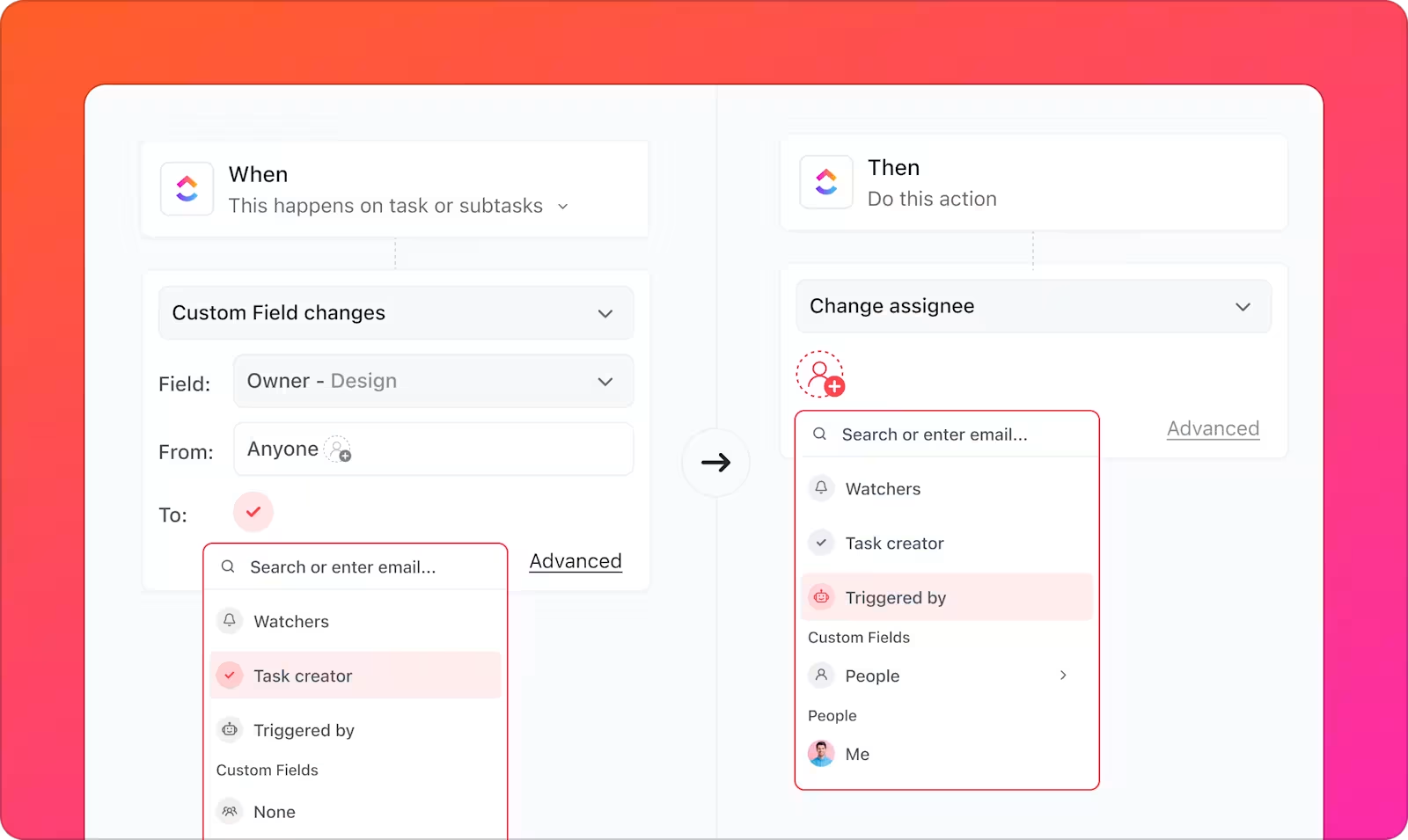
On top of that, AI Super Agents can step in when context does matter. Instead of just changing a status, they can:
Watch how Super Agents automate workflows end-to-end for you:
GitHub Copilot in VS Code helps you with the thinking and writing of code. ClickUp helps you with the entire lifecycle of that work: from capturing requirements, to tracking progress, generating snippets or feature prototypes, linking code, storing docs, and automating status changes.
That’s how you turn faster code into faster shipping.
If you want a single place where the why, what, and how of your software development life cycle live together, try ClickUp for free today!
Microsoft Copilot is a general-purpose AI assistant for productivity in Microsoft 365 apps like Word and Excel, while GitHub Copilot is a specialized tool built specifically for software developers inside their code editor.
Copilot supports most programming languages, but its performance is best with popular languages like Python, JavaScript, TypeScript, Go, and Ruby due to the vast amount of public code available in its training data.
For many teams, yes. It can accelerate onboarding for new developers, reduce the time spent on writing repetitive boilerplate code, and help enforce consistent coding patterns across a project.
The most common reasons are an expired subscription or trial, an authentication issue that can be fixed by signing out and back in, a network firewall blocking API requests, or having an outdated version of the extension.

© 2026 ClickUp

There’s an easier way. Try a free AI Agent in ClickUp that actually does the work for you—set up in minutes, save hours every week.