


Sorry, there were no results found for “”
Sorry, there were no results found for “”
Sorry, there were no results found for “”
Ever felt the need to bring all your ClickUp data to an Excel sheet?
Knowing how to export data from your ClickUp account to Excel can be useful when you want to back up your project data, share information with external stakeholders, or calculate custom metrics using Excel formulas.
In this step-by-step guide, we’ll discuss the process of exporting data from ClickUp to Excel.
While every project has its lessons, it’s essential to transform them into actionable insights for better project management. Using ClickUp exports, you can create your own Excel cheat sheet with critical project insights and best practices. This can help better manage projects and make data-driven decisions in the future.
Here are a few reasons why you should learn more about ClickUp data exports.
You can export ClickUp data and combine it with other tools’ datasets to get a comprehensive view of business operations.
📌 For instance, if your marketing team uses ClickUp for managing campaigns and Salesforce CRM, they can transfer data such as ClickUp Tasks, including campaign names, deadlines, assigned members, and status into Excel and combine it with sales data from Salesforce to gain performance insights.
📖 Read More: Looking for a tool that combines project management and CRM? Learn how to build a CRM in ClickUp.
Exporting project data ensures you have a backup in case of system failures. This helps prevent potential data loss and disruption of operations. Plus, having a secure backup helps with auditing and compliance in regulated industries like healthcare, finance, and manufacturing.
Exporting ClickUp data to tools like Excel allows for a more flexible analysis of project performance metrics. Using the data exports, you can create detailed Excel reporting that can be shared with stakeholders who don’t have access to ClickUp.
💡 Pro Tip: For powerful data analysis within ClickUp, set up custom ClickUp Dashboards. View your productivity rate and performance metrics at a glance with over 50+ cards, such as overview cards, table cards, priority cards, time cards, status cards, and more. Pair them with ClickUp Brain’s powerful AI to get insights using natural language in seconds.

Watch this video to set up your first dashboard in ClickUp:
ClickUp Views let you tailor task management, workflow visualization, and project tracking the way you want.
Among its 15+ Views, ClickUp lets you export data in List and Table Views. This means you can export ClickUp Tasks and other data from these views and download them as CSV or Excel files for creating backups, performing data analysis, or sharing project information with the stakeholders.
Exporting data in ClickUp’s List View enables you to get an at-a-glance view of where your work stands. You can organize tasks with flexible filtering, sorting, and grouping options.

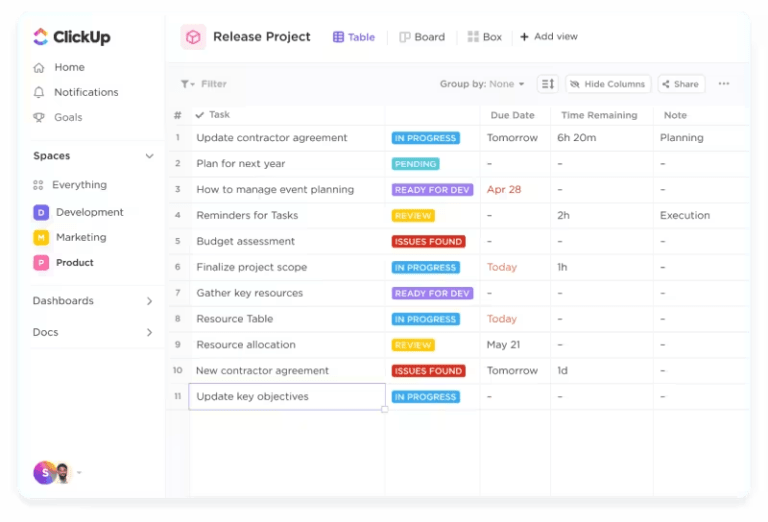
ClickUp’s Table View allows you to create spreadsheets with Custom Fields and visible columns in no time. When you extract data in this View, it helps you seamlessly translate data into a robust Excel database, making it easier to manage client/vendor information, budgets, and inventories.
Using the ClickUp Table View for data export, you can:

📖 Read More: How to Export Airtable to Excel
Whether you’re a project manager or business analyst, gaining detailed insights into your project’s progress is crucial. While exporting ClickUp data to Microsoft Excel might seem daunting, once you master the process, you can streamline workflows and dig deeper into your data.
Here’s the step-by-step process to export data manually from ClickUp List and Table views to Excel.
Step 1: Navigate to the List or Table view you want to export.
Step 2: In the upper-right corner of your List or Table view, click Customize.

Step 3: Click Export.
Step 4: Choose What to export:

Step 5: Choose your File Format—CSV or Excel
📝 Note: If CSV is selected, you will see a Date Format export option:
If CSV is selected, you will also see a Time Format export option:

Step 6: Select Time in Status preferences if applicable.
This option lets you track the total time taken to complete a task. This Total Time in Status data is visible across your Workspace in List View, cards, individual tasks, and ClickUp Dashboards.

Step 7: Click ‘Download.’

📖 Read More: How to Export SharePoint to Excel
Data isn’t just alphabets and numbers—it tells you a story when transformed and optimized correctly. When you export ClickUp data to Excel, you must optimize it to drive strategic decision-making and improve team performance.
Here are a few ways to optimize ClickUp data in Excel.
💡 Pro Tip: Consider your Excel file as a living document and keep the data up to date. This ensures accurate analysis, informed decision-making, and reliable reporting.
When exporting ClickUp data to Excel, you might face some potential issues. Here’s how you can troubleshoot them.
Sometimes, you may find certain information or tasks missing from your exported ClickUp data.
✅ Solution:
Your exported data may have an incorrect data format. For instance, the date and time formats may not align with your organization’s chosen style or standard formatting.
✅ Solution:
Exporting large datasets to Excel may slow the process or cause failure due to Excel’s row and file size limitations.
✅ Solution:
🧠 Did You Know? With businesses dealing with ever-growing amounts of information, heavy data volumes were one of the top data challenges faced by organizations in 2024.
Some Custom Fields may not transfer correctly. For instance, the dropdowns may be missing, or there may be incomplete Custom Field data.
✅ Solution:
Data is power, and exporting ClickUp data to Excel makes it your superpower. Once your data is refined, updated, and organized in Excel, you can get a snapshot of your project performance.
Your Excel sheet provides insights into your project and team performance and serves as a repository of all project data, tasks, lessons learned, best practices, and much more. You can regularly update it, visualize data with charts and pivot tables, and track your team and project performances to make strategic future decisions.
But, sometimes, exporting data may not be necessary at all.
With ClickUp’s Dashboards, you can visualize real-time project insights, track team workloads, and customize reports without ever leaving the platform.
And, with ClickUp Brain’s AI assistance, you can analyze project data instantly, identify bottlenecks, and generate actionable insights—all without manual spreadsheet updates. Instead of juggling static data, you get AI-powered, dynamic reporting that evolves with your projects.
Why rely on scattered tools when you can do it all with ClickUp? Sign up for ClickUp for free if you haven’t already done so!

Manasi Nair
Max 44min read
Manasi Nair
Max 18min read
Manasi Nair
Max 20min read

© 2026 ClickUp




