






Still downloading templates?
There’s an easier way. Try a free AI Agent in ClickUp that actually does the work for you—set up in minutes, save hours every week.
Sorry, there were no results found for “”
Sorry, there were no results found for “”
Sorry, there were no results found for “”

PDFs are everywhere. From work reports and contracts to eBooks and resumes, they’re the go-to format for sharing documents that look polished and professional.
But what happens when you need to edit that PDF? Maybe your boss sent you a contract to tweak, or you’re trying to extract data from a research paper. That’s where the struggle begins.
For instance, imagine you receive an important contract in PDF format, but you must tweak a few clauses before sending it back. Instead of retyping everything manually, wouldn’t it be easier to convert the PDF document into a Google Doc and make edits instantly?
That’s exactly what we’ll cover in this guide. From quick conversion methods to formatting tricks and common pitfalls, we’ll show you how to transform PDFs into editable Google Docs seamlessly.
Converting a PDF file into an editable Google Doc might seem tricky initially, but it’s quite simple once you know the right methods. Let’s explore the best ways to turn PDFs into Google Docs without spending hours manually adjusting the text.
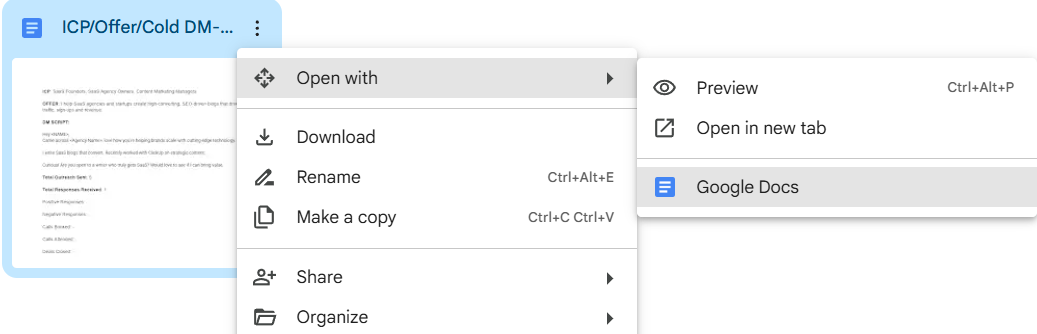
Google Drive offers a built-in option to open PDFs as Google Docs, making it the fastest way to get started. However, complex formatting (like tables, special fonts, or images) may not transfer perfectly.
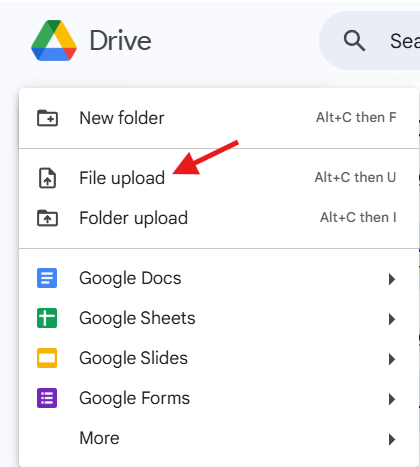
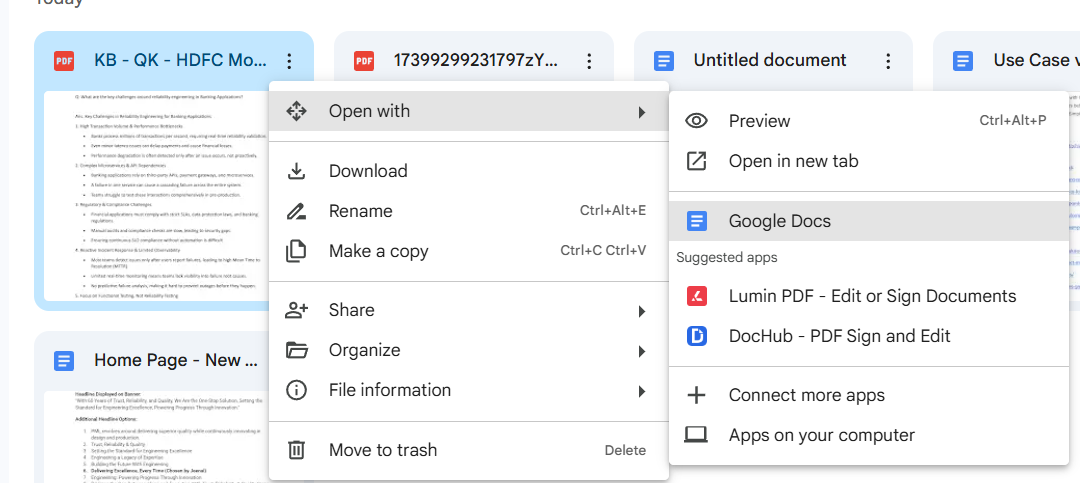
🌟 Best for: Quick text-based edits when formatting isn’t a top priority. If you need extra help, try AI tools for writing, like ClickUp Brain!
If formatting accuracy is crucial, Adobe Acrobat lets you quickly convert PDF files to Word documents first. This helps preserve the PDF layout before opening it in Google Docs.
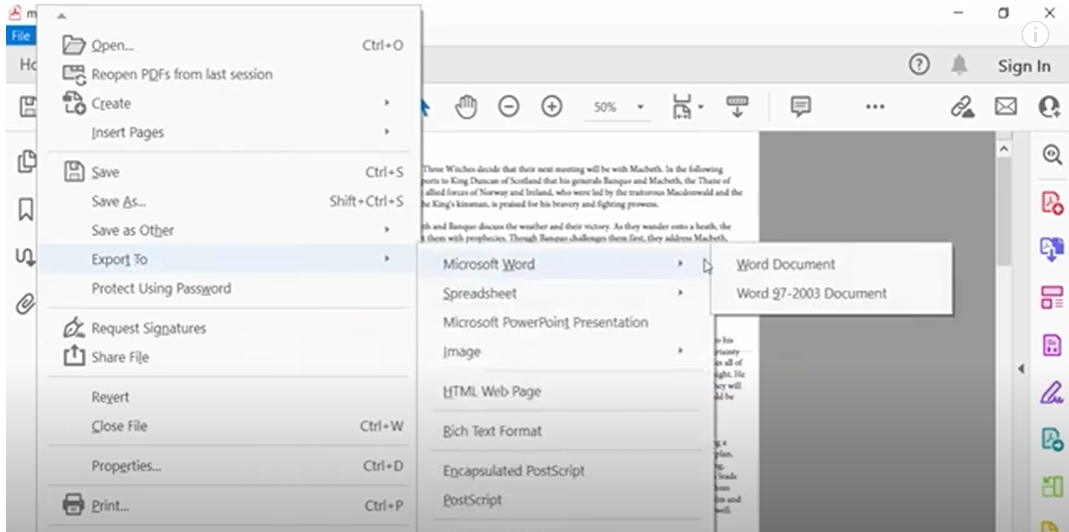
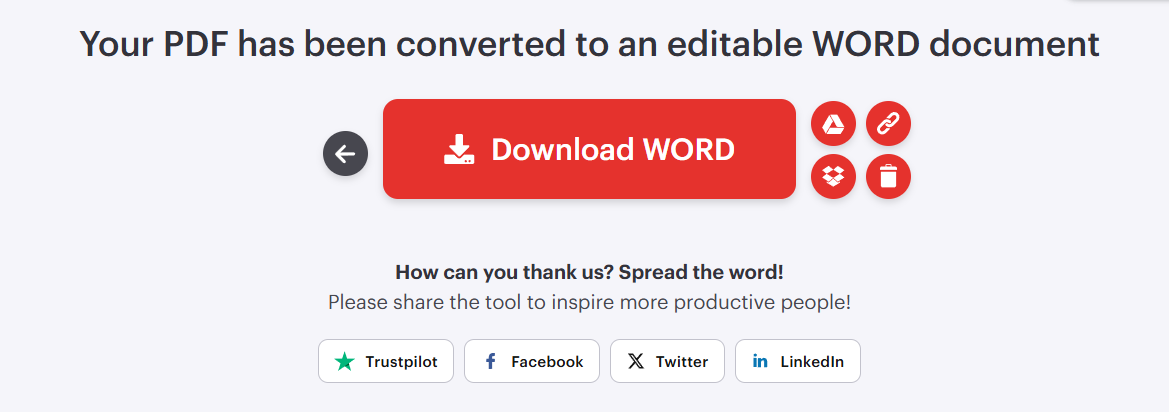
🌟 Best for: Documents with complex formatting, tables, and images.
Online tools like Smallpdf, ILovePDF, or PDF2DOC offer free conversion with better formatting retention than Google Drive alone.
🌟 Best for: PDFs with images, columns, and intricate formatting
One of the biggest headaches when converting PDFs is losing original formatting, which results in misaligned tables, missing images, or jumbled text. Here’s how to minimize formatting issues while converting a PDF into a Google doc:
Google Docs don’t always handle complex formatting well, but converting your PDF to Word first using Adobe Acrobat online or any other online tool can retain layouts, fonts, and tables before opening it in Google Docs.
If your PDF is text-based, Google Docs can usually extract and format it easily. However, if your PDF is image-based (scanned documents, handwritten notes, etc.), you’ll need OCR (Optical Character Recognition) to convert image files into editable text.
You can use Adobe Acrobat Pro or Google Drive OCR (Right-click the PDF in Drive > Open with Google Docs) to extract text from images.
✨Fun Fact: Over 2.5 trillion PDFs are created annually.
Some fonts may not transfer correctly in converted Google Docs. Before converting the PDF, check the font compatibility (Google Docs supports popular fonts but may substitute unavailable ones). If fonts don’t match, manually adjust them in Google Docs after conversion.
If your PDF has complex layouts, tables are more stable than using multiple spaces or tabs. When pasting content into Google Docs, format sections using tables instead of manual spacing for better alignment.
🧠 Did you know? The PDF (Portable Document Format) was invented by Adobe in 1993 and was initially called “The Camelot Project.” It was designed to create a universal file format that could be viewed the same way on any device
Even with the best tools, minor formatting tweaks may still be needed. After conversion, do a quick review:
Despite the convenience of converting PDFs to Google Docs, the process isn’t always seamless. Formatting issues, missing elements, and compatibility limitations can sometimes make the conversion frustrating.
Let’s look at some common challenges when using this method.
📖 Read More: How to Convert Word to Google Docs
While Google Docs offers a quick and free way to convert PDFs into editable text, it’s not without its drawbacks. If you’ve ever opened a converted file only to find a messed-up layout, missing images, or strange formatting, you’re not alone.
Here are some key limitations you should be aware of while converting PDF to Google Docs:
Google Docs struggles with preserving complex formatting, such as tables, multi-column layouts, bullet points, and headers. If your PDF contains structured elements, you may find that:
✅ Solution: If formatting is critical, use Adobe Acrobat or an online converter before importing the file into Google Docs.
📖 Read More: How to Add a New Page on Google Docs
If your PDF has embedded images, charts, or logos, Google Docs may:
✅ Solution: If your document relies heavily on visuals, consider using ClickUp Docs, which allows seamless document imports while maintaining high-quality images.
✨ Fun Fact: The longest scanned document is 1,181 meters (3,875 feet) long.
If your PDF is scanned from a physical document, Google Docs may not recognize the text at all—it will treat it as an image instead.
✅ Solution: Use Adobe Acrobat Pro or an advanced OCR tool before converting the document.
Google Docs may not handle large PDFs efficiently. If your document exceeds 2MB, you might experience:
✅ Solution: Reduce your PDF size using Smallpdf or ILovePDF before uploading it to Google Docs.
💡Pro Tip: If your PDF is large and not converting properly, try breaking it into smaller sections/pages using a free online PDF splitter before uploading it to Google Docs
Google Docs only supports a limited number of fonts. If your PDF uses a custom or uncommon font, the converted text may:
✅ Solution: If font accuracy is crucial, consider importing your document into ClickUp, which allows more flexibility with formatting.
📖 Read More: How to Convert a Word Document to Excel
ClickUp addresses the limitations of converting PDF to Google Docs head-on:
| Traditional tool limitations | How ClickUp fixes it |
| Loss of formatting during conversion | ClickUp retains most formatting during PDF import and editing |
| Collaboration is fragmented | Real-time editing, comments, and task integration keep everything in one place |
| File size limits | ClickUp handles large files with ease |
If you’re tired of losing formatting, struggling with missing images, or dealing with file size limitations when converting PDFs, there’s a better way—ClickUp Docs.
Unlike Google Docs, which primarily focuses on document editing, ClickUp offers an all-in-one workspace where you can create, import, edit, and manage documents seamlessly without compromising quality.
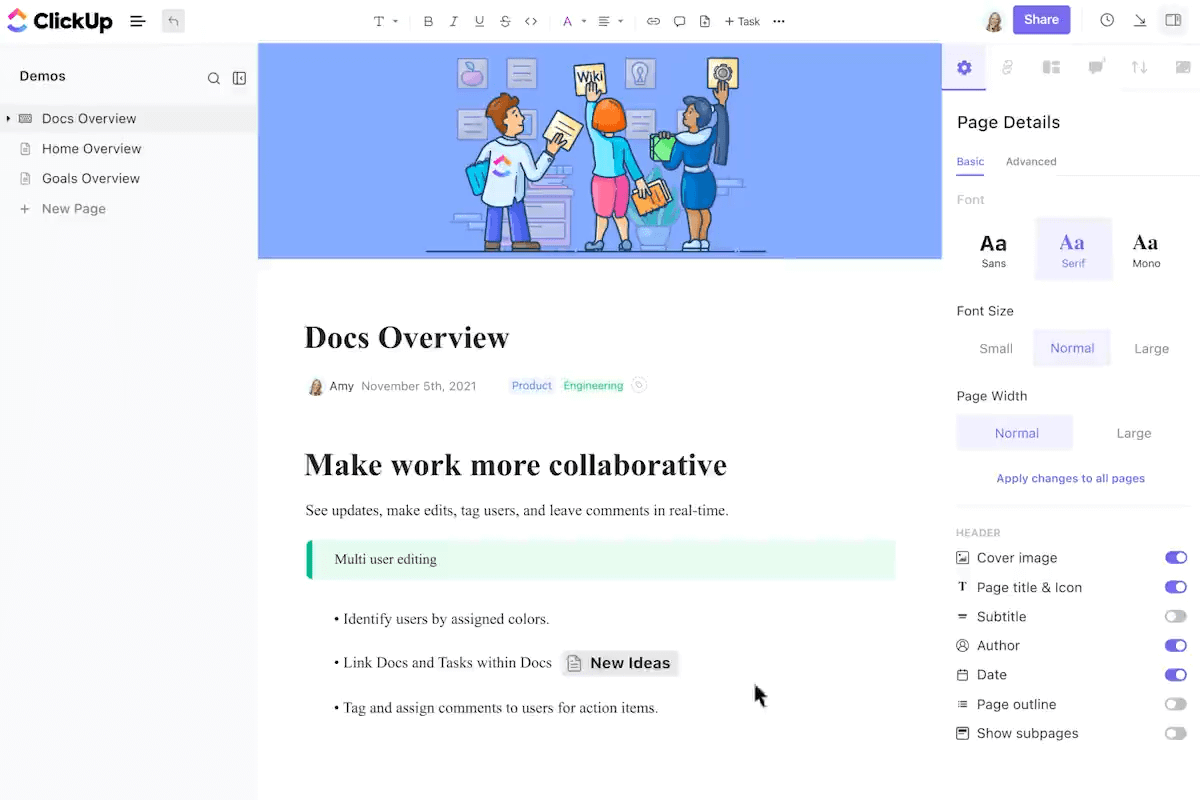
Here’s how ClickUp Docs takes document management to the next level.
Write, format, and style documents directly in ClickUp. You don’t need to switch between apps. Plus, you can use rich text editing features like headings, bullet points, tables, and embedded tasks to keep everything organized while organizing Google Docs takes effort.
Simply use the /command to insert Markdown language in ClickUp Docs and add bullets, bold, italics, strikethroughs, and more.
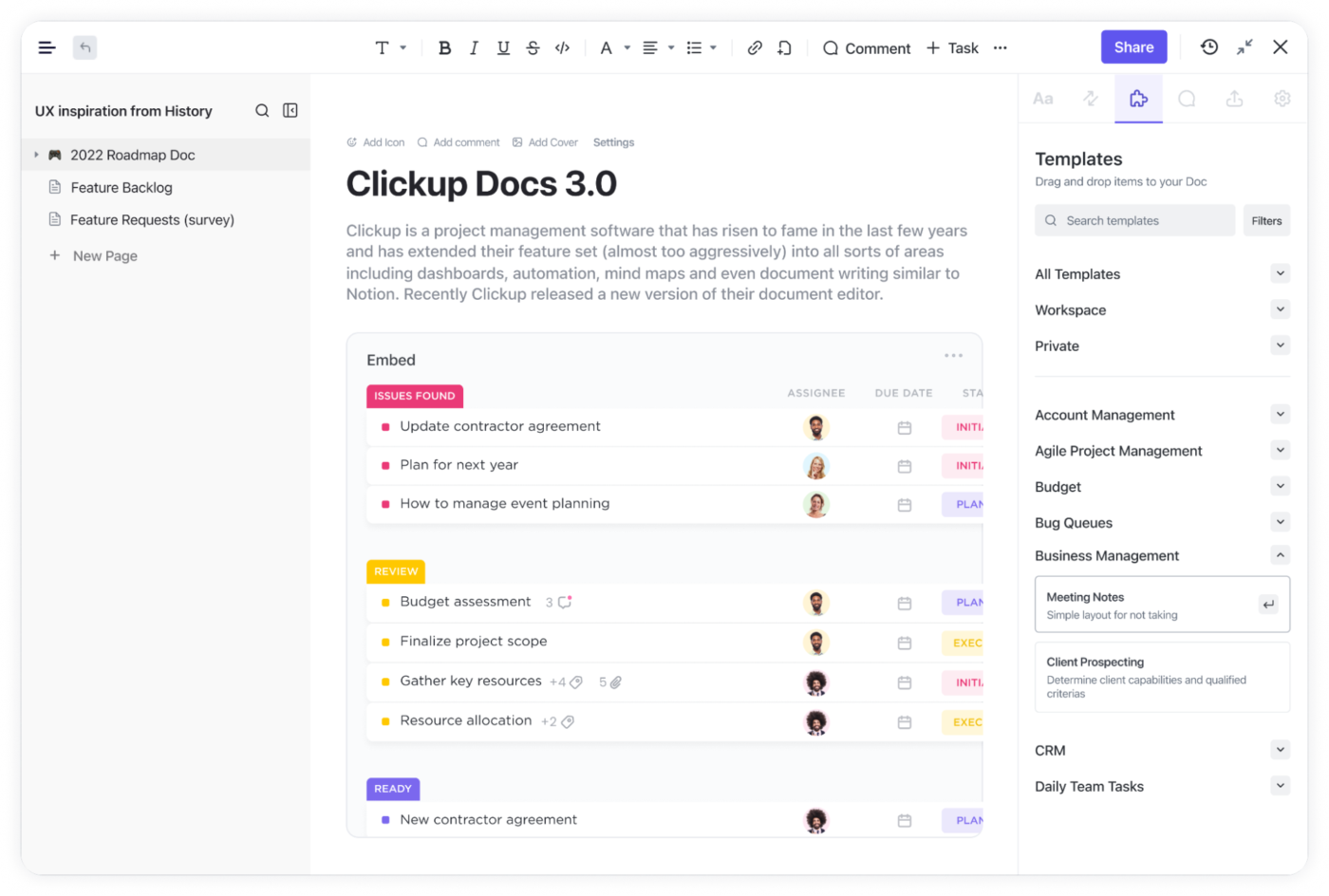
With ClickUp Docs, you can invite team members to edit or comment on documents for real time collaboration. It enables you to assign tasks directly from the document for better efficiency and embed PDFs, images, and spreadsheets without losing quality.
You can also integrate ClickUp Docs with project management tools so your documents stay connected to your workflow.

Never worry about losing change. ClickUp Docs automatically save the latest versions, so you can revert to an earlier draft with just one click
💡Pro Tip: Always keep a copy of the original PDF before converting it. This way, you can start over if something goes wrong during the conversion process
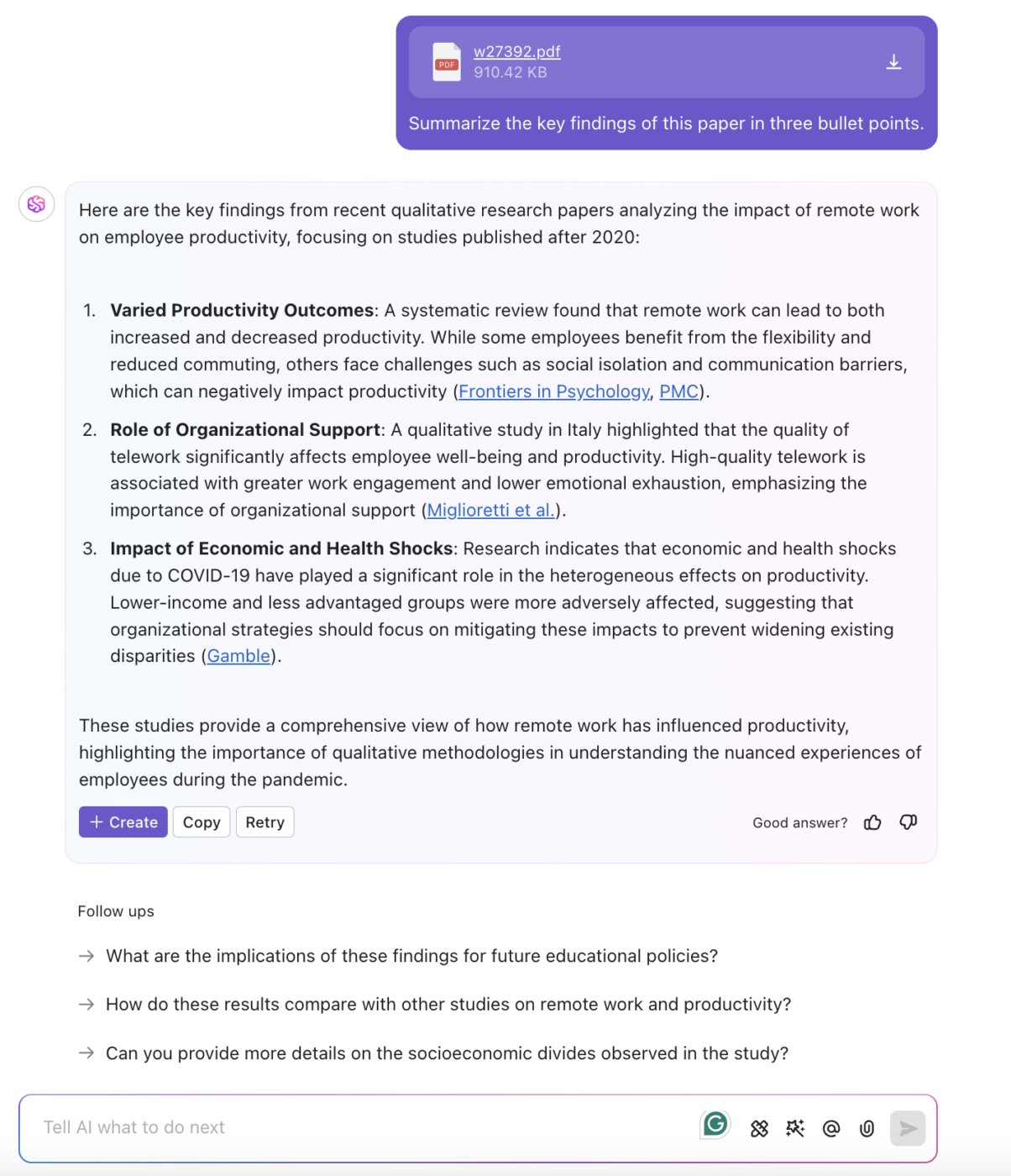
Want to get information from any PDF? You don’t need to necessarily convert into Google Docs or ClickUp Docs. ClickUp Brain, ClickUp’s powerful knowledge manager, can instantly search PDFs and provide relevant insights.
📮ClickUp Insight: Knowledge workers send an average of 25 messages daily, searching for information and context. This indicates a fair amount of time wasted scrolling, searching, and deciphering fragmented conversations across emails and chats. 😱
If only you had a smart platform that connects tasks, projects, chat, and emails (plus AI!) in one place. But you do: Try ClickUp!
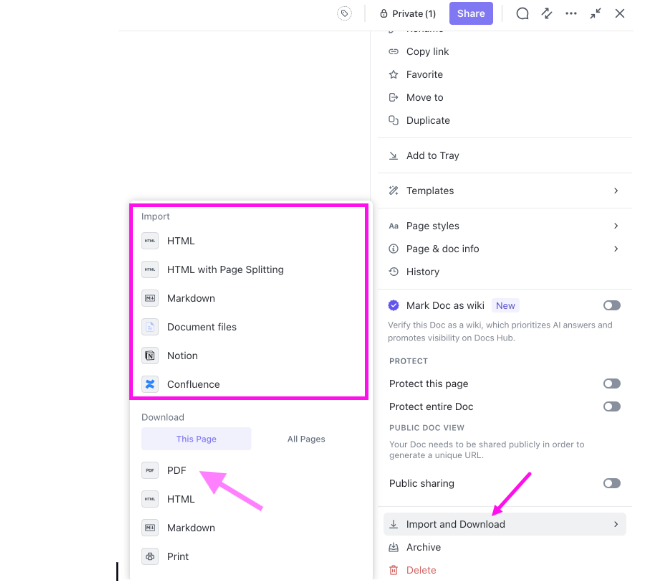
One of the biggest pain points when converting PDFs to Google Docs is losing tables, images, or custom fonts. ClickUp makes this process effortless with its Import Docs feature, allowing you to import PDFs directly into ClickUp Docs while maintaining structure and design integrity.
To import a document into a ClickUp Doc:
That’s it! Your document will be imported seamlessly while maintaining its structure and formatting.
One of the biggest advantages of using ClickUp for document management is the ability to save and export your work as a PDF effortlessly.
How to save a ClickUp Doc as a PDF:
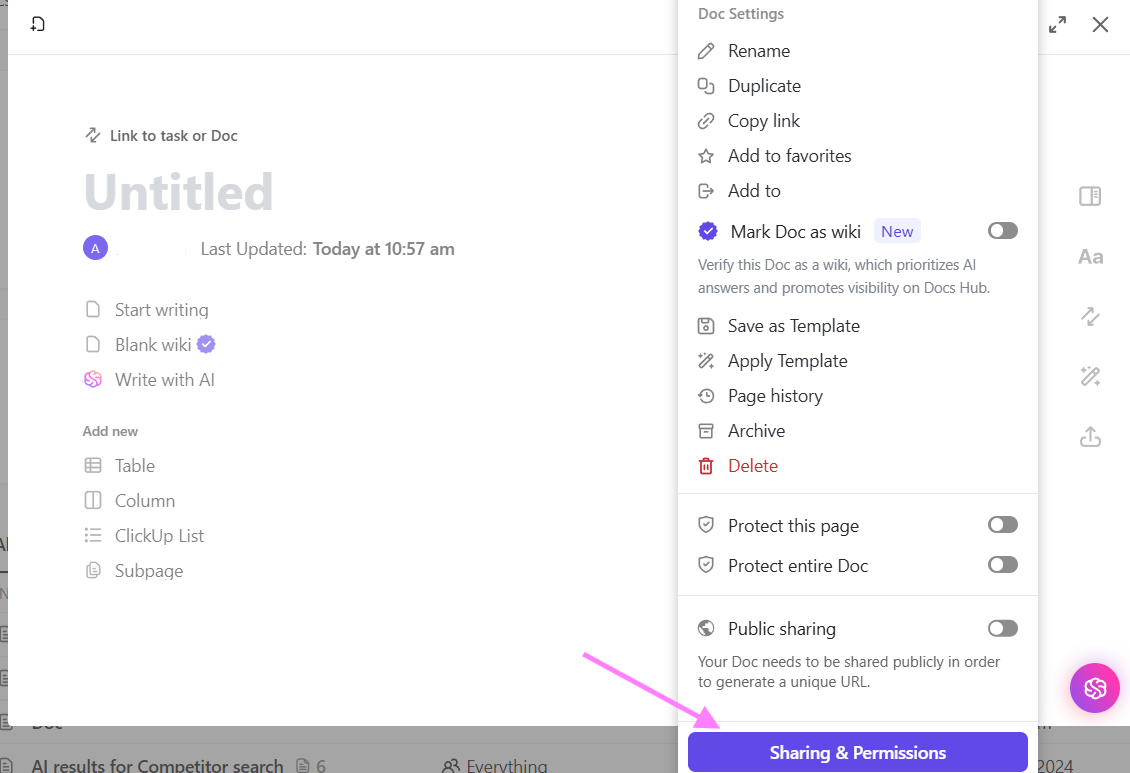
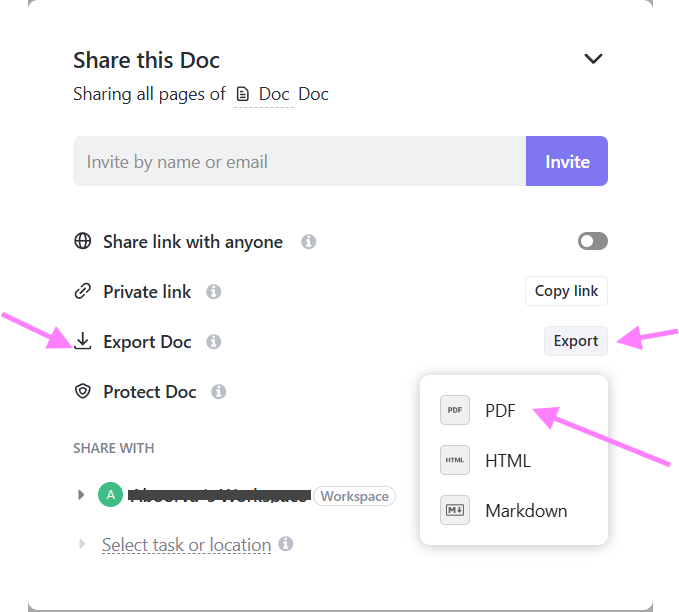
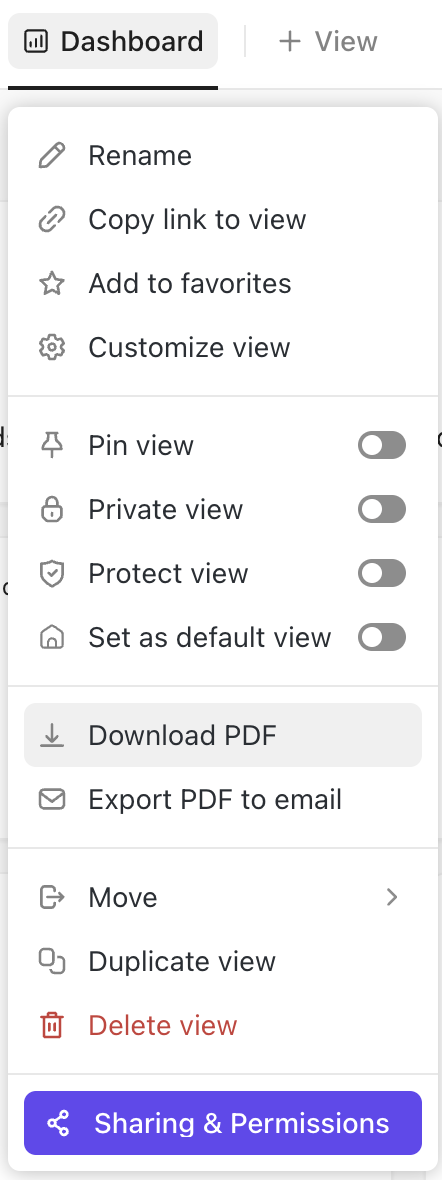
You can also save dashboards as PDFs with ClickUp, making it easy to share reports, progress updates, or team insights with stakeholders.
Converting PDFs to Google Docs is a quick fix, but it’s not always the most reliable solution.
Lost formatting, missing images, and file size limitations can turn a simple task into a frustrating experience.
ClickUp simplifies every step, from seamless document creation and editing to effortless collaboration and PDF management.
Try ClickUp for free today and take your document creation and management to the next level.

© 2026 ClickUp

There’s an easier way. Try a free AI Agent in ClickUp that actually does the work for you—set up in minutes, save hours every week.