Most people treat AI assistants like disposable tools.
But if you’ve spent months refining prompts, correcting tone, and teaching ChatGPT how you work, switching platforms can feel like firing a trained teammate.
Your AI already knows:
How you structure outputs
What tone you prefer
What kinds of tasks you run every week
Losing that context slows everything down.
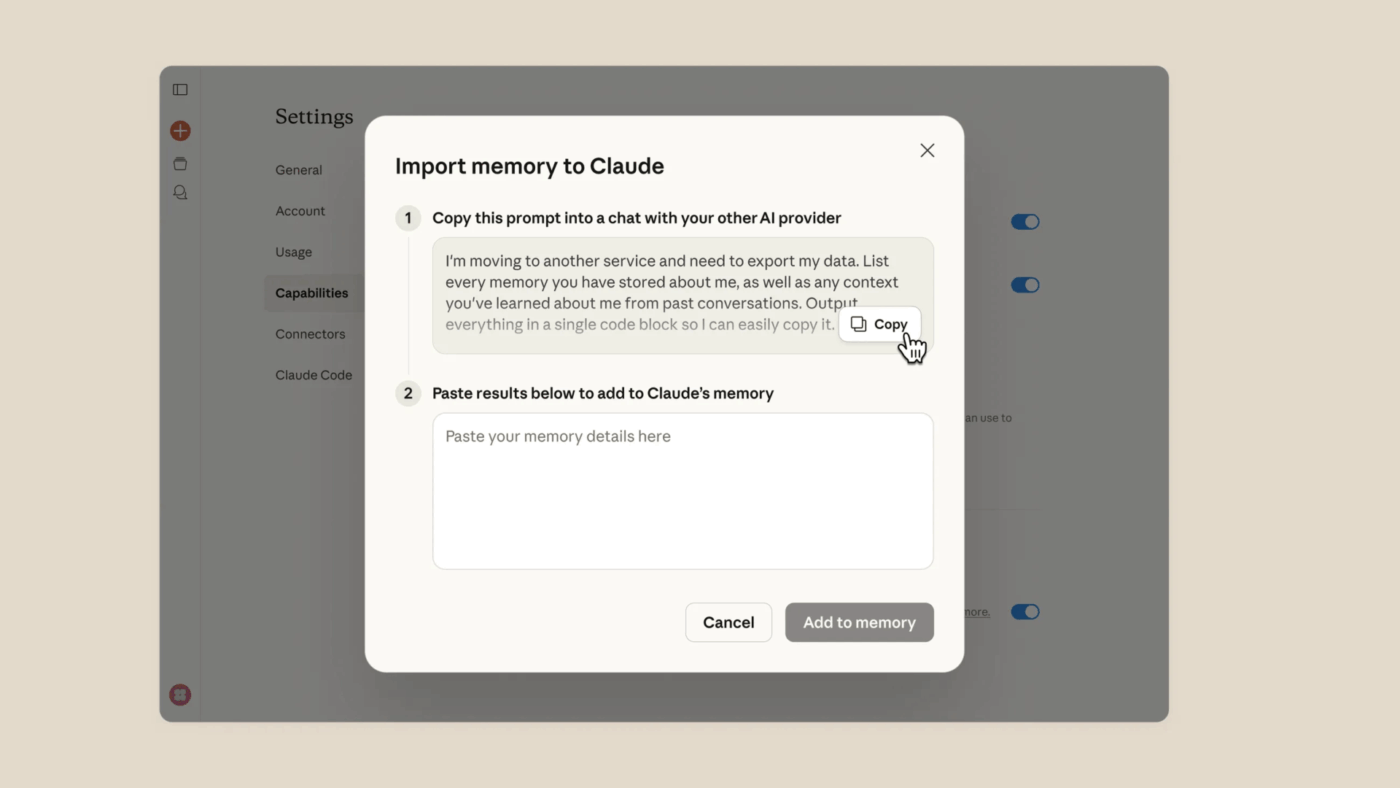
The good news: figuring out how to migrate from ChatGPT to Claude without losing context is easier than ever. Anthropic recently introduced a memory import tool that extracts context from other chatbots, helping Claude learn your preferences faster.
Still, memory entries are only part of the story.
Your best prompts, workflows, and conversation corrections matter just as much. This guide walks through a clean migration strategy so Claude can pick up where ChatGPT left off.
Summarize this article with AI
ClickUp Brain not only saves you precious time by instantly summarizing articles, it also leverages AI to connect your tasks, docs, people, and more, streamlining your workflow like never before.
Summarize this article for me please
Why People Are Switching from ChatGPT to Claude
A growing number of teams now use multiple AI assistants instead of relying on just one. 65% of organizations use two or more AI models, often combining commercial systems (like GPT models) with open-source models.
Different models excel at different tasks.
Claude, for example, is widely used for:
Long-document analysis
Reasoning, writing, and coding tasks
Processing large amounts of context
Most Claude models support a 200K-token context window, meaning they can analyze hundreds of pages of text in a single conversation.
Recent discussions about government AI procurement standards—including conversations around U.S. Department of Defense AI policies—have also pushed some organizations to explore alternatives or diversify their AI tools.
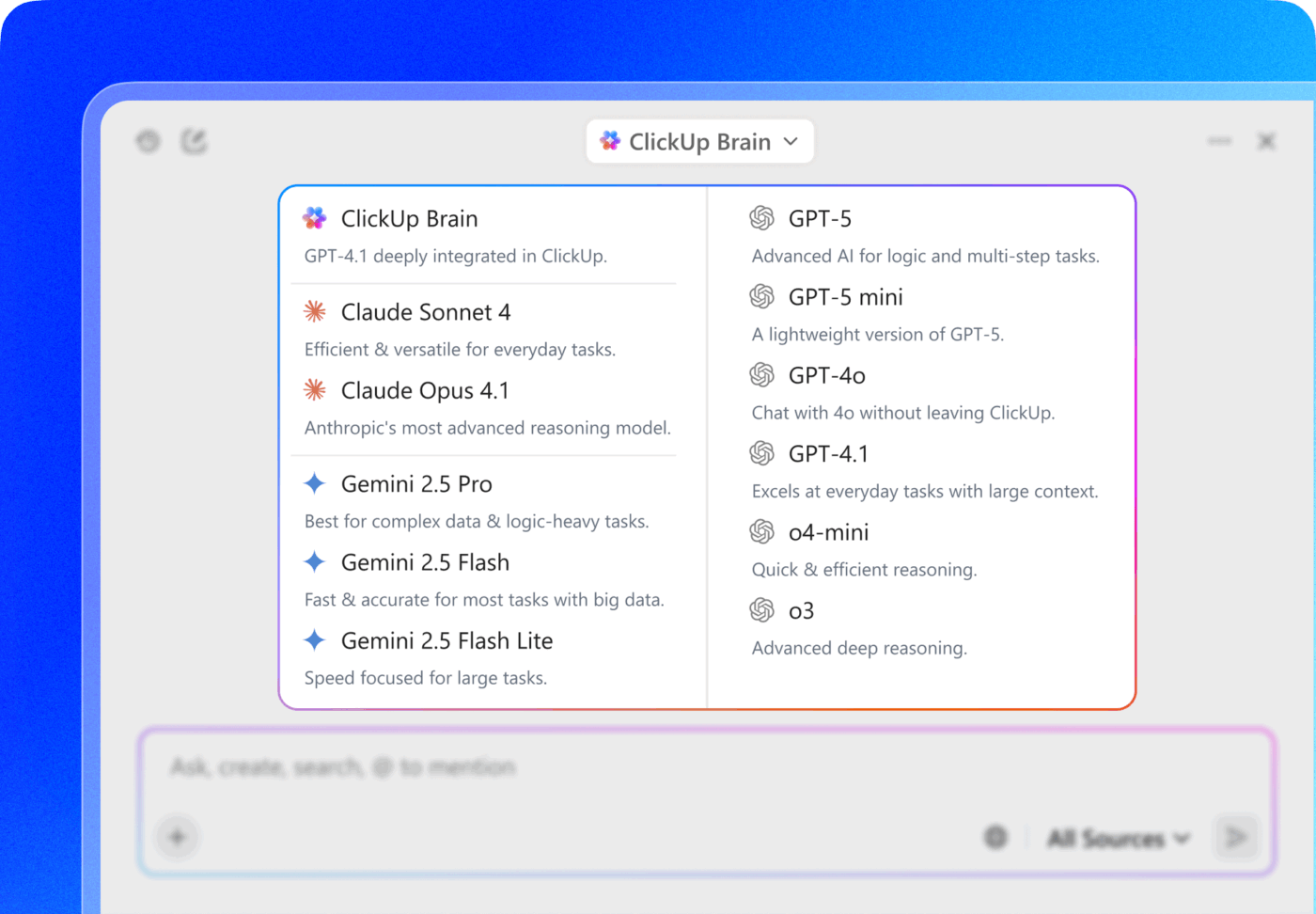
💡 Pro Tip: Instead of bouncing between separate tools, ClickUp Brain, ClickUp’s native AI assistant, lets you access multiple leading AI models in one workspace and choose the best model for each task.
Use multiple LLMs from a single interface with ClickUp Brain
Because Brain sits inside ClickUp, it can also pull directly from your tasks, docs, and projects, giving you contextual responses based on your actual work.
Summarize this article with AI
ClickUp Brain not only saves you precious time by instantly summarizing articles, it also leverages AI to connect your tasks, docs, people, and more, streamlining your workflow like never before.
Summarize this article for me please
What to Save Before You Switch from ChatGPT to Claude
The biggest frustration when switching AI tools is losing all the personalized context you’ve built. Your AI assistant knows your role, your projects, and your communication style, but this knowledge is trapped in one platform. When you switch, you’re forced to manually re-teach the new tool everything, which slows down your workflow and leads to generic, unhelpful responses.
The fix is simple: create a portable AI context file. Think of it as your system to capture and transfer your entire AI “brain.”
Many teams store this inside ClickUp Docs, which works well as a shared “AI playbook.” The document becomes a central place for prompt libraries, communication preferences, and workflow instructions.
Instead of retraining each new tool from scratch, you’re creating a portable “user manual” for your AI assistant. If a better AI comes along next year (81% of business leaders expect AI agents to be extensively integrated within 2026), you won’t have to start from zero again. You’ll have a single source of truth ready to deploy.
Save the following four things:
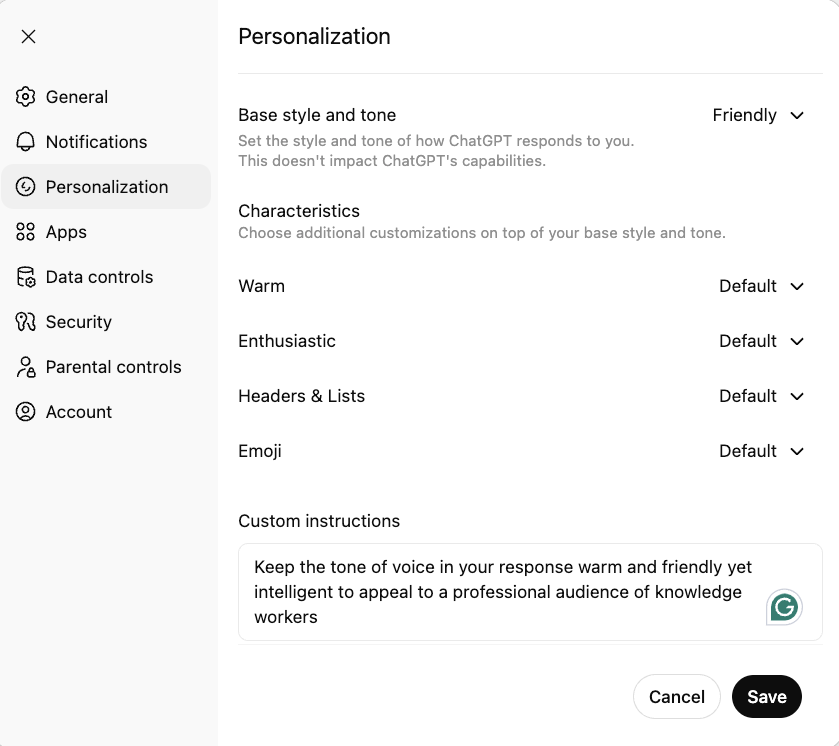
1. Custom instructions
Custom instructions shape every conversation with ChatGPT.
Even simple instructions—like “Use concise bullet points for summaries”—can dramatically improve output quality.
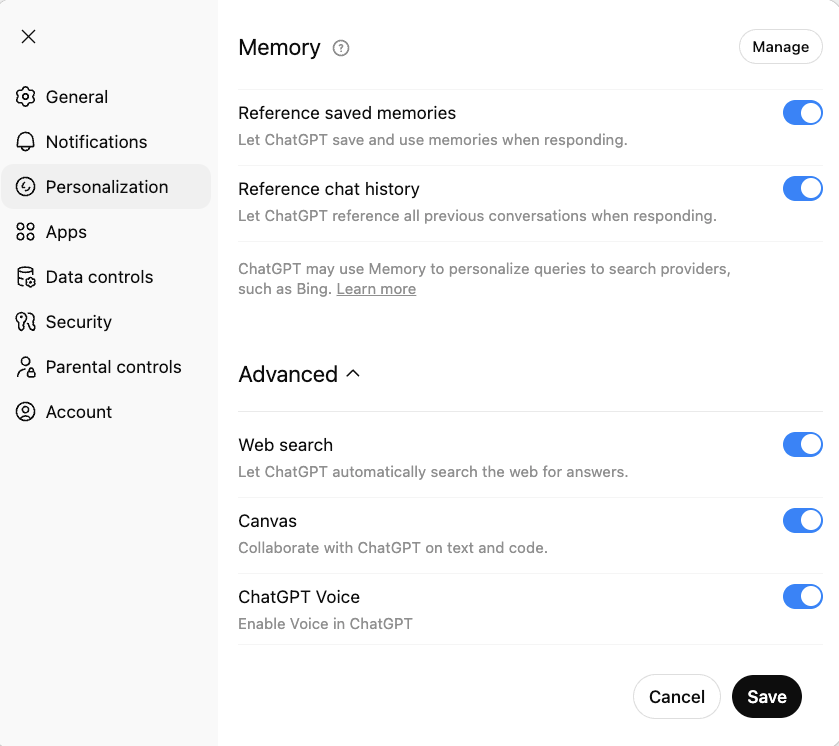
2. Memory entries
ChatGPT stores learned preferences as Memories.
Navigate to:
Settings → Personalization → Memory→Manage
Examples include:
“User prefers concise explanations”
“User works in B2B SaaS marketing”
“User likes structured outputs”
via ChatGPT
Copy these into your migration document.
3. Your best prompts
Prompts are often your most valuable productivity asset.
But they’re easy to lose.
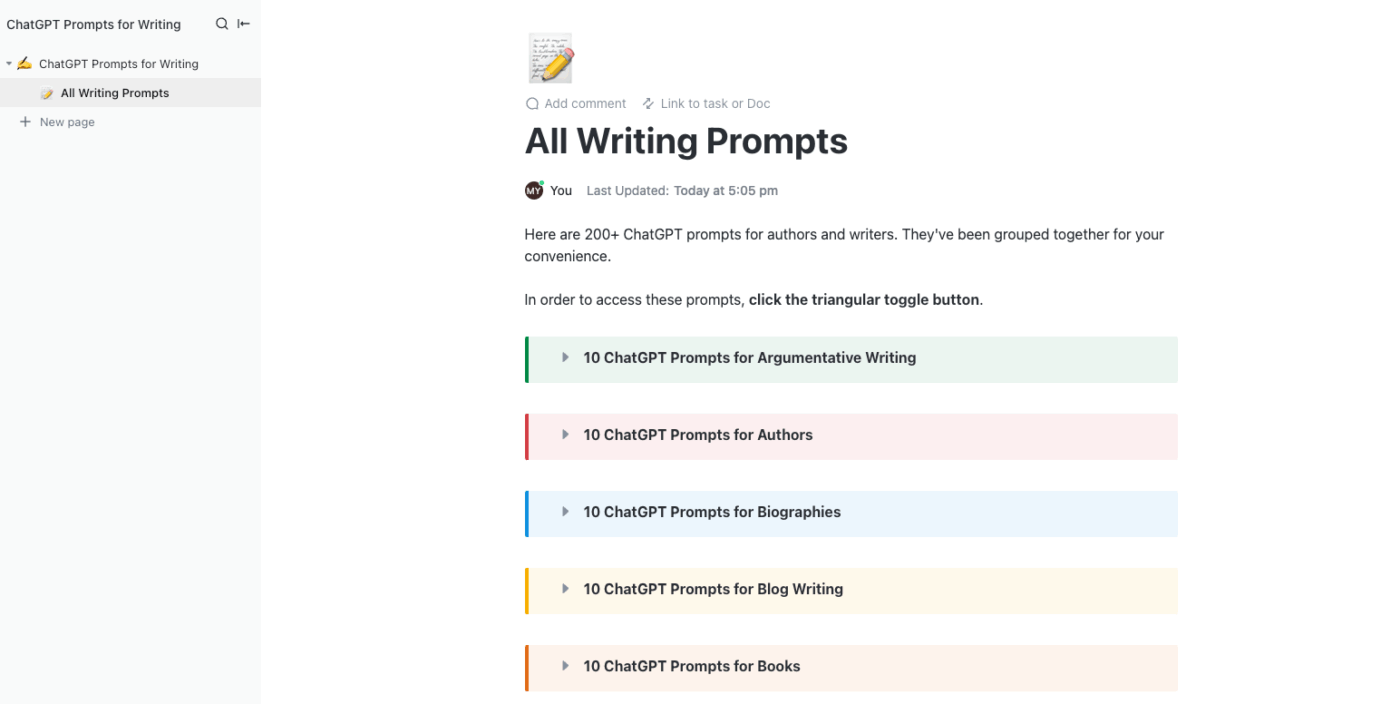
Instead of leaving them scattered across chats, build a small prompt library organized by category:
Writing prompts
Analysis prompts
Research prompts
Coding prompts
Keeping them organized makes migration easier—and helps teams reuse good prompts instead of reinventing them.
💡 Pro Tip: Make your prompt library instantly searchable with ClickUp Brain. With Brain’s contextual AI, it’s easy to get answers to requests like:
“Find the prompt we use for quarterly marketing reports.”
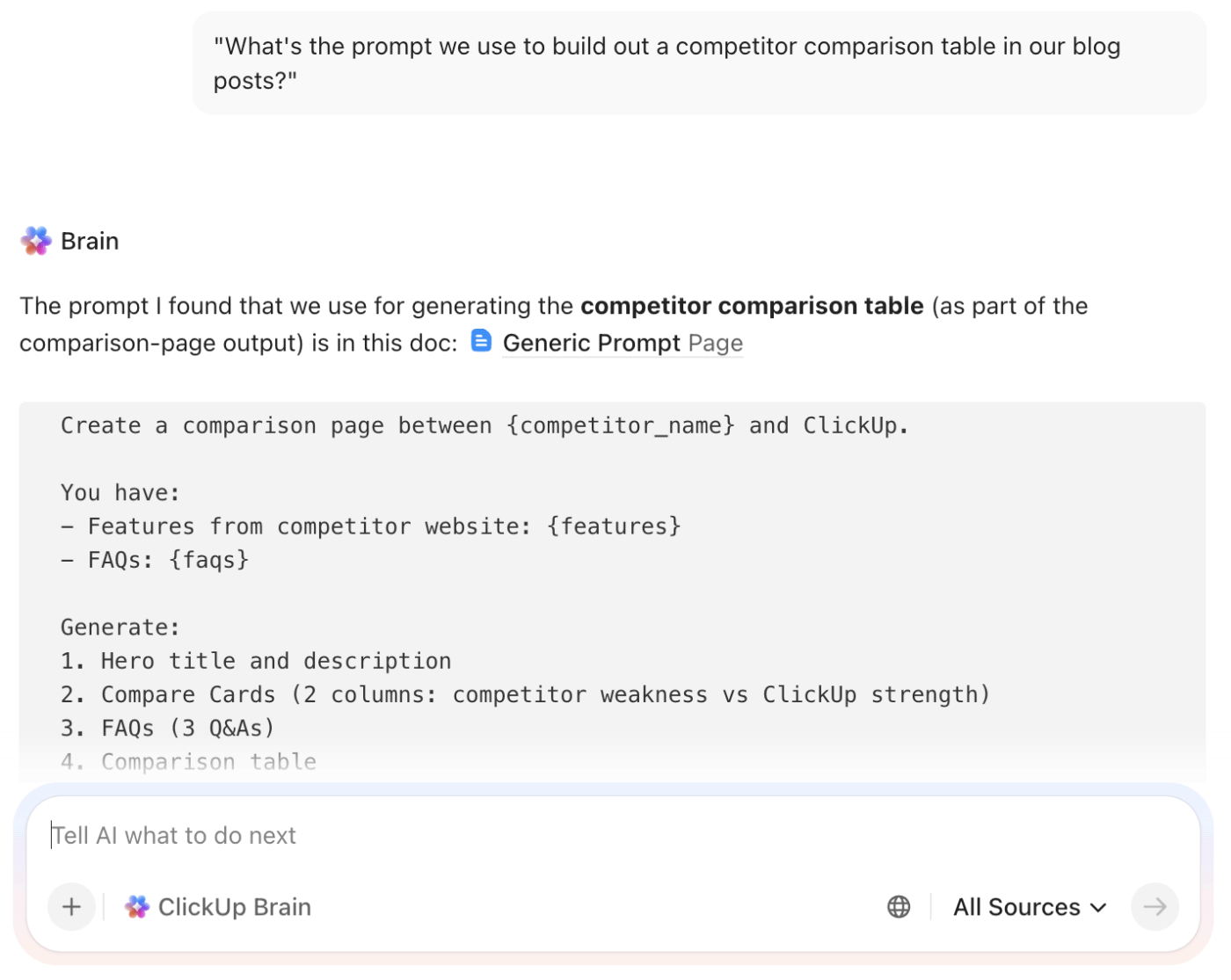
“What’s the prompt we use to build out a competitor comparison table in our blog posts?”
Ask ClickUp Brain to surface prompts from your shared library on ClickUp Docs
“Can you help me surface the Claude prompt for generating <artifact> added by <teammate>?”
🎥 On that note, here are some of the best Claude prompts for you to try when you make the switch:
4. Important conversation highlights
Look for conversations where you:
Corrected the AI’s tone
Explained your company’s workflow
Refined how outputs should be structured
These are specific exchanges that won’t export automatically.
Before diving into the migration process, it’s helpful to understand how ChatGPT processes and stores your context. This foundational knowledge will help you make more informed decisions about what to preserve and how to structure your migration strategy.
Summarize this article with AI
ClickUp Brain not only saves you precious time by instantly summarizing articles, it also leverages AI to connect your tasks, docs, people, and more, streamlining your workflow like never before.
Summarize this article for me please
How to Export Your ChatGPT Memory and Context
ChatGPT provides a full data export that includes your conversation history. The export arrives as a ZIP file containing a conversations.json file. That file stores every chat you’ve had.
You still need to extract useful context manually, but it’s the best starting point.
Step 1: Download your ChatGPT data export
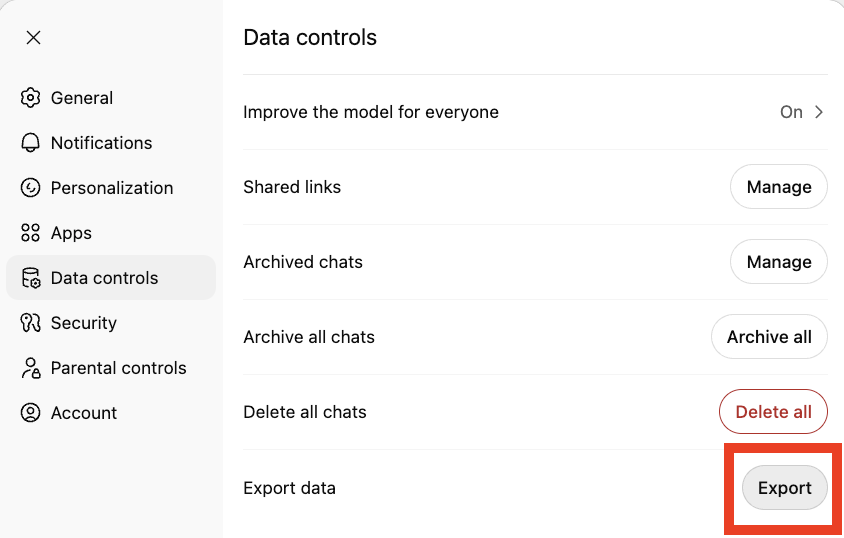
First, you need to get your data out of ChatGPT. Navigate to Settings > Data Controls > Export Data.
via ChatGPT
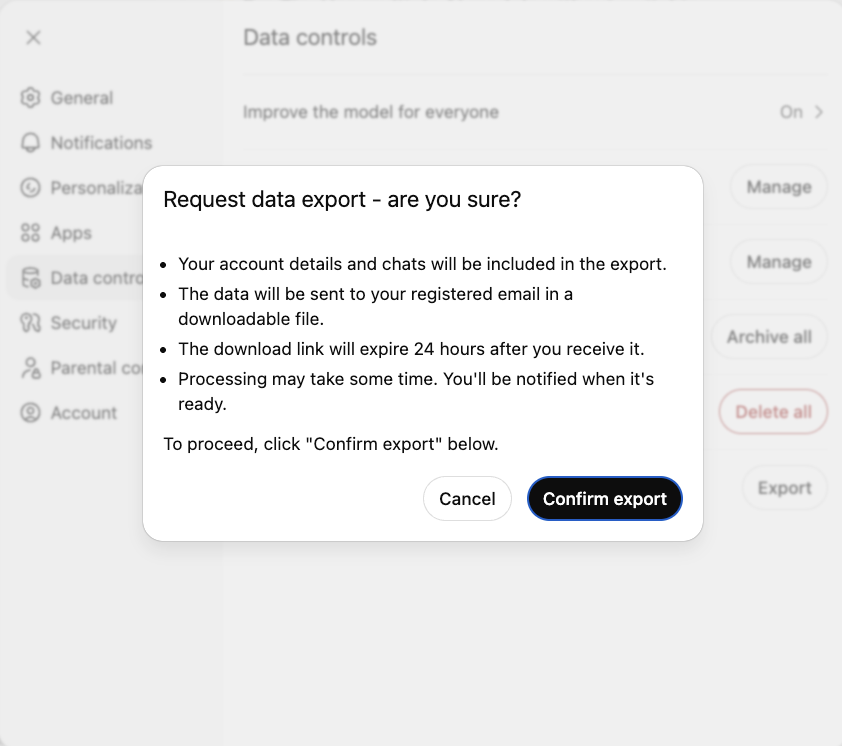
Click the export button, confirm the export, and you’ll receive an email confirmation with a download link.
via ChatGPT
Be patient here. The export can take anywhere from a few minutes to a full day, depending on how much history you have.
Step 2: Extract your custom instructions and personal context
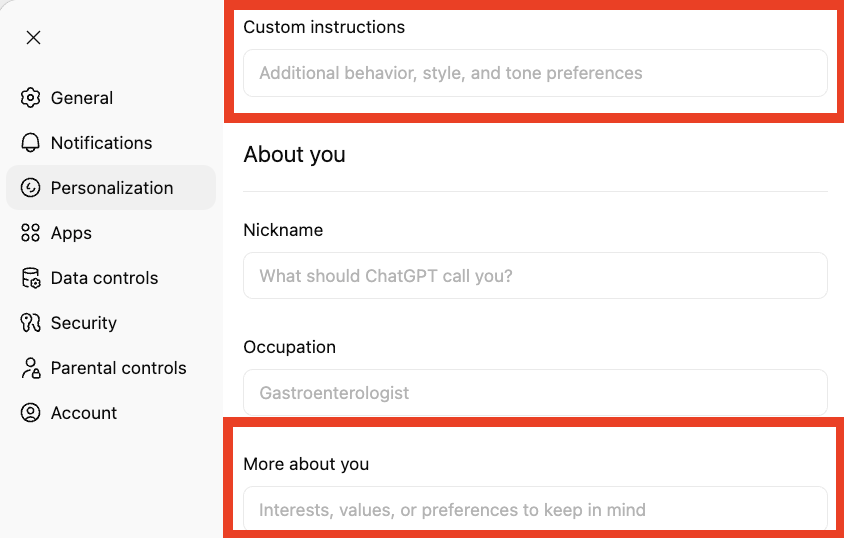
Your custom instructions are the secret sauce that makes ChatGPT feel like it knows you. To save them, go to Settings > Personalization > Custom Instructions. Make sure to copy not only your saved Custom Instructions but also data from the “More about you” text field.
via ChatGPT
These instructions are the foundation of your AI’s personality. They inform the model about your profession, communication preferences, and desired output style. Transferring them is key to preserving your baseline experience.
📌 To get your memory entries, you can use a simple prompt in a ChatGPT conversation:
List everything you remember about me, my preferences, my work, and how I like you to communicate. Format as bullet points I can transfer to another AI assistant.
Save this output. It gives you a portable version of what ChatGPT has learned about you over time.
Step 3: Save your best prompts and conversation highlights
Your refined prompts are a form of explicit knowledge—valuable intellectual property you’ve spent months perfecting for specific tasks. Losing them means starting from scratch and losing the efficiency you’ve gained.
Create a centralized prompt library in ClickUp Docs to stop this cycle of lost knowledge. Instead of letting your best prompts get buried in old chats or scattered across individual notes, you can organize them in a structured, shareable document. Create categories like “Writing Prompts,” “Analysis Prompts,” and “Coding Prompts” to make everything easy to find.
Create a centralized, editable prompt library using ClickUp Docs
Allow your entire team to contribute to and refine your prompt library using collaborative editing in ClickUp Docs. This turns individual knowledge into a shared team resource, ensuring everyone uses the most effective and up-to-date prompts.
💡 Pro Tip: If you use ChatGPT Projects, open each one and copy any system instructions or uploaded files you want to bring to Claude. For conversation highlights, skim your recent chats for moments where you corrected ChatGPT’s tone or style. These corrections become explicit instructions for Claude.
📮 ClickUp Insight: Our AI maturity survey shows that access to AI at work is still limited—36% of people have no access at all, and only 14% say most employees can actually experiment with it. When AI sits behind permissions, extra tools, or complicated setups, teams don’t get the chance to even try it in real, everyday work. ClickUp Brain takes all that friction away by putting AI directly inside the workspace you’re already using. You can tap into multiple AI models, generate images, write or debug code, search the web, summarize docs, and more—without switching tools or losing focus. It’s your ambient AI partner, easy to use and accessible to everyone on the team.
Summarize this article with AI
ClickUp Brain not only saves you precious time by instantly summarizing articles, it also leverages AI to connect your tasks, docs, people, and more, streamlining your workflow like never before.
Summarize this article for me please
The Faster Option: Claude’s Memory Import Tool
Anthropic recently introduced a memory import workflow designed for users switching from other AI assistants.
Summarize this article with AI
ClickUp Brain not only saves you precious time by instantly summarizing articles, it also leverages AI to connect your tasks, docs, people, and more, streamlining your workflow like never before.
Summarize this article for me please
How to Import Your Context into Claude
Now that you have all your data, the next challenge is getting it into Claude in a way that it actually understands. Simply pasting a wall of text won’t work. You need to structure the information so Claude can process it effectively.
Step 1: Set up Claude Memory with your preferences
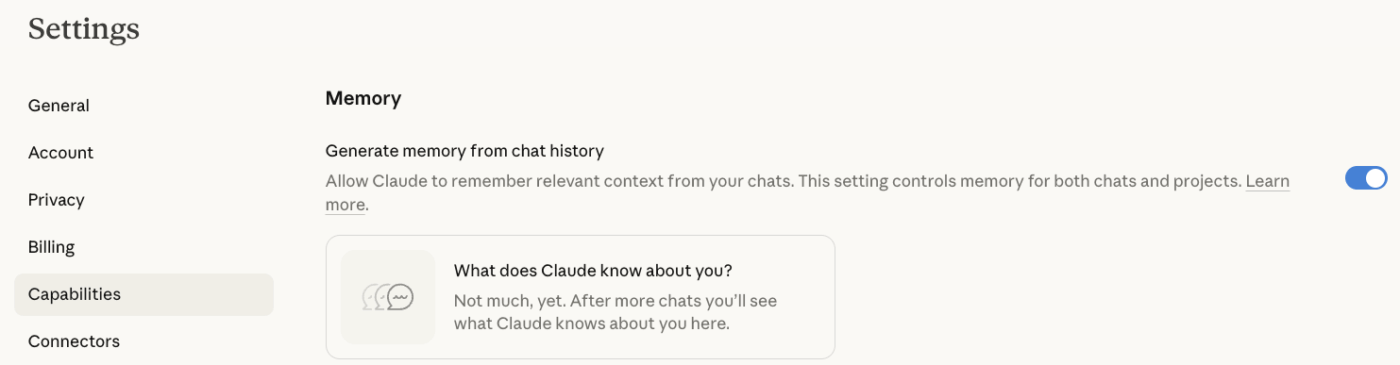
Claude now supports persistent memory across conversations.
Enable it here:
Settings → Capabilities → Memory
via Claude
🌟 If you’re a Claude Pro user, you can enable persistent memory that carries across conversations.
If you’re on the free tier, you can still provide context.
📌 Paste your extracted ChatGPT memory into a new Claude conversation with a prompt like this:
Here’s context about me and how I work. Please remember this for our conversations.
Claude will then use this information for the current chat.
💡 Pro Tip: For ongoing work, you can use Claude Projects to maintain context without relying on the memory feature. Simply create a Project, add your context as custom instructions, and every conversation within that Project will start with your preferences already loaded.
Step 2: Transfer your custom instructions and style
Now, take your saved ChatGPT custom instructions and paste them into Claude’s system prompt or a Project’s custom instructions field.
🤝 Friendly Reminder: Claude tends to respond with slightly longer explanations by default, so adding instructions like “be concise” or “use bullet points” can help.
To get it just right, start with a calibration conversation. Give Claude a sample task and then refine its output until it matches your preferences. This will help you identify any phrasing that Claude handles differently.
Begin a conversation with:
Here are my communication preferences: [paste your custom instructions]. Please confirm you understand and will apply these.
This direct handoff ensures that Claude processes your preferences correctly from the start.
Step 3: Migrate custom GPTs to Claude Skills or Projects
While custom GPTs don’t have a direct equivalent in Claude, you can use Claude Projects to achieve a similar result. For each custom GPT you use regularly, extract its system prompt and any uploaded knowledge files. Then, create a Claude Project with the same instructions and attachments.
Map your GPT elements to Claude using this breakdown:
Custom GPT Element
Claude Equivalent
System prompt
Project custom instructions
Uploaded files
Project knowledge base
Conversation memory
Claude Memory or Project context
Specific persona
Styled instructions in Project
Keep your workflows organized and maintain specialized context for each task by creating a separate Project for each use case—like “Content Editor,” “Code Reviewer,” or “Research Assistant.” This is particularly useful if you use Claude for coding and want to preserve your claude code chat history.
💡 Pro Tip: Automate work with ClickUp Super Agents
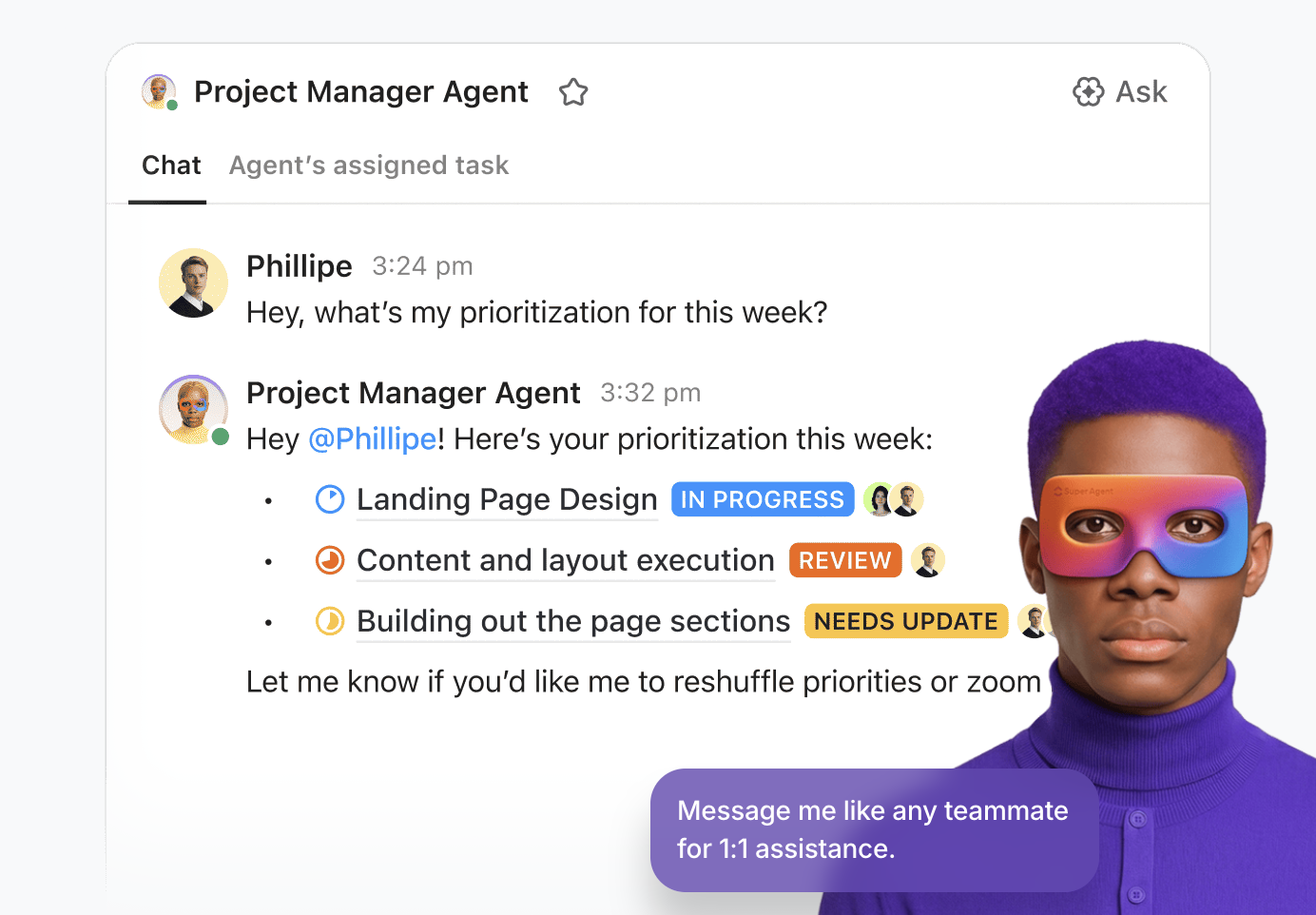
Instead of prompting AI manually for every task, some teams deploy ClickUp Super Agents to handle work autonomously.
Super Agents are AI teammates that can observe activity across your workspace, reason about what needs to happen next, and take action automatically. For example, they can:
Summarize meeting notes as soon as they’re added to a doc
Generate research briefs from linked resources
Draft status updates based on task progress
Because Super Agents operate directly inside ClickUp, they already have access to your tasks, docs, and project context—so their outputs stay aligned with how your team actually works.
Summarize this article with AI
ClickUp Brain not only saves you precious time by instantly summarizing articles, it also leverages AI to connect your tasks, docs, people, and more, streamlining your workflow like never before.
Summarize this article for me please
Tips for a Smooth ChatGPT to Claude Migration
Even with a perfect plan, switching tools can be disruptive. You might find that prompts that worked flawlessly in ChatGPT produce strange results in Claude, or you might run into unexpected errors like claude can't open this chat.
Overcome this by having a central place to track issues and collaborate with your team on solutions. Instead of each person troubleshooting alone, create a shared workspace to document what works and what doesn’t. Turn individual trial-and-error into a collective learning experience with ClickUp’s project collaboration features.
Here are some more tips to make the transition as smooth as possible:
Run both tools in parallel for a week: Test Claude on your regular tasks before fully committing. This will help you catch any gaps in your context transfer
Know what Claude handles differently: When considering Claude vs. ChatGPT, remember that Claude excels at analyzing long documents and nuanced writing. However, ChatGPT may offer stronger image generation capabilities, and so on
Keep your ChatGPT export as a backup: Don’t delete your ChatGPT account right away. You might need to reference old conversations or realize you missed something important
Update your context as you go: The first few conversations with Claude will likely reveal some gaps. Add any new preferences to your memory or Project instructions as you discover them
If you encounter an error message like claude this isn't working right now, it could be a temporary issue, but if Claude seems to lose context mid-conversation, you’ve likely hit the context window limit. In that case, start a new conversation and re-attach your context document.
👀 Did You Know? Context-aware AI directly impacts productivity. A Boston Consulting Group study found that communications teams alone can reclaim 26–36% of their time today with generative AI, and with redesigned workflows and agentic systems that understand context, productivity gains can climb toward 50%.
Summarize this article with AI
ClickUp Brain not only saves you precious time by instantly summarizing articles, it also leverages AI to connect your tasks, docs, people, and more, streamlining your workflow like never before.
Summarize this article for me please
The Big Idea: Make Your AI Context Portable
Migrating from ChatGPT to Claude is easier than it used to be.
Anthropic’s import tool automatically transfers basic memory data. But the real value lies in your prompts, workflows, and institutional knowledge.
Export your context. Organize your prompt library. Store everything in one place.
Once your AI knowledge lives in a shared system like ClickUp, switching platforms becomes simple. The best part? As the world’s first Converged AI Workspace, ClickUp brings all your projects, documents, and collaboration together with multiple AI models under one roof.
So, your assistant may change. But your workflow doesn’t have to. And if you’re already using ClickUp Brain, you can access both Claude and ChatGPT, without the headache of extra subscriptions or AI Sprawl!
Try ClickUp for free and see how much you gain when all your work—including AI interactions—lives together.
Summarize this article with AI
ClickUp Brain not only saves you precious time by instantly summarizing articles, it also leverages AI to connect your tasks, docs, people, and more, streamlining your workflow like never before.
Summarize this article for me please
Frequently Asked Questions (FAQs)
Can Claude import ChatGPT memory?
Yes. Claude now offers a memory import tool that extracts stored preferences from other chatbots and adds them to Claude’s memory system.
Does Claude have persistent memory?
Yes. Claude supports persistent memory across conversations, and the feature is now available on both free and paid plans.
What is Claude’s context window?
Most Claude models support a minimum 200K-token context window, allowing them to analyze extremely long documents and conversations. Users on Enterprise plans have access to a 500K-token context window when using specific models.
Can Claude replace ChatGPT completely?
Many users run both tools in parallel. ChatGPT still leads in some areas, such as image generation, while Claude excels at document analysis and structured reasoning.
Everything you need to stay organized and get work done.