






Still downloading templates?
There’s an easier way. Try a free AI Agent in ClickUp that actually does the work for you—set up in minutes, save hours every week.
Sorry, there were no results found for “”
Sorry, there were no results found for “”
Sorry, there were no results found for “”
Retyping AI insights from a PDF into your emails and chats is a massive waste of time.
Especially when your team is already fighting through 275 daily interruptions. The last thing any of us needs is the manual chore of moving data between tabs.
This guide shows you how to upload PDFs to Gemini for instant analysis. More importantly, how to move those insights into ClickUp so your team can actually act on them. 😊
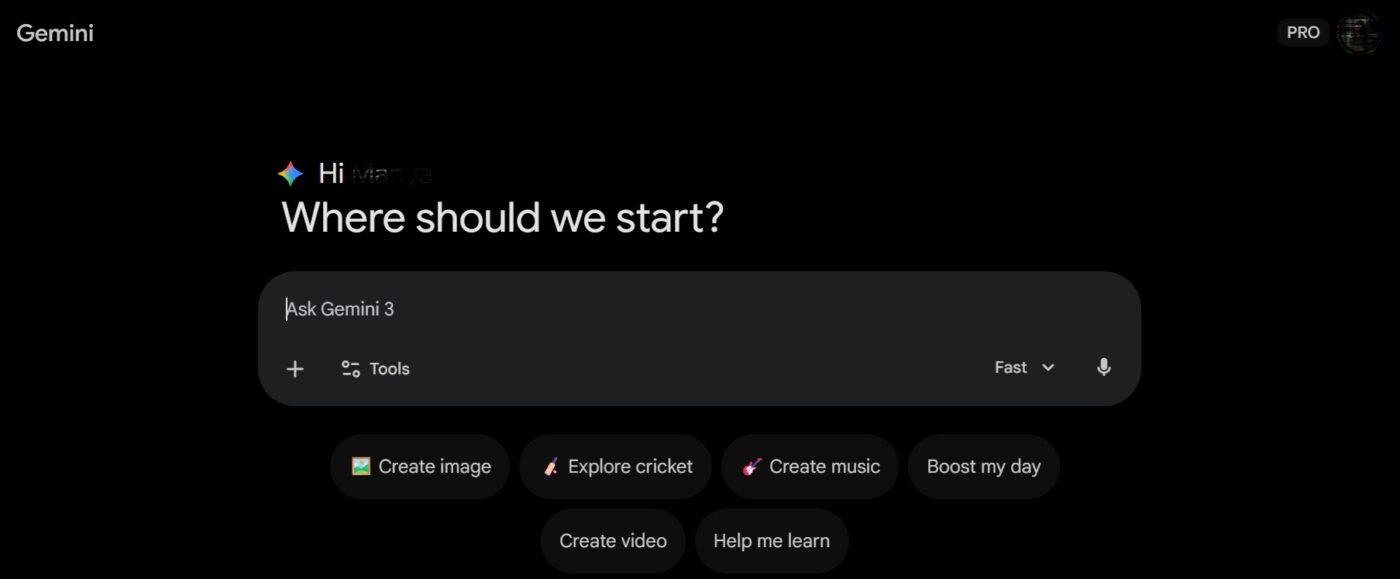
Whether you’re on a desktop or rushing between meetings on your phone, here is how to get your documents into Gemini.
The desktop interface is the most flexible, especially if you’re handling multiple files or pulling from cloud storage.

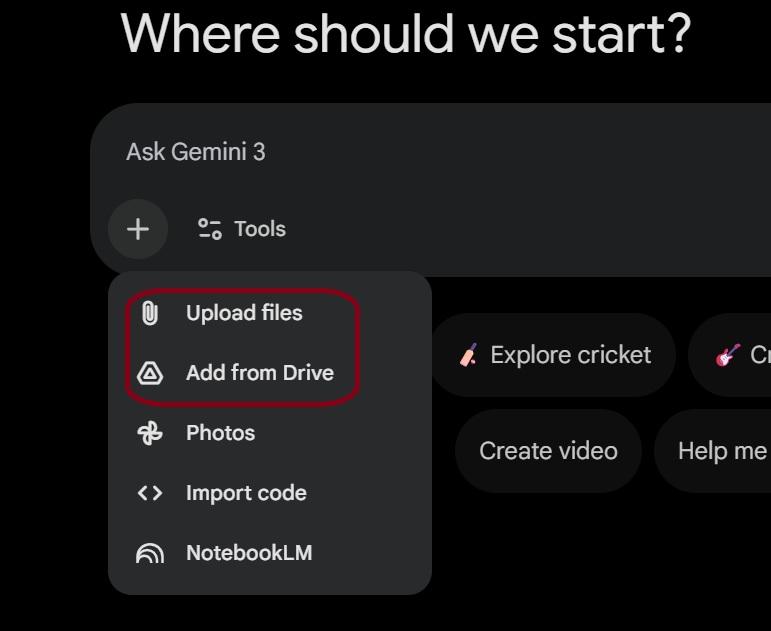
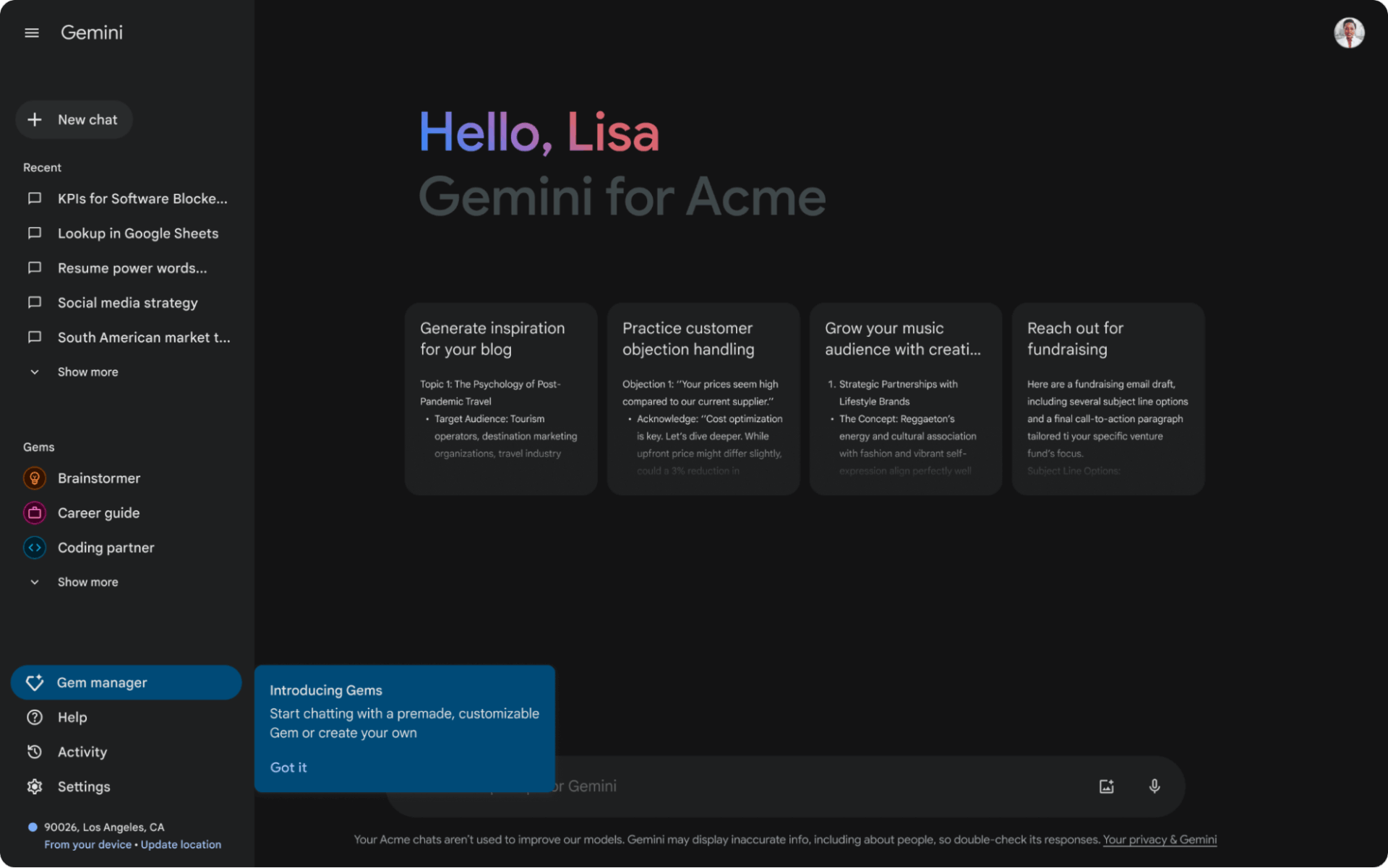
Note: For the Drive integration to work, you may need to enable ‘Google Workspace’ under Settings > Extensions in Gemini.
💡Pro Tip: Speed things up by dragging and dropping your PDF directly into the chat window from any folder on your desktop.
📮ClickUp Insight: 88% of our survey respondents use AI for their personal tasks, yet over 50% shy away from using it at work. The three main barriers? Lack of seamless integration, knowledge gaps, or security concerns.
But what if AI is built into your workspace and is already secure?
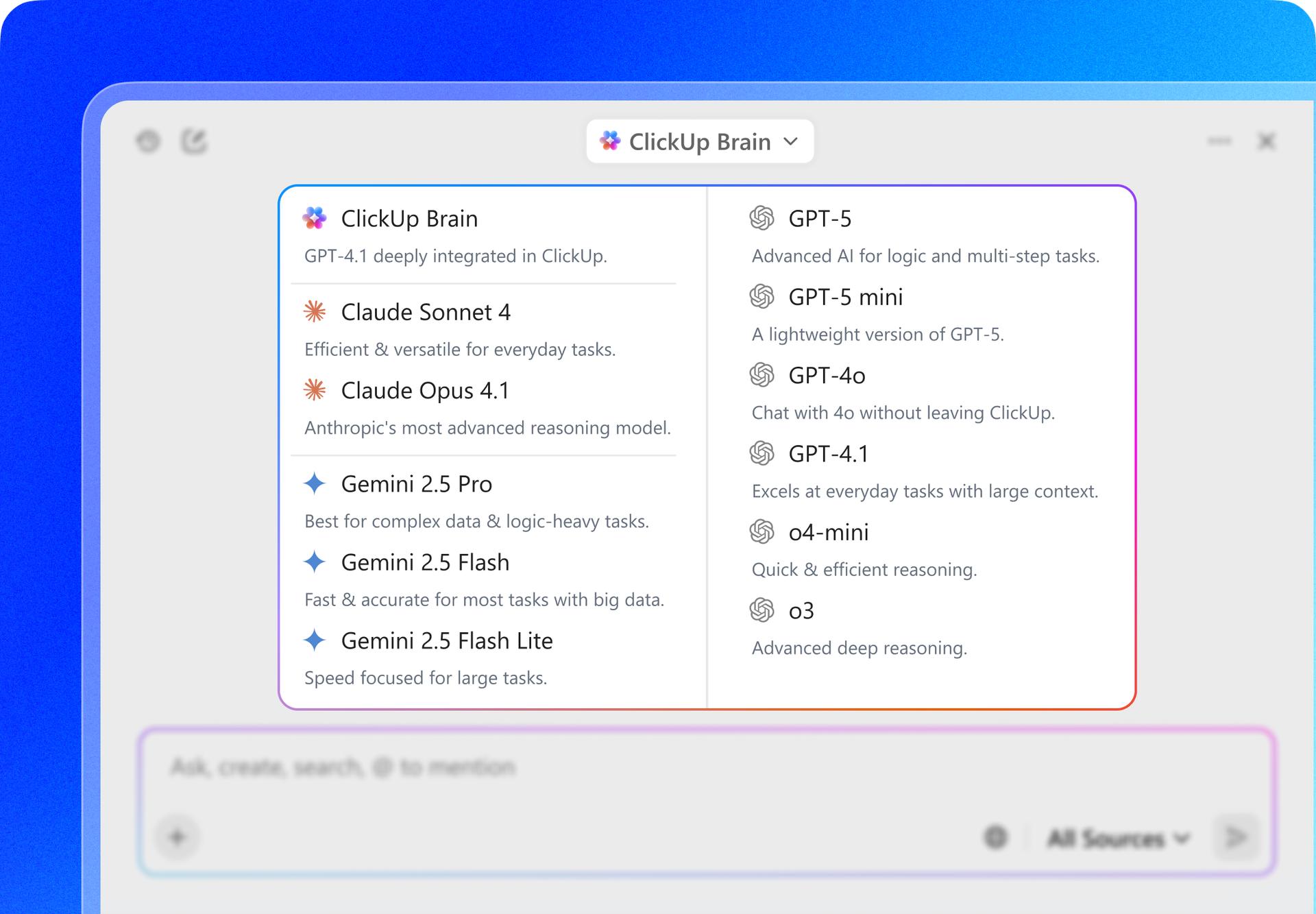
ClickUp Brain, ClickUp’s built-in AI assistant, makes this a reality. It understands prompts in plain language, solving all three AI adoption concerns while connecting your chat, tasks, docs, and knowledge across the workspace. Plus, you can access multiple AI models, including Gemini and ChatGPT, from Brain’s interface. Find answers and insights without juggling tabs!
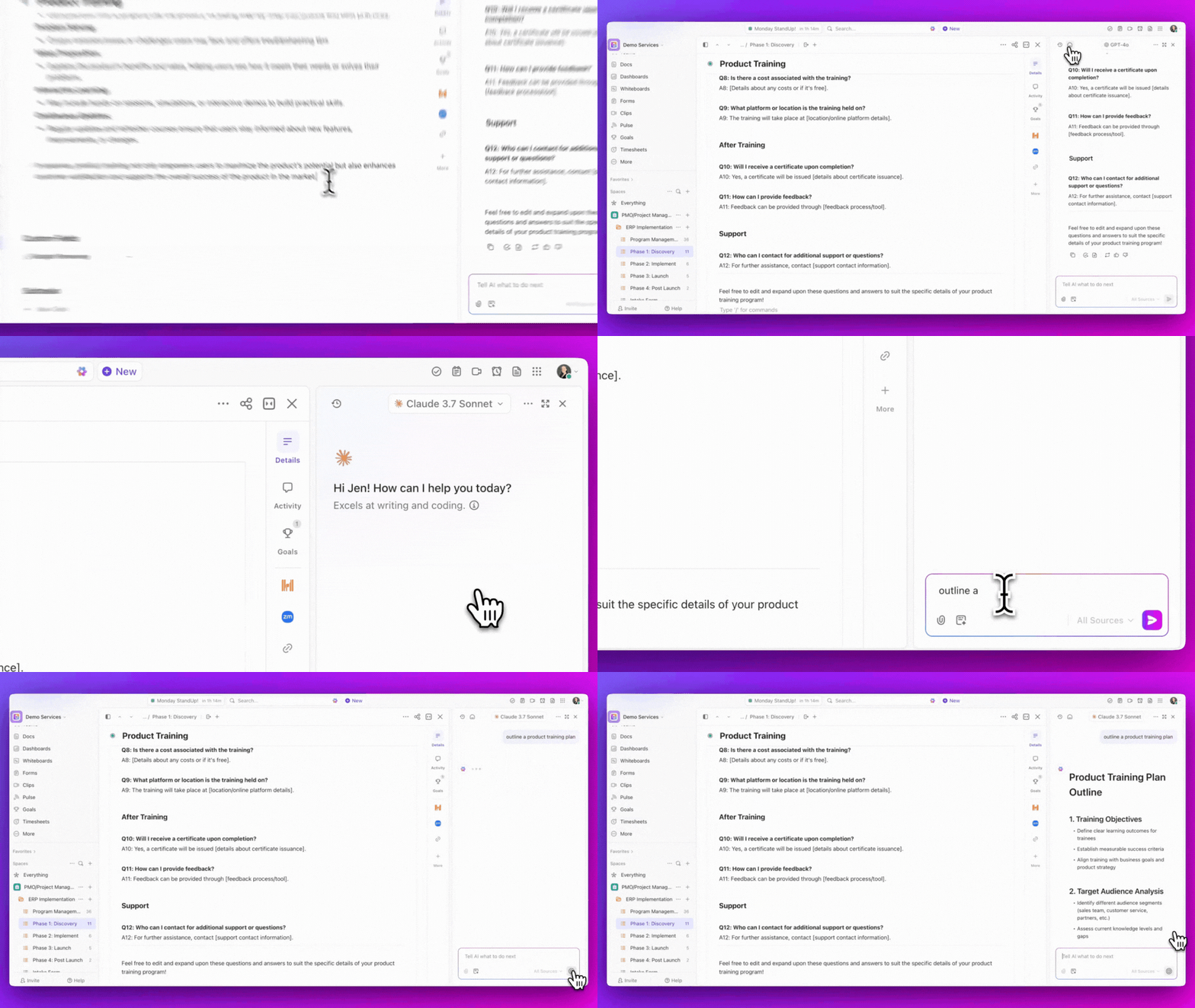
Perfect for reviewing reports or contract drafts when you’re away from your desk.
The upload itself is quick. The real challenge for most teams is turning the AI-generated insights from that PDF into actionable work. You get a great summary, but it’s stuck in a chat window, disconnected from your projects.
👀 What we suggest: Using a Converged AI Workspace like ClickUp can eradicate this Work Sprawl. It brings your tasks, documents, and goals together in a shared workspace embedded with native AI.
But first, it helps to understand how you can use Gemini to its full potential. ⬇️
It can be frustrating when you prepare a document for analysis, and the upload fails without a clear reason.
This often happens because the file is too large, it’s in an unsupported format, or you’ve hit the upload limit. You’re forced back to square one, searching for file converters or trying to split your document, slowing down your workflow.
Knowing these limits upfront prevents you from wasting time on file converters or unnecessary document splitting. Here you go:
| File Category | Supported formats | Size limits | Notes |
| Documents | PDF, DOCX, TXT, RTF | Up to 100MB | Best for deep dives and summaries |
| Data and tables | CSV, XLSX | Up to 100MB | Ideal for trend spotting and data cleanup |
| Images | JPG, PNG, WebP, HEIC | Up to 100MB | Use for text extraction or visual descriptions |
| Audio | MP3, WAV, AAC, FLAC | Up to 100MB | Perfect for transcribing meetings or podcasts |
| Video | MP4, MOV, WMV, WebM | Up to 2GB | Supports up to 1 hour of footage for AI analysis |
💡Pro Tip: Upload up to 10 files at once to let Gemini cross-reference information across different documents or datasets.
Gemini reads PDFs natively, so you don’t need to jump through hoops to convert them. However, the way your PDF was created changes how much value you’ll get out of the analysis:
In fact, even with a successful upload, Gemini has a limit on how much it can remember at once. This can also be called its context window.
Think of it like the AI’s short-term memory. While Pro and Ultra models can handle up to 1 million tokens (roughly 1,500 pages), the ‘Basic’ tier is more limited. If you feed it a massive technical manual, the AI might start forgetting the beginning of the document by the time it reaches the end.
💡Pro Tip: Use specific prompts like ‘Focus on the financial projections in Chapter 4’ to keep the AI’s attention exactly where you need it, rather than letting it get lost in a 500-page sea of data.
Once your PDF is uploaded, you might be tempted to just ask, ‘Summarize this.’ While that works, it does not provide as much value as you expect. If your team stops at basic summaries, you’re still doing manual analysis.
To save time, treat your PDF like a searchable database. Here are some of the more powerful ways to execute data extraction:
You’ve just generated a perfect list of action items or a brilliant project summary—now what?
Currently, that information is trapped in a chat window. There is no ‘send to project board’ button, which means you’re right back to the manual copy-pasting we’re trying to avoid. This is the gap where good ideas go to die: the space between a great AI insight and the shared knowledge base your team is using.
Summarize this article with AI ClickUp Brain not only saves you precious time by instantly summarizing articles, it also leverages AI to connect your tasks, docs, people, and more, streamlining your workflow like never before.How to Upload and Analyze Multiple PDFs at Once
Most of the time, a crucial insight doesn’t live in a single document—it lives in the connections between five. But manually flipping between windows to spot these patterns is a recipe for missed details.
Gemini’s ability to handle up to 10 files per prompt allows you to perform cross-document analysis in seconds, uncovering contradictions or themes that would take a human hours to find. When you upload multiple files at once, you can move from simple reading to high-level strategy:
The process is the same as uploading a single file, but you select multiple documents before hitting submit. Once they’re all loaded, you can ask questions that span the entire set. This allows you to move from simple document analysis to true knowledge management and synthesis.
However, even with this advanced capability, the core challenge remains. You have the data, but your team is still working in project boards, Slack, and spreadsheets. This is AI Sprawl—the constant jumping between disconnected tools to share an insight, debate the pros and cons, and finally make a decision.
Even the smartest AI analysis loses its value if it stays stuck in a browser tab instead of being part of your team’s live workflow.
Summarize this article with AI ClickUp Brain not only saves you precious time by instantly summarizing articles, it also leverages AI to connect your tasks, docs, people, and more, streamlining your workflow like never before.How to Use Gemini PDF Insights in ClickUp
Uploading a PDF to Gemini lets you quickly extract summaries, obligations, and action items. But those insights often stay inside the chat window. Your team still has to copy the results into documents, manually create tasks, and re-explain the context in your project workspace.
That extra step slows things down.
ClickUp is a Converged AI Workspace that helps you turn Gemini insights into work your team can track and execute.
If Gemini lives in a separate tab, every insight it generates must be manually copied into your workspace. That means copying summaries, recreating context, and rebuilding momentum each time you switch tools. Over time, that gap turns fast AI outputs into slow execution.
ClickUp removes that gap. With ClickUp Brain, you can access Gemini directly inside your workspace, alongside your Docs, Tasks, and Chat. Instead of exporting insights and reworking them, you can generate, refine, and act on them in the same place where your team is already working.
This changes the flow entirely.
You can analyze a PDF, ask follow-up questions, and immediately turn the output into a document, a task, or a structured workflow without leaving ClickUp. The context stays intact, the work stays connected, and nothing gets lost between tools.
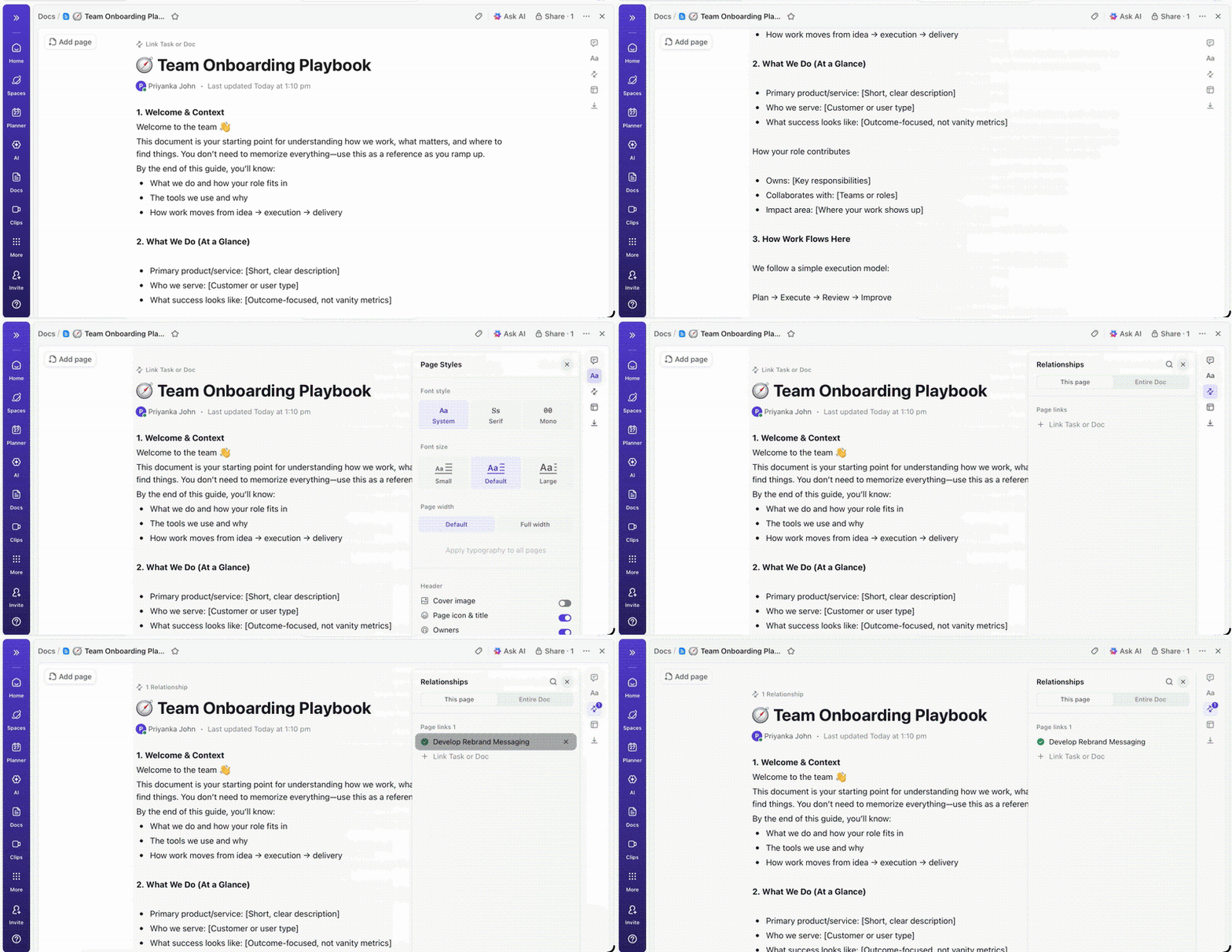
Once Gemini generates a summary of your PDF, paste it into ClickUp Docs to create a permanent, structured reference for your team. Instead of leaving insights buried in a chat, Docs allow you to turn those summaries into organized knowledge bases your team can revisit, edit, and build on over time.
It also allows nested pages and rich formatting, which makes it useful for storing and maintaining information such as contract summaries, research notes, and policy analysis.
You can also embed supporting assets directly inside the document. For example, add the original PDF, screenshots, tables, or code blocks so your team can review the source material alongside the AI-generated summary.
Docs also support real-time collaboration with editing and comments. Team members can highlight sections, leave feedback, or tag colleagues for clarification without moving the discussion to another tool.
For example, if Gemini analyzes a vendor contract, you can store the summary in a ClickUp Doc and structure it into sections like Key obligations, Deadlines, and Compliance requirements. The original PDF can be attached directly to the Doc for quick reference.
From there, you can connect the document to the relevant project workspace. Anyone reviewing the project can access the source analysis, supporting files, and ongoing discussion without having to search across multiple apps.
Gemini can extract action points from long PDFs, but those insights still need to turn into trackable work. Instead of leaving them inside the chat, move those action items into ClickUp Tasks for structured workflow management.
Each task becomes a clear unit of work with the context your team needs to complete it. You can include details such as:
For example, if Gemini identifies a requirement such as ‘Submit quarterly compliance reports,‘ you can create a task assigned to the responsible team member and attach the original contract or the Gemini summary for reference.
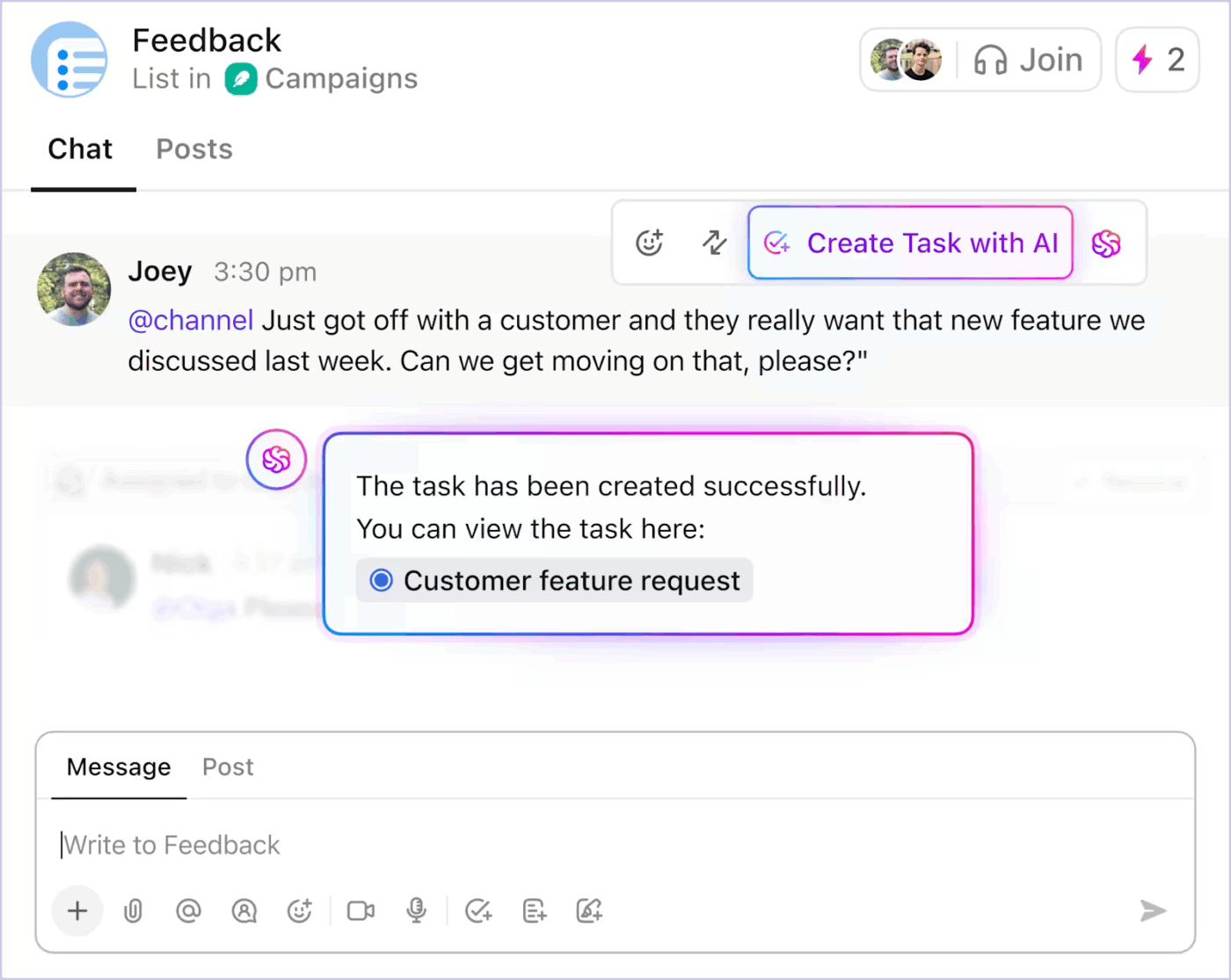
ClickUp Tasks also connect directly with the rest of your workspace. You can link them to the ClickUp Doc that contains the contract summary, attach the original PDF, and add comments for team collaboration. This ensures everyone working on the task has immediate access to the full context.
Once the information lives inside ClickUp, ClickUp Brain can help you go beyond the initial Gemini summary and extract deeper insights from your documents. You can ask the built-in AI questions directly inside your workspace. For example:
Brain analyzes the content within your Docs, tasks, and comments to generate answers grounded in your workspace data. It also helps your team continuously build on them as the project evolves.
💡Pro Tip: Once your PDF insights are inside ClickUp, you can create ClickUp Super Agents to handle follow-up work automatically.
For example, an agent can review the document summary, extract key obligations, assign tasks to the appropriate team members, and even send updates as deadlines approach. This turns static document analysis into an ongoing workflow where AI actively helps manage the work around the document.
One of the biggest challenges with AI document analysis is fragmentation. The original file often lives in one tool, the AI summary lives in another, and the tasks created from those insights live somewhere else.
ClickUp helps you keep all of this information in one workspace.
You can upload the original PDF, store the Gemini summary in ClickUp Docs, and convert the action items into ClickUp Tasks within the same project. This creates a clear chain from document → analysis → execution.
Anyone reviewing the project can quickly find the source document, the AI-generated analysis, and the follow-up work without switching tools.
Over time, this structure creates a searchable knowledge base where documents, insights, and work stay connected. Instead of chasing information across multiple apps, your team always knows where the file lives, what it means, and what needs to happen next.
So, if you’re ready to turn PDF insights into work that gets done, get started for free with ClickUp to see the difference.
Most upload failures happen because the file exceeds the 100MB size limit, the PDF is corrupted, or you’ve tried to upload more than 10 files at once. Try compressing the file or ensuring it’s a valid PDF format before trying again.
To keep your important documents and their AI summaries organized, save them in a dedicated workspace, such as ClickUp Docs. Gemini processes files for the current conversation, but doesn’t save them to your Google account long-term.
Gemini uses optical character recognition (OCR) to process scanned PDFs, but accuracy depends on the quality of the scans. For best results, use PDFs with selectable text whenever possible, as this allows the AI to read the content directly.

© 2026 ClickUp

There’s an easier way. Try a free AI Agent in ClickUp that actually does the work for you—set up in minutes, save hours every week.