

You know that one teammate who forwards invoices as PDFs, asks for updates in Slack, and tracks everything in a spreadsheet called final-FINAL-invoice-tracker.xlsx?
Yeah, them.
This is exactly why APIs exist—and why you’re here.
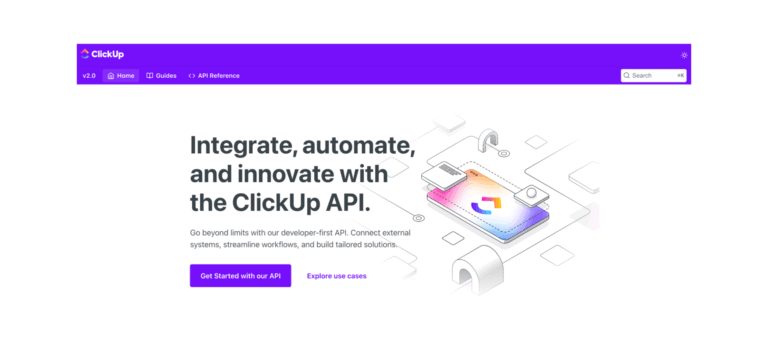
Whether you’re building a proper integration or just love tinkering with no-code and low-code tools, this guide walks you through how to set up a two-way sync between ClickUp and external software using the ClickUp Public API.
We’ll break down how to read the docs, authenticate, structure requests, and build real-world automations. By the end, you’ll have an end-to-end working model for syncing invoice tasks between ClickUp and your accounting software—complete with logic to avoid infinite webhook loops.
What You Can Do With ClickUp’s API
- Who This Guide Is For
- What Is an API?
- How Do You Know What to Request?
- API Requests: The Basics
- Meet the ClickUp Public API
- Authenticate Your API Requests
- Make your first request
- Understand ClickUp’s Hierarchy, Roles, Sharing, and Permissions
- Part 1: Setting the Scene
- Part 2: Scoping it Out
- Part 3: Building the End-to-End Flow
- Next steps
Summarize this article for me please
Who This Guide Is For
This walkthrough is designed for developers, technical ops folks, and builders who want a real, two-way integration — not a hello-world demo. If you’ve never touched an API before, you can still follow along, but expect to move slowly.

 Summarize this article for me please
What Is an API?
An API (Application Programming Interface) is a structured way for software applications to communicate, exchange data, and trigger actions.
Here’s how it works: humans write code to tell one software application (like an app running in your web browser) to send a request to another application (often a server). The server replies with a response, and the requesting app does something with that response.
A simple example
Let’s say you want to buy dog treats, so you look up an online pet store. You find the perfect dog treats, and they’re on sale!
When you click Place order on the website, you send a request with your order details to a server behind the scenes. The server reads those details (which dog treats, the quantity, your shipping address, etc.) and stores that data in a database. Then the server sends a response back to the website, confirming your request was received and processed. You now see an order confirmation page on the website.
APIs made the request and response possible, enabling you to order dog treats for your pup!
Why should you care about APIs?
Beyond saving you from spreadsheet chaos, APIs are the backbone of modern productivity. Every time you connect Slack to Google Calendar, sync your CRM with your email, or get a notification from one app based on activity in another—that’s an API doing the heavy lifting.
For teams, this translates to fewer copy-paste errors, less context-switching, and workflows that actually flow. Instead of manually updating three different systems when an invoice gets approved, an API integration can cascade that update automatically.
💡 Fun fact: The average enterprise company uses over 1,000 different applications. Without APIs connecting them, your team would spend more time updating spreadsheets than doing actual work.
Summarize this article for me pleaseHow Do You Know What to Request?
API documentation tells you three critical things:
- What you can request
- What the response will look like
- What structure must your request follow
APIs are often documented using an API specification, such as the OpenAPI Specification. A specification guides humans to consistently and accurately document the technical components of their API.
Think of API documentation as a restaurant menu—it tells you what’s available, what each dish contains, and how to order it. You wouldn’t walk into a kitchen and start cooking; you’d check the menu first.
Summarize this article for me pleaseAPI Requests: The Basics
Before diving into integrations, it’s helpful to understand the basic structure of an API request. It includes different types of information to help the server process the request successfully.
Some of the common features of an API request include:
| Request | Description | Example |
| Methods (more info below) | The type of request you’re making | POST Create task GET Tasks |
| Endpoint URL | The web address you are sending the request to | https://api.clickup.com/api/v2/team |
| Headers | Additional metadata sent to the server | Authentication: Your API token or credentials to tell the server who is making the request. Content-type: Lets the server know the format of the data you’ve sent in your request. |
| Parameters (more info below) | Parameters allow you to customize the information or actions you’re taking | |
| Request body | A place to put long-form structured data along with your request. Think of the request body as the body of the email |
API methods
API methods allow you to make requests to take specific actions when you send a request to the same endpoint URL. Think of methods like verbs—they describe the action you want to take.
| Method | Description | Examples |
| GET | Retrieve information | Get Authorized Workspaces: Returns the Workspaces you’ve created or joined Get Tasks: Returns the tasks in a List |
| POST | Create something new | POST Create Task: Create a new task in a List |
| PUT | Update an existing item | PUT Update Task: Update an existing task |
| PATCH | Partially update an existing item | PATCH Update Privacy and Access: Update the privacy and sharing options of an object or location |
| DELETE | Delete the item | DELETE Delete Task: Delete a task |
API Parameters
Parameters allow you to filter your request for information or send specific details to the server. There are two types of parameters available:
| Parameters | Description | Examples |
| Path Parameters | These are dynamic variables you send in the endpoint URL of your request | Get Tasks endpoint URL is: https://api.clickup.com/api/v2/list/{list_id}/task. The {list_id} is a path parameter, where you specify the List ID in each request |
| Query Parameters | These are added to the end of the endpoint URL when you make a request | Get Tasks has a query parameter called include_closed so you can include or exclude closed tasks in the response. With this query parameter, the endpoint URL looks like this: https://api.clickup.com/api/v2/list/task?include_closed=true |
Use multiple query parameters
You can use multiple query parameters in a single request.
For example, with Get Filtered Team Tasks, let’s say we want to:
- Include tasks in the To Do and In Progress statuses
- Include subtasks
- Include tasks assigned to user ID:
1234 - Return the task description content in Markdown
You can send a single request with several query parameters to make this request super efficient:
https://api.clickup.com/api/v2/team//task?subtasks=true&statuses[]=statuses[]=to%20do&statuses[]=in%20progress&assignees[]=assignees%5B%5D%3D1234&include_markdown_description=trueThis single request replaces what might otherwise be multiple queries and manual filtering—a real time-saver when you’re processing hundreds of tasks.
Summarize this article for me pleaseMeet the ClickUp Public API

What you can do with the public API
Our Public API lets you view, create, update, and delete items in your ClickUp Workspace, including:
- Spaces, Folders, and Lists
- Views
- Tasks
- Docs
- Comments
- Attachments
- Chat channels and messages
Here are some examples of what you can do:
Update a Custom Field on a task
- Get List Custom Fields to discover the available Custom Fields
- Set Custom Field value to set a Custom Field value on a specific task
Add a comment to a specific task
- Get Filtered Team Tasks to search your Workspace for tasks matching specific criteria
- Create a task comment to post a comment on a specific task
Get the content from a Doc
- Search Docs to find a Doc in your Workspace
- Get Page Listing to understand the structure of the Doc and its subpages
- Get Doc pages to get all the pages and their content from the Doc
- Or Get Page if you want just one specific page
📚 Also Read: ClickUp Public API Documentation
Summarize this article for me pleaseAuthenticate Your API Requests
You can’t access ClickUp data without authenticating. If you don’t have an account yet, you can sign up for free and create your first Workspace!
There are two ways to authenticate:
There are two ways to authenticate:
- OAuth: If you are building an app, you can use OAuth to have users securely sign into ClickUp to authenticate their API requests
- Personal token: If you’re just tinkering or building something for yourself, you can use a personal token
Your personal token (or OAuth token) is like a password that you send with every API request, allowing ClickUp to verify that the request is coming from you.
And just like a password: keep it secret, keep it safe. (No sharing. No screenshots.) 🧙♂️
💡 Pro Tip: Never commit your API tokens to version control or share them in Slack messages. Use environment variables or a secrets manager instead.
 Summarize this article for me please
Make your first request
You can get started right away using our code examples or try sending your first request directly from the documentation!
The first request you should make is to Get Authorized Workspaces. This will show you all the Workspaces you’ve created or joined. It’s a great place to start exploring the ClickUp Hierarchy (the Spaces, Folders, Lists, and tasks) for each Workspace.
 Summarize this article for me please
Understand ClickUp’s Hierarchy, Roles, Sharing, and Permissions
Understanding how Workspaces are organized in ClickUp will help as you navigate the public API.
1. Understand the Hierarchy:
- Each Workspace is organized into Spaces, Folders, and Lists
- Tasks must live in at least one List, but they can move or be added to other Lists
- Tasks can have subtasks and nested subtasks. Subtasks can also be added to other Lists
2. Understand user roles:
There are three main user roles:
- Admins: Have access to settings to manage the Workspace
- Members: Have access to work in the Workspace
- Guests: Have limited access to specific items in the Workspace
3. Understanding how sharing works:
In ClickUp, “public” means that the item (task, Doc, List, Folder, or Space) is shared with everyone in the Workspace. You can also publicly share certain items on the web for anyone to access.
“Private” means the item is only available to people or Teams who have explicitly been given access to that item. Or, in some cases, its parent item or location (e.g., tasks that live in a private List).
Permission types:
The following permissions can be applied when sharing items with others, including:
- Full edit: You can do anything with the item or location
- Edit: You can change the item, but not delete it
- Comment: Can comment
- View only: Read-only access
Now you’re ready to start building with the ClickUp public API!
Summarize this article for me pleasePart 1: Setting the Scene
Your company runs a successful online pet store. (Yes, we’re sticking with the dog treats theme.)
Over the last year:
- IT, Marketing, and Project Management moved into ClickUp
- Engineering joined recently and uses the GitHub integration
- Accounting is next!
They need to sync ClickUp task activity with their accounting software. As a software developer, you’ve been asked to scope the technical integration to make it happen.
To keep this working example simple:
- The tasks we’ll be working on in ClickUp are public, so they’re available to everyone in the Workspace
- You can use an account with admin permissions to the Workspace for the integration, and you can use its personal token to authenticate requests
🎯 Real-world context: This exact scenario plays out at companies every day. Accounting teams need visibility into project work for accurate billing, while project teams need invoice status updates without leaving their workflow. The integration you’re about to build eliminates the “Can you check on invoice #1234?” messages that clog up everyone’s Slack.
Summarize this article for me pleasePart 2: Scoping it Out
Now the online pet store company’s accounting department is moving to ClickUp to manage their day-to-day work, but they need to integrate with the dedicated accounting software. Let’s scope out the integration!
We’re going to sync tasks from the Invoice Processing List in ClickUp to the accounting software.
We’ll use a combination of webhooks and API requests between the two systems. Our integration app will sit in the middle to handle all the back and forth:

Integration apps
You may choose to write all the code for the integration app yourself. Or you could look into low-code and no-code solutions from integration apps available online.
Some examples include:
Whichever approach you take, you’ll need to set up and configure webhooks and API requests to build the integration.
🧩 Fun fact: According to Cloudflare’s API Security Report, 57% of all internet traffic is now API requests. That’s more than half the internet running on the same technology you’re about to learn—connecting everything from pet store checkouts to enterprise accounting systems.
ClickUp MCP Server
If you want to let your AI assistant take action in ClickUp, you can connect your AI assistant to the ClickUp MCP Server. The MCP server lets your AI Assistant know what’s possible and how to take actions using these supported tools in ClickUp.
For this example, we’ll assume you’re writing the code yourself and using our API rather than the MCP Server.
ClickUp → Accounting Software
We can send an API request to the ClickUp Public API to create a webhook to listen for specific events. When those events occur in ClickUp, we’ll receive a message with the details, allowing us to update the accounting software.
We will apply a location filter to the webhook so we’re listening for task events from the Invoice Processing List.
Here’s an example JSON request body for the Create webhook request:
{
  // When these things happen in ClickUp, we need to know.
  "events": [
    "taskCreated",
    "taskUpdated",
    "taskDeleted"
  ],
  // This is where the webhook data will be sent.
  "endpoint": "https://yourserver.petstore.com",
  // This is the List ID for the Invoice Processing List.
  "list_id": 9876
}
Integration app
The integration app is going to receive messages from ClickUp when task events occur in the Invoice Processing List. See some example webhook payloads (messages).
Our integration app is going to use that payload data to send one or more API requests to our accounting software to create, update, or delete invoices from the accounting software.
Accounting software → ClickUp
Next, we need to sync items the other way, from the accounting software to ClickUp.
Sometimes the accounts team receives invoices in the mail. When they do, they manually enter each invoice into the accounting software. The manually created invoices need to be automatically added to the Invoice Processing List in ClickUp.
Integration app
We’ll use a webhook from the accounting software to let us know when an invoice is manually created.
The integration app will get that message and send an API request (Create task) to ClickUp to create a new task in the Invoice Processing List.
Now that we have defined our high-level data flows, let’s think about how the data will link up between both systems.
Summarize this article for me pleasePart 3: Building the End-to-End Flow
The company you work for runs a successful online pet store. The accounting department is moving to ClickUp to manage their day-to-day work, but they need to integrate with the dedicated accounting software.
We’ve scoped the integration, but we need to make sure we can keep items in sync! We need to be able to map each ClickUp task back to its corresponding invoice in the accounting software, and vice versa.
Metadata mapping
Let’s say the accounting software supports adding custom metadata on invoices. You could add the ClickUp task ID there.
In ClickUp, we’ll use a text Custom Field to store the invoice ID. The Invoice ID is a unique identifier for each invoice in the accounting software.
This two-way linking is crucial—it’s how your integration knows “this task is that invoice” without having to guess or search every time.
Think of this like tagging the dog treat bag with the order number. Without it, you’re rummaging through the pantry every time someone asks, “Which one was this again?”
Manually entered invoices workflow
The workflow now looks like this:
Step 1: Check ClickUp for an existing invoice
An accountant manually enters an invoice into the accounting software. Its Invoice ID is INV-1234. Our integration app receives a webhook message that a new invoice has been created in the accounting software.
The integration app is going to check the Invoice Processing List in ClickUp and make sure there isn’t an existing task for that same invoice. We send the Get Filtered Team Tasks request with parameters to:
- Search the Invoice Processing List
- Check for matches in the Invoice ID text Custom Field
- If it finds a match, add a comment on the task so the accounts team can fix it
- If it doesn’t find any matches, send the Create task request to ClickUp
Example request
Here’s an example Get Filtered Team Tasks cURL request where:
12345is the Pet Store Workspace ID.9876is the List ID of the Invoice Processing List.abc1234is the ID of the text Custom Field that contains the invoice ID from the accounting software.
curl --request GET \
     --url https://api.clickup.com/api/v2/team/12345/task?list_ids[]=9876&custom_fields=[{"field_id":"abc1234","operator":"=","value":"INV-1234"}] \
     --header 'accept: application/json'
If this request returns a matching task (it shouldn’t), we’ll need to let the accounts team know, so they can figure out what’s going on.
Step 2: If a match is found
Let’s use the Create Task Comment request to create a comment on the ClickUp task. We can assign the comment to the accounts team.
To comment actionable info, we can use contextual details from the accounting software’s webhook payload in our task comment, including Invoice ID, Vendor name, Amount, and a URL to access the invoice in the accounting software directly.`
Example request:
Here’s an example: Create task comment cURL request:
curl --request POST \
     --url https://api.clickup.com/api/v2/task/abc1587/comment \
     --header 'accept: application/json' \
     --header 'content-type: application/json' \
     --data '
{
  "notify_all": true,
  "assignee": 4343,
  "comment_text": "Oops! Looks like we have a duplicate invoice for this in Accounting Software {invoice ID}, {vendor name}, {amount}, {URL}"
}
'
It didn’t find a match! Let’s create a task
No matching task? Then we’re clear to send the Create task request with all the details of the invoice from the accounting software.
We can use the contextual data from the accounting software webhook payload and plug that into the new ClickUp task as it’s being created:
- Task title:
Invoice from {vendor name} - Task description
- Due date
- Custom Fields like
Invoice ID,Amount,Invoice linkcontaining a direct link to the item in the accounting software, etc.
Example request:
Here’s an example Create task cURL request:
curl --request POST \
     --url https://api.clickup.com/api/v2/list/9876/task \
     --header 'accept: application/json' \
     --header 'content-type: application/json' \
     --data @- <<EOF
{
  "name": "Invoice from {vendor name}",
  "description": "Here's the invoice {details}",
  "assignees": [
    555
  ],
  "due_date": 1759531111000,
  "due_date_time": true,
  "custom_fields": [
    {
      "id": "abc1234",
      "value": "INV-1234"
    }
  ]
}
EOF
Step 4: Link the invoice back to the accounting software
Now that we’ve created a new ClickUp task, we need to update the corresponding invoice item in the accounting software. We’ll use an API request to the accounting software, adding the ClickUp Task ID to the custom metadata on the invoice item.
This completes the two-way link. Now both systems know about each other.
Step 5: Filtering webhooks (a.k.a. avoiding the infinite loop of doom)
This action might trigger a new webhook from the accounting software. An invoice has been updated, which could kick off a workflow in our integration app.
Without proper safeguards, here’s what happens: ClickUp updates the accounting software → accounting software sends a webhook → integration creates/updates ClickUp → ClickUp sends a webhook → accounting software updates… You get the picture. Your servers spin in circles while your API rate limits weep.
We can add a safeguard to our integration app by filtering the webhook data. When the integration app receives an Invoice updated webhook from the accounting software:
- If the change only added a ClickUp task ID to the custom metadata field
- And it was made by our integration app’s service account
- Then do nothing!
Phew! We added a safeguard to avoid a continuous loop of webhooks and API requests between both systems.
Why this pattern matters beyond invoices
This invoice example is just a stand-in. The same webhook → API → loop-prevention pattern shows up everywhere: syncing CRM records, updating support tickets, provisioning users, or keeping inventory in sync. Once you understand this flow, you stop building one-off integrations and start recognizing a reusable mental model. That’s when integrations get faster to design—and safer to run in production.
⚠️ Common integration mistakes to avoid
- Forgetting idempotency checks (hello, duplicate records)
- Ignoring API rate limits until production traffic hits
- Logging too little to debug failures later
💡 Pro Tip: Always build in loop prevention from day one. It’s much easier than debugging why your integration suddenly made 10,000 API calls in 30 seconds.
Summarize this article for me pleaseNext steps
Keep building, testing, and iterating on the workflows for your integration! Here are some ways to extend what you’ve built:
- Add status syncing: When an invoice is marked “Paid” in accounting software, automatically move the ClickUp task to “Complete”
- Build error handling: What happens when an API call fails? Add retry logic and error notifications
- Create audit trails: Log all synced activities for compliance and troubleshooting
- Scale thoughtfully: Consider rate limits and batch processing for high-volume workflows
Ready to build your own integration?
You now have everything you need to create powerful two-way syncs between ClickUp and your favorite tools. Whether you’re automating invoice processing, syncing customer data, or building something entirely custom, the ClickUp Public API gives you the flexibility to make it happen.
And yes. This is also how final-FINAL-invoice-tracker.xlsx finally gets to retire.
What you should understand now
At this point, you’re not just following steps. You understand the shape of a real integration. You know how to authenticate safely, listen for change with webhooks, map data between systems, and—critically—prevent sync chaos before it starts. That’s the difference between wiring tools together and building something that actually holds up in production.
Once you see APIs this way—as systems that observe, react, and stay in sync—you can apply the same patterns far beyond invoices. Tasks, customers, tickets, documents, approvals. The mechanics stay the same. Only the use case changes.
Start building today:
- 📖 Explore the ClickUp API Documentation to discover all available endpoints
- ✨ Sign up for a free ClickUp account if you haven’t already
- 👥 Join our developer community to share your builds and get help
Got questions or want to share what you’ve built? Drop a comment below or reach out to our developer support team. We’d love to see what you create!
Happy integrating! 🚀


Everything you need to stay organized and get work done.

Recent Articles
How to Use the ClickUp Desktop App for Maximum Productivity 
How to Use the ClickUp Desktop App for Maximum Productivity
How Product Managers and Engineers Work Together: Tips to Make the Chemistry Happen 
How Product Managers and Engineers Work Together: Tips to Make the Chemistry Happen
