






Still downloading templates?
There’s an easier way. Try a free AI Agent in ClickUp that actually does the work for you—set up in minutes, save hours every week.
Sorry, there were no results found for “”
Sorry, there were no results found for “”
Sorry, there were no results found for “”
Summary: Interior designers can use AI to cut busywork on concept development and presentations. See how it frees up time for creative thinking.
AI is very good at pattern recognition and content generation, which makes it a strong assistant for work that involves turning inputs into variations, summaries, or drafts. You can treat it as a tireless junior that proposes ideas and drafts, then you decide what is worth keeping.
AI is useful for:
AI is not good at:
Think of AI as a capable assistant, not a co-signer. You still own design intent, client trust, and liability for what actually gets built.
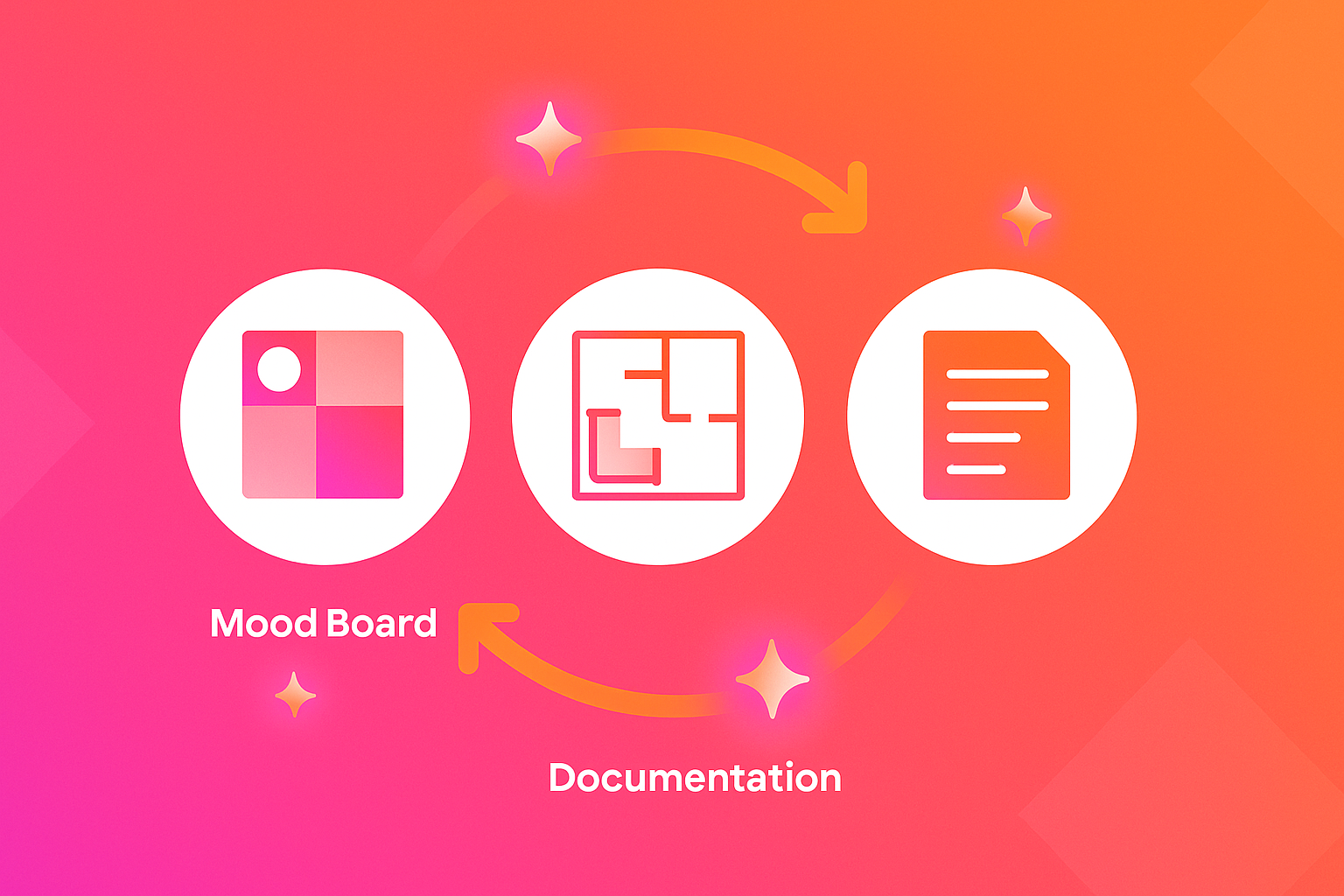
The most effective way to think about AI is by workflow, not by tools. Your day already moves through a rhythm of concept, development, delivery, and follow up. AI fits best into a few of those recurring jobs.
Typical workflows where AI can help:
In each of these, AI can handle a first wave of options or a first draft of text. You keep control by choosing what moves forward, tying everything back to real products and constraints, and making the design decisions that only you can make.
Next, you will see how to turn these areas into concrete, repeatable AI workflows.
Used well, AI visualization and layout tools can dramatically reduce time to first concept. Instead of spending hours on a single option, you can scan through many possibilities, then invest time only in the ones that deserve refinement.
You don’t have to overhaul your entire stack to see value. Start by plugging AI into a small part of your existing process, such as early mood exploration, and build from there as you learn what works.
At the start of a project you might have a long email thread, a few inspiration links, and some phone notes. The job-to-be-done here is turning that mess into two or three clear mood directions without losing the nuance of what the client said.
[You]
Collect the brief and pull out key phrases such as “warm minimal,” “pet friendly,” “cozy but bright,” or “no visible clutter.” Save a handful of reference photos the client likes and a few you think are appropriate.
[AI]
Feed it a short, focused prompt that describes the room type, style cues, budget level, and constraints, optionally with one or two reference images. Ask it to generate several sets of mood images, then request variations on the strongest directions.
[You/AI]
Ask the tool to help label each direction, for example “soft neutrals with black accents,” “earthy coastal,” or “light Scandinavian with plants,” and capture notes on suggested materials and lighting mood.
[You]
Curate hard. Discard anything that is off brand, unbuildable, or wrong for your client. Assemble final mood boards in your usual tool and treat AI images as sketches, not product commitments, until you map them to real finishes and furniture.
Always check that every image you keep aligns with the brief, feels achievable with real products, and respects any brand or style guidelines before sharing with a client.
Iterating on living room or small office layouts is critical and time consuming. Swapping sofa positions, testing desk clusters, or rethinking circulation usually means repeated redrawing, even when you are just exploring ideas.
[You]
Write down room dimensions, ceiling height, door and window locations, fixed elements like columns or radiators, and any no go zones. Decide what must be visible from where and what the primary circulation paths should be.
[AI]
Give it a structured description or a simple sketched plan image. Ask it to propose several layout concepts, calling out where key pieces might go and how circulation could flow.
[You]
Scan its suggestions. Immediately rule out options that block natural light, squeeze walkways, or use unrealistic furniture sizes. Look for one or two layouts that feel promising and align with your design intent.
[You/Approver]
Redraw the selected layouts accurately in your CAD tool, apply real dimensions and furniture, and prepare them for internal critique. Treat AI’s role as idea generator only.
The benefit is more options, faster, but AI does not understand local codes, accessibility requirements, or your preferred suppliers. You must validate all dimensions, clearances, and adjacencies before a layout moves anywhere near a client or contractor.
Before AI, turning a collection of sketches, early renders, and product notes into a coherent deck could easily fill a day. You would move images around, chase consistent headings, and refine copy while the clock ticked toward a presentation.
With AI, you can offload the first draft of the narrative and structure.
[You]
Export or capture key visuals for each zone, such as an entry vignette, living room sketch, and kitchen perspective. For each, write down short bullets like “soft zoning via rugs,” “integrated storage at entry,” or “family friendly materials.”
[AI]
Paste those bullets into an assistant and ask it to draft short, plain language descriptions for each area, plus suggested slide titles and section headers. Ask it to keep the tone clear, confident, and client friendly.
[You]
Review every line. Remove any overconfident statements about budget, timelines, or performance that you have not validated. Adjust the language to match how you usually talk with this client and your studio voice.
You will usually get to a solid, consistent story in an hour instead of a day, but you take on a new task of checking that the narrative does not promise more than your design, budget, or schedule can support.
Taking your concepts and turning them into structured room schedules or preliminary sourcing lists is detailed work that can be error prone. It is also where mistakes can become expensive, so AI belongs here only with strict guardrails and senior oversight.
[You]
Prepare a clear internal brief that lists each room, its functions, your preferred brands or categories, and any must have constraints such as “washable sofa fabrics” or “no natural stone.”
[AI]
Use that brief to draft a first pass list of items or finishes for each room. Focus on item types, quantities, and general descriptions rather than specific SKUs or prices at this stage.
[You/Approver]
Check every entry against up to date supplier information, budget, and standards. Replace generic items with specific SKUs that you have personally confirmed for availability, warranty, and suitability.
Keep firm guardrails around this workflow:
You do not need a dozen platforms to benefit from AI. A small, thoughtful stack that complements your current tools is enough to support most workflows in this article.
For mood and concept exploration, image generation tools let you turn text and reference images into visual studies. These are ideal for Workflow 1, where you want to explore palettes, compositions, and lighting moods quickly without committing to specific products.
For layout and 3D work, several space planning and modeling tools now include AI assisted features that suggest furniture arrangements or generate quick 3D scenes. These connect naturally to Workflow 2, where you are testing zoning ideas before committing to a detailed plan.
Text focused AI assistants help with Workflow 3 and Workflow 4. They can draft email recaps, narrative descriptions for decks, and structured lists based on your notes. Established AI tools for interior visualization, as described in a Netguru beginner’s guide and platforms highlighted by Vibe3D, cover many of these capabilities and show how they integrate into real workflows.
Where possible, start with plugins or add ons that live alongside your CAD or rendering software so AI feels like an extension of your current process instead of yet another separate app.
Interior projects involve sensitive information. Floor plans hint at security vulnerabilities, layouts reveal how people move through a space, and budgets expose spending power. Safety and ethics need to be built into how you use AI, not bolted on later.
Avoid pasting client names, addresses, access codes, or detailed budgets into public AI tools. Be cautious when uploading floor plans or branded concept work to services that might use your inputs to train their models. Read vendor terms so you know how data is stored and whether you can opt out.
Treat AI generated images as conceptual sketches, not product catalogs. A texture or fixture in a generated image may not correspond to a real manufacturer, and you likely cannot use it in marketing without reviewing license terms and client agreements first.
AI outputs often over represent certain aesthetics or lifestyles based on training data. You are responsible for pushing past narrow defaults and making sure your spaces reflect the people who will actually use them.
A simple note in your project file goes a long way: “Initial mood directions generated with AI, refined manually; all specifications verified against vendor catalogs.” Work with studio leadership to define which tools are approved and what data can be shared. That way ethical practice becomes routine, not a special case.
You do not need a big transformation plan. A focused pilot on a single project is enough to learn what AI can do for you.
Over the next two weeks, you can:
Once one workflow feels predictable and valuable, add another. A small “AI prompt notebook” or shared studio document will help your whole team build on what works and measure improvements over time.
AI can speed up exploration and documentation, but it does not visit sites, read client cues, or sign off on built work. Your value is in judgment and relationships, so AI shifts your role toward curation rather than replacing it.
Time savings vary, but many designers find concept drafts, layouts, and narratives move from days to hours when AI handles first passes. In practice, AI frees time for client conversations and coordination rather than simply cutting total project hours.
You do not need to be technical. Good prompts are clear briefs, which you already write. Many AI tools have simple interfaces or plugins, so you can learn them gradually by testing on low risk, internal work first.

© 2026 ClickUp

There’s an easier way. Try a free AI Agent in ClickUp that actually does the work for you—set up in minutes, save hours every week.