
Sorry, there were no results found for “”
Sorry, there were no results found for “”
Sorry, there were no results found for “”
Slack is a known name in the world of messaging apps.
But apart from making communication effortless, it can also help you improve your workflows.
Whether you’re streamlining software development workflows or tracking bugs and feature requests, Slack templates can help you do it all.
This post discusses a list of Slack templates that you can use to set up easy, no-code (almost) workflows. Plus, you get a list of Slack alternative templates!
Slack templates can help automate routine processes allowing you to spend more time working on high-value strategic tasks. Here are a few factors that make a good Slack template:
Have you ever considered using Slack for project management? If not, here’s how Slack workflows can help you in your IT projects.
Slack templates automate anything from weekly check-ins to reminders. It is one of the best Slack functions, helping engineers and developers focus on solving more complex problems.
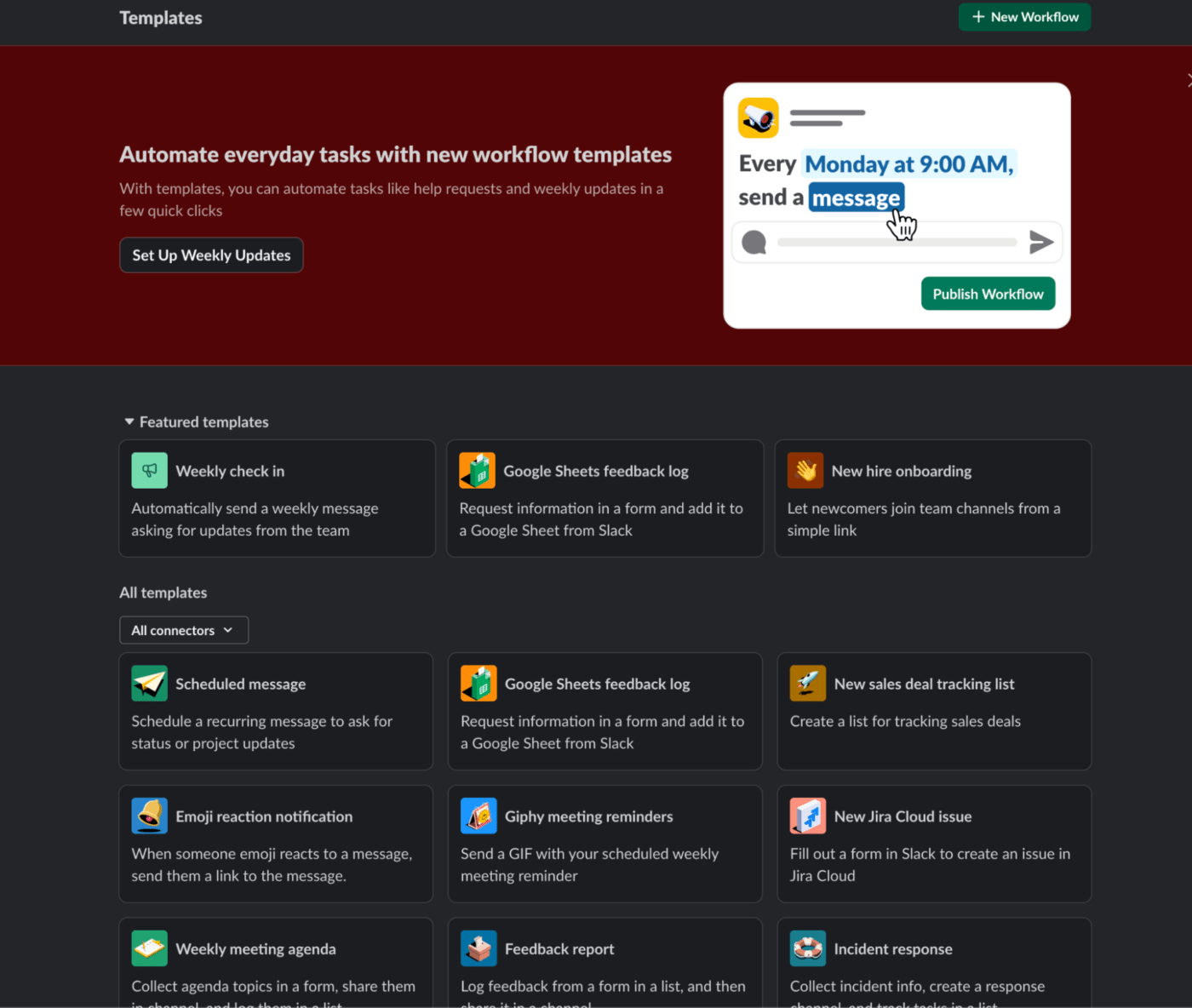
If Slack is your official team communication app and you want to automate weekly team check-ins, all you need to do is choose the Weekly check in workflow from the Slack Automations window.
This is what your workflow will look like. Simply update the details, click Save, and you’re good to go!
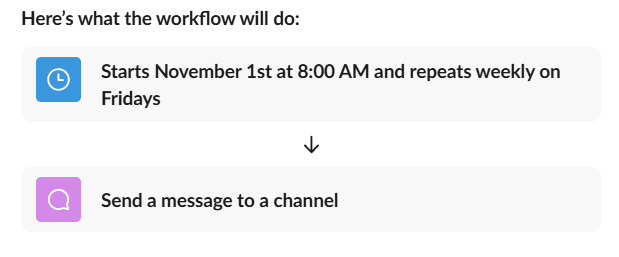
This way, you can set up a custom workflow that provides details like the message, channel, and conversations where responses will be sent. Here’s a collection of Slack workflow templates to offload some work.
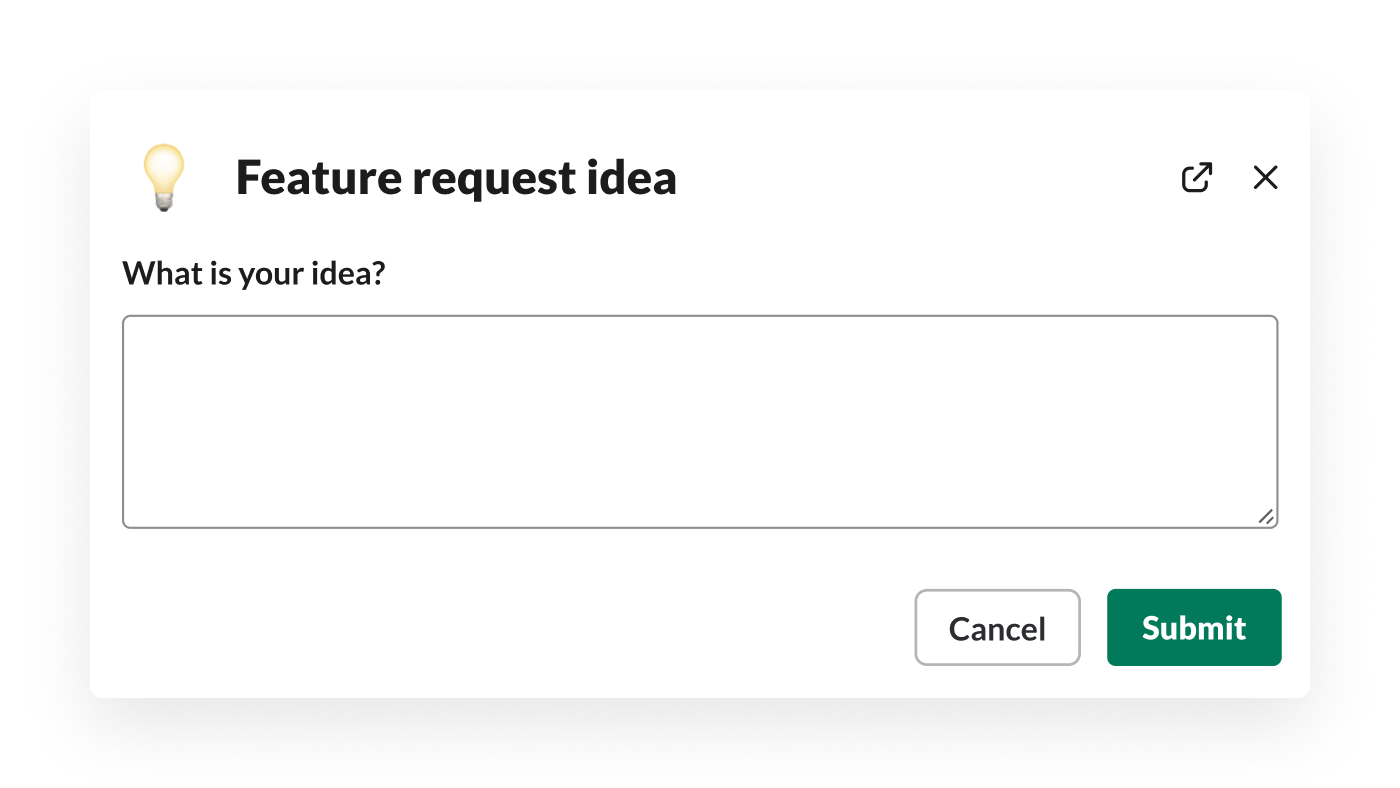
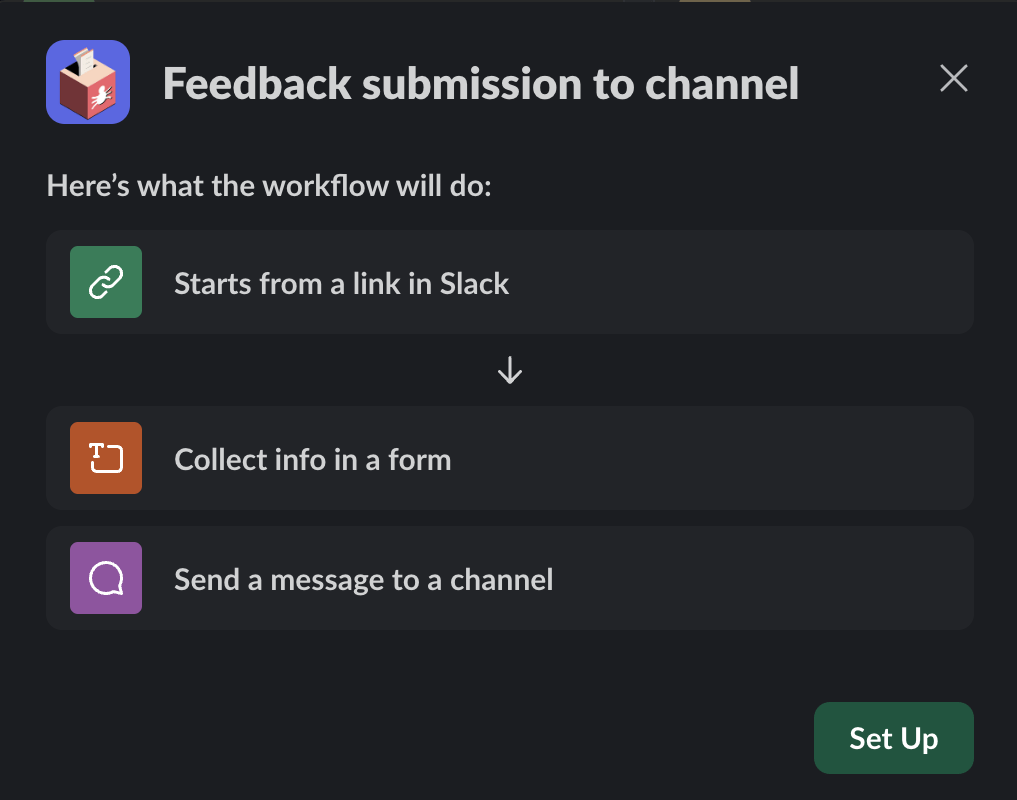
While collecting feedback is key, frequent Slack Huddles can disrupt individual workflows. Use Slack templates to build forms for any channel where your teammates discuss processes, ideas, potential bugs, and suggestions.
Keep things simple—just add two or three quick questions, and you can automatically implement the best practices or suggestions into your development processes.
Here’s the workflow sequence you need to create a feedback form:
Be it a change request, reporting request, feature, or client request, a slight delay in approval can push the entire deadline. So, why not build an approval workflow that lets you quickly track and approve requests?
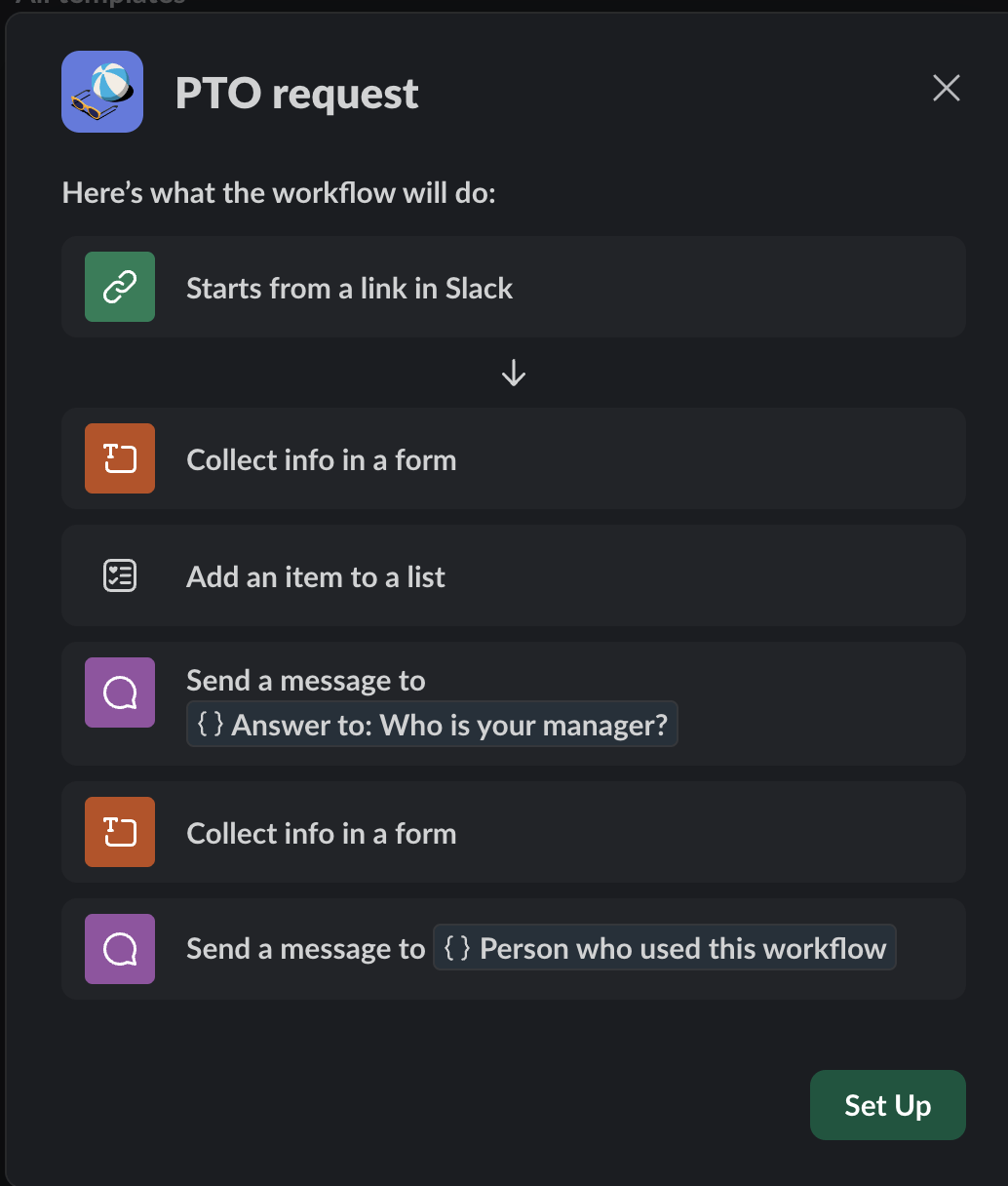
All you need to do is open Slack’s workflow builder and choose the following:

One of the smartest ways to use Slack’s workflow builder: organizing a voting system to choose the best ideas, designs, and winners.
Suppose you create a few technical design proposals and want to choose the best one considering your team’s suggestions.
Start by posting your design in the relevant Slack channel. Then, inform the team about using an emoji in the voting process. Team members who reacted with an emoji will receive a voting form in their Slack DMs. To sum up the votes, you can download the results as CSV files.
Here’s how you can build the workflow:
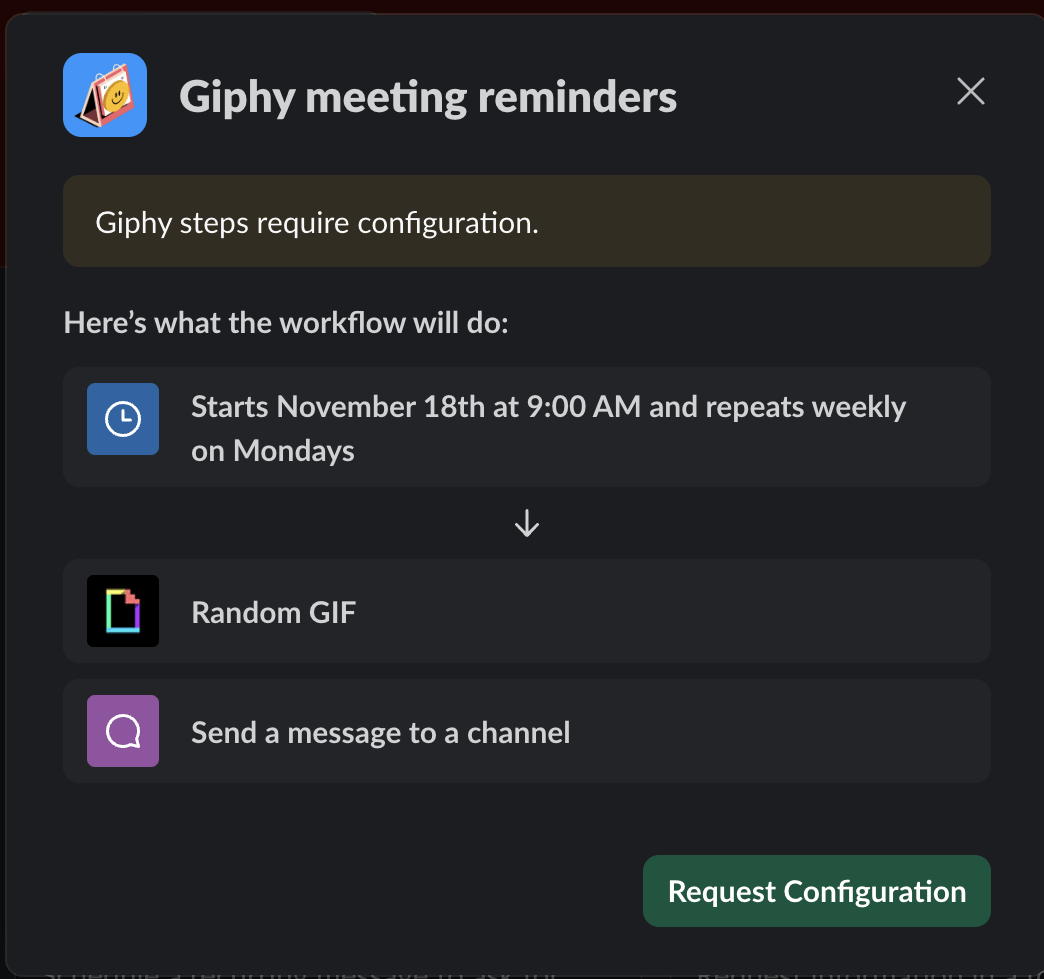
When development teams are busy with tasks, sync-ups are necessary to keep everyone on the same page. Instead of video calls, schedule sync-ups within Slack channels using the templates.
With this Slack template, you can send your team a quick reminder to post their updates in the channel. You can define a thread to collect all responses to keep the Slack channel organized and uncluttered. Plus, you can search for what everyone’s working on to avoid confusion and ensure nobody’s working on the same tasks.
Follow this sequence to set up the workflow:
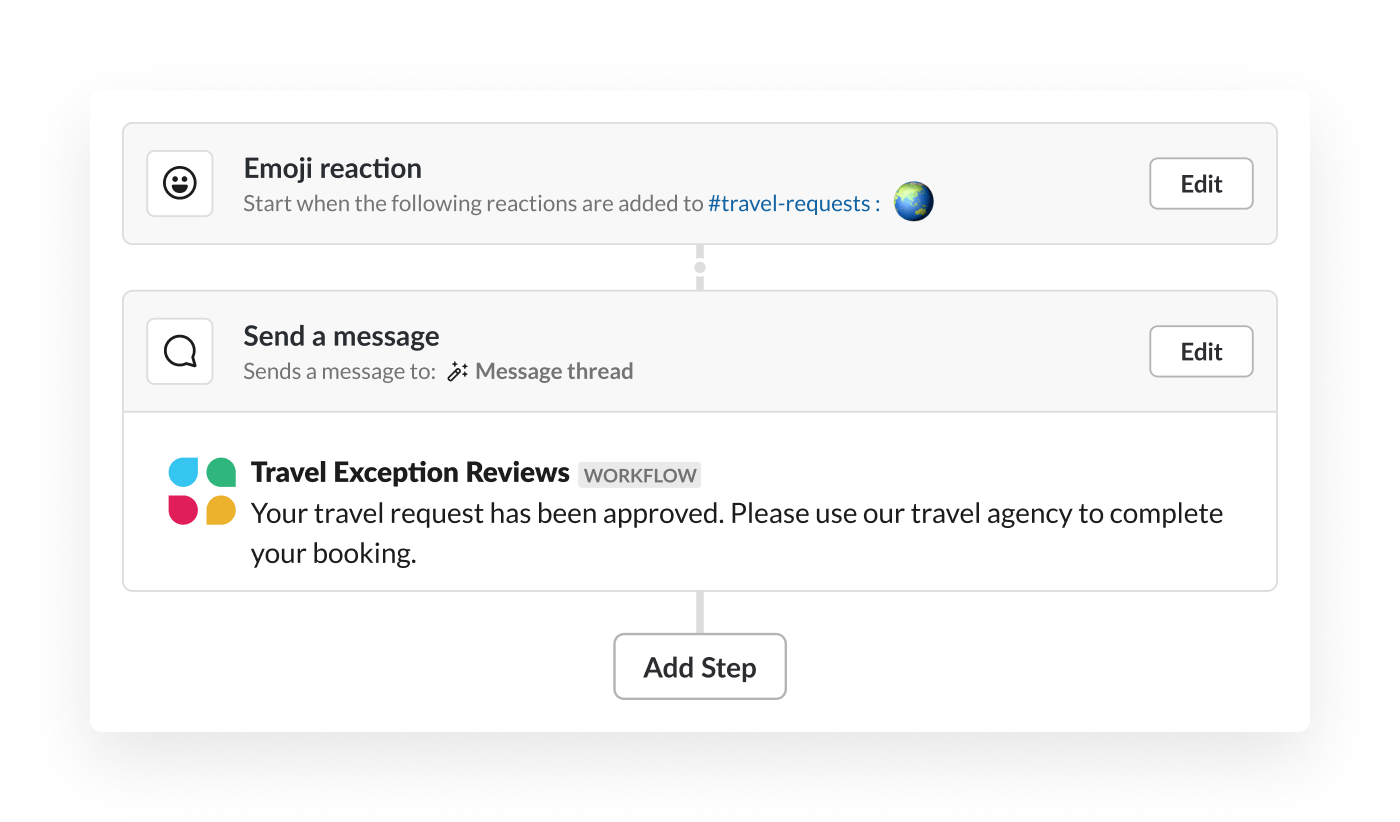
Using this Slack template, you can launch workflows when someone reacts to a message with an emoji. When a team member uses a specific emoji, you can initiate a message stating who used the emoji and send the person a form to fill out the request.
Just like collecting votes and launching functions, you can use these triggers to build pretty complex workflows. To launch workflows with an emoji, follow the same sequence:
➡️ Start when the 👋emoji is used as a reaction in the channel
➡️ Send a message in the thread to inform the specific person who used the emoji.
You must have used Slack channels, direct messages, calls, @mentions, etc. But here’s a way to use Slack more effectively to report bugs and streamline your development process.
With this Slack template, you can connect customers and employees who spot a bug with your team’s bug-tracking tool. To do so, set up a dedicated channel, such as #app2.0-bugs, and publish a standard bug reporting workflow. This will help you add ‘Create issue’ as an automated action in the workflow.
Follow this sequence to set up the bug-reporting workflow:
It’s important to acknowledge Slack’s additional features and how they have helped users.
For example, a Slack bot can help teams automate reminders, @mention notifications, send custom responses, and more. Similarly, its workflow builder and pre-built Slack templates are here to automate certain aspects of your workflow and make operations more efficient.
However, there are a few limitations to using Slack templates.
While Slack templates have limited functionality and accessibility, we’ve got a list of templates minus the Slack problems. They are completely free, supported by 100+ custom automations , and offer real-time collaboration as well as enhanced productivity.
Here goes the list.
Be it a developer’s discussion or a project kick-off meeting, ClickUp’s Meeting Agenda Template gives you the necessary layout to list meeting details—type, scope, location, video meeting link, date, time, participants, and topics. In short, this template helps ensure that the meeting is on track with the clearly defined goals.
Here’s how you can benefit from this template:
What we liked: This ClickUp Doc template has custom views including, Gantt, List, Workload, and Calendar that help you plan the agenda (topics, timelines, activities) with your team. Plus, you can automate sharing the agenda via emails without switching tabs.
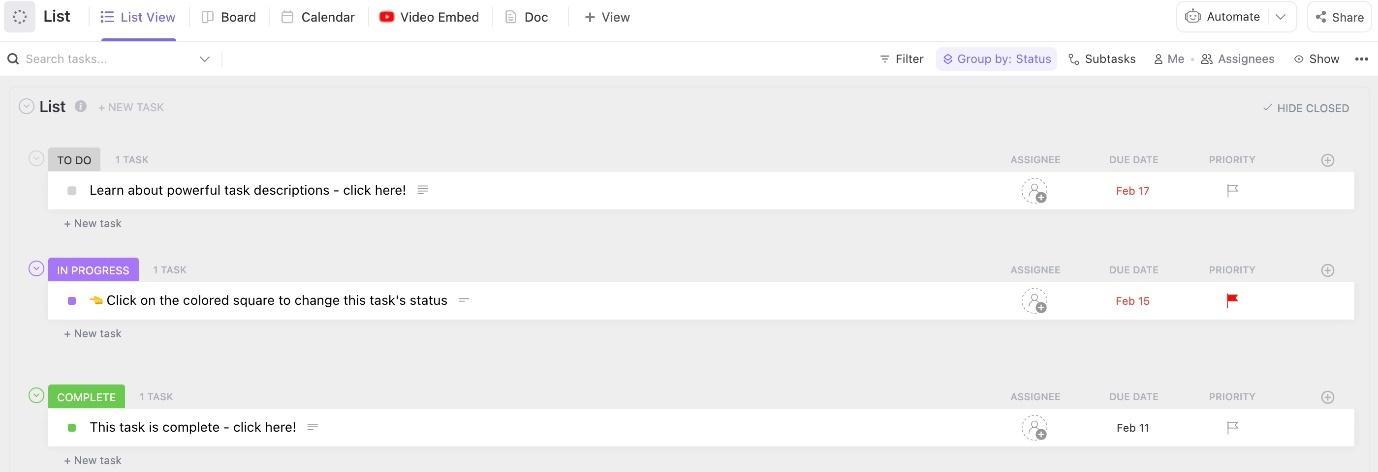
Lists are an inevitable part of software processes. Engineers and development teams use lists to organize and track feature requests, bugs, tasks, deadlines, user stories, and whatnot. And this is where ClickUp’s List Template comes in handy.
This template is a combination of basic plus advanced features that help you:
The best part? You can repurpose this template for recurring processes time and again.
What we liked: The template offers a ‘Video Embed’ option where you can upload videos to add extra details to your tasks.
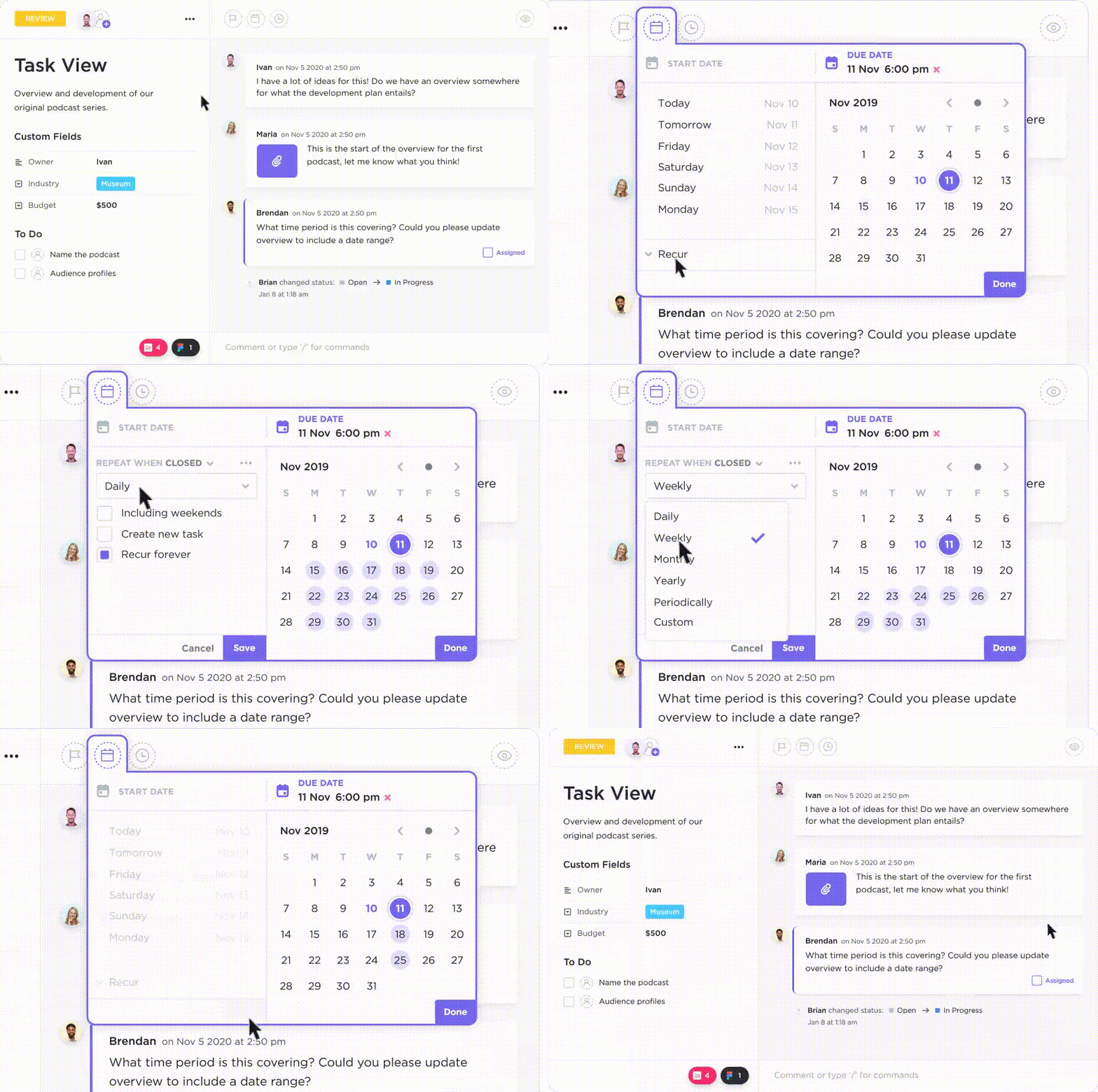
💈Bonus Tip: You can use ClickUp Recurring Tasks to automate tasks to recur at a specific frequency, allowing you to periodically adjust your list.
Whether managing stakeholder requests, implementing customer feedback, or discussing new feature ideas with your team, a solid communication plan is a must. And for that, you need a good communication plan template.
ClickUp’s Communication Plan Template lets you create an actionable communication plan that helps you:
What we liked: This template allows you to create Custom Fields to track each communication channel—emails, social media, communication platforms, or a combination of all.
💡Pro Tip: Leverage ClickUp Tasks to outline stakeholder communication-related tasks in your communication plan. This will also help you manage your plan and enable better visibility.
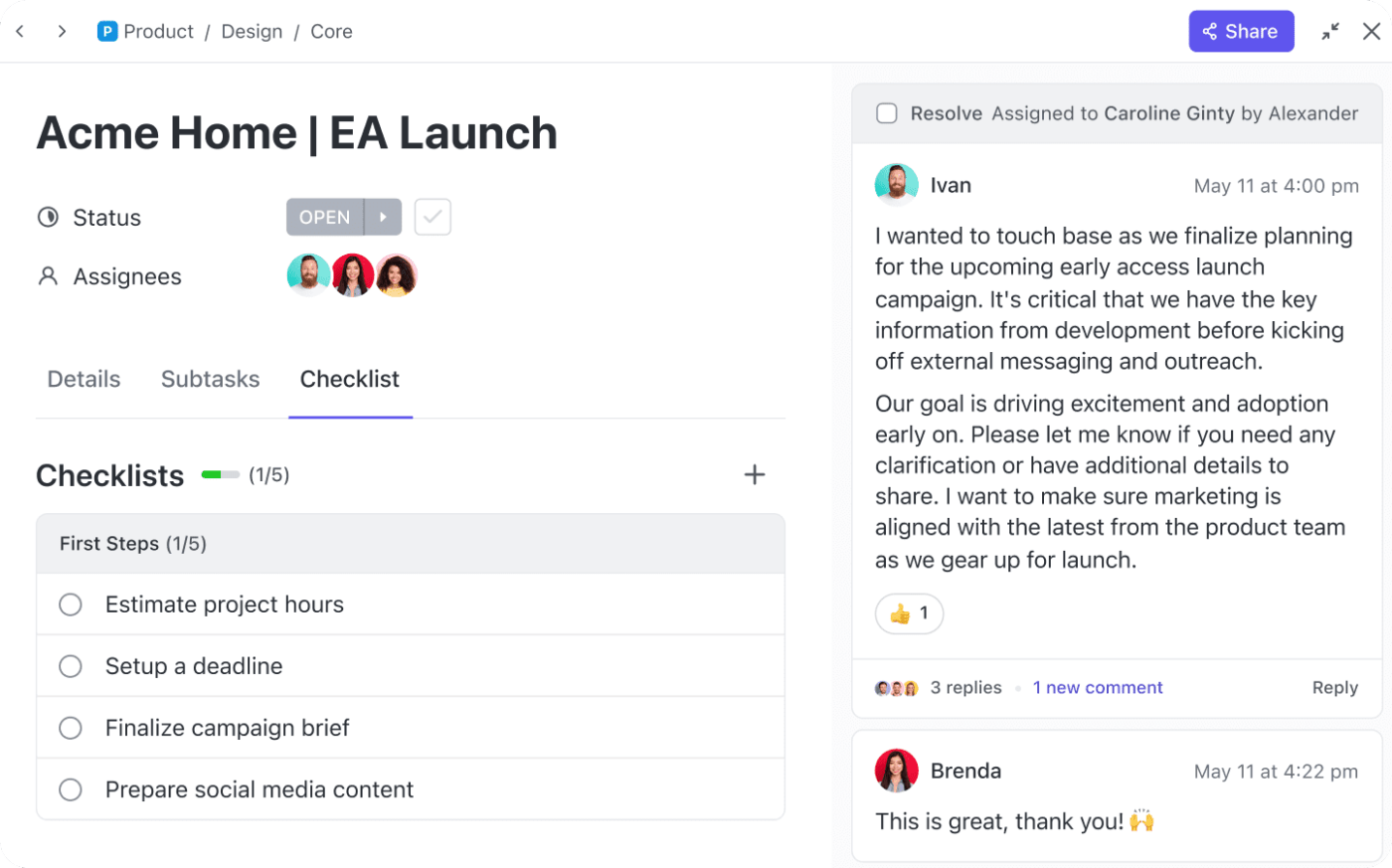
The ClickUp Company Wiki Template is your safe space to store all your software content—from technical and process documents to code snippets, frameworks, and data structures.
Not just that, this template has dedicated pages to record company information—goals and mission, core values, employee handbook, and department page to centralize information related to IT, sales, marketing, HR, and more.
Using this template, you can:
What we liked: The template has a ‘Frequently Used Forms and Resources’ section with form request templates, such as the IT Support Request template, that you can use to organize and track IT-related requests.
When listing Slack’s pros and cons, one of the tool’s most significant drawbacks is: Losing important messages.
With so many channels, threads, and DMs, it’s easy to lose important information in a sea of conversations — for example, the best feature idea. This is where ClickUp’s Instant Message Template comes in to organize your messages in one place.
This template can help you:
What we liked: Using this template, you can create an internal chat room, navigate through your messaging app, and implement the messaging practices included in this template.
Be it your team’s feedback on the new IT policies or employee feedback on company culture, a feedback template is mandatory to build a seamless feedback system.
The ClickUp Employee Feedback Template enables you to collect, track, and take action on employee feedback. This template helps you:
What we liked: It offers helpful views, such as the All Respondents List View, Responses List View, and Employee Feedback Survey Table View, to pull up data easily.
💡Pro Tip: Use ClickUp Automations, similar to Slack automations, to automate sending feedback surveys to employees via email, online survey platforms, or one-to-one meetings.
One of the best ways to ensure timely project delivery is to track sprints and keep everyone aligned on the progress. And ClickUp’s Weekly Report Template can help you track your sprint goal progress closely.
Thus, you can highlight technical milestones, mark user stories as completed/in progress, check resource allocation updates, and get complete visibility into the project’s development.
Using this template, you can:
What we liked: This template offers a Weekly Board view where you can see all your weekly tasks organized with status labels for easy understanding.
💡Pro Tip: When the report is ready, analyze the data using ClickUp Dashboards. This will help you identify improvement areas and stay on track.

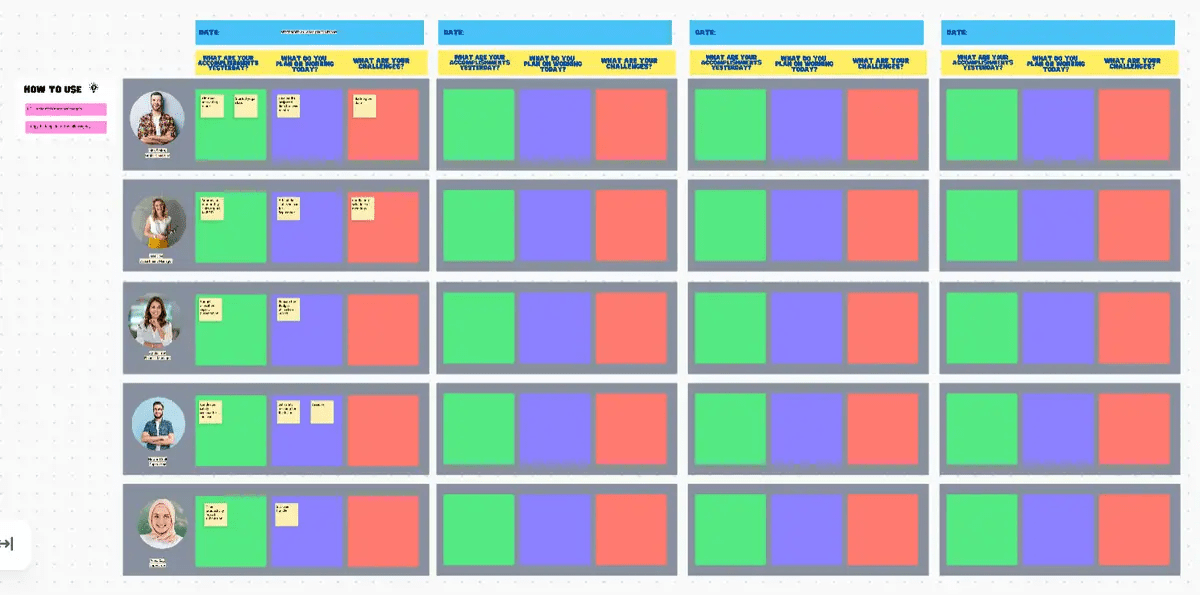
Daily standups are essential, but they’re not easy to plan. This is where ClickUp’s Daily Standup Meeting Template plays a significant role.
With this template, you can:
💡Pro Tip: Leverage ClickUp Brain to create meeting notes and summaries so you can start working on tasks after your daily stand-ups without wasting time preparing meeting summaries.
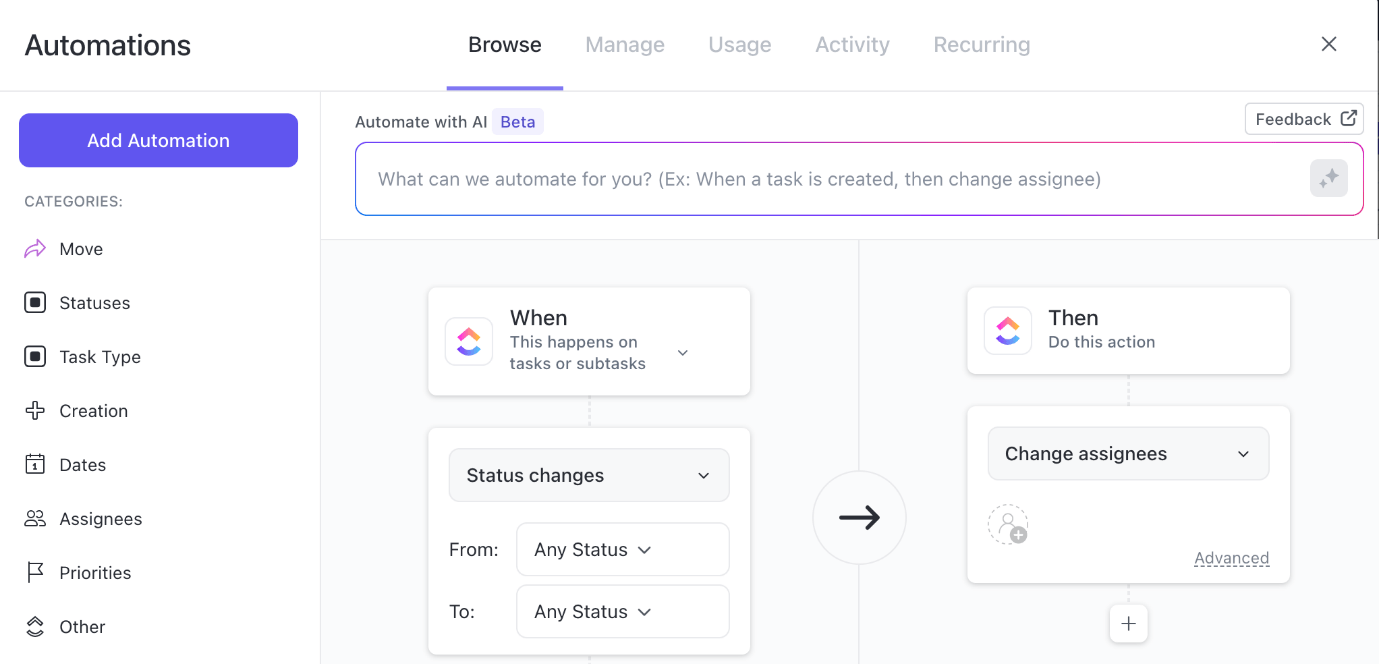
That being the last of our free ClickUp templates, we come to the end of our templates list. But, comparing ClickUp vs. Slack, we can say that ClickUp templates have much more to offer—from custom views and statuses to automation and features for real-time collaboration.
And the best part is that we aren’t done yet. ClickUp has several communication features that make it superior to Slack—because it combines real-time communication with productivity features.
Here’s a closer look into the ClickUp features that make it one of the top Slack competitors👇
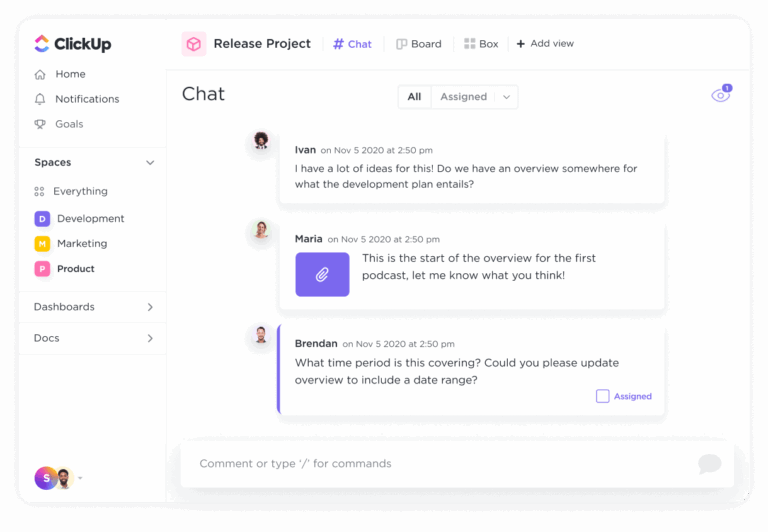
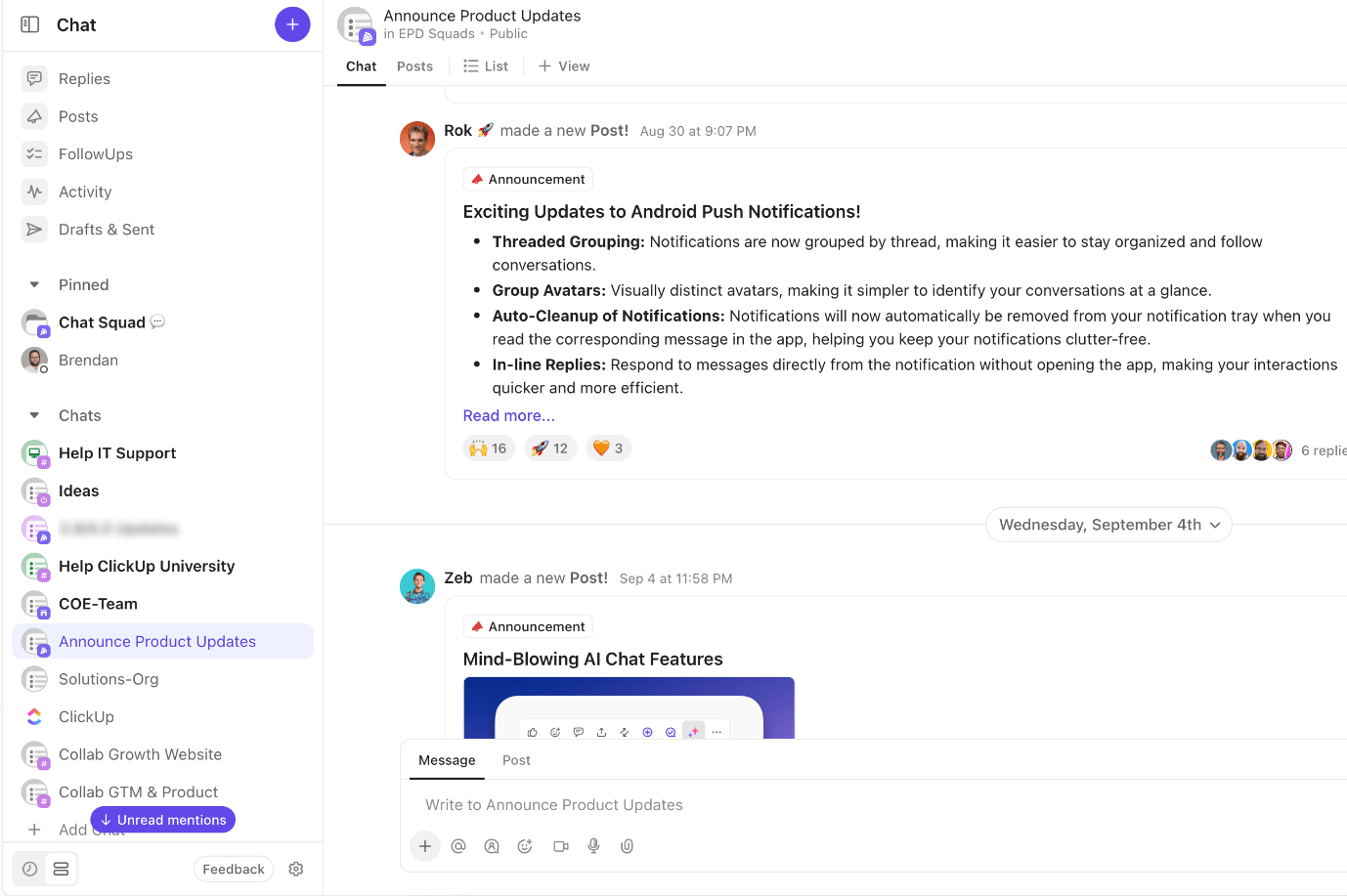
The brand new ClickUp Chat is all about real-time communication. Like Slack, you can use it to create multiple channels for projects and bring together cross-departmental teams to collaborate in real time. But the kicker here is that your chats and project management take place on the same platform.
That’s right. No more switching between tools!
Plus, you can access AI within the chat and get AI-suggested answers, summarized threads, auto-created tasks, and more.
When you want immediate action on a task, use ClickUp Assign Comments and Mentions. Using ClickUp’s comments and @mentions, you can draw someone’s attention and assign specific action items, ensuring accountability at all times.

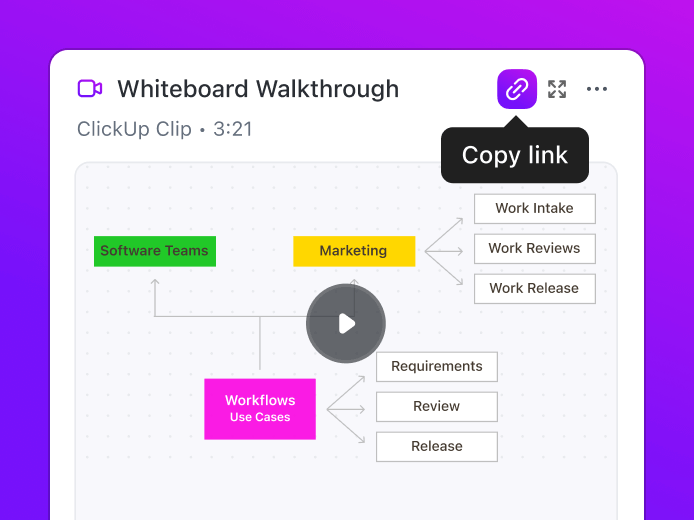
Eliminate the confusion created by countless messages and threads with ClickUp Clips. This ClickUp feature lets you record screens and share the video for clear explanations. You can also transcribe the clips with AI, including snippets and time stamps.
Best part? The transcription is searchable and will show up for any searches you run via ClickUp’s Connected Search.
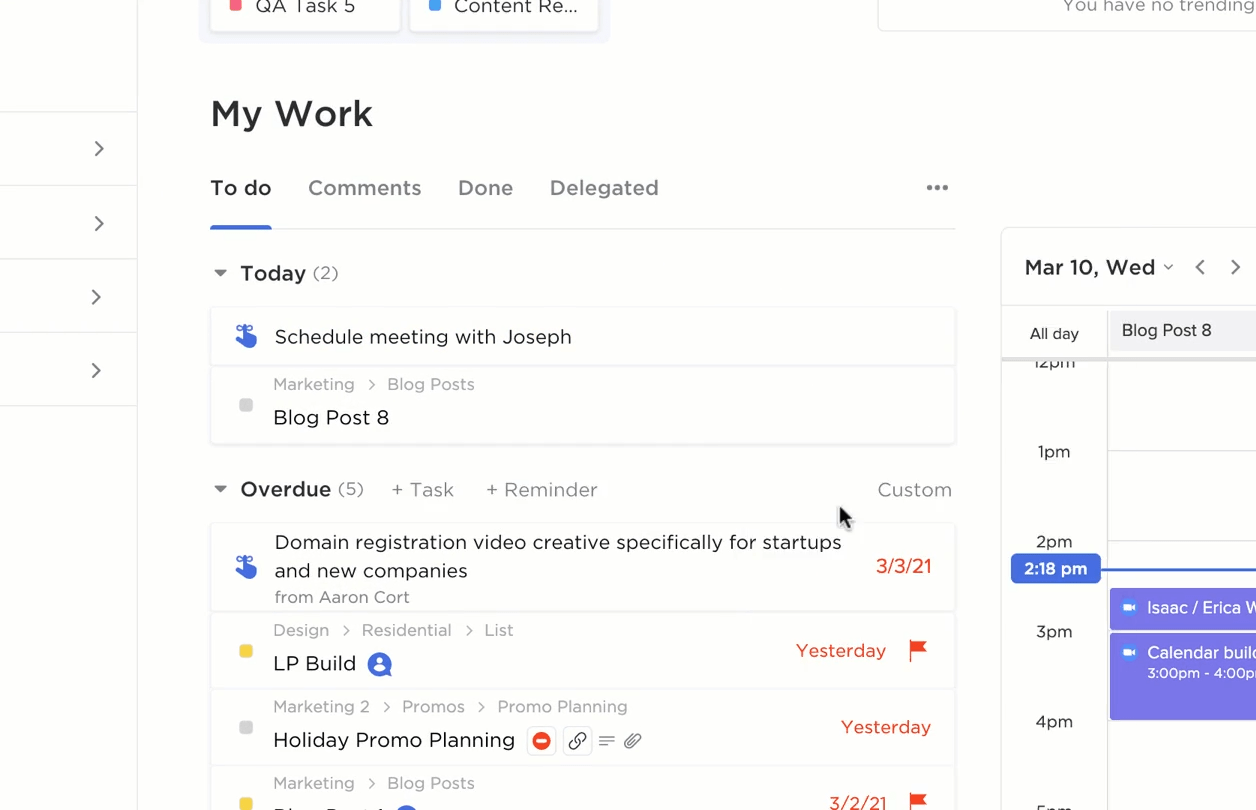
Just like Slack reminders, you can set ClickUp Reminders for anything—dates, meetings, and tasks. Add these from anywhere in ClickUp and include attachments or recurring schedules. You can also create reminders from tasks and comments, so your team knows where to follow up.
Manage all your meetings—from daily stand-ups to weekly sync-ups, project kick-offs, and feature idea discussions with ClickUp Meetings. Use it to take notes, manage agendas, and assign action items in one place.
Track meetings, visualize work, schedule tasks, and manage project timelines with ClickUp’s Calendar View. This will inform your teammates about project plans, upcoming deadlines, and task timelines.
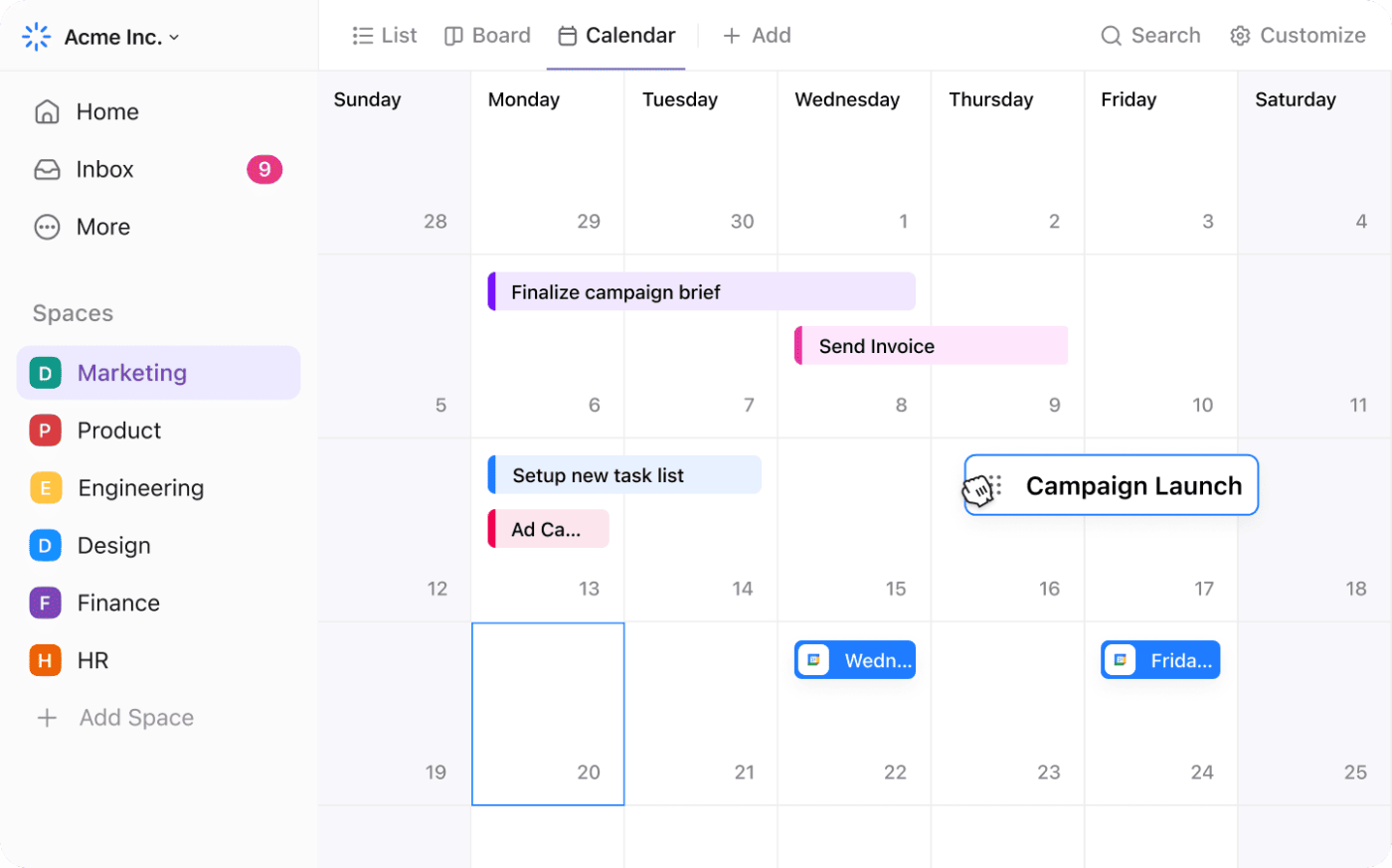
Apart from these great features, ClickUp offers 1000+ native integrations. You can connect the tool with your favorite apps, including Slack. Integrating ClickUp with Slack will help you manage ClickUp tasks without leaving discussions.
With this integration, you can:
Slack templates are great for automating your workflows. But you can’t deny their limited functionality. They do not allow you to build custom workflows and play a supportive role in building project management workflows.
This is where the need for an all-in-one productivity platform like ClickUp crops up.
With ClickUp, you get free templates that are super easy to use and support all types of workflows—from meetings to tracking feature requests—and a wide set of powerful project management features.
So, if you want to save your time switching between apps and build a seamless development process, sign up for ClickUp today!

Praburam Srinivasan
Max 27min read

PMO Team
Max 9min read
Praburam Srinivasan
Max 16min read

© 2026 ClickUp