Sorry, there were no results found for “”
Sorry, there were no results found for “”
Sorry, there were no results found for “”
Ever feel like your tasks are scattered across sticky notes, emails, and that mental checklist you hope you won’t forget?
It’s time to tame the chaos—Kanban style! 🎯
And no, you don’t need any fancy software development skills to get started. Microsoft OneNote, the underrated hero of productivity tools, can double as your Kanban board, all while keeping your tasks, projects, and notes in one place.
Whether you’re flying solo or collaborating with a team, we’ll show you how to create a Kanban board in OneNote in this guide.
Plus, stick around—we’ll share a bonus tool that’s multi-functional, project-management-savvy, and designed to grow with you.
Here’s what we cover in this guide:
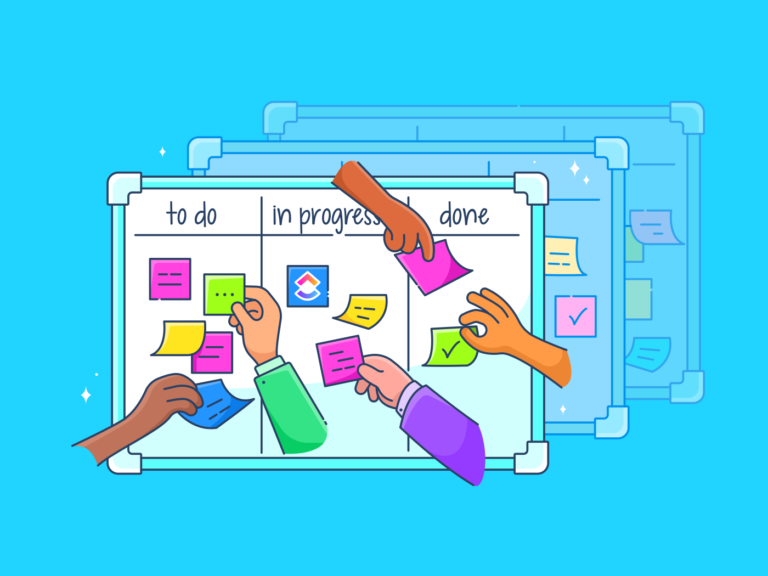
Kanban board software apps are drag-and-drop digital canvases that help keep your workflow smooth and progress crystal clear.
Here’s how they ensure your quick stand-ups actually stay quick:
Kanban boards thrive on collaboration. While physical Kanban boards—crafted from walls or boards with columns and sticky notes—have been staples in team environments for years, digital tools like OneNote now provide more accessible ways to manage tasks vis-a-vis the physical boards.
💡Pro Tip: Learn how to use AI to automate your tasks! 👇🏼
It’s faster than you think. Free and custom, Microsoft OneNote lets you easily add, track, and collaborate on tasks within a familiar interface.
While predesigned OneNote templates can simplify workflows, building a Kanban board from scratch is the best approach for unique or specialized needs.
To create a OneNote Kanban board, you’ll set up a dedicated notebook and build a simple table that works like columns and cards for tracking tasks.


And voila—you have an up-and-running Kanban board in OneNote.
➡️ Read More: How To Create a Kanban Board in Jira
To manage a OneNote Kanban board faster, set up one-click controls, use a couple of high-impact shortcuts, and pin easy access to the taskbar so you can update tasks without breaking focus.
Shortcuts and taskbar tools in OneNote can ease your task management, making it quicker to maintain your Kanban board. Explore these handy tips.

Using keyboard shortcuts to manage tasks
(This makes it easy to access OneNote while working on other applications.)

Using OneNote shortcuts makes things faster, but if you want to access your notebooks from anywhere, consider connecting with OneDrive.
Exporting notes from OneNote to other apps like OneDrive allows easy access from any device with an internet connection. Here are the top methods for a smooth transition:
OneNote uses a unique syncing mechanism that differs from typical file storage systems. Changes made in OneNote are saved in a cache and synced with the cloud, boosting collaboration without file-locking issues.
To manage tasks in a OneNote Kanban board more effectively, focus on quick status updates, visual prioritization, and reliable reminders.
The key to building a successful OneNote board is knowing how to use Microsoft OneNote effectively. Here are some tips:

OneNote has no built-in reminder functionality, but you can integrate it with Outlook to set task reminders. Here’s how:
Once you’ve created the task in Outlook, it will remain linked to your original note in OneNote. If you mark it as complete in Outlook, it will reflect that status in OneNote.
📮ClickUp Insight: 83% of knowledge workers rely primarily on email and chat for team communication.
However, nearly 60% of their workday is lost switching between these tools and searching for information. With an everything app for work like ClickUp, your project management, messaging, emails, and chats all converge in one place! It’s time to centralize and energize!
Using OneNote for your Kanban boards? Here’s what you might face:
For more dynamic needs, explore these OneNote alternatives.
🎯Also Read: How to Use OneNote for Project Management
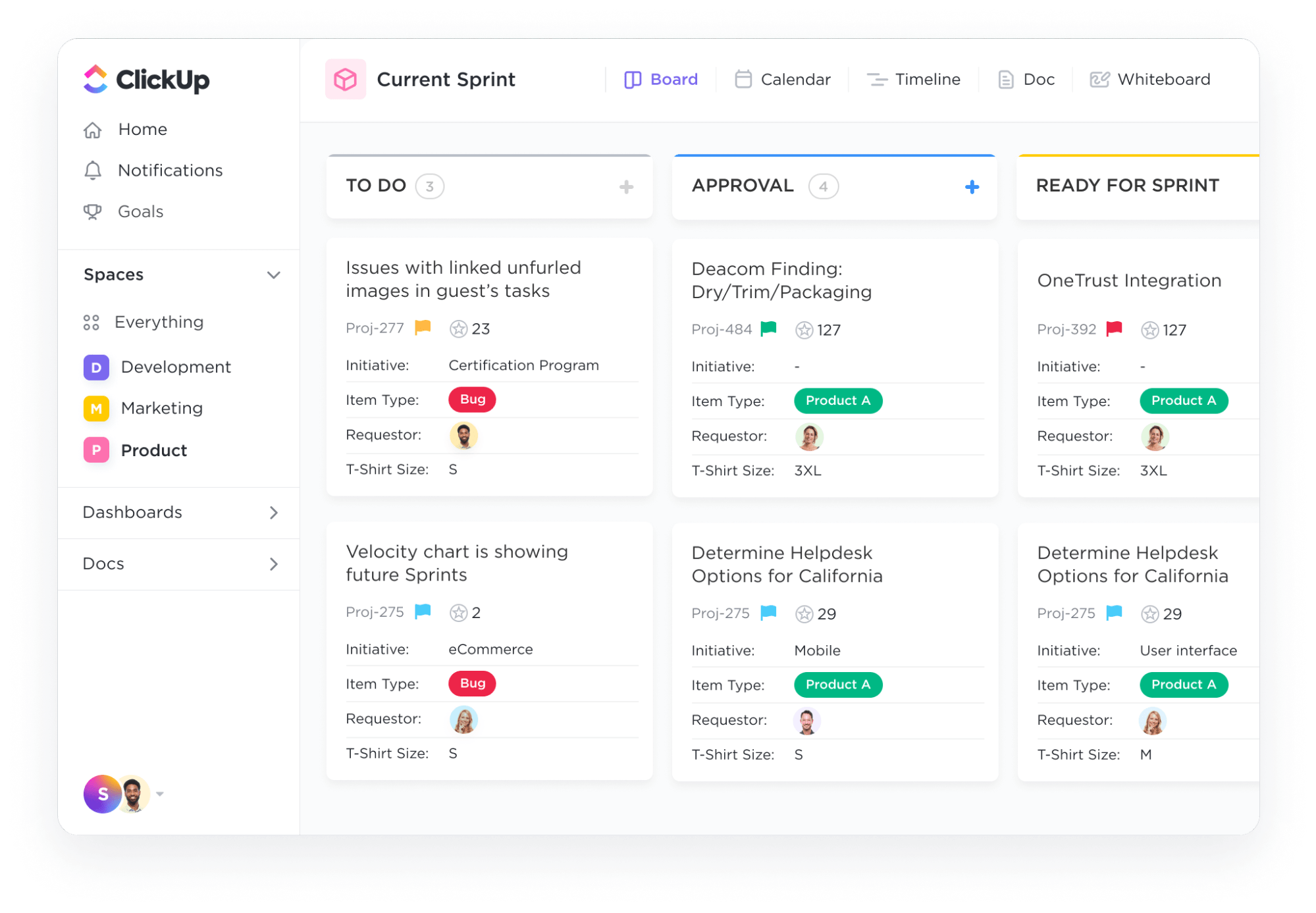
ClickUp Kanban Boards improve task management beyond OneNote by pairing drag-and-drop workflow tracking with real project controls—so tasks stay connected, searchable, and automated across teams.
ClickUp, the everything app for work, is designed to tackle your project management needs, and one of its key offerings is the native Kanban board.
ClickUp Kanban Boards do more than help move your tasks around—they’re part of a larger ecosystem that manages every aspect of your workflow.
For example:
The platform also helps you take control of your workload by integrating horizontal swimlanes into the Kanban boards. Tasks can be visually ranked in real-time, so the ‘must-dos’ always stay on top.

Plus, you can customize your task cards to:
And then steps in ClickUp Brain—the AI-powered neural network tool that actively learns your workflow and suggests actions to make things run smoother.
For instance:

Now that we’ve explored ClickUp’s Kanban solutions, let’s see how it stacks up against OneNote.
Both ClickUp and OneNote offer unique features, but when managing tasks with a Kanban approach, each brings different strengths. Here’s a quick comparison:
| Functionality | ClickUp | OneNote |
| Kanban board | Fully integrated boards | No native board functionality |
| Task movement | Multiple tickets can be dragged and dropped simultaneously across columns | Tasks must be manually adjusted |
| Column customization | Columns and stages are fully customizable | Columns can be mimicked using tables but aren’t dynamic |
| Task prioritization | Tasks can be color-coded and ranked by urgency | Tasks can only be labeled manually or checked off using checkboxes |
| Task filtering | Tasks can be filtered by status, priority, assignees, and due dates | Tasks can only be organized by sections or tags |
| Task details | Files can be attached, links added, due dates set, and custom fields applied to tasks | Only basic text and image notes can be added |
In short, ClickUp goes beyond just task management. Its Kanban boards are a one-page visual representation of your entire workflow.
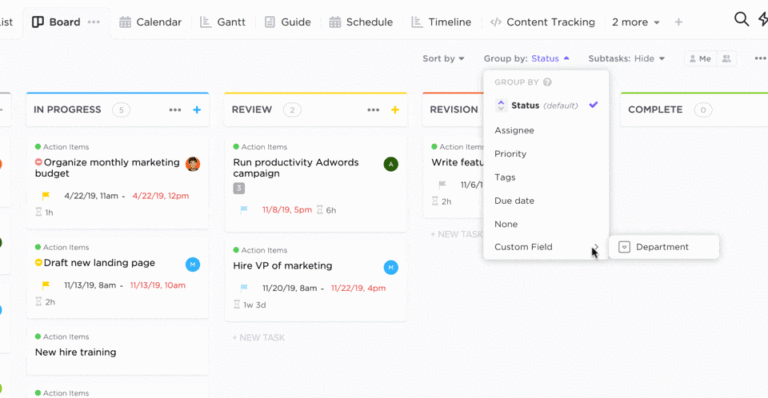
⚡️ Template Archive: Download the intermediate ClickUp Kanban Template to easily organize tasks into custom columns, allowing you to group them by options like Assignees or Due Date.
Quickly assign details by hovering over cards, and use the Multitask Toolbar to make bulk changes—such as updating statuses or archiving tasks—all at once.
Explore some more of its Kanban-specialized features.

⚡️ Template Archive: For a beginner-friendly approach, try the ClickUp Roadmap Template. This gives you a Roadmap Kanban board view to track tasks through various stages, while the Roadmap list view provides a clear, linear timeline of tasks and milestones.
Plus, use the Backlog list view to manage upcoming tasks and the Team Workload Calendar view to visualize your team’s capacity.
ClickUp also offers data transition options, helping you efficiently manage tasks between different platforms or formats. Here’s how you can go about it:
💡Pro Tip: The import process is straightforward: navigate to the Import/Export section in settings, select your source (like Excel or another app), and follow the prompts to map your data correctly.
💡Pro Tip: Customize your export by selecting visible columns, specific task names, or all columns for greater flexibility in how the data is presented.
ClickUp’s suite of features is perfect for complex workflows. That said, if your needs are more straightforward, it’s always worth learning how to maximize your efficiency using OneNote.
Good Kanban board examples have efficient practices working behind the scenes.
✅ Set up a clear structure: Organize your board with tabular sections that match Kanban columns like Backlog, In Progress, and Done
✅ Add visual elements: Boost your board with colors, emojis, and tags to highlight task priorities and statuses
✅ Regularly archive completed tasks: Create a ‘Completed Archive’ section to keep your board clean while retaining past tasks for reference
❌ Overcomplicating the board: Keep your board layout simple to reflect your workflow without adding unnecessary sections that can overwhelm users
❌ Neglecting maintenance: Regularly update task statuses to avoid confusion about ongoing or completed tasks, as manual updates are essential in the absence of auto-triggers
❌ Not using available features: Explore all available features, like linking existing pages and using tables, to improve task tracking and organization
📌 Integrate feedback loops: Set up a process to collect team feedback on the Kanban board, enabling continuous improvement of workflows based on real-world insights
📌 Use technology: Find additional tools and integrations, like automation or project management apps, to improve your OneNote Kanban board experience
📌 Stay informed: Read the latest articles or join project management forums to stay updated and improve your process
Ultimately, both OneNote and ClickUp offer Kanban-style task management, but their differences come down to how much you want your boards to do for you.
OneNote can serve as a visual, customizable space for simple tracking. Still, when it comes to integrating tasks with the wider team, automating workflows, or scaling up your processes, it leaves you doing more manual work.
That’s precisely where ClickUp steps up. If you’re juggling complex projects and need something more than just task tracking, ClickUp’s Kanban boards become the bridge between planning and execution.
It packs all the necessary features (from real-time collaboration to AI knowledge assistance) to make each task a dynamic part of your workflow.
Sign up on ClickUp for free and let your Kanban boards do the heavy lifting for you. 🏋️♂️

Sudarshan Somanathan
Max 22min read
Sudarshan Somanathan
Max 23min read

Praburam Srinivasan
Max 22min read

© 2026 ClickUp