How to Build an Agency Operations Dashboard in Google Sheets

How to Build an Agency Operations Dashboard in Google Sheets

Start using ClickUp today

  • Manage all your work in one place
  • Collaborate with your team
  • Use ClickUp for FREE—forever

Most agency ops dashboards fail before they’re even finished because the data lives in too many places to stay up to date. 

PwC’s Global Treasury Survey found that even among billion-dollar companies, 52% still manually consolidate their forecasting data, a problem that hits resource-strapped agencies even harder. 

This guide walks you through how to build an agency operations dashboard in Google Sheets. We’ll cover which metrics matter, how to structure and visualize your data step-by-step, and where spreadsheets hit their limits for teams ready to move to a live, connected workspace.

We’ll also show you exactly which unified platform you need: ClickUp, the world’s first Converged AI Workspace! 🤩

Summarize this article with AI ClickUp Brain not only saves you precious time by instantly summarizing articles, it also leverages AI to connect your tasks, docs, people, and more, streamlining your workflow like never before.
ClickUp Brain
Avatar of person using AI Summarize this article for me please

What Is an Agency Operations Dashboard?

An agency operations dashboard is a single-screen view that aggregates your most important operational metrics and data. It displays project status, team workload, revenue, and client health.

Agency owners, ops leads, project managers, and account directors all rely on this tool. But each role cares about a slightly different slice of the pie.

Building one in Google Sheets is a practical first step since most agencies already have data in spreadsheets. The real challenge is turning those raw rows into something scannable and actionable.

Summarize this article with AI ClickUp Brain not only saves you precious time by instantly summarizing articles, it also leverages AI to connect your tasks, docs, people, and more, streamlining your workflow like never before.
ClickUp Brain
Avatar of person using AI Summarize this article for me please

Key Metrics to Track in Your Agency Operations Dashboard

Dashboards quickly become useless when they are cluttered with vanity numbers. Tracking the wrong things wastes time and obscures your agency’s actual health.

Only track metrics you’ll actually act on. Every metric on your dashboard should answer a question someone asks at least once a week. The right mix depends entirely on your agency model, so here are some necessary metrics to track: 

Client and project management metrics

  • Active projects by status: How many engagements are in progress, on hold, or at risk, so you catch stalled work early
  •  On-time delivery rate: Percentage of deliverables hitting their deadline as the single best proxy for client satisfaction
  • Client health score: A composite customer experience KPI flagging accounts that need attention before renewal conversations
  • Scope change frequency: How often projects expand beyond the original brief to protect your margins
  • Pipeline stage: Where prospective projects sit in your sales funnel to give ops a heads-up on incoming workload

In Google Sheets, each of these needs a corresponding column in your data source tab. Deciding on your metrics first saves you from having to restructure everything later.

Team productivity and resource metrics

  • Utilization rate: The ratio of billable hours to total available hours per team member
  • Workload distribution: A numeric breakdown showing who is overloaded and who has capacity to prevent burnout
  • Task completion velocity: How quickly tasks move from to-do to done for spotting process friction
  • Time-to-assign: How long new tasks sit unassigned after creation to uncover hidden bottlenecks

These resource management metrics often require time-tracking data. If your agency doesn’t track time consistently, start with person-level task counts as a lightweight proxy.

Financial and billing metrics

  • Revenue by client: Identifies concentration risk if one client represents a disproportionate share of income
  • Project profitability: Revenue minus costs per engagement to show which project types make money, requiring careful project cost management
  • Outstanding invoices: Total unbilled or overdue amounts that are critical for cash flow management
  • Average revenue per client: Helps benchmark whether new business is trending up or down in value
  • Budget burn rate: How fast a project consumes its allocated budget relative to progress

Financial KPIs and metrics are often the hardest to maintain in Google Sheets because the data lives in accounting tools. Manual entry introduces lag and errors that we’ll address later.

🎥 See how this small business moved away from disconnected tools to one centralized workspace:

We were spending too much time updating different systems that weren’t talking to each other. It slowed us down and increased the chance of things falling through the cracks

Pat Henderson
Founder & Executive Producer, path8 productions
Summarize this article with AI ClickUp Brain not only saves you precious time by instantly summarizing articles, it also leverages AI to connect your tasks, docs, people, and more, streamlining your workflow like never before.
ClickUp Brain
Avatar of person using AI Summarize this article for me please

How to Create an Agency Operations Dashboard in Google Sheets

The following five steps take you from a blank sheet to a functional agency operations dashboard. Each step builds on the previous one. 

Open a blank Google Sheet and follow along. This process assumes you already have operational data that can be exported to your spreadsheet. 🫡

Step #1: Structure your data source tab

The data source tab acts as your Google Sheets database and foundation. Every chart, summary, and filter on the dashboard pulls directly from this tab.
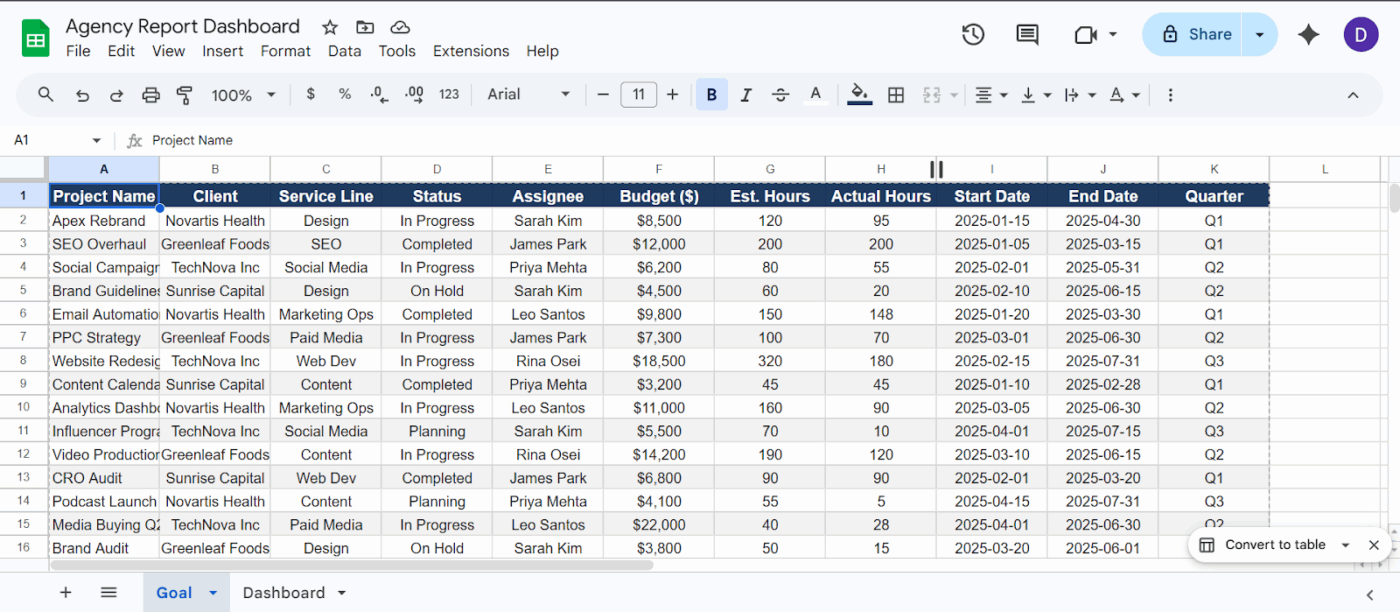
  1. Create one tab called Data with each row representing a single record like a project or invoice
  2. Use the first row for column headers like Project Name, Client, Status, and Assignee
  3. Keep data types consistent within each column by never mixing text and values
  4. Avoid merged cells or blank rows because these break pivot tables and formulas
  5. Use IMPORTRANGE to connect sheets rather than copy-pasting if pulling from multiple sources
Create a clean ‘Goal’ tab in your Google Sheet

Create a clean ‘Goal’ tab so you spend less time debugging your dashboard later in your Google Sheet

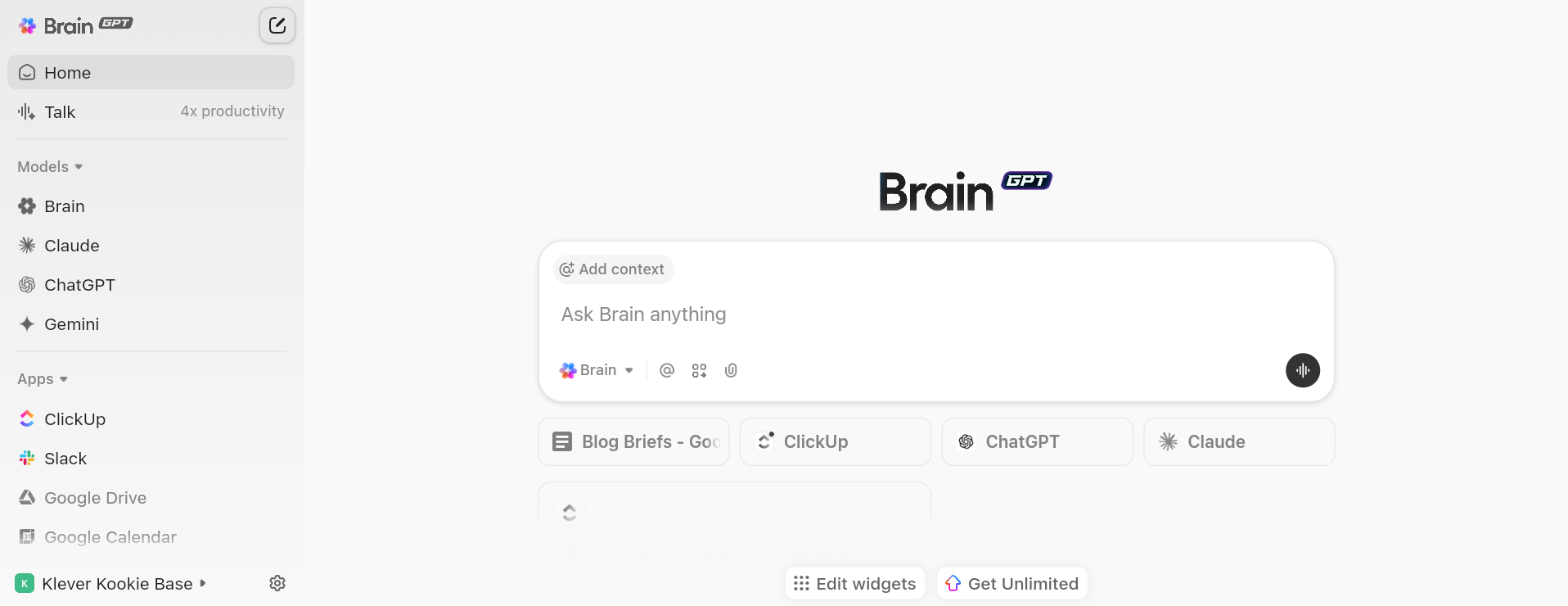
🚀 ClickUp Advantage: Most dashboards stop at showing you data. Even with AI, you’re often switching between tools, creating Tool Sprawl. ClickUp Brain MAX removes that fragmentation entirely. It acts as a central AI layer across your entire agency stack, pulling context from your tasks, docs, dashboards, and even external tools like Google Drive or GitHub.

You can: 

  • Use ClickUp Talk-to-Text to capture ideas, assign work, or update dashboards 4x faster
  • Generate tasks, reports, or updates directly from your workflow
  • Pick from some of the best AI models, such as GPT, Claude, and Gemini, to eliminate AI Sprawl 

For instance, when you’re reviewing your agency dashboard and notice a performance dip, you can just ask ClickUp Brain MAX, ‘Why did Client X’s performance drop this week?’ It pulls campaign data, task updates, and team conversations and gives you a context-aware answer. 

Turn your dashboard from a reporting layer into a decision-making engine with ClickUp Brain MAX 

Step #2: Build a dashboard tab with KPI summaries

Create a new tab called Dashboard. This is the visual layer where no raw data should live.
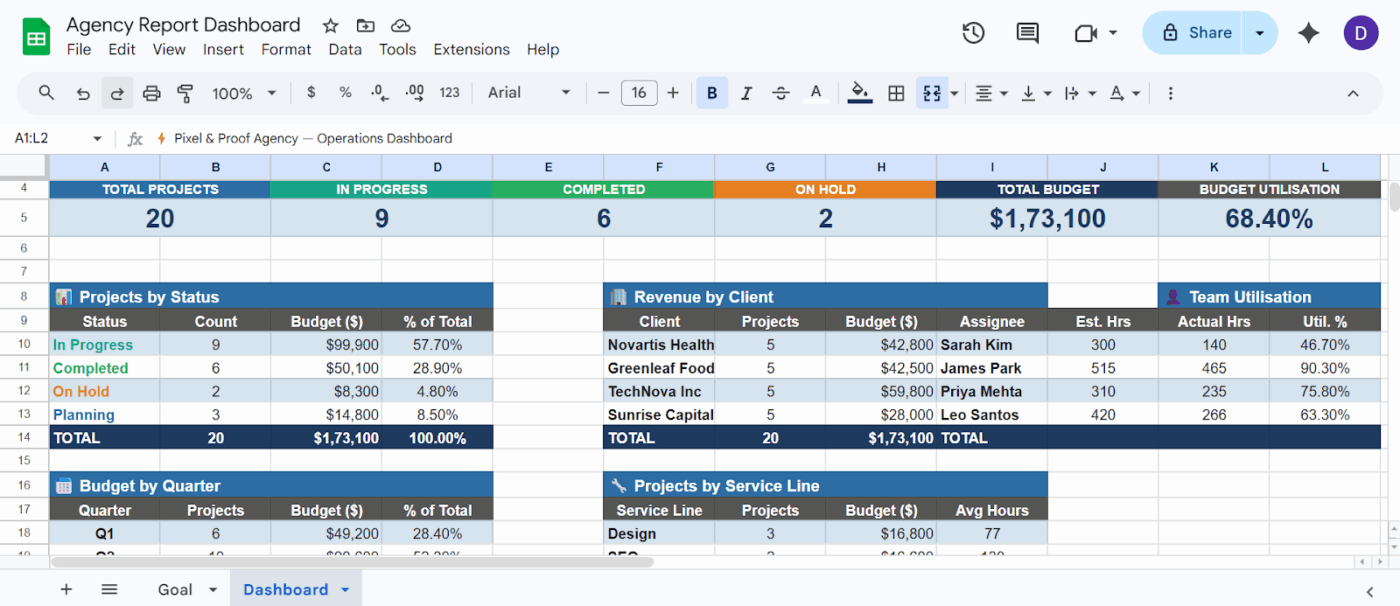
  1. Create a row of KPI cards at the top displaying a single number with a label
  2. Use Google Sheets formulas like COUNTIF and QUERY to pull live values from the Data tab
  3. Apply conditional formatting to flag concerning values with a red background
  4. Keep the layout scannable with KPI cards across the top and charts below
Create a Dashboard tab with KPIs in your Google Sheet

Create a Dashboard tab with KPIs in your Google Sheet

A good default layout for KPI reports mirrors how agency leaders scan information. You want the big picture first, followed by the drill-down details.

Optimize your next marketing campaign: 

Step #3: Create pivot tables for data breakdowns

Pivot tables let you slice your raw data without writing complex formulas. They are especially useful for grouping projects by client or team member.
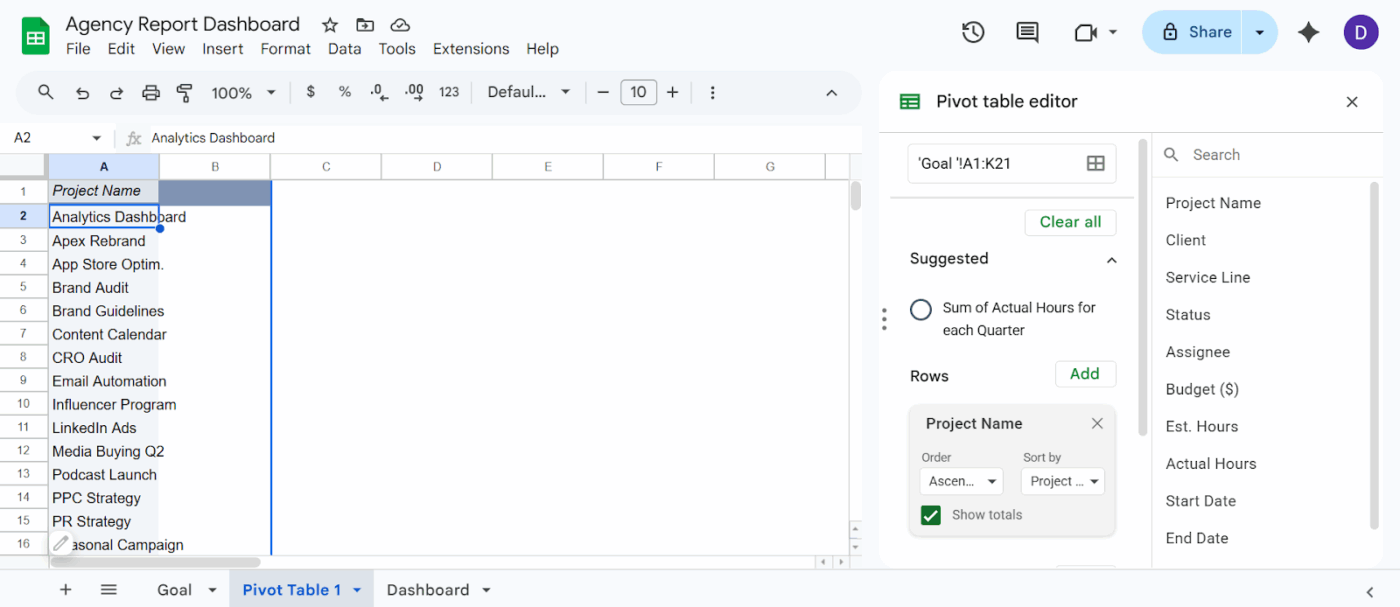
  1. Select your full data range on the Data tab
  2. Go to Insert > Pivot table, and place it on a new tab
  3. Drag fields into Rows, Columns, Values, and Filters to create the view you need
  4. Configure common agency views like project count by status or total hours by team member
Insert > Pivot Table > New tab > Add rows in your Google Sheet

Insert > Pivot Table > New tab > Add rows and columns based on the view you want in your Google Sheet 

Pivot tables update automatically when the source data changes, reducing manual maintenance. Use them as intermediate calculation layers and display the results on your Dashboard tab.

Step #4: Visualize metrics with charts

Charts turn numbers into recognizable patterns for effective data visualization. Here is how to add them to your Dashboard tab: 

  1. Select the data range or pivot table output you want to visualize
  2. Insert a chart and choose the appropriate type for your data
  3. Customize colors to match a consistent palette so the dashboard is easier to scan
  4. Move and resize charts on the Dashboard tab so they align with your KPI cards

Use bar charts to compare values and line charts to track trends over time. Limit the dashboard to a maximum of eight charts to avoid information overload.
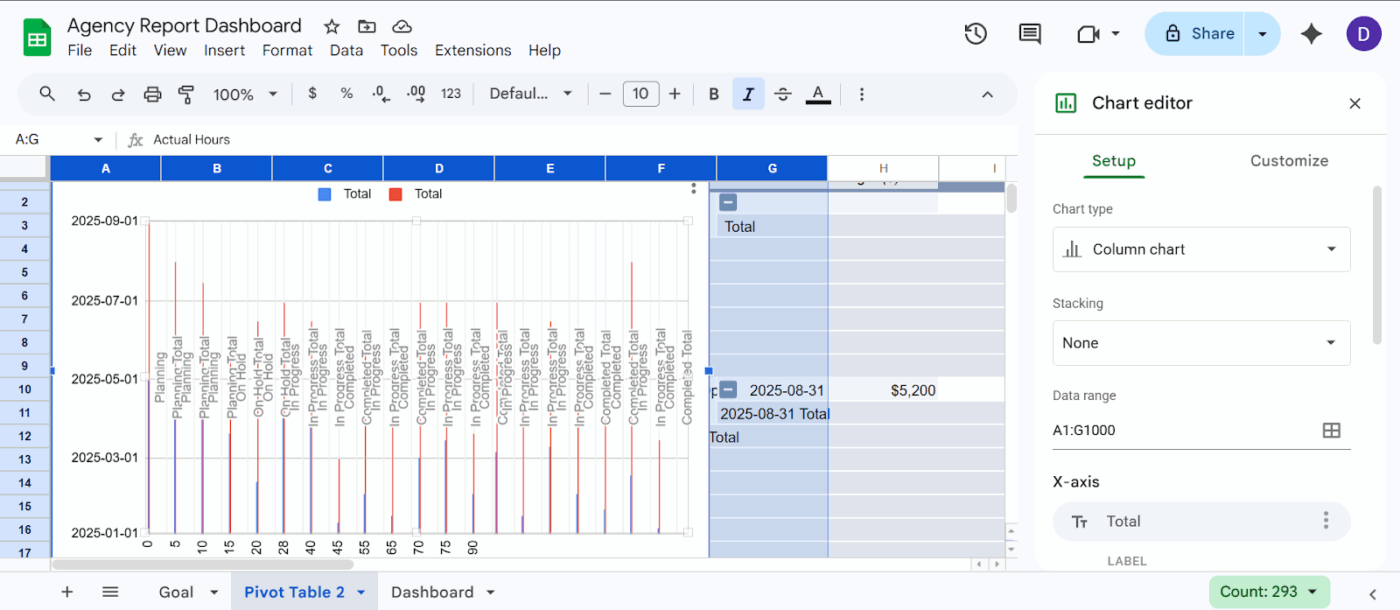
Select the data > Insert > Charts > Pick from different chart options in the Google Sheet

Select the data > Insert > Charts > Pick from different chart options in your Google Sheet 

Step #5: Add slicers for interactive filtering

Slicers are built-in interactive filters in Google Sheets. They let anyone viewing the dashboard filter data without editing formulas.

  1. Click on a chart or pivot table on your Dashboard tab
  2. Go to Data and select Add a slicer
  3. Choose the column you want to filter by like Client Name or Project Status
  4. Position the slicer above or beside the relevant chart
  5. Watch all connected charts update automatically when someone selects a value

Slicers only filter charts that share the exact same data range. If your dashboard pulls from multiple sources, you must consolidate them into a single tab first.
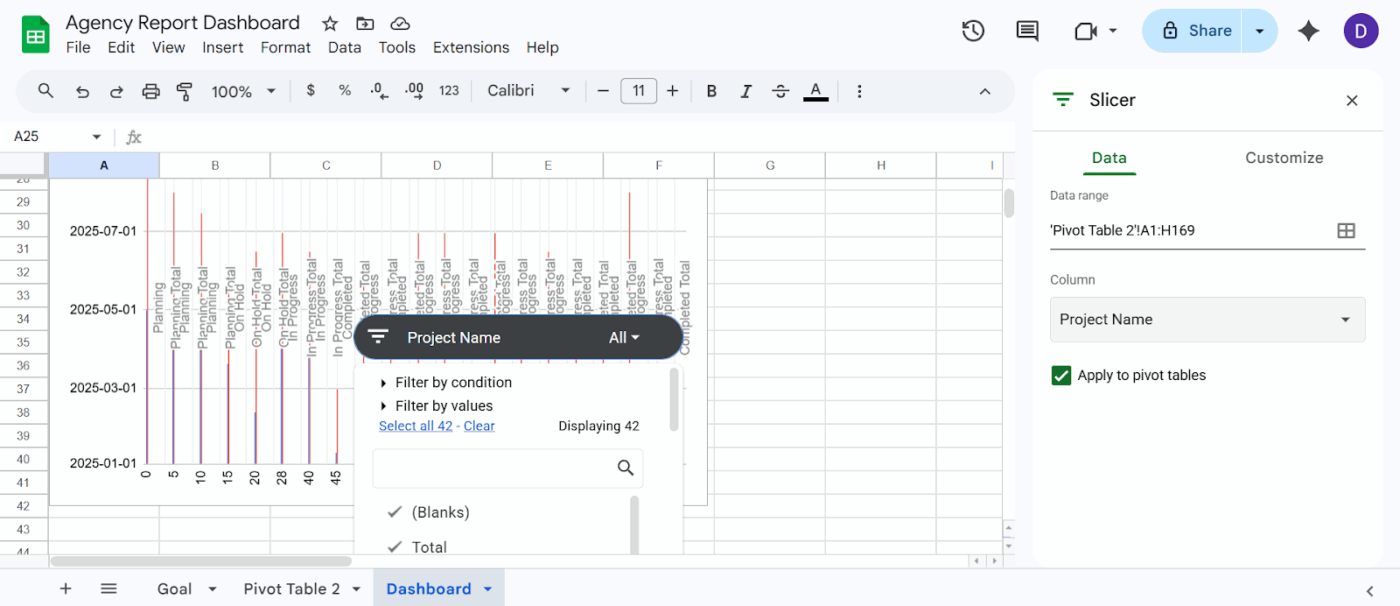
Select the chart you created > Data > Add slicer > Select column name > Add filters  in the Google Sheet

Select the chart you created > Data > Add slicer > Select column name > Add filters in your Google Sheet

Summarize this article with AI ClickUp Brain not only saves you precious time by instantly summarizing articles, it also leverages AI to connect your tasks, docs, people, and more, streamlining your workflow like never before.
ClickUp Brain
Avatar of person using AI Summarize this article for me please

Best Practices for Agency Dashboard Design

A poorly executed dashboard design creates more confusion than clarity for your team. Trying to serve everyone with one massive view creates noise that leads people to ignore the tool entirely.

  • Create one dashboard for one audience: A dashboard for the CEO looks different from one for a project manager to prevent noise
  • Limit to metrics that trigger action: If a number doesn’t change what someone does this week, it doesn’t belong here
  • Establish a refresh cadence: Decide whether data updates daily or weekly so viewers know how current the numbers are 
  • Use consistent formatting: Keep colors and date formats identical across all charts because visual inconsistency slows comprehension
  • Label everything: Ensure every chart needs a title and every axis needs a label since dashboards get shared widely
  • Archive, don’t delete: Move irrelevant metrics to a separate tab rather than deleting them because historical data often becomes useful again

📮ClickUp Insight: Low-performing teams are 4 times more likely to juggle 15+ tools, while high-performing teams maintain efficiency by limiting their toolkit to 9 or fewer platforms. But how about using one platform? 

As the everything app for work, ClickUp brings your tasks, projects, docs, wikis, chat, and calls under a single platform, complete with AI-powered workflows. Ready to work smarter? ClickUp works for every team, makes work visible, and allows you to focus on what matters while AI handles the rest. 

Summarize this article with AI ClickUp Brain not only saves you precious time by instantly summarizing articles, it also leverages AI to connect your tasks, docs, people, and more, streamlining your workflow like never before.
ClickUp Brain
Avatar of person using AI Summarize this article for me please

Limitations of Google Sheets for Agency Dashboards

Maintaining a dashboard in your spreadsheet software eventually becomes a tedious part-time job. Manual data entry introduces lag and errors that force leaders to make decisions based on outdated reality.

  • Manual data entry and syncing: Spreadsheets don’t natively connect to your tools, so someone has to export and clean data regularly
  • No real-time project data: Your dashboard only reflects whenever someone last updated the spreadsheet rather than what’s actually happening
  • Performance degrades at scale: Google Sheets supports up to 10 million cells, but load times slow noticeably once your sheet crosses a few thousand rows with multiple formulas
  • Limited access controls: You can’t easily create specific views where different roles see different levels of detail from the same dashboard
  • No built-in automation: Deadline alerts and workload rebalancing all require manual intervention instead of seamless workflow automation
  • Collaboration bottlenecks: Multiple people editing the same sheet creates version confusion with no native way to discuss data in context

Here’s what a real-life user had to say about ClickUp:

With ClickUp, we went one step ahead of the game and created dashboards where our clients can access and monitor performance, occupancy, and projects in real time. This allows clients to feel connected to their teams, especially given that they are located in different countries, and sometimes even on different continents

Dayana MilevaAccount Director, Pontica Solutions
Summarize this article with AI ClickUp Brain not only saves you precious time by instantly summarizing articles, it also leverages AI to connect your tasks, docs, people, and more, streamlining your workflow like never before.
ClickUp Brain
Avatar of person using AI Summarize this article for me please

Consolidate Your Tools and Build Better Dashboards with ClickUp

For a growing small business, relying on a fractured tech stack is a massive drain on your time and budget.

When you use disconnected tools—like tracking projects in one app, communicating in another, and trying to pull performance reports in Google Sheets—you separate where your data lives from where your actual work happens.

This multi-app chaos creates severe Work Sprawl. It forces your team to constantly context-switch and manually copy-paste updates across different platforms, making your dashboard stale the exact moment you finish building it.

ClickUp Small Business Suite eliminates this “SaaS Tax” by consolidating your everyday apps and enterprise-grade features into a single converged AI workspace at a fraction of the cost.

The result? You get real-time, big-picture visibility into your business’s health without the duct-taped integrations, expensive software bloat, or endless manual data entry. Let’s understand how: 

Create a data structure 

In Google Sheets, your entire dashboard depends on how well you structure rows, tabs, and formulas. But in ClickUp Table View, you get a database-like system where your ‘rows’ are actually live ClickUp Tasks connected to real work.
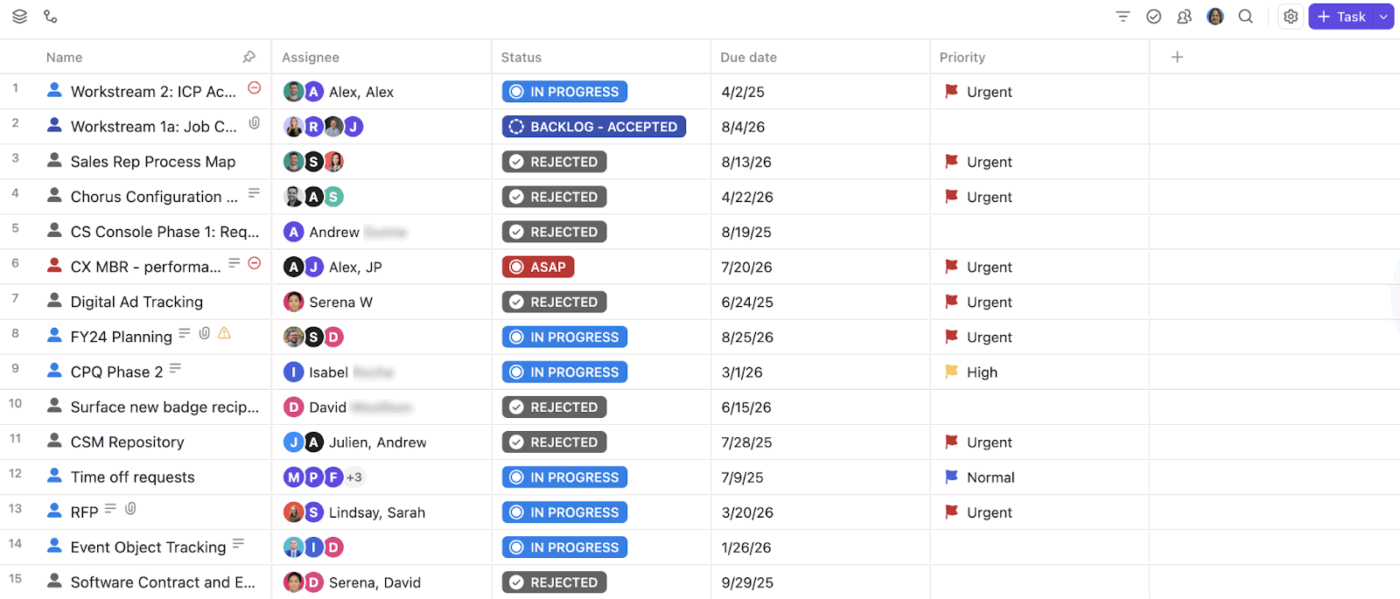
ClickUp Table View: Organize data in a structured format

Organize your data systematically with ClickUp Table View 

What makes you powerful: 

  • ClickUp Custom Fields let you track structured data without adding columns manually (e.g., Client Name, Retainer Value, Campaign Type, Owner)
  • ClickUp Formula Fields calculate metrics dynamically across your workspace
    (no need for ARRAYFORMULA or nested IFs) 

For instance, you’re running a performance marketing agency managing 15 clients. Each campaign is a Task, Custom Fields capture Ad Spend, Revenue, Channel, and a Formula Field calculates ROAS automatically. 

Build a real-time ops command center 

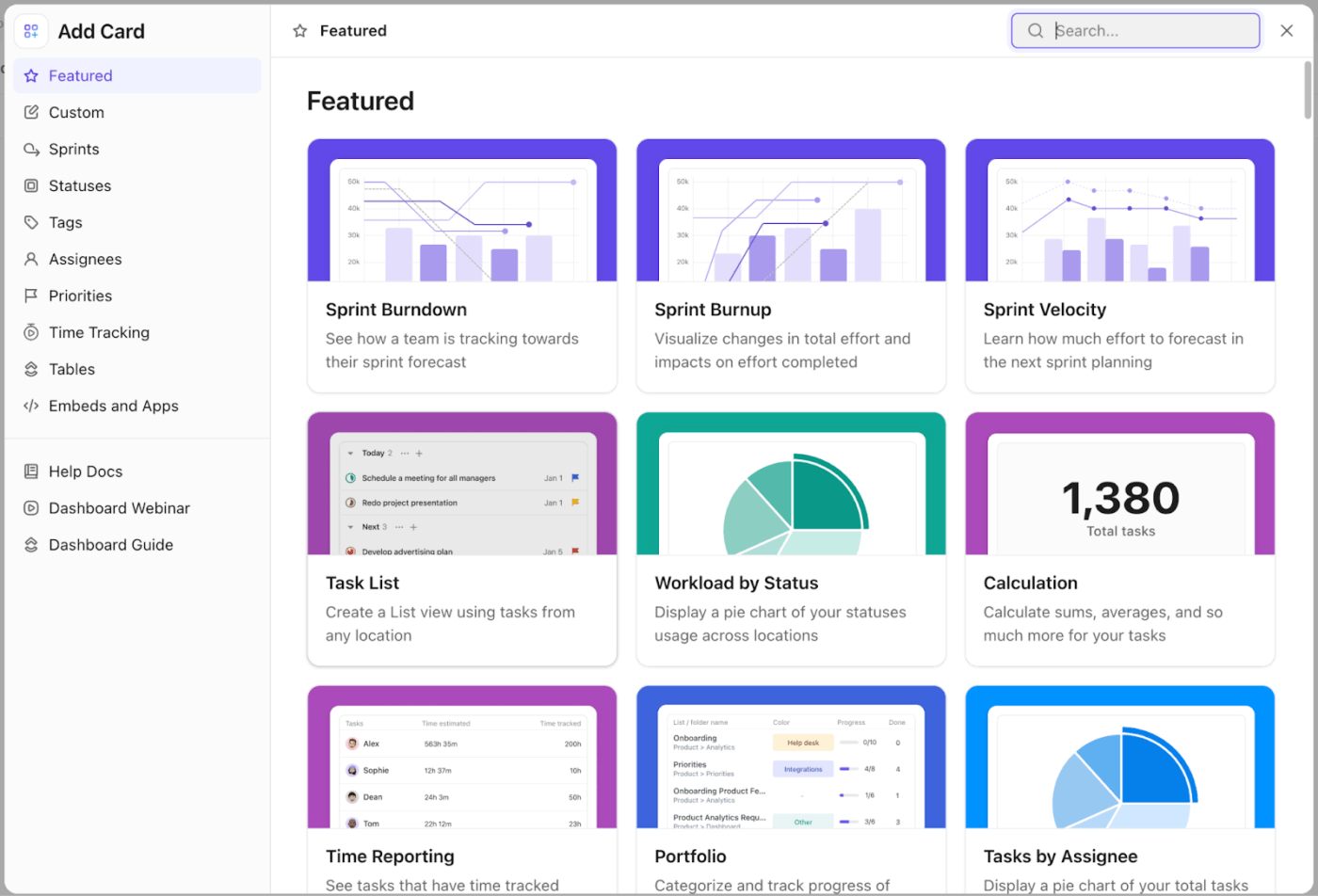
ClickUp Dashboards replace static KPI sheets with live, customizable reporting pulled directly from your workspace.

ClickUp Dashboards: Add custom cards for a personalized dashboard

Create your own custom ClickUp Dashboard with specific cards 

You can mix and match different types of cards depending on what your agency tracks:

  • KPI Cards: Track metrics like on-time delivery rate or active projects
  • Bar/Line Charts: Visualize trends like revenue by client or task velocity
  • Pie Charts: Break down workload distribution across teams
  • Table Cards: Drill into project-level data without leaving the dashboard
  • Time Tracking Cards: Monitor billable vs non-billable hours
  • Workload Cards: See team capacity without switching views

🚀 ClickUp Advantage: Tailor the exact same underlying data for different audiences with ClickUp Role-Based Views. The CEO sees high-level financials, while the project manager sees task details without duplicating any effort. Create a client dashboard: 

Get instant AI insights and make decisions faster

ClickUp Brain sits on top of your entire workspace and lets you ask questions instead of building formulas. It understands your tasks, projects, docs, and dashboards, so you can generate insights without manually analyzing data.
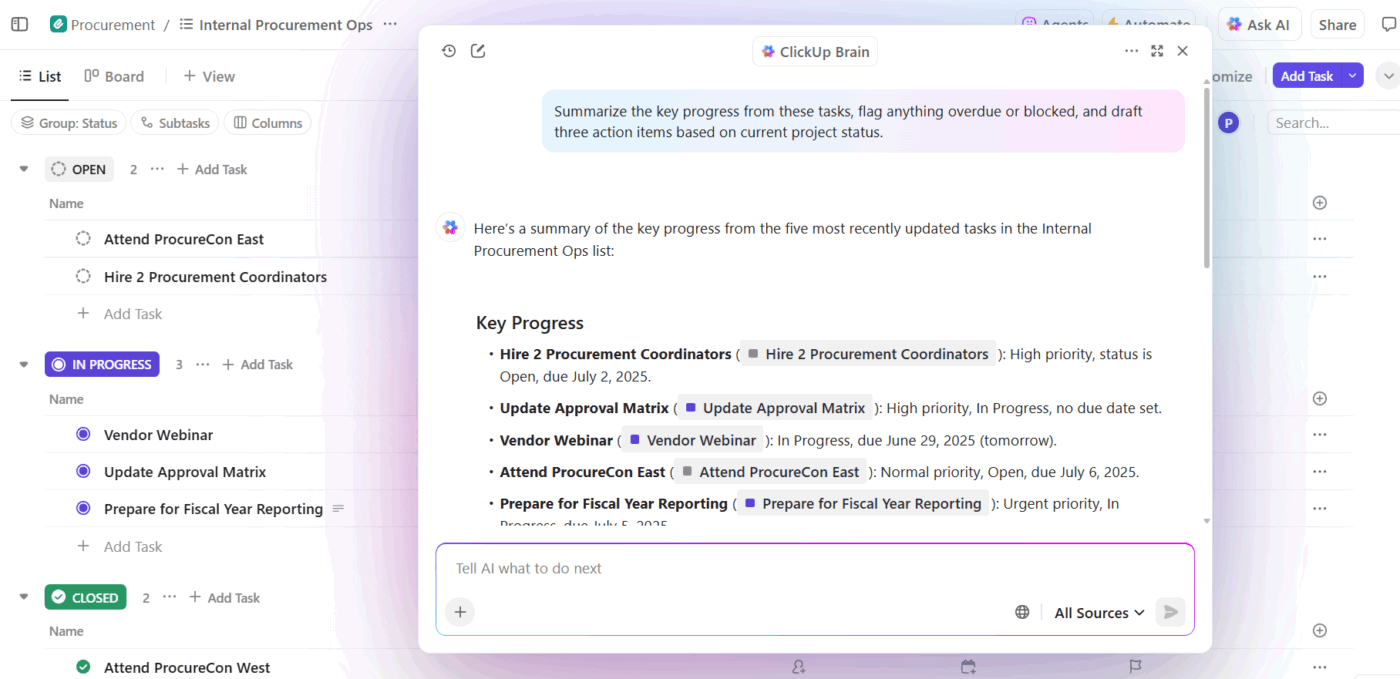
Analyze campaign insights with ClickUp Brain

Get insights into your campaign progress with ClickUp Brain

📌 Example prompts:

Which team members are over capacity and why? 

Which clients are at risk based on delayed tasks and low activity?

Summarize this week’s project performance and highlight blockers

Additionally, it’s built into Dashboards in the form of AI Cards.
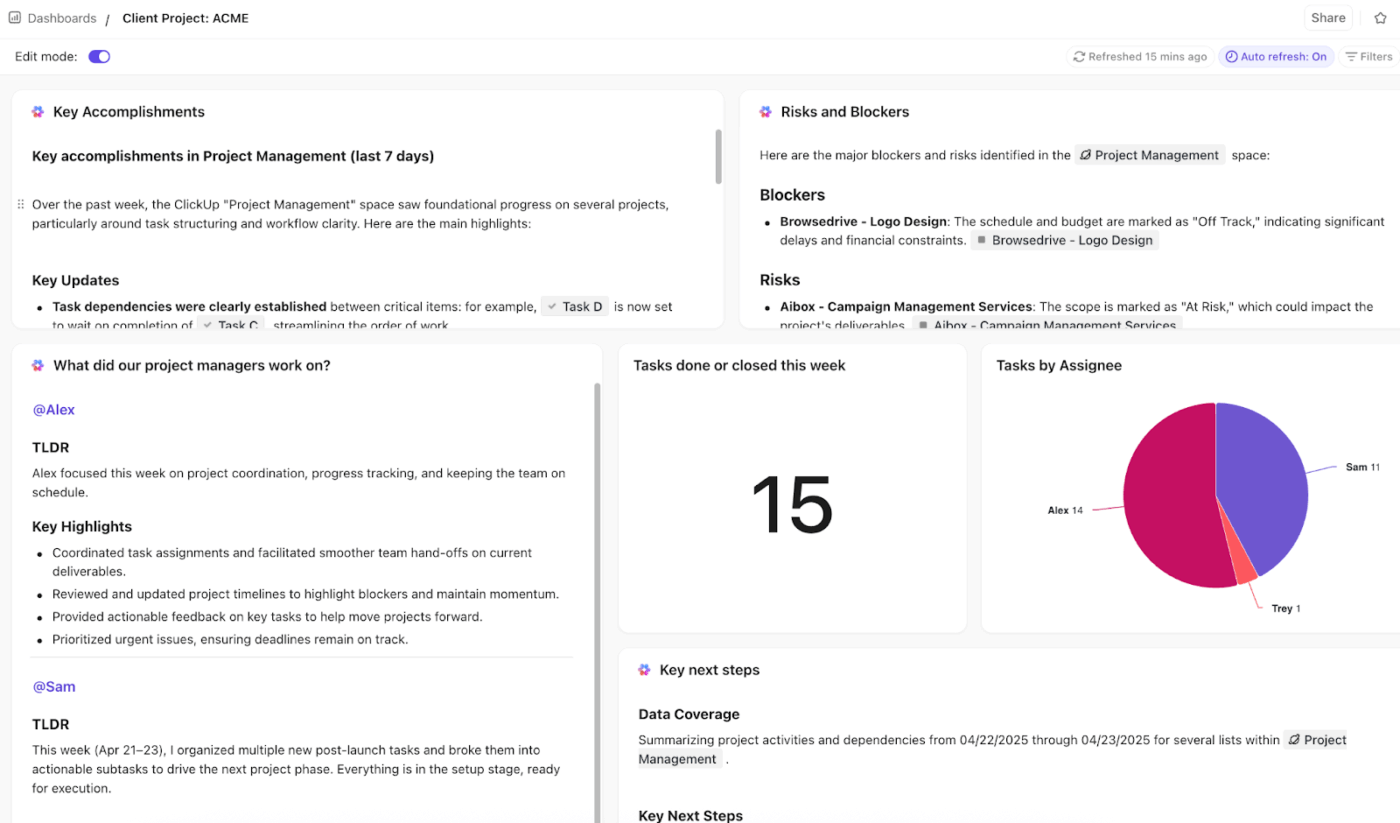
Dashboard insights with ClickUp Brain’s AI Cards

Get instant analyses of Dashboard insights with ClickUp Brain’s AI Cards 

Access:

  • Performance Insight Cards: Analyze key metrics and highlight what’s working vs what’s not
  • Risk and Delay Detection Cards: Identify bottlenecks, overdue tasks, and at-risk deliverables
  • Resource Utilization Cards: Analyze workload, time tracked, and team capacity

🎥 Want your marketing workflows to run autonomously? Build a Super Agent to manage your campaigns. See how. 👇🏼

Summarize this article with AI ClickUp Brain not only saves you precious time by instantly summarizing articles, it also leverages AI to connect your tasks, docs, people, and more, streamlining your workflow like never before.
ClickUp Brain
Avatar of person using AI Summarize this article for me please

Take Up Agency, And Build A ClickUp Dashboard 

At some point, every agency hits the same wall with Google Sheets. You start with a simple dashboard. Then come more clients, more campaigns, more metrics. Suddenly, you’re maintaining formulas, fixing broken tabs, and chasing updates.

Instead of stitching together data, dashboards, and workflows across tools, ClickUp brings everything into one place. When something changes, your ClickUp Dashboard updates instantly and you can prompt ClickUp Brain to give you weekly updates. When you spot an issue, you can act on it right there. 

Sign up to ClickUp for free today! ✅

Summarize this article with AI ClickUp Brain not only saves you precious time by instantly summarizing articles, it also leverages AI to connect your tasks, docs, people, and more, streamlining your workflow like never before.
ClickUp Brain
Avatar of person using AI Summarize this article for me please

Frequently Asked Questions (FAQ)

What’s the difference between a spreadsheet dashboard and a project management dashboard?

A spreadsheet dashboard visualizes data you manually enter or import, so it is only as current as your last update. A project management dashboard pulls live data from active tasks and timelines to keep the view up to date without manual intervention.

Can I connect live data sources to a Google Sheets agency dashboard?

Google Sheets supports cross-sheet data and external add-ons, but these require setup and often have refresh delays. A workspace with native integrations removes the need for middleware, delivering truly live data.

How often should I update my agency operations dashboard?

Aim for at least weekly updates in Google Sheets to keep the data actionable for your team. In a tool that updates in real time, such as ClickUp, the dashboard stays current automatically, so you only need to decide how often to review it.

Everything you need to stay organized and get work done.
clickup product image
Super Agents

Still downloading templates?

There’s an easier way. Try a free AI Agent in ClickUp that actually does the work for you—set up in minutes, save hours every week.