






Still downloading templates?
There’s an easier way. Try a free AI Agent in ClickUp that actually does the work for you—set up in minutes, save hours every week.
Sorry, there were no results found for “”
Sorry, there were no results found for “”
Sorry, there were no results found for “”
Only 18% of people have a time management system. This probably explains why most of us feel like we’re always racing against the clock.
But with time blocking, you can regain control over your day. Instead of reacting to whatever pops up, you schedule focused blocks of time for deep work, meetings, and even breaks.
But how do you do it inside your Outlook Calendar without extra time management apps or complicated setups?
Let’s break down how to use time blocking in Outlook Calendar to save precious hours and get more done, without the chaos. Plus, stick around for a smarter way to manage your work with an AI-powered productivity tool!
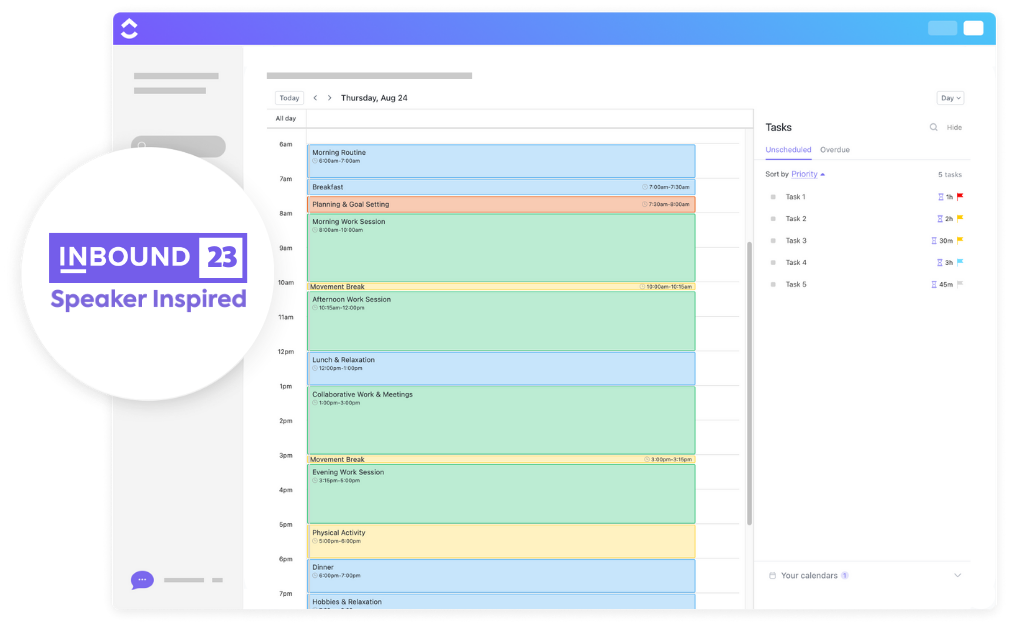
Feeling scattered before the day begins? The ClickUp Daily Time Blocking Template helps you map out your schedule with intention, prioritizing what matters most, setting realistic goals, and leaving room to breathe. Perfect for balancing productivity and peace.
Time blocking (sometimes referred to as time chunking) is a simple yet powerful productivity technique in which you divide your day into dedicated portions of time, each assigned to a specific task, project, or type of work.
Instead of letting distractions run the show, you take control by scheduling your day ahead. You block out time for deep work, emails, meetings, and even those nonstop Slack messages.
Think of it like meetings with yourself, except you’re tackling real work instead of endless calls.
📌 Example: If you’re a software developer, you might block off your morning for debugging and research. Meanwhile, afternoons are for answering emails and conducting meetings when your energy for active working dips.
Why does it work?
By taking charge of your schedule and dedicating time to what matters most, you’ll get more done without feeling constantly overwhelmed.
Now, let’s find out how to set up time blocking in Outlook Calendar and make it work for you!
👀 Did You Know? The World Health Organization warns that unmanaged stress from chaotic work schedules poses a serious health risk.
Ready to implement time blocking? Use Outlook Calendar to organize your day and prioritize your most important tasks.
Here’s how to set it up in a few simple steps:
Before blocking time on your calendar, you need to know what to block time for. Start by listing out your daily and weekly tasks—meetings, deep work, admin tasks, and breaks. Categorizing them helps you plan realistic time slots for each.
Think about:
Now, start plugging these tasks into your Outlook Calendar as dedicated events. To do this:
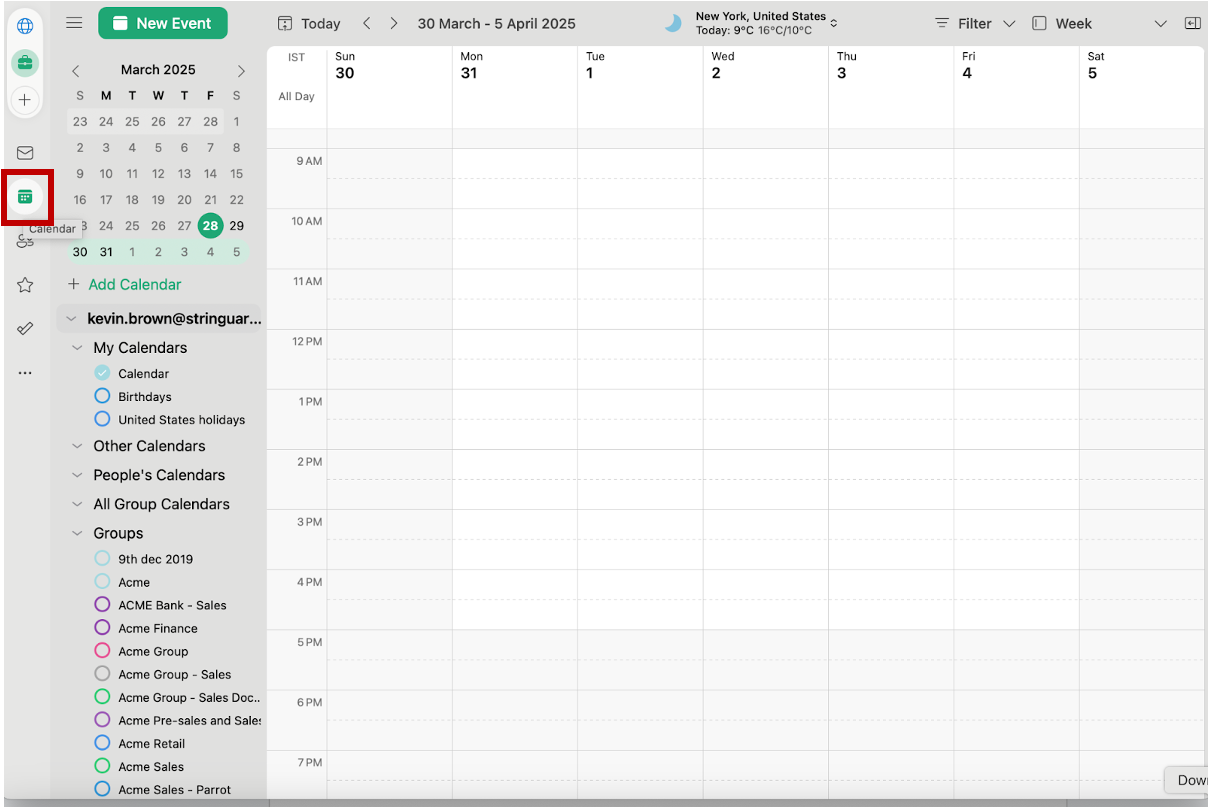
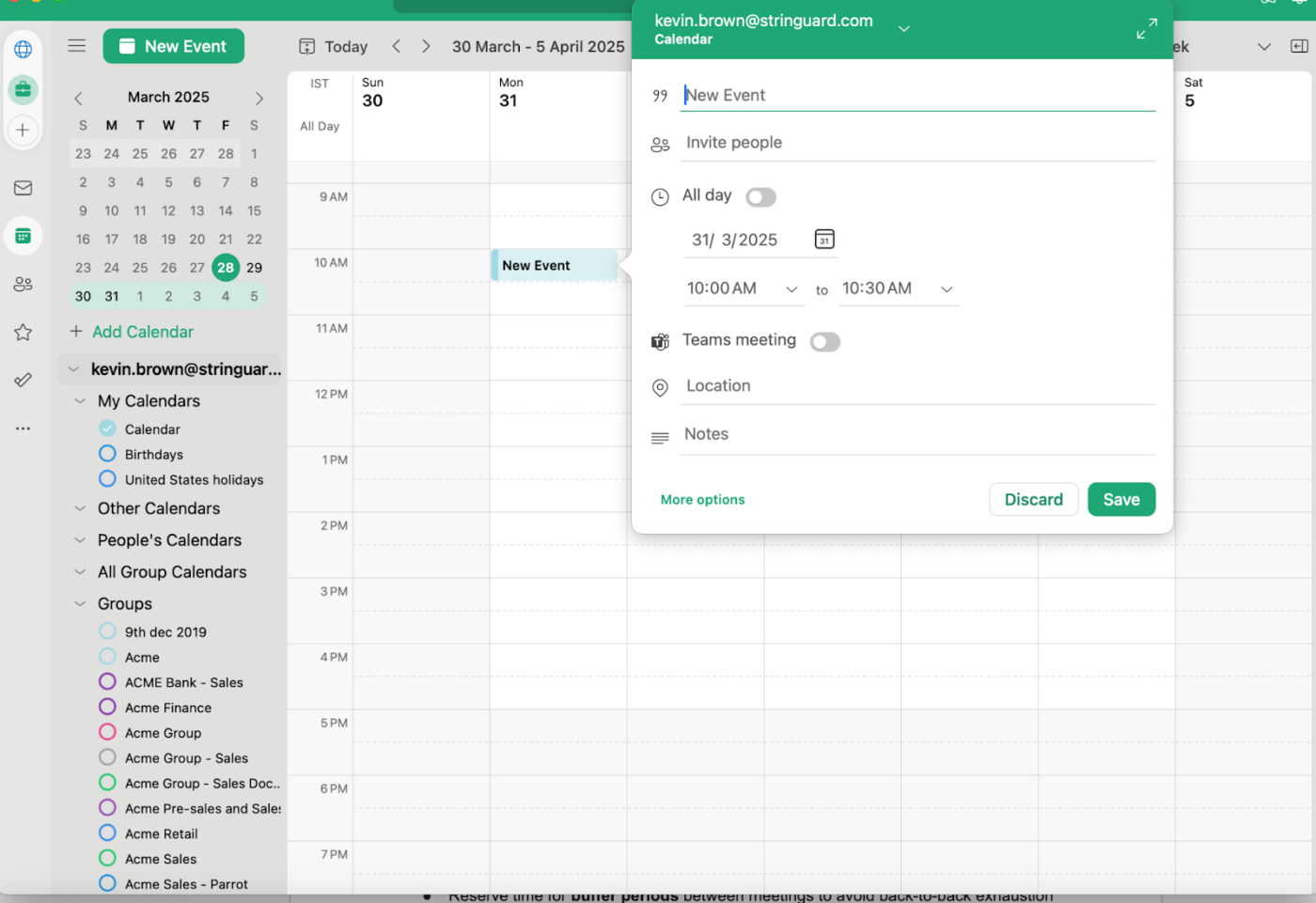
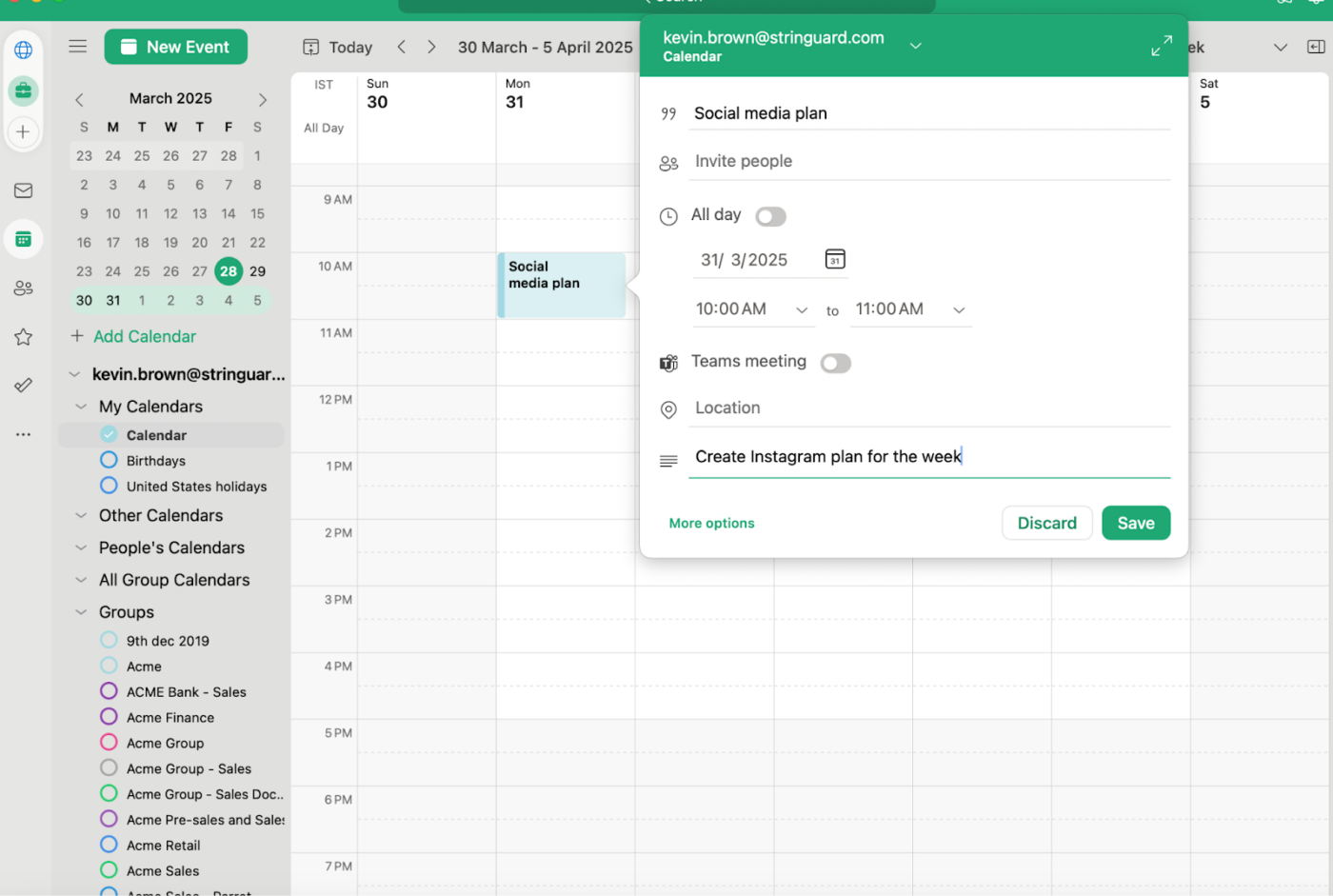
Instead of squeezing deep work between meetings, schedule it like an actual appointment, so you (and others) respect that time. You can:
📮ClickUp Insight: Context-switching is silently eating away at your team’s productivity. Our research shows that 42% of disruptions at work come from juggling platforms, managing emails, and jumping between meetings. What if you could eliminate these costly interruptions? ClickUp unites your workflows (and chat) under a single, streamlined platform. Launch and manage your tasks from across chat, docs, whiteboards, and more—while AI-powered features keep the context connected, searchable, and manageable!
Outlook lets you color-code calendar events, making it easy to see your to-dos at a glance.
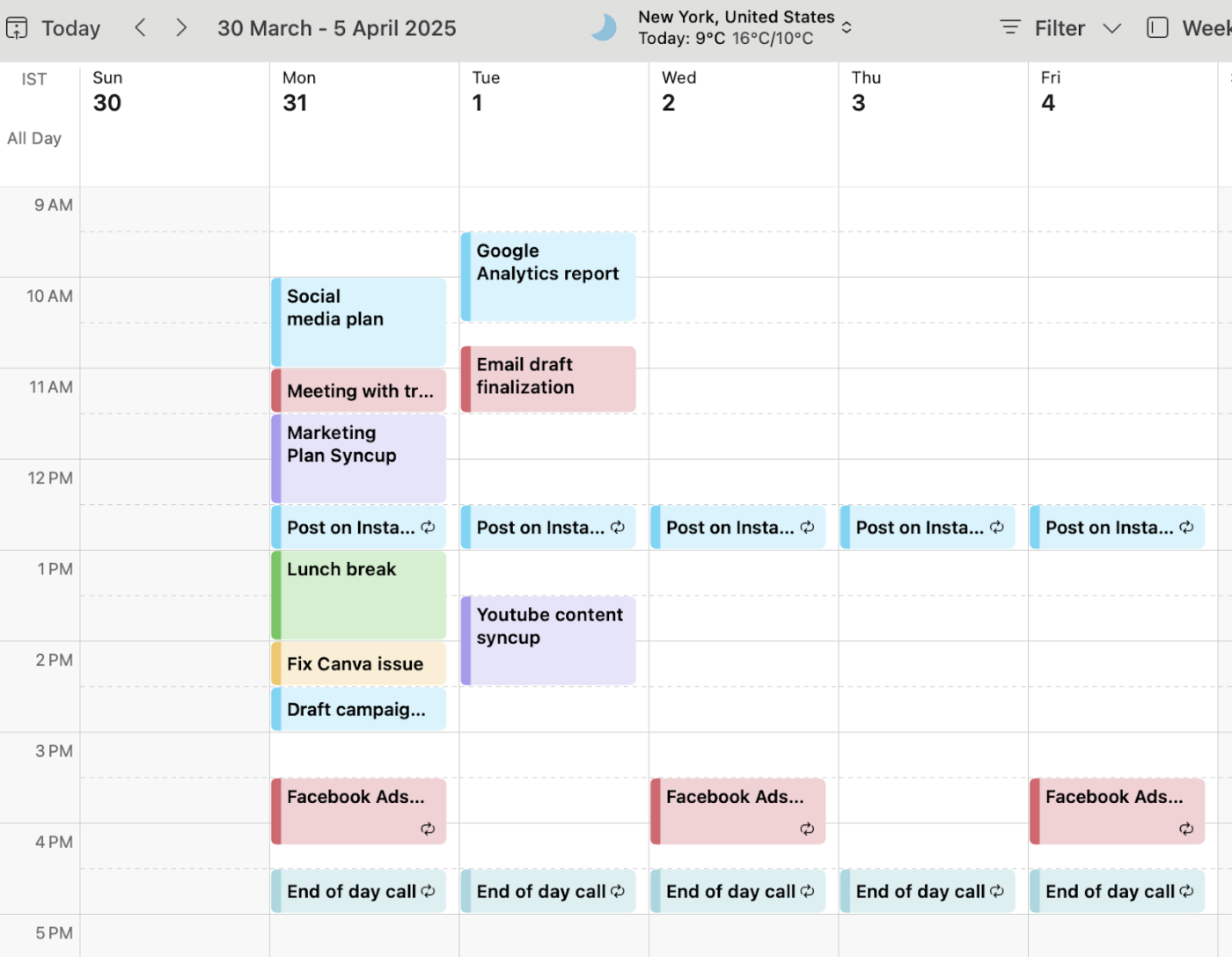
You can assign colors to different types of tasks. For example:
This way, your day isn’t just structured; it’s also visually clear to you.
It’s easy to lose track of time when you’re in the flow. That’s where Outlook’s reminders come in handy. Set up notifications five to ten minutes before each time block appointment to smoothly transition between tasks without feeling rushed.
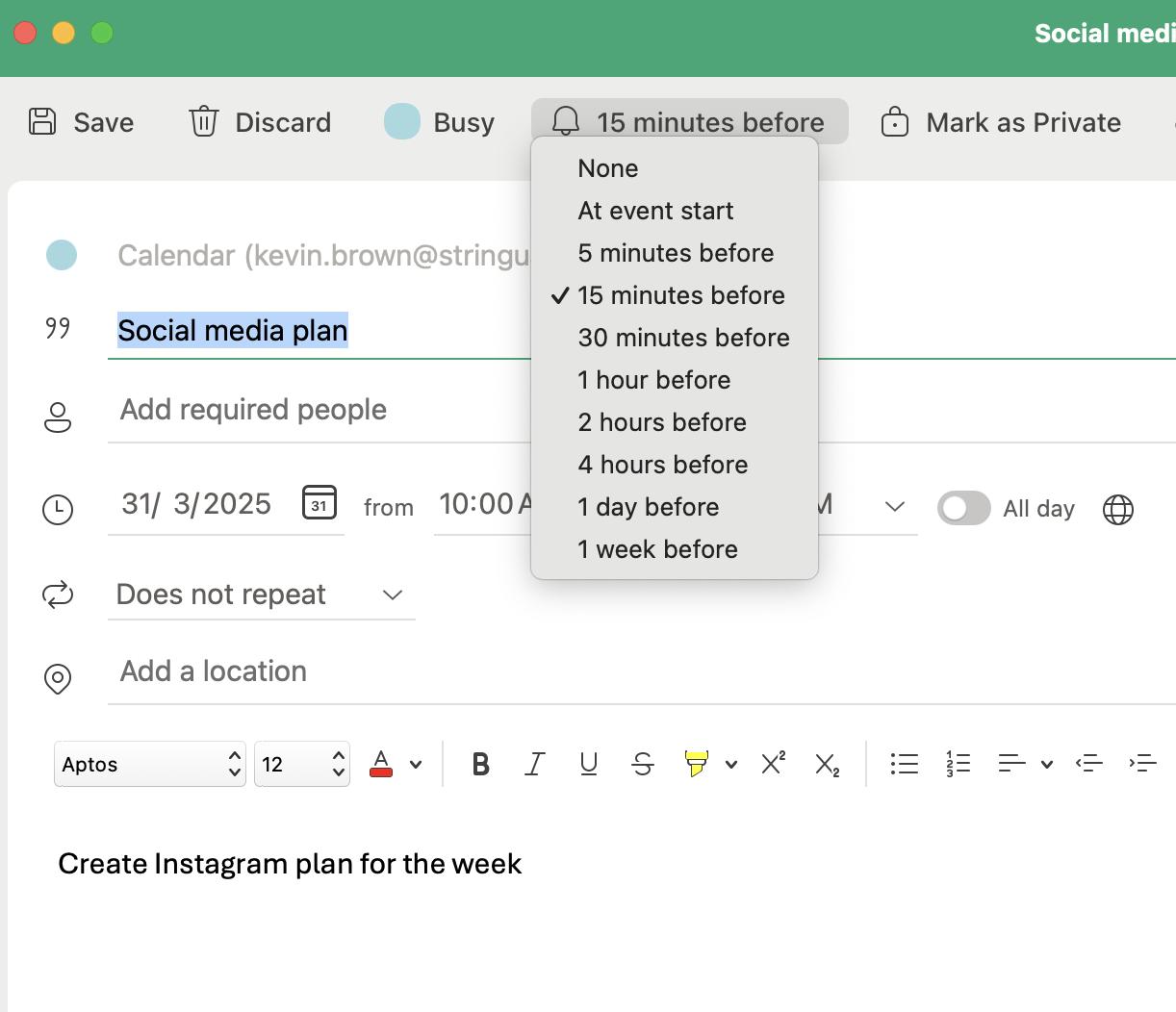
For deep work, consider enabling Out of Office mode to prevent distractions from emails and chat pings.
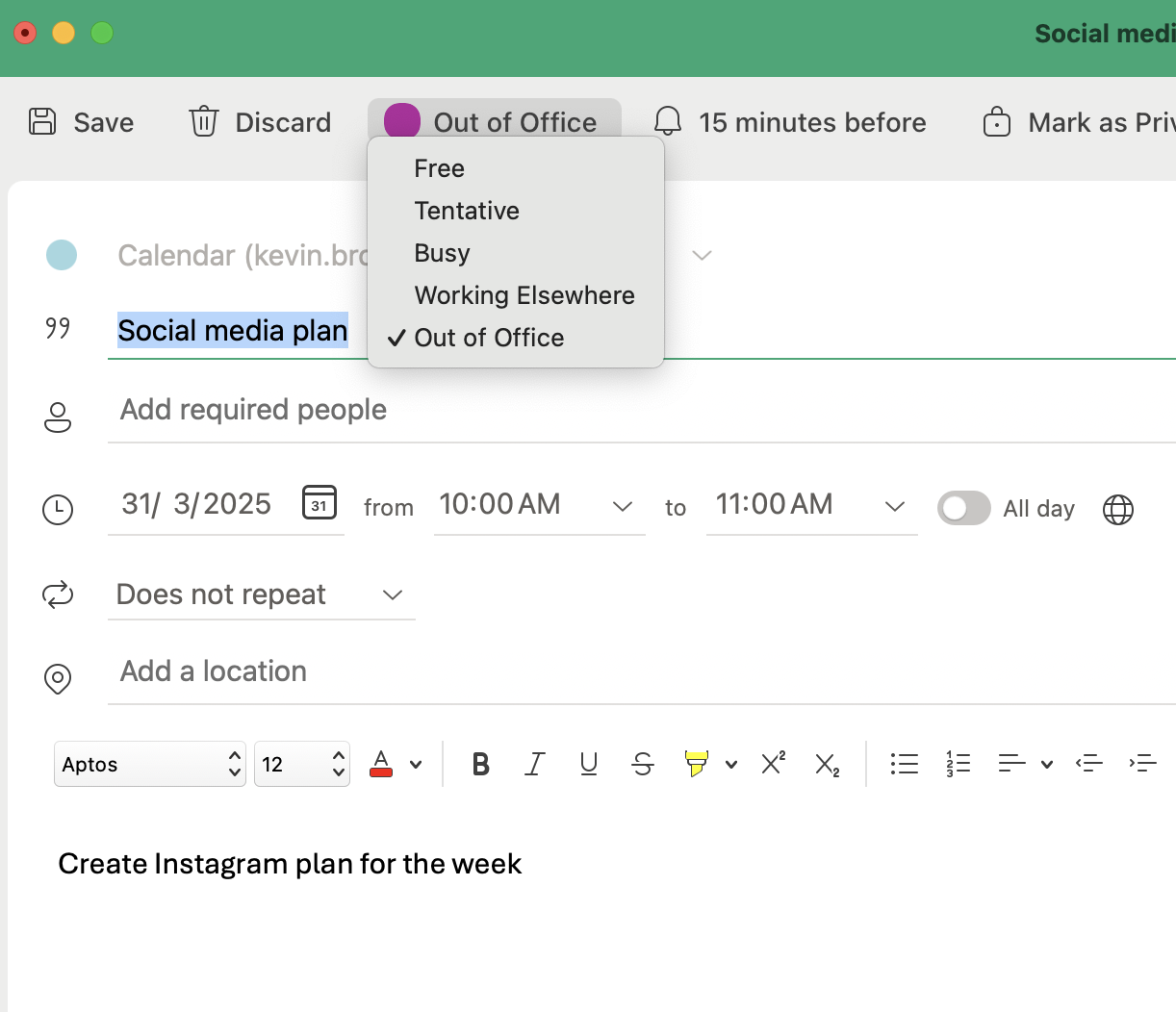
Time blocking involves sticking to certain rules, but it’s just as much about building a system that works for you. If something isn’t flowing, tweak your schedule:
By refining your approach, you’ll turn Outlook Calendar into a productivity powerhouse, one that keeps you focused, efficient, and in control of your day.
🧠 Fun Fact: Cal Newport, a productivity expert and computer science professor, swears by time blocking to maximize focus and efficiency. He plans his entire workday in advance, assigning every minute to a specific task. Each morning, he writes out his schedule on paper, listing work hours and filling them with deep work sessions, meetings, and other activities. If unexpected tasks arise, he adjusts his blocks in real time, ensuring productivity without sacrificing flexibility.
While Outlook Calendar is great for scheduling, it has its fair share of limitations, especially when it comes to true time management. Here’s where things get tricky:
If you need more than just time slots on a calendar, like integrated task tracking, dynamic scheduling, and better collaboration, smarter tools are built for the job. (And we’ve got just the one for you!)
If Outlook Calendar isn’t cutting it, don’t worry; there are better alternatives to help you master time blocking with more flexibility and efficiency.
One such alternative is ClickUp—the everything app for work—that combines project management, knowledge management, and chat, all powered by AI that helps you work faster and smarter.
It goes beyond time-blocking, helping individuals and teams manage tasks, collaborate, and automate workflows without switching between tools.
Let’s look at the key features that make ClickUp the best solution to your time management problems:
With the ClickUp Calendar, scheduling becomes one less thing to worry about. ClickUp Calendar is more than just a visual scheduler—it’s an AI-powered tool that adapts to your priorities.
ClickUp AI gives you intelligent suggestions for when to schedule work based on your workload, deadlines, and focus needs.
Your priority tasks are scheduled automatically, with auto-blocked focus time and rescheduled tasks keeping you on track without the manual effort.
You can drag and drop tasks from your priorities, backlog, or overdue lists onto your calendar to block time for focused work.
The calendar supports daily, 4-day, weekly, and monthly views, and you can customize your timescale and timezone.
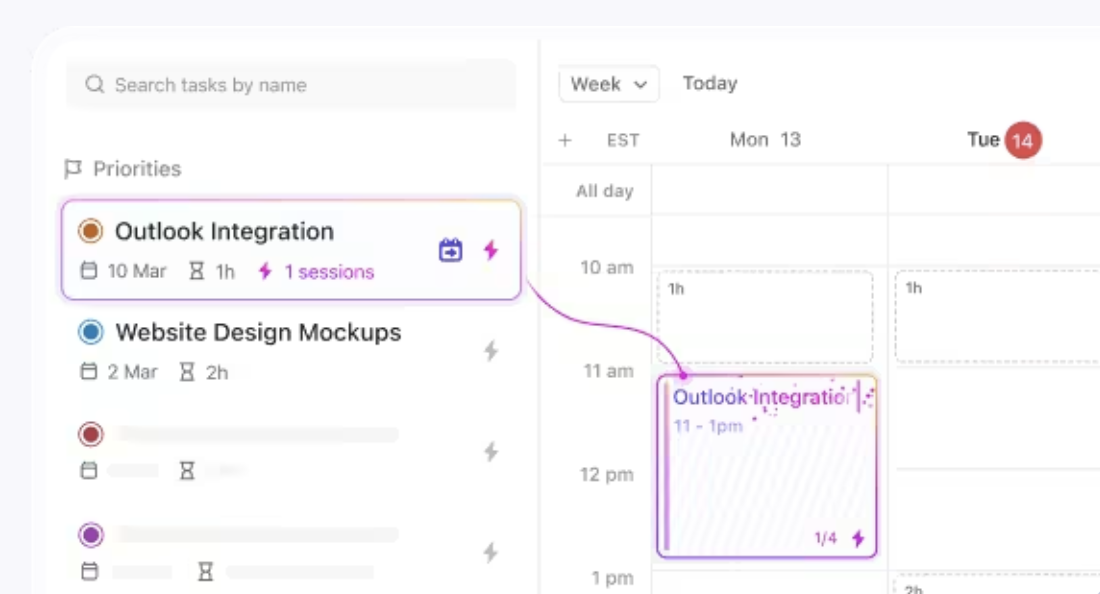
Need to hop on a call? ClickUp lets you shift easily from deep work to meetings in a click, so your flow stays uninterrupted.
ClickUp Calendar advantages include:
Check out this video to learn more about clickUp Calendar👇
📖 Also Read: Best Calendar Apps (Free & Paid)
Why guess where your time goes when you can track it with precision? ClickUp Time Management gives you complete visibility into how you allocate time. Use start and stop timers, jump between tasks, and manually log time with detailed notes to stay on top of your work.
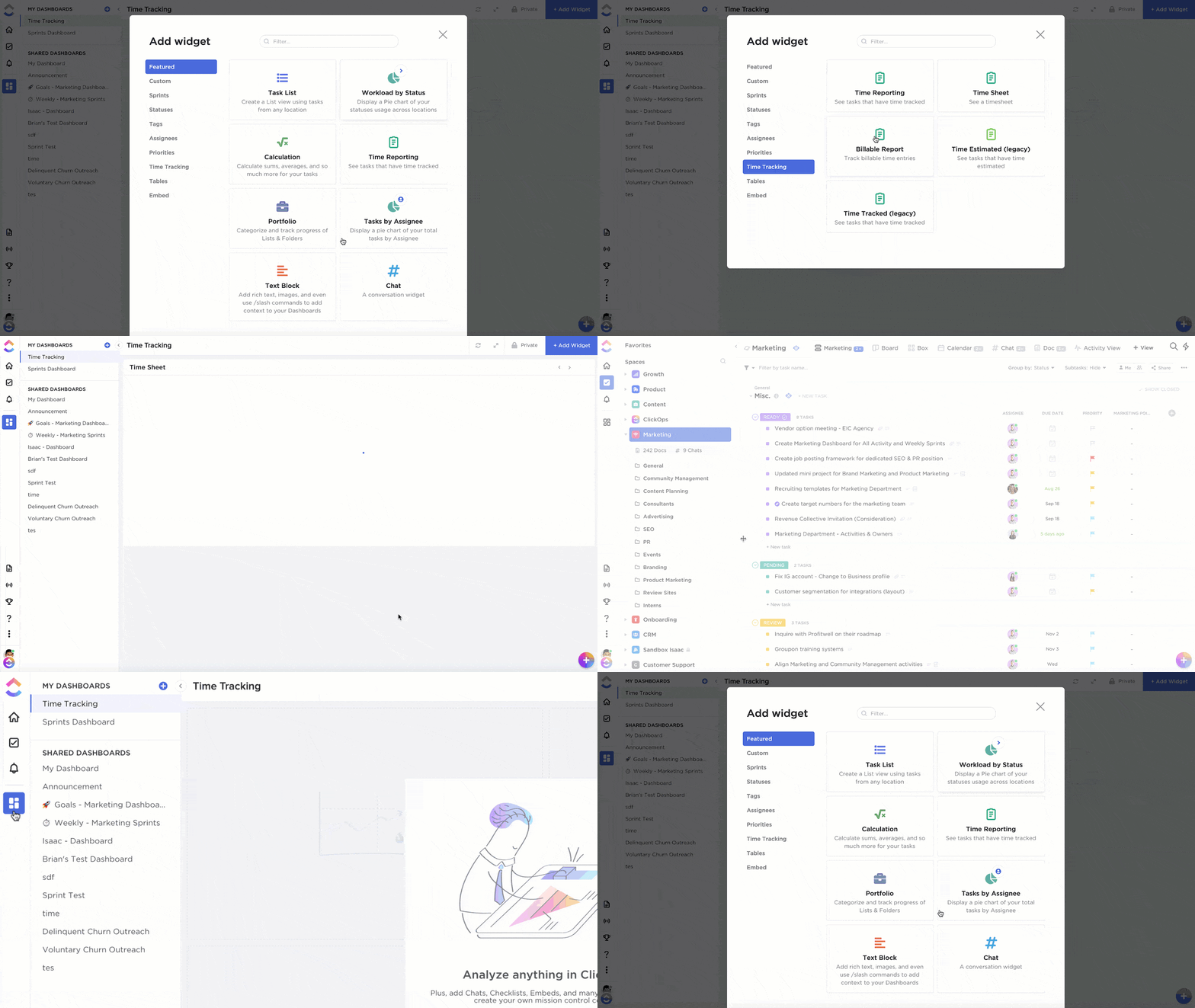
With ClickUp, you can:
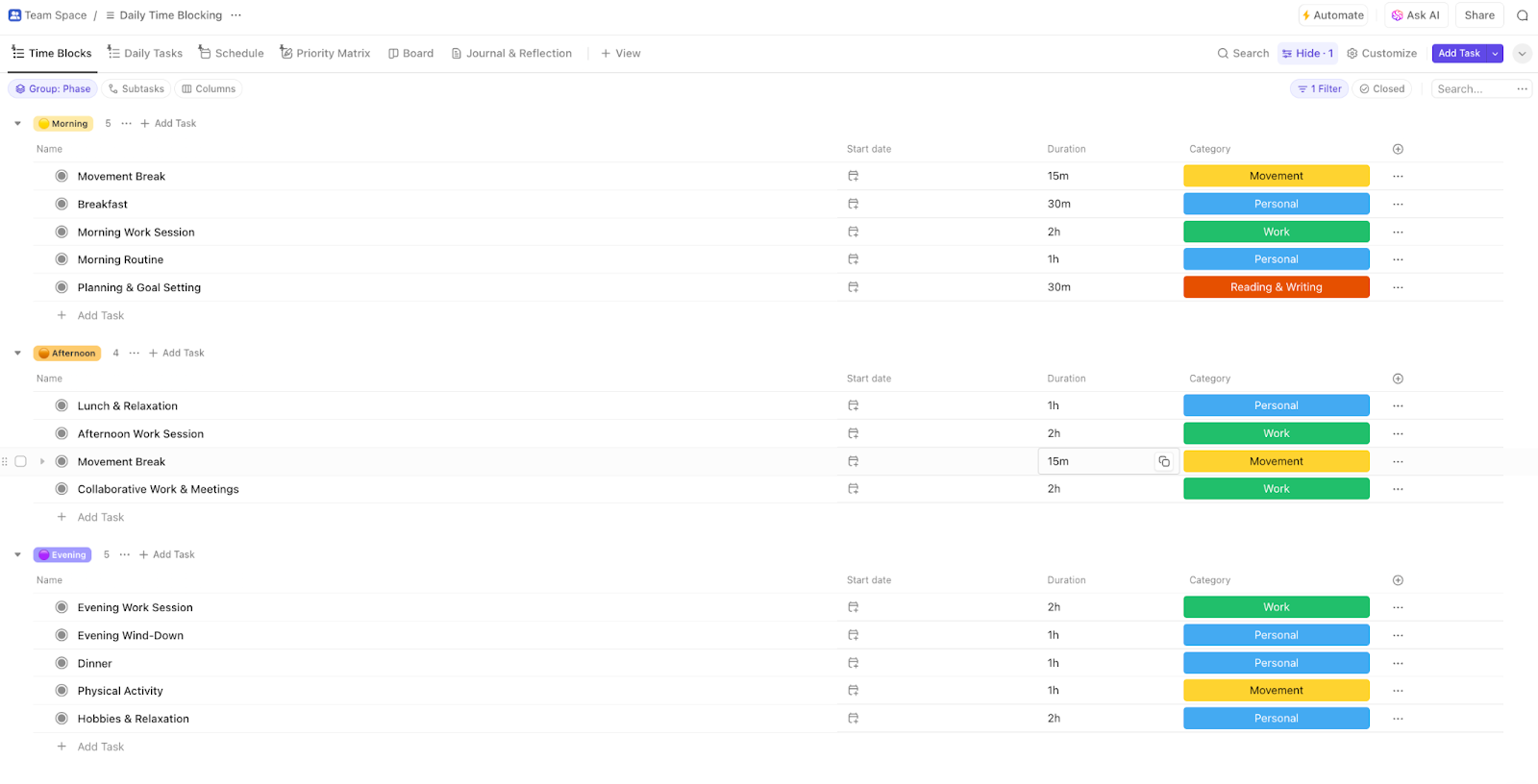
The ClickUp Daily Time Blocking template helps you structure your day for peak productivity without the risk of burnout.
Prioritize high-impact tasks, schedule deep work sessions, and even set aside time for reflection, all while keeping distractions at bay. With built-in time estimates, you’ll always know what’s achievable in a day.
This template comes ready with List, Whiteboard, Doc, and Calendar views, plus essential custom fields like Duration, Category, and Phase to keep your schedule organized.
Whether you’re a time-blocking master or just getting started, this template makes it effortless to stay on track.
💡 Pro Tip: Struggling to structure your day? The ClickUp Hourly Schedule Template helps you plan every hour with precision. Meanwhile, the ClickUp Schedule Blocking Template ensures you set aside uninterrupted time for deep work. Stay productive without the chaos!
Time blocking works best when it’s done right and followed regularly. Here’s how to make sure your schedule actually helps and not overwhelms you:
Start your day by “eating the frog”—a concept made famous by Brian Tracy. This technique involves tackling your hardest, most important task first. Blocking out time for high-impact work when your energy levels are at their peak ensures you make real progress before distractions take over.
Jumping between tasks drains focus and slows you down. Instead of constantly shifting gears, batch similar tasks—set aside dedicated time blocks for emails, meetings, and admin work.
For example, check your unread emails at set intervals instead of throughout the day. Block specific Outlook Calendar slots for meetings so they don’t interrupt deep work. This structured approach helps you stay productive and make the most of your workday.
Instead of juggling everything daily, assign specific themes to each day—for example, meetings on Mondays and strategy on Wednesdays.
Jack Dorsey, co-founder of Twitter (now X) and CEO of Square, used this method to structure his week and stay productive without decision fatigue.
On Monday, at both companies, I focus on management and running the company…Tuesday is focused on product. Wednesday is focused on marketing and communications and growth. Thursday is focused on developers and partnerships. Friday is focused on the company and the culture and recruiting. Saturday I take off, I hike. Sunday is reflection, feedback, strategy, and getting ready for the week.
Underestimating tasks leads to schedule chaos. Make sure each time block allows for realistic completion without rushing.
Factor in focus time, potential delays, and even short breaks to keep your schedule manageable. Whether you’re using Outlook Calendar time blocking or juggling multiple Outlook calendars, leaving buffer time ensures you stay productive without feeling overwhelmed.
Your schedule isn’t set in stone. Reassess your time blocks weekly, especially when managing multiple Outlook calendars, to ensure they still align with your goals.
Look for patterns—are certain tasks taking longer than expected? Are meetings eating into your focus time? Adjust as needed to stay productive while maintaining a work-life balance. Flexibility is key to making Outlook calendar time blocking work for you long-term.
Break your work into 25-minute focus sessions, followed by 5-minute breaks, to maintain productivity without burnout. Francesco Cirillo created this technique in the 1980s to track his study sessions. He used a simple, tomato-shaped kitchen timer to stay engaged—and it works!
Even Tom Hanks used it to stay on track while writing The Making of Another Major Motion Picture Masterpiece!
Here’s what Jayson Ermac, Process Manager at AI Bees, says about ClickUp’s efficient functionalities
With ClickUp, there is less time asking for task updates, more time for real and meaningful work.
📖 Also Read: Tips to Improve Time Management Skills at Work
Microsoft Outlook Calendar time blocking is a great way to structure your day, but it has limits, especially when you need more flexibility, automation, and collaboration.
Why struggle with workarounds when time-blocking apps like ClickUp bring everything together in one place?
With ClickUp, you can go beyond basic time blocking by integrating tasks, reminders, and team coordination into a single, simplified workflow.
From customizable views and automated scheduling to advanced reporting, real-time collaboration, and work schedule templates, ClickUp helps you stay productive without jumping between apps.
Ready to improve your work-life balance like never before?
Sign up for ClickUp today and make every minute count!

© 2026 ClickUp

There’s an easier way. Try a free AI Agent in ClickUp that actually does the work for you—set up in minutes, save hours every week.