Sorry, there were no results found for “”
Sorry, there were no results found for “”
Sorry, there were no results found for “”
According to industry data, only 16% of companies currently use project management software that is fully aligned with their business needs. This means the vast majority of teams are fighting against their own tools—wrestling with fragmented data, manual reporting, and “work about work” that eats into productive hours.
As your organization scales, the lightweight tool that once felt “scrappy” often becomes a bottleneck. However, migrating thousands of tasks, dependencies, and team habits can feel more daunting than the original problem.
To help you navigate this transition, we’ve outlined a step-by-step checklist to ensure your new system is an asset, not another hurdle. ⚙️
Confirm whether the switch is actually necessary by checking for these signals. 👀
If more than one of those sounds familiar, it’s a platform problem. Time to evaluate what’s next.
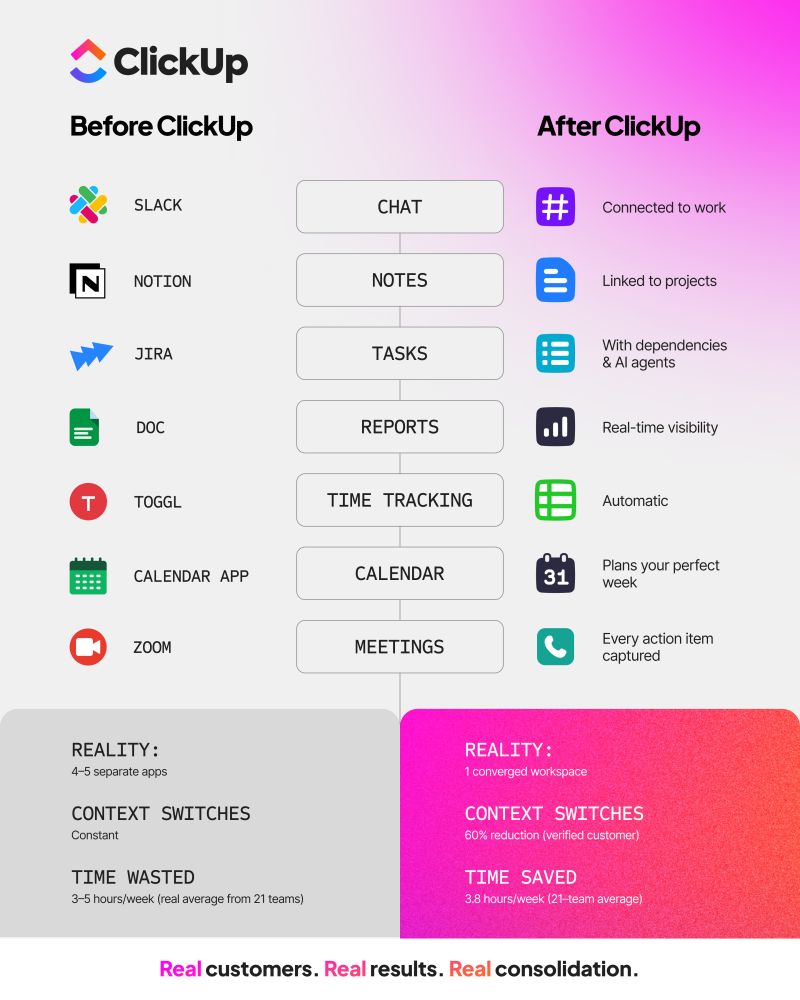
📮 ClickUp Insight: Low-performing teams are 4 times more likely to juggle 15+ tools, while high-performing teams maintain efficiency by limiting their toolkit to 9 or fewer platforms. But how about using one platform?
As the everything app for work, ClickUp brings your tasks, projects, docs, wikis, chat, and calls under a single platform, complete with AI-powered workflows. Ready to work smarter? ClickUp works for every team, makes work visible, and allows you to focus on what matters while AI handles the rest.
👀 Did You Know? About 55% of the data collected by companies is “dark data”—information gathered but never used for reporting or decision-making.
Without clear evaluation criteria, you’ll end up migrating twice. Cover these three areas before committing.
You need to evaluate the learning curve based on how quickly a non-technical team member can create a task, update a status, and find what they need. Not based on a polished sales demo.
🤝 Make sure your next PM tool can flex to how different teams already think. In ClickUp:
ClickUp Views are built so teams can switch perspectives without rebuilding the work itself. Even better, getting started is just as simple.
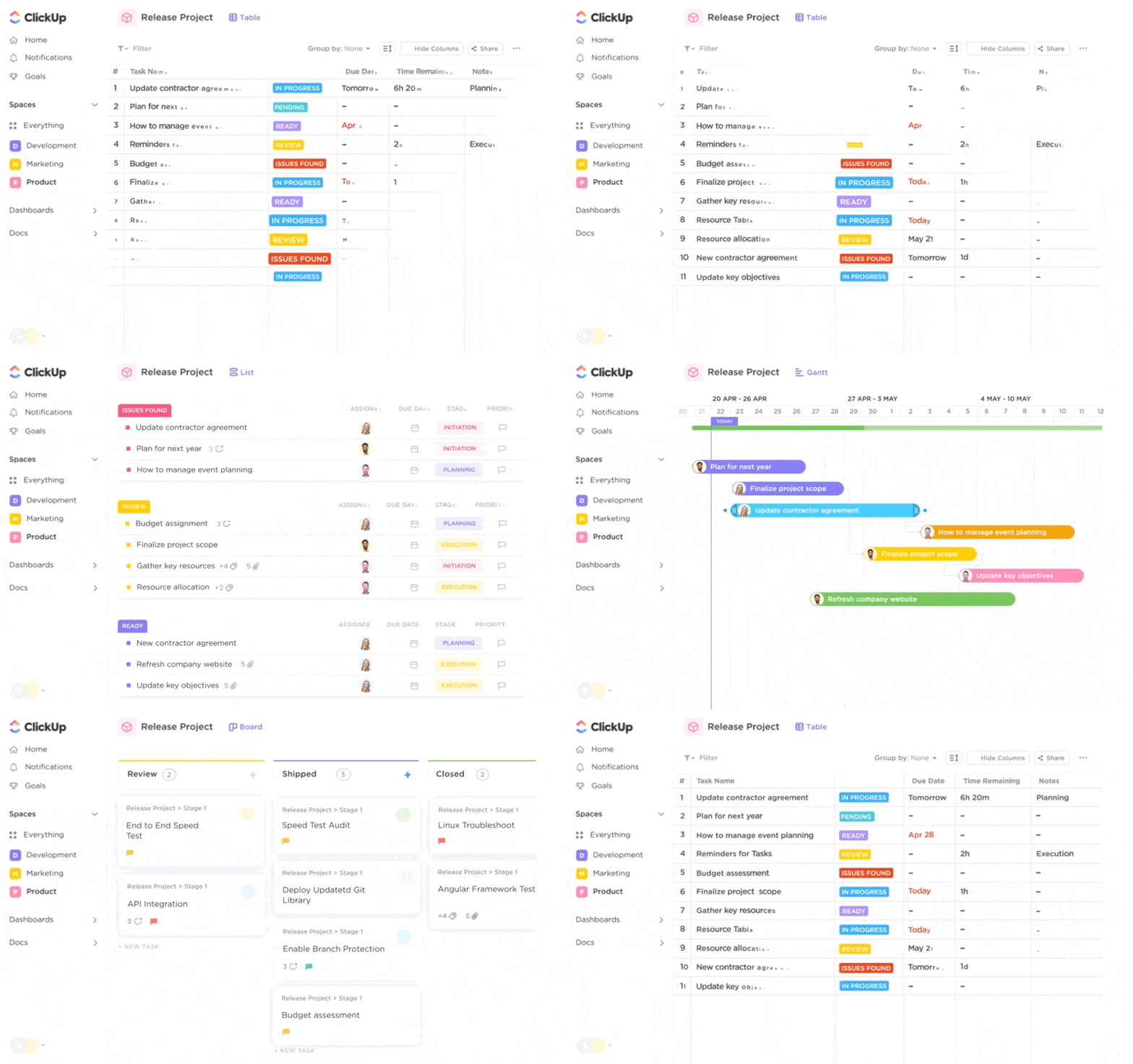
ClickUp offers tutorial videos and on-demand walkthroughs, ready when someone needs a quick nudge.
Map out the apps your team relies on daily—communication tools, file storage, dev tools, CRM, design software—and confirm native integrations exist. Broken connections between tools recreate the exact context sprawl: wasted hours switching apps, hunting for files, and repeating updates across platforms.
This is your baseline project management checklist. If a tool is missing more than one of these, you’ll be patching gaps with add-ons within months.
🛑 The biggest trap for growing teams? You guessed it: work sprawl.
As your business scales, it’s easy to fall into the trap of buying a new app for every new problem. A dedicated CRM, a standalone AI subscription, and a separate tool for team chat. Suddenly, you’re paying thousands of dollars for 20+ disconnected apps, and your team spends half their day just trying to hunt down information.
Enter the ClickUp Small Business Suite. It combines the power of an enterprise-grade platform into a single, budget-friendly converged AI workspace built specifically for growing teams.
Instead of patching together a Frankenstein tech stack, you get a unified system of record:
Take it from Path8 Productions. Before switching, Founder Pat Henderson said they were losing valuable time updating disconnected systems, which increased the risk of data loss. By moving to the Small Business Suite, they consolidated 6+ communication tools in under 8 weeks and slashed meeting prep time by 60%.
We were spending too much time updating different systems that weren’t talking to each other. It slowed us down and increased the chance of things falling through the cracks.
Follow these steps in order—skipping ahead is how teams lose data or momentum.
Before touching the new tool, document everything in the old one. That means active projects and their statuses, recurring workflows, automation rules, Custom Fields, templates, permission structures, and integrations in use.
Interview key users from each team to find out what they actually use vs. what’s been set up but ignored. Create a simple inventory document listing every project, its owner, status, and any dependencies.
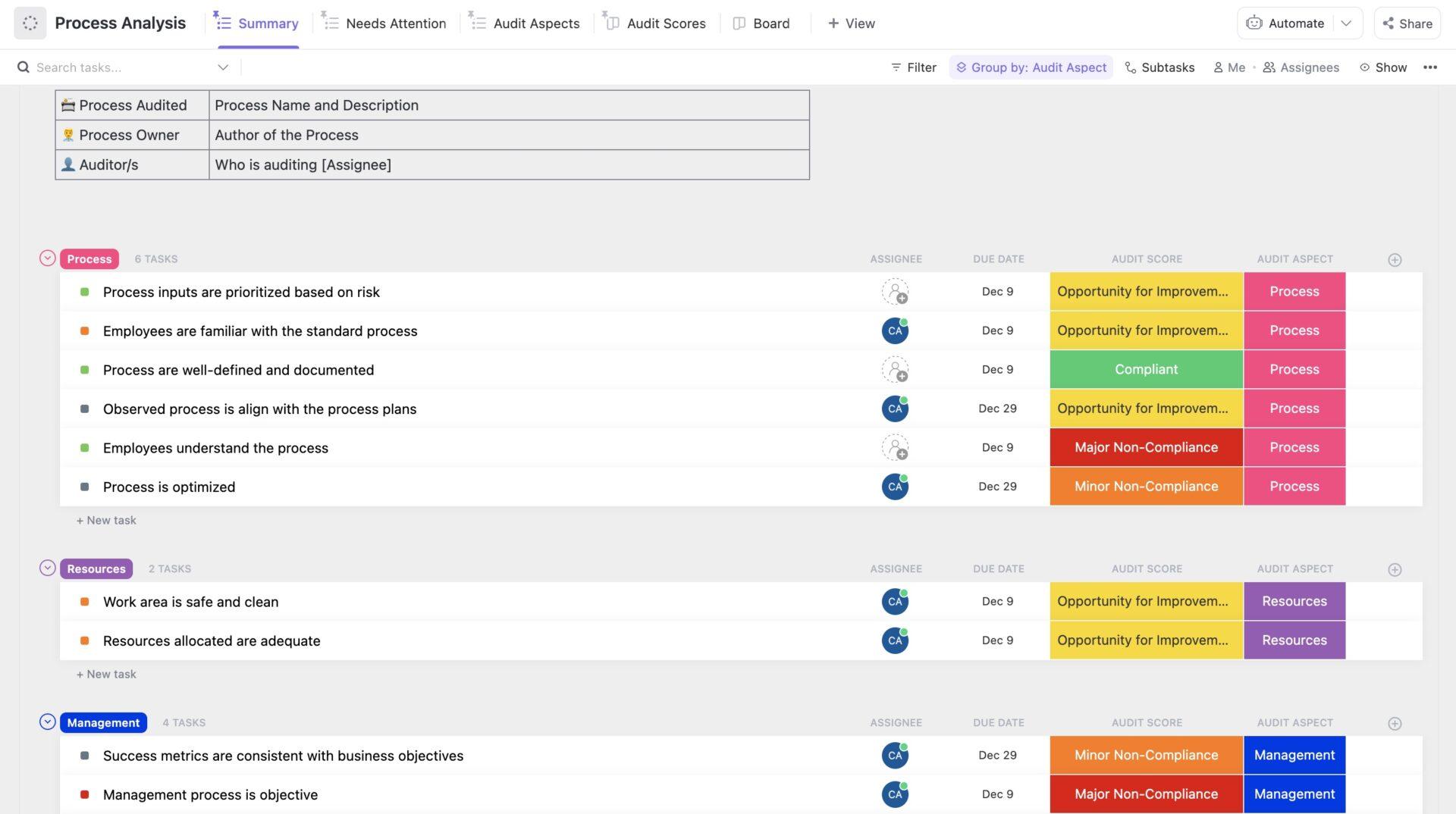
⭐️ If you want to audit each workflow properly before the switch, start with the ClickUp Process Audit and Improvement Template.
This gives you a structured way to capture ownership, active work, and what needs cleanup. You can also record the automations, integrations, templates, and dependencies tied to that workflow before migration begins.
📮 ClickUp Insight: The average professional spends 30+ minutes a day searching for work-related information—that’s over 120 hours a year lost to digging through emails, Slack threads, and scattered files. An intelligent AI assistant embedded in your workspace can change that. Enter ClickUp Brain. It delivers instant insights and answers by surfacing the right documents, conversations, and task details in seconds—so you can stop searching and start working.
💫 Real Results: Teams like QubicaAMF reclaimed 5+ hours weekly using ClickUp—that’s over 250 hours annually per person—by eliminating outdated knowledge management processes. Imagine what your team could create with an extra week of productivity every quarter!
Before anything moves, make sure nothing gets lost.
Export everything you might need from your current tool:
Most PM tools offer CSV or JSON exports. Use both formats if available, as they often capture different data.
Store your backups in a neutral location, such as a shared cloud drive, completely separate from both PM tools. This gives you a clean fallback if anything goes wrong mid-migration and ensures your data isn’t dependent on a tool you’re about to decommission.
One thing most teams overlook is this: attachments and file links frequently break during migration. Before you shut anything down, verify that every linked file will still resolve correctly in the new environment.
🧠 Fun Fact: One of the first projects to use formal “Project Management” techniques was the Hoover Dam in the 1930s. It finished two years ahead of schedule (a feat rarely seen in software today!).
Don’t recreate your old tool’s structure exactly. Use this as a chance to clean up:
Use native import tools wherever possible. Manual re-entry introduces errors and burns time.
After import, run a validation pass. Spot-check a sample of projects to confirm that task relationships (dependencies, subtasks), Custom Field values, and assigned users are transferred correctly. Keep knowledge alongside the tasks it supports instead of storing it in a separate wiki.
Only rebuild the templates your team actively used in the last quarter. Assign a migration lead per department responsible for verifying their team’s data landed correctly. ✨
Training isn’t a single all-hands demo. Build role-specific training from the start, because different people need different things:
Then create a short internal reference guide covering the top five daily actions your team will actually perform. Keep it under ten minutes. Short videos, annotated screenshots, or a shared document all work well here.
💡 Pro Tip: Instead of writing lengthy how-to docs or blocking calendar time for live walkthroughs, record short screen ClickUp Clips directly inside tasks or Docs. Walk through a workflow, narrate your screen, and drop the recording exactly where your team needs it.
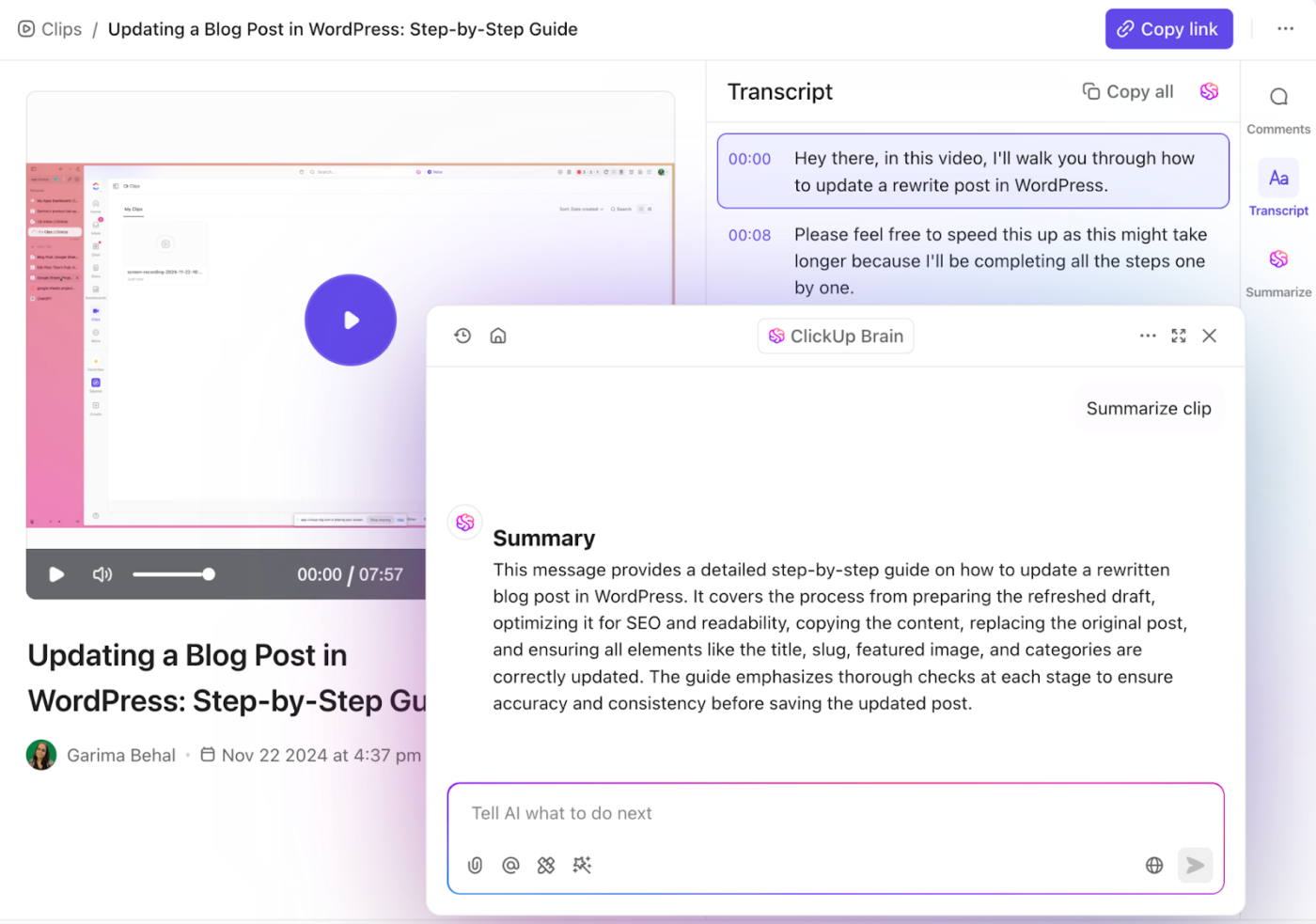
ClickUp AI automatically transcribes every Clip with timestamps, so teammates can skim in seconds. Questions stay anchored to the video through timestamped comments, and everything lives in one central Clips Hub.
Before the full rollout, run a pilot. Have one or two teams use the new tool on a real project first. Collect honest feedback, fix the friction points, and then expand.
When you go live, set a clear cutoff date for the old tool and communicate it to your team. People default to what they know, and as long as the old tool remains available, many will use it.
👀 Did You Know? It’s estimated that the so-called “unnecessary” emails—like status updates, “thanks!” messages, and CC’ing folks just to keep them in the loop—cost the U.S. economy an astonishing $650 billion each year in lost productivity.
How much of your workflow survives when you switch PM tools?
Because the real challenge is rarely the task migration itself. It is everything wrapped around the work, from project docs and comments to automations, reporting, and the small habits your team depends on to keep work moving. Over time, even a well-planned switch can turn messy when that context gets split across tools or left behind.
This is where ClickUp changes the equation. As the world’s first Converged AI Workspace, it unifies tasks, docs, chat, dashboards, whiteboards, automations, and time tracking in one workspace. That means the switch does not leave your team stitching processes back together.
Let’s take a closer look:
ClickUp eliminates a major part of your re-entry work with native imports from tools like Asana, Basecamp, Monday.com, and Wrike. You also get spreadsheet imports for CSV, Excel, JSON, TSV, and TXT files.
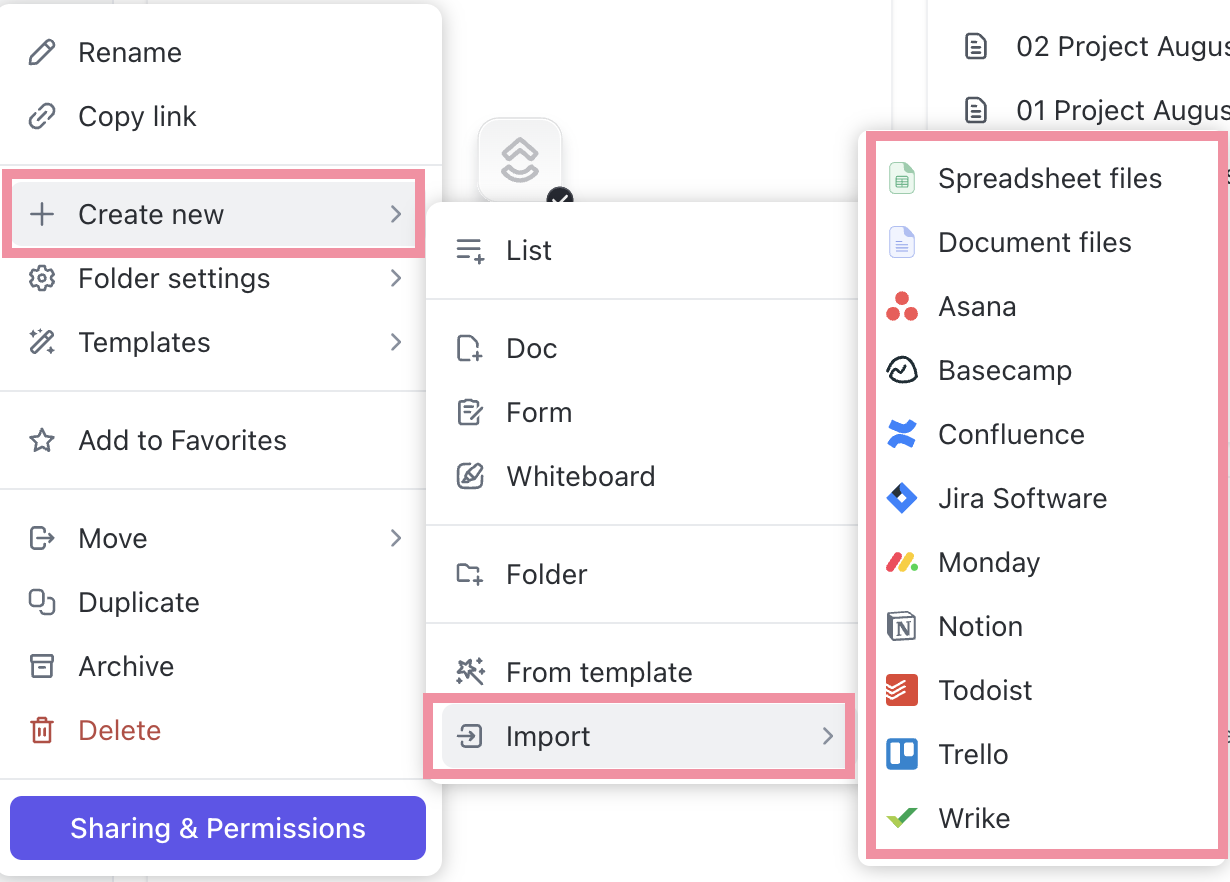
During the import process, you can map incoming data to existing users and fields, review those mappings for accuracy, and manage everything through ClickUp’s import manager. This is convergence in action.
Topping it off, ClickUp’s Hierarchy is designed to organize work into Spaces, Folders, Lists, and Tasks, so teams can structure imported projects the way they plan and run work.
🎥 Want to know how you can best organize your ClickUp workspace? Well, we have a walkthrough made just for you:
When you switch PM tools, tasks are only part of the move. The bigger risk is carrying the same mess into a new environment: docs in one app, conversations in another, time tracking in a third, and reporting somewhere else entirely. The tool changes, but the sprawl follows. 😵💫
The fix is consolidating all your work in one place, so much so that you don’t have to dig for answers elsewhere.
And ClickUp gives you that structure seamlessly. In a nutshell:
Every item on that list is a tool your team would otherwise pay for separately.
Right after setup, the repetitive work starts creeping in: updating statuses, assigning tasks, nudging teammates, and making sure the right people know what changed. If that still has to happen by hand, what’s the point of switching to a new PM tool?
To remove that drag, start with ClickUp Automations, a no-code if-this-then-that builder that lets you create workflows with Triggers, Conditions, and Actions, so you don’t have to manage every update manually. You can start with suggested automations, use prebuilt templates, or create custom rules that reflect how your team already works.
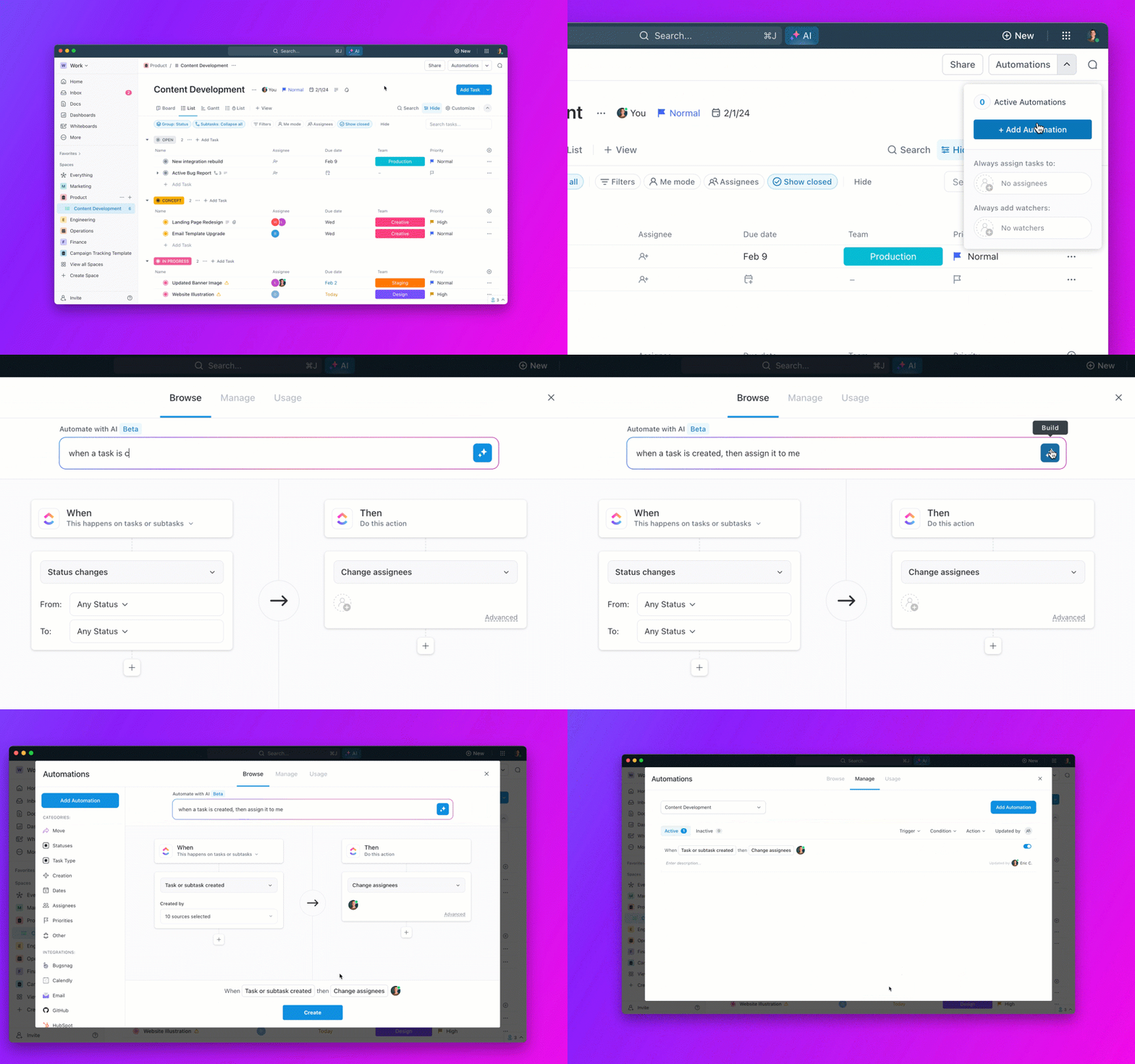
When you switch PM tools, you are not just moving tasks into a new system. You are also deciding how much manual coordination your team will still have to do once the move is done.
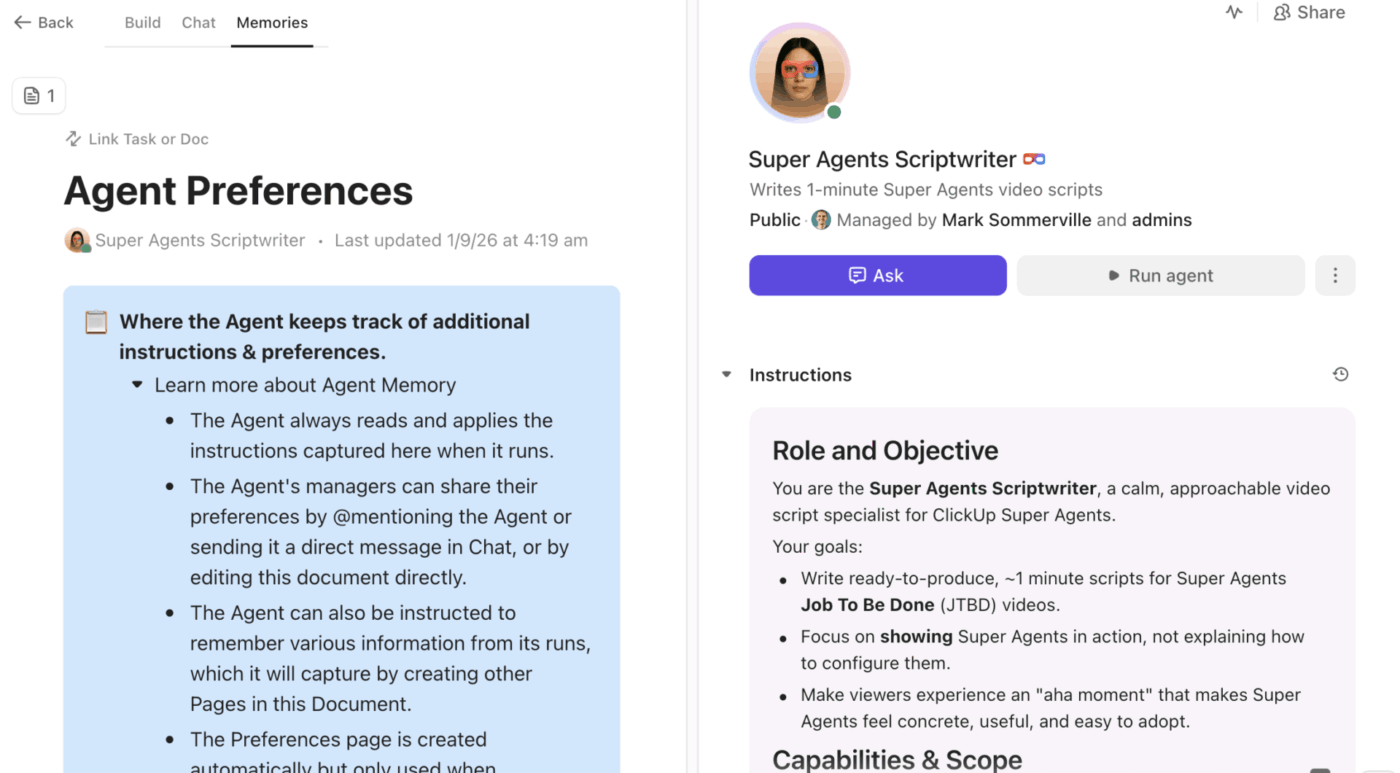
ClickUp Super Agents change that dynamic for you. They are AI-powered teammates built into ClickUp that can handle multi-step workflows using your work context, customizable tools, and selected external apps.
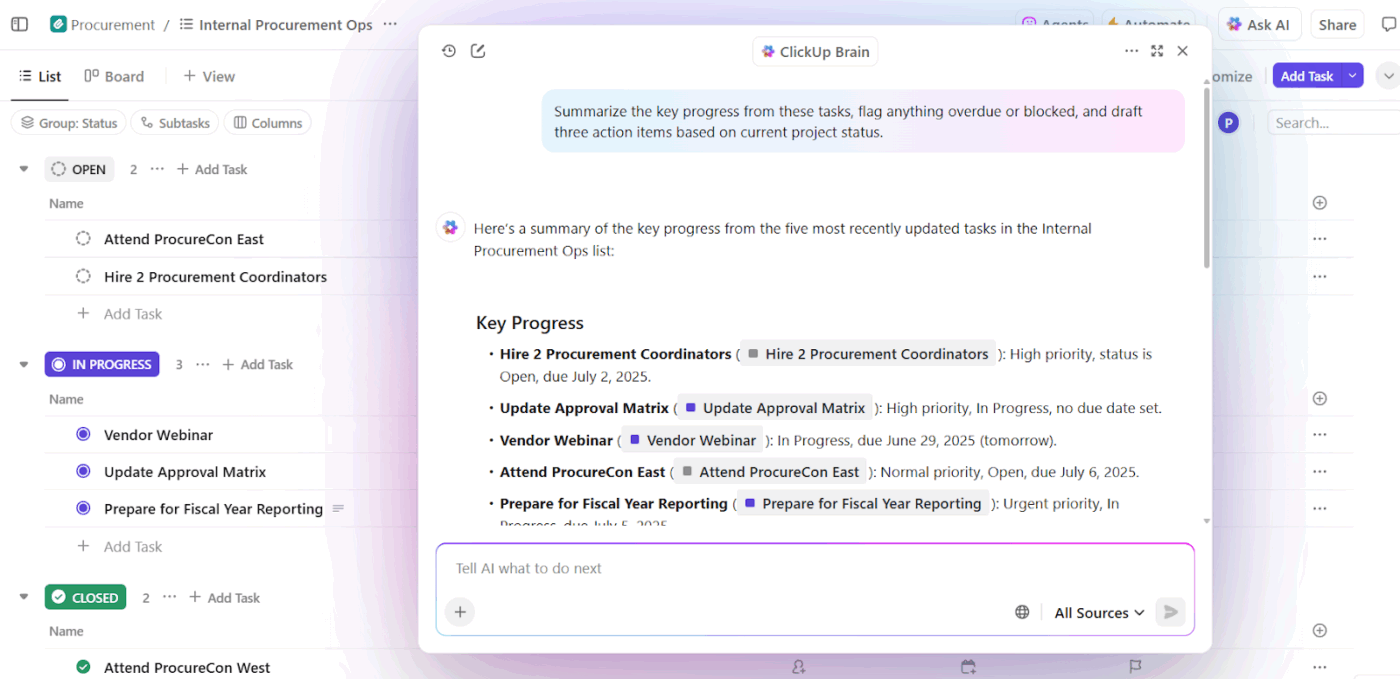
And to take your intelligence layer even further, you have ClickUp Brain. Brain houses a collection of conversational, contextual AI features available across the solution, designed to connect your people, work, and knowledge. It can find answers in your Workspace and apps, summarize updates instantly, and help generate the assets you need, such as project plans, docs, SOPs, and other deliverables.
A successful migration hinges on thorough preparation. Make sure to audit your current stack, define your requirements, and enforce a firm cutoff date to keep your transition on track.
When you follow a structured migration, you can perform a “process reset” and clear months of accumulated organizational debt.
Using a converged workspace like ClickUp simplifies this journey by consolidating your workflows into a single source of truth for both the transition and your ongoing projects.
Ready to migrate? Get started with ClickUp!
Most midsize teams finish in one to three weeks, depending on project volume and workflow complexity, while larger organizations with custom integrations may need four to eight weeks, including a pilot phase.
Yes—ClickUp supports native imports from Asana, Trello, Monday.com, Jira, Basecamp, Wrike, and other platforms, bringing over tasks, assignees, statuses, and due dates automatically, plus CSV import for tools without direct support.
No—run a pilot with one or two projects in the new tool first, then migrate remaining active work in phases so nothing stalls. While that happens, set a firm cutoff date for the old platform to avoid running both indefinitely.
Low adoption occurs when the new setup doesn’t align with how teams actually work. You can prevent it by involving key users in the evaluation, providing role-specific training, and running a short pilot before the full rollout.

Manasi Nair
Max 22min read
Manasi Nair
Max 15min read

Praburam Srinivasan
Max 16min read

© 2026 ClickUp