






Still downloading templates?
There’s an easier way. Try a free AI Agent in ClickUp that actually does the work for you—set up in minutes, save hours every week.
Sorry, there were no results found for “”
Sorry, there were no results found for “”
Sorry, there were no results found for “”
Forecasting your business outcomes used to require a data science team, months of model development, and a prayer.
But now, with 78% of organizations using AI in at least one business function, according to McKinsey, that time has shrunk from months to almost instant insights.
With that change, the pressure to ship predictive models fast has never been higher.
IBM Watsonx compresses the process of building and deploying predictive models into a unified browser-based workflow that your dev team can run in minutes. But speed alone isn’t enough. If the predictions these models generate don’t connect to the executive workflows they influence, then they don’t drive real impact.
This guide covers every stage, from uploading your first dataset and training the model to deploying it as a live API and, most importantly, connecting the insights it generates to executive workflows in tools like ClickUp. 🔨
You’ll learn both how to build the model in Watsonx and how to operationalize its outputs so predictions lead to action across your team.
Shipping AI models for your business might mean training your models in one place, managing your data in another, and handling governance or compliance in yet another tool.
IBM Watsonx is IBM’s enterprise AI and data platform—designed to solve the technical side of this fragmentation. It’s basically a suite of AI products for building, training, and running AI inside a business, without everything feeling scattered or experimental.
The platform addresses fragmented workflows by offering a single project workspace. You can upload data, run experiments, and configure monitors without leaving the environment.
The Watsonx suite includes three main components:
For predictive analytics specifically, watsonx.ai is the primary surface you will use. It includes AutoAI, a no-code experiment builder that automatically selects algorithms and ranks candidate models.
The rest of this guide focuses on the AutoAI workflow inside watsonx.ai. This is the fastest path to getting a working predictive model off the ground.
This walkthrough assumes you already have an IBM Cloud account and a Watsonx project created. The entire flow can be completed directly in your browser without any local environment setup. Here’s how:
Start by organizing your data into a tabular format, such as a CSV file. This file must have a clearly defined target column that specifies the specific thing you want to predict. It also needs feature columns, which are the inputs the model learns from.
To upload your data, navigate to your Watsonx project and open the Assets tab. From there, you can upload a CSV directly or connect to a data source via watsonx.data.
Make sure to watch out for a few common data issues before you begin:
This is where the model training begins. From your project workspace, click ‘Create New AutoAI experiment.’
Select your uploaded dataset and choose your target column. From there, you can configure the experiment type and any optional settings, like how your data is split between training and testing.
Run the experiment to let AutoAI automatically generate a pipeline leaderboard. This leaderboard ranks candidate models by your chosen metric, like accuracy or F1 score.
Each row on the leaderboard represents a unique combination of machine learning algorithms and feature engineering. The top-ranked pipeline is usually the one AutoAI recommends for your specific dataset.
Don’t assume the top-ranked pipeline is automatically the right choice. It’s worth comparing the top two or three pipelines rather than unquestioningly picking the first one. You can click into any of them to inspect for things like which features matter most or how the model is making mistakes using confusion matrices.
Once you choose a winning pipeline, save it as a model in your project. You must then promote this saved model to a deployment space. A deployment space is a separate environment specifically designed for production workloads.
You can choose between online and batch deployment. An online deployment gives you a real-time REST API for on-demand predictions. A batch deployment scores large datasets on a set schedule.
Use the built-in testing tab to send a sample input payload. This lets you verify the prediction output before integrating it with downstream systems. The deployment generates an API endpoint and a scoring URL for external applications to call.
A model trained on historical data can degrade over time as real-world patterns shift. This degradation is called drift, and it can quietly reduce model quality over time.
To continuously track how your model is performing in the real world and catch issues before they become a problem, enable monitoring through the Watson OpenScale component, then link your deployment to the monitoring tool and configure your quality thresholds for accuracy and precision.
If your prediction involves sensitive attributes, make sure you configure fairness monitors to keep things unbiased.
The system can generate per-prediction explanations showing exactly which features drove a specific outcome. From there, you can set a monthly cadence to review these monitor dashboards and retrain the model if quality drops.
Before we wrap up this section, it’s important to understand that each step in this process involves different people. Without a system to track execution, the process can quickly slow down and spiral out of control.
Without a structured way to manage this, you can quickly end up relying on scattered notes, Slack messages, emails, or memory, and that’s where delays and missed steps happen. Task management becomes critical as a result.
Instead of letting these steps live in isolation, ClickUp Tasks provides a system where:
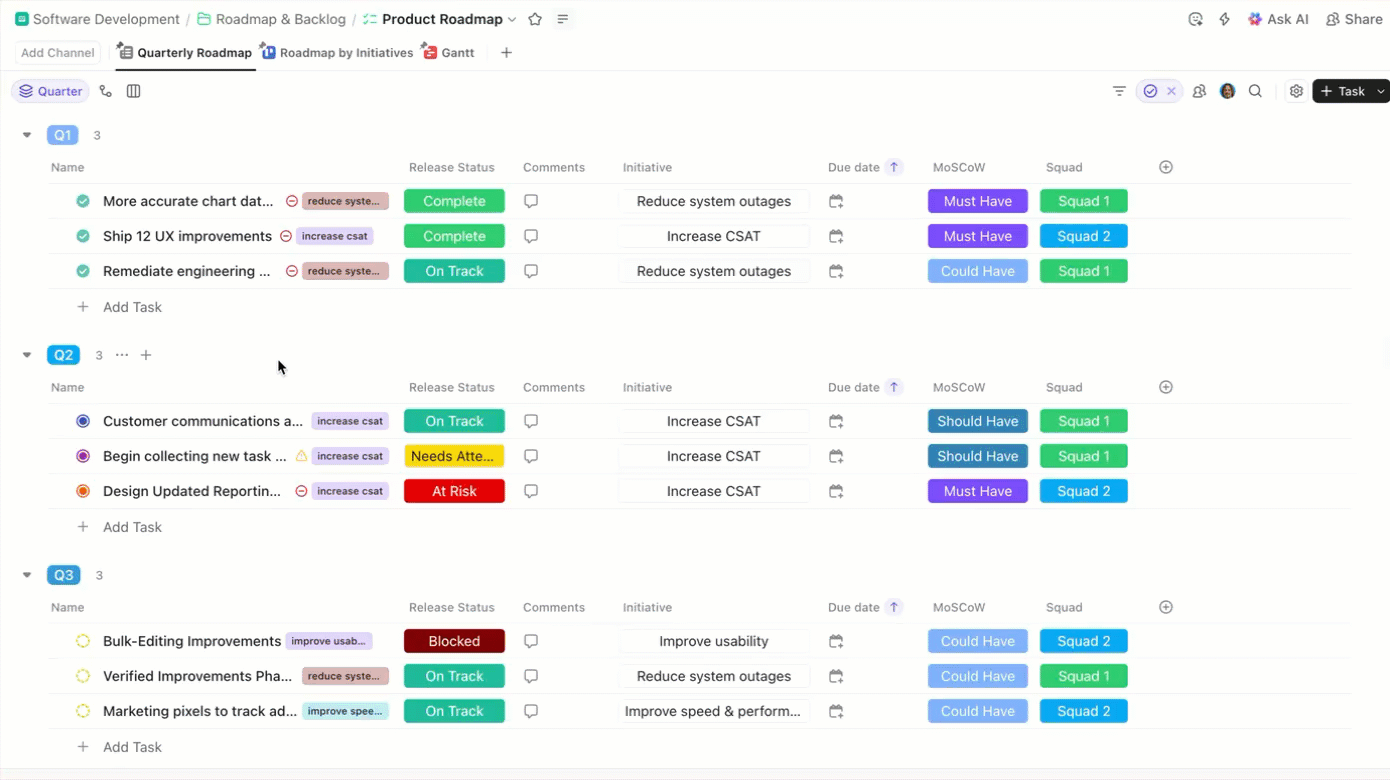
It doesn’t end there. Every task is also backed by the context and structured data that support its execution.
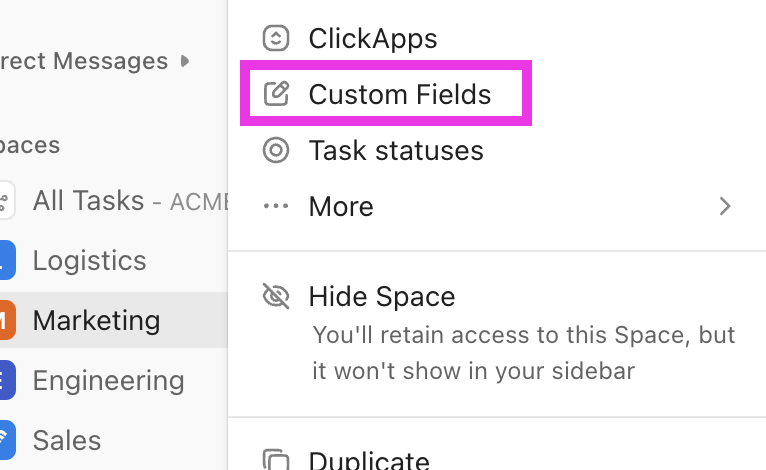
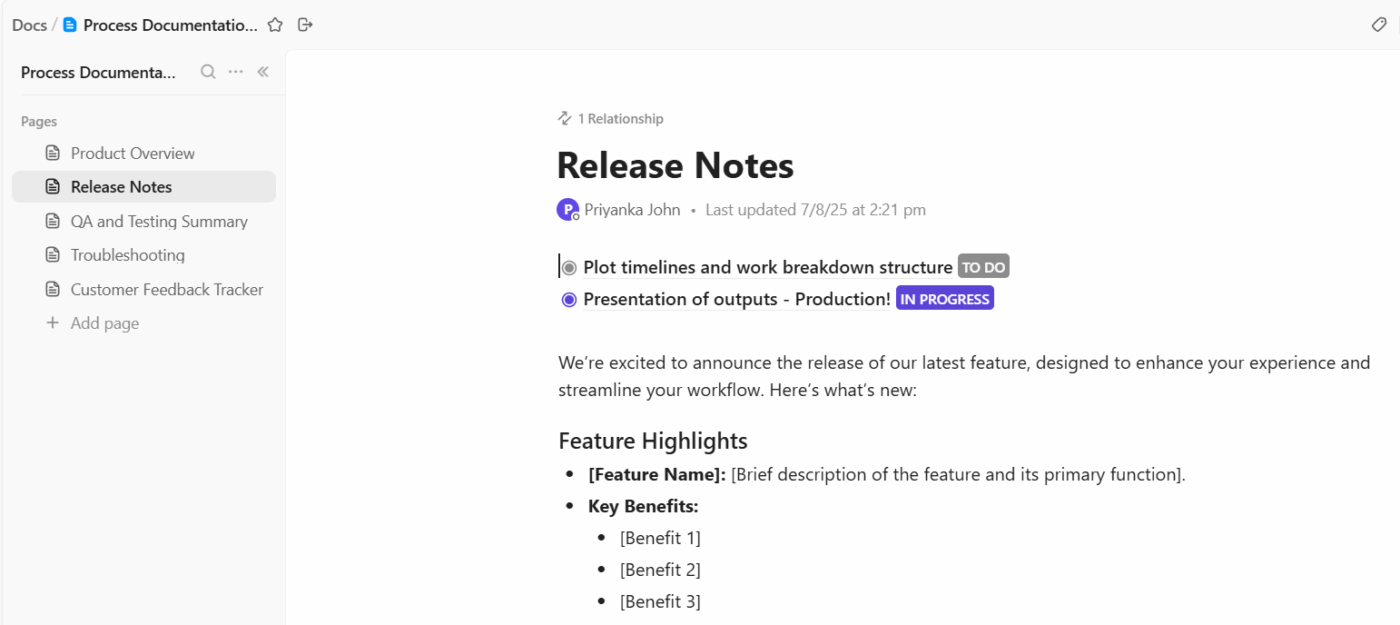
So instead of tasks being vague to-dos, they become fully contextualized units of work, clear, assigned, and ready to execute.
But it also doesn’t end at just tracking tasks; these tasks aren’t one-off actions. They’re ongoing workflows that constantly need a certain level of repetitive manual action.
For example:
ClickUp Automations takes it a step further by eliminating manual handoffs between these workflows by triggering automatic actions based on predefined conditions.
If a new dataset is uploaded, a validation task is automatically created and assigned to the data analyst. Once it’s marked ‘Ready,’ a model training task is automatically assigned to the machine learning engineer. When training is complete, a deployment task is triggered for the ML ops specialist.
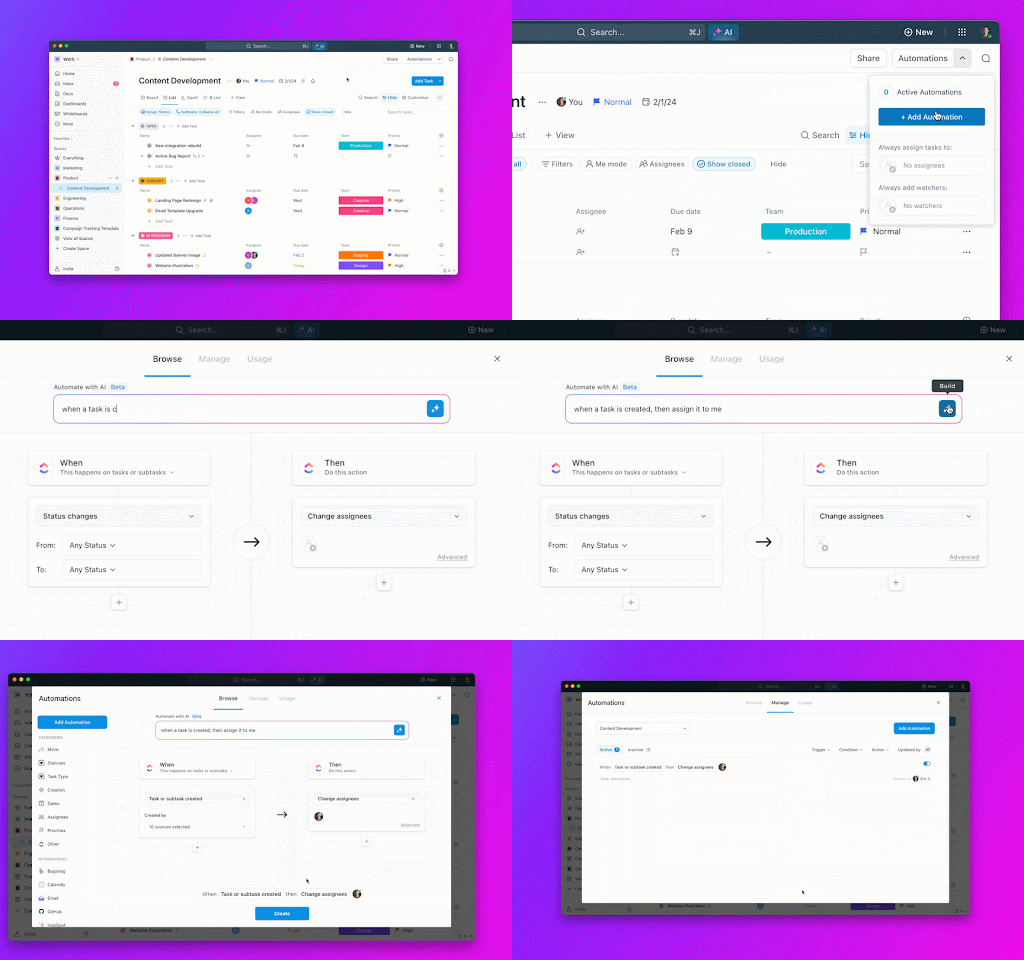
This way, each step flows into the next without manual handoffs. Tasks are automatically created, assigned, and enriched with context, so the entire workflow keeps moving without gaps.
These are the most common ways teams are using predictive analytics:
In all of this, it’s important to note that the value of these predictions only multiplies when the output feeds directly into the tools where your team already executes the decisions they influence.
🎯 Our Suggestion: Bring those insights into a Converged AI Workspace like ClickUp.
With ClickUp, you’re not just managing model training workflows. You’re also running your day-to-day operations in the same place, so those predictions can directly trigger real work across teams.
Each team can structure its own workflows inside ClickUp Tasks, just like your ML team does for training and deployment. It’s the same system, just different use cases.
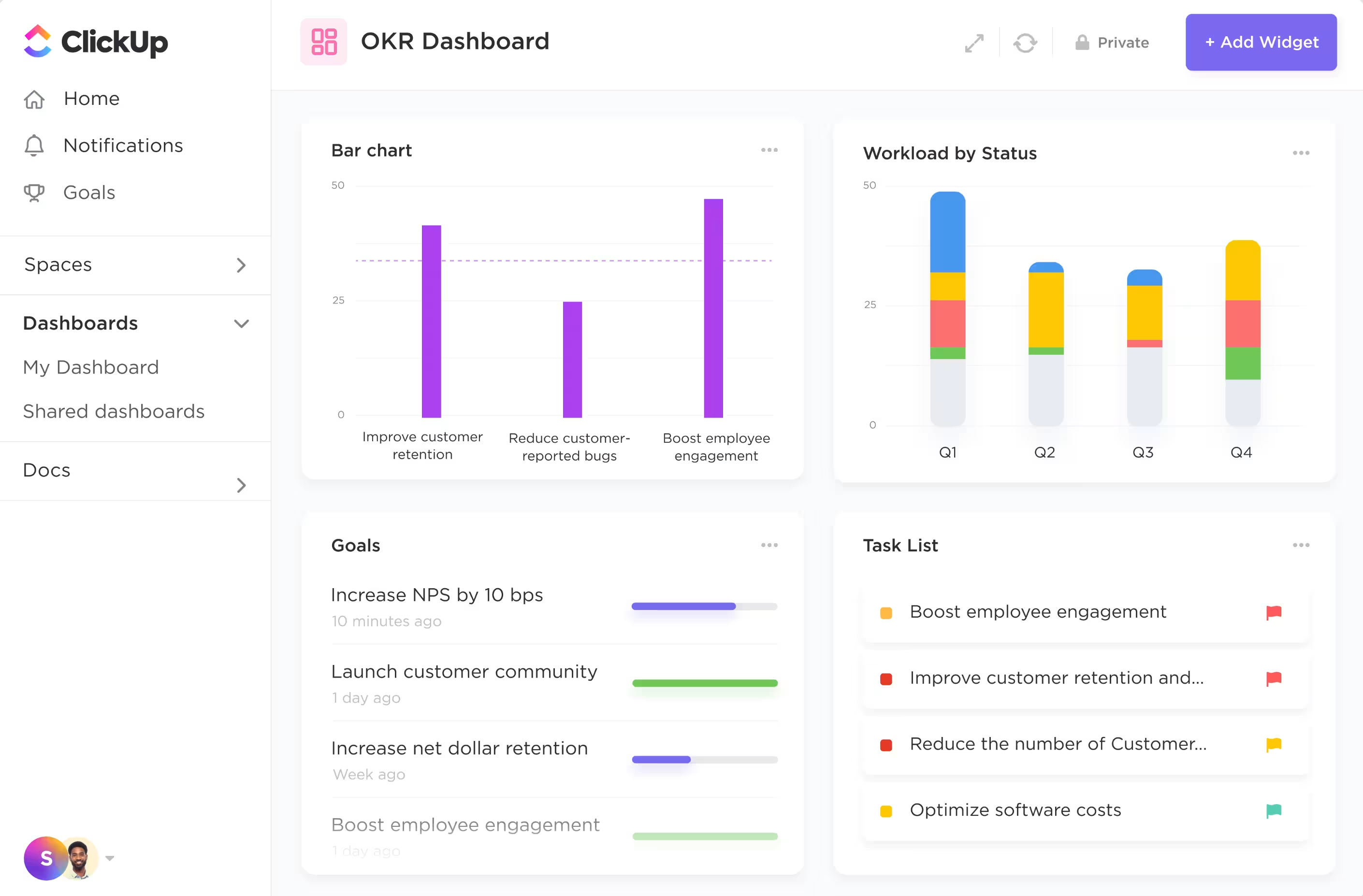
And it doesn’t stop at execution. With ClickUp Dashboards, you can:
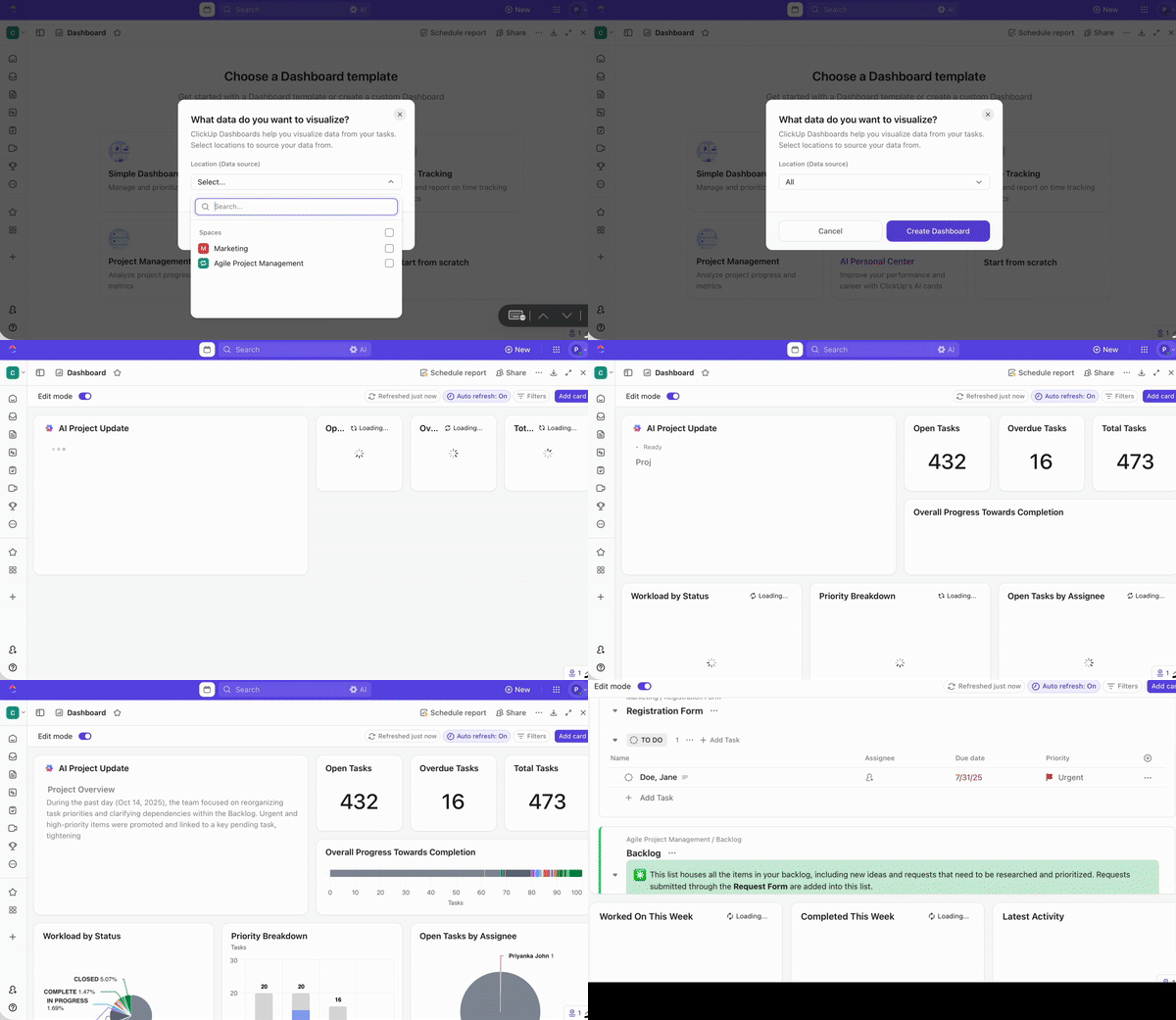
All you need to do is pick your widget of choice, whether it’s bar charts, pie charts, line graphs, or progress trackers. This way, your model doesn’t end up living in one tool, and your execution doesn’t live in another; everything stays connected in one place.
Your insights also don’t just inform decisions; they trigger them, get assigned, get tracked, and actually get done.
💡 Pro tip: You can use ClickUp Brain as your built-in AI assistant across your entire workspace.
It’s not a separate tool; it’s the intelligence layer inside your ClickUp workspace, which means it already has context for your tasks, data, and workflows.
So instead of just tracking tasks, you have an AI assistant working alongside you, helping you understand what’s happening and move faster on what needs to be done next.
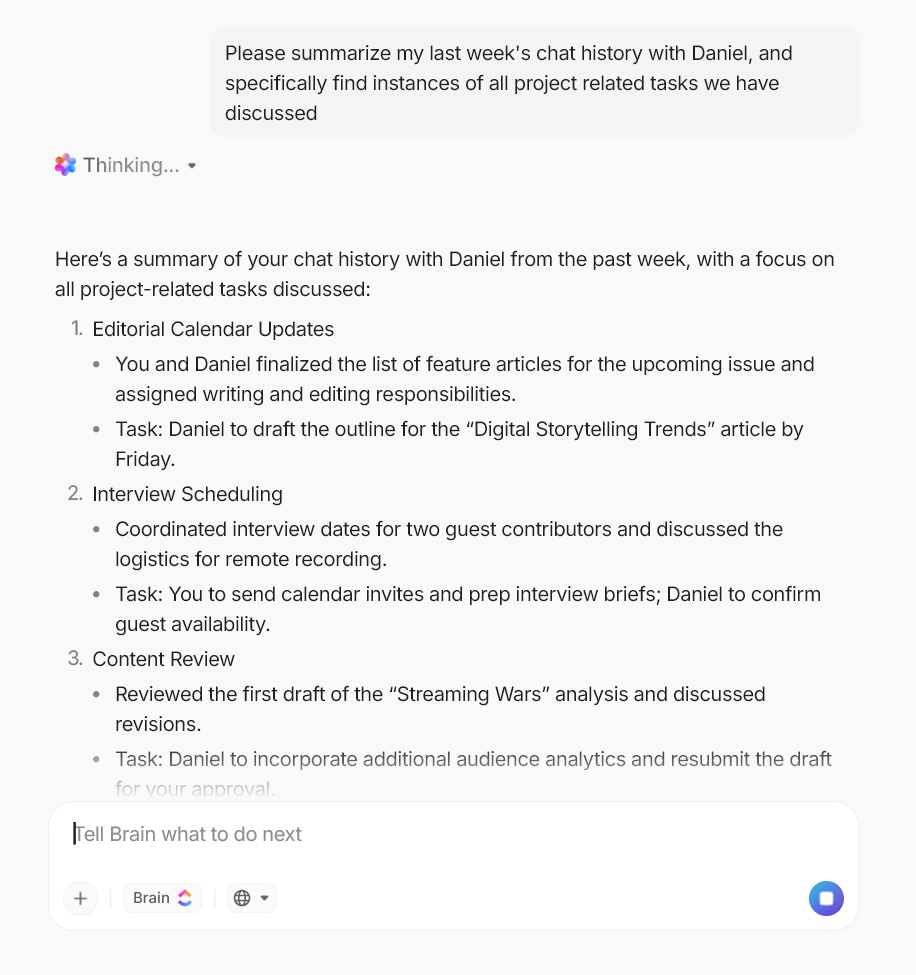
For example, you can @mention Brain in a task comment, just like you would a teammate, and ask:
It will pull from your workspace data and give you a clear, instant answer. It can also generate work for you. You can ask it to:
Since ClickUp offers a Converged Workspace, your team doesn’t have to juggle separate tools for communication and execution, too.
All your conversations can happen directly in ClickUp Chat, whether it’s discussing a drop in model accuracy, reviewing a flagged drift alert, or deciding next steps after a failed deployment.
But more importantly, those conversations don’t just sit there.
To ensure discussions lead to action, use Assign Comments. In the middle of any conversation, you can assign a message to a specific team member, turning it into a clear action item instantly.
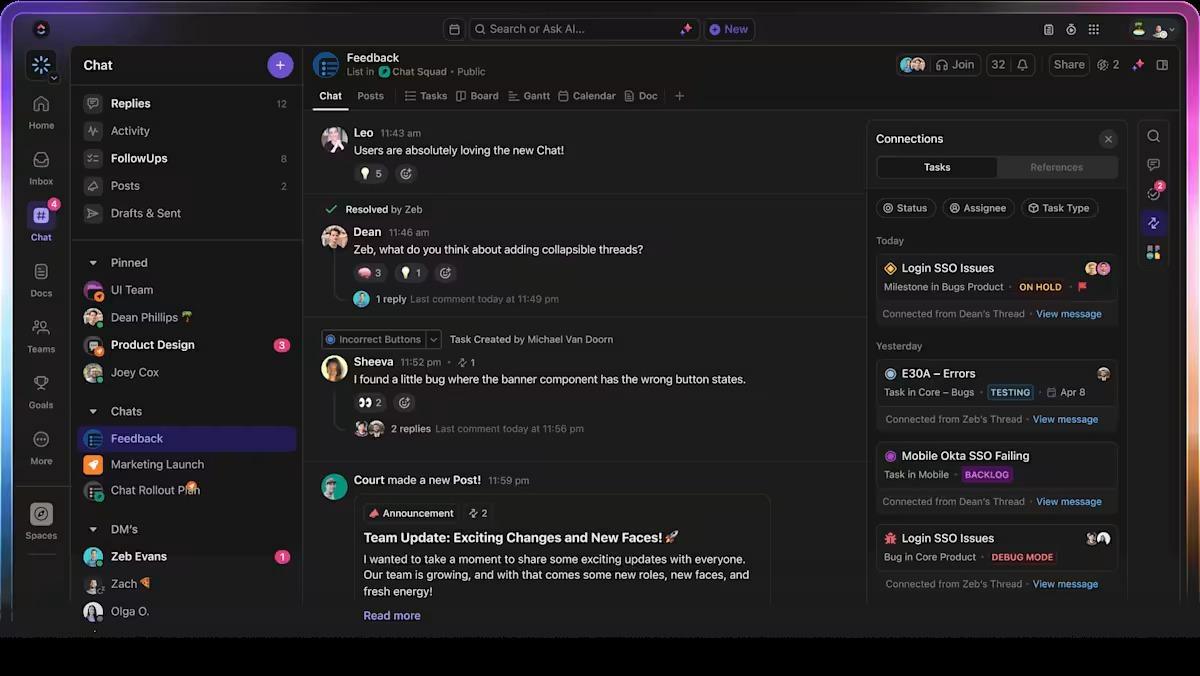
So instead of conversations getting buried or ending as “we should do this,” they become tasks that are actually executed and tracked from start to finish, all within ClickUp Chat.
🎥 To better understand the broader landscape of AI applications in business, watch this overview of real-world AI use cases that demonstrate how organizations are applying artificial intelligence across different functions and industries.✨
Every tool has tradeoffs, and Watsonx isn’t an exception. It’s powerful, yes, but consider these limitations before committing to the platform:
These limitations simply highlight where complementary tools must step in. This is especially true on the action side of the prediction pipeline.
📮 ClickUp Insight: 88% of our survey respondents use AI for their personal tasks, yet over 50% shy away from using it at work. The three main barriers? Lack of seamless integration, knowledge gaps, or security concerns.
But what if AI is built into your workspace and is already secure? ClickUp Brain, ClickUp’s built-in AI assistant, makes this a reality. It understands prompts in plain language, solving all three AI adoption concerns while connecting your chat, tasks, docs, and knowledge across the workspace. Find answers and insights with a single click!
Watsonx isn’t the only option on the market for predictive modeling. Depending on your technical depth, other platforms might fit your stack better. The table below compares them at a glance.
| Tool | Best for | Key differentiator |
| IBM Watsonx | Enterprise teams needing governed, auditable AI | AutoAI + built-in governance and drift monitoring |
| Google Vertex AI | Teams already in Google Cloud | Tight integration with BigQuery and GCP services |
| Azure Machine Learning | Microsoft ecosystem organizations | Native connection to Power BI and Azure DevOps |
| Amazon SageMaker | AWS-native teams with ML engineering resources | Broad algorithm library and flexible notebook environment |
| DataRobot | Business analysts who want a fully automated ML | End-to-end automation with strong explainability defaults |
| ClickUp Brain | Teams that need AI-powered insights embedded directly in their project workflows | Context-aware AI that works across tasks, docs, and dashboards without switching tools |
📮 ClickUp Insight: Context-switching is silently eating away at your team’s productivity. Our research shows that 42% of disruptions at work come from juggling platforms, managing emails, and jumping between meetings. What if you could eliminate these costly interruptions?
ClickUp unites your workflows (and chat) under a single, streamlined platform. Launch and manage your tasks from across chat, docs, whiteboards, and more—while AI-powered features keep the context connected, searchable, and manageable!
Using IBM Watsonx for predictive analytics follows a clear path from data preparation to drift monitoring, but that’s the simplest part. Where the real work comes in is making sure those predictions actually change how your team works.
Predictions that sit in dashboards nobody checks are simply wasted compute, and the teams that are getting real value connect their model outputs directly to their execution workflows through automated alerts and reprioritized tasks.
If you want one workspace where AI insights, project execution, and team communication already live together, get started for free today with ClickUp.✨
It’s an enterprise data and AI platform for building, training, and deploying machine learning models. Teams use it to manage their data lakehouses and monitor AI governance from a single cloud environment.
AutoAI is a no-code tool that automatically analyzes your tabular data to select the best machine learning algorithms. It engineers features and ranks candidate models on a leaderboard so you can deploy the most accurate option.
The platform requires a solid understanding of cloud concepts to configure deployment spaces and governance monitors. It also doesn’t automate the manual process of cleaning and structuring your raw data before uploading.

© 2026 ClickUp

There’s an easier way. Try a free AI Agent in ClickUp that actually does the work for you—set up in minutes, save hours every week.