

Sorry, there were no results found for “”
Sorry, there were no results found for “”
Sorry, there were no results found for “”
Smartsheet handles structured project data well, but it was built around spreadsheet logic, not live capacity. If your team is splitting time across projects and your plan stops matching reality the moment someone reassigns a task, you’ve outgrown it.
This guide covers eight alternatives. Quick verdict: agencies billing client time should look at Float or Productive. Mid-market teams running complex resource math want Wrike or Runn. Teams who want their capacity plan to live inside the same workspace as the actual work should look at ClickUp. Asana and monday.com sit in the middle for teams that already use them. Resource Guru is the simplest if all you need is a shared availability view.
Below: a comparison table, the five things that actually matter when evaluating these tools, and then individual reviews with honest limitations on each.
Capacity planning software shows you how much work your team can realistically take on, then helps you assign new work without pushing anyone past that line. It pulls together availability, time off, current assignments, and (in better tools) skills, so the question “can we take this project?” gets answered with data instead of a gut check.
The reason it matters more than it used to: hybrid schedules, contract work, and people splitting time across three to five projects have made the workload invisible. A spreadsheet can track who’s on what. It can’t tell you that Priya is at 110% next week because two deadlines slid into the same Tuesday.
ClickUp Insight: Only 15% of managers check workloads before assigning new tasks. Another 24% assign tasks based on project deadlines alone. The result is overworked teams, underused team members, and the kind of burnout that surfaces three weeks too late to fix.
Real Results: Lulu Press saves 1 hour per day, per employee using ClickUp Automations—leading to a 12% increase in work efficiency.
| Tool | Best for | Standout feature | Pricing | Honest limitation |
|---|---|---|---|---|
| ClickUp | Teams who want capacity, tasks, and docs in one workspace | Workload View tied to live tasks; AI Assign and Prioritize | Free forever; Customization available for enterprises | Feature depth is a learning curve for small teams |
| Monday.com | Visual capacity tracking for non-technical teams | Workload widget, color-coded over-allocation | Free; paid from $9/user/month | Advanced workload features sit on higher tiers |
| Wrike | Enterprise resource planning with effort-based scheduling | Resource planner, percentage-based assignment | Free; paid from $10/user/month | Steep learning curve, cluttered UI |
| Asana | Portfolio-level capacity across many projects | Workload view, portfolios, timeline | Free; paid from $13.49/user/month | Workload accuracy depends on consistent effort estimates |
| Float | Dedicated resource scheduling for agencies | Visual scheduler, profitability-aware allocation | Paid from $8.50/user/month | Thin project management features |
| Resource Guru | Simple team scheduling with leave management | Availability bar, clash detection | Paid from $5/user/month | Basic reporting, few integrations |
| Runn | Real-time capacity forecasting for services teams | Scenario planning, tentative projects | Paid from $9/user/month | Small user community, limited templates |
| Productive | Agency resource management tied to budgets | Utilization tied to project margin | Paid from $10/user/month | Overkill for non-services businesses |
Our editorial team follows a transparent, research-backed, and vendor-neutral process, so you can trust that our recommendations are based on real product value.
Here’s a detailed rundown of how we review software at ClickUp.
Did you know? 50% of organizations lack real-time project KPIs and, as a result, waste at least a full day each month on manual reporting.
Teams usually outgrow Smartsheet for capacity planning when resource data becomes too dynamic for rows and columns. Capacity planning needs live task updates, time-off visibility, workload forecasting, scenario planning, and assignment changes that update the plan automatically.
Smartsheet can track structured project data well, but teams often need a more connected system when workloads shift daily, people split time across projects, or managers need to compare planned capacity with actual work.
Every tool claims to be the solution you need, which makes choosing one harder than it should be. Here are the must-haves you should look out for:
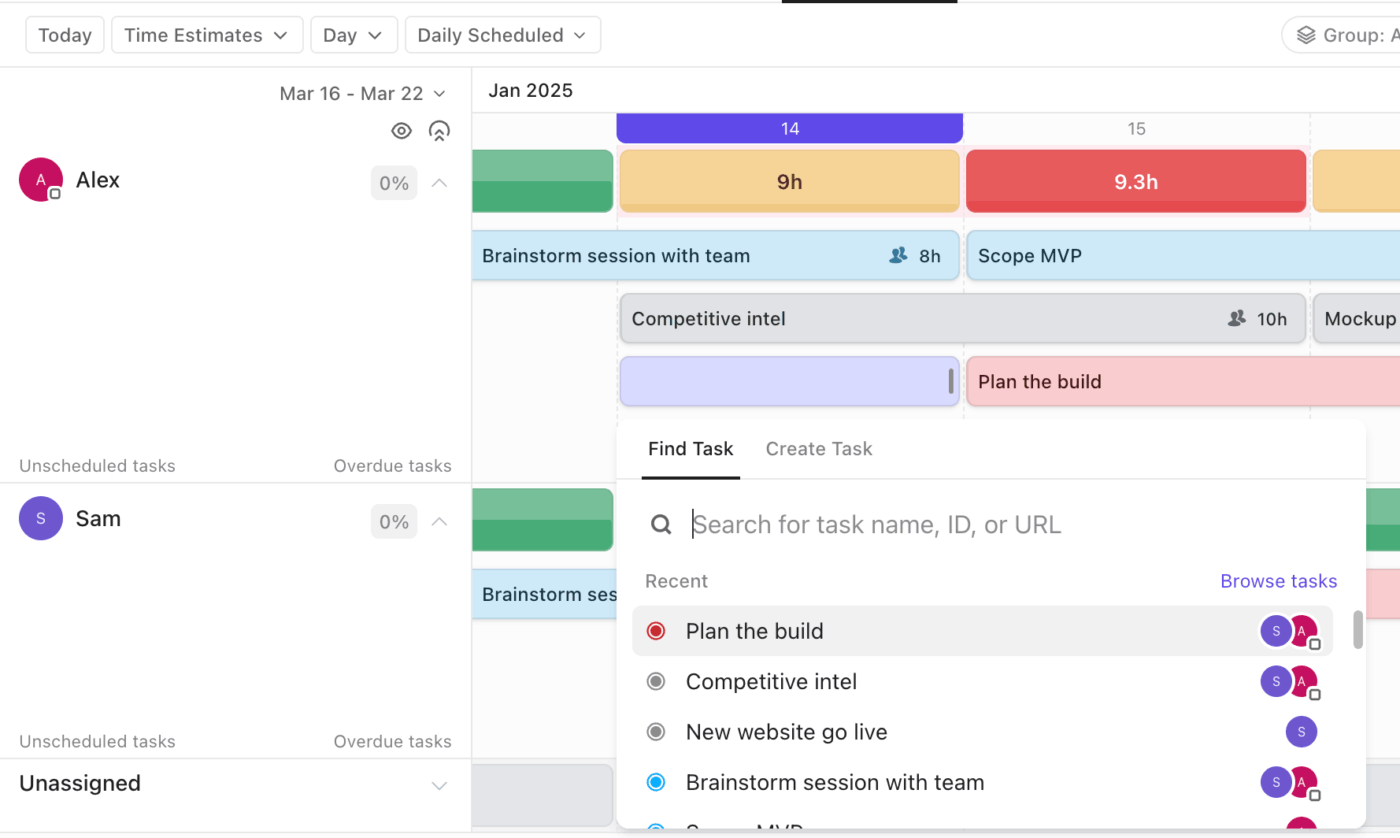
ClickUp’s capacity planning advantage is structural: Workload View uses live task data, so capacity changes when tasks move. That removes the manual sync step that breaks most spreadsheet-based planning.
Workload View maps each person’s assignments against a defined capacity, set in hours, task counts, or custom effort fields like story points. You can drag tasks between people or time slots directly from the view, and the workload bars recalculate as you move them. It works as a planning surface, not just a report.
ClickUp Dashboards pull from time tracking, task progress, and custom fields already in the workspace. You can compare planned capacity to logged effort, see distribution across teams, and share a live view with stakeholders without exporting anything.
ClickUp Brain sits across tasks, docs, and dashboards. It can summarize project progress, surface workload patterns, and suggest assignments based on historical work and current load.
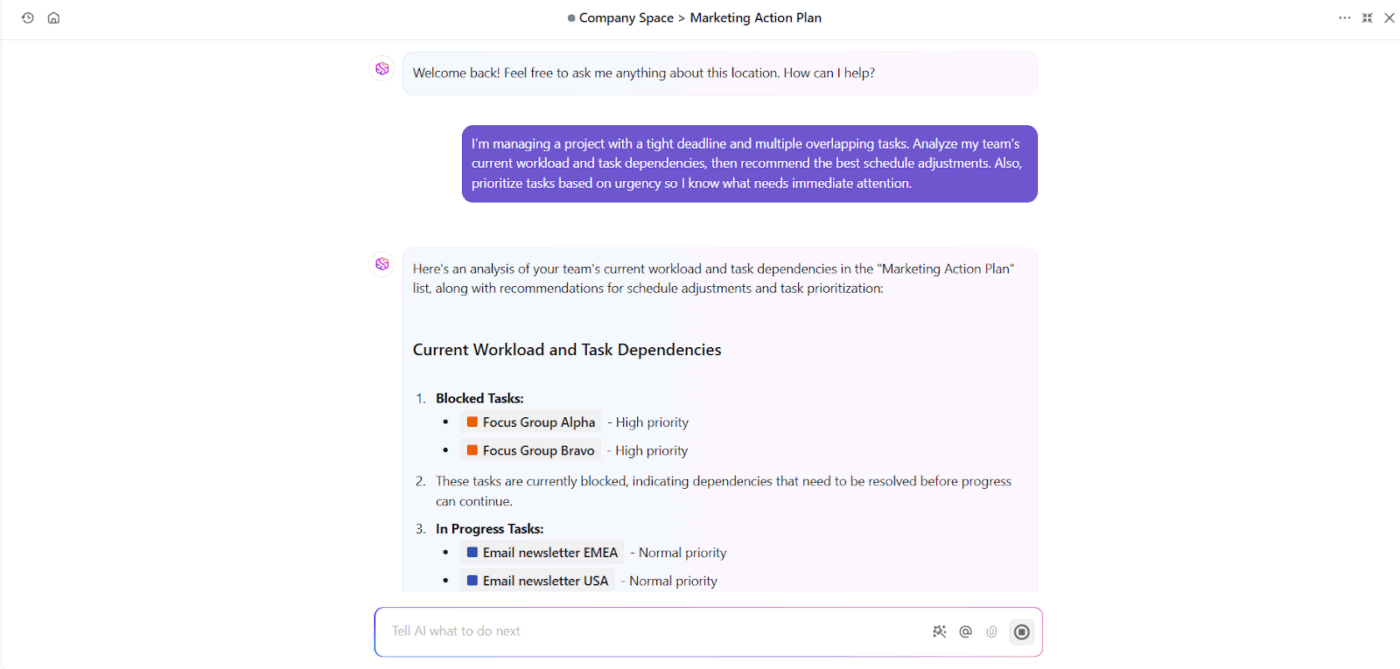
For capacity planning, AI Assign recommends task owners based on availability, workload, and task context.
Honest take: ClickUp does a lot, and the breadth has a cost. Teams who only need shared availability and don’t want to learn the broader workspace will find lighter tools like Resource Guru or Float faster to set up. The mobile Workload View is also more limited than the desktop version.
Pros:
Cons:
A G2 user reports:
I like being able to have everything integrated in ClickUp, which helps me understand how the work is done and what everyone is working on every week. Having visibility on capacity and documents is really key, especially for project management in an agency like ours. I appreciate that we don’t miss anything by having everything under ClickUp. Also, the initial setup was really easy for me.
Another TrustRadius user shares:
I’ve used Trello, Jira, Smartsheet, monday.com, and Basecamp and looked at several others but only ClickUp has the combination of flexibility and structure to enable me to manage my own work in the same tool as multiple teams who share some but not all tasks.
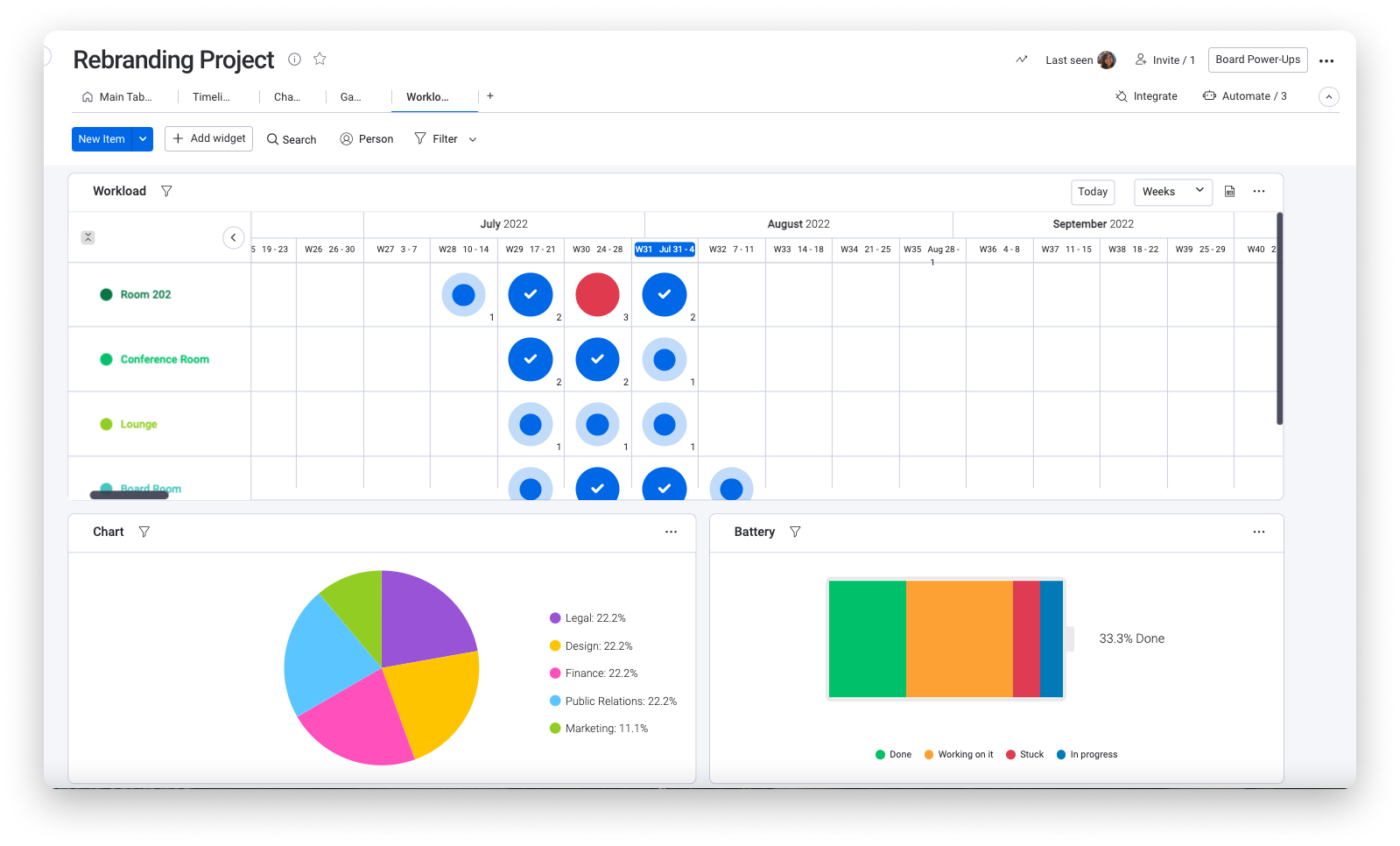
Monday.com is a strong Smartsheet alternative for teams that want visual workload tracking without a spreadsheet-first interface. Its visual boards make workload distribution easy to understand at a glance, with color-coded bars showing who’s at, under, or over capacity across timelines.
Redistributing work is straightforward, too. Managers can drag and drop tasks directly from the Workload widget.
You can also use monday.com‘s automation recipes to proactively address problems. For example, you can set up an automation to trigger a notification when a team member’s workload exceeds a threshold, so you can intervene before they become overwhelmed.
Honest take: Monday.com’s pricing is structured in user “buckets” (3, 5, 10), which gets expensive fast for teams that don’t fit those tiers neatly. The most useful workload features sit behind the Pro plan.
Pros:
Cons:
A G2 user shares:
What I like most about Monday Work Management is how easy it is to organize projects and track tasks all in one place. The interface is highly visual and intuitive, so it’s simple for the whole team to see progress, deadlines, and responsibilities at a glance. I also appreciate the automation features and integrations, since they cut down on manual work and help keep everyone aligned. Overall, it makes collaboration smoother and project tracking much more efficient.
Also Read: Work shouldn’t feel like Monday
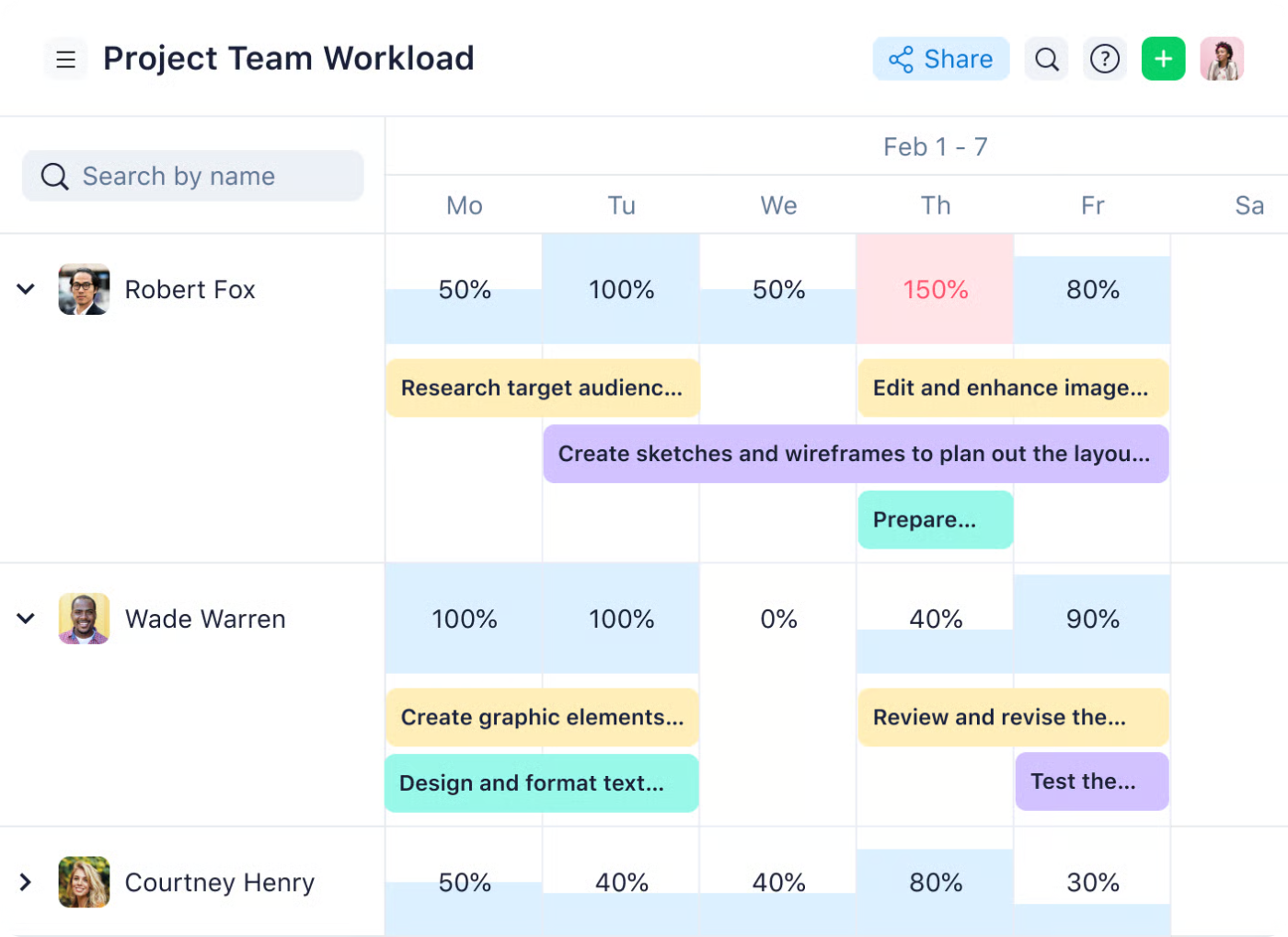
Wrike is built for large organizations where resource allocation is genuinely complex. Its differentiator is effort-based scheduling: managers assign team members by percentage of time rather than task count, which gives a more honest read on capacity when people are split across multiple projects.
Integrated time tracking lets you compare planned effort against actual time spent, so future capacity estimates get sharper with every cycle.
Honest take: The platform has a steep learning curve. The full resource management suite only kicks in on the Business plan and above. Some users find the interface cluttered.
Wrike best features
Pros:
Cons:
A G2 user shares:
You don’t have to use all of the in-depth features to get a lot of use out of Wrike. You can use it minimally as a deadline and assignee tracker, and slowly add in more tracking functionality as you learn to use the software. It’s really wonderfully designed so that you can use it in layers, and evolve as you go.
Is your team suffering from burnout? Watch this video on capacity planning strategies and optimize your team’s workload for a healthy work environment:
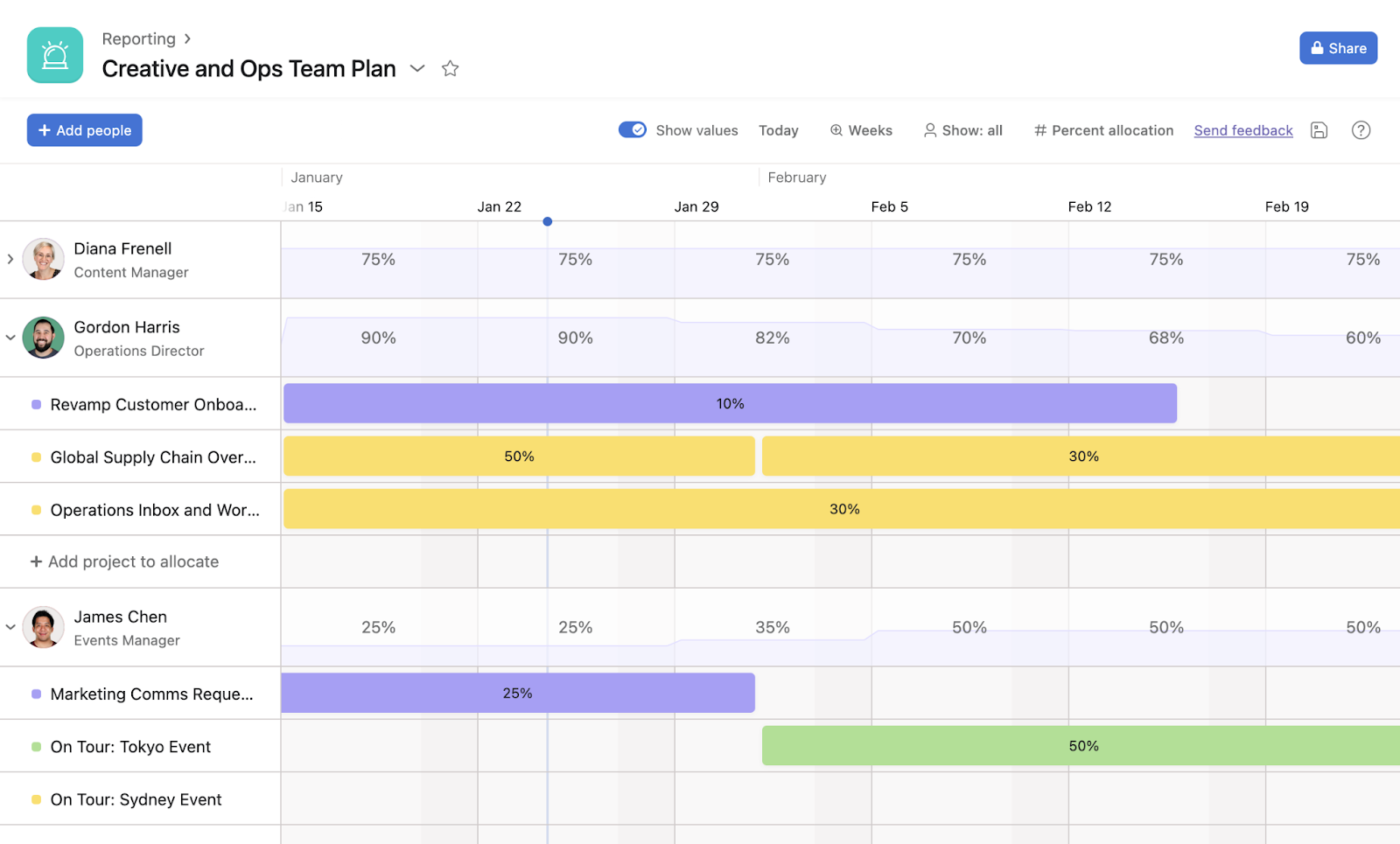
When you’re managing multiple projects, it’s easy to lose sight of the big picture and end up overloading your team. Asana’s Workload view helps you balance assignments across entire portfolios, making it easier to prevent burnout and ensure your most important initiatives are properly resourced.
You get a visual overview of capacity based on the effort estimates you’ve set for tasks. The catch is right there: if your team isn’t disciplined about effort estimates, the workload view shows you fiction.
Honest take: Asana’s portfolio-level features only show up on Business and above, which is where the price gets uncomfortable. Capacity units are limited to hours or points with little flexibility beyond that.
Pros:
Cons:
A G2 user reports:
The AI features added at the portfolio level create interesting insights on large projects. The initial tests appear promising as a way to standardize portfolio reporting.
Fun Fact: Beehives maintain a reserve workforce of bees that appear idle. Research has shown these bees are actually an on-demand capacity buffer, activated when foraging demand suddenly spikes or a task force suffers losses. Nature independently invented the concept of standby resource pools!
If your main frustration is just figuring out who is available to work on what, a full-blown project management platform can feel like overkill.
Float is built primarily as a resource scheduling tool, and that focus shows.
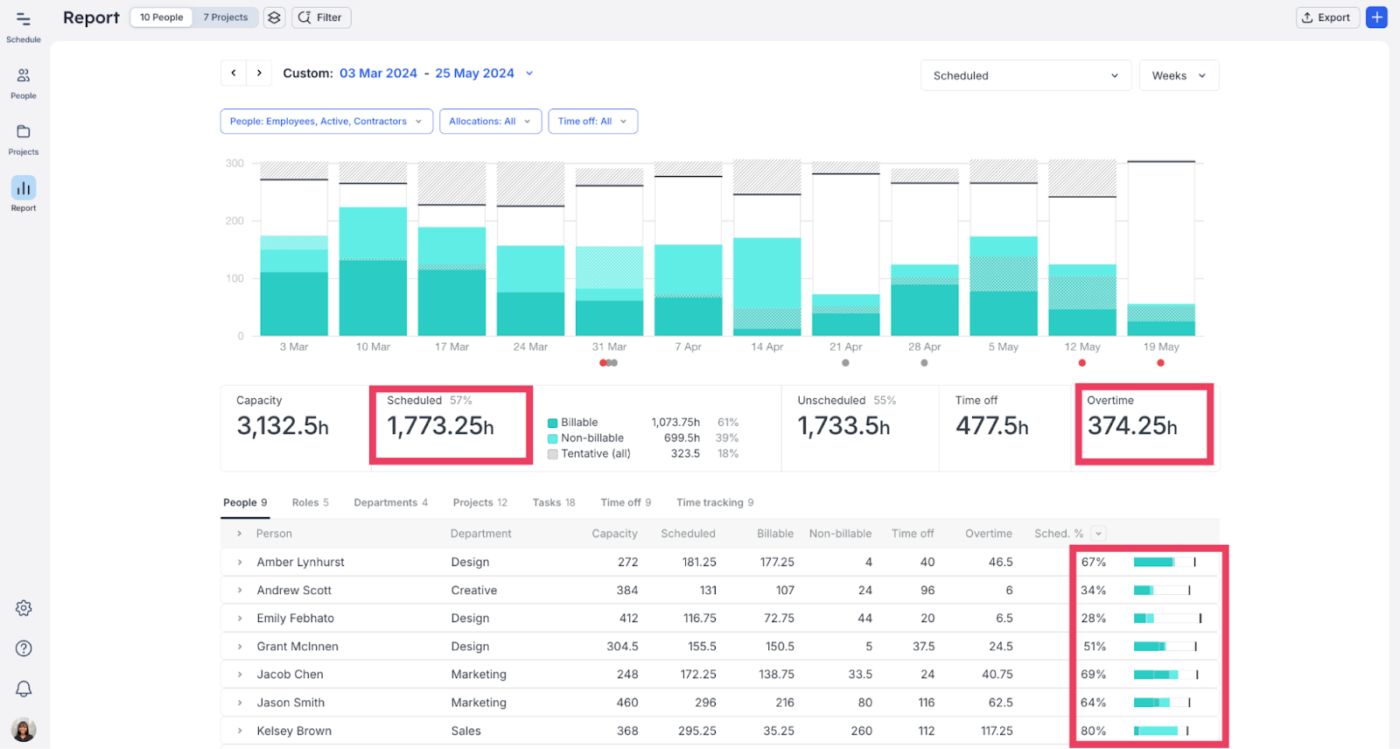
The visual scheduler displays availability and assignments on a clean timeline. Drag and drop allocates people to projects and immediately shows the impact on everyone’s workload. Capacity reports cover utilization rates, resource forecasts, and workload distribution. Integrated time-off tracking factors vacations and holidays into capacity automatically, so you don’t accidentally schedule work for someone who’s out.
Honest take: Project management features are thin. You’ll likely pair Float with a separate task tool. Reporting is also less extensive than what you get from all-in-one platforms, and the mobile experience trails the web app.
Pros:
Cons:
A G2 user reports:
I love this platform for its capability to plan and schedule the timeline of project. This platform improves the efficiency and allows teams to better collaborate to complete the project within the time frame. The best part I like about this platform is reporting that allows better and informed decision making that is critical for the organization. This platform have a less complex user interface which is comfortable for users. Other than this the handling of project life cycle can be tracked and managed very efficiently with this platform.
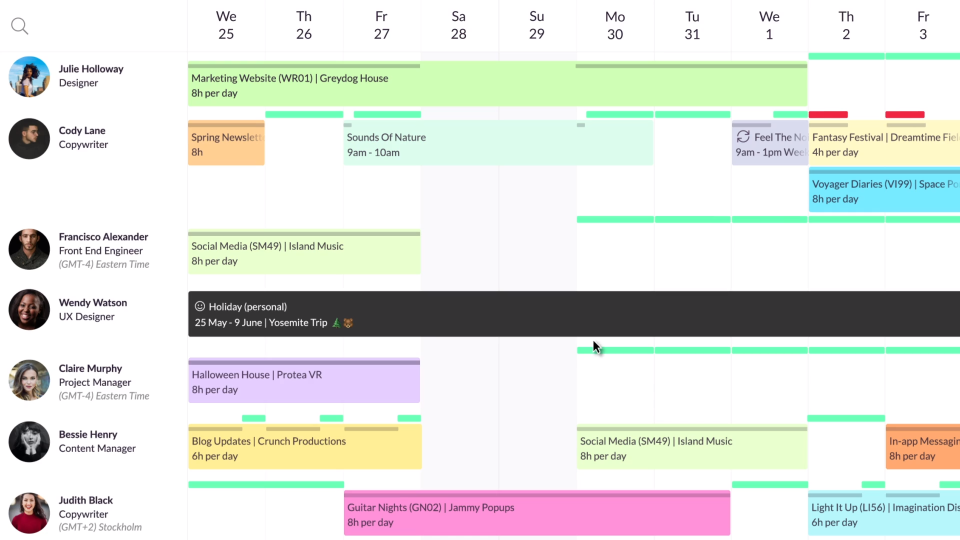
Resource Guru simplifies team scheduling with an interface focused on availability. The standout feature is the availability bar, which shows each team member’s booked vs available time at a glance. Clash management automatically flags double-bookings before you commit them.
Leave management lives inside the same scheduling view, so vacations, sick days, and absences sit alongside project assignments.
Honest take: Resource Guru is a scheduler, not a project management platform. Reporting is basic, the integration list is shorter than larger competitors, and you’ll need a separate tool for actual task work.
Pros:
Cons:
A G2 user shares:
I like that I can easily log on to Resource Guru to check where I’ll be, which helps me plan my calendar and annual calendar in advance. It’s beneficial for our organization to structure and know where to be at a particular time. I also find it very easy to set up and use. The video provided was self-explanatory, making it simple for me personally to get started.
Fun Fact: Netflix engineers popularized “chaos engineering” partly as a capacity stress test—deliberately crashing systems in production to find hidden capacity ceilings before real traffic did.
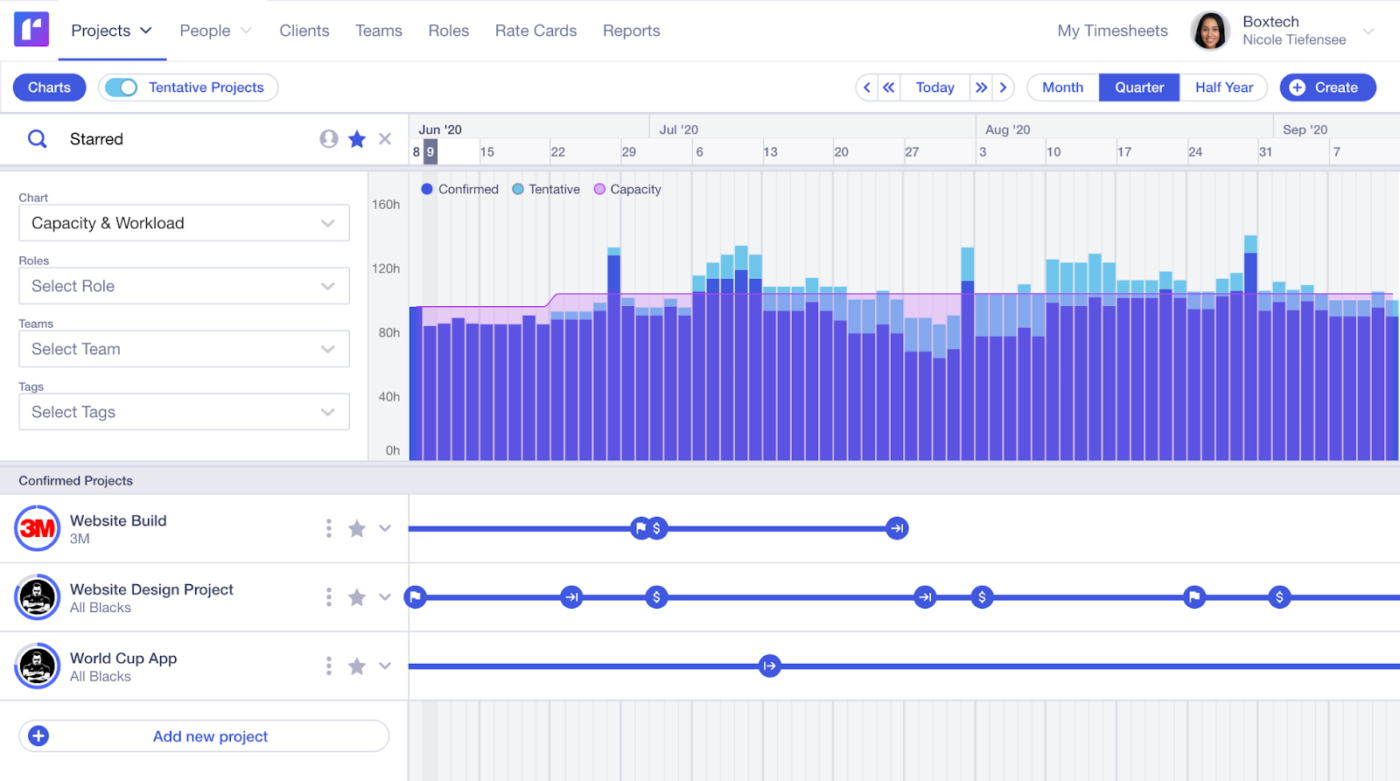
Committing to new projects without knowing the impact on your team is how delivery dates slip three months out. Runn addresses this with real-time capacity forecasting and scenario planning, so you can model resource needs before you sign anything.
Runn’s capacity charts show team utilization and availability over time, updating live as project plans change. The most powerful feature is scenario planning, which lets you model “what happens if we take this project on top of what we already have.”
For example, a services team can model whether a new client project would overload designers in June, underuse engineers in July, or require a contractor before signing the deal.
Honest take: Runn’s user community is small, which means fewer templates and shared workflows. Like Float and Resource Guru, project management features are limited, so you’ll likely pair it with another tool. Integrations are also more limited than the established platforms.
Pros:
Cons:
A Capterra user mentions:
Positive experience all-round, in use of the product, ease of use, interactions with the staff/help/bot, and willingness to support a non-profit in our planning. Very satisified.
Did You Know? Henry Gantt invented the Gantt chart around 1910-1915 as a visual tool for scheduling production workloads across time, matching task sequences to available machine and labor capacity. It remains one of the most widely used planning tools in the world, essentially unchanged in concept.
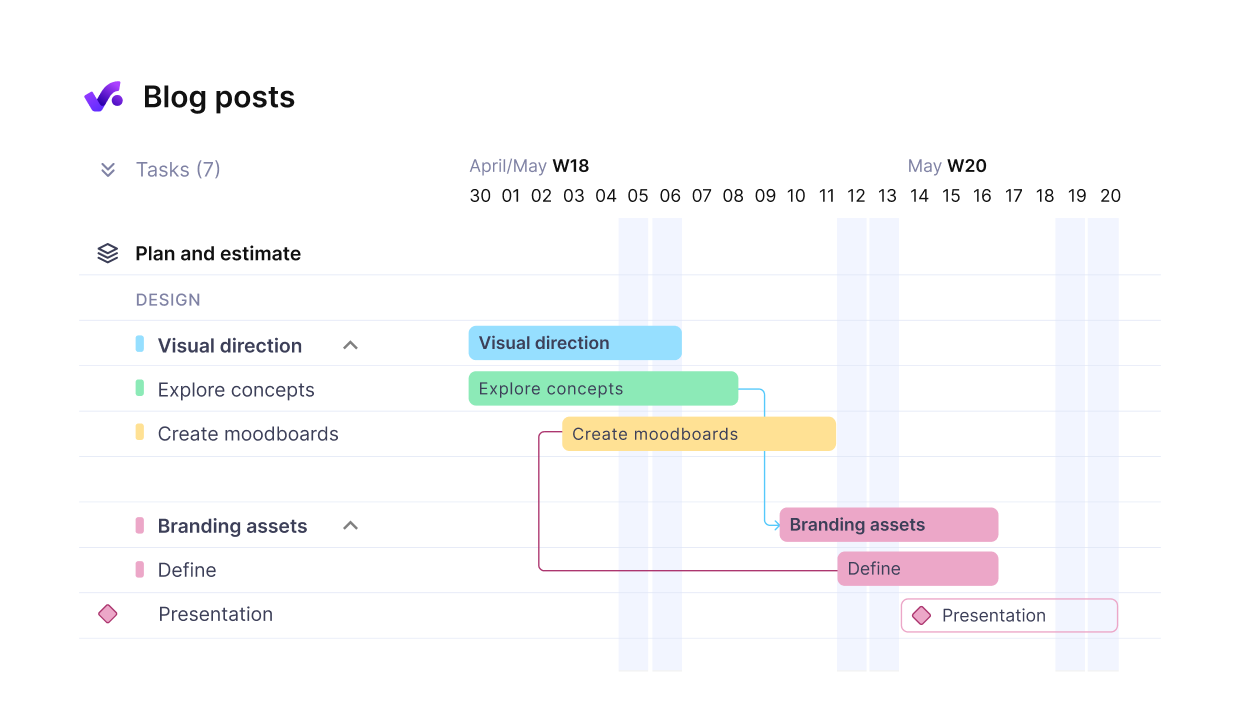
Productive combines resource scheduling with budgeting and profitability tracking, which gives you a financial and operational view in the same place. Scheduling tools show team availability alongside project budgets, so you can put your most valuable people on your most profitable work.
Productive is built for agencies where people split time across multiple client projects and margins depend on utilization accuracy. Utilization reports track billable vs non-billable time, and the agency-specific features handle retainers and project margins.
Honest take: The agency focus is the point and the limitation. If you’re not running a services business, much of what Productive does is overhead. Advanced reporting also sits behind higher-priced plans.
Pros:
Cons:
A G2 user mentions:
I love how intuitive and user-friendly the interface is—it made onboarding quick and effortless. In addition, the collaboration tools are fantastic, keeping my team connected and aligned, even across different time zones.
Pure scheduler, no project management baggage: Float or Resource Guru. Faster to deploy, cheaper per seat, and you’ll keep your existing task tool.
Agency or services business: Productive if you bill by the hour and care about margins per project. Float if you want a lighter touch.
Mid-market with complex resource math: Wrike for percentage-based allocation across portfolios. Runn if scenario planning is the main pain.
Already on Asana or monday.com: Use what you have. Both handle capacity well enough that switching for this alone usually isn’t worth the migration.
Want capacity planning to live next to the actual work: ClickUp. The advantage is structural — the workload view recalculates as tasks move because they’re the same data — and the trade-off is the broader learning curve.
The pattern across all eight: schedulers like Float and Resource Guru are easy to work with when all you need is availability, but the plan sits outside the work. The plan and the work drift apart unless someone manually keeps them in sync. That’s the gap an integrated workspace like ClickUp closes by design.
Get started with ClickUp for free.
Capacity planning is about understanding the total amount of work your team can handle, while resource planning is about assigning specific people to specific tasks. Capacity answers, “Do we have enough bandwidth?” and resource planning answers, “Who should do this work?”
Yes, there are tools for every team size. Smaller teams might start with a simple scheduler, while larger organizations often need a comprehensive platform that combines capacity planning with project management and reporting.
AI-powered capacity planning tools analyze live workload data, recommend task owners, flag bottlenecks, and summarize capacity risks. Spreadsheet-based planning depends on manual updates, so it becomes outdated when deadlines, assignments, or availability change.
Many dedicated capacity planning tools offer integrations. However, an all-in-one solution like ClickUp, which combines capacity planning with task management, eliminates the need for integrations. It also prevents the data sync issues that can arise from using separate tools.

Manasi Nair
Max 24min read
Manasi Nair
Max 30min read
Manasi Nair
Max 28min read

© 2026 ClickUp




