Sorry, there were no results found for “”
Sorry, there were no results found for “”
Sorry, there were no results found for “”
Microsoft Copilot has been out long enough now that the ‘AI is coming for your job’ takes have settled down and people are figuring out what it’s useful for.
The short answer is: a lot, if you know where to look.
Most users stick to asking it to recap a meeting. That’s fine, but it barely scratches the surface of what’s sitting right there in your toolbar.
Here’s a proper rundown of how to use Copilot in Microsoft Teams, and how ClickUp serves as a superior alternative.
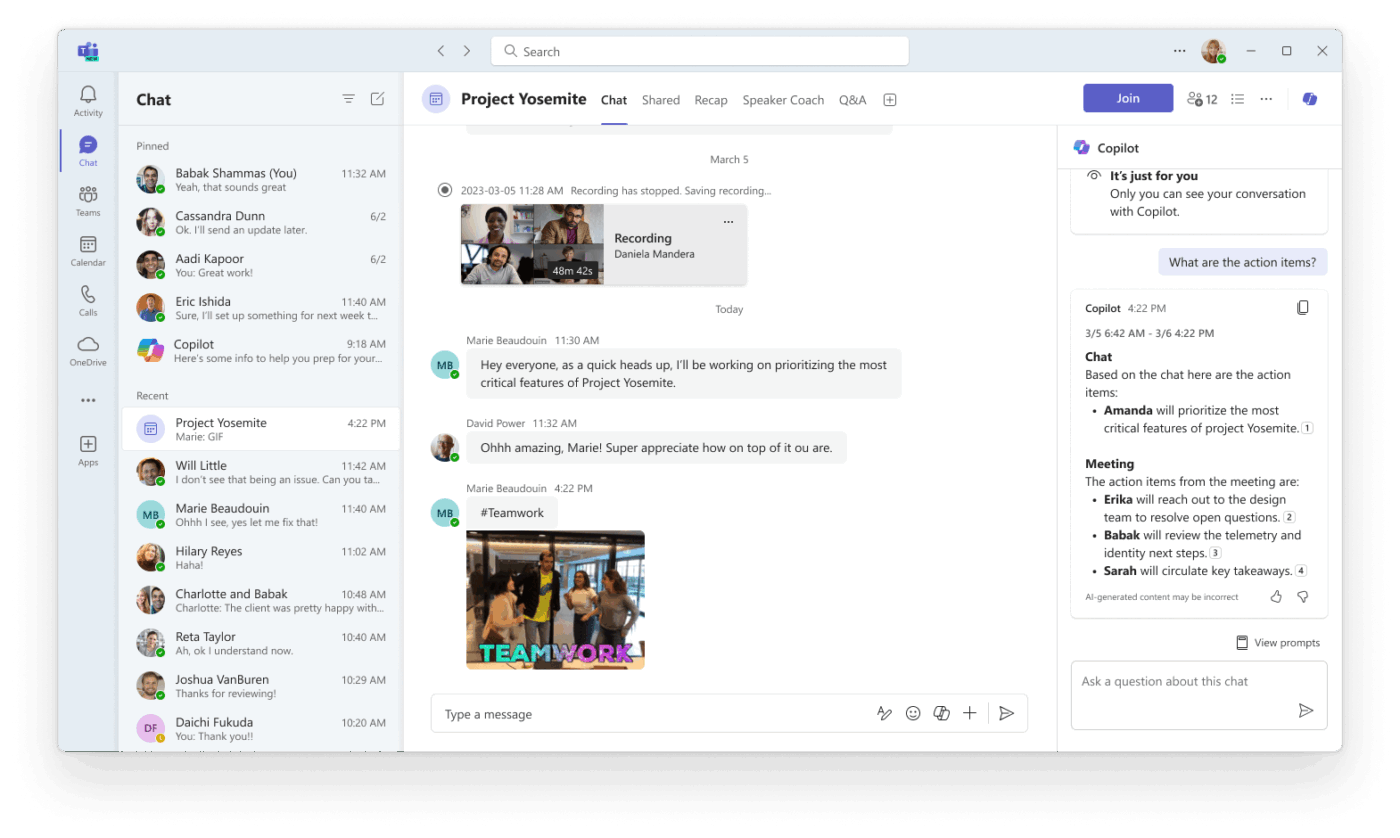
Microsoft Copilot in Teams is an AI companion powered by large language models that sits inside your communication hubs. It reads transcripts, chat history, and shared files to generate summaries, answer questions, and draft follow-ups.
You’ll find Copilot across four main surfaces in Teams:
🧠 Fun Fact: The Rule of 7 suggests that meetings become ineffective when more than 7-8 people are involved. As group size increases, participation drops, coordination becomes harder, and decision-making slows down. That’s why many teams cap attendee lists for working sessions.
To access Copilot, you need a Microsoft 365 subscription that includes it. If you’re not sure whether your plan qualifies, check with your IT admin.
A few other things to have in place:
🚨 Note: Microsoft Copilot won’t work in meetings hosted outside the participant’s organization.
Copilot summarizes key discussion points, including who spoke and what they said, suggests action items, and answers questions in real time during or after a meeting. Here’s how to use it at every stage. 👇
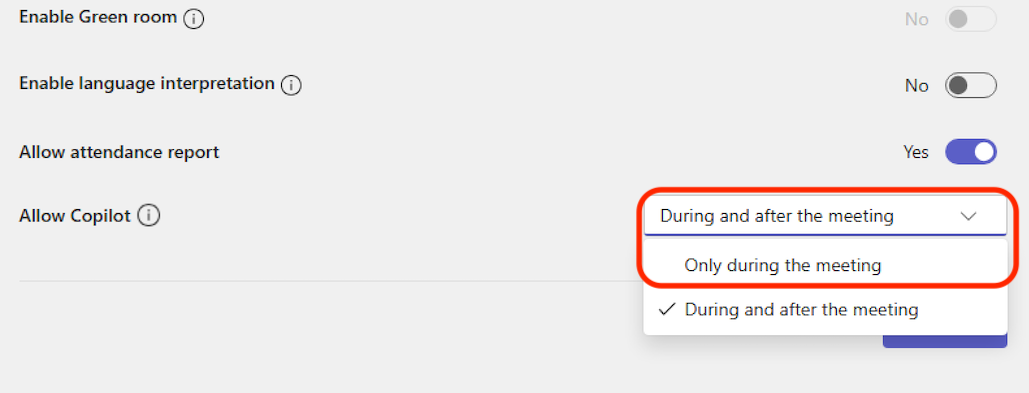
As the meeting organizer, go to the meeting scheduler and open Online meeting options > Copilot and other AI. You’ll see three settings to choose from:
Pick the one that fits your meeting. For most working sessions, During and after’ is the most useful.
📖 Also Read: How to Use Microsoft Copilot in Word
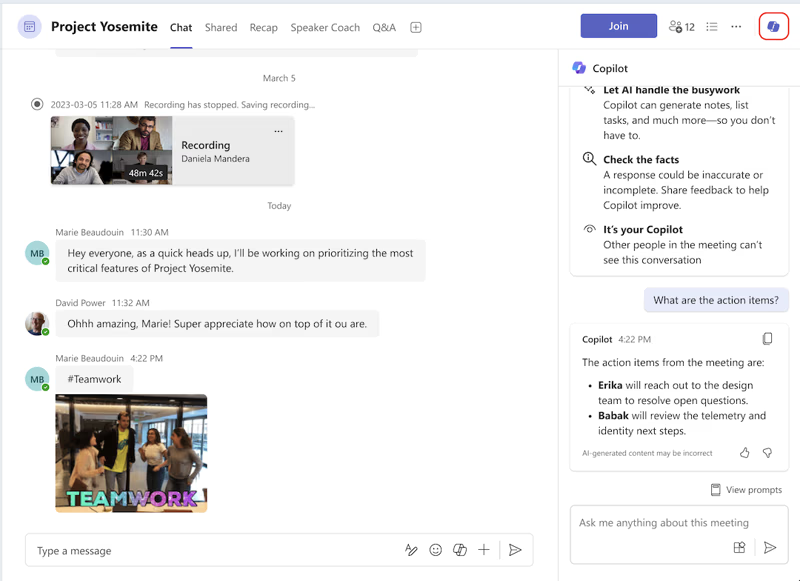
Once you’re in the meeting, select Copilot from the meeting controls to open the private side panel. Nobody else in the meeting can see your conversation with it.
Select ‘View prompts’ to browse suggestions, or just type your own in the compose box. Some prompts worth trying:
Watch this video to learn more about writing prompts for Microsoft Copilot:
If you join more than five minutes after the meeting started and Copilot is active, it will send a notification offering to catch you up. Click Open Copilot and the summary generates on the right side of your screen.
On the desktop app, you can also pop the panel into a separate window so you can multitask without losing the thread.
📮 ClickUp Insight: ClickUp’s meeting effectiveness survey data suggests that nearly half of all meetings (46%) involve just 1-3 participants. While these smaller meetings may be more focused, they could be replaced by more efficient communication methods, such as better documentation, recorded asynchronous updates, or knowledge management solutions.
Assigned Comments in ClickUp Tasks let you add context directly within tasks, share quick audio messages, or record video updates with ClickUp Clips—helping teams save valuable time while ensuring important discussions still occur—just without the time drain!
💫 Real Results: Teams like Trinetrix are experiencing a 50% reduction in unnecessary conversations and meetings with ClickUp.
If a response is worth keeping, you don’t have to copy-paste it.
Responses over 1,300 characters can be opened directly in Word, and table-formatted responses can be opened in Excel for further editing and team collaboration.
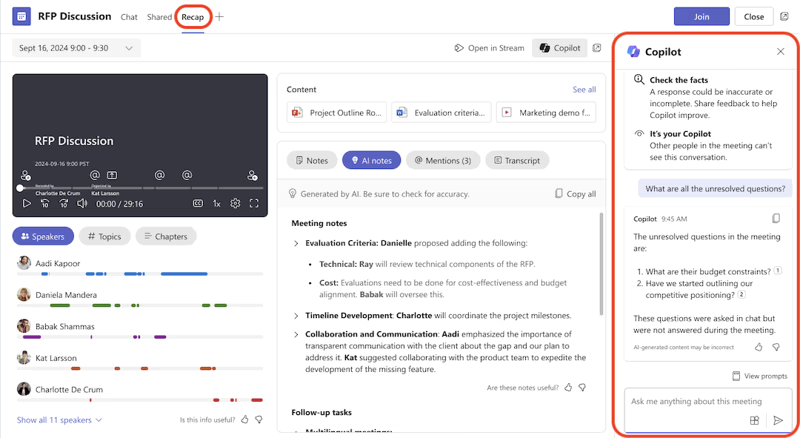
You can access Copilot after the meeting from the meeting chat and from the Recap tab.
To ask questions about what was said after the meeting ends, a transcript must be available. Without one, Copilot can only reference the chat, not what was spoken.
🚨 Note: One thing to know if you run recurring meetings: any previous conversation history with Copilot will no longer be available if a later meeting in the series is transcribed. Further, Copilot doesn’t carry context forward across sessions, so save anything important before the next one starts.
Copilot in Teams chat and channels helps you get up to speed on conversations by quickly reviewing the main points, action items, and decisions without having to scroll through long threads. Here’s how to use it in each context.
Copilot references the message thread it’s opened in, with a 30-day history as the default time frame unless you specify otherwise. Adding a specific time frame like ‘last week’ or ‘December 2024’ to your prompt will narrow the results down further.
Once you get a response, you can select Sources to see exactly which messages Copilot pulled from, and the chat will scroll to that specific message.
🚨 Note: One limitation to keep in mind: Copilot can’t summarize images, Loop components, or files shared in the chat thread. It works on message text only.
🔍 Did You Know? The ‘parking lot’ technique is a standard facilitation method. When discussions go off-topic, ideas are noted separately and revisited later, keeping the meeting on track.
If you just want a quick summary of a thread without opening the full Copilot panel, you can do it in two ways.
From the channel discussion, select More actions on any post and choose Summarize thread. Alternatively, open the full thread and select Summarize thread at the bottom.
A thread needs at least 1,000 characters of text before you can generate a summary.
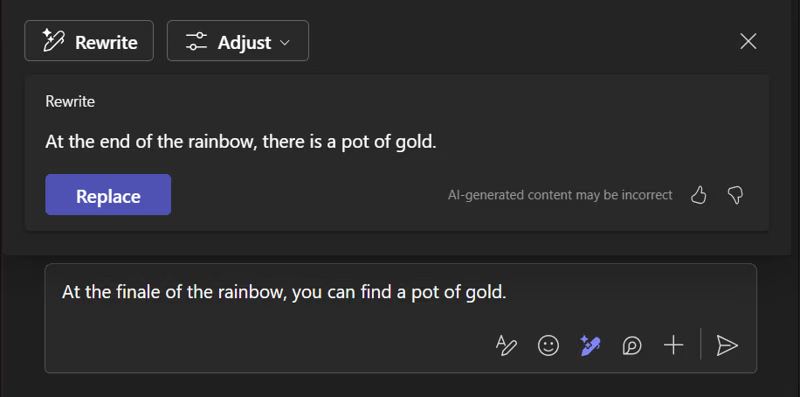
The compose box in Teams includes Copilot to help you rewrite and edit chat and channel messages, adjusting tone and length across all your communications. It works both before and after you hit send.
You can also rewrite just a specific selection of your message rather than the whole thing. Highlight the text you want to change before hitting Rewrite with Copilot and it’ll only touch that portion.
Here’s what each option does:
📖 Also Read: Amazon Q Vs. Copilot: Which Enterprise AI Is Better?
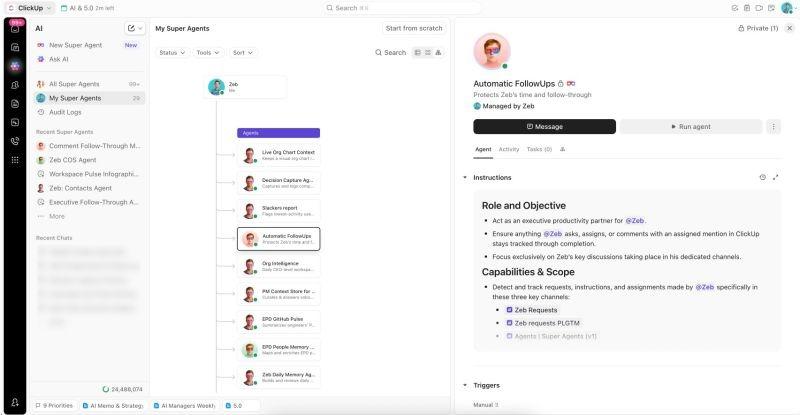
🚀 ClickUp Advantage: Meetings usually fall apart in three places: prep is weak, discussions lose context, and follow-ups never land. ClickUp AI Super Agents directly plug into all three.
They sit inside your workspace, understand everything happening across tasks, docs, and chats, and actively support your meetings from start to finish.
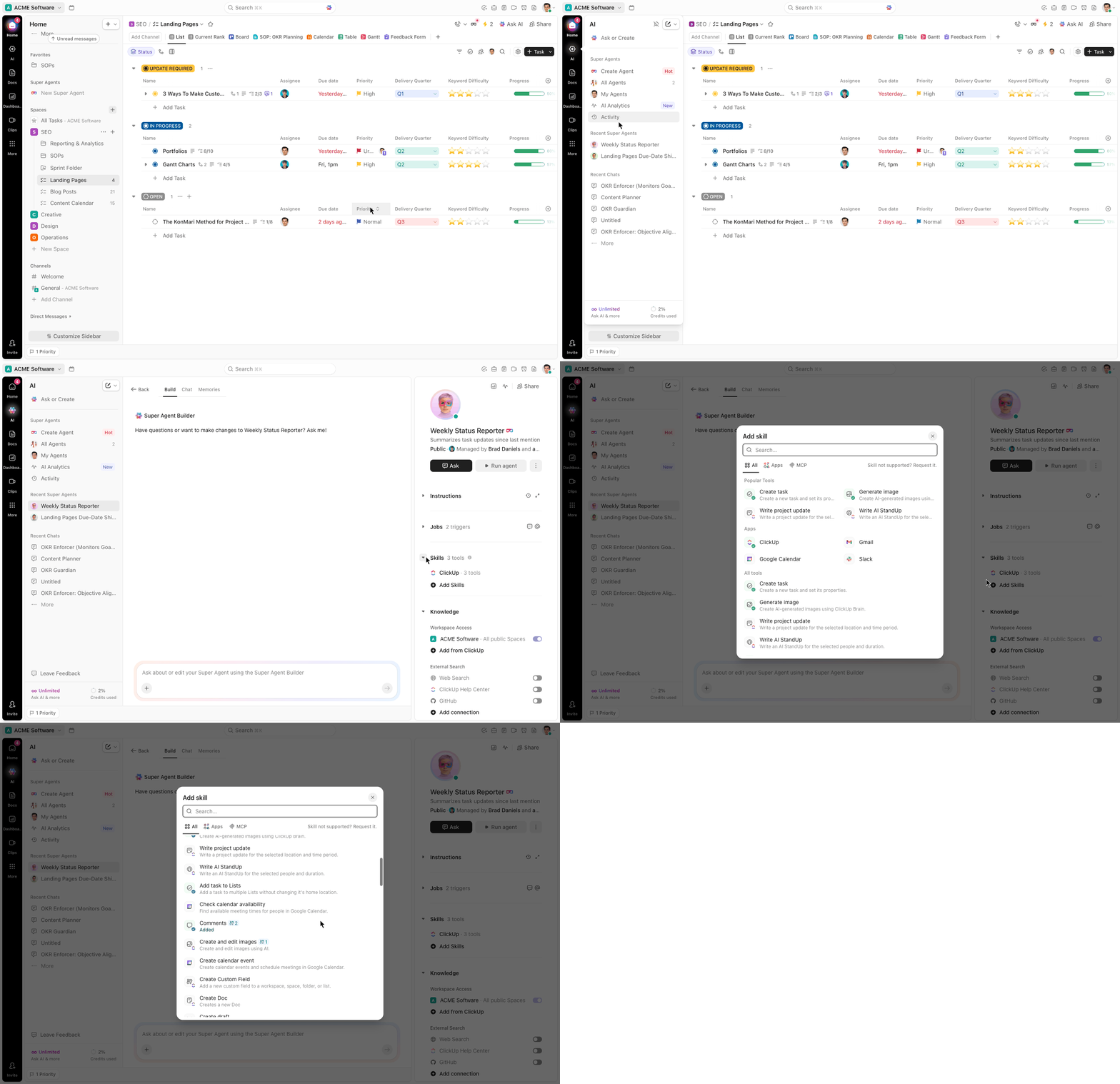
Here’s what that looks like in practice:
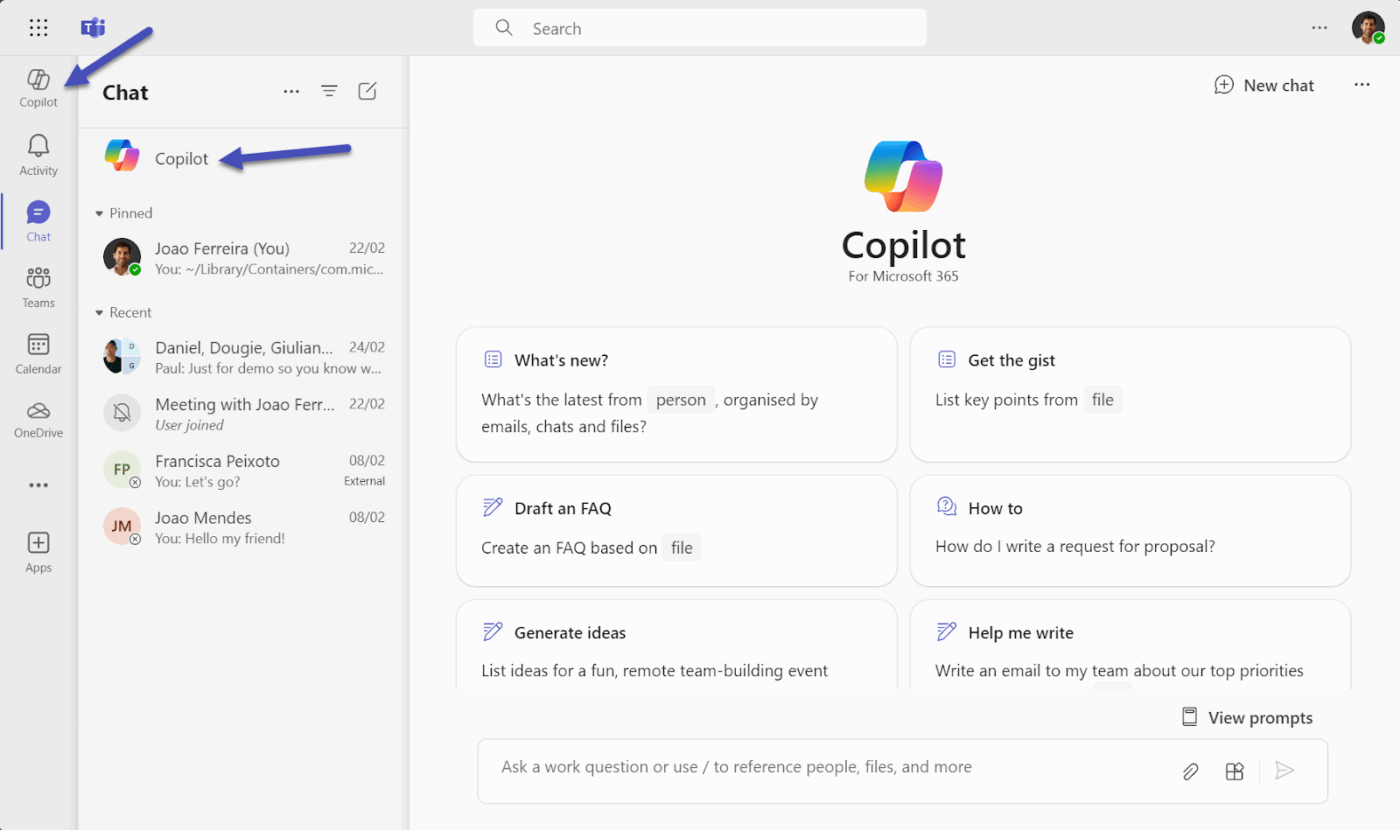
Every feature covered so far, meeting summaries, chat catchups, message rewrites, all works within a specific context: one meeting, one chat, one thread.
Copilot Chat is different. It works alongside you to bring together data from your documents, presentations, email, calendar, notes, and contacts, so you can query across your entire Microsoft 365 world.
📮 ClickUp Insight: 18% of our survey respondents want to use AI to organize their lives through calendars, tasks, and reminders. Another 15% want AI to handle routine tasks and administrative work.
To do this, an AI needs to be able to: understand the priority levels for each task in a workflow, run the necessary steps to create tasks or adjust tasks, and set up automated workflows.
Most tools have one or two of these steps worked out. However, ClickUp has helped users consolidate up to 5+ apps using our platform! Experience AI-powered scheduling, where tasks and meetings can be easily allocated to open slots in your calendar based on priority levels. You can also set up custom automation rules via ClickUp Brain to handle routine tasks. Say goodbye to busy work!
Copilot works best when you’re deliberate about how you use it. Here’s what Microsoft recommends, plus a few things worth knowing about its limitations.
The single biggest factor in how useful Copilot is comes down to how you prompt it. ‘Summarize this meeting’ will get you a generic paragraph that covers everything and nothing.
‘Summarize the key decisions made about the product launch, list who owns each next step, and flag anything that was left unresolved’ will get you something you can forward to your team. The more context you give it about what you need and why, the more targeted the output.
If the first response isn’t right, don’t start over from scratch. Follow up in the same session with a refinement. ‘Make that shorter,’ ‘focus only on the action items and cut the rest,’ or ‘go back and include who said what about the timeline’ all work well.
Copilot holds context within a session, so you can keep pushing and shaping the output without losing your place or having to re-explain the whole thing.
🚀 ClickUp Advantage: You shouldn’t have to dig through notes, chats, and calendars to figure out what just happened in a meeting. Or worse, spend time manually turning that into next steps.
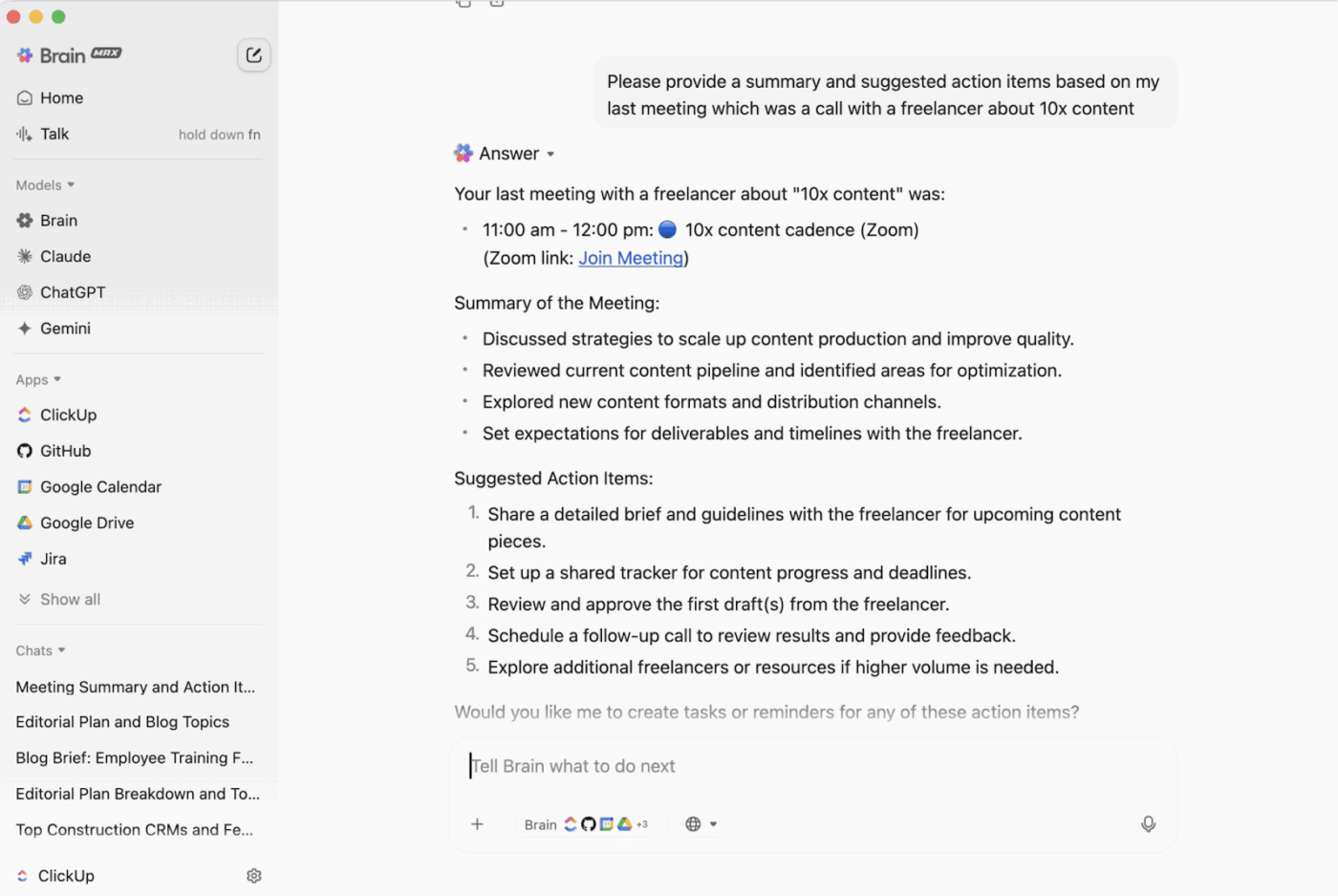
ClickUp Brain MAX does that thinking for you the moment the meeting ends. It connects your meeting context, past conversations, and ongoing work, then gives you exactly what you need to move forward.
Learn more about this AI desktop companion and how it eliminates AI Sprawl here:
In chats and channels, Copilot defaults to pulling from the last 30 days of message history. That’s a wide window and on an active team it can produce unfocused results.
Specifying ‘last week,’ ‘the first two weeks of January,’ or even ‘yesterday’ narrows it down significantly and gets you a much sharper, more relevant answer without the noise.
🧠 Fun Fact: The first idea mentioned often influences all others. This is called anchoring bias. Once someone proposes a direction early, the rest of the discussion tends to revolve around it, even if better ideas exist.
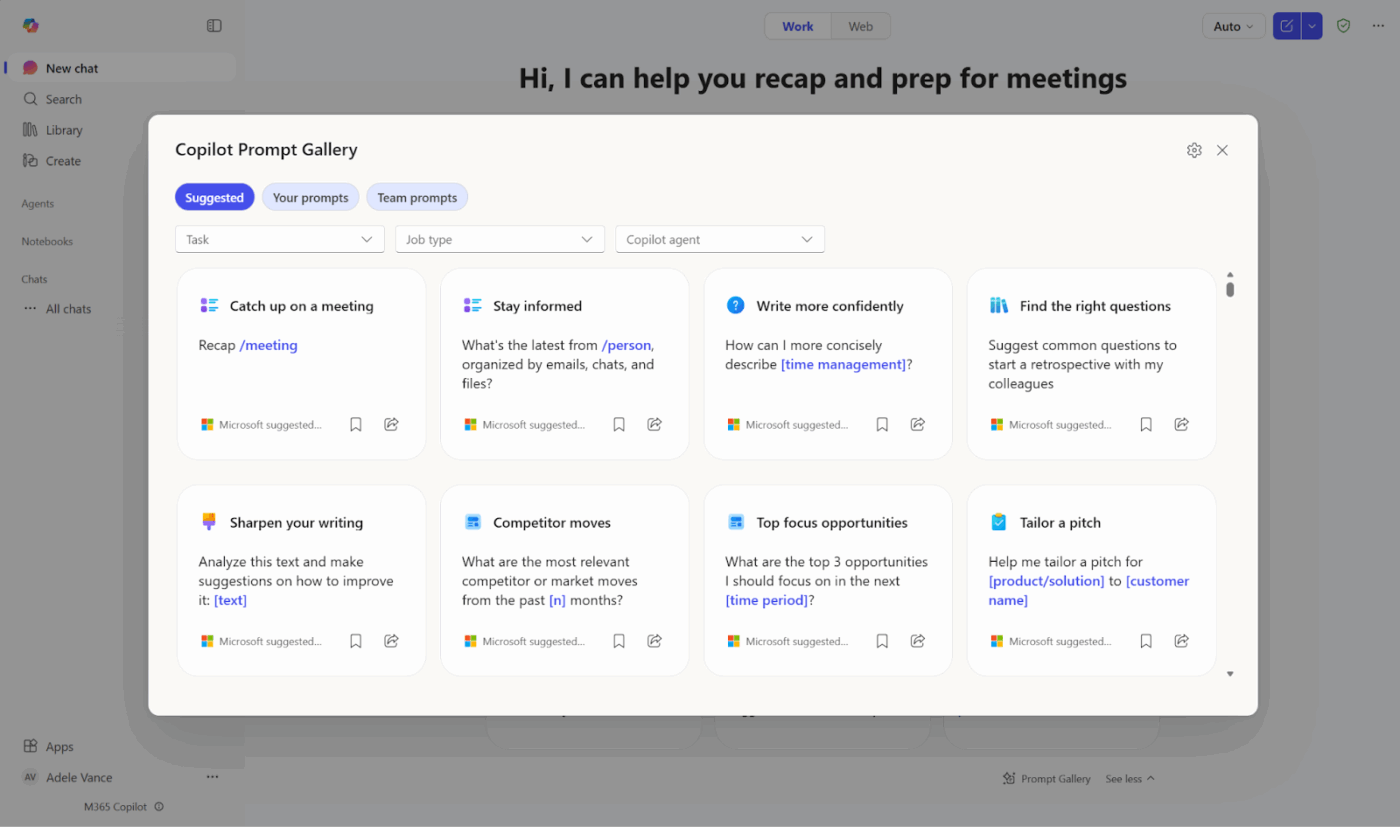
Microsoft maintains a dedicated Copilot Prompt Gallery with tested, ready-made prompts organized by task and app.
Before spending time trying to figure out the best way to phrase something, it’s worth checking whether Microsoft has already put together a prompt for exactly that use case. For new users especially, it’s one of the fastest ways to get up to speed on what Copilot can actually do across different parts of Teams.
🔍 Did You Know? The highest-paid person often speaks the most. Studies in organizational behavior show that seniority unintentionally shapes discussions, even when leaders try to stay neutral.
Customer story: Vida Health
Meetings only help if the follow-through actually happens. Vida Health used ClickUp to centralize project work, reduce meeting overhead, and make collaboration easier across teams. The result: a 50% boost in marketing operations productivity, 1 hour saved each week searching for documents, and 8+ hours of meetings reclaimed per week across event stakeholders.
With ClickUp, the team has seen a 50% boost in marketing operations productivity, saved 1 hour a week searching for documents, and reclaimed 8+ hours meetings per week across all event stakeholders.
AI tools like Copilot can summarize meetings. You still need to interpret that summary, create tasks, and assign work manually.
ClickUp Brain handles that entire flow inside the world’s first Converged AI Workspace. Its Contextual AI ensures everything discussed in the meeting can turn into structured output tied to actual work.
Below is how it improves each part of your meeting workflow, with realistic ways to use it. 🔁
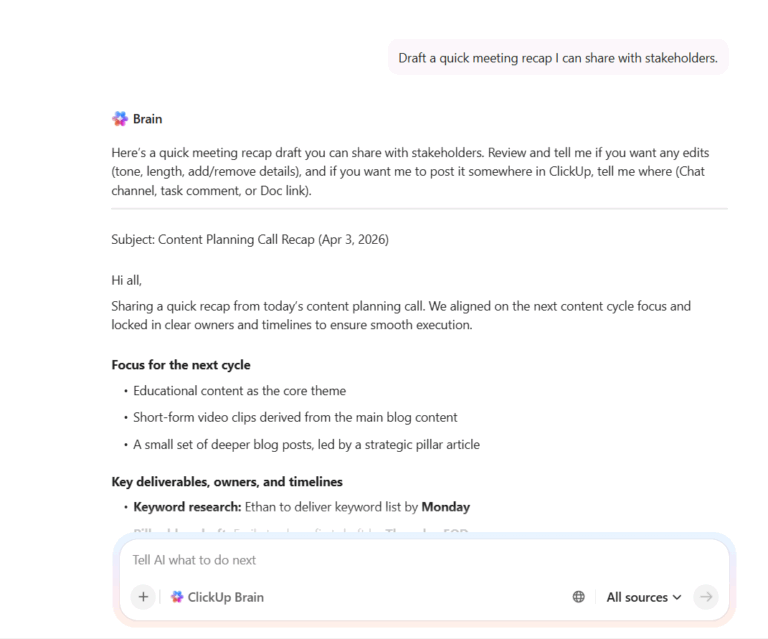
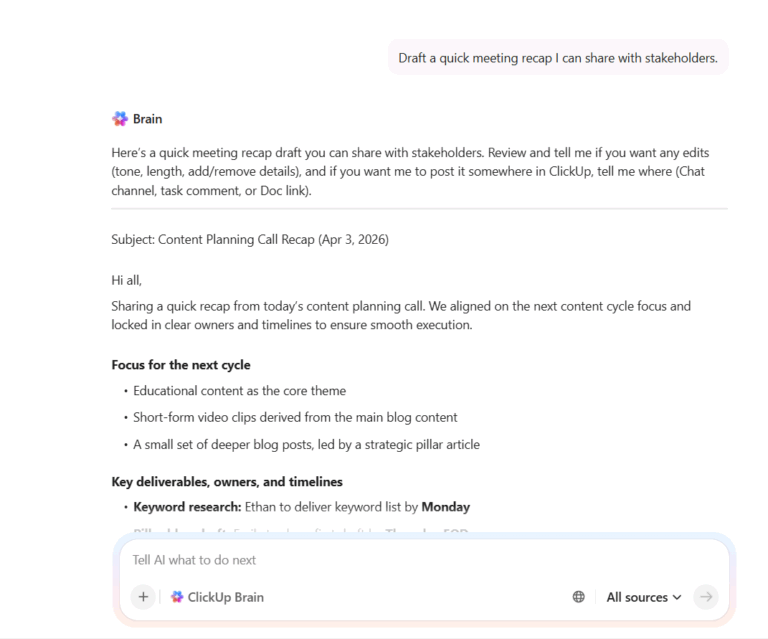
You finish a content planning call that felt solid. Ideas are clear, everyone agreed on direction, but the real question hits right after: who’s doing what and by when?
ClickUp Brain reads the meeting context captured by ClickUp’s AI Meeting Notetaker and pulls out the key signals.
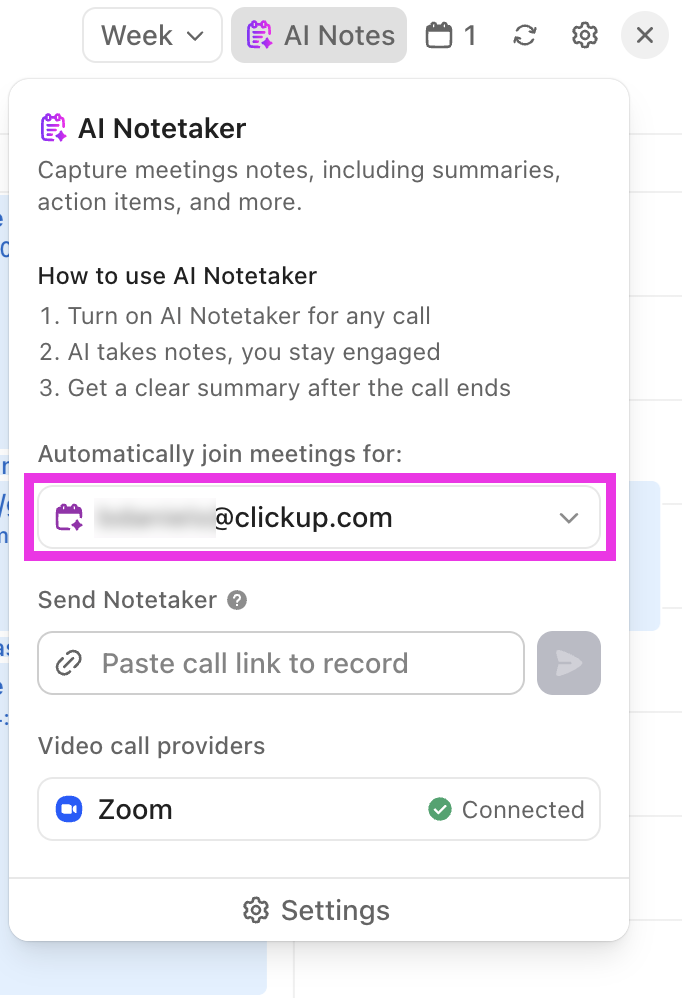
From that same call, ClickUp Brain highlights:
You open the summary and instantly know what changed and what needs attention.
A ClickUp review on G2 highlights:
ClickUp has become our go-to for project and product management. From streamlining team collaboration to keeping complex deliverables on track, it’s made a noticeable difference in how we work. The built-in AI notetaker is surprisingly useful, especially for summarizing meetings and saving time on follow-ups. We also love the ability to publish clear, structured release notes directly within the platform, which has helped align internal and external stakeholders. It’s easy to use, flexible, intuitive, and packed with features that actually make a difference, not just tick boxes.
This is where most meetings slow down.
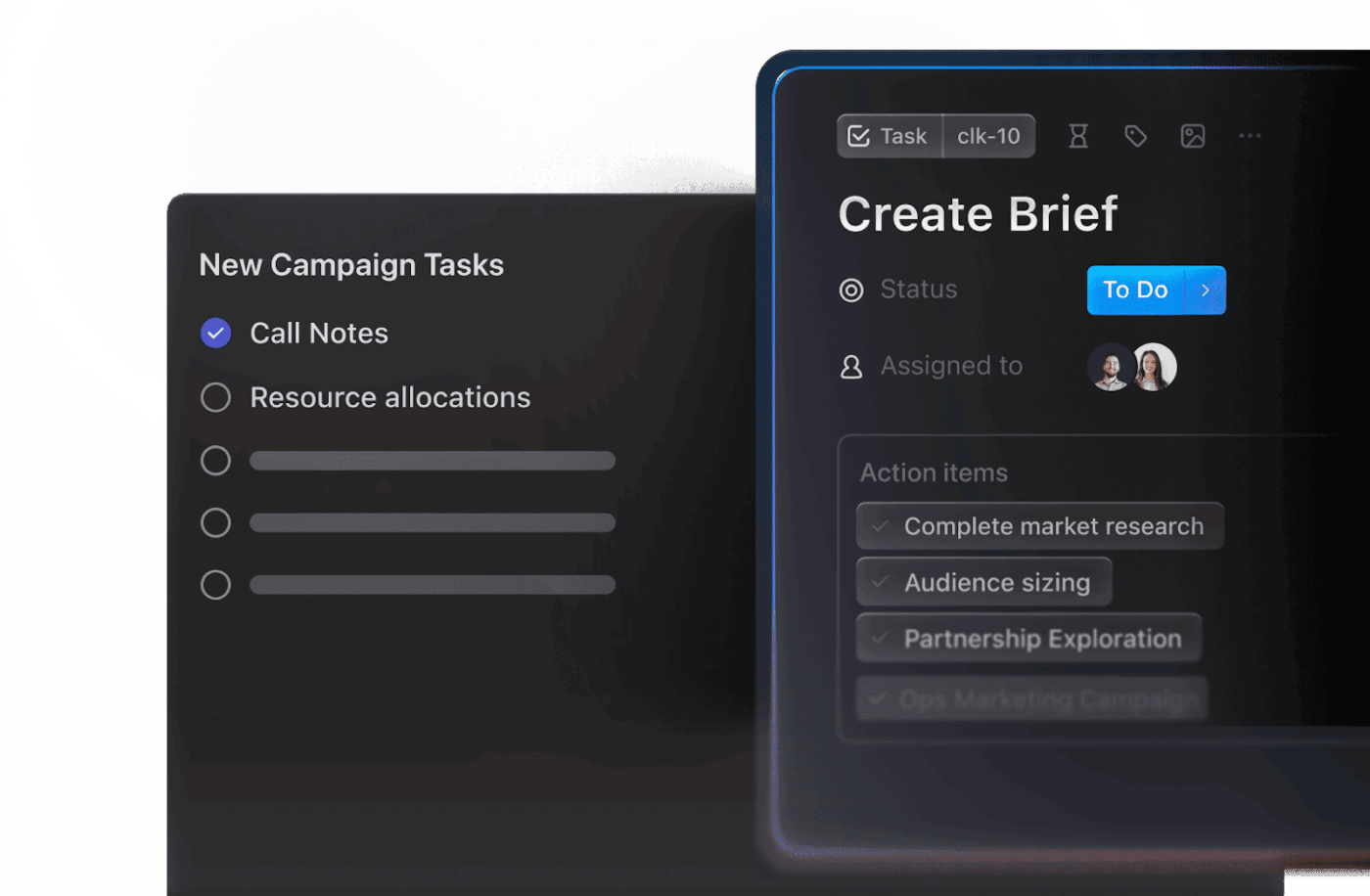
ClickUp Brain skips that delay, and creates ClickUp Tasks from your discussion:
Each task already sits in the right project, with context from the meeting attached. No one has to ask what they own.
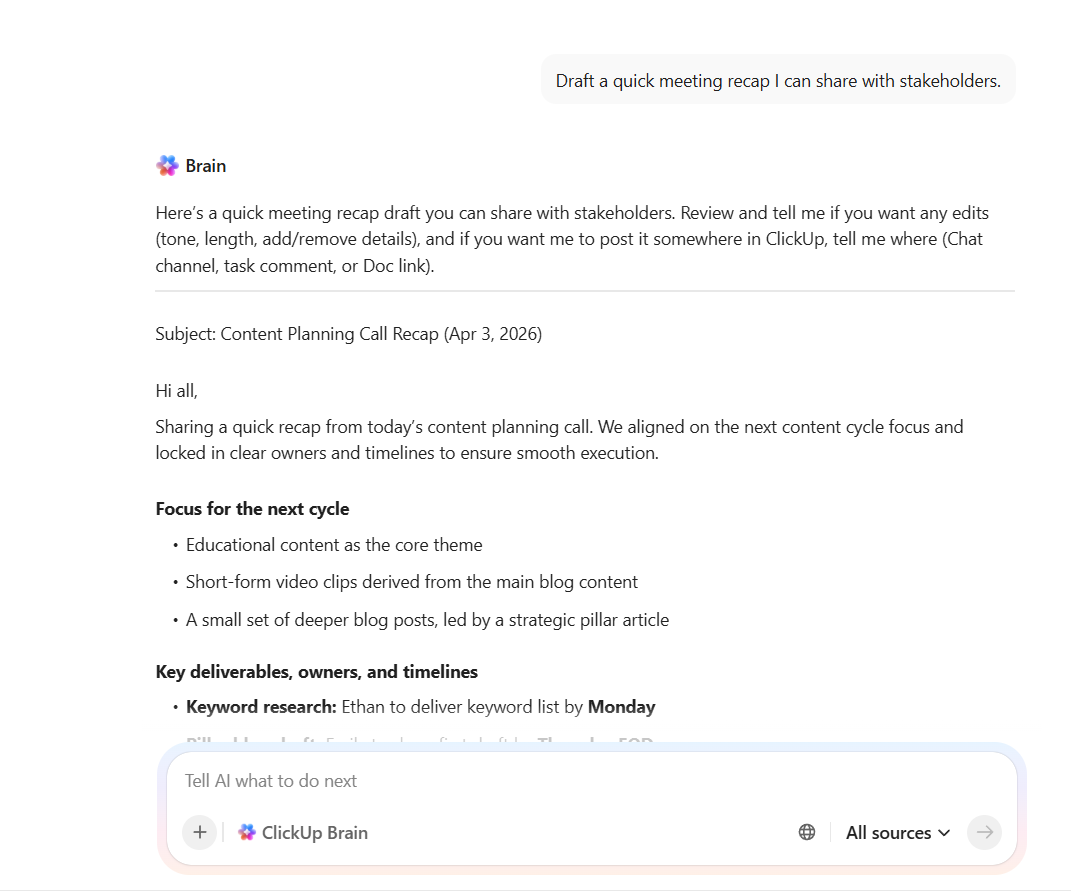
You still need to close the loop with your team or stakeholders. ClickUp Brain takes that same meeting context and drafts:
AI tools like Copilot have changed how teams handle meetings and conversations. Instead of scrambling to keep up, you can get instant summaries, quick answers, and cleaner communication without digging through long threads or transcripts.
But summaries alone don’t move work forward. Teams still need to decide what matters, assign ownership, and follow through after the call ends. That gap between ‘we discussed it’ and ‘it actually got done’ is where most workflows break down.
ClickUp Brain offers a more holistic approach. It turns meeting discussions into structured tasks, assigns owners, drafts updates, and keeps everything connected to ongoing work. Docs, tasks, and conversations stay aligned, so nothing slips once the meeting ends.
Sign up for ClickUp today!
Copilot is still available in Teams and was never removed Confusion typically stems from UI changes, license requirement updates, or the renaming of features like Microsoft 365 Chat If the Copilot icon disappears, it’s usually a license or admin policy issue.
Yes, Copilot can function fully without a video recording It only needs the live transcript to generate meeting notes Transcription and recording are completely separate features
Copilot is interactive and prompt-based, requiring a Microsoft 365 Copilot license Intelligent Recap generates automatic summaries and requires a Teams Premium license They serve different use cases and can coexist in the same tenant
No, only the individual user who wants to use Copilot needs the license Other meeting participants don’t need one because Copilot works from the licensed user’s perspective using the shared transcript.

Manasi Nair
Max 14min read
Manasi Nair
Max 9min read

Arya P Dinesh
Max 17min read

© 2026 ClickUp