Sorry, there were no results found for “”
Sorry, there were no results found for “”
Sorry, there were no results found for “”
Time management has a diagnosis problem. The average focused work session lasts just 13 minutes. ActivTrak found this after analyzing 443 million hours of workplace activity, alongside a 34% jump in collaboration and a 12% rise in multitasking. People are working, certainly. But their time is getting chopped into smaller pieces.
And that matters when you’re choosing a time management tool. A timer can tell you where three hours went, but it can’t clear a meeting-heavy calendar. A scheduling app can defend two hours for deep work, but it won’t fix projects scattered across six places where you waste more time hunting for updates than actually working.
Most time management problems fall into three buckets: you don’t know where your time goes, you know but can’t protect it, or your work is too scattered to manage cleanly. Each one calls for a different kind of software.
That’s why we sorted these 11 time management tools by what’s actually broken, rather than pretending they all solve the same problem.
| Tool | Best for | Standout feature | Starting price* | Where it taps out |
|---|---|---|---|---|
| Toggl Track | Billable freelance and agency hours | Project estimates, billable-rate hierarchy, utilization reports, and saved reporting views | Free; paid from $9/license/mo | Shows where time went, but it won’t reorganize the work for you |
| RescueTime | Passive awareness without a timer | Background activity tracking, Focus zones, Focus sessions, goals, and attention alerts | Paid from $7/mo | Can’t always tell productive use from distraction on mixed-use apps and sites |
| DeskTime | Automatic tracking across a whole team | Productivity scores, AI summaries, attendance tracking, absence management, and shift scheduling | Paid from $6.42/user/mo | Detailed activity tracking can feel intrusive if teams don’t set clear boundaries |
| Clockify | Putting a whole small team on the clock | Kiosk, auto tracker, timesheet approvals, audit controls, and 90+ app integrations | Free; paid from $3.99/user/mo | Free reporting won’t stretch well to long-range analysis or richer exports |
| ClickUp | Teams whose time data should sit on the work | Native time tracking, Timesheets Hub, Time Estimates, Dashboards, Brain, and Milestones | Free forever; paid plans available | It doesn’t passively monitor apps, websites, or screen activity |
| Todoist | Capturing commitments in seconds | Natural-language entry, Ramble voice capture, Task Assist, durations, and filters | Free; paid from $5/user/mo | It doesn’t include native time tracking, and workload and dependency features stay light |
| Asana | Coordinating handoffs between teams | Timeline, Gantt, Workload, Goals, native time tracking, AI Studio, and AI Teammates | Free; paid from $10.99/user/mo | It can feel heavy for simple workflows and won’t replace a dedicated time-analysis tool |
| Google Calendar | Free starting point for time blocking | Working hours, appointment schedules, Time Insights, Google Tasks, and Workspace Gemini | Free | It won’t tell you whether the plan is realistic or automatically rebuild the day when things move |
| Motion | Calendars that get rearranged daily | AI Task Manager, automatic rescheduling, capacity planning, AI Projects, and booking pages | Paid from $19/seat/mo | It can’t do much with a calendar that’s already packed, and it may duplicate work stored elsewhere |
| Sunsama | Chronic overcommitters | Guided daily planning, workload warnings, daily shutdown, Sunny AI, and planned-vs-actual analytics | Paid from $17/mo | It won’t automate planning away and still needs a consistent daily planning habit |
| Freedom | Blocking recurring digital distractions | Cross-device blocking, recurring sessions, Locked Mode, custom blocklists, and Session Breaks | Free; paid from $3.33/mo | It can’t fix meeting overload, colleague interruptions, or an unrealistic workload |
Our editorial team follows a transparent, research-backed, and vendor-neutral process, so you can trust that our recommendations are based on real product value.
Here’s a detailed rundown of how we review software at ClickUp.
Time management tools are software tools that help individuals and teams plan, track, organize, and protect how they spend their working hours.
In practice, they help answer one of three questions: Where did my time go? What should I spend it on? And how do I stop everything else from taking it?
That gives you three broad categories:
The distinction matters because these tools solve different failures. A tracker can expose four hours lost to meetings, but it won’t reclaim them. A planner can tell you what matters today, but it can’t stop Slack, email, or a packed calendar from eating up your afternoon.
And none of them replaces the underlying technique of time management. Time blocking still requires you to decide what deserves a block, while the Pomodoro method still depends on working in deliberate intervals. The software makes those systems easier to run and harder to ignore.
Want to explore time blocking apps? Watch this walkthrough:
Look for six things in a time management tool: problem fit, low capture friction, connected data, reasonable free-plan limits, useful AI, and realistic adoption. The best choice should solve the specific way your time breaks down without creating more admin work:
Also Read: Best Productivity Tools and Apps in 2026
The 11 strongest options are Toggl Track, RescueTime, DeskTime, Clockify, ClickUp, Todoist, Asana, Google Calendar, Motion, Sunsama, and Freedom. Each one solves a different time problem, from billable-hour tracking to team handoffs to blocking the sites you always lose to. The entries below cover standout features, pricing, real user reviews, and where each tool taps out.
Time visibility tools answer one question: what did your week actually consist of? They record hours as you work, either through timers or passive background tracking, then turn that record into reports on clients, projects, apps, and habits.
The four best time tracking tools in this category are Toggl Track, RescueTime, DeskTime, and Clockify. Start here if your calendar looks reasonable but work still slips, or if you bill clients and can’t say which ones are profitable.

Toggl Track is strongest when time itself is part of the business model. Freelancers, consultants, and agencies can use it to see whether the hours behind a project still make sense against the fee being charged.
Each timer includes a client, a project, and a rate. A week of tracked hours reads like a profit report. Over a few weeks, the data can expose clients that absorb too much revision time, projects that are routinely underquoted, or internal work that keeps eating into billable capacity. Those patterns are hard to see when time lives in memory, calendar blocks, or scattered notes.
It also keeps the act of tracking simple enough that people are more likely to stick with it. You can start and stop time from several devices, then review the week as a whole instead of reconstructing it at the end of the month.
Note: Toggl Track doesn’t lead with AI. There’s no built-in assistant, so insights come from its reports, and teams wanting AI-generated summaries will need to pair it with another tool.
A G2 user shared:
It makes time tracking simple and easy without feeling intrusive. It’s quick to use and very straightforward. The interface is the part I like most compared to other tools: it’s clean, and you can start tracking in seconds. The reports are strong as well, giving you a clear, visual view of where your time is going. Overall, it’s a fast tool and easy to get started with, so there’s no need for long onboarding.
Where it taps out: Toggl Track can show that a client consumed 30+ hours last week, but it won’t reorganize this week around that discovery. It isn’t built for dependencies or full project scheduling, so teams with a planning problem will still need task scheduling software.
Best for: Freelancers, consultants, and agencies whose working hours map directly to client cost or revenue.
Skip it if: You already know where your hours go and need help deciding what gets done when.

RescueTime is for the week you can’t explain. You know you were at your computer all day, yet the important work somehow got squeezed into the edges.
Its advantage is that you don’t have to remember to track that problem. RescueTime runs in the background, records the apps and websites you use, and turns that activity into a picture of how your attention moved throughout the day. That’s useful for writers, developers, researchers, and other solo knowledge workers whose biggest time leaks happen in dozens of small switches rather than one obvious distraction.
And because the record is passive, it catches behavior that manual timers tend to miss. Ten quick inbox checks or repeated jumps between a document and Slack may feel insignificant in the moment. Across a week, they’re much harder to dismiss.
A G2 user mentioned:
RescueTime runs in the background and automatically records the time I spend on numerous apps and websites, giving me a clear view of my daily behaviors. This helped me focus on what mattered and avoid distractions. The ability to create alarms when I spend too much time in non-productive activities has been a good reminder to stay focused. When I have multiple projects and tight deadlines, the Focus Time option helps me avoid distractions and focus on my vital work.
Where it taps out: RescueTime can record that you spent 45 minutes on YouTube. It can’t always tell whether that was competitor research or a rabbit hole. You may need to sort some activities by hand before the reports match how you really work.
Best for: Solo knowledge workers who want to diagnose where their attention disappears without remembering to start a timer.
Skip it if: You already understand your time leaks and need a system that actively schedules tasks, priorities, and deadlines for you.

DeskTime takes the passive tracking idea behind RescueTime and turns it into a team management system. Managers can see how work hours spread across employees. No one has to remember a timer or fill in a timesheet at the end of the day.
That makes it a better fit for agencies, consultancies, IT services firms, and hybrid teams that need a shared view of working time. DeskTime shines when the problem is bigger than one person’s focus habits. Think patterns across a department: long workdays, uneven workloads, too much idle time, or teams sinking far more hours than expected into certain kinds of work.
DeskTime also brings attendance, schedules, and activity data into a single view, helping managers compare planned working hours with how the week unfolded. For teams that have outgrown manual timesheets, this gives you a much clearer baseline for staffing, workload, and utilization.
A G2 user described:
I can create different groups and schedules for each of the groups, making it more precise to measure productivity as a group, and then I can focus on a specific employee. None of the employees where it was installed have noticed any difference in the performance of the equipment. It works to provide more precise feedback with data, helping to detect problems with employees in terms of understanding or prioritization. It operates transparently, meaning the user doesn’t have to do anything. But once the user understands, it is a great help to know if they are being productive.
Where it taps out: DeskTime can quickly cross into employee-monitoring territory. Optional screenshots can fire at gaps as short as three minutes. URL, app, and document title tracking expose far more activity than a standard timesheet. You can blur screenshots, pause tracking with Private Time, and disable features. Even so, teams need clear rules around what gets collected and why.
Best for: Managers who need team-wide time and attendance data without chasing people to complete timesheets.
Skip it if: Your team only needs personal time awareness, or detailed employee activity tracking would create more friction than the data is worth.

Clockify is the budget pick for small teams that need one shared record of working hours without paying much to get everyone into the system. Its free plan supports up to five users, with unlimited time tracking across the web, desktop, and mobile apps.
Small agencies, studios, contractors, and operations teams can use it to replace spreadsheets or informal hour logs. There’s no need to adopt a heavier work management system. Tracked time can be sorted by client, project, task, and tag. Teams get a cleaner view of where the week went and which work absorbed the most hours.
It also slips easily into an existing stack. The browser add-on puts a timer inside more than 90 web apps, including Jira, Trello, and Asana. People can log work without constantly jumping back to Clockify.
Note: Clockify keeps AI entirely out of the picture. What you get is dependable manual and auto tracking, and teams wanting AI summaries or smart categorization will need to look elsewhere.
A G2 user mentioned:
I find Clockify super intuitive, which makes it easy to use for tracking work and hours for myself and my employees. The dashboards are very helpful as they allow me to get, at a glance, a good idea of what tasks are being worked on and how they will impact my bottom line. The initial setup was super easy and it was all done in about 30 minutes.
Where it taps out: Clockify’s free plan is generous for day-to-day tracking, but reporting gets restrictive once you want a longer view. Free users can export reports only as PDFs, and each report can cover no more than 31 days or one calendar month. CSV and Excel exports require a paid plan, which makes quarterly analysis awkward if you stay on the free plan.
Best for: Small teams that need shared time tracking at the lowest possible cost.
Skip it if: You need long-range reporting, richer exports, or billing workflows without moving onto a paid plan.
Work management tools fix the hours lost between tasks: chasing status, rewriting the same update, hunting for the current version. Instead of only measuring time, they hold the tasks, owners, deadlines, and tracked hours in one system. This helps the plan and the record stop living in separate tools.
The three best work planning tools in this category are ClickUp, Todoist, and Asana. Start here if your audit showed the mess lives in the work itself, because tracking harder would only document it.
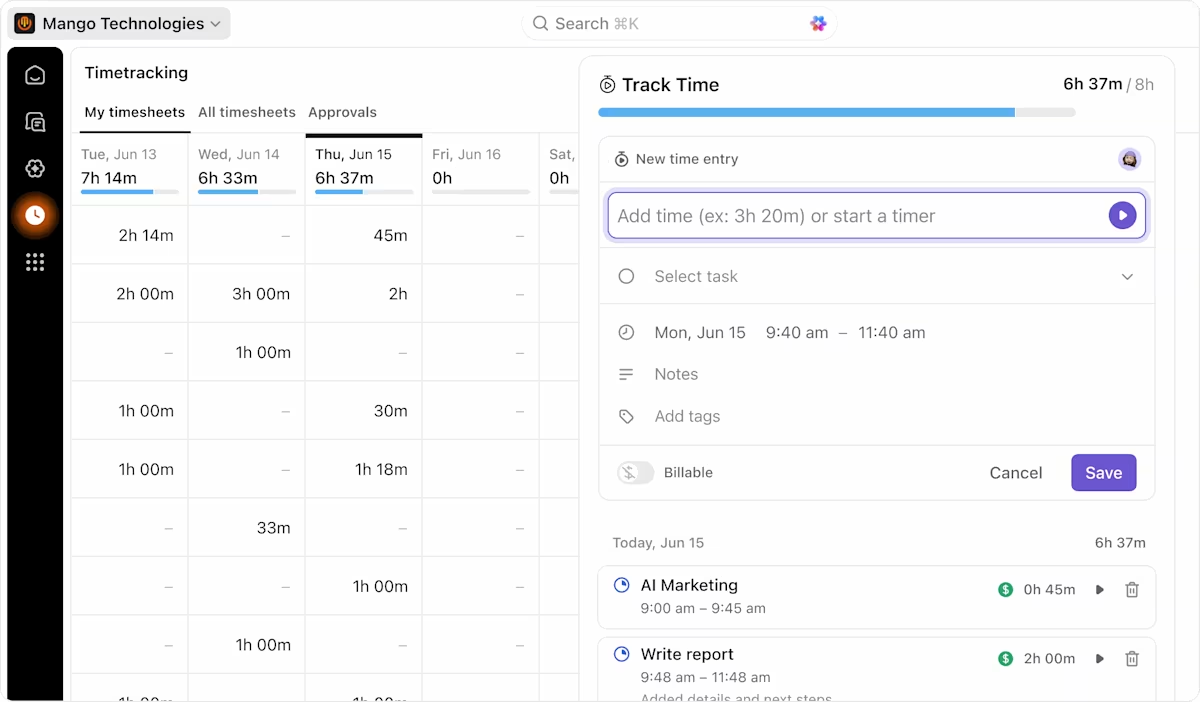
ClickUp solves a different time problem from the trackers above. It brings the work and the hours spent on it into one system. Teams no longer reconcile a timesheet with a separate project plan every time they want to understand capacity.
With ClickUp Time Tracking, people log time right on the tasks they’re already working on. Managers get a much cleaner link between effort and delivery because the hours sit beside the owner, due date, status, and project context.
ClickUp Dashboards then turn that task-level data into a broader view of the week. Time Tracking cards can show total tracked time, billable hours, custom date ranges, and how much time particular teams or areas of work consume. That’s useful when the real problem is scattered work: you can move from “we’re overloaded” to seeing which projects and tasks are actually creating the load.
A G2 user described:
I use ClickUp for project management and performance/time tracking, and I really appreciate how it lets me create separate spaces for each new project. Being able to assign tasks, track time spent, and set priorities is extremely helpful, because it makes it easier for us to spot blocking tasks, set clear deadlines, and review work using statuses like approved or not approved. I also like the simple automations and the integrations with other software that ClickUp offers. The time and progress tracking are strong and fit well with our agile workspace. Overall, I find the subtasks, comments, sprint points, and task assignments particularly effective for keeping work organized and moving forward.
Where it taps out: ClickUp tracks the work you choose to log. It never watches your screen in the background, records browser and app activity, or takes screenshots. That means it won’t surface hidden digital habits the way RescueTime or DeskTime can.
Best for: Teams that want planned effort, actual time, capacity, and the work itself connected in one system.
Skip it if: You only want passive background tracking and don’t need project or workload management.

Todoist is built for getting a task out of your head before it disappears. Type a line like “send retainer invoice every first Monday at 9 am,” and it becomes a recurring task with the date and time already attached. Capture stays fast enough to use in the middle of a busy day.
It works especially well for solo users and small teams that want a solid task system without the weight of a full project platform. Projects, sections, labels, priorities, and filters add just enough structure. You can keep client work, repeat admin, personal tasks, and long-range commitments apart, and setup never turns into a project of its own.
The appeal is how little upkeep it asks for. Todoist can hold daily priorities, repeating work, shared tasks, and deadlines in one place. It stays simple enough to check all through the day. For people who drop more complex planning systems after a week or two, that restraint is useful.
A G2 user shared:
The ability to quickly type something like “Submit design proposal every Thursday at 4pm #Work p1” and have Todoist instantly parse the date, time, recurrence, project, and priority level makes task entry faster than almost any other tool.
Where it taps out: Todoist keeps task management deliberately light. Reporting, workload planning, and dependency handling are thin next to broader work platforms. There’s also no native time tracker, so you can’t check planned effort against actual hours.
Best for: Individuals and small teams that want a fast, dependable place to capture and organize commitments.
Skip it if: You need native time tracking, detailed workload reporting, or complex project planning.

Asana is strongest when time vanishes between people, never inside a single task. Marketing waits on design, design waits on copy, product waits on engineering. The delay comes from the handoff itself.
Its project views make those dependencies visible before they become blockers. Timeline and Gantt views show how work connects across teams. Shared tasks and due dates keep ownership clear as a project moves from one function to the next. Cross-functional teams get a better shot at catching a timing conflict before it reaches the deadline.
Asana also natively tracks time on the Advanced tier and above. Every task can have an estimated and an actual time, with a built-in timer to log the actual hours. Those fields roll up in reports, so teams can see which handoffs ran over the plan, not just that the project did.
A G2 user shared:
I like Asana because it makes project and task management simple and transparent. It’s easy to organise work, assign ownership, track progress and deadlines, and keep communication connected to the relevant tasks. The interface is intuitive, and features like project views, timelines and task dependencies make it particularly useful for managing cross-functional projects.
Where it taps out: Asana is excellent at coordinating work across teams, but it can feel heavy when the workflow is simple. Smaller teams may spend more time tending projects, fields, rules, and views than they gain from them. And if your main goal is detailed time analysis or client profit, Asana still needs extra tooling beyond its core setup.
Best for: Cross-functional teams whose delays come from dependencies, ownership gaps, and overloaded handoffs.
Skip it if: Your main goal is tracking billable hours or understanding where your personal computer time went.
Focus protection tools assume you already know what matters and keep losing it anyway. They guard planned time against meetings, overcommitment, and digital distractions, using calendars, automatic rescheduling, planning rituals, or outright blocking.
The four best focus tools in this category are Google Calendar, Motion, Sunsama, and Freedom. Start here if the plan is fine and the day still gets eaten.

Google Calendar is already part of many people’s workdays, making it the easiest place to test whether time blocking actually changes how you work. All it asks is that you treat focused work like a meeting and give it a real place on the calendar.
It’s the go-to option for times you want other people to see your availability. In fact, blocking two hours for research or writing changes that period from open time into an existing commitment, while separate calendars let you account for work and personal obligations without exposing every detail.
You can also place Google Tasks beside calendar events. Smaller commitments get somewhere to live, and no to-do has to become another meeting. For someone building a time blocking habit for the first time, that combo covers a lot without adding another app.
A G2 user mentioned:
What I like best about Google Workspace is how well all the tools work together in one place. Gmail, Google Drive, Docs, Sheets, Meet, and Calendar make it easy to communicate, collaborate, and manage work efficiently.
Where it taps out: Google Calendar will protect whatever you put on it, but it doesn’t know whether the plan itself is realistic. A two-hour block can still contain six hours of work, and tasks don’t automatically move to a better slot when an unexpected meeting takes over the afternoon. That manual reshuffling is the gap AI calendar apps are built to close.
Best for: Anyone who wants to test time blocking with a calendar they probably already use.
Skip it if: Your schedule changes several times a day and manually rebuilding your blocks has become part of the problem.

Motion takes time blocking a step further by doing the rearranging for you. Give it the work that needs to happen, how long each task should take, and when it’s due, and its scheduler finds room for that work around the commitments already on your calendar.
It’s built for founders, managers, account leads, and anyone else whose day rarely survives the morning unchanged. A meeting moves or urgent work lands, and Motion redraws the schedule around the new constraint. You never have to drag unfinished blocks into tomorrow by hand.
That turns the calendar into a live plan, beyond a static record of what you hoped to do. Motion balances deadlines, priorities, open hours, and existing meetings as the week shifts. That helps most when manual time blocking has become a recurring task in itself.
A G2 user shared:
I like that Motion finds the open spots on my calendar and places tasks in a way that already prioritizes them. I also like that I can reorganize things pretty easily if I need to. Motion helps me to not spend time on my calendar figuring out where to place different tasks that I need to do in between appointments.
Where it taps out: Motion needs open calendar space to do its best work. If fixed meetings already fill most of your day, the scheduler has fewer useful slots to work with. It also asks you to bring tasks into Motion’s own planning system. That can mean double upkeep when your team already runs its work from another project platform.
Best for: People whose priorities and meetings move often enough that they regularly rebuild their day.
Skip it if: Your calendar is predictable enough that ordinary time blocks stay where you put them.

Sunsama is built around a simple constraint: the day only has so many usable hours. Its guided daily planning flow asks you to choose what matters, estimate how long each item will take, and build a day that fits before you start working.
That approach suits knowledge workers who routinely plan more than they can finish. Sunsama pulls tasks from tools such as ClickUp, Asana, Todoist, Jira, Notion, and Trello, as well as email and calendar commitments, so you can assemble the day from work that lives elsewhere. Imported tasks can also stay in sync with their source tools.
The result is a daily plan that feels deliberately finite. You choose which commitments make today’s cut, place them alongside meetings, and give each one enough room to finish. That’s a useful shift for people whose time problem starts with saying yes to too much before the morning is over.
A Capterra user shared:
The mindful approach to productivity: the focus mode and the simplicity of getting time estimate for all tasks during the day. The calendar integration is super robust and the ability to see all your to-dos collected from all places (Notion task assignments, GitHub issues, Slack and email conversations and so many more) is unique to Sunsama at this quality level.
Where it taps out: Sunsama asks you to take part in planning, never to automate it away. The daily planning and shutdown rituals add structure, but they need steady attention. Plus, at $17 per month on annual billing, it sits on top of the project, email, and calendar tools you already pay for.
Best for: People who consistently overload their days and want a deliberate routine for deciding what actually fits.
Skip it if: You want an AI scheduler to rebuild the day automatically whenever priorities change.

Freedom is the simplest tool here because it goes after one problem: the digital distractions that keep stealing time you already protected. Start a focus block, and the sites and apps you’ve chosen go dark on every device in that session.
That’s pretty useful for writers, students, developers, and anyone whose time audit keeps pointing at the same few culprits. A block can follow you across Mac, Windows, iOS, Android, and ChromeOS. That closes the classic loophole: drifting from laptop to phone the moment work gets hard.
Freedom also works well as a layer on top of a daily routine app or calendar. You decide when focused work should happen elsewhere, then use Freedom to make that window harder to break.
Note: Freedom has no AI layer at all, and that’s the point. It’s a blunt instrument by design: you tell it what to block, and it blocks it.
A G2 user said:
Freedom is probably my most important app. It blocks out all the distractions which so easily capture my attention (or that I allow to capture my attention). It thus frees me to focus on what is genuinely most important.
Where it taps out: Freedom can take websites and apps out of the equation. It can’t protect you from meetings, pings from colleagues, or an unrealistic workload. And while the free tier now exists, recurring schedules and Locked Mode still require Premium. Those are two of the features that make Freedom work as an automatic habit.
Best for: People who can name the specific apps or websites that repeatedly derail focused work.
Skip it if: Your interruptions come mainly from meetings, colleagues, or an overloaded plan, not digital distractions.
A few strong time management tools didn’t make the final 11 because they either overlap heavily with a pick above or solve a narrower problem. Depending on how your work runs, one of them may still be the better choice.
If the habit itself is breaking down, more software may not be the first fix. Our guide on how to be more productive at work covers the routines and working habits that sit underneath these tools.
Choose a time management tool based on where your system breaks. If you can’t explain where the week went, start with tracking. If the hours disappear into handoffs and scattered tasks, fix the work system. If you already have a plan but can’t protect it, use a scheduling or focus tool.
| If this is what’s broken | Choose | Why it fits |
|---|---|---|
| You bill by the hour but can’t tell which clients or projects are actually profitable | Toggl Track | Connects tracked hours with clients, projects, rates, estimates, and utilization |
| You finish the day wondering where your attention went | RescueTime | Passively records app and website activity, so you don’t have to remember a timer |
| You need the same automatic visibility across a whole team | DeskTime | Combines passive activity tracking with attendance, schedules, and team productivity data |
| You need several people tracking hours without a large software bill | Clockify | Gives small teams shared timers, projects, timesheets, and several ways to affordably log work |
| Your time data and project work live in separate systems | ClickUp | Keeps tasks, tracked time, estimates, capacity, and reporting connected to the work itself |
| Your problem is remembering and organizing everything you committed to | Todoist | Makes task capture extremely fast and keeps personal or small-team planning lightweight |
| Projects lose time while work moves between teams | Asana | Makes dependencies, ownership, workload, and cross-functional handoffs easier to see |
| You want to try time blocking without buying another app | Google Calendar | Turns focus time into visible calendar commitments and works with tools you likely already use |
| Your carefully planned day keeps getting rearranged | Motion | Automatically rebuilds the schedule as meetings, priorities, and deadlines change |
| You consistently plan more work than one day can hold | Sunsama | Forces you to estimate the day, see when it’s overloaded, and make deliberate tradeoffs |
| You know exactly which websites or apps keep breaking your focus | Freedom | Blocks recurring digital distractions across devices during protected work sessions |
Before adding another app, spend a week or two finding out where the time is actually going.
Microsoft’s 2025 Work Trend Index found that employees receive a meeting invite, email, or chat message every two minutes during core working hours. At that level of interruption, a week can feel full without producing much focused work. It’s worth noting that This finding was based on behavior patterns from Microsoft 365 users, but it’s unlikely to differ too widely across similar cohorts.
One way to separate the symptoms from the cause is a simple time audit. Cassie Mogilner Holmes, professor of marketing and behavioral decision-making at UCLA Anderson, uses a similar exercise with her students: record how you spend your time in 30-minute increments for one to two weeks, and be specific about what each block contains.
As Holmes puts it:
The real answer is not about being time rich; it is about making the time you have rich.
“Work” tells you very little. “Reviewing PRs,” “client status call,” or “looking for the latest design file” tells you much more.
Once you have a week or two of data, look for the dominant pattern:
| What the audit shows | What is probably broken | What the software needs to do |
|---|---|---|
| Large stretches of time you can’t explain | Visibility | Record where the hours and attention actually went |
| Too much time spent chasing updates, files, owners, or next steps | Coordination | Keep tasks, ownership, deadlines, and progress in one system |
| Important work keeps getting displaced by meetings or distractions | Protection | Reserve focus time, rebuild the schedule, or remove distractions |
| Planned work regularly takes much longer than expected | Estimation | Compare expected effort with actual time and surface overruns |
| Everyone looks busy, but capacity is still unclear | Workload | Show how work is distributed before more gets assigned |
The audit doesn’t need to be precise enough for payroll. It only needs to reveal which failure of time management is costing you the most time. That gives you a much better buying criterion than starting with a feature list.
Also Read: Time Management Techniques
A good time management tool shouldn’t become another system you have to manage. It should cut down the time you spend rebuilding your day, chasing updates, moving unfinished work, or figuring out where the week went.
That’s the real test after you buy. If the tool creates more logging, more cleanup, or another dashboard no one checks, it’s adding work instead of removing it.
Give any new system a few weeks, then ask one simple question: are you spending less time managing the process around your work?
If tasks, estimates, tracked hours, and team capacity are still in separate places, try ClickUp for free to bring them into one workspace.
The best time management tool depends on which of three problems you have. Toggl Track is the strongest pick for billable-hour visibility, ClickUp for teams whose tasks, tracked time, and capacity should live in one system, and Motion for calendars that need automatic rescheduling.
Usually not. If you use a platform like ClickUp, tracked time attaches directly to the task, so hours, estimates, and status live together, and no export is needed. Add a standalone tracker like RescueTime only when you need passive background monitoring that the platform can’t provide, or a dedicated biller like Toggl Track for client invoicing.
Timeboxing means giving a task a fixed block of time on your calendar and working within that limit. Google Calendar handles it manually and for free; Sunsama builds it into a guided daily planning routine; and Motion reschedules task blocks automatically as the day changes. ClickUp sits between those approaches: you can drag tasks into the Planner as focus blocks, size them using Time Estimates, or use AI Time Blocking to suggest open slots based on priority and due dates. It also pairs well with the Pomodoro method and broader time blocking techniques.
The 3-3-3 rule structures a day as three hours on your most important project, three shorter urgent tasks, and three maintenance activities such as email or admin. It suits people whose calendars contain long unbroken stretches.
Time tracking records how hours were spent, while time management decides how they should be spent. A tracker like Toggl Track answers what happened last week; a planner or work platform decides what happens next. The distinction is practical. Teams that install a tracker to fix a planning problem end up with accurate records of a week that still went badly.
Specifically for distraction, Freedom’s Locked Mode blocks the same recurring sites across all devices, so you can’t talk yourself out of a session. Sunsama helps with overcommitment through a short daily planning ritual, and Motion removes the decision fatigue of replanning by automatically rebuilding the day. Start with whichever failure mode—blocking, planning, or rescheduling—wrecks your day most.

Manasi Nair
Max 16min read
Manasi Nair
Max 13min read
Manasi Nair
Max 20min read
© 2026 ClickUp