






Still downloading templates?
There’s an easier way. Try a free AI Agent in ClickUp that actually does the work for you—set up in minutes, save hours every week.
Sorry, there were no results found for “”
Sorry, there were no results found for “”
Sorry, there were no results found for “”
Releases slip. And when they do, the root cause rarely sits in the code. It’s usually the workflow that needs fixing:
PMI research shows that only about half of software release projects fully succeed, while 37% fall short of their goals and 13% fail completely—often due to gaps in coordination and execution.
The fix starts with a single shared system that your team actually uses.
Let us show you how to build a release tracker in Google Sheets that gives your team one reliable place to manage versions, timelines, owners, and dependencies, so your next release goes smoothly.
And if you want an even more unified workspace where all your projects, tasks, docs, and chat live together, we’ll also show you how ClickUp makes it all possible!
A release tracker in Google Sheets is a structured spreadsheet that logs every planned or completed software release, product launch, or content rollout.
This data tracking sheet captures essential details like version numbers, release dates, owners, statuses, and dependencies in one shared document. It’s a go-to for teams who want a free, familiar way to monitor their release management process.
The tracker is useful for different departments:
But the core value of a tracking sheet lies in the visibility it gives to stakeholders. When every team member can see what’s shipping and when, you won’t have to worry about missing key details.
A well-maintained release tracker becomes your team’s trusted source for version history and release notes. But as releases multiply, a basic spreadsheet can become unwieldy without the right structure.
📮ClickUp Insight: 92% of knowledge workers risk losing important decisions scattered across chat, email, and spreadsheets. Without a unified system for capturing and tracking decisions, critical business insights get lost in the digital noise. With ClickUp’s Task Management capabilities, you never have to worry about this. Create tasks from chat, task comments, docs, and emails with a single click!
🧠 Fun Fact: Agile didn’t start with software. It evolved from decades of iteration thinking. In the 1930s, Walter A. Shewhart introduced Plan-Do-Study-Act cycles, later popularized by W. Edwards Deming in post-war Japan. Toyota turned these ideas into the Toyota Production System—laying the foundation for modern Lean and Agile.
Building an effective spreadsheet tracker that scales with your team takes just a few steps. Follow this walkthrough to create a release tracker in Google Sheets that your team will actually use.
Open a new Google Sheet—or save time with a pre-built spreadsheet template—and immediately give it a descriptive name like “Q3 Product Release Tracker.” Clear naming helps teammates find the right document quickly when searching shared drives.
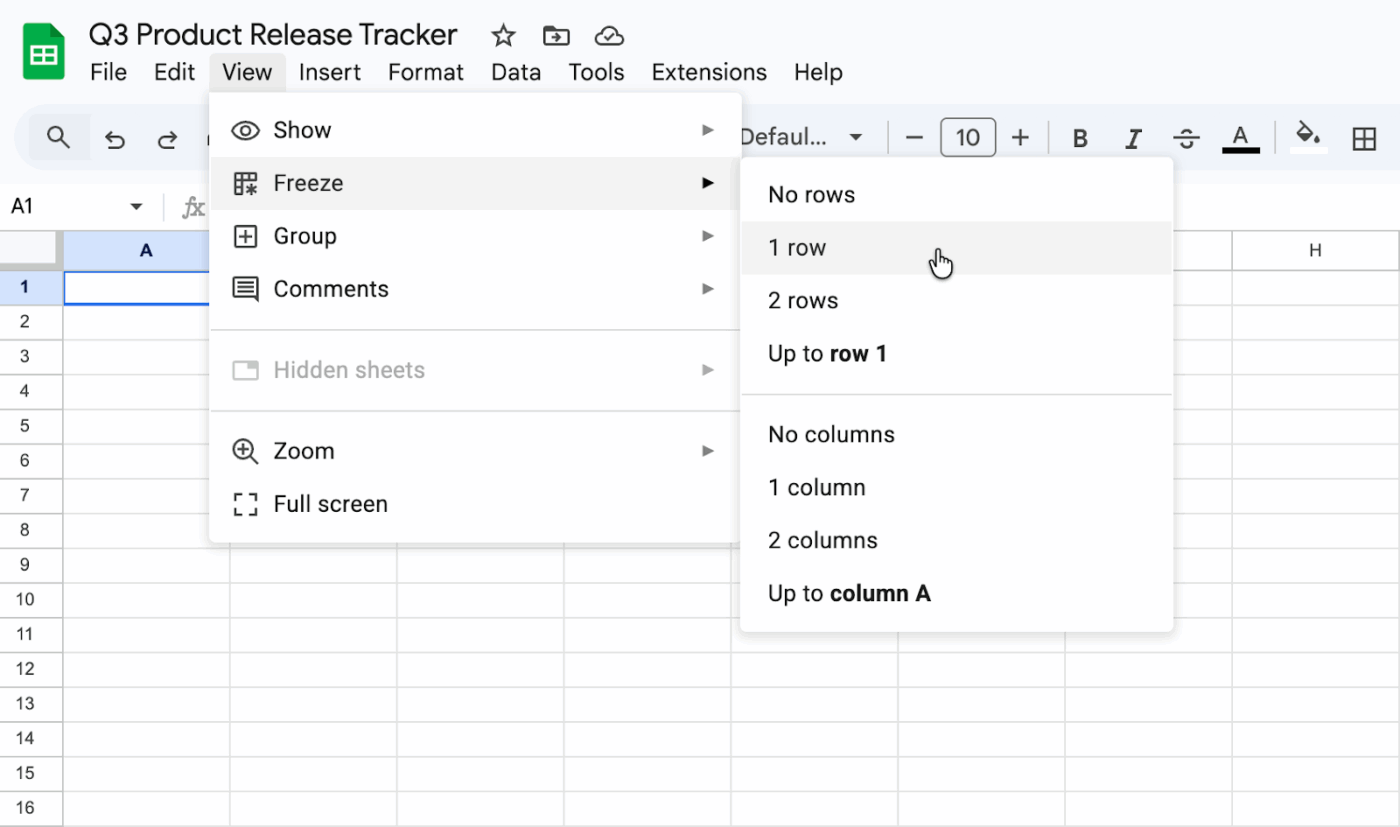
Next, freeze the header row by navigating to View > Freeze > 1 row. This small step keeps your column labels visible while you scroll through dozens of releases. You won’t lose context. Start with a single, clean tab for active releases to maintain focus; you can add archive tabs later once completed releases start to pile up.
Finally, make it a rule to avoid merged cells. While they might seem useful for formatting, they break filtering, sorting, and data validation, which undermines the entire purpose of a structured tracking sheet.
📚 Also Read: How to Ace Your Product Launch with This Checklist
Makeshift trackers often lack critical fields. When your sheet doesn’t capture the right details, team members leave the document to hunt for context in email or other tools.
Context switching wastes time and increases the risk of losing details. In fact, studies show that we toggle between apps an average of 1200 times every—which costs us 4 hours a week in attention resetting. To prevent this, build your Google Sheets task tracker with a comprehensive set of columns from the start.
Here are the must-have columns:
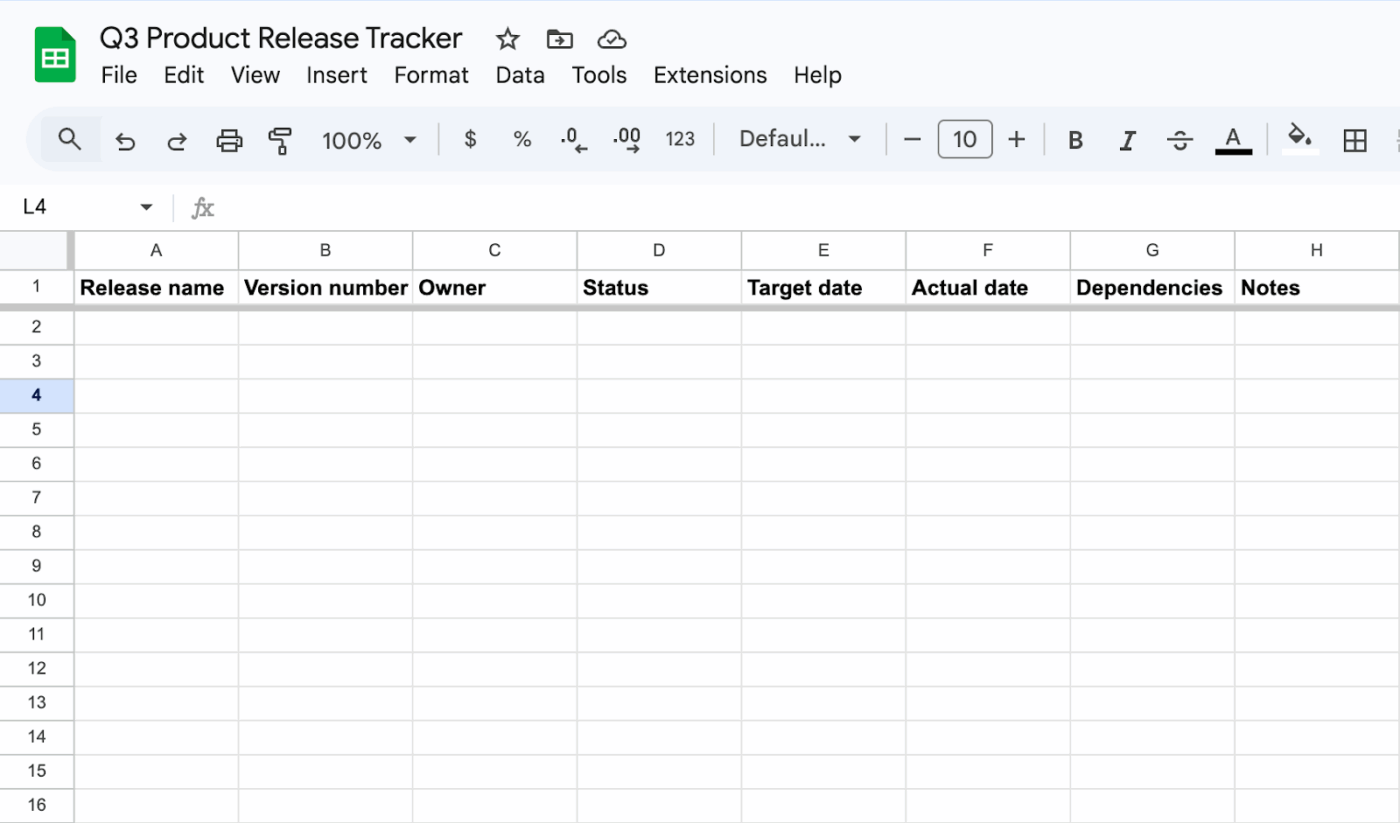
For more complex workflows, you might add columns for the deployment environment (e.g., staging vs. production) or a priority level. The goal is to tailor the structure to capture all the information your team needs to discuss releases without leaving the sheet.
📮 ClickUp Insight: The average professional spends 30+ minutes a day searching for work-related information—that’s over 120 hours a year lost to digging through emails, Slack threads, and scattered files. An intelligent AI assistant embedded in your workspace can change that. Enter ClickUp Brain. It delivers instant insights and answers by surfacing the right documents, conversations, and task details in seconds—so you can stop searching and start working.
💫 Real Results: Teams like QubicaAMF reclaimed 5+ hours weekly using ClickUp—that’s over 250 hours annually per person—by eliminating outdated knowledge management processes. Imagine what your team could create with an extra week of productivity every quarter!
When your tracker is just a wall of black-and-white text, it’s nearly impossible to spot problems at a glance. Blockers, at-risk items, and overdue releases get lost in the noise.
This lack of visual hierarchy leads to delayed responses and missed deadlines because critical information doesn’t surface. No wonder nearly half of executives report that more than 30% of their technology projects run late or over budget.
The solution? Use conditional formatting to make bottlenecks instantly visible. Your sheet becomes a monitoring tool that automatically surfaces issues.
Navigate to Format > Conditional formatting. Select your Status column as the range, then create rules for each value. For example:
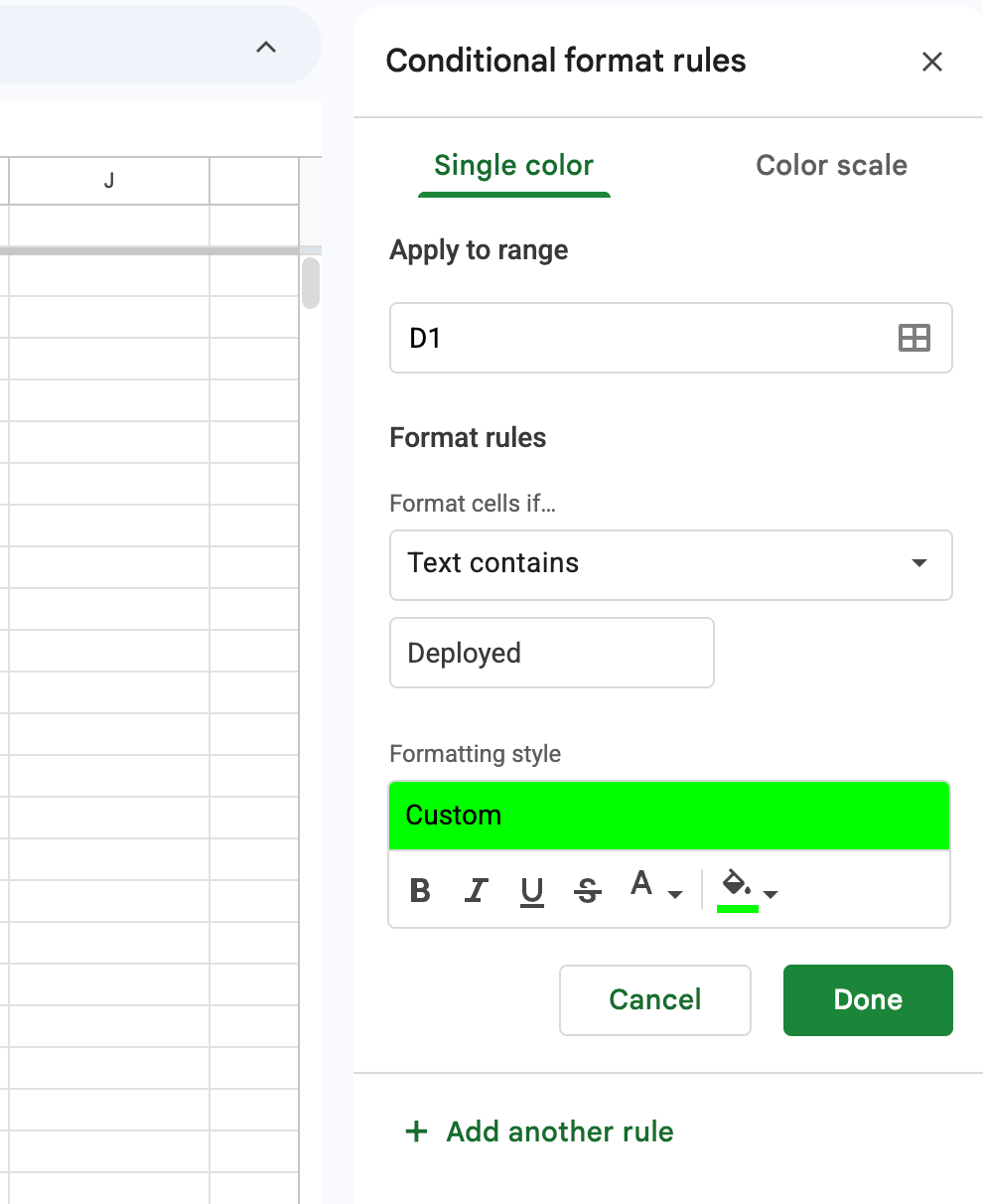
This simple color-coding system dramatically reduces the time it takes to scan the sheet for issues. You can spot a stalled release without reading a single word. 🚦
For an even more advanced Google Sheets progress tracker template, apply additional rules for priority levels or dates that are in the past to highlight overdue items—a key function of any good due date tracking software.
Your tracker is only as reliable as the data in it. When team members type anything they want into the status field—”Done,” “Completed,” “Shipped”—filtering, sorting, and reporting become impossible.
Maintain data consistency by using dropdowns for data validation in key columns. This ensures everyone is speaking the same language.
To set this up, select the column you want to standardize, e.g., your Status column. Then, navigate to Data > Data validation and choose “Dropdown” from the criteria list. Enter your predefined status values: Planned, In Progress, QA, Deployed, Rolled Back.
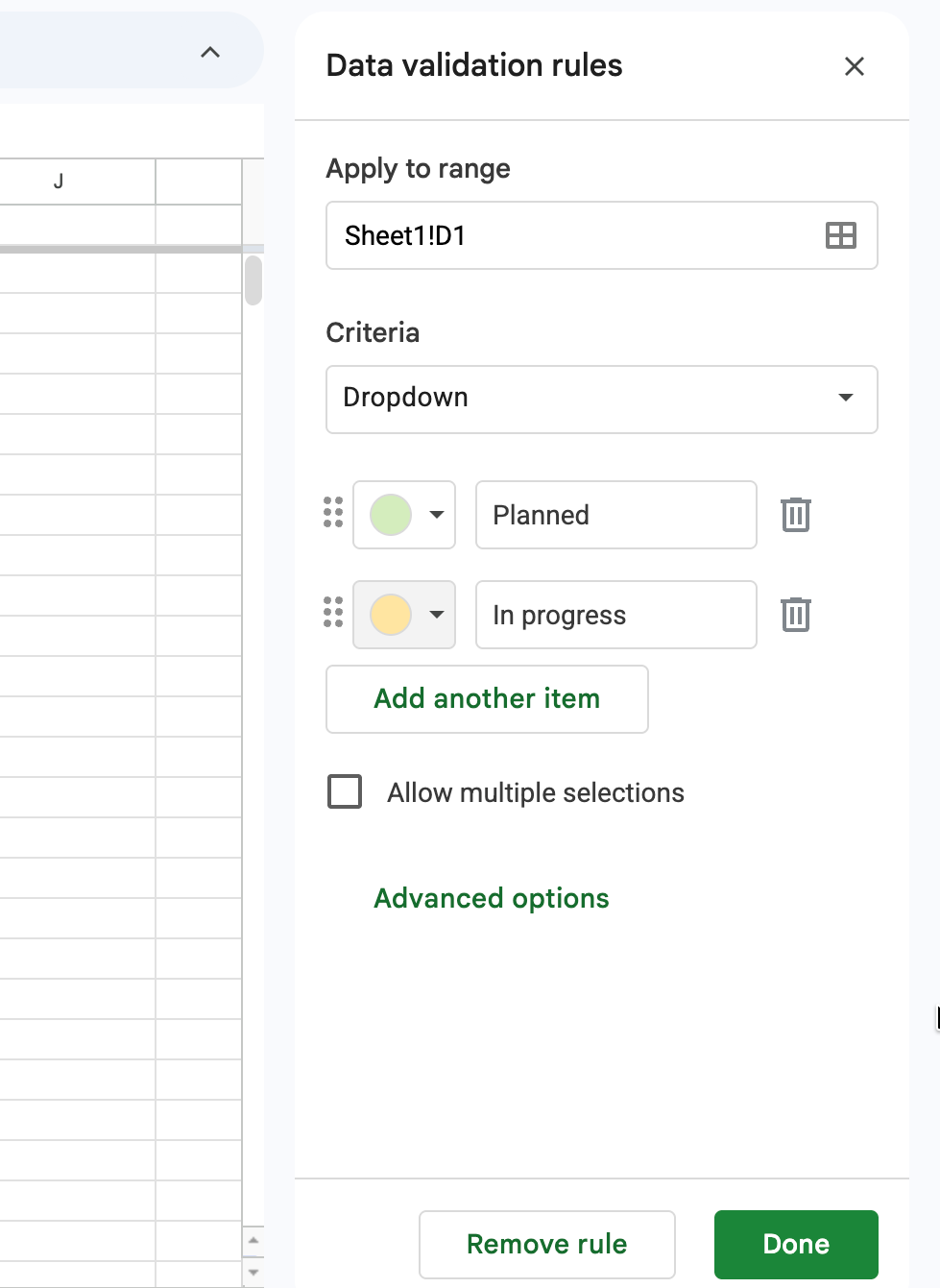
Now, instead of typing, users will select from a list. Every entry stays consistent. Repeat this process for any other column with a finite set of options, such as Priority (High, Medium, Low) or Environment (Staging, Production).
📚 Also Read: Free Excel Task Tracker Templates
A tracker is useless if the right people can’t access it, but it’s dangerous if the wrong people can change it. Without proper access control, you risk creating information silos or worse, having your authoritative record corrupted by accidental edits or deletions.
Shared documents often fail at this point, causing teams to lose trust and revert to chaotic communication. This is a common symptom of a weak stakeholder management plan.
Use Google Sheets’ built-in sharing features to manage access. Click the Share button in the upper-right corner and add collaborators by their email addresses. Assign roles thoughtfully:
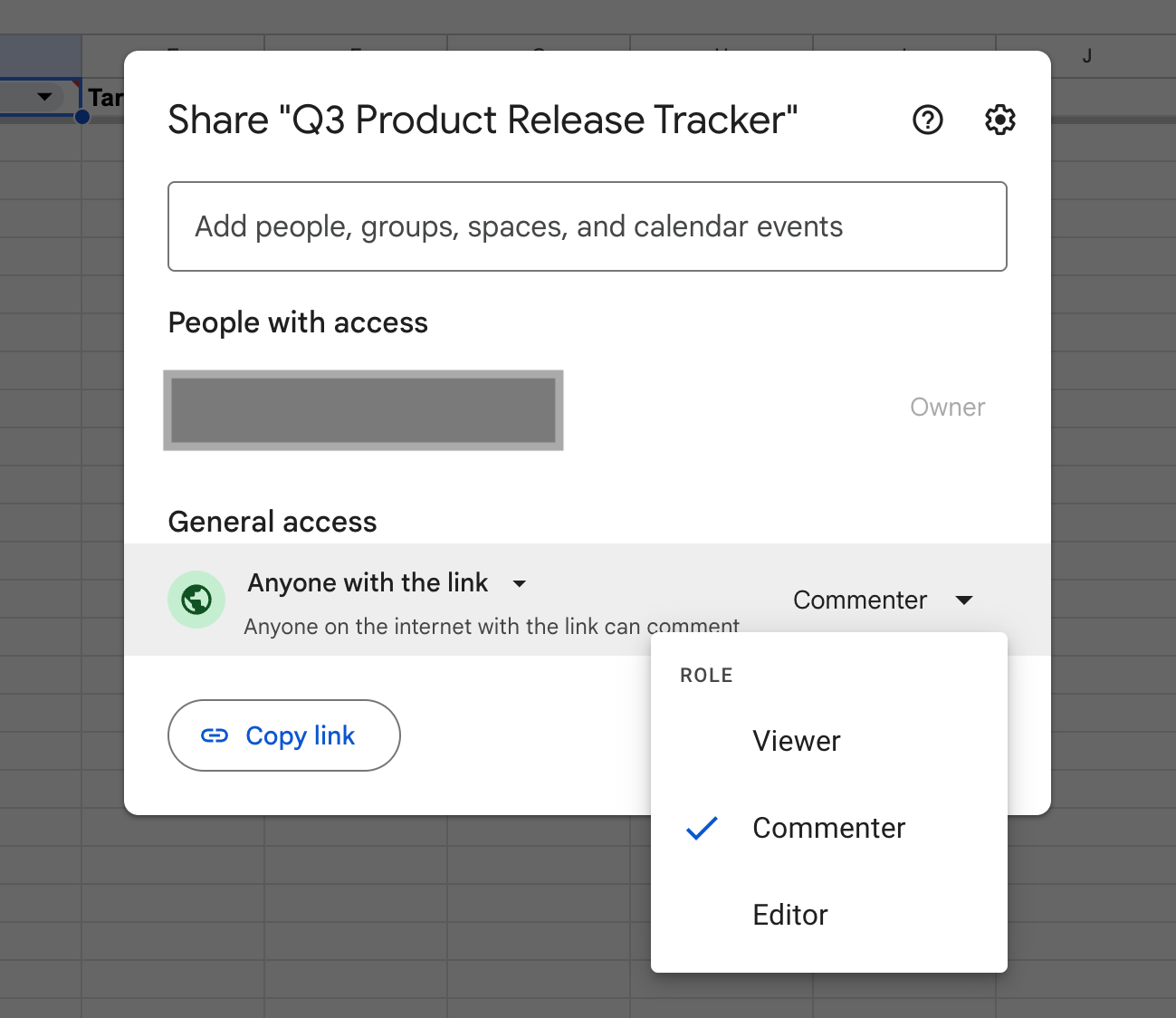
When you add collaborators, make sure the “Notify people” box is checked so they receive an email and know the tracker exists.
💡 Pro Tip: For sensitive release information, avoid using the “Anyone with the link” sharing option. While convenient, it creates a security risk if the link gets forwarded outside your organization.
After a few weeks, you may notice your tracker isn’t being updated. It occurs when the sheet lacks foundational elements that make it easy to use and maintain.
Teams slowly slide back into communication chaos, asking for updates in chats and emails.
👀 Did You Know? Employees are interrupted 275 times a day, roughly every 2 minutes, by meetings, emails, or chats during core work hours.
To prevent this, ensure your release tracking sheet includes these non-negotiable components:
🎥 Your release tracker keeps everything moving behind the scenes. Release notes are what your users actually see. If those notes aren’t clear, your updates can easily get overlooked. Watch this tutorial to learn how to write release notes that people read, understand, and act on:
Building a tracker from scratch feels like a chore, especially when you’re unsure which fields to include. Skip the reinvention and focus on the release itself.
You don’t always have to start from a blank slate. Google’s own template gallery offers a handful of options, while third-party sites offer more specialized Google Sheets tracker templates tailored to software and product workflows.
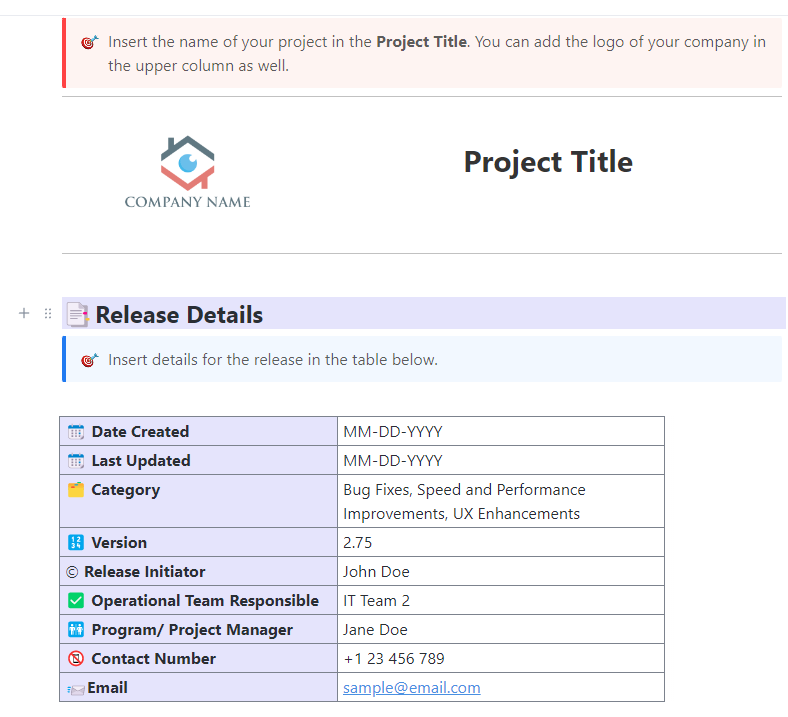
If you want a more structured starting point, ClickUp’s Release Management Template is worth a look. It comes pre-built with the fields and structure that most homegrown trackers take weeks to develop organically.
The template contains:
P.S. You can export the template to Google Docs or use it directly in your ClickUp Workspace.
💡 Pro Tip: Once you’ve duplicated the template into your own Drive or downloaded it into your ClickUp Workspace, adjust the dropdown values to match your team’s terminology, remove any fields that don’t apply to your workflow, and set up conditional formatting to match your status stages.
At first, your Google Sheets tracker may feel like a win. Everything’s in one place, the team is updating it, and releases are moving smoothly. But as your team grows and your release cadence accelerates, the friction might start to show.
Here’s where Google Sheets breaks down for release tracking:
These aren’t reasons to avoid Google Sheets altogether if you’re just starting out. But they are signals worth paying attention to as your release process matures. When the tracker starts creating more work rather than reducing it, it’s time to consider alternatives.
Google Sheets gets you started. ClickUp is where teams go when the spreadsheet stops keeping up.
Start by creating a dedicated “Releases” Folder, with each release as a List (e.g., v2.3 – March Release). Inside, break work into individual tasks like “New onboarding flow,” “Fix payment retry bug,” or “Update pricing page copy.”
This is your basic structure. Now, you can layer in advanced features to simplify and automate release tracking.
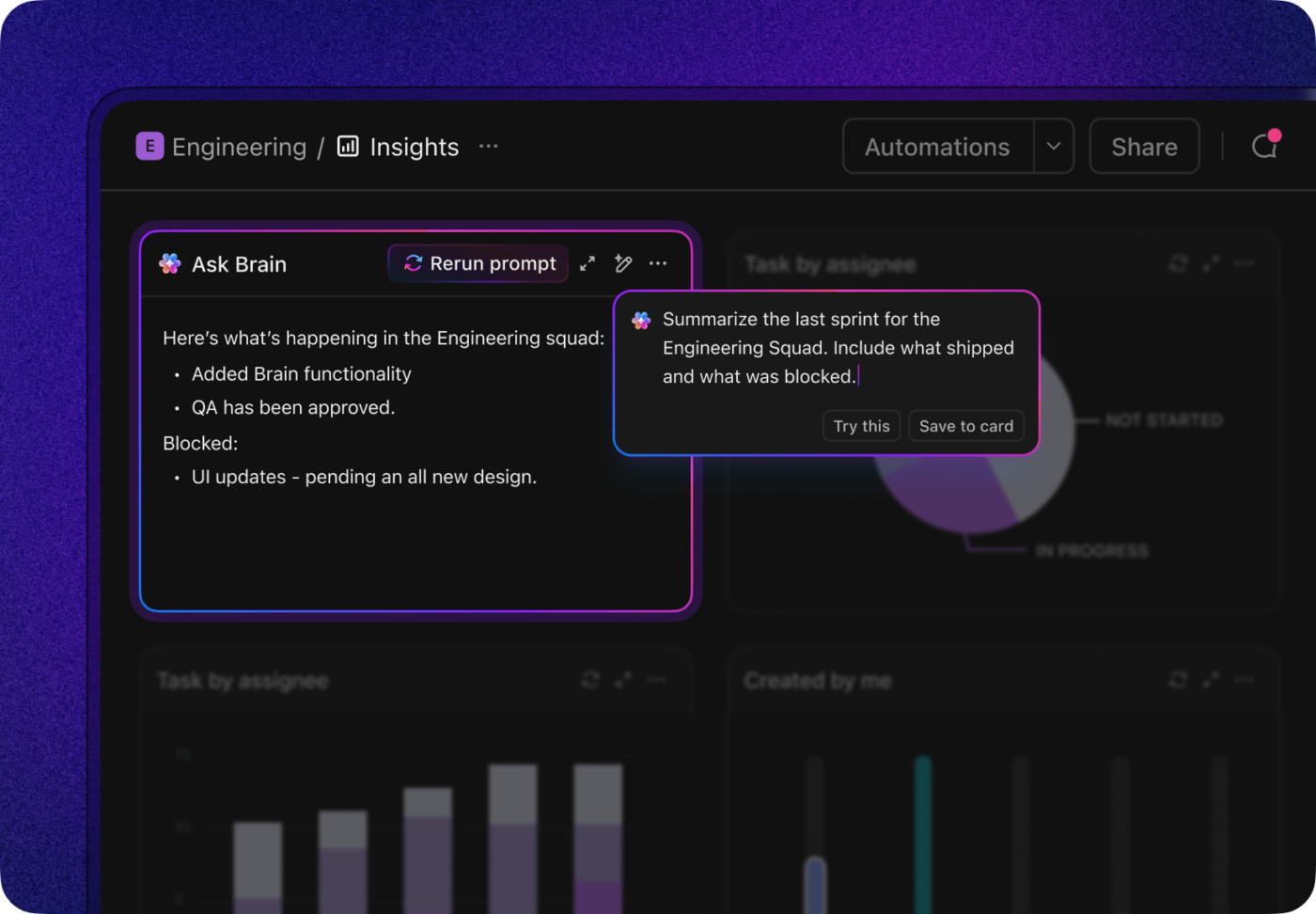
Here’s what release tracking looks like in ClickUp:


🎥 Learn more about ClickUp Super Agents and how they can help automate release notes:
ClickUp users have been impressed with the depth of ClickUp features for product and engineering teams:
⚠️ In Google Sheets, release tracking becomes a manual exercise. Someone updates rows, chases status changes, and hopes the sheet reflects reality. It’s always slightly outdated, and context (why something changed, what’s blocked, who’s responsible) lives somewhere else.
✅ In ClickUp, tracking isn’t a layer on top of work. It’s built into it. Tasks, statuses, automations, and AI all operate on the same system, so updates happen as work happens. Instead of maintaining a spreadsheet, your release plan stays live, connected, and continuously accurate without extra effort.
A Google Sheets release tracker is a good starting point. It’s free, familiar, and gets the job done when your release volume is manageable.
But as your team scales, the manual upkeep becomes more burdensome. ClickUp’s Converged AI Workspace gives you everything a spreadsheet can’t: automated handoffs, live dependency tracking, integrated docs, and dashboards that keep every stakeholder in the loop. Start using ClickUp today for free and run your next release smoothly.
Yes. Google Sheets supports real-time collaboration, so multiple team members can edit the same tracker simultaneously. You’ll see each person’s cursor live as they make changes. That said, simultaneous editing on the same cell can cause overwrites, and there’s no conflict resolution; the last edit wins. For small teams with clear ownership over different rows, this works fine. For larger teams editing heavily at the same time, it’s a risk worth managing through clear column ownership or role-based permissions.
A project tracker manages the broad scope of a project—tasks, milestones, owners, and timelines across an entire initiative. A release tracker is narrower and more specific: it focuses on what’s shipping, when, and in what state. It captures version numbers, deployment dates, environments, dependencies, and rollback statuses: fields that a generic project tracker doesn’t include. Think of a project tracker as the plan and a release tracker as the shipping manifest.
Start by auditing what’s causing the complexity—too many releases, too many columns, too many people with edit access, or all three. Archive completed releases to a separate tab to reduce noise in the main view. Tighten your data validation to ensure entries remain consistent and filterable. If that doesn’t solve it, it’s usually a signal that you’ve outgrown the format entirely. A project tracking platform like ClickUp handles scale, integrations, and automation that a spreadsheet can’t, without requiring you to babysit the tracker to keep it running.

© 2026 ClickUp

There’s an easier way. Try a free AI Agent in ClickUp that actually does the work for you—set up in minutes, save hours every week.