






Still downloading templates?
There’s an easier way. Try a free AI Agent in ClickUp that actually does the work for you—set up in minutes, save hours every week.
Sorry, there were no results found for “”
Sorry, there were no results found for “”
Sorry, there were no results found for “”
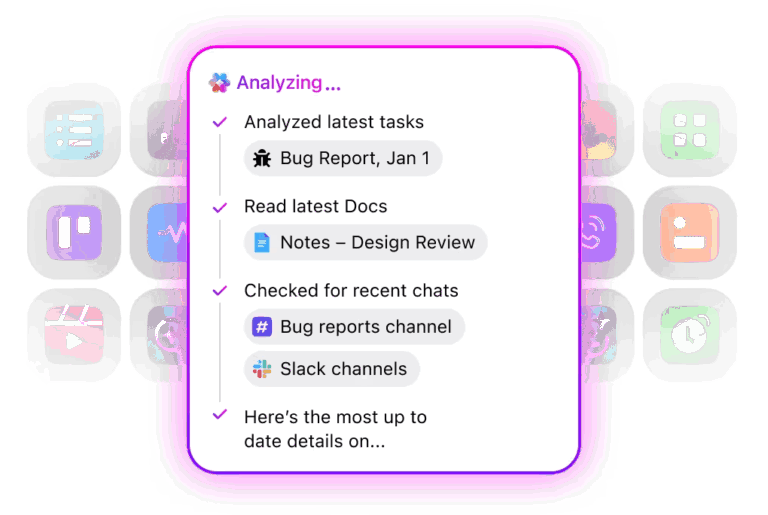
You’re trying to find that one document someone dropped in the channel last week—but now you’re 400 messages deep, in ‘Noted 🙌’ replies and espresso machine memes.
Re-scrolling? Hard pass.
Instead of wasting your afternoon digging through the chaos, here’s how to search smarter in Slack. We’ll walk you through filters, shortcuts, and simple tricks to help you find what you need—fast.
So, you’ve got a ton of channels, a swarm of DMs, and files flying in left and right. But here’s the thing: using Slack effectively means being able to find what you need without losing your mind.
Let’s break it down in easy steps. ⚒️
At the top of your Slack window, you’ll see the search bar. That’s your starting point. Click it on the desktop or tap it on mobile.
Want to make it a little faster? Use these shortcuts to jump straight into search:
Start typing a search term, like a keyword, phrase, or topic, into the Slack search field. It’ll automatically suggest recent queries or highlight matching content as you type. You can either pick from the suggestions or hit Enter to see full results.

🔍 Did You Know? The global team collaboration software market size is expected to grow to $60.38 billion at a CAGR of 11.9% during the forecast period (2024-2032).
Now, here’s where it gets smart. Slack gives you a bunch of search modifiers to fine-tune what you’re looking for. These work like filters, helping you narrow results and hide the noise:
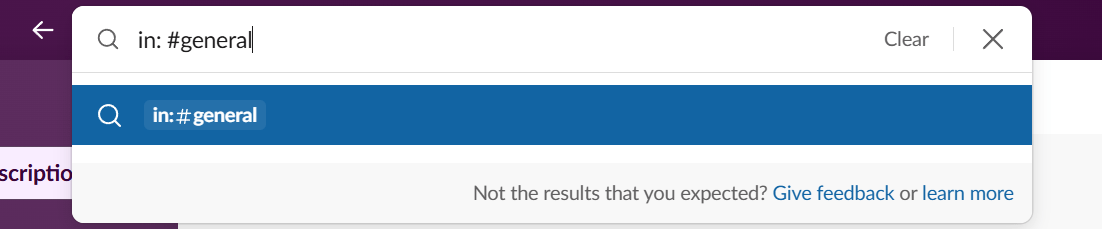
📌 Example: You’re looking for a marketing report that Sara sent in the marketing channel. Here’s a prompt you can try: ‘marketing report in:#team-marketing from:@sara’
Once you hit Enter, Slack splits your search results into tabs:
Click the tab that fits your need, and you’ll be on the right track.
💡 Pro Tip: Use Slack AI to summarize long threads or catch you up on unread messages in busy channels. It’s a great way to get the gist without scrolling through hours of content.
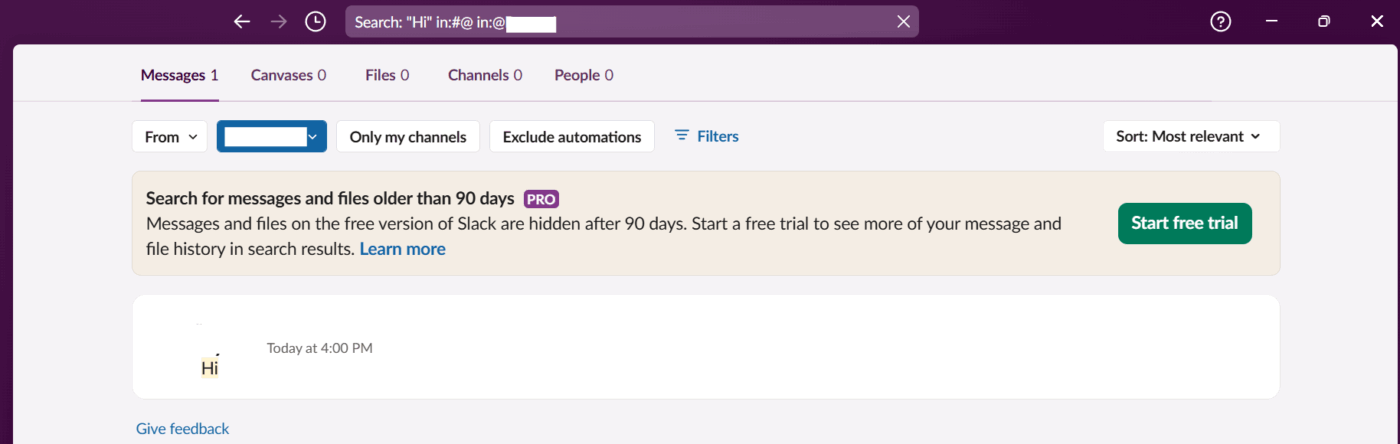
If you’re already in the channel or DM where you think the info is, make it even easier:
It’s a quick shortcut experienced users rely on.
For example, searching inside #design-review when you know a mockup was shared last Tuesday.
📖 Also Read: Free Project Communication Plan Templates
Need a deck, doc, or spreadsheet? Here’s how you get it:
This beats scrolling through the ‘files’ tab in each channel, especially when you’re racing to hit a deadline.
💡 Pro Tip: If you’re not sure which channel a conversation belongs in, use basic search with the channel name or related keywords and then click the Channels tab. Slack will list matches based on channel names, topics, or descriptions.
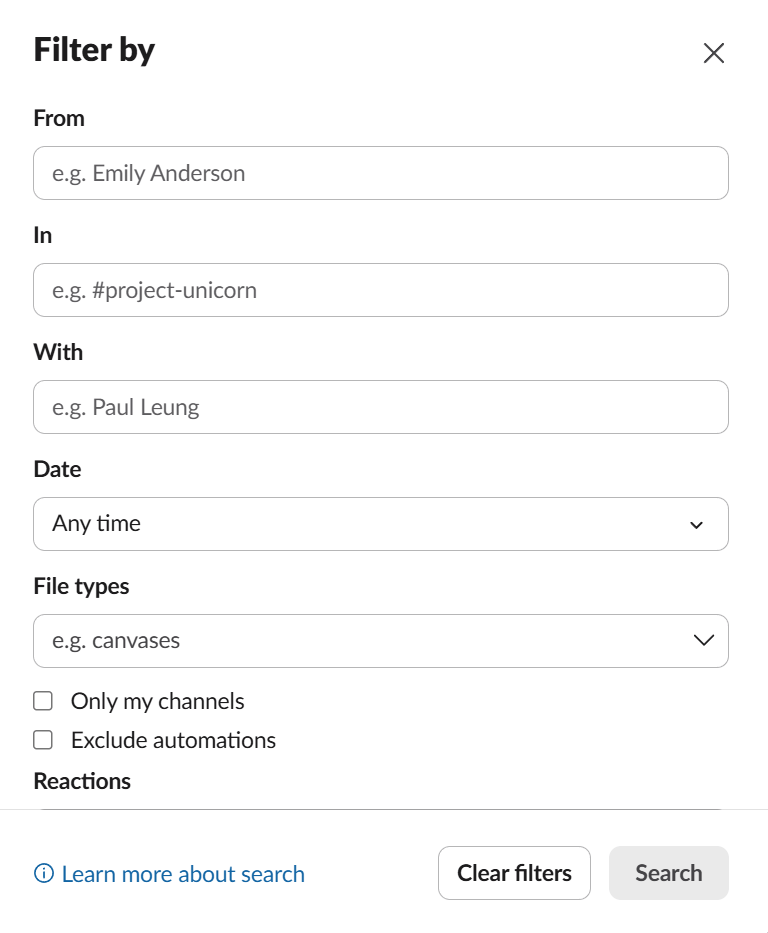
After searching, Slack gives you even more filtering options. Click Filters, and you can narrow by:
It’s like a mini knowledge base search and helps keep your team communication organized.

Want to search while staying in the message window?
✅ Try This: /search in:#channel-name from:@username
It works just like the search bar, and it’s quick for users who live in slash commands.
Slack is a great tool for quick chats and team updates—but when it comes to finding something later, it’s not always smooth sailing. Here are some of the most common pain points that might have you exploring Slack alternatives. 👇
🎥 We’ll cover semantic search, NLP relevance, connectors, security, and how ClickUp’s Converged AI Workspace unifies your data so your team gets answers instantly instead of digging through chaos.
So you’ve explored Slack’s pros and cons and still find yourself buried in irrelevant results or toggling between tools?
ClickUp, the everything app for work, brings it all together. Messages, files, decisions, and tasks live in one place, with an AI-powered search assistant that understands your context and keeps everything in a unified system.
With ClickUp Chat, you can collaborate in topic-based channels or DMs, turn messages into tasks, and keep every discussion tied to a project.
Additionally, ClickUp SyncUps let you start instant audio or video calls (with screen sharing) right from any chat. Quick decisions and real-time collaboration happen where your work already lives.
ClickUp’s Enterprise Search lets you search across ClickUp and your integrated tools (Slack, Google Drive, Dropbox, SharePoint, Jira, and more) from a single search bar. No more switching tabs or platforms—just type your query and instantly see results from all your connected apps.
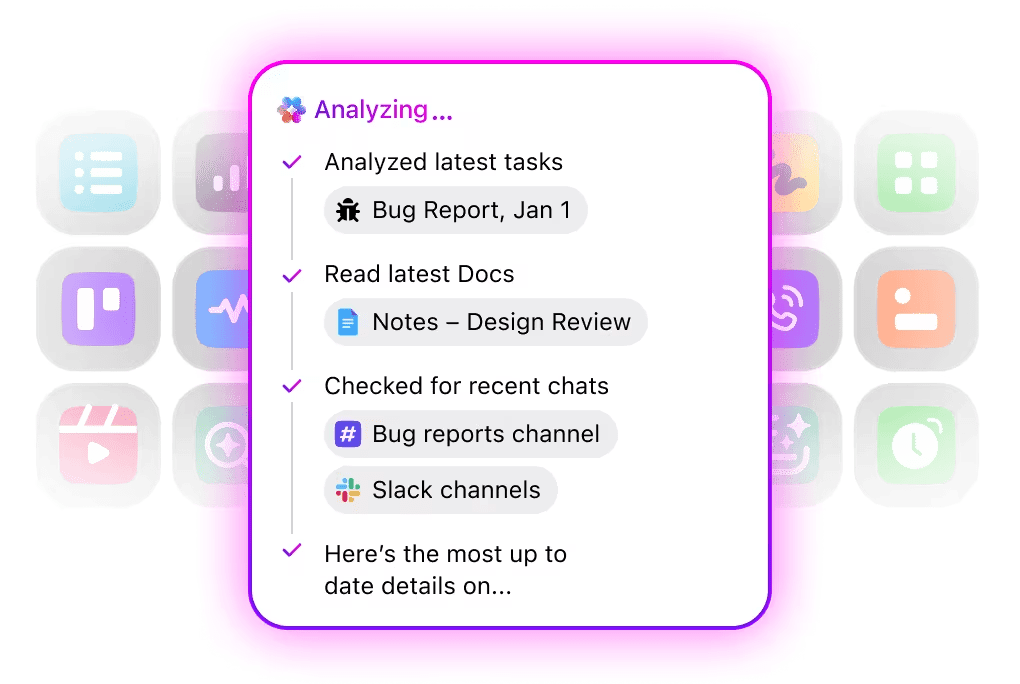
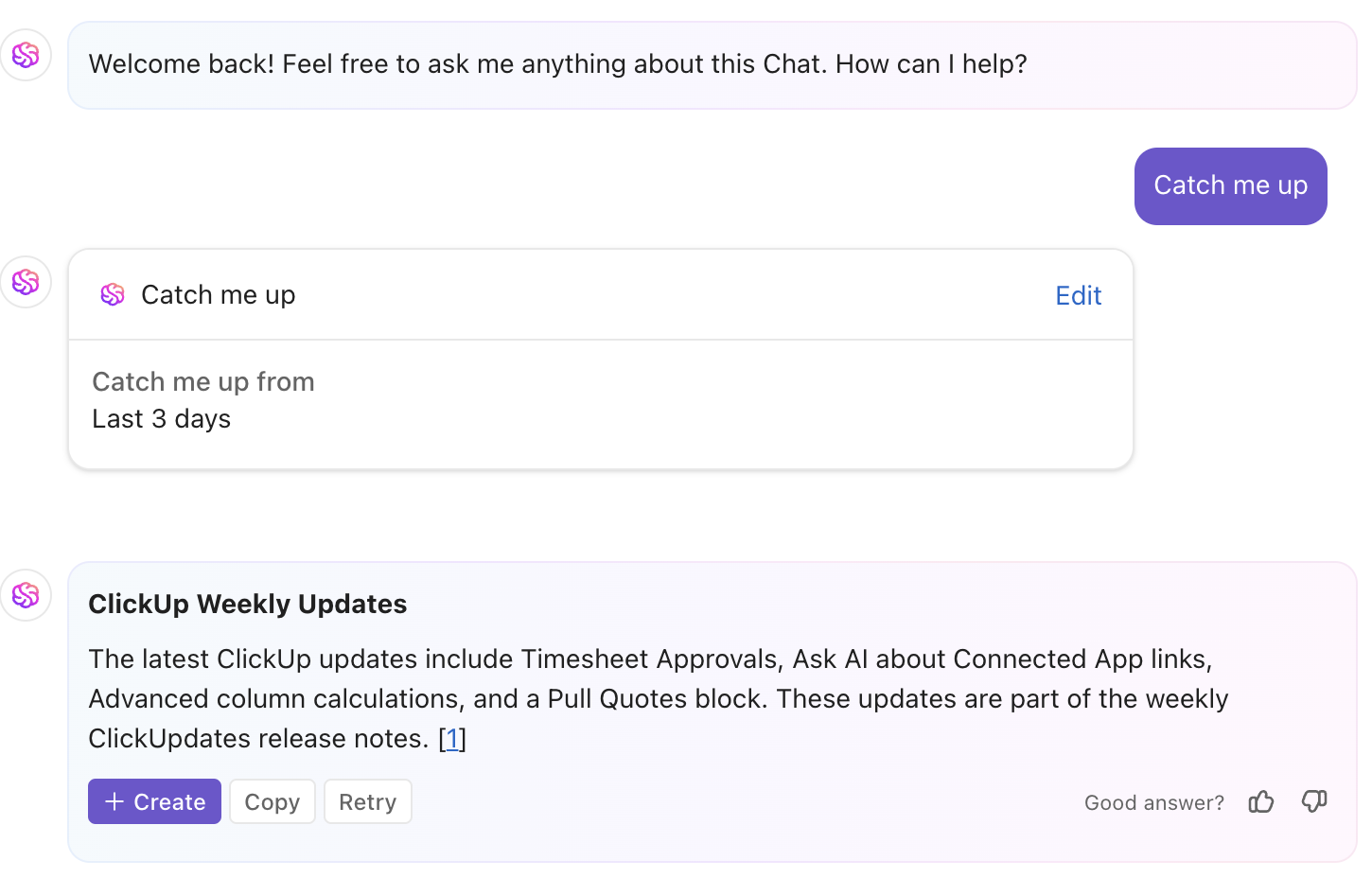
If you’ve been away or just want a quick summary, type “Catch me up” in any ClickUp Chat channel or DM. ClickUp Brain will summarize the most important updates, decisions, and shared files from the last few days so you don’t have to scroll through long threads.
Why is it powerful?
Tired of fumbling with search modifiers? Just ask. ClickUp Brain, your AI-powered assistant, helps you instantly locate files, tasks, Docs, or meeting notes—without needing the exact keywords.
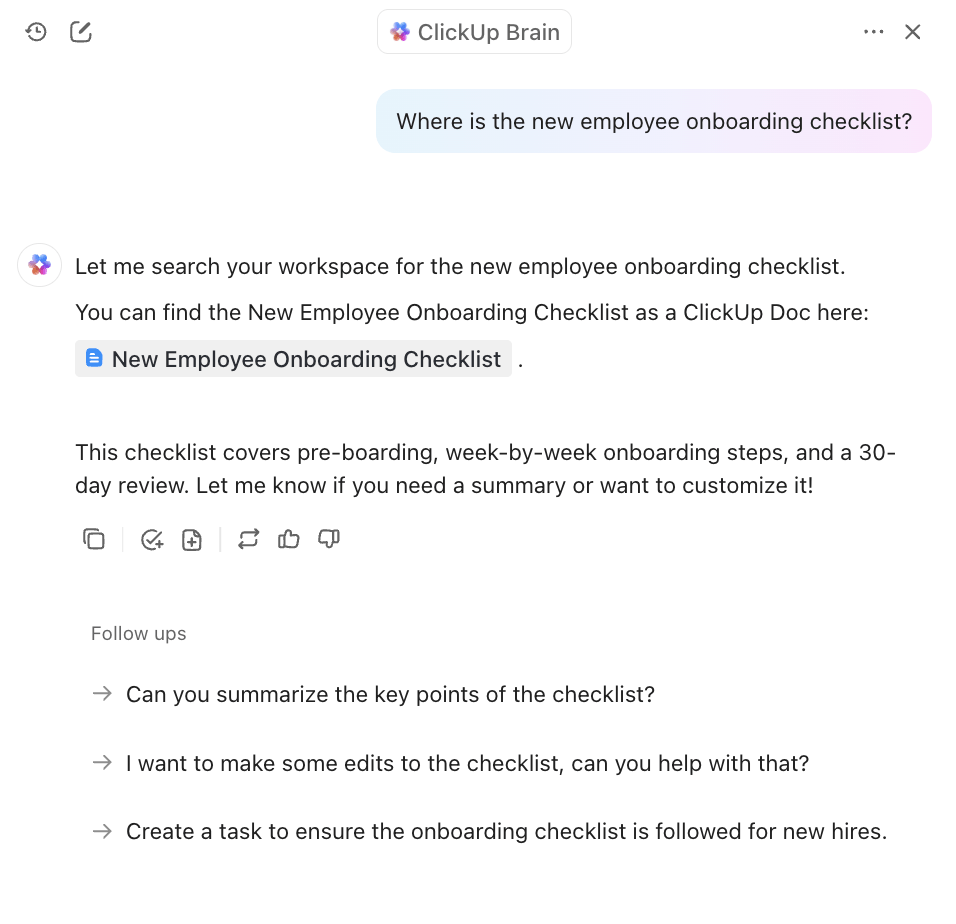
📌 Example Prompt: You can simply type, “Show me the final Q2 marketing deck and the meeting notes from the client call with Acme Corp on April 15.”
ClickUp Brain will pull the finalized presentation file, link the related ClickUp task, and display the exact meeting notes or summary.
📮 ClickUp Insight: 30% of our respondents rely on AI tools for research and information gathering. But is there an AI that helps you find that one lost file at work or that important Slack thread you forgot to save?
Yes! ClickUp’s AI-powered Connected Search can instantly search across all your workspace content, including integrated third-party apps, pulling up insights, resources, and answers. Save up to 5 hours in a week with ClickUp’s advanced search!
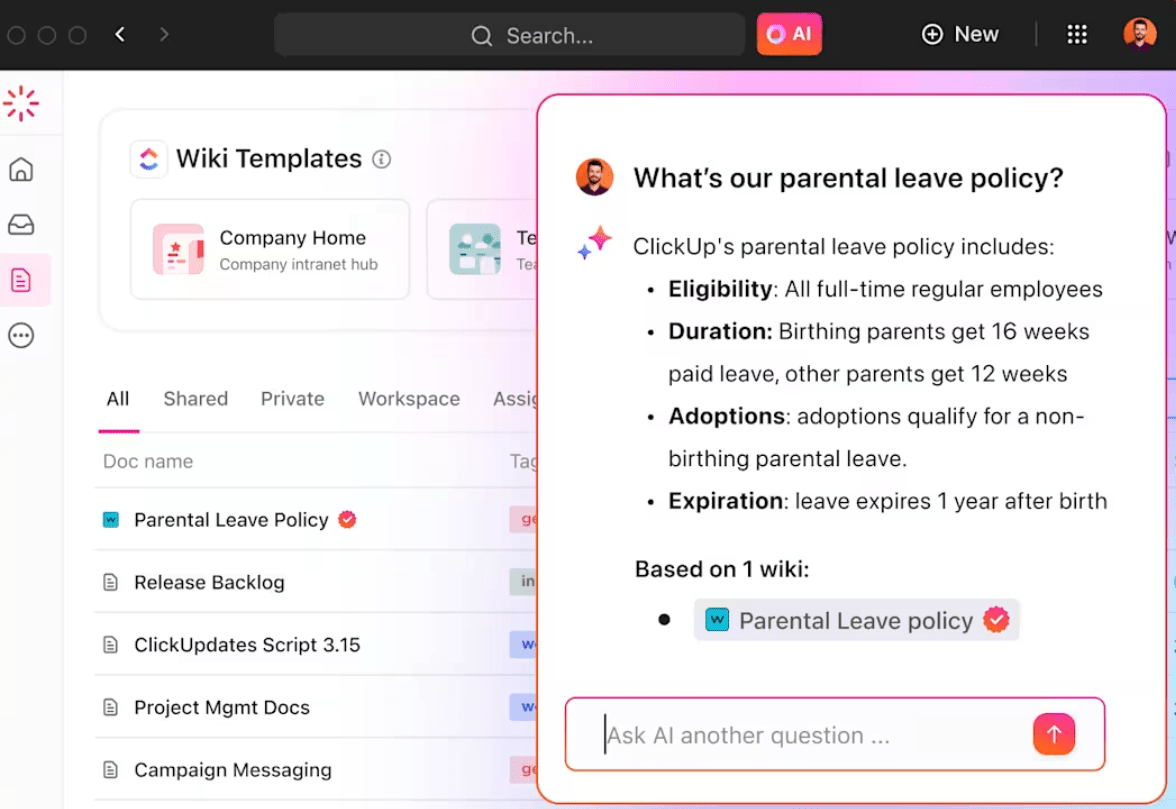
This is where ClickUp really stands apart from Slack alternatives. With ClickUp Knowledge Management, you can store, organize, and retrieve your team’s collective knowledge—from SOPs to team notes, Docs, and other reference material—all inside one workspace.
💡Pro Tip: Use ClickUp Chat to keep conversations right where the work happens—inside tasks. No more lost DMs or scattered threads. When a quick chat turns into an action item, ClickUp Docs lets you capture it instantly and link it to your workflow. Goodbye, endless Slack scrolls.
You’ve got work to do, not chats to dig through. Slack keeps conversations moving, but when it’s time to find information, it can fall short—especially when your files and notes live in other tools.
ClickUp, the everything app for work, brings it all together. Messages, files, decisions, and tasks all live in one place, with an AI-powered search assistant that actually understands the context and creates a unified system.
So, why waste time? Save it by signing up on ClickUp for free today! ✅

© 2026 ClickUp

There’s an easier way. Try a free AI Agent in ClickUp that actually does the work for you—set up in minutes, save hours every week.