11 Best Greenshot Alternatives for Screen Capture and Annotation

Sorry, there were no results found for “”
Greenshot is a Windows snipping tool and a screenshot software. It even supports scrolling captures of web pages when using Internet Explorer on the Windows operating system.
Once captured, screenshots can be annotated, highlighted, or obfuscated, and then exported via multiple paths—like saving to a file, copying to the clipboard, printing, emailing, or sending to Office programs and photo services.
But in today’s era of remote and hybrid work, Greenshot can feel limited. Teams often need screenshot tools that go beyond one-off captures. For example, cloud syncing for easy sharing across devices, real-time collaboration, layered PSD editing, or multi-page PDF markup.
Greenshot, while open source and free for Windows users, hasn’t evolved at the same pace. In this blog, we’ll explore the best Greenshot alternatives that keep up with the way modern teams work.
Although Greenshot is widely used by project managers, testers, developers, and technical writers, you’ll find gaps when you need instant sharing across devices or more automated workflows.
Here are some reasons why you must consider using a Greenshot alternative:
Here’s a Reddit review from a real-life user about their latest update:
However, one thing we have noticed is that it installs and activates the Imgur plugin by default.This plugin adds an ‘Upload to Imgur’ option after taking a screenshot. The screenshot is immediately uploaded to Imgur, and a link to the image copied to the clipboard. By default, the upload is anonymous, so there is no way to delete uploaded images from Imgur. This is clearly an information security risk.
Here’s a short overview of some screen capture and annotation software:
| Tool | Best For | Best Features | Pricing |
| ClickUp | Teams of all sizes needing screen recordings and clips connected to task workflows | ClickUp Clips for video snippets embedded in tasks, ClickUp Docs integrating screen captures into documents, and ClickUp Brain that summarizes and generates action items from clips | Free forever; Customizations available for enterprises |
| Snagit | Pro-quality captures and lightweight videos | Screenshot and scrolling capture, video + audio recording OCR, step-by-step guide auto-generation, presets | Starting at $39/year per user |
| ShareX | Free, customizable capture + automation on Windows | Multi-mode capture (video/GIF, scrolling), editor with annotations/effects, automation workflows, OCR, productivity tools | Free |
| Loom | Async video communication and team collaboration | Quick video + audio capture, browser/mobile access, link sharing with viewer analytics, reactions/comments, AI for transcripts and chapters | Free; paid plans start at $18/month per user |
| Droplr | Fast cloud-enabled capture and sharing | Screenshot & video capture with instant cloud upload, visual Boards, passwords, and self-destruct timers | Pro plans start at $8/month per user |
| PicPick | Lightweight capture with precision tools on Windows | Full suite: capture, editor, color picker, pixel ruler, whiteboard, magnifier; free for personal use | Free; pro plans start at $30/year per user |
| Lightshot | Super quick, simple screenshots across platforms | Fast capture + basic annotation, prnt.sc link generation, browser extension, cross-platform support | Free |
| Gyazo | Instant GIF/image capture with cloud history | Auto-uploaded HD GIFs/videos (7 sec free, longer for Pro), OCR and alt text, basic annotation | Free; pro plans start at $4.99/month per user |
| ScreenRec | Private, secure screen recording with analytics | Cloud recording with instant link copy, HD no watermark, annotations, 2 GB encrypted storage, viewer tracking | Free; pro plans start at $8/month per user |
| Camtasia | Advanced video tutorials and polished presentations | Drag-and-drop templates, Speech-to-text (Whisper AI), multi-track editing, cursor + green-screen effects, vast asset library | Pro plans start with $179.88/year per user |
| Screenpresso | Step-by-step documentation creation and capture | Step Tool auto-numbers steps, compile to PDF/DOCX/HTML, vector editor, drag-and-drop Workspace | Free; pro plans start at $29.99 per user (one-time purchase) |
Our editorial team follows a transparent, research-backed, and vendor-neutral process, so you can trust that our recommendations are based on real product value.
Here’s a detailed rundown of how we review software at ClickUp.

Here are some modern tools that can fill the void that Greenshot leaves:
The problem with modern workday tools is that they make work feel disconnected. Every recording, creative asset, and project roadmap lives in different parts of the web. And you spend way too much time hunting down the right explainer video or SOP. This is exactly the kind of Work Sprawl that ClickUp is built to solve.
ClickUp changes that. From screen recording to project tasks, to user manuals, to documentation, to chat, you have all that you need in one Converged AI Workspace.
It’s the everything app for work that combines project management, documents, and team communication, all in one platform—accelerated by next-generation AI automation and search.

And if you use Greenshot for basic screenshots or as an annotation tool, but wish it could do more, ClickUp offers that.
Meet ClickUp Clips. You don’t have to take multiple screenshots to show a process. You can record a quick video that demonstrates what you’re doing.
🎥 Watch: To learn more about Clips, click on the video below.
Unlike standalone tools like Loom or ScreenRec, ClickUp Clips live inside your project workspace. So, when you document a bug report, create training materials, or explain a design decision, the recording becomes part of the conversation thread rather than a separate file to manage.
The AI transcription with timestamps makes your screen recordings searchable and actionable.
For instance, if you capture a 5-minute walkthrough of a software issue, team members can jump to ‘2:34, where you showed the error message’ or turn specific moments into ClickUp Tasks.
ClickUp Docs replaces the typical Greenshot → Word/Google Docs workflow entirely. Here, you can embed live Clips directly into your documentation.

Your process docs, bug reports, and training materials become interactive. Your team can watch the actual screen recording in-line, leave time-stamped comments, and create tasks directly from what they’re seeing.
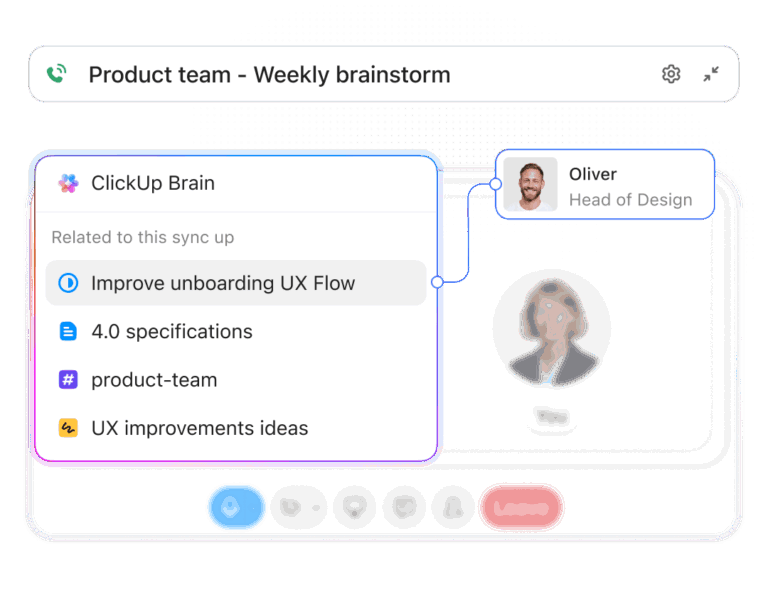
Plus, SyncUps in ClickUp are live video meetings that let you collaborate face-to-face, share your screen, and connect tasks without leaving the platform. So you can record SyncUps, access the recordings in the Clips Hub, and share or comment on them with your team.
Further, ClickUp Brain changes how you think about visual documentation. It gives you more than static captures.

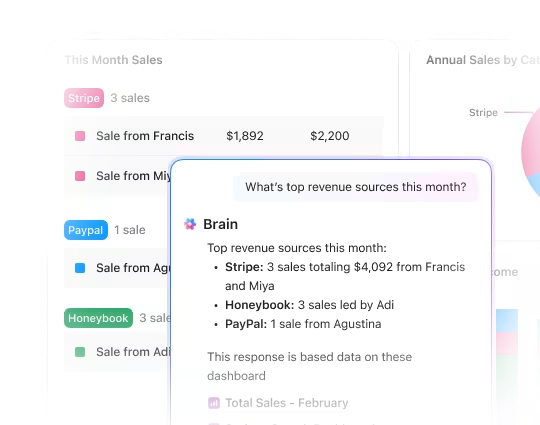
Instead of manually organizing screenshots like you would with Greenshot, you can ask Brain contextual questions about your work:
The AI-powered assistant understands your project’s context so you can connect visual content to your workflow. Brain transcribes speech to text from meetings, standups, or quick audio notes.
You can even generate summaries of updates, tasks, or Docs, cutting down time spent writing or formatting. Lastly, keep everything in context by attaching transcripts, notes, and insights directly to tasks or Docs, so knowledge doesn’t get siloed in files or screenshots.
This review really says it all:
ClickUp brings everything we need into one place task management, documentation, chat, and project planning. It replaced tools like Asana, Slack, and Notion for us, which simplified our workflow a lot.
Each team uses it a bit differently, but we can still stay connected across the company. We especially like the custom views (List, Calendar, Gantt) and the ability to automate recurring actions. The new AI assistant helps us create tasks faster and summarizes project details well.
💡 Pro Tip: With ClickUp Brain MAX’ Talk-to-Text, you can instantly convert voice notes, sync-up recordings, or walkthroughs into accurate, structured text.
It organizes your words into searchable, actionable documentation inside tasks and Docs. This makes it easier to capture quick thoughts, document meetings, or draft reports without ever typing, giving remote teams a faster way to keep knowledge flowing.
This video shows you how to use ClickUp Brain as your voice-to-text assistant.

If you’re working professionally with a lot of visual documentation, Snagit is your snipping tool for both Windows and Mac. Beyond just screenshotting images, you can record your screen with audio, throw in webcam footage, and even pull text straight out of images using optical character recognition (OCR) that Greenshot lacks.
Additionally, it connects directly to the tools you’re already using, like Slack or Google Drive. The preset options are a nice touch, too. Once you set up your preferred styles, everything looks consistent without having to tweak settings every time.
Another highly useful feature in the new version is the step capture tool. It automatically turns your clicks into step-by-step guides. Suppose you’re creating SOP manuals, process documentation, tutorials, how-to articles, help-center content, and knowledge-base materials. To keep your documentation consistent, you can also customize the text, callouts, and layouts within this tutorial video software.
This is how one user described their experience:
Record any onscreen activities, such as region, window, or scrolling screen. Capture audio files with a separate microphone or one built into your device…Prone to crashing when you save large onscreen videos after editing. It is too simple to polish the recorded video with the Snagit video editor.
📚 Read More: Best Snagit Alternative Screen Recording Tools

ShareX is a free, open-source screen capture tool. The capture options are extensive, allowing you to grab full screens, specific windows, and custom regions. You can also capture scrolling content for long webpages and record screen videos or GIFs.
The platform has OCR built in to allow you to extract text from images, just like paid tools. An interesting aspect of the tool is how it deals with automation workflows. You can set up a chain of actions: capture something, apply effects or watermarks, automatically upload it to your preferred service, then copy the URL to your clipboard.
The upload destinations are also comprehensive. It supports numerous services, including Dropbox, Imgur, Google Drive, and more. You can even control it via the command line interface.
One review puts it this way:
“I think the most impactful thing about ShareX is the entire toolkit that gives you at your disposal, you can either use capture tools, uploading to popular sharing websites, edits and annotations… I think the hotkey settings could have a tutorial or assistant to help you set up and make it even better.”

Loom is a screen recording and video messaging tool for async team communication. You don’t have to wrestle with screenshots like with Greenshot. Here, just explain the content with video and audio, getting an instant shareable link in the end. Someone clicks the link, and they’re watching your explanation immediately.
What sets Loom apart from other screen recording software is the intelligence you get afterwards. You can see exactly who watched your video and when. Plus, the paid plan includes engagement insights that show how individuals interact with your content (pause, rewatch, or drop off). This is useful for training material and walkthrough videos.
The commending and emoji reaction features turn what would normally be a one-way communication into something more collaborative. You can also leave specific feedback at exact moments in your video.
A quick snippet from a real user:
What I love most about Loom is how fast and frictionless it makes communication. Instead of typing long Slack messages or writing out instructions, I just hit record and explain everything in a few minutes…The biggest limitation is the 4 to 5-minute cap on recordings in the free version , it’s tough when you need to explain something in more detail…
👀 Read More: How to Use Loom: 10 Screen Recording Use Cases

For professionals seeking a cloud-enabled screen capture and collaboration tool, Droplr offers a SaaS-based solution. It supports screenshotting and video recording with annotation features and instant cloud upload (of course, generating a short link immediately.
Unlike Greenshot, this platform focuses on quick sharing and collaboration in the workplace through its cloud workspace called ‘Boards.’ Here, you can organize content visually, like on Pinterest.
It allows easy sharing outside the workspace via direct downloads or social media. However, it lacks the advanced image editing and OCR text extraction features found in other Greenshot alternatives.
Straight from a G2 review:
I love the speed at which you can share files or screenshots and that it copies your uploaded file to the clipboard…it is so much faster than using something like Dropbox!..Occasionally the updates seem to get a bit broken on my mac at work, but that is probably something that is only a problem for me…
📚 Read More: Your Guide to Video Production Project Management

PicPick offers a screen capture tool, image editor, color picker, color palette, pixel ruler, protractor, crosshair, and even a whiteboard in one. You can take screenshots in all the usual ways, but the scrolling window capture comes in handy when you want to capture a long document in one shot.
Using the built-in editor, you can crop, resize, add text, and shapes. That said, it doesn’t bog you down with professional-level complexity.
It lives in your taskbar, and everything is accessible through a simple context menu, so it stays out of your way until you need it. Furthermore, you must note that PicPick is completely free for personal use, but commercial users need to buy a license.
🔍 Did You Know? The word ‘record’ dates back to around 1300, originally meaning ‘testimony to committed writing’ or the act of having something officially documented. It comes from the Old French record (memory, statement, report) and Medieval Latin recordum, all tied to the idea of preserving something for remembrance.

If you need to grab screenshots quickly and share them pronto, Lightshot is your tool of choice. You can select an area, make some quick edits, and upload the screenshots to their server without any feature overload.
What sets it apart from Greenshot is how it handles the export part. Instead of saving files locally and then figuring out how to get them to people, you can just click ‘Upload’ and get a shareable link. These prnt.sc links work with everything, including email, chat, and social media, and don’t break like some file-sharing services.
The editing tools are basic. You can add text, arrows, shapes, and highlights, but that’s about it. The platform works across Windows, macOS, and Ubuntu, plus there’s a browser extension for web-based work.
A quick snippet from a real user:
I loved Lightshot’s intuitive and user-friendly interface, which makes taking and editing screenshots incredibly easy. The instant sharing options and versatile editing tools also stand out, allowing for quick annotations and seamless integration with various platforms…
📚 Read More: How to Record Your Browser Screen
📮ClickUp Insight: 50% of our survey respondents report Friday as their most productive day. This could be a phenomenon unique to modern work. Fridays tend to have fewer meetings, and this, combined with the context accumulated from the workweek, could mean fewer disruptions and more time for deep, focused work.
Want to retain Friday-level productivity all week long? Embrace async communication practices with ClickUp, the everything app for work!
Record your screen with ClickUp Clips, get instant transcriptions through ClickUp Brain, or ask ClickUp’s AI Notetaker to step in and summarize meeting highlights for you!
📚 Also Read: How To Get Sound On Screen Recording

The screen recorder Gyazo’s free version gives you HD GIFs and videos up to 7 seconds. All you need to do is press print screen, and voila—you get the link. Upgrading to the Pro version gets you longer video captures (up to 3 minutes) and OCR scanning to pull text out of images.
You also get AI-generated alt text descriptions, which are handy for accessibility or just remembering what old captures were about. The editing tools on the free plan are basic: just arrows and highlights. However, Pro adds text, shapes, blur effects, and even stickers if you want to get creative.
Its instant upload feature is debated. Its cloud-hosted links make it suitable for remote team collaboration and quick visual communication. However, if you want to keep things local or need more control over what you capture, its cloud-first approach is limiting.
According to one reviewer:
The “tin eye”-style image search offered for premium users looks extremely handy. It would be nice to have at least a stripped-down version of it available for ad-supported users. It would also be nice to have a longer time limit on GIF and video screen recordings (although it makes sense that this would require a paid account).
🧠 Fun Fact: In 1993, Mosaic, the first graphical web browser, actually had a built-in ‘group annotations’ feature, letting anyone comment on any webpage. It was dropped due to server limitations, but its inventor, Marc Andreessen, still wonders how the internet might have evolved if we’d kept that ability to layer knowledge on knowledge.

Unlike Greenshot, ScreenRec has a ‘cloud recording technology.’ This means that when you capture something, you can share a screen recording with a link that’s copied to your clipboard because everything streams directly to the cloud as you record.
Behind the simple interface, ScreenRec actually runs on enterprise-grade video platform infrastructure. You get access to some advanced features like content security, privacy controls, publishing options, and analytics for async video communication.
You can also monitor who watched your recordings and when, which is useful for training materials or client demos. Everything is recorded in HD without watermarks or time limits, and you get 2GB of free encrypted cloud storage to keep your captures organized.
A user shared this feedback:
As a team lead graphics designer, a screen recording tool is important for me. I have to record videos and share it with my subordinates to teach them time to time. This tool comes in handy…There are not much to dislike about this tool except for the fact that the UX is not that good. Also, you can only record screens in 720 quality, so that’s a bummer.
📚 Also Read: How to Take a Scrolling Screenshot in Chrome Easily

If you’re looking for professional-looking training videos without learning complex video editing software, Camtasia can help. It’s built specifically for educators, marketers, trainers, and anyone who needs professional multimedia content quickly.
The Speech-to-Text feature uses OpenAI’s Whisper technology to automatically generate accurate captions in dozens of languages. You get AI-generated captions that look like social media-style text, with eight preset styles you can customize.
Camtasia Rev, their AI-assisted editing feature, can edit any video with fast and easy workflows. After editing, you can apply professionally designed layouts and effects to your recording automatically.
Here’s a firsthand perspective:
It is a fast and cost-effective alternative to higher end software such as Apple’s Final Cut Pro or Adobe Premiere…Sometimes for longer/larger video files you might have to use some alternative tricks, otherwise it can bog down your system…
🔍 Did You Know? The Winthrops, best known as a political dynasty in colonial New England, were also a family of obsessive book annotators. They passed their marked-up library across three generations and even across the Atlantic.
📚 Also Read: Best Camtasia Alternatives for Screen Recording

Screenpresso is a Windows-only screen capture and recording tool. It is for users who need a Greenshot alternative that supports multiple capture modes, including scrolling screenshots, and automatically saves everything to a built-in workspace for quick access.
Now, regarding the editing tools, you can add arrows, step numbers, callouts, and effects like shadows. These features make Screenpresso suitable for tutorials or bug reports. Screenpresso also generates complete documentation by exporting your captures into formatted PDF, Word, or HTML guides—a feature Greenshot doesn’t offer.
For video, Screenpresso allows HD screen recording with audio and webcam overlays. Its free version covers basic needs, but Pro unlocks features like video cropping, document generation, and OCR.
See what this reviewer had to say:
The light weight software is a bliss, so simple integrate with our tools. Grabs literally anything and everything without giving a small glitch…Extended screenshot option is a bit of cumbersome to use is what I felt and sometimes it fails, but very I had faced it though. Overall Its a great handy tool
📚 Also Read: How to Screen Record on Mac with Audio Effortlessly
Screenshots are great for showing what you see, but they are even better when they lead to action.
ClickUp, the everything app for work, gives you a centralized platform for all your needs. With Clips, you can record quick screen videos or annotated walkthroughs, and then attach them directly to tasks.
Plus, ClickUp Brain’s functionality tightens your workflow. It summarizes what’s on screen, turns it into action items, or drafts follow-up messages for you.
You don’t have to stop at just taking screenshots anymore. Just sign up for ClickUp for free today!
© 2025 ClickUp