
Sorry, there were no results found for “”
Sorry, there were no results found for “”
Sorry, there were no results found for “”
Every free Gantt chart tool I tested handles a simple two-week plan fine. Bottlenecks appear when you add a dependency, invite a fourth person, or move a date and expect the tasks after it to shift too. Six of the eight tools either lock these features behind a paid plan or make you rebuild the timeline by hand.
That’s why I tested eight free Gantt chart software tools against their free plan limits and collaboration caps. In this guide, you’ll get complete notes on what breaks once you’re past week one. They split into three types: online Gantt tools that update as work changes, free open-source desktop apps, and presentation or spreadsheet tools that give you a timeline graphic instead of a working chart.
The short answer: The best free Gantt tool depends on your setup. Pick ClickUp when your timeline needs dependencies, a critical path, and room to grow past one project. Choose TeamGantt for the cleanest dedicated Gantt, if one project and three users is enough. Try GanttPRO or Instagantt for polished online charts, though both gate the free version behind trials or an Asana account. Grab ProjectLibre or GanttProject if you’re fine with offline desktop software. Use Lucen Timeline, Google Sheets, or Excel when you just need a timeline to drop into a slide, not a live plan.
| Tool | Best for | Standout feature | Pricing* | Where it taps out |
| TeamGantt | Solo planners building one clean project timeline | Its AI maker drafts tasks and dependencies from a raw work breakdown structure | Free (1 project); paid plans start at $24/month | Price jumps off the free plan, lags on massive charts, and reporting stays basic |
| ProjectLibre | A single planner who wants Microsoft Project depth for free | It opens .mpp files with tasks, dependencies, and resources intact | Free (desktop); Cloud is custom pricing | Desktop-only with no live collaboration and a dated interface |
| ClickUp | A Gantt chart that lives inside your actual work | Its timeline and tasks are the same object, so rescheduling one task auto-shifts everything after it | Free Forever; paid plans available | It carries more surface area than a solo user with one list needs |
| GanttProject | A student who needs a free, installable Gantt chart | It installs in seconds with baseline comparison and no account required | Free | No cloud collaboration, a dated interface, and clunky export |
| GanttPRO | A team that wants a focused, auto-scheduling Gantt | It moves one task and every date after it shifts around your work calendar | Free trial; paid plans start at $9/user/mo | Free only during the 14-day trial; monthly billing requires 5+ users |
| Instagantt | An Asana team that needs a shareable Gantt | It syncs two ways with Asana so changes flow back and forth | Free (3 projects, Asana version); paid starts at $12/month | Free plan stops at 3 projects and works best paired with Asana |
| Lucen Timeline | An individual looking to present stakeholders with a timeline in a slide | It drops a styled Gantt straight into PowerPoint | Free; paid plans start at $9/month | It’s a presentation tool, not a live tracker; free version watermarks past 10 items |
| Google Sheets & Excel | Individuals and small teams seeking a one-time chart that they won’t maintain | You already own it | Free | No dependencies, no auto-rescheduling, goes stale the moment a date moves |
Our editorial team follows a transparent, research-backed, and vendor-neutral process, so you can trust that our recommendations are based on real product value.
Here’s a detailed rundown of how we review software at ClickUp.
Judge free Gantt chart software on five things: the free-tier ceiling, dependencies and critical path, whether the chart updates itself, collaboration limits, and the cost of exporting your data later.
Prefer to watch instead of read? Here’s a breakdown of the best free Gantt chart tools and how they work:
I put the top free options through real projects to bring you the eight best Gantt chart tools: TeamGantt, ProjectLibre, ClickUp, GanttProject, GanttPRO, Instagantt, Lucen Timeline, and Google Sheets & Excel.
Pick the one whose free tier survives your workflow and is scalable.
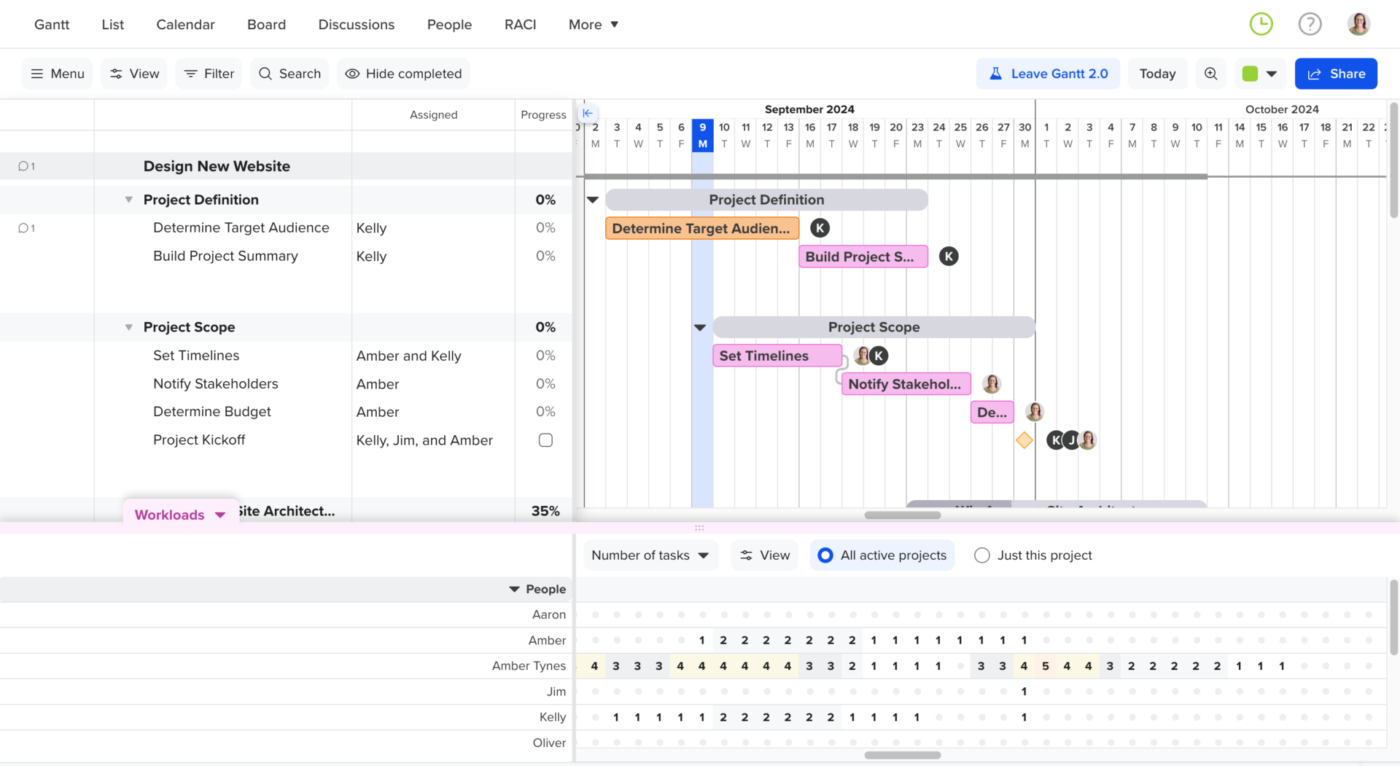
TeamGantt strips away heavy project management features to give you a pure, dedicated timeline. When I set it up for a simple project, it offered the smoothest onboarding experience of the bunch.
You don’t even have to start your schedule from a blank screen anymore. I pasted a raw work breakdown structure into their AI maker, and it drafted all my tasks and dependencies instantly. The interface stays completely uncluttered, giving you drag-and-drop rescheduling and a clear critical path.
However, once you outgrow the free plan limits, you face a noticeable price jump to keep your workflow intact.
Where TeamGantt falls short: It’s tuned for lean, single-project timelines. Very large charts and deep reporting sit outside its focus. The bigger thing to plan for is the jump from free to paid, which reviewers flag most. The free plan is generous until you outgrow it, then the step up is noticeable.
Skip TeamGantt if: You manage several projects at once or need more than a couple of free collaborators working with you. A multi-project tool will fit better.
Hear about TeamGantt from this G2 reviewer:
I really like that TeamGantt offers an intuitive drag-and-drop Gantt chart interface, making project scheduling and timeline adjustments super easy. It also enables seamless team collaboration with task assignments, file sharing, and real-time progress tracking. The initial setup was very easy, not painful at all.
Also Read: TeamGantt Alternatives and Competitors
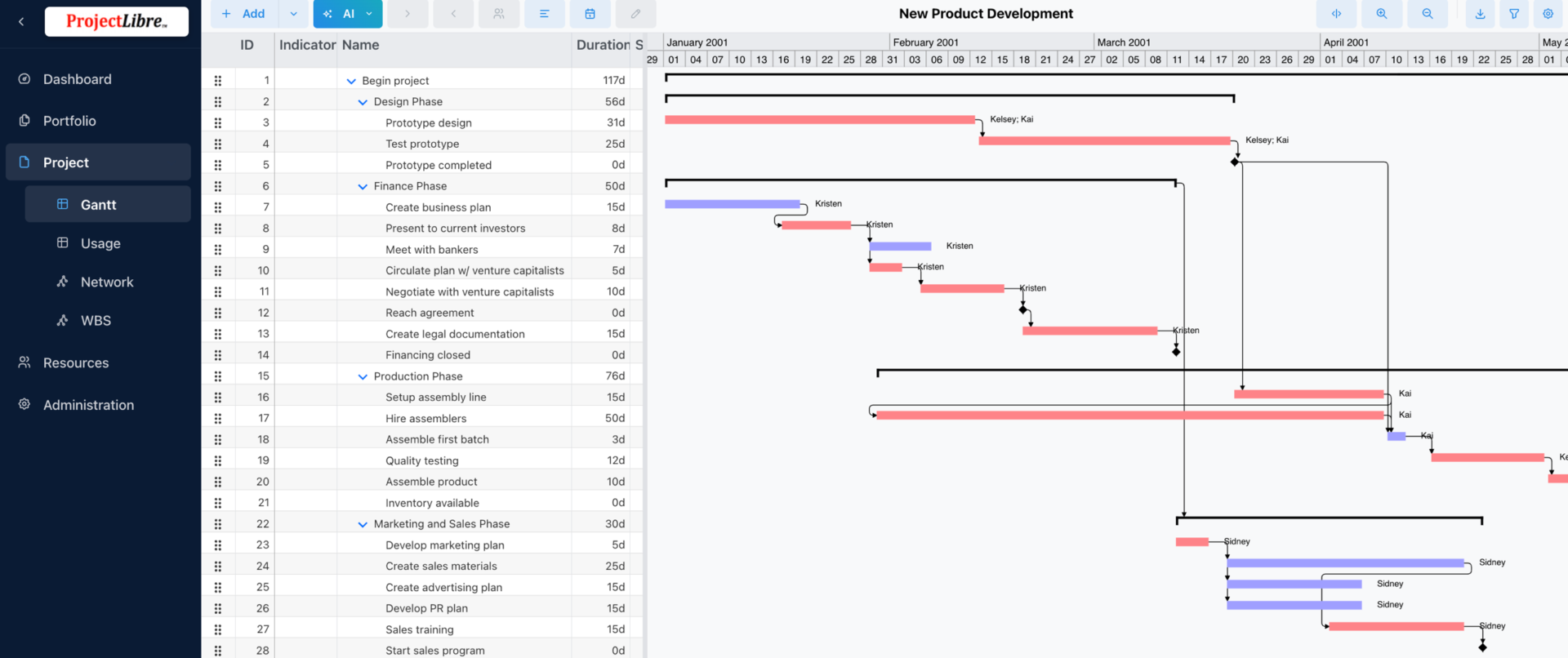
ProjectLibre is the closest thing to Microsoft Project you can get without paying. Install it, open an .mpp file, and your old schedule loads with tasks, dependencies, and resources intact. For anyone leaving MS Project to save money, that alone settles it.
The best part? Unlike the freemium web tools here, this project management software caps nothing: you get unlimited projects, tasks, and users on the free build.
Here’s what you get to work with. Gantt charts for the timeline, network (PERT) diagrams for dependencies, a work breakdown structure to split big projects into phases, and critical path analysis to see which slip blows your deadline.
You can assign resources, level workloads to catch over-allocation, set baselines, and track earned value against cost.
Where ProjectLibre taps out: It trades a modern web interface and live collaboration for full MS Project depth at zero cost, so sharing means passing files rather than a link. That’s a fair exchange if you plan solo and locally; less so for teams editing together. AI features live in the paid cloud version, not the free desktop build.
Skip ProjectLibre if: Your team needs to edit the same plan together in a browser. Pick a web-based tool, or the paid ProjectLibre Cloud version.
See what this G2 reviewer feels about ProjectLibre:
One best feature that it is free to use. It is a cost effective amd a user friendly project management software. Its hierarchial organization of projects is the feature that makes it unique.
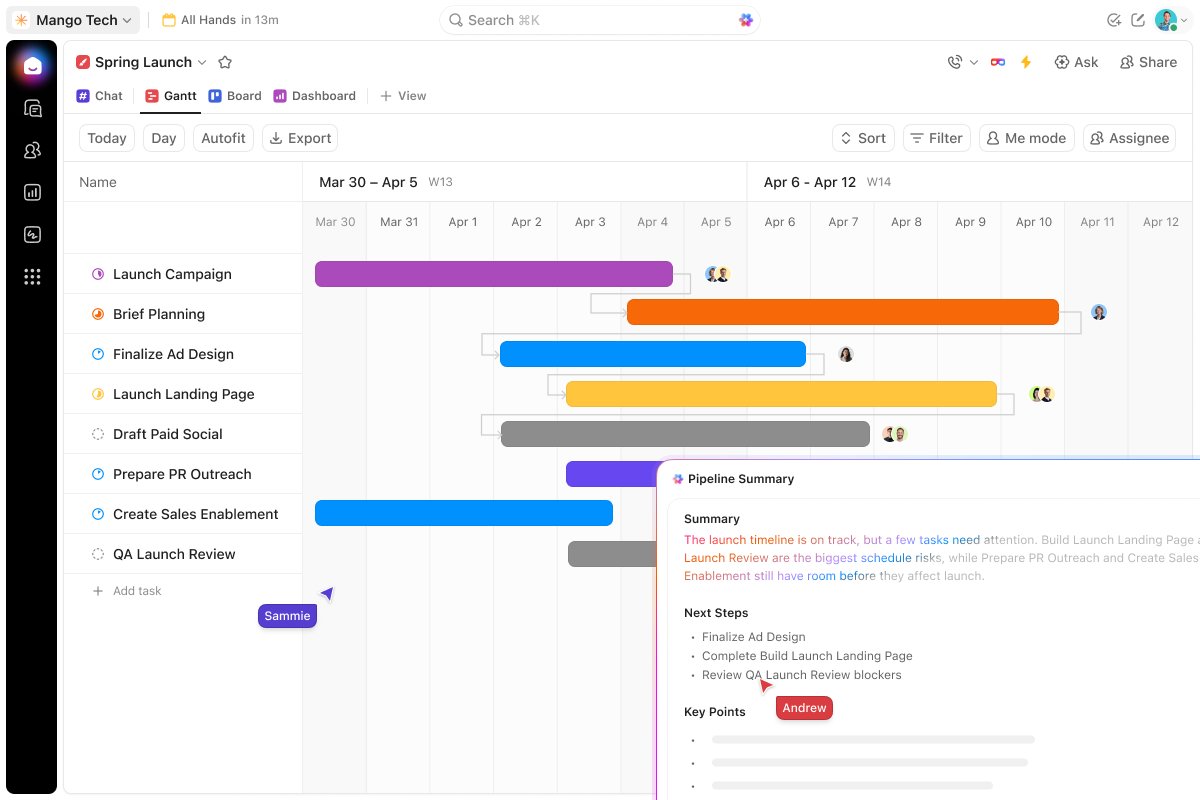
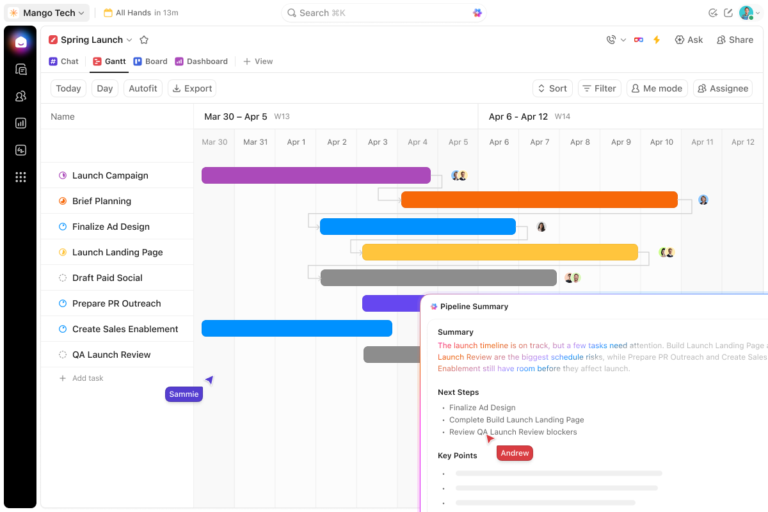
In ClickUp Gantt Chart View, when you drag a bar to reschedule, the task’s real due date, assignee notifications, and downstream dependencies all move with it. There’s no separate tracker to update.
That matters most once a plan gets busy. Set all four dependency types (finish-to-start, start-to-start, finish-to-finish, start-to-finish), and toggle Critical Path to see which tasks control the deadline. Turn on Slack Time to see which ones have room to breathe. Move one task, and the entire chain after it auto-reschedules around your team’s availability.
All of this holds on the free plan, which is what separates it from the trial-gated online tools here: dependencies, critical path, and multi-project timelines aren’t paywalled.
On the paid plans, you also get ClickUp Brain’s AI that can summarize project status, surface blockers, or draft a task breakdown from a single sentence.
Where ClickUp taps out: The platform carries more surface area than a solo user with one list needs. If all you want is a single static chart, the broader workspace can feel like overkill during setup.
Skip ClickUp if: You only need one standalone timeline graphic and have zero interest in managing the work inside the same tool.
See how this G2 reviewer uses ClickUp’s Gantt Chart View alongside its other features:
What I like the most is the ability to see the same data in multiple formats without duplicating information. For me, the real game changer is the flexibility of the views: The operations team works with the Kanban view to move tasks quickly, I monitor the overall timelines from the Gantt view, and management reviews the objectives in an Excel-like Table view. Everything is connected in real time. Additionally, the Folder Hierarchy allows structuring the company in an orderly manner, eliminating the need to jump between Notion, Trello, or Excel.
Should you let AI build the Gantt Chart, or draw it yourself?
Half the tools in this guide have an AI maker. It drafts your tasks, dependencies, and milestones from a single sentence or a pasted work breakdown structure. TeamGantt and GanttPRO both lead with it, and for a first draft, it works.
But speed isn’t the whole question, and experienced project managers remain divided on it. In a recent Reddit thread on AI Gantt makers, those who had tested the tools kept reaching the same conclusion.
AI is fine for the first pass, but everything after that still needs human judgment. One veteran MS Project user was blunt about it. Some members of his team missed schedule anomalies, he said, because they simply followed the bouncing ball.
Another tester agreed the initial draft is fine, though anything beyond it demands careful review.
Personally, I have no problem building a Gantt chart manually because I know the process well. But for younger, tech-savvy generations it’s naturally easier to reach for an AI Gantt chart maker in something like GanttPRO, and that’s not a problem in itself, as long as they don’t take what the AI suggests for granted. No tool is infallible, so the schedule still needs to be checked critically.
That matches what I found while testing these tools. The AI produces a clean-looking timeline in seconds. What it doesn’t do is understand your risk, your capacity planning constraints, or which dependency is load-bearing. It will happily chain two tasks that should never be linked, and the chart looks just as confident either way.
So keep in mind: use AI for the draft, and your judgment for the schedule. Those who first learned to sketch a Gantt by hand explained that the habit is what later helped them catch the software’s mistakes. If you’re new to scheduling, that sequence matters more than whichever free tool you pick.
This is also why a self-updating timeline earns its keep. When AI generates the first draft and the tool reflows dependencies automatically as the dates shift, you spend your attention reviewing the logic.
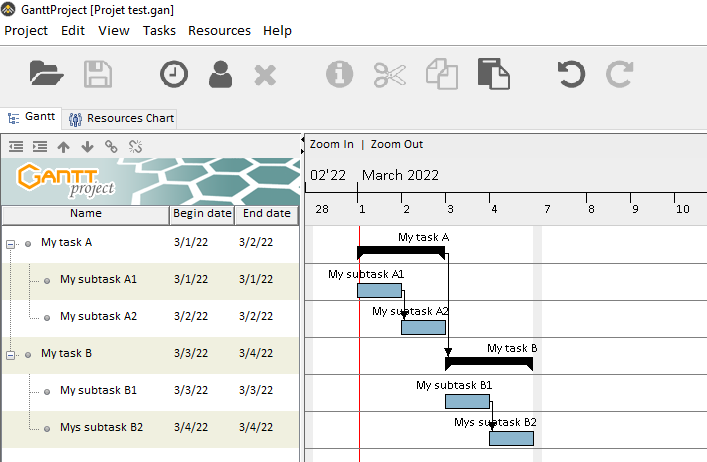
I opened GanttProject expecting a stripped-down ProjectLibre, and that’s about what it is. Same idea (free, offline, open-source software), but lighter and pointed at one job: the Gantt chart. Install it in seconds, skip the account, and start dropping tasks onto a timeline.
It lets you break work into parent tasks and subtasks and set dependencies. Lay a project baseline over the plan to compare what you scheduled against what happened. When you’re done, export to Microsoft Project format, CSV, PDF, or PNG to hand off or print. That covers most of what a solo planner or a student mapping a thesis timeline needs.
Where GanttProject taps out: It’s a lightweight, offline-first tool built squarely around making the chart, so cloud collaboration, AI, and richly formatted exports are traded away for that focus. If your work is solo and local, that’s the point. For shareable links, a modern web tool fits better.
Skip GanttProject if: You want shareable links, or any AI help. Go with a modern web tool.
This G2 reviewer reviewed GanttProject:
What I like best about GanttProject is its simplicity and accessibility. It gives me all the essential tools for creating Gantt charts and managing project timelines without the complexity of more advanced and expensive software. It’s lightweight, easy to use, and perfect for quickly planning and tracking tasks.
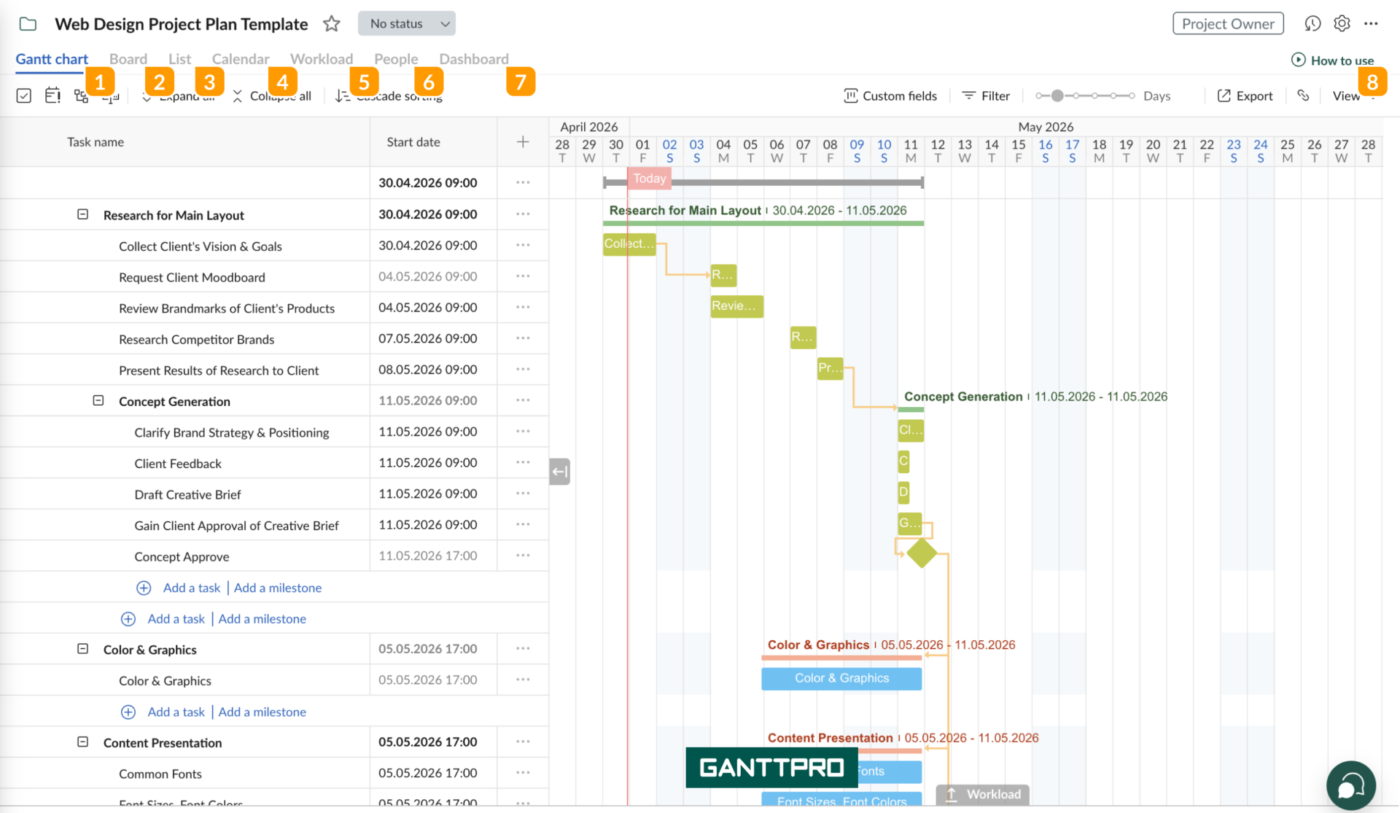
If you’re tired of squinting at 2010-era interfaces, GanttPRO is the reset. It’s a pure online scheduler, handling the tedious parts of the process for you.
Set a dependency, move one task, and every date after it shifts around your work calendar. No dragging bars one by one after a delay. A workload view shows who’s overbooked, and a board view sits next to the Gantt for people who think in cards.
Its AI Gantt Chart Maker turns a short description into a full plan: task groups first, then tasks, dependencies, and milestones under each.
Where GanttPRO taps out: It’s a paid team scheduler at heart. The free window is the 14-day trial, and monthly billing is built for teams of five or more (a solo user commits to the annual plan). Strong fit if you’ll decide within two weeks or already run a team; less so if you need something free indefinitely.
Skip GanttPRO if: You need a tool that stays free past the two weeks. One of the open-source picks fits better.
This is what a G2 reviewer thinks about GanttPRO:
I like that GanttPRO allows easy scheduling and sharing as it is web-based and allows collaboration. The easy dashboard management and clear layout are also a big plus for me. It’s easy to learn and start scheduling tasks right away without any prior experience creating Gantt charts. The initial setup was simple, making it easy to jump start.
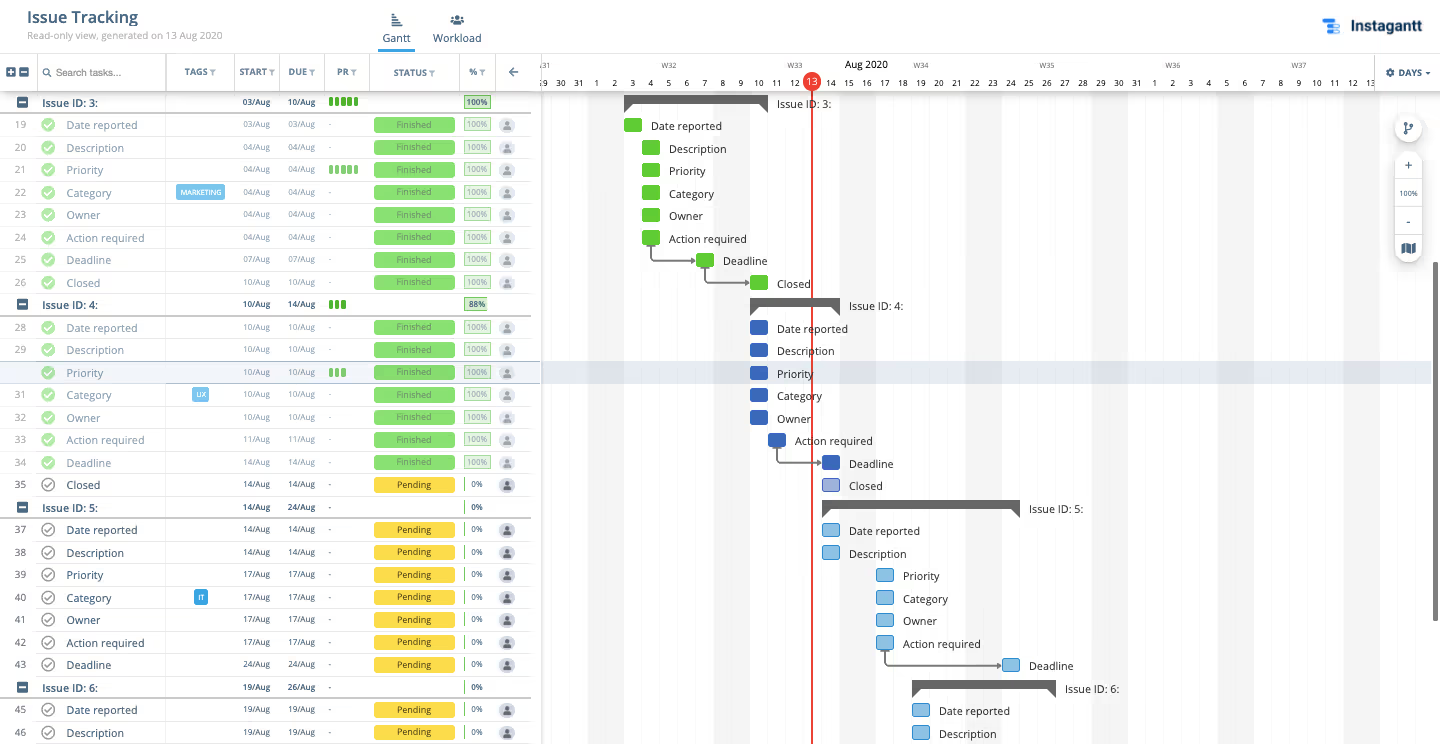
Instagantt is the obvious pick if your team is already on Asana. The free plan gives Asana teams a real project timeline without paying for Asana’s higher tiers. It also has a standalone mode for everyone else.
How Instagantt works in Asana: Connect up to three Asana projects, and tasks, sections, assignees, and due dates flow in with one click. The sync runs both ways, so a change in Asana shows up in Instagantt, and a change here flows back. Your team keeps working in Asana while you get a clean chart to plan and track on.
A quick note on the two versions: Instagantt ships as two separate products, and they don’t work the same way. Instagantt for Asana has the free plan (3 projects, swappable) and needs an Asana login to do anything. Instagantt’s standalone variant works on its own, but every user pays: there’s no free tier, only a 7-day trial.
Where Instagantt taps out: It’s designed as an Asana companion, so it’s fully coherent paired with Asana and the free plan is scoped to three projects. If Asana is your hub, that’s a strength rather than a gap. Standalone use is where it fits least.
Skip Instagantt if: You don’t use Asana and want a true standalone tool. Pick a tool built to stand on its own.
See why this G2 reviewer thinks Instagantt is a great tool:
Instagantt is a great tool for detailed gantt features like baselines, subtask view/hide option, keeping lag between tasks, zoom option. Kanban has potential also, you can have cover picture, it shows if there is any subtask on it, and progressbars. And basic budgeting feature is also available. You can see easily easily what was estimated and what the real cost is which is important!
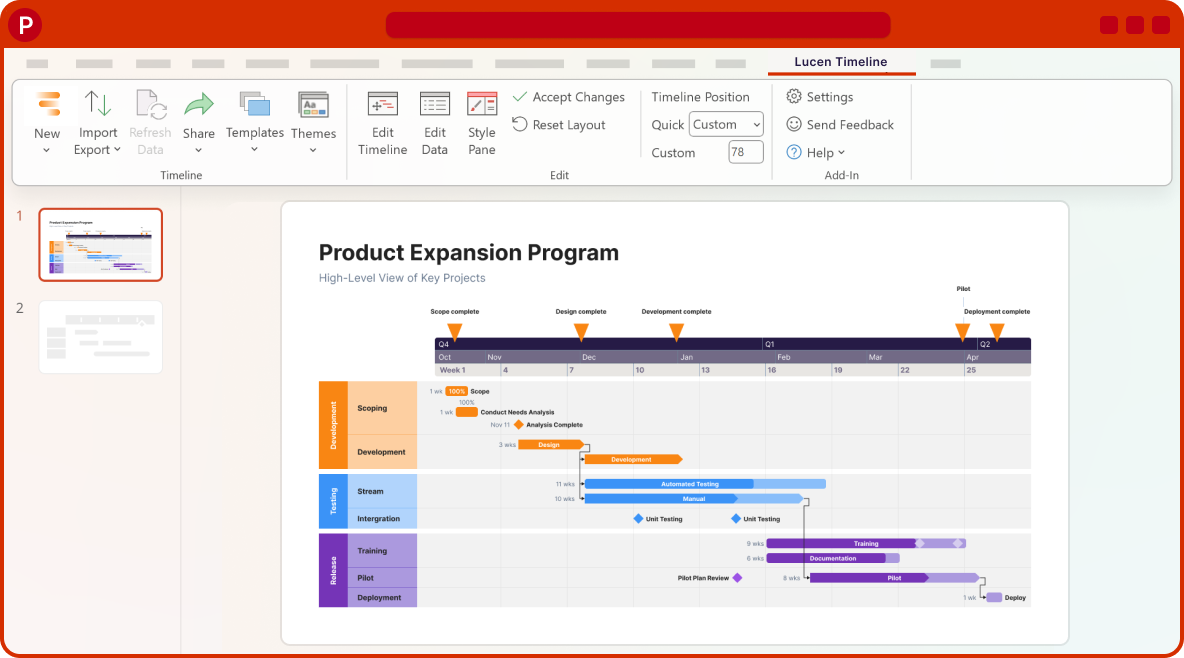
Lucen Timeline (formerly known as Office Timeline) is a Gantt and timeline maker that lives inside PowerPoint, with a free online version too. It solves a different problem than everything else here: communicating a plan, not managing one. The chart you build drops straight into a deck and lands with a client or exec.
Consultants, PMOs, and anyone who reports up the chain will find it useful. You pull milestones and tasks in from Microsoft Project, Excel, Smartsheet, or Jira, then style them into one clean slide. No wrestling a screenshot of your PM tool into something presentable.
Where Lucen Timeline taps out: It’s a presentation tool, not a live tracker, so it’s built to communicate a plan rather than run one. Dependencies are limited with no auto-scheduling, and the free version is scoped to 10 items before watermarking. That’s the right trade for polished stakeholder slides, and the wrong one for a working schedule.
Skip Lucen Timeline if: You need a live plan that your team edits day to day. Go with a scheduler instead.
Hear about Lucen Timeline from this G2 reviewer:
The stunning visuals are unmatched by any other software. The timelines make me look professional, polished, and really captivate my leadership team. It’s incredibly easy to use, with simple integrations with Smartsheet, Project and a few others so data importing is a breeze. The drag-and-drop interface that lets you create the perfect layout in minutes. A true game-changer for creating impressive project visuals quickly! I use it weekly to update my status slides.
The free Gantt tool most people forget is already on their desktop. Both Google Sheets and Microsoft Excel turn a template into a stacked bar chart that reads like a timeline: type in tasks, start dates, and durations, then format the bars by hand.
There’s no dependency logic and no auto-rescheduling underneath, so this fits students and one-time planners who need a chart, not a system. AI helps in a roundabout way here: Copilot in Excel or Gemini in Sheets can write the formulas for you, though neither understands your schedule, so a moved date still means moving every bar after it yourself.
None specifically for Gantt charts in Google Sheets and Excel
Where Google Sheets & Excel tap out: A spreadsheet Gantt is a snapshot by design, so it trades a dependency engine and critical path for a tool you already own. That’s exactly right for a single, simple timeline, and it strains the moment a date moves or a second person starts editing.
Skip Google Sheets & Excel if: Your project has real dependencies or more than one editor. It turns into a trap fast.
Across these eight tools, ‘free’ splits five ways: free for one project (TeamGantt), free for two weeks (GanttPRO), free but offline (ProjectLibre, GanttProject), free but watermarked (Lucen Timeline), and free but manual (Google Sheets, Excel). No feature comparison will show you this. You only feel it once you’re already committed.
I kept running into the same problem during testing. A tool would call itself free, I’d build a plan in it, and by the third week, something essential would lock. Every time, it was a different wall.
Then there’s the question nobody asks early enough: Does the chart keep itself current? A spreadsheet Gantt is fine on day one. Then you miss a date, and somebody has to go back in and move every bar after it by hand. Nobody does. The plan goes stale. People stop checking it. I watched this happen with every manual option I tested.
ClickUp and GanttPRO don’t have this problem. Move one task, and the chain after it shifts on its own.
The Gantt chart has stuck around for over a century because it answers one question every project eventually asks: what happens to everything else when this one thing falters? If your free tool can’t answer that, you lack a schedule.
Antonio Nieto-Rodriguez, former Board chairman of the Project Management Institute, put it well in Harvard Business Review:
“Quietly but powerfully, projects have displaced operations as the economic engine of our times.”
The tool you pick to track the project timeline isn’t a minor decision. It’s the view that tells you whether you’re on track or delayed.
After testing all eight, the choice comes down to how you work, not which tool has the longest feature list.
One thing I’d check before committing: exit cost. ClickUp, GanttProject, and ProjectLibre export cleanly. A spreadsheet Gantt traps your plan in formatting you’ll have to rebuild from scratch on the way out. Pick a tool you can leave without losing work.
Most free Gantt tools are free because they leave something out. Either the chart doesn’t update itself, or collaboration is capped, or you’re locked to a desktop file nobody else can open. You spend the first week setting things up and the third week working around the limits.
If you want a free Gantt chart that survives past week three, ClickUp is the most complete option in this guide. Dependencies, a critical path, and a timeline connected to the actual work, not a screenshot of it. The free plan is usable, not a teaser.
Get started with ClickUp for free and build your first Gantt chart in minutes.
ClickUp, GanttProject, and ProjectLibre all run free on macOS. ClickUp works in any browser or a native Mac app and keeps dependencies and critical path on its free plan. GanttProject and ProjectLibre are free, open-source Java desktop apps that run on macOS, Windows, and Linux. TeamGantt and GanttPRO are web-based, so they also work on a Mac with no installation.
Match the tool to how you work: ClickUp, GanttProject, or ProjectLibre for a free chart with dependencies and critical path; TeamGantt for one clean project; Google Sheets or Excel for a static, one-time timeline. In a connected tool, add tasks with start and due dates, link dependencies, and the timeline builds and updates itself. In a spreadsheet, you format and maintain the bars by hand.
Yes. ClickUp, GanttProject, and ProjectLibre are free with no trial clock, unlike GanttPRO (14-day trial) and Instagantt (free only for 3 Asana-linked projects). ClickUp’s Free Forever plan keeps dependencies and critical path on a live, shareable timeline. GanttProject and ProjectLibre are free, open-source desktop apps with unlimited projects, but no browser-based collaboration. Match the tool to the trade-off: ClickUp for live teamwork, the open-source pair for solo, offline planning.
A Gantt chart is a type of timeline that adds logic: dependencies, durations, and a critical path, so it recalculates when dates change. A plain timeline (like a slide graphic) just shows what happens when, with nothing underneath. Presentation tools such as Lucen Timeline produce timelines for communicating a plan; scheduling tools like ClickUp or GanttPRO produce working Gantt charts for managing one.

Arya P Dinesh
Max 18min read
Arya P Dinesh
Max 20min read

Praburam Srinivasan
Max 45min read

© 2026 ClickUp