
Sorry, there were no results found for “”
Sorry, there were no results found for “”
Sorry, there were no results found for “”
You’ve heard about Jira project management and how great it is.
But if you open Jira today to start a project, you’ll be in for a surprise. There is no clear option to create a project. Backstory? Atlassian renamed projects to “spaces” in late 2025, with no opt-out.
Jira now splits project management into two layers. The space is where your team tracks work, and a separate layer, Atlassian Projects, is where the plan, goals, and timeline live. If you build everything in the space and never set up the layer above it, your backlog will show every ticket, but the plan (that’s meant to make it all make sense) stays hidden.
But not to worry. This guide covers the basic setup. We’ll also touch on what Jira does well, where it stops, and how to get ahead of those tricky problems.
Short answer: Jira tracks work as precisely as anything on the market (if you know how to set it up properly). Where it falls short is planning: capacity, resourcing, and cross-project timelines. All of that requires the Premium plan at $14.54/user/month. To manage a project in Jira, you’ll need to create a space first, choose a company-managed or team-managed setup, build your epic-story-subtask hierarchy, configure a single workflow, and set up separate reports for the team and for sponsors.
Most founders end up with Jira for engineering, a CRM for sales, and something else for client work.
This kit shows you how to run all three from one workspace instead of juggling tools that don’t talk to each other.
This table covers the criteria that actually decide the evaluation, including where the tool stops being the right answer.
| Dimension | Jira |
| Best for | Engineering, IT, QA, and service teams whose work arrives as trackable items |
| Entry pricing | Free for up to 10 users; Standard $7.91/user/month; Premium $14.54/user/month |
| Standout strength | Configurable workflows, permission schemes, and Scrum or Kanban boards that match an exact process |
| Planning and portfolio | Plans and advanced roadmaps require Premium |
| Resource and capacity management | Weakest native area; reviewers cite difficulty allocating time and capacity across work |
| AI capability | Every paid plan includes AI agents that plan and track work, per Atlassian; reviewers still ask for estimation and context-aware suggestions |
| Integrations | Deep with Atlassian tools and dev systems; 3,000+ Marketplace apps |
| Where it taps out | Teams under roughly 10 people, non-technical teams without an admin, and executive-level reporting |
| G2 and Capterra scores | G2: 4.3/5 (7,400+ reviews) · Capterra: 4.4/5 (15,400+ reviews) |
Our editorial team follows a transparent, research-backed, and vendor-neutral process, so you can trust that our recommendations are based on real product value.
Here’s a detailed rundown of how we review software at ClickUp.
Yes, but the nuance here depends on what you mean by project management.
If you mean giving every task an owner, a status, and a workflow that moves it from open to done, Jira is one of the best tools on the market for that. More than two decades of working with engineering teams have shaped the tool into something very precise at tracking what exists and who’s responsible for it.
The planning layer (capacity, roadmaps, cross-project timelines) exists but lives in paid Plans, which is why the layer split described above matters. And the way they’re structured (a separate layer above the space where your team works day-to-day) means you need to know what goes where before you set anything up.
One thing that adds to the confusion: there used to be two Jiras. Jira Software for engineering and Jira Work Management for everyone else. Atlassian combined them into a single product in early 2025, with automatic migration and a 10% discount for existing JWM customers.
So if you’re evaluating Jira today, there’s just one product to look at, and it handles both software and business work.
Jira organizes work around a few core concepts. If you’re new to Jira, or coming back after the 2025 terminology changes, here’s what you’re working with.
A space is where your team’s work lives. Every task, bug, feature request, or support ticket is a work item inside a space. You can set up a space as company-managed (with centrally controlled workflows and permissions) or team-managed (where the team configures their own).
This choice is permanent for that space, so pick deliberately.
The Spaces rename is cosmetic: your JQL, saved filters, and automations still use project and won’t break.
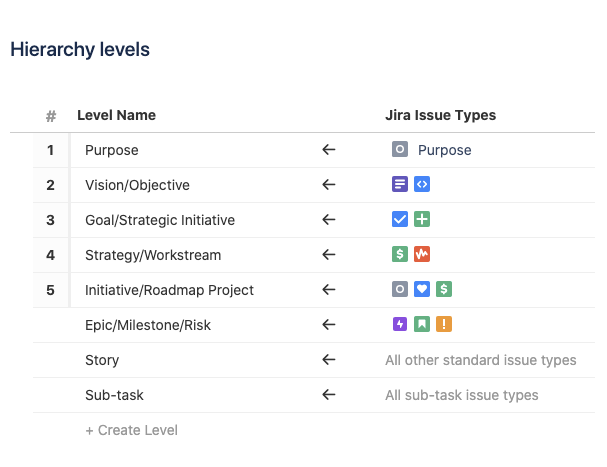
A work item is a single unit of work: a task, a bug, a story, an epic. Each one carries an assignee, a priority, a status, comments, linked items, and its full history. Epics group related work items together, and you can break any work item into subtasks when the scope gets detailed.
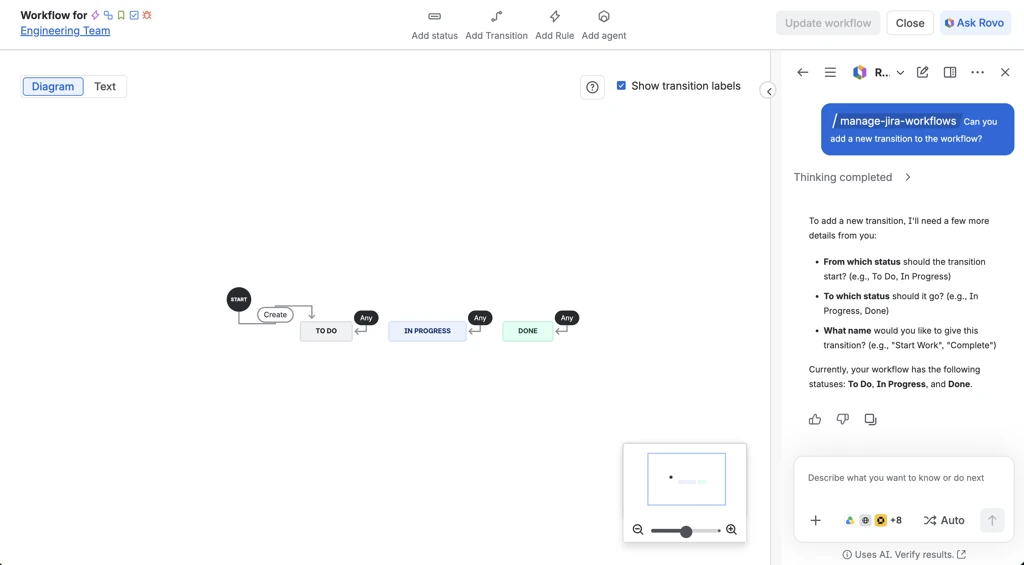
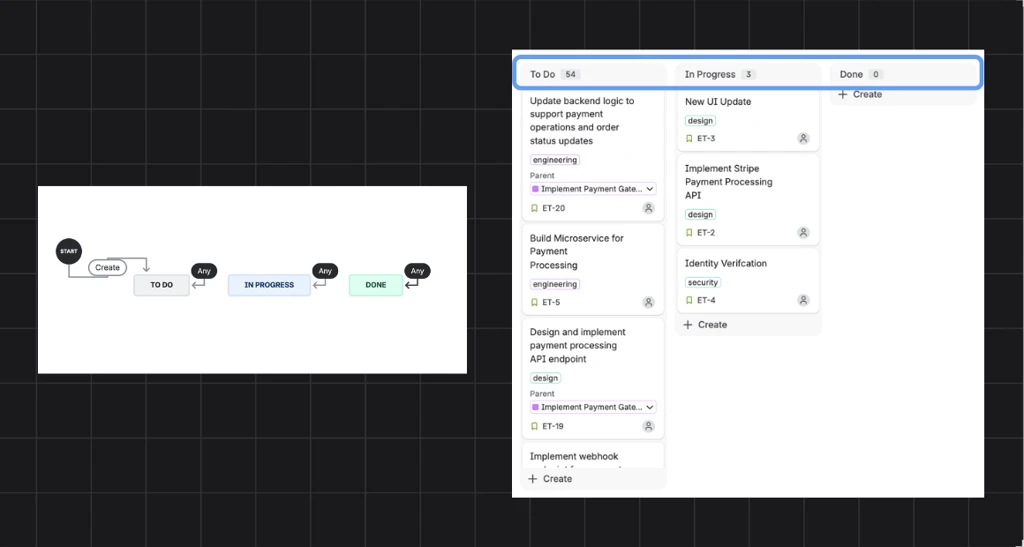
A workflow defines the steps a work item moves through: To Do → In Progress → In Review → Done. You can customize statuses, add conditions, and set transitions that enforce your process.
Boards make the workflow visual. Each column is a status, each card is a work item, and you drag cards across as work progresses. Scrum boards add sprints and backlogs on top. Kanban boards skip sprints and manage flow with work-in-progress limits instead.
Jira’s native reports are built for practitioners: burndown charts, velocity, cumulative flow, and control charts. They tell a scrum master what happened in the sprint. But sponsors looking at a Jira dashboard may not easily find the answers they’re looking for.
So build one for the team (sprint health, blockers, WIP) and a separate one for stakeholders (progress against milestones, delivery dates, risks). Setting up both at the start avoids the scramble before the first steering meeting.
Here’s a look at the most common Jira project management use cases, so you can see how it supports your project phases:
See the 5 work types that spill beyond Jira and learn how to run them instead.
Jira supports Scrum, Kanban, and hybrid approaches natively, which is why it became the default tool for agile project management in software teams. Boards, backlogs, sprints, and story points are built in.
The setup follows the framework you choose. A Scrum team works from a backlog, pulls work items into a sprint with a fixed start and end date, and tracks progress on a burndown chart. A Kanban team skips sprints entirely and manages flow with work-in-progress limits on board columns.
Both live inside the same space; the board configuration is what differs.
Before you create anything, decide what lives in the space (day-to-day work items) versus what belongs in Plans or Atlassian Projects (cross-team goals, timelines, status narrative). Moving work between layers later requires a bulk move.
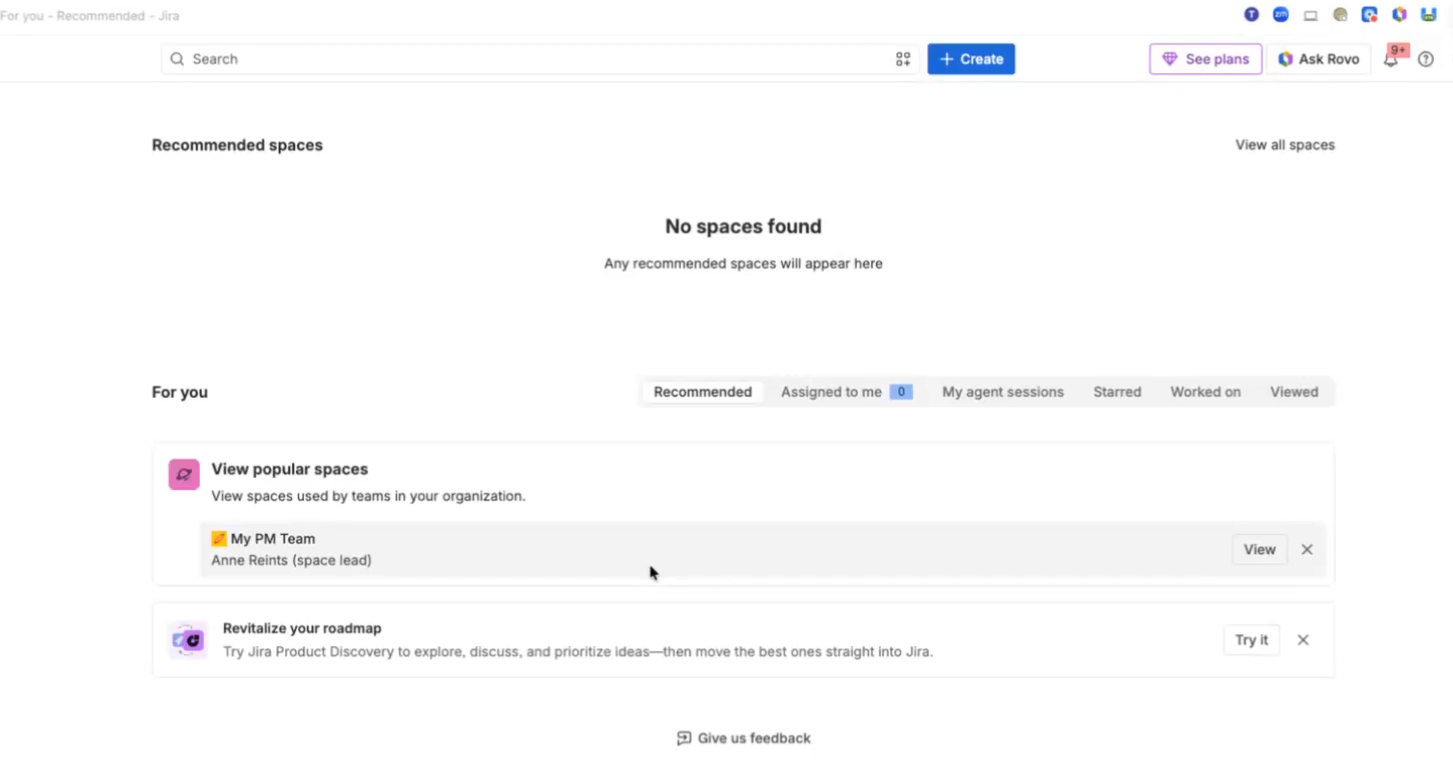
Hover over Spaces in the sidebar and select Create space. Pick the Scrum or Kanban template depending on how your team works, choose company-managed or team-managed, and name your space. Jira creates a board automatically.
For Scrum, this gives you a backlog, a sprint board, and reports out of the box. For Kanban, you get a board with default columns (To Do → In Progress → Done) and no sprints. If you’re not sure which to pick, choose the project management methodology first, then configure the board to match.
Jira’s Rovo AI has made this part easier: describe your needs in plain language, and it builds the space for you. See the tutorial below.
Note: If your team is new to the vocabulary, our guide to Scrum terminology covers the language the interface assumes you already know.
Define the steps a work item needs to move through. The default (To Do → In Progress → Done) works for small teams. As your process gets more specific, add statuses like In Review, QA, or Waiting on Approval.
In team-managed spaces, you add, rename, or reorder columns directly on the board. In company-managed spaces, go to Board settings > Columns to map statuses to columns. Set WIP limits on Kanban columns to prevent overload: hover over a column heading, select More actions, then Set column limit.
One thing worth getting right early: add only the statuses your team actually uses. Every extra status and required field is a place where updates stall and data quality quietly degrades.
Break down the work before you start tracking it. Every task, bug, or feature becomes a work item. Group related work items under epics to manage larger bodies of work.
Add details to each work item: an assignee, a priority, a due date, and a description that makes it clear what “done” looks like. If a work item feels too large, split it into subtasks. For Scrum teams, add story point estimates so velocity tracking works from sprint one.
For Scrum: go to the Backlog, select the top-priority items, and click Create sprint. Set a start and end date (most teams run 2-week sprints) and name it. The selected items move to your board. Drag work items across columns as they progress. The burndown chart in Reports updates automatically.
For Kanban: add work items directly to the board by clicking + Create at the bottom of any column. Items flow through continuously. Watch the cumulative flow diagram in Reports: if one column band keeps growing while the next stays flat, that’s where work is stuck.
At the end of each sprint (Scrum) or at a regular cadence (Kanban), take time to look back. Jira’s native reports handle the team-facing side well: burndown, velocity, cumulative flow, and control charts are all built in. Use retrospectives to refine: what worked, what didn’t, what changes for next time. This is where agile actually delivers value, and it’s the step most teams skip.
Watch the whole tutorial on creating summaries and reporting via this Atlassian demo.
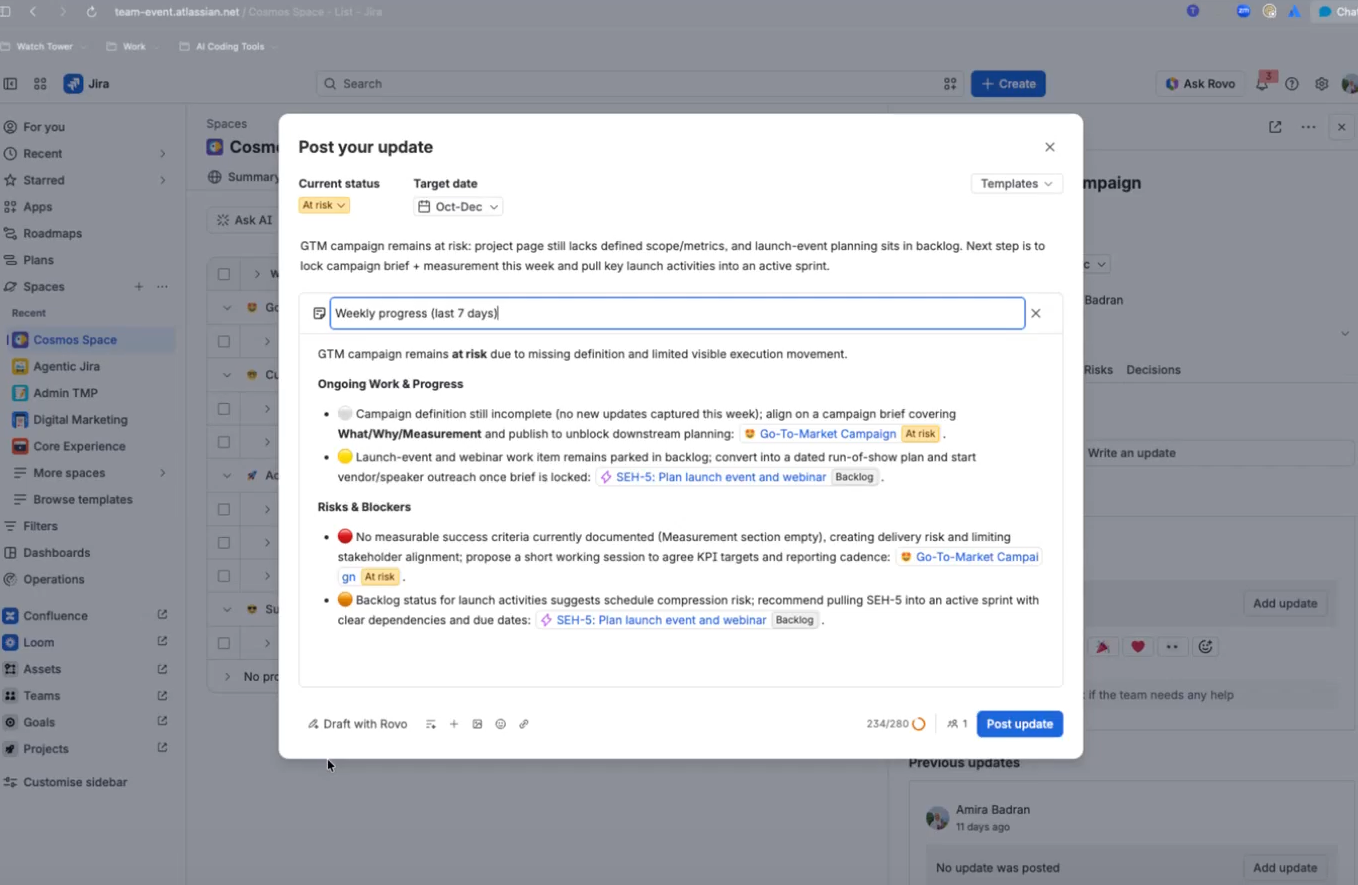
If the work is recurring rather than project-shaped, skip the sprint scaffolding and treat it as workflow management instead.
Agile also translates past engineering, though the translation takes work. Reviewers running SEO, operations, design, and maintenance teams describe using Jira successfully for non-software work, and this video walks through what agile looks like for those teams:
Jira’s AI lives in two layers. The first is the set of generative features built directly into the Jira interface, originally branded as Atlassian Intelligence and now folded under the Rovo umbrella. The second is Rovo itself: a cross-product AI platform that adds chat, enterprise search, and a library of AI agents on top.
Both are included in every paid Jira Cloud plan (Standard, Premium, Enterprise) at no additional cost. There is no separate Rovo purchase.
The AI features baked into the Jira interface handle the kind of work that eats time without producing output:
Usage-based pricing: In-line summaries, rewrites, and Rovo Search are free and do not consume credits
This is where Jira’s AI model diverges from most PM tools. Rovo agents show up as assignees on work items, the same way a teammate would, and Jira tracks their output alongside human work.
There are three ways to use them:
Jira ships several built-in agents:
Teams can also build custom agents in Rovo Studio or connect third-party agents via MCP (Model Context Protocol), including Claude Code, Cursor, and GitHub Copilot
Rovo Chat is a conversational panel inside Jira (and at chat.rovo.com) that draws answers from across Jira, Confluence, Bitbucket, and 100+ third-party connectors. It has two modes: Quick Answer for fast lookups and Think Deeper for multi-step reasoning across projects.
Rovo Search is the enterprise search layer underneath. It indexes every connected tool and surfaces results based on relationships in the Teamwork Graph, Atlassian’s cross-product context layer that maps people, work, code, goals, and dependencies.
Rovo usage is metered in Rovo credits, pooled at the organization level and reset monthly. Each paid Jira plan includes a per-user monthly allowance:
Credit costs vary by action. A Quick Answer or basic agent request costs 10 credits. Think Deeper mode scales with complexity (roughly 50 to 100+ credits). The Jira Coding Agent uses variable credits per run. In-line summaries, rewrites, and search are free.
Two Things to Note: Extra usage billing takes effect December 3, 2026, at $0.01 per credit. Until then, organizations can track usage in Atlassian Administration without being charged for overages.
Rovo Dev, the developer-focused add-on for code planning and PR review, is priced separately at $20/user/month and includes 2,000 Rovo Dev credits.
Jira’s strengths cluster around tracking: knowing what exists, who owns it, and what state it’s in.
We read the 100 most recent Jira reviews on G2 and Capterra, dated August and September 2026, and the praise was consistent on four points.
Workflows that bend to your process. Statuses, work item types, transitions, and field schemes can be shaped to match exactly how your team works. G2’s AI summary of 7,400+ reviews puts it plainly: “Reviewers like Jira’s flexibility, customizable workflows, and its ability to integrate with other tools.” Reviewers running Scrum, Kanban, and hybrid setups all describe the same flexibility.
A tracking trail that survives handoffs. A work item carries its full history: comments, linked items, status changes, and resolution. One SoftwareReviews reviewer described being able to trace bugs from user acceptance testing back to the original reporter without leaving the tool. For engineering teams, this end-to-end trail from ticket to production is what MakerStack calls “Jira’s real moat.”
Cross-team visibility. Boards, filters, and dashboards make ownership and priority legible across departments. GetApp’s analysis of 15,000+ verified reviews found that 91% of reviewers who commented on cross-team collaboration felt positive about it. Operations and program management reviewers cited this more often than software reviewers did.
Integration depth. Confluence, Bitbucket, and GitHub connect tightly, and the Atlassian Marketplace covers most remaining gaps with 3,000+ apps. As one Capterra reviewer put it: “The marketplace has an app for everything.” This is the strength competitors find hardest to replicate.
A G2 review says:
What I like most about Jira is the overall visibility and structure it provides for managing work. The UI/UX is intuitive and makes it easy to track tasks, priorities, and project progress. Its integrations with other tools help keep workflows connected, while the overall performance is reliable even when managing multiple projects and tickets.
The newer AI features are also useful for summarizing issues, finding information faster, and improving productivity. From an ROI perspective, Jira provides good value for teams that need structured project and task management. The onboarding experience is straightforward, and the available support and documentation make it easier for teams to get started and resolve issues when needed.
The pattern in the positive reviews is worth noticing. Almost all of the praise is about tracking work that already exists. Very little of it is about planning work that doesn’t exist yet.
Jira’s limitations are matters of fit and scale, not defects. The same four showed up repeatedly across our G2 and Capterra review sample, and they match what practitioners say on Reddit and in independent reviews.
Configuration needs a dedicated owner. Workflows and permission schemes are powerful enough that small changes have downstream effects. One SoftwareReviews reviewer put it plainly: “Setting up workflows and reports takes time, and if your team isn’t experienced with Agile methodologies, the terminology and structure can feel overwhelming.” A Reddit thread on r/pmp echoes this: the recurring complaint is not about features but about the layer problem and configuration drift. Budget for an admin, or accept the defaults and leave them alone.
Resource and capacity planning is the weakest native area. This is the gap practitioners raise most often outside the review platforms. Reviewers list “Lack of Built-in Portfolio and Resource Management Tools” as a top-five issue, noting that teams seeking these capabilities “often have to rely on additional tools like Jira Align, which can be costly and complex.” If your projects are constrained by people rather than by scope, test this area before committing. Our guide to capacity planning for software teams covers what to check.
It is heavy for teams under about 10 people. Others point to G2 data showing Jira’s ease-of-setup score is 7.5/10, the lowest among mainstream PM tools: “First-time admins typically need 2-4 hours of configuration before their team can use it productively. Compare with Trello or monday.com, where a team is moving cards within 10 minutes of signup.” ToolNavigate puts it more bluntly: “A single mis-configured Jira workflow can cost a small team 15+ hours of untangling sprints, permissions, and ticket backlogs before anyone ships real work.”
Costs compound in ways the pricing page doesn’t show. Reddit users are direct on this: “A $10/user tool turns into $40/user once you’ve added the ‘mandatory’ plugins.” Marketplace app licensing is tied to your Jira user tier, so an app needed by 100 people on a 1,000-seat instance is still licensed for 1,000 seats. Factor apps and adjacent Atlassian products into the real number before comparing plans.
On AI, Atlassian states that every paid plan now includes AI agents. They can plan, track, and move work forward. Reviewers are measured about it. SaaSBinder calls the Rovo AI features “a smart move that tackles the platform’s historical complexity head-on,” but adds, “Don’t expect it to magically solve all your problems. The core complexity and reliance on the Atlassian Marketplace for full functionality remain.”
A Capterra review notes:
It is heavy for a small team. Under ten people the ceremony costs you more than it gives back, and you feel it every day. The admin side is a job in itself. Workflows, permissions, schemes, you need someone who actually owns the configuration. If nobody does, it drifts into a mess within a few months. We learned that one the hard way.
Jira’s Free plan covers the basics for a small team. The jump that matters for project managers is Standard to Premium, because Plans and advanced roadmaps sit behind Premium.
| Plan | Price | What you get |
| Free | $0, up to 10 users | Backlog, board, timeline, reports, 2 GB storage, community support. No AI features. |
| Standard | $7.91/user/month | Advanced permissions, audit logs, data residency, 250 GB storage, Rovo AI (25 credits/user/month) |
| Premium | $14.54/user/month | Advanced roadmaps, sandbox, release tracks, unlimited storage, 24/7 support, Rovo AI (70 credits/user/month) |
| Enterprise | Quote-based | Multi-instance governance, enterprise controls, Rovo AI (150 credits/user/month) |
Figures come from Atlassian’s pricing page, verified in September 2026. The practical consequence: cross-project planning is a Premium feature, so a 25-person team that needs portfolio visibility is choosing a roughly $363 per month plan rather than a $198 one.
The decision comes down to how your work arrives and who will own the configuration.
Pick Jira if:
Pick something else if:
If neither sounds right, the problem might not be the tool. It might be that the plan and the work already live in different systems, and adding software moves the seam rather than closing it.
Honest caveat: We’re not neutral here, ClickUp is our product. This section is here because we think it genuinely competes with Jira on the gaps this article covers: planning, capacity, and portfolio visibility without a separate layer or a pricing gate.
As a converged AI workspace, ClickUp keeps the plan and the work in the same object model. Portfolio views, dashboards, and workload charts all read from live task data, so there is no separate planning layer to set up, pay for, or keep in sync.
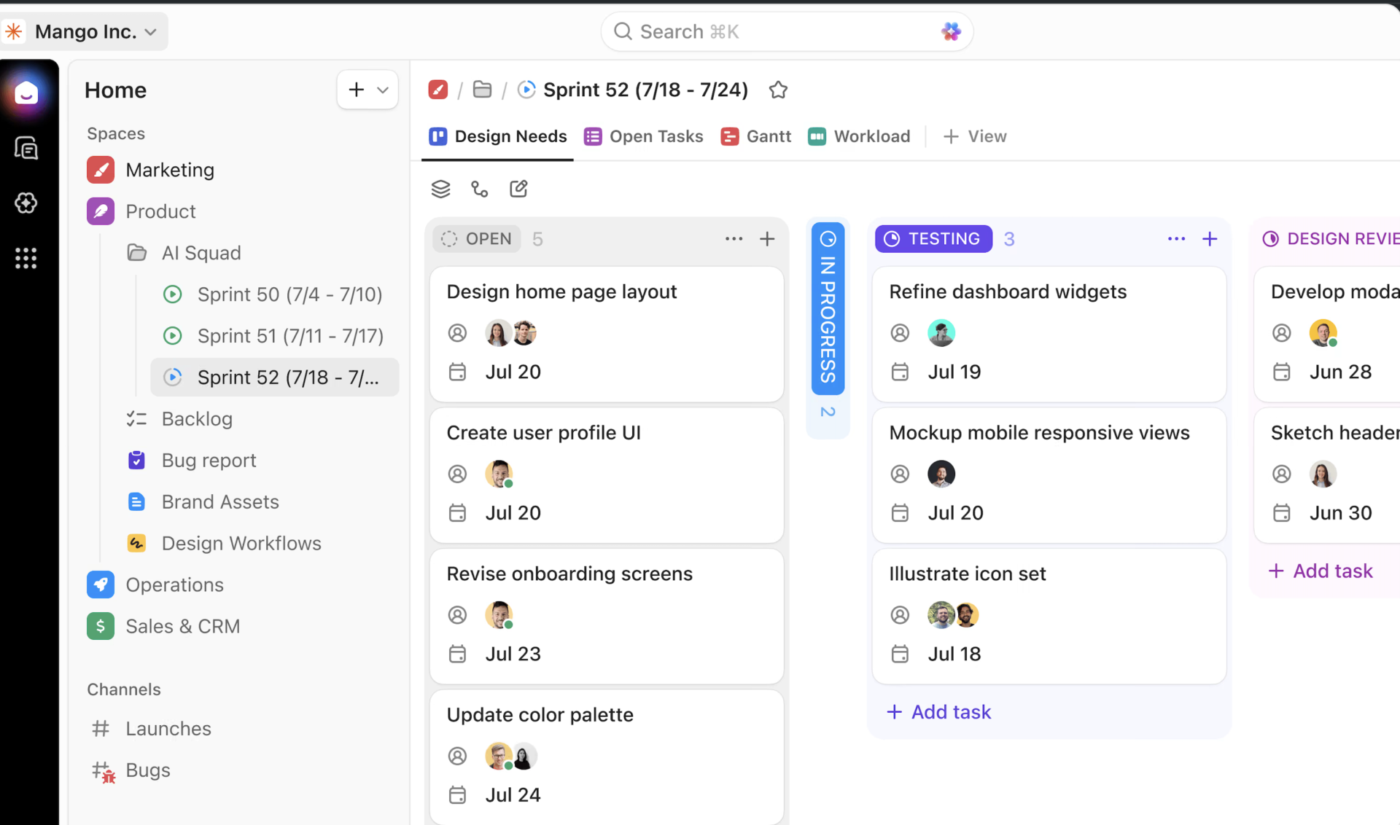
In Jira, your board type is chosen at space creation: Scrum or Kanban. Switching means creating a new space. In ClickUp, the same set of tasks can be viewed as a Kanban board, a Gantt chart, a timeline, a calendar, a table, or a list, and you switch between them without rebuilding anything. These are ClickUp Views, and every plan (including Free) gets unlimited custom views.
The building blocks work the same way Jira’s do, but with fewer walls between them:
Tasks are the core unit of work. Each one carries an assignee, priority, due date, description, comments, subtasks, dependencies, and full history. You can nest tasks under other tasks to any depth, not just the epic-story-subtask hierarchy Jira enforces.
Custom Statuses are set per List (ClickUp’s equivalent of a space). Your engineering List can run To Do → In Progress → In Review → QA → Done, while your marketing List uses Draft → Review → Published. They don’t need to share a scheme, and you don’t need an admin to change them.
Custom Fields cover the metadata Jira handles through field configurations: dropdowns, numbers, dates, people, formulas, relationships, and more. The difference is that any member can add a field to a List without touching a global scheme.
Sprints work natively. Create a Sprint List or use ClickUp’s Sprint folder structure, set start and end dates, pull items from the backlog, and track velocity. Burndown, burnup, and cumulative flow reports are built in.
ClickUp Automations handle the repetitive handoffs. These are “if this, then that” rules you build without code. For example, when a task’s status changes to Ready for Review, ClickUp can automatically reassign it to the reviewer, set a review due date, post a notification in the project channel, and update a Custom Field.
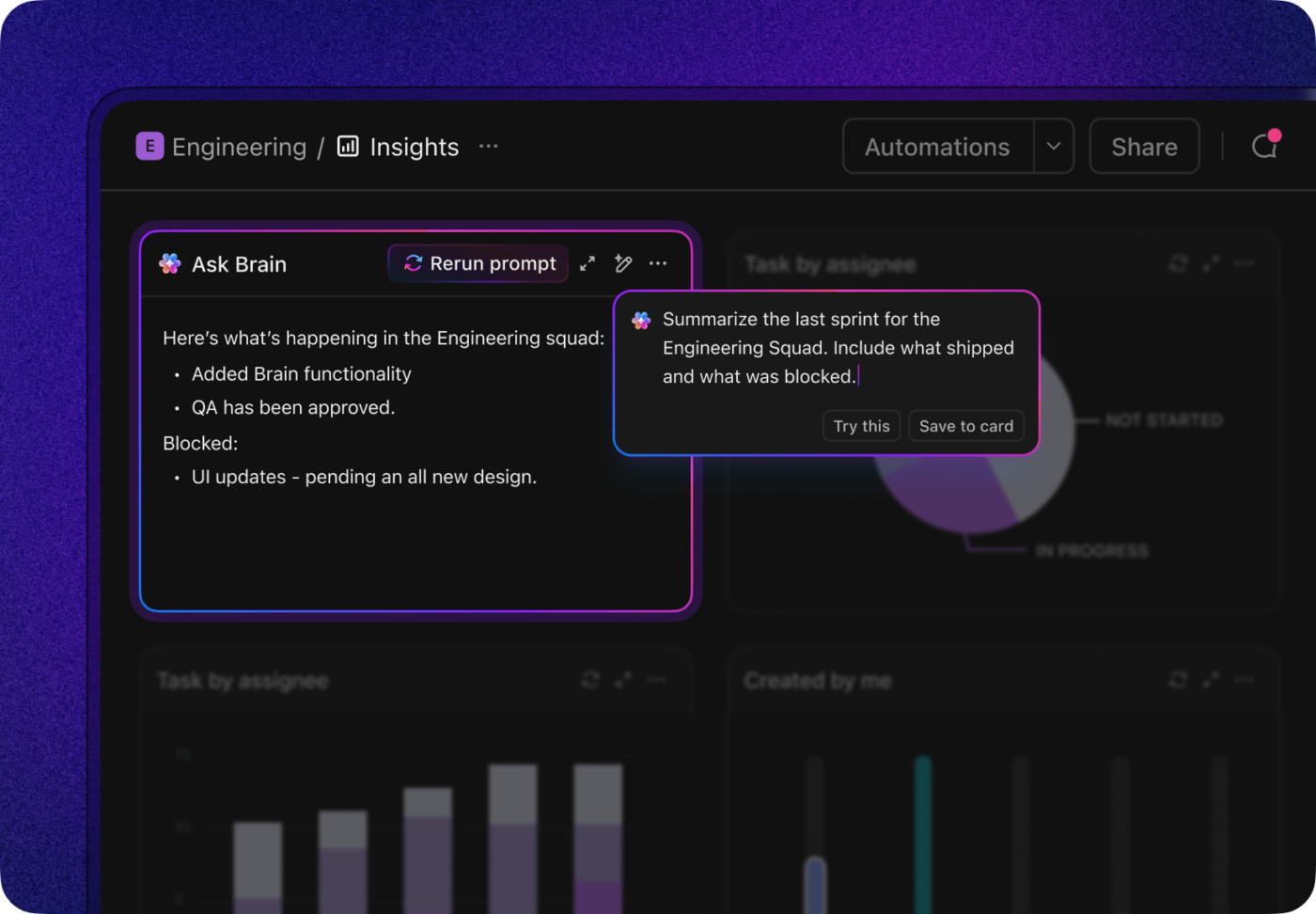
This is the gap Jira reviewers raised most often: the team’s board shows sprint health, but the sponsor’s questions (are we on track? where’s the risk? how do three projects compare?) require a separate dashboard rebuilt each month.
ClickUp Dashboards pull directly from live task data. There’s no intermediary layer between the work and the numbers. You build a dashboard by adding cards:
On the AI side, Dashboards support AI Cards that generate real-time insights:
The result: the sponsor dashboard and the team board read from the same source. When a task moves to Done on the board, the portfolio card, the workload chart, and the executive summary all update.
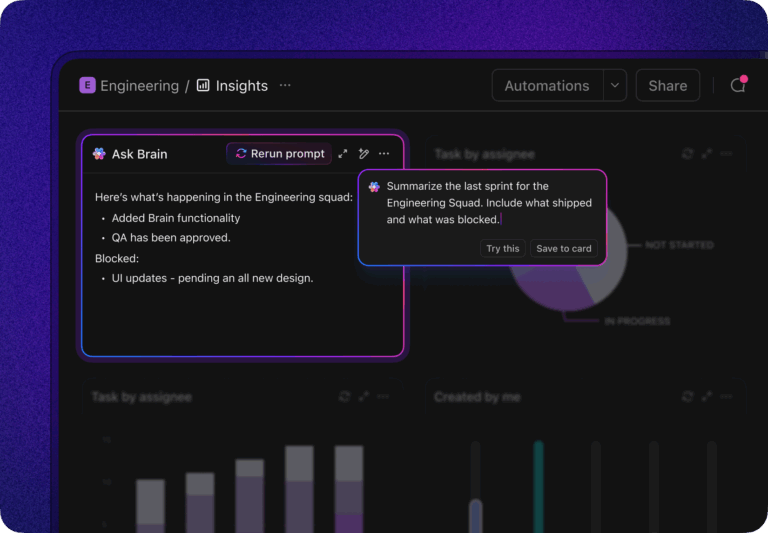
Brain² sits inside tasks, Docs, and Chat. It answers questions using your workspace context: “What’s the status of the Q3 launch?” pulls from every related task, comment, and doc. It drafts task descriptions, rewrites content, summarizes comment threads, generates standup reports, and builds automation rules from plain-language prompts.
This mirrors the in-app AI features Jira offers through Rovo (natural-language search, summaries, description rewriting), with one difference: Brain’s context layer spans tasks, docs, and chat natively because they all live in the same product.
Then comes Super Agents that act as your AI teammates. This is where ClickUp’s model parallels Jira’s Rovo agents. Super Agents show up as assignable workspace members. You can:
The catalog includes pre-built agents for project status reporting, bug triage, release notes, campaign briefs, and more. Teams can also build custom agents for any workflow.
For engineering teams specifically, ClickUp Codegen is the direct parallel to Jira’s Coding Agent. It’s an autonomous coding agent that reads a task’s full context, writes the code, runs tests, and opens a pull request. Where Jira’s Coding Agent draws context from the Teamwork Graph across Jira and Bitbucket, Codegen pulls from ClickUp’s workspace (tasks, docs, comments) and connects to GitHub via MCP. The catalog also includes code-focused Super Agent templates for code review, refactoring, and documentation.
Note: Brain’s workspace context is a genuine advantage when your tasks, docs, and chat all live in ClickUp. But if your team’s code lives in Bitbucket and your documentation is in Confluence, Jira’s Teamwork Graph has deeper native reach into that specific stack.
Jira is excellent at what it does, but it doesn’t do everything. When a decision is made in Slack, but the task lives in Jira, someone has to manually bridge the gap. ClickUp collapses those into one workspace:
ClickUp Docs are built into the same product as your tasks. Create a product brief, link it to the tasks it describes, and when those tasks update, the context is already connected. As for staying connected, ClickUp Chat brings you Channels for teams or projects, direct messages for private conversations, and the ability to turn any chat message into a task with one click. If you need a visual canvas, ClickUp Whiteboards gives you a visual canvas for brainstorming, process mapping, and wireframing.
But this works best when your team commits to ClickUp as the primary workspace. Teams that keep Slack for chat and Google Docs for documentation will duplicate context rather than consolidate it. And for teams already deep in the Atlassian ecosystem, Jira’s integrations with Confluence, Bitbucket, and Loom are tighter than what ClickUp offers as a third-party connection. The “one workspace” pitch only pays off if you actually move into it.
ClickUp plans start free, with add-on plans for AI. See below:
Pro Tip: If you move, import Jira work items with their epic links intact rather than as a flat task list, and rebuild your project portfolio dashboard after the hierarchy lands, not before. Flattened hierarchy is the one migration mistake that is hard to undo. ClickUp’s import tool handles the Jira mapping.
Jira is the right tool if your work is trackable items moving through a workflow, your team has an admin who owns the configuration, and you’re already invested in the Atlassian stack. Nothing matches it for issue-level precision and audit history. That strength is real.
It’s the wrong tool if you need planning, capacity, and portfolio visibility from day one (without a Premium upgrade or a second product). And it’s the wrong tool if no one on the team wants to be the Jira admin, because without one, configuration drifts within months.
The question worth asking before you commit a budget: does the tool you’re evaluating keep the plan next to the work, or does it ask you to build and maintain that bridge yourself?
If you want to test the difference, start a free ClickUp workspace, rebuild one real project in it (not a sample), and run it for a sprint alongside what you have now. That’s a better answer than any article can give you.
Yes. Jira is a project management tool that lets teams plan work, assign owners, track progress through custom workflows, and report on delivery. It began in 2002 as an issue tracker for software developers, so tracking, ownership, and throughput are its native strengths. Capacity planning and cross-project roadmaps (Plans) require the Premium plan at $14.54/user/month.
Create a space for the work, pick company-managed or team-managed, build an epic-story-subtask hierarchy, configure one workflow, and set up separate reports for the team and for sponsors. Cross-team goals and timelines live above the space in Plans or Atlassian Projects. The most common mistake is running the entire plan inside a single space, which leaves stakeholder questions unanswered.
No. Jira is not being phased out, but two things around it changed. Jira Work Management was merged into Jira, with automatic migration for existing subscribers starting in early 2025. Jira Server reached the end of support on February 15, 2024. The remaining products are Jira Cloud and Jira Data Center (Data Center reaches end of life March 28, 2029). The terminology changes since 2025 (projects to spaces, issues to work items) are renames, not removals.
Using Jira is straightforward; administering it is not. Reviewers consistently describe picking up boards and work items within days, while workflow, permission-scheme, and field configuration require an experienced admin. Non-technical teams report the steepest curve, because the interface assumes familiarity with agile vocabulary and JQL.
Jira is built for agile but supports both. Scrum and Kanban boards, backlogs, sprints, and burndown charts are native. Waterfall-style sequencing is possible using timelines, dependencies, and fixed dates, though teams running strict stage gates usually add Plans or a Marketplace app for the scheduling behavior they expect.
Reporting, not tracking. The board shows activity accurately, but was never designed to answer whether a project is on track at the portfolio level, so managers rebuild sponsor-facing numbers in a separate dashboard. The recurring complaints on r/pmp and Quora are configuration drift without a dedicated admin and thin native resource/capacity planning.

Sudarshan Somanathan
Max 23min read
Sudarshan Somanathan
Max 22min read
Sudarshan Somanathan
Max 22min read

© 2026 ClickUp





