


Sorry, there were no results found for “”
Sorry, there were no results found for “”
Sorry, there were no results found for “”
You download the new important training guide on your iPhone, fully intending to review it later. But when ‘later’ comes, that too during a meeting, it’s nowhere to be found. Cue the awkward silence as you scroll endlessly through apps, folders, and email attachments.
Finding a file on an iPhone shouldn’t make you panic. The iOS Files app is a powerful ally, but of course, only if you know how to use it.
In this blog post, we’ll explore how to find files on your iPhone to make your life easier. 🎯
Lost a document you downloaded, a photo you saved, or a file stored in iCloud? The Files app and the Spotlight Search are two primary ways to find files on an iPhone. These tools make file retrieval simple and efficient.
Let’s explore the steps for each. 📃
The Files app acts as a central hub for all your documents. It combines files stored locally, in iCloud, or even in third-party cloud services like Google Drive. Here’s how to use it. 👇
Go to the Files app on your home screen or in your app library. If it’s not immediately visible, swipe down on your home screen and type ‘Files’ into the search bar to locate it quickly.

Upon opening the app, you’ll notice the Browse tab at the bottom of the screen. This tab lists the primary locations where your files are stored, such as:
You can tap on any location to explore its contents.

🧠 Fun Fact: The first iPhone was announced by Steve Jobs on January 9, 2007, and was released later that year. It had a 3.5-inch screen and a 2-megapixel camera—far from the tech powerhouse iPhones are today.
Navigating through your files in the Files app is simple. Tap on folders and subfolders to explore them. This makes locating all the documents you need easier.
Files downloaded from Safari or other apps are stored in the Downloads folder under the On My iPhone section. This is your go-to spot for locating recently downloaded documents, images, or other files.
Just tap on the folder, and you’ll see all your downloads neatly organized for quick access.

📖 Also Read: 12 Ways to Organize Files and Folders on Mac
The Files app includes a search bar at the top of the screen, making it easy to locate specific files. Simply type in keywords, file names, or extensions, and the app will pull up relevant results.
Select categories like Recents or specific file locations below the search bar to refine your search further. This feature is useful when dealing with a large number of files.

🧠 Fun Fact: The iPhone was originally developed under the code name ‘Project Purple.’ Apple kept the project a secret, and only a small group of engineers were involved in its creation.
When you locate a file, tap on it to open it. If the app required to open the file isn’t installed on your device, iOS automatically uses Quick Look to provide a preview. This ensures that you can access your files immediately without needing additional apps.
Afterward, you can organize your files by creating folders or tagging items for easy identification. Plus, you can tap the Sort icon to categorize files within a folder. Choose options like name, date, size, or kind to arrange your files.

🔍 Did You Know? The Files app includes a built-in document scanner. You can scan physical documents and save them directly as PDFs in the app. It even has OCR (Optical Character Recognition) capabilities to search the text in scanned documents.
Spotlight Search is a powerful tool that can save you time when locating files across apps and storage locations. Here’s how to use it effectively:
Accessing Spotlight Search is quick and easy. Simply swipe down from the middle of your home screen to reveal the search bar. Alternatively, you can swipe right from the first home screen to access it.

⚙️ Bonus: Explore Spotlight Search alternatives for better accessibility.
Once the search bar opens, type in keywords or phrases related to the file name or its content. Spotlight will scan your device and connected apps to display relevant results. It will gather everything in one place, be it a document, image, email, or even an app-related file.
When you see the file you’re looking for, tap to open it.

📖 Also Read: How to Streamline Your Document Management Workflow
Here are some other ways to locate and access files:
🔍 Did You Know? While you can attach many files to emails from the Files app, certain file types (like .exe or .bat,) can’t be attached directly in iOS Mail for security reasons.
Organizing your files on an iPhone has drawbacks. You might’ve tried to organize your downloads only to realize there’s no dedicated folder, or you’ve hit a roadblock when transferring files between apps.
Let’s take a look at where the system falls short. 📂
🔍 Did You Know? Before iOS 11, managing files on the iPhone was limited and more challenging. The Files app was introduced to give users a central place to organize, view, and access documents and files from iCloud, third-party cloud services, and even on-device storage.
Managing files across devices and platforms is a hassle. But with ClickUp, the everything app for work, by your side, you don’t have to worry. It combines intuitive file organization, document collaboration tools, and seamless integrations into one platform.
📮 ClickUp Insight: 83% of knowledge workers rely primarily on email and chat for team communication. However, nearly 60% of their workday is lost switching between these tools and searching for information.
With an everything app for work like ClickUp, your project management, messaging, emails, and chats all converge in one place, eliminating the hassle of managing scattered information from the get-go. But that’s not all. You can count on ClickUp for many more features that make file management simpler.
ClickUp’s Project Hierarchy is an excellent way to organize your files systematically. You can view the big picture without missing anything.
Let’s explore how ClickUp makes managing and finding files so much easier. 🕵️

ClickUp Tasks are a solid feature of the all-in-one productivity platform, helping you curate a versatile yet centralized workspace. You can break down your projects into small, manageable Tasks and assign deadlines, set priorities, add statuses, and create subtasks to maintain accountability.
🧠 Fun Fact: The first widely recognized computer file system was developed for IBM’s 305 RAMAC in 1956. It used a physical disk drive to store files, marking the beginning of modern file management systems.

All your Tasks are organized within ClickUp Spaces. With customizable Spaces, you can create dedicated environments tailored to different aspects of your life—professional goals, personal projects, hobbies, or self-improvement habits. This flexible approach helps you keep everything well-organized and easily accessible.
For example, you might create a Space for fitness goals where you can log workouts, track nutrition plans, and document progress.

The ClickUp List View is a clean way to search specific tasks, items, or subfolders within your Workspace. You can create lists based on criteria like deadlines and priority or file types like folders and file names.
Plus, with its drag-and-drop functionality, you can easily switch tasks between statuses, moving them from to-do to in-progress and, finally, closed.
🧠 Fun Fact: Cloud storage traces back to the 1960s, when MIT’s Project MAC, funded by the Defense Advanced Research Projects Agency (DARPA), aimed to let multiple users share a single computer. This idea set the stage for modern cloud computing, which became mainstream with the launch of Amazon Web Services in 2006.

ClickUp Docs offer a versatile document management platform that helps you create structured documents, internal wikis, and knowledge bases for your needs. You can build and manage comprehensive documentation with features like nested pages, customizable templates, and rich formatting options.
Collaboration is seamless with Docs.
Teams can edit together in real time, tag colleagues in comments, and convert sections into actionable tasks—all within the same interface. What’s more, robust privacy settings and sharing controls make it easy to manage access for team members, guests, or external collaborators.
💡 Pro Tip: Use knowledge base templates to create a well-structured filing system for your documents and resources. Categorize files by topic, project, or team, and include a searchable index or tags to make locating information effortless.
Additionally, with ClickUp Integrations, you can connect ClickUp with tools you use daily, such as Google Drive, Dropbox, Gmail, Outlook, etc., with the platform. The result? You can attach files, link resources, and manage tasks without switching between apps.

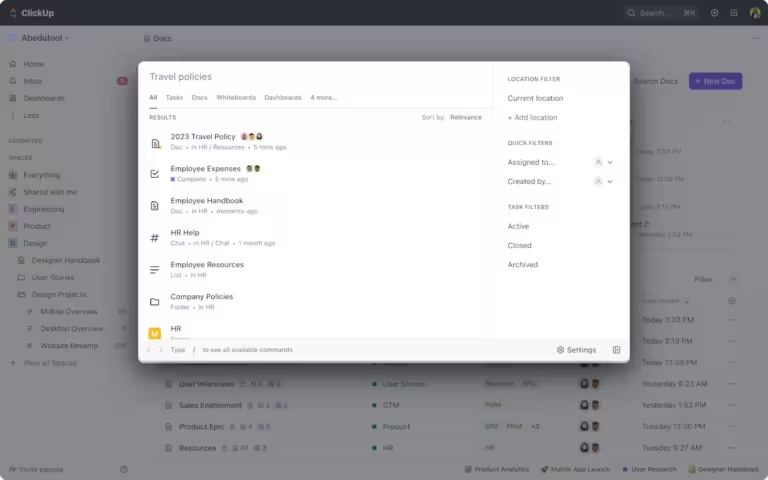
ClickUp Connected Search redefines how you find and organize information within your workspace.
Designed to save time and enhance efficiency, Connected Search is a centralized search tool that allows users to locate tasks, documents, conversations, and more from a single search bar.
Rather than toggling between all the folders, tasks, or tools, you can type a keyword into the search bar and instantly retrieve results from tasks, files, comments, and more.
Go beyond simple keyword matching with advanced filtering options. Narrow results down based on specific parameters such as task status, assignee, creation date, or location within the workspace.
Leveraging intelligent algorithms, Connected Search delivers context-aware results that prioritize relevance. For example, if you frequently work on a specific project or with certain teammates, the search tool learns from your behavior to surface more tailored results.
🔍 Did You Know? Some file formats are so versatile that they can be used for various purposes. For example, the PDF format can be used for documents, eBooks, and even digital magazines, while CSV files can be used for data tables, spreadsheets, and databases.

ClickUp Brain is a smart, context-aware tool that simplifies complex tasks, streamlines processes, and elevates team collaboration. It can summarize discussions, extract key points, and generate action items, ensuring no detail is missed.
Its intelligent search functionality makes information retrieval faster and more intuitive.
Instead of manually sifting through endless tasks, documents, or comments, users can rely on ClickUp Brain to locate precisely what they need with a simple query. The AI scans your workspace for relevant files, tasks, or resources, saving you valuable time and effort.
👀 Must Watch: ClickUp Brain Series, Universal Search
Managing your files effectively can save you time and reduce frustration, whether you’re handling personal documents or working within a team.
Here are some practical tips to manage files more efficiently and stay organized at work. 💁
📖 Also Read: 25 Best Productivity Apps for iOS—iPhone & iPad
Finding files on your iPhone is just the beginning of staying organized. If you want to take all the stress out of file management, ClickUp should be your go-to.
Forget the feeling of scrolling through lost personal lists and work files with the platform. Its robust features let you organize files, assign tasks, and collaborate with your team with just a few clicks.
So, what are you waiting for? Sign up to ClickUp for free today! ✅

Manasi Nair
Max 20min read
Manasi Nair
Max 26min read
Manasi Nair
Max 26min read

© 2026 ClickUp




