

Sorry, there were no results found for “”
Sorry, there were no results found for “”
Sorry, there were no results found for “”
To create a client database in Excel, build a single table where each row represents a client and each column stores a specific detail, such as name or company. Begin with the structure: clear headers, one field per column, no merged cells, no blank separator rows, and avoid free-text chaos where dropdowns should be.
That sounds simple because it is.
The hard part starts when the sheet becomes a shared operating system. One teammate creates a local copy, another pastes a phone number into the email column, and someone else saves a version called “final_final_updated.” The sheet did not fail. The structure did.
And it makes sense. Spreadsheets are familiar, affordable, and flexible enough to hold a first client list. The problem shows up when client data starts spreading across files, notes, chats, and inboxes. TechRadar found that 37% of businesses lose productivity reconciling scattered information, and 92% say valuable insights sit outside their CRM, often across spreadsheets or chats.
So, build the version that lasts longer.
A client database in Excel works well when you need a clear, shared place to store client names, emails, phone numbers, notes, and more. Today, Microsoft 365 also supports real-time co-authoring, AutoSave, version history, validation, filters, PivotTables, charts, and Copilot-assisted analysis.
To build one, plan your columns first (Client ID, name, company, email, phone, status, owner, last contact date, next follow-up), then enter one client per row and one detail per cell. Convert the range to an Excel Table with Ctrl+T so it sorts, filters, and expands cleanly. Add data validation to lock categorical fields like Status to a fixed dropdown, format your date and phone columns consistently, and protect the header and formula cells before you share. Keep one canonical file in OneDrive or SharePoint.
This holds until follow-ups depend on someone remembering to check a date column, client context scatters across inboxes and notes, or you start adding tabs to fake a pipeline. That’s the point where the spreadsheet costs more than it saves, and a CRM earns its place.
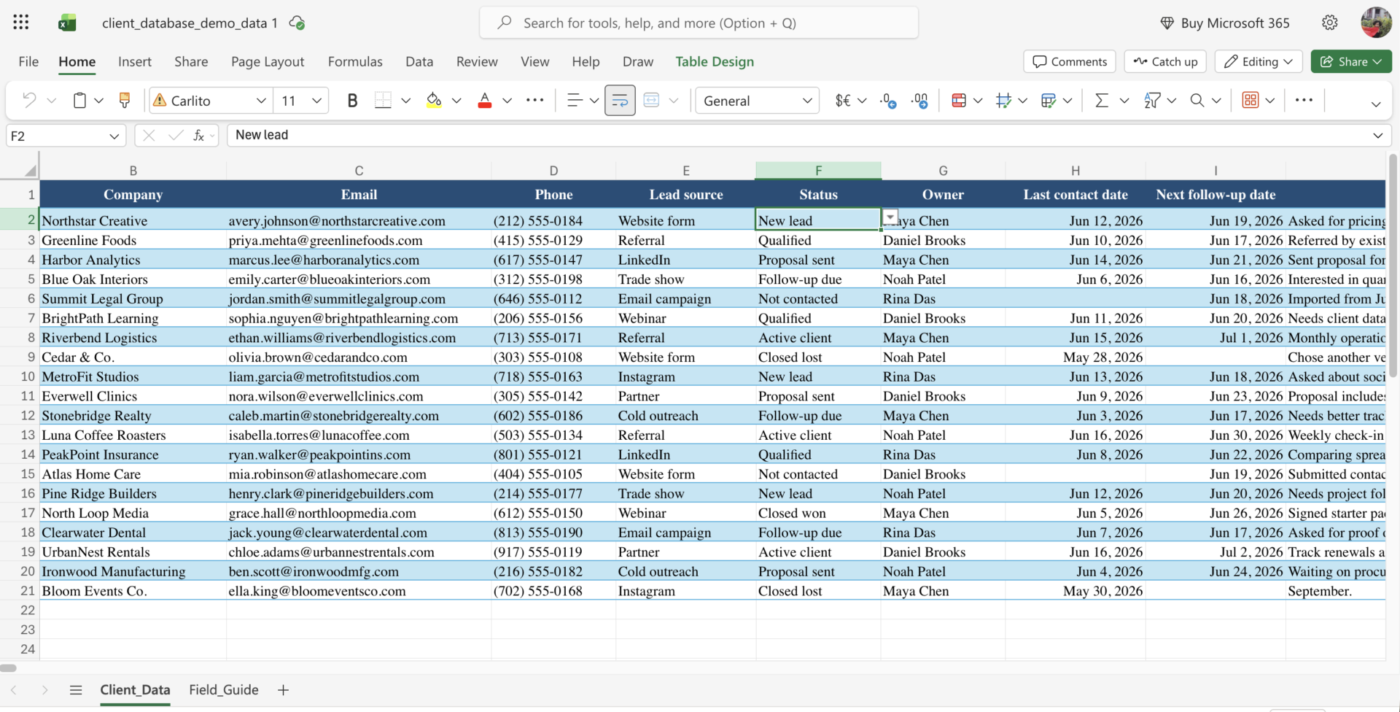
A client database in Excel is a structured spreadsheet that stores client information in one place. Each row represents one client, company, or lead. Each column stores one specific detail, such as name, email, phone number, company, lead source, status, last contact date, owner, or next follow-up.
It works more like a lightweight CRM built inside a spreadsheet. You can sort clients by status, filter by owner, search for records, track follow-ups, and use formulas to pull useful details from the data.
Microsoft recommends Excel Tables for organized data because they support features like structured references, filtering, and built-in data integrity options. Data validation can also restrict what people enter into cells, such as allowing only dates, numbers, or approved dropdown values.
You build a structured database because structure makes the data usable at scale. That means:
The thing that makes Excel easy to start with (total freedom in every cell) is the same thing that makes it fragile at scale. A blank cell is an invitation. Free text is a fork in the road. Every unconstrained column is a small bet that the next person will type exactly what you would have. They won’t.
Which is why the real skill isn’t “building a client database in Excel.” It’s building constraints into one. Henry Ford’s old line about the Model T (“any color, so long as it’s black”) is the whole game here: you make the sheet trustworthy by taking choices away. A Status column that only allows Lead, Active, or Churned. A date column that only accepts real dates. One canonical file, not five. Every rule below is really a decision to remove an option before someone uses it incorrectly.
Get this wrong, and no amount of formulas saves you. Teams that treat the spreadsheet as infinitely flexible spend their quarters reconciling inconsistent data. Teams that treat it as a constrained system spend five minutes a week and trust the result. Same tool. Opposite outcomes. The difference is whether you designed the structure on purpose or let it happen to you.
A client database should include, at minimum, Client ID, name, company, email, phone, status, owner, last contact date, and next follow-up date.
Start narrower than you think you need. It is far easier to add a column later than to clean up a sheet that tried to track 50 things from day one. These fields cover the majority of client databases, and each one earns its place.
If you track deals or revenue, add a value column. If you serve segments, add an industry or tier column. Resist adding more than that at the start.
Also Read: 10 free CRM templates if you would rather start from a prebuilt structure than a blank sheet
These steps build an Excel database that is searchable, sortable, and resistant to bad data. Each one is short, and each one matters for the version that survives contact with a team.
Decide your fields on paper or a blank sheet first. This sounds small, but it is where most bad client databases start. One person adds “Client status,” another adds “Lead stage,” and a third adds “Pipeline.” Now the same idea lives in three places.
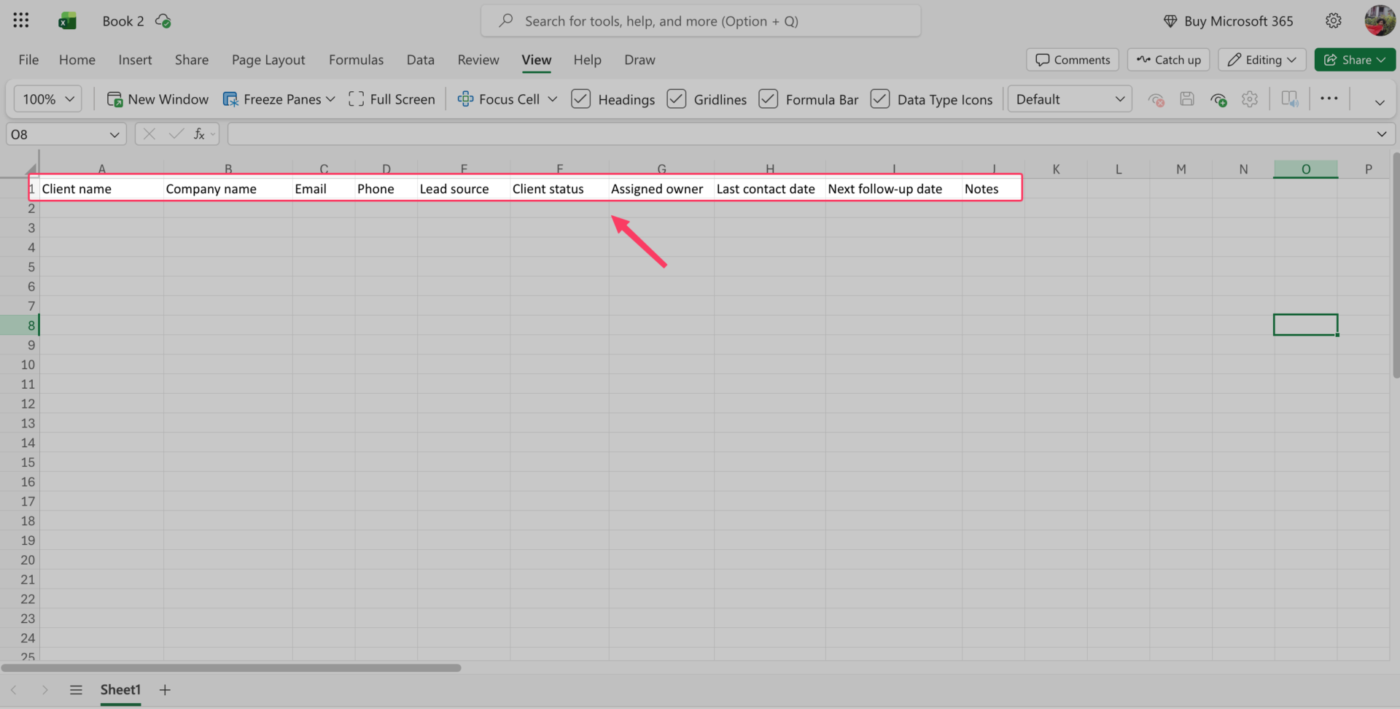
Use the field list above as your starting point. Keep the rows/columns you will actually sort, filter, search, or report on. Cut anything you will not use.
Pro Tip: Name fields as nouns that a new teammate would understand. “Status” beats “Stage2.” “Next follow-up date” beats “FU date.” You are not only building this for yourself. You are building it for the person who has to trust the sheet six months from now.
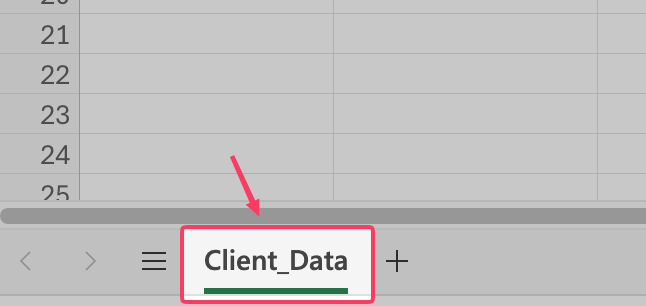
Open a fresh workbook, double-click the sheet tab at the bottom, and rename it something descriptive like Client_Data.
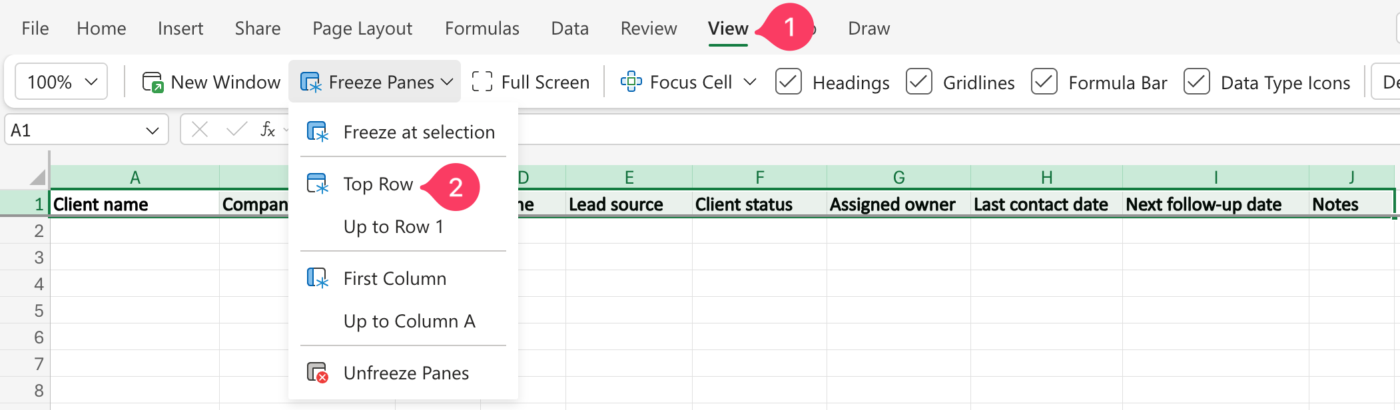
In row 1, type each column name into its own cell starting at A1. Make the header row bold. Then go to View > Freeze Panes > Freeze Top Row, so the headers stay visible while you scroll.
Keep one header row and nothing above it. A title row merged across the top is the most common reason Excel later refuses to treat your data as a clean table.
Add one client per row and one detail per cell. Do not put two email addresses in one cell or add notes in the phone number column. What we mean is that every column should hold one type of information, and every row should describe one client.
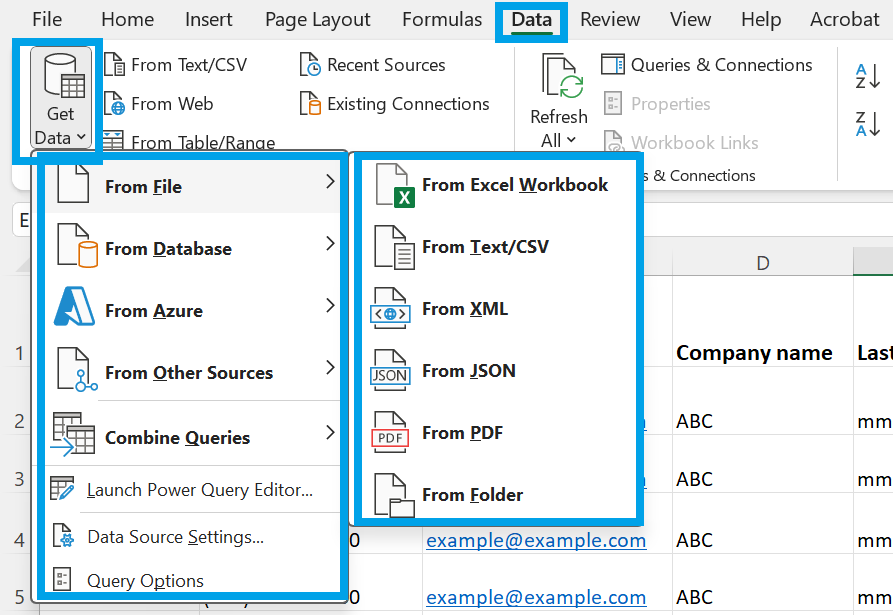
If your client data already lives elsewhere, export it as a CSV file and import it. In Excel, you can go to Data > Get Data > From File > From Text/CSV, then choose where to load the imported data.
Pro Tip: Before you paste or import a large list into your main database, load it into a separate sheet first. Check for duplicate names, broken email addresses, missing phone numbers, and columns that don’t match your planned structure. Microsoft also recommends making a backup copy before cleaning data, because cleanup steps can change or remove records.
And of course, don’t leave blank rows between clients or blank separator columns between fields. Those gaps make sorting, filtering, lookup formulas, and table formatting less reliable. Keep the database as one continuous block of data.
Select any cell inside your client data and press Ctrl+T. In the Create Table box:
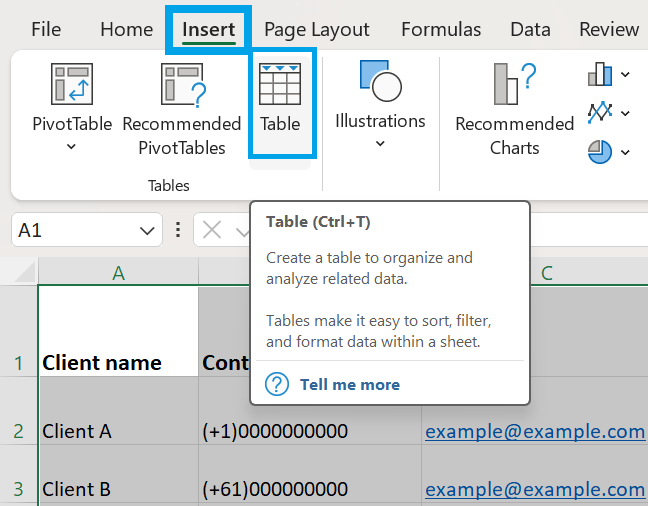
Excel will now treat your client list as a Table instead of a loose range. You will see the Table Design tab appear at the top of the screen. This is where you can manage the table name, style, headers, and table size.

Next, rename the table. Click anywhere inside the table, go to Table Design, and change the Table Name field to ClientDB.
This small step makes the database easier to manage later. Instead of writing formulas against a vague range like D2:D500, you can reference a named column, such as ClientDB[Email].
Turning your data into a Table also gives you:
Those filter buttons are your search and sort tools; no separate setup is needed. Click any header to sort by client name, status, or follow-up date, or filter to just one owner’s active clients. For quick lookup, Ctrl+F finds any name, company, email, or phone. For most small teams, filters plus Ctrl+F are all the search you’ll ever need.
If you want a visible search box inside the sheet, add the FILTER function (Microsoft 365 or newer): =FILTER(ClientDB,ISNUMBER(SEARCH($K$2,ClientDB[Client name]&” “&ClientDB[Company]&” “&ClientDB[Email])),”No match”)
Add the formula only if users actually need a built-in search box.
Pitfall: If Excel selects the wrong range, stop and check the sheet structure. A blank row, a blank column, or a merged cell inside the data block will throw it off. Fix those first, then create the table again. Your table should cover one continuous range with a single header row.
Now clean up the columns people will use most: Phone, Last contact date, and Next follow-up date.
For date columns:
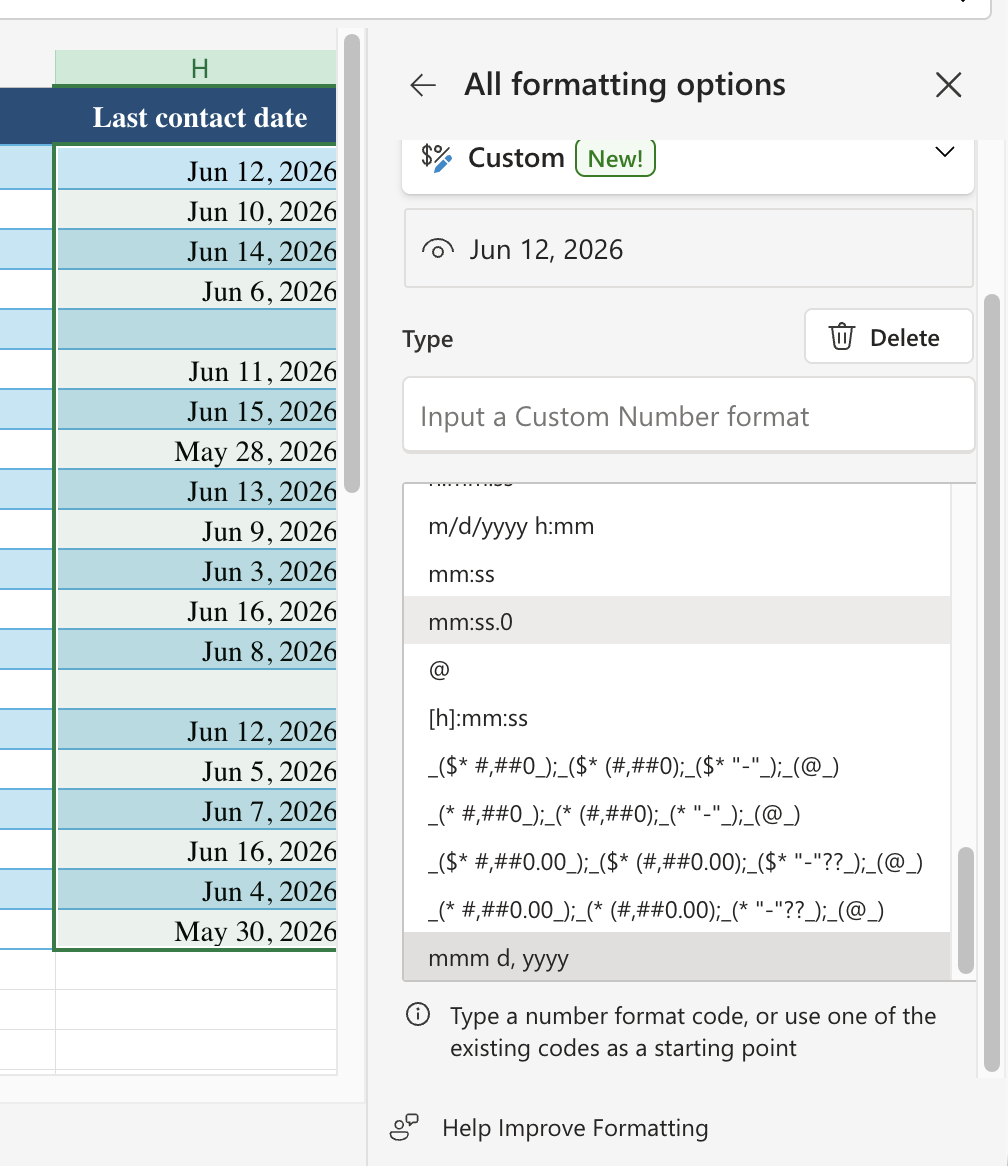
For phone numbers, choose the format based on your data:
This is not just about making the sheet look cleaner. If one date is stored as a real date and another is stored as text, sorting and filtering will become unreliable. Fix the format before the sheet grows.
Pro Tip: When you enter a number with more than 15 digits, like a long account number or Client ID, into an Excel cell, it automatically converts the digits into scientific notation. Before entering the numbers, format the cells as ‘Text.’ This will ensure that Excel treats all entries in those cells as text, preventing the loss of precision.
Add dropdowns to any column where the answer should come from a fixed list. Start with the Status column.
Select the Status cells, go to Data > Data Validation, set Allow to List, and enter values like Lead, Active, On Hold, and Churned.
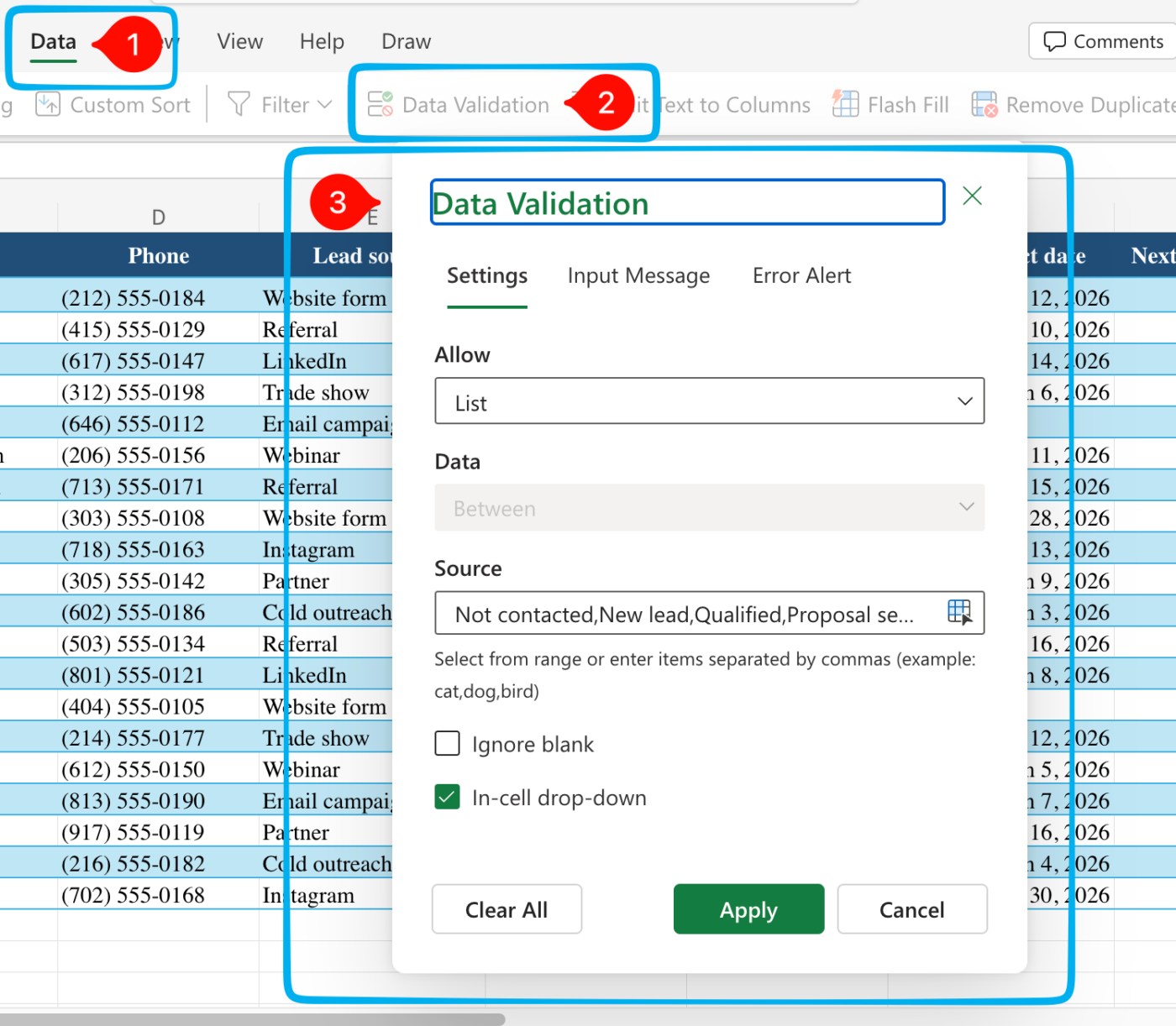
Now users can’t type five versions of the same status. A filter for “Active” will actually return every active client.
Use the same setup for fields like Lead source, Owner, Priority, and Region. For date fields, use Date validation instead, especially for Next follow-up date.
Pro Tip: Keep dropdown values exact and boring. “On hold” and “Paused” may mean the same thing to a person, but Excel treats them as different statuses.
Lock the parts that should not change. Select your header row and any formula cells, then use Review > Protect Sheet to prevent accidental edits to the structure while still allowing data entry in the open cells.
This will not turn Excel into a multi-user system, and it is not meant to. It reduces how much damage a second editor can do, which buys you time before the threshold in the final section.
Disclaimer: Treat the workbook like a client data file, not a casual spreadsheet. It likely contains names, phone numbers, emails, deal notes, and history, so access should be limited. Store it in a managed location like OneDrive or SharePoint, avoid public links, and check permissions before adding editors. This helps control, recover, and trust the database when multiple people use it.
In practice, a client database in Excel takes three common shapes: a solo freelancer’s follow-up list (contact details plus a next-touch date), a small agency’s shared tracker (the same fields plus an Owner column and stricter Status validation), and a small sales team’s pipeline (adding Deal value, Stage, and Expected close date). The structure stays the same; what changes is how much coordination it has to carry. Here they are from lightest to heaviest, so you can pattern-match to your own setup.
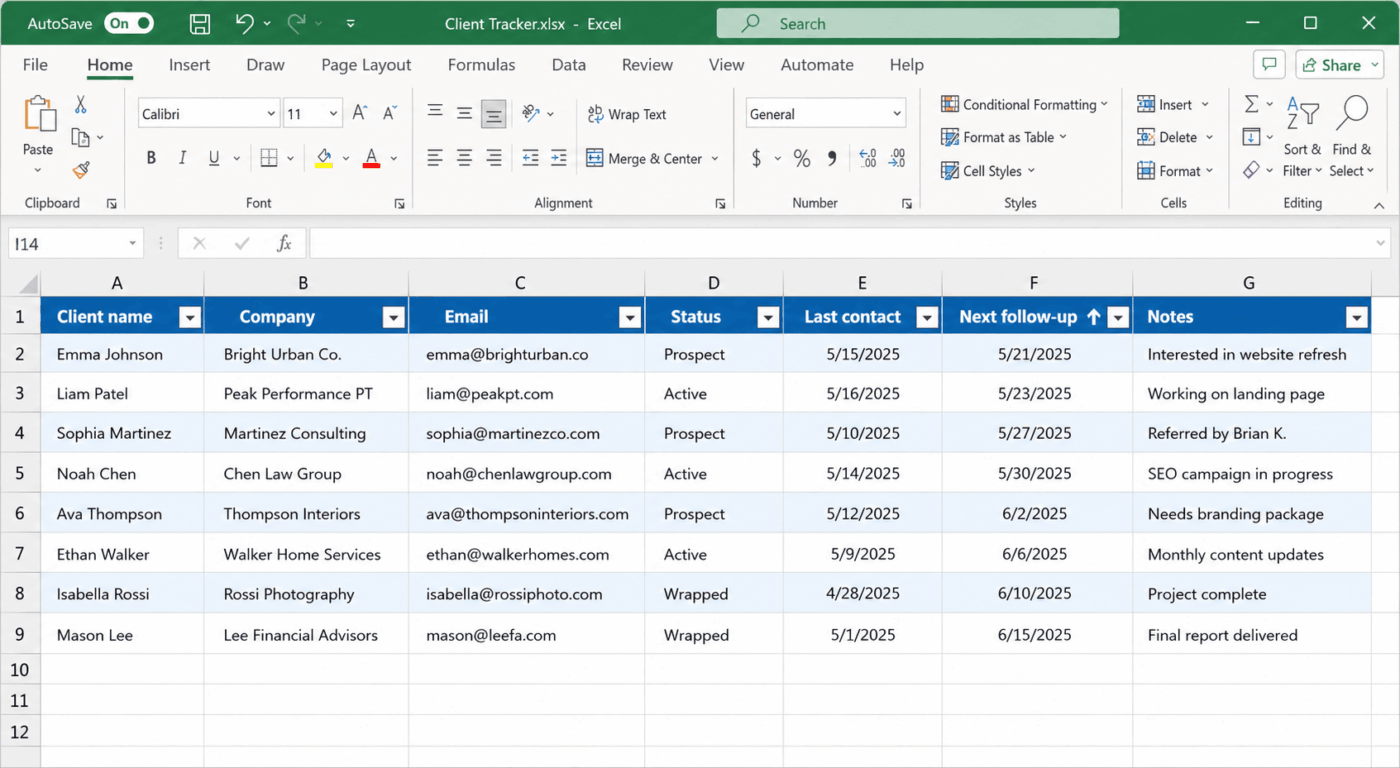
A designer or consultant running their own book of business doesn’t need a pipeline. They need to never forget a follow-up. The structure stays minimal: Client name, Company, Email, Status (Prospect / Active / Wrapped), Last contact, Next follow-up, Notes. No owner column, because there’s only one owner.
The distinguishing move: they sort by Next follow-up every Monday and work top-down. The database isn’t a system of record, it’s a weekly to-do list that happens to store contact info.
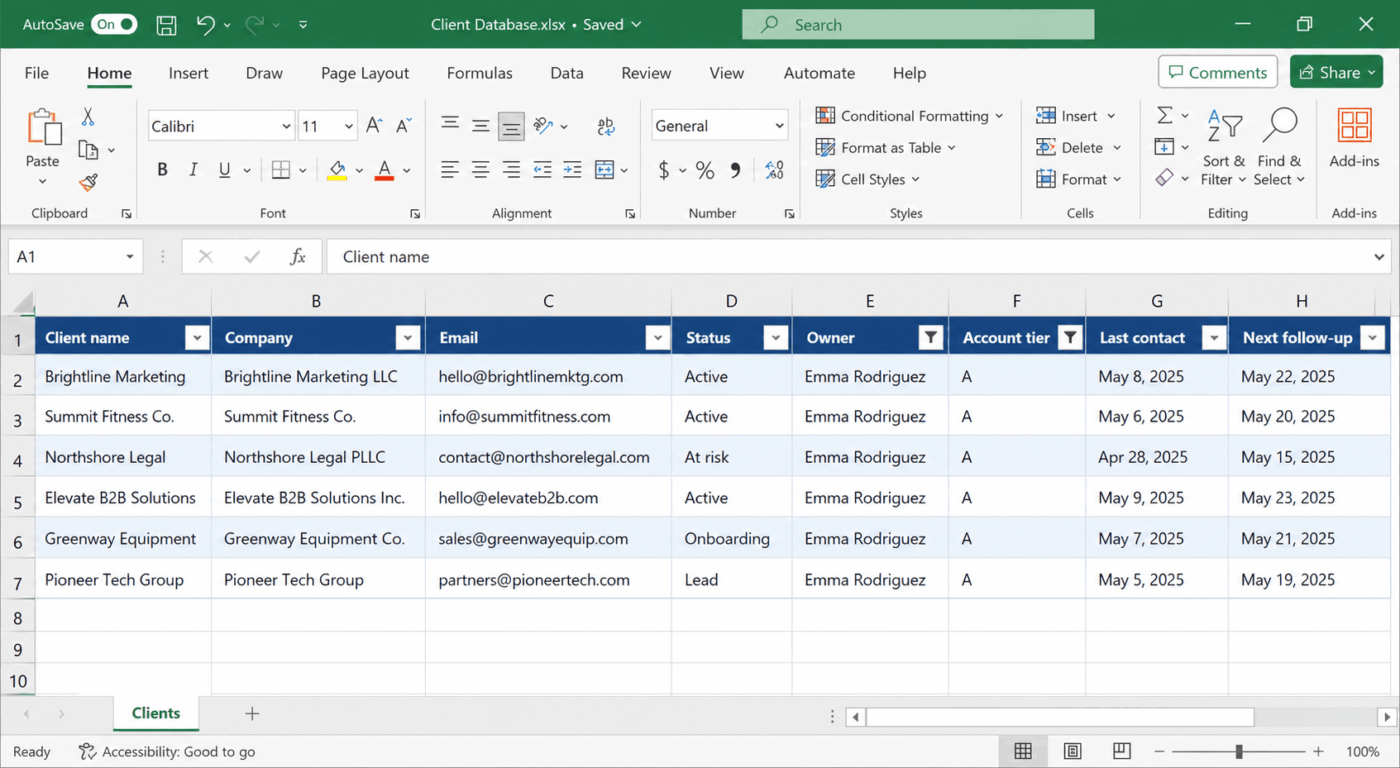
Once three or four people touch the same clients, the sheet’s job changes from “remember” to “coordinate.” The Owner column becomes the most-used field, and Status gets stricter (Lead / Onboarding / Active / At risk / Churned) because two people now read it differently unless it’s validated.
The distinguishing move: they add an Account tier column (A/B/C) and filter by Owner + tier, so each account manager sees only their A-accounts on a Monday.
This is also the exact point where the “one canonical file in SharePoint” rule stops being optional.
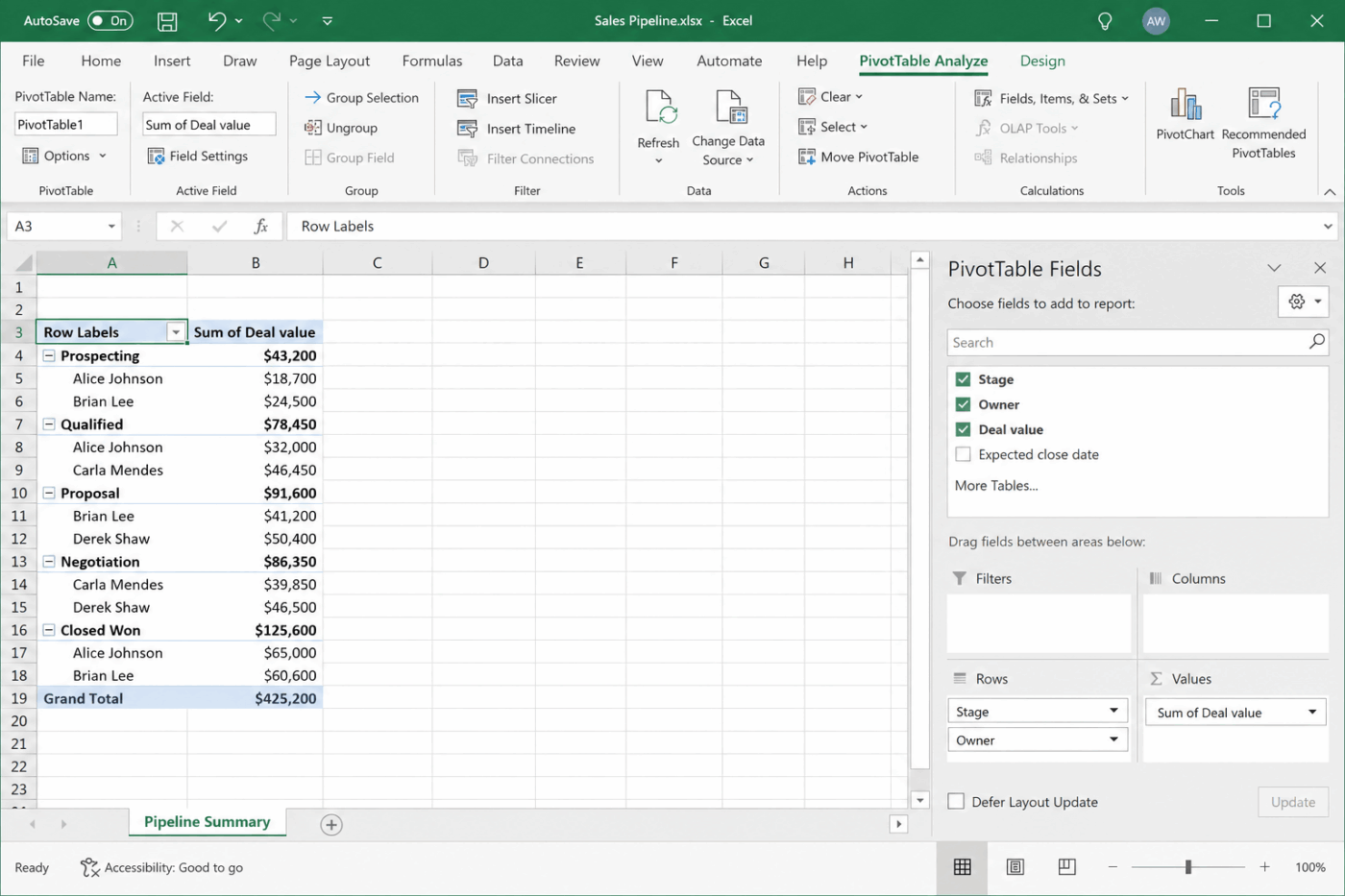
A team tracking deals adds Deal value, Stage, and Expected close date, and this is where Excel begins doing work it wasn’t built for. The columns still hold, but the process around them (who advances a stage, what happens when a deal closes, when a follow-up fires) lives entirely in people’s heads.
The distinguishing move: they build a second tab with a PivotTable summing pipeline by stage and owner. It works, but it’s the tell. When you’re maintaining a reporting tab that breaks every time someone adds a column, the database has become a CRM with no reminders and no automation.
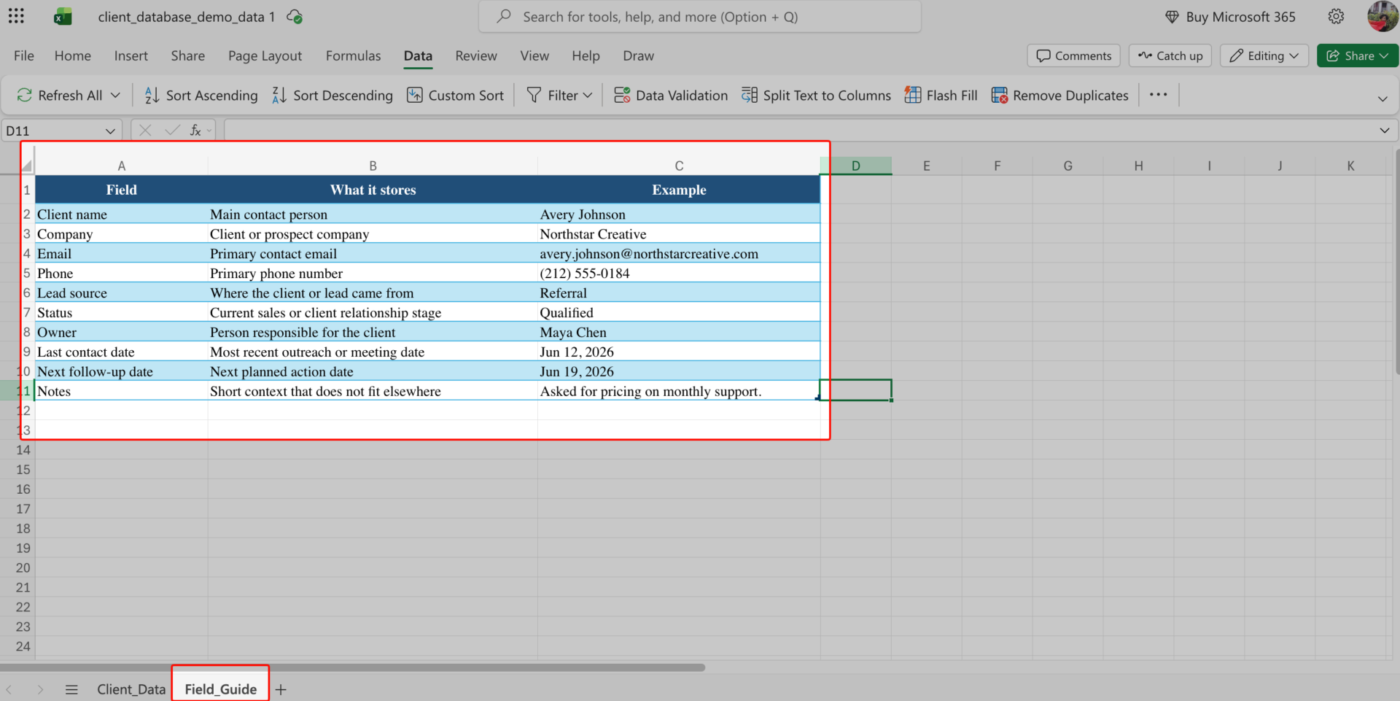
You keep an Excel client database clean with four habits: one canonical file, data validation on every categorical column, a weekly five-minute hygiene pass, and a documented column legend. Building the database is the easy half. Keeping it trustworthy is where most of them fall apart, and these four habits prevent the slow slide into chaos.
The most common mistakes are merged cells and title banners, blank spacer rows, free text where a dropdown belongs, multiple copies in circulation, and forcing Excel to act as a full CRM. The warning signs are easy to spot once you know what to look for.
| Mistake | What it looks like | The fix |
|---|---|---|
| Merged cells and title banners | Excel selects the wrong range, filters behave oddly, or sorting moves data out of place | Keep one header row, no merged cells, and nothing above row 1 |
| Blank rows used as spacers | Filters miss records, formulas skip rows, or the Table does not include the full database | Delete blank rows inside the data and use Table banding for visual separation |
| Free text where a dropdown belongs | “Active,” “active,” and “Active ” all show up as different statuses | Use data validation for fields like Status, Owner, Lead source, Priority, and Region |
| Multiple copies in circulation | Two people quote different numbers from “the client sheet” | Keep one canonical file and stop emailing copies around |
| Turning Excel into a full CRM | You keep adding formulas, tabs, and workarounds to mimic reminders, pipelines, and activity history | Keep Excel for the database, but move to a CRM when the workflow around the data becomes the real work |
Excel helps you structure, filter, and analyze client information. A CRM turns that information into a working process with record owners, tasks, reminders, activity history, pipeline stages, handoffs, and live dashboards.
For a solo user or a small team with a simple client list, Excel is often enough. Once follow-ups start slipping, client context lives across emails and notes, or you are building extra tabs to imitate a pipeline, a CRM is the better fit.
Use this table as a quick fit check before you decide whether to keep the database in Excel or move it into a CRM.
| Stay in Excel if | Move to a CRM if |
|---|---|
| You mainly need a clean client database for names, emails, phone numbers, notes, and follow-up dates | Client records need owners, tasks, reminders, activity history, handoffs, and deal stages |
| One shared workbook in OneDrive or SharePoint gives your team enough real-time collaboration | People still save copies, email versions, or work from conflicting files |
| Follow-ups are simple enough to manage with filtered date columns, comments, and manual check-ins | Follow-ups are slipping because dates sit in the sheet, but don’t trigger action without extra automation |
| You can answer “Who owns this client?” and “What happens next?” from one structured sheet | Ownership, next steps, emails, calls, notes, and tasks are scattered across multiple tools |
| Reporting means filters, sorting, PivotTables, charts, or simple dashboards | Reporting takes longer to prepare than the client decisions it is supposed to support |
| Your client list is smaller, more stable, and easier to manage | You are adding tabs, formulas, color codes, and workarounds to imitate a sales pipeline |
| Copilot, formulas, and templates are enough to help you organize and analyze client data | You need the system to assign work, remind people, log activity, and move clients through a repeatable process |
| The database is mostly a reference tool | The database has become the operating system for sales, onboarding, account management, or support |
| Data validation, dropdowns, and protected ranges are enough to keep entries clean | You need typed fields, required properties, and record-level permissions that stay attached to each client |
| Notes and status updates are fine as long as everyone updates the sheet | You need emails, calls, meetings, and tasks logged automatically against each client record |
None of this means Excel was the wrong choice. It means the database has moved beyond simple storage. Excel is still great for building the first version. A CRM is useful when client data requires owners, reminders, permissions, activity history, reporting, and workflows.
If you want to see how the same records behave in a purpose-built system before you commit, this detailed walkthrough on building a CRM in ClickUp is a good next read.
A CRM only helps if it fixes the workflow around the client record. If the same messy fields, unclear ownership, and missed follow-ups move from Excel into a new tool, the problem follows the team.
This ClickUp video breaks down why CRM implementations often fail and what to get right before moving client data out of a spreadsheet:
We use ClickUp when the database needs to live beside the actual work: client tasks, project updates, Docs, comments, follow-ups, and reporting. First things first, we use ClickUp CRM, a workspace dedicated to managing client databases and relationships.
Here is one way to set up a client database in ClickUp.
The first thing we do is create a separate place for client records, so they don’t get mixed into internal tasks. In the ClickUp sidebar, we:
Open the All Clients List and add a Table View.
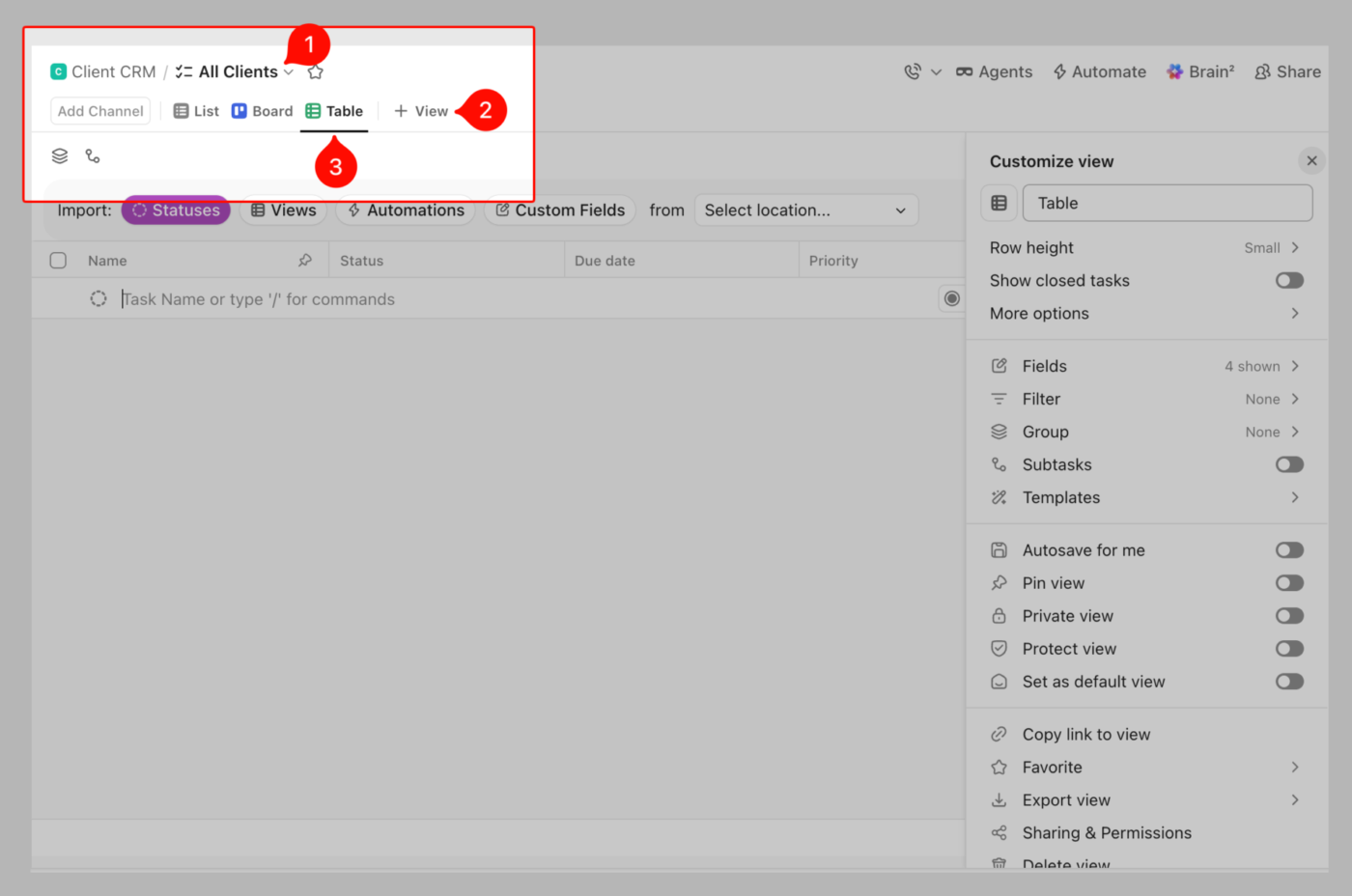
This way, we get the desired rows and columns, and the records link to tasks, dates, owners, dependencies, and other work within the same workspace.
Even more, we get to add:
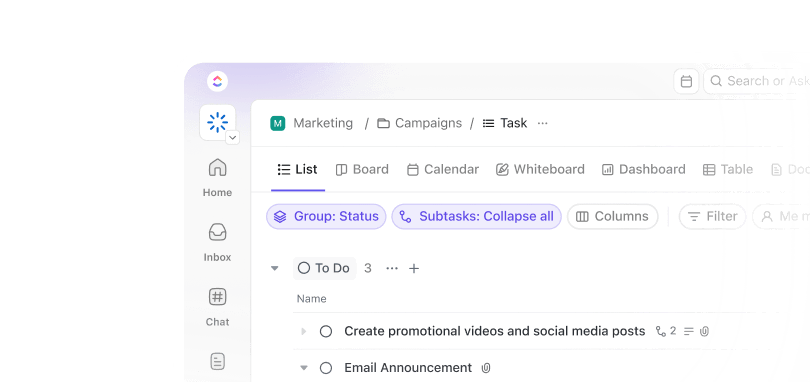
This is the main benefit over copying a spreadsheet into different versions. The data stays in one place, but each team member can view it in the format that fits their job. ClickUp supports multiple views, including List, Board, Calendar, Table, Gantt, Timeline, Workload, and more.
Once the view is ready, we add our entries as tasks. This is helpful because each task has its own subtasks, custom statuses, and custom fields.
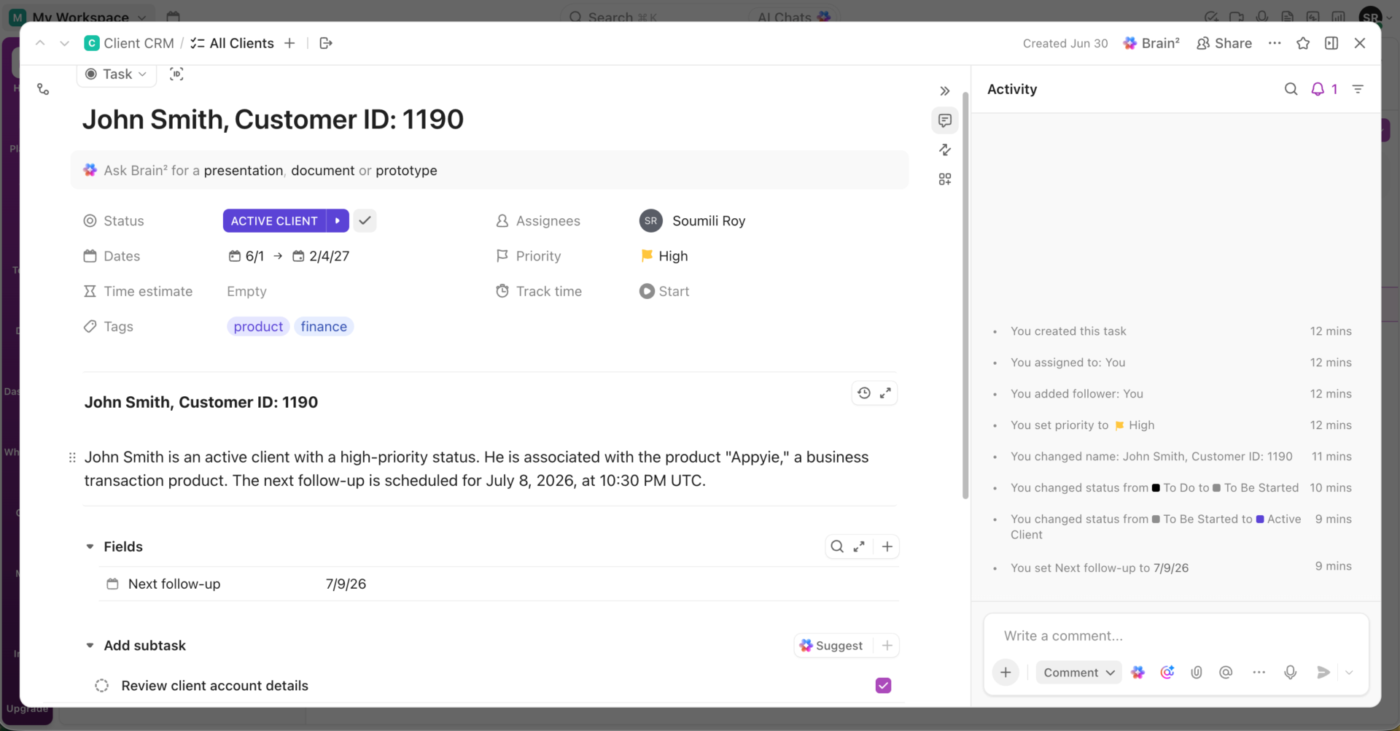
We generally add fields such as:
You can add client details manually or import them from an existing spreadsheet.
For manual entry, click + New Task, enter the client or company name, and fill in the Custom Fields across the row.
For bulk uploads, import your Excel or Google Sheets file into ClickUp and map your spreadsheet columns to ClickUp fields. ClickUp’s spreadsheet importer supports Excel, CSV, JSON, TSV, and TXT files. Each spreadsheet row becomes a task, and each column becomes a property of that task, such as status, assignee, date, or a Custom Field.
We use ClickUp Automations to reduce manual work and keep client processes consistent. For example, when a client status changes to “Onboarding,” ClickUp automatically creates a set of onboarding tasks, assigns them to the right team members, and sets due dates.
You can also set up automations to:
A G2 user says:
I love that ClickUp literally does everything: it combines CRM and project management under one roof, so I no longer need separate tools for each. That all-in-one capability saves me so much time, since I don’t have to purchase multiple platforms or migrate data between them.
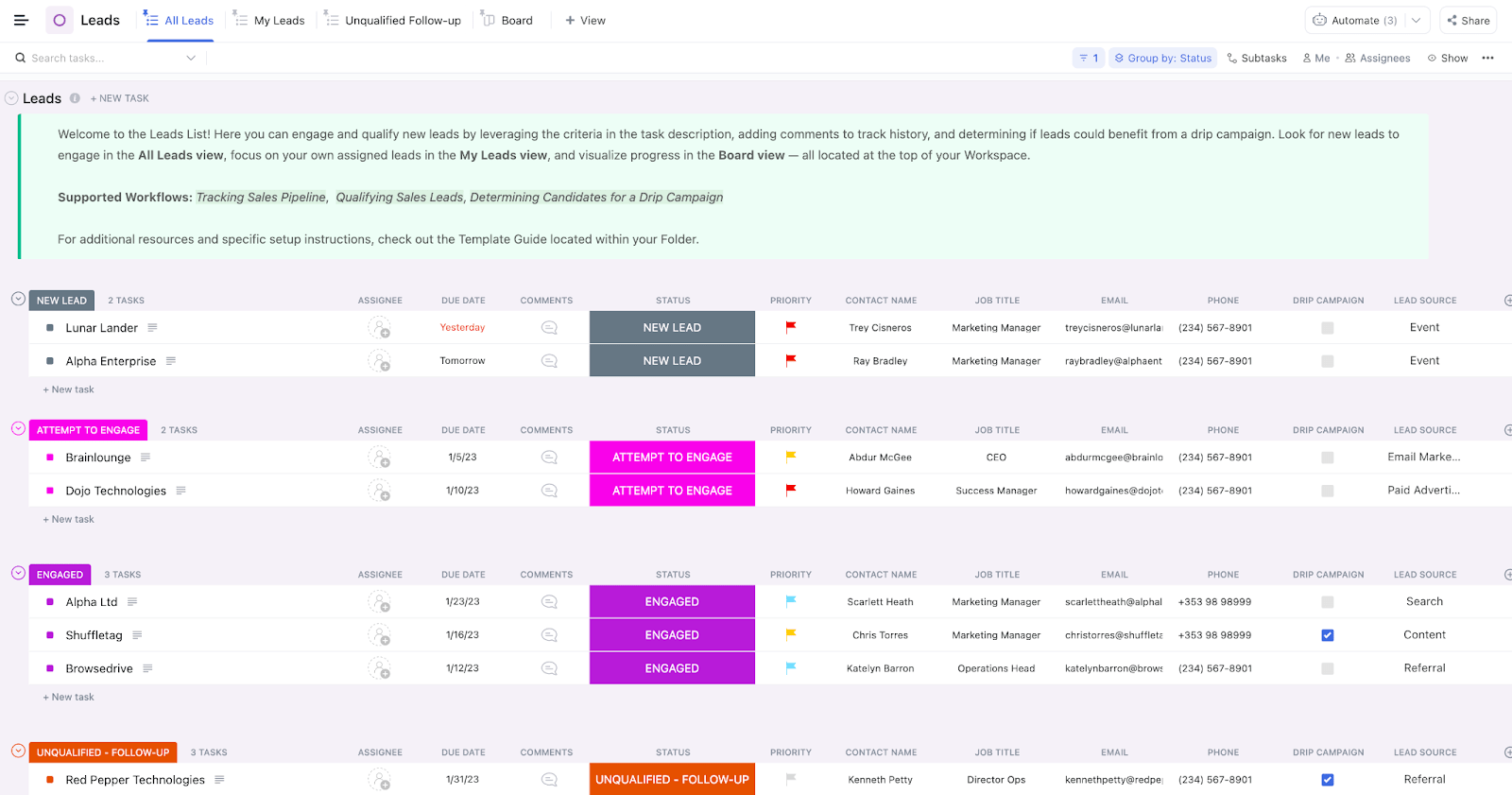
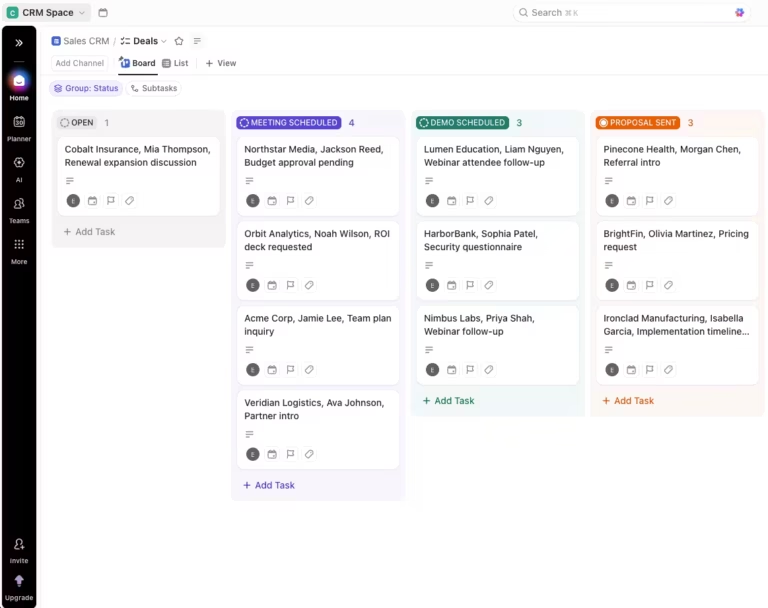
The CRM Template by ClickUp gives you a ready-made Folder for tracking leads, deals, contacts, qualification details, follow-ups, and account relationships in one place. It is useful when you want your client database to connect to pipeline work. Use built-in views such as All Leads, My Leads, Unqualified Follow-up, Board, All Deals, Unassigned, and Closed-Won to manage the same CRM data from different angles
ClickUp may be too much if you are the only person managing a small list of clients. In that case, the Excel database above will be faster to set up and easier to maintain.
There is also a learning curve if your team is used to spreadsheets. In Excel, the mental model is simple: rows and columns. In ClickUp, you work with tasks, fields, views, automations, and relationships. That gives you more control, but it also takes a little setup.
ClickUp is a better fit when more than one person manages client data, or when follow-ups, reporting, handoffs, and client work are starting to take up real time.
A client database in Excel is manageable as long as you build it as a real structure: planned columns, a proper Table, validation that blocks bad data, and protection before you share. Do that, and a spreadsheet will carry a solo user or a tiny team a long way.
The mistake isn’t using Excel. It’s assuming its single-user design will hold once a team depends on it.
When that moment arrives, a converged AI workspace removes the version conflicts and manual follow-ups that spreadsheets cannot solve. Start with ClickUp for free and build a client database that scales with you.
No. Excel is a spreadsheet that can store one clean, flat table well, but it isn’t a relational database and has no true database engine. A relational database (Access, SQL, Airtable) links multiple tables through keys; Excel works best as a single table with filters, validation, and formulas. Use Excel for flat client records, and move to Access, a CRM, ClickUp, or Airtable when records need to connect across tables.
Yes, but the workbook needs to be stored in OneDrive, OneDrive for Business, or SharePoint, and users need an Excel version that supports co-authoring. Excel for the web can co-author immediately in the browser, while desktop co-authoring requires a supported Excel app. For a small team, this can work. For regular client handoffs, audit history, permissions, and reminders, a CRM is safer.
Excel can technically hold 1,048,576 rows and 16,384 columns in a worksheet, so the hard row limit is rarely the first problem. The practical limit comes earlier, when the file becomes hard to search, clean, share, and trust. If you are spending more time maintaining the sheet than using it, you have probably outgrown it.
Use a Client ID or email address as the main unique identifier, then review duplicates before deleting anything. In Excel, select your data, go to Data > Remove Duplicates, and choose the columns Excel should compare. Microsoft recommends copying the original data to another worksheet first because removing duplicates permanently deletes the extra rows.
Store the master file in OneDrive or SharePoint instead of passing copies around by email. That gives you version history, so you can view or restore an earlier version if someone sorts, deletes, or pastes over the wrong data.
Yes. Free, ready-made templates exist from Smartsheet, Vertex42, and Microsoft Create. They give you pre-built columns, formatting, and sometimes a contact log, so you skip the setup in this guide. Just audit the columns against your actual workflow before importing, since most templates track more fields than a small team needs.
Yes, the structure is identical: one row per client, one attribute per column, plus data validation and the FILTER function for search. Google Sheets handles real-time co-authoring more cleanly than desktop Excel, since editing is native to the browser. Excel pulls ahead on large datasets and advanced formulas. For a small shared client list, Sheets is often the easier starting point.

Manasi Nair
Max 17min read

Arya P Dinesh
Max 20min read
Manasi Nair
Max 22min read

© 2026 ClickUp