
ClickUp Custom Fields: How I Built a Connected Property Management System for Vendors and Work Orders

Sorry, there were no results found for “”
Sorry, there were no results found for “”
Sorry, there were no results found for “”
If your vendor list lives in one place and your work orders live somewhere else, your team is probably spending too much time reconstructing context.
That is the problem I wanted to solve in ClickUp.
At Project Preservation, we manage complex homes and estates, which means every property has its own vendors, recurring maintenance, one-off work orders, insurance requirements, and operational history. If those details are scattered, even simple questions become harder than they should be:
Inside ClickUp, I built a connected property management system using Custom Fields, filtered views, and Relationships. The setup starts with two simple Lists: a vendor list and a work order list.
But once those Lists share the right fields and connect to each other, they become much more than lists. They become a working operating system.
In this article, I’ll show you how I built that system and how you can adapt the same structure for vendor management, CRM, client delivery, team operations, or any workflow where contacts and work need to stay connected.
I’m Melissa Shymko, Founder of Project Preservation, a Bay Area-based company that supports homeowners with the ongoing management and operation of their properties. My team specializes in building systems and processes that bring structure, consistency, and efficiency to complex homes and estates.
Project Preservation has become our real-world testing ground. It is where we learn how homes actually function day to day, what breaks down, what repeats, and what kind of systems hold up under real use.
I’m also the creator of Estatewyze, a content platform where I share practical frameworks, templates, and insights for homeowners and operators looking to better manage their homes and workflows.
Across both businesses, I use ClickUp as the backbone of our operations. Instead of treating it as a task manager, I think of ClickUp as a single source of truth, a universal playbook for how we work with clients, teams, vendors, properties, and projects.
When vendor data and operational work aren’t connected, every update takes longer than it should.
A lot of teams accidentally recreate a smaller version of Work Sprawl inside their workspace. You might have a vendor list, a work order list, notes in a Doc, and a few important details trapped in someone’s head.
Technically, the information exists. But it doesn’t work together.
That creates problems fast:
I wanted a setup that gave me a quick, reliable view across multiple homes while still staying flexible enough to reflect how work actually happens.
For me, that started with two simple Lists: vendors and work orders.
ClickUp Custom Fields let you add structured data to tasks, Lists, Folders, and Spaces, so your workspace can track the exact information your workflow needs.
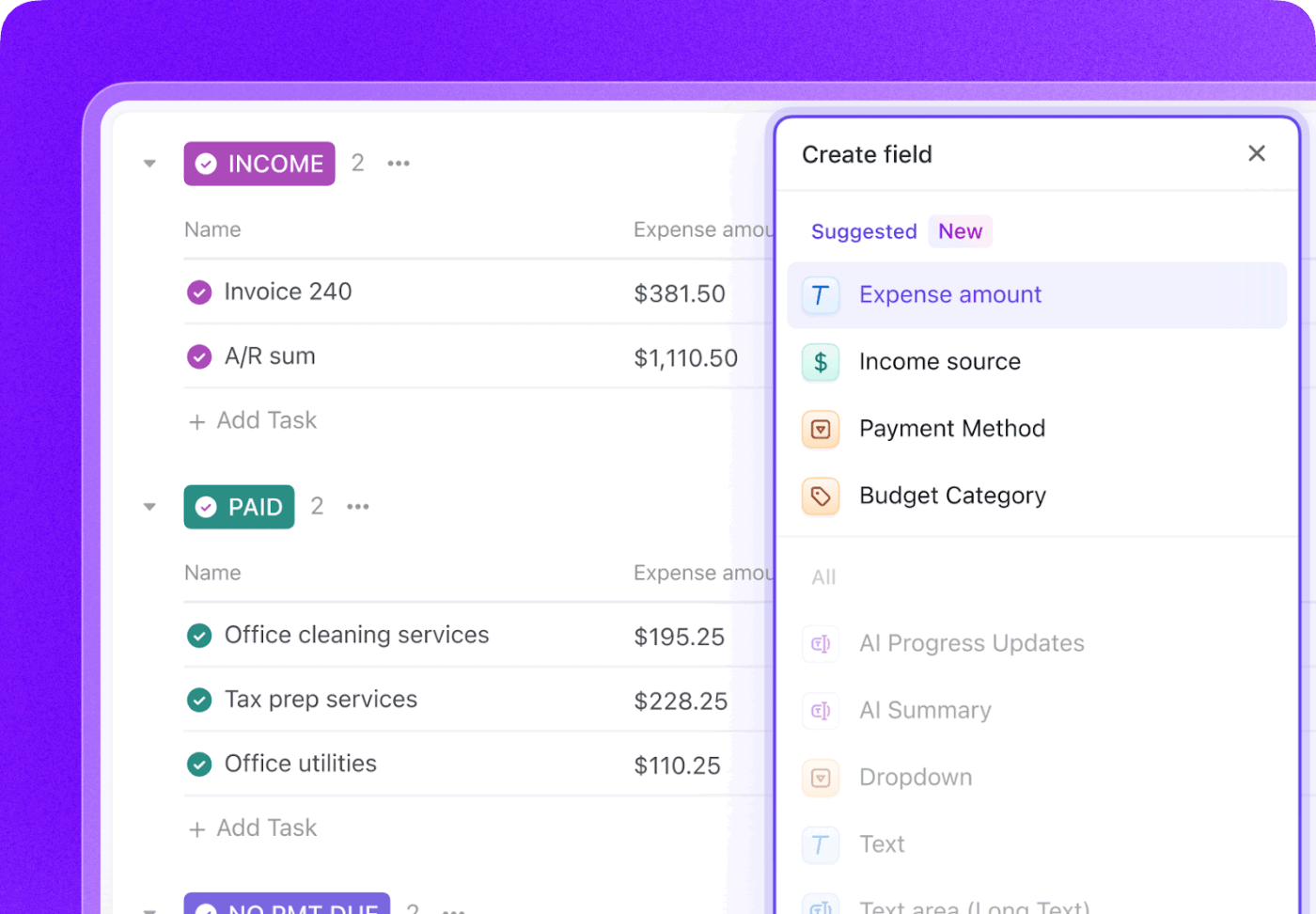
Instead of relying on task names or comments alone, you can track details like location, service domain, cost, renewal date, approval status, vendor type, insurance status, or work category in fields your team can filter, group, and report on.
For this workflow, I used Custom Fields to turn a vendor list and work order list into a connected operating system.
With the right fields in place, ClickUp stops being a place where information is stored and becomes a place where operational decisions get easier.
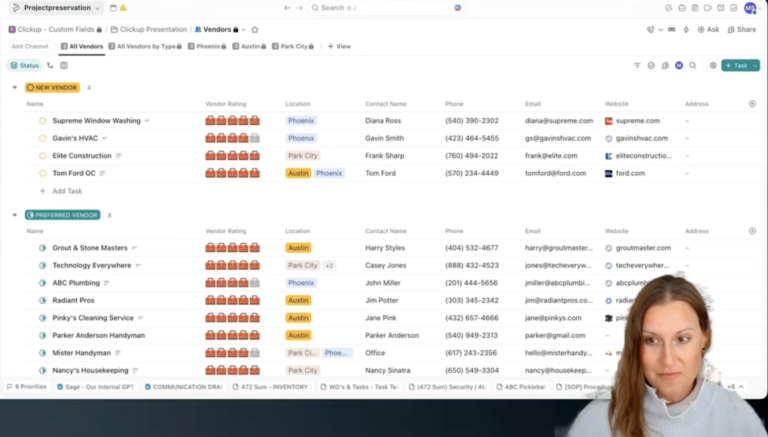
A vendor list becomes far more valuable when it is designed like a structured contact database instead of a basic roster.
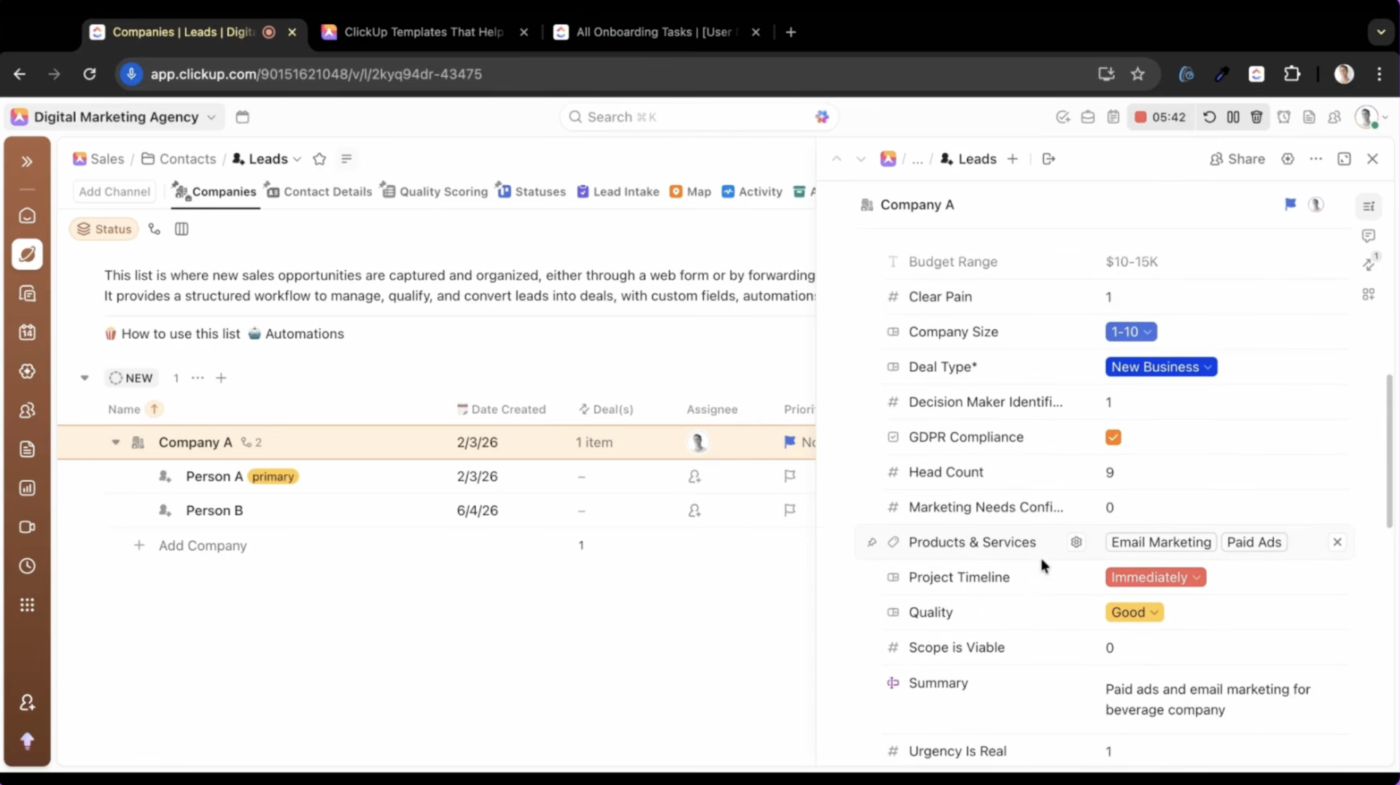
What I call a vendor list could just as easily be a CRM, partner directory, personal contact hub, or even a household contact system. The core idea is the same: create consistent fields that make the information sortable, filterable, and useful in everyday operations.
In my property management workflow, the vendor list includes the evergreen information you would expect:
This is where ClickUp Tasks start doing more than tracking to-dos. Each vendor record becomes a structured operational profile.
Instead of treating vendor information like loose reference data, I can use it to make better decisions.
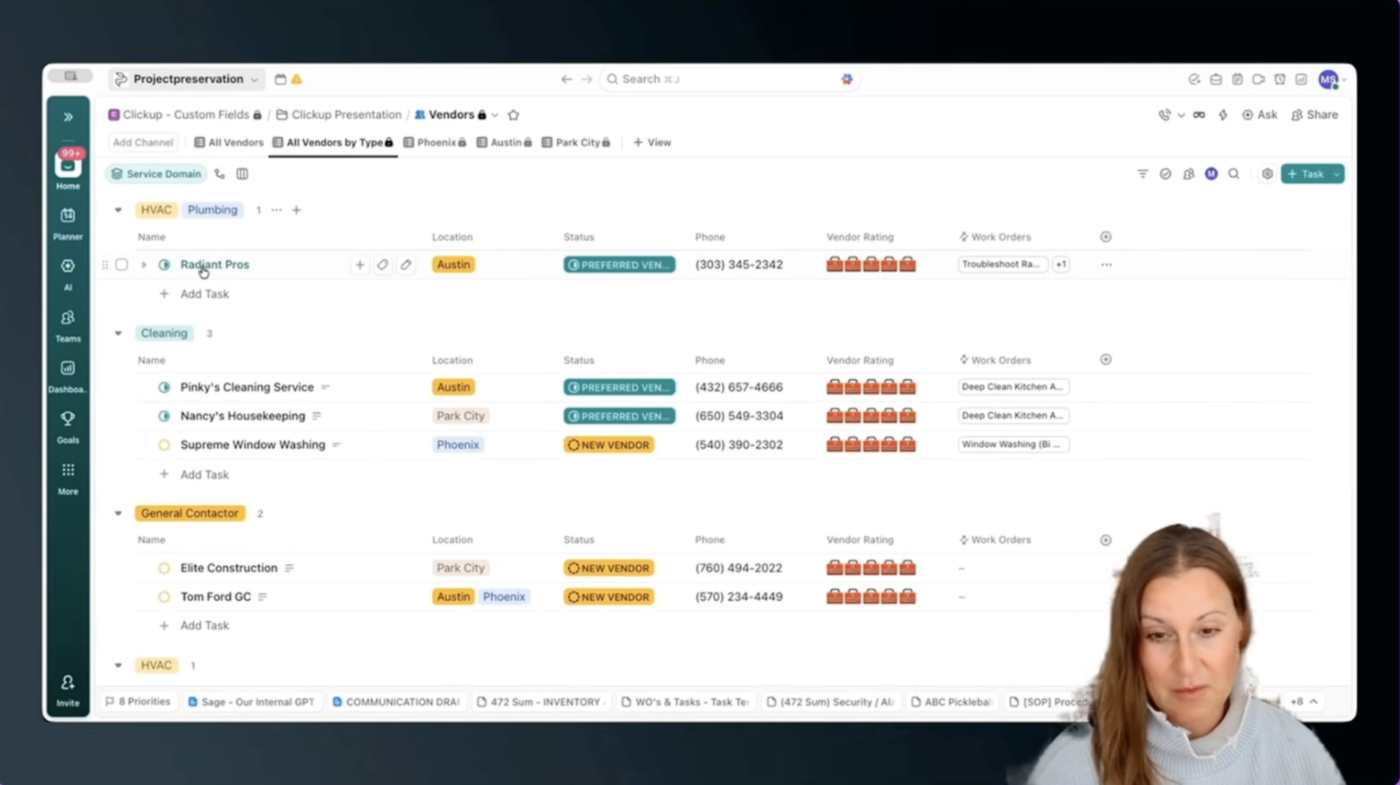
Managing multiple properties means the same vendor may work in one market, several markets, or across an entire portfolio.
In this example, imagine we’re managing three properties:
For location, I chose labels rather than a single drop-down. That gave me the flexibility to assign a vendor to Phoenix, Park City, Austin, or multiple properties at once.
In practice, that means I can quickly filter the list to see exactly which vendors are available in a given market without creating duplicate records.
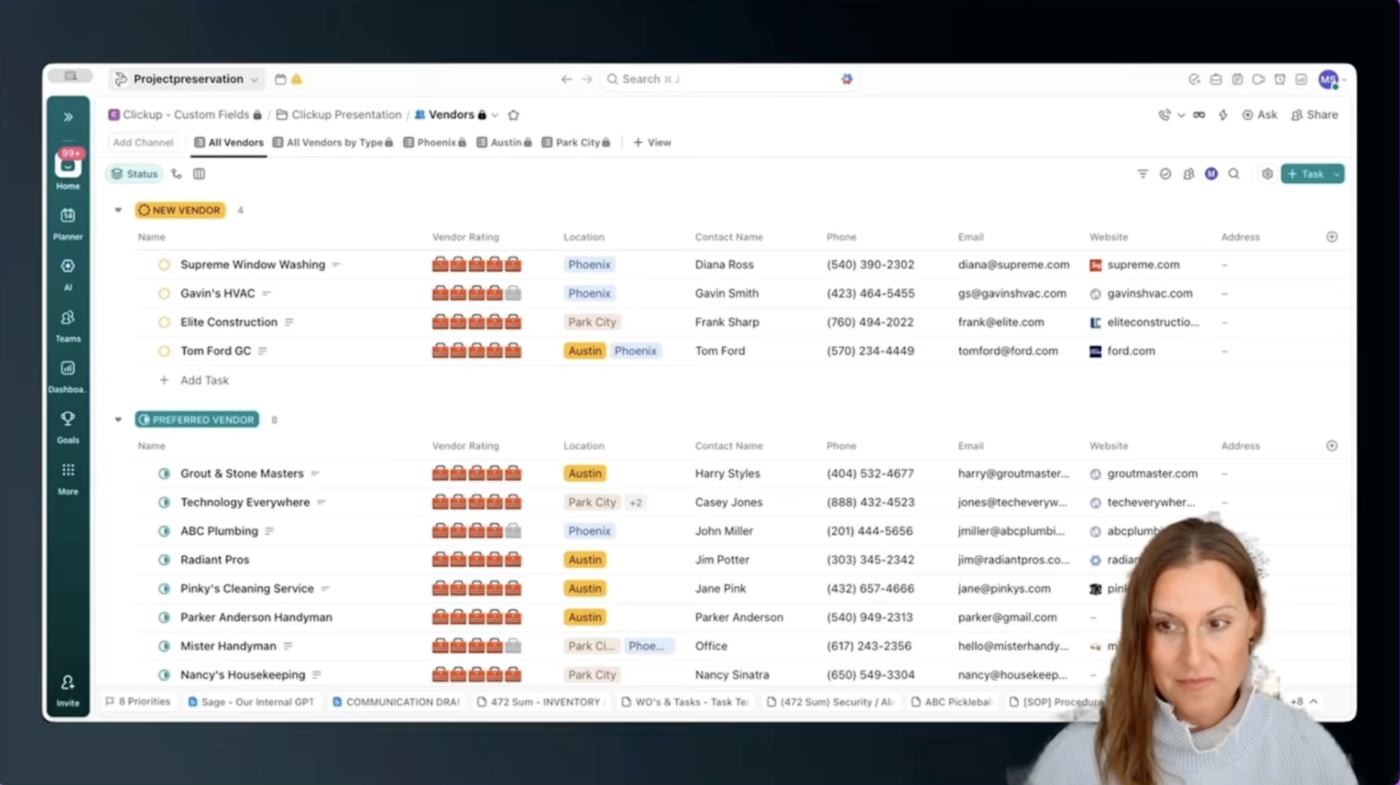
That flexibility does come with a trade-off. If one vendor has multiple labels, sorting can get a little less tidy.
For example, a vendor like Radiant may support both HVAC and plumbing. If both labels are selected, ClickUp will reflect that overlap. In some cases, a single drop-down may be cleaner. But in this workflow, I preferred the flexibility because it better reflects the real world.
That is the kind of design choice worth making deliberately.
Ask yourself:
For property operations, flexibility matters.
Location alone isn’t enough. I also need to know what kind of work a vendor does and whether they’re operationally ready to step on-site.
That is why I added a service domain field.
This lets me sort vendors by the type of work they do, such as:
I also track insurance because any vendor setting foot on a property needs to have current insurance on file.
For that, I use a simple checkbox field:
Then I pair it with a date field:
This keeps compliance visible without burying it in comments or files.
I also customize statuses to reflect vendor health, not generic project progress.
Instead of using standard statuses, I want to know:
No one likes a do-not-use list, but it is important. Sometimes it is better to keep a vendor like Jerry’s Plumbing on record so the team knows we worked with them before and decided not to use them again.
That history matters.
A clean vendor system doesn’t just tell you who to call. It also tells you who not to call.
Not every workflow needs the same fields. That is exactly why Custom Fields should be tailored by use case.
One of the biggest mistakes teams make is trying to force every List to carry the same metadata. That usually creates bloat.
In my case, vendors and work orders are connected, but they don’t need identical structures.
The vendor List is about contacts and compliance.
The work order List is about execution.
In work orders, I care about details like:
This keeps each List clean, relevant, and easy to use.
Even though the Lists have different purposes, some fields should stay consistent.
For example, I use the same location and service domain logic across both vendors and work orders.
That consistency matters because it lets me analyze different types of work through the same lens. If location and service domain mean the same thing in both Lists, I can move between contacts and work without mentally translating categories every time.
This is what makes the system scalable.
If Phoenix means one thing in the vendor List and something slightly different in the work order List, reporting gets messy. If plumbing is categorized differently across Lists, batching work gets harder.
Shared fields create a shared language.
It is also important to decide how editable those fields should be.
Do you want anyone on your team to add new field values? Or do you want the structure to stay tight and consistent?
If you want consistency, do not leave core values open to endless interpretation.
In ClickUp, you can use field permissions so team members can select from approved options without changing the field values themselves. That way, your team can use the system without accidentally reshaping it every time they need a new category.
Pro Tip: Lock down core field options when consistency matters. Let your team select from approved values, but limit who can edit the field choices themselves. This keeps your system flexible without letting categories drift over time.
Once the field structure is in place, ClickUp Views become much more powerful.
I can look across all work orders by location and instantly see what is happening in:
Then I can go one level deeper and group work by type.
That helps me spot opportunities to batch related tasks together instead of reacting to one request at a time.
For example, if I have three small plumbing items on a punch list, I don’t want to call the plumber out three separate times. I would rather group those tasks with a scheduled inspection or annual maintenance visit if the timing lines up.
That creates efficiency for my team and better cost control for clients.
This is the part many workflows miss.
The goal isn’t just to organize information. It is to make better operational decisions because the structure helps the right patterns stand out.
A good view should help you answer questions like:
If a view only stores data but doesn’t help you make a decision, it probably needs to be rethought.
ClickUp Insight: When teams manage contacts, tasks, and updates across disconnected tools, context gets lost fast. A connected workspace reduces duplicate entry, makes information easier to filter, and gives teams one reliable place to understand what happened, who handled it, and what needs attention next.
ClickUp Relationships are what turn separate Lists into a real operating system.
Up to this point, I can manage vendors well and track work well. But the real magic happens when those two systems stop living in silos.
With ClickUp Relationships, I can link a work order directly to the vendor assigned to it.
Now, a task is no longer just a standalone item in a List. It is tied to the real person or company responsible for the work.
From the work order side, I can see who is doing the job. From the vendor side, I can see which tasks and projects are connected to that vendor over time.
Because the Relationship is bidirectional, I don’t have to rebuild that context in multiple places.
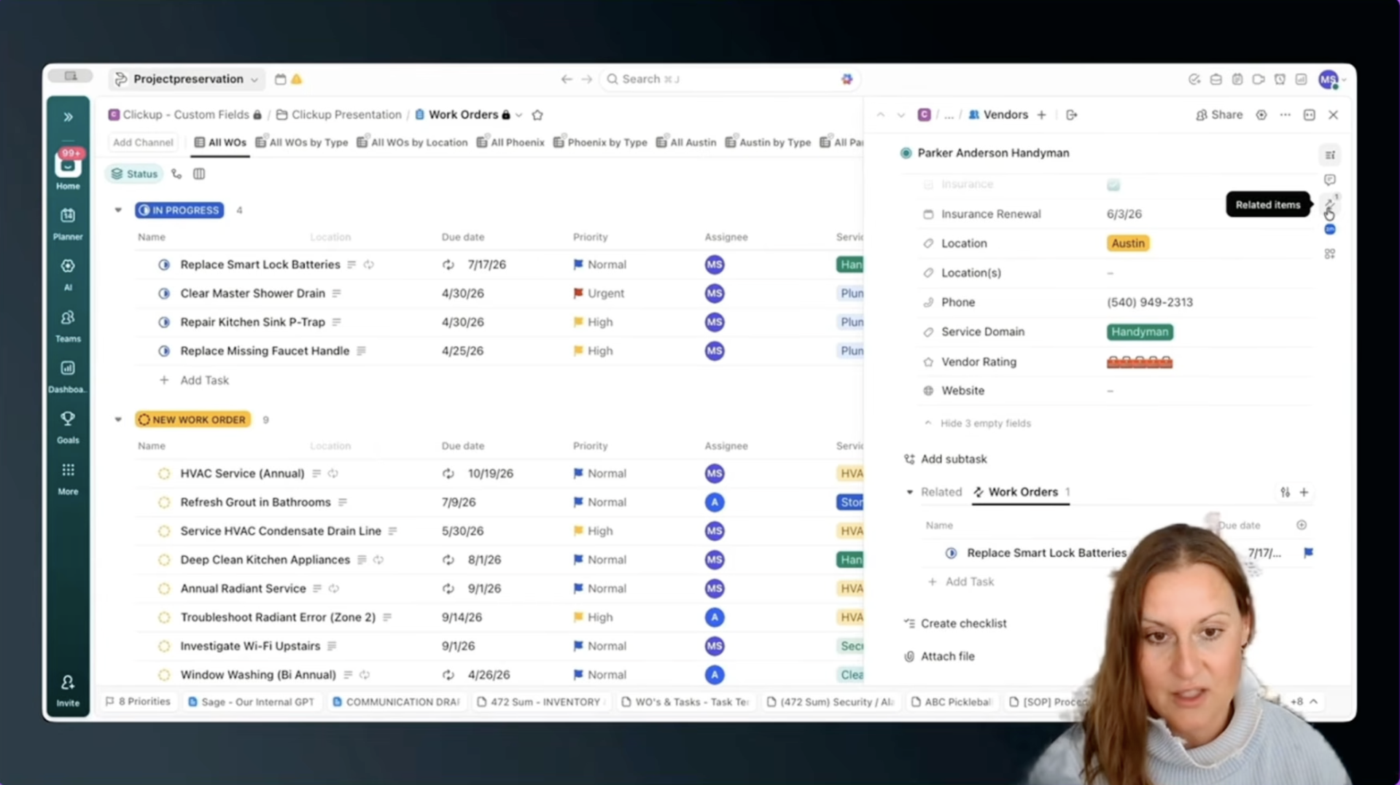
Inside the work order List, I create a new field and choose Relationship.
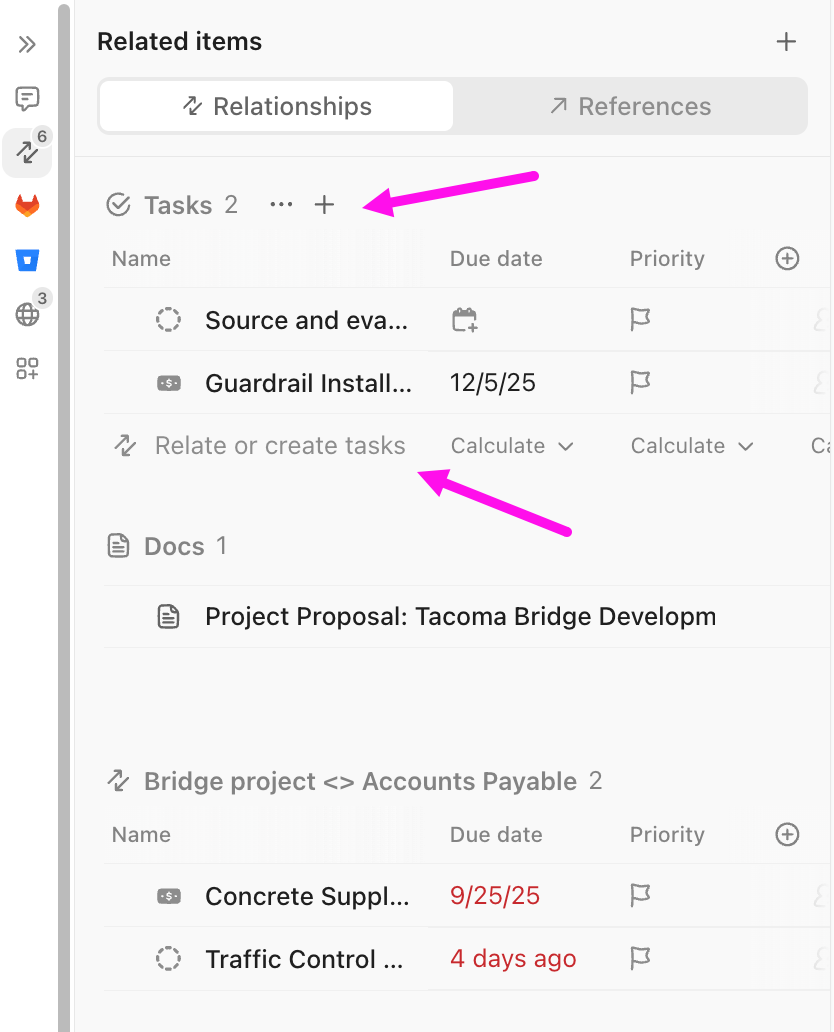
Then I name the field Vendor.
Instead of letting it connect to any task in the workspace, I limit it to a specific List: the vendor List.
That keeps the Relationship focused and prevents people from linking unrelated tasks by accident.
Once the field is created, I can assign vendors to specific work orders. For example:
Then, when I go back to the vendor List, I can see the related work orders from that vendor record too.
That is where the system starts to feel connected.
Relationships give me a much more complete picture of operational history.
I can see:
This turns vendor management from a static list into a working system.
Stepping back, what we’ve built here isn’t just two Lists.
It is a structured system.
There are three layers:
That structure gives me clarity without forcing everything into one giant, messy database.
One of my favorite ways to describe this is:
We don’t think of these as lists. We think of them as systems built through Custom Fields.
That is the real shift.
On their own, a vendor List and a work order List are just containers. Once I standardize the right fields and connect them with Relationships, they become layers in the same operating system.
And that system helps me answer real operational questions faster.
This system happens to come from property operations, but the pattern is much broader.
You can apply the same approach to:
The details change, but the architecture stays the same.
If you want to take this setup beyond internal operations, this video shows how to use the same ClickUp building blocks to create a transparent client dashboard.
Define the fields that matter. Keep shared fields consistent where cross-List reporting matters. Tailor the rest based on the job each List needs to do. Then connect the records so your workspace reflects how the work actually flows.
That is also why this kind of build is such a strong example of using ClickUp as a complete work solution rather than just another app in the stack.
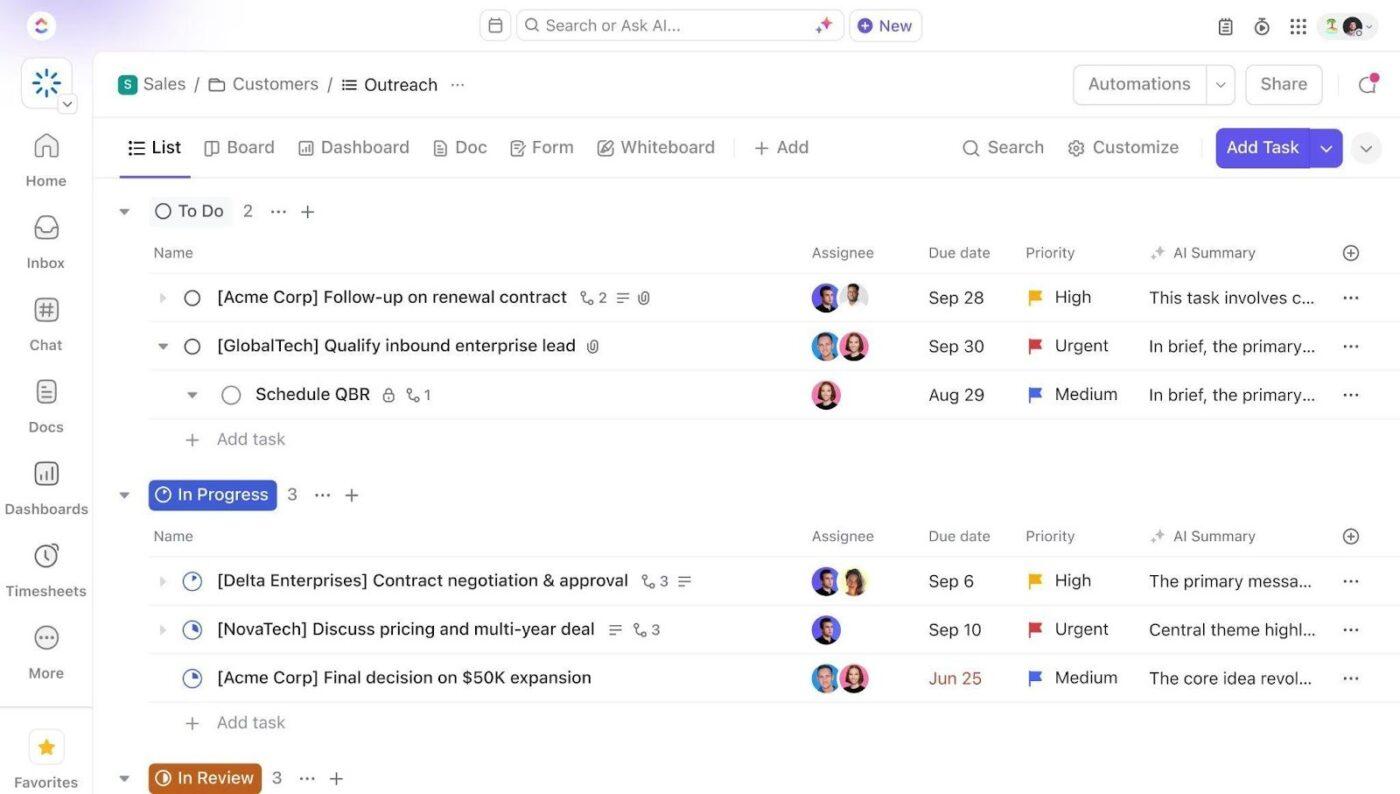
You are not just storing information. You are creating an environment where structure supports faster decisions, better handoffs, and less rework.
The biggest win isn’t having cleaner lists. It is having a workspace that helps you act with confidence.
If you’re trying to manage vendors, clients, requests, or recurring operational work, start small.
Here is the framework I recommend:
You don’t need an overly complicated setup to make ClickUp powerful. You need a structure that reflects the real shape of your work.
If I were building this from scratch again, I’d still begin the same way: with a clean vendor List, a practical work order List, and a small set of shared fields that make both systems speak the same language.
From there, everything gets easier to manage, easier to scale, and easier to trust.
Pro Tip: Don’t build every field your future self might possibly need. Build the fields your current workflow actually uses. A clean, usable structure will always beat a giant database no one wants to maintain.
A connected system does more than organize your work. It helps you make better decisions.
For me, that starts with a clean vendor List, a practical work order List, and a small set of shared fields that make both systems speak the same language. From there, ClickUp Relationships connect the people doing the work to the work itself, so context stays visible across the workspace.
That is when ClickUp becomes more than a task manager. It becomes a single source of truth for how work actually happens.
If you’d like to build from the same foundation, visit Estatewyze to download the vendor list template from this walkthrough and register for the work order template when it becomes available.
And if you’re ready to build your own connected workspace, start with ClickUp Custom Fields, Views, and Relationships.
Want to see what a connected workspace could do for your workflows?

Manasi Nair
Max 44min read
Manasi Nair
Max 18min read
Manasi Nair
Max 20min read

© 2026 ClickUp




