
Custom Fields by Task Type in ClickUp: How I Built a Client Delivery Hub That Ends the Scavenger Hunt

Sorry, there were no results found for “”
Sorry, there were no results found for “”
Sorry, there were no results found for “”
Winning more work should feel exciting. But if you’ve ever landed a dream client, added a few more projects, and immediately felt your stomach drop, you already know what happens next.
Client delivery gets messy fast.
The team is talented. The service is strong. Revenue is growing. But behind the scenes, work feels harder than it should. Project details live in text threads. Documents are buried across drives and inboxes. Someone is always chasing an update in Slack. Nobody feels fully confident that the tool they’re looking at reflects reality.
I hear versions of the same frustration from founders and operations leaders all the time:
Almost every conversation starts the same way:
“We need you to fix our ClickUp.”
But here’s the thing I’ve learned after years of implementation work: ClickUp is almost never the problem. The problem is usually that there are no clear rules for how services are delivered, so everyone makes things up as they go.
That’s the shift this workflow is built to solve.
In this article, I’ll show you how I use Custom Fields by task type in ClickUp to separate project-level context from task-level action, keep client delivery clean, and build a dashboard I actually trust.
Growth exposes weak delivery systems.
A founder told me this recently in a way I haven’t stopped thinking about:
“I need to get this agency to a point where we can responsibly grow from 30 to 40 or 50 clients without everything falling apart.”
That is the real goal.
Not a prettier workspace. Not more statuses. Not more dashboards for the sake of dashboards.
The goal is responsible growth.
But many service businesses hit the same wall:
This creates a scavenger hunt.
When someone asks, “Where is the contract?” or “Is this in scope?” or “What do I need to work on this week?”, the answer should not require five tools, three Slack threads, and one tiny existential crisis.
The fix starts with clear structure.
I’m Jacqui Myslinski, an Operations Architect who helps founders of B2B service businesses figure out why client delivery feels harder than it should.
I spent four years implementing ClickUp before I had a major “aha” moment: for every company that says they need ClickUp fixed, there are usually deeper operations issues to uncover first.
That realization completely changed how I work.
Now, I help established service-based businesses find what is breaking inside client delivery, define the rules for how work should happen, and design systems that support growth without imploding.
I’m also a recovering perfectionist, process junkie, and productivity nerd. So yes, I love a good dashboard. But only if the data underneath it is actually useful.
When client delivery starts to feel messy, teams often blame the tool.
I get it. If your tasks are outdated, dashboards feel wrong, and nobody trusts the workspace, it’s tempting to say the tool is broken.
But in most cases, the tool is showing you the real problem: the way work happens hasn’t been defined clearly enough.
If there are no rules for how services are delivered, everyone fills in the gaps differently. That means:
At that point, ClickUp isn’t the problem. ClickUp is just where the lack of operating rules becomes visible.
That’s why I don’t start by adding more features. I start by separating what belongs at the project level from what belongs at the task level.
ClickUp Custom Fields let you add structured information to tasks, Lists, Folders, and Spaces. You can track details like service type, client contact, project phase, tech stack, estimated hours, contract link, or work category.
ClickUp Task Types let you define different types of work inside your workspace. That matters because not every task needs the same information.
A client project needs big-picture context. A client task needs execution details.
When you combine Custom Fields with Task Types, you can show the right information at the right level of work. That keeps your workspace cleaner and makes it easier for the team to know what belongs where.
For my client delivery workflow, I use two main Task Types:
That separation is what makes the whole system work.
Before I show you my workflow, let’s talk about what usually goes wrong.
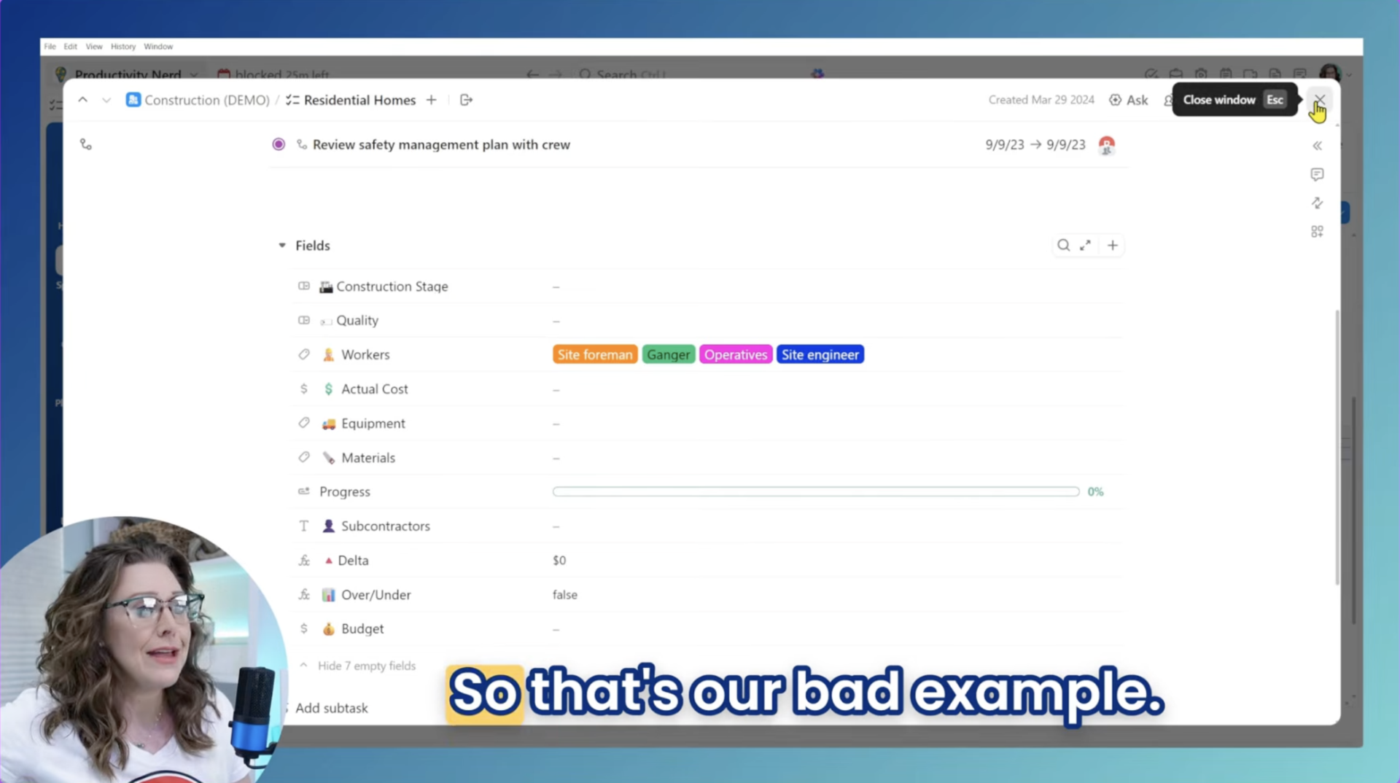
Imagine a workspace where the parent task is a full project. It has useful fields like budget, cost, delta, due date, phase, and owner. So far, fine.
But then you open a subtask like “Review the safety management plan,” and all those same fields are still sitting there.
Now the person doing the work has to stop and think:
That is how workspaces become noisy.
People don’t trust the system because the system asks them for information that doesn’t belong there.
This is why I like Custom Fields by task type. The goal is simple: show people what they need, when they need it, where they need it.
The efficiency is in the simplicity.
The biggest fix in my workflow was separating project context from task-level action.
A project and a task have different jobs.
A project should answer the big-picture questions. A task should tell someone what to do next.
That sounds obvious, but most messy workspaces ignore it.
My delivery workflow uses two Task Types:
That one distinction changes the experience for everyone.
The project holds the context.
The task holds the action.
A client project should answer the questions I need at a glance.
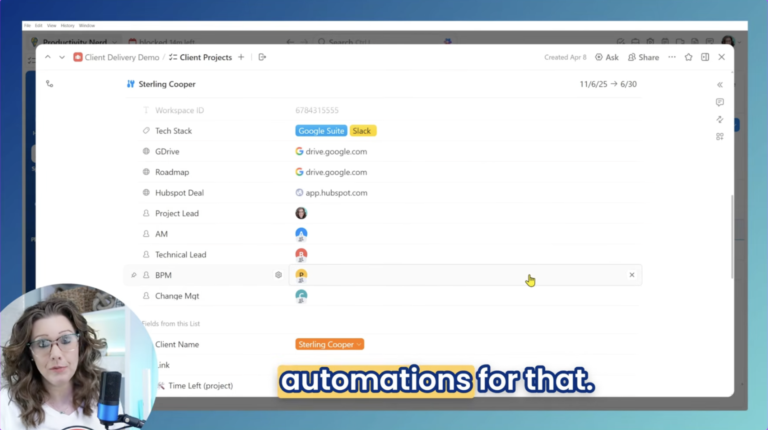
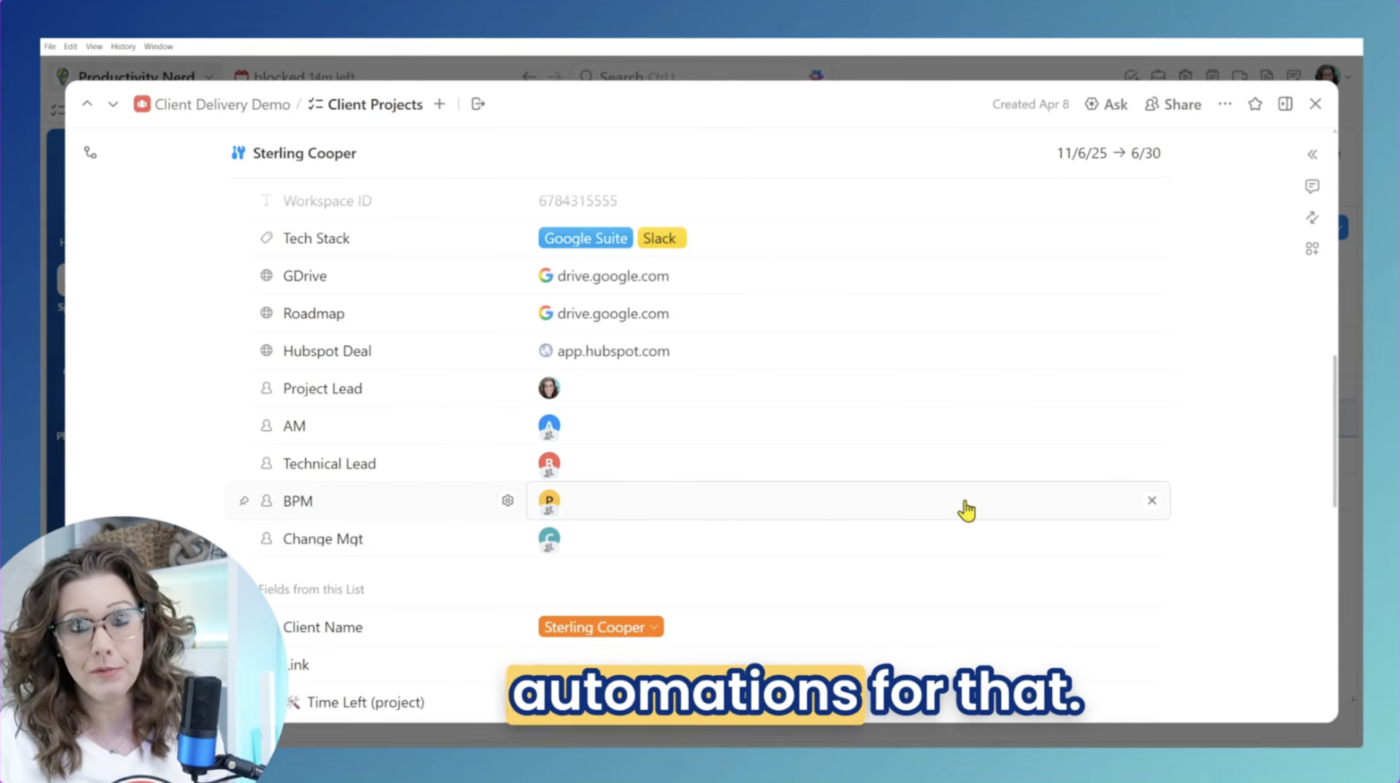
For my actual client delivery workflow, the project-level task includes fields like:
This is the information I need as the project manager.
For example, when I’m helping a company implement ClickUp, ClickUp is rarely the only tool they use. I need to know whether they are using Google Workspace, Microsoft products, Dropbox, Salesforce, HubSpot, Teams, or Outlook.
I used to forget and ask again. That felt ridiculous. So now I keep the tech stack at the project level.
The same goes for scope.
If a client asks for something extra and I can’t remember whether it’s included, I don’t go digging through emails. I open the project, click the roadmap or contract URL, and get the answer in seconds.
That one field saves me from a full scavenger hunt.
Tasks should focus on execution.
A client task should tell me:
That’s where ClickUp Tasks, Custom Fields, and Task Types work together.
Instead of overloading every item with every possible field, I tailor the fields based on the type of work being done.
This gives the team a cleaner experience. It also makes the workspace much easier to maintain as client volume grows.
The real value of this setup is that ClickUp becomes the index for the rest of the work.
A lot of operational chaos comes from one simple problem: information exists, but it is scattered across too many tools.
Maybe the contract lives in a proposal tool. Maybe supporting docs are in Google Drive. Maybe deal details sit in HubSpot. Maybe context is buried in a message thread nobody wants to revisit.
Rather than pretending those tools don’t exist, I connect them back to the project in ClickUp.
That way, ClickUp becomes the place I start.
Here’s what that unlocks:
ClickUp is the hub. It’s the index for everything that happens around the work.
That’s the difference between having tools and having an operating system. When the links, fields, and standards are built intentionally, ClickUp doesn’t compete with the rest of your stack. It organizes it.
A client delivery hub works best when people can answer routine questions without asking around.
For me, that means roles, tags, and links need to be visible where the work happens.
At the project level, I want to see the delivery team immediately:
This helps me understand who is working on the engagement without opening five subtasks.
It also supports automations and agents later. If the project-level roles are clear, subtasks can be assigned more easily based on the type of work.
Tags help me organize my own execution work.
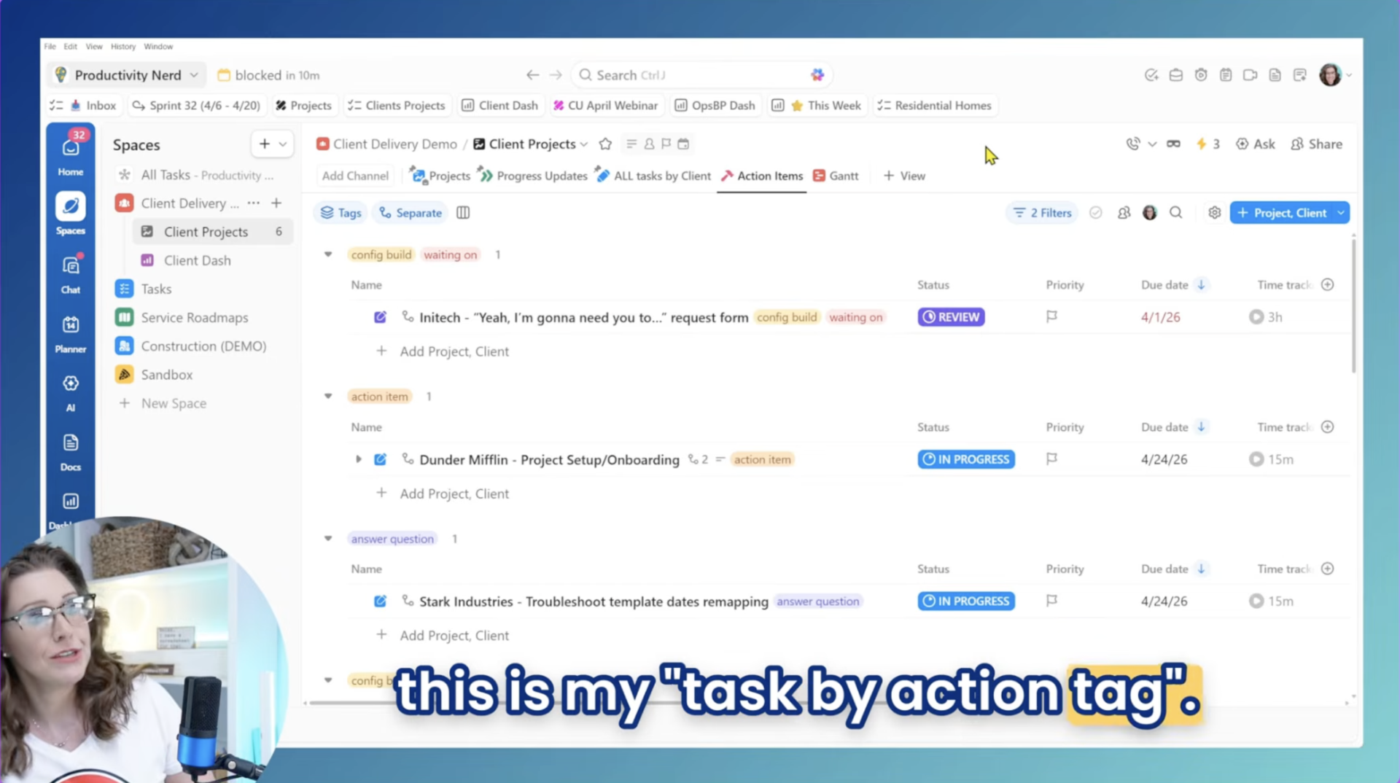
My personal workflow includes a tag I add once a task is truly ready to be worked on. That tag also categorizes the type of work.
For example:
If I have four configuration builds to do, I can group them together. If I need to prep for meetings or answer client questions, I can batch that work too.
That reduces context-switching and helps me protect focused time instead of bouncing between unrelated tasks all day.
Pro Tip: Start with role clarity before you automate assignments. If the system doesn’t know who owns which part of the work, automations will only spread confusion faster.
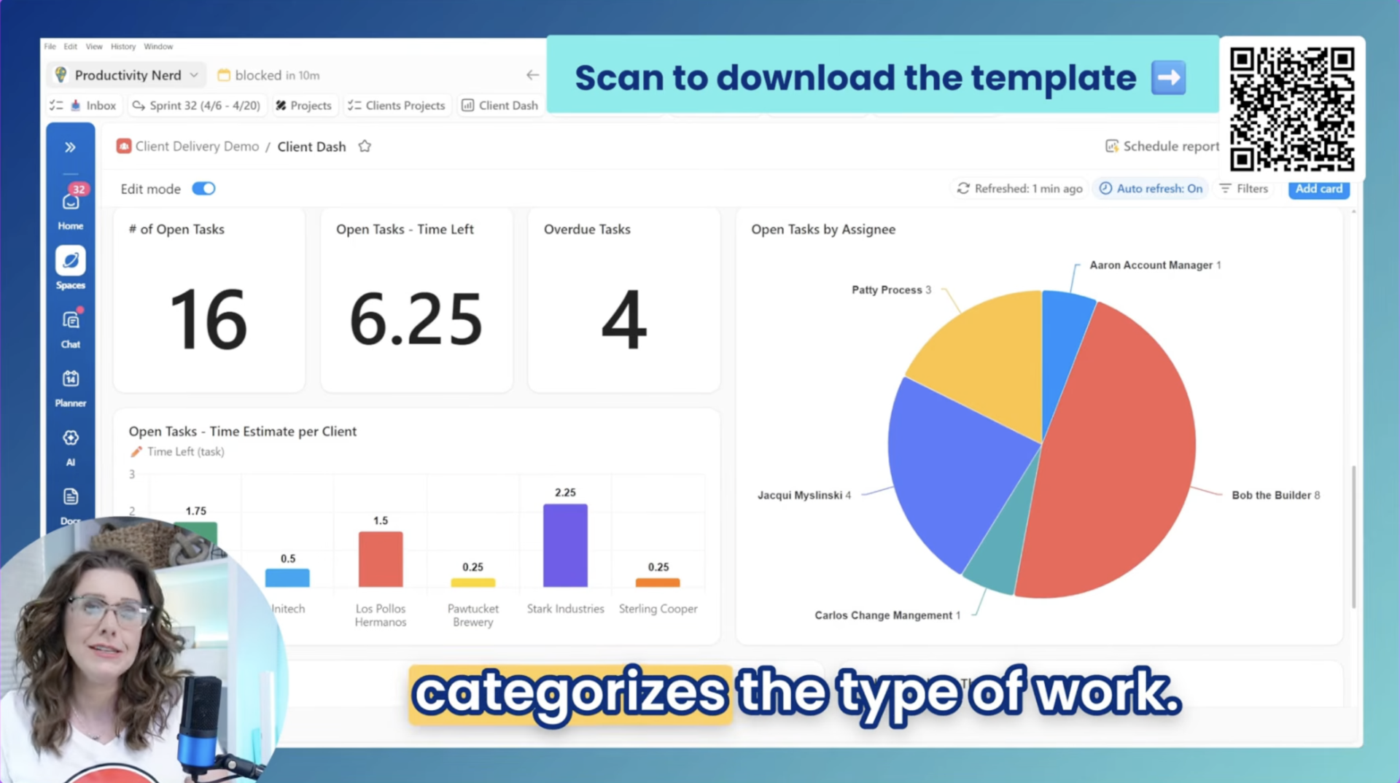
A good dashboard shouldn’t just look impressive. It should help you decide what to work on next.
Once the structure is clean, ClickUp Dashboards become much more useful because the data behind them is consistent.
That’s where this workflow really starts to pay off for me.
The question I’m always trying to answer is simple:
What do I actually need to work on this week?
To answer that, I use Task Type filters, tags, and time-based views to sort active work in a way that matches how I actually operate.
The views I use most include:
My dashboard helps me answer:
That last part matters more than people think.
A useful dashboard doesn’t just surface what’s late. It also shows completed work, which gives everyone a clearer sense of momentum.
One of my favorite dashboard cards uses a formula with the client task Task Type.
It tells me how much open work is left, grouped by client.
That matters because I plan my week based on actual time, not vibes.
If I can see that one client has several open tasks with an hour and a half of remaining work, I can block that time before my next meeting. If something is overdue, I know where to focus first.
This turns the dashboard into a planning tool, not just a reporting tool.
A dashboard should not be a museum of charts. It should help you act.
Pro Tip: Build dashboard cards around the questions you actually ask every week. If a card doesn’t help you decide what to do next, it probably belongs somewhere else.
The efficiency in this workflow comes from simplicity, not from adding more bells and whistles.
I love a detailed system. I can absolutely overcomplicate things. But as I prepped this workflow, I kept thinking, “Is this too simple?”
Then I realized that simplicity is the point.
There’s a temptation to keep layering on more fields, statuses, exceptions, and special rules. But the more complicated the system becomes, the harder it is for a team to follow consistently.
This setup keeps the focus on what matters:
When your team knows what belongs where, they stop guessing.
And when they stop guessing, work moves faster with a lot less friction.
Key Takeaway: The system works because it is simple enough to trust. A complicated workspace may look impressive, but a clear workspace gets used.
If your team has outgrown the “just message me if you need something” stage, this is the shift I’d recommend making first:
Define what belongs at the project level. Define what belongs at the task level. Then use ClickUp as the hub that connects the whole workflow.
Here’s where to start:
You don’t need a more complicated setup. You need a clearer one.
And once the scavenger hunt is gone, scaling gets a whole lot easier.
A clean client delivery system gives you more than a tidy workspace. It gives your team a system they can trust.
Instead of chasing updates, hunting for links, and second-guessing scope, you can open ClickUp and know what you need, where you need it, and when you need it.
That is what Custom Fields by task type unlock.
They help you put the right information at the right level of work, so your projects hold the context and your tasks stay focused on execution.
If you take one thing from this workflow, let it be this:
Your tools are not the problem. How you work is the thing to fix first.
Once you define the rules, ClickUp becomes much easier to trust, use, and scale.
And if you’re ready to build a client delivery system your team can actually trust, start with ClickUp.

Manasi Nair
Max 44min read
Manasi Nair
Max 18min read
Manasi Nair
Max 20min read

© 2026 ClickUp




