
ClickUp Custom Fields by Task Type: How I Build Cleaner Sales Workflows Without Field Clutter

Sorry, there were no results found for “”
Sorry, there were no results found for “”
Sorry, there were no results found for “”
Sales workflows get messy when every lead, company, contact, and deal shows the same Custom Fields.
A company record does not need a First Name field. A contact record does not need every account-level qualification field. A follow-up task does not need the full sales scoring model.
When fields appear everywhere, users stop trusting the system. They leave fields blank, guess what applies, and blame ClickUp for a structure problem.
ClickUp Custom Fields by Task Type fixes that by letting company-level data live on company records, contact-level data live on person records, and shared fields stay visible where they make sense.
In this article, I’ll walk you through how I use Custom Fields by Task Type in a sales environment for a digital marketing agency, and why this small structural change can make lead management in ClickUp easier to scale.
Sales teams manage several kinds of information at once: company details, contact details, deal details, and follow-up tasks. Many ClickUp workspaces flatten all of that into one generic task structure.
That usually creates problems like:
Sales workflows do not need fewer fields. They need fields that appear only where they apply.
I’m Christopher Day, Founder and Chief Architect at Upficient.
I’m a ClickUp Verified Expert and Top Rated Plus on Upwork. At Upficient, we design ClickUp systems that still make sense after more people, records, and workflows are added.
A lot of our work comes down to one practical question: how do we make ClickUp easier for teams to use consistently?
Custom Fields by Task Type is one of those features that helps because it removes clutter at the source. Instead of training people to ignore irrelevant fields, you can design the workspace so those fields never show up where they don’t belong.
Before I touch Custom Fields, I make sure the sales workspace structure is clear.
In a typical digital marketing agency, I usually start with three areas:
For this workflow, the Leads List matters most. That is where the company/contact split starts, causing clutter if every record inherits the same fields.
In a lead management workflow, I like to represent the company at the parent-task level.
Then I nest the individual people or points of contact as subtasks.
That gives the sales team a simple structure:
You are not just qualifying a random person. You are qualifying a company, understanding who the decision-makers are, and tracking the people involved in the buying process.
In ClickUp, that hierarchy might look like this:
Leads can come from ClickUp Forms, website forms, Email-to-List, integrations, Automations, webhooks, or Super Agents. The source matters less than what happens next: the record should land in a clean company/contact hierarchy, with company records as parent tasks and people as subtasks.
Pro Tip: Keep your lead hierarchy boring on purpose. Use the company as the parent task, contacts as subtasks, and one clear tag for the primary contact. The simpler the model, the easier it is for sales reps to follow it without creating duplicate records.
Before Custom Fields by Task Type, List-level fields appeared on every task and subtask in that List. That worked for simple workflows, but not for Lists that mixed companies, contacts, follow-ups, and qualification tasks.
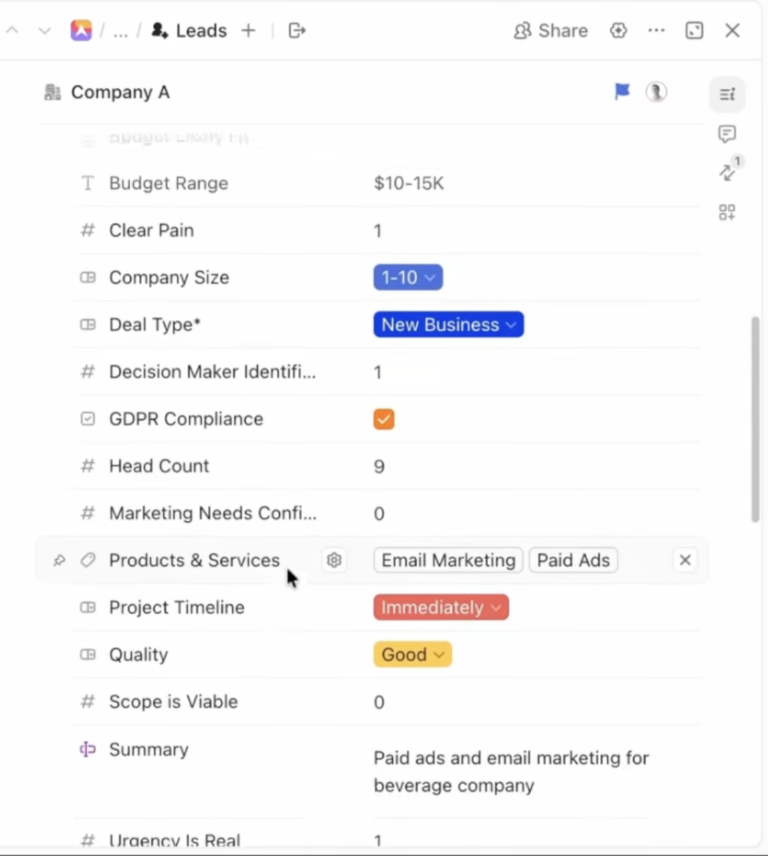
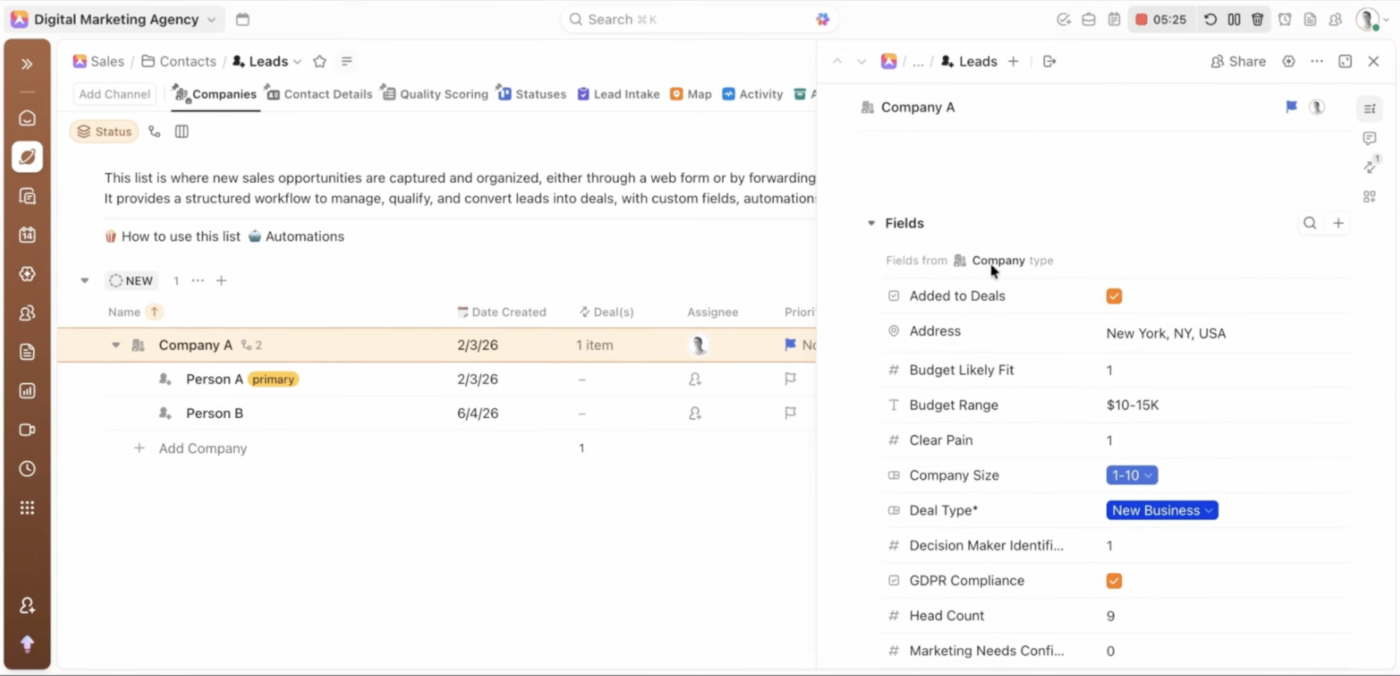
Company records need fields like lead quality, industry, company size, budget range, scope viability, urgency, and fit.
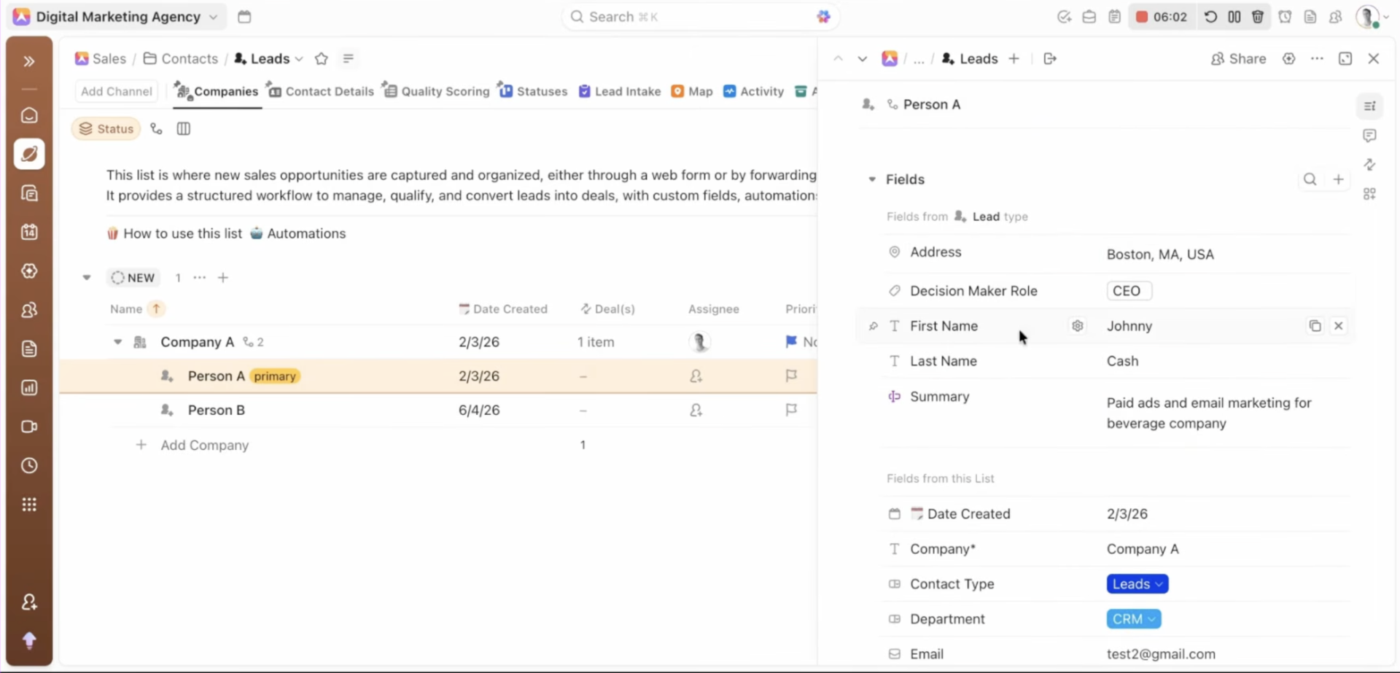
Contact records need fields like first name, last name, email, phone number, and decision-maker role.
A company record should not ask for someone’s first name. A person record should not ask the user to score company-level scope viability.
Custom Fields by Task Type lets you decide where a field belongs.
Open a company task, and you see company fields. Open a person subtask, and you see contact fields. Shared fields can still stay at the List level.
The workspace can separate:
That split gives you control.
You can still use List-level fields where they make sense. But you no longer need to force every field onto every record.
Pro Tip: Don’t move every field to a Task Type. Keep truly shared fields at the List level, and move only role-specific fields to Task Types. That gives you cleaner records without over-fragmenting your setup.
Company-level fields describe the account, not the person.
Use the Company Task Type for fields like:
These fields help the team decide whether the company is worth pursuing and how the sales process should move forward.
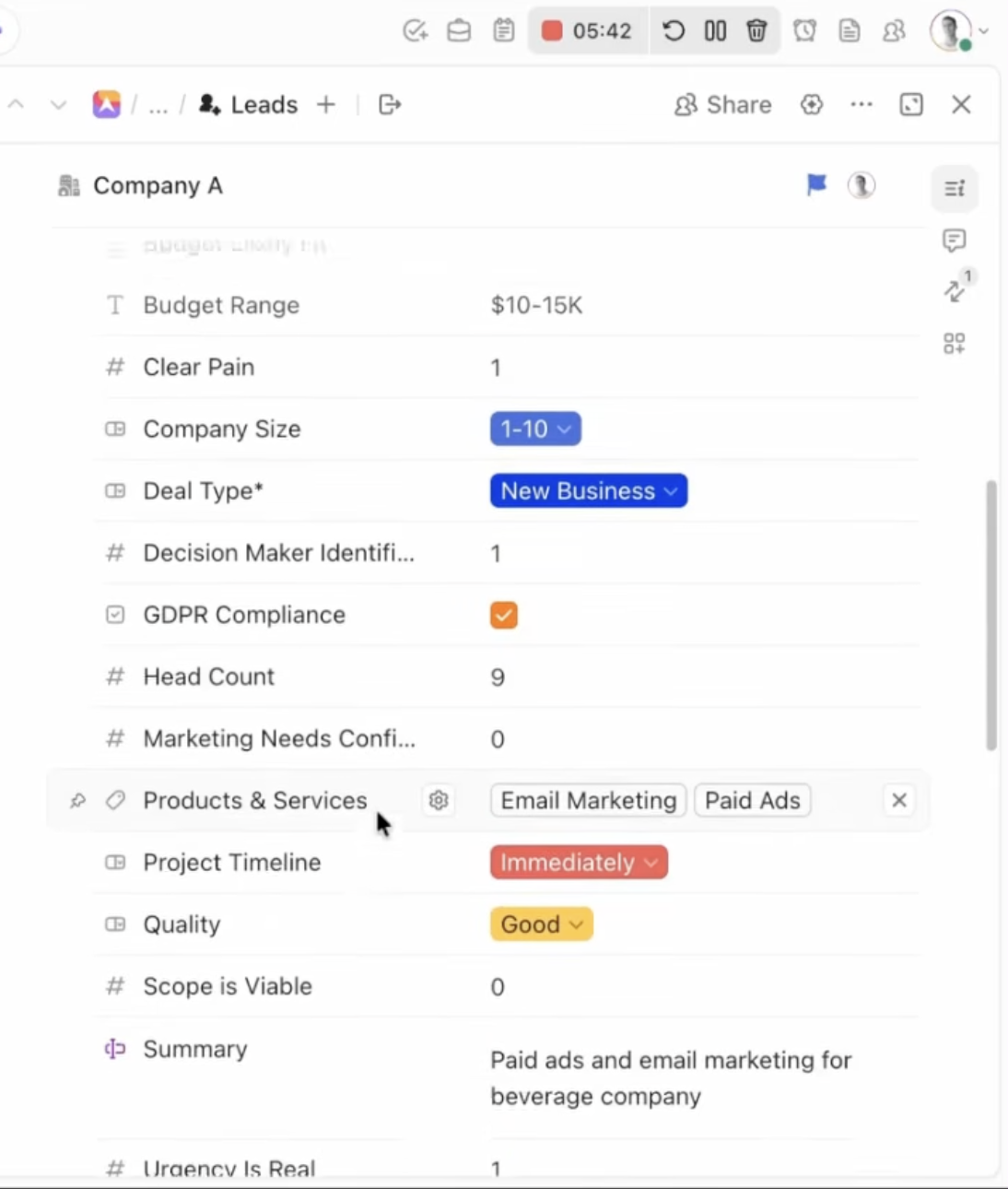
Contact-level fields describe the individual buyer, champion, or stakeholder.
Use the Person or Lead Task Type for fields like:
When a user opens a person subtask, they should only see the fields needed to understand or contact that person.
Not every field needs to move to a Task Type.
Keep fields at the List level when they apply to both company and contact records. For example:
This gives you a clean split: Task Type fields for role-specific data, List fields for shared data.
Lead qualification belongs at the company level.
For example, if I’m scoring whether a lead is worth pursuing, I might use binary scoring fields like:
A “yes” can equal one. A “no” can equal zero.
These fields should sit on the Company Task Type because they score the account, not the person.
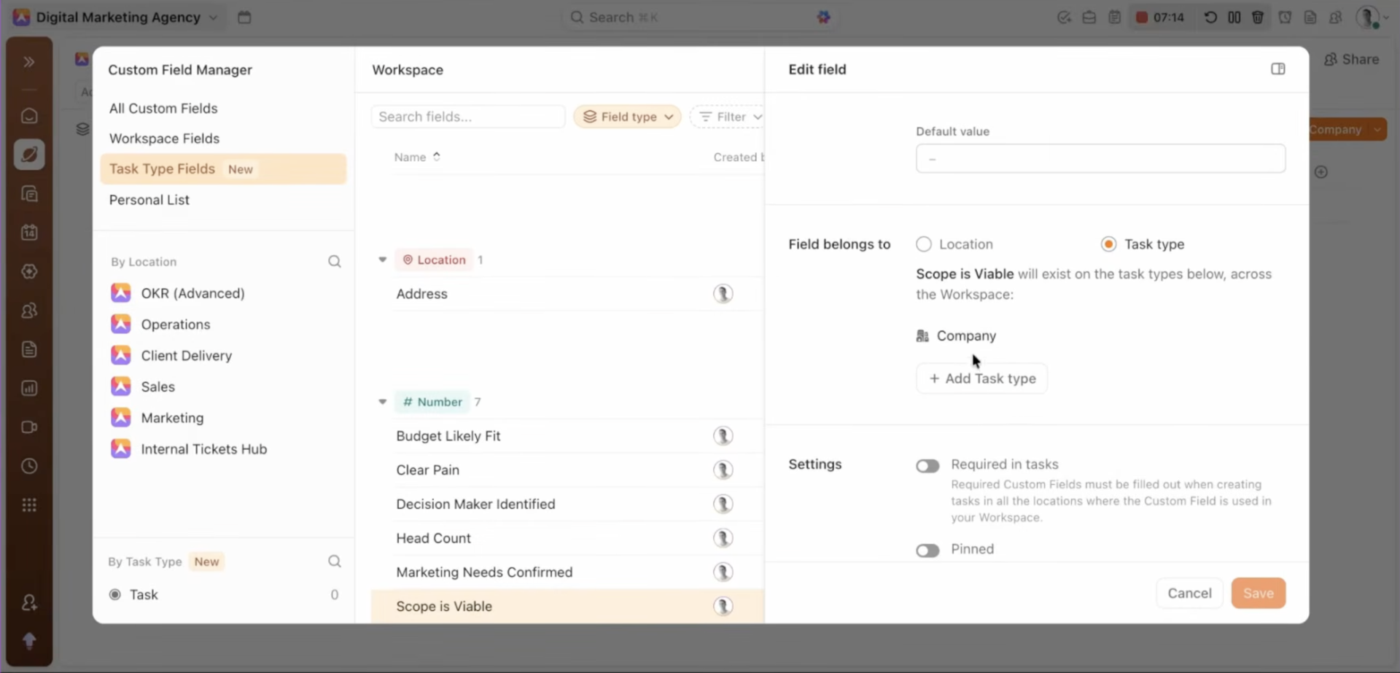
Let’s say a field like Scope is viable and is currently attached to the Leads List.
That means it appears on both the company parent task and the person subtasks, even though it only belongs on the company record.
To fix that, I can move the field to the Company Task Type.
The process is simple:
Now the field disappears from the person subtasks and stays exactly where it belongs.
That is the core value of Custom Fields by Task Type. It lets me parse out information that belongs to one kind of record without cluttering another.
As I said in the webinar, “That problem is now officially solved.”
Cleaner fields improve adoption.
When users open a task and understand which fields matter, they are more likely to use the system correctly.
They stop asking:
That saves time. It also improves task hygiene.
Most ClickUp adoption problems do not come from a lack of documentation. They come from workflows that do not feel intuitive.
If a workspace requires users to ignore half the fields on every task, the design is working against them.
Relevance is what makes the system easier to learn.
Sales workflows depend on reliable data.
If your fields are cluttered, your data gets messy. If your data gets messy, your reporting gets weaker. If reporting gets weaker, leaders stop trusting the workspace.
Custom Fields by Task Type helps prevent that chain reaction. It gives sales teams cleaner records, better qualification data, clearer ownership, and easier onboarding for new users.
The same logic works for client delivery, recruiting, vendor management, partner programs, onboarding, and support escalation. But sales is one of the clearest places to start because companies and contacts naturally need different data.
A clean structure still needs shared standards.
Clean fields help, but they do not replace training. Users still need to know which Task Types exist, what each one means, and where each field belongs.
Too many teams onboard people into ClickUp with:
That approach usually leads to inconsistent usage, messy task hygiene, broken workflows, and leaders blaming the tool.
The better approach is to teach the standards of the workspace.
That means users understand:
If your team struggles with inconsistent ClickUp usage, turn these rules into a short onboarding checklist or workspace guide.
Need help building a better ClickUp workspace?
If you want expert support with ClickUp onboarding, workspace optimization, dashboards, automations, or integrations, Upficient specializes in building tailored ClickUp systems for growing teams.
Pro Tip: When you onboard your team, don’t just show them where the fields are. Explain why each Task Type exists, what belongs on it, and what should never be entered there. That small context shift prevents most data hygiene issues before they start.
You do not need to rebuild your entire workspace at once.
Start with one sales List where field clutter is slowing people down.
Ask yourself:
Then clean up that one workflow.
Test it with the team. Watch where people still get confused. Expand gradually.
That is how a feature becomes a better workflow.
If every task carries the same field burden, start with one noisy sales List.
Separate company fields from contact fields. Keep shared fields at the List level. Move role-specific fields to the right Task Types.
That is when ClickUp stops feeling noisy and starts feeling like a sales system your team can trust.

Manasi Nair
Max 44min read
Manasi Nair
Max 18min read
Manasi Nair
Max 20min read

© 2026 ClickUp




