
Sorry, there were no results found for “”
Sorry, there were no results found for “”
Sorry, there were no results found for “”
Most project management software is built for teams of 20, then sold to you, a team of one. That mismatch is the whole problem. You don’t need to balance workloads across five people. You need to capture a task in three seconds, see what’s due today, and not get buried in features you’ll never touch.
The irony: the one thing you actually need, getting a task out of your head in seconds, is the thing team tools bury under setup.
This piece ignores enterprise checklists. Instead, it ranks nine tools based on how well each lets a single user capture, organize, and complete their own work without team overhead.
Expect opinionated picks of the best project management software for individuals, with honest limitations.
| Tool | Best for | Standout feature | Starting price* | Honest limitation |
|---|---|---|---|---|
| Todoist | Solo users who want fast, frictionless capture | Smart Quick Add reads plain English into dated, recurring tasks | Free; Pro from $7/mo | No dependencies, timelines, or Gantt |
| Things | Apple-only individuals who value design | Calm Today and Upcoming flow across Apple devices | Free within the Apple Ecosystem | Apple-only, no web/Android, no AI |
| ClickUp | Individuals wanting tasks, docs, and AI in one workspace | Same tasks shown as List, Board, or Calendar with no duplication | Free Forever; Paid from $7/mo | More surface area than a pure to-do app |
| TickTick | Value seekers juggling habits and tasks | Calendar, habit tracker, and focus timer in one app | Free; Premium $35.99/yr | Feature density feels cluttered for simple lists |
| Trello | Visual planners who think in cards and columns | Drag-and-drop Kanban boards with near-zero setup | Free; Standard from $5/mo | Weak for deadline-driven, list-heavy work |
| Asana | Solo users who want team-grade structure | List, Board, Calendar, and Timeline views with no setup | Free (up to 2 users); Starter from $10.99/mo | Free plan caps at 2 users; paid tiers have a 2-seat minimum |
| Notion | System builders who want notes and tasks linked | Databases and pages you assemble into a custom system | Free; Plus from $12/mo | You must build the system first; AI sits in the Business tier |
| Sunsama | Solo professionals wanting a daily planning ritual | Guided morning planning that pulls tasks from other tools | Free trial; Pro from $17/mo | Pricey; value hinges on keeping the daily habit |
| Motion | Individuals who want AI to auto-schedule their day | AI that time-blocks tasks on your calendar and reshuffles automatically | Free trial; Pro AI from $49/mo | Expensive and heavy for one person; no fast capture |
*Please check the tool’s website for the latest pricing.
Our editorial team follows a transparent, research-backed, and vendor-neutral process, so you can trust that our recommendations are based on real product value.
Here’s a detailed rundown of how we review software at ClickUp.
Personal project management software gives one person a single place to capture tasks, set due dates, break goals into steps, and see what needs doing today. It replaces the scattered stack of sticky notes, calendar reminders, and whatever notes app you keep losing things in.
The best tools add light structure, projects, tags, and multiple views, without forcing team rituals like sprints or approval chains on a solo workflow.
The dividing line is simple: if you manage a daily to-do list, a task manager is enough. If you juggle several multi-step projects with real deadlines, you need project management.
Five criteria separate a solo tool that sticks from one you’ll abandon in a month: capture speed, price fairness for one seat, view flexibility, cross-device sync, and AI that improves decisions. Weight them in roughly that order.
Did You Know? Your short-term memory has a strict time limit—and it’s only about two seconds long.
Cognitive psychology shows that your brain manages immediate thoughts using a system called the phonological loop. This system relies on a mental buffer known as the phonological store, which acts like an ‘inner ear.’
When a new task or idea pops into your head, this inner ear holds onto that verbal data for just 1 to 2 seconds before it fades away completely.
Why is this relevant? If capture takes longer than a couple of seconds, the idea can fade before you log it, which is exactly why fast capture matters.
Choose wisely!
Here are nine project management tools, ranked by how well they serve one person managing their own projects. Each section covers who it’s best for, where it falls short, verified pricing, and what solo reviewers say.
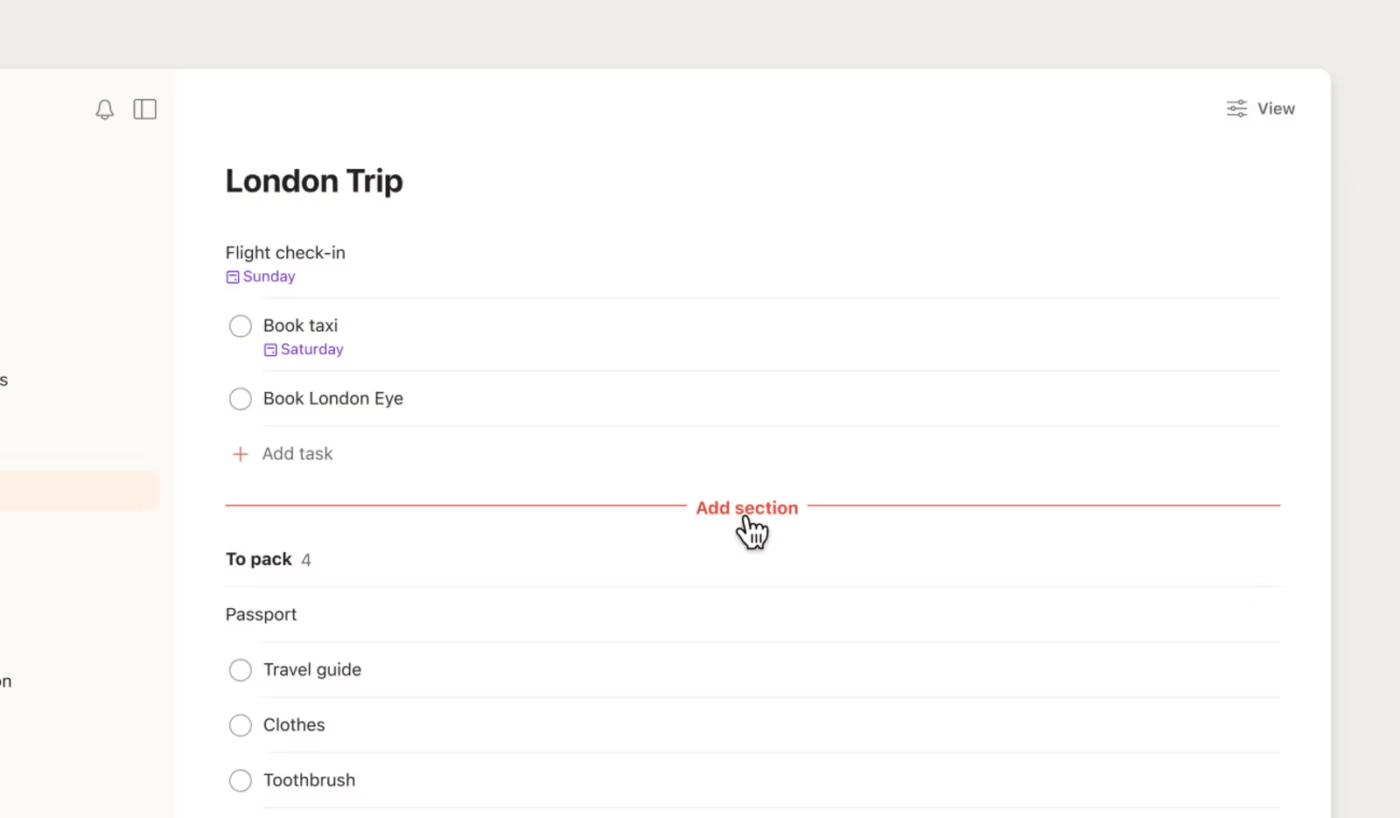
If you have been tracking tasks in a notes app or a cluttered inbox, Todoist will feel like a relief. Its Smart Quick Add reads plain English. Type ’email accountant about Q1 taxes every Friday at 9 am #work p1′. It will set the date, recurrence, project, and priority for you. Tasks sync in under two seconds across web, desktop, mobile, and a browser extension.
For a solo user, the biggest risk is a tool you stop opening. Todoist removes that friction. Projects, sub-tasks, labels, filters, and priorities structure the freelance workload without the clutter. Its AI adds Ramble for voice-to-task and Task Assist. This breaks a big task into steps and drafts descriptions.
Ratings: Todoist holds a 4.5/5 stars rating on G2 based on 800-plus reviews. Reviewers keep coming back to how fast and effortless daily capture feels.
Where Todoist falls short: Todoist is a task management tool first, not a full project planner. It has no dependencies, timelines, or Gantt view. This means a multi-stage solo project with steps that block other steps will eventually outgrow it. Also, calendar-based planning is lighter than a dedicated planner’s, and project notes have to live in another tool.
Skip Todoist if: Your projects have real stages and dependencies, or you want one tool that also holds your project docs.
What are real users saying about Todoist?
How an IT project manager uses Todoist:
As an IT Project Manager in the Technology field I personally use Todoist as my own project management tool to manage some projects. Todoist provides an agile environment where I can plan technical work and development tasks (aligned to the approved schedule) and assign them activities, monitor progress through one central view, and create recurring reminder notifications for maintenance reviews and change committee documentation.
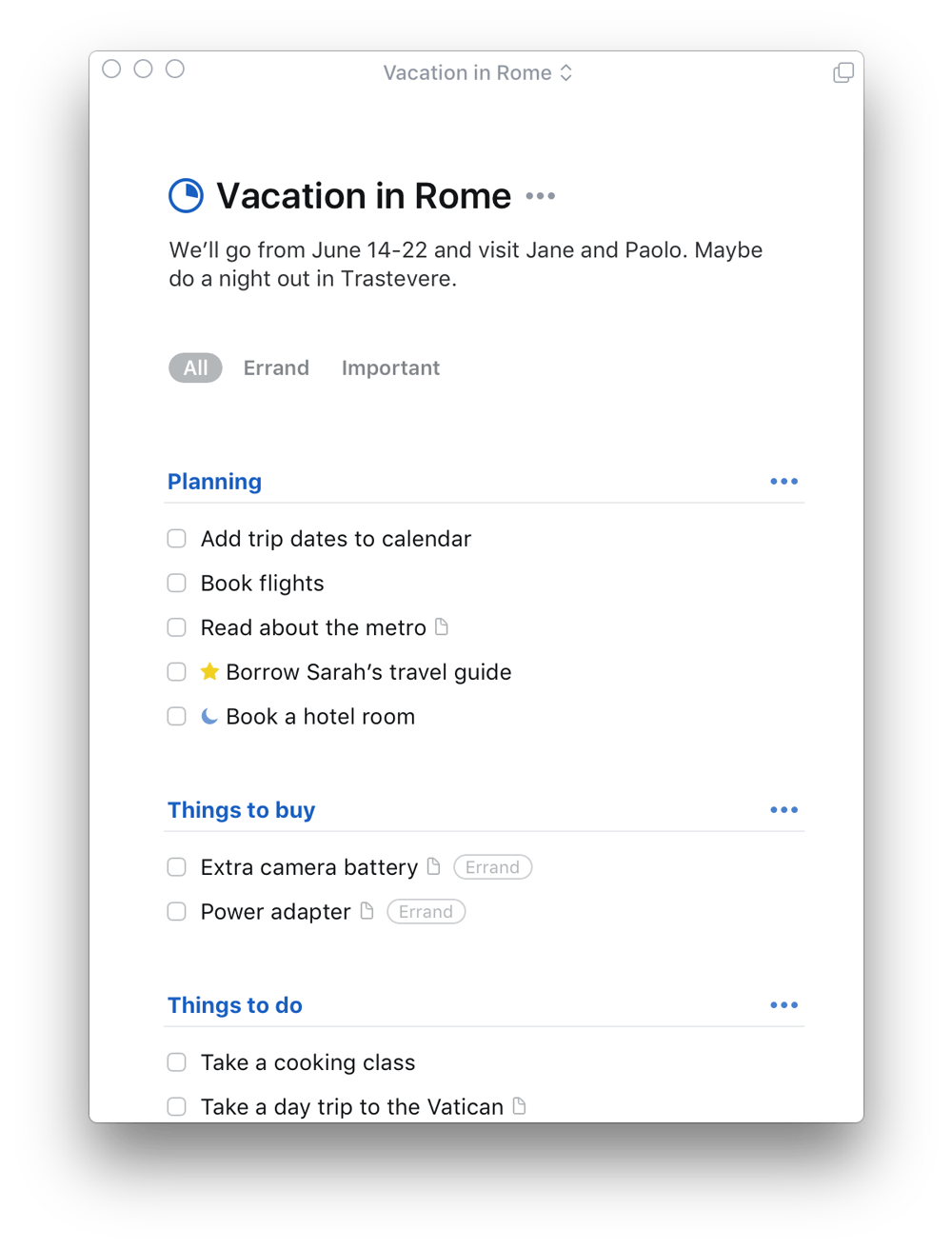
The one thing Things does better than anything else is feel good to use. It is widely regarded as the best-designed task manager on macOS and iOS. Work is organized as Areas, then Projects, then to-dos, with a calm Today and Upcoming flow that makes opening the app every day a non-chore.
Things is also the deliberate AI holdout: it has no built-in AI features as of writing. That is a feature for writers or designers who want a focused tool, and a dealbreaker for anyone who wants help planning.
Ratings: Things is rated 4.4/5 stars on G2, based on 20+ reviews. Reviewers single out its design and the calm, daily feel of using it.
Where Things falls short: Things is a task manager with project labels. It doesn’t have dependencies, a timeline view, or file attachments on tasks. So you see a project as a list rather than a schedule. It is also Apple-only, with no web or Android app, which strands you the moment you switch ecosystems.
Skip Things if: You use Windows or Android, need project timelines or dependencies, or want files and notes living alongside the tasks.
What are real users saying about Things?
A small business employee shared their feedback:
Minimal looks and is clearly integrated with a lot of useful tools. That makes me more productive than ever.
The most thing that I liked of Things is the one minute setup and you can use in every moment of your day.
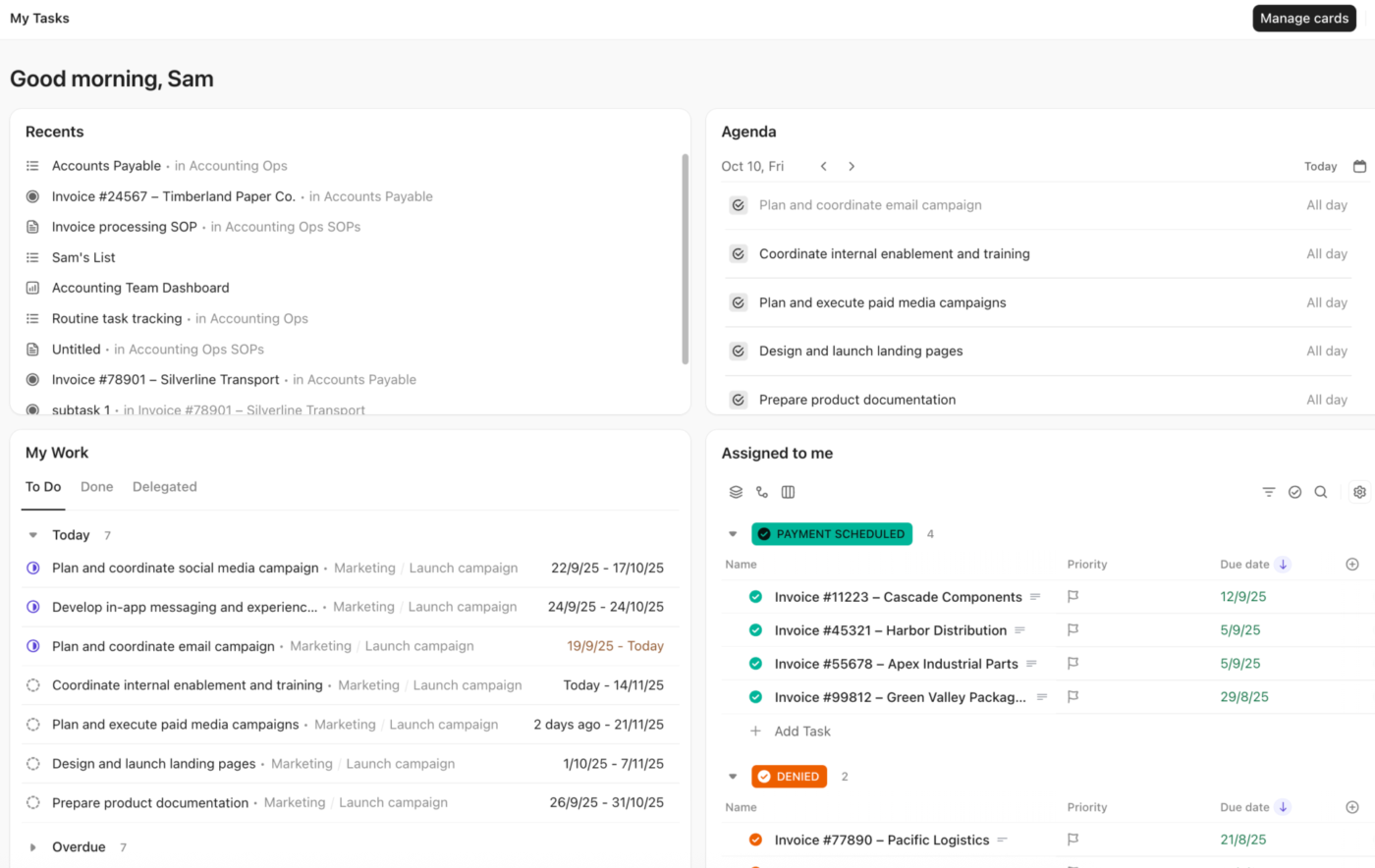
ClickUp puts tasks, Docs, and a Calendar in one free workspace with no seat limit and no expiry. For someone running multiple freelance clients or a side project alongside a day job, that means one login replaces a task manager, a notes app, and a goal tracker.
Create a List, type tasks, set due dates, and the same tasks show as a board, a calendar, or a filtered ‘today’ view without duplicating anything.
ClickUp Brain reads your internal tasks and Docs together. It generates sub-tasks, summarizes a Doc into action items, and answers ‘what’s overdue this week?’ from your data. Real-time dashboards track progress from linked tasks automatically, and Super Agents can watch for deadlines you’d otherwise miss.
Ratings: ClickUp is rated 4.6/5 stars on G2 across 12,500-plus reviews. Reviewers consistently cite the free plan’s generosity and the ability to replace multiple app subscriptions with a single workspace.
Where ClickUp falls short: ClickUp has more surface area than a dedicated to-do app. Spaces, Folders, and Lists appear in the sidebar on first open, which makes the initial experience feel heavier. Gantt and Timeline views require a paid plan.
Skip ClickUp if: You want the simplest possible capture-and-check-off experience with zero configuration. Or your workflow fits in a single list with no project notes or goal tracking alongside it.
What are real users saying about ClickUp?
Hear about ClickUp from a senior consultant:
What I appreciate most about ClickUp is its flexibility: I can manage projects, tasks, and documents in one place, customizing the views (list, board, calendar) according to how I work. The automations save me a lot of time on repetitive tasks, and the integration with other tools I use is convenient. Overall, my experience is positive.
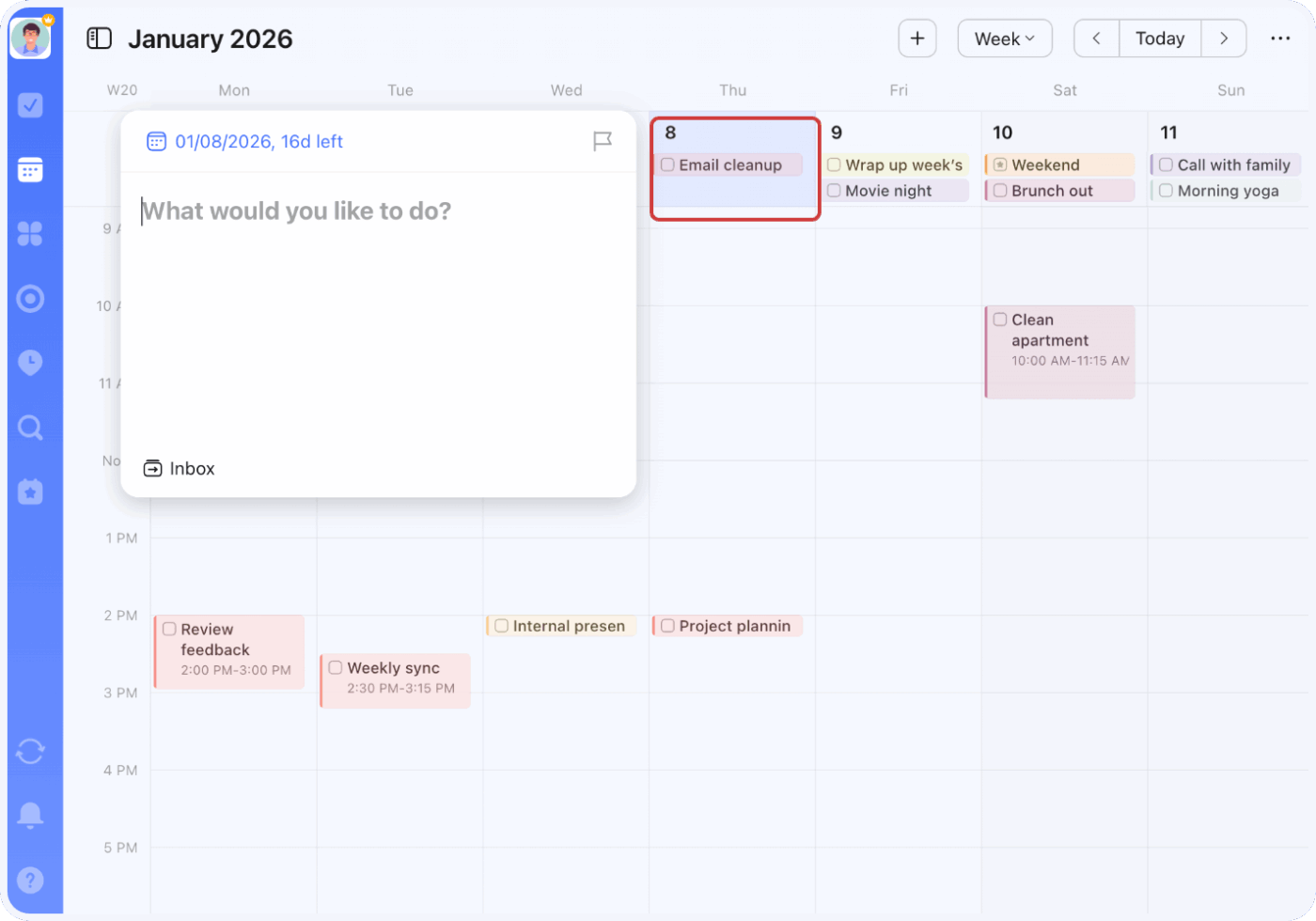
Most apps in this category make you choose: a clean task list here, a calendar there, a separate habit tracker, and more. TickTick folds a built-in calendar view, habit tracking, a focus timer, and natural-language input into one app. It’s available on every platform for a single yearly fee. That is close to a full personal productivity system for a grad student juggling coursework without the subscription stack.
The app has a free tier. Pay up and Premium adds Board and Timeline views, so you can track a small project visually without paying platform-tool prices. AI exists here, but it is light and feature-driven, not a planning engine, so don’t buy it for that.
Ratings: TickTick holds a 4.5/5 star rating on G2 based on 100-plus reviews. Reviewers tend to call out how much they get for the price, especially the calendar and habit combo.
Where TickTick falls short: It is still task-manager-shaped underneath, with no dependencies and light reporting. A multi-stage project will age out of the app quickly. And the feature density that sells it can feel cluttered if you only want a simple list.
Skip TickTick if: You want a single, clean view instead of a feature-dense dashboard, or your projects need real dependencies and PM structure.
What are real users saying about TickTick?
Here’s what a G2 reviewer liked about TickTick:
It’s easy to use and easy to get started with—you can just jump in and start making tasks right away. I really like having subtasks, and everything feels fast and smooth when clicking around and opening things. Plus, it’s free!
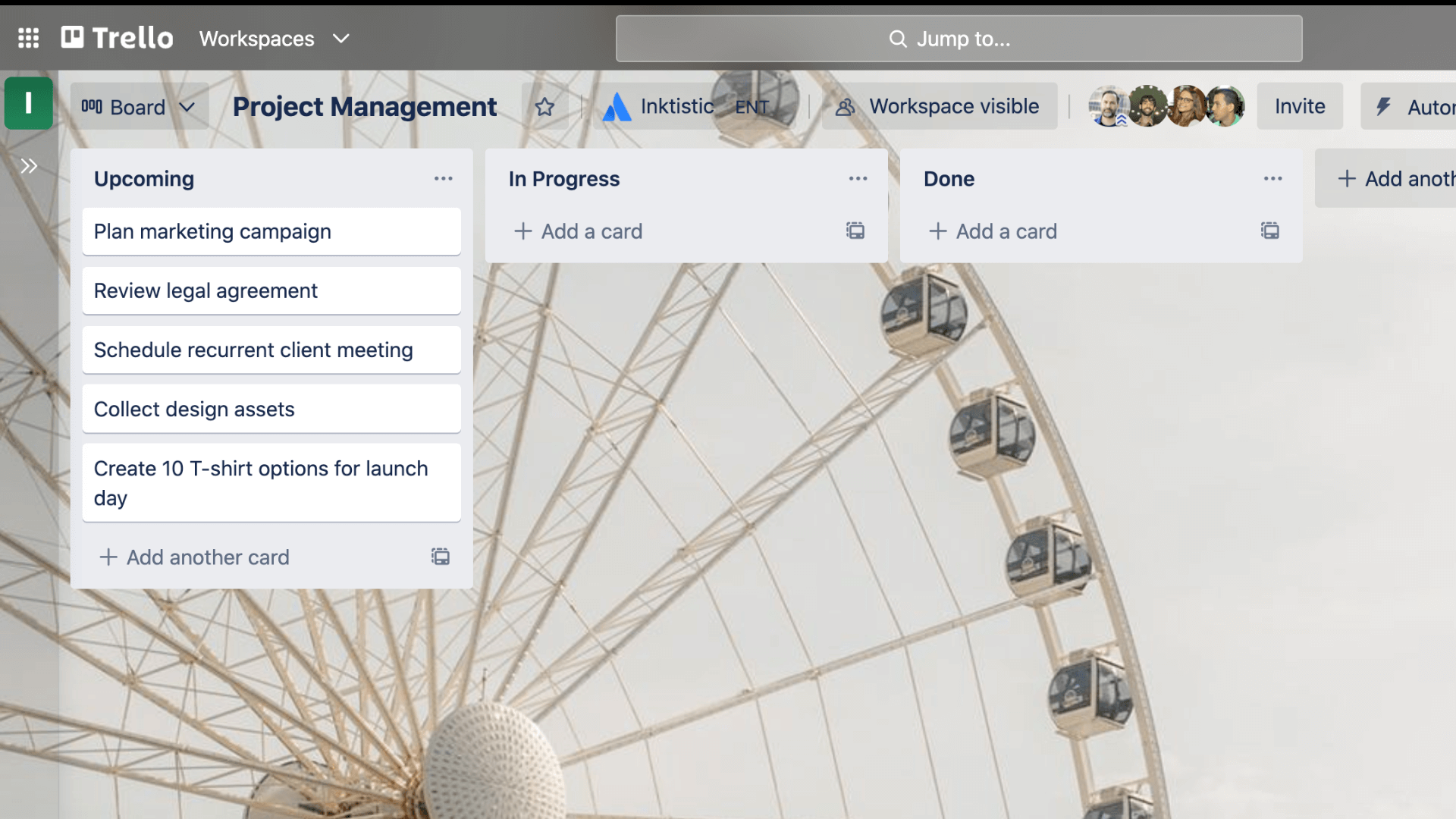
If you have ever mapped out a project with sticky notes on a wall, Trello will feel immediately familiar. It is built for the person who thinks in cards and columns. Drag a card from To Do to Doing to Done, and the whole project moves left to right in front of you. For those running a content pipeline or a handful of projects, that flow is intuitive, and setup is close to zero.
Trello also has native AI now, available on Premium and up. It includes Quick Capture, which pulls due dates and action items from your inbox, plus a writing and brainstorming assistant.
Ratings: Trello is rated 4.4/5 stars on G2 across 13,500-plus reviews. The visual, near-zero-setup boards are what reviewers come back to most.
Where Trello falls short: A Trello board does not surface ‘what is due today’ as cleanly as a list, so Trello is a weaker fit for deadline-driven, list-heavy work. Calendar, Timeline, and Dashboard views sit behind Premium, and reporting stays thin even there.
Skip Trello if: You live by hard deadlines and dense lists, or you need timelines and dependencies on a tight budget.
What are real users saying about Trello?
A full-stack engineer shared why they like Trello:
We use Trello for project management, and its boards-and-cards system is both simple and highly visual. At a glance, you can tell exactly what stage each task is in just by looking at the board. The checklists inside cards are especially helpful for breaking work down into smaller, manageable steps and keeping track of what’s been done. Butler automation is also quite good: it can automatically move cards and send reminders based on the rules you set, so you don’t have to manage those updates manually every time.
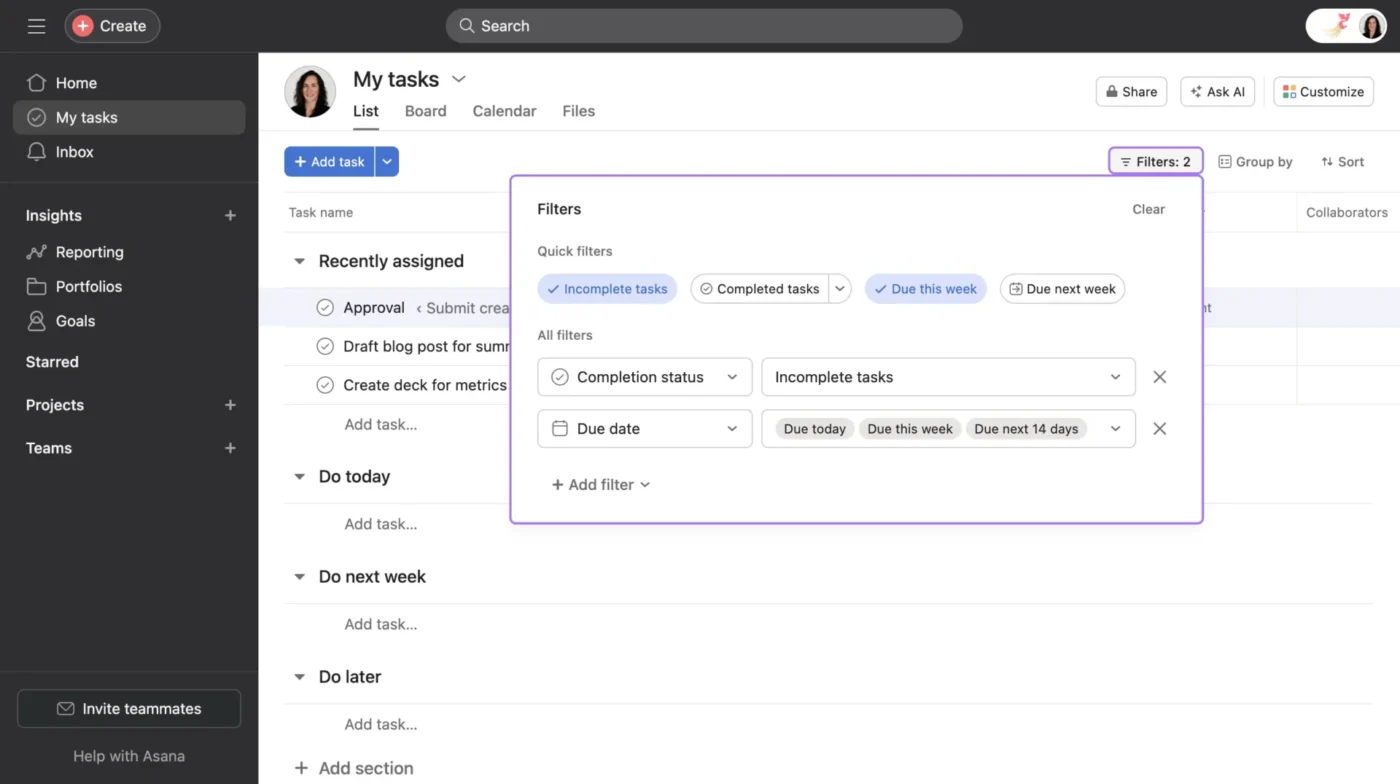
Asana is the polished team tool that a lot of freelancers reach for first, and for good reason: tasks, subtasks, due dates, and dependencies are clean and intuitive out of the box.
For a solo user running multiple client projects, the List, Board, Calendar, and Timeline views give you real project structure. Asana AI (on paid tiers) can draft project plans, summarize updates, and surface what needs attention.
The catch for a team of one is the pricing model. The free Personal plan caps at two users, and both paid tiers carry a two-seat minimum, so you pay for a seat you’ll never fill.
Ratings: Asana holds a 4.4/5 star rating on G2 across 11,000-plus reviews. Reviewers consistently praise the clean interface and how little setup it takes to get a project running.
Where Asana falls short: Asana is built for teams, so a solo user inherits interface weight (assignee fields, workload views) they’ll never use. The free plan’s two-user cap and the two-seat minimum on paid tiers make it poor value for a genuine team of one, and there’s no native time tracking or invoicing for client work.
Skip Asana if: You want a tool priced and built for one person, you need fast single-line capture, or you bill clients and want time tracking in the same tool.
What are real users saying about Asana?
Here’s what a small business owner noted on G2:
I love that you can customize your project so you can easily track progress and see which tasks are blocking others. The automations help a ton, too. Using forms to create structured data requests was a game-changer! The integration with Outlook allowing you to create a task directly from an email and to have the email body copied as comment = time-saver!
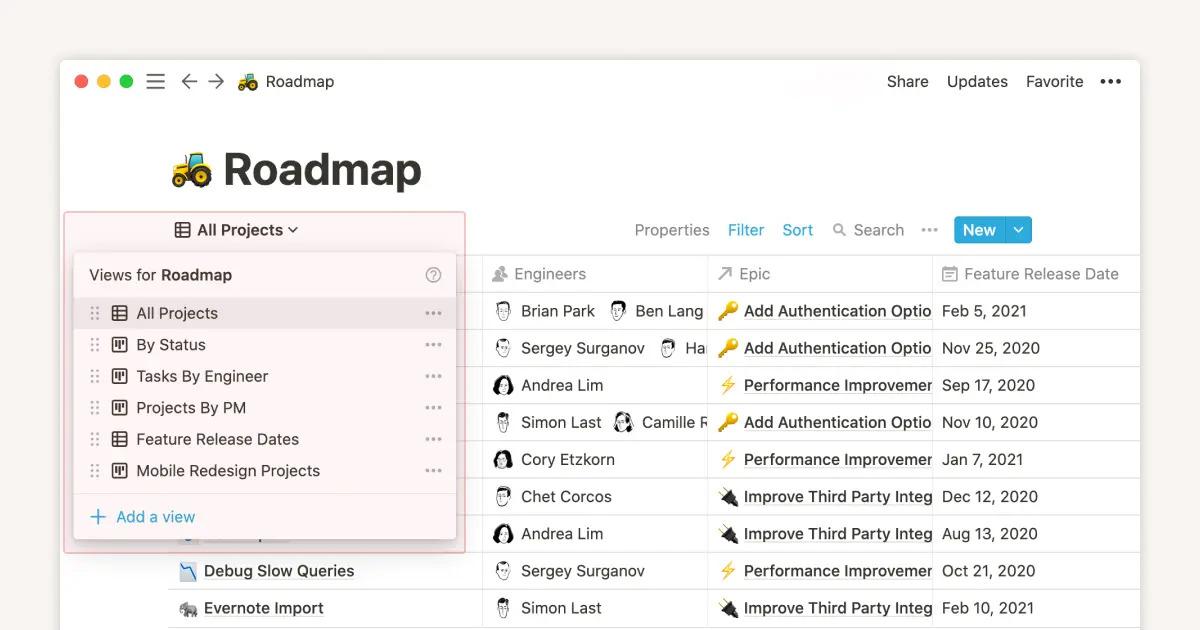
Notion hands you raw materials instead of a finished tool. Databases, pages, and views are the building blocks, and you assemble them into a task tracker, a project hub, notes, and a reading list. The best part? They all link together. If you think in systems and want projects and project notes living in one place, Notion will work.
Notion AI is good at writing, summarizing, and answering questions across your own pages, but the economics can be challenging. Full AI lives in the Business plan, so a solo user would have to pay accordingly.
Ratings: Notion holds a 4.6/5 star rating on G2 across 11,900-plus reviews. The flexibility and the all-in-one workspace feel are what win reviewers over.
Where Notion falls short: Because you build everything yourself, the upfront setup is time-consuming. Its databases also lack deep dependency and automation logic, and there is no native scheduling engine.
Skip Notion if: You want structure handed to you on day one, or you want affordable AI inside a personal-tier plan rather than at Business pricing.
What are real users saying about Notion?
Hear from a senior brand manager about Notion:
What I like most about Notion is the flexibility it has to organize practically any type of information. In my case, I use it a lot on a daily basis, both for work and for project management, documentation, and task tracking. I especially like that you can set up very customized structures, from databases to dashboards, internal wikis, all in one place. Additionally, the ability to link pages together makes everything quite connected and easy to navigate when you already have a lot of information.
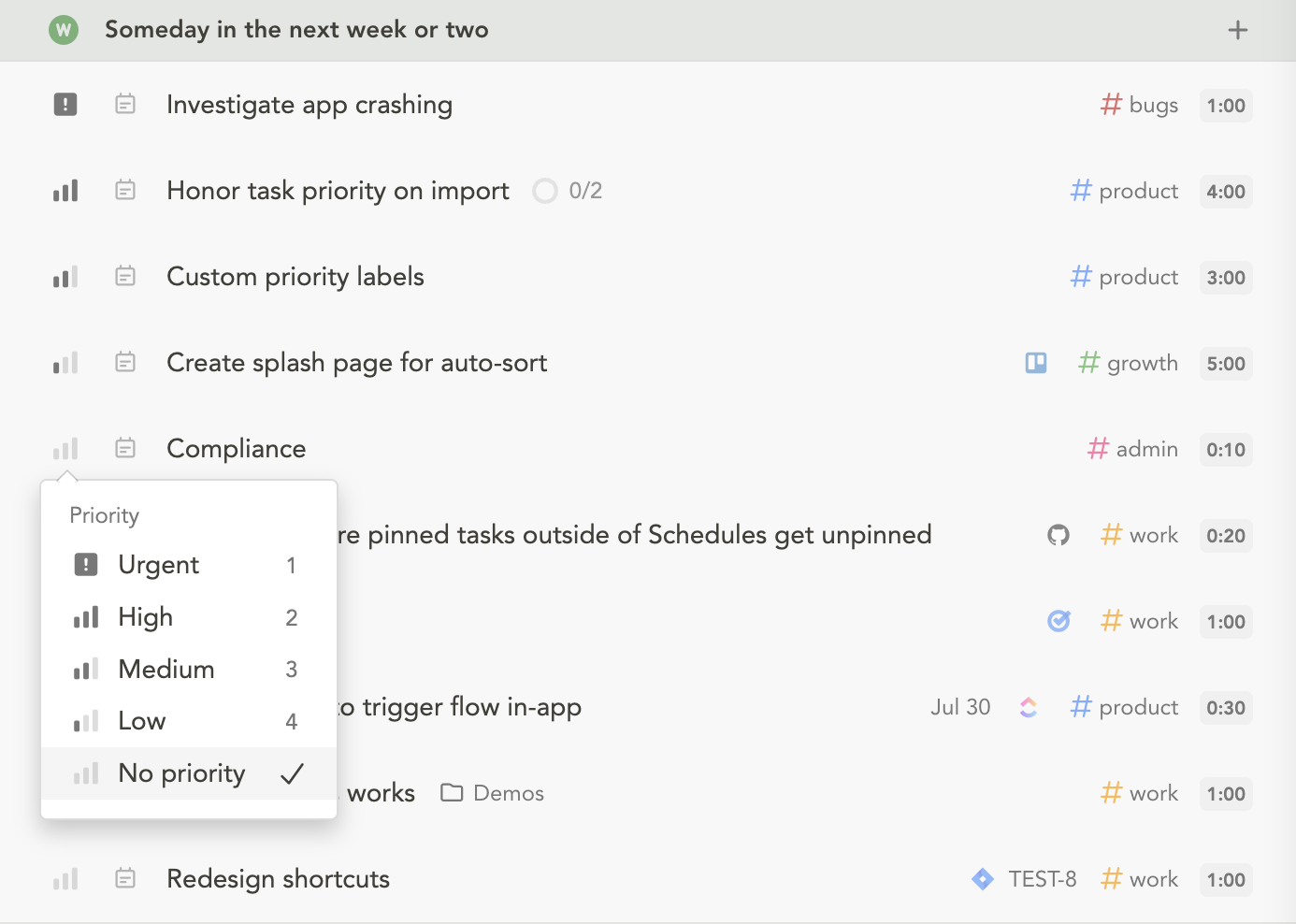
Sunsama is ideal when your problem is focus, not storage. Each morning, it walks you through building one realistic plan, pulling tasks from your other tools and your calendar into a single list. It also has a workload warning when you overcommit, as well as a nightly shutdown review.
It speaks directly to the open-loop tension behind the Zeigarnik effect: unfinished tasks nag until you decide when they get done. AI stays light here on purpose, with a few integrations rather than an algorithm running your day.
Ratings: Sunsama is rated 4.7/5 stars on Capterra across 20-plus reviews, with fans crediting the daily ritual for changing how they work.
Where Sunsama falls short: It does not manage projects, timelines, or dependencies. Plus, planning caps at roughly two weeks out, so you need to pair it with a project tool. It also sits at the premium end for a solo budget, and the value hinges entirely on you keeping the daily habit.
Skip Sunsama if: You want software to hold and structure the projects themselves. Or you want a free tool and rigid routines wear you down.
What are real users saying about Sunsama?
A Capterra reviewer shared why they like Sunsama:
What I like most about Sunsama is its ease of use. It is incredibly easy to open Sunsama and list all the things you know need to be done. From there it’s easy to drag and drop tasks from one day to another to efficiently plan out your work week.
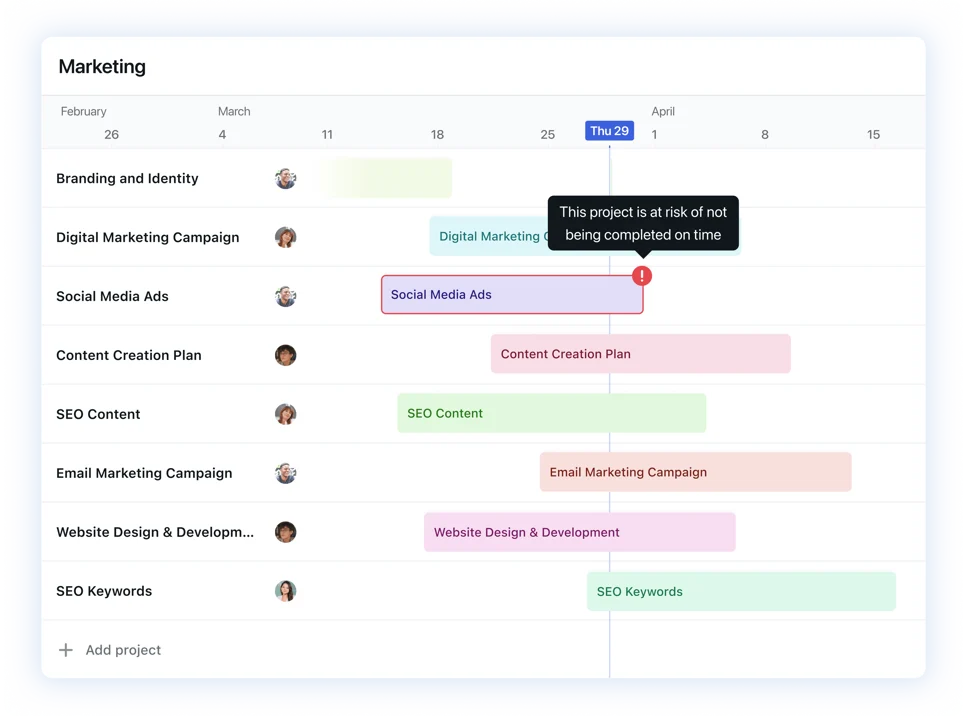
If you have ever stared at a to-do list with no idea what to actually do first, Motion might be for you. The AI is its entire point. You add tasks with deadlines, and Motion’s engine automatically time-blocks them on your calendar. It then reshuffles everything when a meeting runs long or a plan changes. The tech also reads deadlines and priorities and drops work into your open slots so you don’t have to.
Motion is also more of a project tool than most planners here, with real projects, Kanban boards, and dependencies beneath the scheduling layer. For someone with decision fatigue, it answers two questions at once: where the projects live and when each task gets done.
Ratings: Motion is rated 4.1/5 stars on G2 across 120-plus reviews. The auto-scheduling is what converts people, though opinions split once setup gets involved.
Where Motion falls short: It runs expensive and heavy for one person, and the first week of setup is steep since it expects to replace your whole stack. The auto-scheduler can place work at odd times, and there’s no fast capture for quick personal tasks.
Skip Motion if: You want to control every time block yourself, the price is steep for solo use, or you don’t really depend on your calendar.
What are real users saying about Motion?
A university student shared their experience of using Motion:
I love using Motion for keeping on top of university. I create projects with all the tasks I need to do for each week, which Motion easily prioritises for me based on when I have the respective class each week. I also love it for prompting my progress when working on assignments, which I can easily break down into stages. I use motion every day so that I know exactly what I need to get done that day. It also easily integrates things scheduled in my Outlook calendar, getting rid of double ups in scheduling.
Your pick comes down to six buying profiles: list-first, Apple-native, visual, all-in-one, build-your-own, and AI-scheduled. Each maps to one or two tools from this guide:
Pick a point tool if your need is a single job done fast. Pick a platform only when it genuinely replaces multiple subscriptions.
The bottom line: The winner for an individual is hardly ever the most powerful tool. It’s the lowest-friction one that still grows with you. ClickUp works because it starts as a free task list and scales into docs, goals, and AI only when a project demands it. Todoist, Things, and TickTick remain the better picks if you want a focused tool that does one job and disappears.
Get started with ClickUp for free and put every project in one place.
Todoist is the simplest tool that still qualifies as project management for an individual. It captures tasks via natural language in under three seconds, syncs across all devices, and adds just enough structure (projects, priorities, filters) without requiring configuration. Things is comparably simple but restricted to Apple devices.
ClickUp’s free plan has no seat limit, so one person gets the full feature set at no cost. Asana works too, though its free Personal plan caps at two users and paid tiers carry a two-seat minimum, so a solo user pays for a seat they won’t use. Either way, you inherit team-built complexity, like assignee fields and workload views, and a higher setup cost than a purpose-built solo tool like Todoist or TickTick.
Todoist is better for fast daily capture and deadline-driven work. Notion is better if you want tasks, notes, and databases linked in one workspace, and you’re willing to build the system yourself. Todoist works well out of the box with zero configuration; Notion requires upfront setup but offers more flexibility for complex personal projects.
ClickUp is better if you want structure on day one. Notion is better if you want to design your own system. ClickUp ships with ready-made List, Board, and Calendar views, plus Goals and ClickUp Brain. Notion gives you databases and pages to assemble yourself, but full Notion AI sits in the Business tier. Choose ClickUp for speed-to-value, Notion for total customization.
Things and Todoist offer the most reliable offline capture, since both store data locally and sync when you reconnect. Things is fully native across Apple devices. Todoist supports an offline add-on on mobile and desktop, and syncs in seconds once online. Browser-first tools like Notion are weaker offline. If you work on planes or trains, favor a native app over a web-only workspace.
Most strong options are free for personal use, including ClickUp, Todoist, TickTick, Trello, and Notion. Paid individual plans typically cost $5 to $19 per month. One-time-purchase apps like Things run approximately $80 total across devices. Avoid per-seat team pricing above $10 per month unless the tool genuinely replaces multiple subscriptions for you.
They matter if the AI does planning work you’d otherwise skip, like auto-scheduling tasks onto your calendar (Motion) or breaking a goal into sub-tasks (ClickUp Brain, Todoist Task Assist). A chatbot bolted on for marketing doesn’t improve personal productivity. The AI should draft, summarize, or schedule, not act as a generic assistant.
Yes, ClickUp’s Free Forever plan has no seat limit and no expiry, so a single user can run tasks, Docs, Goals, and Calendar indefinitely at no cost. The main limits are advanced views like Gantt and Timeline, which require a paid plan. For most solo workflows, the free tier is enough. You upgrade only when a project needs timeline-level planning.
Motion has the strongest AI for individual planning. It automatically schedules your tasks on your calendar and reshuffles them when plans change. ClickUp Brain is the best value if you want AI that reads your own tasks and Docs to draft sub-tasks and answer internal questions. Skip tools where AI is a bolt-on chatbot for solo productivity; scheduling and summarizing beats generic chat.
ClickUp’s Free Forever plan is the most feature-rich free option for freelancers, offering unlimited tasks, docs, and calendar views with no seat limit. Todoist’s free tier suits freelancers who need fast capture across five projects. Trello’s free plan works for freelancers who manage client pipelines visually on up to 10 Kanban boards.

Manasi Nair
Max 16min read
Manasi Nair
Max 13min read
Manasi Nair
Max 20min read

© 2026 ClickUp




